
Ask AI
— answers from the official manualAnswers from the official manual.
Common questions
Common Questions
19 totalHow do I charge my Beats Studio Buds?
Place the earbuds in the charging case and connect the case to a power source using the included USB-C cable. You can also charge the case without the earbuds inside. Note that a USB-C power adapter is sold separately.
How long does the battery last on Beats Studio Buds?
Beats Studio Buds can provide up to 8 hours of listening time with ANC turned off, or up to 5 hours with ANC turned on. The case holds two additional charges for a combined total of 24 hours with ANC off, or 15 hours with ANC on.
How do I control music playback on my Beats Studio Buds?
Use the Beats logo button on either earbud: press once to pause or play, press twice to skip to the next track, or press three times to listen to the previous track.
What is the water resistance rating for Beats Studio Buds?
Beats Studio Buds are rated IPX4, which means they are resistant to sweat and water splashing from any direction. However, the charging case is not sweat or water resistant.
How do I improve the comfort and sound quality of my Beats Studio Buds?
Beats earphones come with several sets of ear tips in different sizes. Choose the pair that's most comfortable and provides the best sound experience for you, then gently insert the ear tip into your ear. You can adjust the ear tip until it feels secure.
Can I use just one Beats Studio Bud at a time?
Yes, you can use either earbud independently without needing the other earbud.
Show 13 more questions
How do I activate Siri on my Beats Studio Buds?
How do I turn them on and off?
Can I control my music using Beats Studio Buds?
How do I control noise cancellation modes?
Can I improve comfort and sound quality with different eartips?
How long do Beats Studio Buds last on a single charge?
Can I use Siri with Beats Studio Buds?
How do I pair with my Mac using Bluetooth?
How do I pair with an Android device?
How can I activate my voice assistant using Multi-Function button?
How do I switch between Active Noise Cancellation and Transparency mode?
How do I pair Beats Studio Buds with my iPhone?
How do I pair Beats Studio Buds with an Android device?
Full Manual
10 pages
☰ Home » BEATS » Beats Studio Buds – True Wireless Noise Cancelling Earbuds-Complete Features/Instructions Manual Contents [ hide ] 1 Beats Studio Buds – True Wireless Noise Cancelling Earbuds 2 Specifications 3 What’s in the box 4 Modes 5 Switch modes on your iOS or iPadOS device 5.1 Switch modes on your Apple Watch 5.2 Switch modes on your Mac 6 Pair with an Android device 7 Pair with your Mac or with another device that uses Bluetooth 8 Use your Beats Studio Buds 8.1 Play music 8.2 Change the volume 8.3 Answer phone calls 8.4 Use Active Noise Cancellation and Transparency mode 8.5 Ask Siri 9 Frequently Asked Questions 10 References 11 Related Posts Beats Studio Buds – True Wireless Noise Cancelling Earbuds Manuals+
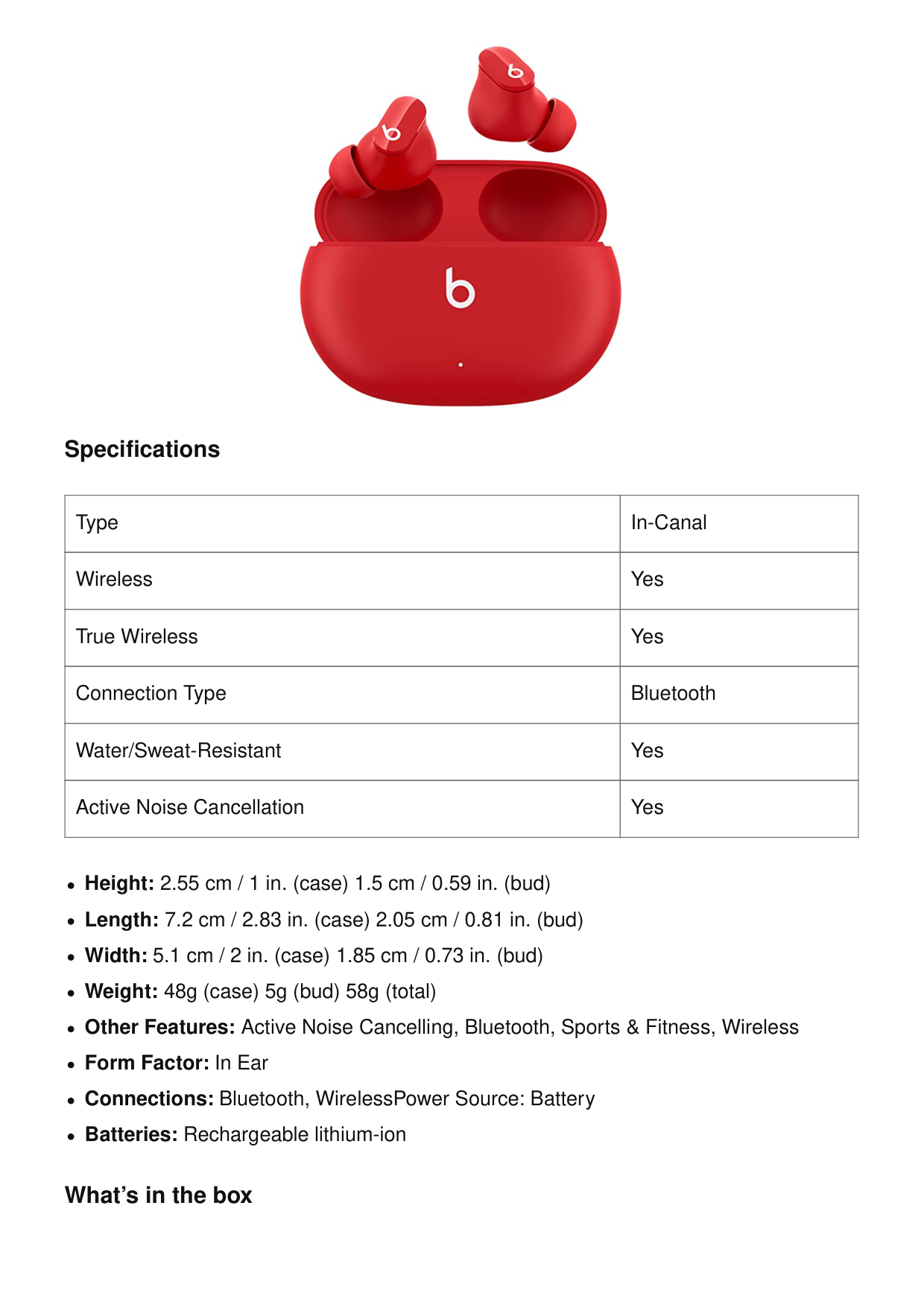
Specifications Type In-Canal Wireless Yes True Wireless Yes Connection Type Bluetooth Water/Sweat-Resistant Yes Active Noise Cancellation Yes Height: 2.55 cm / 1 in. (case) 1.5 cm / 0.59 in. (bud) Length: 7.2 cm / 2.83 in. (case) 2.05 cm / 0.81 in. (bud) Width: 5.1 cm / 2 in. (case) 1.85 cm / 0.73 in. (bud) Weight: 48g (case) 5g (bud) 58g (total) Other Features: Active Noise Cancelling, Bluetooth, Sports & Fitness, Wireless Form Factor: In Ear Connections: Bluetooth, WirelessPower Source: Battery Batteries: Rechargeable lithium-ion What’s in the box
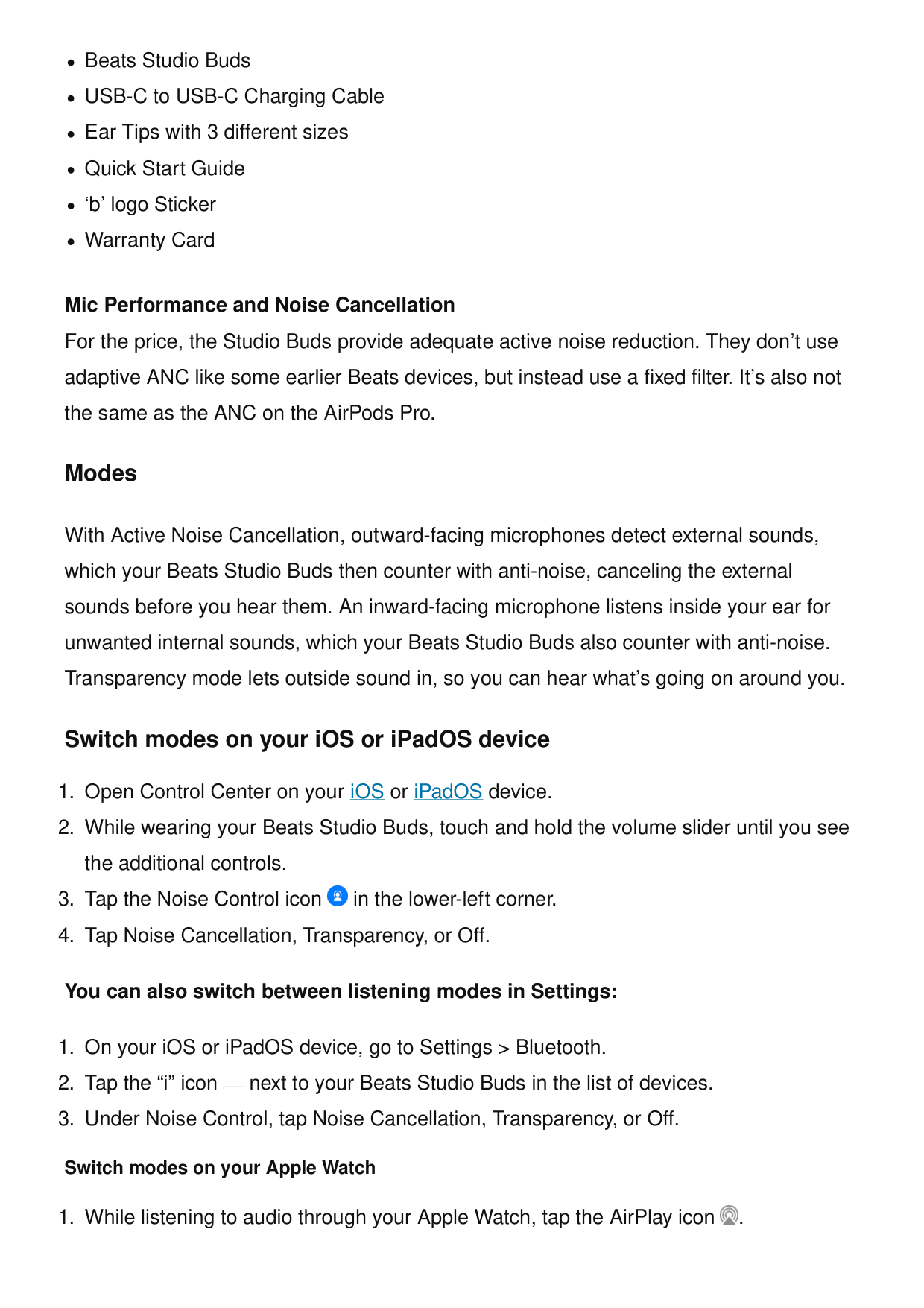
Beats Studio Buds USB-C to USB-C Charging Cable Ear Tips with 3 different sizes Quick Start Guide ‘b’ logo Sticker Warranty Card Mic Performance and Noise Cancellation For the price, the Studio Buds provide adequate active noise reduction. They don’t use adaptive ANC like some earlier Beats devices, but instead use a fixed filter. It’s also not the same as the ANC on the AirPods Pro. Modes With Active Noise Cancellation, outward-facing microphones detect external sounds, which your Beats Studio Buds then counter with anti-noise, canceling the external sounds before you hear them. An inward-facing microphone listens inside your ear for unwanted internal sounds, which your Beats Studio Buds also counter with anti-noise. Transparency mode lets outside sound in, so you can hear what’s going on around you. Switch modes on your iOS or iPadOS device

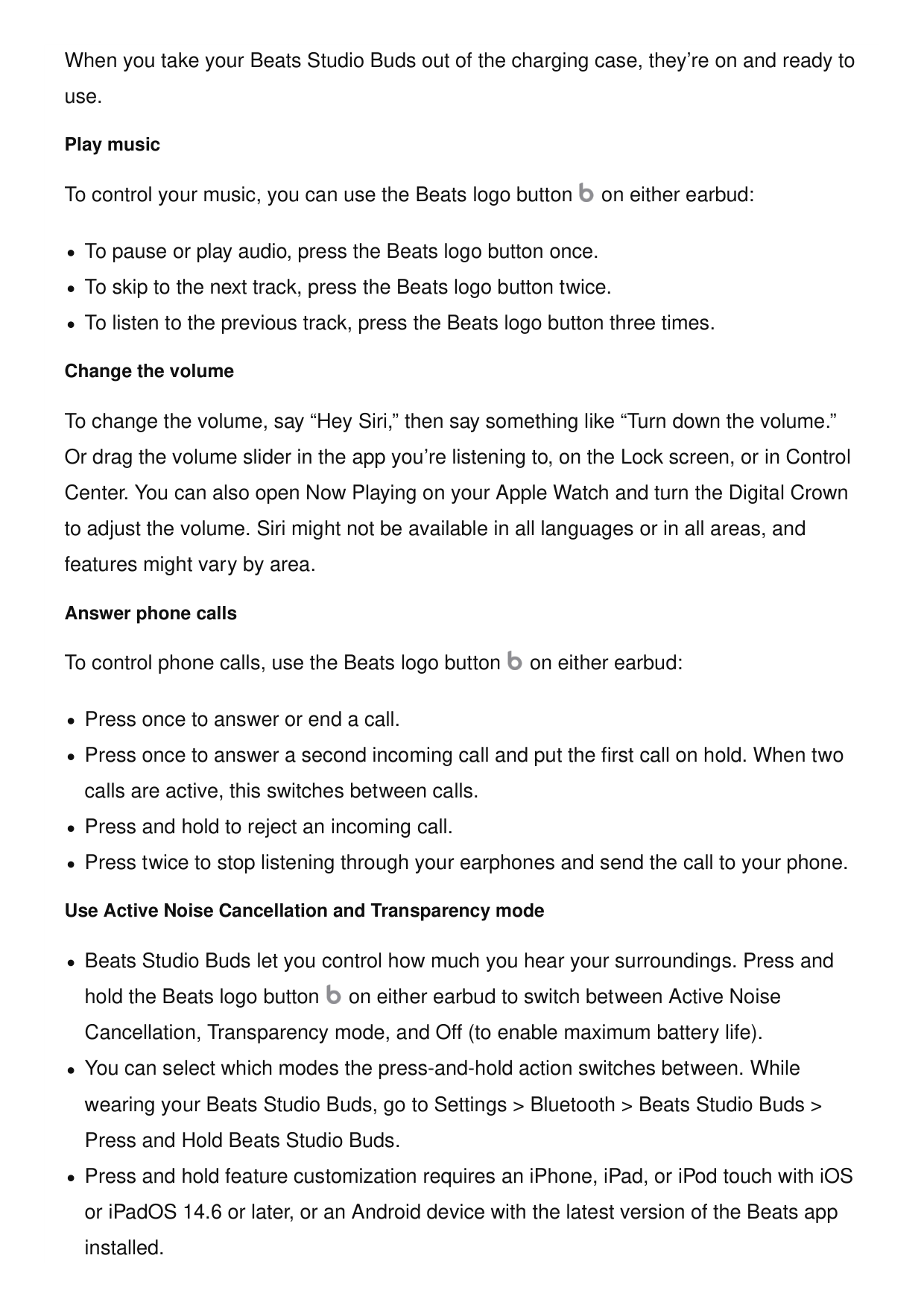
When you take your Beats Studio Buds out of the charging case, they’re on and ready to use. Play music To control your music, you can use the Beats logo button on either earbud: To pause or play audio, press the Beats logo button once. To skip to the next track, press the Beats logo button twice. To listen to the previous track, press the Beats logo button three times. Change the volume To change the volume, say “Hey Siri,” then say something like “Turn down the volume.” Or drag the volume slider in the app you’re listening to, on the Lock screen, or in Control Center. You can also open Now Playing on your Apple Watch and turn the Digital Crown to adjust the volume. Siri might not be available in all languages or in all areas, and features might vary by area. Answer phone calls To control phone calls, use the Beats logo button on either earbud: Press once to answer or end a call. Press once to answer a second incoming call and put the first call on hold. When two calls are active, this switches between calls. Press and hold to reject an incoming call. Press twice to stop listening through your earphones and send the call to your phone. Use Active Noise Cancellation and Transparency mode Beats Studio Buds let you control how much you hear your surroundings. Press and hold the Beats logo button on either earbud to switch between Active Noise Cancellation, Transparency mode, and Off (to enable maximum battery life). You can select which modes the press-and-hold action switches between. While wearing your Beats Studio Buds, go to Settings > Bluetooth > Beats Studio Buds > Press and Hold Beats Studio Buds. Press and hold feature customization requires an iPhone, iPad, or iPod touch with iOS or iPadOS 14.6 or later, or an Android device with the latest version of the Beats app installed.

Ask Siri If you set up “Hey Siri” on your iPhone already, then “Hey Siri” is ready to use with your Beats Studio Buds. If you haven’t set up “Hey Siri,” you’ll be guided through the setup. To activate Siri, you can say “Hey Siri,” or press and hold the Beats logo button on either earbud. When you hear a chime, say what you need. Learn what to do if Siri isn’t working. Frequently Asked Questions How do you charge them? To charge your Beats Studio Buds, place them in the charging case. When you need to charge both the earbuds and the case, place the earbuds in the case and connect the case to a power source with the USB-C cable that’s included with your Beats Studio Buds. You can also charge the case without the earbuds. (Note: USB-C power adapter sold separately). How do you turn them on and off? Beats Studio Buds automatically power on when they are removed from the case, and power off when placed back in the case with the lid closed. Can you control your music? Beats Studio Buds feature a multi-function button on each earbud. Press once to play or pause, twice to skip forward, or three times to skip backward. How do you control noise cancelling? Hold the multi-function button down to toggle between Active Noise Cancelling (ANC) and Transparency mode. How do I improve the comfort, stability, and sound quality of your Beats Studio Buds? Beats earphones come with several sets of eartips. Choose the pair that’s most comfortable and provides the best sound experience for you. If your earphones don’t already have eartips attached, choose a set of eartips and attach them. Then gently

insert the eartip into your ear. You can adjust the eartip until it feels secure. To remove the eartip from your ear, twist the earphone gently and pull it away from your ear. How do I activate Siri or other voice assistants? On Apple devices, you can activate Siri hands-free just by saying “Hey Siri”. Or, change the function of the multi-function button to activate your voice assistant within your iOS settings. On Android, download the Beats app to change the function of the multi- function button to activate the default voice assistant on your device. How do I configure the multi-function button? You can configure the multi-function button to either toggle ANC modes or activate voice assistant. To do this in iOS, tap on the product icon in Control Center and select the “Press and hold” menu to choose your preferred function for each earbud. To do this on Android, download the Beats app from Google Play. Once your product is paired in the app, select the “Press and hold” menu in the product page to choose your preferred function for each earbud. How long does the battery last? Beats Studio Buds can provide up to 8 hours of listening time with ANC turned off, or up to 5 hours of listening time with ANC turned on. The case holds two additional charges for a combined total of 24 hours with ANC off, or 15 hours with ANC on. Do they have a microphone? Beats Studio Buds have multiple microphones on each earbud enabling high-quality call performance. Each earbud has 2 microphones dedicated to ANC and 1 dedicated to voice pickup. How do I pair with my iPhone? Beats Studio Buds are ready to pair right out of the box. On iPhone running the latest iOS, simply open the lid of the case, hold near unlocked phone, and follow on-screen instructions. How do I pair with my Android device? On Android, you can pair your product in a single tap using Google Fast Pair. In order to access the feature, you must have Android 6.0 or later, location enabled, and access to

Google Play Services. If you meet those requirements, simply open the lid of the case, hold near unlocked phone, and follow on-screen instructions. You can also pair your product in the standard Bluetooth menu. How do I pair with my Mac or with another device that uses Bluetooth? Make sure that you turned on Bluetooth on your Mac or other device. With the case lid open, hold your Beats Studio Buds next to your Mac or other device. Press and hold the system button on the charging case until the LED blinks. Open the Bluetooth menu on your Mac or other device. For example, on your Mac, choose Apple menu > System Preferences, then click Bluetooth. In the list of discovered Bluetooth devices, tap or click your Beats Studio Buds. How do I pair with additional Bluetooth devices? To pair to additional devices, place the earbuds in the case with the lid open. Then hold down the small circular button until the LED begins to flash. Beats Studio Buds are now in pairing mode and can be paired to any standard Bluetooth device. Can I wear just one earbud? Yes, you can use either earbud independently. How waterproof / water resistant are these? Beats Studio Buds are rated IPX4, which means they are resistant to sweat and water splashing from any direction. The case is not sweat or water resistant. How do I keep my product up to date? Software updates will occasionally be made available to enable new features or improve the product experience. These ‘silent’ updates are automatically enabled when connected to an Apple device. To stay up to date on an Android device, download the Beats app from Google Play. References User Manual Related Posts
How to Reset Beats Studio Buds: Fix Sound, Bluetooth & Charging Issues This page provides instructions on how to reset your Beats Studio Buds. If you are experiencing issues with… motorola MOTO BUDS 250 True Wireless Earbuds User Guide motorola MOTO BUDS 250 True Wireless Earbuds Model No.: MOTO BUDS 250 Frequency Band: 2.402 – 2.480GHz Maximum… nOISE Air Buds True Wireless Earbuds User Guide SPECIFICATIONS Earbud Weight: 4.5 grams Speaker Driver Size:13 mm Supported Profiles: HFP, HSP, A2DP, AVRCP Bluetooth Version: 5.0… True Wireless Earbuds User Manual True Wireless Earbuds User Manual
Beats
Beats, Beats Studio Buds – True Wireless Noise Cancelling Earbuds, bluetooth, Buds, Cancelling, earbuds, Noise, True, Wireless Leave a comment Apple Support Your email address will not be published. Required fields are marked * Comment * Name
Search: e.g. whirlpool wrf535swhz
Search This website is an independent publication and is neither affiliated with nor endorsed by any of the trademark owners. The "Bluetooth®" word mark and logos are registered trademarks owned by Bluetooth SIG, Inc. The "Wi-Fi®" word mark and logos are registered trademarks owned by the Wi-Fi Alliance. Any use of these marks on this website does not imply any affiliation with or endorsement. Email Website Save my name, email, and website in this browser for the next time I comment. Post Comment