
Ask AI
— answers from the official manualAnswers from the official manual.
Common questions
Common Questions
10 totalHow do I change the heating time period?
To adjust a daily event’s timing: Press and hold MODE once so the display flashes 'Change' then press + or - to set the correct hour. After 5 seconds, this setting will take effect.
How long does it take for heating to reach a certain temperature?
Adjusting thermostat settings higher won't make rooms heat up faster; actual warming rate depends on boiler size and radiator capacity. For best results, gradually increase temperatures incrementally over several days until desired comfort level is reached.
How do I switch to 12-hour clock mode?
To change from a 24-hour display, enter User Options (press < and > simultaneously for 3 seconds), scroll through options using > until you reach option 01. Use + or - keys to select 12h format, then press > to confirm.
What should I do if the clock isn't correct after a time change?
The thermostat has an automatic summer/winter time adjustment feature. If you need to change it manually: Enter User Options, select Option 04 using + and - keys, press > to confirm Off or On setting to disable/enable auto-update.
How do I establish a Radio Link?
To create an automatic radio link: Turn the receiver and transmitter into “learning mode,” then follow these steps: - Press > on your thermostat until ‘Option 9’ is shown, press + to activate, see ON blinking. - Once connected successfully (after ~1 minute), end learning mode by pressing >.
How do I set the holiday mode?
To enter Holiday Mode: Press and hold MODE twice until time starts flashing. Adjust count-down hours using + or - keys, press MODE to switch focus to temperature adjusting for desired setback value.
Full Manual
2 pages
|Programmable Room Thermostat Wireless
Model: RF720BG, 22561BG
User Instructions
|What is a programmable room thermostat?
...an explanation for householders
A programmable room thermostat is both a programmer and a room thermostat. A programmer allows you to set ‘On’ and ‘Off’ time periods to suit your own lifestyle. A room thermostat works by sensing the air temperature, switching on the heating when the air temperature falls below the thermostat setting, and switching it off once this set temperature has been reached.
So, a programmable room thermostat lets you choose what times you want the heating to be on, and what temperature it should reach while it is on. It will allow you to select different temperatures in your home at different times of the day (and days of the week) to meet your particular needs.
Turning a programmable room thermostat to a higher setting will not make the room heat up any faster. How quickly the room heats up depends on the design of the heating system, for example, the size of boiler and radiators.
Neither does the setting affect how quickly the room cools down. Turning a programmable room thermostat to a lower setting will result in the room being controlled at a lower temperature, and saves energy.
The way to set and use your programmable room thermostat is to find the lowest temperature settings that you are comfortable with at the different times you have chosen, and then leave it alone to do its job. The best way to do this is to set low temperatures first, say 18
o
C,
and then turn them up by one degree each day until you are comfortable with the temperatures. You won’t have to adjust the thermostat further. Any adjustments above these settings will waste energy and cost you more money.
If your heating system is a boiler with radiators, there will usually be only one programmable room thermostat to control the whole house. But you can have different temperatures in individual rooms by installing thermostatic radiator valves (TRVs) on individual radiators. If you don’t have TRVs, you should choose a temperature that is reasonable for the whole house. If you do have TRVs, you can choose a slightly higher setting to make sure that even the coldest room is comfortable, then prevent any overheating in other rooms by adjusting the TRVs.
The time on the programmer must be correct. Some types have to be adjusted in spring and autumn at the changes between Greenwich Mean Time and British Summer Time.
You may be able to temporarily adjust the heating programme, for example, ‘Override’, ‘Advance’ or ‘Boost’. These are explained in the manufacturer’s instructions.
Programmable room thermostats need a free flow of air to sense the temperature, so they must not be covered by curtains or blocked by furniture. Nearby electric fires, televisions, wall or table lamps may prevent the thermostat from working properly.

| |---|

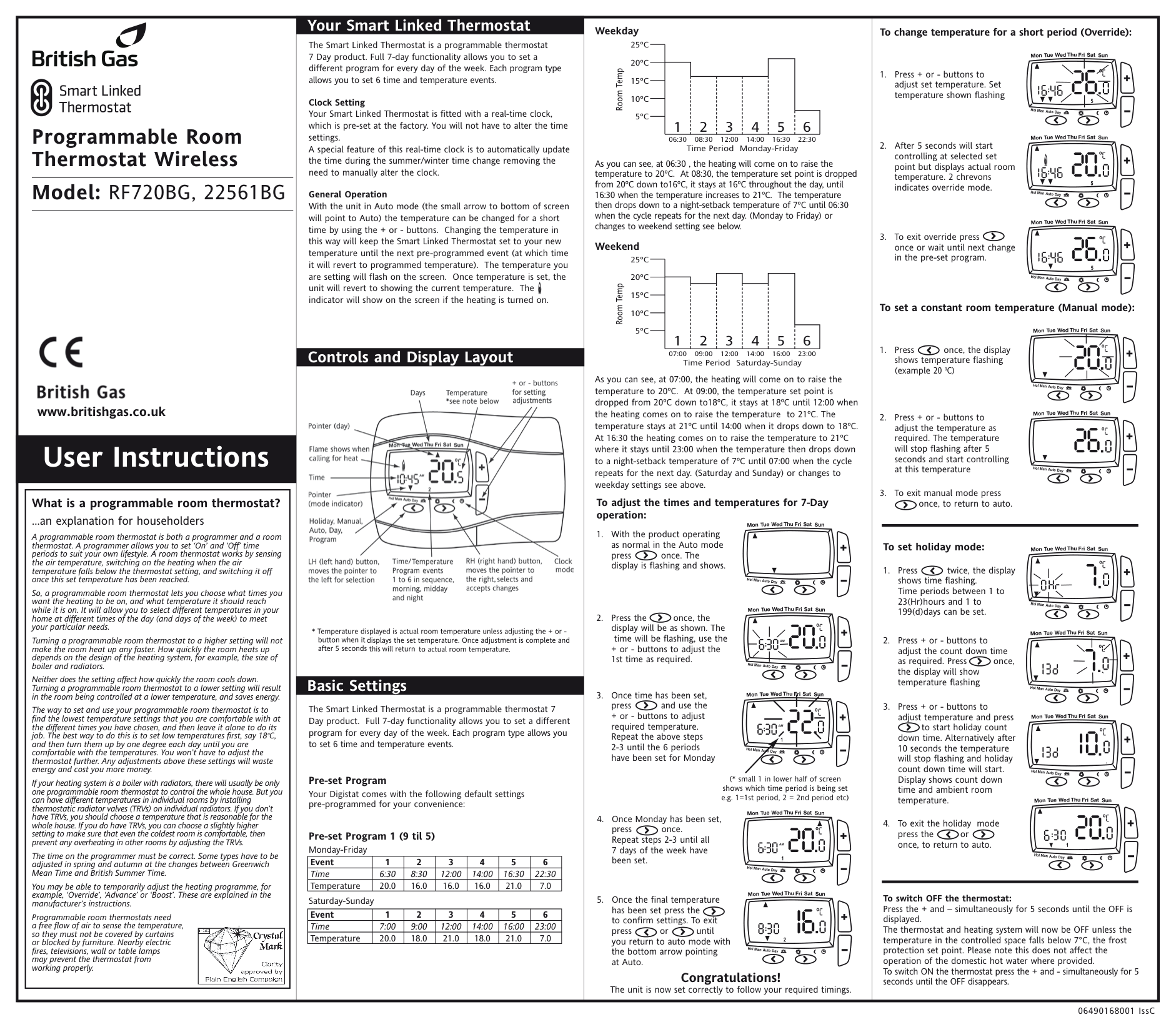
www.britishgas.co.uk|The Smart Linked Thermostat is a programmable thermostat 7 Day product. Full 7-day functionality allows you to set a different program for every day of the week. Each program type allows you to set 6 time and temperature events.
Clock Setting Your Smart Linked Thermostat is fitted with a real-time clock, which is pre-set at the factory. You will not have to alter the time settings. A special feature of this real-time clock is to automatically update the time during the summer/winter time change removing the need to manually alter the clock.
General Operation With the unit in Auto mode (the small arrow to bottom of screen will point to Auto) the temperature can be changed for a short time by using the + or - buttons. Changing the temperature in this way will keep the Smart Linked Thermostat set to your new temperature until the next pre-programmed event (at which time it will revert to programmed temperature). The temperature you are setting will flash on the screen. Once temperature is set, the unit will revert to showing the current temperature. The indicator will show on the screen if the heating is turned on.
The Smart Linked Thermostat is a programmable thermostat 7 Day product. Full 7-day functionality allows you to set a different program for every day of the week. Each program type allows you to set 6 time and temperature events.
Pre-set Program Your Digistat comes with the following default settings pre-programmed for your convenience:
Basic Settings
Your Smart Linked Thermostat
Controls and Display Layout

|Event|1|2|3|4|5|6| |---|---|---|---|---|---|---| |Time|6:30|8:30|12:00|14:00|16:30|22:30| |Temperature|20.0|16.0|16.0|16.0|21.0|7.0|
|Event|1|2|3|4|5|6| |---|---|---|---|---|---|---| |Time|7:00|9:00|12:00|14:00|16:00|23:00| |Temperature|20.0|18.0|21.0|18.0|21.0|7.0|
Pre-set Program 1 (9 til 5) Monday-Friday
Saturday-Sunday|1 2 3 4 5 6
25ºC 20ºC 15ºC 10ºC
5ºC
06:30 08:30 12:00 14:00 16:30 22:30 Time Period Monday-Friday
RoomTemp
1 2 3 4 5 6
25ºC 20ºC 15ºC 10ºC
5ºC
07:00 09:00 12:00 14:00 16:00 23:00 Time Period Saturday-Sunday
RoomTemp
Weekday
Weekend
As you can see, at 06:30 , the heating will come on to raise the
temperature to 20ºC. At 08:30, the temperature set point is dropped from 20ºC down to16ºC, it stays at 16ºC throughout the day, until 16:30 when the temperature increases to 21ºC. The temperature then drops down to a night-setback temperature of 7ºC until 06:30 when the cycle repeats for the next day. (Monday to Friday) or changes to weekend setting see below.
As you can see, at 07:00, the heating will come on to raise the
temperature to 20ºC. At 09:00, the temperature set point is dropped from 20ºC down to18ºC, it stays at 18ºC until 12:00 when the heating comes on to raise the temperature to 21ºC. The temperature stays at 21ºC until 14:00 when it drops down to 18ºC. At 16:30 the heating comes on to raise the temperature to 21ºC where it stays until 23:00 when the temperature then drops down to a night-setback temperature of 7ºC until 07:00 when the cycle repeats for the next day. (Saturday and Sunday) or changes to weekday settings see above.
(* small 1 in lower half of screen shows which time period is being set e.g. 1=1st period, 2 = 2nd period etc)
3. Once time has been set, press and use the
+ or - buttons to adjust required temperature. Repeat the above steps 2-3 until the 6 periods have been set for Monday
To adjust the times and temperatures for 7-Day operation:
1. With the product operating as normal in the Auto mode press once. The display is flashing and shows.
2. Press the once, the display will be as shown. The
time will be flashing, use the
+ or - buttons to adjust the 1st time as required.
Congratulations! The unit is now set correctly to follow your required timings.
4. Once Monday has been set, press once. Repeat steps 2-3 until all 7 days of the week have been set.
5. Once the final temperature has been set press the to confirm settings. To exit press or until you return to auto mode with the bottom arrow pointing at Auto.
|To change temperature for a short period (Override):
1. Press + or - buttons to adjust set temperature. Set temperature shown flashing
2. After 5 seconds will start controlling at selected set point but displays actual room temperature. 2 chrevons indicates override mode.
3. To exit override press once or wait until next change in the pre-set program.
To set a constant room temperature (Manual mode):
1. Press once, the display shows temperature flashing
(example 20
0
C)
2. Press + or - buttons to adjust the temperature as required. The temperature will stop flashing after 5 seconds and start controlling at this temperature
3. To exit manual mode press once, to return to auto.
To set holiday mode:
1. Press twice, the display shows time flashing. Time periods between 1 to 23(Hr)hours and 1 to 199(d)days can be set.
2. Press + or - buttons to adjust the count down time as required. Press once, the display will show temperature flashing
To switch OFF the thermostat: Press the + and – simultaneously for 5 seconds until the OFF is displayed. The thermostat and heating system will now be OFF unless the temperature in the controlled space falls below 7°C, the frost protection set point. Please note this does not affect the operation of the domestic hot water where provided. To switch ON the thermostat press the + and - simultaneously for 5 seconds until the OFF disappears.
3. Press + or - buttons to adjust temperature and press
to start holiday count down time. Alternatively after 10 seconds the temperature will stop flashing and holiday count down time will start. Display shows count down time and ambient room temperature.
4. To exit the holiday mode press the or once, to return to auto.
| |---|---|---|---|
######### 06490168001 IssC
User Options
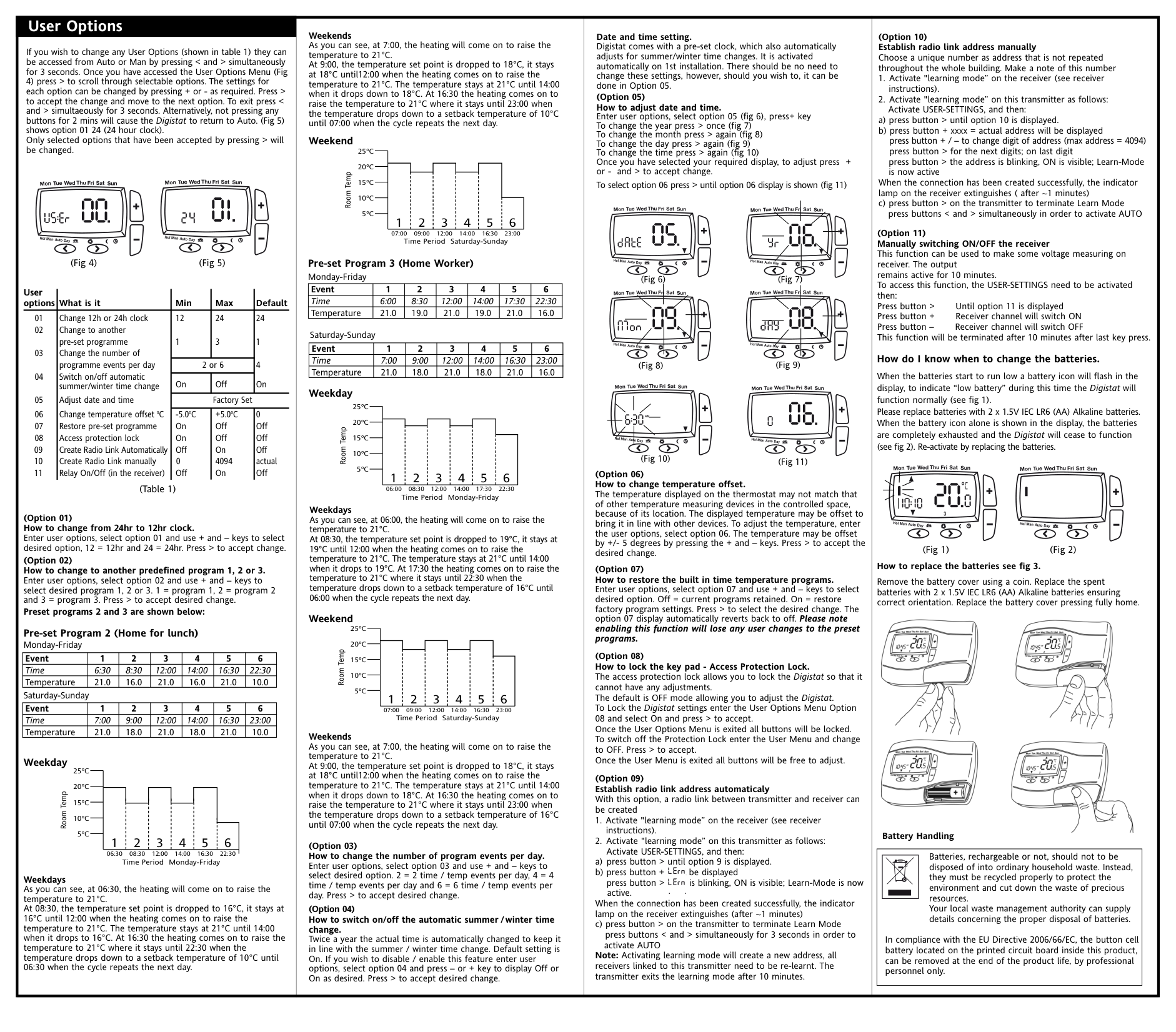
If you wish to change any User Options (shown in table 1) they can be accessed from Auto or Man by pressing < and > simultaneously for 3 seconds. Once you have accessed the User Options Menu (Fig
4) press > to scroll through selectable options. The settings for each option can be changed by pressing + or - as required. Press > to accept the change and move to the next option. To exit press < and > simultaeously for 3 seconds. Alternatively, not pressing any buttons for 2 mins will cause the Digistat to return to Auto. (Fig 5) shows option 01 24 (24 hour clock). Only selected options that have been accepted by pressing > will be changed.
(Fig 4) (Fig 5)
|User options|What is it|Min|Max|Default| |---|---|---|---|---| |01
02
03
04
05
06
07
08
09
10
11
|Change 12h or 24h clock Change to another pre-set programme Change the number of programme events per day Switch on/off automatic summer/winter time change Adjust date and time Change temperature offset
0
C
Restore pre-set programme Access protection lock CreateRadio Link Automatically Create Radio Link manually Relay On/Off (in the receiver)|12
1|24
3|24 1 4 On| |01
02
03
04
05
06
07
08
09
10
11
|Change 12h or 24h clock Change to another pre-set programme Change the number of programme events per day Switch on/off automatic summer/winter time change Adjust date and time Change temperature offset
0
C
Restore pre-set programme Access protection lock CreateRadio Link Automatically Create Radio Link manually Relay On/Off (in the receiver)|2 or 6|2 or 6|24 1 4 On| |01
02
03
04
05
06
07
08
09
10
11
|Change 12h or 24h clock Change to another pre-set programme Change the number of programme events per day Switch on/off automatic summer/winter time change Adjust date and time Change temperature offset
0
C
Restore pre-set programme Access protection lock CreateRadio Link Automatically Create Radio Link manually Relay On/Off (in the receiver)|On|Off|24 1 4 On| |01
02
03
04
05
06
07
08
09
10
11
|Change 12h or 24h clock Change to another pre-set programme Change the number of programme events per day Switch on/off automatic summer/winter time change Adjust date and time Change temperature offset
0
C
Restore pre-set programme Access protection lock CreateRadio Link Automatically Create Radio Link manually Relay On/Off (in the receiver)|Factory Set|Factory Set|Factory Set| |01
02
03
04
05
06
07
08
09
10
11
|Change 12h or 24h clock Change to another pre-set programme Change the number of programme events per day Switch on/off automatic summer/winter time change Adjust date and time Change temperature offset
0
C
Restore pre-set programme Access protection lock CreateRadio Link Automatically Create Radio Link manually Relay On/Off (in the receiver)|-5.0
0
C
On On Off 0 Off|+5.0
0
C
Off Off On 4094 On|0 Off Off Off actual Off|
(Table 1)
(Option 02) How to change to another predefined program 1, 2 or 3.
##### Pre-set Program 2 (Home for lunch) Monday-Friday
|Event|1|2|3|4|5|6| |---|---|---|---|---|---|---| |Time|6:30|8:30|12:00|14:00|16:30|22:30| |Temperature|21.0|16.0|21.0|16.0|21.0|10.0|
Saturday-Sunday
|Event|1|2|3|4|5|6| |---|---|---|---|---|---|---| |Time|7:00|9:00|12:00|14:00|16:30|23:00| |Temperature|21.0|18.0|21.0|18.0|21.0|10.0|
Weekday
25ºC 20ºC 15ºC 10ºC
RoomTemp
5ºC
123456
06:30 08:30 12:00 14:00 16:30 22:30 Time Period Monday-Friday
####### Weekdays
####### Weekends
Date and time setting. Digistat comes with a pre-set clock, which also automatically adjusts for summer/winter time changes. It is activated automatically on 1st installation. There should be no need to change these settings, however, should you wish to, it can be done in Option 05.
(Option 05) How to adjust date and time. Enter user options, select option 05 (fig 6), press+ key To change the year press > once (fig 7) To change the month press > again (fig 8) To change the day press > again (fig 9) To change the time press > again (fig 10) Once you have selected your required display, to adjust press + or - and > to accept change.
Weekend
25ºC 20ºC 15ºC 10ºC
RoomTemp
To select option 06 press> until option 06 display is shown(fig 11)
5ºC
123456
07:00 09:00 12:00 14:00 16:30 23:00 Time Period Saturday-Sunday
##### Pre-set Program 3 (Home Worker) Monday-Friday
(Fig 7)(Fig6)
|Event|1|2|3|4|5|6| |---|---|---|---|---|---|---| |Time|6:00|8:30|12:00|14:00|17:30|22:30| |Temperature|21.0|19.0|21.0|19.0|21.0|16.0|
Saturday-Sunday
|Event|1|2|3|4|5|6| |---|---|---|---|---|---|---| |Time|7:00|9:00|12:00|14:00|16:30|23:00| |Temperature|21.0|18.0|21.0|18.0|21.0|16.0|
(Fig 9)(Fig8)
Weekday
25ºC 20ºC 15ºC 10ºC
RoomTemp
(Fig 10)
(Fig 11)
5ºC
123456
06:00 08:30 12:00 14:00 17:30 22:30 Time Period Monday-Friday
Weekdays
Weekend
25ºC 20ºC 15ºC 10ºC
RoomTemp
5ºC
123456
07:00 09:00 12:00 14:00 16:30 23:00 Time Period Saturday-Sunday
####### Weekends
When the connection has been created successfully, the indicator lamp on the receiver extinguishes (after ~1 minutes)
###### LErn w LErn i h b
Note: Activating learning mode will create a new address, all receivers linked to this transmitter need to be re-learnt. The transmitter exits the learning mode after 10 minutes.
(Option 10) Establish radio link address manually Choose a unique number as address that is not repeated throughout the whole building. Make a note of this number
When the connection has been created successfully, the indicator lamp on the receiver extinguishes ( after ~1 minutes)
(Option 11) Manually switching ON/OFF the receiver This function can be used to make some voltage measuring on receiver. The output remains active for 10 minutes. To access this function, the USER-SETTINGS need to be activated then: Press button > Until option 11 is displayed Press button + Receiver channel will switch ON Press button – Receiver channel will switch OFF This function will be terminated after 10 minutes after last key press.
##### How do I know when to change the batteries.
When the batteries start to run low a battery icon will flash in the display, to indicate “low battery” during this time the Digistat will function normally (see fig 1). Please replace batteries with 2 x 1.5V IEC LR6 (AA) Alkaline batteries. When the battery icon alone is shown in the display, the batteries are completely exhausted and the Digistat will cease to function (seefig 2). Re-activate by replacing the batteries.
(Fig 1) (Fig 2)
####### How to replace the batteries see fig 3.
Remove the battery cover using a coin. Replace the spent batteries with 2 x 1.5V IEC LR6 (AA) Alkaline batteries ensuring correct orientation. Replace the battery cover pressing fully home.


####### Battery Handling
Batteries, rechargeable or not, should not to be disposed of into ordinary household waste. Instead, they must be recycled properly to protect the environment and cut down the waste of precious resources. Your local waste management authority can supply details concerning the proper disposal of batteries.
In compliance with the EU Directive 2006/66/EC, the button cell battery located on the printed circuit board inside this product, can be removed at the end of the product life, by professional personnel only.