
Ask AI
— answers from the official manualAnswers from the official manual.
Common questions
Common Questions
9 totalHow do I pair two SPIRIT units for Bluetooth intercom use?
Both units should be in pairing mode: On one unit, press and hold button for 5 seconds until the LED flashes red. Repeat on other unit within 2 minutes. Once paired successfully through Cardo's protocol or another Bluetooth intercom group method, they will automatically recognize each other when nearby. (Page 14)
How do I update the software on my SPIRIT?
Use the Cardo Connect app to check for updates; if available, a pop-up will guide you through installation process by pressing Install. Alternatively, use the Cardo Update tool downloaded from www.cardosystems.com/update and follow its instructions after registering and connecting your unit via USB cable. (Page 9)
How long does it take to charge my SPIRIT?
Fast charging gives 2 hours of talktime after just 20 minutes plugged into a wall charger. To fully charge the battery, it typically takes about 1.5 to 2 hours depending on the power source (slower with computer USB). While charging automatically switches off the unit, you can still use it during this time if needed. (Page 4)
Can I switch between connected Bluetooth audio devices?
If two music sources are paired to your SPIRIT, the audio source from which music was last played remains active until you end playback on that device and start streaming again from another. The system remembers and switches accordingly when activated. (Page 12)
How can I make a call with my SPIRIT?
To initiate a phone call, use your mobile phone's voice command function ('Hey Siri' or 'OK Google'). When you receive an incoming call, simply press Mobile button to answer; to hang up, do the same (Page 10).
How can I share music with another SPIRIT user?
To start sharing your audio stream, hold and buttons for 2 seconds on channel A by default when paired with a compatible user. To stop sharing: press Volume Up button for 2 seconds (Page 16).
Full Manual
19 pages

CONTENTS
1. INTRODUCTION
Thank you for choosing the Cardo SPIRIT communication and entertainment system for motorcycle helmets. We wish you a great SPIRIT experience and encourage you to visit www.cardosystems.com/support/spirit/ regarding any questions, suggestions or comments you may have. If you have not yet installed the SPIRIT unit on your helmet, please install it as described in the Installation Guide provided in the package. You can also watch the installation video accessible on that link www.cardosystems.com/spirit-installation/ For easy reference while on the road, download the Pocket Guide from www.cardosystems.com/wpcontent/uploads/guides/pocket/en/spirit.pdf
And don't forget to register your SPIRIT. Registering your SPIRIT allows you to download software updates, enjoy new features that are offered from time to time, and assures smooth handling of warranty issues you may have. Also rest assured: Cardo does not share your details with others.
This is version 1.0 of the SPIRIT Manual. The latest version of the manuals in your preferred language and various tutorials can be found at www.cardosystems.com/wp-content/uploads/guides/manual/en/spirit.pdf
2. GETTING STARTED
2.1 GETTING TO KNOW YOUR SPIRIT

2.2 CHARGING YOUR SPIRIT
|● Make sure that your SPIRIT battery is charged for at least 4 hours before initial use.| |---|
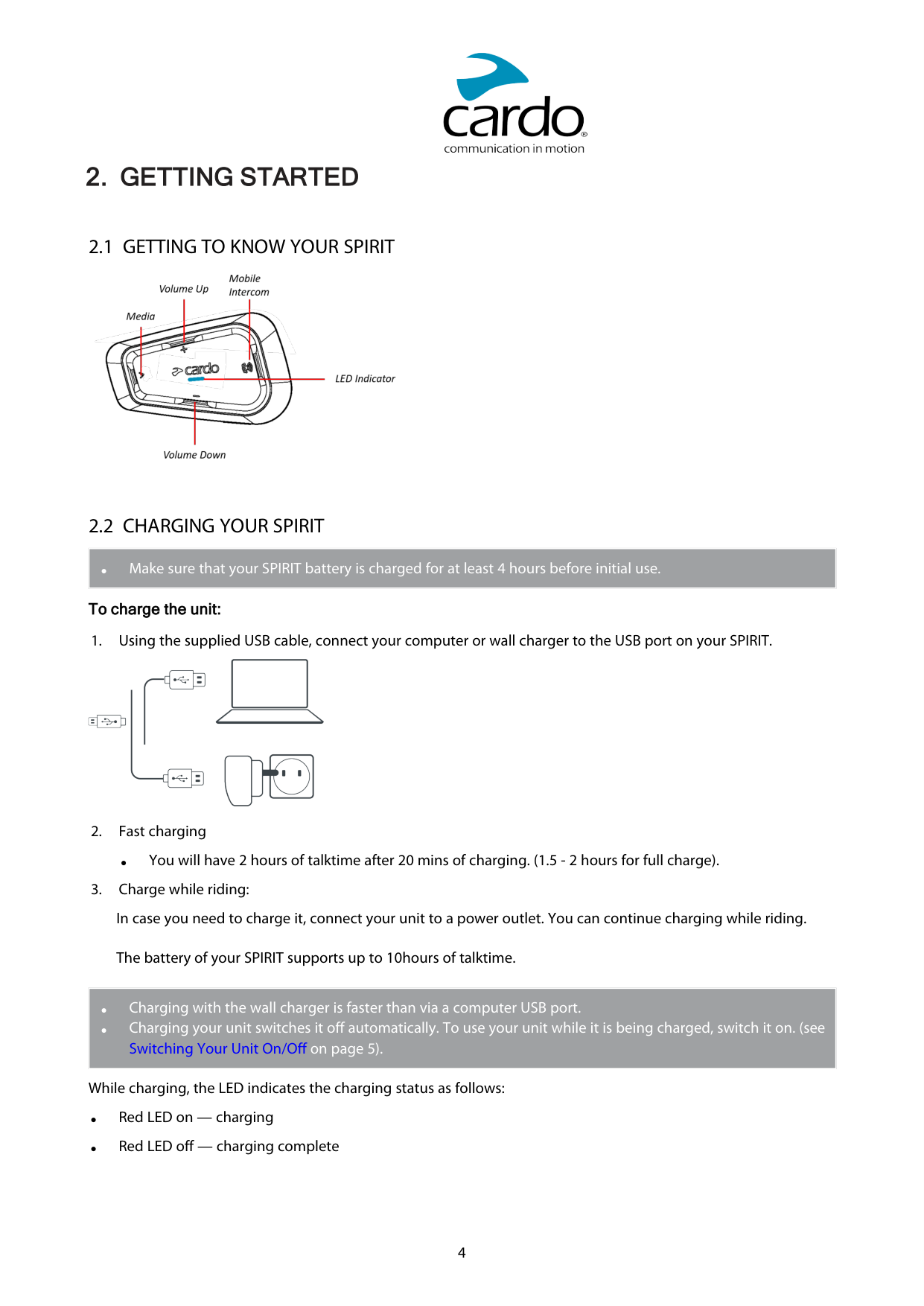
#### To charge the unit:

● You will have 2 hours of talktime after 20 mins of charging. (1.5 - 2 hours for full charge).
The battery of your SPIRIT supports up to 10hours of talktime.
|● Charging with the wall charger is faster than via a computer USB port.
● Charging your unit switches it off automatically. To use your unit while it is being charged, switch it on. (see Switching Your Unit On/Off on page 5).
| |---|
While charging, the LED indicates the charging status as follows:
● Press both and for 2 seconds.

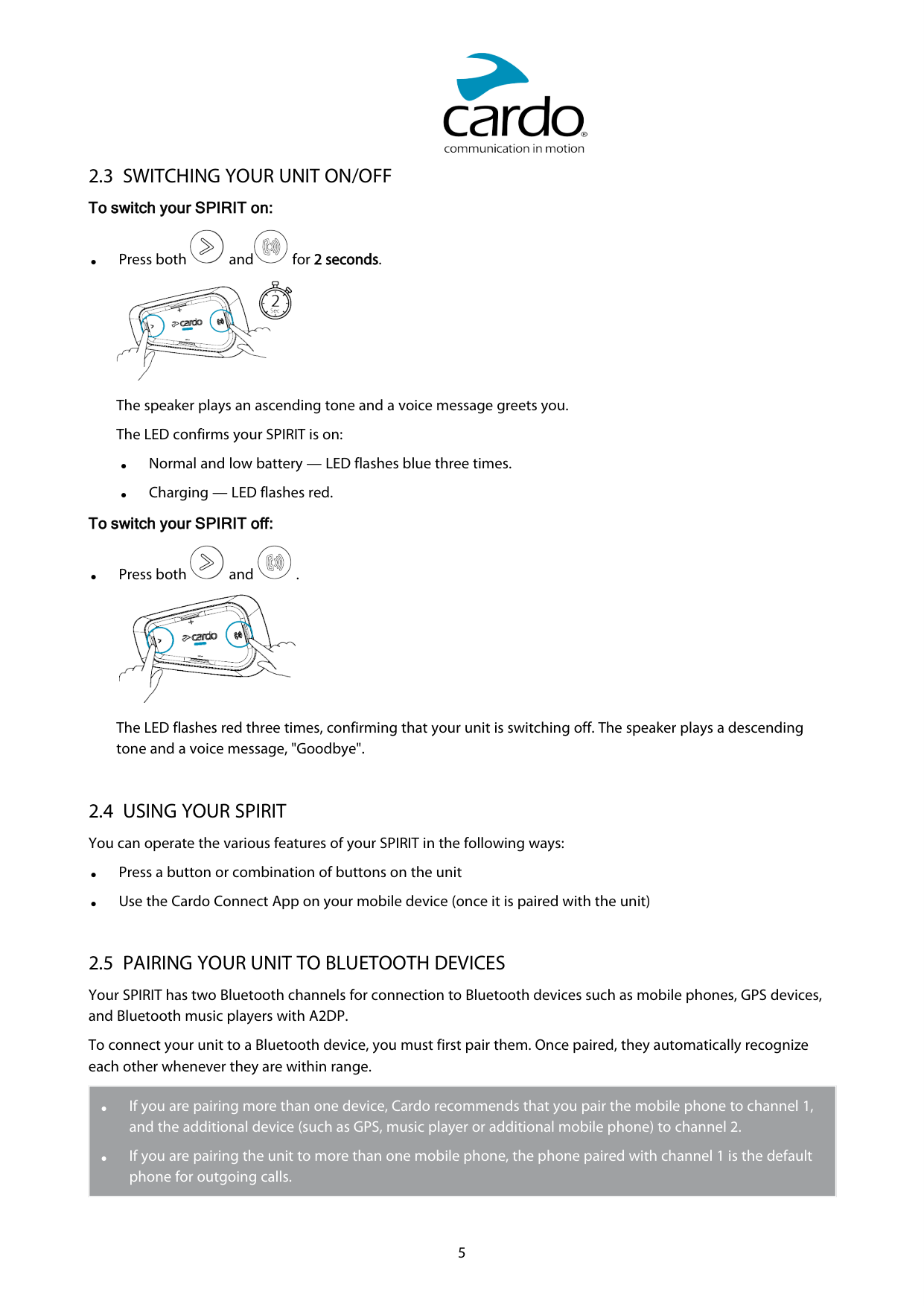


The speaker plays an ascending tone and a voice message greets you. The LED confirms your SPIRIT is on:
To switch your SPIRIT off:
● Press both and .


The LED flashes red three times, confirming that your unit is switching off. The speaker plays a descending tone and a voice message, "Goodbye".
Your SPIRIT has two Bluetooth channels for connection to Bluetooth devices such as mobile phones, GPS devices, and Bluetooth music players with A2DP.
To connect your unit to a Bluetooth device, you must first pair them. Once paired, they automatically recognize each other whenever they are within range.
|● If you are pairing more than one device, Cardo recommends that you pair the mobile phone to channel 1, and the additional device (such as GPS, music player or additional mobile phone) to channel 2.
● If you are pairing the unit to more than one mobile phone, the phone paired with channel 1 is the default phone for outgoing calls.
| |---|


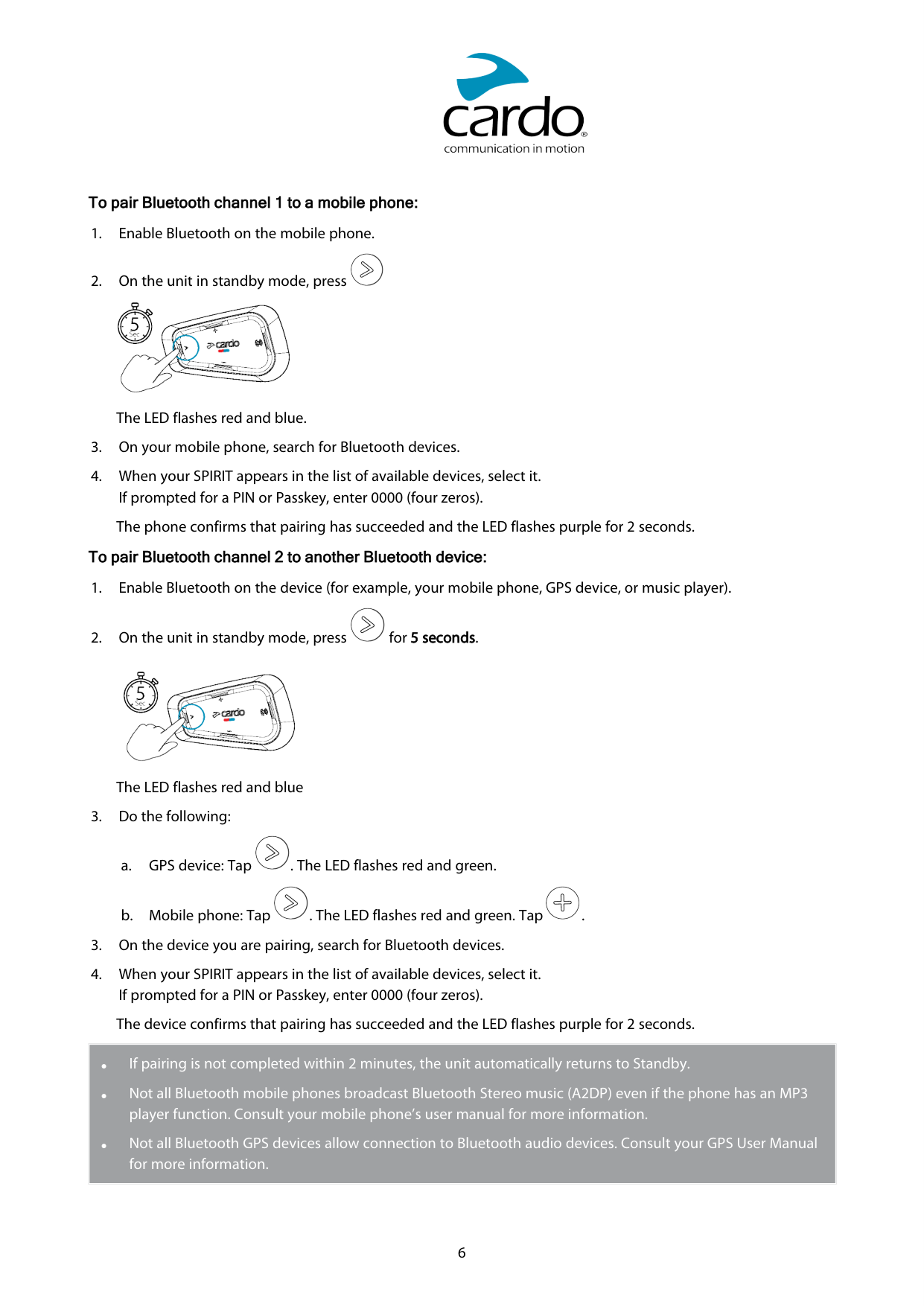
The LED flashes red and blue.



The LED flashes red and blue


|● If pairing is not completed within 2 minutes, the unit automatically returns to Standby.
● Not all Bluetooth mobile phones broadcast Bluetooth Stereo music (A2DP) even if the phone has an MP3 player function. Consult your mobile phone’s user manual for more information.
● Not all Bluetooth GPS devices allow connection to Bluetooth audio devices. Consult your GPS User Manual for more information.
| |---|
#### To cancel the pairing process:

● Press the Media button for 2 seconds. The LED stops flashing red and blue/green.
3. CARDO CONNECT APP
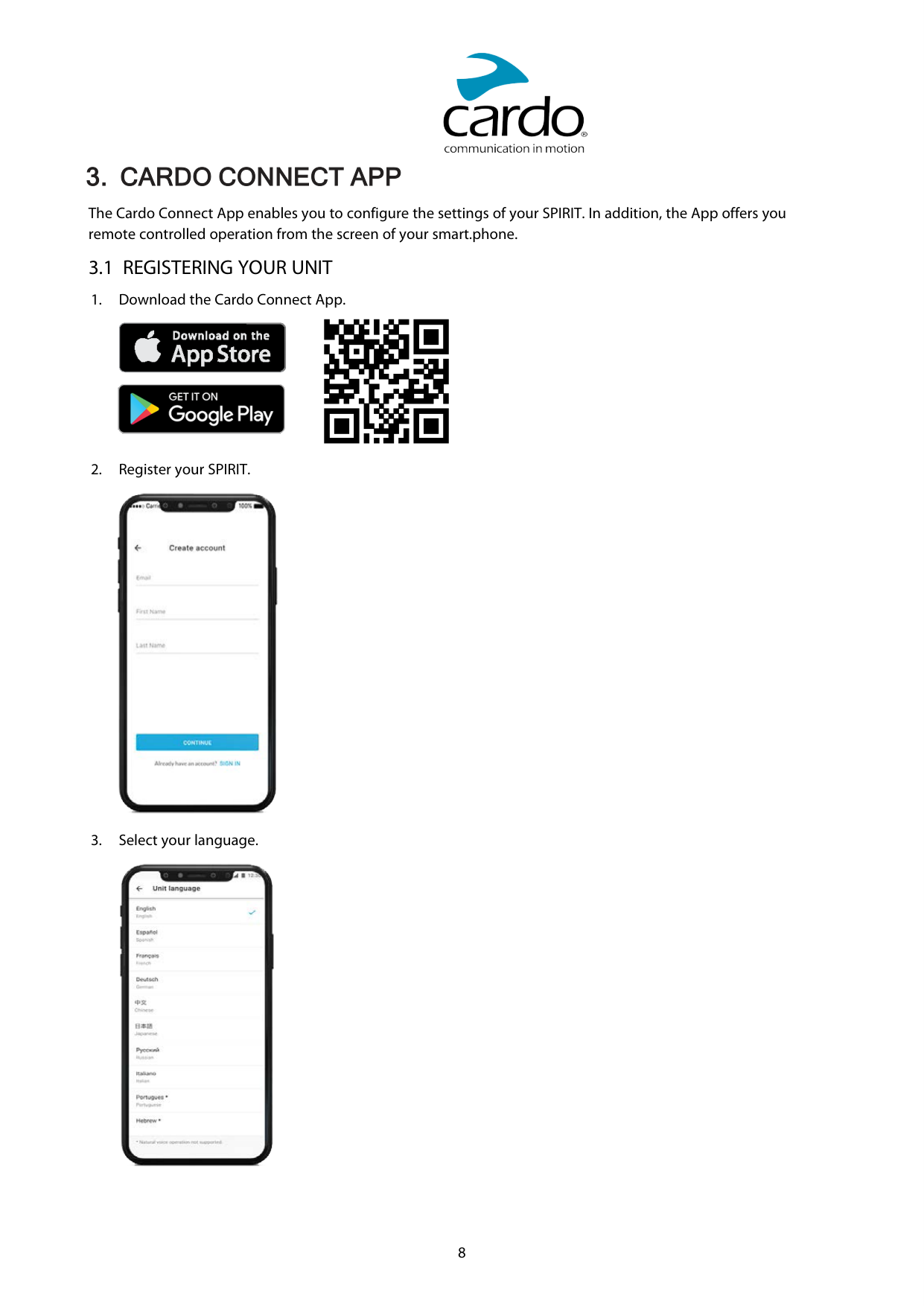
The Cardo Connect App enables you to configure the settings of your SPIRIT. In addition, the App offers you remote controlled operation from the screen of your smart.phone.
3.1 REGISTERING YOUR UNIT


3.2 UPDATING YOUR UNIT
Before using your unit for the first time, and whenever a new software update is available, make sure to have the latest software update. Updating with the latest software keeps your unit free of bugs and provides you with additional new functionalities.
Your SPIRIT can be updated Over the Air, via Cardo Connect app.
To update your SPIRIT unit with the Cardo Connect App:
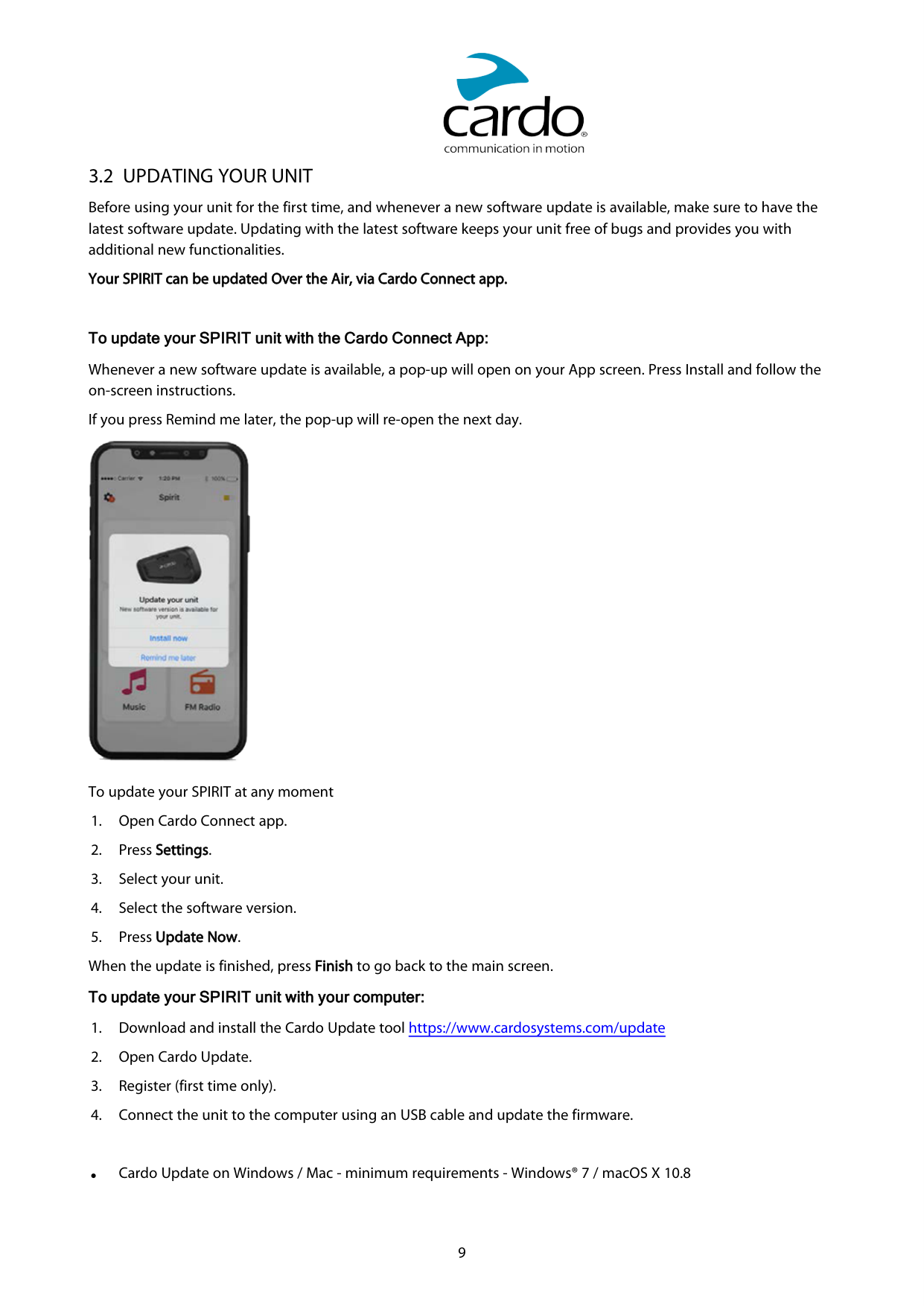
Whenever a new software update is available, a pop-up will open on your App screen. Press Install and follow the on-screen instructions.
If you press Remind me later, the pop-up will re-open the next day.

To update your SPIRIT at any moment
● Cardo Update on Windows / Mac - minimum requirements - Windows® 7 / macOS X 10.8
4. ON THE ROAD
SPIRIT makes it easy for you to receive phone calls and listen to music in a convenient and safe manner.
4.1 BASIC AUDIO FUNCTIONS
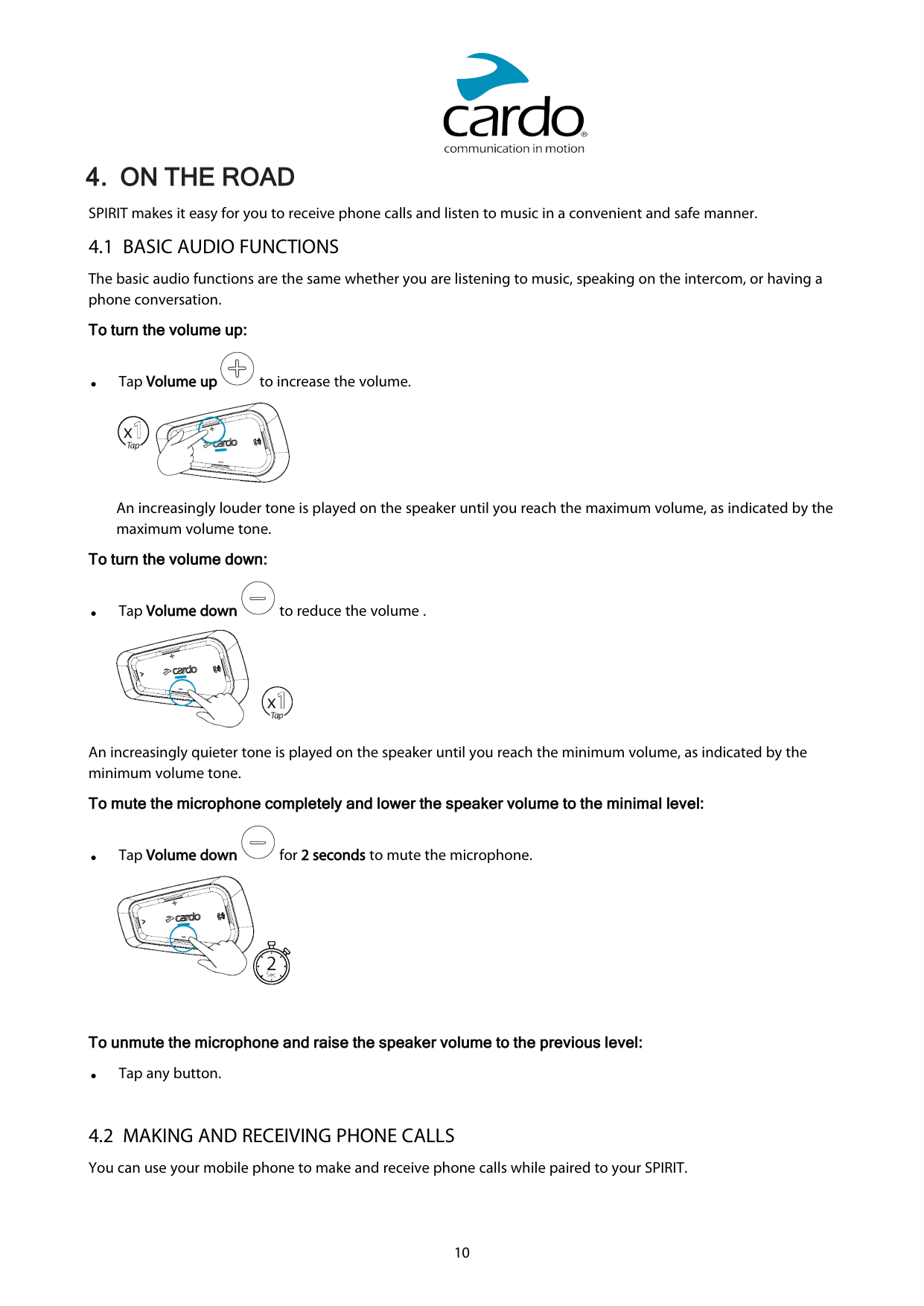
The basic audio functions are the same whether you are listening to music, speaking on the intercom, or having a phone conversation.
#### To turn the volume up:

● Tap Volume up to increase the volume.

An increasingly louder tone is played on the speaker until you reach the maximum volume, as indicated by the maximum volume tone.
#### To turn the volume down:


An increasingly quieter tone is played on the speaker until you reach the minimum volume, as indicated by the minimum volume tone.
To mute the microphone completely and lower the speaker volume to the minimal level:


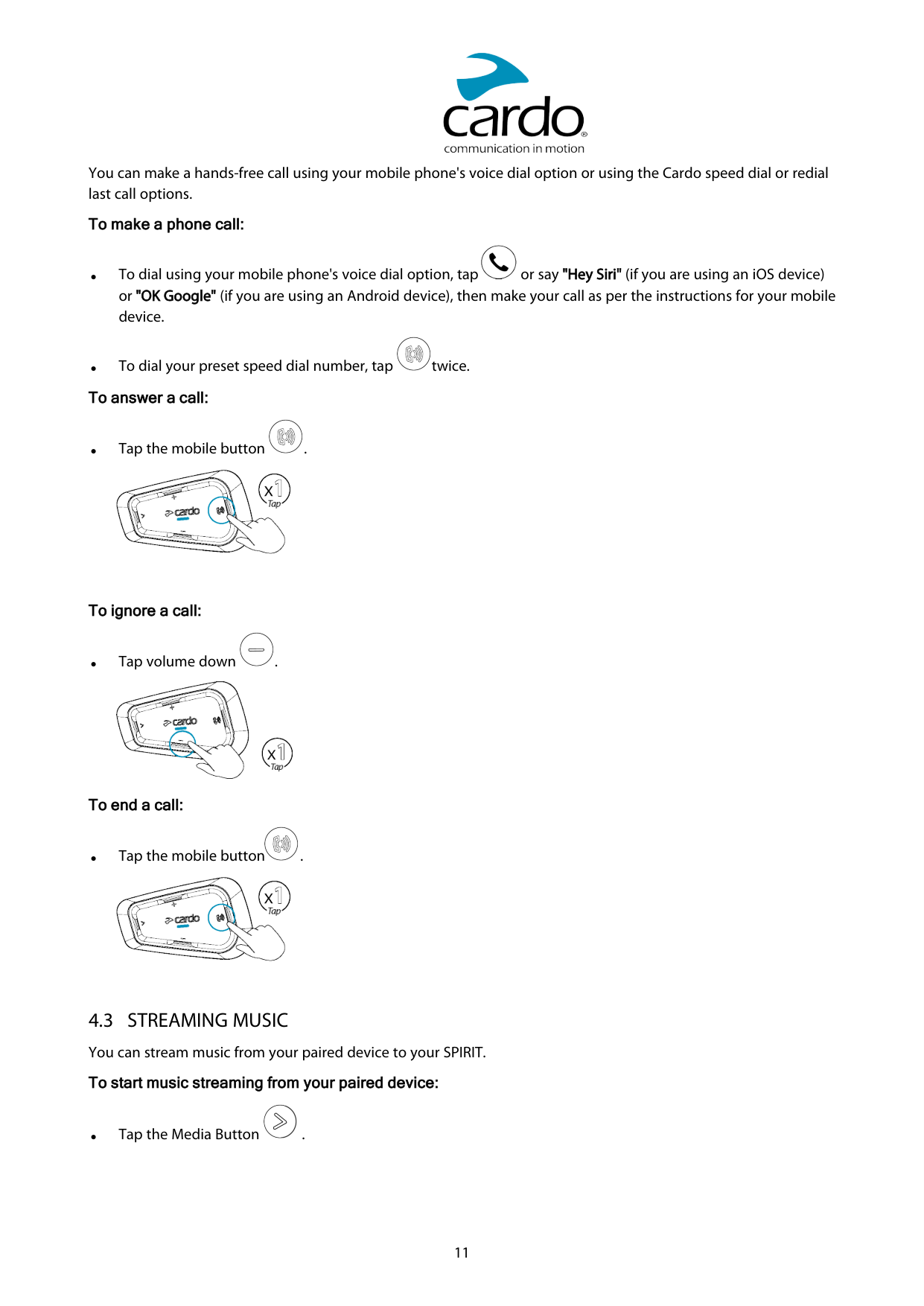
To unmute the microphone and raise the speaker volume to the previous level:
You can make a hands-free call using your mobile phone's voice dial option or using the Cardo speed dial or redial last call options.
#### To make a phone call:


To ignore a call:
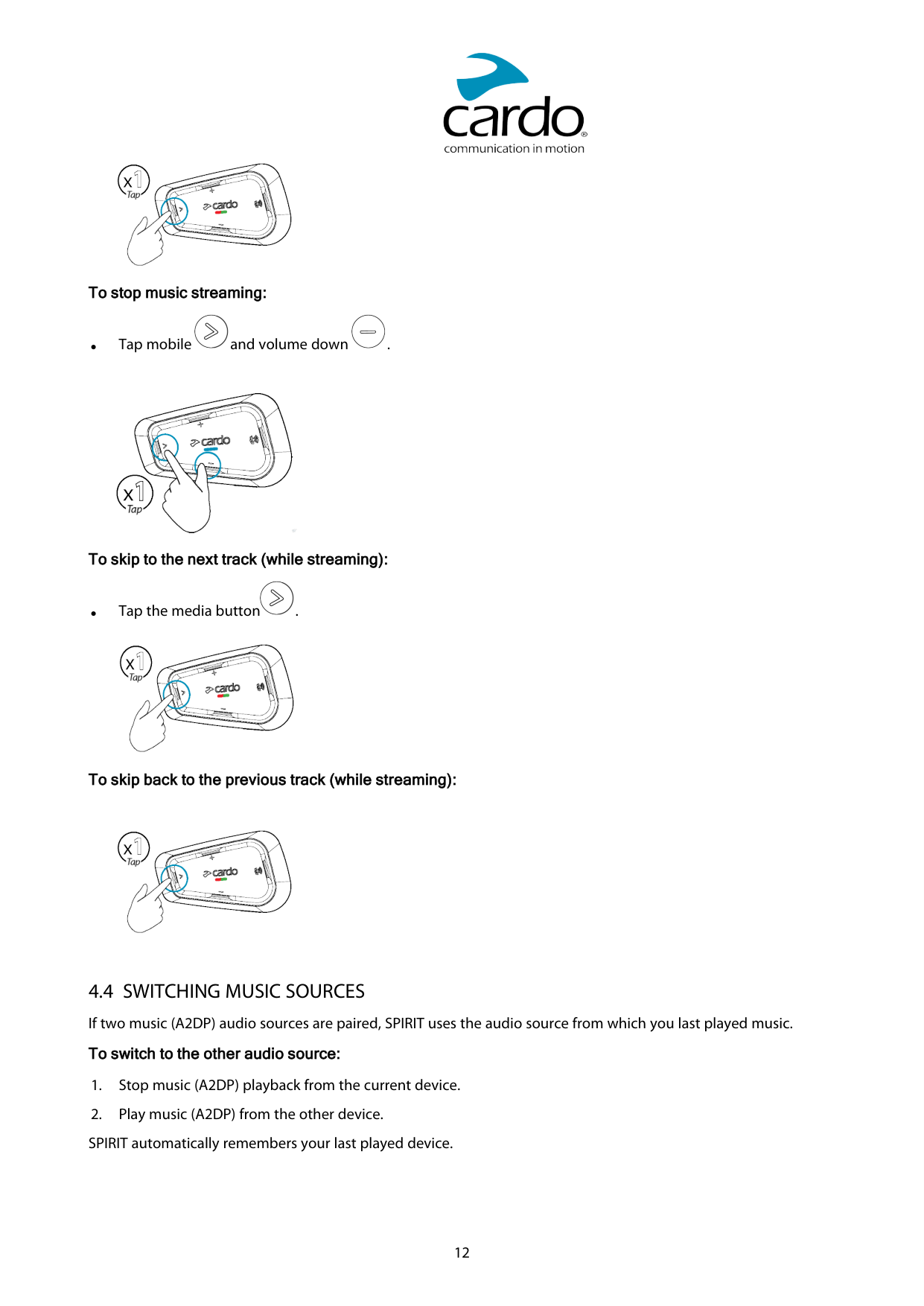


To end a call:


#### To stop music streaming:

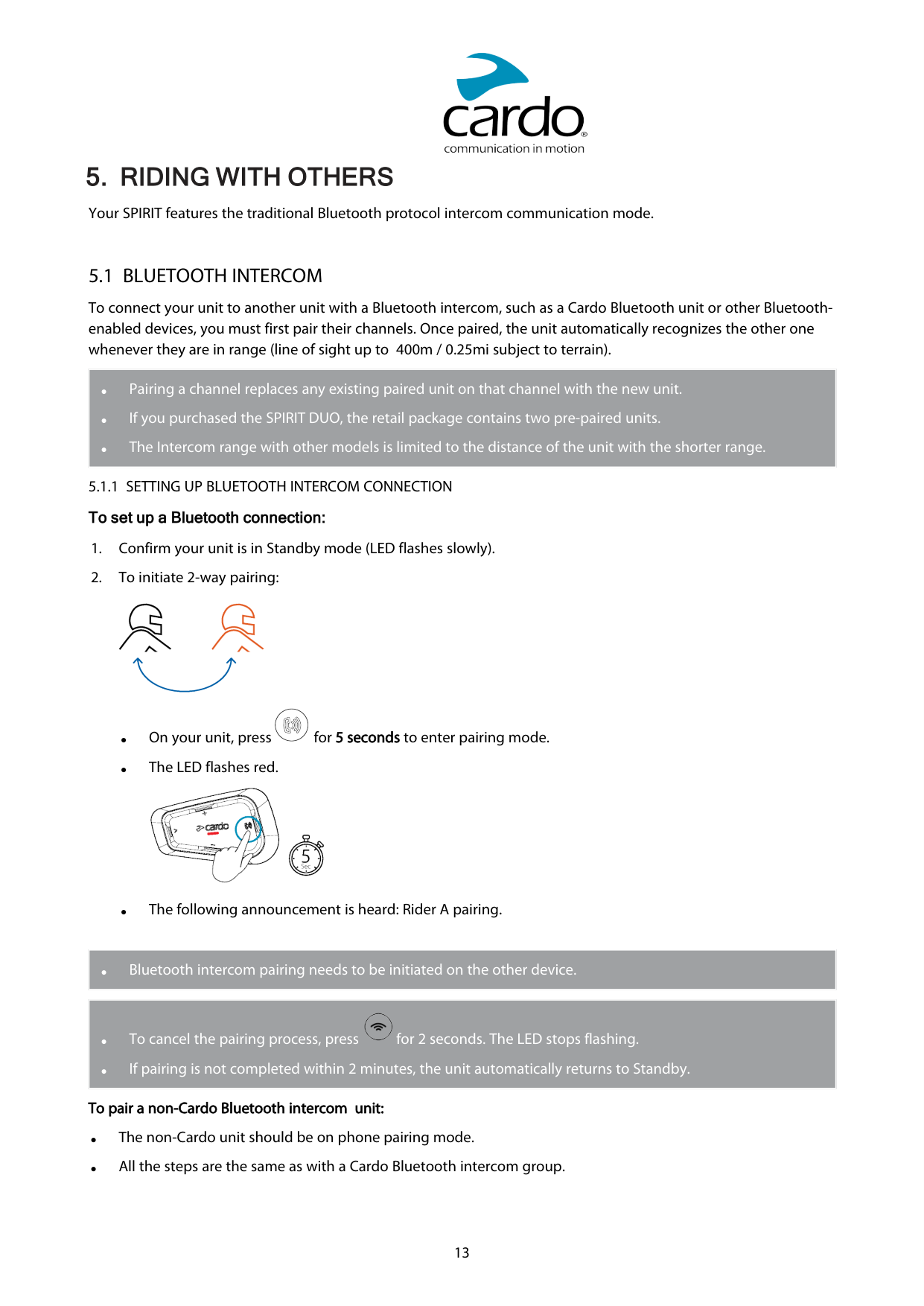


To skip to the next track (while streaming):


#### To skip back to the previous track (while streaming):

5. RIDING WITH OTHERS
Your SPIRIT features the traditional Bluetooth protocol intercom communication mode.
5.1 BLUETOOTH INTERCOM
To connect your unit to another unit with a Bluetooth intercom, such as a Cardo Bluetooth unit or other Bluetoothenabled devices, you must first pair their channels. Once paired, the unit automatically recognizes the other one whenever they are in range (line of sight up to 400m / 0.25mi subject to terrain).
|● Pairing a channel replaces any existing paired unit on that channel with the new unit.
● If you purchased the SPIRIT DUO, the retail package contains two pre-paired units.
● The Intercom range with other models is limited to the distance of the unit with the shorter range.
| |---|


|● Bluetooth intercom pairing needs to be initiated on the other device.| |---|
|● To cancel the pairing process, press for 2 seconds. The LED stops flashing.

● If pairing is not completed within 2 minutes, the unit automatically returns to Standby.
| |---|
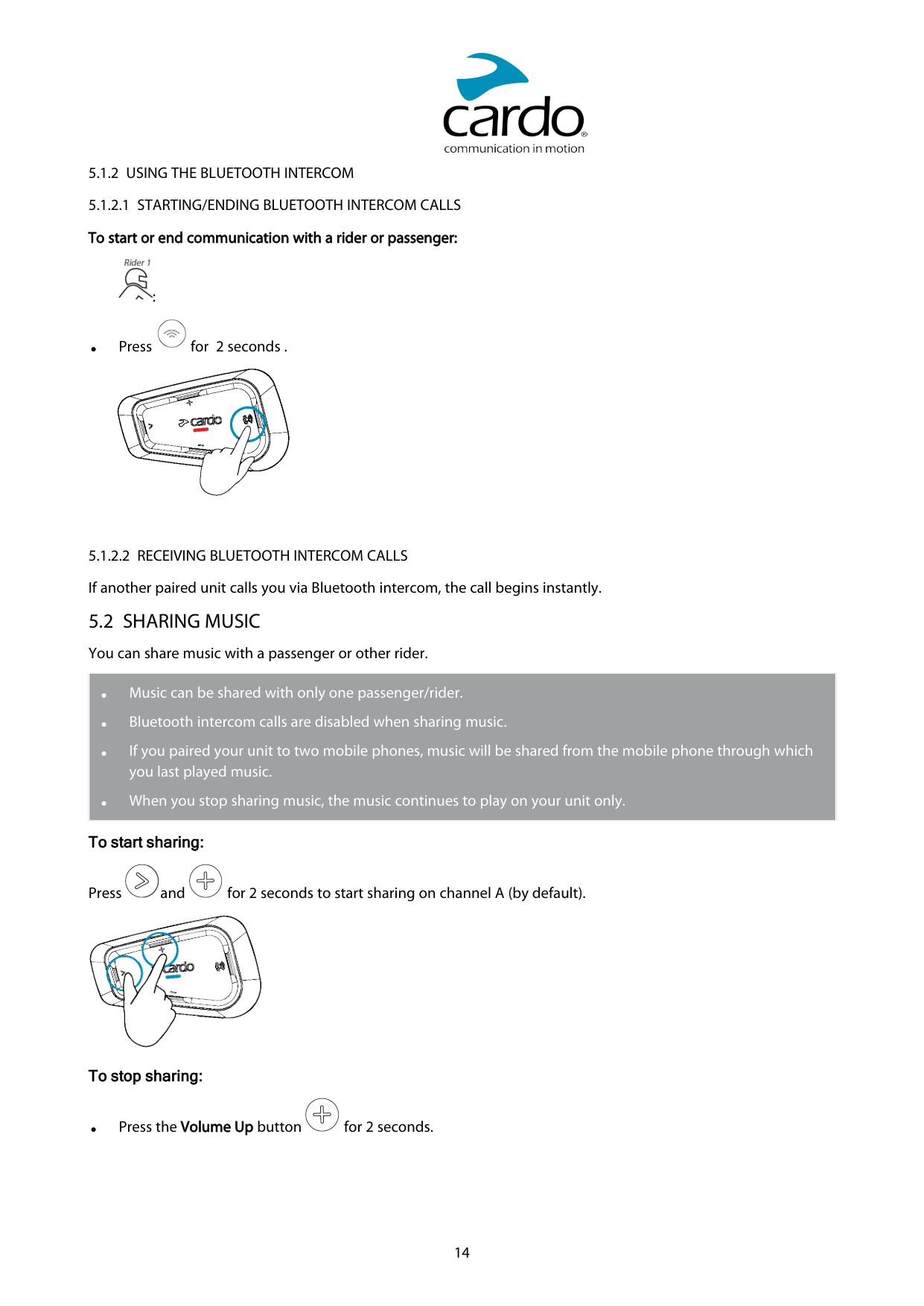
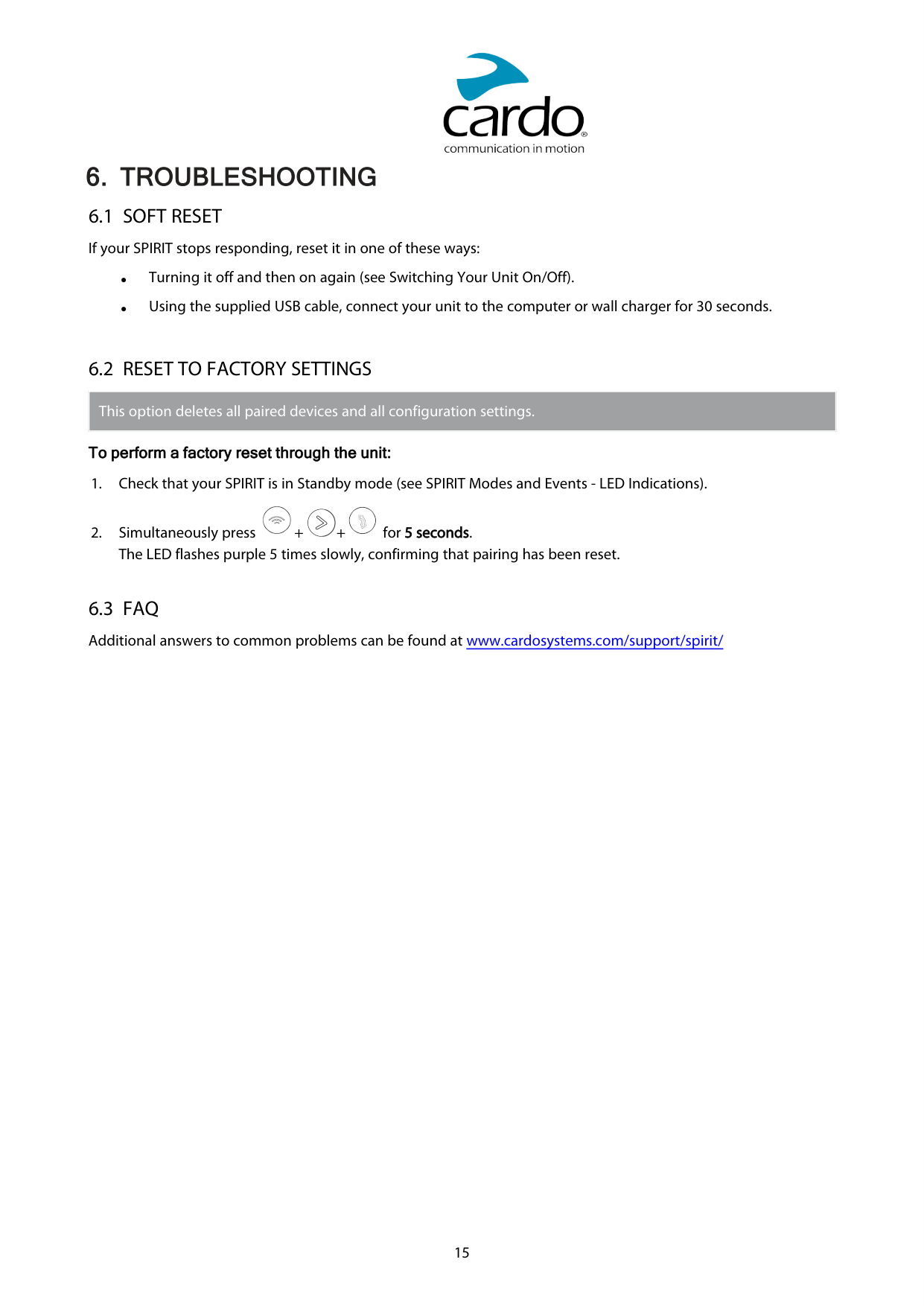
#### To pair a non-Cardo Bluetooth intercom unit:

:

● Press for 2 seconds .

|● Music can be shared with only one passenger/rider.
● Bluetooth intercom calls are disabled when sharing music.
● If you paired your unit to two mobile phones, music will be shared from the mobile phone through which you last played music.
● When you stop sharing music, the music continues to play on your unit only.
| |---|
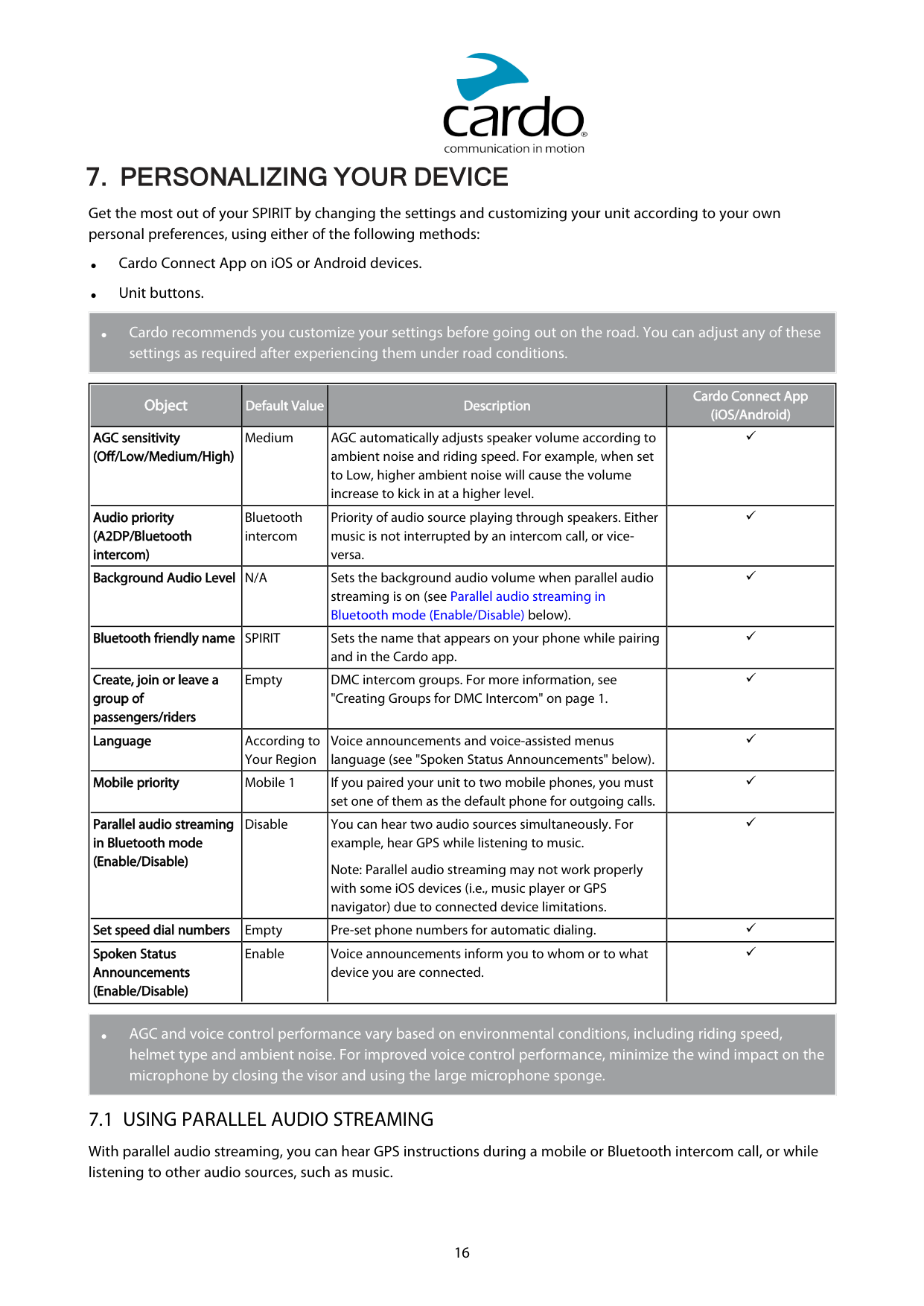
#### To start sharing:


Press and for 2 seconds to start sharing on channel A (by default).

#### To stop sharing:

● Press the Volume Up button for 2 seconds.
6. TROUBLESHOOTING
6.2 RESET TO FACTORY SETTINGS
|This option deletes all paired devices and all configuration settings.| |---|
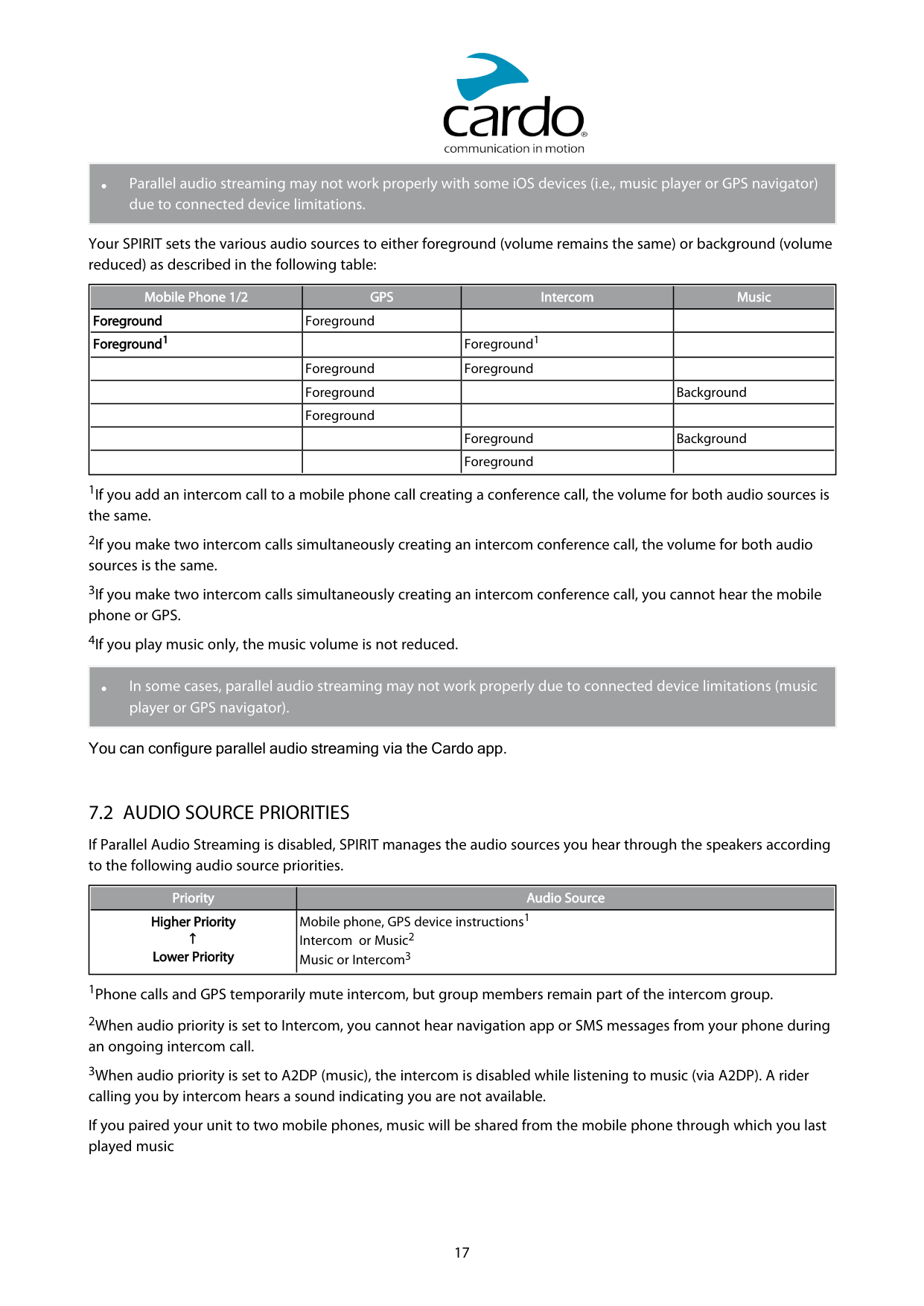
#### To perform a factory reset through the unit:


7. PERSONALIZING YOUR DEVICE
Get the most out of your SPIRIT by changing the settings and customizing your unit according to your own personal preferences, using either of the following methods:
|● Cardo recommends you customize your settings before going out on the road. You can adjust any of these settings as required after experiencing them under road conditions.| |---|
|Object Default Value Description
Cardo Connect App (iOS/Android)
AGC sensitivity (Off/Low/Medium/High)
Medium AGC automatically adjusts speaker volume according to ambient noise and riding speed. For example, when set to Low, higher ambient noise will cause the volume increase to kick in at a higher level.
ü
Audio priority (A2DP/Bluetooth intercom)
Bluetooth intercom
Priority of audio source playing through speakers. Either music is not interrupted by an intercom call, or viceversa.
ü
Background Audio Level N/A Sets the background audio volume when parallel audio streaming is on (see Parallel audio streaming in Bluetooth mode (Enable/Disable) below).
ü
Bluetooth friendly name SPIRIT Sets the name that appears on your phone while pairing
and in the Cardo app.
ü
Create, join or leave a group of passengers/riders
Empty DMC intercom groups. For more information, see "Creating Groups for DMC Intercom" on page 1.
ü
Language According to
Your Region
Voice announcements and voice-assisted menus language (see "Spoken Status Announcements" below).
ü
Mobile priority Mobile 1 If you paired your unit to two mobile phones, you must set one of them as the default phone for outgoing calls.
ü
Parallel audio streaming in Bluetooth mode (Enable/Disable)
Disable You can hear two audio sources simultaneously. For example, hear GPS while listening to music. Note: Parallel audio streaming may not work properly with some iOS devices (i.e., music player or GPS navigator) due to connected device limitations.
ü
Set speed dial numbers Empty Pre-set phone numbers for automatic dialing. ü Spoken Status Announcements (Enable/Disable)
Enable Voice announcements inform you to whom or to what device you are connected.
ü| |---|
|● AGC and voice control performance vary based on environmental conditions, including riding speed, helmet type and ambient noise. For improved voice control performance, minimize the wind impact on the microphone by closing the visor and using the large microphone sponge.| |---|
7.1 USING PARALLEL AUDIO STREAMING
With parallel audio streaming, you can hear GPS instructions during a mobile or Bluetooth intercom call, or while listening to other audio sources, such as music.
|● Parallel audio streaming may not work properly with some iOS devices (i.e., music player or GPS navigator) due to connected device limitations.| |---|
Your SPIRIT sets the various audio sources to either foreground (volume remains the same) or background (volume reduced) as described in the following table:
|Mobile Phone 1/2 GPS Intercom Music Foreground Foreground Foreground1 Foreground1
Foreground Foreground Foreground Background Foreground
Foreground Background Foreground| |---|
|● In some cases, parallel audio streaming may not work properly due to connected device limitations (music player or GPS navigator).| |---|
You can configure parallel audio streaming via the Cardo app.
7.2 AUDIO SOURCE PRIORITIES
If Parallel Audio Streaming is disabled, SPIRIT manages the audio sources you hear through the speakers according to the following audio source priorities.
||Priority|Audio Source| |---|---| |Higher Priority ↑ Lower Priority|Mobile phone, GPS device instructions1 Intercom or Music2 Music or Intercom3| | |---|
1Phone calls and GPS temporarily mute intercom, but group members remain part of the intercom group.
If you paired your unit to two mobile phones, music will be shared from the mobile phone through which you last played music
8. GLOSSARY
|Term/Abbreviation Description A2DP Advanced Audio Distribution Profile (for music). A protocol for playing music
over Bluetooth.
AGC sensitivity AGC (Automatic Gain Control) automatically adjusts speaker volume and
microphone sensitivity according to ambient noise and riding speed. Device Mobile phone, GPS or music player. Language Voice announcements. Unit Cardo or non-Cardo Bluetooth Communication system. Voice control Voice activation (by saying a word or phrase) Voice control sensitivity Adjusts your microphone sensitivity for voice activation while you are riding.| |---|
9. SUPPORT
For additional information: : www.cardosystems.com/support/spirit/
|● To avoid potential problems and to receive our support and warranty coverage, we strongly recommend buying our products only from authorized Cardo dealers.
● Your favorite brick-and-mortar store is always your best bet. Unauthorized online resellers and online auction sites such as eBay are not among Cardo’s authorized dealers, and purchasing our products from such sites will be at your own risk. Cardo strives to provide quality products and exceptional customer service. We select dealers who share that vision. Buying grey market items from unauthorized online dealers is counterproductive and also adversely affects unsuspecting online consumers who may be purchasing used, counterfeit or defective products or devices whose warranties are void. Protect your investment by purchasing genuine Cardo and scala rider® products only from authorized dealers.
| |---|
© 2021 Cardo Systems All rights reserved. Cardo, the Cardo logo and other Cardo marks are owned by Cardo and may be registered. All other trademarks are the property of their respective owners. Cardo Systems assumes no responsibility for any errors that may appear in this document. Information contained herein is subject to change without notice.