Fodsports Fx6 Group Talk Helmet Intercom manual
Unknown · 10 Q&As

Fodsports Fx6 Group Talk Helmet Intercom

Ask AI

— answers from the official manual

Answers from the official manual.

Common questions

Common Questions

10 total
1

How do I turn on and off the Fodsports Fx6 helmet intercom?

To turn on, press and hold the On/Off button for 3 seconds until a “Welcome to FODSPORTS Bluetooth Communication System” sound is heard. To turn off, press and hold the On/Off button for 5 seconds; afterwards, there will be a “Power Off” sound.

2

How do I enter pairing mode on the Fodsports Fx6?

Press and hold either the Multi-function Button or On/Off button for 6 seconds to start pairing. This initializes the device and blue and red lights will flash alternately while a “Pairing” sound is heard.

3

How do I connect the Fodsports Fx6 helmet intercom with other FX6 devices?

When both units are within 1 meter, first place each headset into pairing mode. Then press and hold either Multi-function Button or On/Off button on one unit to connect them; a “intercom connected” sound will confirm the connection.

4

How do I factory reset the Fodsports Fx6 helmet intercom?

Press and hold the Power button for 8 seconds until all settings are cleared, and the device returns to factory defaults. (Page 9)

5

How do I install the Fodsports Fx6 helmet intercom with a clamp?

Loosen screws on the back of the clamp using the provided screw driver, insert the clamp into proper position in the left side and tighten. Attach headphone velcro loops as directed to complete installation.

6

How do I change between Bluetooth and FM modes?

Triple-click the Multi-function button while device is on; a “Bluetooth mode” or “FM mode” sound prompt will indicate the new selection.

Show 4 more questions

Full Manual

16 pages
Page 1

FX6 Motorcycle Headset User Manual

![image 2](91ssQ2qv7cL_images/imageFile2.png)

Email: [email protected] TEL: +8618922871406

##### CATALOGUE
  • 1. Packing List.......................................................................................................................... 2
  • 2. Function Introduction...........................................................................................................3
  • 3. Installation Step................................................................................................................... 4
  • 3.1 Fixed by clamp.......................................................................................................4
  • 3.2 Fixed by VELCRO sticker.....................................................................................5
  • Page 2

  • 4. Disassembly of the Device.................................................................................................5
  • 5. Product Introduction............................................................................................................6
  • 6. Button Operation Introduction............................................................................................7
  • 6.1 On/Off Button............................................................................................................ 7
  • 6.2 Multi-function Button................................................................................................ 8
  • 6.3 Knob............................................................................................................................9
  • 7. Bluetooth Status Indication and Prompt.......................................................................... 9
  • 8. Pairing Methods.................................................................................................................10
  • 8.1 Two ways for FX6 to enter pairing status...........................................................10
  • 8.2 Pairing with the Non-Fodsports FX6 Bluetooth device ....................................10
  • 8.3 Pairing with Mobile, GPS and MP3..................................................................... 11
  • 8.4 Pairing between two FX6...................................................................................... 11
  • Page 3

  • 8.5 Group Intercom Settings....................................................................................... 12
  • 8.6 Simultaneous connection of multiple devices....................................................13
  • 9. Priority of Functions.......................................................................................................... 14
  • 10. Specifications...................................................................................................................14
  • 11. Matters Need Attention...................................................................................................14
  • 12. After-Sale Service........................................................................................................... 15
  • 1. Packing List

    ![image 5](91ssQ2qv7cL_images/imageFile5.png)

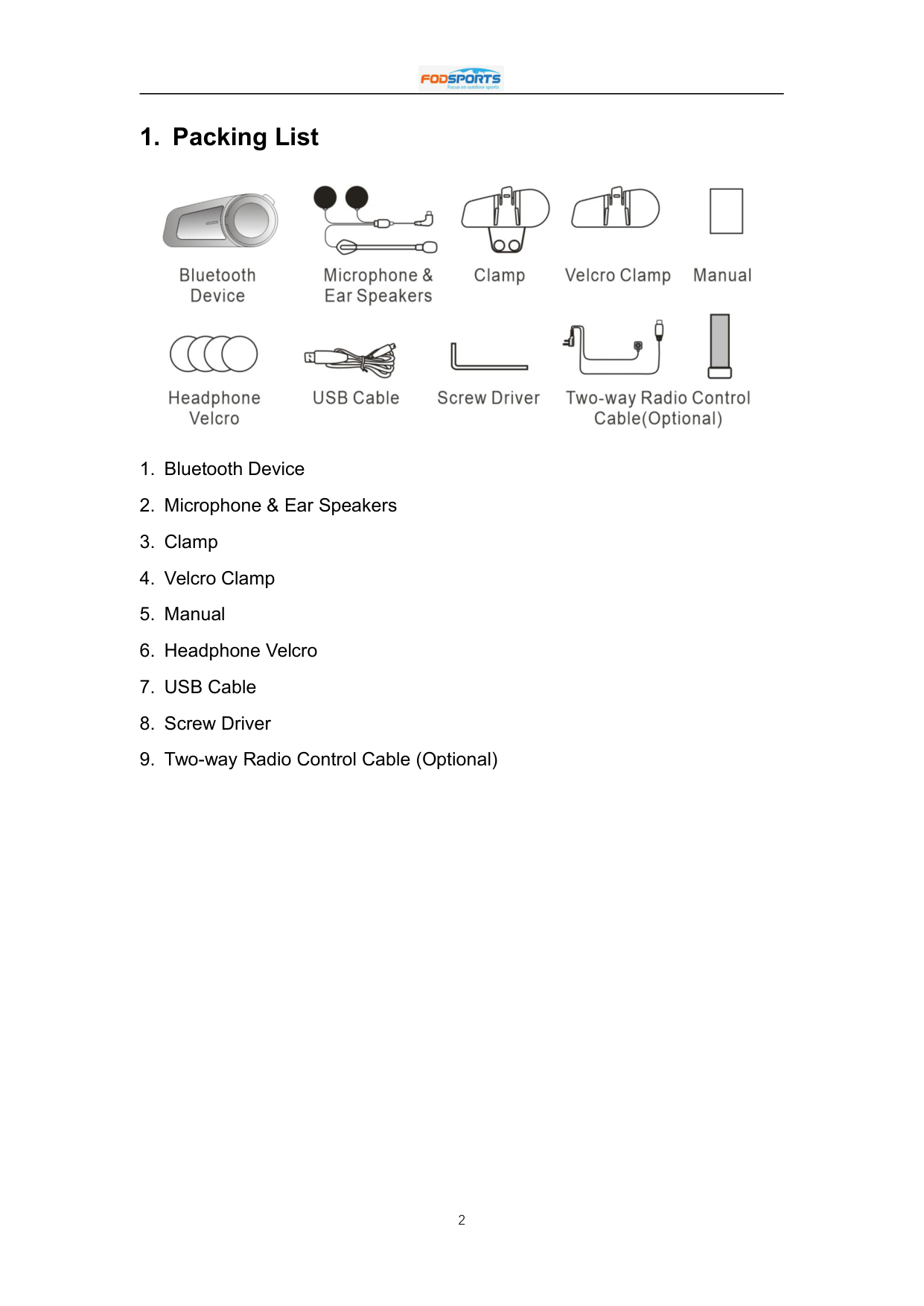
  • 1. Bluetooth Device
  • 2. Microphone & Ear Speakers
  • Page 4

  • 3. Clamp
  • 4. Velcro Clamp
  • 5. Manual
  • 6. Headphone Velcro
  • 7. USB Cable
  • 8. Screw Driver
  • 9. Two-way Radio Control Cable (Optional)
  • 2. Function Introduction

    ![image 7](91ssQ2qv7cL_images/imageFile7.png)

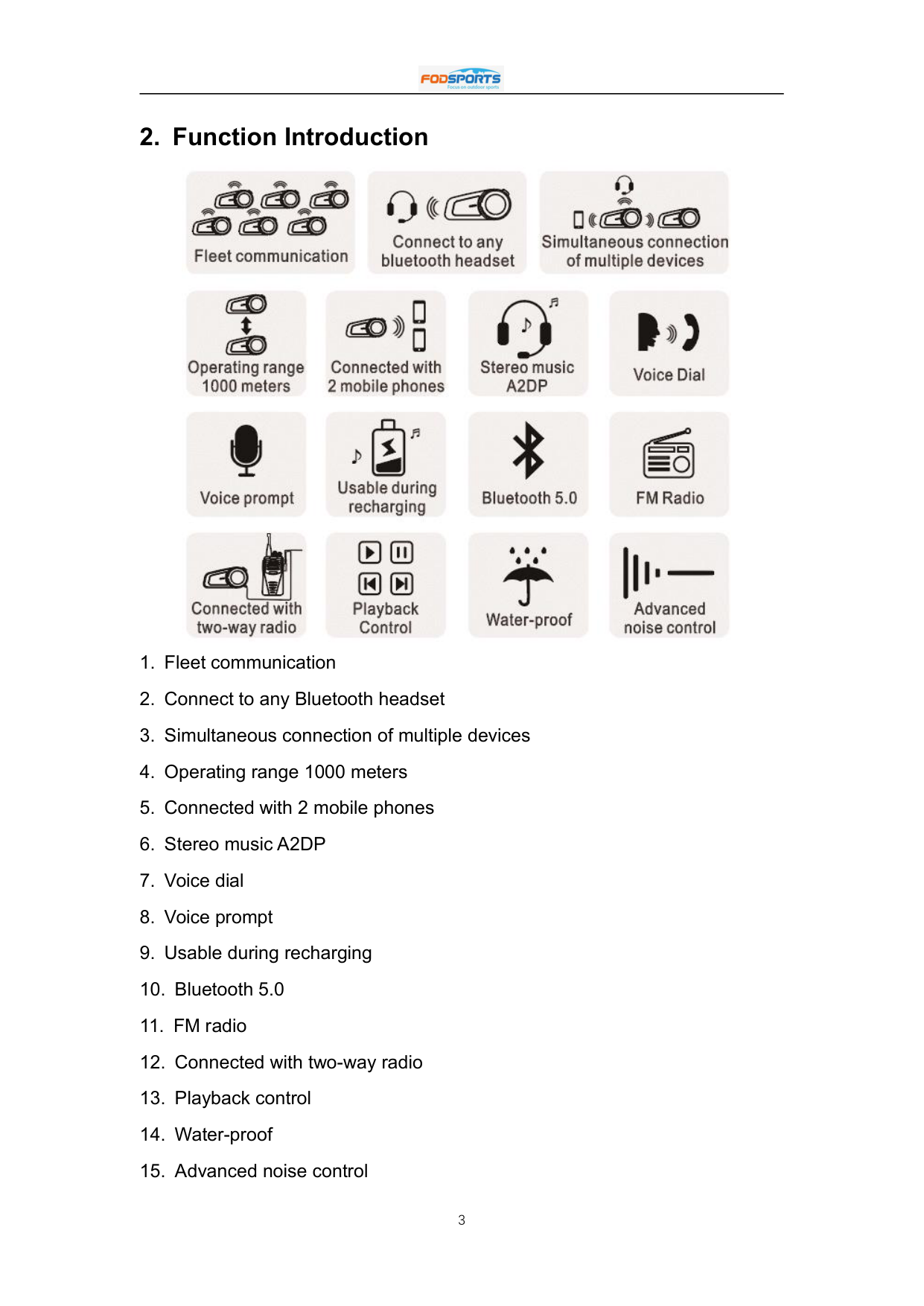
  • 1. Fleet communication
  • 2. Connect to any Bluetooth headset
  • 3. Simultaneous connection of multiple devices
  • Page 5

  • 4. Operating range 1000 meters
  • 5. Connected with 2 mobile phones
  • 6. Stereo music A2DP
  • 7. Voice dial
  • 8. Voice prompt
  • 9. Usable during recharging
  • 10. Bluetooth 5.0
  • 11. FM radio
  • 12. Connected with two-way radio
  • 13. Playback control
  • 14. Water-proof
  • 15. Advanced noise control
  • 3. Installation Step

    Page 6

    ##### 3.1 Fixed by clamp

    ![image 9](91ssQ2qv7cL_images/imageFile9.png)

    ![image 10](91ssQ2qv7cL_images/imageFile10.png)

    ![image 11](91ssQ2qv7cL_images/imageFile11.png)

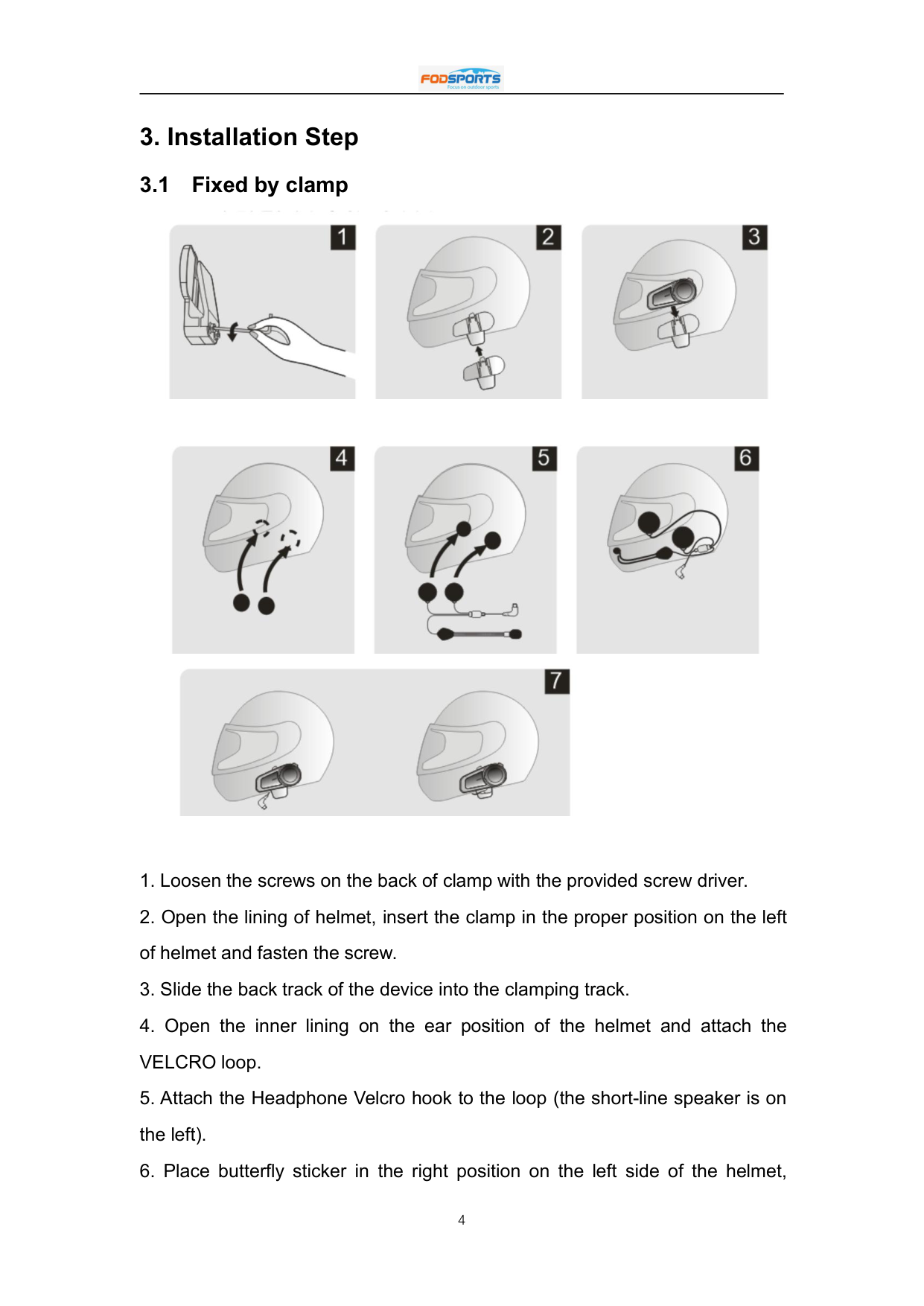
  • 1. Loosen the screws on the back of clamp with the provided screw driver.
  • 2. Open the lining of helmet, insert the clamp in the proper position on the left of helmet and fasten the screw.
  • 3. Slide the back track of the device into the clamping track.
  • 4. Open the inner lining on the ear position of the helmet and attach the VELCRO loop.
  • 5. Attach the Headphone Velcro hook to the loop (the short-line speaker is on the left).
  • 6. Place butterfly sticker in the right position on the left side of the helmet,
  • Page 7

  • match the microphone with the mouth position, and tidy up the cable and lining.
  • 7. Insert the plug into the headset socket and the installation is finished.
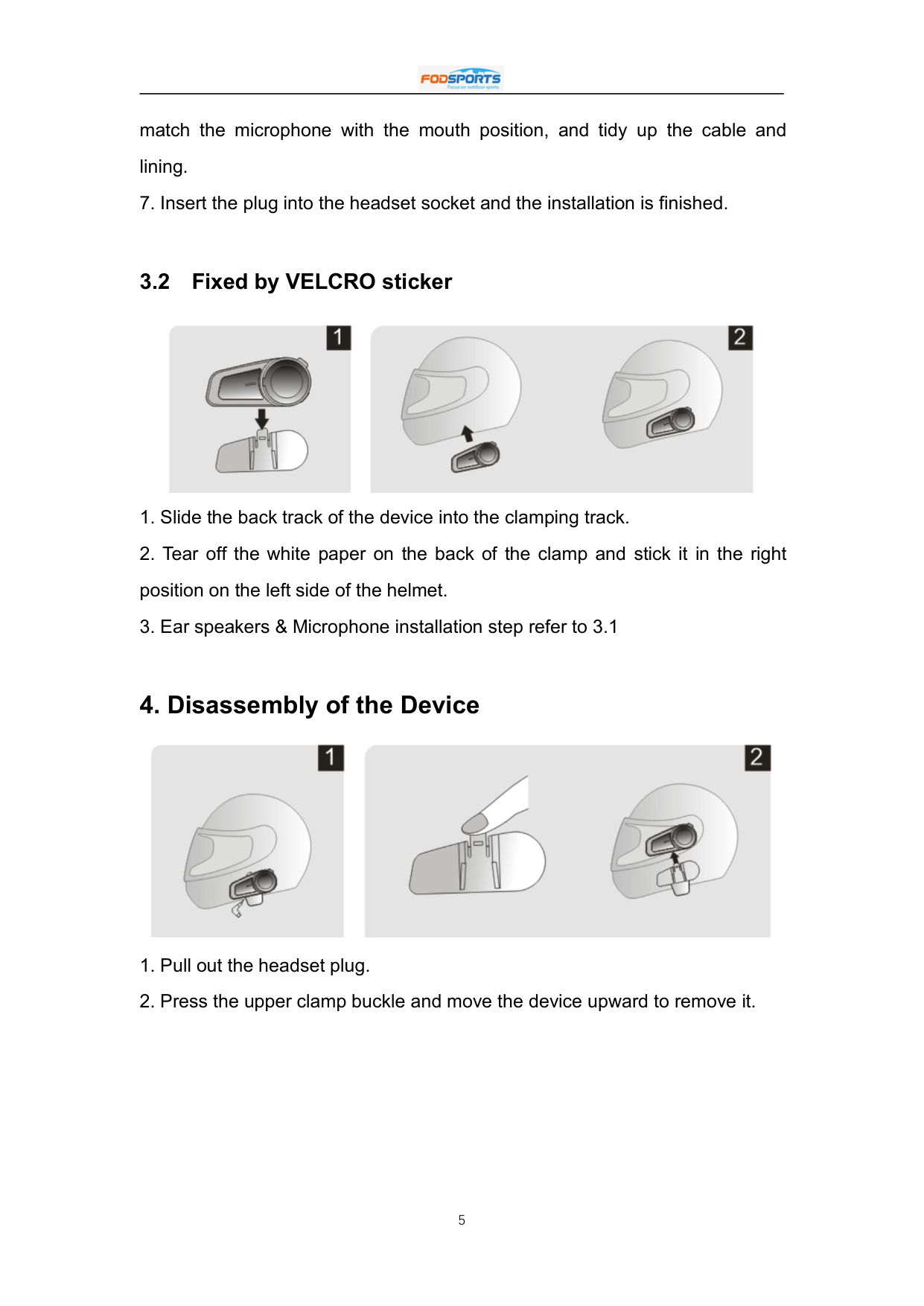
  • ##### 3.2 Fixed by VELCRO sticker

    ![image 13](91ssQ2qv7cL_images/imageFile13.png)

  • 1. Slide the back track of the device into the clamping track.
  • 2. Tear off the white paper on the back of the clamp and stick it in the right position on the left side of the helmet.
  • 3. Ear speakers & Microphone installation step refer to 3.1
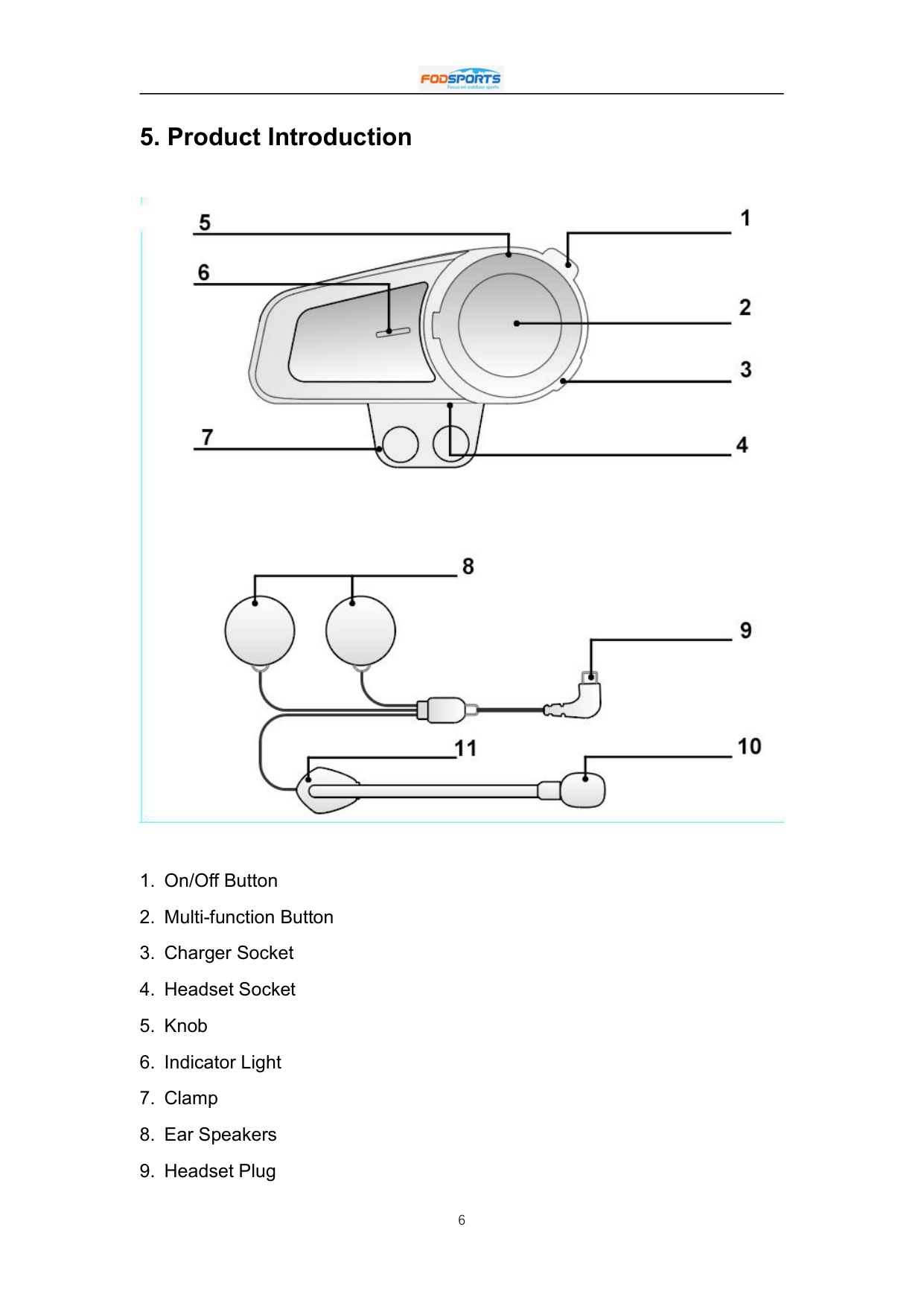
  • 4. Disassembly of the Device
  • ![image 14](91ssQ2qv7cL_images/imageFile14.png)

    Page 8

  • 1. Pull out the headset plug.
  • 2. Press the upper clamp buckle and move the device upward to remove it.
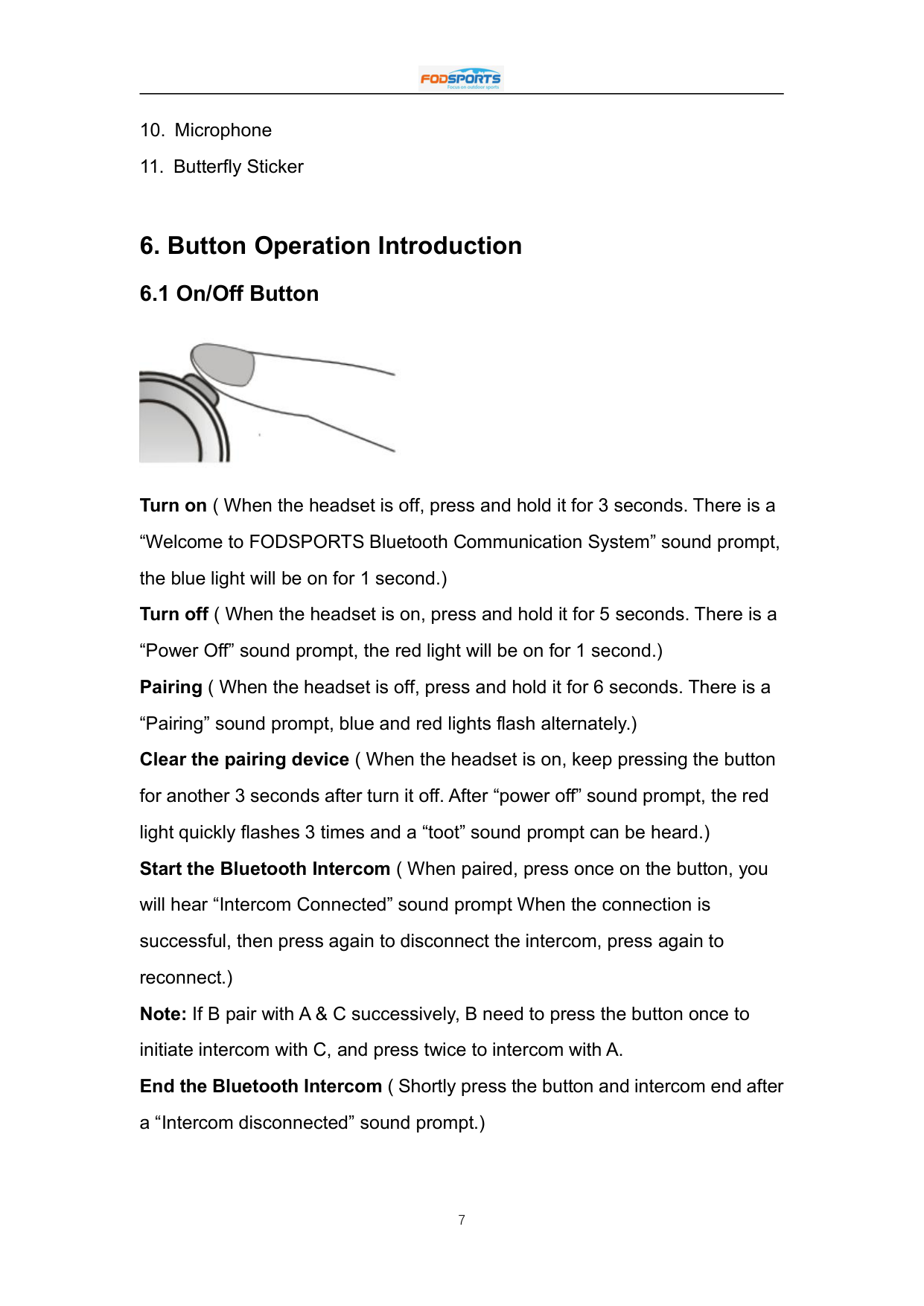
  • 5. Product Introduction

    ![image 16](91ssQ2qv7cL_images/imageFile16.png)

  • 1. On/Off Button
  • 2. Multi-function Button
  • 3. Charger Socket
  • 4. Headset Socket
  • 5. Knob
  • 6. Indicator Light
  • 7. Clamp
  • 8. Ear Speakers
  • Page 9

  • 9. Headset Plug
  • 10. Microphone
  • 11. Butterfly Sticker
  • 6. Button Operation Introduction

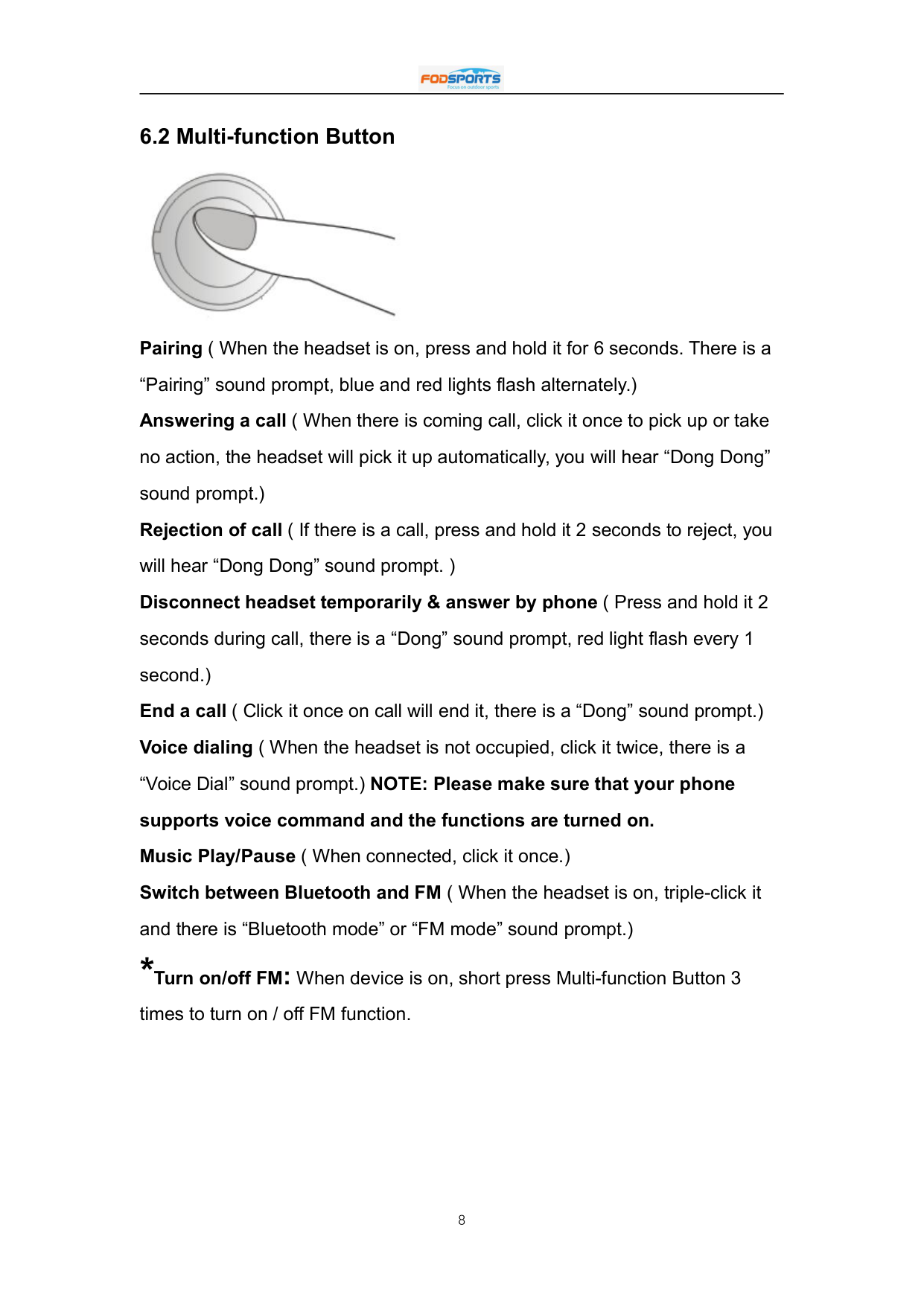
    ##### 6.1 On/Off Button

    ![image 18](91ssQ2qv7cL_images/imageFile18.png)

    Turn on ( When the headset is off, press and hold it for 3 seconds. There is a “Welcome to FODSPORTS Bluetooth Communication System” sound prompt, the blue light will be on for 1 second.) Turn off ( When the headset is on, press and hold it for 5 seconds. There is a “Power Off” sound prompt, the red light will be on for 1 second.) Pairing ( When the headset is off, press and hold it for 6 seconds. There is a “Pairing” sound prompt, blue and red lights flash alternately.) Clear the pairing device ( When the headset is on, keep pressing the button for another 3 seconds after turn it off. After “power off” sound prompt, the red light quickly flashes 3 times and a “toot” sound prompt can be heard.) Start the Bluetooth Intercom ( When paired, press once on the button, you will hear “Intercom Connected” sound prompt When the connection is successful, then press again to disconnect the intercom, press again to reconnect.) Note: If B pair with A & C successively, B need to press the button once to initiate intercom with C, and press twice to intercom with A. End the Bluetooth Intercom ( Shortly press the button and intercom end after a “Intercom disconnected” sound prompt.)

    ##### 6.2 Multi-function Button
    Page 10

    ![image 20](91ssQ2qv7cL_images/imageFile20.png)

    Pairing ( When the headset is on, press and hold it for 6 seconds. There is a “Pairing” sound prompt, blue and red lights flash alternately.)

    Answering a call ( When there is coming call, click it once to pick up or take no action, the headset will pick it up automatically, you will hear “Dong Dong” sound prompt.)

    Rejection of call ( If there is a call, press and hold it 2 seconds to reject, you will hear “Dong Dong” sound prompt. ) Disconnect headset temporarily & answer by phone ( Press and hold it 2 seconds during call, there is a “Dong” sound prompt, red light flash every 1 second.) End a call ( Click it once on call will end it, there is a “Dong” sound prompt.) Voice dialing ( When the headset is not occupied, click it twice, there is a “Voice Dial” sound prompt.) NOTE: Please make sure that your phone supports voice command and the functions are turned on. Music Play/Pause ( When connected, click it once.) Switch between Bluetooth and FM ( When the headset is on, triple-click it and there is “Bluetooth mode” or “FM mode” sound prompt.)

    *Turnon/offFM:Whendeviceison,shortpressMulti-functionButton3

    times to turn on / off FM function.

    ##### 6.3 Knob

    ![image 22](91ssQ2qv7cL_images/imageFile22.png)

    Page 11

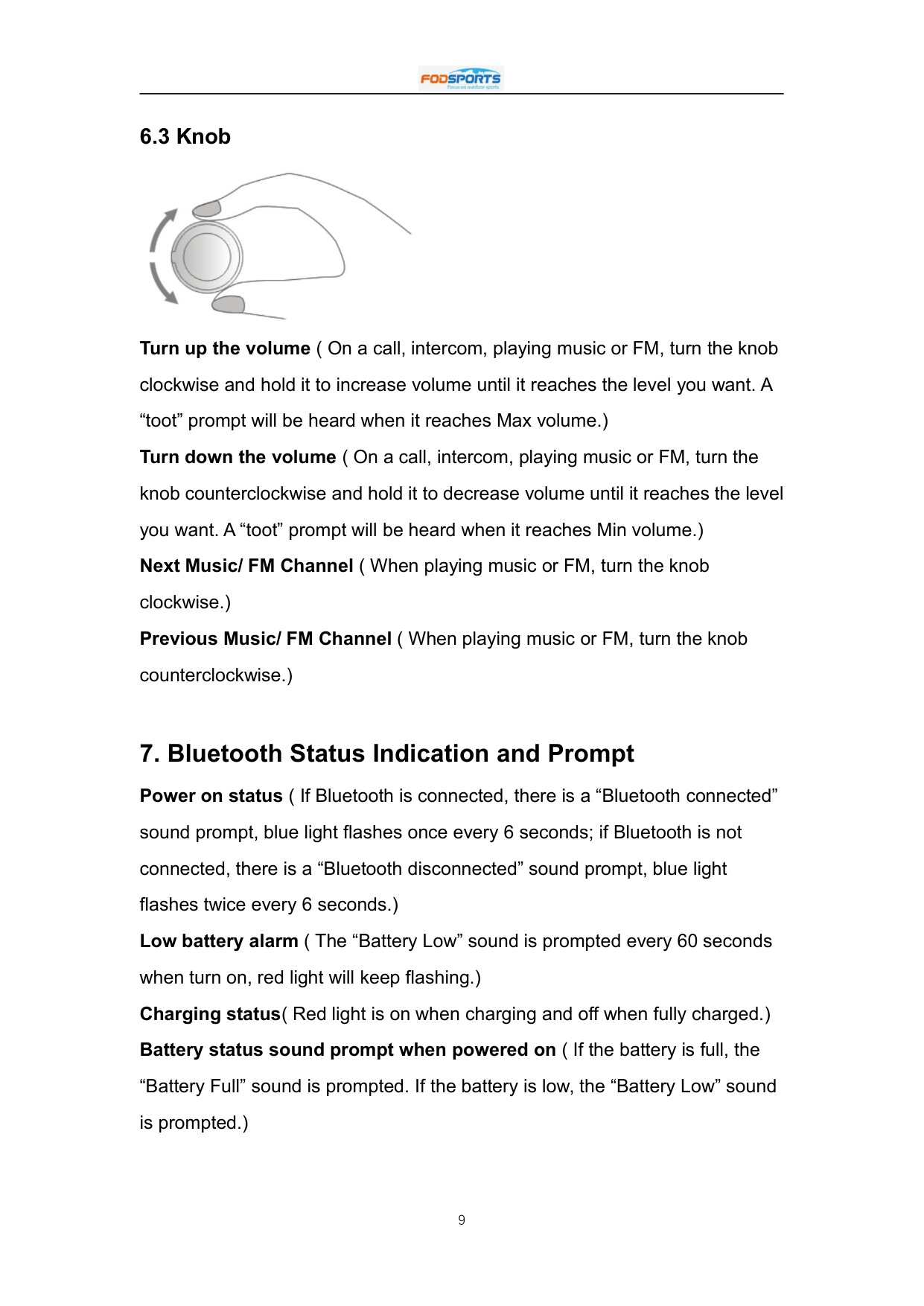
    Turn up the volume ( On a call, intercom, playing music or FM, turn the knob clockwise and hold it to increase volume until it reaches the level you want. A “toot” prompt will be heard when it reaches Max volume.) Turn down the volume ( On a call, intercom, playing music or FM, turn the knob counterclockwise and hold it to decrease volume until it reaches the level you want. A “toot” prompt will be heard when it reaches Min volume.) Next Music/ FM Channel ( When playing music or FM, turn the knob clockwise.) Previous Music/ FM Channel ( When playing music or FM, turn the knob counterclockwise.)

  • 7. Bluetooth Status Indication and Prompt Power on status ( If Bluetooth is connected, there is a “Bluetooth connected” sound prompt, blue light flashes once every 6 seconds; if Bluetooth is not connected, there is a “Bluetooth disconnected” sound prompt, blue light flashes twice every 6 seconds.) Low battery alarm ( The “Battery Low” sound is prompted every 60 seconds when turn on, red light will keep flashing.) Charging status( Red light is on when charging and off when fully charged.) Battery status sound prompt when powered on ( If the battery is full, the “Battery Full” sound is prompted. If the battery is low, the “Battery Low” sound is prompted.)
  • 8. Pairing Methods

    ##### 8.1 Two ways for FX6 to enter pairing status

  • 8.1.1 Mode 1: When the headset is off, press and hold On/Off Button for 6 seconds. There is a “Pairing” sound prompt, blue and red lights flash alternately.
  • 8.1.2 Mode 2: When the headset is on, press and hold Multi-function button for 6 seconds. There is a “Pairing” sound prompt, blue and red lights flash alternately.
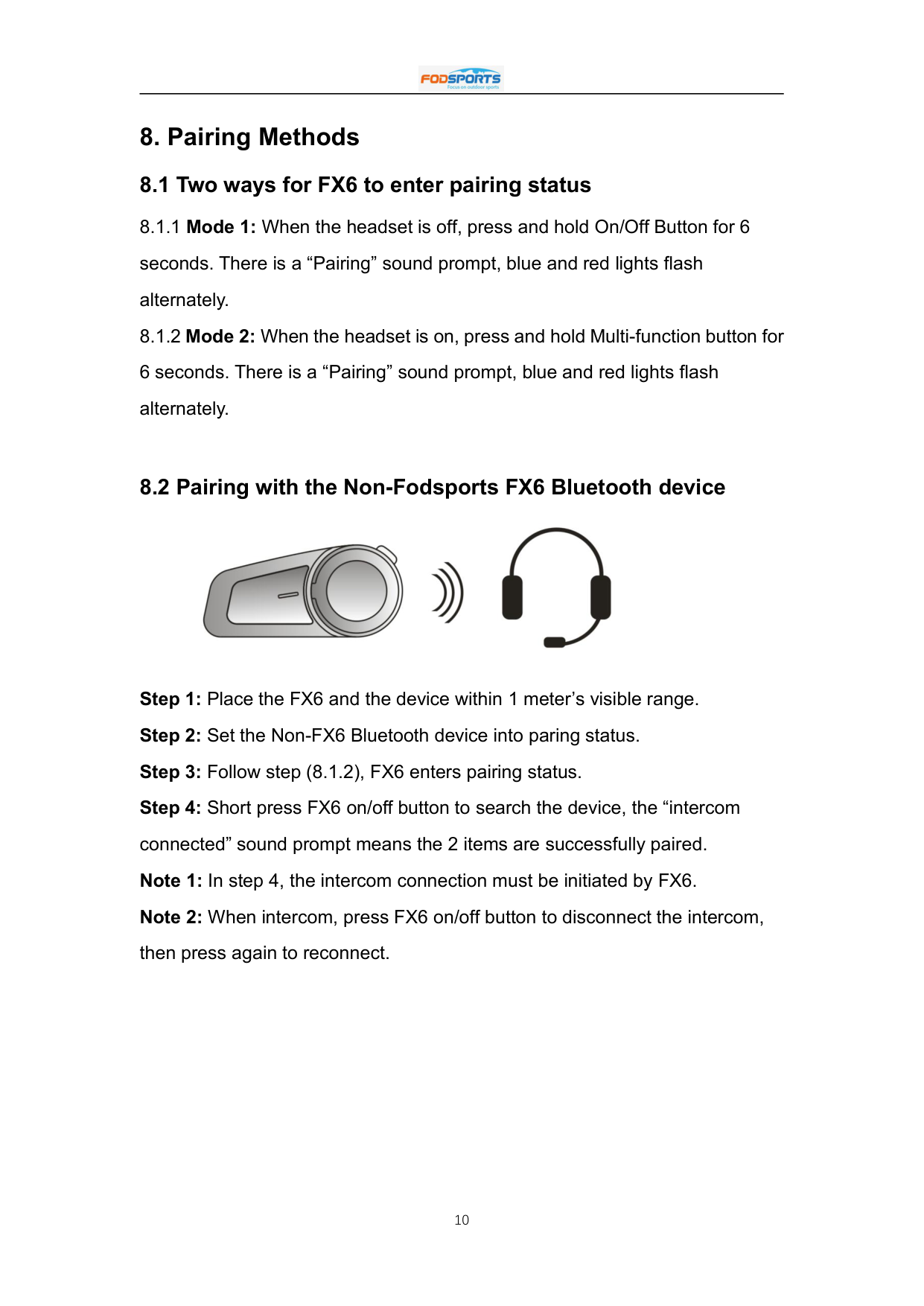
  • ##### 8.2 Pairing with the Non-Fodsports FX6 Bluetooth device
    Page 12

    ![image 24](91ssQ2qv7cL_images/imageFile24.png)

  • Step 1: Place the FX6 and the device within 1 meter’s visible range.
  • Step 2: Set the Non-FX6 Bluetooth device into paring status.
  • Step 3: Follow step (8.1.2), FX6 enters pairing status.
  • Step 4: Short press FX6 on/off button to search the device, the “intercom connected” sound prompt means the 2 items are successfully paired.
  • Note 1: In step 4, the intercom connection must be initiated by FX6.
  • Note 2: When intercom, press FX6 on/off button to disconnect the intercom, then press again to reconnect.
  • ##### 8.3 Pairing with Mobile, GPS and MP3

    ![image 26](91ssQ2qv7cL_images/imageFile26.png)

    Page 13

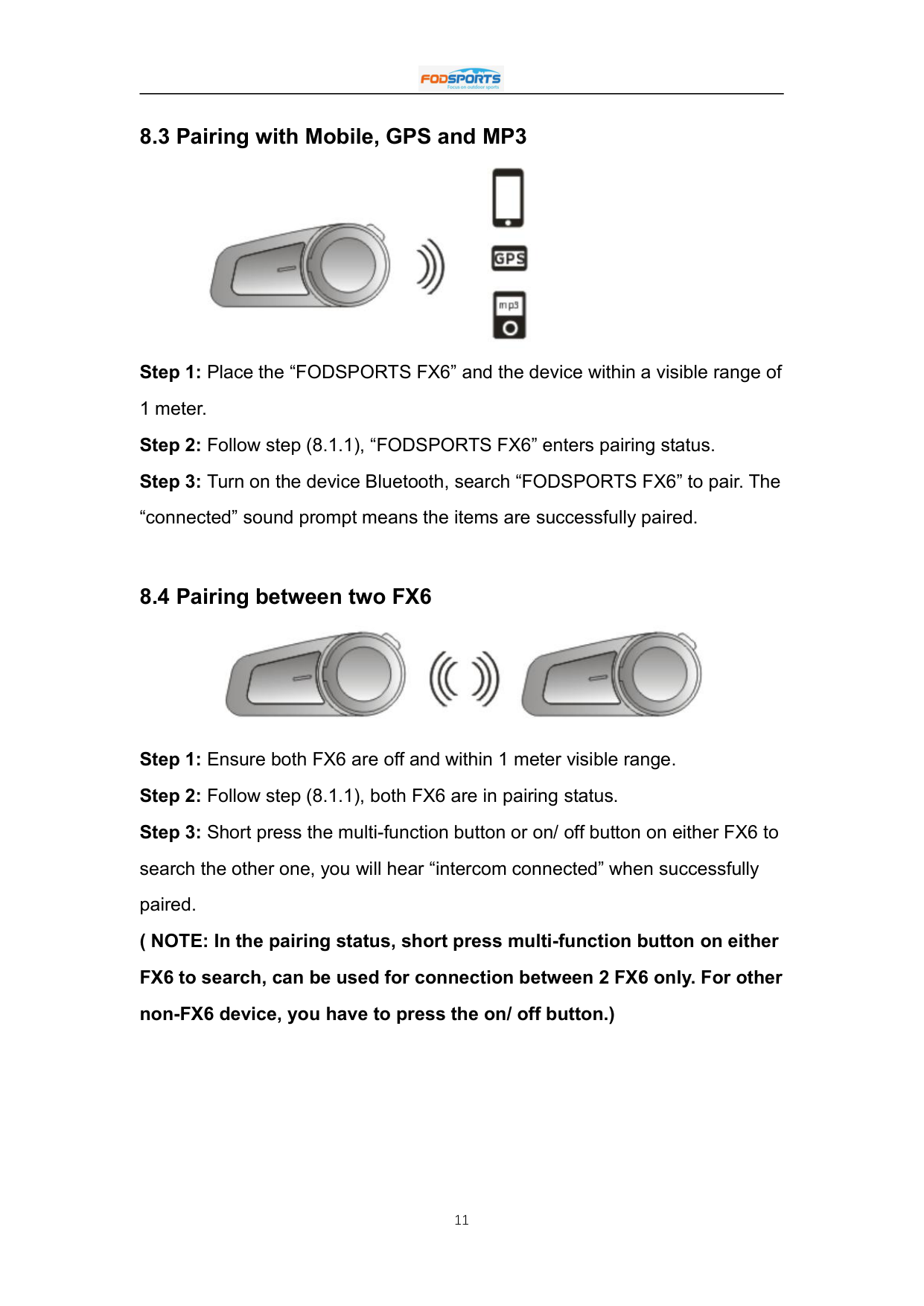
  • Step 1: Place the “FODSPORTS FX6” and the device within a visible range of 1 meter.
  • Step 2: Follow step (8.1.1), “FODSPORTS FX6” enters pairing status.
  • Step 3: Turn on the device Bluetooth, search “FODSPORTS FX6” to pair. The “connected” sound prompt means the items are successfully paired.
  • ##### 8.4 Pairing between two FX6

    ![image 27](91ssQ2qv7cL_images/imageFile27.png)

    Step 1: Ensure both FX6 are off and within 1 meter visible range. Step 2: Follow step (8.1.1), both FX6 are in pairing status. Step 3: Short press the multi-function button or on/ off button on either FX6 to search the other one, you will hear “intercom connected” when successfully paired. ( NOTE: In the pairing status, short press multi-function button on either FX6 to search, can be used for connection between 2 FX6 only. For other non-FX6 device, you have to press the on/ off button.)

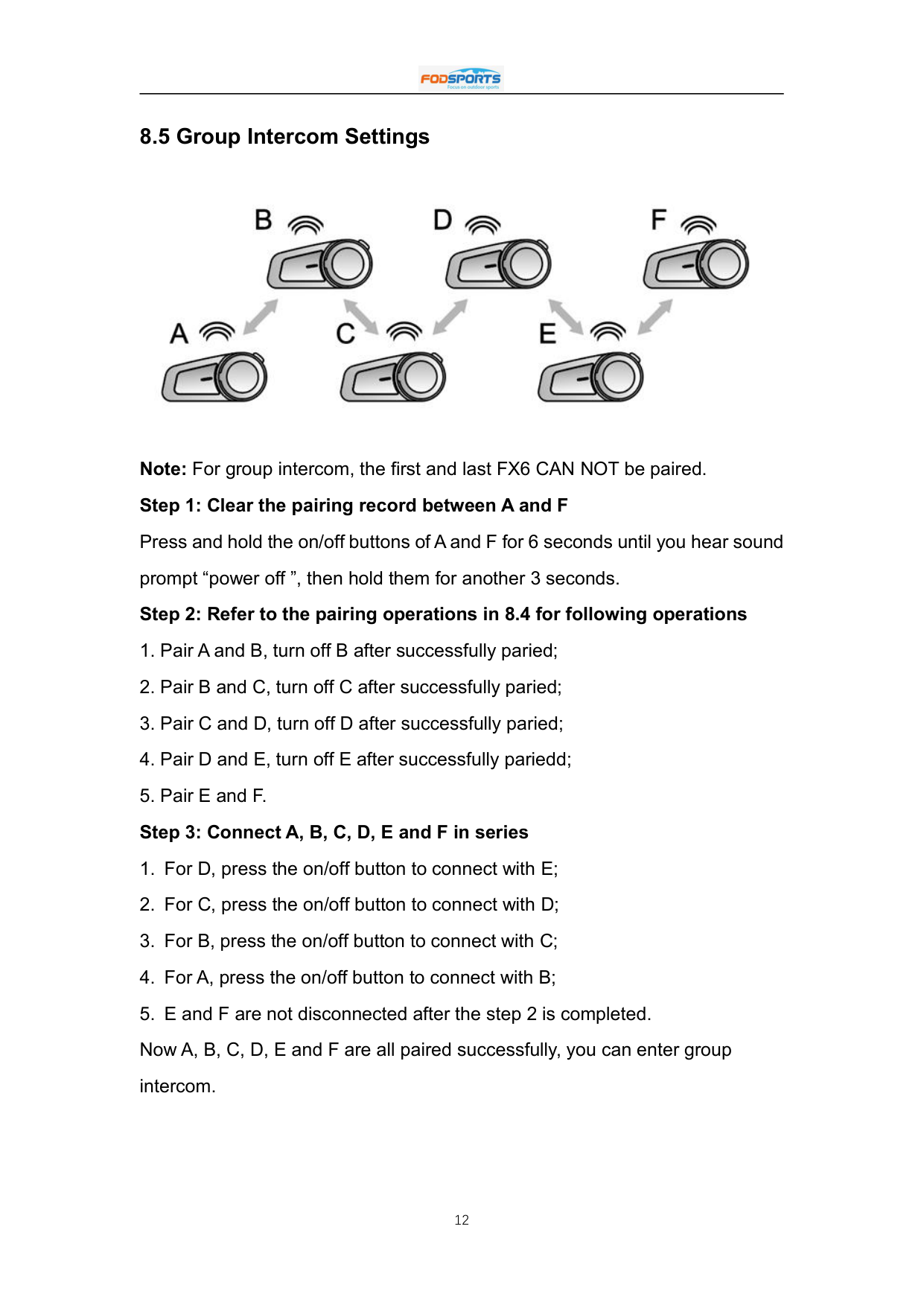
    ##### 8.5 Group Intercom Settings

    ![image 29](91ssQ2qv7cL_images/imageFile29.png)

    Note: For group intercom, the first and last FX6 CAN NOT be paired.
    Page 14

  • Step 1: Clear the pairing record between A and F Press and hold the on/off buttons of A and F for 6 seconds until you hear sound prompt “power off ”, then hold them for another 3 seconds.
  • Step 2: Refer to the pairing operations in 8.4 for following operations
  • 1. Pair A and B, turn off B after successfully paried;
  • 2. Pair B and C, turn off C after successfully paried;
  • 3. Pair C and D, turn off D after successfully paried;
  • 4. Pair D and E, turn off E after successfully pariedd;
  • 5. Pair E and F.
  • Step 3: Connect A, B, C, D, E and F in series
  • 1. For D, press the on/off button to connect with E;
  • 2. For C, press the on/off button to connect with D;
  • Page 15

  • 3. For B, press the on/off button to connect with C;
  • 4. For A, press the on/off button to connect with B;
  • 5. E and F are not disconnected after the step 2 is completed. Now A, B, C, D, E and F are all paired successfully, you can enter group intercom.
  • ![image 31](91ssQ2qv7cL_images/imageFile31.png)

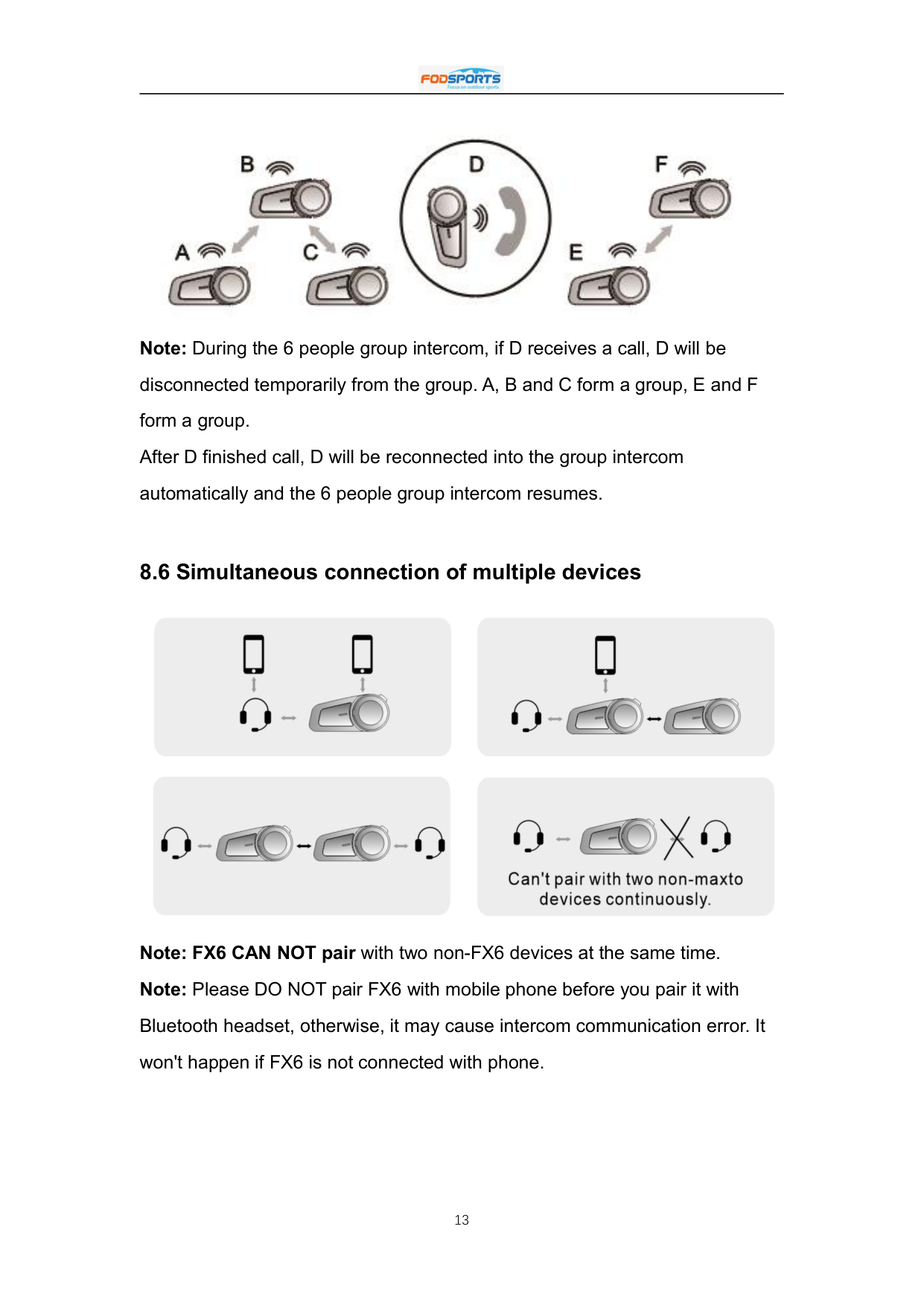
    Note: During the 6 people group intercom, if D receives a call, D will be disconnected temporarily from the group. A, B and C form a group, E and F form a group. After D finished call, D will be reconnected into the group intercom automatically and the 6 people group intercom resumes.

    ##### 8.6 Simultaneous connection of multiple devices

    ![image 32](91ssQ2qv7cL_images/imageFile32.png)

    Note: FX6 CAN NOT pair with two non-FX6 devices at the same time. Note: Please DO NOT pair FX6 with mobile phone before you pair it with Bluetooth headset, otherwise, it may cause intercom communication error. It won't happen if FX6 is not connected with phone.

    #### 9. Priority of Functions
    Page 16

  • Level 1: Phone call & Intercom by introduced adapter
  • Level 2: Intercom introduced by Two-way radio cable
  • Level 3: Bluetooth Intercom
  • Level 4: FM & Music
  • 10. SpecificationsBluetooth Version 5.0Operating Range Up to 1000 metersStandby Time Up to 200 hoursOperating Time Up to 10 hoursCharging Time Approximately 2.5 hoursCharging Interface Micro USB Android universal plugBattery Type Rechargeable Li-Polymer batteryPower Supply 5V – 0.5AOperating Temperature 14F-131F (-10℃-55℃)Storage Temperature -4F-140F (-20℃~60℃)

  • * The actual time may vary from the phone type and usage.
  • * The working distance will be deviated for the influence of environment and climate
  • 11. Matters Need Attention

  • 1. The Bluetooth name is “FODSPORTS FX6”.
  • 2. The appropriate storage temperature for this device is between -20℃ and 60℃. Please do not store it in environment with too high or too low temperatures, otherwise the service life will be affected.
  • 3. To avoid explosion, please do not expose it to open fire.
  • 4. If you’re not using it for a long time, please keep the device in dry place and charge it regularly (once every 3 months), to preserve battery life.
  • 12. After-Sale Service For any quality problem or missing accessories, especially pairing problem between 2 or more FX6 headsets, please feel free to contact us at email: [email protected]. We're always here ready to help, will reply to you in 12 hours.
  • Similar Unknown