Ask AI
— answers from the official manualAnswers from the official manual.
Common questions
Common Questions
19 totalHow do I set up the dock for the first time?
Plug the USB Type-C cable from the dock into the USB Type-C port on your laptop, then connect the power adapter to the dock and plug it into a power outlet. After that, you can connect your peripherals to the appropriate ports and install any necessary drivers from the HP support website.
What ports are included on the HP USB C Dock G5?
The dock includes 1 USB Type-C port with Power Delivery, 4 SuperSpeed USB Type-A ports, 2 DisplayPort 1.4 ports, 1 HDMI 2.0 port, 1 RJ-45 Ethernet port, and 1 combo audio jack for headphones and microphone connections.
How do I update the firmware on the dock?
Download the latest firmware from the HP support website and follow the provided instructions to update the dock's firmware. The dock supports connected firmware updates for easy installation.
How many displays can I connect to the HP USB-C Dock G5?
The HP USB-C Dock G5 supports up to 3 displays. You can connect displays using the two DisplayPort ports, one HDMI 2.0 port, or the USB-C video output on the back of the dock. (Page 2, Page 3)
What is the maximum power delivery to my laptop through the dock?
The dock provides up to 100W of power to the host system via USB-C. Supported voltage levels include 5V, 9V, 10V, 12V, 15V, and 20V, all at 5A maximum. Note that power is not supported on Mobile Workstation Laptops. (Page 3, Page 4)
Is the HP USB-C Dock G5 compatible with my MacBook or Chromebook?
The dock is compatible with HP laptops, MacBook computers, and other laptops running Windows 10, Windows 11, macOS, or Chrome OS. However, the dock power button will not work on Chromebooks, and HP does not provide Ethernet and audio drivers on Mac PCs. (Page 4)
Show 13 more questions
What ports are available on the HP USB-C Dock G5?
What are the minimum system requirements to use the HP USB-C Dock G5?
Does the HP USB-C Dock G5 work with HP ZBook laptops?
What is included in the box with the HP USB-C Dock G5?
How do I secure the HP USB-C Dock G5 to my desk?
What are the dimensions and weight of the HP USB-C Dock G5?
What is the warranty on the HP USB-C Dock G5?
What is the maximum power delivery capability of the HP USB C Dock G5?
How many external monitors can I connect to the dock?
What should I do if the dock is not being recognized by my laptop?
What should I do if the USB ports on the dock are not working?
Can I use the HP USB C Dock G5 with non-HP laptops?
What does it mean when there is no LED indicator light on the dock?
Full Manual
4 pages
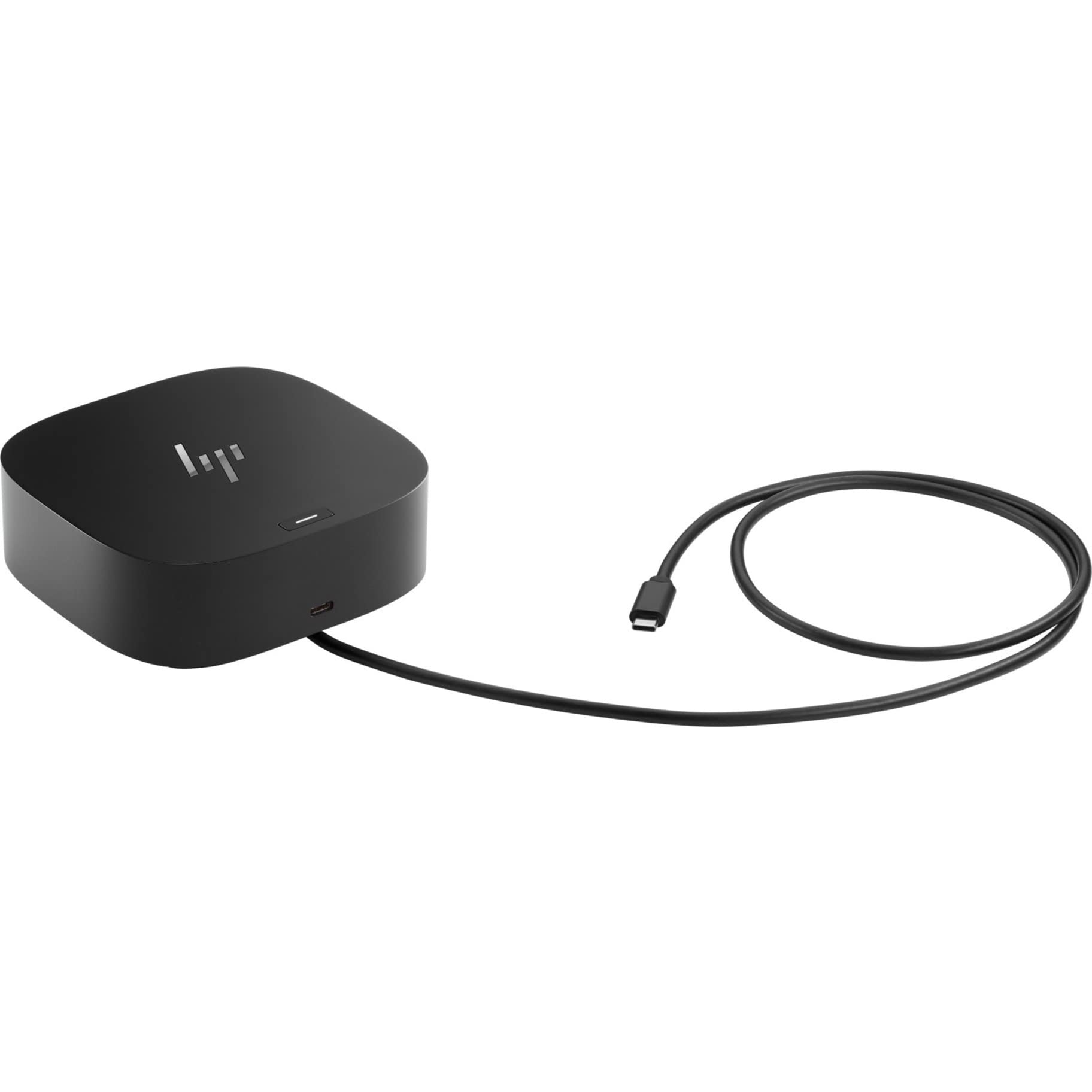
HP USB-C Dock G5 (5TW10UT) Overview Universal docking for today's laptops Connect your USB-C®-enabled laptop to your displays, accessories, and wired network with the versatile, elegant, and space-saving HP USB-C® Dock G5. Compatibility without constraints Designed with universal compatibility in mind, this dock works with both HP and non-HP USB-C®- and Thunderbolt™-enabled laptops.[1] Clear the clutter Avoid a messy desk by using a simple one- cord setup that plugs in multiple devices.

Features Easily manage your environment Help secure and remotely manage your laptop with this dock that has advanced network manageability features.[1] Single-cable solution Add your accessories and up to three displays to the dock.[3] Then simply connect it to your laptop through a single USB-C® cable to access your devices and charge your PC. Small footprint Reclaim your desk with a compact dock that takes up only 5 x 5 inches of space. Efficient rmware updates Save time with dock rmware updates pushed to your laptop, even when they are not connected.[4] [1] For USB-C® functionality, host PC must support the DisplayPort™ Alt mode protocol through its USB-C® port. Thunderbolt™-enabled notebooks will function at USB-C® speeds. Charging and port replication is supported on notebooks that have implemented USB-C® industry specifications. Power button to turn on or wake the system, on HP notebooks. HP does not provide Ethernet and audio drivers on Mac PCs.

Specications Dimensions (W x D x H) 4.8 x 4.8 x 1.77 in Weight 1.65 lb Video connectors HDMI; DisplayPort™-out; USB Type-C® Ports Front: 1 USB-C® port with data and power out (15W); 1 USB-C® cable to connect to host system Side: 2 USB 3.0 charging ports; 1 combo audio jack Back: 2 USB 3.0 charging ports; 2 DisplayPort™ ports; 1 RJ45 port; 1 HDMI 2.0 port; 1 standard lock slot Power Power to system: Up to 100W via USB-C® Power to host (USB-C PD): 5V , 9V, 10V, 12V, 15V, 20V all at 5A MAX Security management 1 Lock slot (side, lock is sold separately) Minimum System Requirements USB Type-C® (USB Power Delivery, Alt Mode DisplayPort™) UPC number 193905522330 Manufacturer Warranty One-year limited warranty. What's in the box HP USB-C® Dock G5; AC Adapter; AC Power cord; Product notices; Warranty; Quick Start guide

Additional specications Color Black Compatibility Compatible with HP laptops, MacBook® computers, and other laptops.[2] Compatibility disclaimer 1 Separate AC needed for HP ZBooks that require more than 100W power delivered via USB-C. HP EliteBook 1050 G1 requires a separate AC adapter. Compatibility disclaimer 2 Dock power button will not work on Chromebooks. Compatibility disclaimer 3 Provides up to 100 W via USB-C. Compatibility disclaimer 4 Power not supported on Mobile Workstation Laptops. Compatible Operating Systems Windows 10; Windows 11; macOS; Chrome OS™ Datasheet photo 1 Publication photos/Adicora HP USB-C Dock G5.jpg Display support Up to 3 displays supported End of Life CO2e (kg) 0.1 Energy Usage CO2e (kg) 3 Master carton dimension (imperial) 19.01 x 15.43 x 6.88 in Master carton weight (imperial) 19.66 lb Package dimensions (W x D x H) 7.55 x 6.14 x 6.49 in Package weight 3.27 lb Product subgroup Docking Product type Port replicators Production CO2e (kg) 7 Total CO2e (kg) 10 Transportation CO2e (kg) 0.3 UNSPSC code 43211602 Generated by Dynamic Collateral Tool – (us-en) – Apr 16, 2026 5:21 AM UTC+0000