
Huawei AI Life App Installation Instruction
Ask AI
— answers from the official manualAnswers from the official manual.
Common questions
Common Questions
10 totalHow do I install the Huawei AI Life app?
Use your phone's browser to scan a QR code or download and install the Huawei AI Life app from Huawei AppGallery. (Page 10)
What is proximity pairing?
When your phone screen is on, automatically pair with FreeBuds 3 when it's within 50 cm; touch CONNECT to complete the one-step pairing. (Page 5)
How do I charge my FreeBuds 3?
Place them in the charging case for automatic charging, or use a Type-C charger or compatible wireless charger to charge the case directly with back side facing up. (Page 7)
What do the indicator lights mean?
Inner light: Green (battery >60%), Yellow (20% - 60%, Red (<20%). Outer light: Green (charge level >90%) or when charging, turns yellow below 90%. No charge mode: Green (>60%), Yellow (20%-60%), Red (<20%). (Pages 8, 9)
How can I restore factory settings?
Open the case and press the function button for 7 seconds until the indicator light flashes red; then green indicates success. Now they are in pairing mode again. (Page 8)
How do I enable or disable ANC mode?
Double-tap on the upper part of the left earbud handle to toggle between enabling and disabling Active Noise Cancellation (ANC) mode. (Page 6)
Full Manual
17 pages
Skip to content Manuals+ User Manuals Simplified.

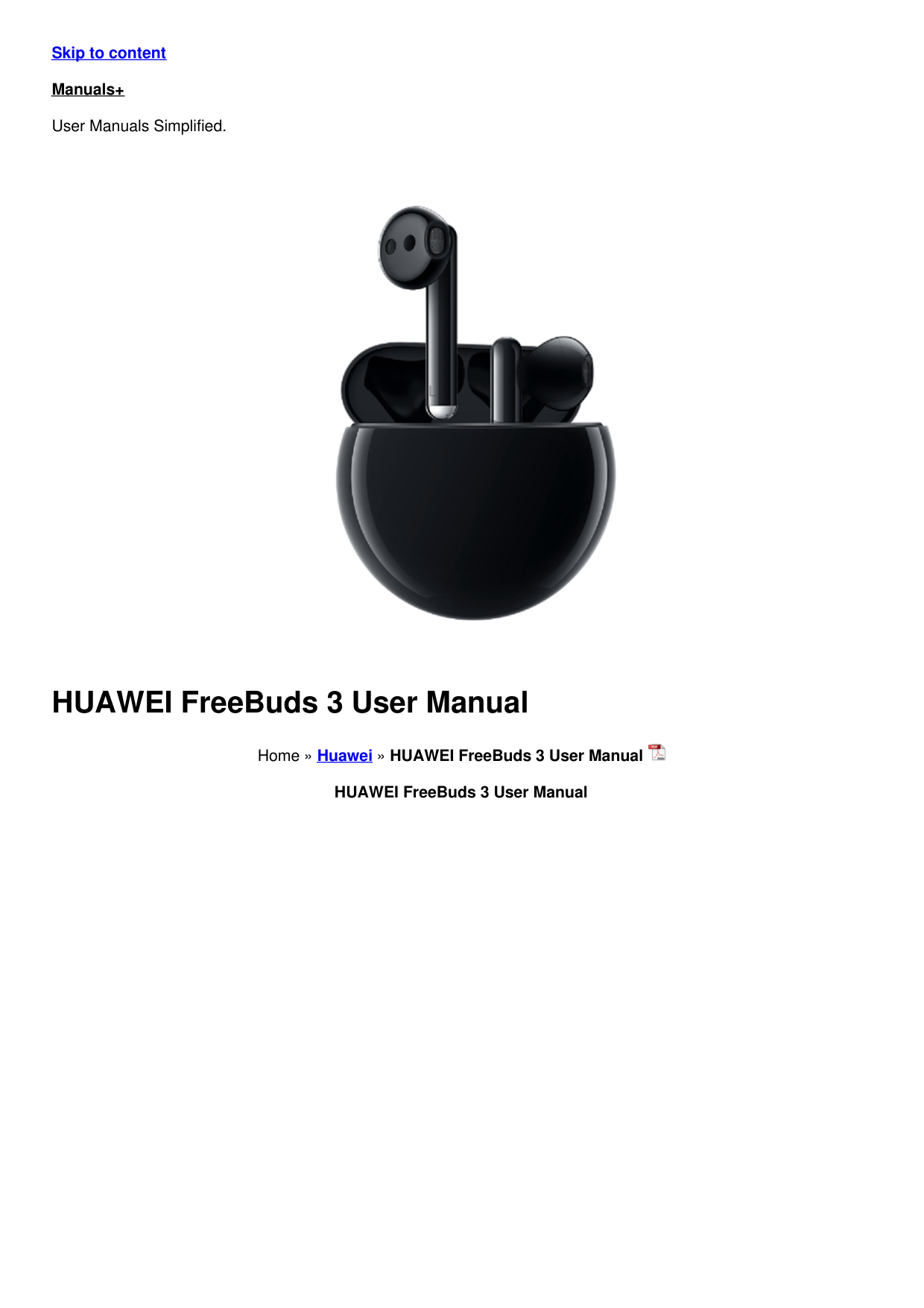
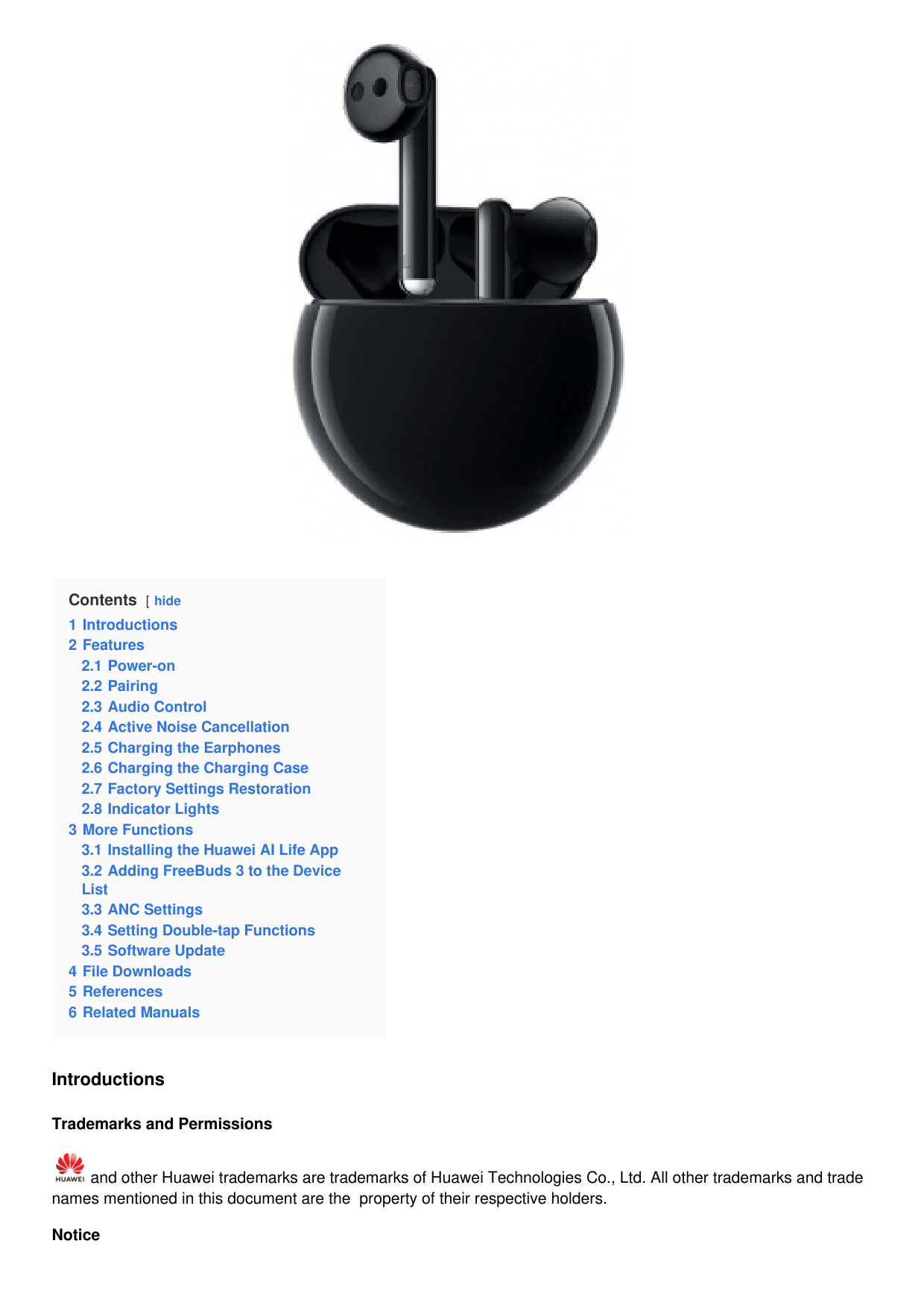
HUAWEI FreeBuds 3 User Manual

Home » Huawei » HUAWEI FreeBuds 3 User Manual
HUAWEI FreeBuds 3 User Manual

Contents [ hide
Introductions
Trademarks and Permissions

and other Huawei trademarks are trademarks of Huawei Technologies Co., Ltd. All other trademarks and trade names mentioned in this document are the property of their respective holders. Notice
The purchased products, services and features are stipulated by the contract made between Huawei and the customer. All or part of the products, services and features described in this document may not be within the purchase scope or the usage scope. Unless otherwise specified in the contract, all statements, information, and recommendations in this document are provided “AS IS” without warranties, guarantees or representations of any kind, either express or implied.
The information in this document is subject to change without notice. Every effort has been made in the preparation of this document to ensure accuracy of the contents, but all statements, information, and recommendations in this document do not constitute a warranty of any kind, express or implied.
Features
Power-on
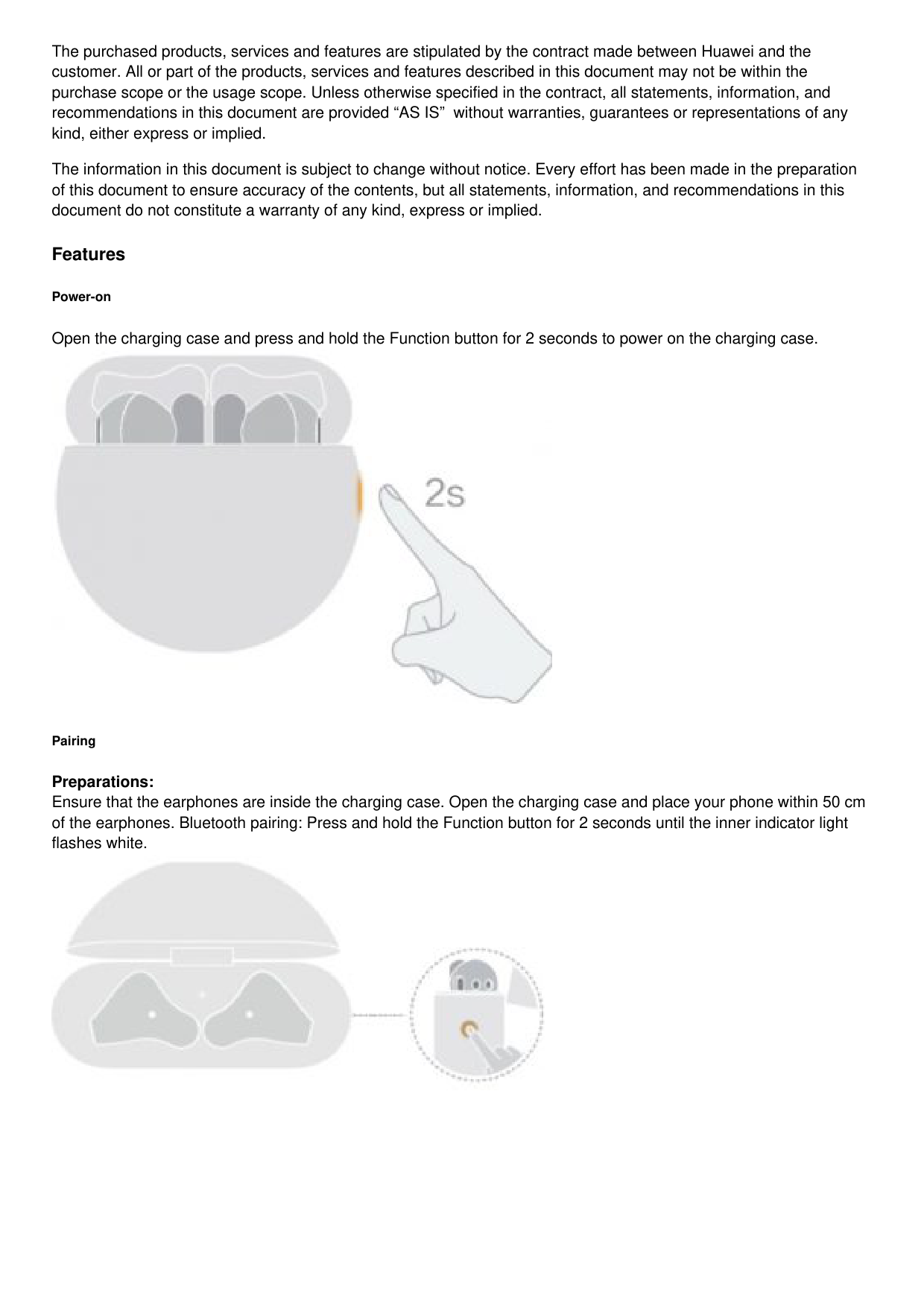
Open the charging case and press and hold the Function button for 2 seconds to power on the charging case.

Pairing
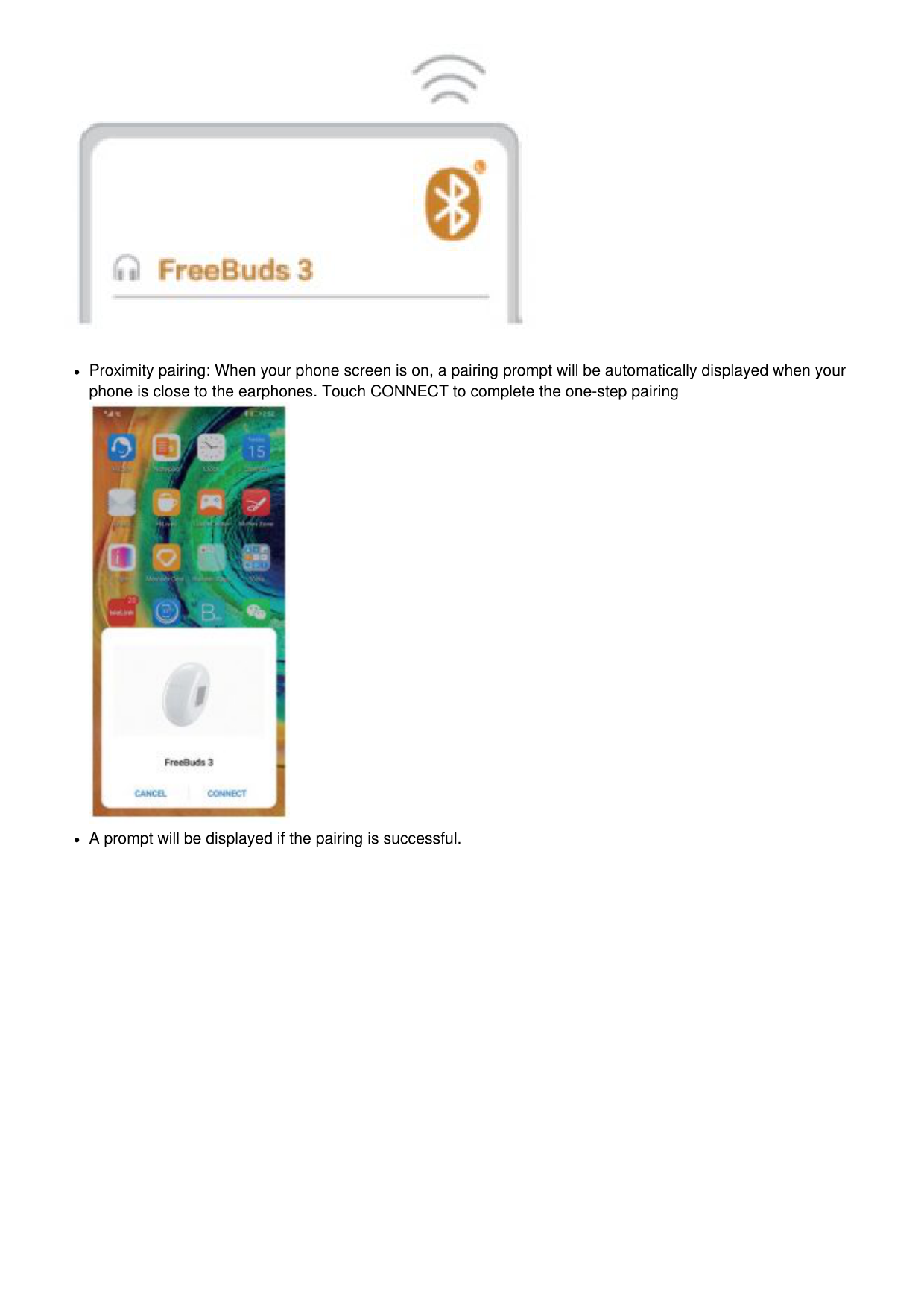
Preparations: Ensure that the earphones are inside the charging case. Open the charging case and place your phone within 50 cm of the earphones. Bluetooth pairing: Press and hold the Function button for 2 seconds until the inner indicator light flashes white.

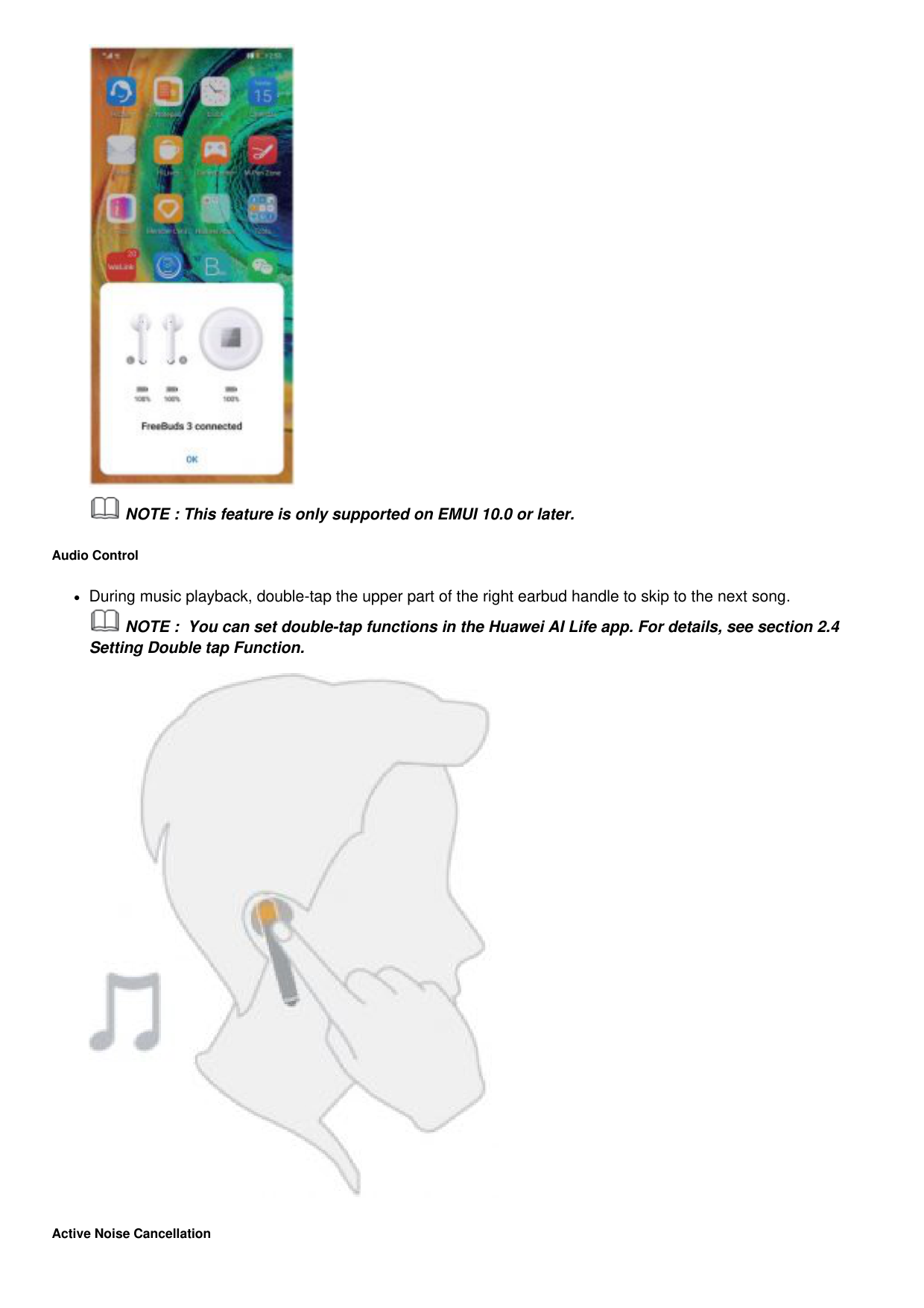

Proximity pairing: When your phone screen is on, a pairing prompt will be automatically displayed when your phone is close to the earphones. Touch CONNECT to complete the one-step pairing

A prompt will be displayed if the pairing is successful.


NOTE : This feature is only supported on EMUI 10.0 or later.
Audio Control
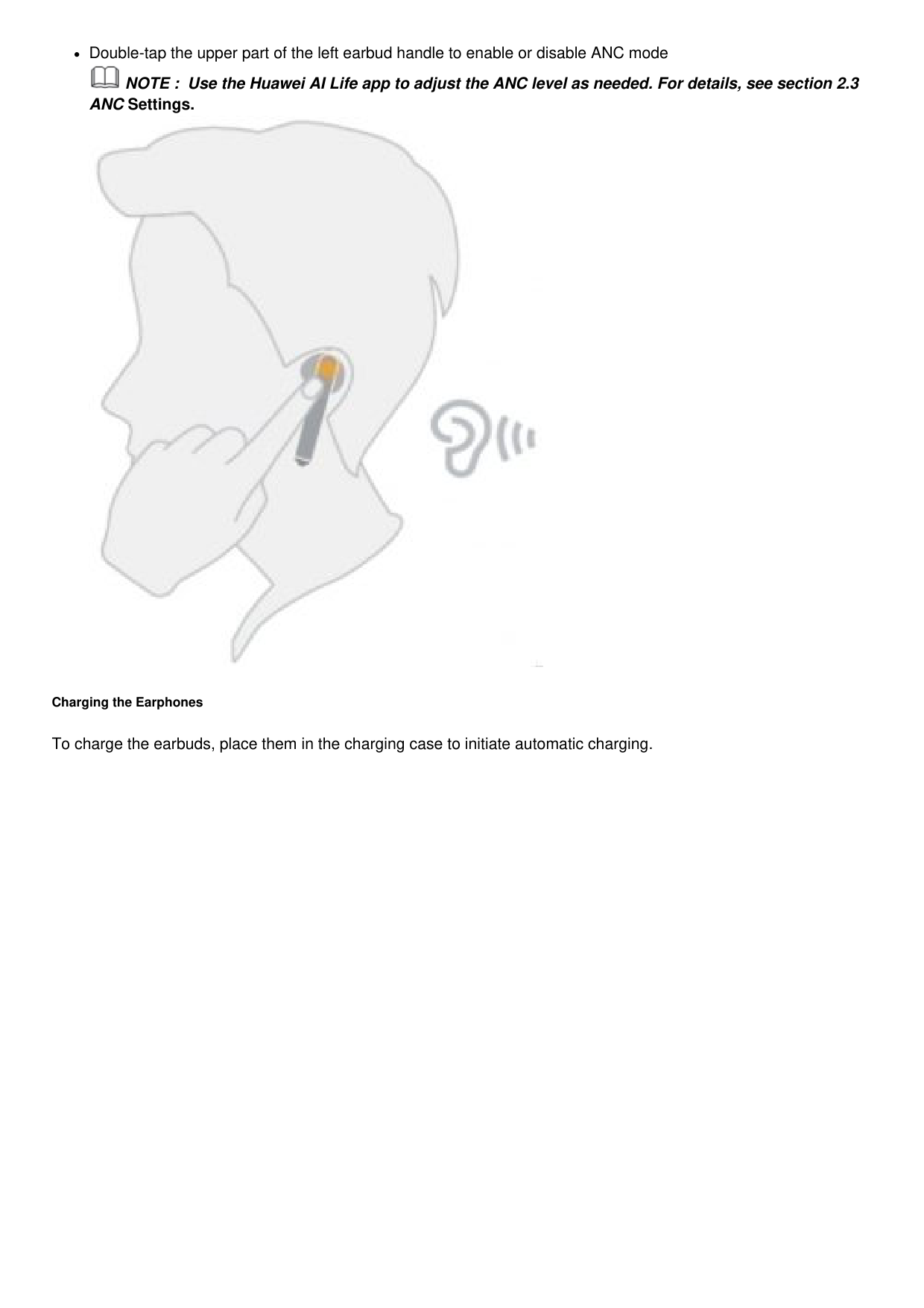
During music playback, double-tap the upper part of the right earbud handle to skip to the next song.

NOTE : You can set double-tap functions in the Huawei AI Life app. For details, see section 2.4 Setting Double tap Function.

Active Noise Cancellation
Double-tap the upper part of the left earbud handle to enable or disable ANC mode

NOTE : Use the Huawei AI Life app to adjust the ANC level as needed. For details, see section 2.3 ANC Settings.

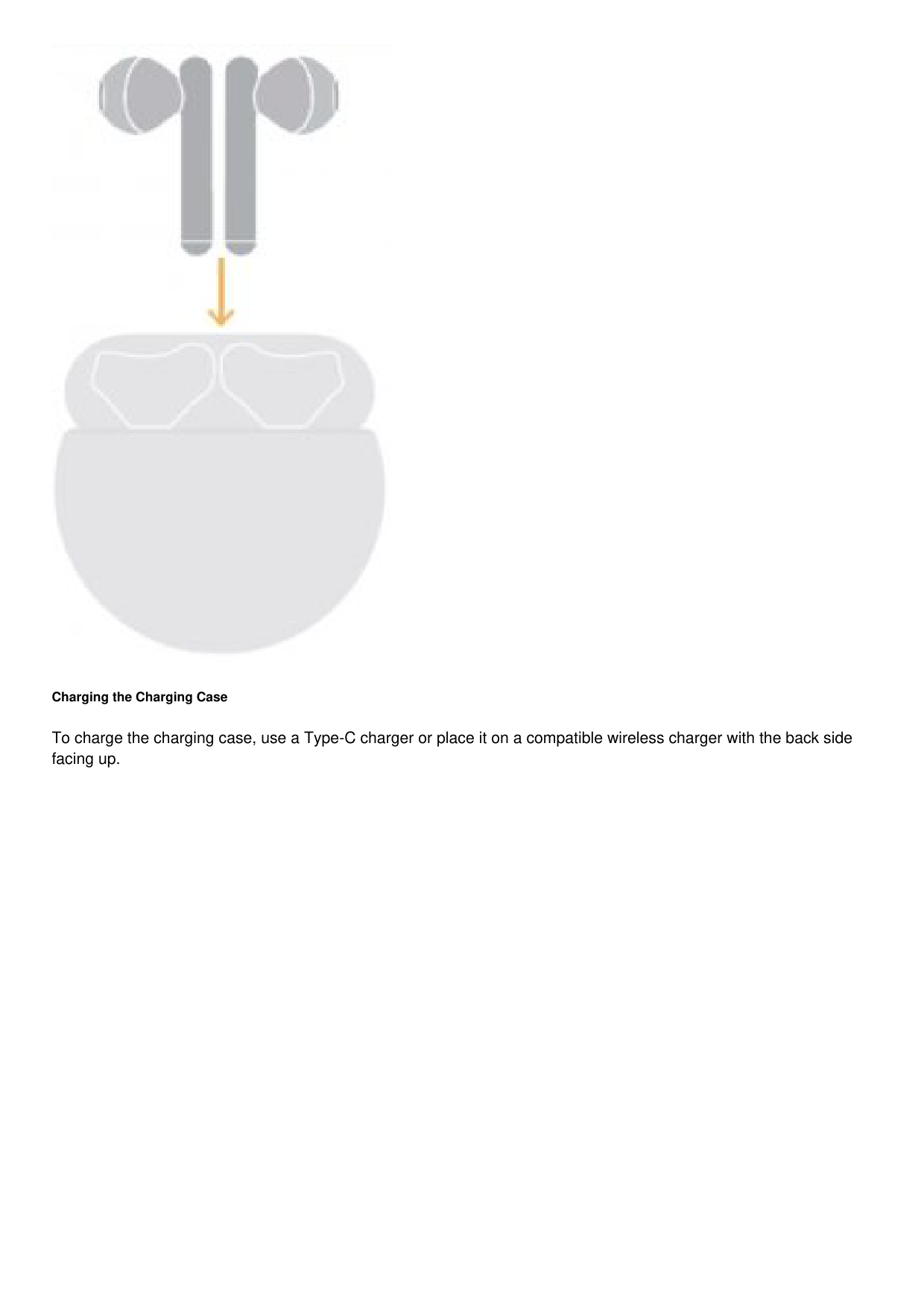
Charging the Earphones
To charge the earbuds, place them in the charging case to initiate automatic charging.

Charging the Charging Case
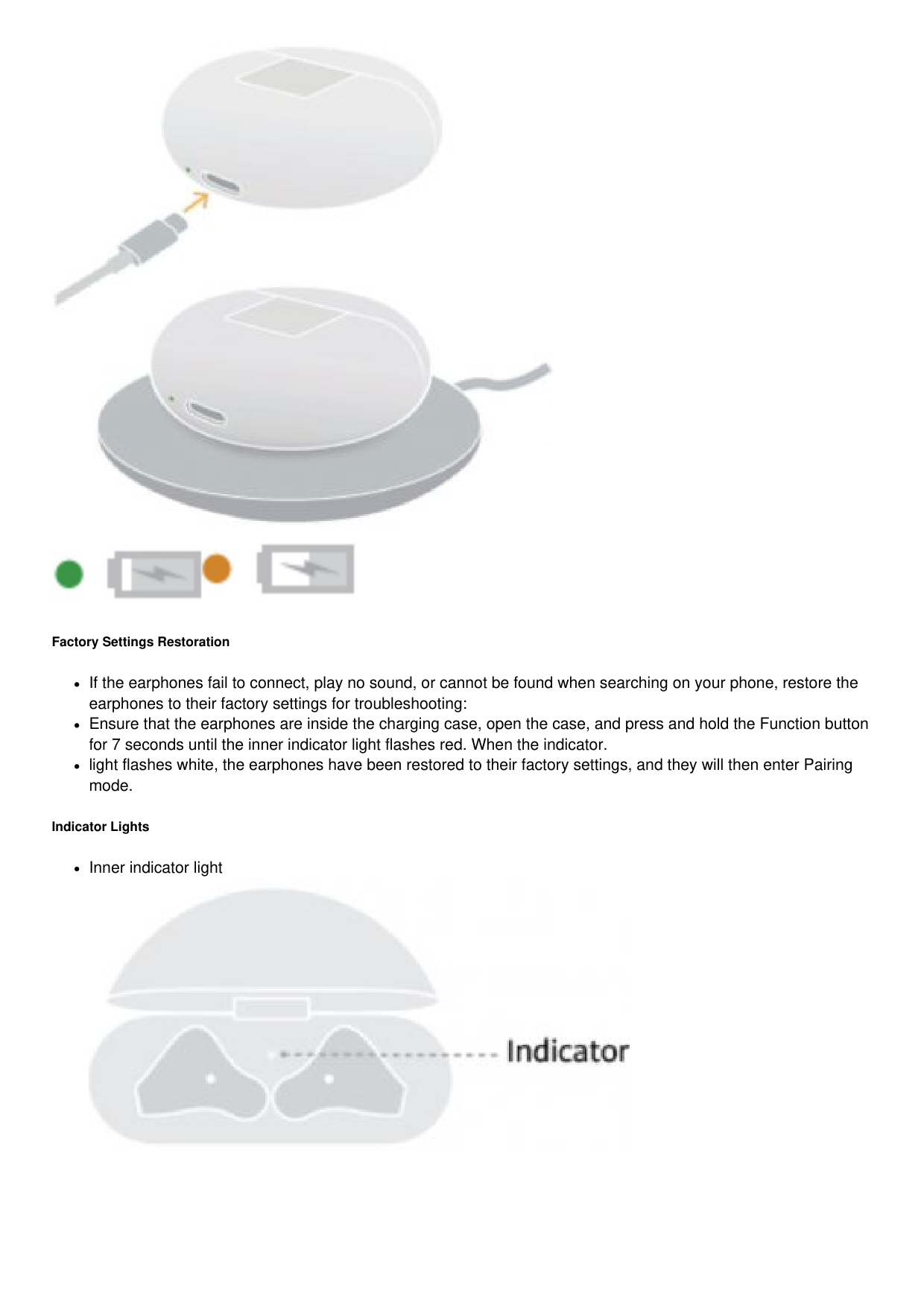
To charge the charging case, use a Type-C charger or place it on a compatible wireless charger with the back side facing up.


Factory Settings Restoration
If the earphones fail to connect, play no sound, or cannot be found when searching on your phone, restore the earphones to their factory settings for troubleshooting:
Ensure that the earphones are inside the charging case, open the case, and press and hold the Function button for 7 seconds until the inner indicator light flashes red. When the indicator.
light flashes white, the earphones have been restored to their factory settings, and they will then enter Pairing mode.
Indicator Lights
Inner indicator light

State Description
Turns green The battery level of the earphones is higher than 60%.
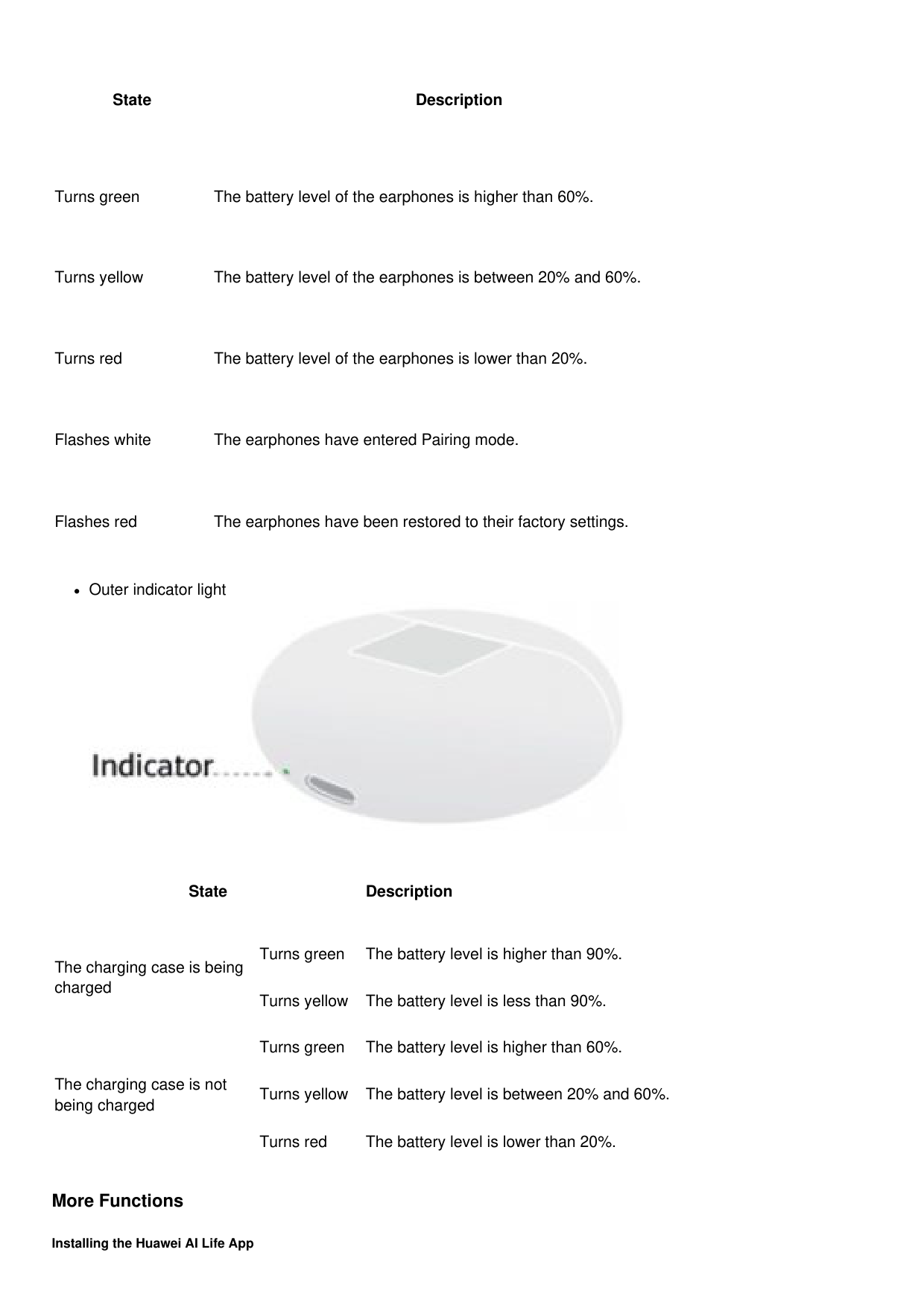
Turns yellow The battery level of the earphones is between 20% and 60%.
Turns red The battery level of the earphones is lower than 20%.
Flashes white The earphones have entered Pairing mode.
Flashes red The earphones have been restored to their factory settings.
Outer indicator light

State Description
The charging case is being charged
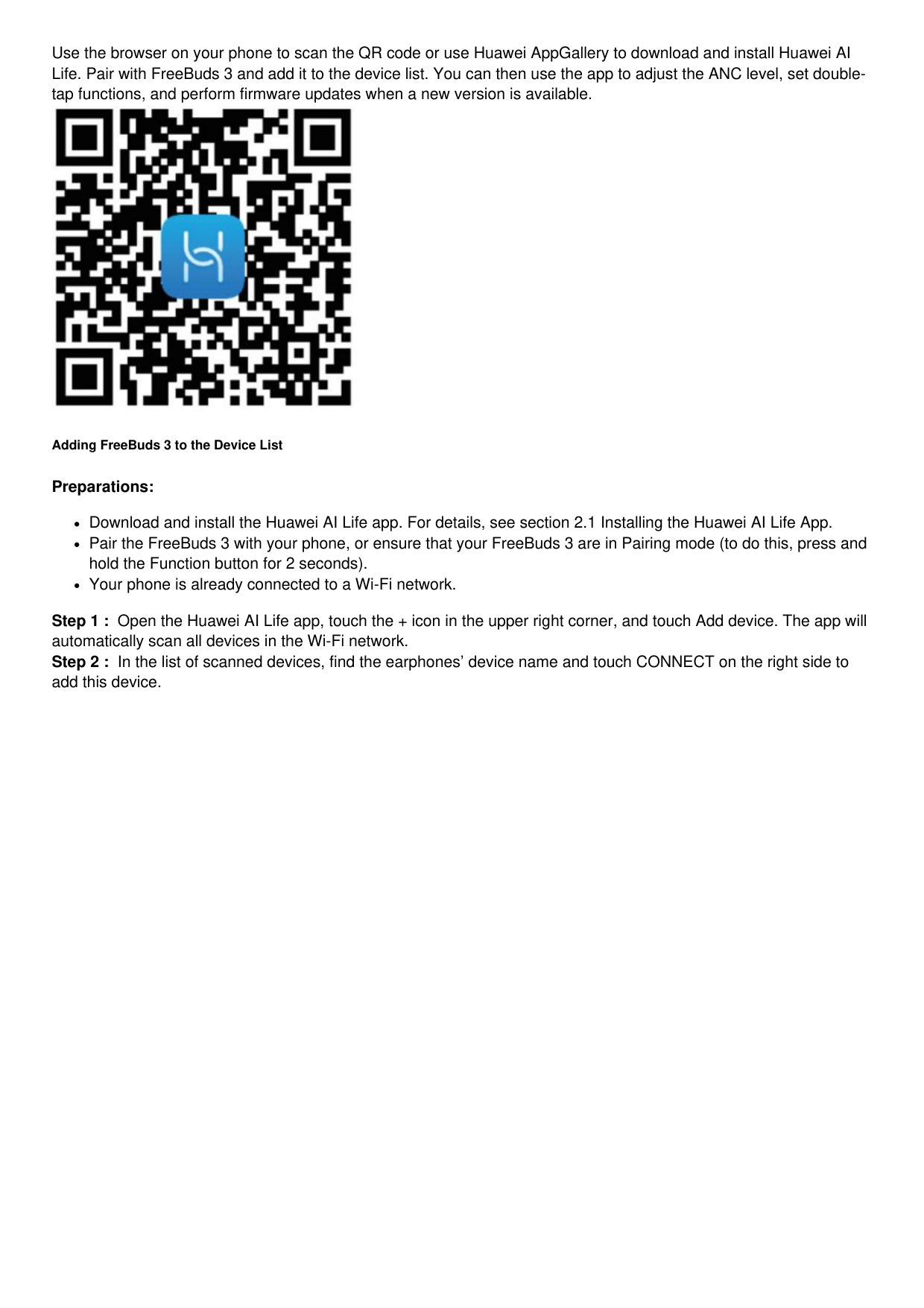
Turns green The battery level is higher than 90%.
Turns yellow The battery level is less than 90%.
The charging case is not being charged
Turns green The battery level is higher than 60%.
Turns yellow The battery level is between 20% and 60%.
Turns red The battery level is lower than 20%.
More Functions
Installing the Huawei AI Life App
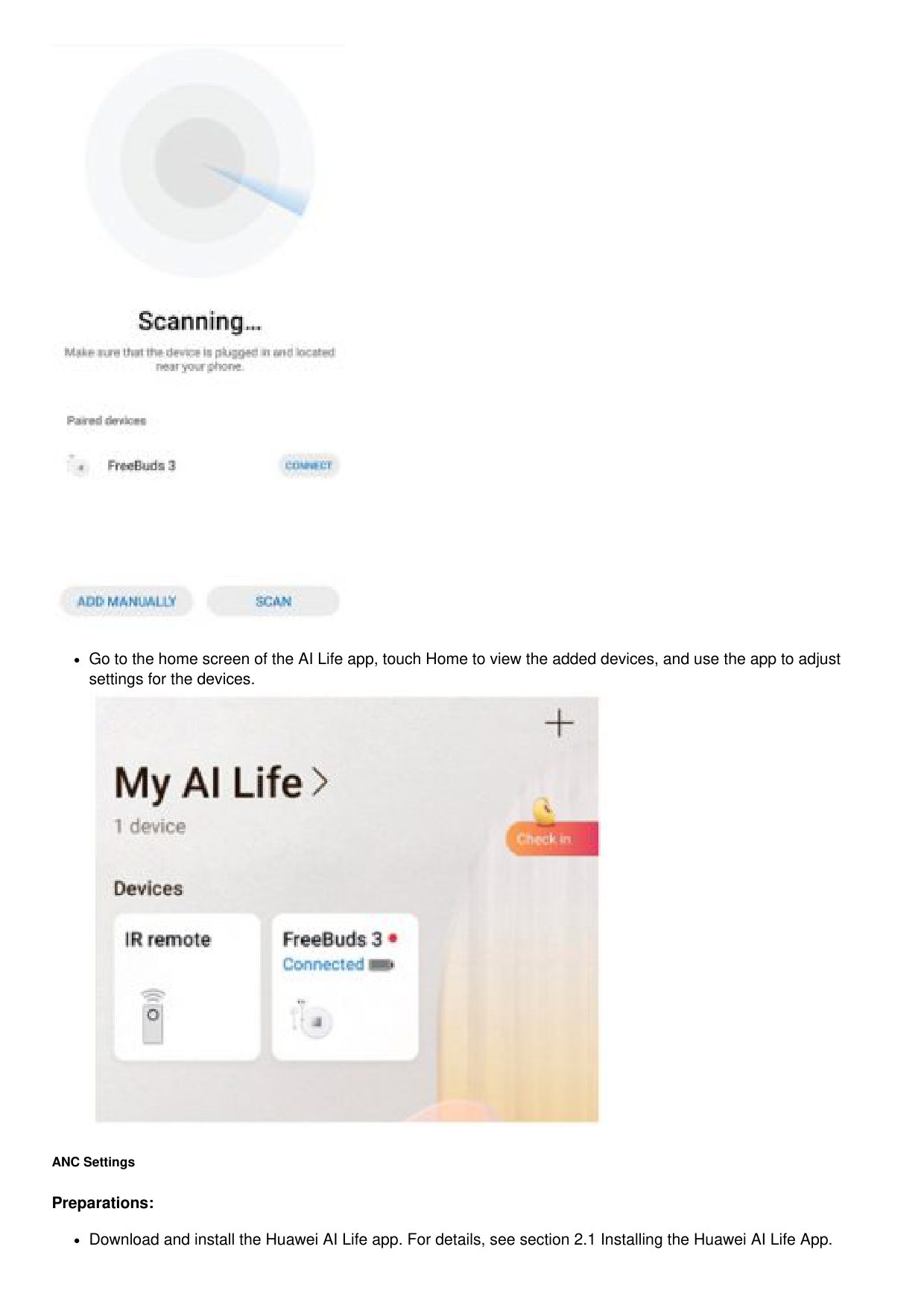
Use the browser on your phone to scan the QR code or use Huawei AppGallery to download and install Huawei AI Life. Pair with FreeBuds 3 and add it to the device list. You can then use the app to adjust the ANC level, set doubletap functions, and perform firmware updates when a new version is available.

Adding FreeBuds 3 to the Device List
Preparations:
Download and install the Huawei AI Life app. For details, see section 2.1 Installing the Huawei AI Life App.
Pair the FreeBuds 3 with your phone, or ensure that your FreeBuds 3 are in Pairing mode (to do this, press and hold the Function button for 2 seconds).
Your phone is already connected to a Wi-Fi network.
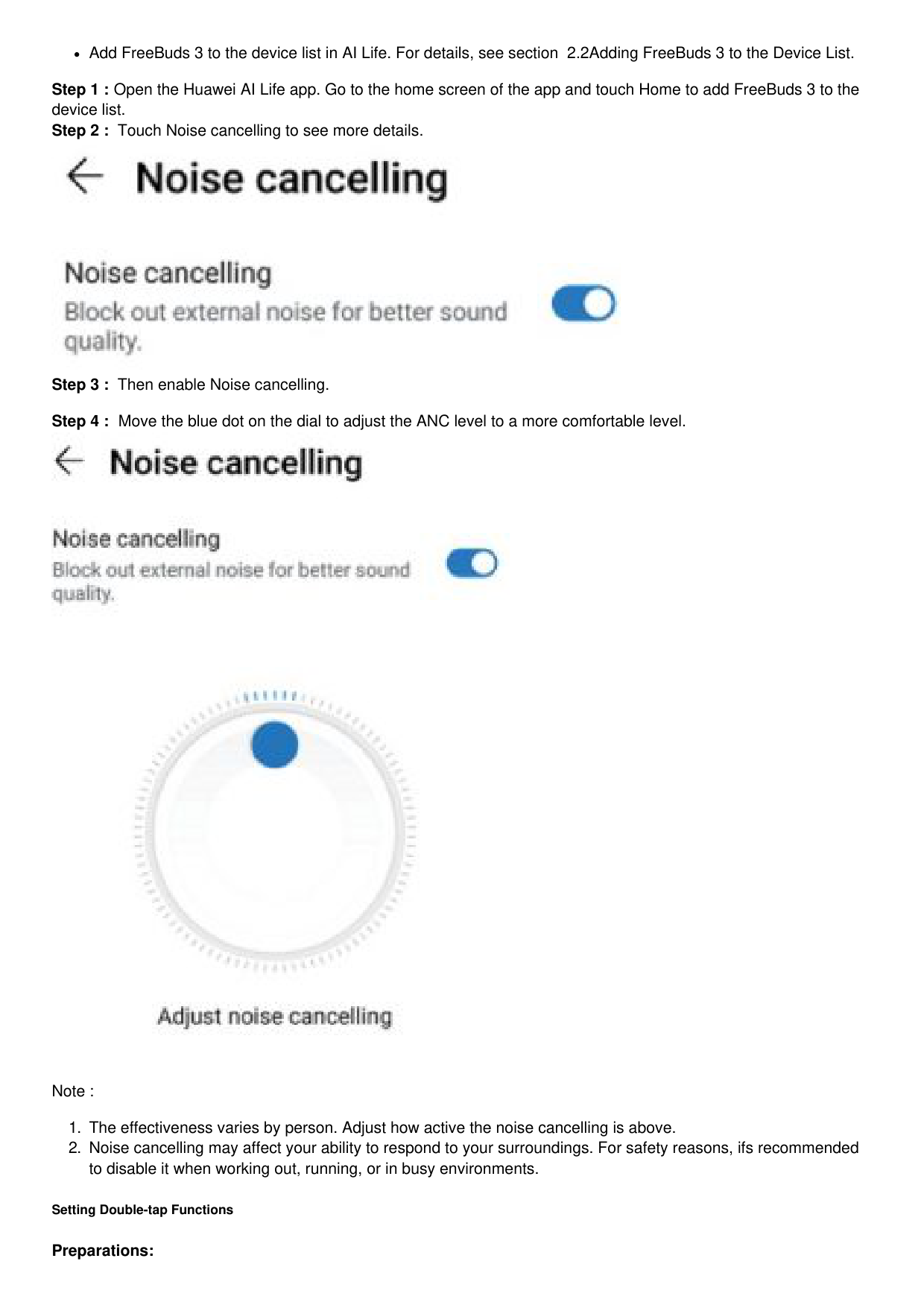

Go to the home screen of the AI Life app, touch Home to view the added devices, and use the app to adjust settings for the devices.

ANC Settings
Preparations:
Download and install the Huawei AI Life app. For details, see section 2.1 Installing the Huawei AI Life App.
Add FreeBuds 3 to the device list in AI Life. For details, see section 2.2Adding FreeBuds 3 to the Device List.
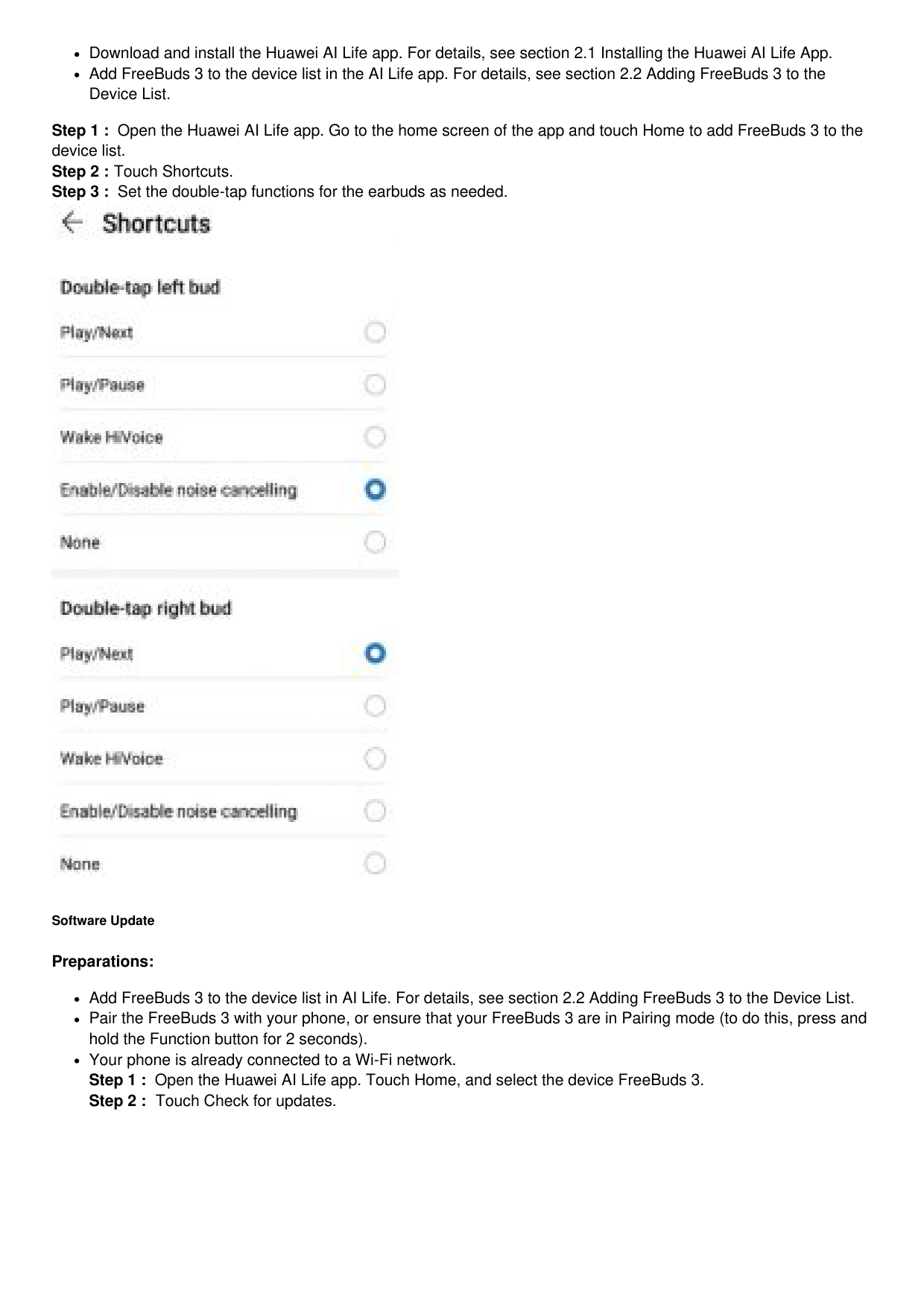


Note :
Setting Double-tap Functions
Preparations:
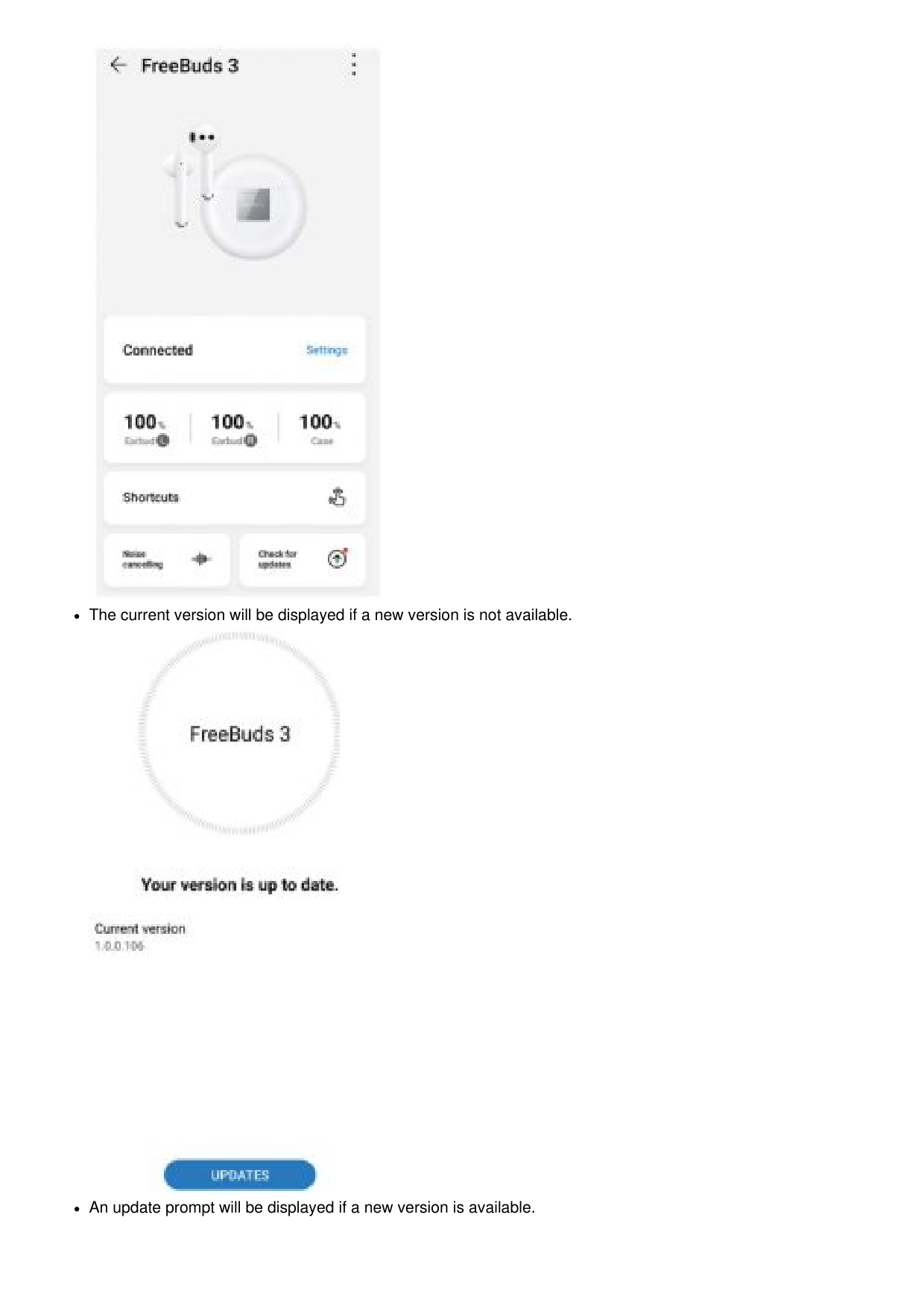
Download and install the Huawei AI Life app. For details, see section 2.1 Installing the Huawei AI Life App.
Add FreeBuds 3 to the device list in the AI Life app. For details, see section 2.2 Adding FreeBuds 3 to the Device List.

Software Update
Preparations:
Add FreeBuds 3 to the device list in AI Life. For details, see section 2.2 Adding FreeBuds 3 to the Device List.
Pair the FreeBuds 3 with your phone, or ensure that your FreeBuds 3 are in Pairing mode (to do this, press and hold the Function button for 2 seconds).
Your phone is already connected to a Wi-Fi network.

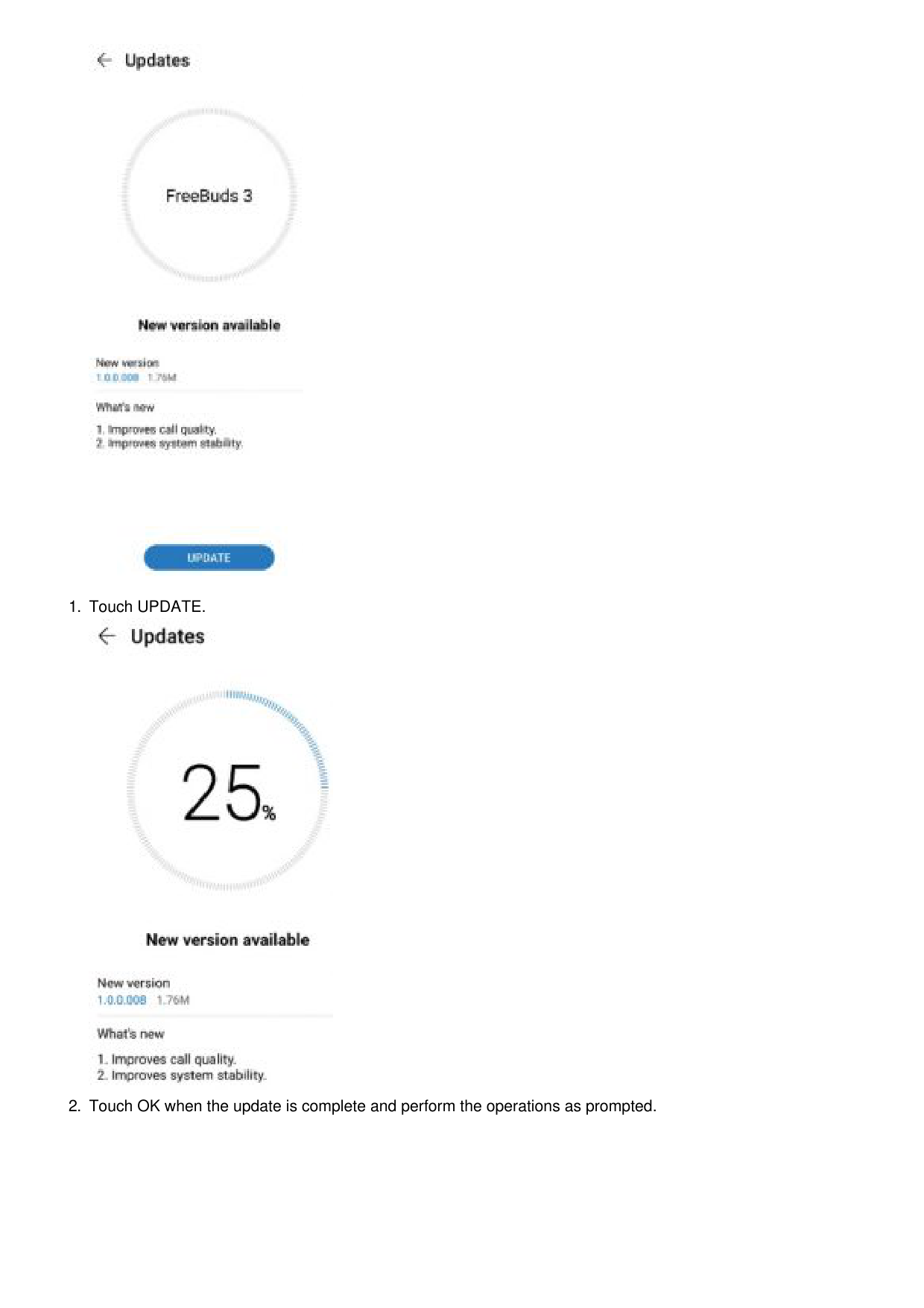
The current version will be displayed if a new version is not available.

An update prompt will be displayed if a new version is available.
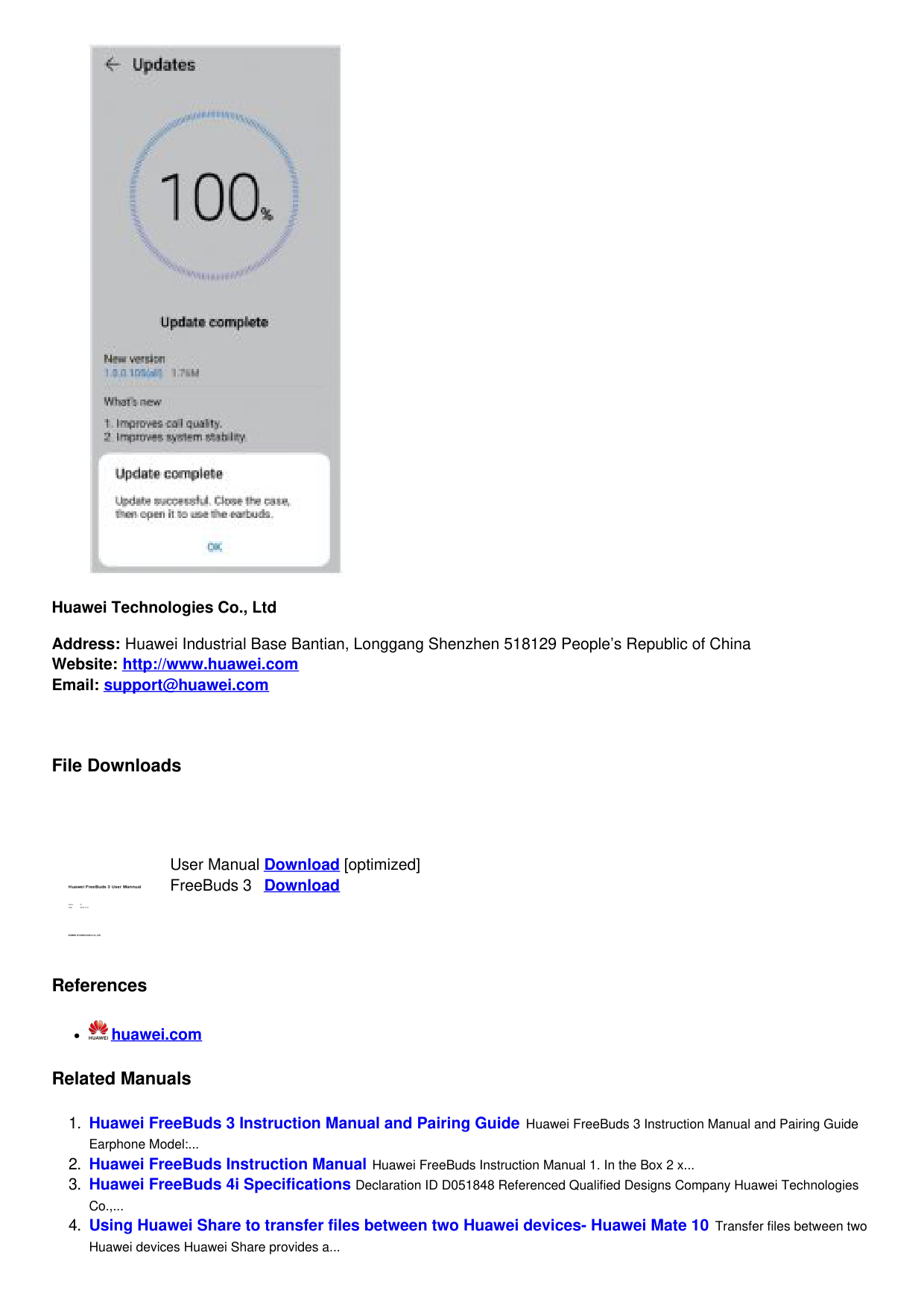

#### 1. Touch UPDATE.

#### 2. Touch OK when the update is complete and perform the operations as prompted.

Huawei Technologies Co., Ltd Address: Huawei Industrial Base Bantian, Longgang Shenzhen 518129 People’s Republic of China Website: http://www.huawei.com Email: [email protected]
File Downloads

User Manual FreeBuds 3

Download [optimized] Download
References

huawei.com