
Philips Universal Remote Control
Ask AI
— answers from the official manualAnswers from the official manual.
Common questions
Common Questions
10 totalWhat does it mean if the LED flashes six times quickly during learning?
The LED flashing six times quickly indicates there's an error in the learning process. You should adjust the position of both remote controls and repeat the learning steps again, ensuring the remotes are properly positioned 3 to 5 cm apart.
How many devices can the universal remote operate?
The universal remote can operate up to 3 different devices. The supported devices include TVs, satellite receivers, cable boxes, streaming devices, DVD/Blu-ray players, and sound bars.
How do I insert batteries into the universal remote?
Check the battery polarity when inserting batteries into the battery compartment, as incorrect polarity may damage the product. Never mix different brands or types of batteries, as this risks decreased battery life. Keep batteries away from heat, sunshine, or fire, and never discard them in fire due to explosion risk.
How do I set up the universal remote using code selection?
Switch on your device, then press and hold the device selection button (e.g., TV) for 5 seconds until the red LED is on. Look up the 5-digit code for your brand in the code list, enter it using the digit buttons, and if the light goes off, the code is saved. If the light flashes six times and remains on, repeat the process with the next code on the list.
What does it mean when the LED flashes six times during setup?
The LED flashing six times and then remaining on indicates that an invalid code was entered during setup. You need to repeat the setup process from step 2 and enter the next code on the code list for your device brand.
How does Auto registration work?
Press and hold the device selection button for 5 seconds until the red LED is on, point the remote at your device, then press and release OK to start searching. A different infrared signal is sent every 2 seconds (indicated by a blue flash), and when your device turns off, immediately press and release OK to save the code within the maximum 20-minute window. The blue LED indicator will turn off when the code is saved.
Full Manual
10 pages
Tapr802
Register your product and get support at www.philips.com/support User manual Universal RemoteSrp5016
1
En
Contents 1 Your universal remote 2 Introduction 2 2 Get started 3 Insert batteries (not included) 3 Set up the universal remote 4 3 Use your universal remote control 6 Learning 6 4 Notice 7 Disposal of your old product and battery 7 5 Service and support 8 Frequently asked questions 8 Need help? 8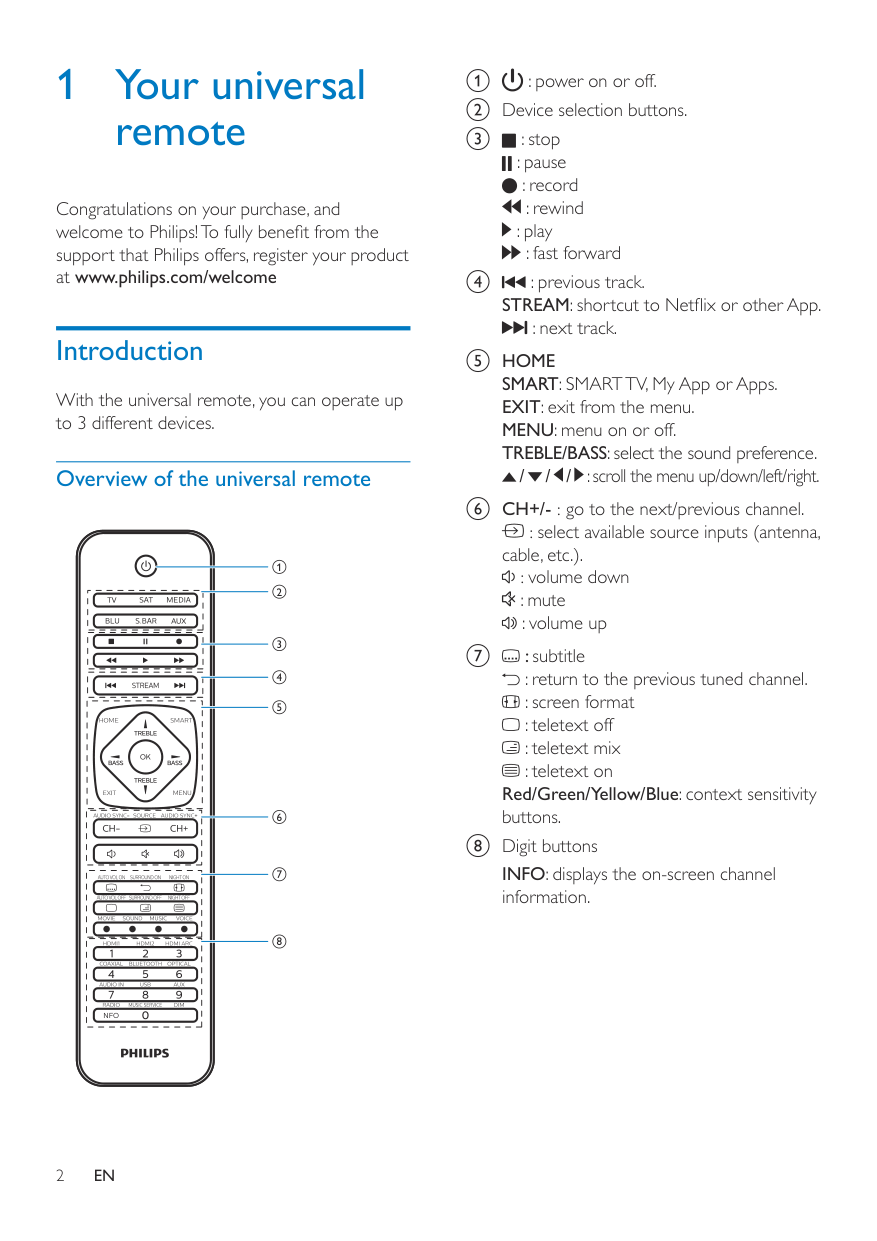
2
En
1 Your universal remote Congratulations on your purchase, and welcome to Philips! To fully benefit from the support that Philips offers, register your product at www.philips.com/welcome Introduction With the universal remote, you can operate up to 3 different devices. Overview of the universal remoteSat
Blu
S.Bar
Media
Nfo
Home
Smart
1 2 3 4 5 6 7 8 a : power on or off. b Device selection buttons. c : stop : pause : record : rewind : play : fast forward d : previous track. STREAM: shortcut to Netflix or other App. : next track. e HOME SMART: SMART TV, My App or Apps. EXIT: exit from the menu. MENU: menu on or off. TREBLE/BASS: select the sound preference. / / / : scroll the menu up/down/left/right. f CH+/- : go to the next/previous channel. : select available source inputs (antenna, cable, etc.). : volume down : mute : volume up g : subtitle : return to the previous tuned channel. : screen format : teletext off : teletext mix : teletext on Red/Green/Yellow/Blue: context sensitivity buttons. h Digit buttonsINFO: displays the on-screen channel information.
3
En
Supported devices Device name DescriptionTv
Tv, Dtv
Sat
Cable box, satellite receiver, IPTV, DVR, HDTV decoder and TiVoMedia
Streaming devices, Apple TV, Roku, Sony, WD TV, NetgearBlu
DVD player/recorder, Blu-ray playerS.Bar
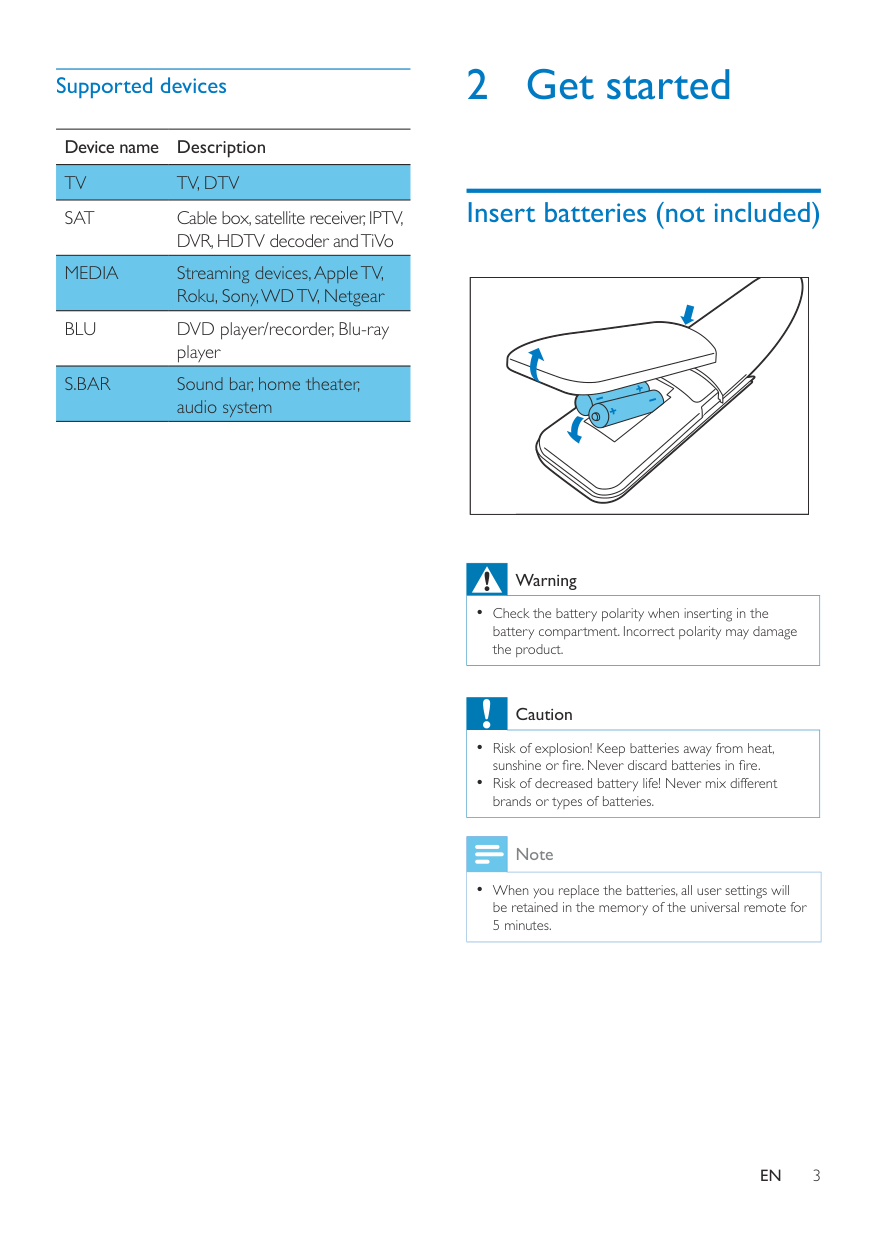
Sound bar, home theater, audio system 2 Get started Insert batteries (not included) Warning •• Check the battery polarity when inserting in the battery compartment. Incorrect polarity may damage the product. Caution •• Risk of explosion! Keep batteries away from heat, sunshine or fire. Never discard batteries in fire. •• Risk of decreased battery life! Never mix different brands or types of batteries. Note •• When you replace the batteries, all user settings will be retained in the memory of the universal remote for 5 minutes.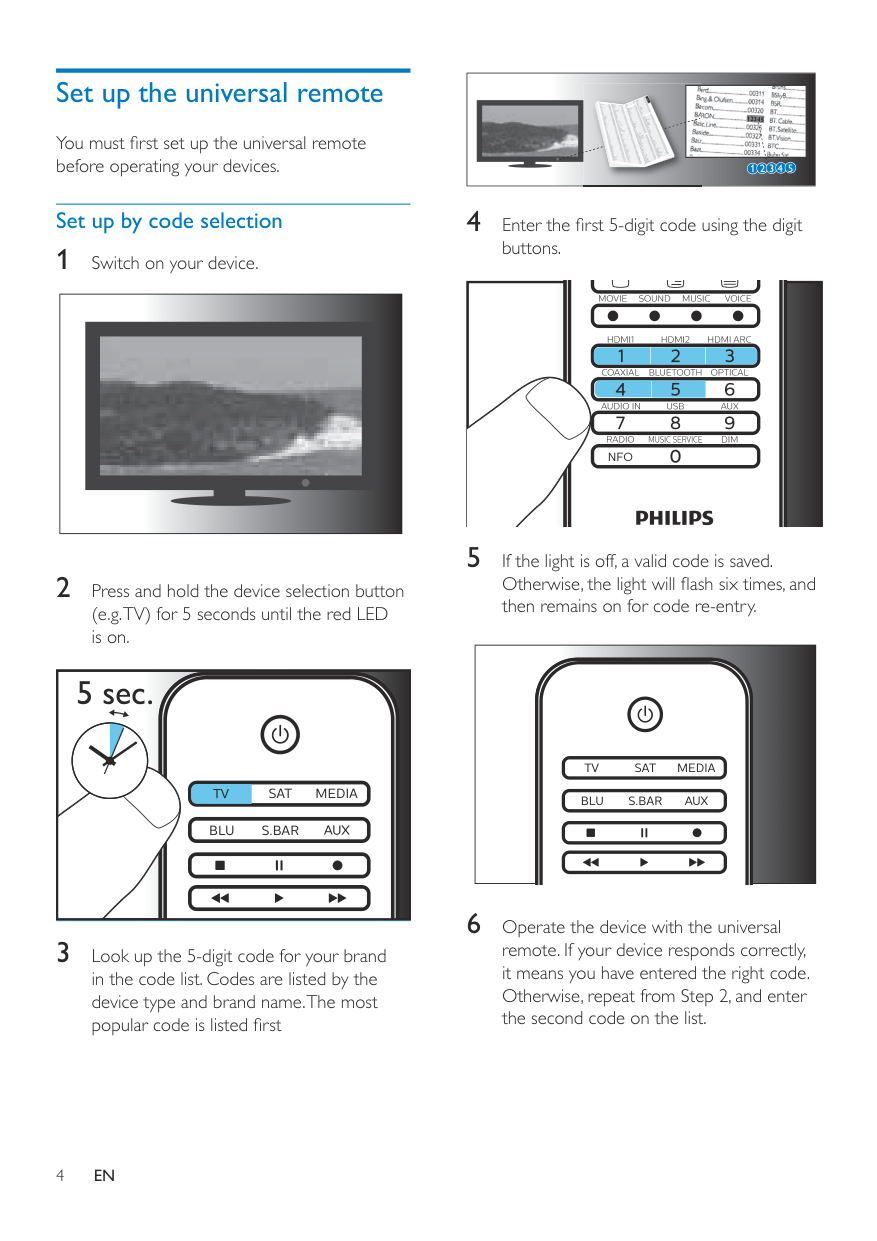
4
En
Set up the universal remote You must first set up the universal remote before operating your devices. Set up by code selection 1 Switch on your device. 2 Press and hold the device selection button (e.g. TV) for 5 seconds until the red LED is on.Sat
Blu
S.Bar
Media
3 Look up the 5-digit code for your brand in the code list. Codes are listed by the device type and brand name. The most popular code is listed first 12345 4 Enter the first 5-digit code using the digit buttons.Nfo
5 If the light is off, a valid code is saved. Otherwise, the light will flash six times, and then remains on for code re-entry.Sat
Blu
S.Bar
Media
6 Operate the device with the universal remote. If your device responds correctly, it means you have entered the right code. Otherwise, repeat from Step 2, and enter the second code on the list.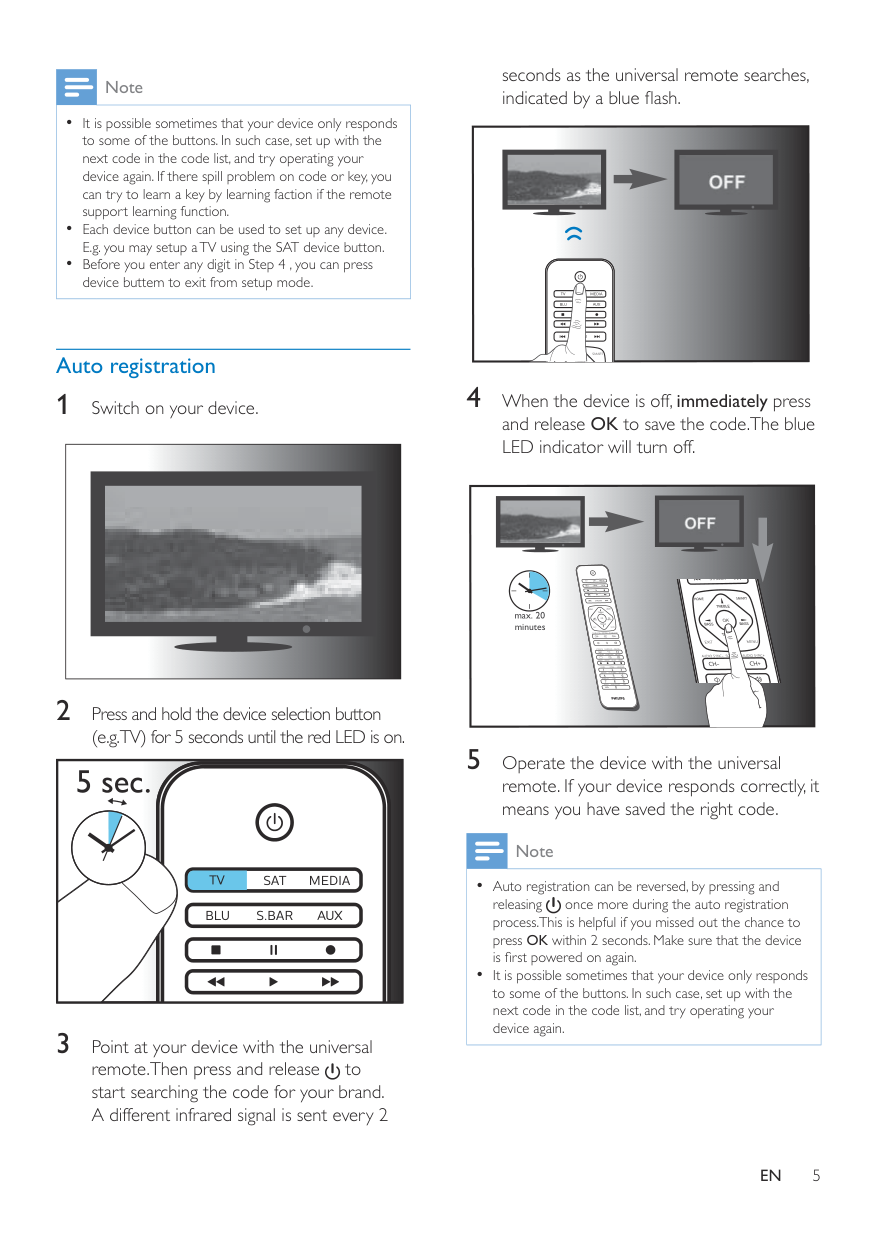
5
En
Note •• It is possible sometimes that your device only responds to some of the buttons. In such case, set up with the next code in the code list, and try operating your device again. If there spill problem on code or key, you can try to learn a key by learning faction if the remote support learning function. •• Each device button can be used to set up any device. E.g. you may setup a TV using the SAT device button. •• Before you enter any digit in Step 4 , you can press device buttem to exit from setup mode. Auto registration 1 Switch on your device. 2 Press and hold the device selection button (e.g. TV) for 5 seconds until the red LED is on.Sat
Blu
S.Bar
Media
3 Point at your device with the universal remote.Then press and release to start searching the code for your brand. A different infrared signal is sent every 2 seconds as the universal remote searches, indicated by a blue flash.Sat
Blu
S.Bar
Media
Home
Smart
4 When the device is off, immediately press and release OK to save the code.The blue LED indicator will turn off. max. 20 minutes 5 Operate the device with the universal remote. If your device responds correctly, it means you have saved the right code. Note •• Auto registration can be reversed, by pressing and releasing once more during the auto registration process.This is helpful if you missed out the chance to press OK within 2 seconds. Make sure that the device is first powered on again. •• It is possible sometimes that your device only responds to some of the buttons. In such case, set up with the next code in the code list, and try operating your device again.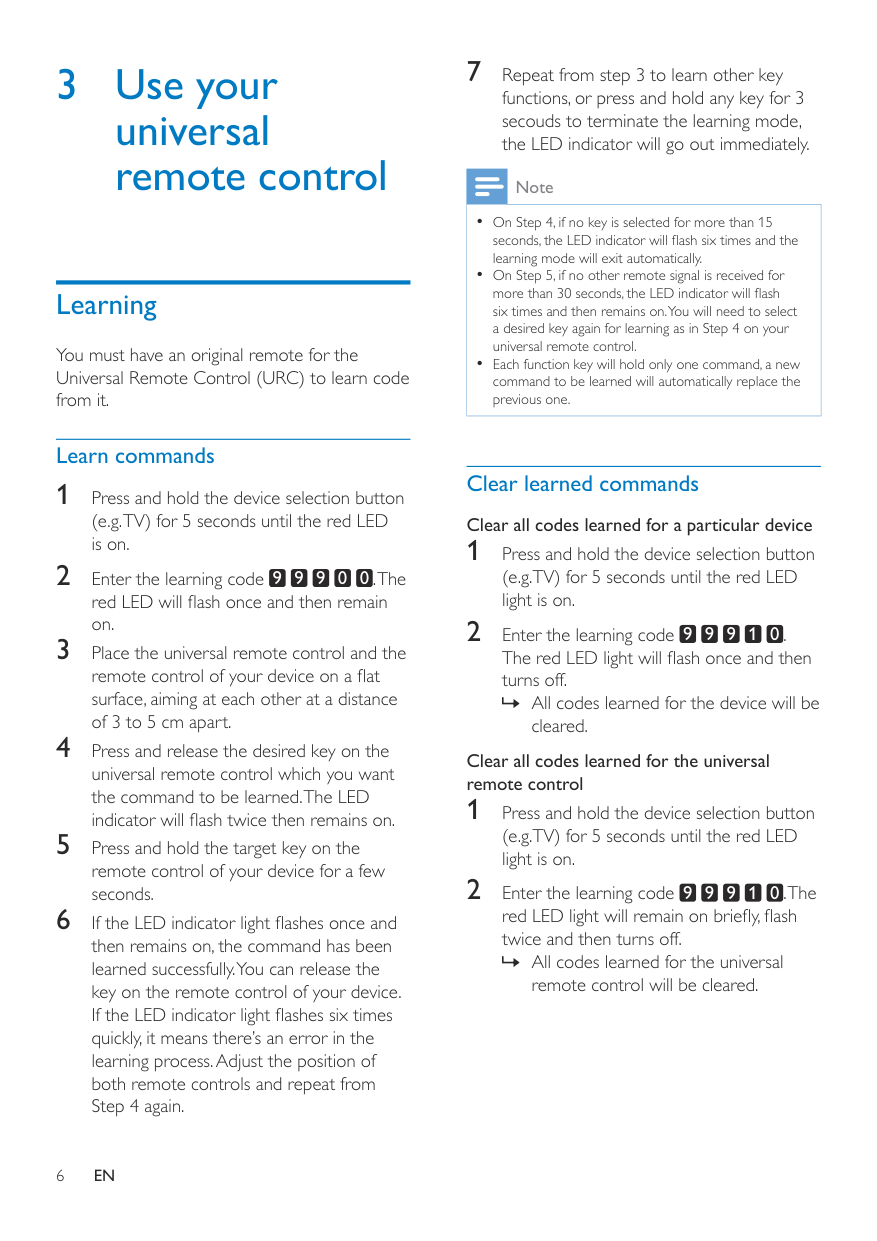
6
En
3 Use your universal remote control Learning You must have an original remote for the Universal Remote Control (URC) to learn code from it. Learn commands 1 Press and hold the device selection button (e.g. TV) for 5 seconds until the red LED is on. 2 Enter the learning code 9 9 9 0 0 . The red LED will flash once and then remain on. 3 Place the universal remote control and the remote control of your device on a flat surface, aiming at each other at a distance of 3 to 5 cm apart. 4 Press and release the desired key on the universal remote control which you want the command to be learned. The LED indicator will flash twice then remains on. 5 Press and hold the target key on the remote control of your device for a few seconds. 6 If the LED indicator light flashes once and then remains on, the command has been learned successfully. You can release the key on the remote control of your device. If the LED indicator light flashes six times quickly, it means there’s an error in the learning process. Adjust the position of both remote controls and repeat from Step 4 again. 7 Repeat from step 3 to learn other key functions, or press and hold any key for 3 secouds to terminate the learning mode, the LED indicator will go out immediately. Note •• On Step 4, if no key is selected for more than 15 seconds, the LED indicator will flash six times and the learning mode will exit automatically. •• On Step 5, if no other remote signal is received for more than 30 seconds, the LED indicator will flash six times and then remains on. You will need to select a desired key again for learning as in Step 4 on your universal remote control. •• Each function key will hold only one command, a new command to be learned will automatically replace the previous one. Clear learned commands Clear all codes learned for a particular device 1 Press and hold the device selection button (e.g.TV) for 5 seconds until the red LED light is on. 2 Enter the learning code 9 9 9 1 0 . The red LED light will flash once and then turns off. » » All codes learned for the device will be cleared. Clear all codes learned for the universal remote control 1 Press and hold the device selection button (e.g.TV) for 5 seconds until the red LED light is on. 2 Enter the learning code 9 9 9 1 0 . The red LED light will remain on briefly, flash twice and then turns off. » » All codes learned for the universal remote control will be cleared.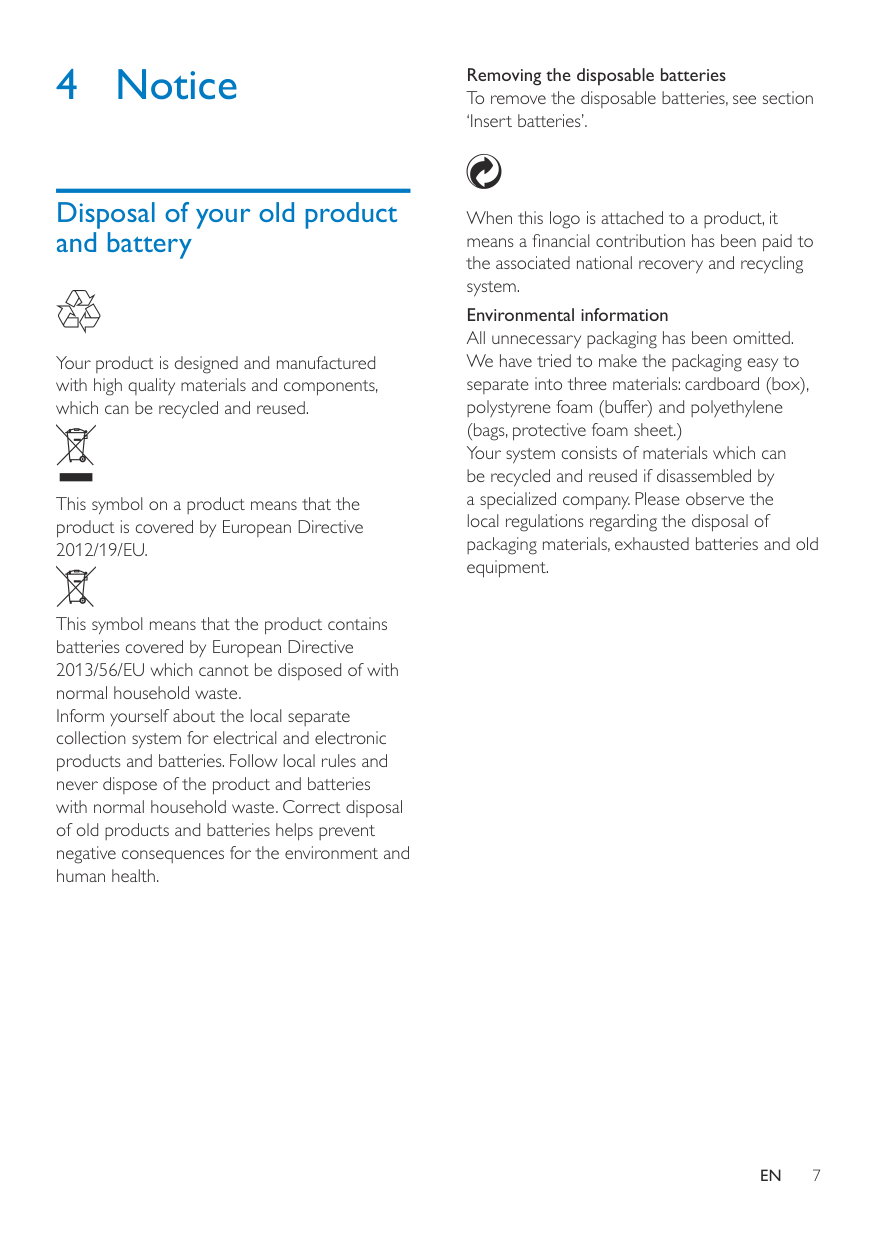
7
En
4 Notice Disposal of your old product and battery Your product is designed and manufactured with high quality materials and components, which can be recycled and reused. This symbol on a product means that the product is covered by European Directive2012/19/Eu.
This symbol means that the product contains batteries covered by European Directive 2013/56/EU which cannot be disposed of with normal household waste. Inform yourself about the local separate collection system for electrical and electronic products and batteries. Follow local rules and never dispose of the product and batteries with normal household waste. Correct disposal of old products and batteries helps prevent negative consequences for the environment and human health. Removing the disposable batteries To remove the disposable batteries, see section ‘Insert batteries’. When this logo is attached to a product, it means a financial contribution has been paid to the associated national recovery and recycling system. Environmental information All unnecessary packaging has been omitted. We have tried to make the packaging easy to separate into three materials: cardboard (box), polystyrene foam (buffer) and polyethylene (bags, protective foam sheet.) Your system consists of materials which can be recycled and reused if disassembled by a specialized company. Please observe the local regulations regarding the disposal of packaging materials, exhausted batteries and old equipment.
8 Need help? We advise you to first read this user manual carefully. It helps you set up and use the universal remote. If, however, you require extra information or have additional questions about setup, usage, warranty, etc of the SRP5016, you can always contact us. When calling our helpline, make sure to have the SRP5016 at hand when you call, so that our operators can help you determine whether SRP5016 is working properly. You will find our contact details at the end of this user manual. For online support, visit www.philips.com/support 5 Service and support Frequently asked questions My universal remote does not work at all. • Check if you have correctly setup the device with the right code. Check if you have pressed the corresponding device key for your device. • Check if the batteries are inserted properly. If the battery level is low, replace the batteries. • Check if your device is powered on. If several device codes are listed under the brand of my device, how can I select the correct device code? To seek the correct device code, test the codes one by one. The codes are sorted by popularity, and the most popular code is listed first. My device responds only to some of the commands. You have set a code for which only some commands work properly but some do not.Try other codes until most keys work properly.
En
Specifications are subject to change without notice. Philips and the Philips Shield Emblem are registered trademarks of Koninklijke Philips N.V. and are used under license. This product has been manufactured by and is sold under the responsibility of MMD Hong Kong Holding Limited or one of its affiliates, and MMD Hong Kong Holding Limited is the warrantor in relation to this product.