
Royal Kludge RK H81 Mechanical Wireless Keyboard
Ask AI
— answers from the official manualAnswers from the official manual.
Common questions
Common Questions
5 totalHow do I pair the keyboard with a Bluetooth device?
Press and hold the FN key while pressing the BKSP key simultaneously to enter pairing mode. Connect your device's Bluetooth settings to 'RK84', then press any key on the keyboard to confirm the connection. (Page 3)
What is the sleep mode for the backlight?
In wireless state, the backlight will not be operated for 5 minutes and automatically go into sleep mode. It works similarly in wired mode but with the same time duration of no operation. (Page 4)
How do I switch between Windows and Mac systems?
For a Windows system, press Fn + A to toggle to the Window System setting. For a MAC system, press FN+ S to switch to the MAC System. (Page 3)
How do I charge the keyboard?
Plug the USB cable into an available USB port and insert the other end into the keyboard's charging port under your mouse for charging. Do not use while plugged in to avoid damage (Page 2)
How do I contact customer support for my keyboard?
If you have any issues or questions about your RK product, please feel free to contact the seller via email where customer service will reply as quickly as possible (Page 4).
Full Manual
5 pages
Skip to content Manuals+ User Manuals Simplified.

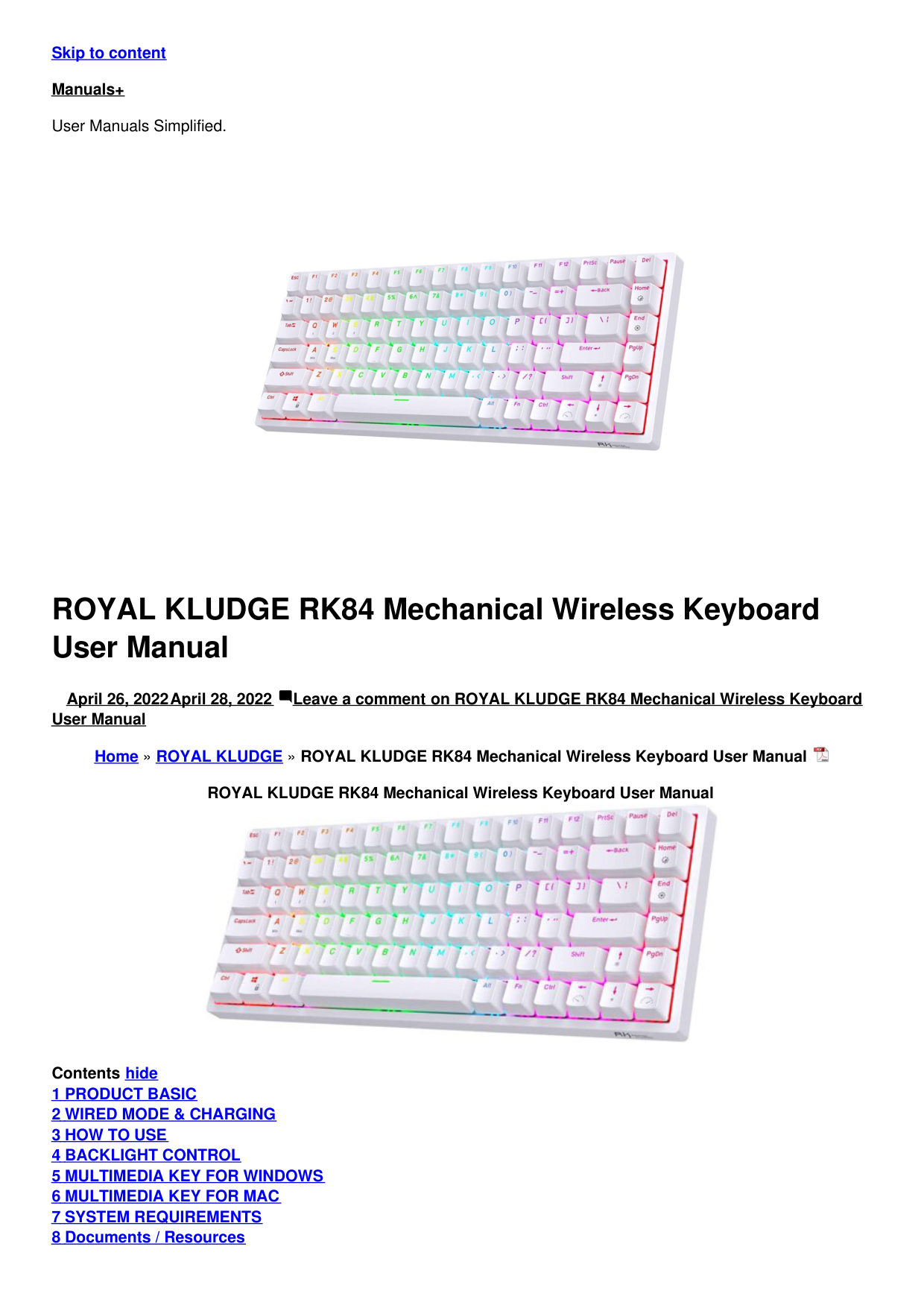
ROYAL KLUDGE RK84 Mechanical Wireless Keyboard User Manual
April 26, 2022April 28, 2022 Leave a comment on ROYAL KLUDGE RK84 Mechanical Wireless Keyboard User Manual

Home » ROYAL KLUDGE » ROYAL KLUDGE RK84 Mechanical Wireless Keyboard User Manual ROYAL KLUDGE RK84 Mechanical Wireless Keyboard User Manual

Contents hide
8.1 Related Manuals / Resources
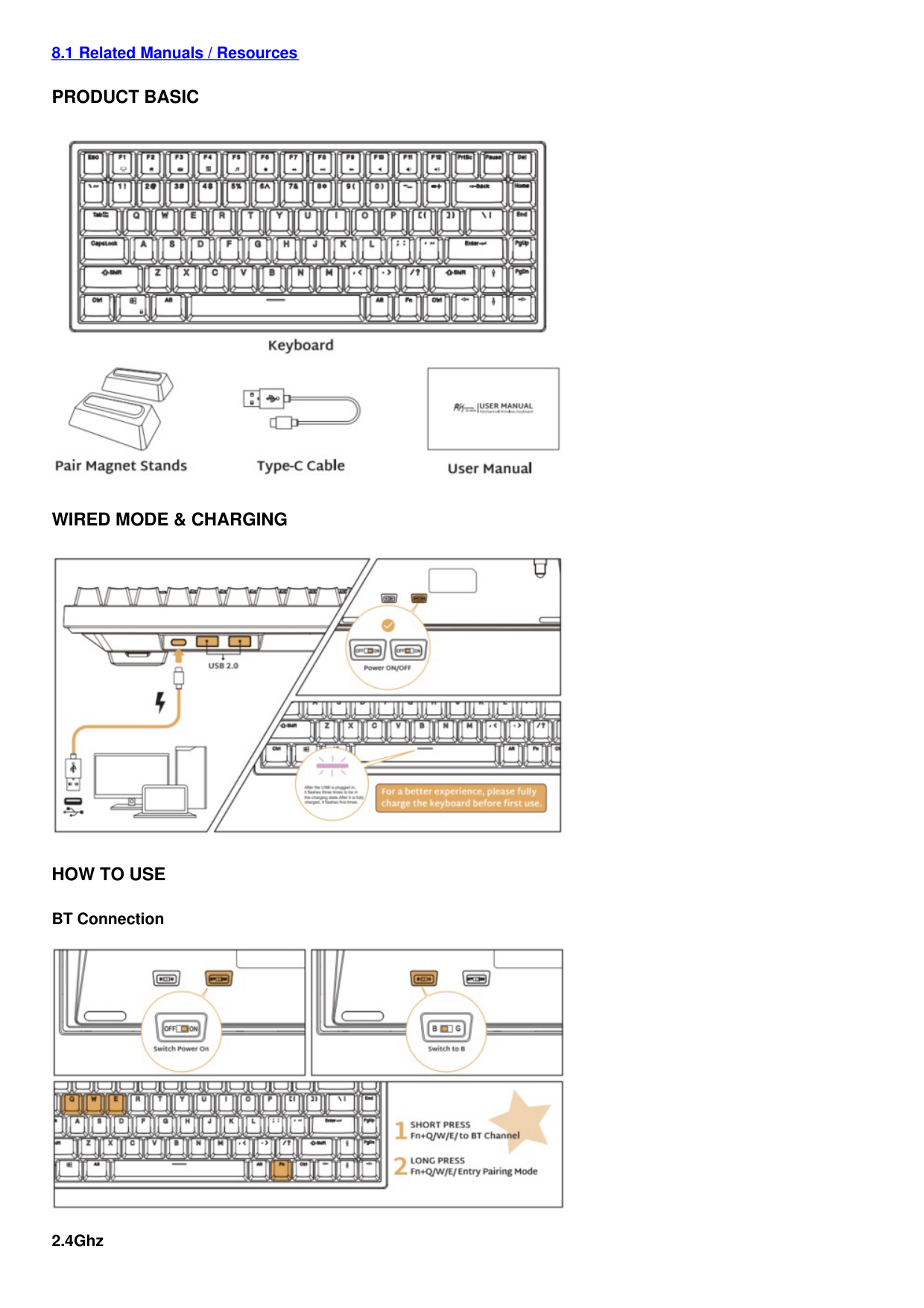
PRODUCT BASIC

WIRED MODE & CHARGING

HOW TO USE
BT Connection

2.4Ghz

BACKLIGHT CONTROL


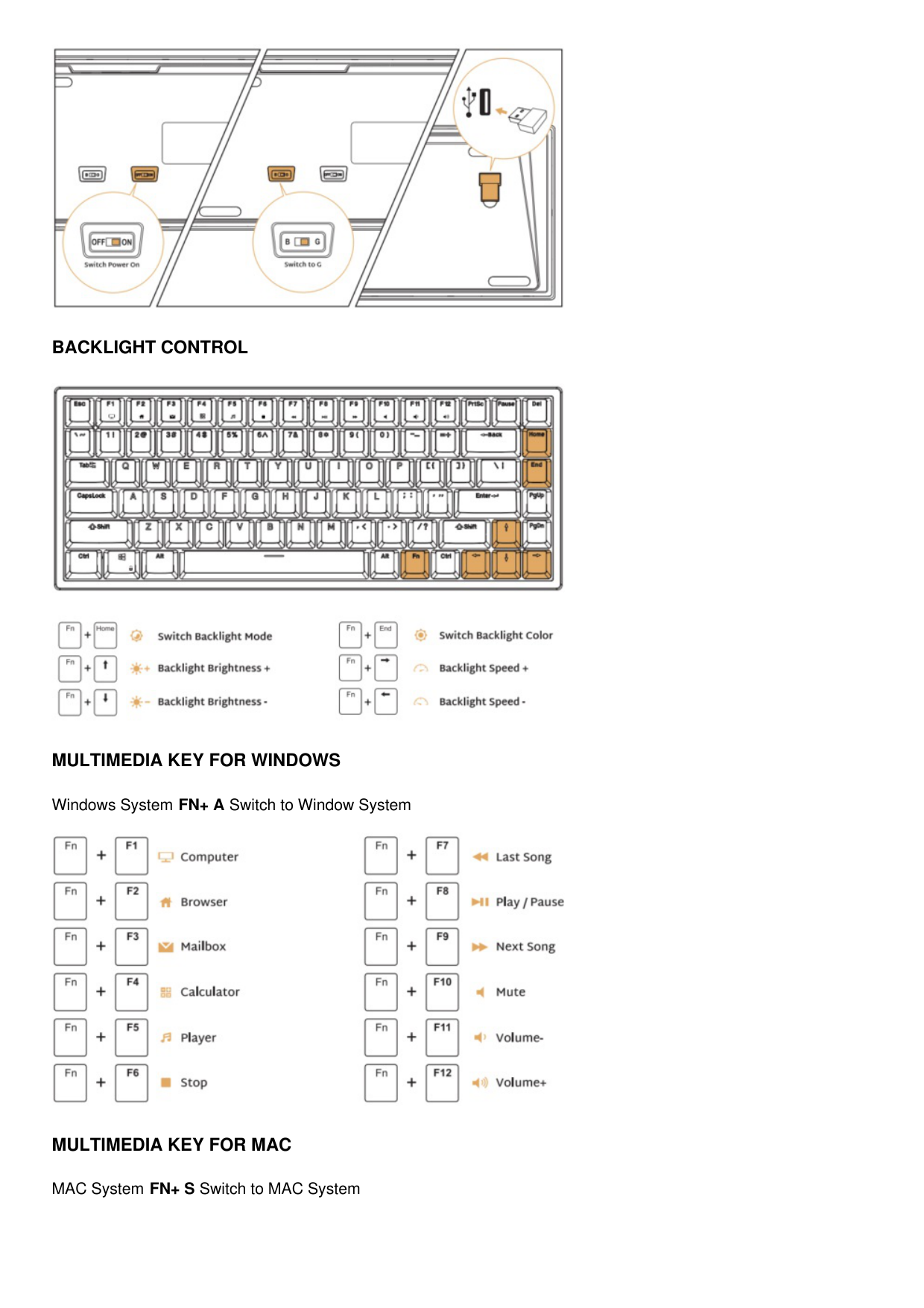
MULTIMEDIA KEY FOR WINDOWS
Windows System FN+ A Switch to Window System

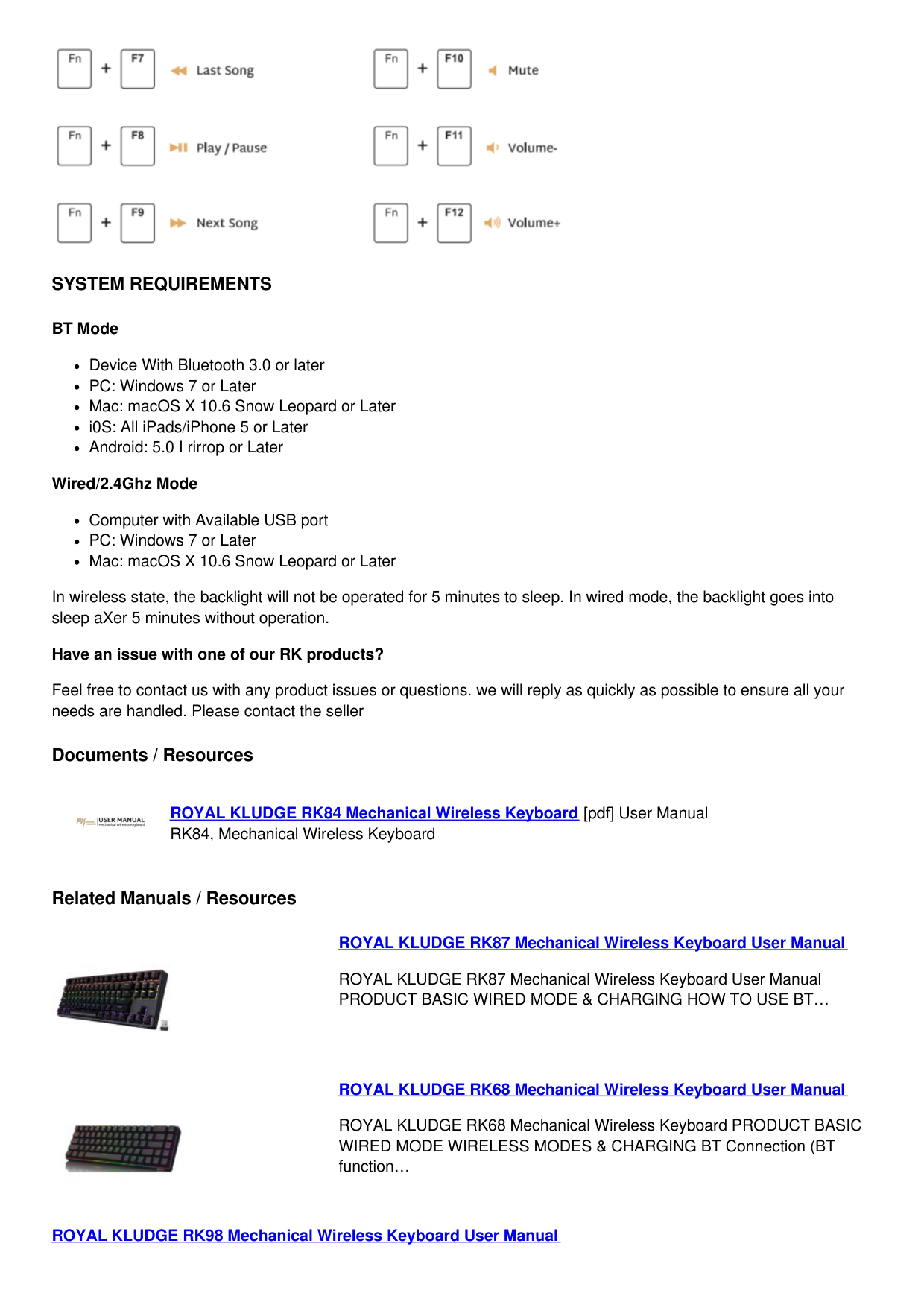
MULTIMEDIA KEY FOR MAC
MAC System FN+ S Switch to MAC System

SYSTEM REQUIREMENTS
BT Mode
Device With Bluetooth 3.0 or later
PC: Windows 7 or Later
Mac: macOS X 10.6 Snow Leopard or Later
i0S: All iPads/iPhone 5 or Later
Android: 5.0 I rirrop or Later Wired/2.4Ghz Mode
Computer with Available USB port
PC: Windows 7 or Later
Mac: macOS X 10.6 Snow Leopard or Later
In wireless state, the backlight will not be operated for 5 minutes to sleep. In wired mode, the backlight goes into sleep aXer 5 minutes without operation.
Have an issue with one of our RK products?
Feel free to contact us with any product issues or questions. we will reply as quickly as possible to ensure all your needs are handled. Please contact the seller
Documents / Resources

ROYAL KLUDGE RK84 Mechanical Wireless Keyboard [pdf] User Manual RK84, Mechanical Wireless Keyboard
Related Manuals / Resources


ROYAL KLUDGE RK87 Mechanical Wireless Keyboard User Manual
ROYAL KLUDGE RK87 Mechanical Wireless Keyboard User Manual PRODUCT BASIC WIRED MODE & CHARGING HOW TO USE BT…
ROYAL KLUDGE RK68 Mechanical Wireless Keyboard User Manual
ROYAL KLUDGE RK68 Mechanical Wireless Keyboard PRODUCT BASIC WIRED MODE WIRELESS MODES & CHARGING BT Connection (BT function…
ROYAL KLUDGE RK98 Mechanical Wireless Keyboard User Manual

Mechanical Wireless Keyboard User Manual PRODUCT BASIC WIRED MODE & CHARGING HOW TO USE BT Connection BACKLIGHT CONTROL…

ROYAL KLUDGE RK71 Mechanical Keyboard User Guide
ROYAL KLUDGE RK71 Mechanical Keyboard User Guide Product base Wired mode and charging bluetooth connection ] Backlight control…
Leave a comment
Your email address will not be published.
Comment Name
Website Save my name, email, and website in this browser for the next time I comment.
|Post Comment| |---|
Manuals+,
home privacy