
Ask AI
— answers from the official manualAnswers from the official manual.
Common questions
Common Questions
10 totalHow do I factory reset the Sagemcom F@st 5260 router?
Press and hold the Reset button on the left side panel of the router for more than 15 seconds until the Power indicator light turns off. This will initiate a factory reset and reboot the router to complete the process (Page 48)
What do I do if my Wi-Fi signal drops?
Check for interference from other devices using the 2.4 GHz band or obstacles such as glass, water, and metal. Reposition your router away from these items to improve connectivity (Page 53).
How do I change my Wi-Fi network name?
Log in to the web GUI, click on the network tab, select Basic, enter your new SSID in the SSID field, and apply changes (Page 19).
How do I set up a guest Wi-Fi network?
Log into the web GUI, click on Guest Stations under the desired network tab (2.4 GHz or 5 GHz), enable the guest access option by sliding it to ON, and configure settings including SSID, channel, and password (Page 27).
Why is my router's Power light not turning on?
Ensure that the power switch on the back panel of your router is turned on, check the power adapter’s indicator light to confirm it shows solid green, and verify that the electrical outlet has power (Page 49).
How do I reboot my F@st 5260 router from within the web GUI?
Log into the web GUI, click on Router Settings, then Maintenance tab, and select Restart (Page 44).
Full Manual
56 pages
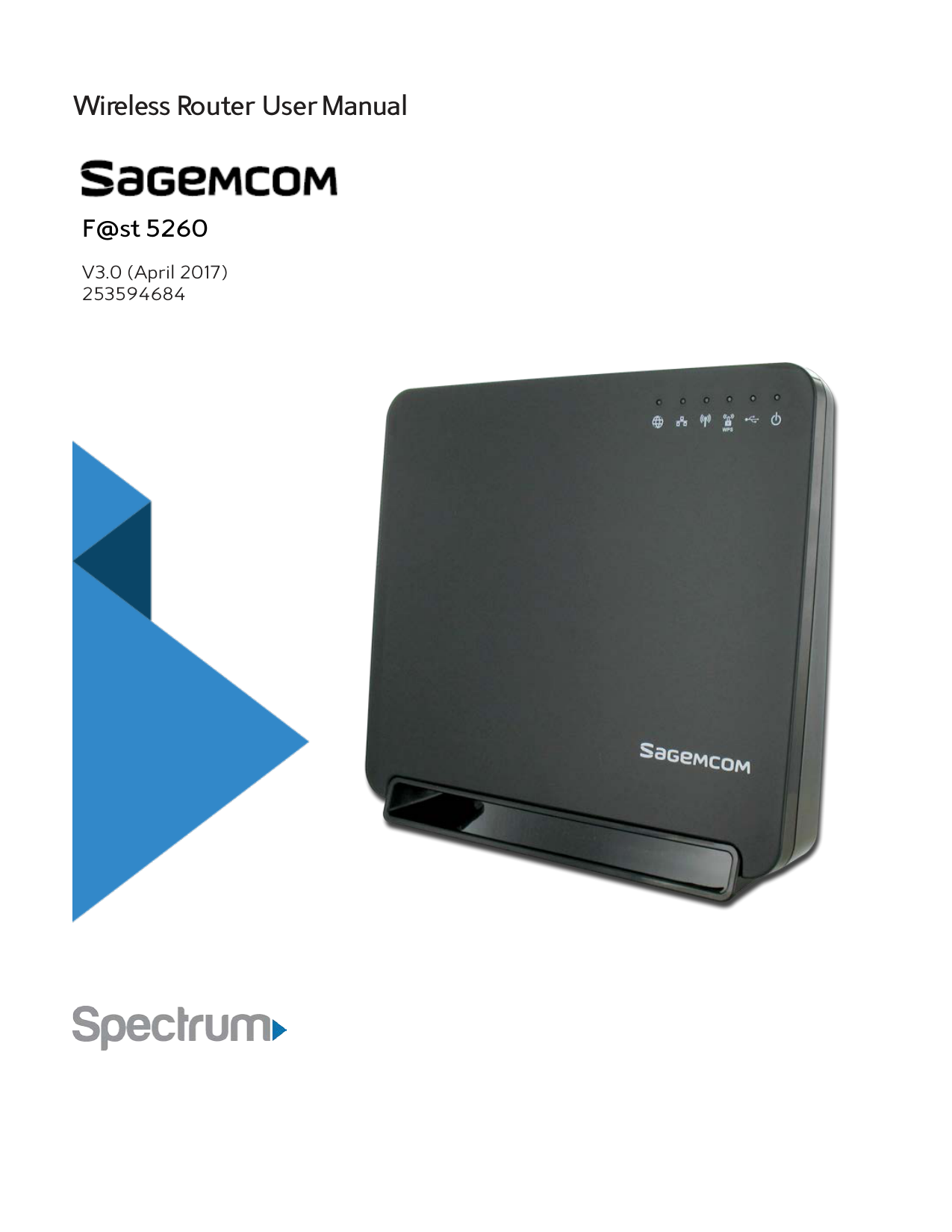
Wireless Router UserManual

F@st 5260
V3.0 (April 2017) 253594684


Trademarks
Sagemcom and the Sagemcom logo are trademarks or registered trademarks of Sagemcom Broadband SAS or its subsidiaries in the United States or other countries. All other company or product names mentioned herein are trademarks or registered trademarks of their respective companies.
Copyright © 2014 by Sagemcom Broadband SAS All rights reserved. Rights of modifications reserved. This publication may not be reproduced, in whole or in part, without prior expressed written permission of Sagemcom Broadband SAS. Issued by Sagemcom Broadband SAS Sagemcom 250, route de l'Empereur - 92848 RUEIL MALMAISON CEDEX FRANCE
i
##### Trademarks .......................................................................................................................................... i
Front view ........................................................................................................................................................2 Back view..........................................................................................................................................................4 Side View.......................................................................................................................................................... 5 Label...................................................................................................................................................................6
Router Positioning............................................................................................................................................. 7 Wall Mounting (optional) ............................................................................................................................... 7
System Requirements ..................................................................................................................................8 Router and Account Information.............................................................................................................9
Install your Wireless Router...........................................................................................................................9 Configure your Wireless Router...................................................................................................................11
Log in to the Web GUI..................................................................................................................................11 A Tour of your Web GUI Dashboard .....................................................................................................12 A Tour of your Web GUI (Mobile Edition).......................................................................................... 14 Changing your Local Access Password................................................................................................ 16 Configuring your Wi-Fi Network........................................................................................................... 16 Enabling WPS Push Button Pairing.......................................................................................................20 Changing your Time Zone .........................................................................................................................21 Customizing your Device List...................................................................................................................21 Setting up Parental Controls ...................................................................................................................23 Setting up your Guest Network..............................................................................................................25
Connecting a Storage Device..................................................................................................................27 Enabling File Sharing................................................................................................................................. 28 Enabling Media Sharing............................................................................................................................ 28 Safely Disconnecting a Storage Device.............................................................................................. 29
Access Shared Files........................................................................................................................................ 30 For Windows................................................................................................................................................ 30 For Mac.......................................................................................................................................................... 30
Printer Sharing ..................................................................................................................................................31 Connecting a Printer ...................................................................................................................................31
##### Chapter 4: Administration............................................................................................................. 41Rebooting your Router................................................................................................................................... 41
To Reboot from the Web GUI.................................................................................................................. 41 To Reset from the Router ......................................................................................................................... 41
Back Up and Restore Router Configuration .......................................................................................... 42 Back Up Router Configuration............................................................................................................... 42 Restore Router Configuration................................................................................................................ 42
Upgrade Router's Firmware........................................................................................................................ 43 Restore Factory Defaults .............................................................................................................................44
From the Web GUI: ....................................................................................................................................44 From the Router:.........................................................................................................................................44
##### Chapter 5: Troubleshooting.......................................................................................................... 45
##### Appendices.......................................................................................................................................49
Chapter 1: Product Overview
Thank you for choosing Sagemcom. The F@st 5260 router is built with a host of features to deliver maximum speed and performance:
This chapter will quickly familiarize you with your hardware and review important information that you will need to install your router.
Package Contents
Hardware Overview Front view
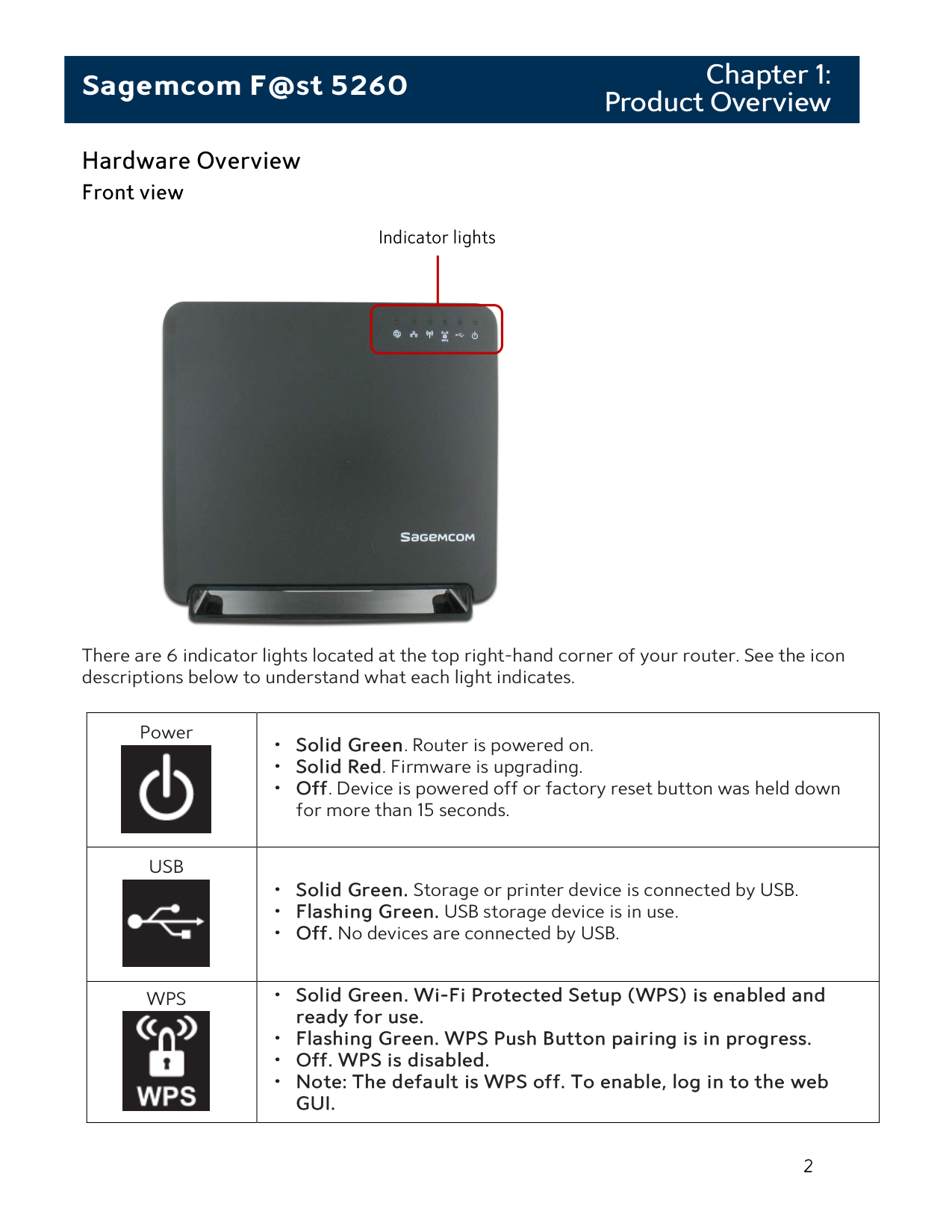
Indicator lights

There are 6 indicator lights located at the top right-hand corner of your router. See the icon descriptions below to understand what each light indicates.
|Power
|• Solid Green. Router is powered on.
• Solid Red. Firmware is upgrading.
• Off. Device is powered off or factory reset button was held down for more than 15 seconds.
| |---|---| |USB
|• Solid Green. Storage or printer device is connected by USB.
• Flashing Green. USB storage device is in use.
• Off. No devices are connected by USB.
| |WPS
|• Solid Green. Wi-Fi Protected Setup (WPS) is enabled and ready for use.
• Flashing Green. WPS Push Button pairing is in progress.
• Off. WPS is disabled.
• Note: The default is WPS off. To enable, log in to the web GUI.
|
|Wireless
|• Solid Green. Wireless network is ready.
• Flashing Green. Transmitting or receiving wireless data.
• Off. Wireless network is disabled.
| |---|---| |LAN
|• Solid Green. Connected to least one Local Area Network (LAN) Ethernet link.
• Flashing Green. Transmitting or receiving data over LAN Ethernet.
• Off. No LAN Ethernet links.
| |Internet/WAN
|• Solid Green. Device has a Wide Area Network (WAN) Internet IP address and is ready to use.
• Solid Red. Device has a WAN Ethernet link, but no WAN IP address.
• Flashing Green. Transmitting or receiving data over WAN Ethernet link.
• Off. Device has no WAN Ethernet link.
|
#### Back view
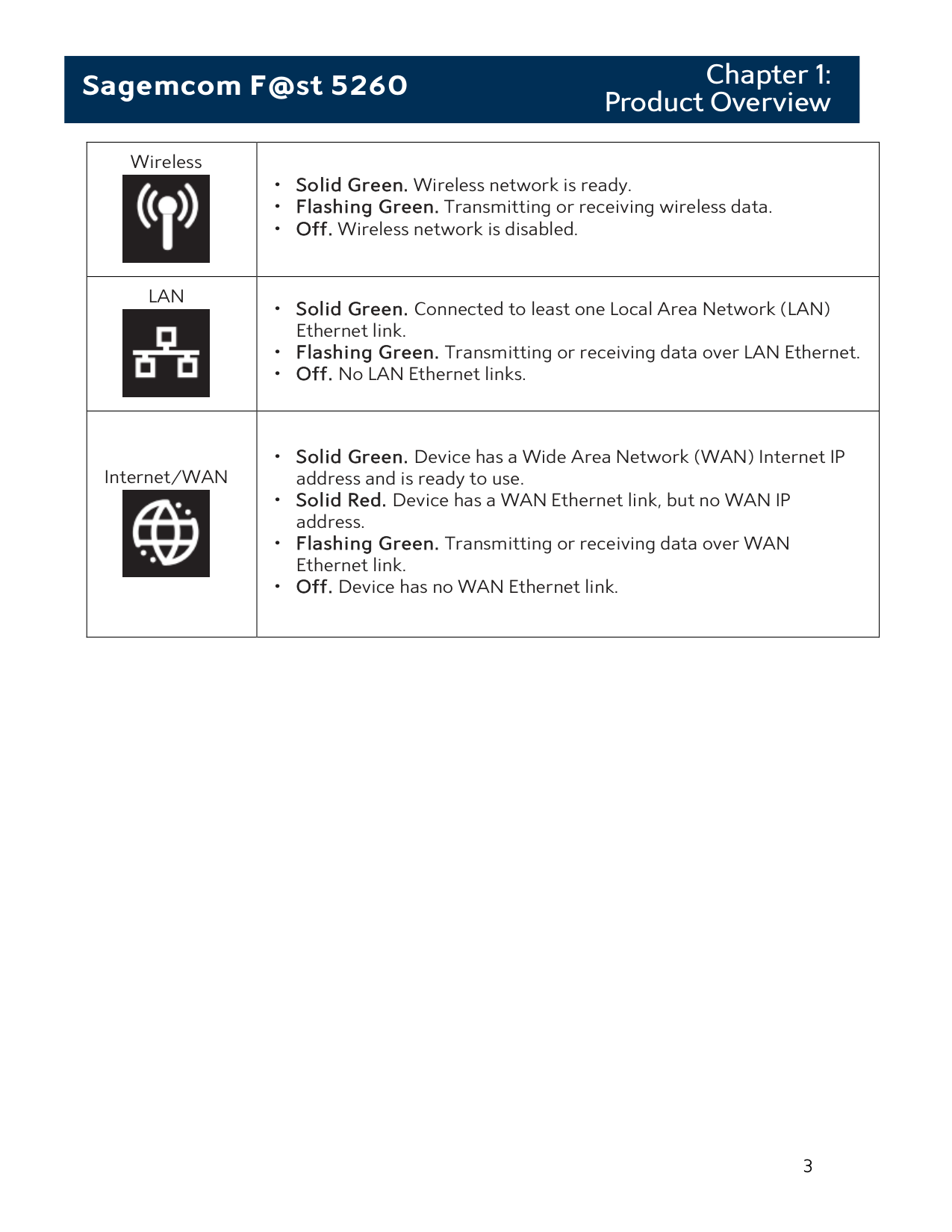
Label

| | | |---|---| | | |
2
4
3
1
The back side of your router has the following switches and connections:
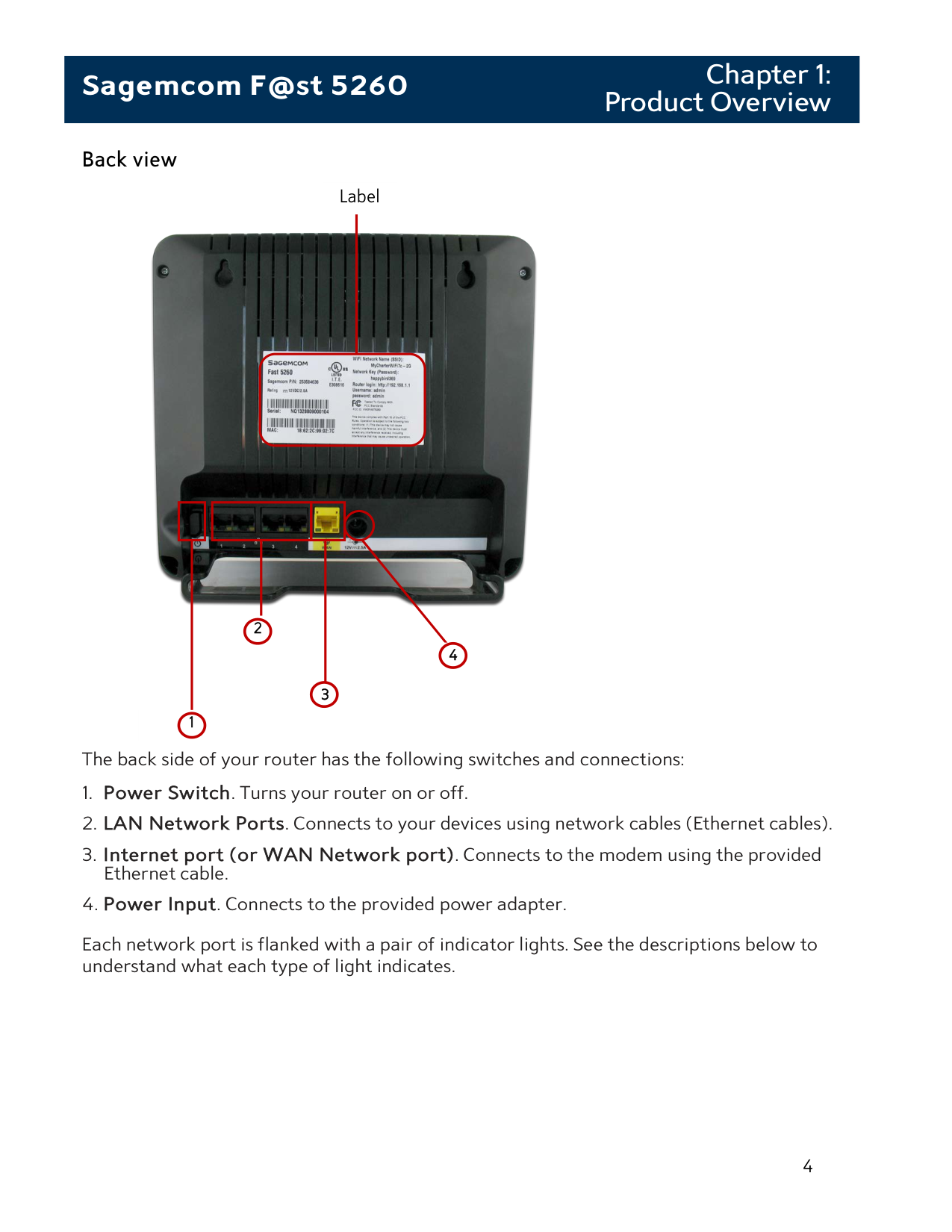
Each network port is flanked with a pair of indicator lights. See the descriptions below to understand what each type of light indicates.
||| |---| |Off. No Ethernet link present.| |---|---| ||| |---| |Solid Green LED. Ethernet link present.| ||| |---| |Flashing Green LED. Passing Ethernet traffic.| ||| |---|
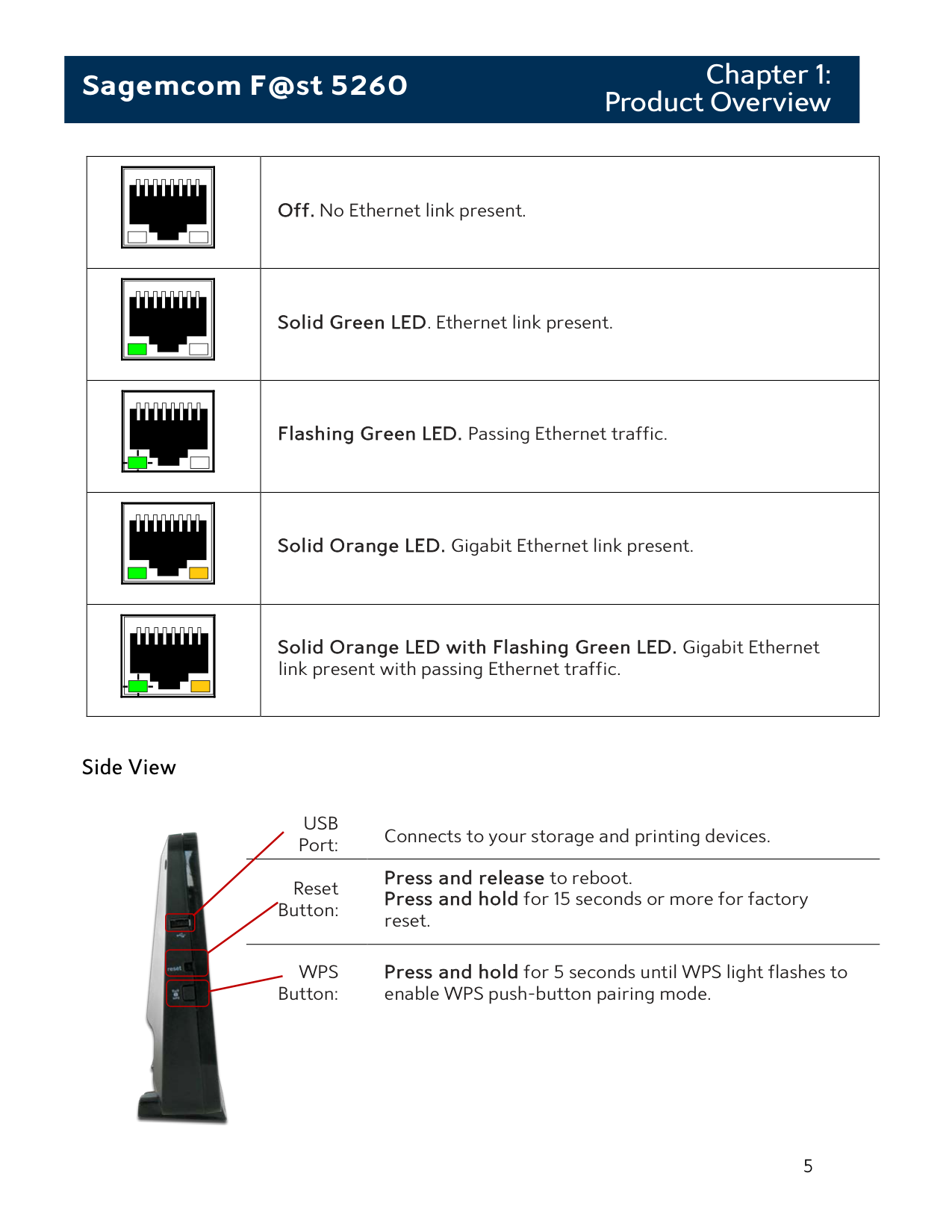
|Solid Orange LED. Gigabit Ethernet link present.| ||| |---| |Solid Orange LED with Flashing Green LED. Gigabit Ethernet link present with passing Ethernet traffic.|
#### Side View

USB
Port: Connects to your storage and printing devices. Reset
Press and release to reboot. Press and hold for 15 seconds or more for factory reset.
Button:
WPS Button:
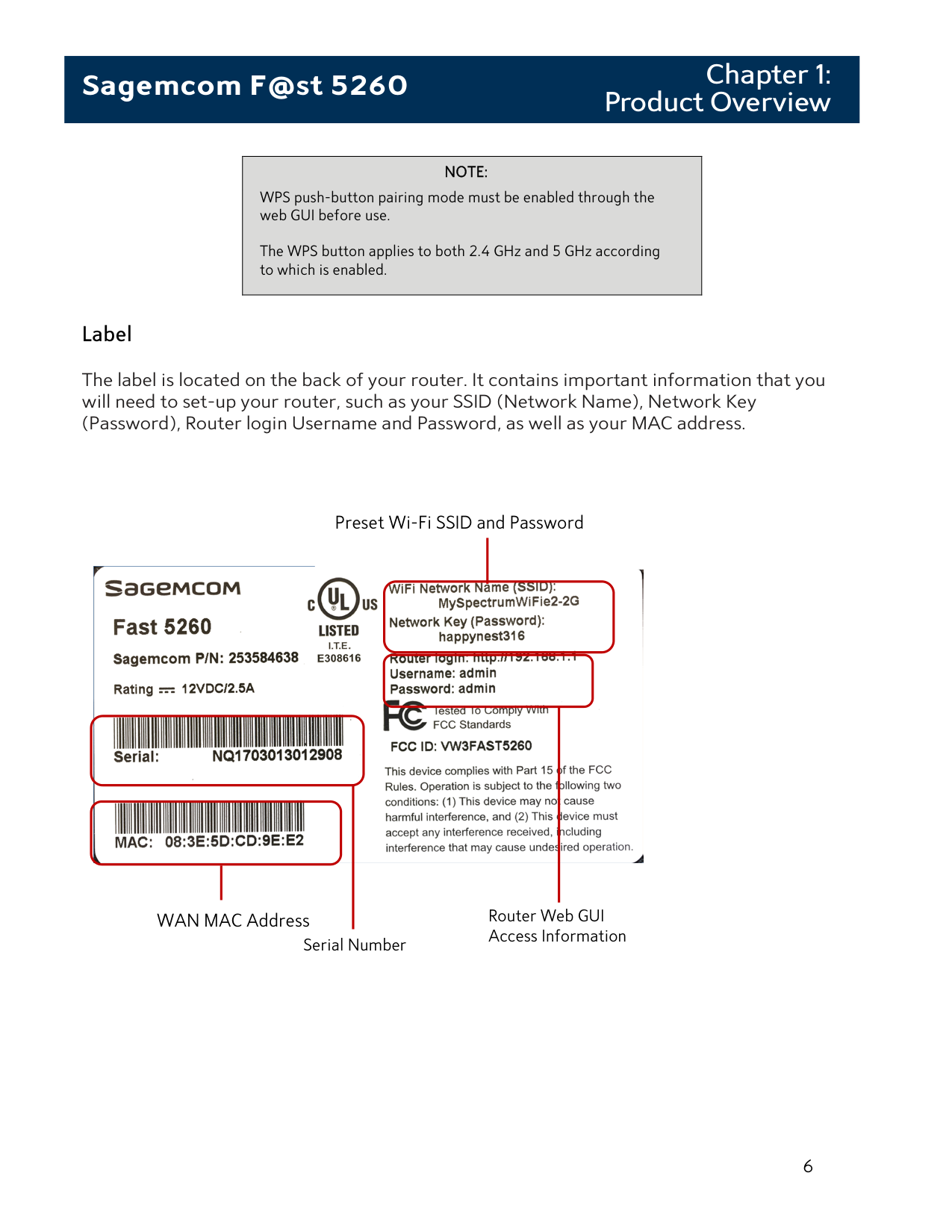
Press and hold for 5 seconds until WPS light flashes to enable WPS push-button pairing mode.
|NOTE:
WPS push-button pairing mode must be enabled through the web GUI before use.
The WPS button applies to both 2.4 GHz and 5 GHz according to which is enabled.
| |---|
#### Label
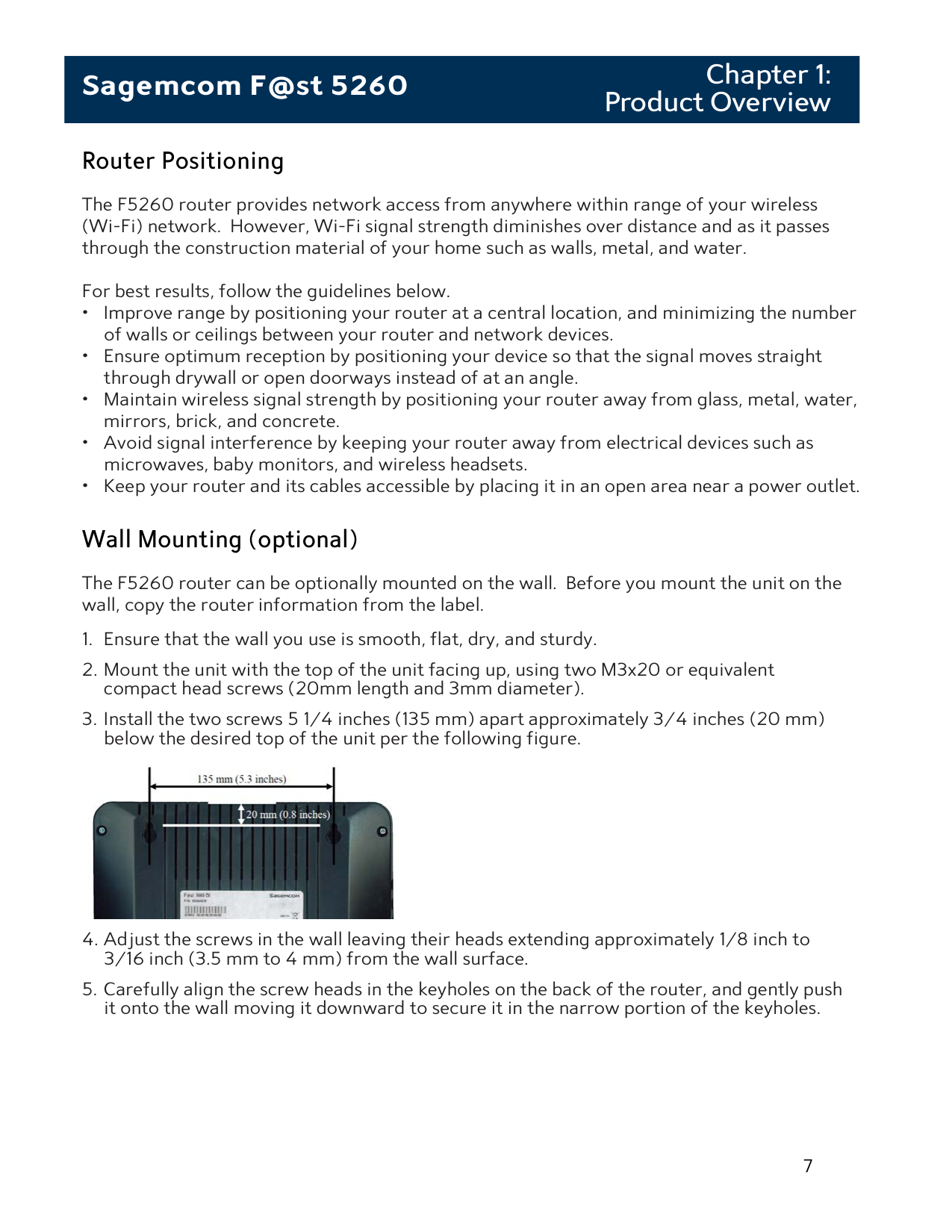
The label is located on the back of your router. It contains important information that you will need to set-up your router, such as your SSID (Network Name), Network Key (Password), Router login Username and Password, as well as your MAC address.
Preset Wi-Fi SSID and Password

Router Web GUI Access Information
WAN MAC Address
Serial Number
Router Positioning
The F5260 router provides network access from anywhere within range of your wireless (Wi-Fi) network. However, Wi-Fi signal strength diminishes over distance and as it passes through the construction material of your home such as walls, metal, and water.
For best results, follow the guidelines below.
Wall Mounting (optional)
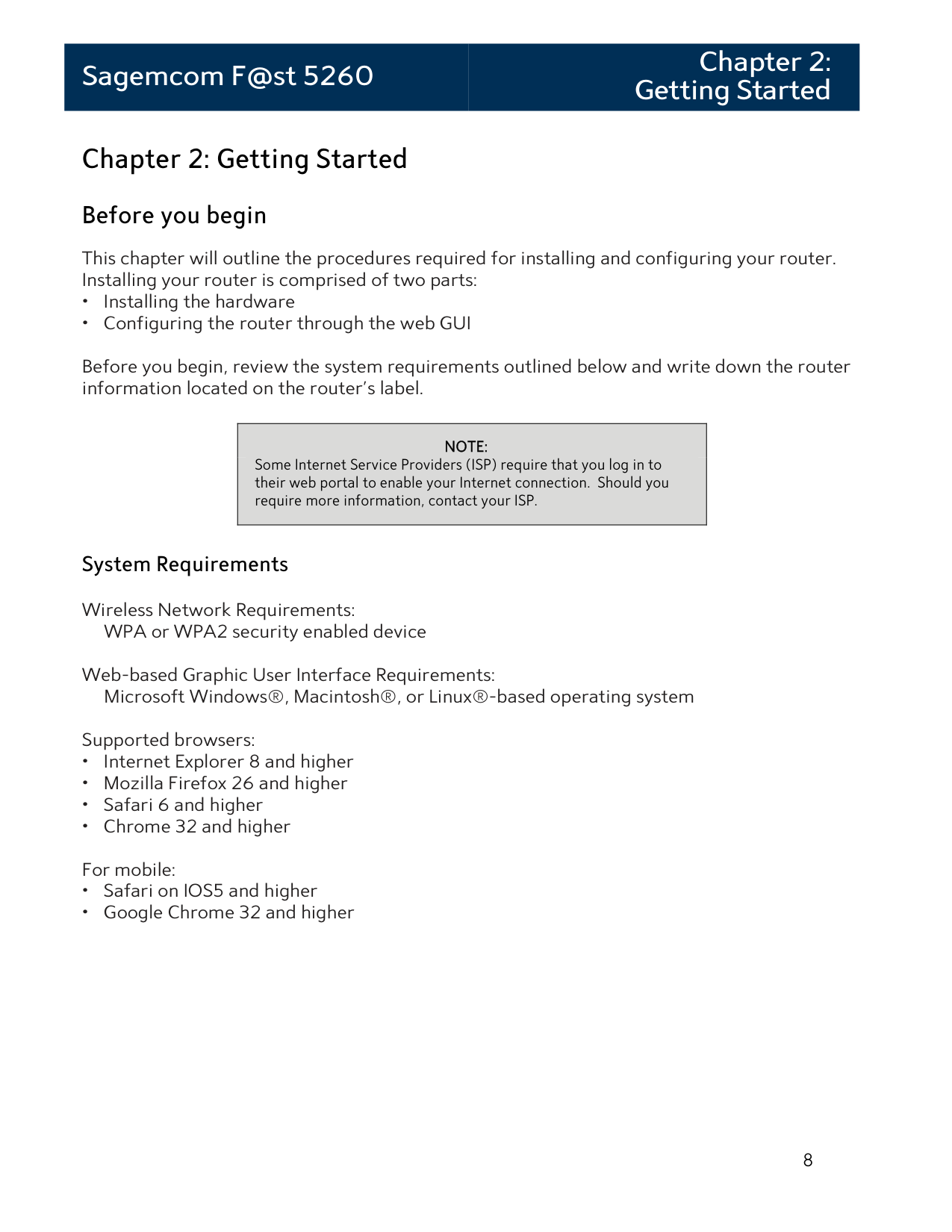
The F5260 router can be optionally mounted on the wall. Before you mount the unit on the wall, copy the router information from the label.

Chapter 2: Getting Started
Before you begin
This chapter will outline the procedures required for installing and configuring your router. Installing your router is comprised of two parts:
Before you begin, review the system requirements outlined below and write down the router information located on the router's label.
|NOTE: Some Internet Service Providers (ISP) require that you log in to their web portal to enable your Internet connection. Should you require more information, contact your ISP.
|
|---|
System Requirements Wireless Network Requirements:
WPA or WPA2 security enabled device Web-based Graphic User Interface Requirements:
Microsoft Windows®, Macintosh®, or Linux®-based operating system Supported browsers:
Router and Account Information For future use, print this page, and use it to record your router information.
|Network Name (SSID):
| |
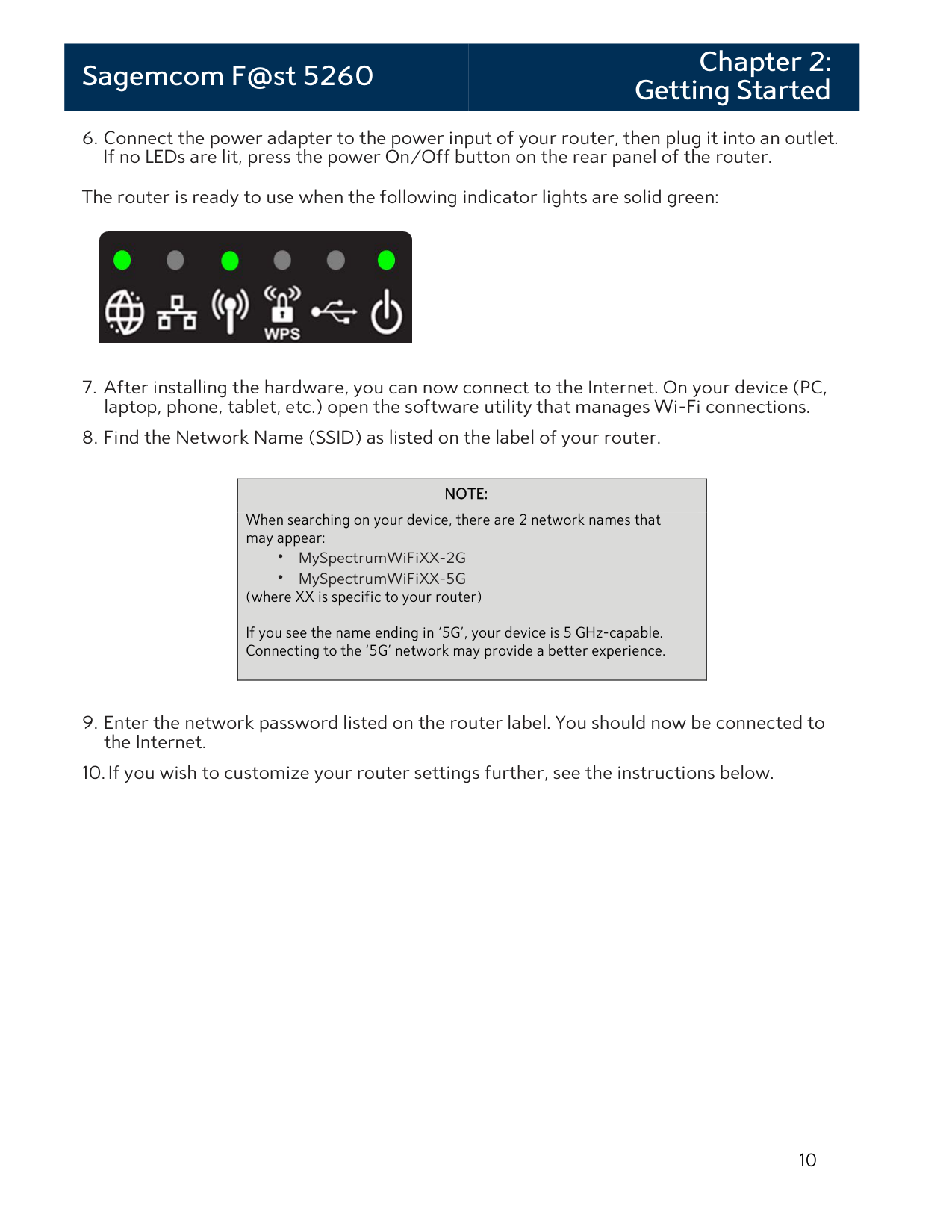
|---|---| |Network Password (key):
| | |Guest Network Name:
| | |Guest Network Password (key):
| | |Web GUI (IP) Address:
| | |Web GUI Username:| | |Web GUI Password:| |
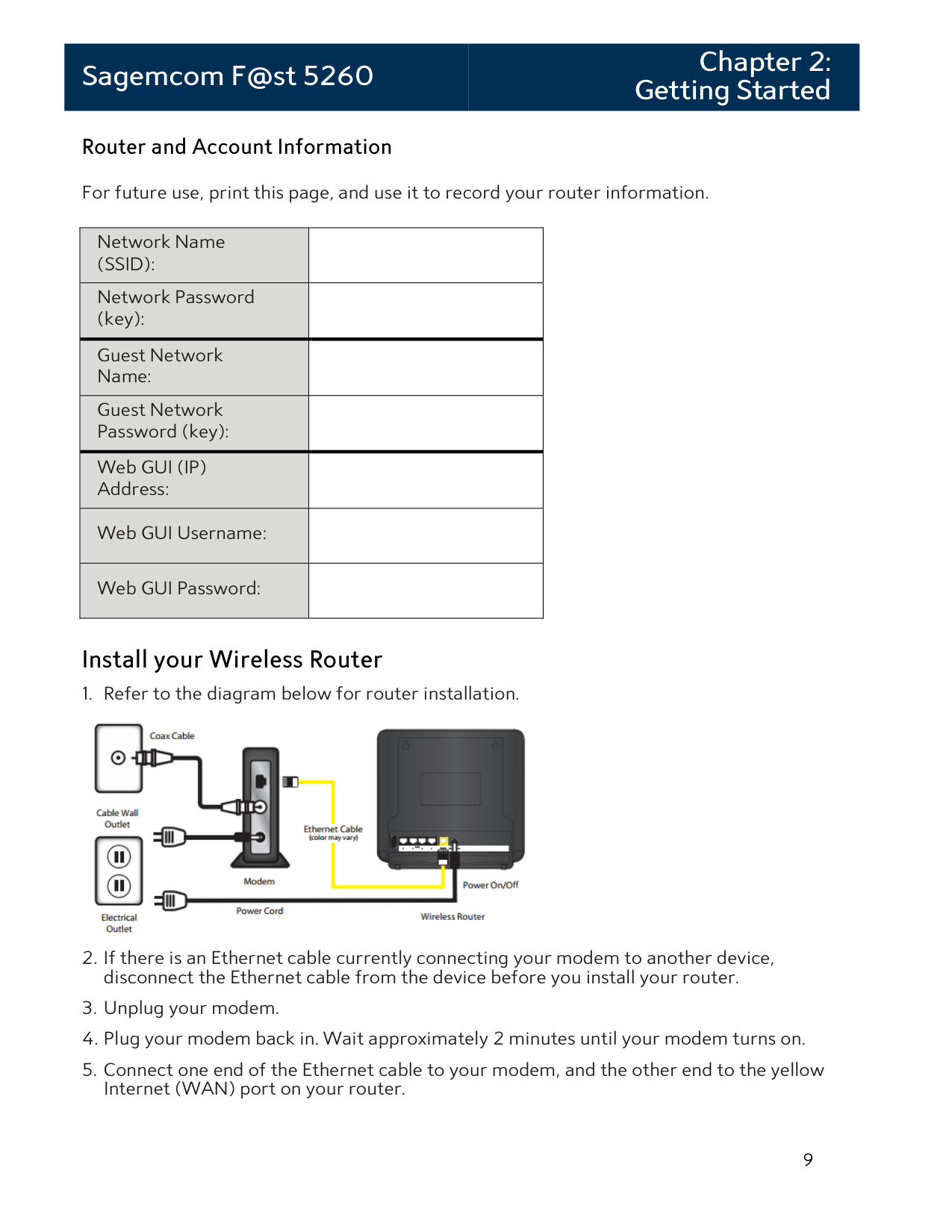
Install your Wireless Router

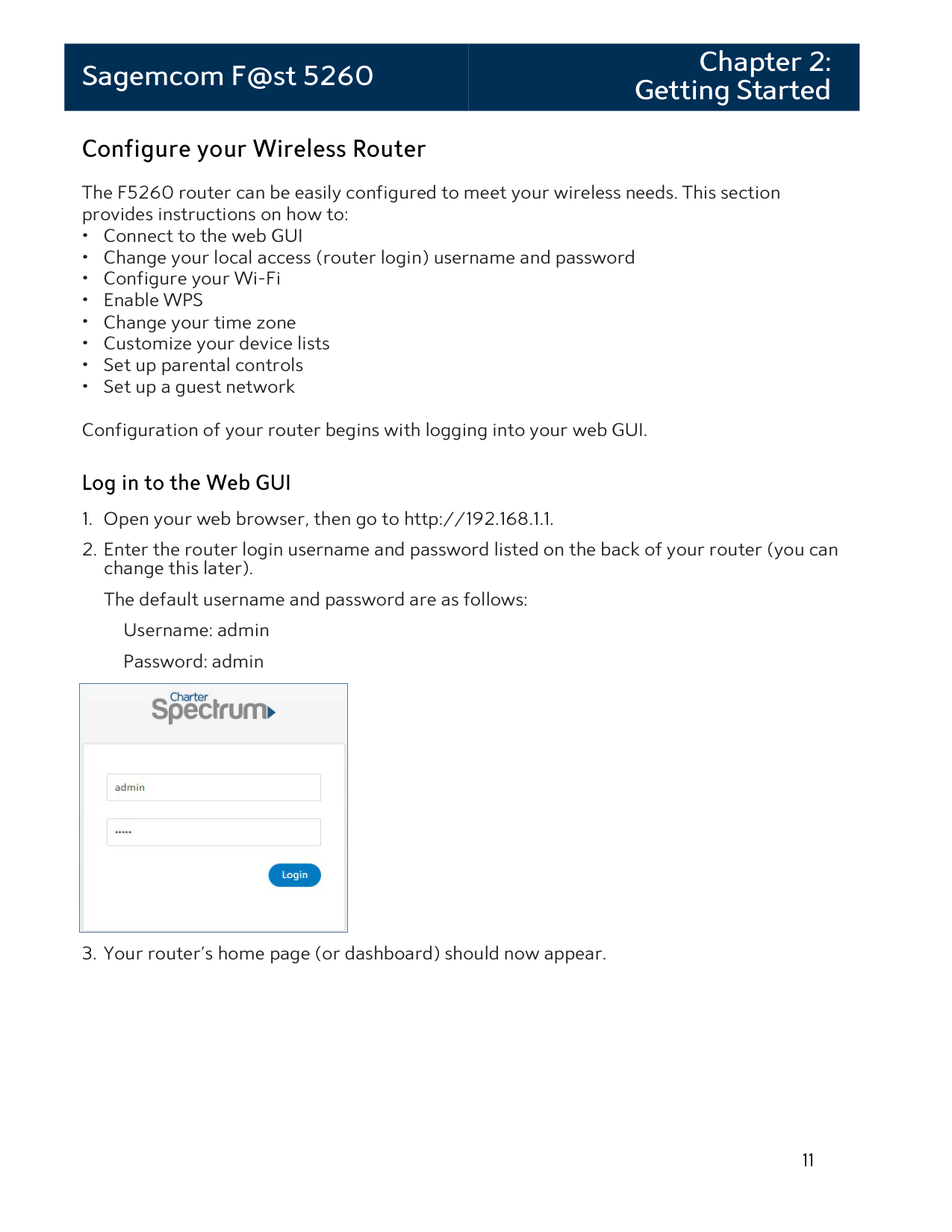
The router is ready to use when the following indicator lights are solid green:

|NOTE:
When searching on your device, there are 2 network names that may appear:
• MySpectrumWiFiXX-2G
• MySpectrumWiFiXX-5G
(where XX is specific to your router)
If you see the name ending in ‘5G’, your device is 5 GHz-capable. Connecting to the ‘5G’ network may provide a better experience.
| |---|
Configure your Wireless Router
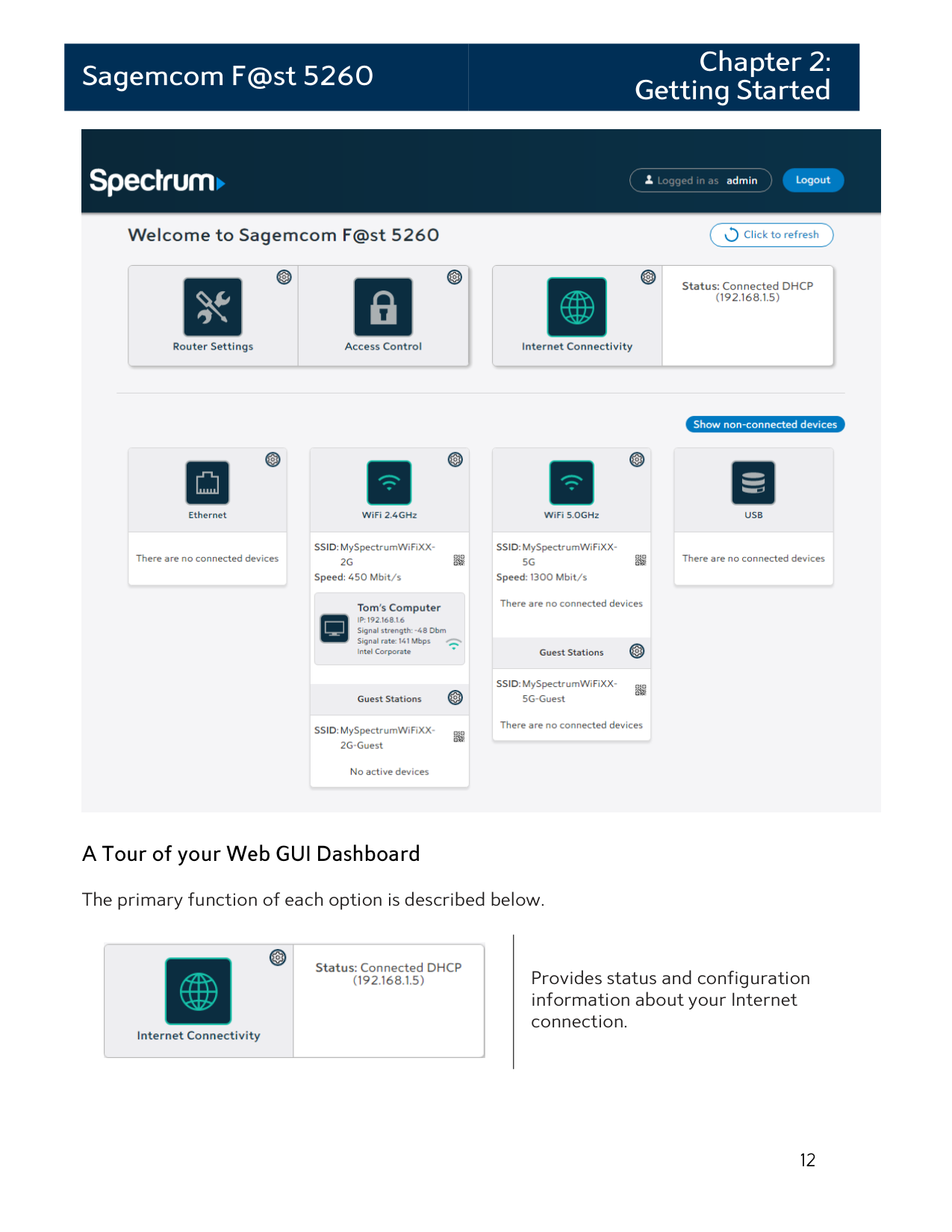
The F5260 router can be easily configured to meet your wireless needs. This section provides instructions on how to:
Username: admin Password: admin

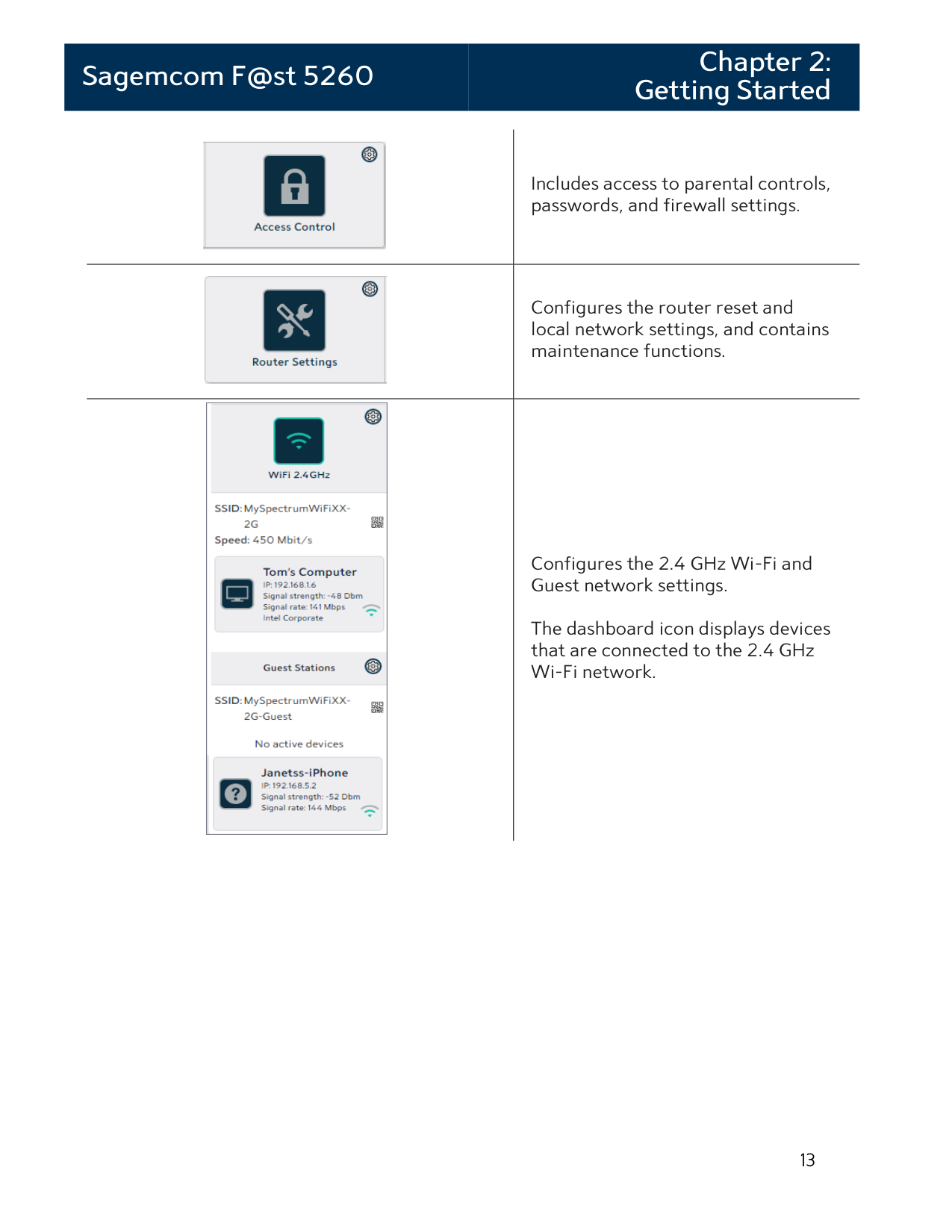

A Tour of your Web GUI Dashboard The primary function of each option is described below.

Provides status and configuration information about your Internet connection.
||Includes access to parental controls, passwords, and firewall settings.
| |---|---| ||Configures the router reset and local network settings, and contains maintenance functions.| ||Configures the 2.4 GHz Wi-Fi and Guest network settings.
The dashboard icon displays devices that are connected to the 2.4 GHz Wi-Fi network.|
||Configures the 5 GHz and Guest network settings.
The dashboard icon displays devices that are connected to the 5 GHz Wi-Fi network.
| |---|---| ||Provides statistics on LAN Ethernet ports.
The dashboard icon displays devices connected by Ethernet.| ||Configures or safely removes USBconnected devices.
The dashboard icon displays USB devices that are connected.|
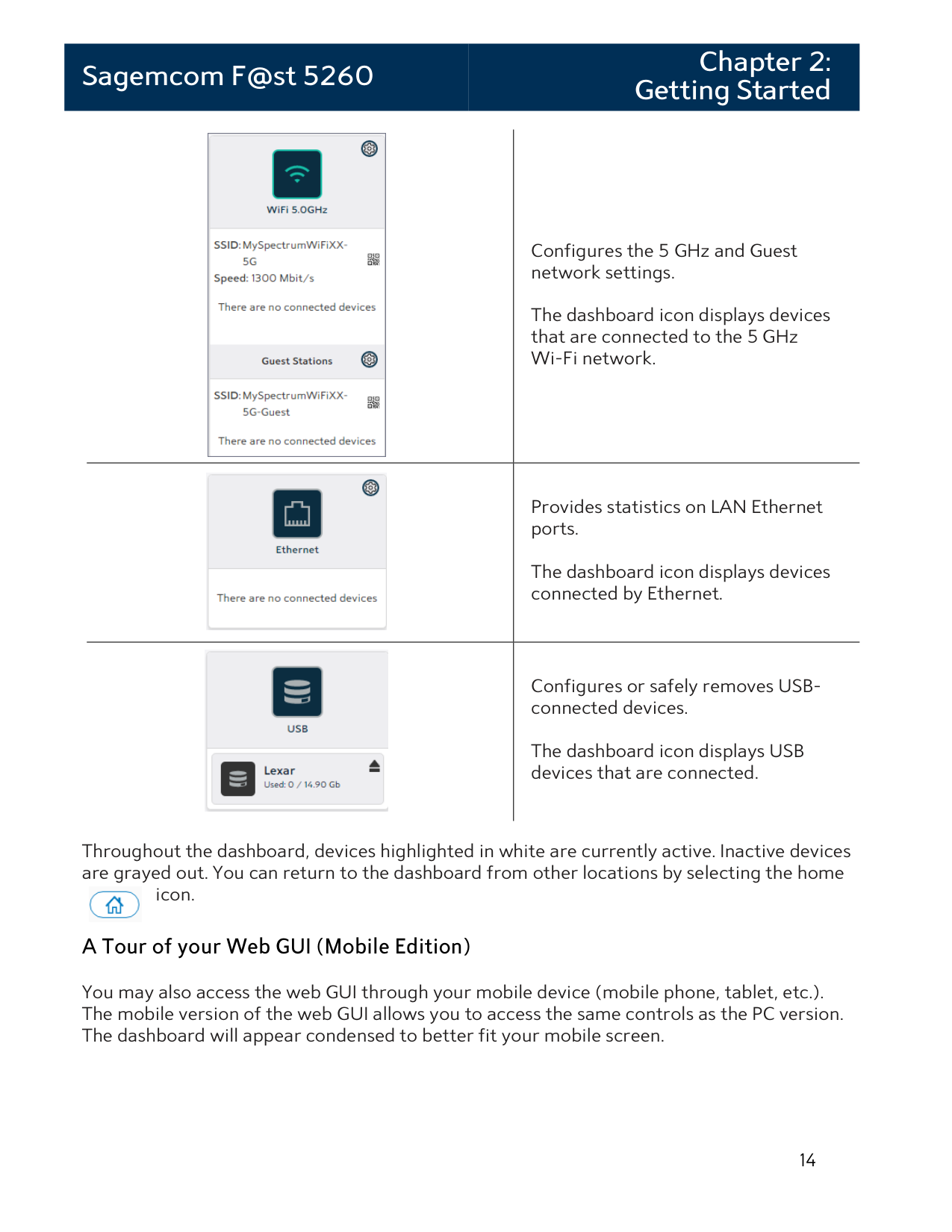
Throughout the dashboard, devices highlighted in white are currently active. Inactive devices are grayed out. You can return to the dashboard from other locations by selecting the home
icon.

#### A Tour of your Web GUI (Mobile Edition)
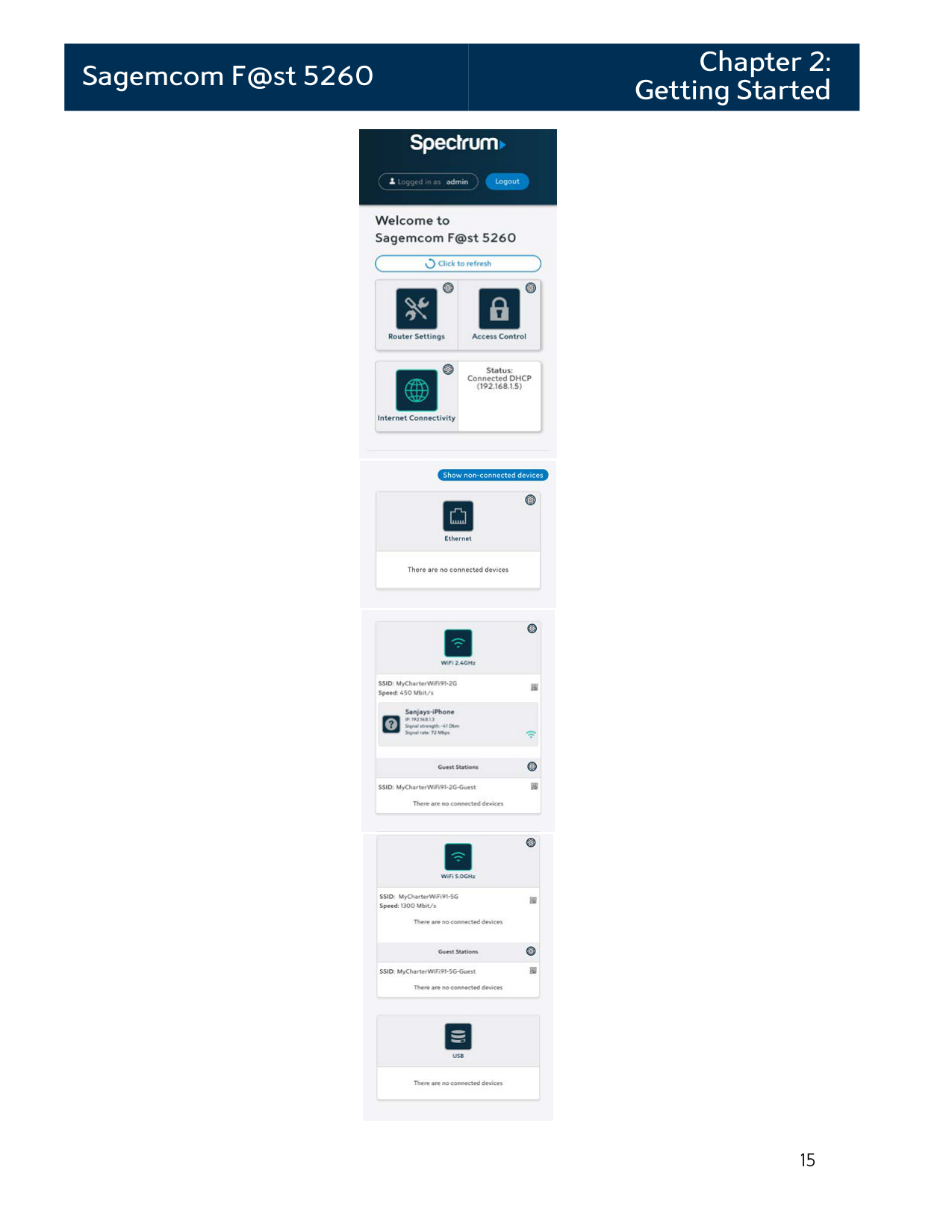
You may also access the web GUI through your mobile device (mobile phone, tablet, etc.). The mobile version of the web GUI allows you to access the same controls as the PC version. The dashboard will appear condensed to better fit your mobile screen.


#### Changing your Local Access Password
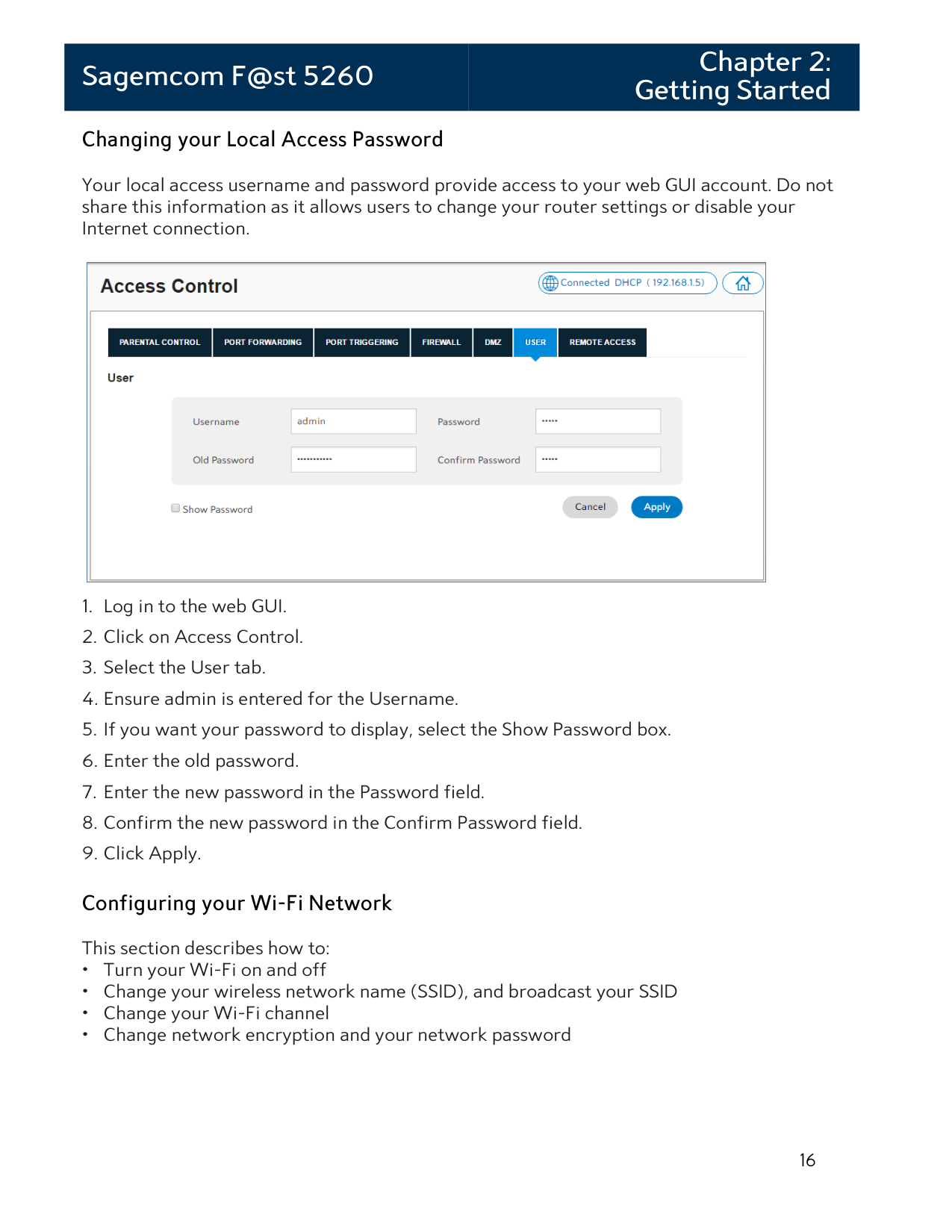
Your local access username and password provide access to your web GUI account. Do not share this information as it allows users to change your router settings or disable your Internet connection.

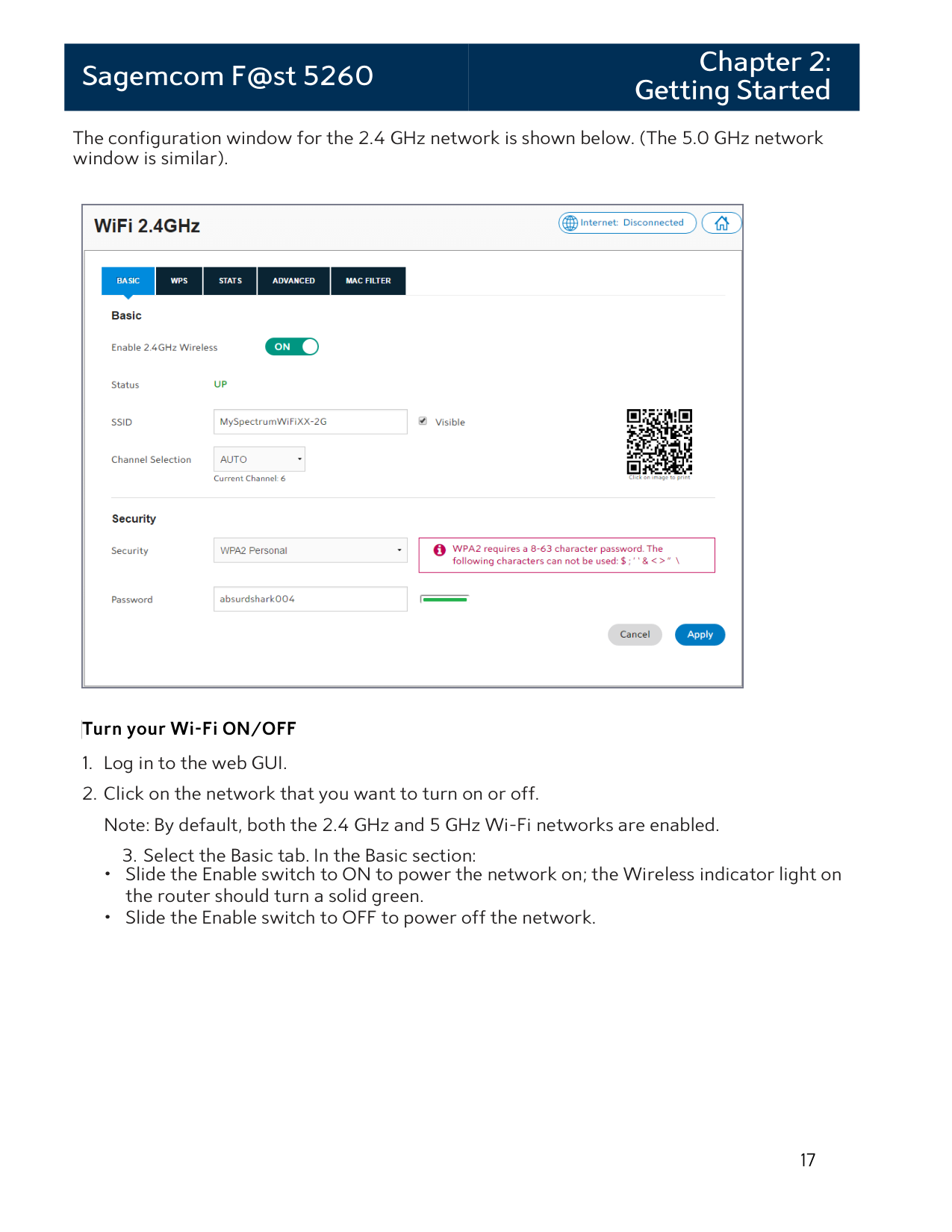
The configuration window for the 2.4 GHz network is shown below. (The 5.0 GHz network window is similar).

##### Turn your Wi-Fi ON/OFF

##### Change your SSID and stop broadcasting your SSID
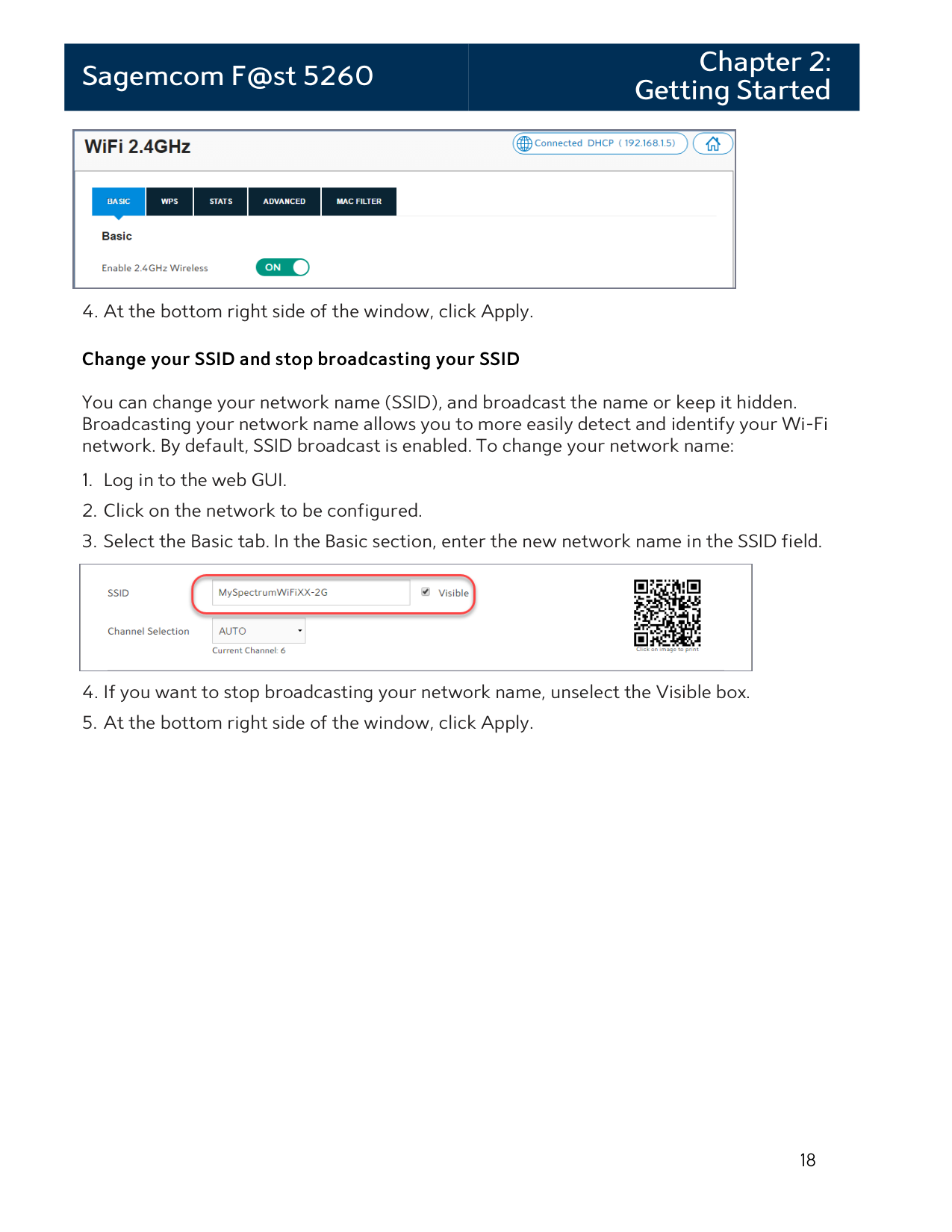
You can change your network name (SSID), and broadcast the name or keep it hidden. Broadcasting your network name allows you to more easily detect and identify your Wi-Fi network. By default, SSID broadcast is enabled. To change your network name:

##### Change the Wi-Fi Channel
You may want to change your Wi-Fi network channel to avoid other Wi-Fi networks or interfering devices such as microwaves. If you select “Auto” the router will select the best available channel for your wireless network.

##### Change the Wireless Network Security Encryption and Password
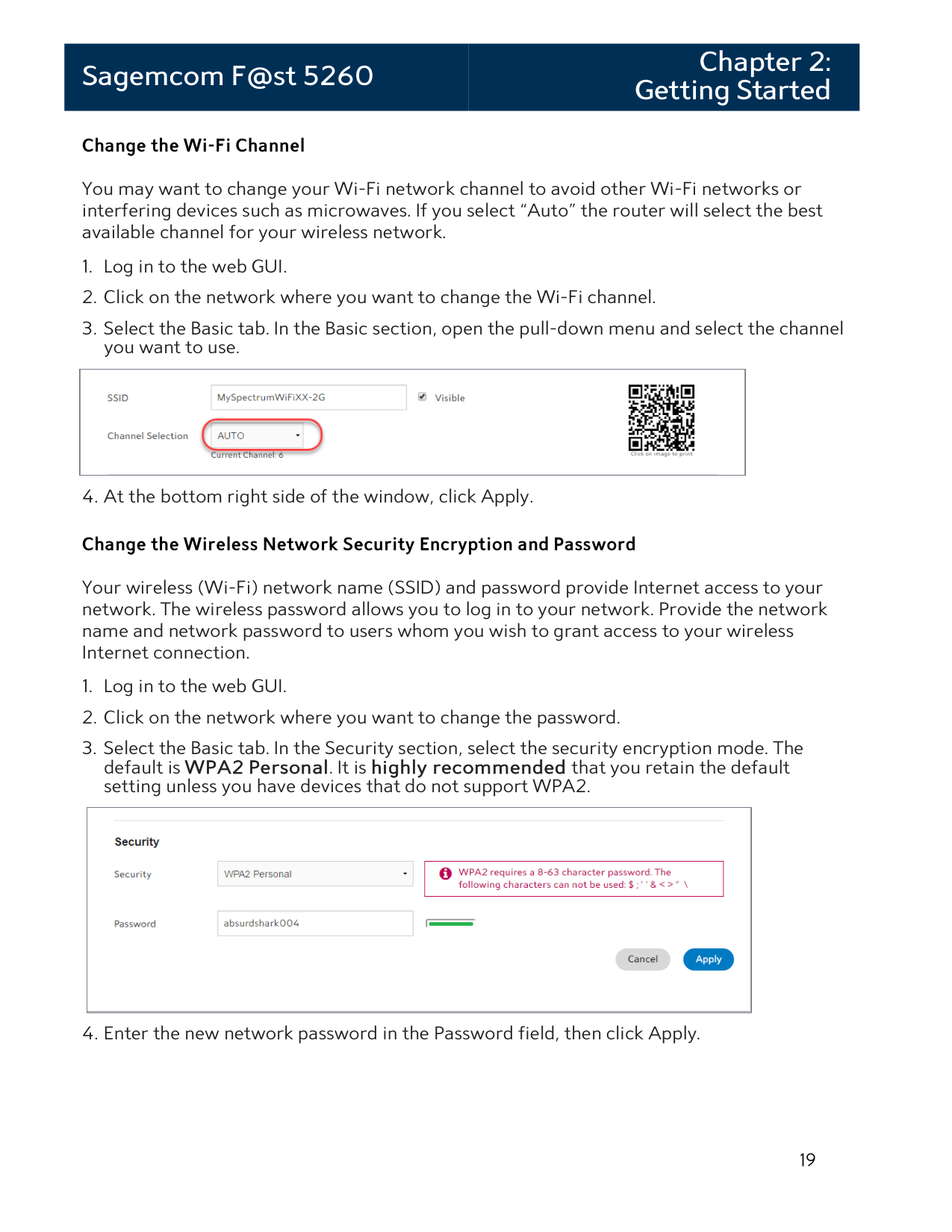
Your wireless (Wi-Fi) network name (SSID) and password provide Internet access to your network. The wireless password allows you to log in to your network. Provide the network name and network password to users whom you wish to grant access to your wireless Internet connection.

#### Enabling WPS Push Button Pairing
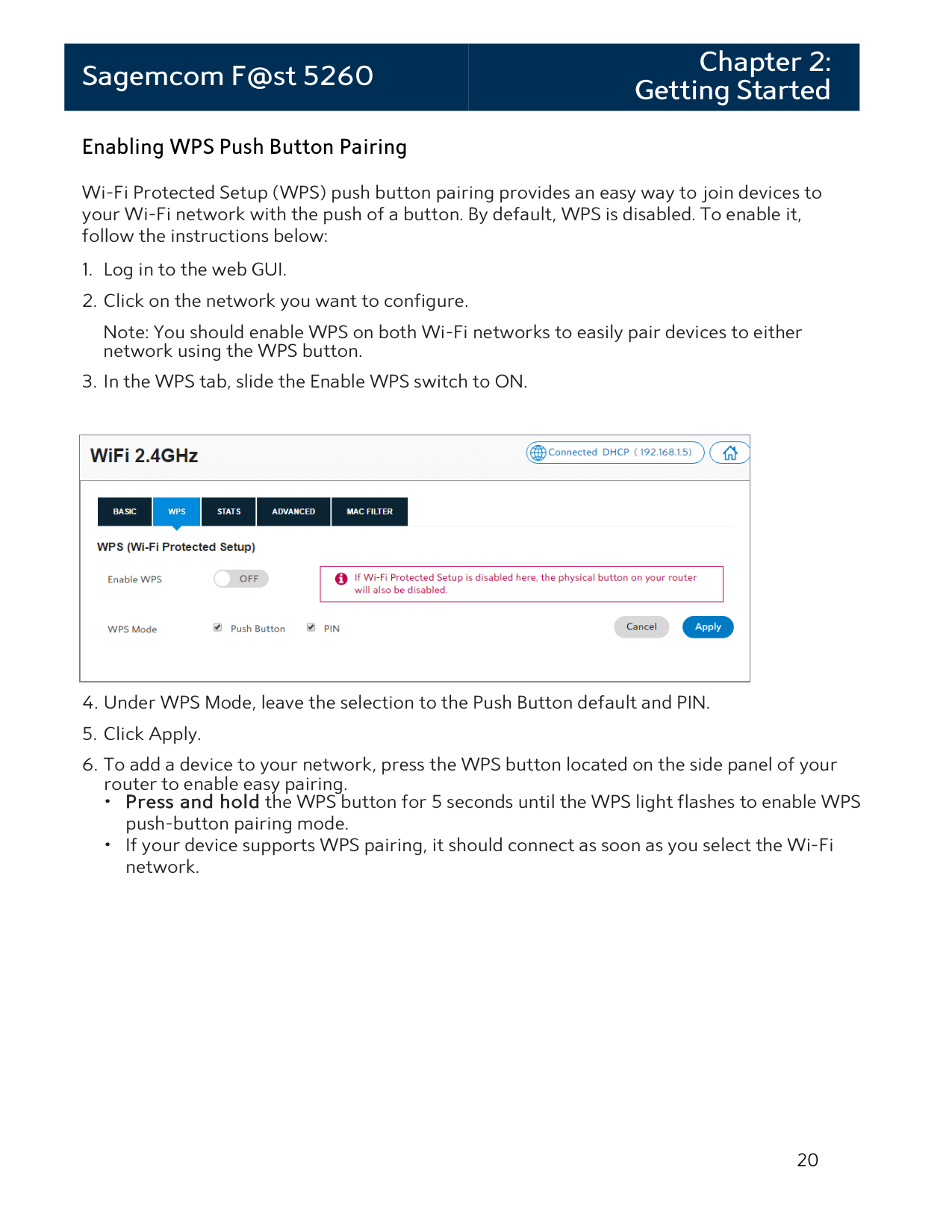
Wi-Fi Protected Setup (WPS) push button pairing provides an easy way to join devices to your Wi-Fi network with the push of a button. By default, WPS is disabled. To enable it, follow the instructions below:
Note: You should enable WPS on both Wi-Fi networks to easily pair devices to either network using the WPS button.

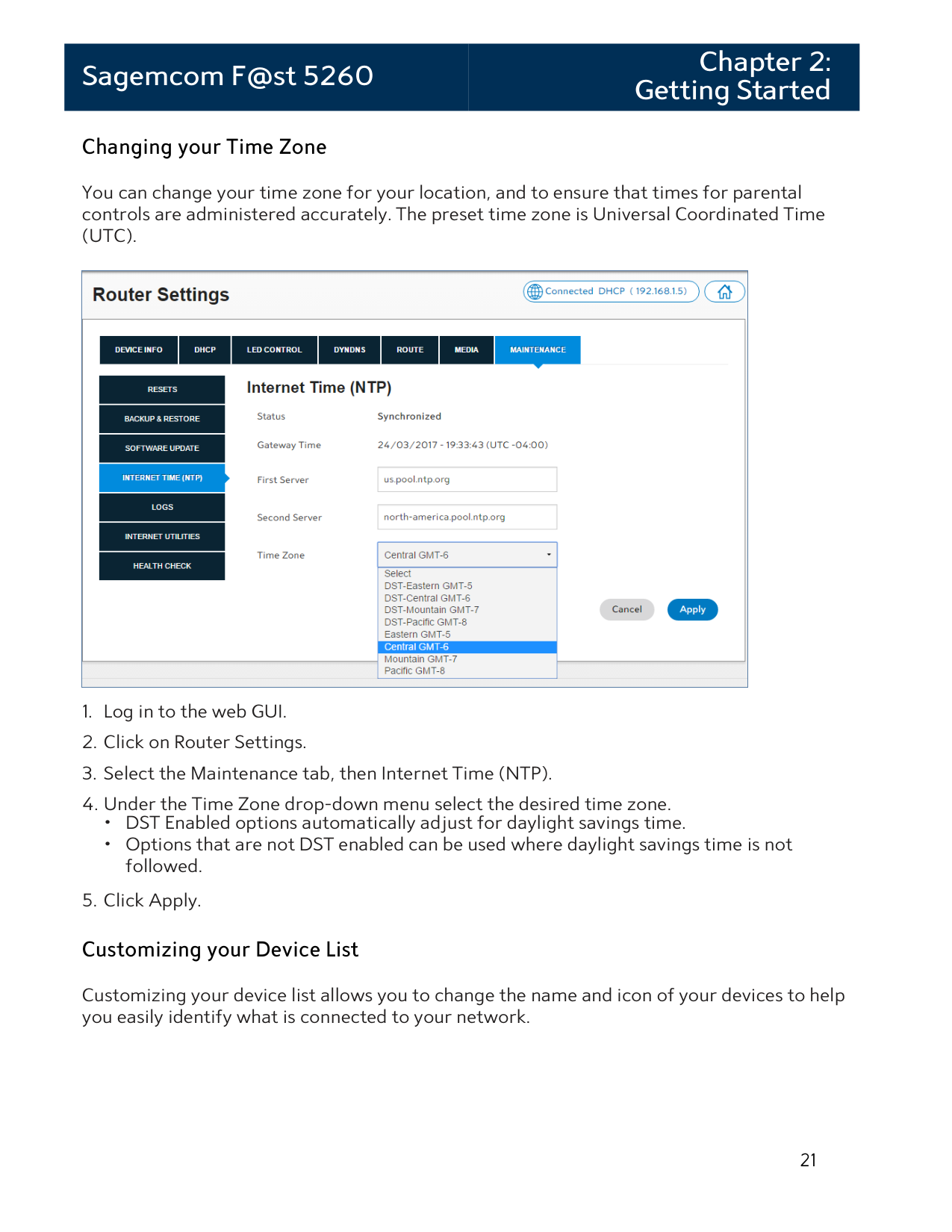
#### Changing your Time Zone
You can change your time zone for your location, and to ensure that times for parental controls are administered accurately. The preset time zone is Universal Coordinated Time (UTC).

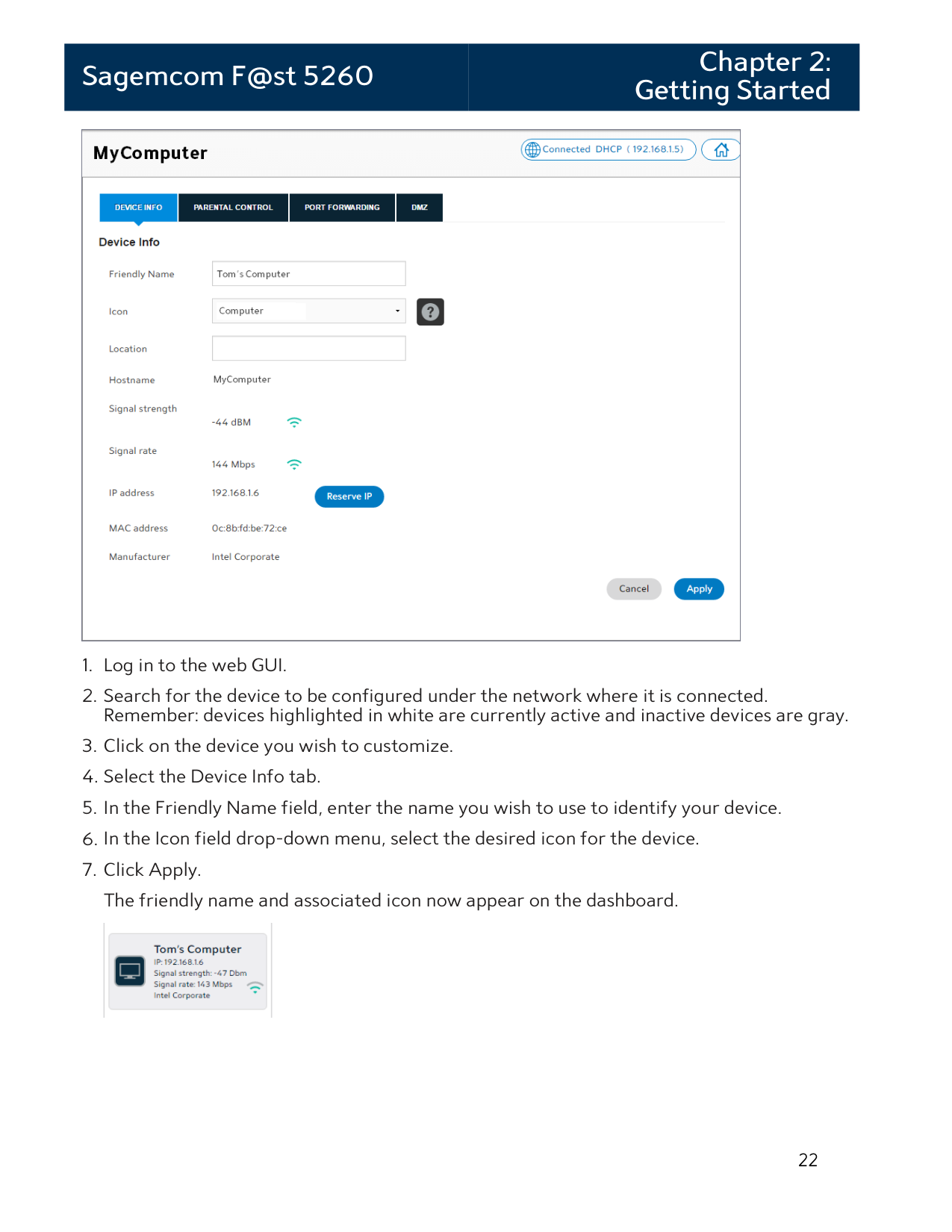
Customizing your device list allows you to change the name and icon of your devices to help you easily identify what is connected to your network.


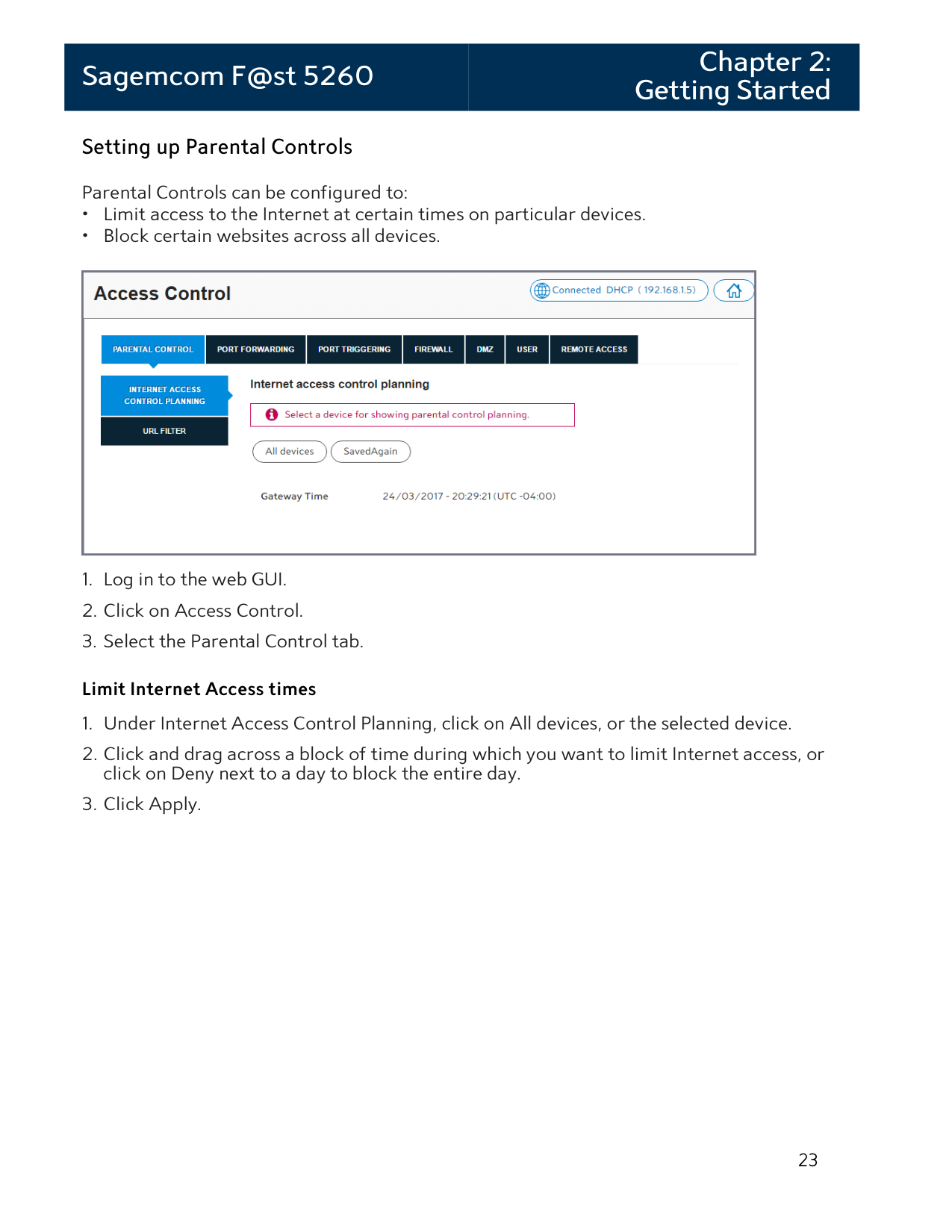
Setting up Parental Controls Parental Controls can be configured to:

##### Limit Internet Access times

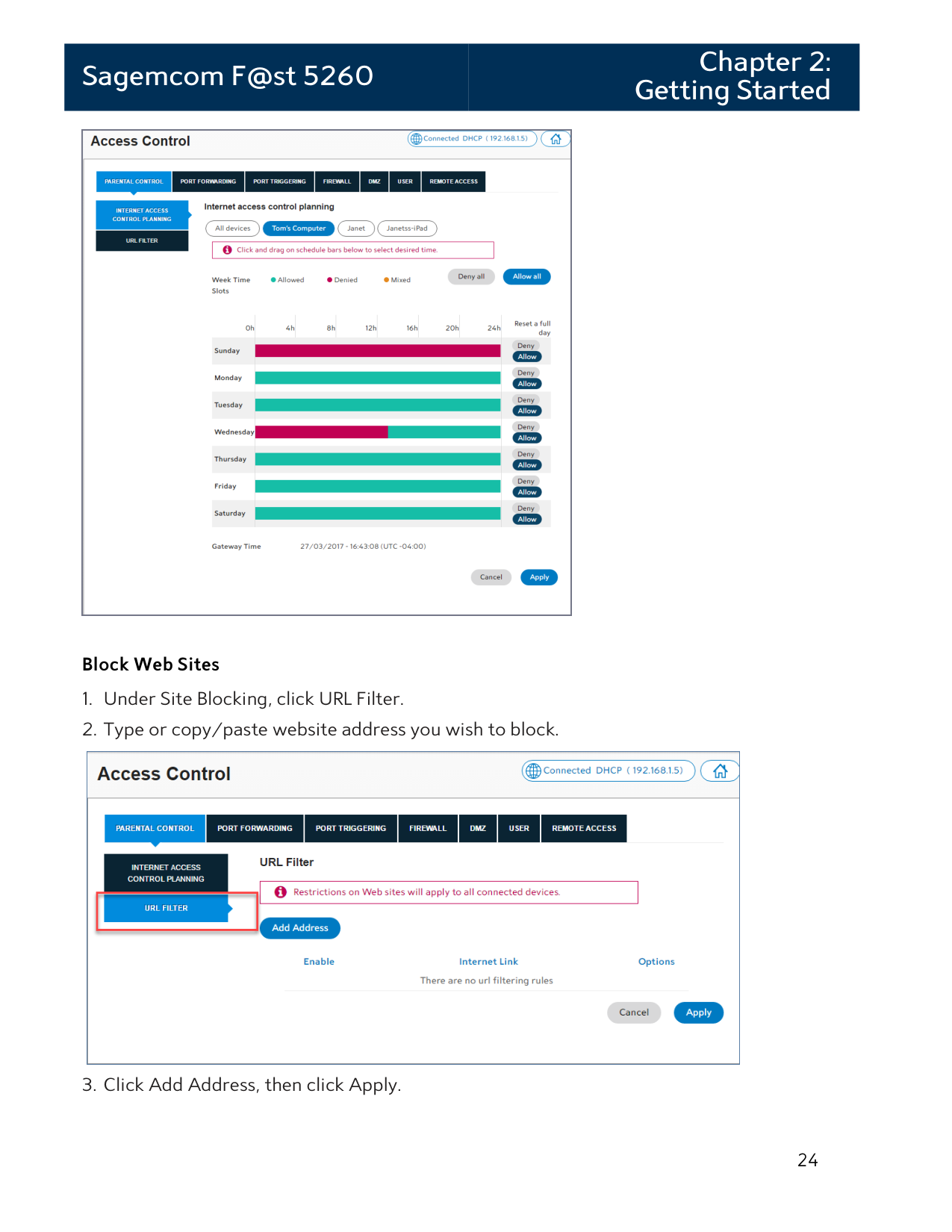
##### Block Web Sites

|NOTE:
Entering a site on the blocked sites list prohibits all devices connected to your network from accessing the site at all times of the day.
| |---|
#### Setting up your Guest Network
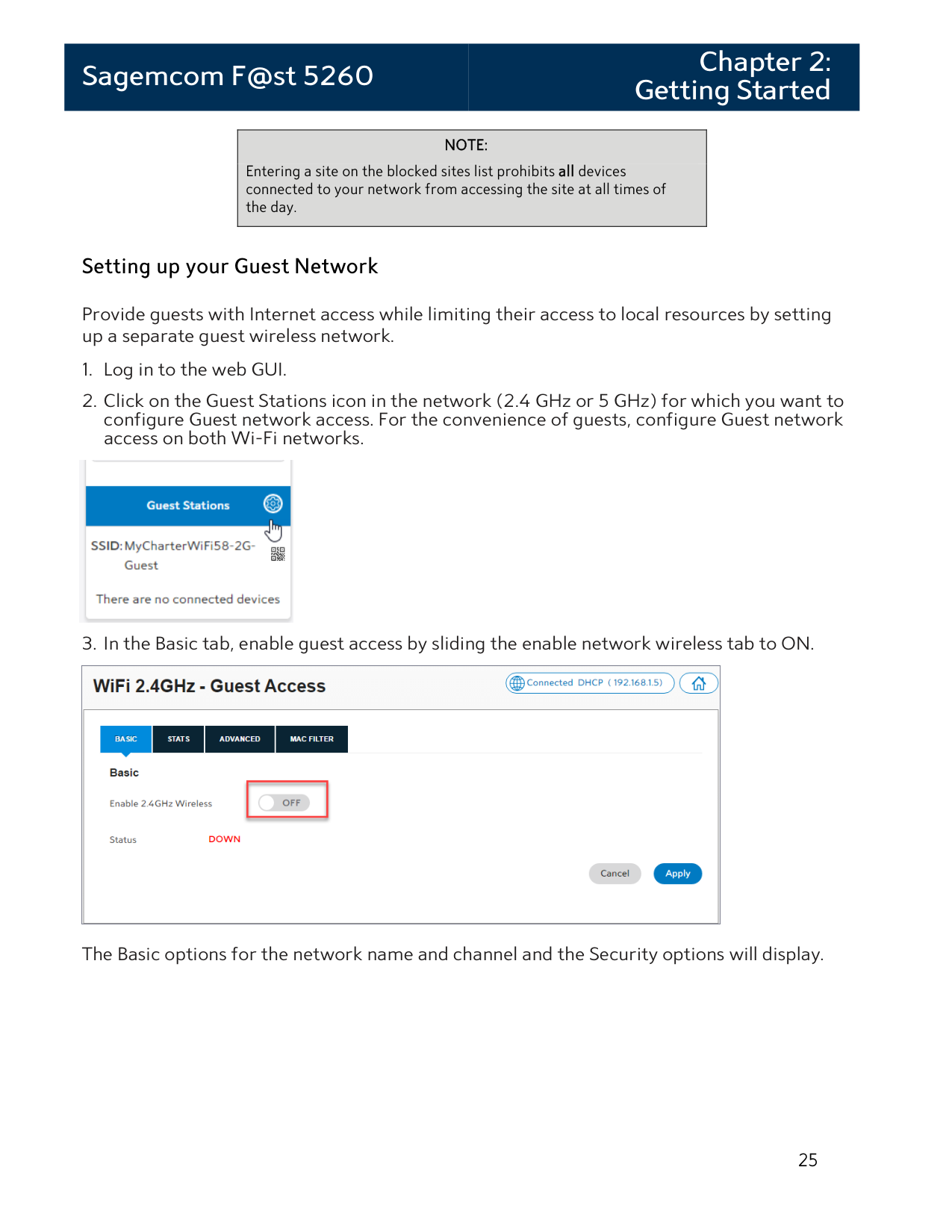
Provide guests with Internet access while limiting their access to local resources by setting up a separate guest wireless network.


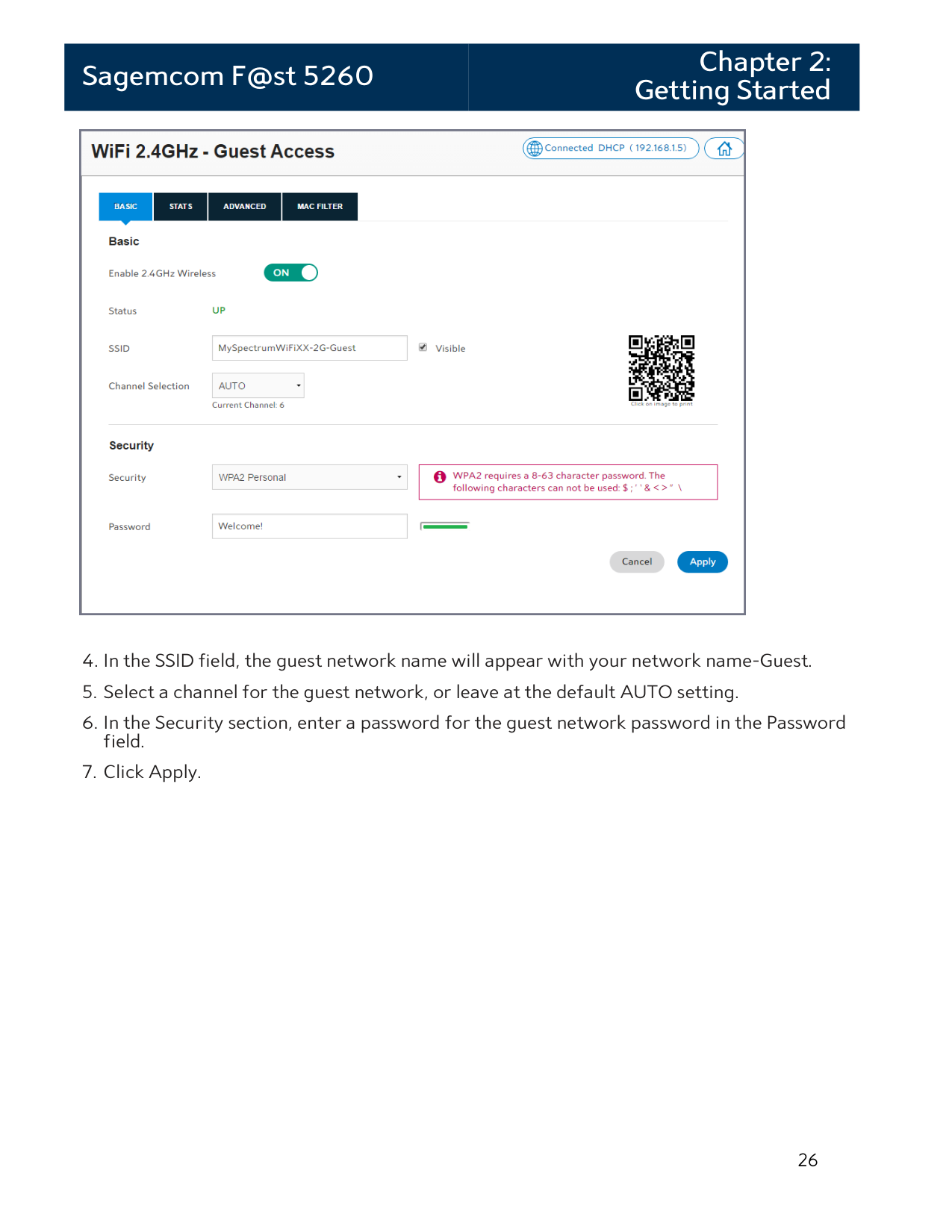
The Basic options for the network name and channel and the Security options will display.

Chapter 3: USB Sharing
The router allows you to share storage and media files as well as printers and multi-function devices with other users on your network. This chapter will provide instruction on how to:
USB Storage
Files can be shared within your network by connecting a USB storage device (e.g. flash drive, external hard drive, etc.) to your router. All users connected to your network will be able to view, add, modify, and delete any files on your storage device.
The F5260 router supports USB 2.0. The following file systems are supported: FAT16, FAT32, NTFS, Ext2, Ext3, HFS, HFS+. Note that some file systems function as read only depending on the permissions configured on your storage device.
#### Connecting a Storage Device
To connect a USB hard drive or flash drive, attach it to the USB port located on the side panel of the router. The USB indicator light will turn on when the device is recognized.

You may need to refresh your screen to see the connected USB device under the USB icon in the dashboard. Select Click to refresh on your dashboard if needed.

|WARNING: To safeguard your data, ensure that you:
• Always keep a second copy (backup) of all data.
• Stop the USB storage device BEFORE removing it from your router.
| |---|
#### Enabling File Sharing

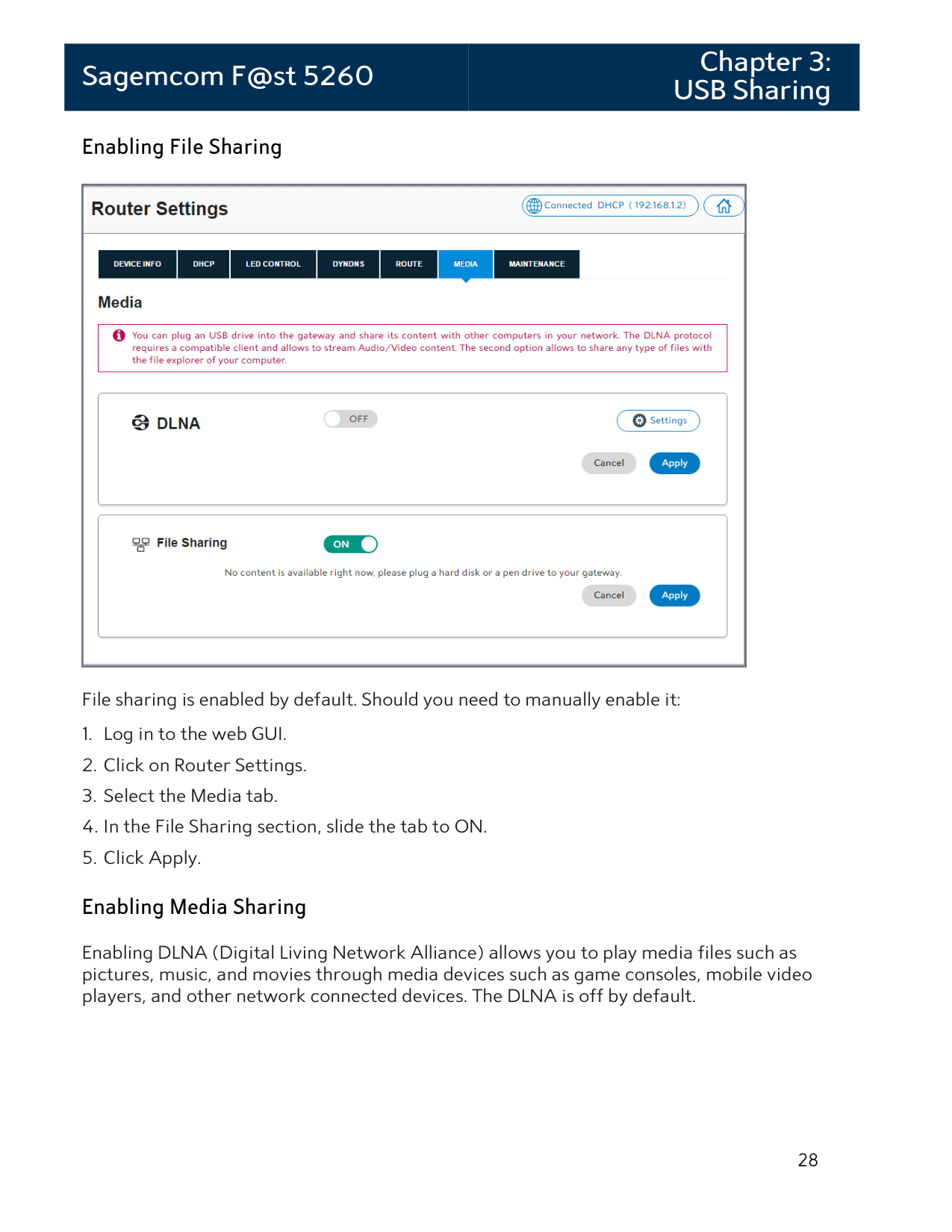
File sharing is enabled by default. Should you need to manually enable it:
Enabling DLNA (Digital Living Network Alliance) allows you to play media files such as pictures, music, and movies through media devices such as game consoles, mobile video players, and other network connected devices. The DLNA is off by default.
##### To enable the DLNA:
|WARNING: To safeguard your data, ensure that you:
• Always keep a second copy (backup) of all data.
• Stop the USB storage device BEFORE removing it from your router.
| |---|
To safely disconnect a USB storage device from your router, wait at least 5 minutes after connecting a USB storage device before ejecting it from your drive.
##### To safely disconnect a USB storage device from your router:

Access Shared Files
If you wish to access USB storage devices that are connected to your router, follow the instructions below according to your operating system.
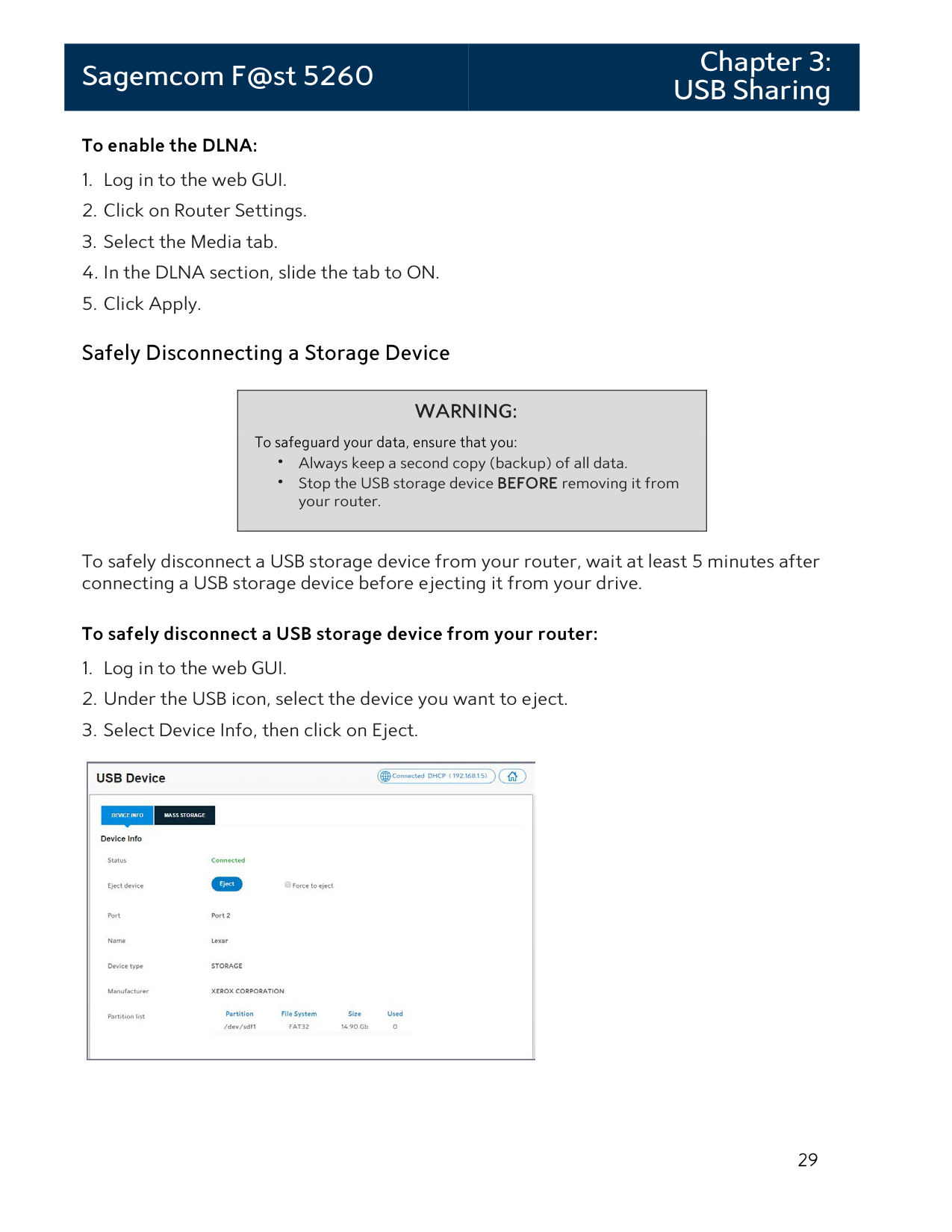
#### For Windows

|WARNING:
To safely disconnect a USB storage device, ensure that you follow the directions outlined in this manual. It is your responsibility to create data backups prior to using USB storage devices with your wireless router.
| |---|
#### For Mac
|WARNING:
To safely disconnect a USB storage device, ensure that you follow the directions outlined in this manual. It is your responsibility to create data backups prior to using USB storage devices with your wireless router.
|
|---|
Printer Sharing
Printers may be shared within your network by connecting a USB printer device to your router. All users connected to your network will be able to use the device attached to your router.
#### Connecting a Printer
Printer sharing is enabled by default. To connect a printer, attach it to the USB port located on the side panel of the router. The USB indicator light will turn on when the device is recognized.
|NOTE:
Check your printer's specifications to ensure that it supports IPP/1.1 as not all USB printers support this protocol.
Ensure the printer driver supports your operating system. To ensure that your printer driver is working properly on a PC, you can connect the printer to the PC directly before attempting to install the printer over the network.
| |---|
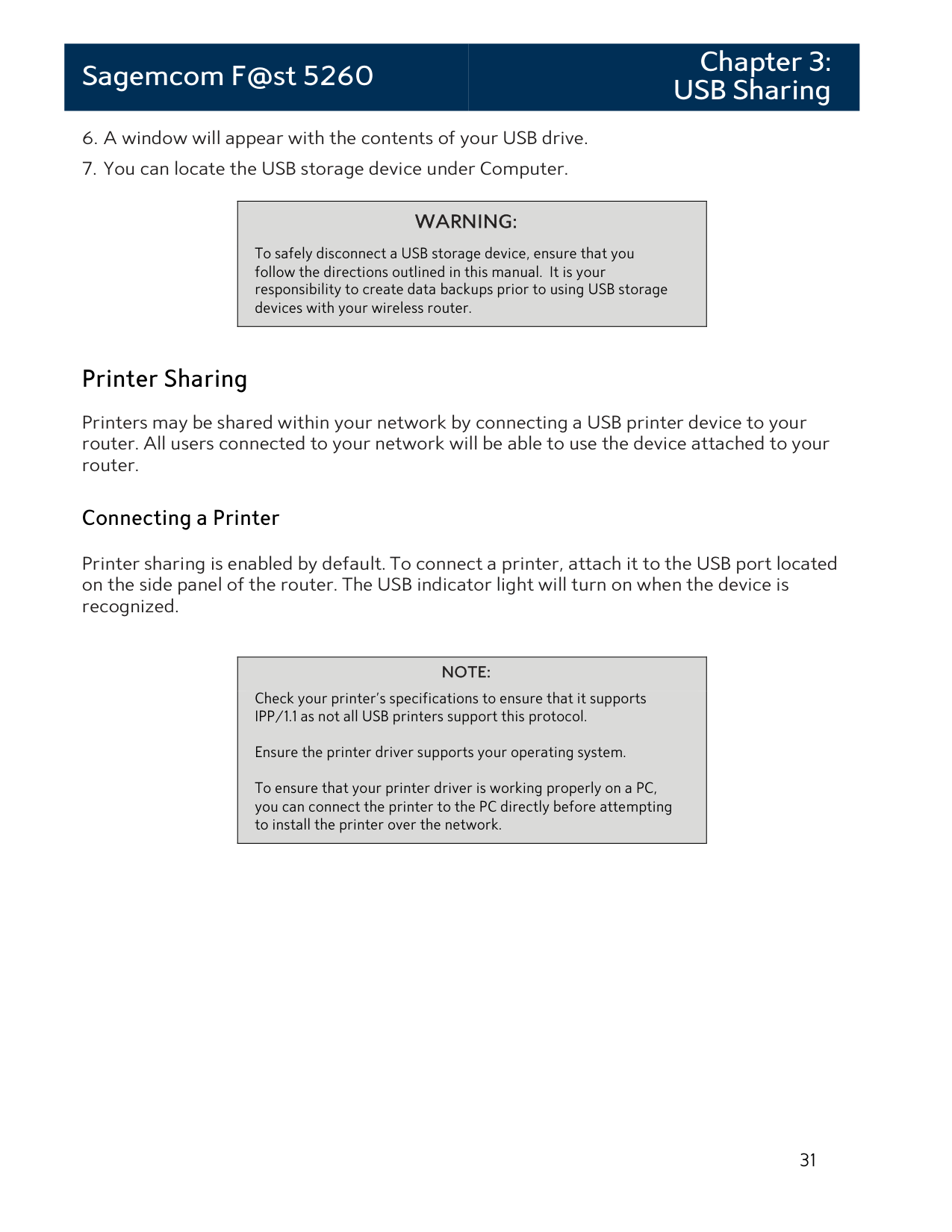
##### Configuring a Printer for Windows XP

The specific URL may vary for different models of printer. Refer to printer manufacturer's documentation. Some common printer URLs are:
|NOTE:
This step will fail if your printer is not connected or does not support IPP. You may also have to power-cycle your printer when changing USB hosts.
| |---|

If the printer was previously installed on this PC, then the driver should appear in the list under the proper manufacturer and printer name.
If you don’t see your printer, check the bottom of the list for your manufacturer. Printers are not always listed alphabetically.
##### Configuring a Printer for Windows 7
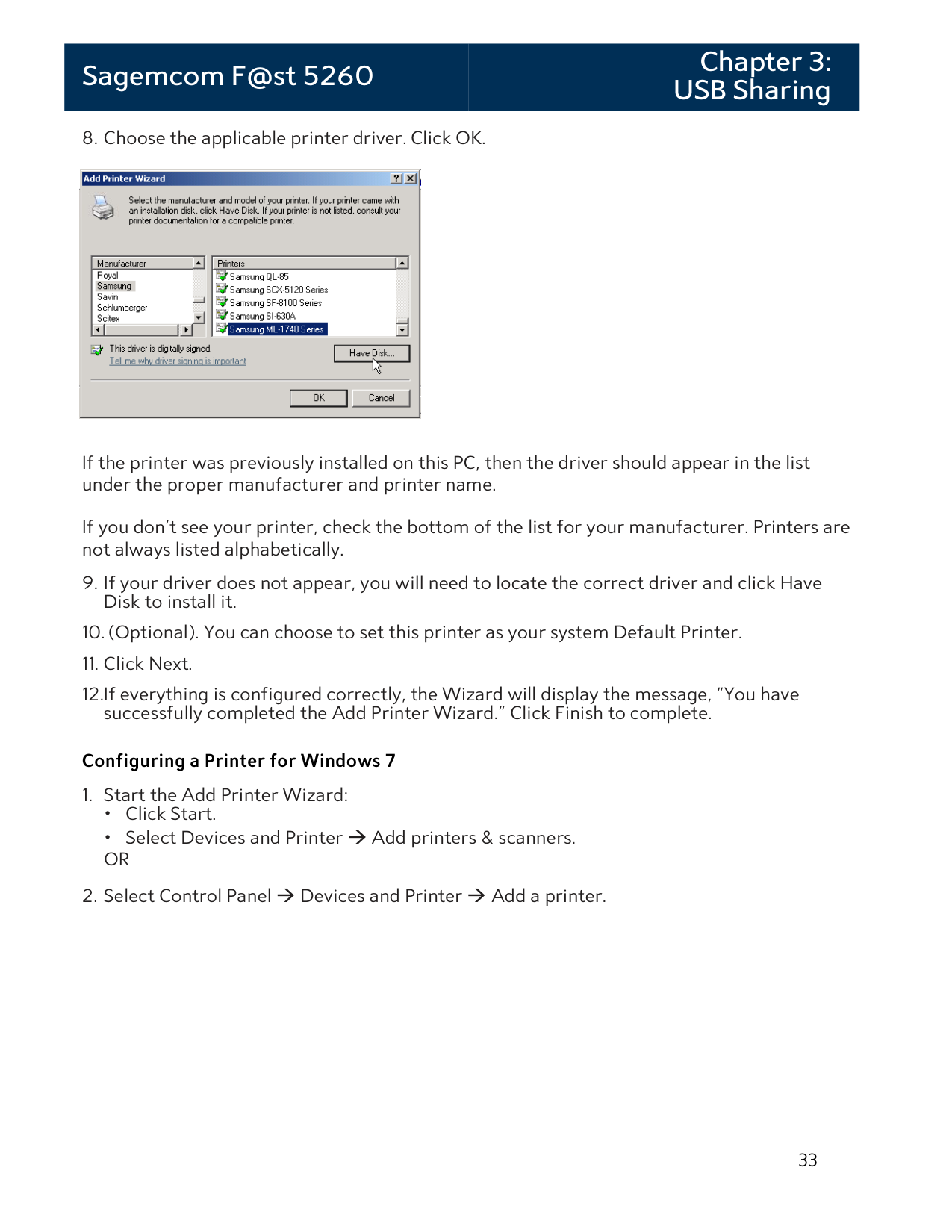


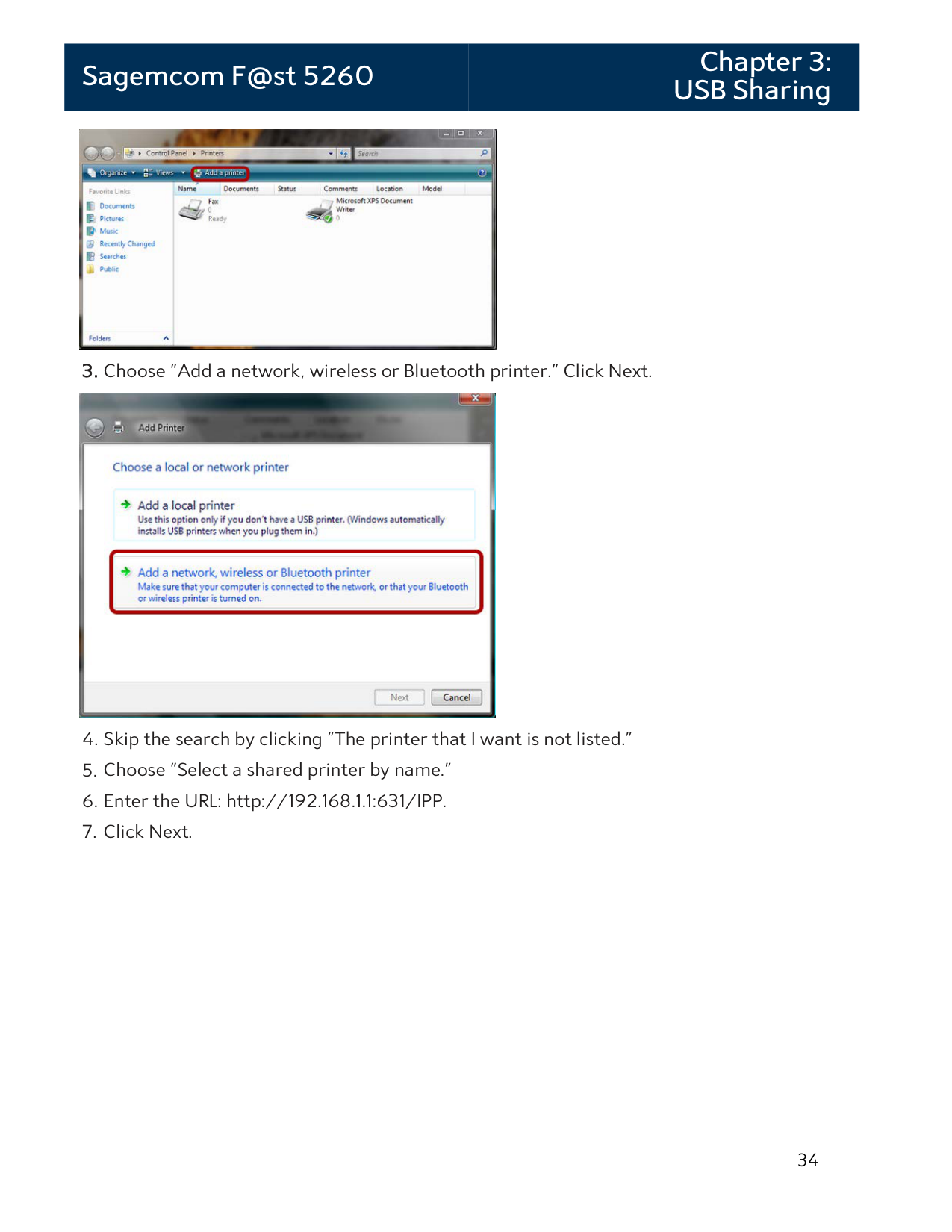

The specific URL may vary for different models of printer. Refer to printer manufacturer's documentation. Some common printer URLs are:
|NOTE:
This step will fail if your printer is not connected or does not support IPP. You may also have to power-cycle your printer when changing USB hosts.
| |---|

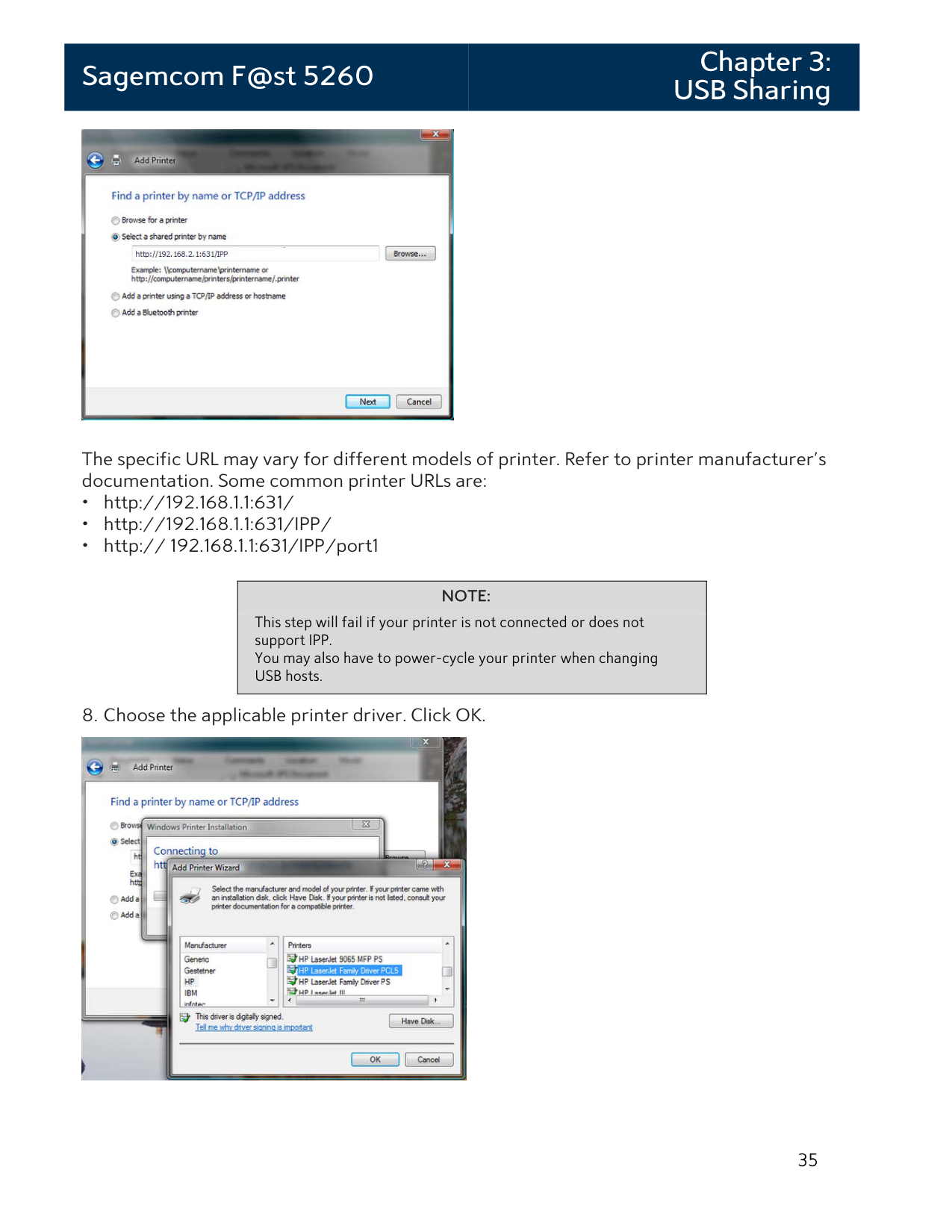
If the printer was previously installed on this PC, then the driver should appear in the list under the proper manufacturer and printer name.
If you don’t see your printer, check the bottom of the list for your manufacturer. Printers are not always listed alphabetically.
##### Configuring a Printer for Windows 10


OR
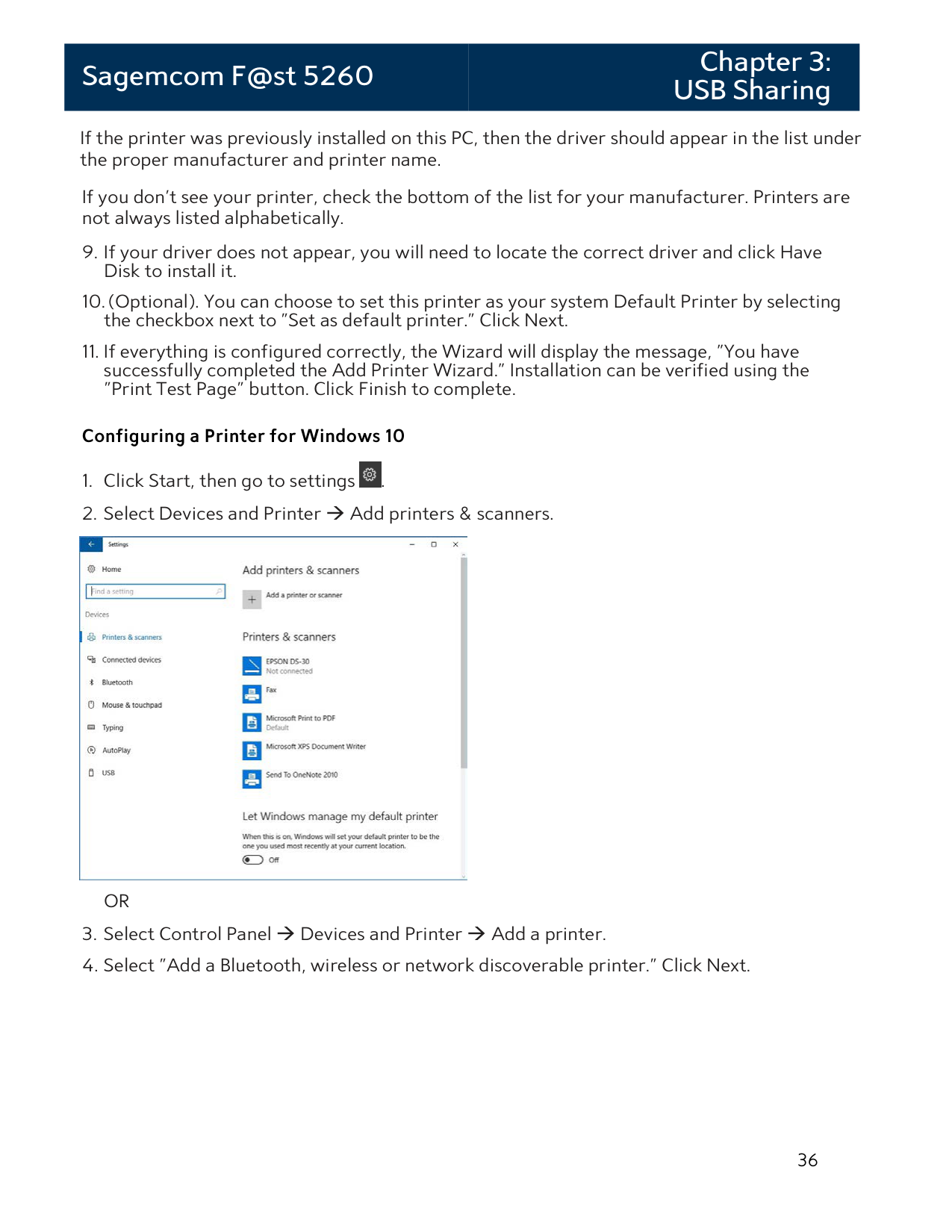


The specific URL may vary for different models of printer. Refer to printer manufacturer's documentation. Some common printer URLs are:
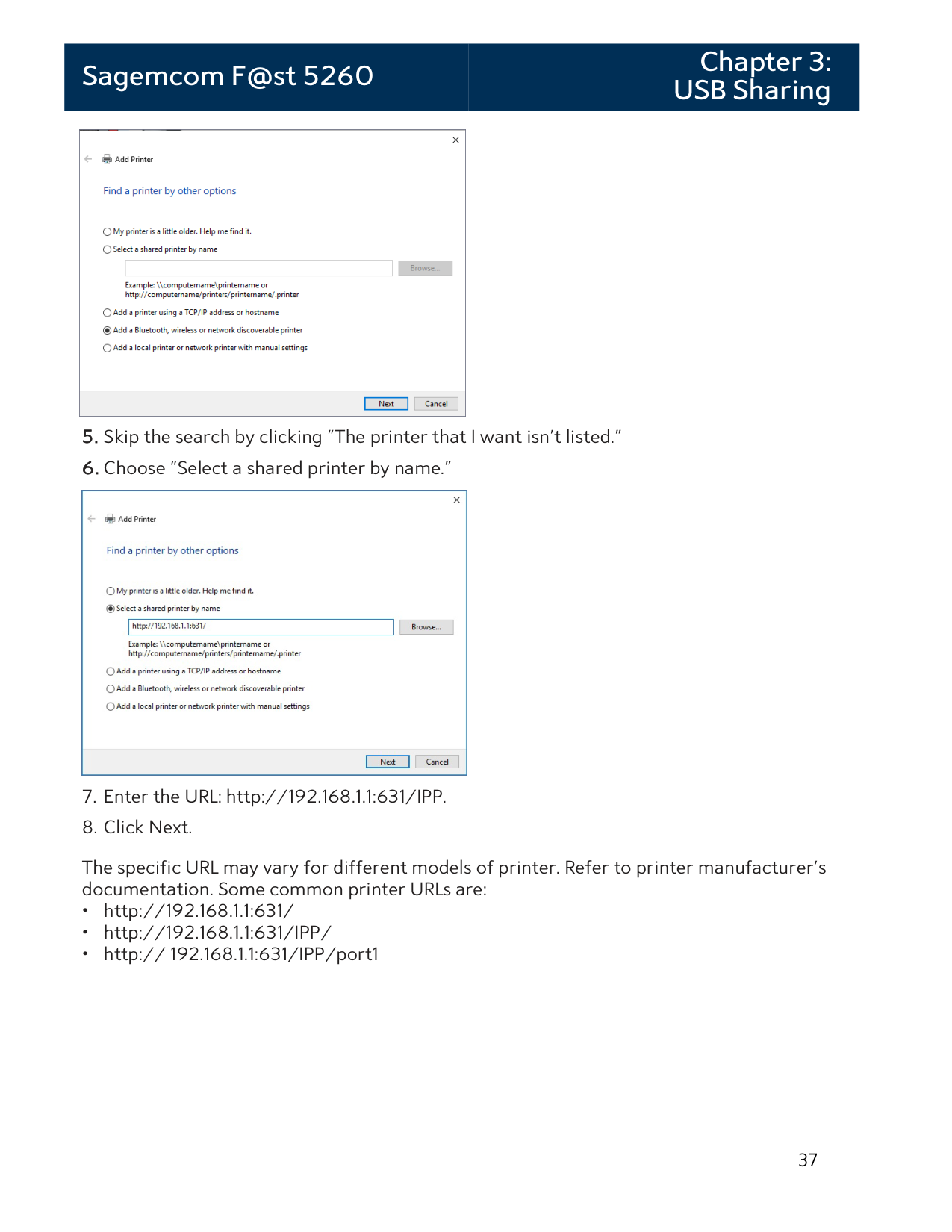
|NOTE:
This step will fail if your printer is not connected or does not support IPP. You may also have to power-cycle your printer when changing USB hosts.
| |---|

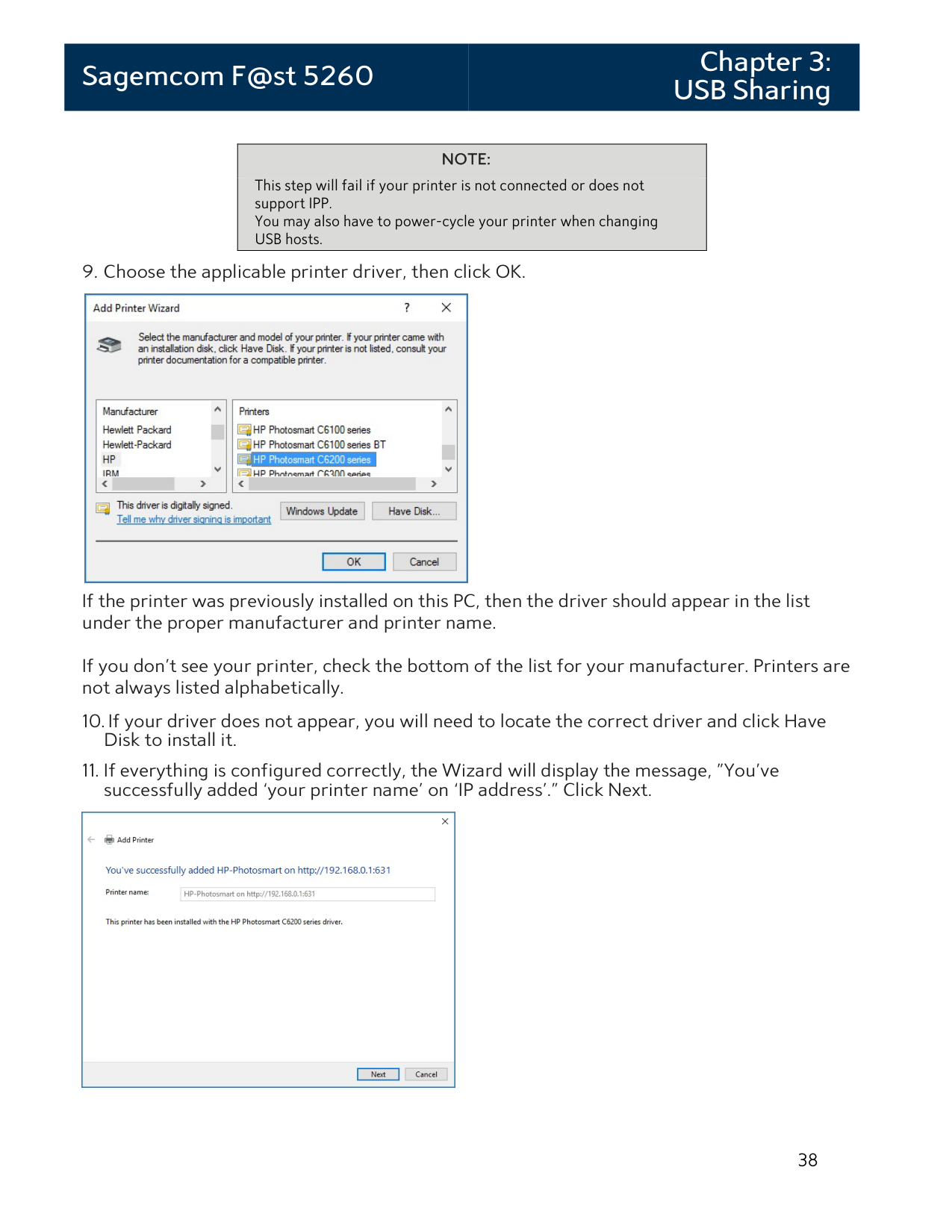
If the printer was previously installed on this PC, then the driver should appear in the list under the proper manufacturer and printer name.
If you don’t see your printer, check the bottom of the list for your manufacturer. Printers are not always listed alphabetically.


##### Configuring a Printer (Mac)


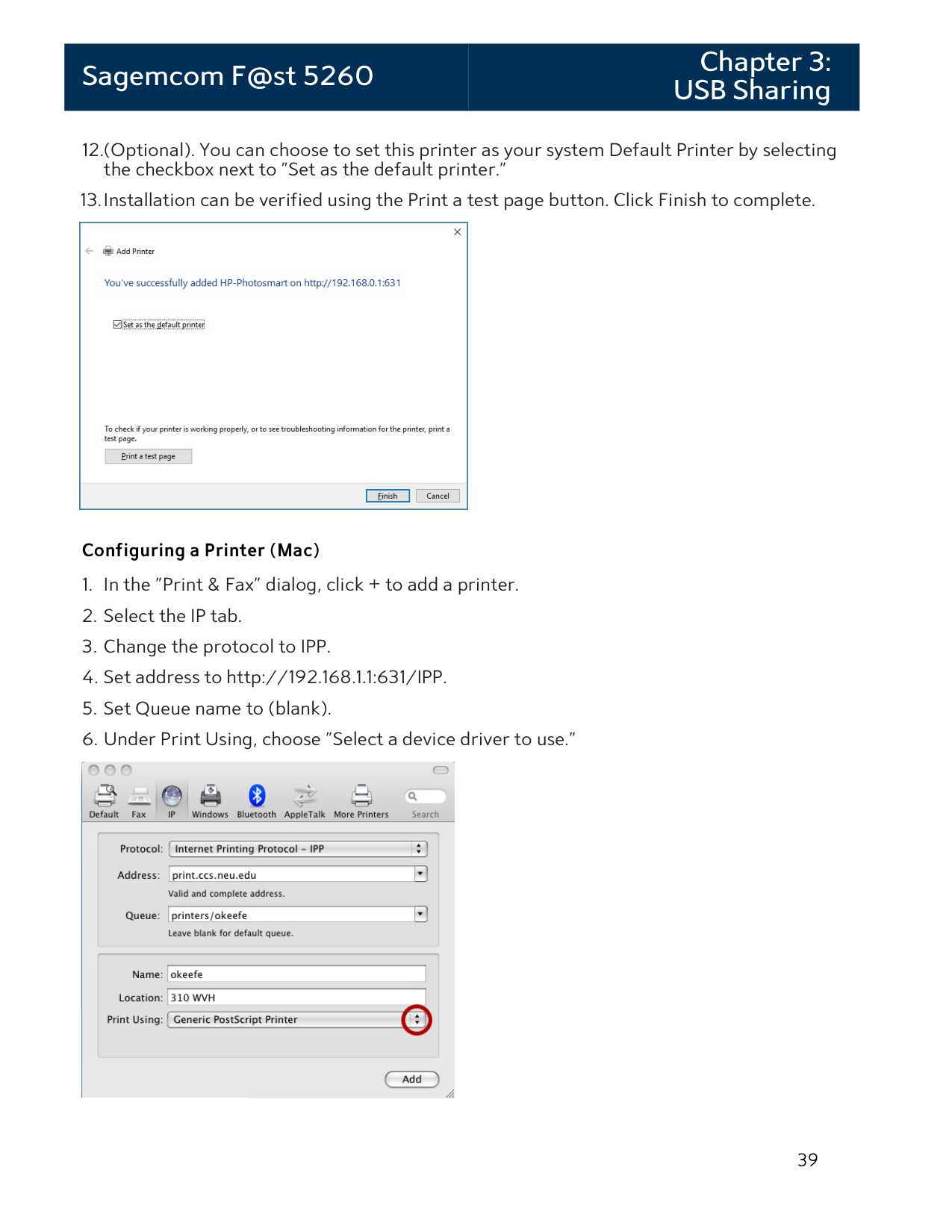
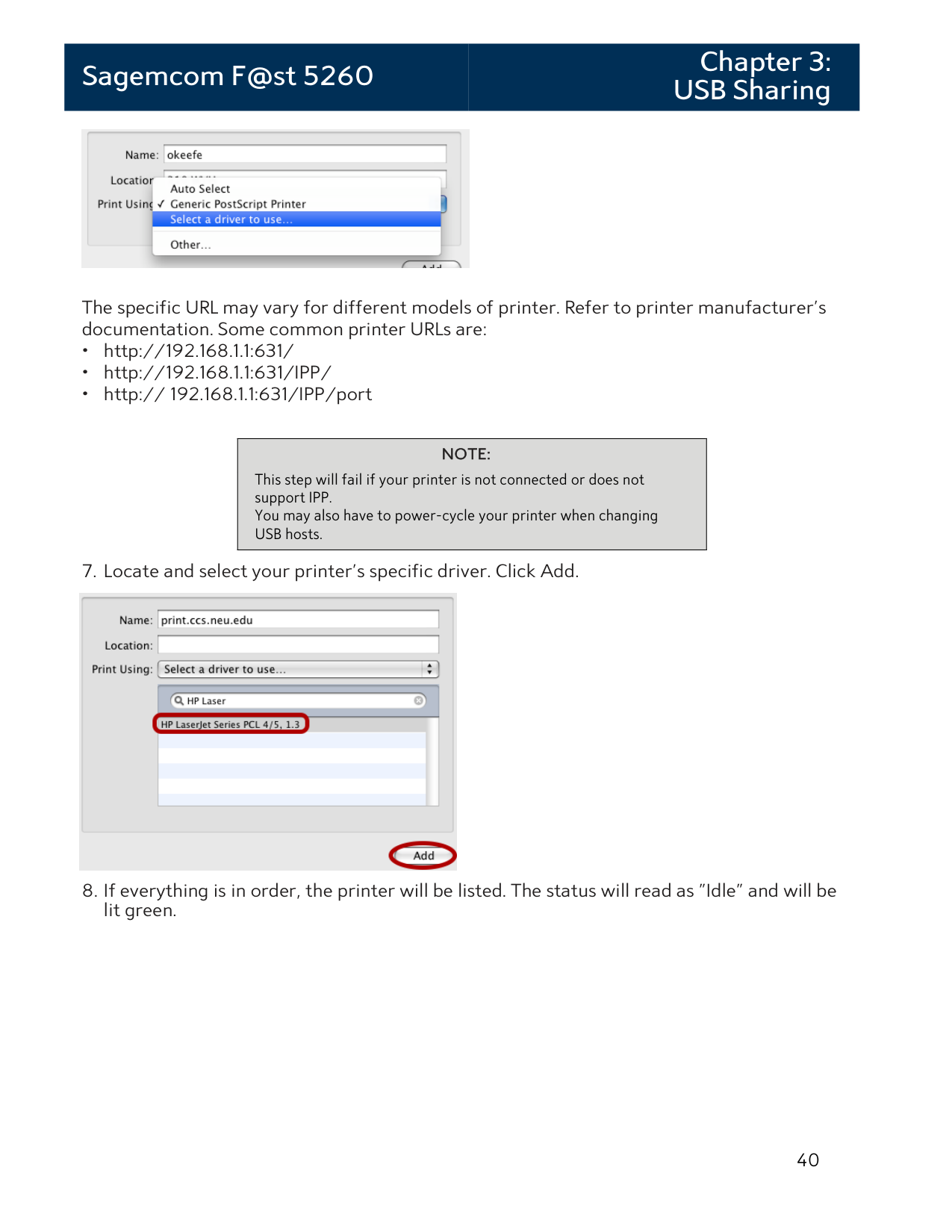
The specific URL may vary for different models of printer. Refer to printer manufacturer's documentation. Some common printer URLs are:
|NOTE:
This step will fail if your printer is not connected or does not support IPP. You may also have to power-cycle your printer when changing USB hosts.
| |---|

Chapter 4: Administration
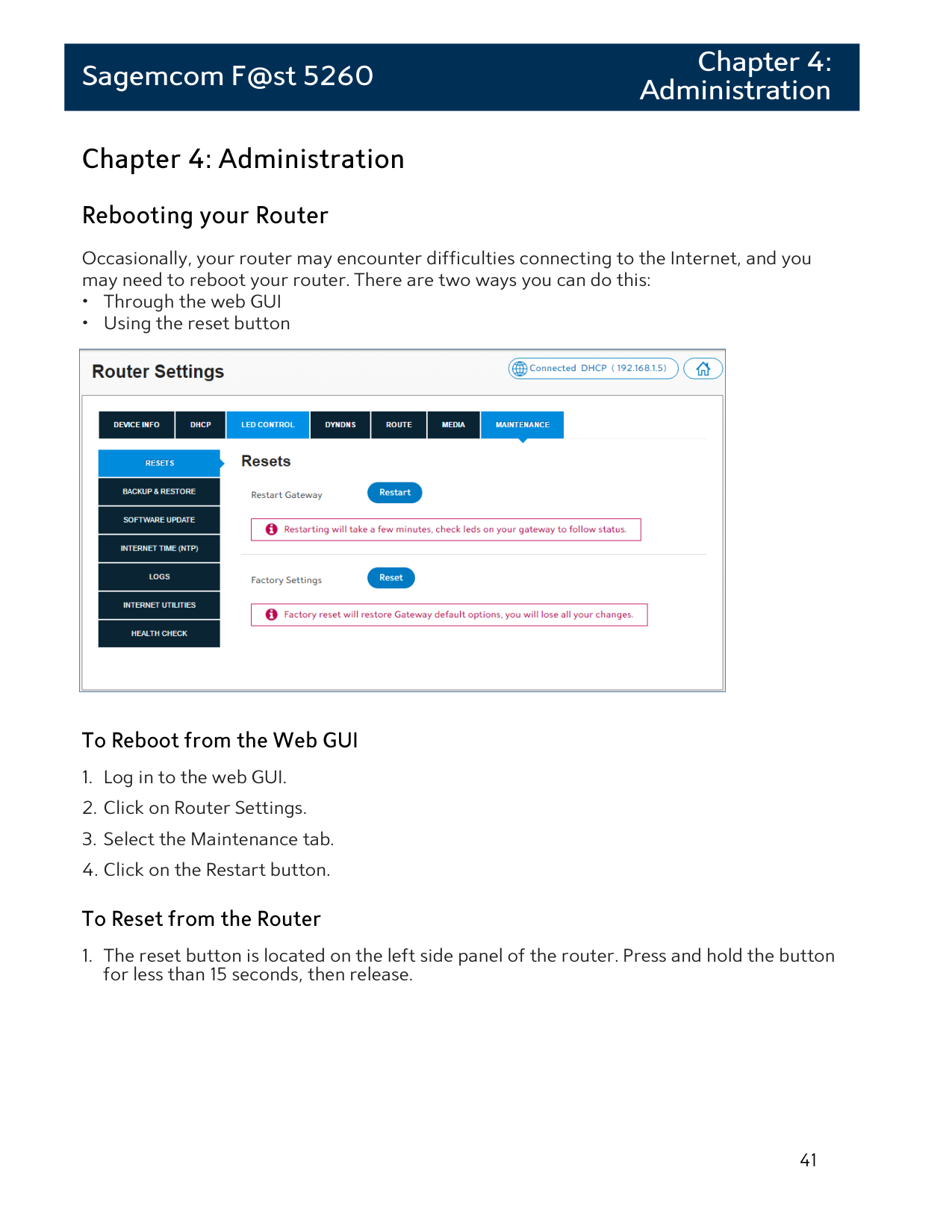
Rebooting your Router
Occasionally, your router may encounter difficulties connecting to the Internet, and you may need to reboot your router. There are two ways you can do this:

#### To Reboot from the Web GUI
#### To Reset from the Router
Back Up and Restore Router Configuration
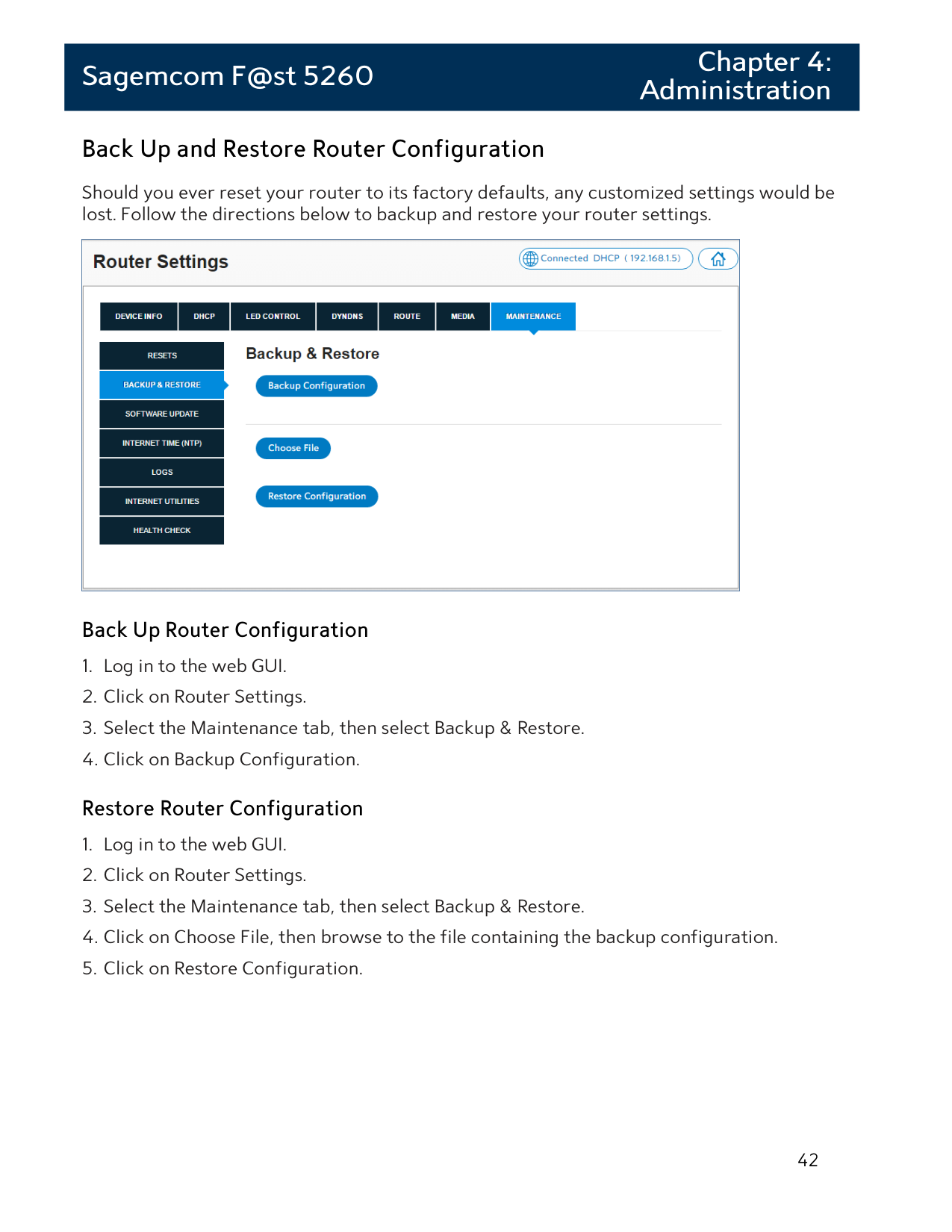
Should you ever reset your router to its factory defaults, any customized settings would be lost. Follow the directions below to backup and restore your router settings.

#### Back Up Router Configuration
Upgrade Router's Firmware
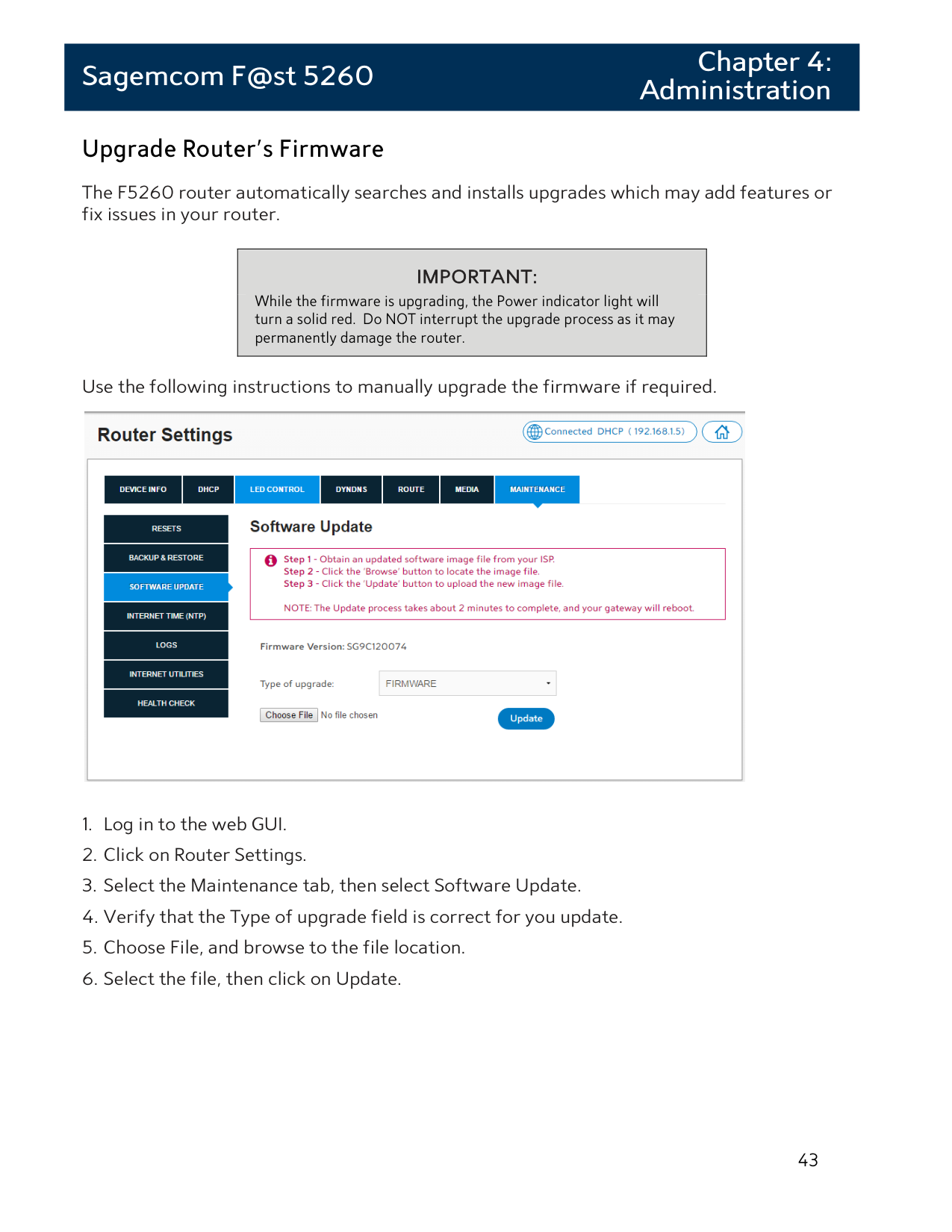
###### The F5260 router automatically searches and installs upgrades which may add features or fix issues in your router.
|IMPORTANT: While the firmware is upgrading, the Power indicator light will turn a solid red. Do NOT interrupt the upgrade process as it may permanently damage the router.
| |---|
Use the following instructions to manually upgrade the firmware if required.

Restore Factory Defaults There are two ways to restore factory defaults:
|CAUTION:
Restoring Factory Defaults will erase customized router settings. Ensure that you backup customized settings before continuing.
| |---|
#### From the Web GUI:
Chapter 5: Troubleshooting
This chapter provides information on how to resolve some common problems you may encounter with your router.
Problem 1: Indicator lights are not turning on.
There are a number reasons as to why an indicator light would be inactive. Review the icons below to resolve issues you may be experiencing.

The Power indicator should be a solid green when the router is powered on. If the Power indicator light is off:

The USB indicator light is off by default. It will only turn on if a USB device is connected to your router. If the USB indicator light is off and you have a USB device attached to it:

The WPS indicator light is off by default. It will only turn on if you have enabled Wi-Fi Protected Setup on your network through the web GUI. Note that the WPS light applies to both 2.4 GHz and 5 GHz according to which is enabled.
Refer to the instructions on page 20 for how to enable the WPS.

The Wireless (Wi-Fi) indicator light will turn on when the wireless network is ready for use. If the Wireless indicator light is off:
Log in to the web GUI. Check to see that one or more of the wireless networks are turned on. Refer to the instructions on page 17 for how to turn on your Wi-Fi.

The LAN indicator light is off by default. It will turn on if you plug any device into the LAN Ethernet ports located on the back of the router. If the Wireless indicator light is off and you have a device attached:
Check the Ethernet cable attaching the device to the router and ensure that they are securely fastened. If both ends are secure, try replacing the cable.

The WAN indicator light should be a solid green when the router is connected to the modem.
Problem 2: The Internet stopped working.Try one of the following solutions:
Problem 3: The Internet is slow.Try one of the following solutions:
Problem 4: The Wi-Fi signal drops.
Check to see if another device is using the 2.4 GHz band or a material such as glass, water, or metal are causing interference. If so, reposition your router away from the item. Refer to Router Positioning on page 7.
Problem 5: Cannot connect wireless device to router.Try one of the following solutions:
Problem 6: Locked out of the Web GUI.
Then to log in to the web GUI, you will use the default username and password listed on the router label.
Appendices
Appendix A: Technical Specifications
#### Sagemcom F@st 5260 Specifications
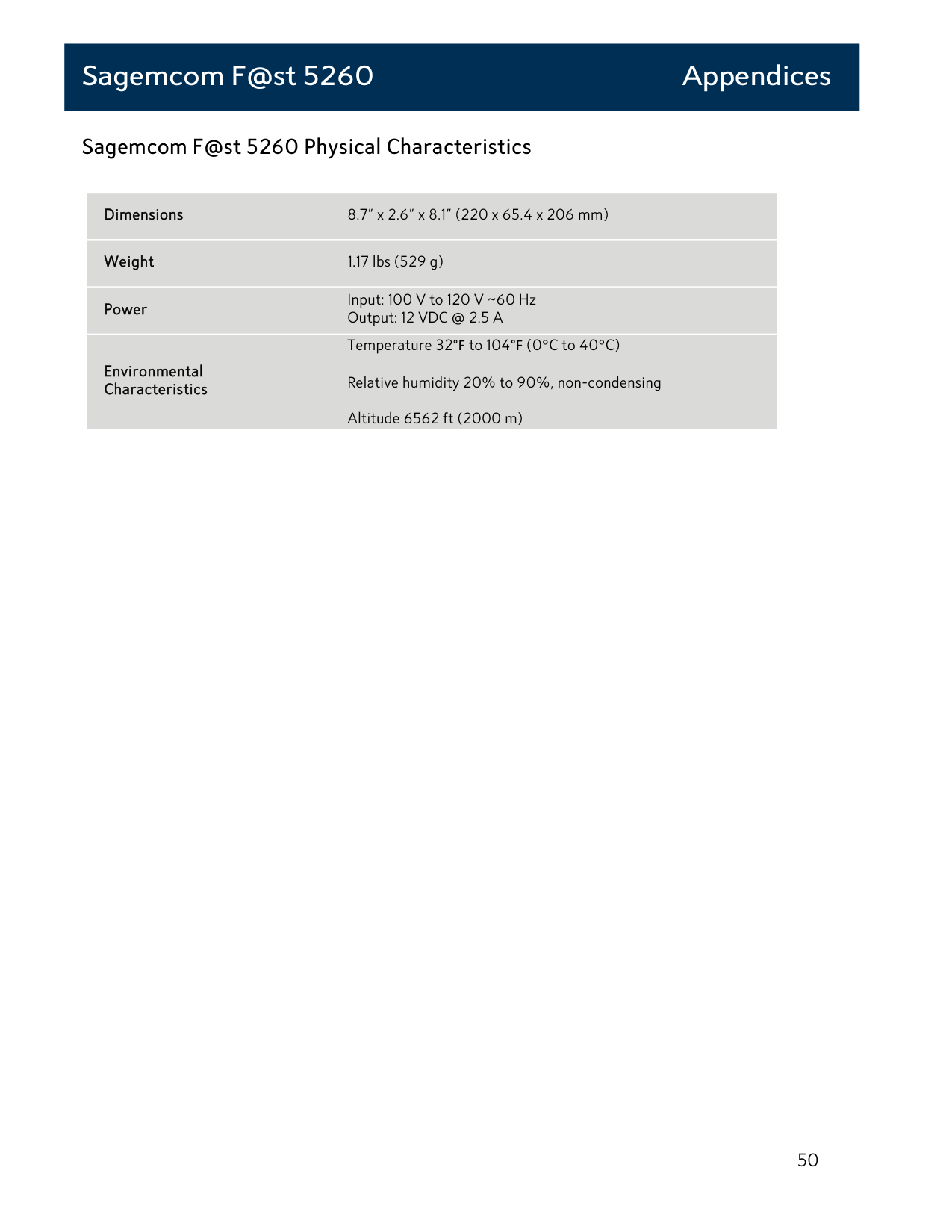
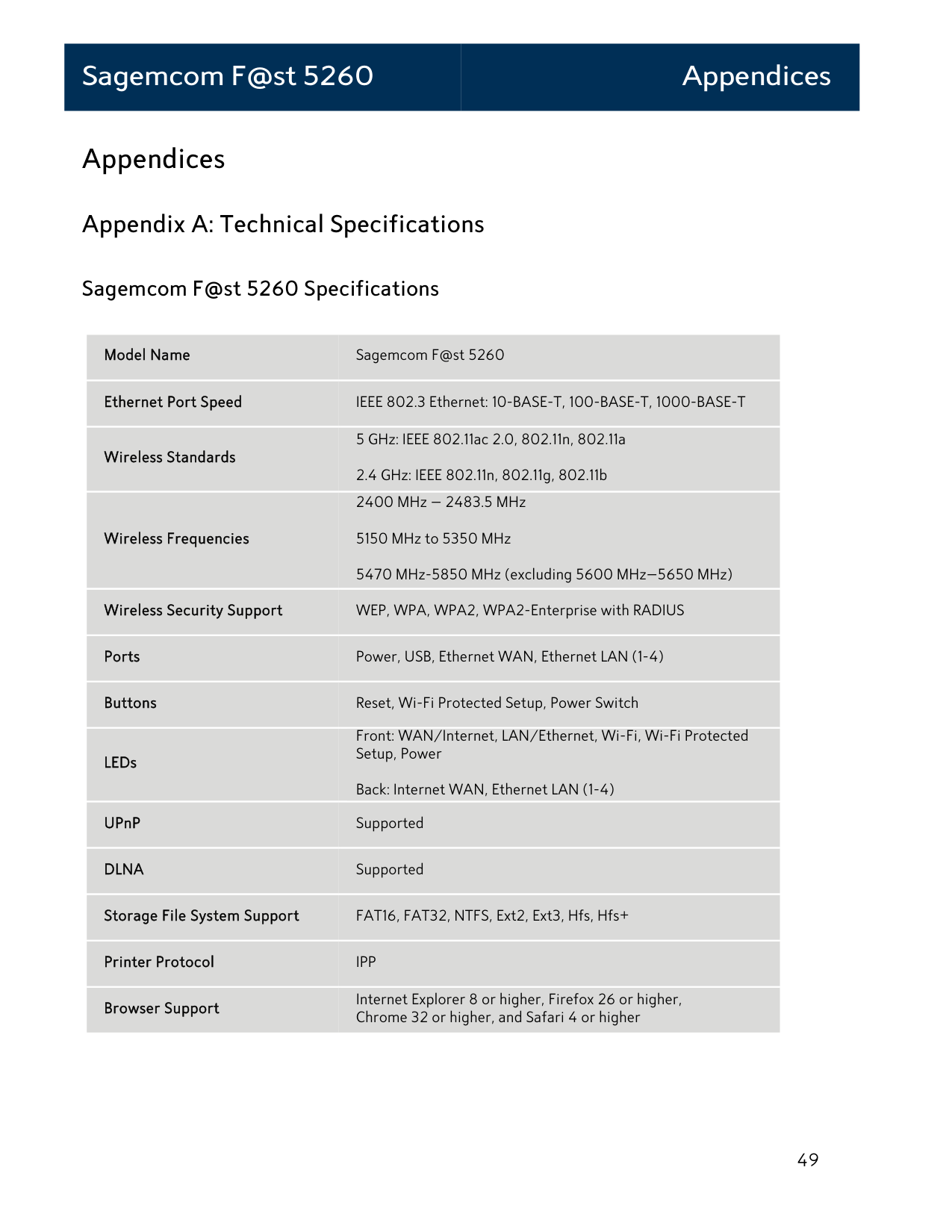
Model Name Sagemcom F@st 5260
Ethernet Port Speed IEEE 802.3 Ethernet: 10-BASE-T, 100-BASE-T, 1000-BASE-T
5 GHz: IEEE 802.11ac 2.0, 802.11n, 802.11a 2.4 GHz: IEEE 802.11n, 802.11g, 802.11b
Wireless Standards
2400 MHz – 2483.5 MHz 5150 MHz to 5350 MHz 5470 MHz-5850 MHz (excluding 5600 MHz–5650 MHz)
Wireless Frequencies
Wireless Security Support WEP, WPA, WPA2, WPA2-Enterprise with RADIUS
Ports Power, USB, Ethernet WAN, Ethernet LAN (1-4)
Buttons Reset, Wi-Fi Protected Setup, Power Switch
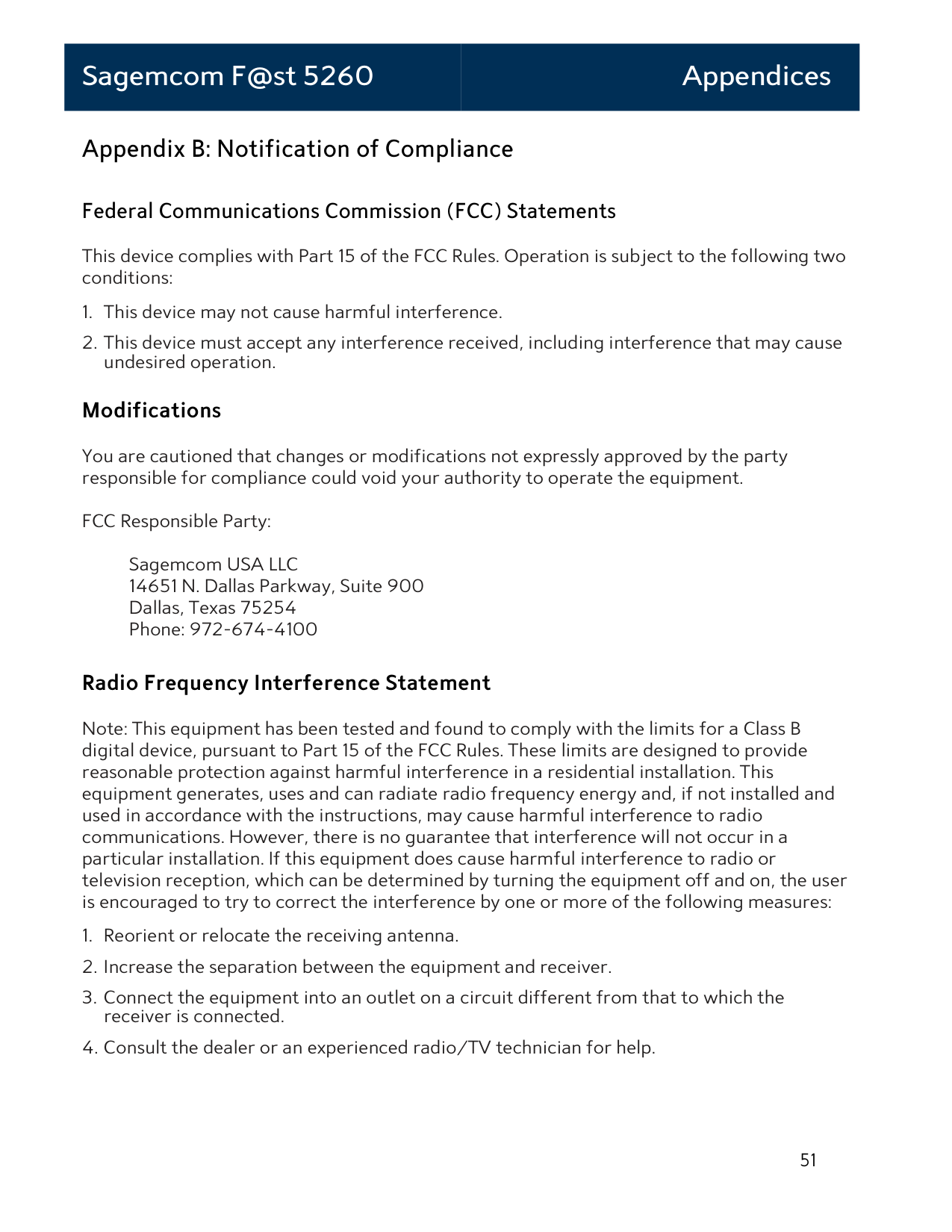
Front: WAN/Internet, LAN/Ethernet, Wi-Fi, Wi-Fi Protected Setup, Power
LEDs
Back: Internet WAN, Ethernet LAN (1-4) UPnP Supported
DLNA Supported
Storage File System Support FAT16, FAT32, NTFS, Ext2, Ext3, Hfs, Hfs+
Printer Protocol IPP
Internet Explorer 8 or higher, Firefox 26 or higher, Chrome 32 or higher, and Safari 4 or higher
Browser Support
#### Sagemcom F@st 5260 Physical Characteristics
Dimensions 8.7” x 2.6” x 8.1” (220 x 65.4 x 206 mm)
Weight 1.17 lbs (529 g)
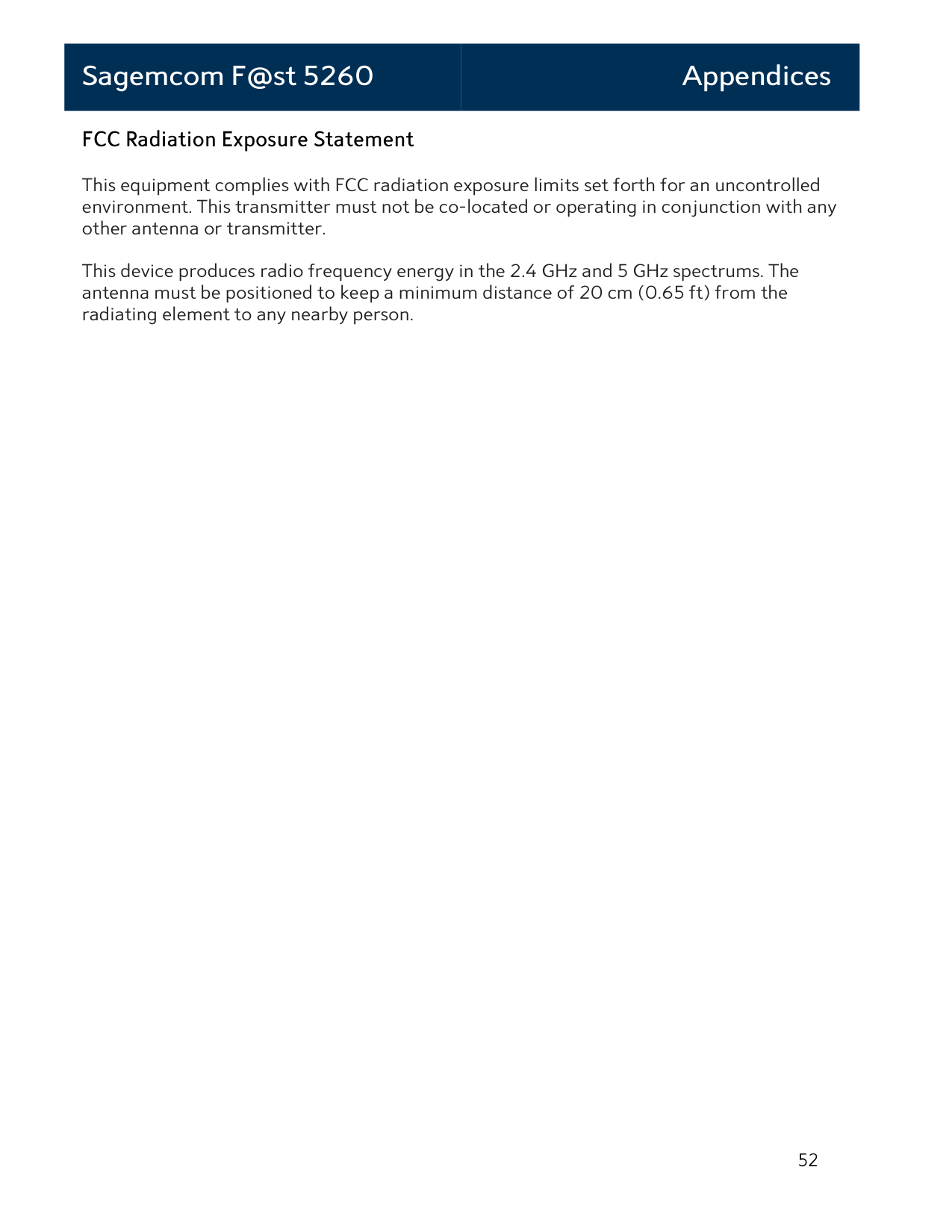
Input: 100 V to 120 V ~60 Hz Output: 12 VDC @ 2.5 A
Power
Temperature 32°F to 104°F (0°C to 40°C) Relative humidity 20% to 90%, non-condensing Altitude 6562 ft (2000 m)
Environmental Characteristics
Appendix B: Notification of Compliance
#### Federal Communications Commission (FCC) Statements
This device complies with Part 15 of the FCC Rules. Operation is subject to the following two conditions:
undesired operation. Modifications
You are cautioned that changes or modifications not expressly approved by the party responsible for compliance could void your authority to operate the equipment.
FCC Responsible Party:
Sagemcom USA LLC 14651 N. Dallas Parkway, Suite 900 Dallas, Texas 75254 Phone: 972-674-4100
Radio Frequency Interference Statement
Note: This equipment has been tested and found to comply with the limits for a Class B digital device, pursuant to Part 15 of the FCC Rules. These limits are designed to provide reasonable protection against harmful interference in a residential installation. This equipment generates, uses and can radiate radio frequency energy and, if not installed and used in accordance with the instructions, may cause harmful interference to radio communications. However, there is no guarantee that interference will not occur in a particular installation. If this equipment does cause harmful interference to radio or television reception, which can be determined by turning the equipment off and on, the user is encouraged to try to correct the interference by one or more of the following measures:
#### FCC Radiation Exposure Statement
This equipment complies with FCC radiation exposure limits set forth for an uncontrolled environment. This transmitter must not be co-located or operating in conjunction with any other antenna or transmitter.
This device produces radio frequency energy in the 2.4 GHz and 5 GHz spectrums. The antenna must be positioned to keep a minimum distance of 20 cm (0.65 ft) from the radiating element to any nearby person.