
Ask AI
— answers from the official manualAnswers from the official manual.
Common questions
Common Questions
10 totalHow do I reset the clock on my SpeedZone® Team?
To set the time, press and hold the “MODE” button for three seconds until either 12: or 24: flashes. Press the “MODE” button to select between 12-hour or 24-hour mode then press the “FUNCTION” button to confirm (Page 3).
How do I set up Easy Calibration Mode?
Enter odometer (ODO) mode and hold down the “FUNCTION” button for three seconds. The display will show the current tire size; tap both “MODE” and “FUNCTION” buttons simultaneously to scroll through sizes, press “FUNCTION” once to select a size and enter calibration mode (Page 3).
How do I adjust the tire circumference manually?
In odometer mode, hold down the “FUNCTION” button and tap the “MODE” button once to access programmable odometer mode. Use the “MODE” button to scroll through the digits and press “FUNCTION” to select each digit (Page 3).
How do I reset the trip distance?
Press the “FUNCTION” button for three seconds in trip distance mode until 0.00 appears on the screen (Page 5).
How can I use Timer Mode vs Automatic Timer Mode?
Timer Mode (TM) operates continuously regardless of wheel movement and starts/stops with the “FUNCTION” button. Automatic Timer Mode (ATM) records time only when there is speed input (Page 5).
How do I set up a programmable odometer?
Enter ODOMETER mode and hold down the “FUNCTION” button; tap the “MODE” button to switch from miles/kilometers. To enter a mileage, press “MODE” until the flashing digit is correct, press “FUNCTION”, and repeat for each remaining digit (Page 2).
Full Manual
7 pages
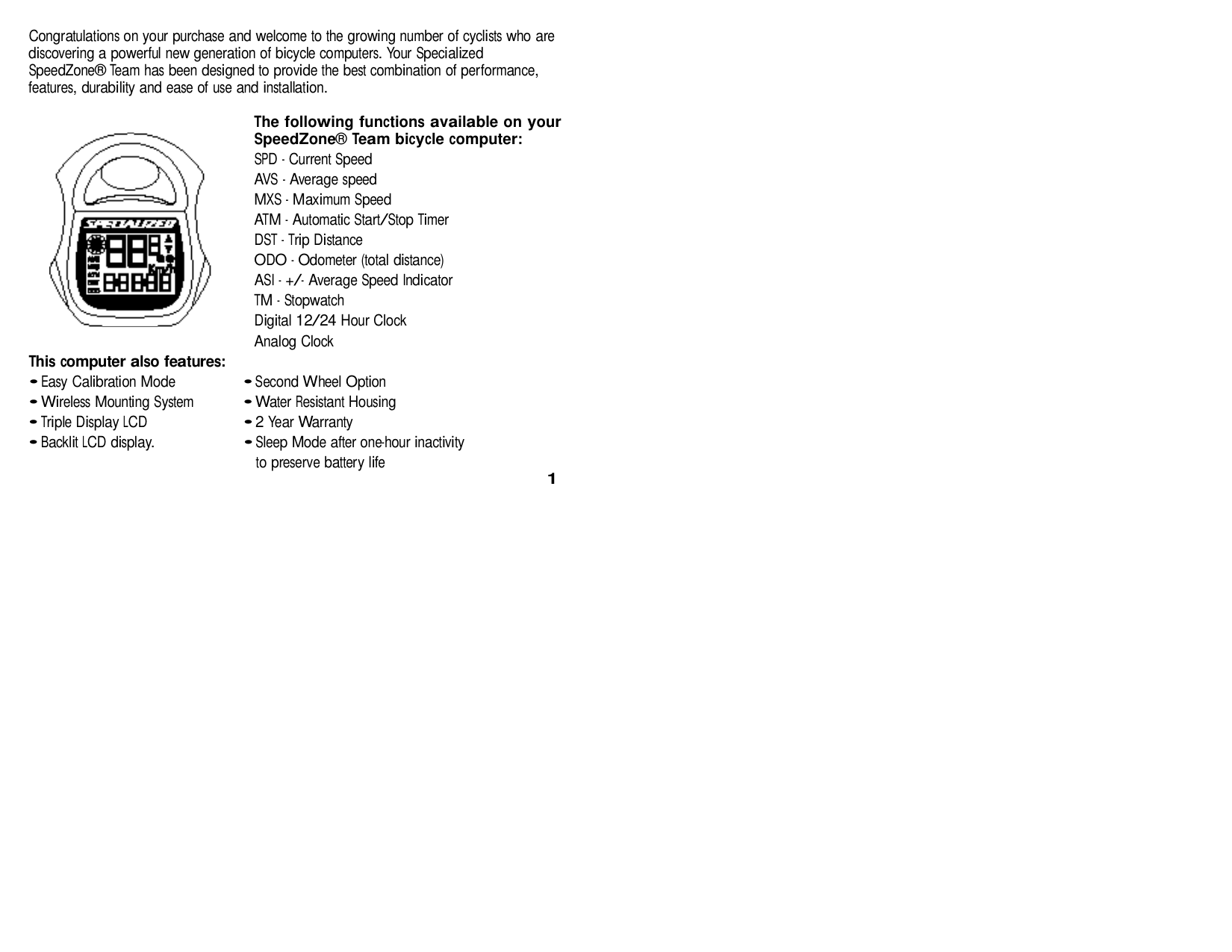
Congratulations on your purchase and welcome to the growing number of cyclists who are discovering a powerful new generation of bicycle computers. Your Specialized SpeedZone® Team has been designed to provide the best combination of perf o rmance, f e a t u res, durability and ease of use and installation.
The following functions available on your SpeedZone® Team bicycle computer:


SPD - Current Speed AVS - Average speed MXS - Maximum Speed ATM - Automatic Start/Stop Ti m e r DST - Trip Distance ODO - Odometer (total distance) ASI - +/- Average Speed Indicator TM - Stopwatch Digital 12/24 Hour Clock Analog Clock
This computer also feature s :
1


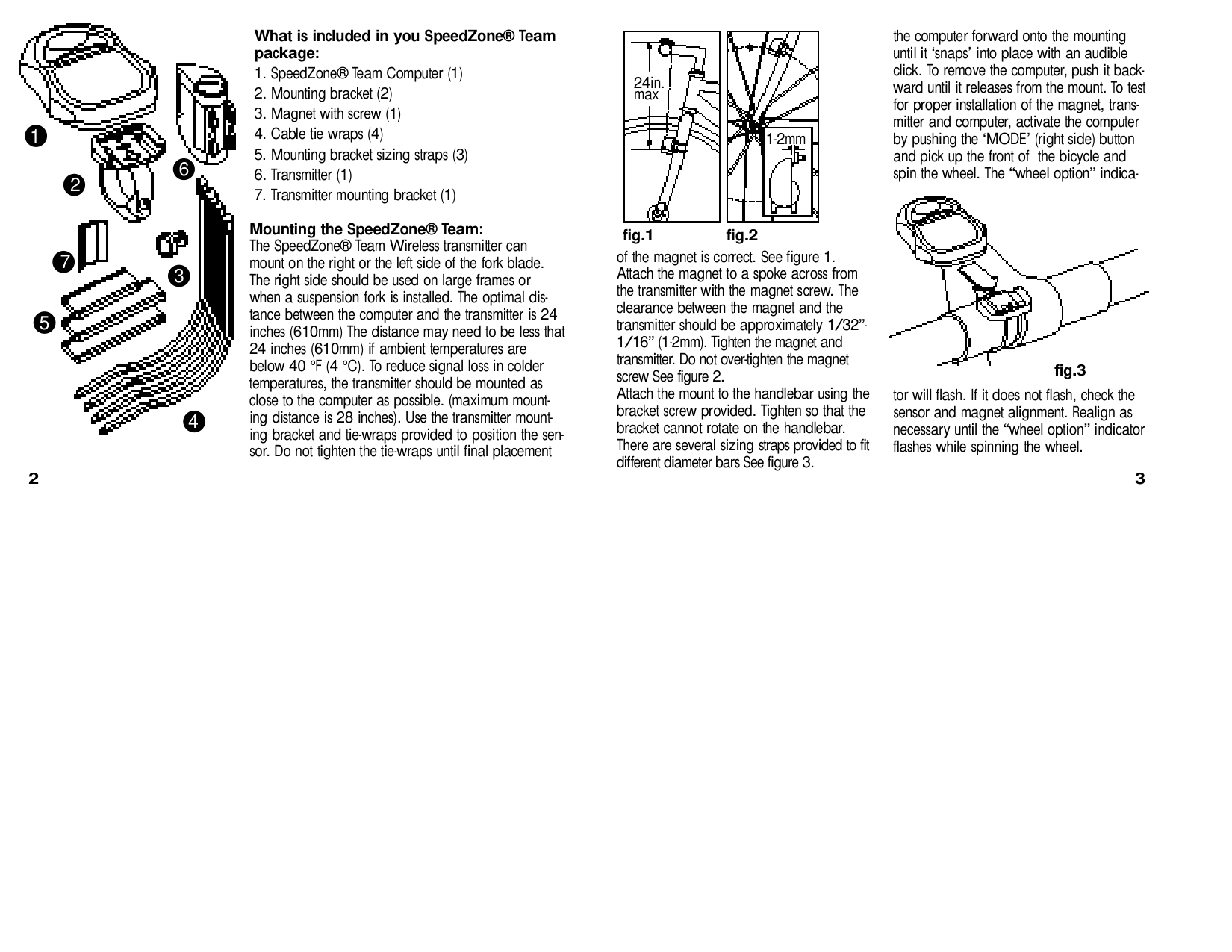
What is included in you SpeedZone® Te a m p a c k a g e :
the computer forw a rd onto the mounting until it ‘snaps’ into place with an audible click. To remove the computer, push it backw a rd until it releases from the mount. To test for proper installation of the magnet, transmitter and computer, activate the computer by pushing the ‘MODE’ (right side) button and pick up the front of the bicycle and spin the wheel. The “wheel option” indica-


2 4 i n . m a x
1
1 - 2 m m
6
2


Mounting the SpeedZone® Te a m : The SpeedZone® Team Wi reless transmitter can mount on the right or the left side of the fork blade. The right side should be used on large frames or when a suspension fork is installed. The optimal distance between the computer and the transmitter is 24 inches (610mm) The distance may need to be less that 24 inches (610mm) if ambient temperatures are below 40 °F (4 °C). To reduce signal loss in colder t e m p e r a t u res, the transmitter should be mounted as close to the computer as possible. (maximum mounting distance is 28 inches). Use the transmitter mounting bracket and tie-wraps provided to position the sens o r. Do not tighten the tie-wraps until final placement
f i g . 1 f i g . 2
of the magnet is correct. See figure 1. Attach the magnet to a spoke across fro m the transmitter with the magnet scre w. The clearance between the magnet and the transmitter should be approximately 1 / 3 2 ” 1/16” (1-2mm). Tighten the magnet and t r a n s m i t t e r. Do not over-tighten the magnet s c rew See figure 2. Attach the mount to the handlebar using the bracket screw provided. Tighten so that the bracket cannot rotate on the handlebar. T h e re are several sizing straps provided to fit d i ff e rent diameter bars See figure 3.
7
f i g . 3
tor will flash. If it does not flash, check the sensor and magnet alignment. Realign as n e c e s s a ry until the “wheel option” indicator flashes while spinning the wheel.
2 3
P ro g r a m m i n g : P rogramming the functions of your SpeedZone® Team re q u i res it to be placed in various “modes” (i.e. odometer mode, distance mode). The computer can be cycled through these modes by pressing the “MODE” button located on the right-hand side of the housing. Once a specific mode has been entered, its values can be reset or adjusted by pressing either the “FUNCTION” button located on the left hand side of the housing or by using a combination of the “MODE” and “FUNCTION” buttons.
a l t e rnate between miles and kilometers by p ressing the “MODE” button. When the c o rrect choice is flashing, select it by pre s sing the “FUNCTION” button. You will now enter the “Programmable Odometer” mode. If the odometer setting is correct push the “FUNCTION” button (5 times) to exit to odometer mode (otherwise, see “Setting the p rogrammable odometer below).
retain the mileage you have already ridden. To enter a mileage into the odometer, p ress the “MODE” button until the flashing digit is correct. (Note: The “MODE” button may be held to scroll to the correct digit.) P ress the “FUNCTION” button to select the next digit to the right. Repeat the pro c e s s until all five digits are entered as your existing mileage.
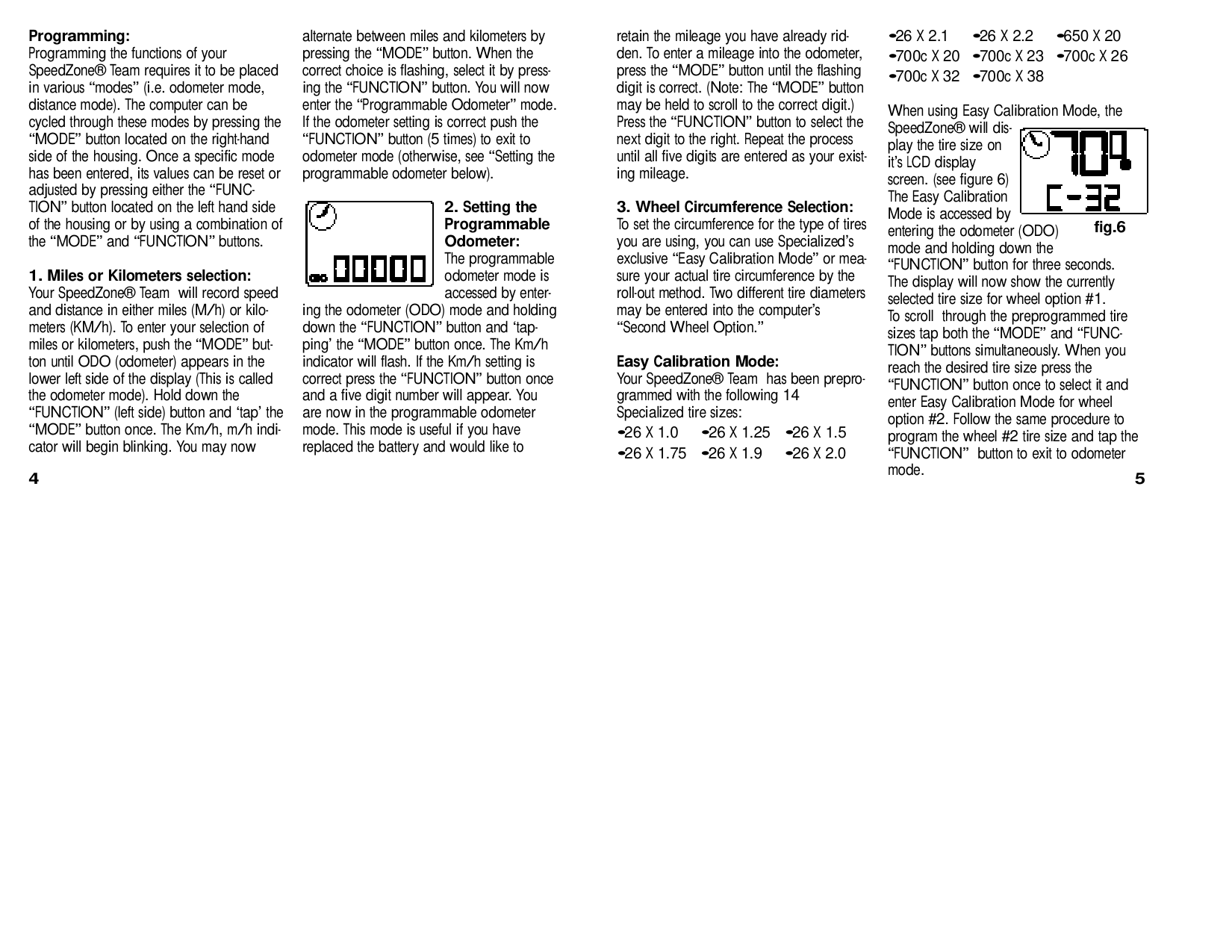
When using Easy Calibration Mode, the SpeedZone® will display the tire size on i t ’s LCD display s c reen. (see figure 6) The Easy Calibration Mode is accessed by entering the odometer (ODO) mode and holding down the “FUNCTION” button for three seconds. The display will now show the curre n t l y selected tire size for wheel option #1. To scroll through the pre p rogrammed tire sizes tap both the “MODE” and “FUNCTION” buttons simultaneously. When you reach the desired tire size press the “FUNCTION” button once to select it and enter Easy Calibration Mode for wheel option #2. Follow the same pro c e d u re to p rogram the wheel #2 tire size and tap the “FUNCTION” button to exit to odometer mode.


f i g . 6
ing the odometer (ODO) mode and holding down the “FUNCTION” button and ‘tapping’ the “MODE” button once. The Km/h indicator will flash. If the Km/h setting is c o rrect press the “FUNCTION” button once and a five digit number will appear. Yo u a re now in the programmable odometer mode. This mode is useful if you have replaced the battery and would like to
Easy Calibration Mode: Your SpeedZone® Team has been pre p rogrammed with the following 14 Specialized tire sizes:
4 5
Roll Out Method The roll out method will provide the most accurate computer calibration and can take into account variables such as inflation pre ss u re, rim width and rider weight.
Generic Ti re Size Chart This chart is for non-Specialized tire s
to scroll to the correct digit.) Press the “FUNCTION” button to select the next digit to the right. Repeat the process until all four digits are entered as your tire circ u m f e rence. Press the “FUNCTION” button once to select it and enter the circ u m f e rence for wheel option #2. Follow the same pro c ed u re to program the wheel #2 tire size and tap the “FUNCTION” button to exit to odometer mode.
The hour digit will now begin flashing . P ress the “MODE” button to adjust the hour digits and press the “FUNCTION” button to set. The minutes will flash and can be adjusted by pressing the “MODE” button. (hold the “MODE” button to scroll thro u g h the digits quickly) Press the “FUNCTION” button to set the minutes and re t u rn to clock m o d e
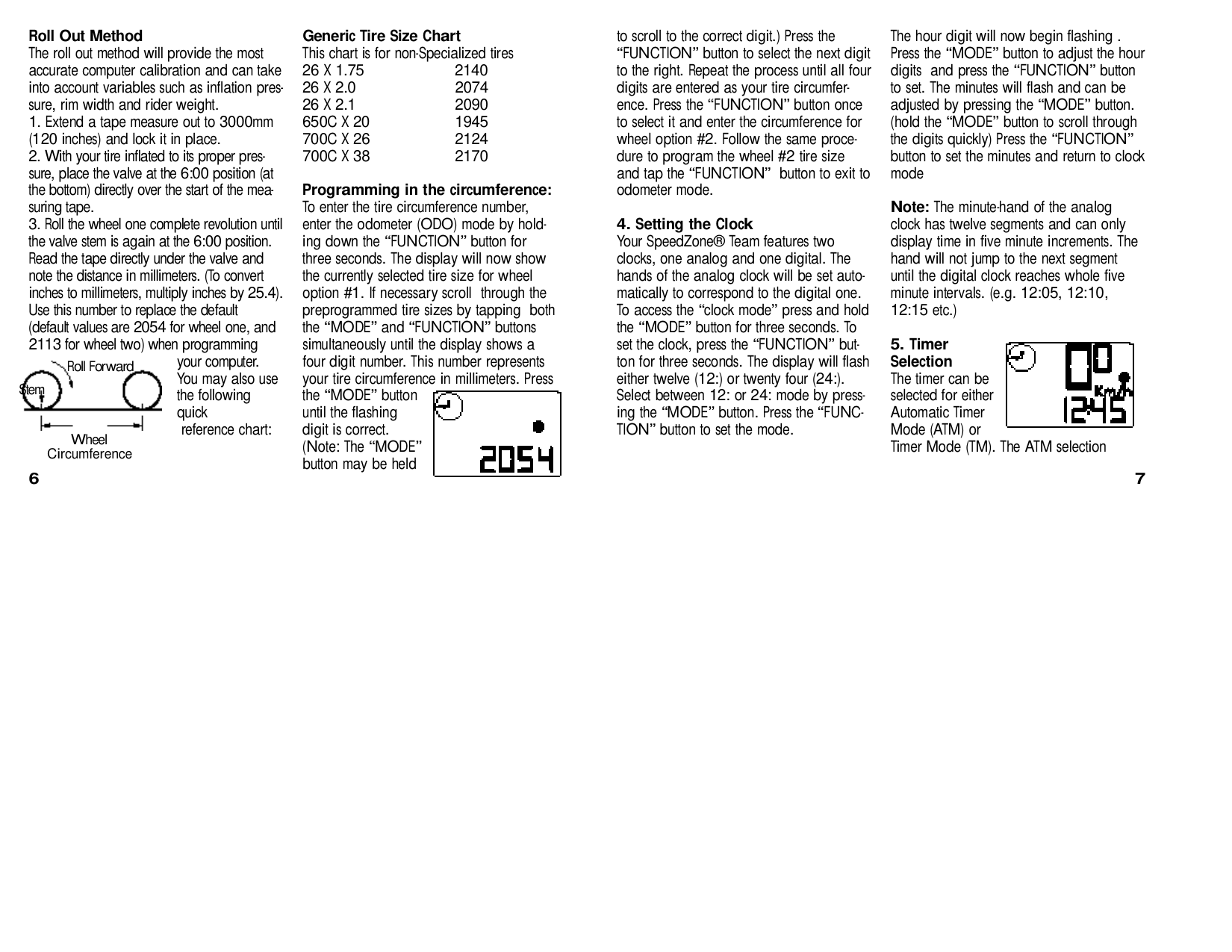
P rogramming in the circ u m f e re n c e : To enter the tire circ u m f e rence number, enter the odometer (ODO) mode by holding down the “FUNCTION” button for t h ree seconds. The display will now show the currently selected tire size for wheel option #1. If necessary scroll through the p re p rogrammed tire sizes by tapping both the “MODE” and “FUNCTION” buttons simultaneously until the display shows a four digit number. This number re p re s e n t s your tire circ u m f e rence in millimeters. Pre s s the “MODE” button until the flashing digit is corre c t . (Note: The “MODE” button may be held
N o t e : The minute-hand of the analog clock has twelve segments and can only display time in five minute increments. The hand will not jump to the next segment until the digital clock reaches whole five minute intervals. (e.g. 12:05, 12:10, 12:15 etc.)


your computer. You may also use the following q u i c k
Roll Forw a rd S t e m


re f e rence chart :
Wheel C i rc u m f e re n c e
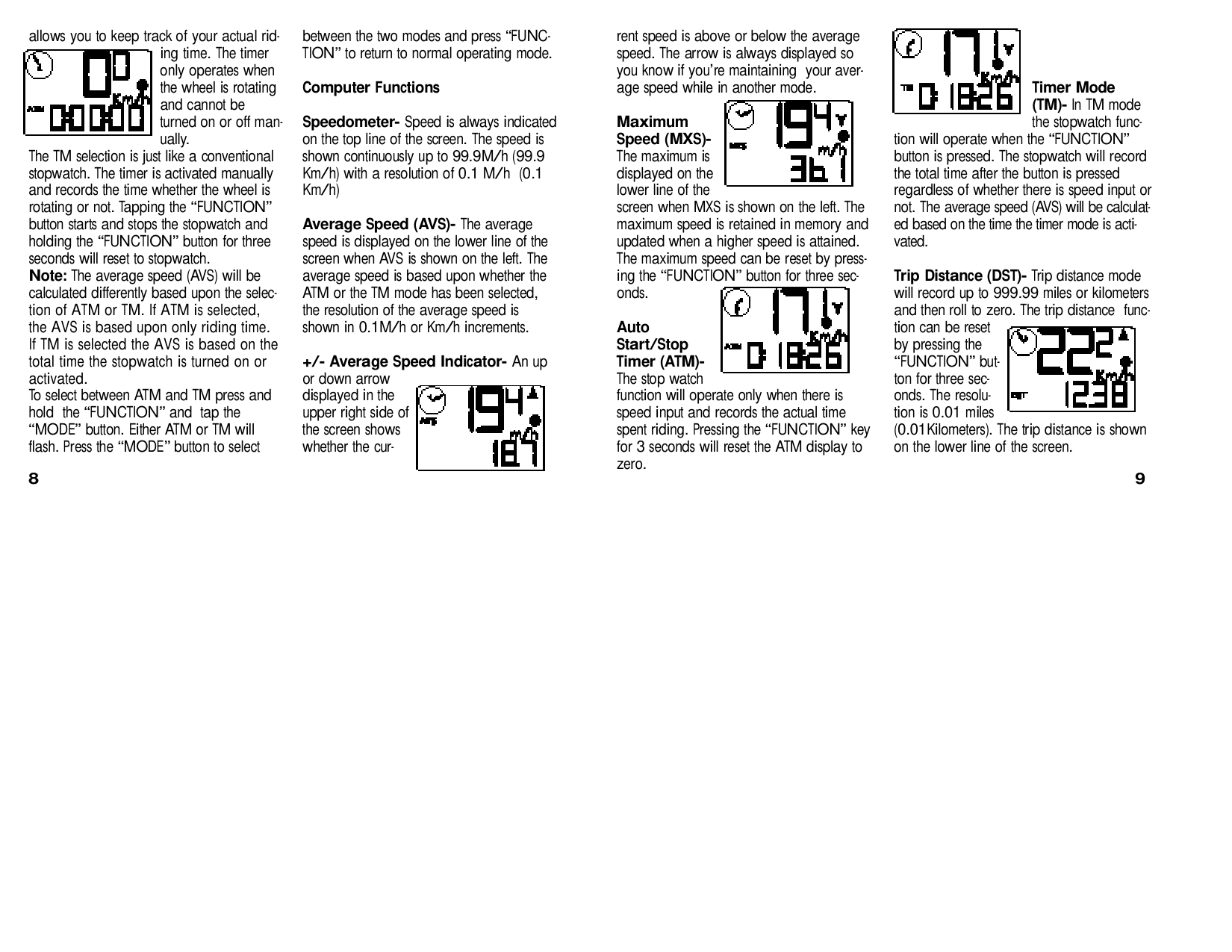


allows you to keep track of your actual riding time. The timer only operates w h e n the wheel is ro t a t i n g and cannot be
between the two modes and press “FUNCTION” to re t u rn to normal operating mode.
rent speed is above or below the average speed. The arrow is always displayed so you know if you’re maintaining your average speed while in another mode.


Computer Functions S p e e d o m e t e r- Speed is always indicated
Timer Mode ( T M ) - In TM mode the stopwatch func-


M a x i m u m Speed (MXS)The maximum is displayed on the lower line of the s c reen when MXS is shown on the left. The maximum speed is retained in memory and updated when a higher speed is attained. The maximum speed can be reset by pre s sing the “FUNCTION” button for three seco n d s . A u t o S t a rt / S t o p Timer (AT M ) The stop watch function will operate only when there is speed input and re c o rds the actual time spent riding. Pressing the “FUNCTION” key for 3 seconds will reset the ATM display to z e ro .
on the top line of the screen. The speed is shown continuously up to 99.9M/h (99.9 Km/h) with a resolution of 0.1 M/h (0.1 K m / h )
tion will operate when the “FUNCTION” button is pressed. The stopwatch will re c o rd the total time after the button is pre s s e d re g a rdless of whether there is speed input or not. The average speed (AVS) will be calculated based on the time the timer mode is activ a t e d .
The TM selection is just like a conventional stopwatch. The timer is activated manually and re c o rds the time whether the wheel is rotating or not. Tapping the “FUNCTION” button starts and stops the stopwatch and holding the “FUNCTION” button for thre e seconds will reset to stopwatch. N o t e : The average speed (AVS) will be calculated diff e rently based upon the selection of ATM or TM. If ATM is selected, the AVS is based upon only riding time. If TM is selected the AVS is based on the total time the stopwatch is turned on or activated. To select between ATM and TM press and hold the “FUNCTION” and tap the “MODE” button. Either ATM or TM will flash. Press the “MODE” button to select
Average Speed (AVS)- The average speed is displayed on the lower line of the s c reen when AVS is shown on the left. The average speed is based upon whether the ATM or the TM mode has been selected, the resolution of the average speed is shown in 0.1M/h or Km/h incre m e n t s .
Trip Distance (DST)- Trip distance mode will re c o rd up to 999.99 miles or kilometers and then roll to zero. The trip distance function can be re s e t by pressing the “FUNCTION” button for three seconds. The re s o l ution is 0.01 miles (0.01Kilometers). The trip distance is shown on the lower line of the scre e n .


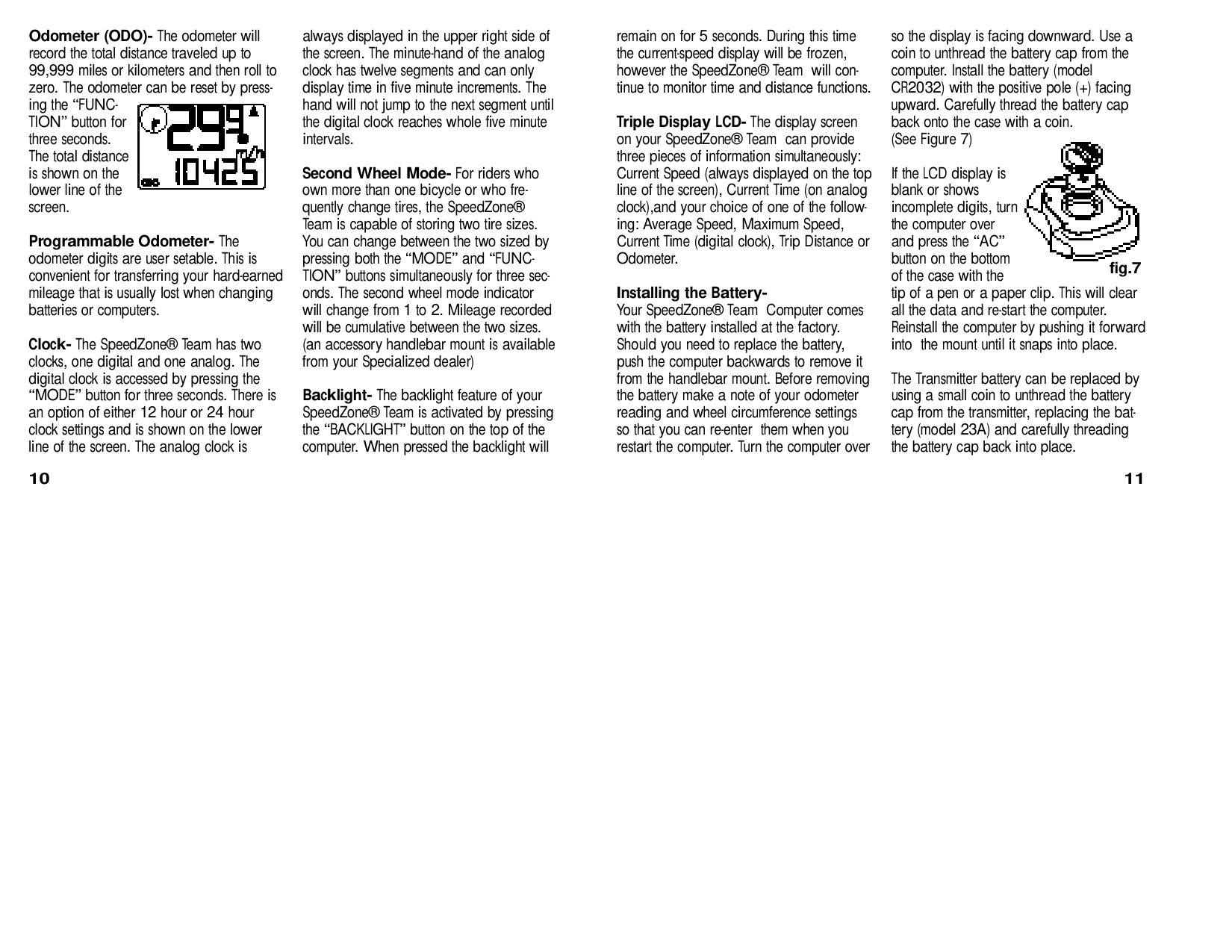


+/- Average Speed Indicator- An up or down arro w displayed in the upper right side of the screen shows whether the cur-


8 9
Odometer (ODO)- The odometer will re c o rd the total distance traveled up to 99,999 miles or kilometers and then roll to z e ro. The odometer can be reset by pre s sing the “FUNCTION” button for t h ree seconds. The total distance is shown on the lower line of the s c re e n .


P rogrammable Odometer- T h e odometer digits are user setable. This is convenient for transferring your hard - e a rn e d mileage that is usually lost when changing batteries or computers.
Clock- The SpeedZone® Team has two clocks, one digital and one analog. The digital clock is accessed by pressing the “MODE” button for three seconds. There is an option of either 12 hour or 24 hour clock settings and is shown on the lower line of the screen. The analog clock is
always displayed in the upper right side of the screen. The minute-hand of the analog clock has twelve segments and can only display time in five minute increments. The hand will not jump to the next segment until the digital clock reaches whole five minute i n t e rv a l s .
Second Wheel Mode- For riders who own more than one bicycle or who frequently change tires, the SpeedZone® Team is capable of storing two tire sizes. You can change between the two sized by p ressing both the “MODE” and “FUNCTION” buttons simultaneously for three seconds. The second wheel mode indicator will change from 1 to 2. Mileage re c o rd e d will be cumulative between the two sizes. (an accessory handlebar mount is available f rom your Specialized dealer)
Backlight- The backlight feature of your SpeedZone® Team is activated by pre s s i n g the “BACKLIGHT” button on the top of the c o m p u t e r. When pressed the backlight will
remain on for 5 seconds. During this time the current-speed display will be fro z e n , however the SpeedZone® Team will continue to monitor time and distance functions.
Triple Display LCD- The display scre e n on your SpeedZone® Team can pro v i d e t h ree pieces of information simultaneously: C u rrent Speed (always displayed on the top line of the screen), Current Time (on analog clock),and your choice of one of the following: Average Speed, Maximum Speed, C u rrent Time (digital clock), Trip Distance or O d o m e t e r.
Installing the Battery Your SpeedZone® Team Computer comes with the battery installed at the factory. Should you need to replace the battery, push the computer backwards to remove it f rom the handlebar mount. Before re m o v i n g the battery make a note of your odometer reading and wheel circ u m f e rence settings so that you can re-enter them when you re s t a rt the computer. Tu rn the computer over
so the display is facing downward. Use a coin to unthread the battery cap from the c o m p u t e r. Install the battery (model CR2032) with the positive pole (+) facing u p w a rd. Carefully thread the battery cap back onto the case with a coin. (See Figure 7)


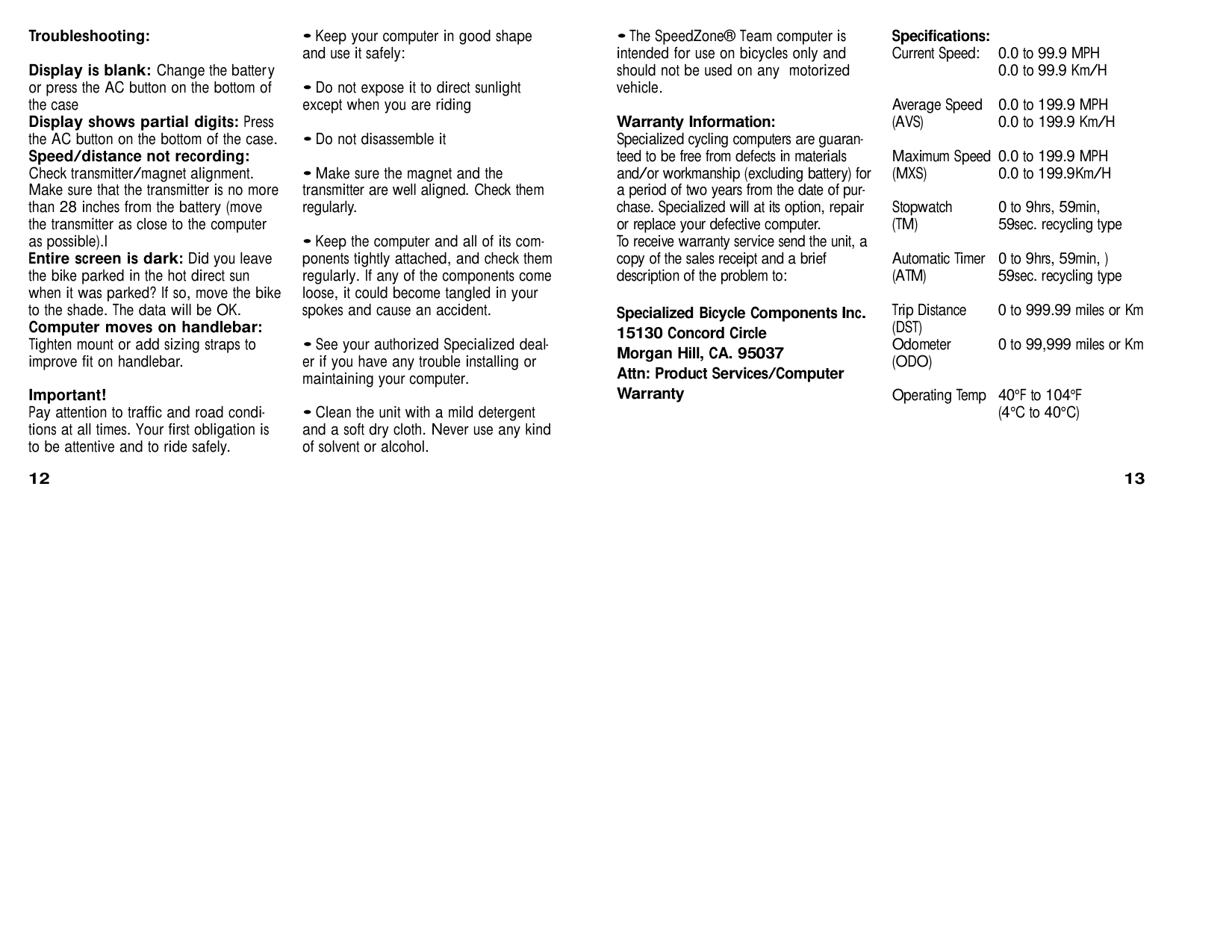
If the LCD display is blank or shows incomplete digits, turn the computer over and press the “AC” button on the bottom of the case with the tip of a pen or a paper clip. This will clear all the data and re - s t a rt the computer. Reinstall the computer by pushing it forw a rd into the mount until it snaps into place.
f i g . 7
The Transmitter battery can be replaced by using a small coin to unthread the battery cap from the transmitter, replacing the batt e ry (model 23A) and carefully thre a d i n g the battery cap back into place.
10 11
Troubleshooting: Display is blank: Change the battery or press the AC button on the bottom of the case Display shows partial digits: Press the AC button on the bottom of the case. Speed/distance not recording: Check transmitter/magnet alignment. Make sure that the transmitter is no more than 28 inches from the battery (move the transmitter as close to the computer as possible).l Entire screen is dark: Did you leave the bike parked in the hot direct sun when it was parked? If so, move the bike to the shade. The data will be OK. Computer moves on handlebar: Tighten mount or add sizing straps to improve fit on handlebar. Important! Pay attention to traffic and road conditions at all times. Your first obligation is to be attentive and to ride safely.
• The SpeedZone® Team computer is intended for use on bicycles only and should not be used on any motorized vehicle.
Wa rranty Inform a t i o n : Specialized cycling computers are guaranteed to be free from defects in materials and/or workmanship (excluding battery) for a period of two years from the date of purchase. Specialized will at its option, re p a i r or replace your defective computer. To receive warranty service send the unit, a copy of the sales receipt and a brief description of the problem to:
Specialized Bicycle Components Inc. 15130 Concord Circ l e M o rgan Hill, CA. 95037 Attn: Product Serv i c e s / C o m p u t e r Wa rr a n t y
S p e c i f i c a t i o n s : C u rrent Speed: 0.0 to 99.9 MPH
0.0 to 99.9 Km/H
Average Speed 0.0 to 199.9 MPH ( AV S ) 0.0 to 199.9 Km/H
Maximum Speed 0.0 to 199.9 MPH ( M X S ) 0.0 to 199.9Km/H
Stopwatch 0 to 9hrs, 59min, ( T M ) 59sec. recycling type
Automatic Ti m e r 0 to 9hrs, 59min, ) ( AT M ) 59sec. recycling type
Trip Distance 0 to 999.99 miles or Km ( D S T ) Odometer 0 to 99,999 miles or Km ( O D O )
Operating Temp 40°F to 104°F (4°C to 40°C)
12 13