
Ask AI
— answers from the official manualAnswers from the official manual.
Common questions
Common Questions
9 totalHow can I improve wireless coverage?
Place your Connect Box vertically for better wireless signal coverage and position it away from materials that can hinder signals like walls or floors with metal in them, ensuring optimal performance. (Page 11)
How do I configure Wi-Fi Protected Security?
Press and hold the WPS button on the front panel or use the WPS option in advanced settings to connect with other WPS-enabled devices. (Page 33, 54)
What are common upstream/downstream statuses?
The Downstream and Upstream pages display bonded channel status for your cable modem connection, indicating data transmission performance both to and from your internet service provider. (Page 61)
How can I set up a guest network?
Use the Guest Network option in advanced settings to enable separate Wi-Fi access for guests with a distinct SSID and password, keeping them isolated from your main network. (Page 34)
How do I prevent unauthorized access via MAC filtering?
Enable Wireless MAC Filtering in advanced settings; either allow only specified devices by their MAC addresses or deny specific ones to control network accessibility precisely. (Page 32)
How do I verify my IP address on Windows 8?
Press the Windows key, type 'command prompt,' open it, and enter ipconfig to display the current IP configuration. (Page 17)
Full Manual
31 pages

Connect Box
Installation, Tips & Tricks


upc.ch/support 0800 66 88 66
Table of Contents
UPC Switzerland LLC P.O. Box 8021 Zurich upc.ch 0800 66 88 66
3
Wireless Signal 28 Security 29 Wireless MAC Filtering 30 Guest Network 32 WPS 33
Security 34 Firewall 34 MAC Filtering 35 IP and Port Filtering 36 Port Forwarding 40 Port Triggering 41 DMZ 43
DHCP 43
UPNP 45 Tools 45
Status 46 Downstream 46 Upstream 47 Configuration 48 Network Log 49 Ping 50 Traceroute 51 MTU Size 52
4
5
Manual Connect Box
1 Overview
The Connect Box is the worldwide most compact EuroDOCSIS 3.0 Voice Gateway which provides the ideal all-in-one wired and wireless solution, designed for your home, home office, or small business/enterprise. It can be used in households with one or more computers capable of wireless connectivity for remote access to the wireless gateway. This user guide provides product overview and setup information for the Connect Box. It also provides instructions for installing the wireless gateway and configuring the Wireless LAN, Ethernet, Router, DHCP, and Security settings.
Contact Information
For any questions or assistance with the Connect Box, contact your Internet Service provider.
For information on customer service, technical support, or warranty claims; see the Connect Box Software License, Warranty, Safety, and Regulatory Information card provided with the Connect Box.
Standard Features
The Connect Box combines high-speed Internet access, networking, and computer security for a home or small-office LAN. It offers the following features:
Combination of five separate products in one compact unit — an EURO DOCSIS® 3.0 cable modem, IEEE 802.11a/b/g/n/ac wireless access point, Ethernet 10/100/1000 Base T connections, VoIP Internet telephone connections, and firewall.
An integrated high-speed cable modem for continuous broadband access to the Internet and other online services with much faster data transfer than traditional dial-up or ISDN modems.
Advanced firewall for enhanced network security from undesired attacks over the Internet. It supports stateful-inspection, intrusion detection, DMZ, denial-of-service attack prevention, and Network Address Translation (NAT).
One broadband connection for up to 253 computers to surf the web; all computers on the LAN communicate as if they were connected to the same physical network.
Four 10/100/1000 Base-T Ethernet uplink ports supporting half- or full-duplex connections with auto-MDIX capability.
An IEEE 802.11a/b/g/n/ac wireless access point to enable users to remain connected while moving around the home or small office or to connect desktop computers without installing network wiring. Depending on distance, wireless connection speeds can vary.
6
Connect Box wireless function supports Wi-Fi 2.4G/5G dual-band mode.
A secure Wireless Fidelity (Wi-Fi) broadband connection for Wi-Fi enabled devices
on your network, such as your mobile, laptops, tablet, printers, PDAs, and desktops. Routing for a wireless LAN (WLAN) or a wired Ethernet LAN; you can connect more
than four computers using hubs and/or switches
A built-in DHCP server to easily configure a combined wired and/or wireless Class C private LAN.
Virtual private network (VPN) pass-through operation supporting IPSec, PPTP, or L2TP to securely connect remote computers over the Internet.
Connect Box Configuration Manager (CMGR) which provides a graphical user interface (GUI) for easy configuration of necessary wireless, Ethernet, router, DHCP, and security settings.
Connect Box LAN Choices
You can connect up to 253 client computers to the Connect Box using one or any combination of the following network connections:
Wi-Fi wireless LAN (WLAN)
Ethernet local area network (LAN)
Wireless LAN
Wireless communication occurs over radio waves rather than a wire. Like a cordless telephone, a WLAN uses radio signals instead of wires to exchange data. A wireless network eliminates the need for expensive and intrusive wiring to connect computers throughout the home or office. Mobile users can remain connected to the network even when carrying their laptop to different locations in the home or office.
Each computer or other device on a WLAN must be Wi-Fi enabled with either a built-in or external wireless adapter.
Laptops — Use a built-in wireless notebook adapter, a wireless PCMCIA slot adapter, or a wireless USB adapter.
Desktops — Use a wireless PCI adapter, wireless USB adapter, or compatible product in the PCI slot or USB port, respectively.

Sample Wireless Network Connections (Connect Box model shown)
Your maximum wireless operation distance depends on the type of materials through which the signal must pass and the location of your Connect Box and clients (stations). Wireless performance cannot be guaranteed for all supported distances in all environments.
Note: To get better wireless coverage, please put your Connect Box wireless gateway vertically.
7
8
Wired Ethernet LAN
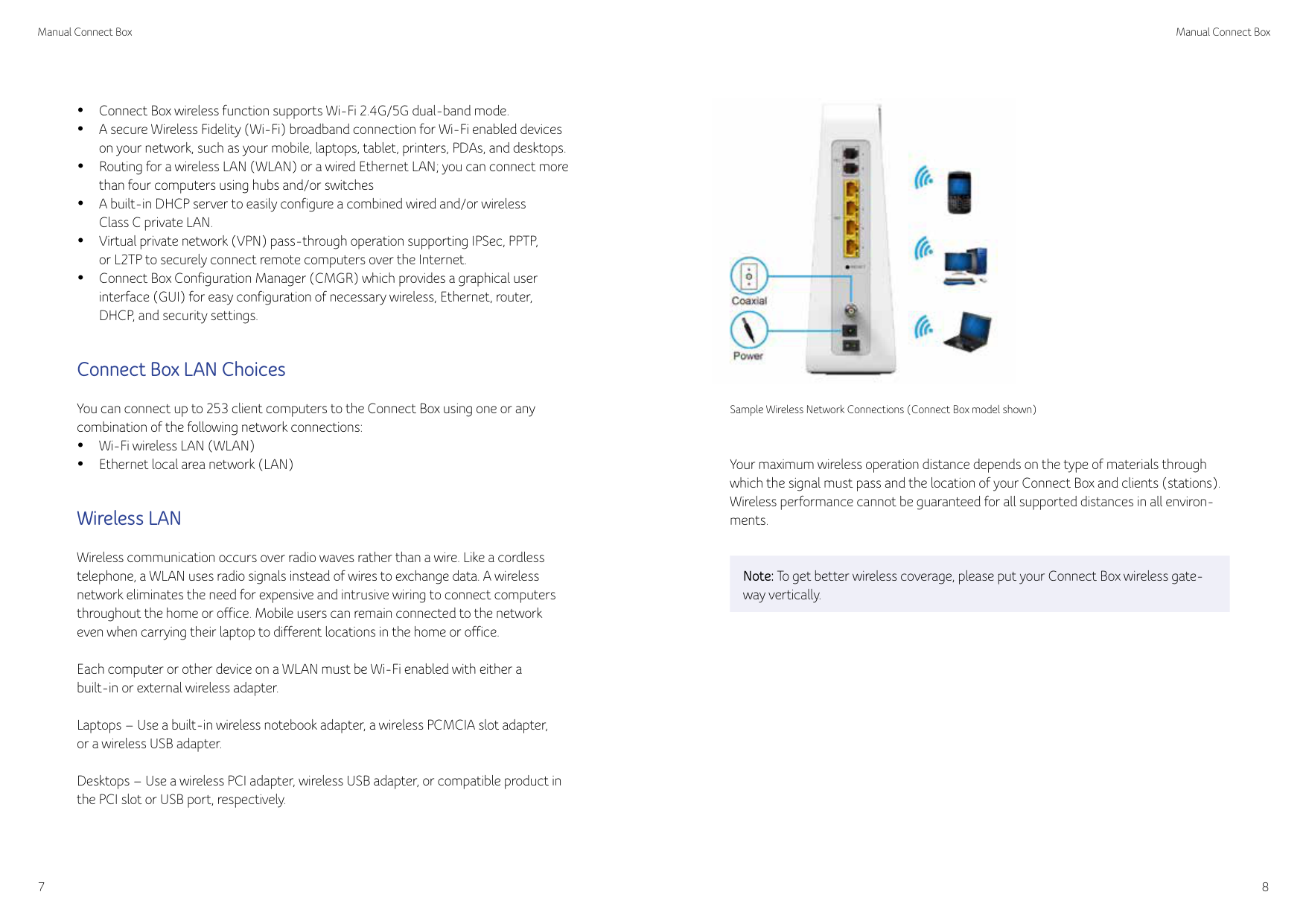
You can easily connect any PC with an Ethernet cable to the Connect Box Ethernet port. Because the Connect Box Ethernet port supports auto-MDIX, you can use a straightthrough or cross-over cable to connect a hub, switch, or computer. Use category 5, or better, cabling for all Ethernet connections.

Sample Ethernet to Computer Connection (Connect Box model shown)
A wired Ethernet LAN with more than four computers requires one or more hubs, switches, or routers. You can:
Connect a hub or switch to any Ethernet port on the Connect Box.
Use Ethernet hubs, switches, or routers to connect up to any combination of 253 computers and wireless clients to the Connect Box.
More detailed information on Ethernet cabling is beyond the scope of this document.
9
Front Panel
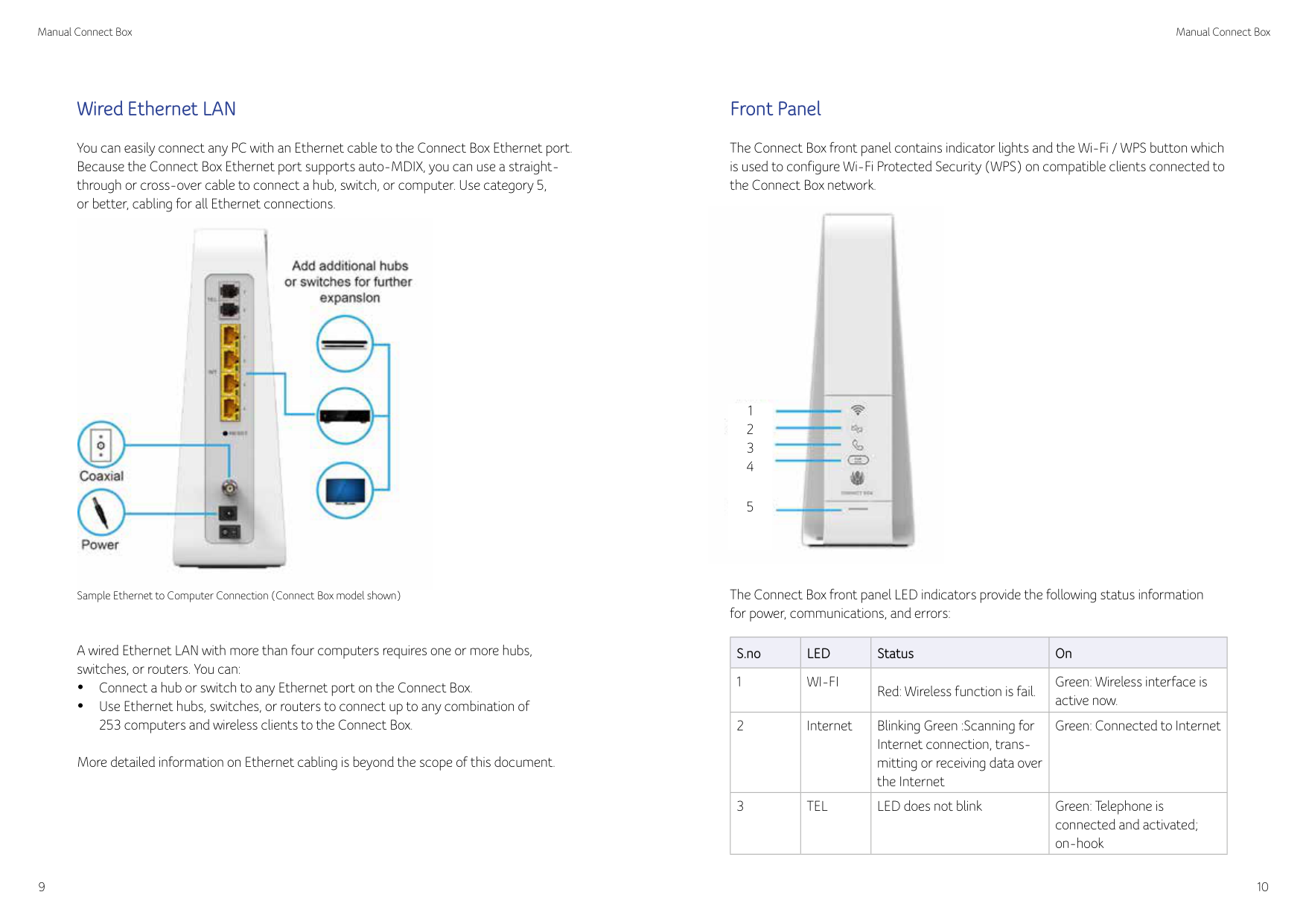
The Connect Box front panel contains indicator lights and the Wi-Fi / WPS button which is used to configure Wi-Fi Protected Security (WPS) on compatible clients connected to the Connect Box network.

The Connect Box front panel LED indicators provide the following status information for power, communications, and errors:
|S.no|LED|Status|On| |---|---|---|---| |1|WI-FI|Red: Wireless function is fail.|Green: Wireless interface is active now.| |2|Internet|Blinking Green :Scanning for Internet connection, transmitting or receiving data over the Internet|Green: Connected to Internet| |3|TEL|LED does not blink|Green: Telephone is connected and activated; on-hook|
10
|S.no|LED|Status|On| |---|---|---|---| |4|WPS|WPS Button|Push this button to connect with other WPS enabled devices.| |5|Power|Blinking White: Booting up Device|Solid White: Device is ready|
Rear Panel

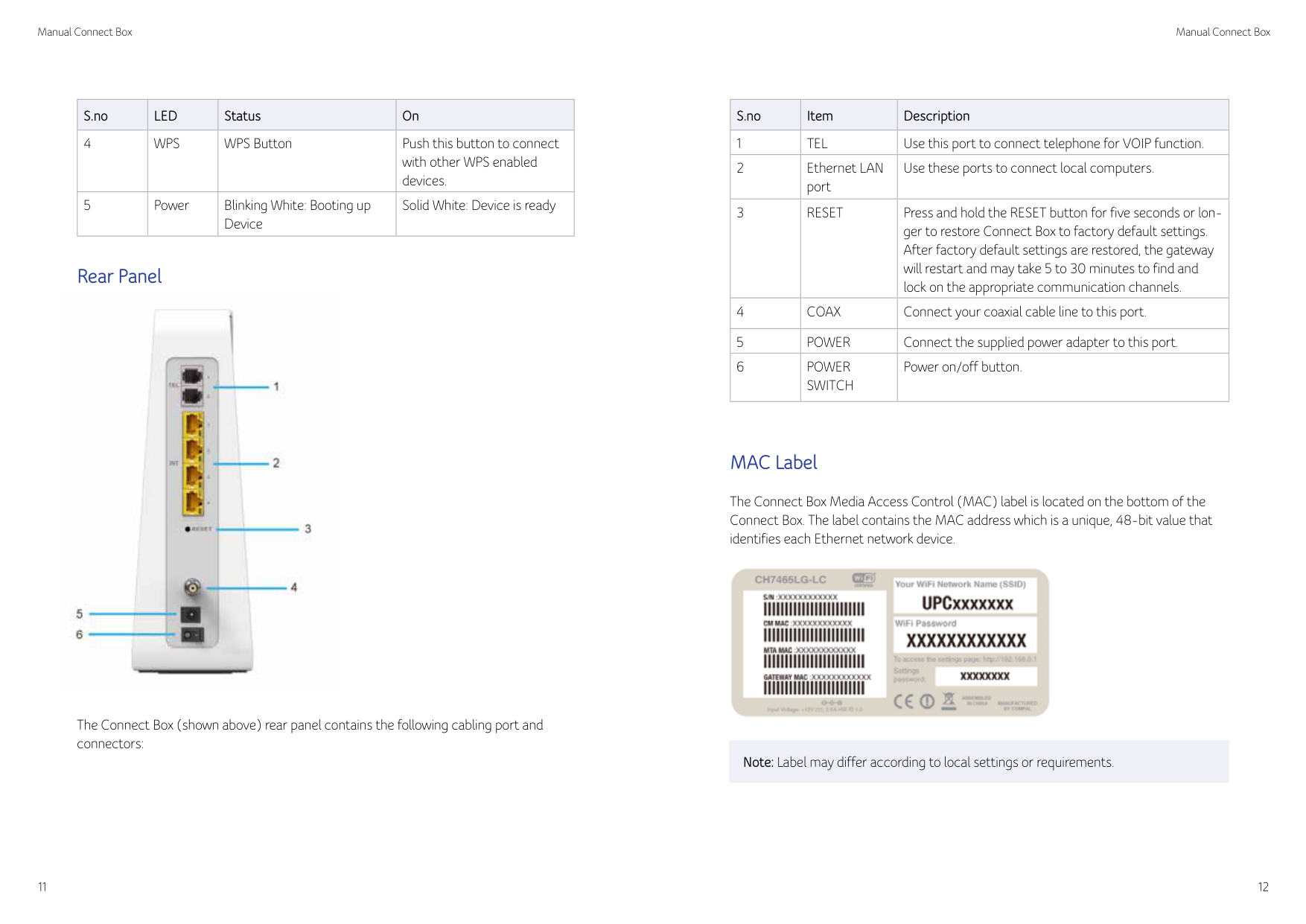
The Connect Box (shown above) rear panel contains the following cabling port and connectors:
|S.no|Item|Description| |---|---|---| |1|TEL|Use this port to connect telephone for VOIP function.| |2|Ethernet LAN port|Use these ports to connect local computers.| |3|RESET|Press and hold the RESET button for five seconds or longer to restore Connect Box to factory default settings. After factory default settings are restored, the gateway will restart and may take 5 to 30 minutes to find and lock on the appropriate communication channels.| |4|COAX|Connect your coaxial cable line to this port.| |5|POWER|Connect the supplied power adapter to this port.| |6|POWER SWITCH|Power on/off button.|
MAC Label
The Connect Box Media Access Control (MAC) label is located on the bottom of the Connect Box. The label contains the MAC address which is a unique, 48-bit value that identifies each Ethernet network device.

Note: Label may differ according to local settings or requirements.
11
12
2 Getting Started
Inside the Box
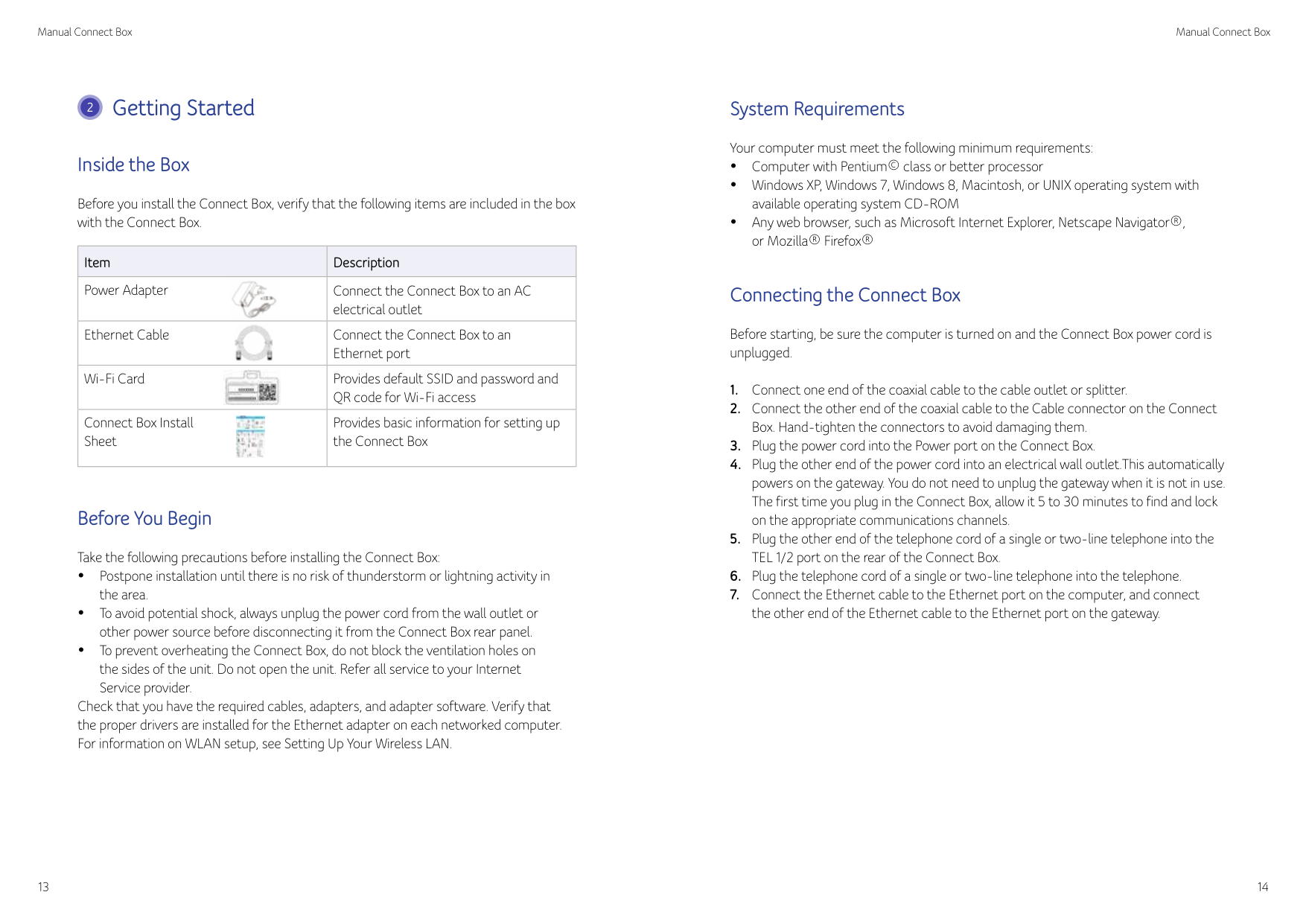
Before you install the Connect Box, verify that the following items are included in the box with the Connect Box.
|Item|Description|
|---|---| |Power Adapter
|Connect the Connect Box to an AC electrical outlet| |Ethernet Cable
|Connect the Connect Box to an Ethernet port| |Wi-Fi Card
|Provides default SSID and password and QR code for Wi-Fi access| |Connect Box Install Sheet
|Provides basic information for setting up the Connect Box|
Before You Begin
Take the following precautions before installing the Connect Box:
Postpone installation until there is no risk of thunderstorm or lightning activity in the area.
To avoid potential shock, always unplug the power cord from the wall outlet or other power source before disconnecting it from the Connect Box rear panel.
To prevent overheating the Connect Box, do not block the ventilation holes on the sides of the unit. Do not open the unit. Refer all service to your Internet Service provider.
Check that you have the required cables, adapters, and adapter software. Verify that the proper drivers are installed for the Ethernet adapter on each networked computer. For information on WLAN setup, see Setting Up Your Wireless LAN.
System Requirements
Your computer must meet the following minimum requirements:
Computer with Pentium© class or better processor
Windows XP, Windows 7, Windows 8, Macintosh, or UNIX operating system with available operating system CD-ROM
Any web browser, such as Microsoft Internet Explorer, Netscape Navigator®, or Mozilla® Firefox®
Connecting the Connect Box
Before starting, be sure the computer is turned on and the Connect Box power cord is unplugged.
13
14

6
5
1 2
7
RESET
3 4
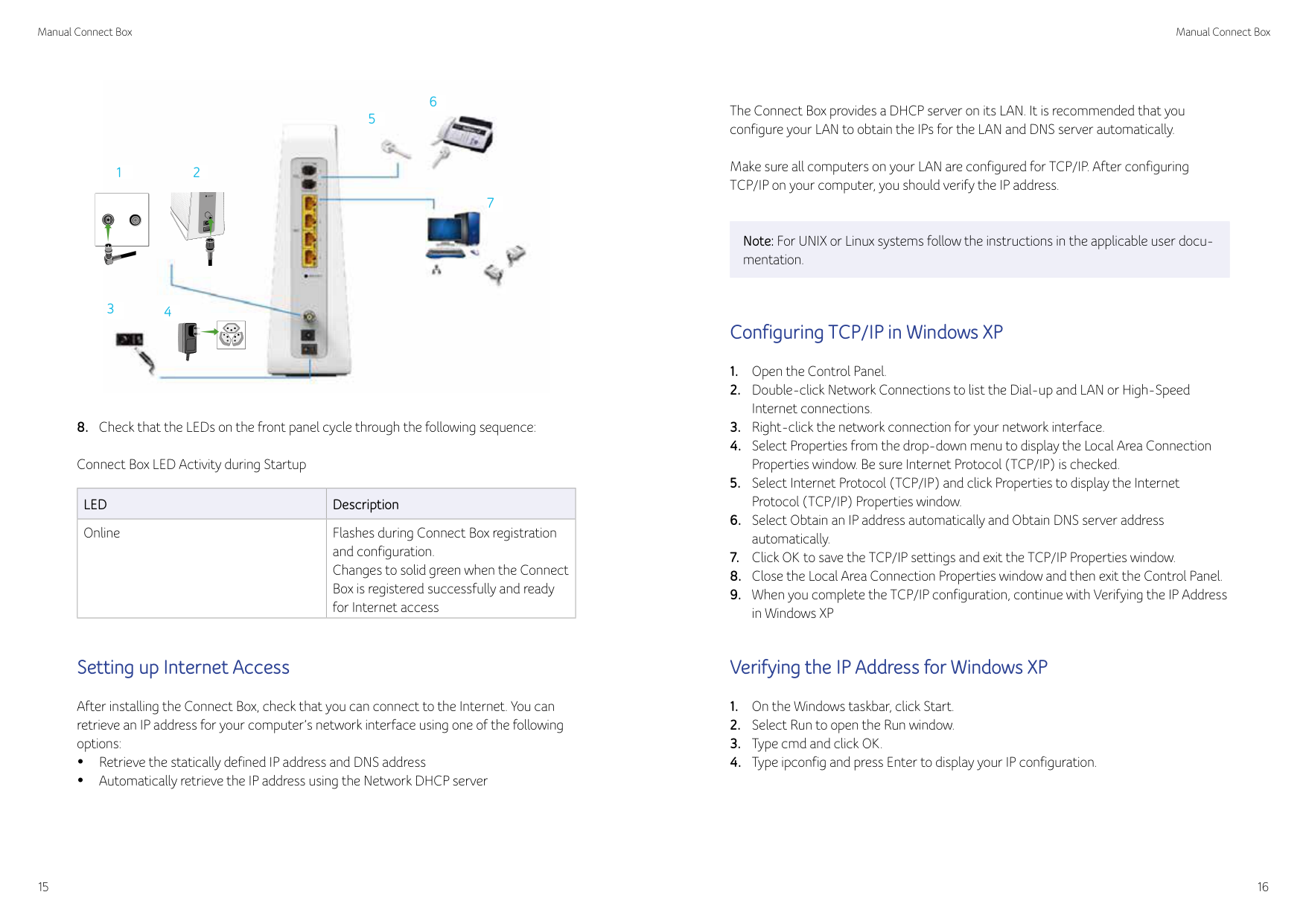
|LED|Description| |---|---| |Online|Flashes during Connect Box registration and configuration. Changes to solid green when the Connect Box is registered successfully and ready for Internet access|
Setting up Internet Access
After installing the Connect Box, check that you can connect to the Internet. You can retrieve an IP address for your computer’s network interface using one of the following options:
Retrieve the statically defined IP address and DNS address
Automatically retrieve the IP address using the Network DHCP server
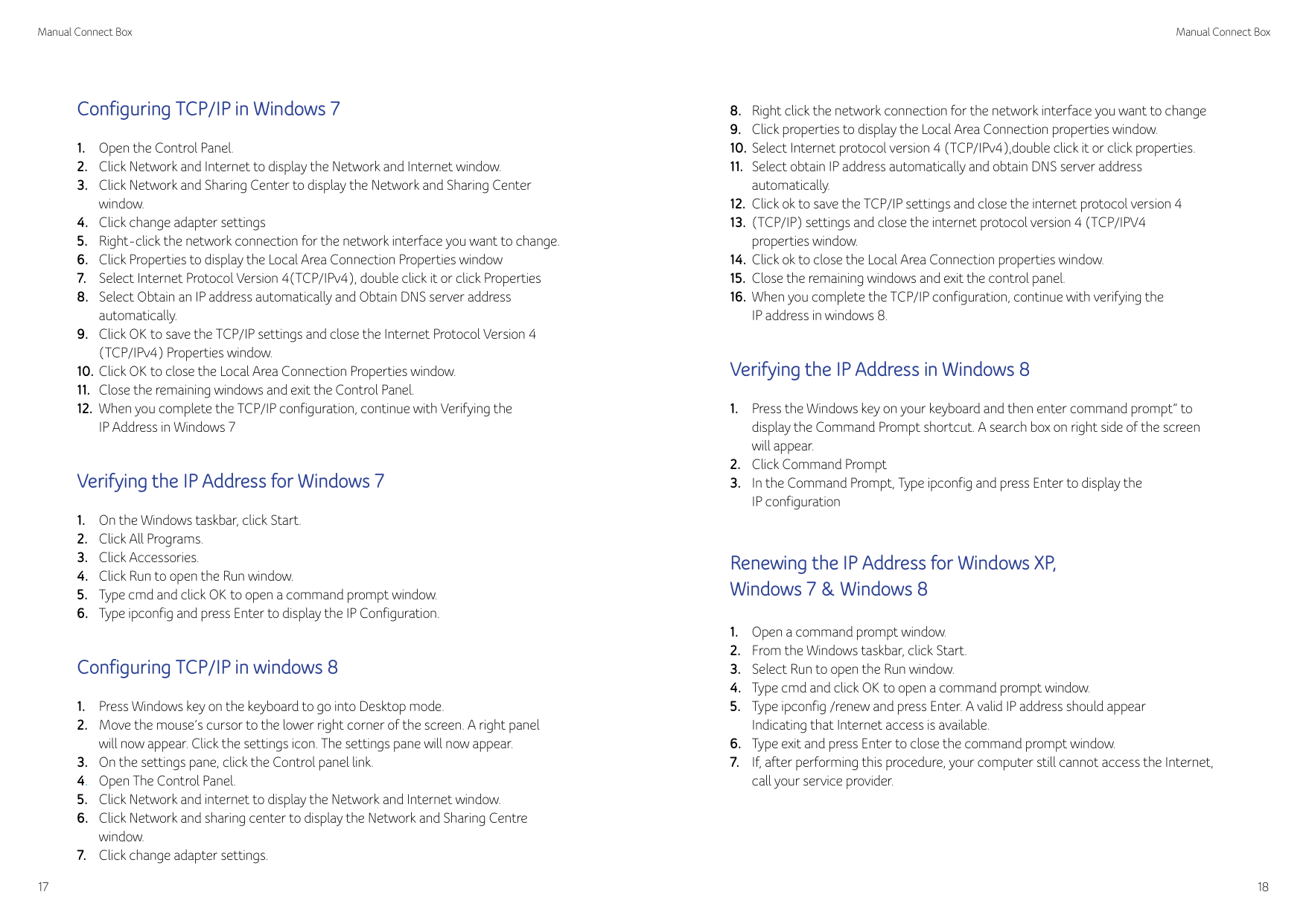
The Connect Box provides a DHCP server on its LAN. It is recommended that you configure your LAN to obtain the IPs for the LAN and DNS server automatically.
Make sure all computers on your LAN are configured for TCP/IP. After configuring TCP/IP on your computer, you should verify the IP address.
Note: For UNIX or Linux systems follow the instructions in the applicable user documentation.
Configuring TCP/IP in Windows XP
Verifying the IP Address for Windows XP
15
16
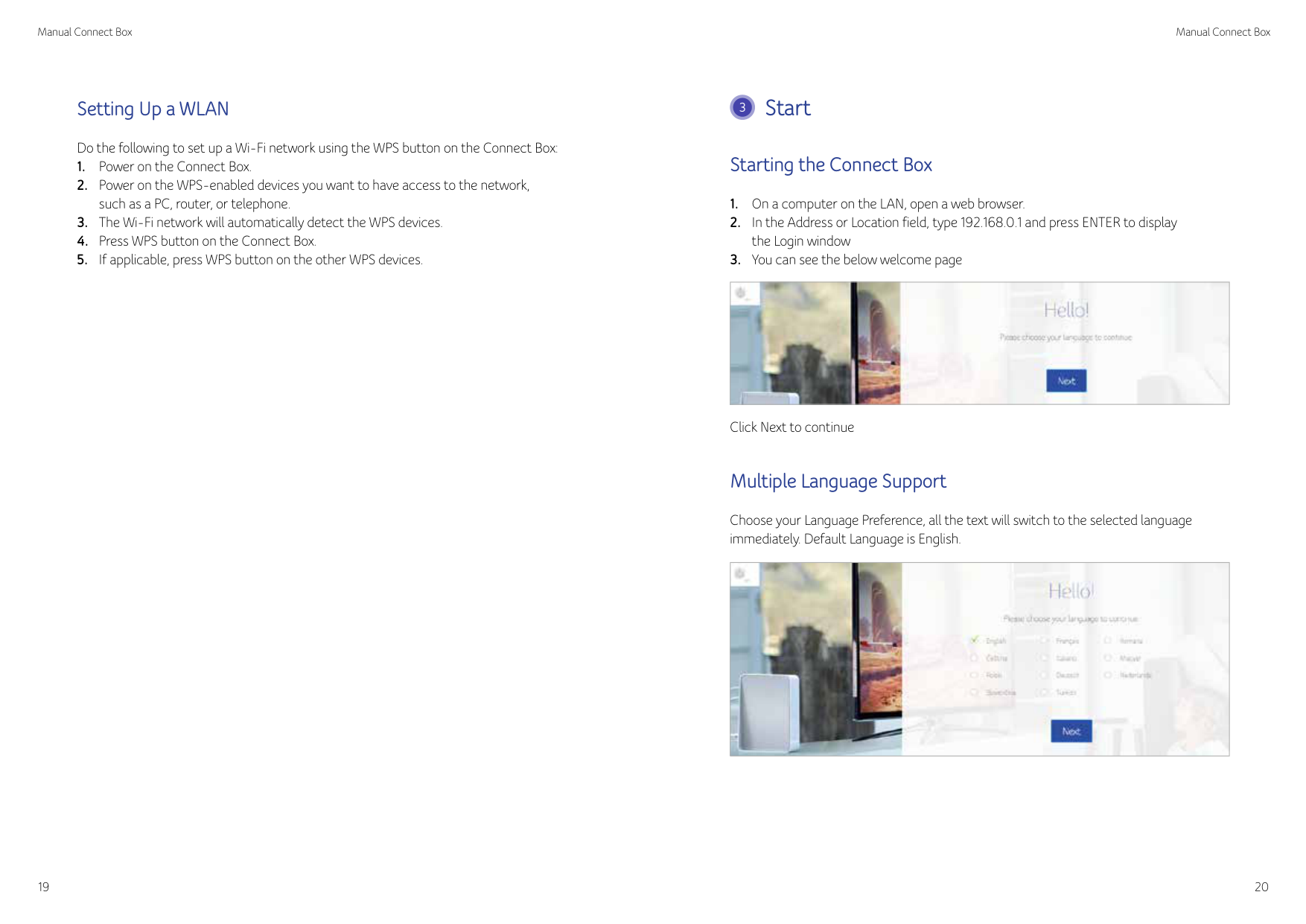
Configuring TCP/IP in Windows 7
Verifying the IP Address for Windows 7
17
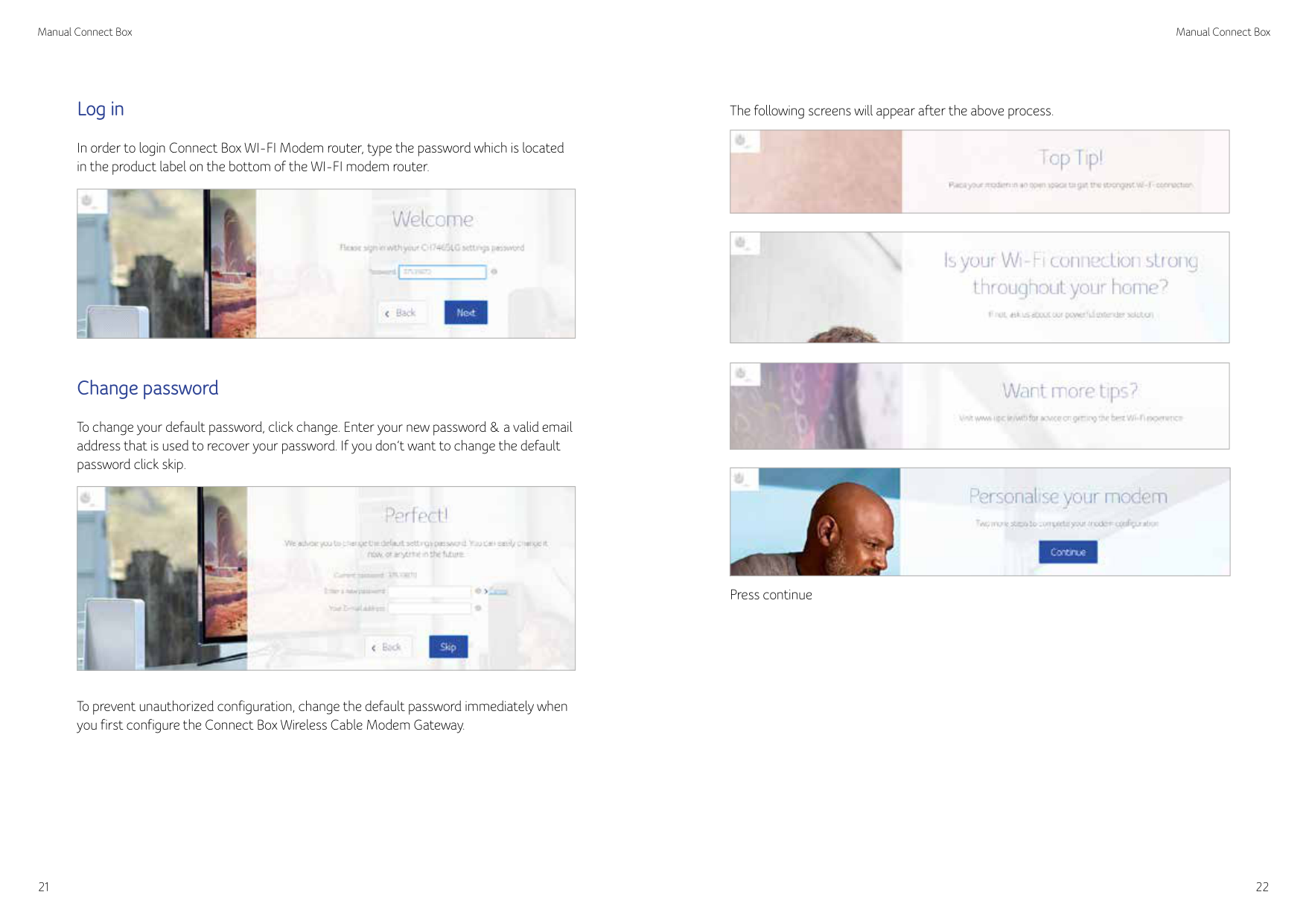
Configuring TCP/IP in windows 8
Verifying the IP Address in Windows 8
Renewing the IP Address for Windows XP, Windows 7 & Windows 8
18
Setting Up a WLAN
Do the following to set up a Wi-Fi network using the WPS button on the Connect Box:
3 Start
Starting the Connect Box
|| |---|
Click Next to continue
Multiple Language Support
Choose your Language Preference, all the text will switch to the selected language immediately. Default Language is English.
|| |---|
19
20
Log in
In order to login Connect Box WI-FI Modem router, type the password which is located in the product label on the bottom of the WI-FI modem router.
|| |---|
Change password
To change your default password, click change. Enter your new password & a valid email address that is used to recover your password. If you don’t want to change the default password click skip.
|| |---|
To prevent unauthorized configuration, change the default password immediately when you first configure the Connect Box Wireless Cable Modem Gateway.
The following screens will appear after the above process.
||
|---|
|| |---|
|| |---|
|| |---|
Press continue
21
22
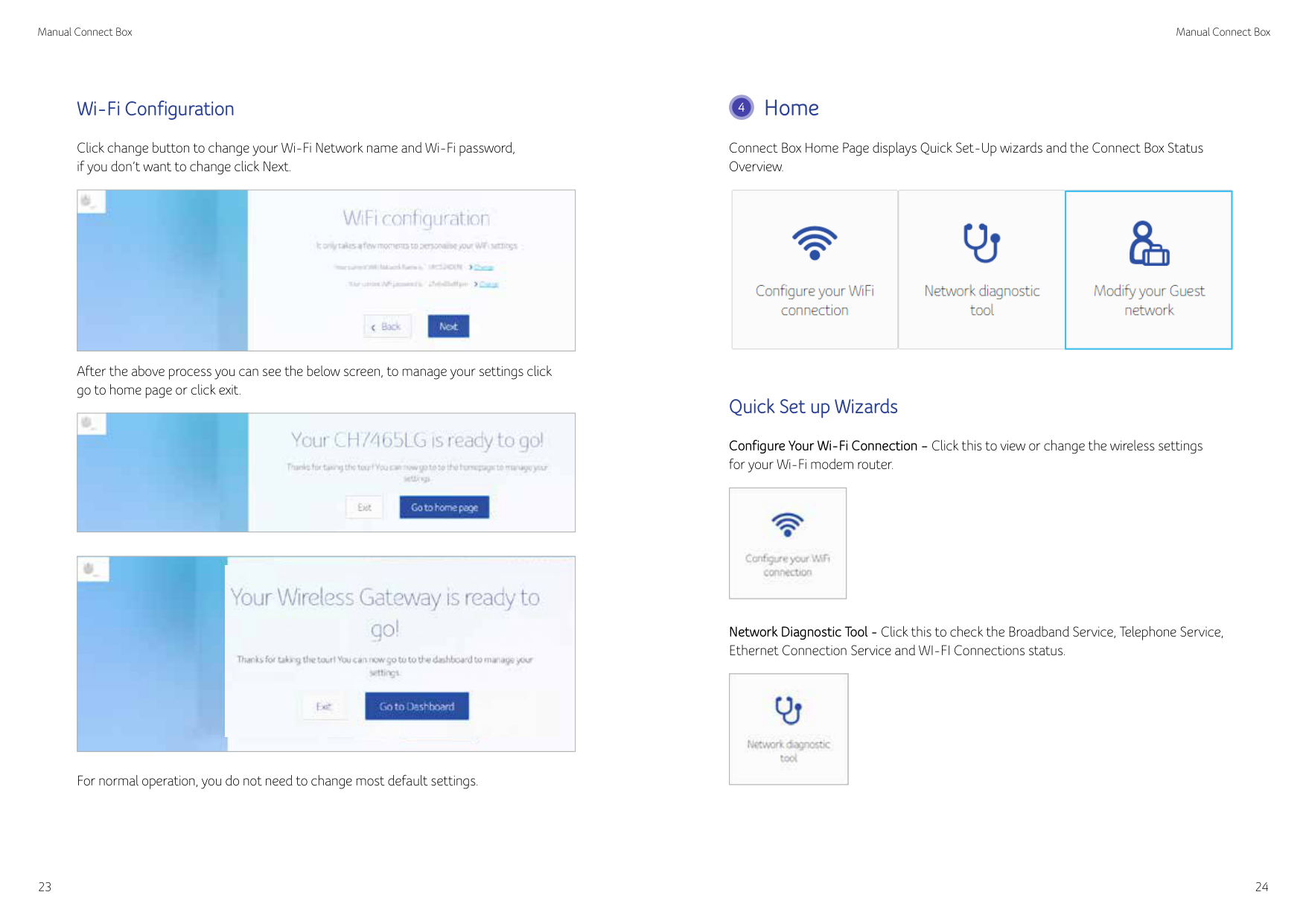
Wi-Fi Configuration
Click change button to change your Wi-Fi Network name and Wi-Fi password, if you don’t want to change click Next.
|| |---|
After the above process you can see the below screen, to manage your settings click go to home page or click exit.
|| |---|
|
| |---|
For normal operation, you do not need to change most default settings.
4 Home
Connect Box Home Page displays Quick Set-Up wizards and the Connect Box Status Overview.

Quick Set up Wizards
Configure Your Wi-Fi Connection – Click this to view or change the wireless settings for your Wi-Fi modem router.
|| |---|
Network Diagnostic Tool - Click this to check the Broadband Service, Telephone Service, Ethernet Connection Service and WI-FI Connections status.
|| |---|
23
24
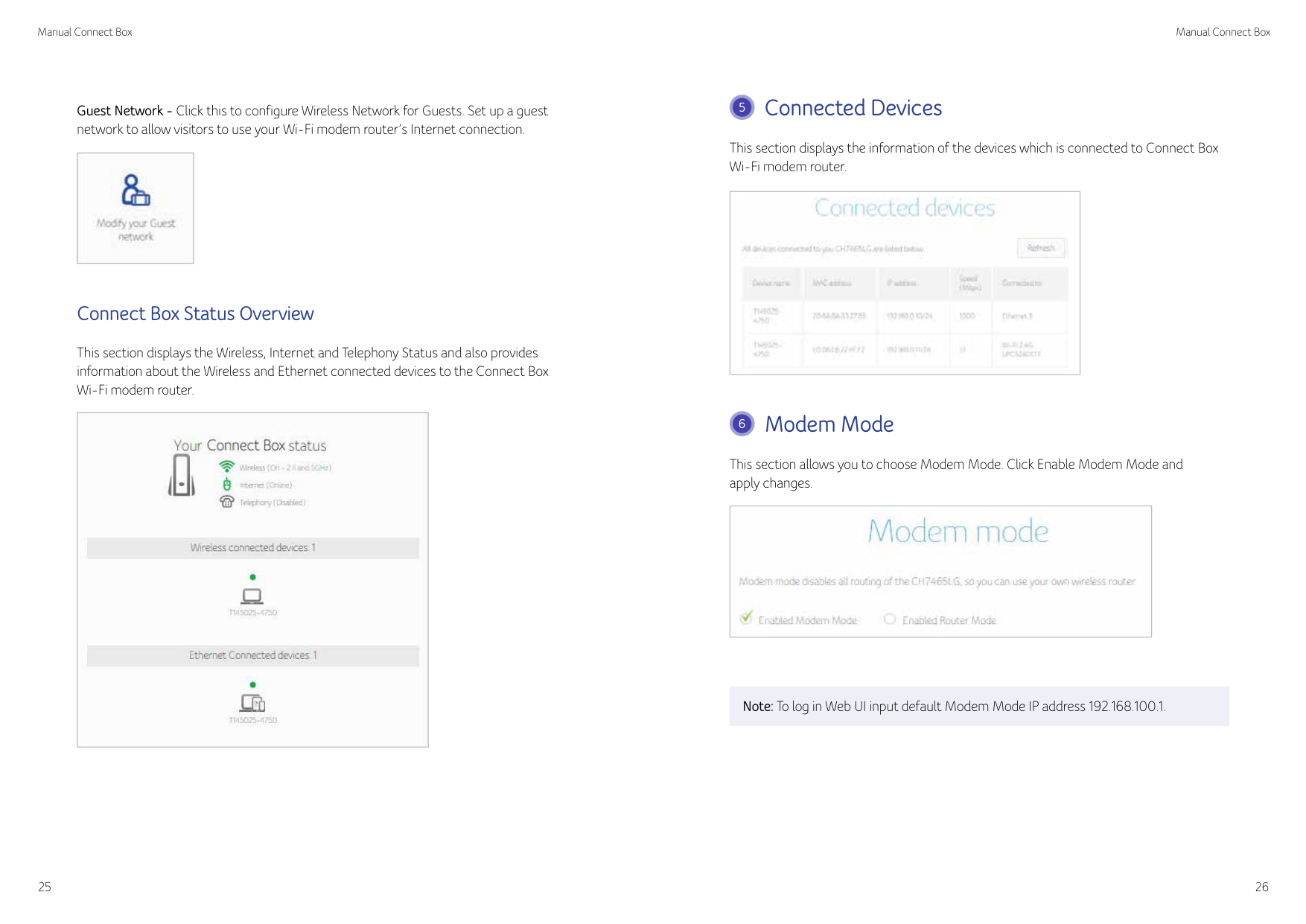
Guest Network - Click this to configure Wireless Network for Guests. Set up a guest network to allow visitors to use your Wi-Fi modem router’s Internet connection.
|| |---|
Connect Box Status Overview
This section displays the Wireless, Internet and Telephony Status and also provides information about the Wireless and Ethernet connected devices to the Connect Box Wi-Fi modem router.
|| |---|
5 Connected Devices
This section displays the information of the devices which is connected to Connect Box Wi-Fi modem router.
|| |---|
6 Modem Mode
This section allows you to choose Modem Mode. Click Enable Modem Mode and apply changes.
|| |---|
Note: To log in Web UI input default Modem Mode IP address 192.168.100.1.
25
26
7 Advanced Settings
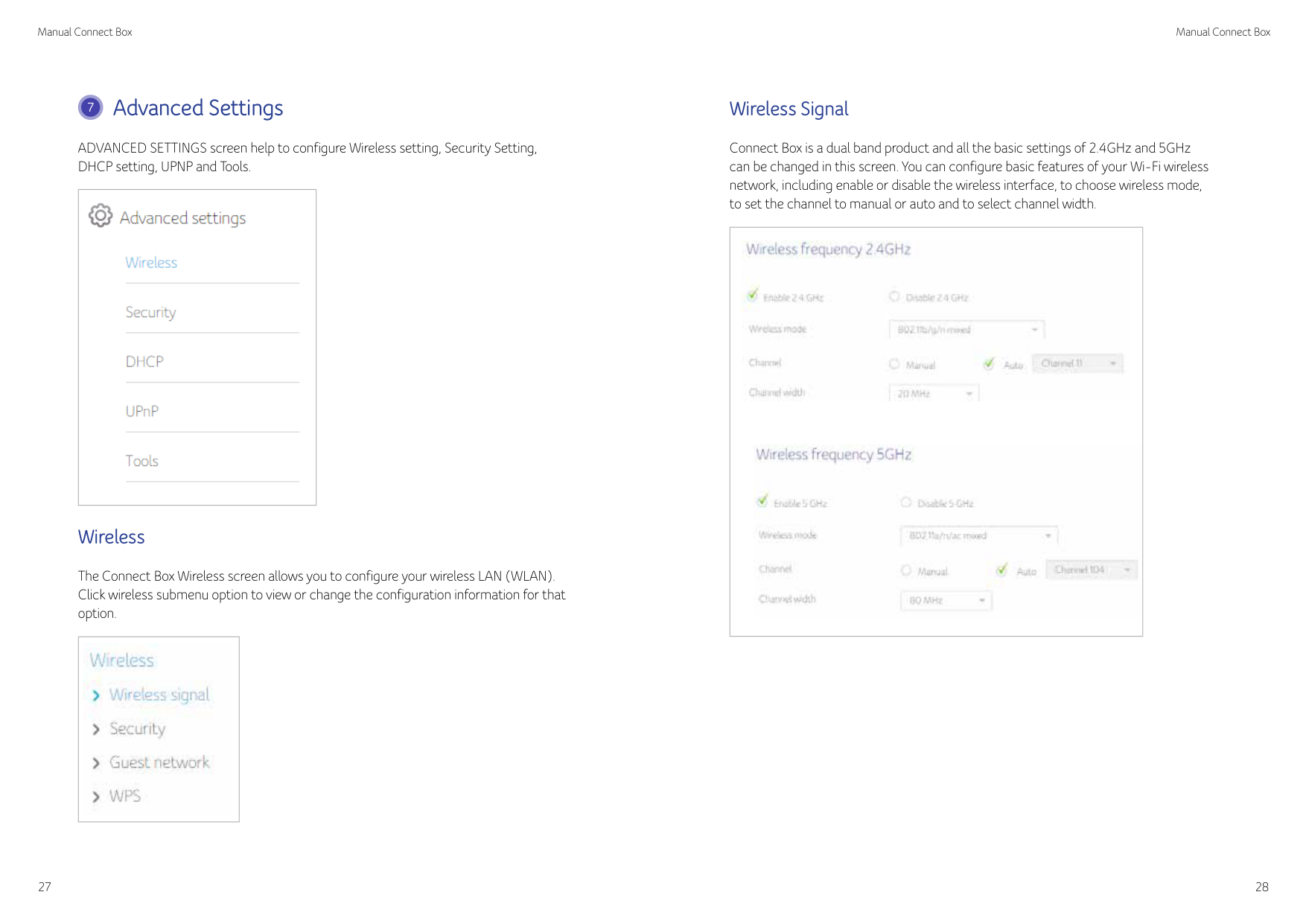
ADVANCED SETTINGS screen help to configure Wireless setting, Security Setting, DHCP setting, UPNP and Tools.
|| |---|
Wireless
The Connect Box Wireless screen allows you to configure your wireless LAN (WLAN). Click wireless submenu option to view or change the configuration information for that option.
|| |---|
Wireless Signal
Connect Box is a dual band product and all the basic settings of 2.4GHz and 5GHz can be changed in this screen. You can configure basic features of your Wi-Fi wireless network, including enable or disable the wireless interface, to choose wireless mode, to set the channel to manual or auto and to select channel width.
|
| |---|
27
28
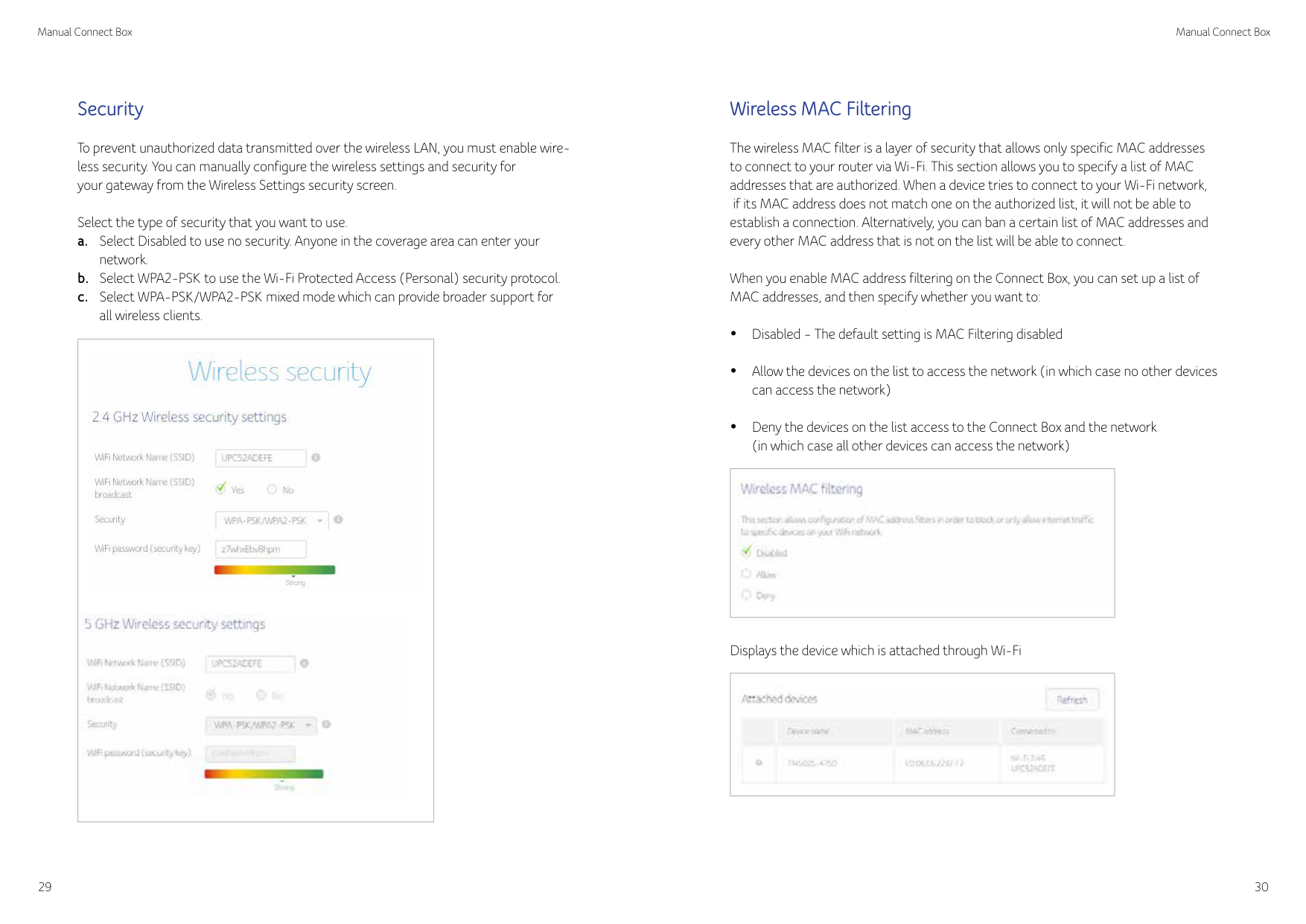
Security
To prevent unauthorized data transmitted over the wireless LAN, you must enable wireless security. You can manually configure the wireless settings and security for your gateway from the Wireless Settings security screen.
Select the type of security that you want to use.
|
| |---|
29
Wireless MAC Filtering
The wireless MAC filter is a layer of security that allows only specific MAC addresses to connect to your router via Wi-Fi. This section allows you to specify a list of MAC addresses that are authorized. When a device tries to connect to your Wi-Fi network, if its MAC address does not match one on the authorized list, it will not be able to establish a connection. Alternatively, you can ban a certain list of MAC addresses and every other MAC address that is not on the list will be able to connect.
When you enable MAC address filtering on the Connect Box, you can set up a list of MAC addresses, and then specify whether you want to:
Disabled – The default setting is MAC Filtering disabled
Allow the devices on the list to access the network (in which case no other devices can access the network)
Deny the devices on the list access to the Connect Box and the network (in which case all other devices can access the network)
|| |---|
Displays the device which is attached through Wi-Fi
|| |---|
30
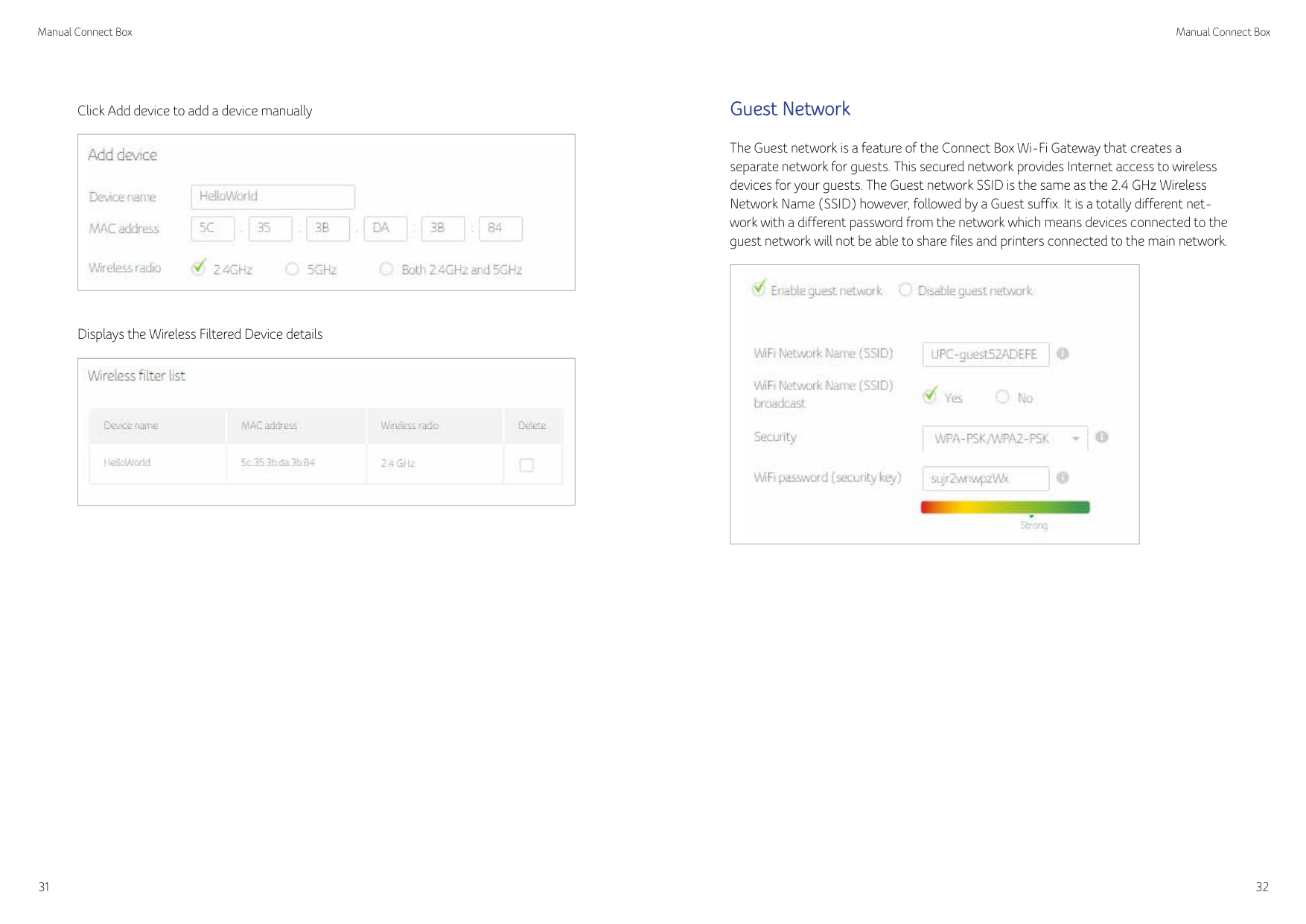
Click Add device to add a device manually
|| |---|
Displays the Wireless Filtered Device details
|| |---|
Guest Network
The Guest network is a feature of the Connect Box Wi-Fi Gateway that creates a separate network for guests. This secured network provides Internet access to wireless devices for your guests. The Guest network SSID is the same as the 2.4 GHz Wireless Network Name (SSID) however, followed by a Guest suffix. It is a totally different network with a different password from the network which means devices connected to the guest network will not be able to share files and printers connected to the main network.
|| |---|
31
32
WPS
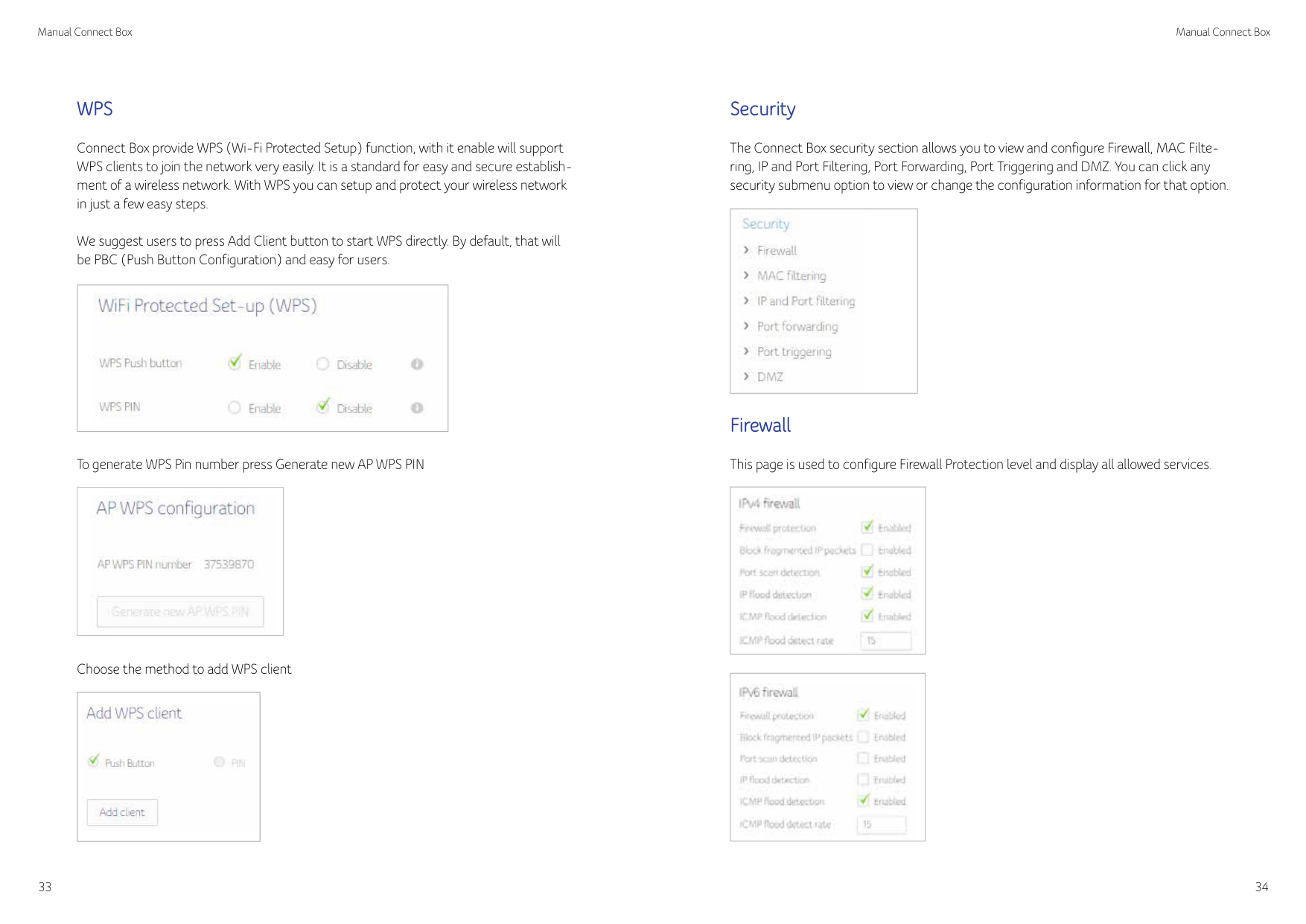
Connect Box provide WPS (Wi-Fi Protected Setup) function, with it enable will support WPS clients to join the network very easily. It is a standard for easy and secure establishment of a wireless network. With WPS you can setup and protect your wireless network in just a few easy steps.
We suggest users to press Add Client button to start WPS directly. By default, that will be PBC (Push Button Configuration) and easy for users.
|| |---|
To generate WPS Pin number press Generate new AP WPS PIN
|| |---|
Choose the method to add WPS client
|| |---|
33
Security
The Connect Box security section allows you to view and configure Firewall, MAC Filtering, IP and Port Filtering, Port Forwarding, Port Triggering and DMZ. You can click any security submenu option to view or change the configuration information for that option.
|| |---|
Firewall
This page is used to configure Firewall Protection level and display all allowed services.
|| |---|
|| |---|
34
35
MAC Filtering
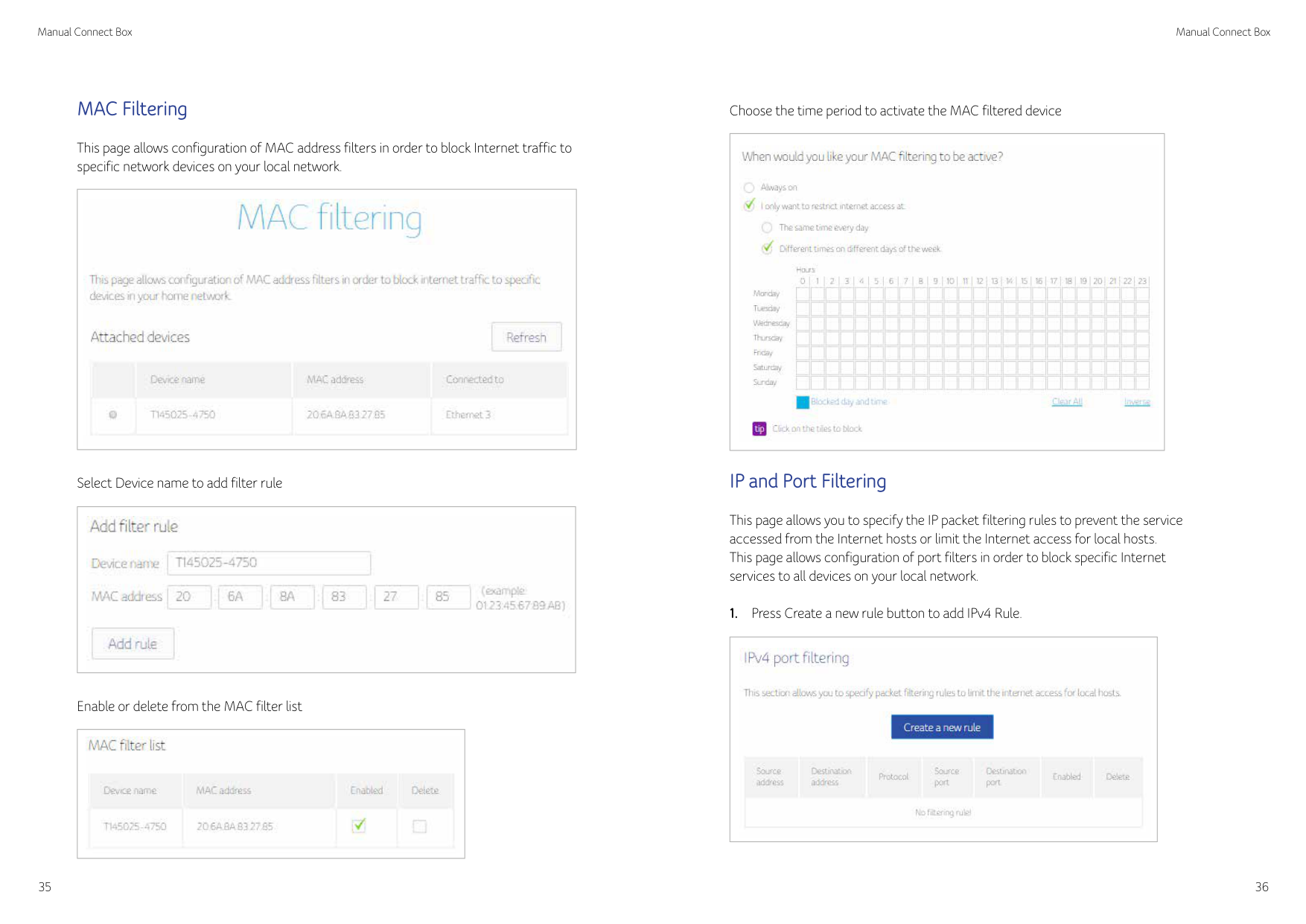
This page allows configuration of MAC address filters in order to block Internet traffic to specific network devices on your local network.
|| |---|
Select Device name to add filter rule
|| |---|
Enable or delete from the MAC filter list
|| |---|
Choose the time period to activate the MAC filtered device
|| |---|
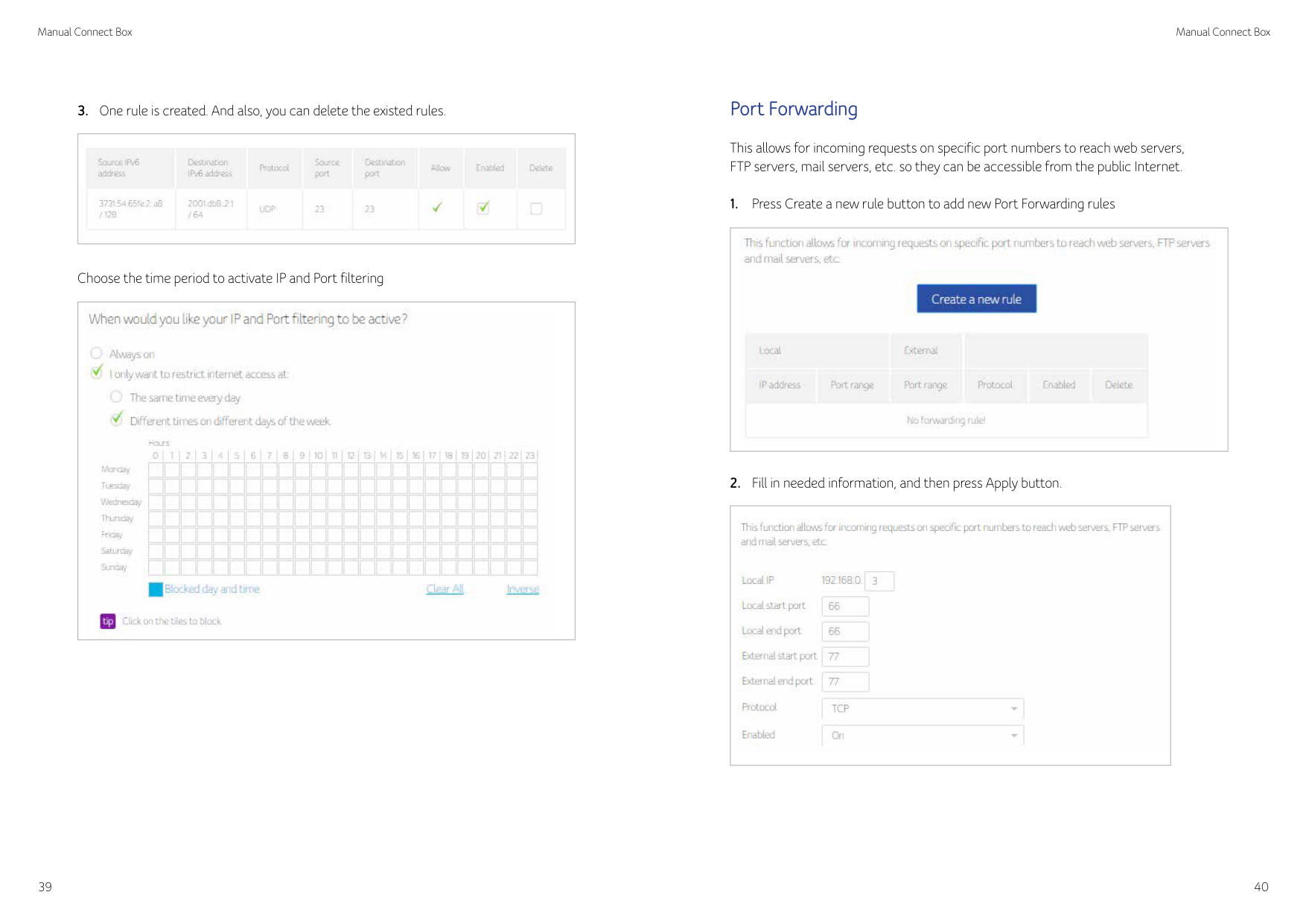
IP and Port Filtering
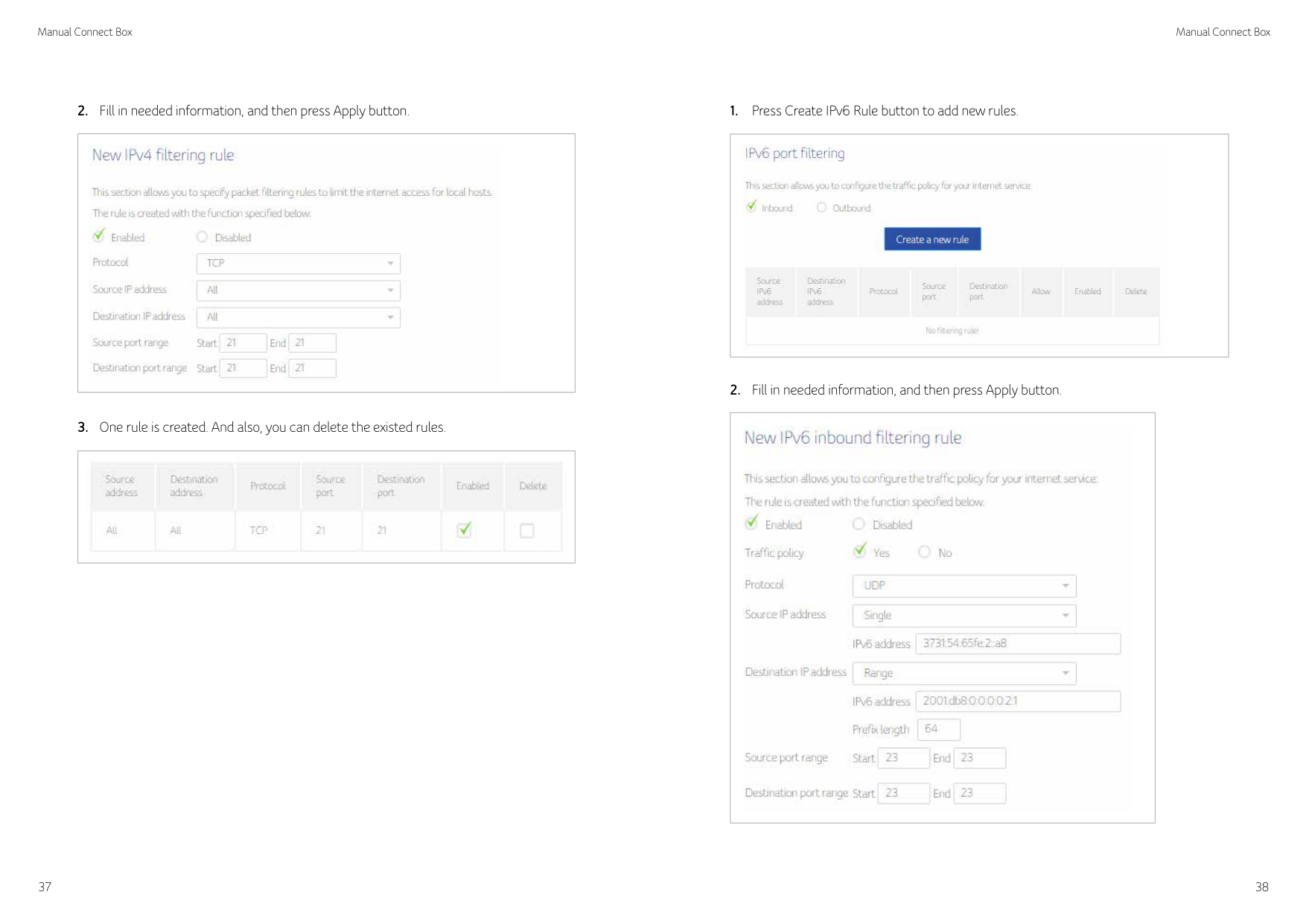
This page allows you to specify the IP packet filtering rules to prevent the service accessed from the Internet hosts or limit the Internet access for local hosts. This page allows configuration of port filters in order to block specific Internet services to all devices on your local network.
|| |---|
36
|| |---|
|| |---|
37
|| |---|
|| |---|
38
|| |---|
Choose the time period to activate IP and Port filtering
|| |---|
Port Forwarding
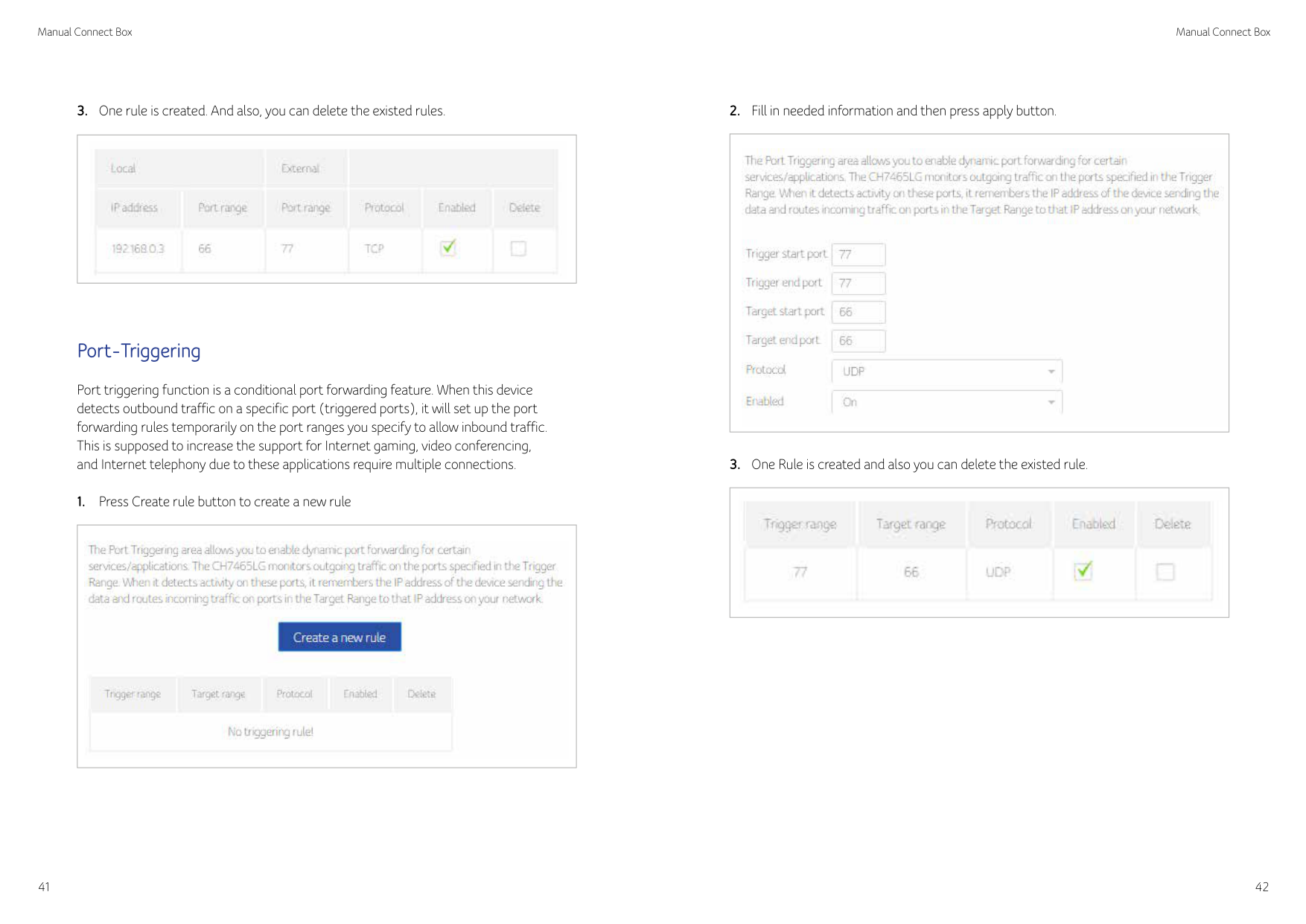
This allows for incoming requests on specific port numbers to reach web servers, FTP servers, mail servers, etc. so they can be accessible from the public Internet.
|| |---|
|| |---|
39
40
|| |---|
Port-Triggering
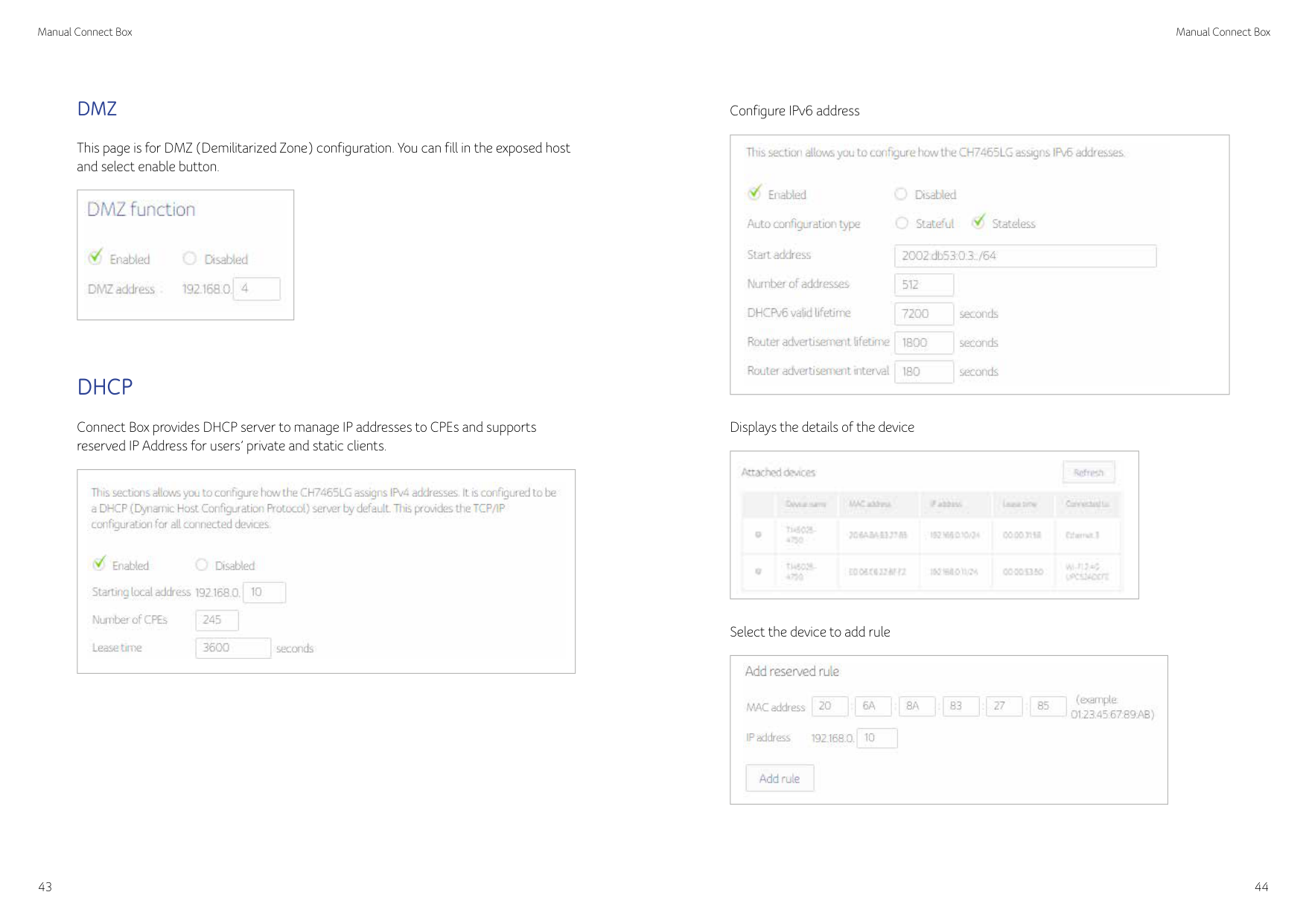
Port triggering function is a conditional port forwarding feature. When this device detects outbound traffic on a specific port (triggered ports), it will set up the port forwarding rules temporarily on the port ranges you specify to allow inbound traffic. This is supposed to increase the support for Internet gaming, video conferencing, and Internet telephony due to these applications require multiple connections.
|| |---|
|| |---|
|| |---|
41
42
DMZ
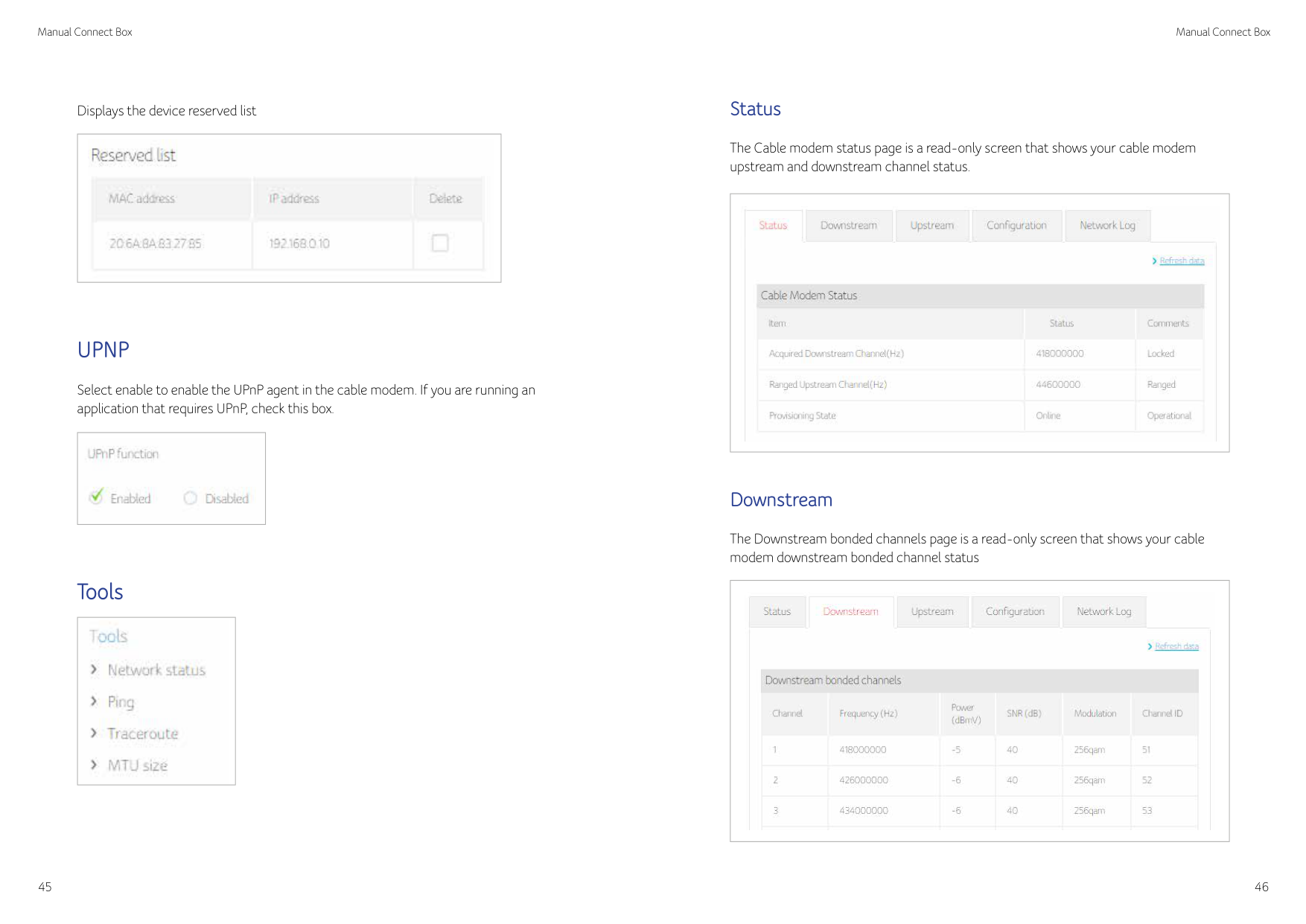
This page is for DMZ (Demilitarized Zone) configuration. You can fill in the exposed host and select enable button.
|| |---|
DHCP
Connect Box provides DHCP server to manage IP addresses to CPEs and supports reserved IP Address for users’ private and static clients.
|| |---|
Configure IPv6 address
|| |---|
Displays the details of the device
|| |---|
Select the device to add rule
|| |---|
43
44
Displays the device reserved list
|| |---|
UPNP
Select enable to enable the UPnP agent in the cable modem. If you are running an application that requires UPnP, check this box.
|| |---|
Tools
|| |---|
45
Status
The Cable modem status page is a read-only screen that shows your cable modem upstream and downstream channel status.
|| |---|
Downstream
The Downstream bonded channels page is a read-only screen that shows your cable modem downstream bonded channel status
|| |---|
46
Upstream
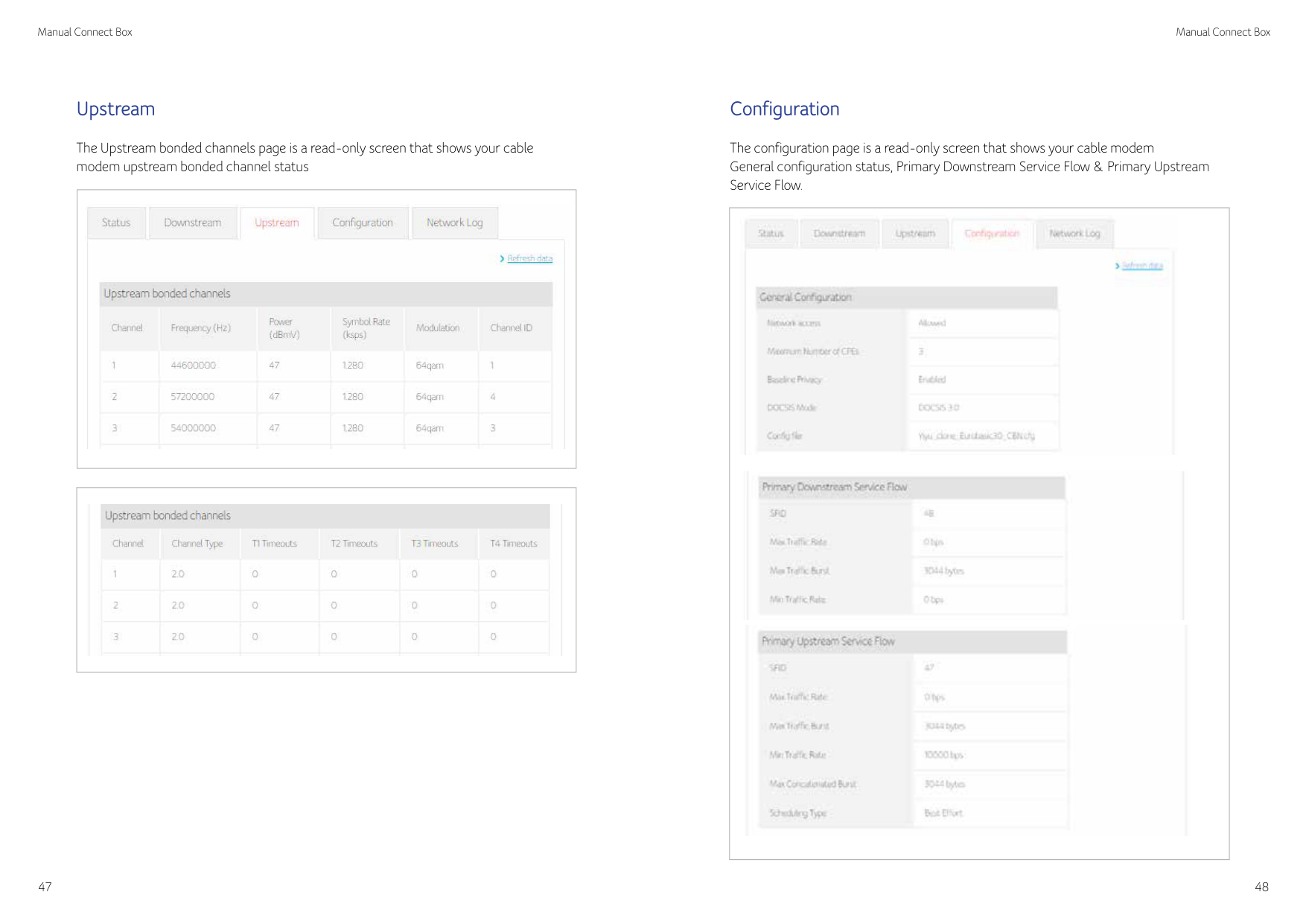
The Upstream bonded channels page is a read-only screen that shows your cable modem upstream bonded channel status
|| |---|
|| |---|
47
Configuration
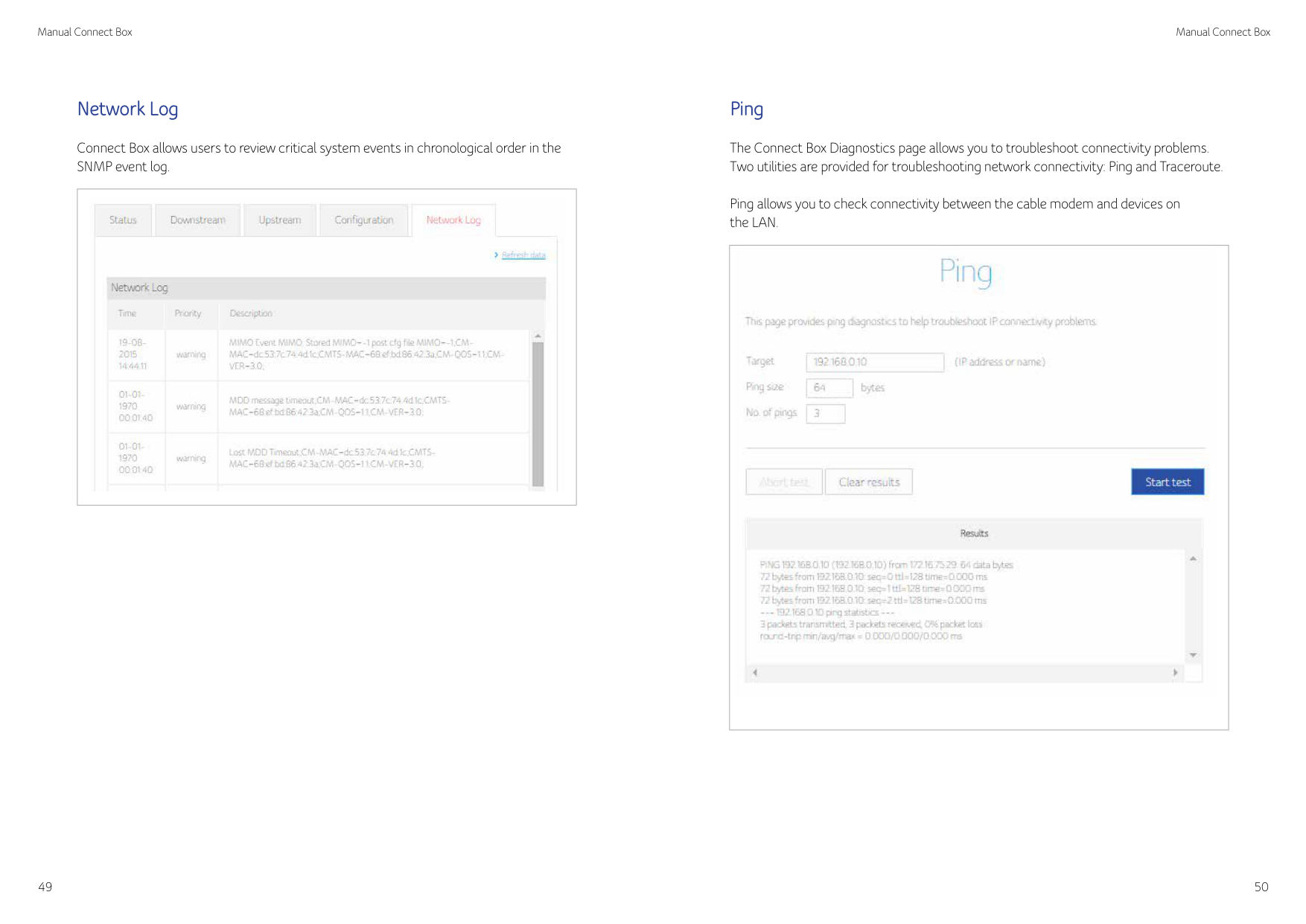
The configuration page is a read-only screen that shows your cable modem General configuration status, Primary Downstream Service Flow & Primary Upstream Service Flow.
|

| |---|
48
Network Log
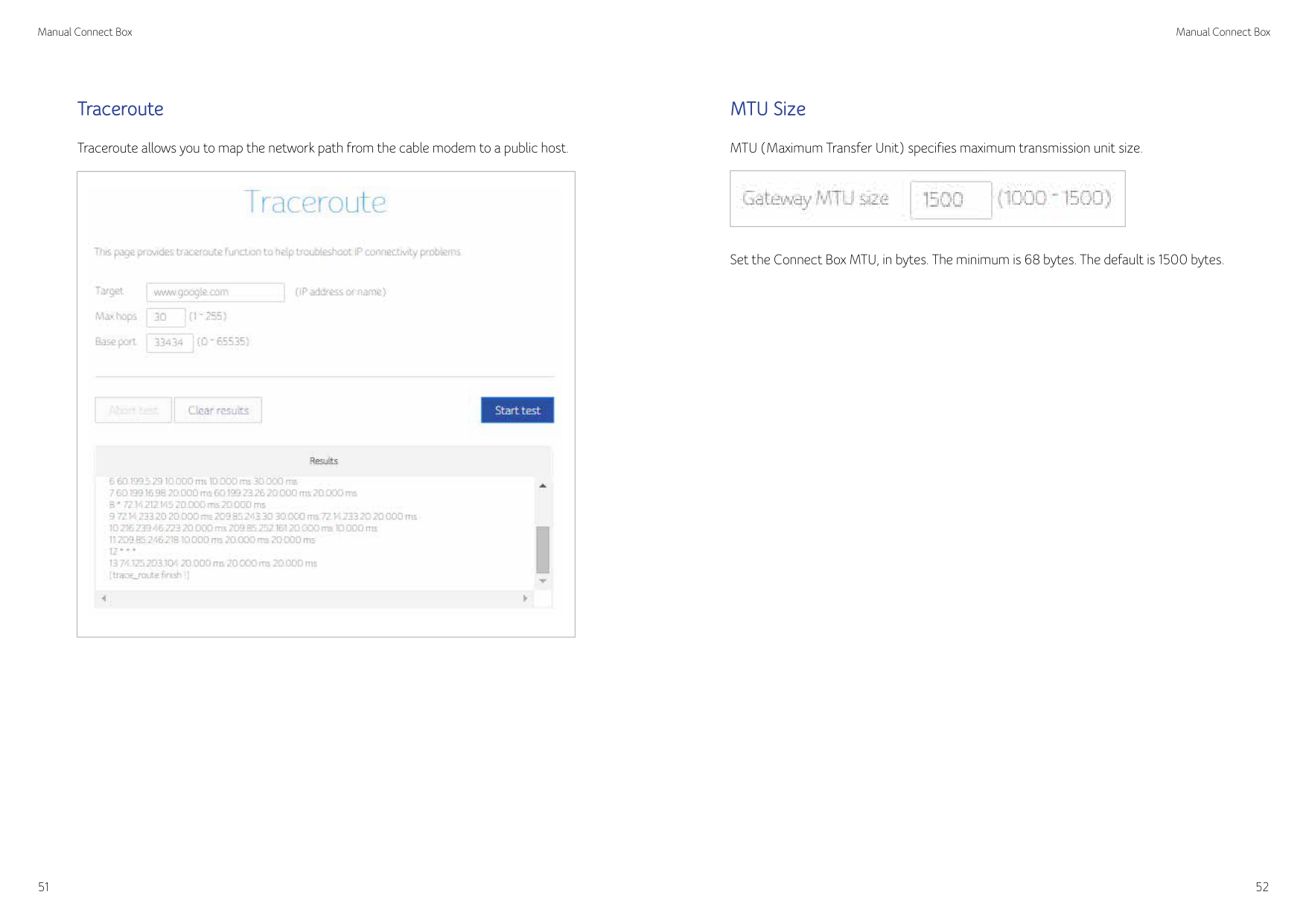
Connect Box allows users to review critical system events in chronological order in the SNMP event log.
|| |---|
Ping
The Connect Box Diagnostics page allows you to troubleshoot connectivity problems. Two utilities are provided for troubleshooting network connectivity: Ping and Traceroute.
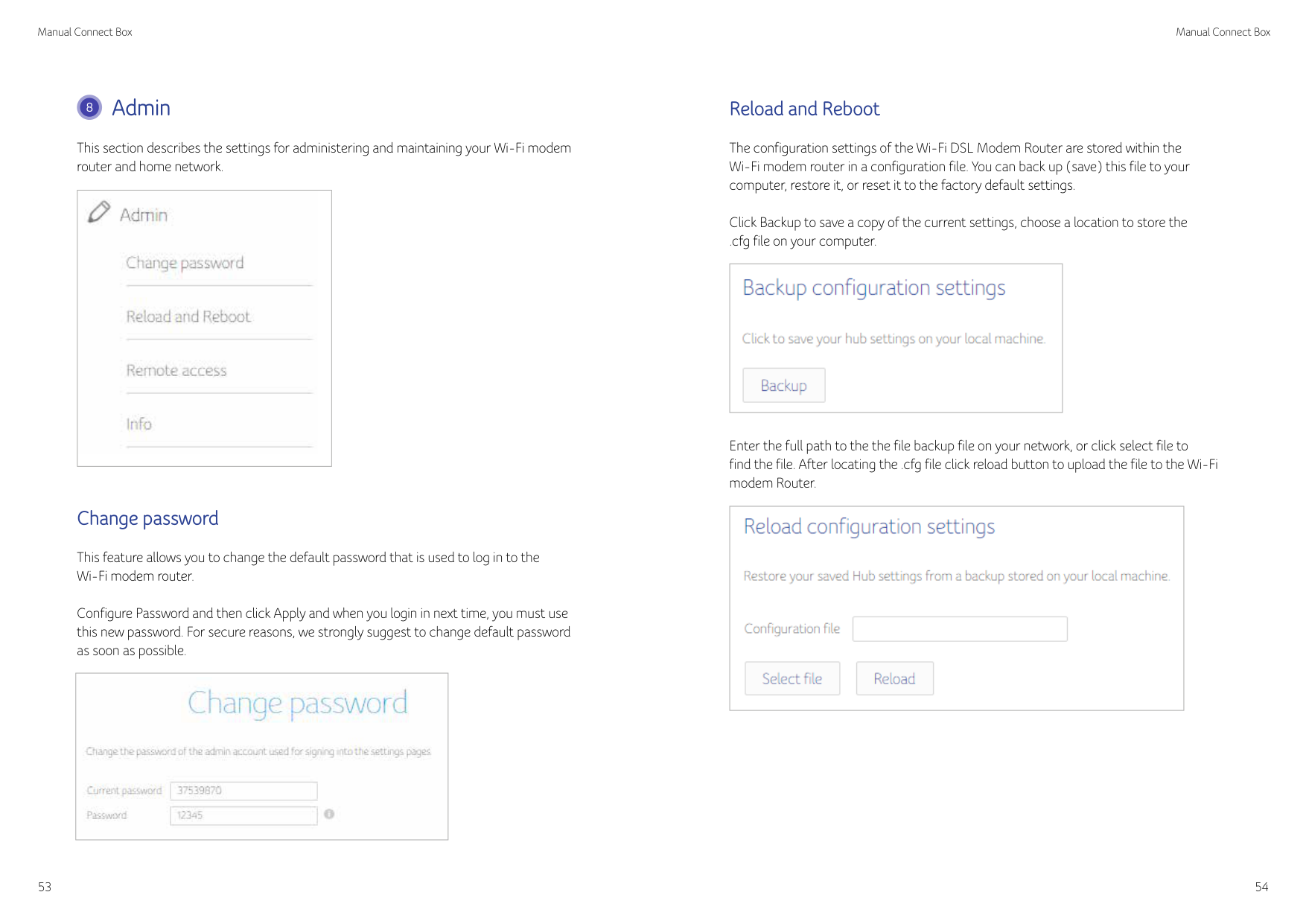
Ping allows you to check connectivity between the cable modem and devices on the LAN.
|| |---|
49
50
Traceroute
Traceroute allows you to map the network path from the cable modem to a public host.
|| |---|
MTU Size
MTU (Maximum Transfer Unit) specifies maximum transmission unit size.
|| |---|
Set the Connect Box MTU, in bytes. The minimum is 68 bytes. The default is 1500 bytes.
51
52
8 Admin
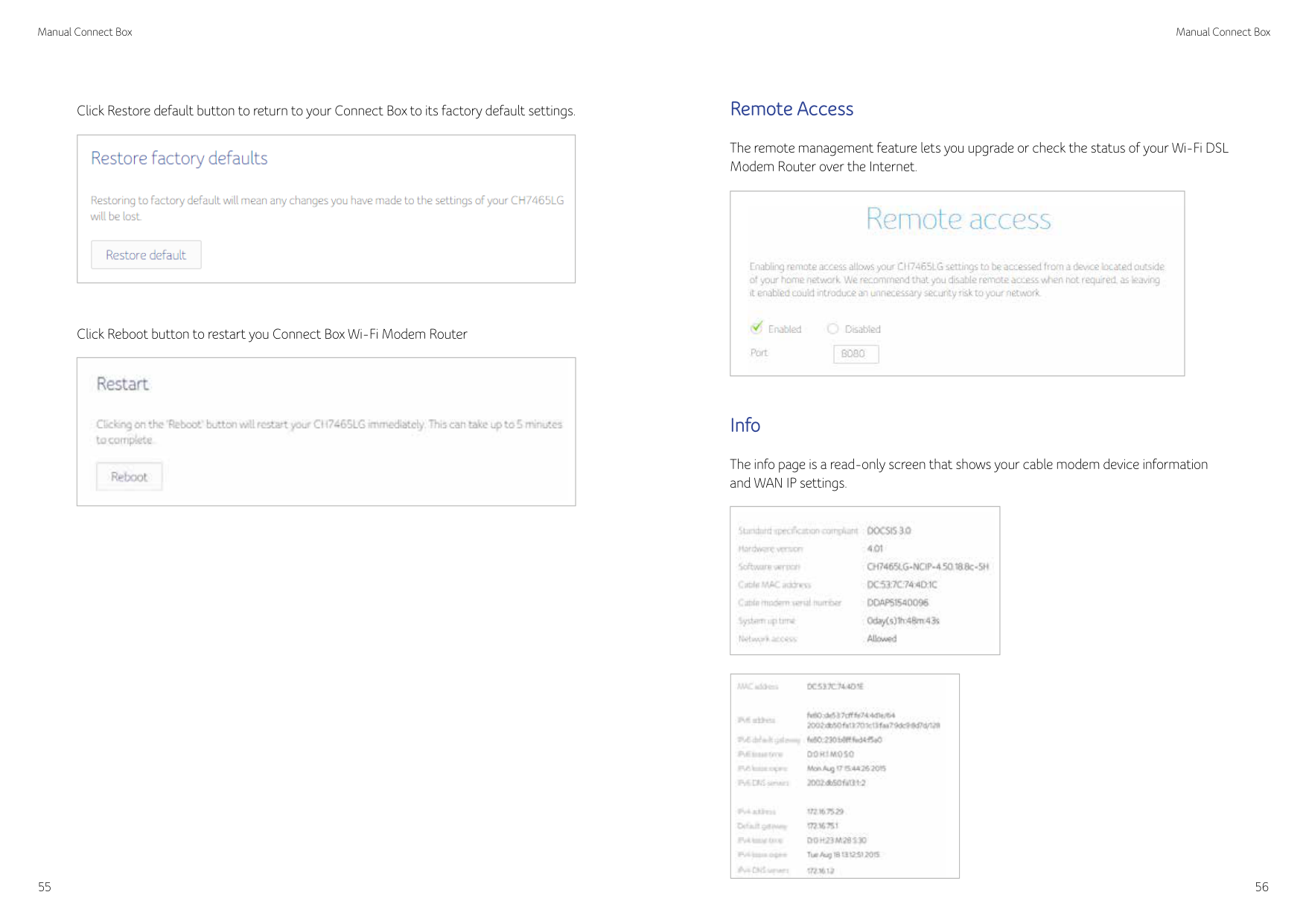
This section describes the settings for administering and maintaining your Wi-Fi modem router and home network.
|| |---|
Change password
This feature allows you to change the default password that is used to log in to the Wi-Fi modem router.
Configure Password and then click Apply and when you login in next time, you must use this new password. For secure reasons, we strongly suggest to change default password as soon as possible.
|| |---|
53
Reload and Reboot
The configuration settings of the Wi-Fi DSL Modem Router are stored within the Wi-Fi modem router in a configuration file. You can back up (save) this file to your computer, restore it, or reset it to the factory default settings.
Click Backup to save a copy of the current settings, choose a location to store the
.cfg file on your computer.
|| |---|
Enter the full path to the the file backup file on your network, or click select file to find the file. After locating the .cfg file click reload button to upload the file to the Wi-Fi modem Router.
|| |---|
54
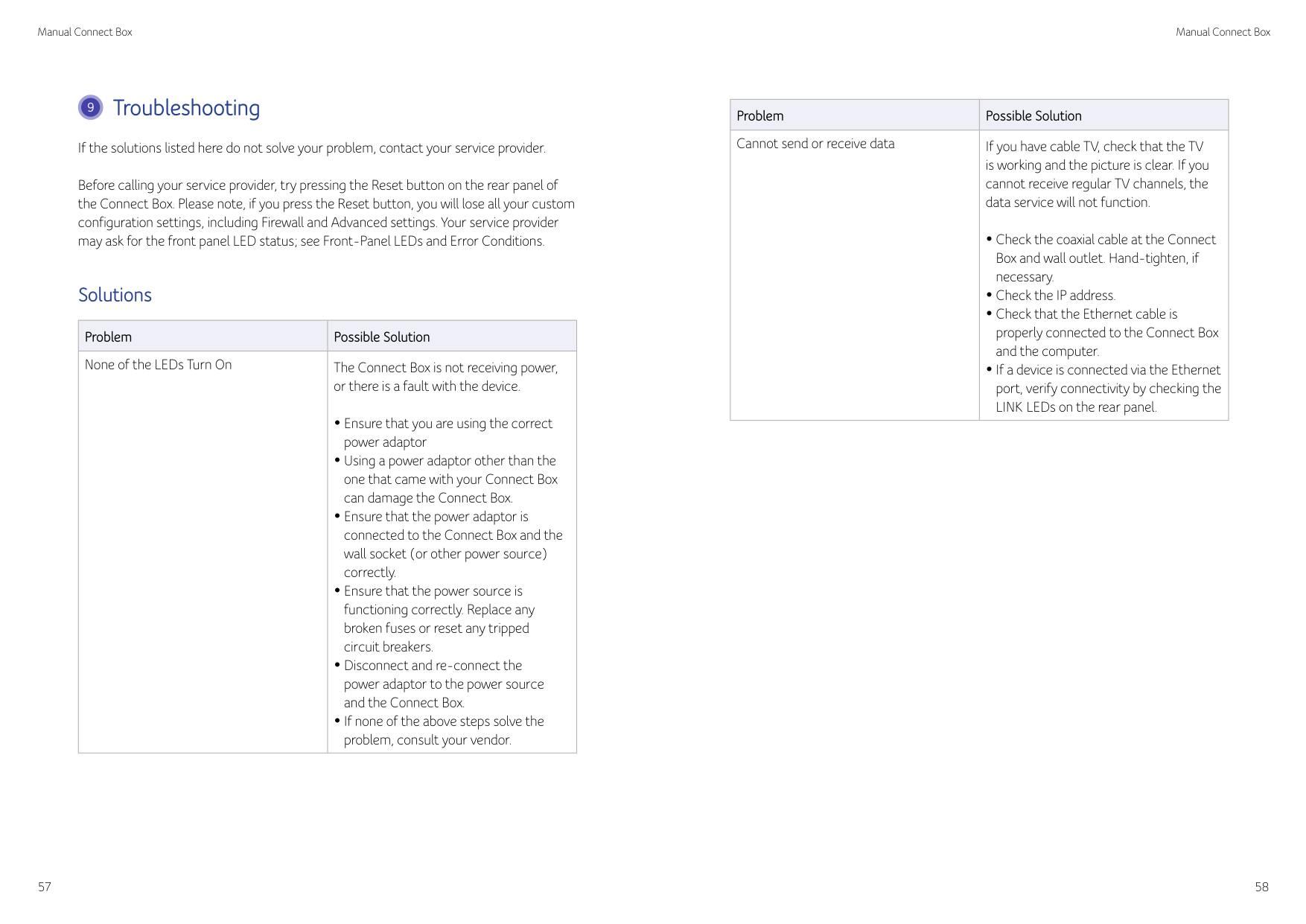
Click Restore default button to return to your Connect Box to its factory default settings.
|| |---|
Click Reboot button to restart you Connect Box Wi-Fi Modem Router
|| |---|
55
Remote Access
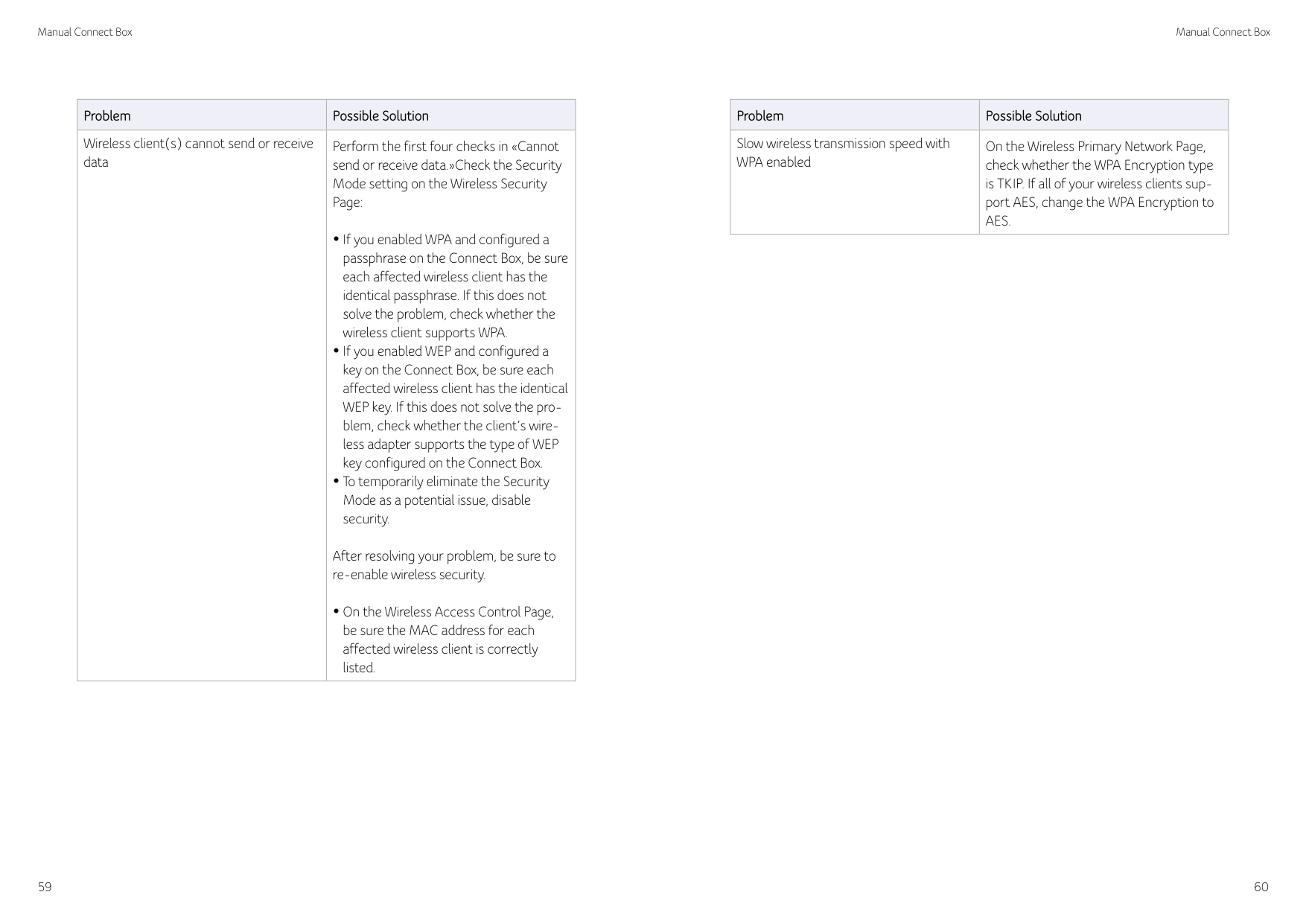
The remote management feature lets you upgrade or check the status of your Wi-Fi DSL Modem Router over the Internet.
|| |---|
Info
The info page is a read-only screen that shows your cable modem device information and WAN IP settings.
|| |---|
|| |---|
56
9 Troubleshooting If the solutions listed here do not solve your problem, contact your service provider. Before calling your service provider, try pressing the Reset button on the rear panel of the Connect Box. Please note, if you press the Reset button, you will lose all your custom configuration settings, including Firewall and Advanced settings. Your service provider may ask for the front panel LED status; see Front-Panel LEDs and Error Conditions.
Solutions
|Problem|Possible Solution| |---|---| |None of the LEDs Turn On|The Connect Box is not receiving power, or there is a fault with the device.
Ensure that you are using the correct power adaptor
Using a power adaptor other than the one that came with your Connect Box can damage the Connect Box. Ensure that the power adaptor is connected to the Connect Box and the wall socket (or other power source) correctly.
Ensure that the power source is functioning correctly. Replace any broken fuses or reset any tripped circuit breakers.
Disconnect and re-connect the power adaptor to the power source and the Connect Box.
If none of the above steps solve the problem, consult your vendor.|
|Problem|Possible Solution| |---|---| |Cannot send or receive data|If you have cable TV, check that the TV is working and the picture is clear. If you cannot receive regular TV channels, the data service will not function.
Check the coaxial cable at the Connect Box and wall outlet. Hand-tighten, if necessary.
Check the IP address.
Check that the Ethernet cable is properly connected to the Connect Box and the computer.
If a device is connected via the Ethernet port, verify connectivity by checking the LINK LEDs on the rear panel.|
57
58
|Problem|Possible Solution| |---|---| |Wireless client(s) cannot send or receive data|Perform the first four checks in «Cannot send or receive data.»Check the Security Mode setting on the Wireless Security Page:
If you enabled WPA and configured a passphrase on the Connect Box, be sure each affected wireless client has the identical passphrase. If this does not solve the problem, check whether the wireless client supports WPA.
If you enabled WEP and configured a key on the Connect Box, be sure each affected wireless client has the identical WEP key. If this does not solve the problem, check whether the client’s wireless adapter supports the type of WEP key configured on the Connect Box. To temporarily eliminate the Security Mode as a potential issue, disable security.
After resolving your problem, be sure to re-enable wireless security.
On the Wireless Access Control Page, be sure the MAC address for each affected wireless client is correctly listed.|
|Problem|Possible Solution| |---|---| |Slow wireless transmission speed with WPA enabled|On the Wireless Primary Network Page, check whether the WPA Encryption type is TKIP. If all of your wireless clients support AES, change the WPA Encryption to AES.|
59
60