Ask AI
— answers from the official manualAI-powered answers from the official manual. Verify critical info.
Common questions
Common Questions
10 totalHow do I reset the HP ScanJet Pro 2500 F1 scanner?
To reset the scanner, close the HP Scan Software and HP Scanner Tools Utility, then press the Power button to turn off the scanner and disconnect the power supply. Wait 30 seconds, then reconnect the power supply and press the Power button to turn the scanner back on. A reset is needed when error messages such as 'Scanner initialization failed' or 'Scanner not found' appear and a simple power cycle did not resolve the issue. (Page 42)
What is the maximum paper capacity of the Automatic Document Feeder (ADF)?
The ADF input tray holds a maximum of 50 sheets of 75 g/m2 (20 lb) paper. When using heavier paper, the maximum capacity is decreased. Supported paper sizes range from a minimum of 148 x 89 mm (5.8 x 3.5 in) to a maximum of 3100 x 216 mm (122 x 8.5 in). (Page 14)
How do I clean the scanner glass on the HP ScanJet Pro 2500 F1?
Lift up the document feeder, then use a clean lint-free cloth moistened with water or glass cleaner to thoroughly clean the flatbed scanner glass. Do not spray glass cleaner directly on the scanner glass as this might cause permanent damage. Dry the scanner glass completely with a dry, soft, lint-free cloth before turning the scanner back on. (Page 27)
What cleaning products should I avoid when cleaning the scanner?
Do not use cleaners that contain abrasives, acetone, benzene, or carbon tetrachloride, as these chemicals can damage the scanning glass and scanning strips. Avoid using isopropyl alcohol as it can leave streaks on the glass and scanning strips. Use only glass cleaner or clean water applied to a lint-free cloth. (Page 27)
Why does my scanner keep turning off automatically?
By default, the scanner will enter Sleep Mode after 15 minutes of inactivity and will turn off automatically after two hours of inactivity to conserve power. On Windows, you can change these defaults by opening the HP Scanner Tools Utility, clicking the Settings tab, and selecting the appropriate Sleep Mode and Auto-Off settings. On Mac OS X, use HP Utility to change these defaults. (Page 51)
How do I clear a paper jam in the HP ScanJet Pro 2500 F1?
Remove any pages from the document feeder, then pull up the document feeder hatch to open it. Remove the originals or any obstructions from the paper path, including any visible debris such as paper, staples, or clips. Check the output tray and lift the input tray to confirm no paper remains in the path, then close the document feeder hatch and reload the originals to scan again. (Page 44)
Show 4 more questions
Full Manual
63 pages
Copyright and license © 2020 Copyright HP Development Company,
L.P.
Reproduction, adaptation or translation without prior written permission is prohibited, except as allowed under the copyright laws. The information contained herein is subject to change without notice. The only warranties for HP products and services are set forth in the express warranty statements accompanying such products and services. Nothing herein should be construed as constituting an additional warranty. HP shall not be liable for technical or editorial errors or omissions contained herein. Trademark credits ENERGY STAR® and the ENERGY STAR® mark are registered U.S. marks. Microsoft®, Windows®, Windows® XP, and Windows Vista® are U.S. registered trademarks of Microsoft Corporation. Apple and the Apple logo are trademarks of Apple Computer, Inc., registered in the U.S. and other countries. iPod is a trademark of Apple Computer, Inc. iPod is for legal or rightholder- authorized copying only. Don't steal music. OS X is a trademark of Apple Inc., registered in the U.S. and other countries. AirPrint is a trademark of Apple Inc., registered in the U.S. and other countries. Edition 4, 7/2020Table of contents 1 Product overview ...................................................................................................................................................................................... 1 Product views ............................................................................................................................................................................ 2 Front view .............................................................................................................................................................. 2 Back view ............................................................................................................................................................... 2 Serial and product numbers ............................................................................................................................... 3 Control panel ........................................................................................................................................................ 4 Product specifications .............................................................................................................................................................. 6 Technical specifications ....................................................................................................................................... 6 Supported operating systems ........................................................................................................................... 6 Product dimensions ............................................................................................................................................. 6 Power consumption, electrical specifications and acoustic emissions ....................................................... 6 Operating environment range ........................................................................................................................... 7 Product hardware setup and software installation ............................................................................................................. 8 Hardware setup .................................................................................................................................................... 8 How to get software updates ............................................................................................................................ 8 Product features ....................................................................................................................................................................... 9 Product Features .................................................................................................................................................. 9 Scanner software (Windows) ............................................................................................................................................... 10 HP Scan software .............................................................................................................................................. 10 HP Scanner Tools Utility ................................................................................................................................... 10 HP TWAIN ............................................................................................................................................................ 10 Scanner software (OS X) ....................................................................................................................................................... 10 Sleep Mode and auto-off settings ....................................................................................................................................... 10 2 Use the scanner ...................................................................................................................................................................................... 11 Load originals ......................................................................................................................................................................... 11 Document loading tips ...................................................................................................................................... 11 Supported paper types ..................................................................................................................................... 13 Load documents on the scanner glass .......................................................................................................... 14 Load paper in the Automatic Document Feeder (ADF) input tray .............................................................. 15 Introduction ................................................................................................................................... 15 Required guidelines before loading documents ...................................................................... 15
Enww
iiiLoad same-sized documents ..................................................................................................... 16 Start a scan from the hardware ........................................................................................................................................... 18 Scan from the control panel buttons ............................................................................................................. 18 Use the scanning software (Windows) ............................................................................................................................... 18 Work with scan shortcuts ................................................................................................................................. 18 View scan shortcuts ...................................................................................................................... 19 Create scan shortcuts ................................................................................................................... 19 Modify shortcuts ........................................................................................................................... 19 Scan by using the HP Scan software (Windows) .......................................................................................... 19 Scan to a picture (Windows) ............................................................................................................................ 19 Scan to a PDF (Windows) .................................................................................................................................. 19 Scan text for editing (OCR) (Windows) ........................................................................................................... 20 Scan to Email (Windows) .................................................................................................................................. 20 Scan to cloud (Windows) .................................................................................................................................. 20 Scan long or extra-long documents (Windows) ........................................................................................... 21 Automatically detect page size (Windows) .................................................................................................... 21 Automatically detect color (Windows) ............................................................................................................ 21 Scan using text-enhanced black and white mode (Windows) .................................................................... 21 Use the scanning software (OS X) ....................................................................................................................................... 22 Scan documents (OS X) .................................................................................................................................... 22 Scan to email (OS X) .......................................................................................................................................... 22 Scan from other applications (OS X) ............................................................................................................... 22 Scanning tips ........................................................................................................................................................................... 23 Optimize scanning and task speeds ............................................................................................................... 23 Scanning fragile originals ................................................................................................................................. 23 3 Care and maintenance ........................................................................................................................................................................... 25 HP Scanner Tools Utility Maintenance tab (Windows) ...................................................................................................... 26 HP Utility (Mac OS X) .............................................................................................................................................................. 26 Clean the product ................................................................................................................................................................... 27 Clean the scanner glass .................................................................................................................................... 27 Introduction ................................................................................................................................... 27 Required items for cleaning ........................................................................................................ 27 Clean the scanner glass ............................................................................................................... 27 Clean the Automatic Document Feeder scanning strips ............................................................................. 28 Introduction ................................................................................................................................... 28 Clean the scanning strips ............................................................................................................. 28 Clean the rollers ................................................................................................................................................. 29 Introduction ................................................................................................................................... 29 Clean the rollers ............................................................................................................................ 29 Replace parts .......................................................................................................................................................................... 32 iv
Enww
Replace the roller cover .................................................................................................................................... 32 Replace the roller kit ......................................................................................................................................... 34 Replace the pick up roller module .................................................................................................................. 36 Order parts and accessories ................................................................................................................................................. 38 4 Solve problems ....................................................................................................................................................................................... 39 Basic troubleshooting tips .................................................................................................................................................... 40 Test the scanner ..................................................................................................................................................................... 41 Reset the scanner .................................................................................................................................................................. 42 Scanner installation troubleshooting .................................................................................................................................. 43 Check the cables ................................................................................................................................................ 43 Uninstall and then reinstall the HP ScanJet drivers and tools (Windows) ................................................ 43 Paper jams .............................................................................................................................................................................. 44 Clear jams from the scanner paper path ....................................................................................................... 44 An item loaded in the scanner jams repeatedly ........................................................................................... 45 Paper feed issues ................................................................................................................................................................... 46 Paper jamming, skewing, misfeeds, or multiple-page feeds ..................................................................... 46 Paper does not feed from the scanner .......................................................................................................... 46 Originals are curling up in the scanner output tray. ..................................................................................... 46 Image quality problems ........................................................................................................................................................ 47 Scanned images are not straight .................................................................................................................... 47 The scanned images have streaks or scratches ........................................................................................... 47 Scanned image is fuzzy .................................................................................................................................... 47 The scan is completely black or completely white ....................................................................................... 47 The bottom of the scanned image is cut off ................................................................................................. 47 Scanner operation problems ................................................................................................................................................ 48 Connection issues .............................................................................................................................................. 49 Check the USB connection ........................................................................................................... 49 Buttons are not working properly ................................................................................................................... 49 Scanner buttons are not working correctly .............................................................................. 49 Scanning performance issues ......................................................................................................................... 50 Scanner does not scan right away ............................................................................................. 50 Scanner scans only one side of a two-sided page .................................................................. 50 Scanned pages are missing at the scan destination ............................................................... 50 Scanned pages are out of order at the scan destination ........................................................ 50 Scan files are too large ................................................................................................................. 50 Power issues ........................................................................................................................................................................... 51 Check that the scanner has power ................................................................................................................. 51 Scanner will not turn on ................................................................................................................................... 51 Scanner keeps turning off ................................................................................................................................ 51 Additional troubleshooting ................................................................................................................................................... 53
Enww
vIndex ............................................................................................................................................................................................................. 55 vi
Enww
1 Product overview This User Guide covers important information about the HP ScanJet Pro 2500. ● Product views ● Product specificationsspecifications ● Product hardware setup and software installation ● Product features ● Scanner software (Windows) ● Scanner software (OS X) ● Sleep Mode and auto-offauto-off settings For more information, go to www.hp.com/support/. Click Troubleshooting. Enter the scanner name (HP ScanJet Pro 2500), and then click Search. HP’s all-inclusive help for this product includes the following: ● Install and configure ● Learn and use ● Solve problems ● Download software updates ● Join support forums ● Find warranty and regulatory information
Enww
1Product views This section describes the physical components of the HP ScanJet Pro 2500. Front view 2 8 7 3 1 9 6 4 5
Enww
Serial and product numbers The serial and product numbers are located on the bottom of the scanner.
Cn493D1050
Enww
Product views 3Control panel Use the buttons on the control panel to power the unit on and off, and to start or cancel a scan. 1 2 Callout Name Description 1 Power button Press the Power button to power on the scanner. Press and hold the Power button for three seconds to power off the scanner. 2 Error LED Indicator Indicates an error with the scan. 1 2 3 4 5 6 7 8 Callout Name Description 1 Cancel Button Press the cancel button to cancel a scan. 4 Chapter 1 Product overview
Enww
Callout Name Description 2 Scan Shortcut Toggle Button Press this button to toggle through and select a scan shortcut option: ● Scan to PDF ● Scan to JPEG (picture) ● Scan to Email ● Scan to Cloud The selected shortcut will be indicated by the corresponding LED indicator.
Note:
The settings of the shortcuts can be configured in the HP Scan software. 3 Scan to PDF LED Indicator Indicates that the Scan to PDF shortcut is selected. 4 Scan to JPEG LED Indicator Indicates that the Scan to JPEG (picture) shortcut is selected 5 Scan to Email LED Indicator Indicates that the Scan to Email shortcut is selected 6 Scan to Cloud LED Indicator Indicates that the Scan to Cloud shortcut is selected 7 Simplex/Duplex Toggle Button and Indicator Press this button to toggle between simplex and duplex scanning. When the LED indicator is on, it indicates duplex scanning function. 8 Scan Button Press the Scan button to initiate a scan.Enww
Product views 5Product specifications Technical specifications Automatic document feeder specifications: Name Description Input tray capacity 50 sheets of 75g/m2 (20 lb) Minimum paper size 148 x 89 mm (5.8 x 3.5 in) Maximum paper size 3100 x 216 mm (122 x 8.5 in) Minimum paper weight 60 g/m2 (16 lb) Maximum paper weight 105 g/m2 (28 lb) Minimum paper guiding space 89 mm (3.5 in) Supported operating systems Supported operating systems Windows 7
Windows 8
Windows 8.1
Windows 10
OS X Mavericks 10.9 OS X Yosemite 10.10 Product dimensions Table 1-1 Product dimensions Product Height Depth Width Weight HP ScanJet Pro 2500 f1 122 mm (4.8 in) 351 mm (13.8 in) 452 mm (17.8 in) 4.3 kg (9.5 lb) Power consumption, electrical specifications and acoustic emissions Power usage drops significantly while in Ready or Sleep mode, which saves natural resources and saves money without affecting the high performance of this product. 6 Chapter 1 Product overview
Enww
Product AC power Sleep Off On/Ready (Flatbed scanning) On/Ready (Duplex Automatic Document Feeder scanning) HP ScanJet Pro 2500
Ac110V
1.8 W
0.2 W
10.7 W at 300dpi 8.8 W at 600dpi 15.3 W at 300dpi 10.6 W at 600dpi HP ScanJet Pro 2500Ac230V
1.69 W
0.16 W
11 W at 300dpi 9.2 W at 600dpi 15.9 W at 300dpi 10.9 W at 600dpi Operating environment range This product is intended to be supplied by a Listed Power Unit, marked with LPS or Limited Power Source. The power supply is rated 100–240V~, and has a DC output of 24 Vdc, 1.5 A, 36 W. Name Description Temperature Operating the scanner: 10° to 35° C (50° to 95° F) Storage: -40° to 65° C (-40° to 149° F) Relative humidity Operating the scanner: 10% to 80% noncondensing 10° to 35° C (50° to 95° F) Storage: up to 90% at 0° to 65° C (32° to 149° F)Enww
Product specifications 7Product hardware setup and software installation Hardware setup For basic setup instructions, see the Installation Guide that came with the scanner. For additional instructions, go to HP support on the Web. Go to www.hp.com/support for HP's all-inclusive help for the scanner. Find the following support: ● Install and configure ● Learn and use ● Solve problems ● Download software updates ● Join support forums ● Find warranty and regulatory information How to get software updates For the latest software updates, see www.hp.com/support, select your location, click Drivers & Software, and then search on your product name or number. 8 Chapter 1 Product overview
Enww
Product features Product Features Resolution ● 1200 pixels per inch (ppi) for Flatbed scanning ● 600 pixels per inch (ppi) for Automatic Document Feeder scanning Memory
64 Mb
Environmental features ● By default, device enters Sleep Mode after 15 minutes of inactivity ● High content of recyclable components and materials ● ENERGY STAR® qualifiedEnww
Product features 9Scanner software (Windows) The HP ScanJet Pro 2500 comes with a variety of Windows scanning software and drivers, including HP Scan, ReadIris, and CardIris, HP Scan software Create, manage, and edit scan shortcuts by using HP Scan software. HP Scanner Tools Utility Use the HP Scanner Tools Utility to change the scanner's power management settings, and to find information about scanner settings, status, and maintenance.
Hp Twain
HP TWAIN allows scanning with TWAIN-compliant scan software from other (non-HP) vendors. Not all TWAIN- compliant software works in the same way, so consult the software documentation for details on how to acquire scans. Scanner software (OS X) The HP ScanJet Pro 2500 provides a scanner driver for Mac OS X. This allows the scanner to be used with an ICA- compliant application, including the Image Capture and Preview applications that are already installed on a MacOs X.
● Image Capture provides basic scanning features for scanning documents. Image Capture is available in the Applications folder. ● HP Utility allows you to configure the device and assign the scan button workflow on a Mac OS X. HP Utility is available in the Applications/HP folder. Sleep Mode and auto-off settings By default, the scanner will enter Sleep Mode after 15 minutes of inactivity, and will turn off automatically after two hours of inactivity to conserve power. Windows: To change the default auto-off settings, complete these steps:Enww
2 Use the scanner The following topics describe how to load and scan originals. Load originals The following topics describe how to load originals into the document feeder and on the scanner glass. Document loading tips ● The maximum capacity of the document feeder is 50 sheets of 75 g/m2 (20 lb) paper. When using heavier paper, the maximum capacity is decreased.
Tip:
Use the lines on the input tray paper guides to help avoid exceeding the document feeder capacity. ● Be sure that the documents are within these guidelines: Width: 89 mm to 216 mm (3.5 in to 8.5 in) Length: 148 mm to 3100 mm (5.8 in to 122 in) Weight: 60 g/m2 to 105 g/m2 (16 lb to 28 lb) ● Scanning the following types of documents might result in paper jams or damage to the documents. Wrinkled or creased documents Curled documents Torn documents Documents with paper clips or staples Carbon paper Coated paper Extremely thin, translucent paper Paper with adhesive notes or flags attachedEnww
Load originals 11Photos Overhead transparencies Papers that are stuck together Paper where the toner has not fully dried, or with wet substances such as glue or correction fluid ● Smooth out any folds or curls in the documents before placing them into the feeder. If the leading edge of a document is curled or folded, it may cause a paper jam. ● To scan fragile documents (such as photos or documents on wrinkled or very lightweight paper), place the document on the flatbed scanner glass. ● Make sure that the hatch on the document feeder is securely latched. ● Adjust the paper guides to the width of the documents. Make sure that the paper guides touch the edges of the original. If there is any clearance between the paper guides and the edges of the documents, the scanned image might be skewed. 12 Chapter 2 Use the scanner
Enww
Supported paper types Supported paper sizes for the automatic document feeder: Name Description Minimum paper size 148 x 89 mm (5.8 x 3.5 in) Maximum paper size 3100 x 216 mm (122 x 8.5 in) Supported paper sizes for the flatbed scanner: Name Description Maximum paper size 297.18 x 215.9 mm (11.7 x 8.5 in)
Enww
Load originals 13Load documents on the scanner glass
Enww
Load paper in the Automatic Document Feeder (ADF) input tray ● Introduction ● Required guidelines before loading documents ● Load same-sized documents Introduction This document provides instructions on how to load documents into the Automatic Document Feeder (ADF) input tray of an HP ScanJet Flatbed Scanner. Required guidelines before loading documents Before loading the documents in the ADF input tray, make sure to follow these guidelines: ● Use the recommended paper type and size in the ADF input tray. Refer to the Supported paper types section for paper capacities and capabilities. ● Smooth any folds or curls in the pages to avoid paper jams. ● Fan through the pages to remove any staples, paper clips, or sticky notes. Figure 2-1 Fan the pages of the document ● Turn on the scanner. Load originals 15
● Slide the paper guides to fit the width of the document. If there is any gap between the paper guides and the edges of the documents, the scanned image might be skewed.
Note:
When loading small documents like checks, place the longest edge parallel to the paper width guides. Figure 2-2 Adjust paper guides Load same-sized documentsNote:
To scan fragile documents (such as photos or documents on wrinkled or very light paper), place the document face down on the scanning glass. Make sure to refer to the section Required guidelines before loading documents, and then follow the following steps to load same-sized documents in the ADF input tray:Note:
Do not tap the edge of the document stack or drop the paper stack into the ADF input tray. Figure 2-3 Load same-sized pages in the ADF input trayNote:
Make sure not to push the paper guides so tightly as they bend the documents. The documents are now ready to be scanned. Load originals 17Start a scan from the hardware Scan from the control panel buttons To scan from the control panel, follow these steps:
Note:
If there is paper loaded in one source but not the other, the scanner will only scan from that source. For example, if there is paper loaded in the automatic document feeder but not on the scanner glass, the scanner will scan from the automatic document feeder. Use the scanning software (Windows) The following topics describe how to use the scanning software. Work with scan shortcuts Scan shortcuts provide a fast, efficient way to select the settings for frequently performed scanning tasks. ● Use HP Scan software to set up and modify shortcuts. ● Use the HP Scanner Tools Utility to create shortcuts associated with TWAIN-compliant non-HP applications 18 Chapter 2 Use the scannerEnww
View scan shortcuts To view existing scan shortcuts, open HP Scan. Existing scan shortcuts will display in a list to the left. Create scan shortcuts To create a scan shortcut, follow these steps:
Enww
Use the scanning software (Windows) 19Note:
To scan to email, make sure there is an Internet connection.Note:
To scan to the cloud, make sure there is an Internet connection.Enww
Scan long or extra-long documents (Windows) By default, the scanner will automatically detect your page size using the Auto Detect Size selection in the page size drop-down list. For long or extra long documents, select Long (8.5 x 34 inches) or Extra Long (8.5 x 122 inches) from the page size drop-down list in the scan shortcut settings.
Note:
Only one page at a time can be scanned when using a long or extra-long page setting. If the scanner is set to scan long or extra-long pages and a page jams, the entire page could be wrinkled as a result of the jam. Therefore, select scan profiles that specify long or extra-long pages only when scanning pages longer than 356 mm (14 in). Automatically detect page size (Windows) By default, the scanner will automatically detect your page size using the Auto Detect Size option, and will crop the scanned image to the size of the detected page and straighten any skewed content.Note:
Use the TWAIN user interface to set crop options when scanning from non-HP scanning software. For information about the auto-detect page size settings, see the online help for the scanning software that you are using. Automatically detect color (Windows) Use this feature to reduce the size of the scanned file by only saving pages that contain color as color scans, and saving all other pages as black and white. To automatically detect color in a scanned image, follow these steps:Note:
For information about the automatic color detection settings, see the online help for the scanning software that you are using. Use the TWAIN user interface to automatically detect color when scanning from non-HP scanning software. Scan using text-enhanced black and white mode (Windows) You can use this feature to enhance the scanned image when scanning black and white text. To use this feature, complete the following steps:Enww
Use the scanning software (Windows) 21Use the scanning software (OS X) The following topics describe how to scan using Mac OS X software. Scan documents (OS X) Use the Image Capture application to scan documents from the document feeder.
Note:
Integrated optical character recognition (OCR) functionality is only available via the Scan button, and the shortcut assigned to the button must specify OCR output. However, you can initiate a scan through the optional I.R.I.S. ReadIris Pro software and then save the OCR-processed scan results to a file. To scan from Image Capture, complete these steps:Tip:
For more Image Capture scanning options, click Show Details.Tip:
For more Image Capture scanning options, click Show Details.Note:
If you use an email application other than Apple Mail, you can scan the document to a file and manually attach it to an email, or you can add your email application to the Scan To list. To add your email application to the list, select Other, select your email application, and then click Choose.Note:
The HP software does not support TWAIN scanning. If your application has import or acquire functions but your HP scanner is not listed, the application might only be searching for scanners that support TWAIN. 22 Chapter 2 Use the scannerEnww
Scanning tips Optimize scanning and task speeds Several settings influence the total time for a scanning job. To optimize scanning performance, consider the following information. ● To optimize performance, make sure the computer meets the recommended system requirements. To view minimum and recommended system requirements, see www.hp.com, and then search for the scanner model plus the word specifications. ● Saving a scanned image to a searchable format (for example, searchable PDF) takes more time than saving to an image format because the scanned image is analyzed using Optical Character Recognition (OCR). Verify the need for a searchable output file before selecting a searchable scan format. ● Scanning at a higher resolution than necessary increases scanning time and creates a larger file with no additional benefit. If scanning at a high resolution, set the resolution to a lower level to increase scanning speed. Scanning fragile originals To scan fragile documents (such as photos or documents on wrinkled or very lightweight paper), place the document face down on the flatbed scanner glass.
Enww
Scanning tips 233 Care and maintenance This section presents information about how to care for and maintain the scanner. For the latest maintenance information, see www.hp.com/support. ● HP Scanner Tools Utility Maintenance tab (Windows) ● HP Utility (Mac OS X) ● Clean the product ● Replace parts ● Order parts and accessories
Enww
25HP Scanner Tools Utility Maintenance tab (Windows) The Maintenance tab of the HP Scanner Tools Utility displays the scanner usage, maintenance history, and settings. The HP Scanner Tools Utility provides the ability to record scanner maintenance and change the setting for maintenance alerts. HP Utility (Mac OS X) Use HP Utility to manage settings for device configuration, to assign scan shortcuts to the scan shortcut indicators on the control panel, and to modify shortcut settings. 26 Chapter 3 Care and maintenance
Enww
Clean the product Occasional cleaning of the scanner helps ensure high-quality scans. The amount of care necessary depends on several factors, including the amount of use and the environment. Perform routine cleaning as necessary. Clean the scanner glass ● Introduction ● Required items for cleaning ● Clean the scanner glass Introduction Clean the scanner glass periodically, including any time dust or debris is present. Required items for cleaning Make sure to have the following items before cleaning: ● Clean, lint-free or micro-fiber cloths ● Glass Cleaner or clean water
Caution:
Do not use cleaners that contain abrasives, acetone, benzene, or carbon tetrachloride as these chemicals can damage the scanning glass. Avoid using isopropyl alcohol as it can leave streaks on the glass. Clean the scanner glass To clean the scanning glass, follow these steps:Enww
Clean the product 27Caution:
Do not spray the glass cleaner directly on the scanner glass as this might cause permanent damage.Note:
Make sure to dry the scanner glass completely.Caution:
Use only glass cleaner to clean the scanning strips. Avoid cleaners that contain abrasives, acetone, benzene, and carbon tetrachloride, all of which can damage the scanning strips. Avoid isopropyl alcohol because it can leave streaks on the scanning strips. Do not spray the glass cleaner directly on the scanning strips.Caution:
Wait at least two minutes for the rollers to dry before loading documents into the document input tray.Replace parts Replacing parts when necessary helps ensure high-quality scans. Parts may need to be replaced when indicated by the Scanner Tools Utility, or if the scanner is not working correctly. The HP ScanJet Pro 2500 f1 ADF Roller Replacement Kit includes the following replacement parts: ● Roller cover ● Separation roller ● Pickup roller module The replacement kit also includes detailed instructions for replacing each of these parts. Replace the roller cover To remove and replace the roller cover, follow these steps:
Enww
Enww
Replace parts 33Replace the roller kit Replace the separation roller under the following conditions: ● Windows: When the Maintenance Recommended dialog indicates they are due for maintenance. ● If the scanner experiences repeated document jams.
Note:
HP recommends replacing the pickup module and separation roller every 30,000 scans. Windows: The HP Scanner Tools Utility can provide a reminder when service is needed, which depends on many conditions and might be sooner than this replacement interval.Note:
The roller replacement kit is a consumable and is not covered under warranty or standard service agreements. To replace the roller and separation pad, follow these steps:Enww
Enww
Replace parts 35Enww
L2748A#101
38 Chapter 3 Care and maintenanceEnww
4 Solve problems This section contains solutions for common problems with the scanner. For additional troubleshooting, see the Help for the HP scanning program being used.
Enww
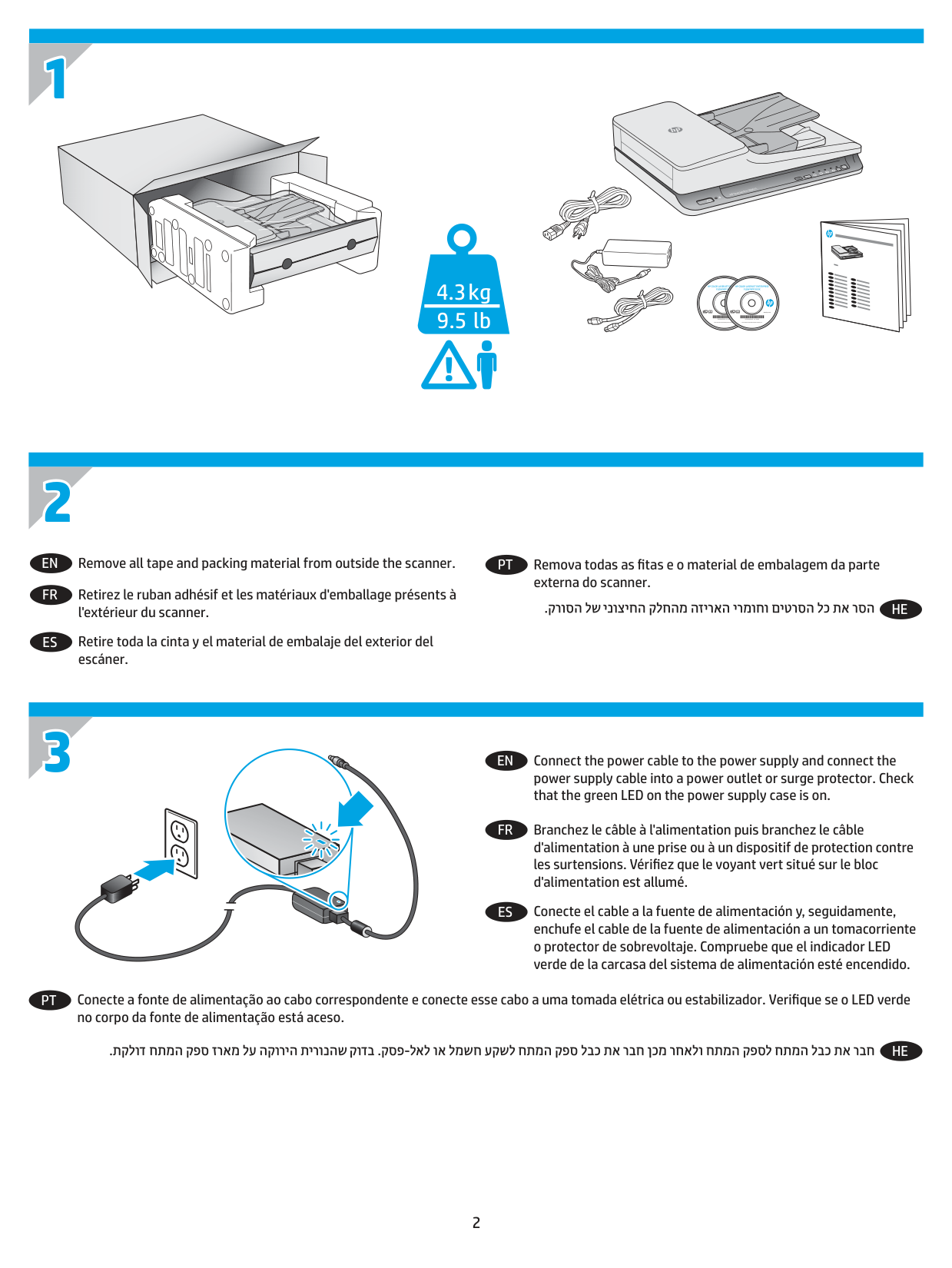
39Basic troubleshooting tips Simple issues such as smudges on the scanning strips or loose cables can cause the scanner to produce fuzzy scans, operate in an unexpected manner, or fail to operate. Always check the following items when encountering scanning problems. ● If scanning a document that will be analyzed using Optical Character Recognition (OCR), make sure that the original document is clear enough to be analyzed. ● Make sure that the USB and power cables are firmly seated in their respective connectors on the back of the scanner, and that the power cord is plugged into a working electrical outlet or surge protector. ● Make sure the scanner has not automatically powered off. If it has, press the Power button to turn on the scanner.
Tip:
Change the auto-off setting by using HP Scanner Tools Utility (Windows) or HP Utility (Mac OS X). ● Ensure that the scanner is receiving power. – Check that the green LED on the power supply case is on. – If the green LED is not on, ensure that power is available to the power outlet or surge protector that the power supply is plugged into. – If power is available to the power outlet or surge protector but the green LED is still not on, the power supply might be defective. Contact www.hp.com/support for assistance. ● If a Scanner not found message displays when trying to use the scanner, turn off the scanner, wait 30 seconds, and then turn on the scanner. If the message still displays, the scanner may need to be reset. ● If the scanner is connected to the computer through a USB hub or through a USB port on the front of the computer, disconnect the scanner and then reconnect it to a USB port on the back of the computer. ● Windows: Make sure that the Scan button is enabled (see “Product accessibility” for more information). ● Turn off the scanner, wait 30 seconds, and then turn on the scanner. ● Make sure the document feeder hatch is closed. ● Restart the computer. If problems continue, it is possible that the HP scanning software, firmware, or associated drivers are out of date or have become corrupted. See www.hp.com/support to locate software, firmware, and driver updates for the scanner. 40 Chapter 4 Solve problemsEnww
Test the scanner Follow this procedure to test the scanner:
Enww
Test the scanner 41Reset the scanner The scanner may need to be reset under the following conditions: ● If an error message similar to Scanner initialization failed displays when trying to use the scanner. ● If a Scanner not found error message displays when trying to use the scanner and turning the power off for 30 seconds, and then back on, did not resolve the error. To reset the scanner, follow these steps:
Enww
Scanner installation troubleshooting ● Check the cables ● Uninstall and then reinstall the HP ScanJet drivers and tools (Windows) Check the cables Cable type Action Power cable The power cable is connected between the scanner and a power outlet. ● Ensure that the power cable is securely connected between the scanner and a live electrical outlet or surge protector. ● If the power cable is connected to a surge protector, ensure that the surge protector is plugged into an outlet and turned on. ● Press the Power button to turn off the scanner, and then turn off the computer. After 30 seconds, turn on the scanner and then turn on the computer, in that order. USB cable The USB cable is connected between the scanner and the computer. ● Use the cable that was included with the scanner. Another USB cable might not be compatible with the scanner. ● Ensure that the USB cable is securely connected between the scanner and the computer. ● If the USB cable is connected to a USB port on the front of the computer, move it to a USB port on the back of the computer. For additional USB troubleshooting information, see www.hp.com/support, select your country/region, and then use the search tool to find USB troubleshooting topics. Uninstall and then reinstall the HP ScanJet drivers and tools (Windows) If checking the scanner cable connections did not solve the problem, the problem might have occurred because of an incomplete installation. Try uninstalling and then reinstalling the HP ScanJet drivers and tools.
Enww
Scanner installation troubleshooting 43Paper jams ● Clear jams from the scanner paper path ● An item loaded in the scanner jams repeatedly Clear jams from the scanner paper path To clear a paper jam, complete these steps:
Enww
Enww
Paper jams 45Paper feed issues Paper jamming, skewing, misfeeds, or multiple-page feeds ● Scanning damp or wet pages can cause paper jams. Make sure that the pages being fed are completely dry (toner is dry, there are no wet substances such as glue or correction fluid). ● Check that all rollers are in place and that the document feeder hatch is closed. ● If the pages look skewed as they feed into the scanner paper path, check the resulting scanned images in the software to ensure that they are not skewed. ● The pages might not be placed correctly. Straighten the pages and adjust the paper guides to center the stack. ● The paper guides must be touching the sides of the paper stack to work properly. Please ensure that the paper stack is straight and the guides are against the paper stack. ● The document feeder or output tray might contain more than the maximum number of pages. Load fewer pages in the document feeder, and remove pages from the output tray. ● Clean the scanner paper path to help reduce misfeeds. If misfeeds still occur, clean the rollers. If misfeeds still occur, replace the rollers. Paper does not feed from the scanner Reload the pages into the document feeder, ensuring that they make contact with the rollers. The document feeder hatch might not be securely latched. Open the hatch and then close it, pressing firmly on both sides to ensure the hatch is closed. A problem with the scanner hardware might exist. Follow this procedure to test the scanner:
Enww
Image quality problems Scanned images are not straight ● Verify that the document feeder guides are centered on the scanner and set to an appropriate width for the original being scanned. Make sure the paper guides touch the edges of the original. ● Windows: Use the Auto-Straighten feature to straighten content that is skewed relative to the page dimensions in the source document. Use the Auto Detect Size feature to deskew page images that might have become skewed during the scanning process. The scanned images have streaks or scratches For information on cleaning the scanner, see the Care and maintenance section of the User Guide. ● Check that the originals are clean and unwrinkled. ● Clean the scanner glass. Scanned image is fuzzy ● Check for any obstructions in the scanner paper path and make sure the paper width guides are positioned appropriately. Try another scan. ● Verify that the document is not fuzzy. The scan is completely black or completely white ● The item might not be placed correctly in the document feeder. Make sure that the item being scanned is placed face down in the document feeder. ● Windows: If scanning to a black and white image, make sure the black and white threshold is not set to either extreme . Setting the threshold to an extreme will result in an image that is all white or all black. ● Mac OS X: If scanning to a text image, set Image Correction to Manual and use the Threshold slider bar to adjust the threshold. The bottom of the scanned image is cut off By default, the scanning software can scan media that is up to 356 mm (14 in) long. Verify that the page size selected in the scanning software (or the scan shortcut selected) will accommodate the length of the document being scanned.
Enww
Image quality problems 47Scanner operation problems ● Connection issues ● Buttons are not working properly ● Scanning performance issues 48 Chapter 4 Solve problems
Enww
Connection issues Check the USB connection Check the physical connection to the scanner. ● Use the cable that was included with the scanner. Another USB cable might not be compatible with the scanner. ● Ensure that the USB cable is securely connected between the scanner and the computer. The trident icon on the USB cable faces down when the cable is properly connected to the scanner. If the problem persists after verifying the above items, try the following:
Enww
Scanner operation problems 49Scanning performance issues Scanner does not scan right away Make sure the document feeder hatch is closed, and that the scanner is turned on. Scanner scans only one side of a two-sided page Verify that the selected scan shortcut specifies two-sided scanning. Scanned pages are missing at the scan destination When scanning, pages that stick together are scanned as one item. Check to confirm that scanned pages are not stuck together. Scanned pages are out of order at the scan destination ● Verify that the page order of the original document is correct before placing the document face down into the document feeder. ● Make sure that there are no staples, paper clips, or any other attached material (such as adhesive notes) that may cause the pages to feed incorrectly. ● Verify that pages are not stuck together. Scan files are too large ● Most scanning software allows a smaller file size to be selected when selecting the output file type. For more information, see the Help for the scanning software being used. ● Verify the scan resolution setting (for more information, see the Help for the scanning software being using): – 200 dpi is sufficient for storing documents as images. – For most fonts, 300 dpi is sufficient for using optical character recognition (OCR) to create editable text. – For Asian fonts and small fonts, 400 dpi is the recommended resolution. Scanning at a higher resolution than necessary creates a larger file with no additional benefit. ● Color scans create larger files than do black and white scans. ● If scanning a large number of pages at one time, consider scanning fewer pages at a time to create more, smaller files. 50 Chapter 4 Solve problems
Enww
Power issues Check that the scanner has power The power cable is connected between the scanner and a power outlet. ● Ensure that the power cable is securely connected between the scanner and a live electrical outlet. ● If the power cable is connected to a surge protector, ensure that the surge protector is plugged into an outlet and turned on. ● Ensure that the scanner is receiving power. – Check that the green LED on the power supply case is on. – If the green LED is not on, ensure that power is available to the power outlet or surge protector that the power supply is plugged into. – If power is available to the power outlet or surge protector but the green LED is still not on, the power supply might be defective. Contact www.hp.com/support for assistance. If the problem persists after verifying the above items, follow these steps:
Enww
Power issues 51● To specify the period of inactivity after which the scanner goes into Sleep Mode, select 15 minutes or 1 hour from the Sleep: Put the scanner to sleep after: drop-down list. ● To specify the period of inactivity after which the scanner automatically turns off, select the appropriate value (1 hour, 2 hours, 4 hours, or Never) from the Auto-Off: Turn off the scanner after: drop-down list. Mac OS X: Use HP Utility to change these defaults. 52 Chapter 4 Solve problems
Enww
Additional troubleshooting Get telephone support for your country/region Have the product name, serial number, date of purchase, and problem description ready. Country/region phone numbers are on the flyer that was in the box with your product or at www.hp.com/support/ Get 24-hour Internet support, and download software utilities, drivers, and electronic information www.hp.com/support/ Order additional HP service or maintenance agreements www.hp.com/support/
Enww
Additional troubleshooting 53Index
A
Auto color detect 21 automatically detect page size 21B
black scans troubleshoot 47 blurry images 47 buttons Power 4 Scan 4 scanner control panel 4C
cables troubleshoot 43 cloud, scan to 20 control panel locating 2 crooked images 47 customer support online 53 cut-off images troubleshoot 47D
detect page size 21 document feeder load documents 14 tips on loading 11 drivers paper types 13E
extra-long-page support 21F
features auto color detect 21 detect page size 21 extra-long-page support 21 long-page support 21 scan profiles 18 text-enhanced black and white mode 21 feeding problems 44 fragile items, scanning 23 fuzzy images 47H
HP Customer Care 53 HP Scan Extended scan from 19 HP Scan Extended software about 10 HP Scanner Tools Utility Maintenance tab 26 uses for 10Hp Twain
10I
input and output trays locating 2 install software troubleshoot 43J
jams troubleshoot 45L
long-page support 21M
Mac software 10 maintenance HP Scanner Tools Utility Maintenance tab 26 manage power settings 51 media jams 45 misfeeds 46 not feeding 46 troubleshoot 46 misfeeds troubleshoot 46 multiple-page feeds 46O
on/off button, locating 2 online support 53 order roller replacement kit 32, 34, 36 supplies 38 output tray locating 2P
pages missing, troubleshoot 50 pages out of order 50 paper jams 45 misfeeds 46 not feeding 46 supported types 13 troubleshoot 46 paper guides, locating 2 paper path feeding problems 44 parts order 32, 34, 36 Power button 4 power button, locating 2 power management 51 power supply troubleshoot cable 43Enww
Index 55product auto-off 10 Sleep Mode 10 product info 1