
Stanley WanderGuard BLUE Detector
Ask AI
— answers from the official manualAnswers from the official manual.
Common questions
Common Questions
10 totalWhat are the specifications of the WanderGuard BLUE Detector?
The Detector (SKU: WGB-DET-1000-NA) has dimensions of 120 mm x 68 mm x 20 mm, weighs 120 g, and features a 4.2V Li-Ion rechargeable battery with a micro-USB port. It operates at temperatures from 0°C to 50°C, has an IP-30 ingress protection rating, and can detect and configure up to 80 Tags simultaneously using LF and Bluetooth technology.
How do I establish a connection to the WanderGuard BLUE Detector?
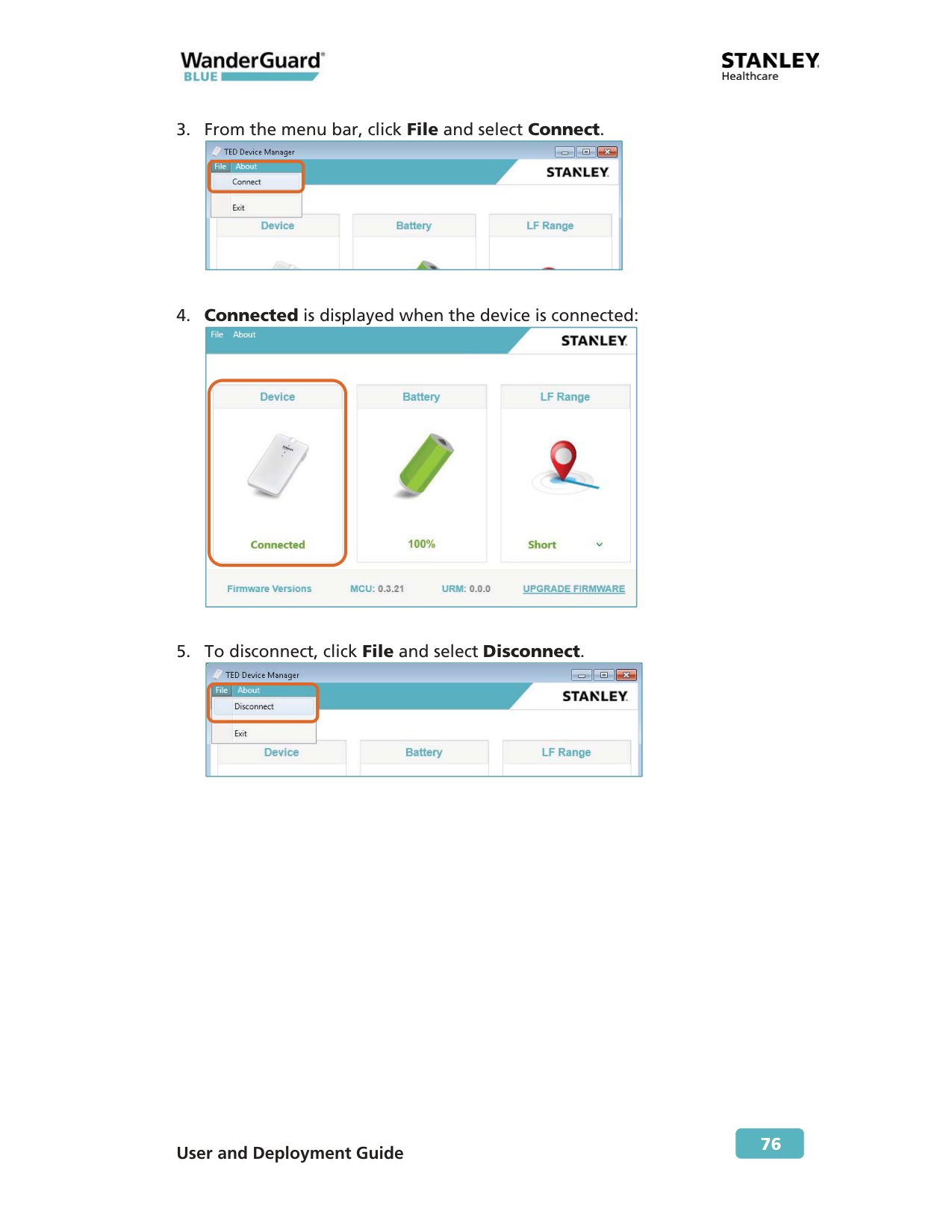
First, make sure the device is connected to the PC using the USB cable. From the Hardware Manager application, click TED Device Manager, then click File and select Connect. The application will display 'Connected' when the device is successfully connected.
How do I update the firmware on my WanderGuard BLUE Detector?
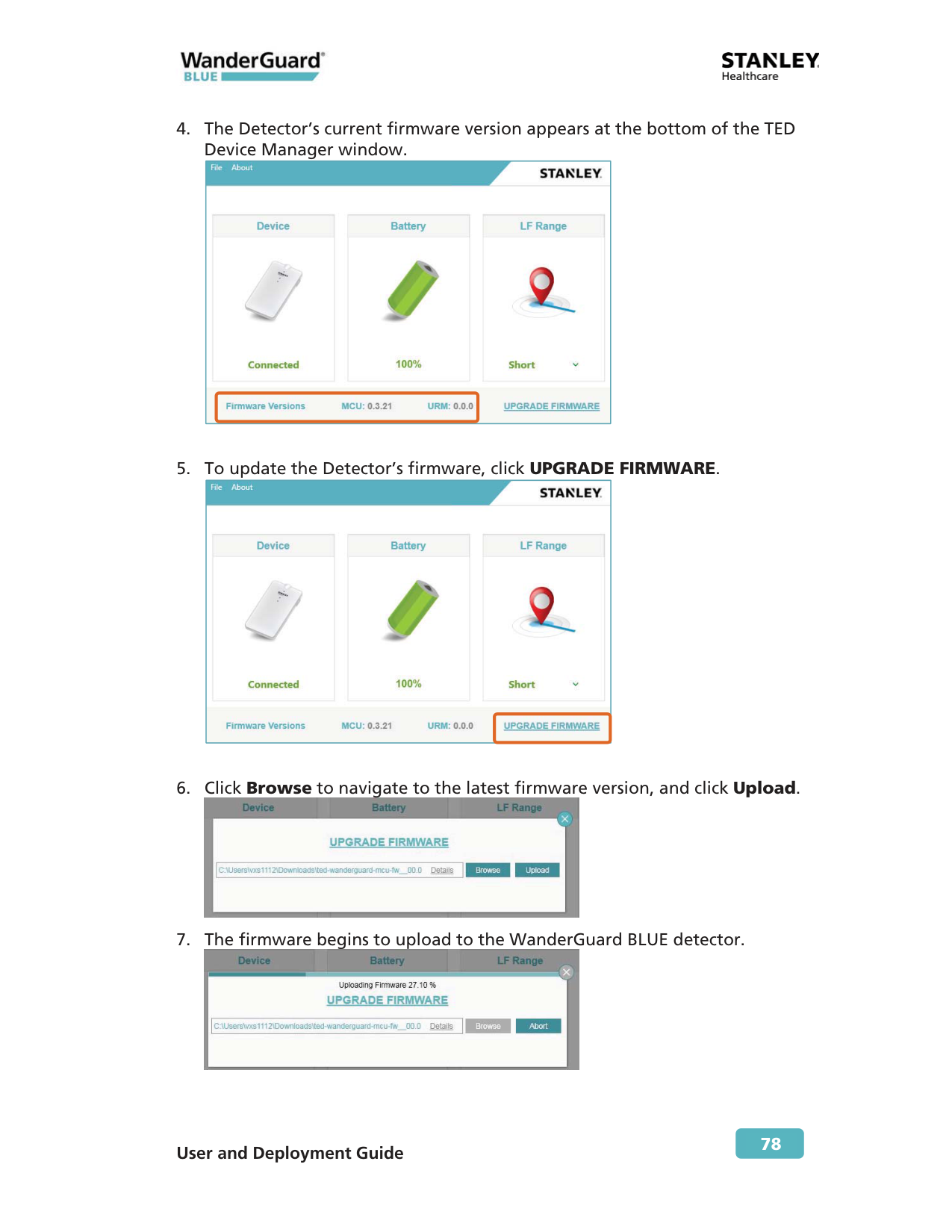
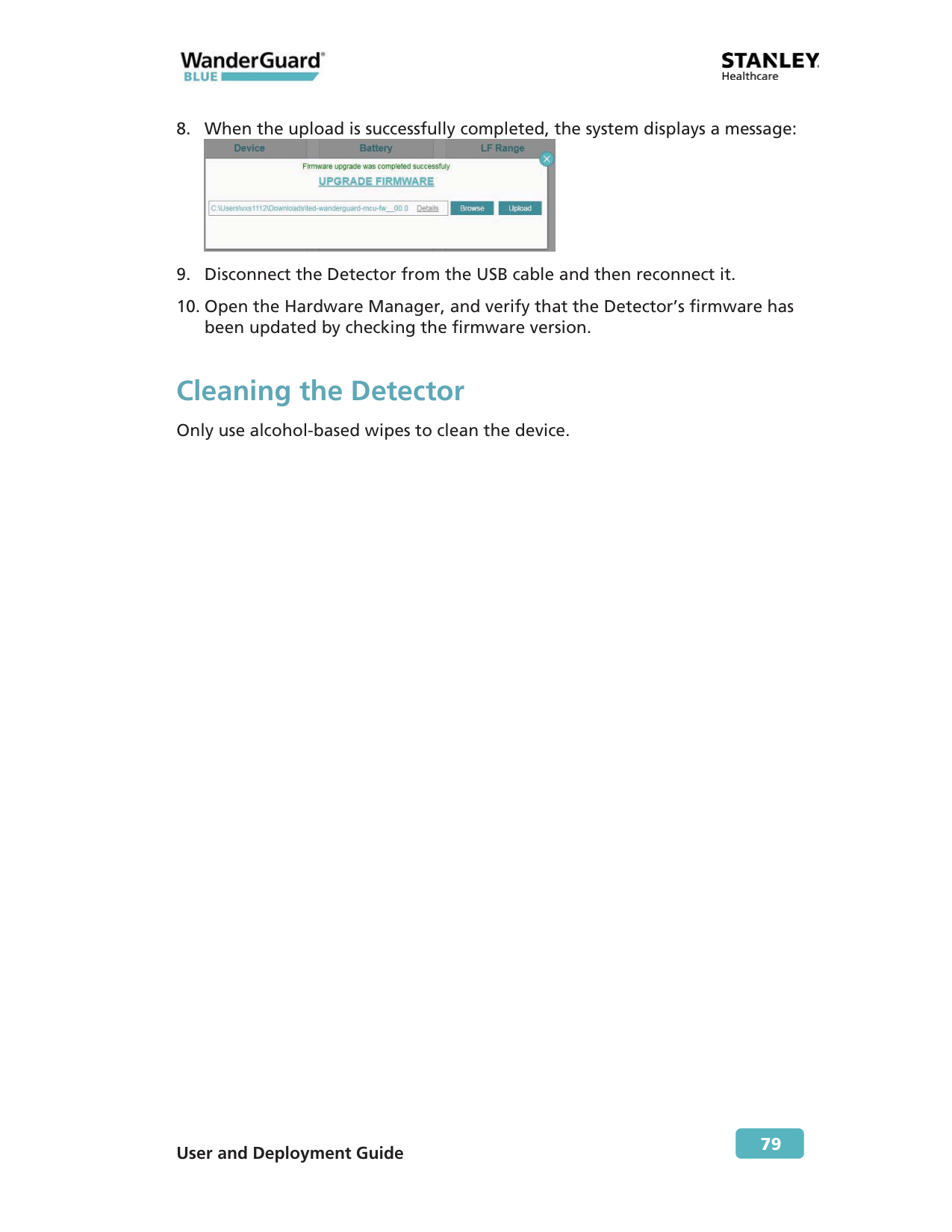
Connect the Detector to your PC and establish a connection in TED Device Manager. Click UPGRADE FIRMWARE, then Browse to navigate to the latest firmware version file. Click Upload to begin the firmware update. Once the upload completes successfully, disconnect and reconnect the Detector to verify the update.
What is the proper way to clean the WanderGuard BLUE Detector?
Only use alcohol-based wipes to clean the device. Do not use other cleaning methods or liquids.
How do I log into the WanderGuard BLUE Manager application?
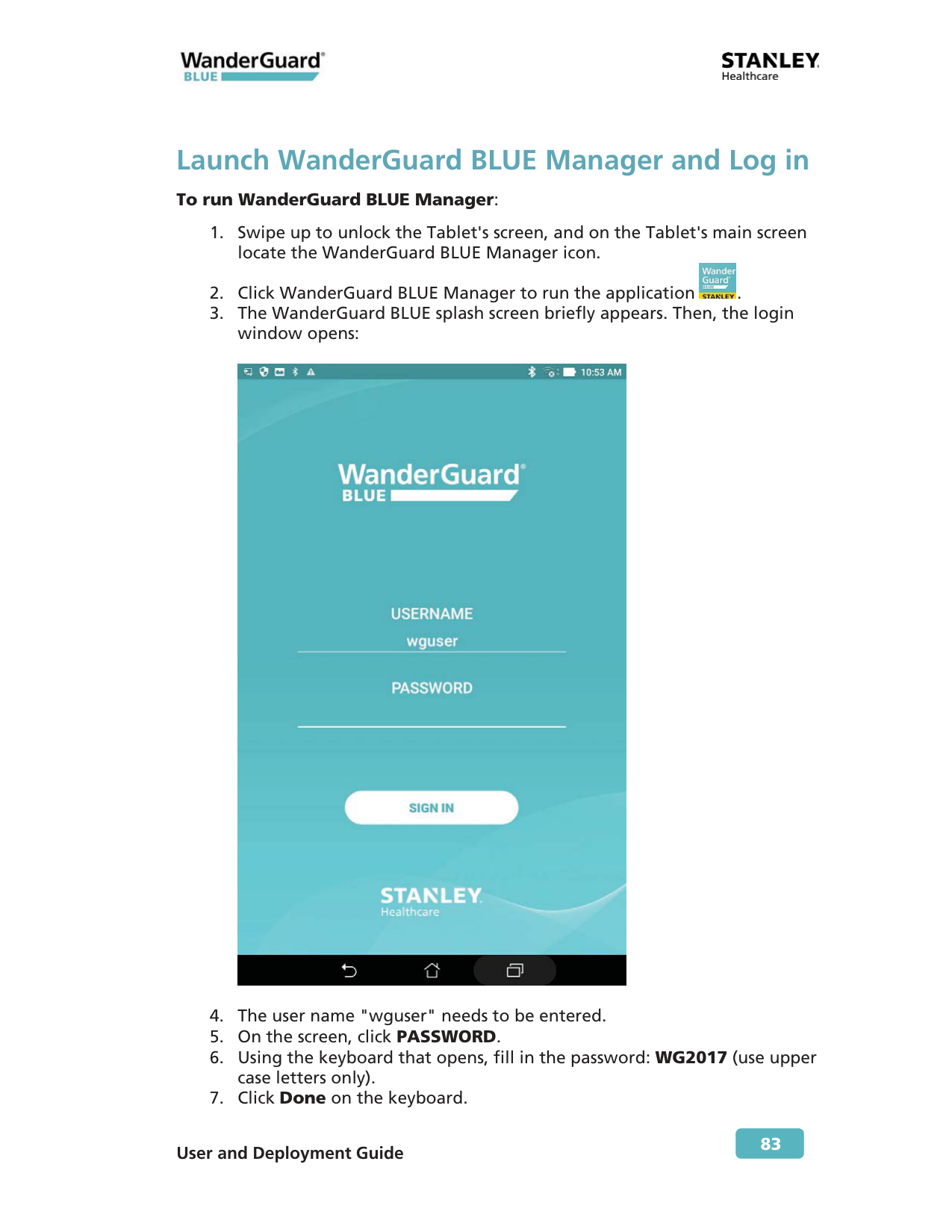
Unlock the Tablet and tap the WanderGuard BLUE Manager icon. Enter the username 'wguser' and password 'WG2017' (using uppercase letters only), then click SIGN IN. Note that there is no 'remember me' option, so you must enter the password each time you log in.
What happens if I don't press OK within the logout warning timeout?
The WanderGuard BLUE Manager automatically logs out after 57 minutes of inactivity and returns you to the login screen. If the app is connected to a Controller, it disconnects first. You can press OK within three minutes to reset the timeout and get another 57 minutes of inactive time.
Full Manual
76 pages
User and Deployment Guide
75
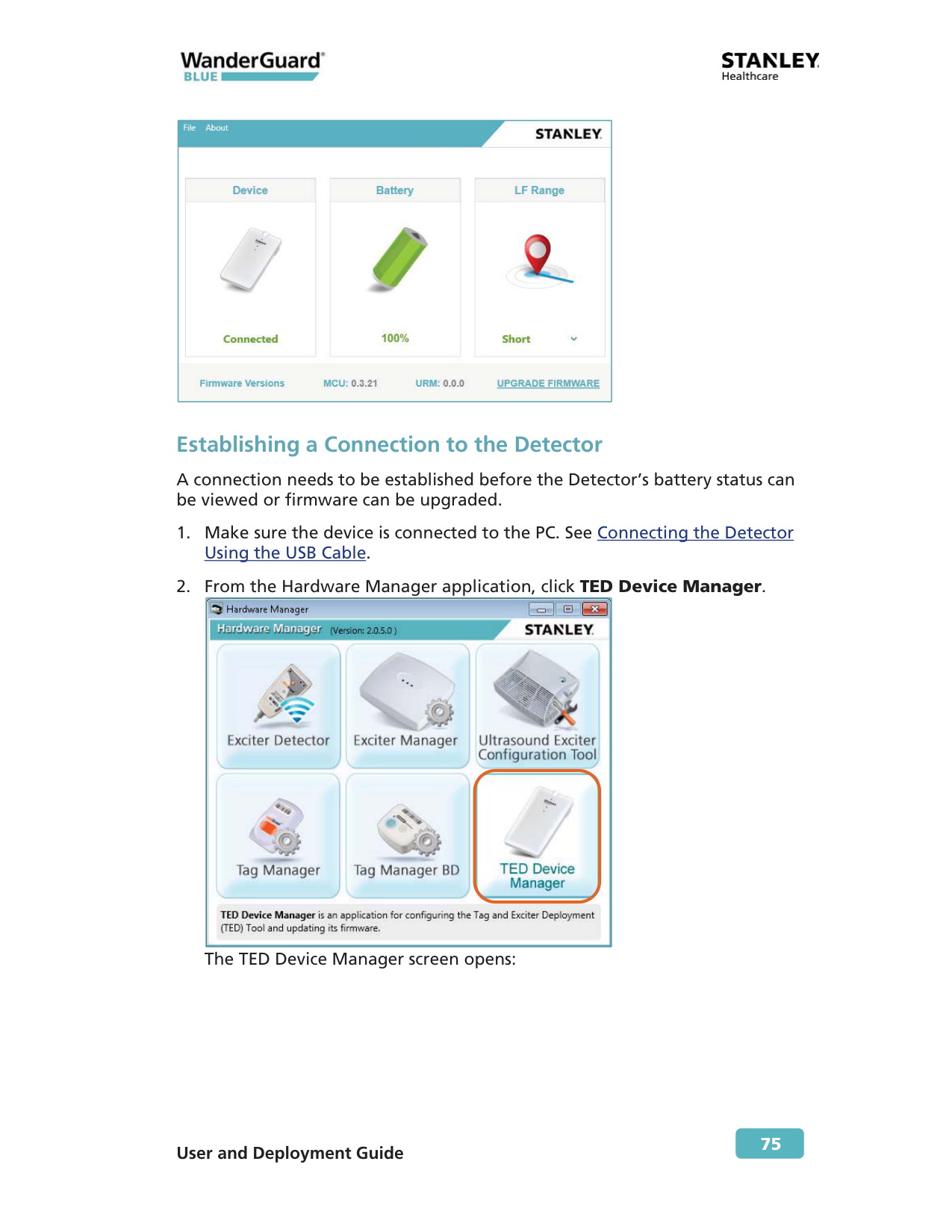
Establishing a Connection to the Detector A connection needs to be established before the Detector’s battery status can be viewed or firmware can be upgraded.
The TED Device Manager screen opens:
User and Deployment Guide
76
User and Deployment Guide
77
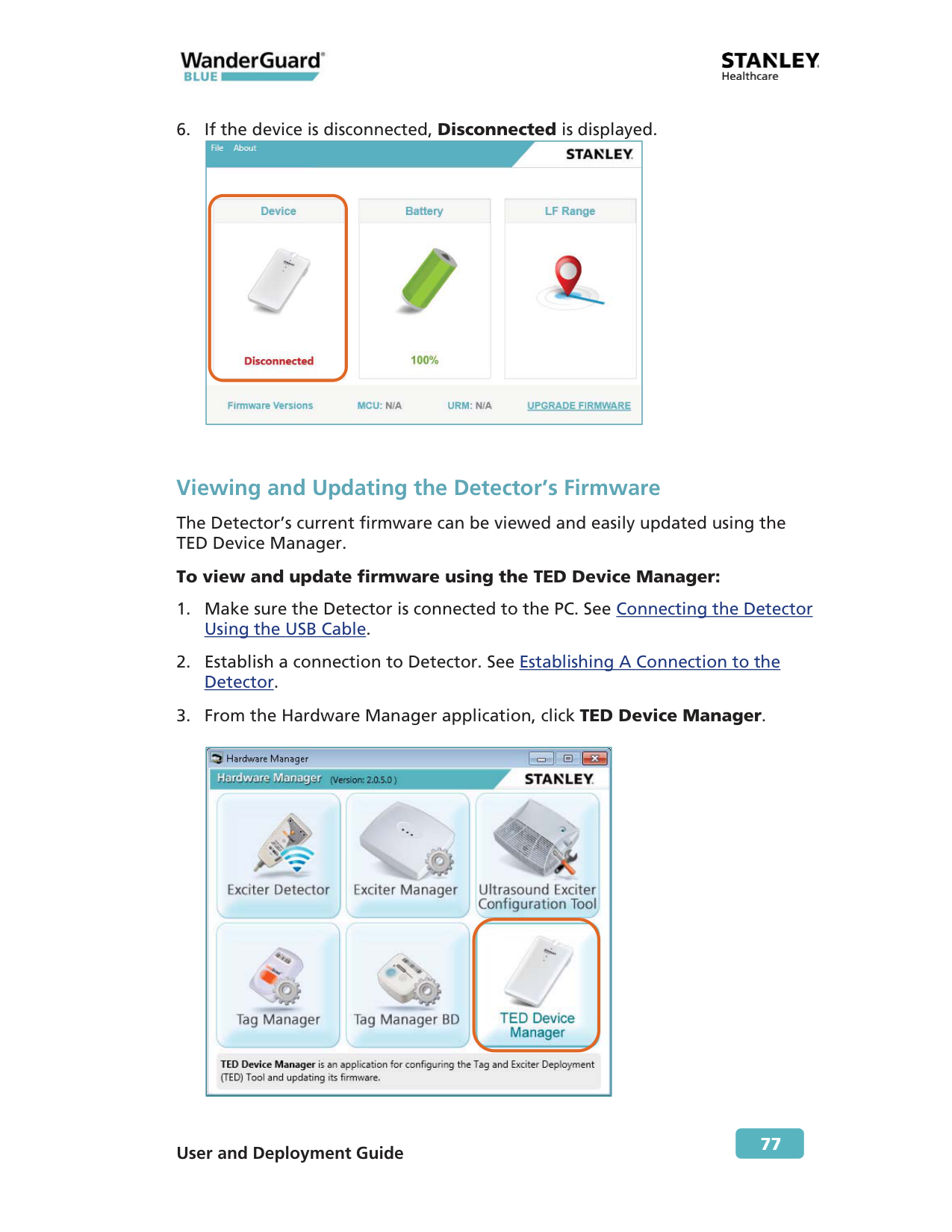
Viewing and Updating the Detector’s Firmware The Detector’s current firmware can be viewed and easily updated using the TED Device Manager. To view and update firmware using the TED Device Manager:
User and Deployment Guide
78
User and Deployment Guide
79
User and Deployment Guide
80 WanderGuard BLUE Detector Specifications Product Specifications Model
Sku (Usa): Wgb-Det-1000-Na
SKU (non-USA): WGB-DET-1000-NonNA Delivered with power charger and micro-USB cable (1 meter) Performance Able to detect and configure up to 80 Tags simultaneouslyLf & Ble
- Lf
- Ble
Short: 0.50 meters (1.65 feet) Compliant with Bluetooth V4.1 (Bluetooth Smart) Physical and Mechanical Dimensions: 120 mm x 68 mm x 20 mm (4.72 in x 2.67 in x 0.78 in) Weight: 120 g (4.23 oz.) Environmental Operating Temperature: 0°C to 50°C (32°F to 122°F) Humidity: 0% to 95% RH non-condensing Ingress Protection Rating: IP-30 Electrical Micro-USB Port 4.2 V Li-Ion rechargeable battery Radio Wi-Fi 802.11 (2.4 GHz); b/g/n compliant Bluetooth V4. 1 (2.4 GHz) (Bluetooth Smart) Low Frequency receiver (LF) 125 kHz Transmission power: Up to +19 dBm (~81 mW) Audio Buzzer: Volume level 80 dBA at 0.1 meters Certifications Radio: FCC Part 15, ETSI 300-328, 300-330, 301-489, RSS 210 (Canada), IEC 6100 / EN 60601 Safety: CE EN 60950, cTUVus UL 60950, IEC 60601 Accessories Hardware Manager Application
Sku: Hwm-1000
User and Deployment Guide
81 8 WanderGuard BLUE Manager WanderGuard BLUE Manager is a STANLEY Healthcare mobile application installed on an Asus ZenPad 8.0 (Z380M) tablet and supplied by STANLEY Healthcare as an integral component of the WanderGuard BLUE Wander Management Solution. The main function of the WanderGuard BLUE Manager is to enable Controller configuration by downloading /uploading configurations from/to the Controller and displaying the status of Tags and Controller(s).
Note To modify a Controller configuration, the WanderGuard BLUE Manager downloads the configuration from the Controller. The configuration settings can be modified within WanderGuard BLUE Manager and then uploaded to the Controller. WanderGuard BLUE Manager: x Runs on an off-the-shelf Asus Tablet x Supports scanning for Tags and Controllers x Displays status of Tags and Controllers x Enables configuration of Controller’s Settings x Enables configuration of the user credential information on the Controller The Tablet supplied by STANLEY Healthcare is an 8-inch Asus ZenPad Z380M Tablet with 2 GB RAM and 16 GB storage. It comes pre-installed with STANLEY Healthcare's WanderGuard BLUE Manager, Google Sheets and a remote control (TeamViewer) application to enable remote technical support by STANLEY Healthcare.
Best Practice: Using any Tablet or software other than that supplied by STANLEY Healthcare automatically voids any warranty that you may have received from STANLEY Healthcare and absolves STANLEY Healthcare of any damage that may be caused to your systems as a result of its use.
User and Deployment Guide
82 Getting Started with Your Tablet STANLEY Healthcare supplies the Tablet with the WanderGuard BLUE Manager mobile application already installed. The following Tablet settings are already enabled: x Location services x File access x Bluetooth ®
Note If any of these services are not enabled, enable them before proceeding. In addition, other dedicated applications are pre-installed by STANLEY Healthcare to enable viewing CSV or other text files for troubleshooting and management purposes. Finally, TeamViewer is also installed to enable sharing the tablet screen and remote control support from STANLEY Healthcare. If remote control is supported, you have to perform the following on site: x To be able to use the TeamViewer, port 5938 outgoing must be available at your customer site. IT at the customer site must make this setting. x Connect to the network via Wi-Fi. For troubleshooting the tablet installation, see the tablet Troubleshooting section in this User Guide. If you need any help getting started with your Asus ZenPad Tablet, consult your ZenPad user guide or download it here.
User and Deployment Guide
83 Launch WanderGuard BLUE Manager and Log in To run WanderGuard BLUE Manager:
User and Deployment Guide
84
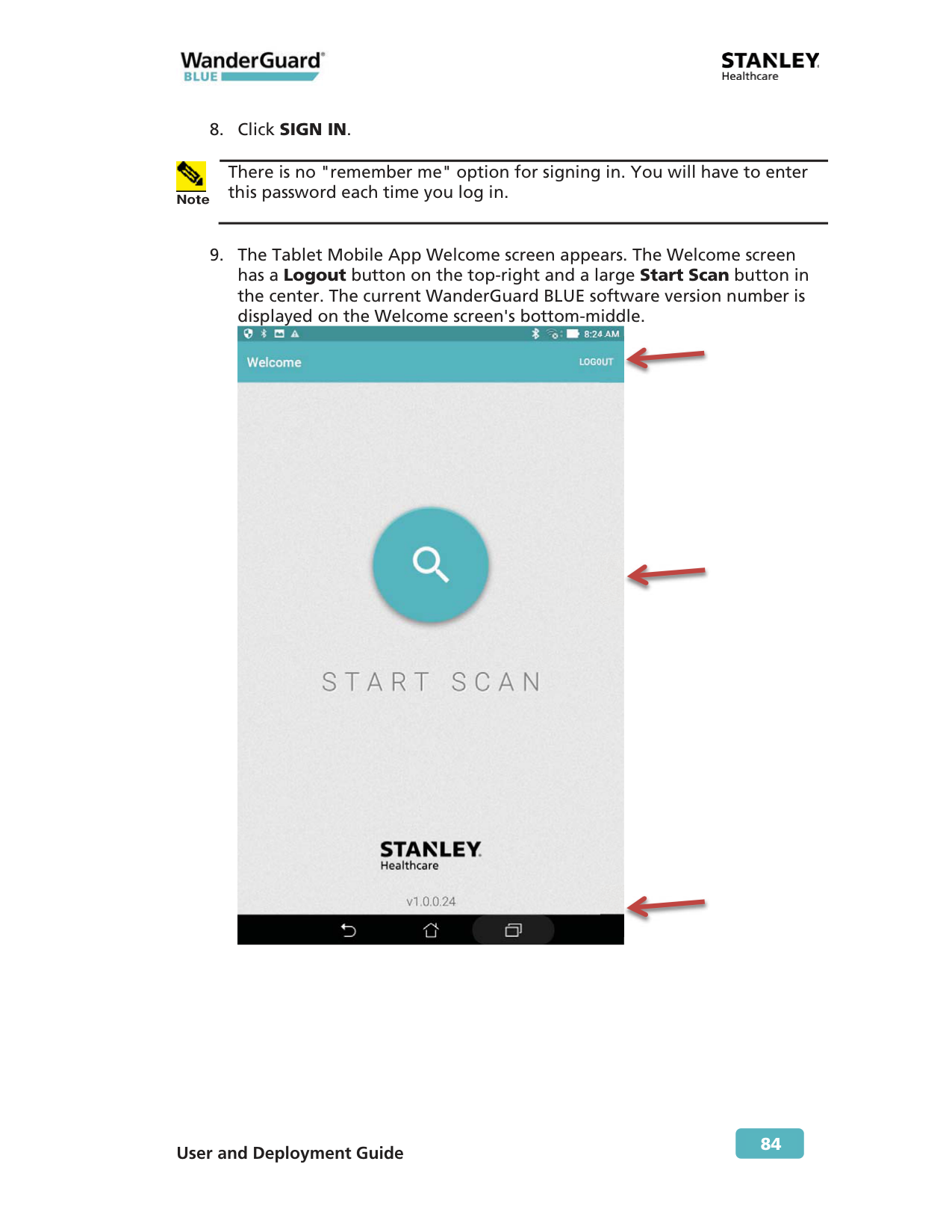
Note There is no "remember me" option for signing in. You will have to enter this password each time you log in.
User and Deployment Guide
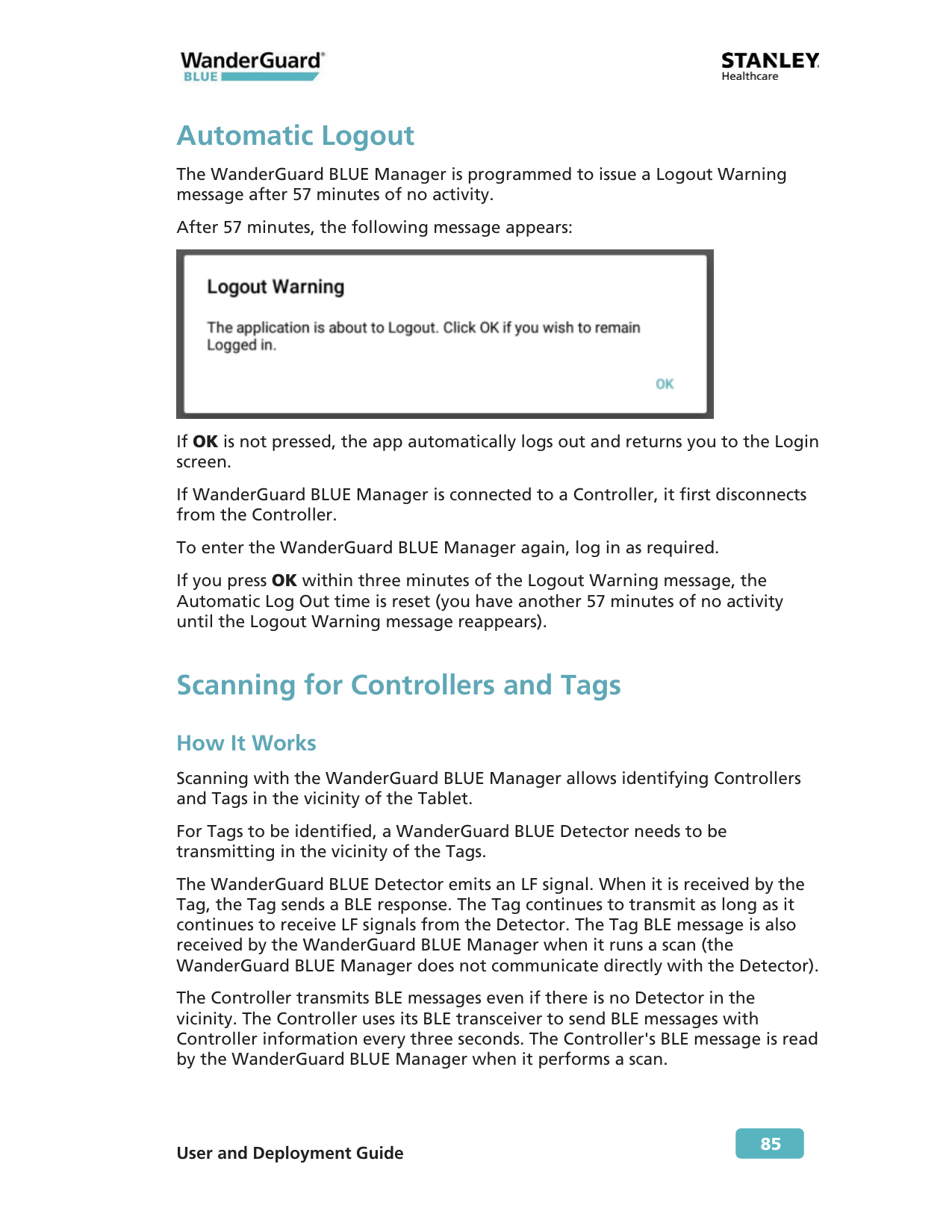
85 Automatic Logout The WanderGuard BLUE Manager is programmed to issue a Logout Warning message after 57 minutes of no activity. After 57 minutes, the following message appears:
If OK is not pressed, the app automatically logs out and returns you to the Login screen. If WanderGuard BLUE Manager is connected to a Controller, it first disconnects from the Controller. To enter the WanderGuard BLUE Manager again, log in as required. If you press OK within three minutes of the Logout Warning message, the Automatic Log Out time is reset (you have another 57 minutes of no activity until the Logout Warning message reappears). Scanning for Controllers and Tags How It Works Scanning with the WanderGuard BLUE Manager allows identifying Controllers and Tags in the vicinity of the Tablet. For Tags to be identified, a WanderGuard BLUE Detector needs to be transmitting in the vicinity of the Tags. The WanderGuard BLUE Detector emits an LF signal. When it is received by the Tag, the Tag sends a BLE response. The Tag continues to transmit as long as it continues to receive LF signals from the Detector. The Tag BLE message is also received by the WanderGuard BLUE Manager when it runs a scan (the WanderGuard BLUE Manager does not communicate directly with the Detector). The Controller transmits BLE messages even if there is no Detector in the vicinity. The Controller uses its BLE transceiver to send BLE messages with Controller information every three seconds. The Controller's BLE message is read by the WanderGuard BLUE Manager when it performs a scan.
User and Deployment Guide
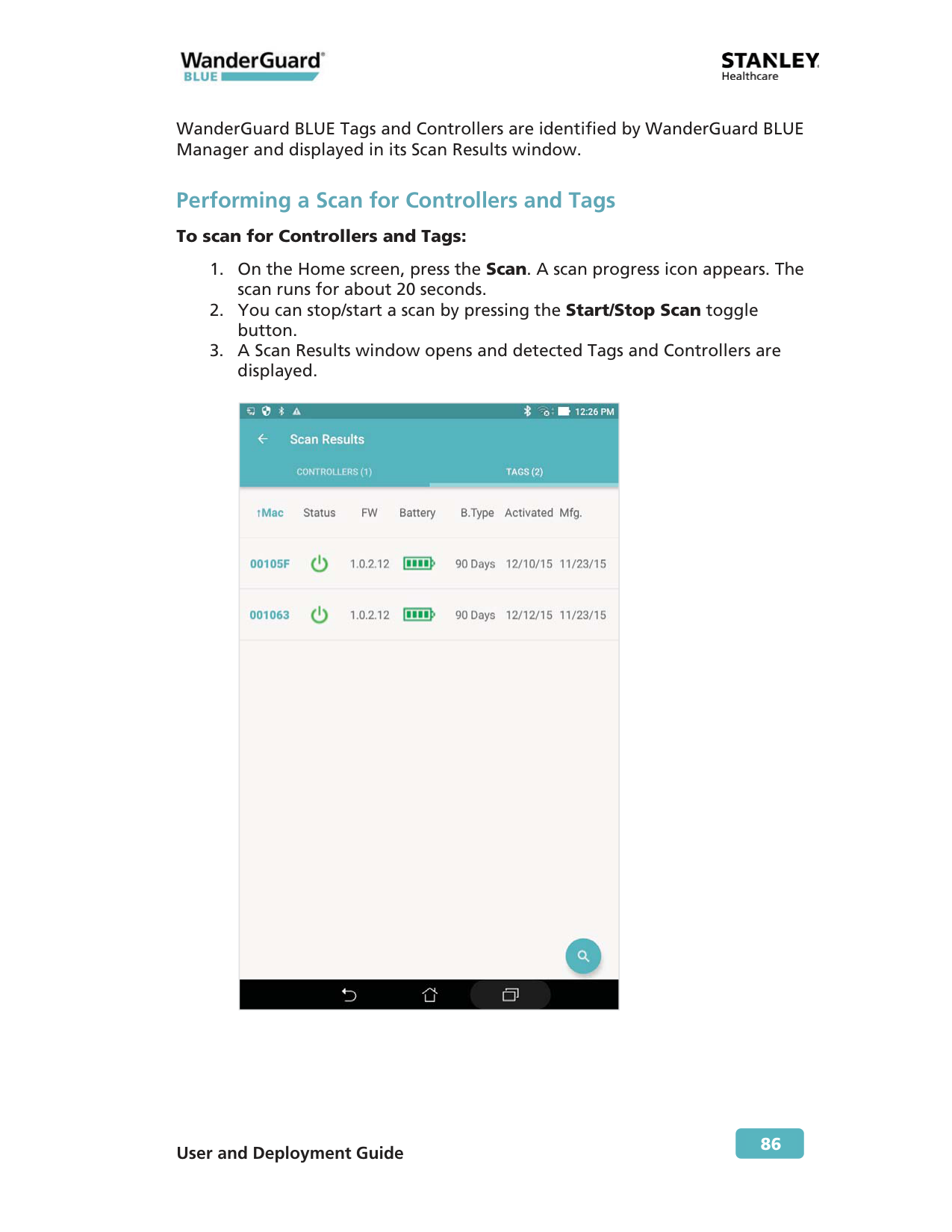
86 WanderGuard BLUE Tags and Controllers are identified by WanderGuard BLUE Manager and displayed in its Scan Results window. Performing a Scan for Controllers and Tags To scan for Controllers and Tags:
User and Deployment Guide
87
Note
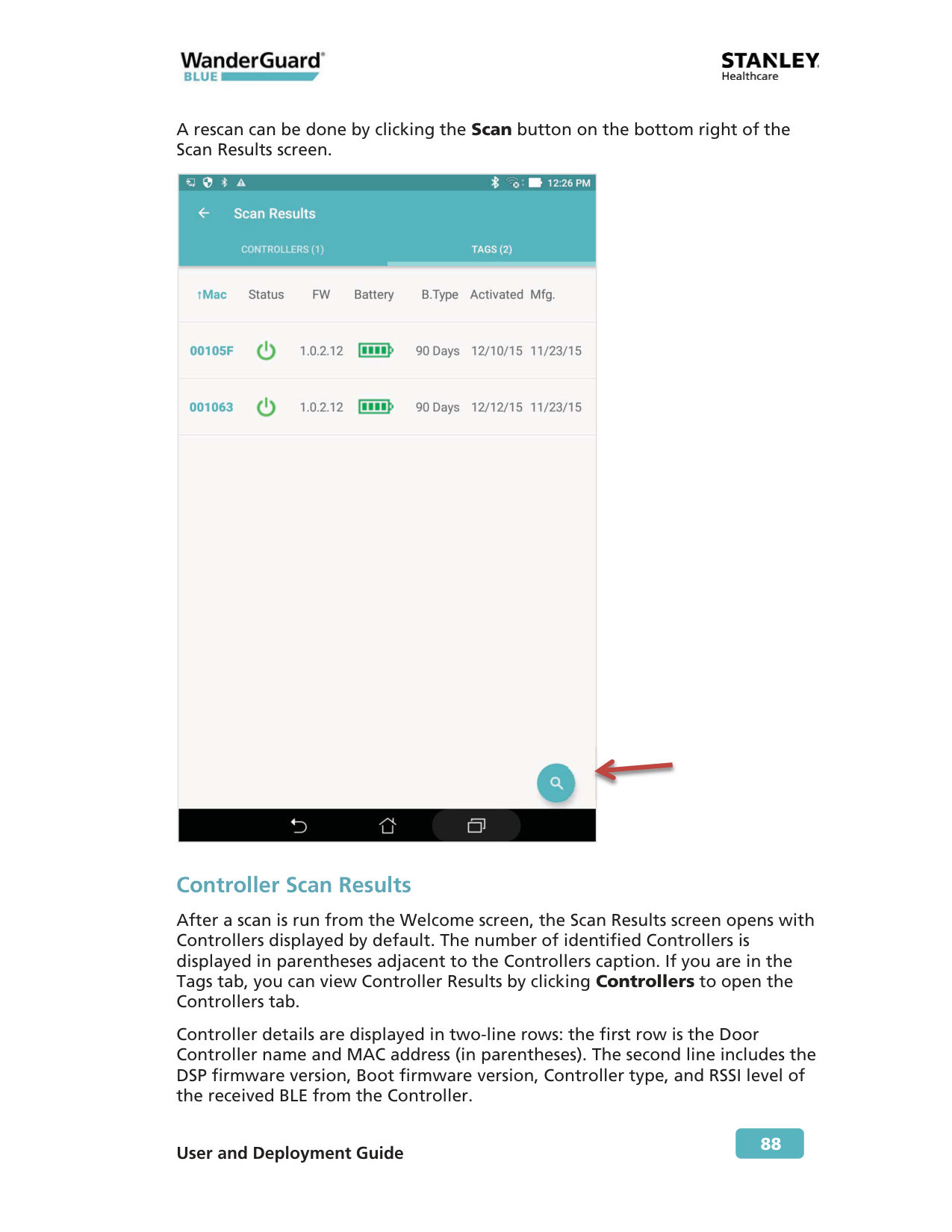
x WanderGuard BLUE Manager scans for Controllers and Tags in its vicinity and displays their properties in the Scan Results window. x Tag activation is done ONLY by the Detector. Viewing Scan Results In the Scan Results window, you can view the following scan results: x Controllers x Tags Tag Scan Results Scan results are displayed in the Scan Results window. Click Tags to open the Tags tab. The number of identified Tags is displayed in parenthesis adjacent to the Tags caption. Tag details are displayed in a table with the following columns (see following screen): x Tag ID – the Tag's ID is the last six digits of its MAC address. The Tag ID is printed on the side of the Tag. x Status – Dormant or Active; firmware version x Firmware version x Battery - Good or Low x Battery Type - 90 days or 3 years x Activation date – date of Tag activation x Manufacturing date – Tag manufacturing date Sorting each column (ascending/descending order) can be done by clicking the column title.
User and Deployment Guide
88 A rescan can be done by clicking the Scan button on the bottom right of the Scan Results screen.
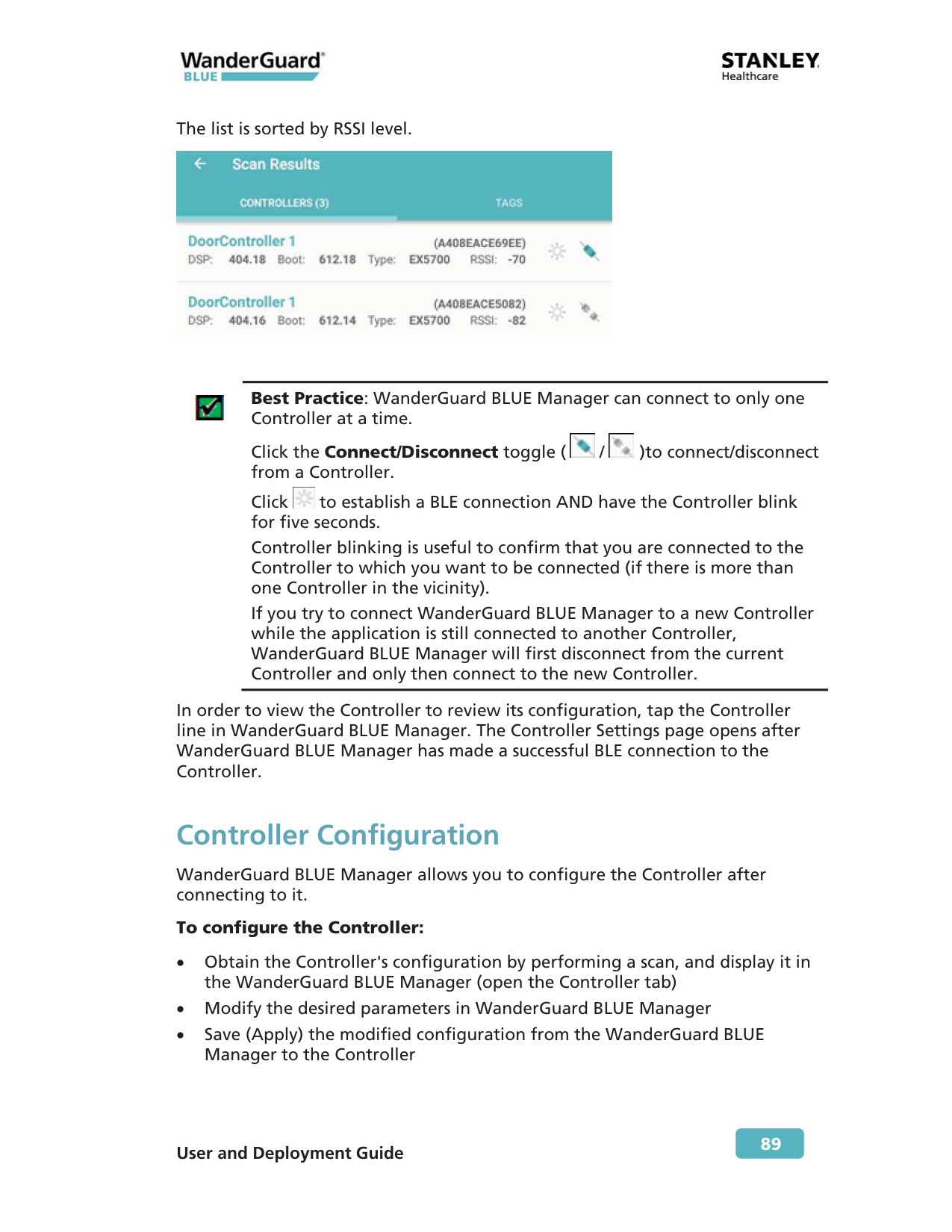
Controller Scan Results After a scan is run from the Welcome screen, the Scan Results screen opens with Controllers displayed by default. The number of identified Controllers is displayed in parentheses adjacent to the Controllers caption. If you are in the Tags tab, you can view Controller Results by clicking Controllers to open the Controllers tab. Controller details are displayed in two-line rows: the first row is the Door Controller name and MAC address (in parentheses). The second line includes the DSP firmware version, Boot firmware version, Controller type, and RSSI level of the received BLE from the Controller.
User and Deployment Guide
89 The list is sorted by RSSI level.
Best Practice: WanderGuard BLUE Manager can connect to only one Controller at a time. Click the Connect/Disconnect toggle ( / )to connect/disconnect from a Controller. Click to establish a BLE connection AND have the Controller blink for five seconds. Controller blinking is useful to confirm that you are connected to the Controller to which you want to be connected (if there is more than one Controller in the vicinity). If you try to connect WanderGuard BLUE Manager to a new Controller while the application is still connected to another Controller, WanderGuard BLUE Manager will first disconnect from the current Controller and only then connect to the new Controller. In order to view the Controller to review its configuration, tap the Controller line in WanderGuard BLUE Manager. The Controller Settings page opens after WanderGuard BLUE Manager has made a successful BLE connection to the Controller. Controller Configuration WanderGuard BLUE Manager allows you to configure the Controller after connecting to it. To configure the Controller: x Obtain the Controller's configuration by performing a scan, and display it in the WanderGuard BLUE Manager (open the Controller tab) x Modify the desired parameters in WanderGuard BLUE Manager x Save (Apply) the modified configuration from the WanderGuard BLUE Manager to the Controller
User and Deployment Guide
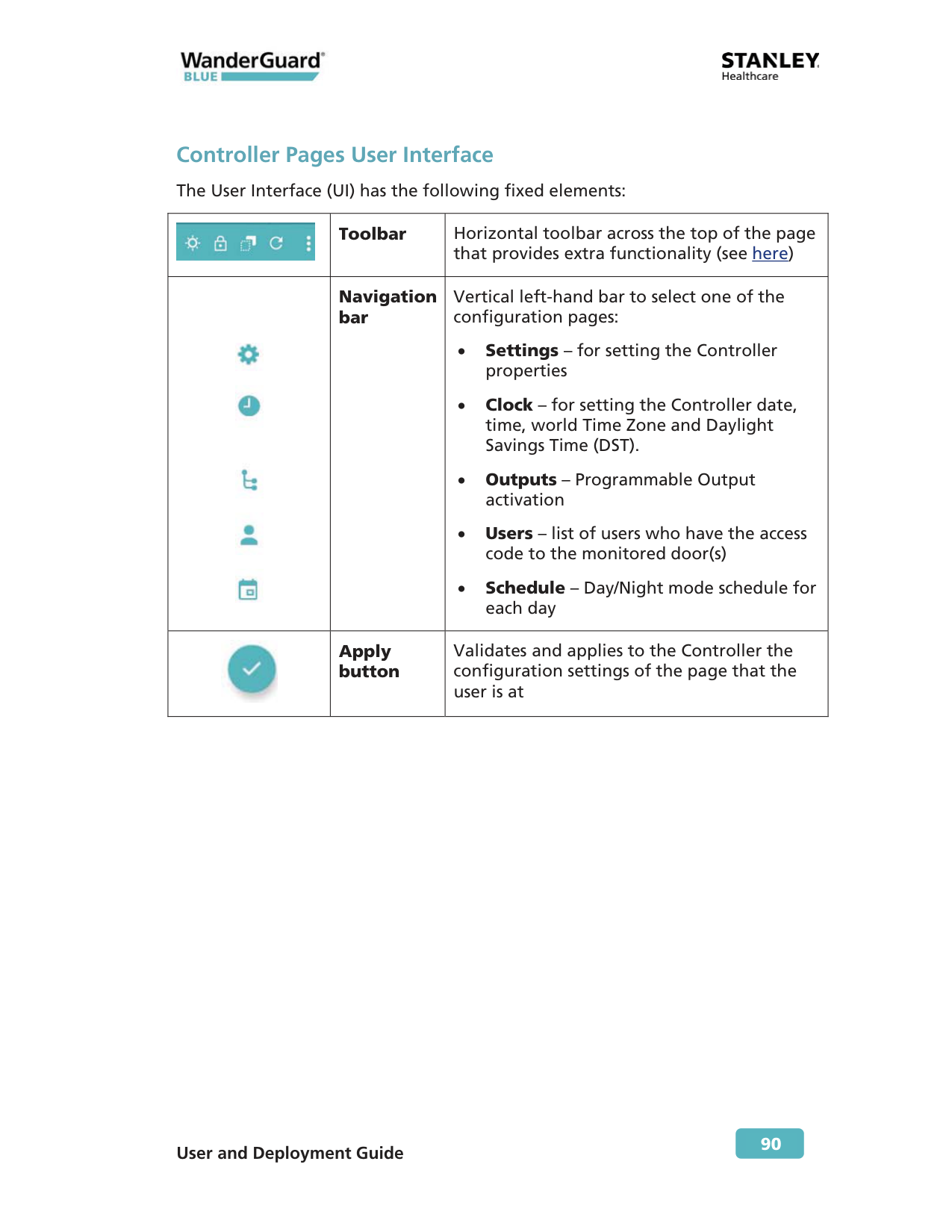
90 Controller Pages User Interface The User Interface (UI) has the following fixed elements:
Toolbar Horizontal toolbar across the top of the page that provides extra functionality (see here)
Navigation bar Vertical left-hand bar to select one of the configuration pages: x Settings – for setting the Controller properties x Clock – for setting the Controller date, time, world Time Zone and Daylight Savings Time (DST). x Outputs – Programmable Output activation x Users – list of users who have the access code to the monitored door(s) x Schedule – Day/Night mode schedule for each day
Apply button Validates and applies to the Controller the configuration settings of the page that the user is at
User and Deployment Guide
91
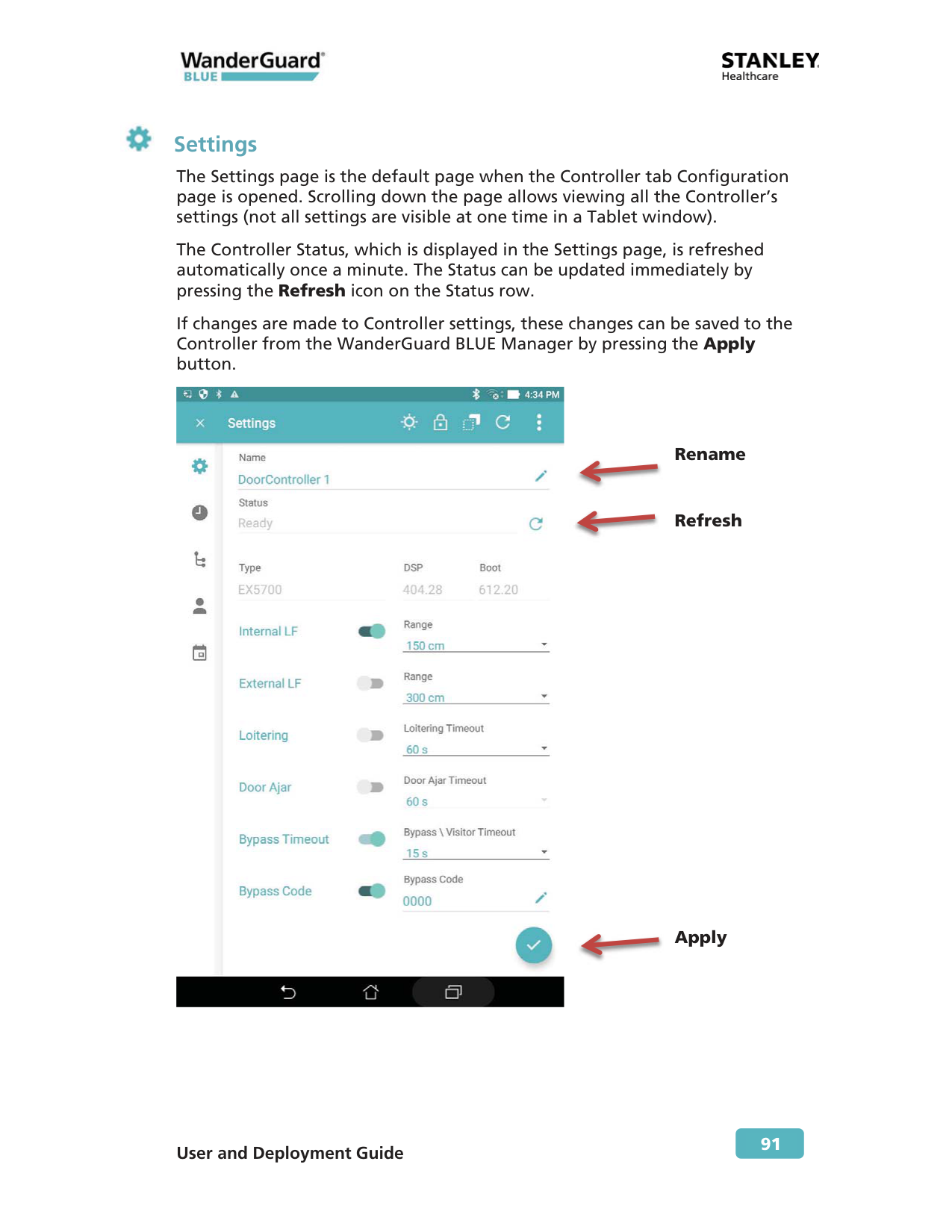
Settings The Settings page is the default page when the Controller tab Configuration page is opened. Scrolling down the page allows viewing all the Controller’s settings (not all settings are visible at one time in a Tablet window). The Controller Status, which is displayed in the Settings page, is refreshed automatically once a minute. The Status can be updated immediately by pressing the Refresh icon on the Status row. If changes are made to Controller settings, these changes can be saved to the Controller from the WanderGuard BLUE Manager by pressing the Apply button.
Rename
Refresh
Apply
User and Deployment Guide
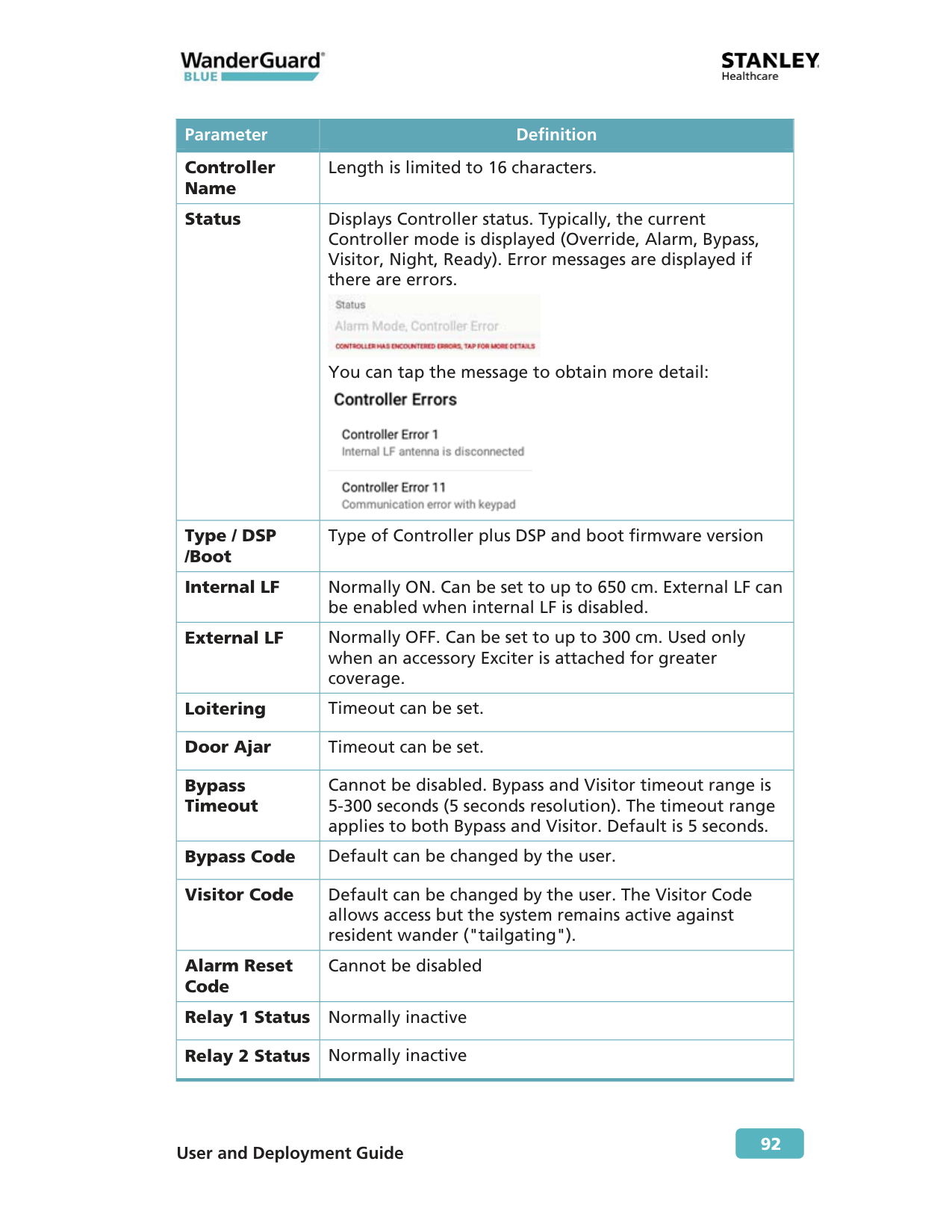
92 Parameter Definition Controller Name Length is limited to 16 characters. Status Displays Controller status. Typically, the current Controller mode is displayed (Override, Alarm, Bypass, Visitor, Night, Ready). Error messages are displayed if there are errors.
You can tap the message to obtain more detail:
Type / DSP /Boot Type of Controller plus DSP and boot firmware version Internal LF Normally ON. Can be set to up to 650 cm. External LF can be enabled when internal LF is disabled. External LF Normally OFF. Can be set to up to 300 cm. Used only when an accessory Exciter is attached for greater coverage. Loitering Timeout can be set. Door Ajar Timeout can be set. Bypass Timeout Cannot be disabled. Bypass and Visitor timeout range is 5-300 seconds (5 seconds resolution). The timeout range applies to both Bypass and Visitor. Default is 5 seconds. Bypass Code Default can be changed by the user. Visitor Code Default can be changed by the user. The Visitor Code allows access but the system remains active against resident wander ("tailgating"). Alarm Reset Code Cannot be disabled Relay 1 Status Normally inactive Relay 2 Status Normally inactive

User and Deployment Guide
93 List of Possible Errors from the Controller: x Communication error with Keypad x FW upgrade failure of UD BLE module x FW upgrade failure of BD BLE module x UART failure with UD BLE module x UART failure with BD BLE module x Relay2 physical activation failed x Relay1 physical activation failed x External LF error detected x Internal LF error detected x External LF antenna is disconnected x Internal LF antenna is disconnected x BLE monitoring error
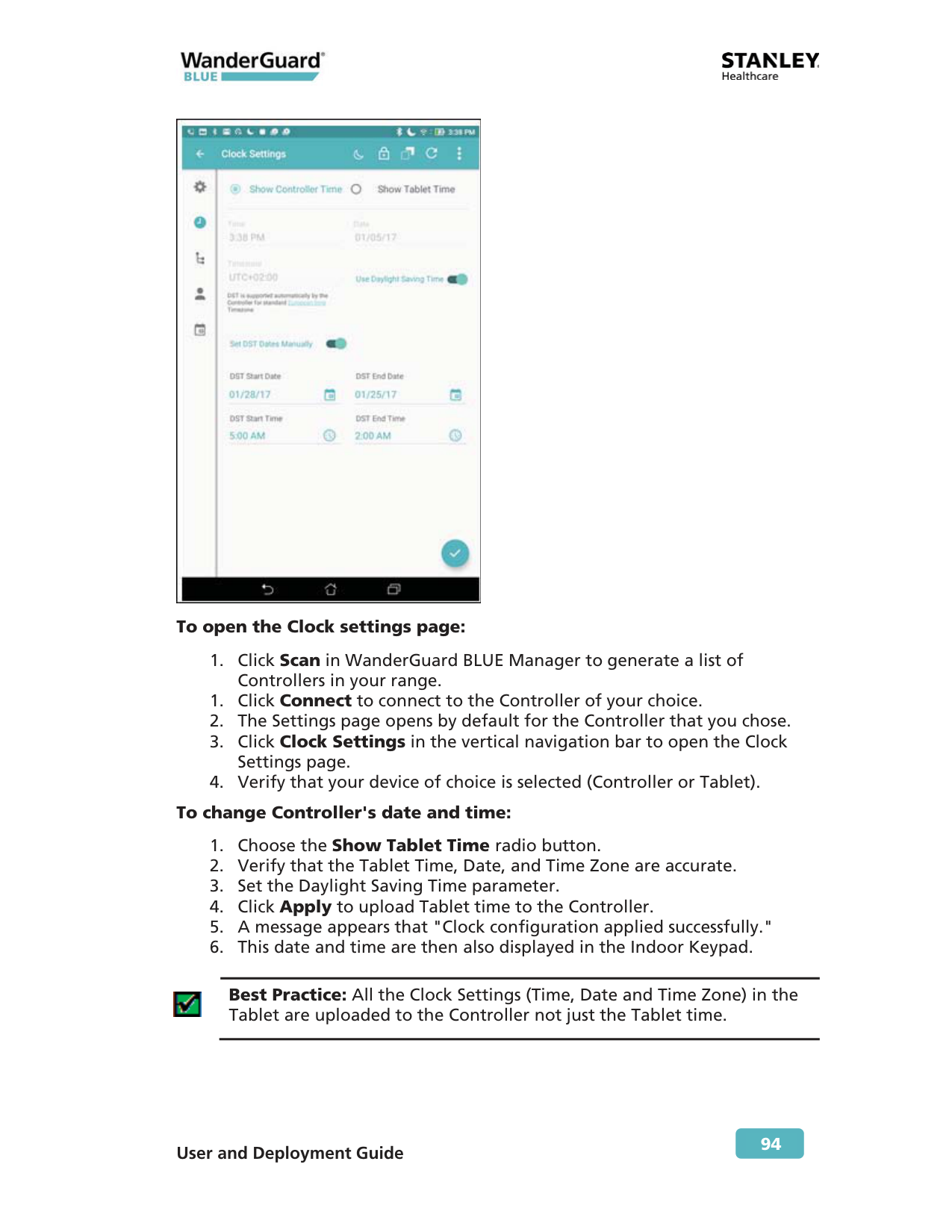
Clock Settings Use the Clock Settings page to update the time, date, Time Zone and Daylight Savings Time (DST). Clock settings are used by the Controller to enforce the Day/Night mode schedule. The time (shown on the Clock Settings page) is updated once per minute. Choose the device by selecting Choose Controller Time or Choose Tablet Time. The default view on the WanderGuard BLUE Manager is Controller Time. Time is shown by time of day, date and Time Zone. In the Clock Settings page, you can do the following: x View Controller Time x View Tablet Time x Apply the Tablet Time, Date and Time Zone to the Controller x View and change Daylight Savings Time settings for the Controller
Best Practice: Initial setup requires setting the time of both the Controller and Tablet. In addition to initial setup of the Controller, it is recommended to adjust the Controller clock once every six months.
User and Deployment Guide
94
To open the Clock settings page:
Best Practice: All the Clock Settings (Time, Date and Time Zone) in the Tablet are uploaded to the Controller not just the Tablet time.
User and Deployment Guide
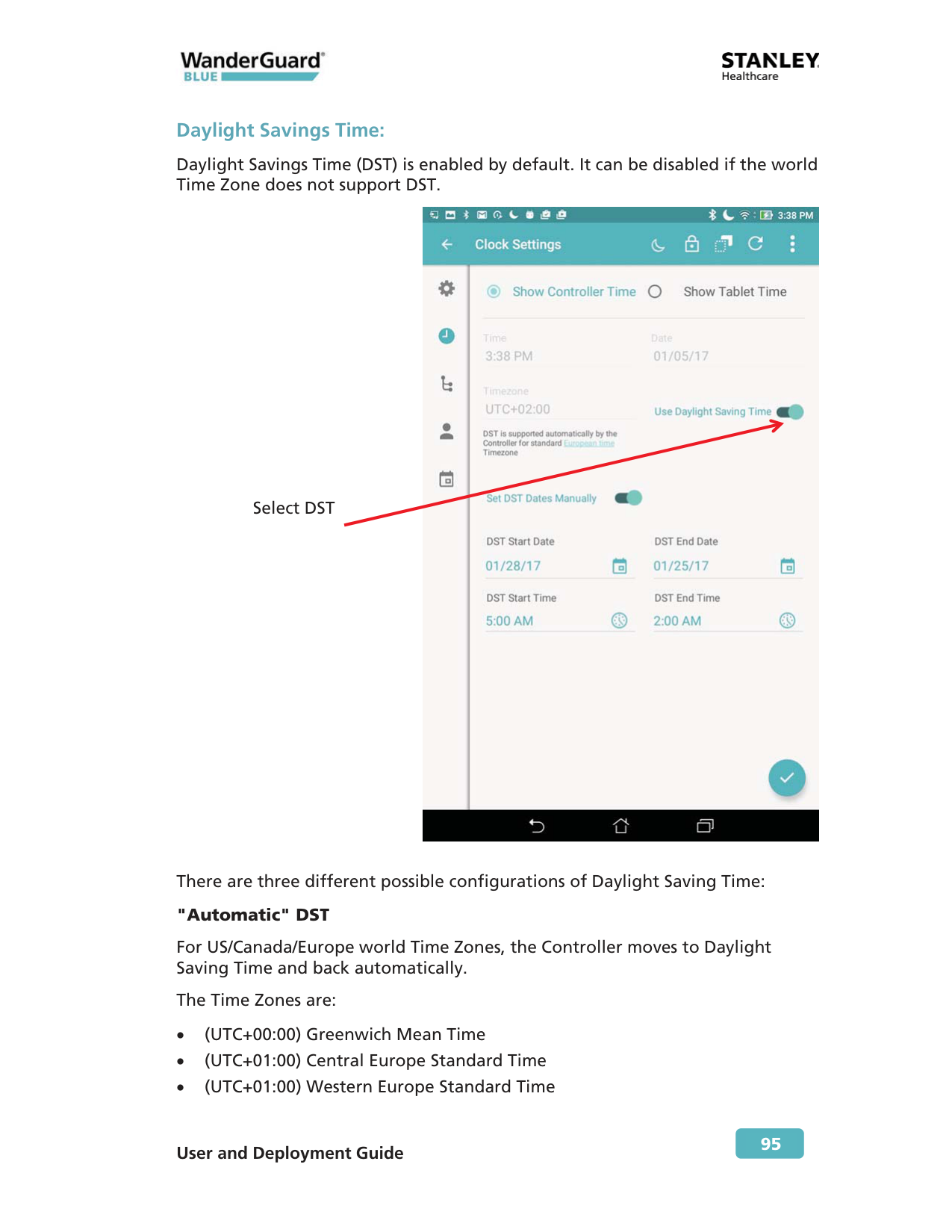
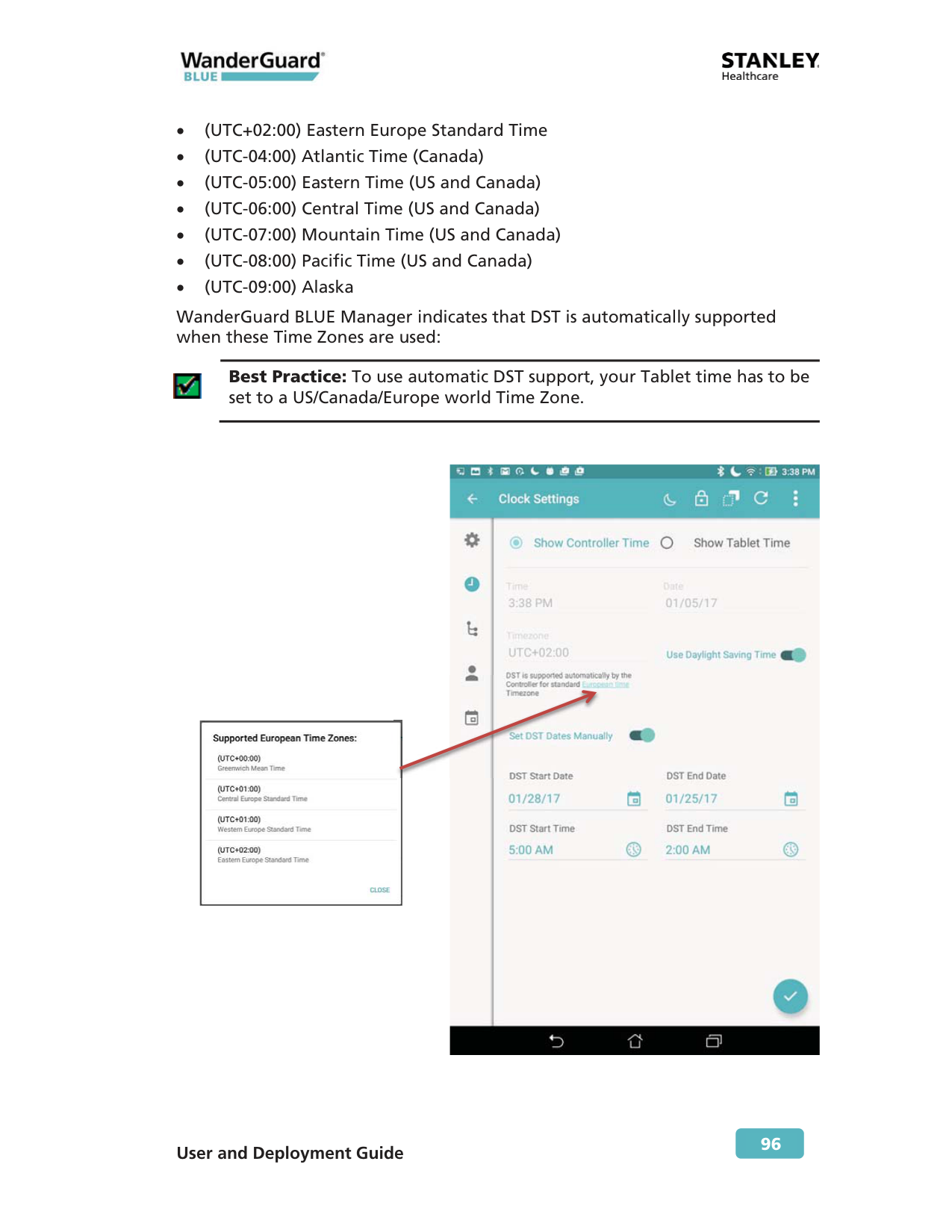
95 Daylight Savings Time: Daylight Savings Time (DST) is enabled by default. It can be disabled if the world Time Zone does not support DST.
There are three different possible configurations of Daylight Saving Time: "Automatic" DST For US/Canada/Europe world Time Zones, the Controller moves to Daylight Saving Time and back automatically. The Time Zones are: x (UTC+00:00) Greenwich Mean Time x (UTC+01:00) Central Europe Standard Time x (UTC+01:00) Western Europe Standard Time Select DST
User and Deployment Guide
96 x (UTC+02:00) Eastern Europe Standard Time x (UTC-04:00) Atlantic Time (Canada) x (UTC-05:00) Eastern Time (US and Canada) x (UTC-06:00) Central Time (US and Canada) x (UTC-07:00) Mountain Time (US and Canada) x (UTC-08:00) Pacific Time (US and Canada) x (UTC-09:00) Alaska WanderGuard BLUE Manager indicates that DST is automatically supported when these Time Zones are used:
Best Practice: To use automatic DST support, your Tablet time has to be set to a US/Canada/Europe world Time Zone.
User and Deployment Guide
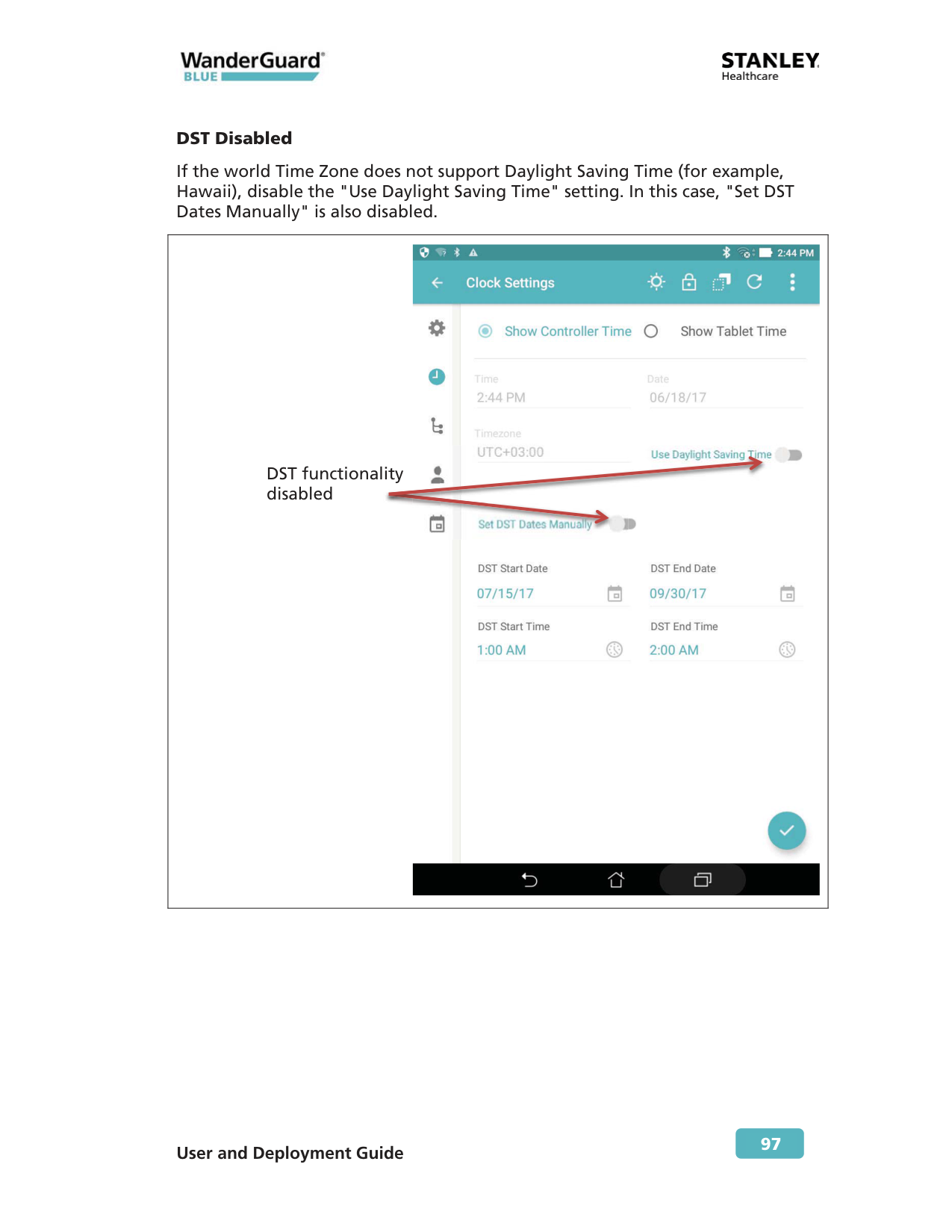
97 DST Disabled If the world Time Zone does not support Daylight Saving Time (for example, Hawaii), disable the "Use Daylight Saving Time" setting. In this case, "Set DST Dates Manually" is also disabled.
DST functionality disabled
User and Deployment Guide
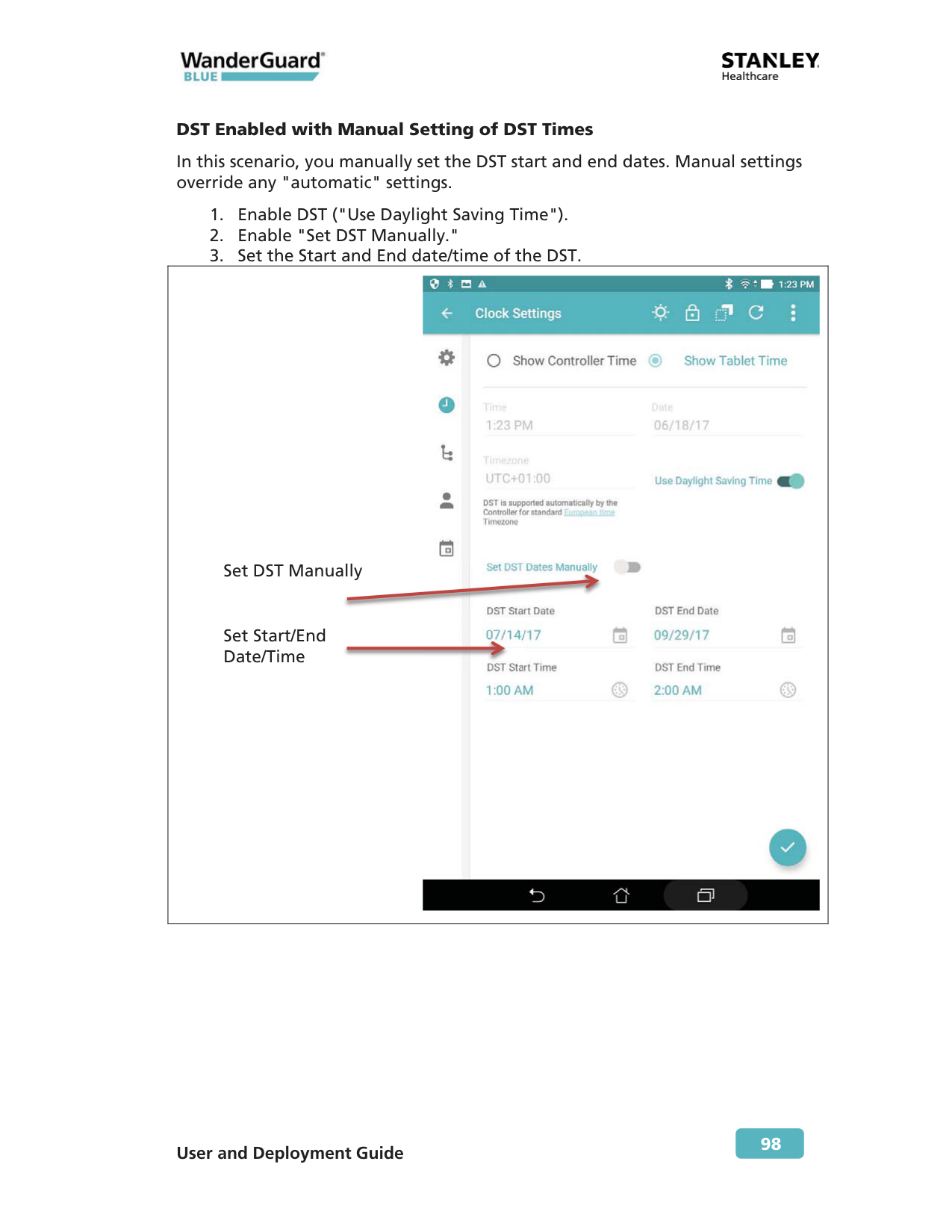
98 DST Enabled with Manual Setting of DST Times In this scenario, you manually set the DST start and end dates. Manual settings override any "automatic" settings.
Set DST Manually
Set Start/End Date/Time
User and Deployment Guide
99
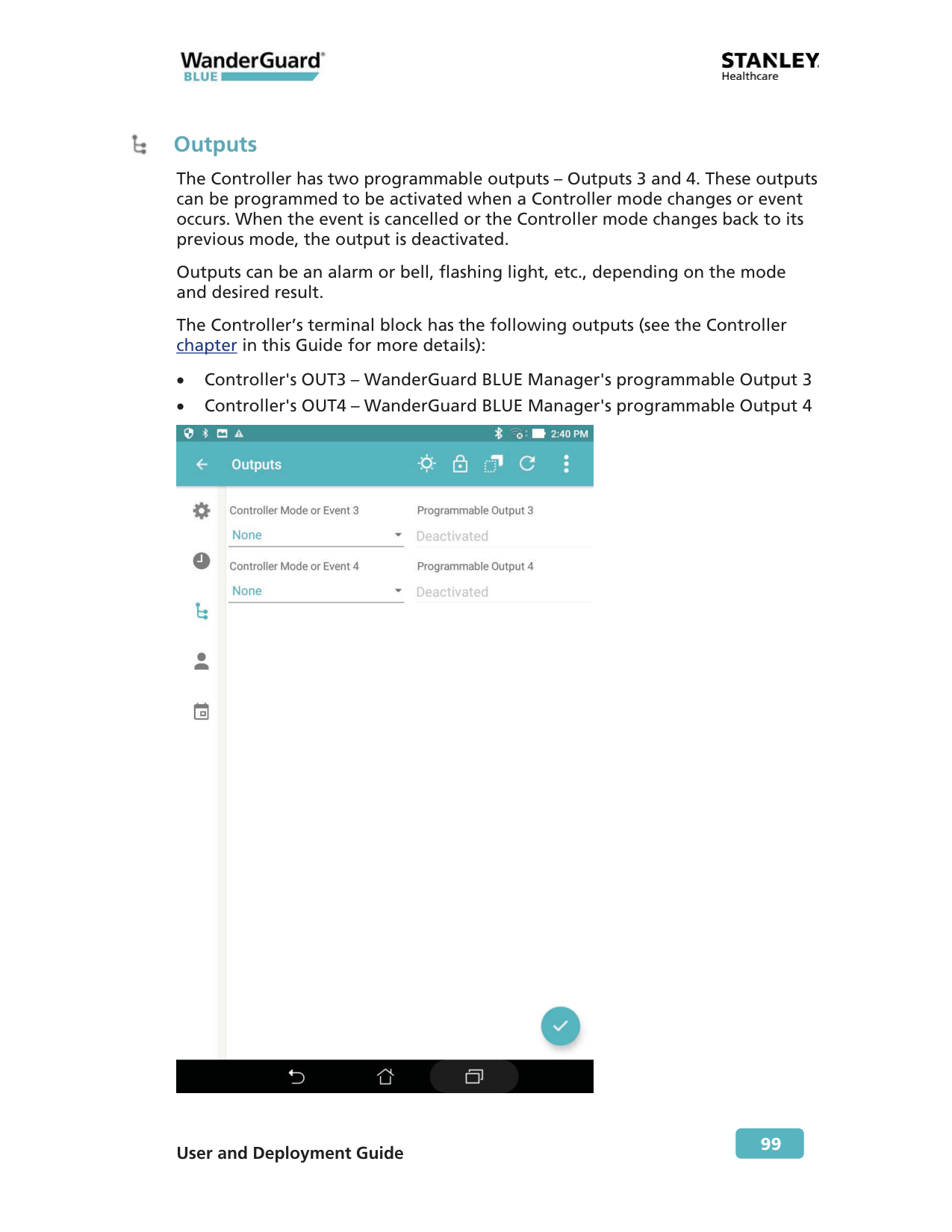
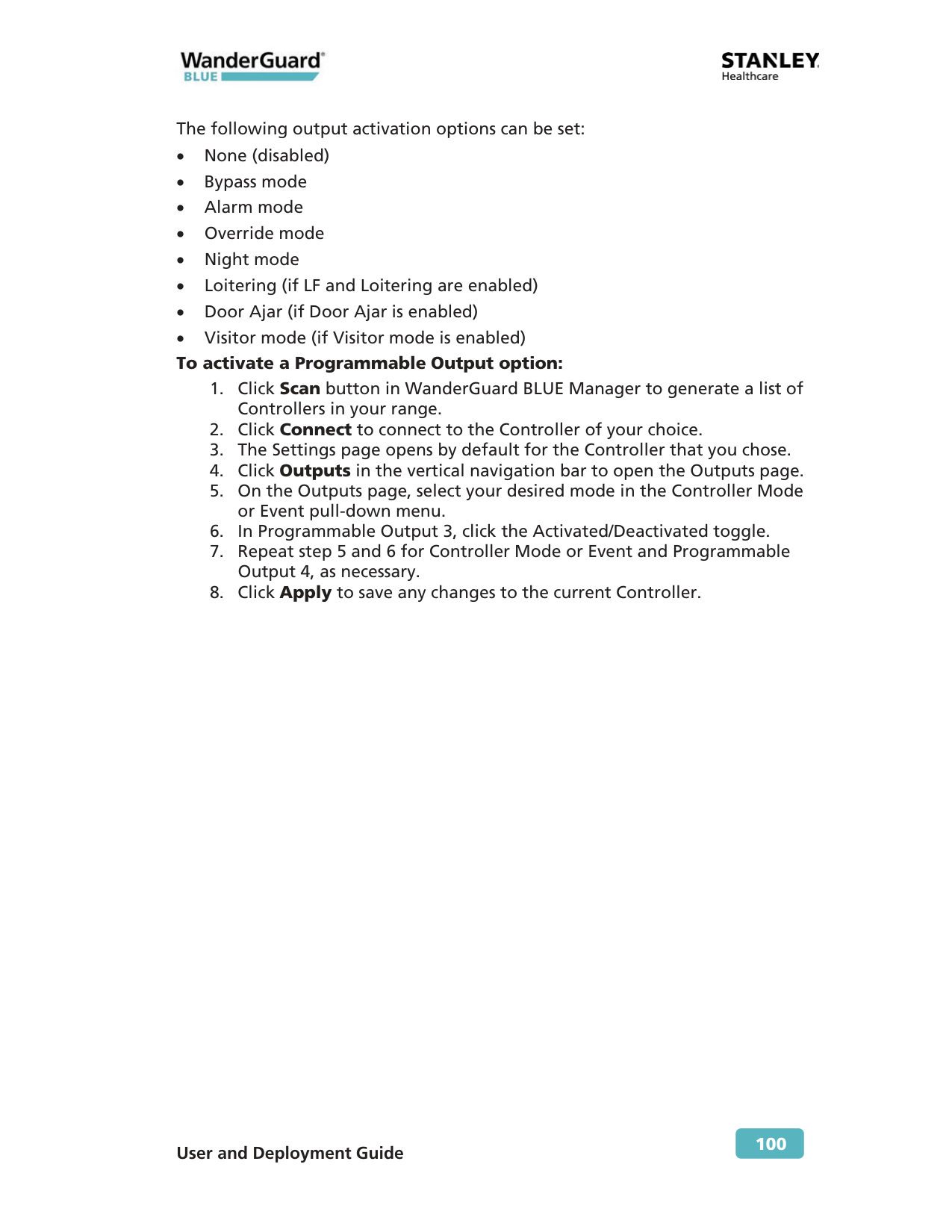
Outputs The Controller has two programmable outputs – Outputs 3 and 4. These outputs can be programmed to be activated when a Controller mode changes or event occurs. When the event is cancelled or the Controller mode changes back to its previous mode, the output is deactivated. Outputs can be an alarm or bell, flashing light, etc., depending on the mode and desired result. The Controller’s terminal block has the following outputs (see the Controller chapter in this Guide for more details): x Controller's OUT3 – WanderGuard BLUE Manager's programmable Output 3 x Controller's OUT4 – WanderGuard BLUE Manager's programmable Output 4
User and Deployment Guide
100 The following output activation options can be set: x None (disabled) x Bypass mode x Alarm mode x Override mode x Night mode x Loitering (if LF and Loitering are enabled) x Door Ajar (if Door Ajar is enabled) x Visitor mode (if Visitor mode is enabled) To activate a Programmable Output option:
User and Deployment Guide
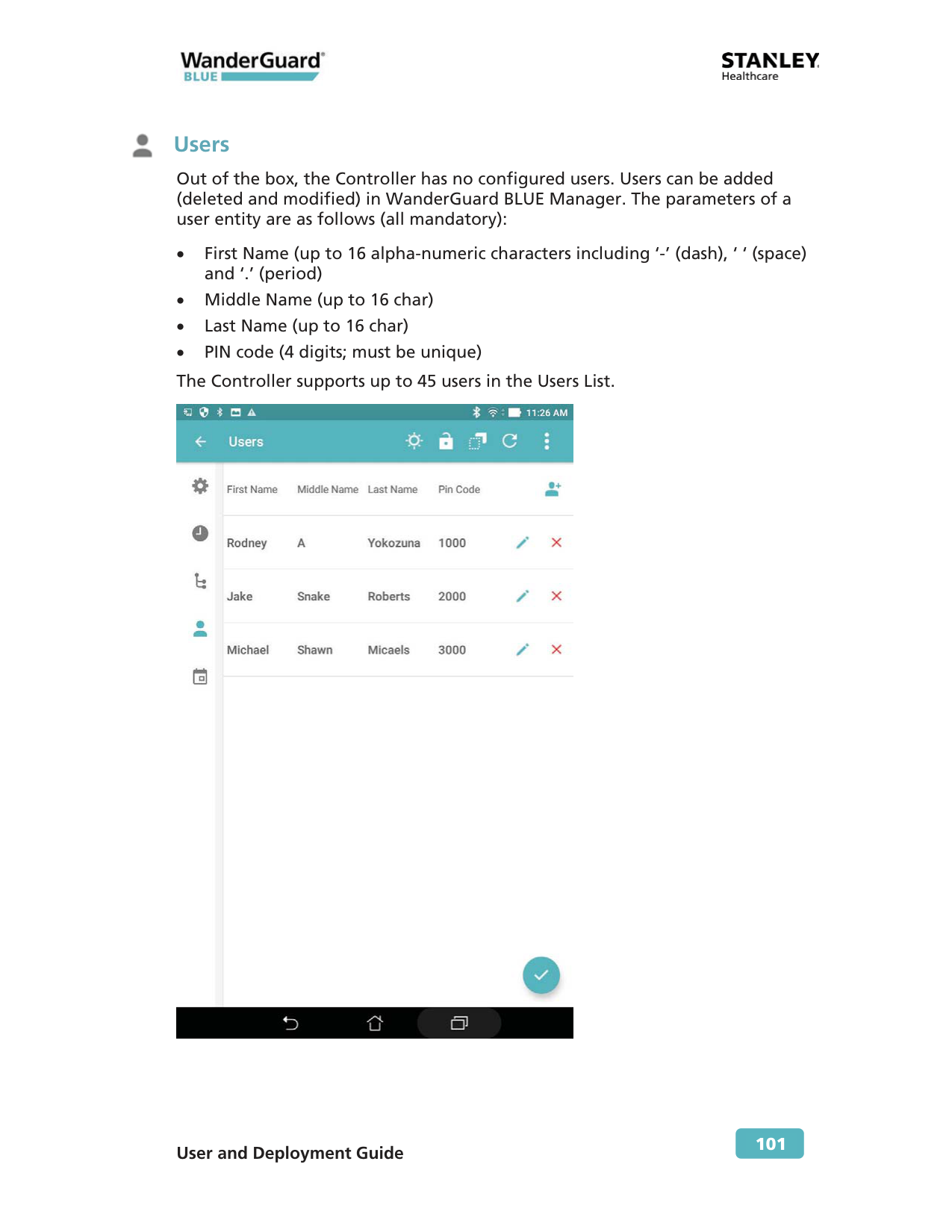
101 Users Out of the box, the Controller has no configured users. Users can be added (deleted and modified) in WanderGuard BLUE Manager. The parameters of a user entity are as follows (all mandatory): x First Name (up to 16 alpha-numeric characters including ‘-’ (dash), ‘ ‘ (space) and ‘.’ (period) x Middle Name (up to 16 char) x Last Name (up to 16 char) x PIN code (4 digits; must be unique) The Controller supports up to 45 users in the Users List.
User and Deployment Guide
102
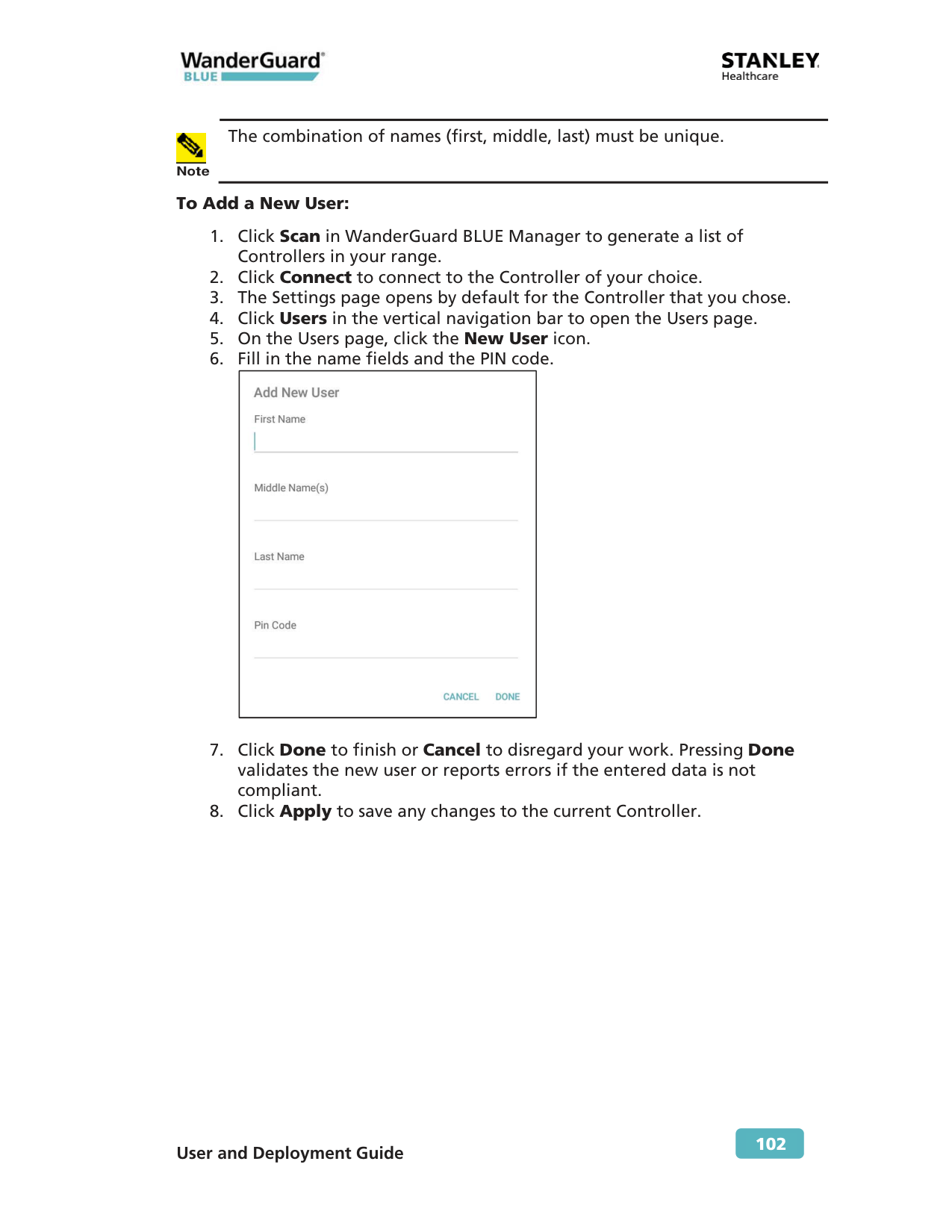
Note The combination of names (first, middle, last) must be unique. To Add a New User:
User and Deployment Guide
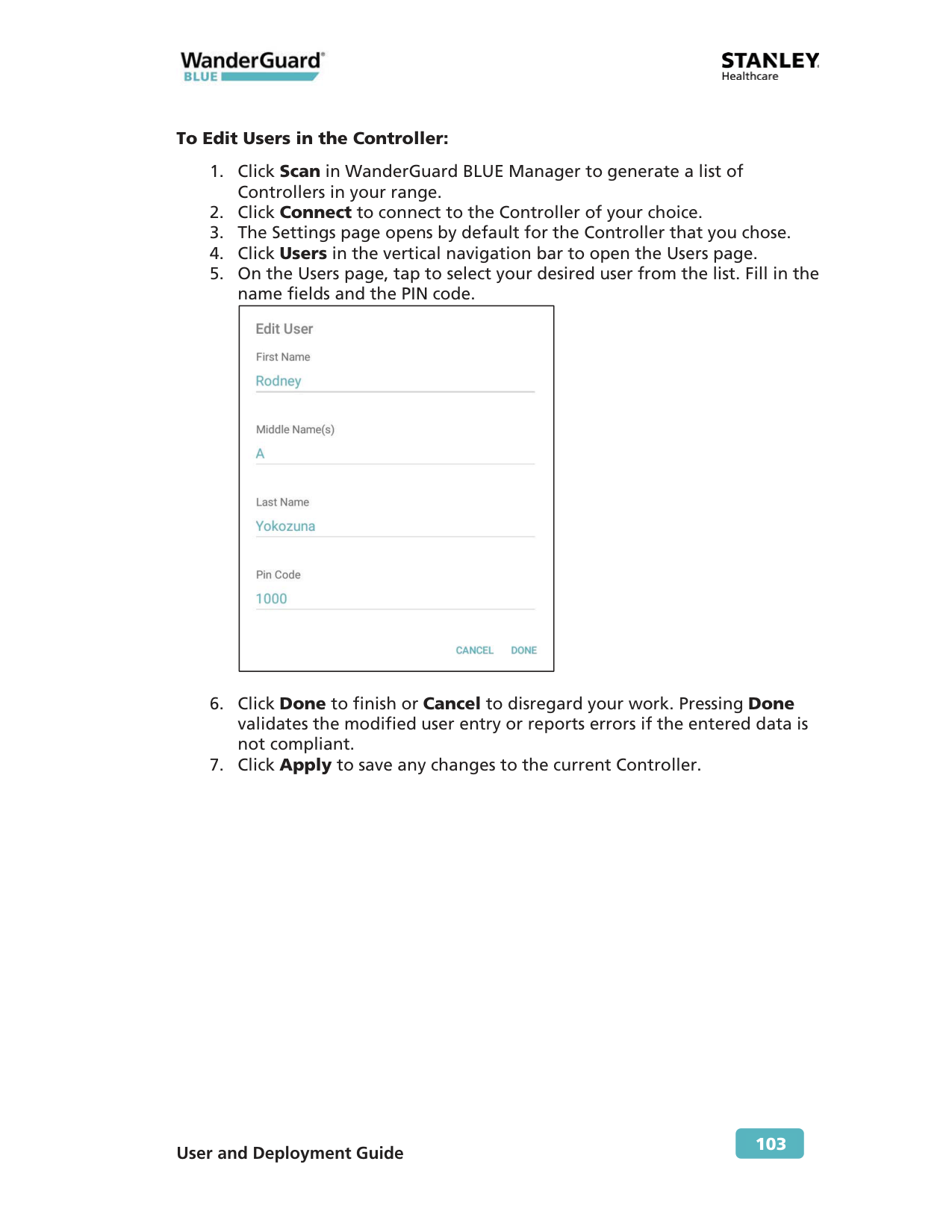
103 To Edit Users in the Controller:
User and Deployment Guide
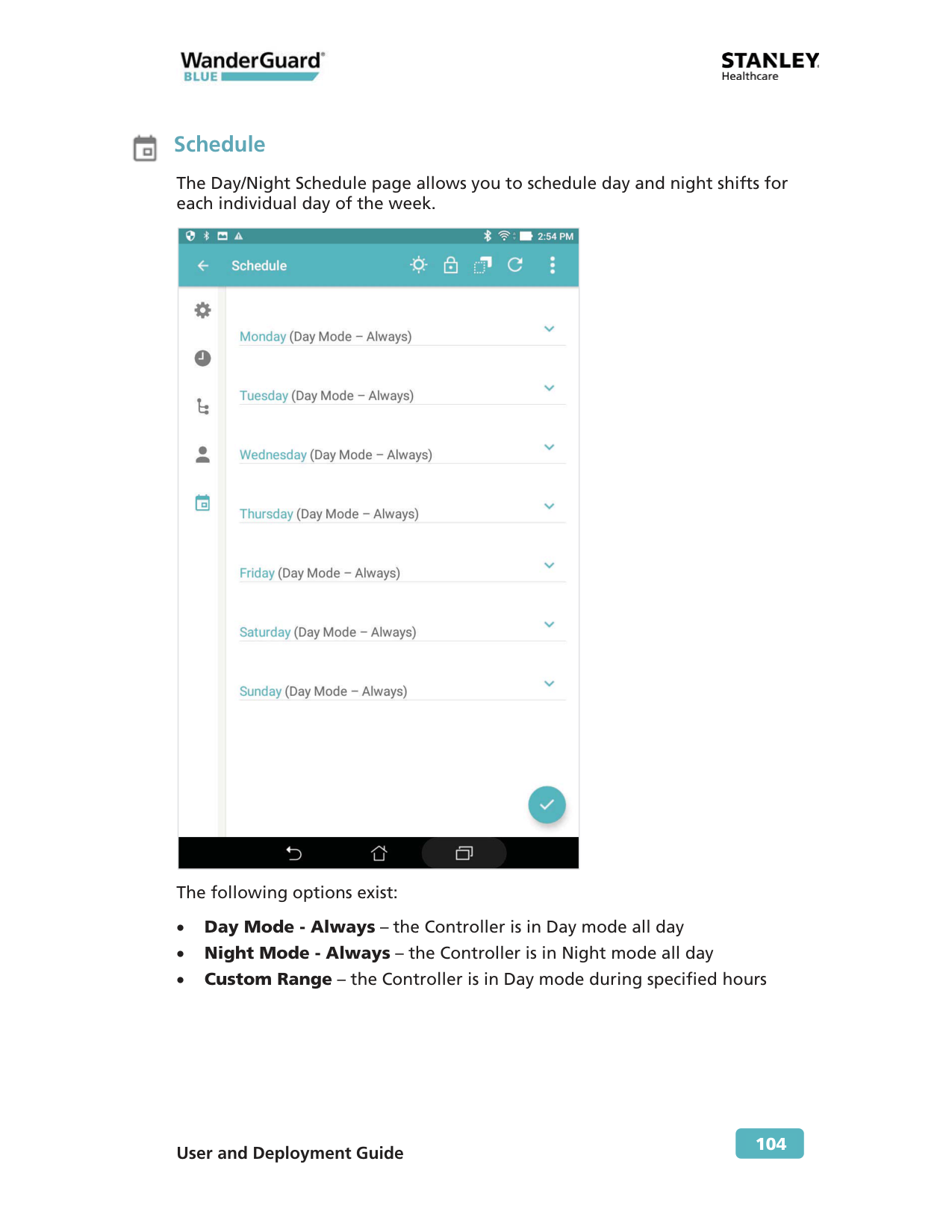
104 Schedule The Day/Night Schedule page allows you to schedule day and night shifts for each individual day of the week.
The following options exist: x Day Mode - Always – the Controller is in Day mode all day x Night Mode - Always – the Controller is in Night mode all day x Custom Range – the Controller is in Day mode during specified hours

User and Deployment Guide
105 To Edit the Day/Night mode schedule in the Controller through the Tablet Mobile App:

User and Deployment Guide
106 Toolbar Actions The following actions are available from the WanderGuard BLUE Manager toolbar: x Start/Stop Day/Night Mode x Start/Stop Override Mode x Copy/Paste Controller Configuration x Refresh (Get Controller Properties) x More – additional options

User and Deployment Guide
107
Start/Stop Day/Night Mode This toggle switches between Day Mode and Night Mode.
Note Day Mode is the default mode of the Controller. To toggle from Day to Night Mode:
To toggle from Night to Day Mode:

User and Deployment Guide
108
Start/Stop Override Mode This toggle switches between Starting/Stopping Override Mode on the door supervised by the Controller. To toggle from non-Override Mode to Override Mode:
To toggle from Override Mode to non-Override Mode:

User and Deployment Guide
109
Copy / Paste Configuration The Copy Paste function on the Toolbar is used to copy the Controller configuration from one Controller to another. For example, if there are 45 users defined in one Controller, they can be copied to other Controller(s) with the entire Controller configuration.
Note
Only one Controller configuration can be saved at a time. The configuration that was copied in WanderGuard BLUE Manager is available to be pasted until another configuration is copied (over it), or the WanderGuard BLUE Manager application is closed or logged out. To copy a configuration from a source Controller to a target Controller:
In addition, a Copy icon appears in the bottom-left of the screen .

User and Deployment Guide
110
Best Practice: Typically, a disconnect occurs when physically moving to the next Controller and moving out of the BLE coverage of the Controller. The Paste icon, however, still remains in the Navigation Panel ready to paste into another Controller. If the application is within the BLE range of a Controller, disconnecting from the Controller can be done by leaving the configuration pages: click "X" next to Settings at the top of your WanderGuard BLUE Manager screen.
To paste a configuration from the source Controller to the target Controller:
Note A copied configuration that was pasted and applied does not include the Controller Name, Time, Date and time Zone.

User and Deployment Guide
111
Refresh Configuration
Refresh updates the WanderGuard BLUE Manager configuration pages (Settings, Clock, Outputs and Schedule) with the Controller configuration. All changes that were made in the WanderGuard BLUE Manager and not applied are refreshed.
Best Practice: Refresh is a quick way to verify configuration changes that you made in WanderGuard BLUE Manager and applied to the Controller. To refresh a configuration in WanderGuard BLUE Manager:

User and Deployment Guide
112
More The More button contains other useful options for working efficiently with WanderGuard BLUE Manager. These include: x Apply All – applies all configuration parameters to the Controller x Blink – Makes the Controller "blink" x Clear Log – Clears the Controller's Log x Restart – Restarts the Controller x Restore – Restores the Controller configuration to the default configuration x Save Log – Saves the Controller Log to a file x Save Config – Saves the Controller Configuration to a file Click More to open a selection window:

User and Deployment Guide
113 Apply All This option does the following: x Applies the entire configuration from the WanderGuard BLUE Manager to the Controller x Validates the entire configuration prior to applying the configuration x Controller’s Time (time/date/world Time Zone) is updated with the Tablet’s time
If a validation error is found, the following error message appears:

User and Deployment Guide
114 Blink Sends a command to the Controller to flash for 5 seconds.
Best Practice: This option is useful if you are working with more than one Controller in a specific area. For example, if you wanted to verify that you are connected to a specific Controller you could "blink" it.

User and Deployment Guide
115 Clear Log and Save Log Clears all log entries currently in the Controller.
Best Practice: This function is useful during maintenance to eliminate errors and alerts that are no longer applicable.
When you click Clear Log, a confirmation message appears:
Click Clear to clear the log or Cancel to exit without clearing the log.

User and Deployment Guide
116 Restart Clicking Restart power cycles the Controller. The WanderGuard BLUE Manager application automatically jumps to the Scan page and starts the scan process. When you select Restart, a confirmation message appears.
Click Restart. The following message appears:
Click OK to continue.

User and Deployment Guide
117 Restore
Restore returns the Controller to its default factory configuration. The default configuration is permanently stored on the Controller. Clicking Restore opens a confirmation message.
Click Restore to continue. When the command is successfully received at the Controller, the Controller is returned to its default settings. See the Default settings in Appendix C.
Save Log
Saves the Controller log to a CSV file. The file itself is saved to the Tablet. The Controller log is limited to 1000 entries.
The saved log file can be viewed in Google Sheets, which is installed on the Tablet. The file location is: My Files\Device storage\WanderGuard

User and Deployment Guide
118 The file name can be changed. The following are the criteria for a valid log file name: x 1-32 chars: a-z, A-Z, 0-9, ' ', '-', '.', '(', ')'. The following is a typical Door Controller log file:
Save Configuration Saves the entire Controller configuration to a text file.
Best Practice: This function is useful to STANLEY Healthcare's support team for offline troubleshooting.
Click Save Config to open a confirmation message:
Click Save to save the configuration. The file is saved in the following location: x My Files\Device storage\WanderGuard

User and Deployment Guide
119
Criteria for a valid file name: 1-32 chars: a-z, A-Z, 0-9, ‘ ‘, ‘-’, ‘.’, ‘(‘, ‘)’. A typical configuration file looks like this:
Snack Bar The Snack Bar is located at the bottom of the WanderGuard BLUE Manager page, and a Snack bar message appears for less than three seconds. It provides immediate feedback regarding whether the action taken by the user (Apply, Start/End, Restore, Save, etc.) was completed successfully.
The following indications appear in the Snack Bar: x Successful operation x Timeout x Failure in sending the command

User and Deployment Guide
120 Troubleshooting the Tablet Installation Location services Click Enable when you receive the following message, or if Location is disabled, enable it:
Bluetooth® Click Enable when you receive the following message, or if Bluetooth is disabled, enable it:
WanderGuard BLUE Manager Access If you receive requests to allow WanderGuard BLUE Manager to access a device, allow it.
TeamViewer The TeamViewer application is installed on the Tablet to enable remote access by STANLEY Healthcare service personnel.

User and Deployment Guide
121 9 Detector Tag The WanderGuard BLUE Detector Tag is intended to be used by STANLEY Healthcare professional services personnel only. The Tag is used in order to detect and determine the range of LF coverage near a door where a Controller is installed. The Tag is usually used during system installation. The Detector Tag indicates Good and Bad LF transmitted from a WanderGuard BLUE Controller, external Antenna and slave Exciter.

User and Deployment Guide
122 LED Indicators The Detector Tag LED blinks when it receives LF messages from the Controller (or Exciters) OR the WanderGuard BLUE Detector. When WanderGuard BLUE Tags are in the Controller's range, the Detector Tag's LED blinks at the same interval as the Controller transmission (set to 300 msec by default). The Detector Tag has two LEDs that provide indications of LF (see table below): x Green LED for Good LF x Red LED for Bad LF
Activating the Detector Tag and Dormant Mode The Detector Tag is in dormant mode by default. Activating the Detector Tag can be done by pressing the WanderGuard BLUE Detector button on the side of the WanderGuard BLUE Detector. After being pressed for 1.5 seconds, a sound indication is emitted (similar to standard Tag activation). The Detector Tag automatically goes into Dormant Mode after five minutes if no Controller LF signal is received, and the LEDs turn off. If the Detector Tag enters Controller or Detector LF range, it "wakes up," and its LEDs indicate the quality of the LF signals.
Note The WanderGuard BLUE Detector also checks the battery status of the Detector Tag.

User and Deployment Guide
123 Using the Detector Tag to Measure Controller Coverage To check LF:
LF Signal Red LED Green LED Comment Good LF signal from Controller/External antenna/Slave Exciter
Ble
LF received NOT coming from WanderGuard BLUE Controller or Tags No indication on LEDs (no good or bad LF indicated) Does not transmit BLE
User and Deployment Guide
124 Detector Tag Specifications Specifications Part Number
Sku: Wgb-Detag-1000
MAC address 3 LSB printed on its side similar to WanderGuard BLUE Tags LF Frequency 125 kHz BLE Frequency 2400-2483.5 MHz Battery Life Three years
User and Deployment Guide
125 10 Appendix A: Mounting the EX5700 Controller – Ceiling Mounting Position and mount each EX5700 Controller in the site according to the site survey recommendations. Mounting Limitations In a secured door deployment involving electrical devices transmitting signals at 125 kHz (such as card readers or time stamp clocks), LF interference can exist in the Controller’s LF field. The LF interference causes Tags to lose the Controller’s LF signal making the Tag location appear outside of the Controller’s LF field. This may result in a door releasing when a Tag is in range of the Controller’s LF field. To resolve this issue: x Make sure the Controller is mounted vertically in order to increase the LF propagation x Increase the LF range of the Controller x If possible, place the interfering device (such as the card reader) outside of the Controller’s LF field. x If needed, connect LF External Antenna, and place it above the interfering device

User and Deployment Guide
126 Fixing the Controller to a Floating Ceiling: Mounting on a Wide Grid with Flush Tiles For this mounting option no mounting kit is required. Attach the device to the false ceiling using the ceiling mounts located on the bottom casing of the device.

User and Deployment Guide
127
Mounting Off-Grid For this mounting option the following parts from the Heavy Duty Kit (WGB- EXAC-HDUTY-1000) are required: Part Letter Part Name Quantity Images
A
Mounting Adaptor 1E
¼” x 3” Phillips Screw 2G
¼” Hex Nut 6I
¼” Spring washer 2H
¼” Flat washer 2D
Bracket 512HD 1
User and Deployment Guide
128
Use Mount Adaptor part marked with “<= 1 =>”

User and Deployment Guide
129

User and Deployment Guide
130

User and Deployment Guide
131 Mounting on a Narrow-Grid T-Bar For this mounting option the following parts from the Standard Kit (WGB-EXAC-STD-1000) are required: Part Letter Part Name Quantity Images
A
Mounting Adaptor 1C
Narrow Grid Clip- 9/16” Clip with #8 Stud 2J
#8-32 Hex Nyloc Nut 2Use Mount Adaptor part marked with “<= 1 =>”

User and Deployment Guide
132

User and Deployment Guide
133

User and Deployment Guide
134 Mounting on a Wide Grid with Recessed Tiles For this mounting option the following parts from the Standard Kit (WGB-EXAC-STD-1000) are required: Part Letter Part Name Quantity Images
A
Mounting Adaptor 1B
Wide Grid Clip-15/16” Clip with 1/4" Stud 2G
1/4" Hex Nut 2Use Mount Adaptor part marked with “<= 1 =>”

User and Deployment Guide
135

User and Deployment Guide
136

User and Deployment Guide
137 Mounting on a Slotted Grid For this mounting option the following parts from the Standard Kit (WGB-EXAC-STD-1000) are required: Part Letter Part Name Quantity Images
A
Mounting Adaptor 1F
For Slotted Grid- 1/4"x0.625" Phillips screw 2G
1/4" Hex Nut 2Use Mount Adaptor part marked with “<= 1 =>”

User and Deployment Guide
138

User and Deployment Guide
139

User and Deployment Guide
140 11 Appendix B: Mounting the EX5700 Controller – Wall Mounting This appendix contains wall mounting instructions and options for the EX5700 Controller. Wall (and Ceiling) Mounting Using the Plastic Adapter The EX5700 Controller is shipped with a mounting plate (plastic adapter). The adapter can be used for Wall Mounting. It can also be used for Ceiling Mounting when there are hard ceilings at the facility.

User and Deployment Guide
141 Wall Mounting Using a Template The EX5700 Controller is shipped with a mounting template that can be used to measure the holes for mounting the Controller on a wall. The mounting adapter supplied with the Controller is not required in this option.

User and Deployment Guide
142 Wall Mounting Using the Wall Mount Kit The EX5700 Controller Wall Mount Bracket (SKU EXAC-143) is used as the mounting device when the EX5700 Controller is installed on a brick wall or dry wall. Wall mounting is the recommended solution when ceiling mounting is not appropriate. Note
Wall mounting is recommended when the ceiling is too high. High- ceiling mounting requires that the device emit increased LF power to cover the required area. Strong LF power is not desirable because of possible LF interference or leakage to other areas.

User and Deployment Guide
143 Installation Components Before beginning, verify that you have all the items in the following table.
Note These instructions assume that you have a standard toolkit readily available.
Part Name Quantity Image Wall-mount Bracket 1
EX5700 Controller
1
Plastic Adapter Plate (Note on-plate mounting instructions) 1

User and Deployment Guide
144 Part Name Quantity Image PT Screw 4
Flat Head Screw 3
Plastic Anchor 3
Installation Instructions To perform wall mounting, do the following:

User and Deployment Guide
145
Note There is a Controller attachment diagram on the Plastic Adapter Plate. This diagram is referred to in step 7, when you attach the Controller to the Plastic Adapter Plate.
Cable holes

User and Deployment Guide
146
Note It is recommended to run the cables through the wall. If the cable outlet, however, is not situated near the Bracket mounting point or it is not possible to run the cables through the wall, you can optionally affix the cables to the wall externally and then draw them into the Wall-mount Bracket.
Note The Plastic Adapter Plate has an attachment diagram printed on it (see step 2).
External cables affixed to wall

User and Deployment Guide
147 12 Appendix C: Controller Default Configuration Settings Parameter Setting Value Users
None Schedule
For all days – "Day Mode- Always" Programmable Outputs Inactive Controller Name DoorController1 Clock
Time
12:00:00Am
Date 01/01/2017
World Time Zone UTC-5 (Eastern US and Canada)
Dst
Enabled Internal LFLf
EnabledExciter range 600 cm

User and Deployment Guide
148 Parameter Setting Value External LF
Lf
DisableLF range Empty Bypass timeout
30 sec Bypass code
Disable Reset code 9999 Visitor code
Disabled Door Ajar
Disabled Loitering
Disabled Relay 1
Normally inactive Relay 2
Normally inactive

User and Deployment Guide
149 FCC Compliance Statement This device has been tested and found to comply with the limits for a Class B digital device, pursuant to Part 15 of the FCC Rules. These limits are designed to provide reasonable protection against harmful interference in residential installations. This equipment generates uses and can radiate radio frequency energy and, if not installed and used in accordance with the instructions, may cause harmful interference to radio and television reception. However, there is no guarantee that interference will not occur in a particular installation. If this device does cause such interference, which can be verified by turning the device off and on, the user is encouraged to eliminate the interference by one or more of the following measures: – Re-orient or re-locate the receiving antenna. – Increase the distance between the device and the receiver. – Connect the device to an outlet on a circuit different from the one that supplies power to the receiver. – Consult the dealer or an experienced radio/TV technician. WARNING! Changes or modifications to this unit not expressly approved by the party responsible for compliance could void the user’s authority to operate the equipment. This device complies with FCC Rules Part 15: Operation is subject to two conditions: (1) This device may not cause harmful interference, and (2) this device must accept any interference that may be received or that may cause undesired operation. This device complies with Industry Canada licence-exempt RSS standard(s). Operation is subject to two conditions: (1) This device may not cause harmful interference, and (2) this device must accept any interference that may be received or that may cause undesired operation. Le present appareil est conforme aux CNR d'Industrie Canada applicables aux appareils radio exempts de licence. L'exploitation est autorisee aux deux conditions suivantes :(1) l'appareil ne doit pas produire de brouillage, et (2) l'utilisateur de l'appareil doit accepter tout brouillage radioelectrique subi, meme si le brouillage est susceptible d'en compromettre le fonctionnement. A distance of at least 20 cm. between the EX5700 and all persons should be maintained during the operation of the equipment. Une distance d'au moins 20 cm. entre EX5700 et toutes les personnes devraient être maintenues pendant le fonctionnement de l'équipement

User and Deployment Guide
150
About STANLEY Healthcare STANLEY Healthcare provides over 5,000 acute care hospitals and 12,000 long-term care organizations with enterprise solutions that create a safe, secure and efficient healthcare experience across life’s stages. The STANLEY Healthcare solution set enables customers to achieve organizational excellence and superior care in critical areas: Patient/Resident Safety, Security & Protection, Environmental Monitoring, Clinical Operations & Workflow and Supply Chain & Asset Management. These solutions are complemented by STANLEY Healthcare’s By Your Side™ Lifetime Customer Care commitment to ensure that every customer achieves success and realizes the full value of their investment, through consulting, training, implementation and integration services. STANLEY Healthcare is proud to be part of Stanley Black & Decker, Inc. For more information, visit stanleyhealthcare.com. Follow STANLEY Healthcare on Facebook, Twitter, LinkedIn and YouTube
STANLEY Healthcare 130 Turner Street Building 3 Waltham, MA 02453 Tel: +1-888-622-6992 North America E-mail: [email protected] Asia-Pacific E-mail: [email protected] Europe E-mail: [email protected] Latin America E-mail: [email protected] Middle East E-mail: [email protected]