
Ask AI
— answers from the official manualAnswers from the official manual.
Common questions
Common Questions
29 totalDoes the TP-Link VX420-G2v come pre-configured or do I need to set it up myself?
The modem has been pre-configured, so you do not need to follow each step of the setup guide. However, you should retain the setup document in case you need to configure your equipment manually. (Page 1)
Which cable and port do I use to connect the TP-Link VX420-G2v to my NBN Connection Box?
Plug the supplied yellow Ethernet cable from the UNI-D1 port on your NBN Connection Box into the blue WAN port on your TP-Link modem. If UNI-D1 does not work, try each UNI-D port available on the NBN Connection Box. (Page 1)
How do I connect wired devices like a PC or gaming console to the modem?
You can connect devices such as PC desktops, laptops, or gaming consoles by plugging Ethernet cables from the devices into any of the yellow LAN ports on the modem. Alternatively, you can connect devices via WiFi. (Page 2)
How do I connect a phone handset to use my NBN phone service?
If your NBN service includes a phone service, plug a compatible handset into the grey UNI-V1 port on your NBN Connection Box. If UNI-V1 does not work, try the UNI-V2 port instead. (Page 2)
Who do I contact if my TP-Link VX420-G2v is still not connecting to the internet after setup?
If you are still having issues after your TPG NBN service is active, you should call TPG on 1300 997 271 for further assistance. (Page 2)
How do I access the modem's admin interface to configure settings?
Go to http://192.168.1.1 in your browser and log in with your TP-Link modem password. By default, the password is admin. (Page 2)
Show 23 more questions
How do I manually configure my internet connection on the TP-Link VX420-G2v?
Where can I find the default WiFi network name and password for the TP-Link VX420-G2v?
What WiFi frequency will my devices automatically connect to on the TP-Link VX420-G2v?
How do I change the WiFi network name and password on the TP-Link VX420-G2v?
How do I set up my TP-Link VX420-G2v modem?
What should I do if my TP-Link VX420-G2v is not connecting properly?
How do I log in to the TP-Link VX420-G2v configuration interface?
Where do I find my Wi-Fi network details for the VX420-G2v?
How can I change the WiFi settings on my TP-Link VX420-G2v?
How do I configure my internet connection on the VX420-G2v?
What should I do if my phone service is not working on the VX420-G2v?
How do I reset my TP-Link VX420-G2v to factory settings?
How can I connect devices to my TP-Link VX420-G2v via Ethernet?
What should I do if the default Wi-Fi password doesn’t work on my VX420-G2v?
What steps are involved in setting up the VDSL connection?
How do I enable VoIP functionality?
What does the error code E84 mean?
How do I perform a factory reset?
How can I manage QoS (Quality of Service) parameters?
How do I configure Port Forwarding?
Can I use my router for Ethernet devices?
How do I set up a wireless schedule?
What kind of Wi-Fi standards and speeds do I get with VX420-G2h?
Full Manual
3 pages
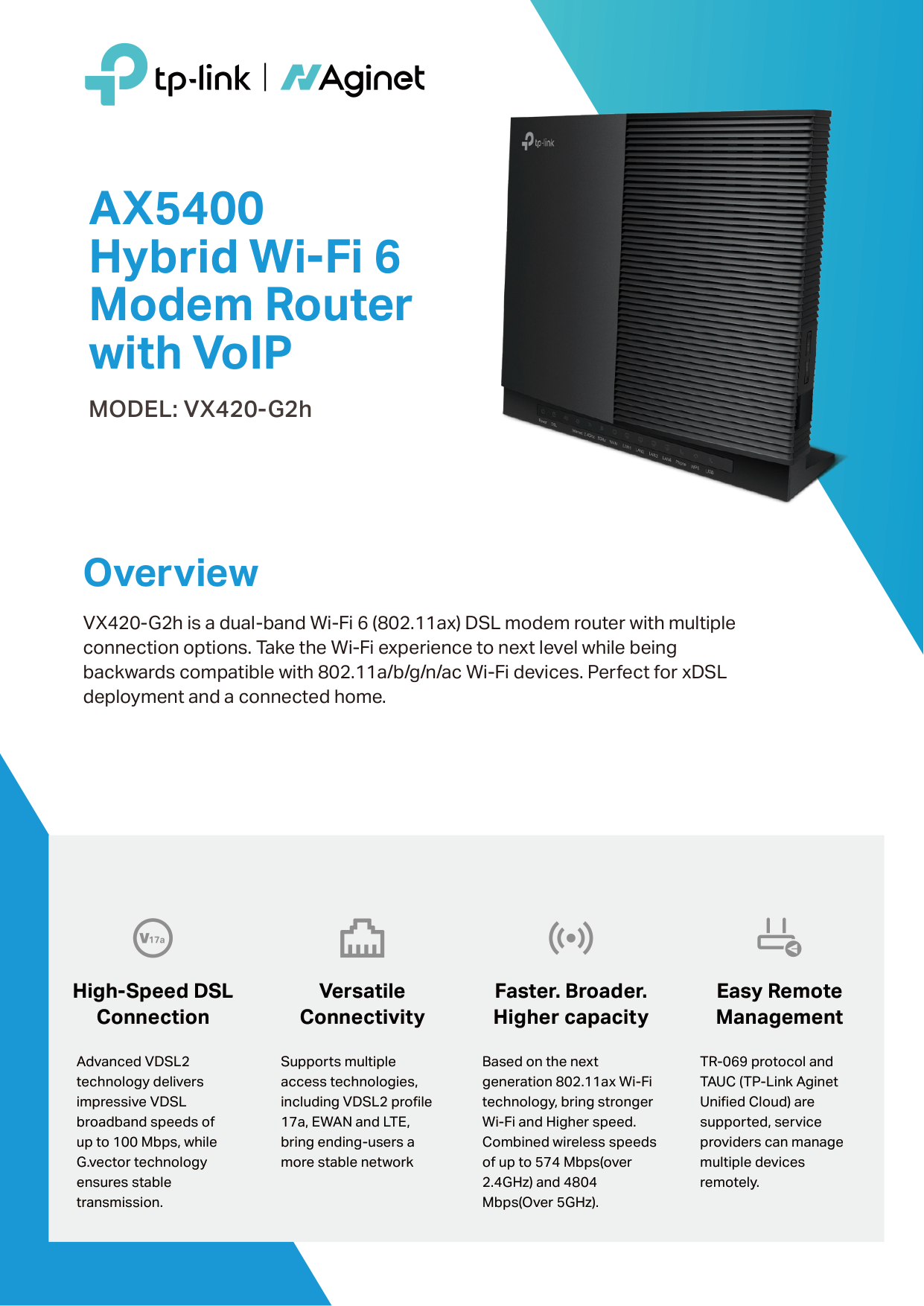
AX5400 Hybrid Wi-Fi 6 Modem Router with VoIP MODEL: VX420-G2h

Overview
VX420-G2h is a dual-band Wi-Fi 6 (802.11ax) DSL modem router with multiple connection options. Take the Wi-Fi experience to next level while being backwards compatible with 802.11a/b/g/n/ac Wi-Fi devices. Perfect for xDSL deployment and a connected home.
#### High-Speed DSL Connection
Advanced VDSL2 technology delivers impressive VDSL broadband speeds of up to 100 Mbps, while G.vector technology ensures stable transmission.
#### Versatile Connectivity
Supports multiple access technologies, including VDSL2 profile 17a, EWAN and LTE, bring ending-users a more stable network
#### Faster. Broader. Higher capacity
Based on the next generation 802.11ax Wi-Fi technology, bring stronger Wi-Fi and Higher speed. Combined wireless speeds of up to 574 Mbps(over 2.4GHz) and 4804 Mbps(Over 5GHz).
#### Easy Remote Management
TR-069 protocol and TAUC (TP-Link Aginet Unified Cloud) are supported, service providers can manage multiple devices remotely.
Features
##### Cater for Standardized Mesh Technology
EasyMesh is a standard mesh technology developed by Wi-Fi Alliance. VX420-G2h adopts EasyMesh technology, which has further improved and standardized Wi-Fi functions, such as Wi-Fi diagnostics, channel selection and traffic separation.
##### MU-MIMO: Efficient Wi-Fi for Every Device
MU-MIMO technology serves multiple devices at once. No more bandwidth congestion or latency. All devices get their data faster and Wi-Fi is used more efficiently.
##### Boost Your 4G+ Speed
Support the 4G+ Cat6, which uses Carrier Aggregation technology to boost the 4G+ speeds of up to 300 Mbps. Plug your SIM card and enjoy HD movies without interruption, downloading files in seconds, and smooth online gaming.
| | |---|
##### Supports VoIP Calls
Support multiple VoIP accounts and various call features, such as caller ID, call waiting, call holding and call forwarding to surpass traditional landlines.
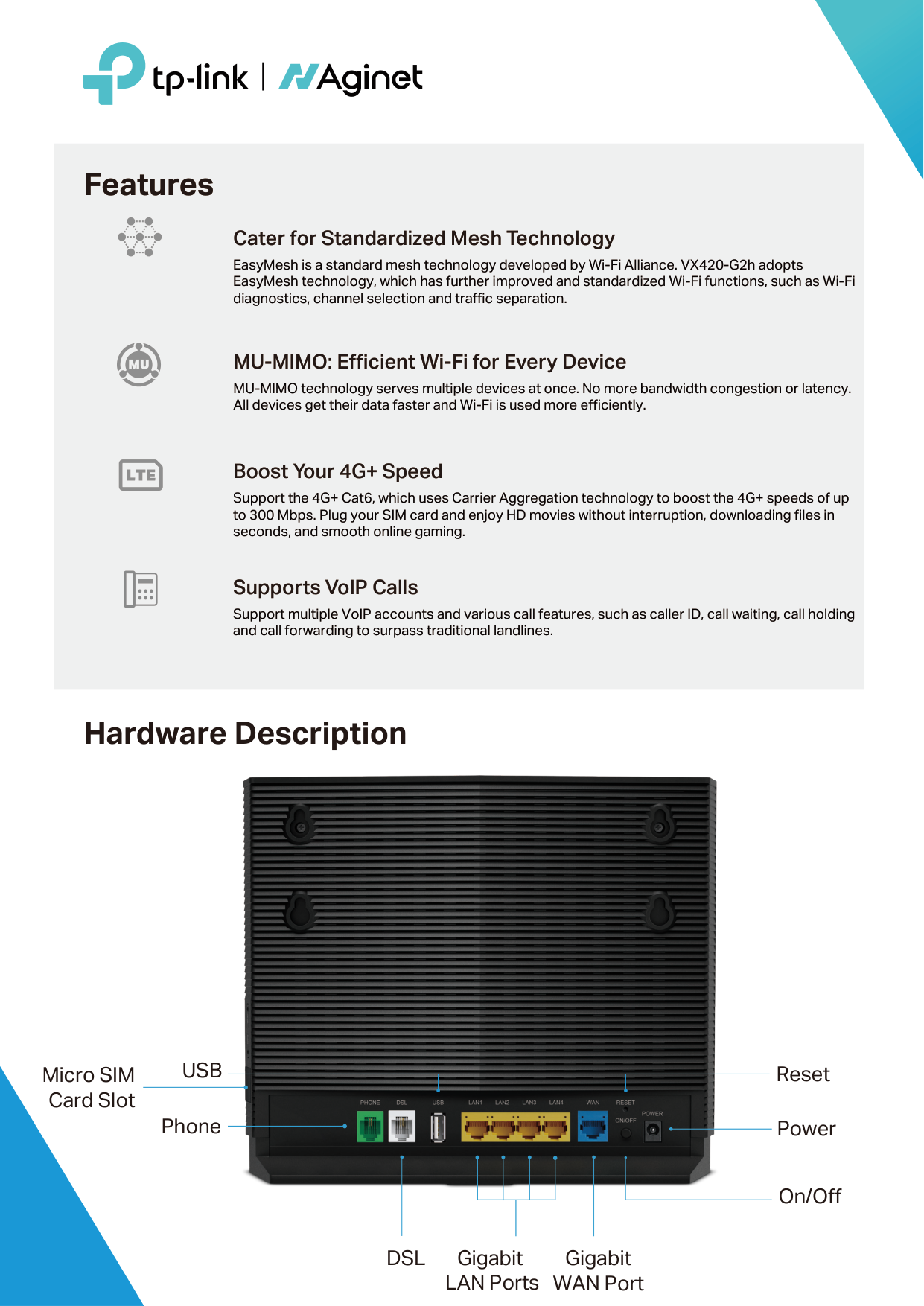
Hardware Description

ResetUSB
Micro SIM Card Slot
Phone
Power
| | | | | |---|---|---|---| | | | | |
On/Off
Gigabit LAN Ports
Gigabit WAN Port
DSL
Specifications
###### Hardware
Software
DHCP Client, DHCP Client List, Address Reservation, DHCP Relay
Interface
4× 10/100/1000 Mbps RJ45 LAN Ports, 1× 10/100/1000 Mbps RJ45 WAN Port, 1× VDSL2 Port, 1× FXS Port, 1× USB 2.0 Port, 1× Micro SIM Card Slot
Protocols Supports IPv4 and IPv6
Multi SSID Up to 3 SSIDs for each band (including main SSID)
Antenna
Internal Wi-Fi and LTE Antennas External Power Supply 12V/2.5A Dimensions (W * D * H) 9.5 x 7.9 x 3.2 in (241.6 x 201.3 x 82.5 mm)
Features VoIP, Parental Control, Firewall, IPSEC VPN, IPv6, Port Forwarding, NAT Forwarding, Address Reservation, QoS(Quality of Service), CWMP, Network Diagnosis, Traffic Statistic, Cloud upgrade, 1024-QAM, MU-MIMO, OFDMA, EasyMesh
Button Management
Local management: WebGUI management Remote management: TR-069, TR-098, TR-181,TR-111,TR-143 Cloud management: TAUC
Power On/Off Button, WPS Button, Wi-Fi Button, Reset Button
Security SPI Firewall, Access Control, MAC / IP / URL Filtering, Denial of Service(DoS), SYN Flooding, Ping of Death, IP and MAC Address Binding
VDSL2 Standards
ITU G.993.2, Up to 17a profile, ITU-T G.993.5 (G.vector) ITU-T G.998.4 (G.INP)
VPN OpenVPN, PPTP VPN, IPSec VPN
USB Sharing Samba (Storage) / FTP Server / Media Server, 3G/4G dongle
Port Forwarding Virtual Server, Port Triggering, DMZ, ALG, UPnP
ADSL Standards
ADSL2 Standards
ITU-T G.992.5
ADSL2+ Standards
IEEE 802.3, IEEE 802.3u, 802.3ab
IEEE Standards
Wireless Schedule Support 2.4 GHz and 5 GHz wireless schedule
####### Dynamic DNS DynDns, NO-IP
Full-rate ANSI T1.413 Issue 2, ITU-T G.992.1(G.DMT),
VoIP SIP, up to 8 Accounts, Call Logs, Call Rules, DND & Call Blocking, Call Forwarding, Voice Mail, T.38
Wireless
Quality of Service ATM QoS, QoS
Wireless Standards IEEE 802.11a/n/ac/ax 5 GHz, IEEE 802.11b/g/n/ax 2.4 GHz
ATM/PPP Protocols ATM Forum UNI3.1/4.0, PPP over ATM, PPP over Ethernet, IPoA, IPoE, Bridge, PVC - Up to 8 PVCs
Mesh Protocol 802.11k/v/r
Advanced Functions Port Mapping, Network Address Translation(NAT)、VoIP
Frequency 2.4 GHz and 5 GHz Signal Rate 4804 Mbps at 5 GHz, 574 Mbps at 2.4 GHz
Others
Transmit Power EIRP: <20dBm (2.4GHz), <23dBm (5GHz, Band1~Band2), <30dBm(5GHz, Band3)
System Requirements Microsoft Windows 98SE, NT, 2000, XP, Vista™ or Windows 7, 8, 8.1,10, MAC OS, NetWare, UNIX or Linux Internet Explorer 11, Firefox 12.0, Chrome 20.0, Safari 4.0 browers or higher.
Wireless Security 64/128bit WEP, WPA/WPA2/WPA3-PSK
Certification CE, DFS, RCM
Wireless Function Enable/Disable Wireless Radio, WMM, Air Time Fairness, Wireless Statistics, MAC Filtering
Environment
Operating Temperature: 0°C~40°C (32°F ~104°F) Storage Temperature: -40°C~60°C (-40°F ~140°F) Operating Humidity: 10%~90% non-condensing Storage Humidity: 5%~90% non-condensing
Package Contents AX5400 Hybrid Wi-Fi 6 Modem Router with VoIP VX420-G2h