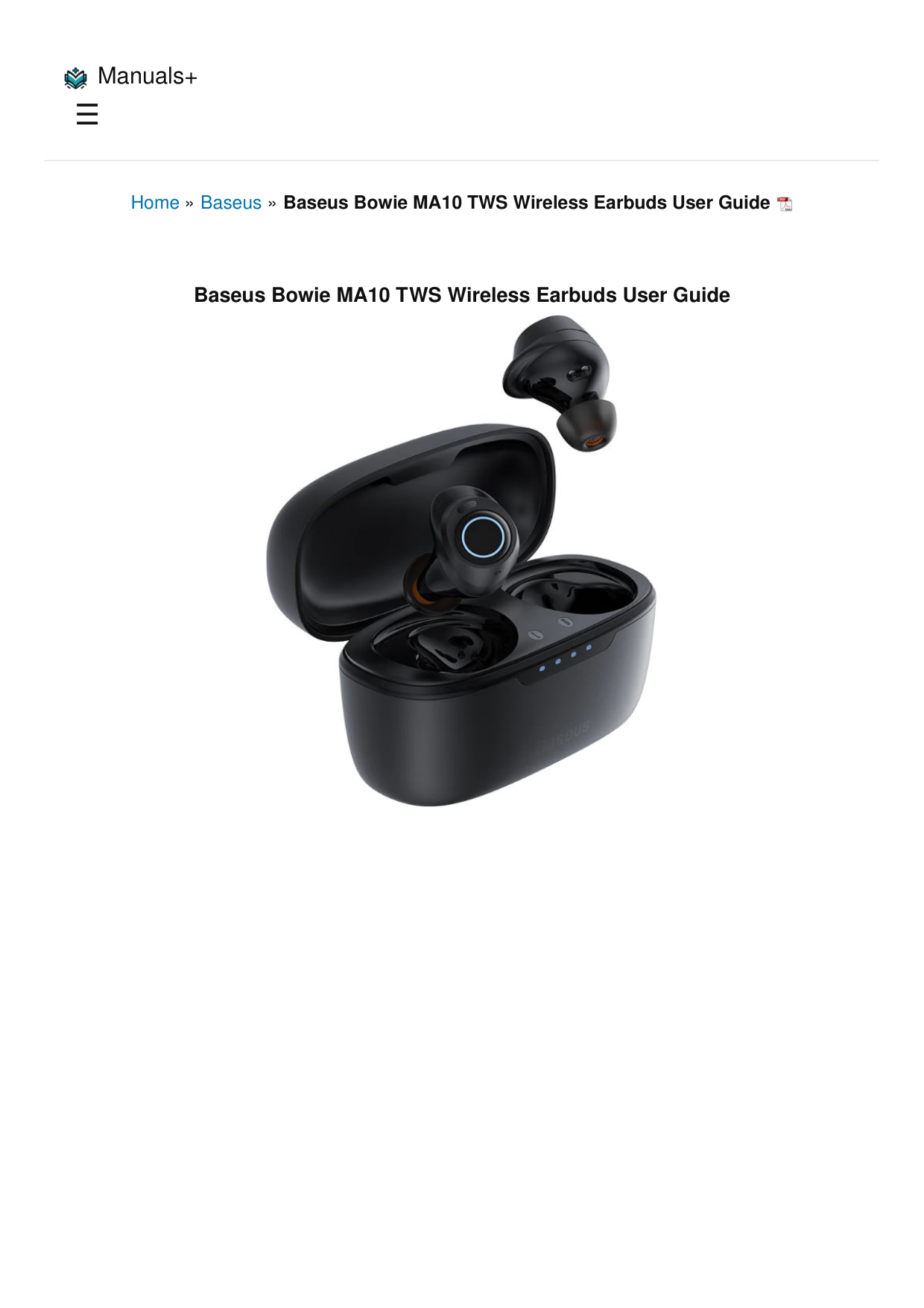
Ask AI
— answers from the official manualAnswers from the official manual.
Common questions
Common Questions
24 totalHow do I know when the Bowie MA10 earbuds are in pairing mode?
When in pairing mode, one indicator fast blinks white and the other indicator slowly blinks white. You can then select 'Baseus Bowie MA10' from your device's Bluetooth device list to complete pairing. (Page 3)
How do I pair the Bowie MA10 earbuds with my device?
Open the charging case, take out the earbuds, and wear them. Then tap 'Baseus Bowie MA10' in your device's Bluetooth device list to complete the pairing. (Page 4)
How do I switch noise reduction mode on the Bowie MA10 earbuds?
Press and hold either the left or right earphone for 1 second to toggle the noise reduction mode. This can be done using either earphone. (Page 4)
What precaution should I take before charging the Bowie MA10 earbuds?
Make sure the earphones are dry and tidy before placing them in the charging case to charge. This helps ensure safe and proper charging. (Page 3)
How do I reject an incoming call on the Bowie MA10?
Press and hold the left or right earphone for 1 second to reject the incoming call. This gesture will decline the call on either earbud.
How do I activate the voice assistant on the Bowie MA10?
Triple tap the left or right earphone to activate the voice assistant on your connected device. This command works on either the left or right earbud.
Show 18 more questions
How do I reset the Baseus Bowie MA10 TWS Wireless Earbuds to factory defaults?
How do I play or pause music on the Bowie MA10 earbuds?
How do I reject an incoming call on the Bowie MA10 earbuds?
How do I activate the voice assistant on the Bowie MA10 earbuds?
How do I know when the earbuds have been successfully reset?
How do I pair the Baseus Bowie MA10 earbuds with my device?
How can I tell when the earbuds are in pairing mode?
How do I activate noise reduction mode on the Bowie MA10 earbuds?
How do I turn the Bowie MA10 earbuds on and off?
What should I do before using the Bowie MA10 earbuds for the first time?
How do I turn on the Baseus Bowie MA10 earbuds?
How do I turn off the Baseus Bowie MA10 earbuds?
How do I factory reset the Baseus Bowie MA10 earbuds?
What do the LED light indicators mean on the Bowie MA10?
How do I pair the Baseus Bowie MA10 with my device?
How do I enable noise reduction mode on the Bowie MA10?
How do I play or pause audio on the Bowie MA10?
How do I answer or end a call on the Bowie MA10?
Full Manual
7 pages
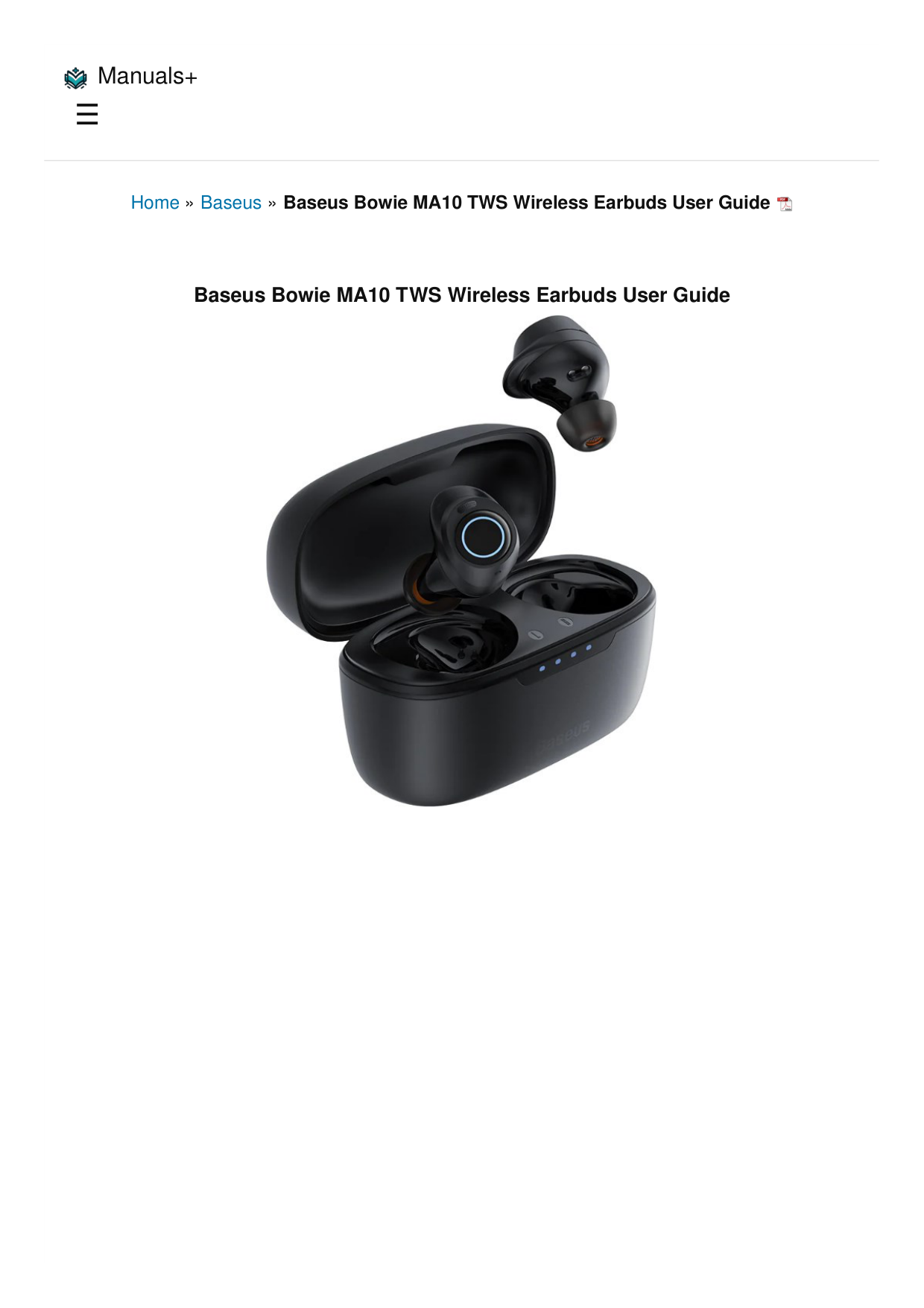
☰ Home » Baseus » Baseus Bowie MA10 TWS Wireless Earbuds User Guide Baseus Bowie MA10 TWS Wireless Earbuds User Guide Manuals+

Contents [ hide ] 1 Wearing 2 Powering On/Off 3 Charging 4 LED Light Guide 5 Pairing 6 Button Controls 7 Reset 7.1 Support 8 Documents / Resources 8.1 References 9 Related Posts Wearing Open the charging case and take out the earphones, tear off the insulation sticker of the earphones, put them into the charging case and fully charge them before use. Choose ear trips and ear hooks that match your ear shape, and adjust them to the most comfortable positions for wearing. Powering On/Off Using For Wearing

When you open the charging case, the earphone indicators blink white and the earphones are powered on. When you place the earphones in the charging case and cover the lid, the earphones are powered off. Charging Make sure the earphones are dry and tidy before charging them in the charging case. LED Light Guide Pairing mode: One indicator fast blinks white, and one indicator slowly blinks white. Restoration to factory defaults: Indicators of both earphones fast blink white three times at the same time. Pairing

Open the charging case, take out and wear the earphones. Tap Base us Bowie MA10 in the Bluetooth device list. Button Controls Noise reduction mode: Press and hold the left or right earphone (L or R) for 1s. Play/Pause: Double tap the left or right earphone. Answer/Hang up a Call: Double tap the left or right earphone. Reject a call: Press and hold the left or right earphone for 1s. Activate the voice assistant: Triple tap the left or right earphone. Reset Open the lid and press and hold the button in the charging case for 5s. The white indicators blink three times simultaneously. Support Controls Buttons Reset

SENNHEISER CX400TW1 TWS Wireless Earbuds User Manual SENNHEISER CX400TW1 TWS Wireless Earbuds Waking up and charging Place the earbuds into the charging case and connect… Delinuo Wireless Earbuds TWS-T9 User manual Delinuo Wireless Earbuds TWS-T9 User manual Product Parameters Open the Charging Case Turn On & Pair Reset Correct… JBL Quantum TWS Air True Wireless Earbuds User Manual Quantum TWS Air True Wireless Earbuds User Manual Quantum TWS Air True Wireless Earbuds nubia T1 TWS Wireless Bluetooth Earbuds User Manual Scan the QR Code to download the app and bind the app with the earphones. For FAQs, deatailed user manual and more information, please visit https://www.baseus.com/pages/support-center. Documents / Resources Baseus Bowie MA10 TWS Wireless Earbuds [pdf] User Guide Bowie MA10, Bowie MA10 TWS Wireless Earbuds, TWS Wireless Earbuds, Wireless Earbuds, Earbuds References User Manual Related Posts

T1 TWS Wireless Bluetooth Earbuds Baseus Baseus, Bowie MA10, Bowie MA10 TWS Wireless Earbuds, earbuds, TWS Wireless Earbuds, Wireless Earbuds Leave a comment Search: e.g. whirlpool wrf535swhz
Search Your email address will not be published. Required fields are marked * Comment * Name Email Website Save my name, email, and website in this browser for the next time I comment. Post Comment

This website is an independent publication and is neither affiliated with nor endorsed by any of the trademark owners. The "Bluetooth®" word mark and logos are registered trademarks owned by Bluetooth SIG, Inc. The "Wi-Fi®" word mark and logos are registered trademarks owned by the Wi-Fi Alliance. Any use of these marks on this website does not imply any affiliation with or endorsement.