
Ask AI
— answers from the official manualAnswers from the official manual.
Common questions
Common Questions
10 totalWhat is the default login username and password for the Netgear AC1600 Modem Router?
The default username is admin and the default password is password. Both the username and password are case-sensitive. You can change the admin password to a more secure one after initial setup.
How do I reset the Netgear AC1600 to factory default settings?
You can reset the modem router to factory defaults by using the Reset button on the back panel. Press and hold the Reset button, and when you release it, the Power LED will blink amber three times and then turn green as the modem router resets to factory defaults. You can also use the erase settings option from the web interface.
What do the LED lights on the front panel of the AC1600 indicate?
The front panel has five LED indicators: Power (solid green means normal operation, solid amber means booting), DSL (solid green means DSL connection active), Internet (solid green means connected to Internet, solid amber means connection failed), WiFi (solid blue means WiFi is enabled, blinking blue means WPS is active), and USB (solid blue means USB device is connected and ready). Each LED status provides specific information about the modem router's state.
How do I set up the AC1600 for DSL service?
To set up for DSL service, connect a phone cable from the gray DSL port on the modem router to your DSL line using an ADSL or DSL microfilter (included in the package). Then connect the power adapter and wait for the Power LED to turn solid green. Connect your computer via Ethernet or WiFi, and follow the Setup Wizard to complete the configuration with your ISP information.
How do I change the admin password for the AC1600?
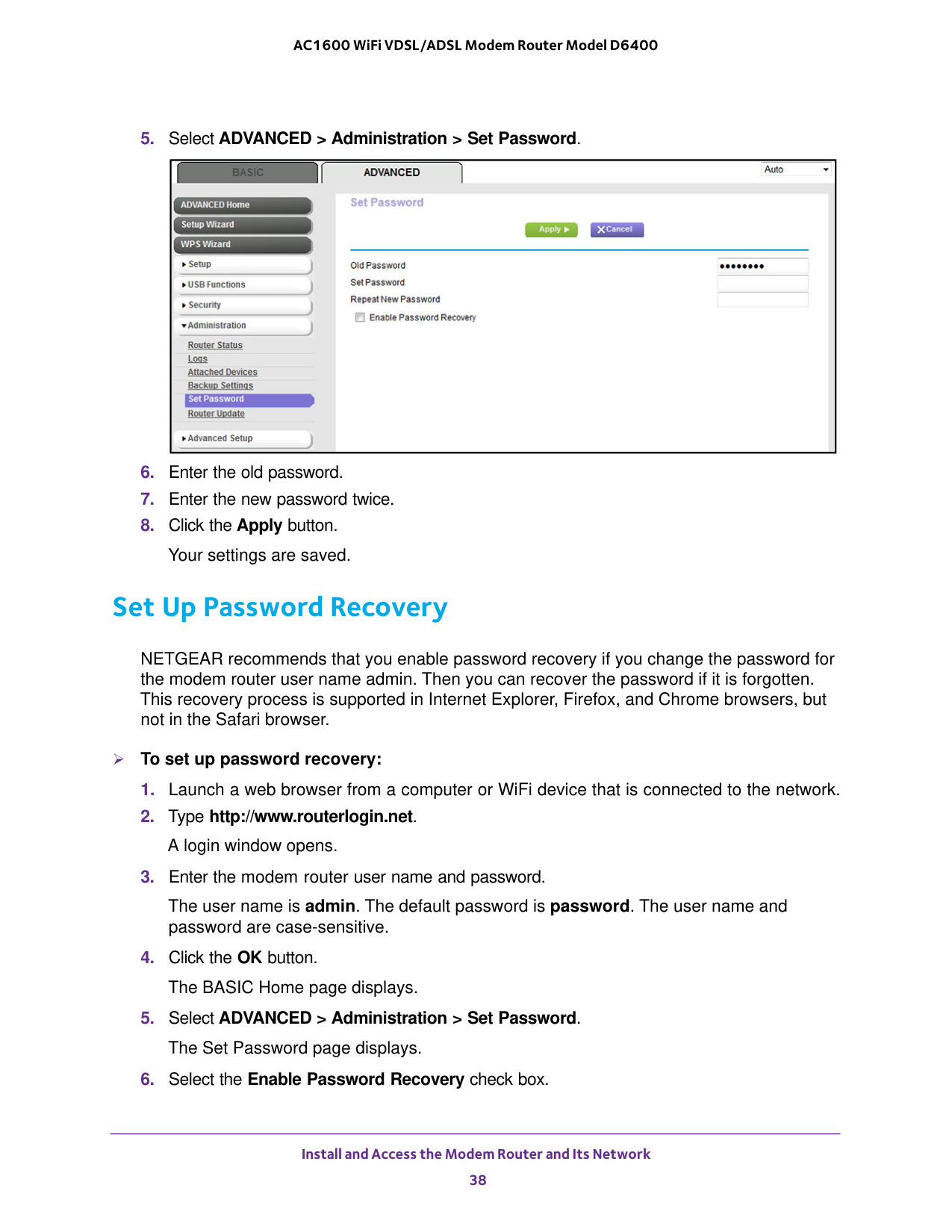
To change the admin password, log in to the modem router at http://www.routerlogin.net with username admin and your current password. Then select ADVANCED > Administration > Set Password, enter your old password, enter your new password twice, and click Apply. NETGEAR recommends using a password with uppercase and lowercase letters, numbers, and symbols, up to 30 characters long.
What should I do if I cannot log in to the AC1600 modem router?
If you cannot log in, make sure the computer is connected to one of the four Ethernet LAN ports or over WiFi to the modem router. Verify the Power LED is lit green. Try closing and reopening your browser, and clear the browser cache. If the computer is set to a static IP address, change it to obtain an IP address automatically from the modem router through DHCP, or set it to a static IP in the 192.168.0.2–192.168.0.254 range.
Full Manual
287 pages
350 East Plumeria Drive San Jose, CA 95134
Usa
August 2015 202-11485-05 AC1600 WiFi VDSL/ADSL Modem Router Model D6400 User Manual
2 AC1600 WiFi VDSL/ADSL Modem Router Model D6400 Support Thank you for selecting NETGEAR products. After installing your device, locate the serial number on the label of your product and use it to register your product at https://my.netgear.com. You must register your product before you can use NETGEAR telephone support. NETGEAR recommends registering your product through the NETGEAR website. For product updates and web support, visit http://support.netgear.com. Phone (US & Canada only): 1-888-NETGEAR. Phone (Other Countries): Check the list of phone numbers at http://support.netgear.com/general/contact/default.aspx. Compliance For regulatory compliance information, visit http://www.netgear.com/about/regulatory. See the regulatory compliance document before connecting the power supply. Trademarks © NETGEAR, Inc., NETGEAR and the NETGEAR Logo are trademarks of NETGEAR, Inc. Any non-NETGEAR trademarks are used for reference purposes only.
3 Contents Chapter 1
Hardware Overview of the Modem Router Unpack Your Modem Router . . . . . . . . . . . . . . . . . . . . . . . . . . . . . . . . . . . . . . . . . . 10 Front Panel with LEDs. . . . . . . . . . . . . . . . . . . . . . . . . . . . . . . . . . . . . . . . . . . . . . . . 11 Back Panel with Ports, Buttons, and Connector . . . . . . . . . . . . . . . . . . . . . . . . . . 13 Right Side Panel with WPS and WiFi On/Off Buttons and USB Port . . . . . . . . . 14 Bottom Panel Product Label . . . . . . . . . . . . . . . . . . . . . . . . . . . . . . . . . . . . . . . . . . 15 Chapter 2
Install and Access the Modem Router and Its Network Position Your Modem Router. . . . . . . . . . . . . . . . . . . . . . . . . . . . . . . . . . . . . . . . . . 17 Connect to the Modem Router . . . . . . . . . . . . . . . . . . . . . . . . . . . . . . . . . . . . . . . . 18 Connect to the Modem Router Through an Ethernet Cable. . . . . . . . . . . . . . 18 Join the WiFi Network of the Modem Router. . . . . . . . . . . . . . . . . . . . . . . . . . 18 Types of Logins . . . . . . . . . . . . . . . . . . . . . . . . . . . . . . . . . . . . . . . . . . . . . . . . . . . . . 19 Automatic Internet Setup. . . . . . . . . . . . . . . . . . . . . . . . . . . . . . . . . . . . . . . . . . . . . 20 Set Up Your Modem Router for DSL Service. . . . . . . . . . . . . . . . . . . . . . . . . . . . . 21 DSL Service . . . . . . . . . . . . . . . . . . . . . . . . . . . . . . . . . . . . . . . . . . . . . . . . . . . . . . 21 Cable the Modem Router for DSL Service and Access the Modem Router . 22 Set Up Your Modem Router for Cable or Fiber Service. . . . . . . . . . . . . . . . . . . . 29 Log In to the Modem Router After Setup to View or Change Settings. . . . . . . 35 Change the Language . . . . . . . . . . . . . . . . . . . . . . . . . . . . . . . . . . . . . . . . . . . . . . . . 37 Change the admin Password . . . . . . . . . . . . . . . . . . . . . . . . . . . . . . . . . . . . . . . . . . 37 Set Up Password Recovery . . . . . . . . . . . . . . . . . . . . . . . . . . . . . . . . . . . . . . . . . . . 38 Let the Modem Router Automatically Update Its Firmware . . . . . . . . . . . . . . . . 39 Access the Modem Router with the NETGEAR genie App. . . . . . . . . . . . . . . . . . 40 Chapter 3
Manage the Internet Settings Manually Use the Internet Setup Wizard After Initial Setup . . . . . . . . . . . . . . . . . . . . . . . . 42 Manually Set Up an ADSL Internet Connection . . . . . . . . . . . . . . . . . . . . . . . . . . 47 Specify an ADSL Connection Without a Login Requirement . . . . . . . . . . . . . 47 Specify an ADSL Connection with a Login Requirement and PPPoA or PPPoE Service . . . . . . . . . . . . . . . . . . . . . . . . . . . . . . . . . . . . . . . . . . . 52 Manually Set Up a VDSL Internet Connection. . . . . . . . . . . . . . . . . . . . . . . . . . . . 57 Specify a VDSL Connection Without a Login Requirement . . . . . . . . . . . . . . 57 Specify a VDSL Connection with a Login Requirement and PPPoE Service . . . . . . . . . . . . . . . . . . . . . . . . . . . . . . . . . . . . . . . . . . . . . . . . . . . . 61 Manually Set Up a Cable of Fiber Internet Connection . . . . . . . . . . . . . . . . . . . . 66 Specify a Cable or Fiber Connection Without a Login Requirement. . . . . . . 66 Specify a Cable or Fiber Connection With a Login Requirement and PPPoE Service . . . . . . . . . . . . . . . . . . . . . . . . . . . . . . . . . . . . . . . . . . . . . . . . 71
4 AC1600 WiFi VDSL/ADSL Modem Router Model D6400 Specify an IPv6 Internet Connection . . . . . . . . . . . . . . . . . . . . . . . . . . . . . . . . . . . 75 IPv6 Internet Connections and IPv6 Addresses . . . . . . . . . . . . . . . . . . . . . . . . 75 Set Up an IPv6 Connection Through Auto Detect . . . . . . . . . . . . . . . . . . . . . . 76 Set Up an IPv6 6to4 Tunnel Connection . . . . . . . . . . . . . . . . . . . . . . . . . . . . . . 78 Set Up an IPv6 Pass-Through Connection . . . . . . . . . . . . . . . . . . . . . . . . . . . . 79 Set Up an IPv6 Fixed Connection . . . . . . . . . . . . . . . . . . . . . . . . . . . . . . . . . . . . 80 Set Up an IPv6 DHCP Connection . . . . . . . . . . . . . . . . . . . . . . . . . . . . . . . . . . . 82 Set Up an IPv6 PPPoE Connection . . . . . . . . . . . . . . . . . . . . . . . . . . . . . . . . . . . 84 Set Up an IPv6 Connection Through Auto Config . . . . . . . . . . . . . . . . . . . . . . 86 Set Up an IPv6 6rd Tunnel Connection . . . . . . . . . . . . . . . . . . . . . . . . . . . . . . . 88 Manage the MTU Size. . . . . . . . . . . . . . . . . . . . . . . . . . . . . . . . . . . . . . . . . . . . . . . . 90 MTU Concepts. . . . . . . . . . . . . . . . . . . . . . . . . . . . . . . . . . . . . . . . . . . . . . . . . . . . 90 Change the MTU Size . . . . . . . . . . . . . . . . . . . . . . . . . . . . . . . . . . . . . . . . . . . . . . 91 Chapter 4
Manage the WiFi Network Settings Manage the Basic WiFi Settings and WiFi Security of the Main Network. . . . . 93 View or Change the Basic WiFi Settings . . . . . . . . . . . . . . . . . . . . . . . . . . . . . . 93 Configure WPA/WPA2 Enterprise WiFi Security . . . . . . . . . . . . . . . . . . . . . . . 98 Configure WEP Legacy WiFi Security . . . . . . . . . . . . . . . . . . . . . . . . . . . . . . . 100 Use WPS to Add a Device to the WiFi Network . . . . . . . . . . . . . . . . . . . . . . . . . 102 Use WPS with the Push Button Method . . . . . . . . . . . . . . . . . . . . . . . . . . . . . 102 Use WPS with the PIN Method . . . . . . . . . . . . . . . . . . . . . . . . . . . . . . . . . . . . . 103 Manage the Basic WiFi Settings and WiFi Security of the Guest Network. . . 105 Set Up and Enable a Guest Network . . . . . . . . . . . . . . . . . . . . . . . . . . . . . . . . 105 Configure WEP Legacy WiFi Security for the Guest WiFi Network. . . . . . . 108 Control the WiFi Radios . . . . . . . . . . . . . . . . . . . . . . . . . . . . . . . . . . . . . . . . . . . . . 110 Use the WiFi On/Off Button . . . . . . . . . . . . . . . . . . . . . . . . . . . . . . . . . . . . . . . 110 Enable or Disable the WiFi Radios. . . . . . . . . . . . . . . . . . . . . . . . . . . . . . . . . . . 111 Set Up a WiFi Schedule . . . . . . . . . . . . . . . . . . . . . . . . . . . . . . . . . . . . . . . . . . . . . . 112 Manage the WPS Settings . . . . . . . . . . . . . . . . . . . . . . . . . . . . . . . . . . . . . . . . . . . 114 Manage Advanced WiFi Features . . . . . . . . . . . . . . . . . . . . . . . . . . . . . . . . . . . . . 115 Use the Modem Router as a WiFi Access Point . . . . . . . . . . . . . . . . . . . . . . . . . . 117 Chapter 5
Control Access to the Internet Set Up Parental Controls . . . . . . . . . . . . . . . . . . . . . . . . . . . . . . . . . . . . . . . . . . . . 120 Allow or Block Access to Your Network. . . . . . . . . . . . . . . . . . . . . . . . . . . . . . . . 121 Enable and Manage Network Access Control . . . . . . . . . . . . . . . . . . . . . . . . . 121 Manage Network Access Control Lists . . . . . . . . . . . . . . . . . . . . . . . . . . . . . . 123 Use Keywords to Block Internet Sites . . . . . . . . . . . . . . . . . . . . . . . . . . . . . . . . . 126 Set Up Blocking . . . . . . . . . . . . . . . . . . . . . . . . . . . . . . . . . . . . . . . . . . . . . . . . . . 126 Remove a Keyword or Domain from the Blocked List. . . . . . . . . . . . . . . . . . 128 Remove All Keywords and Domains from the Blocked List . . . . . . . . . . . . . 128 Specify a Trusted Computer . . . . . . . . . . . . . . . . . . . . . . . . . . . . . . . . . . . . . . . 129 Manage Simple Outbound Firewall Rules for Services and Applications. . . . . 130 Add an Outbound Firewall Rule. . . . . . . . . . . . . . . . . . . . . . . . . . . . . . . . . . . . . 130 Add an Outbound Firewall Rule for a Custom Service or Application . . . . . 132
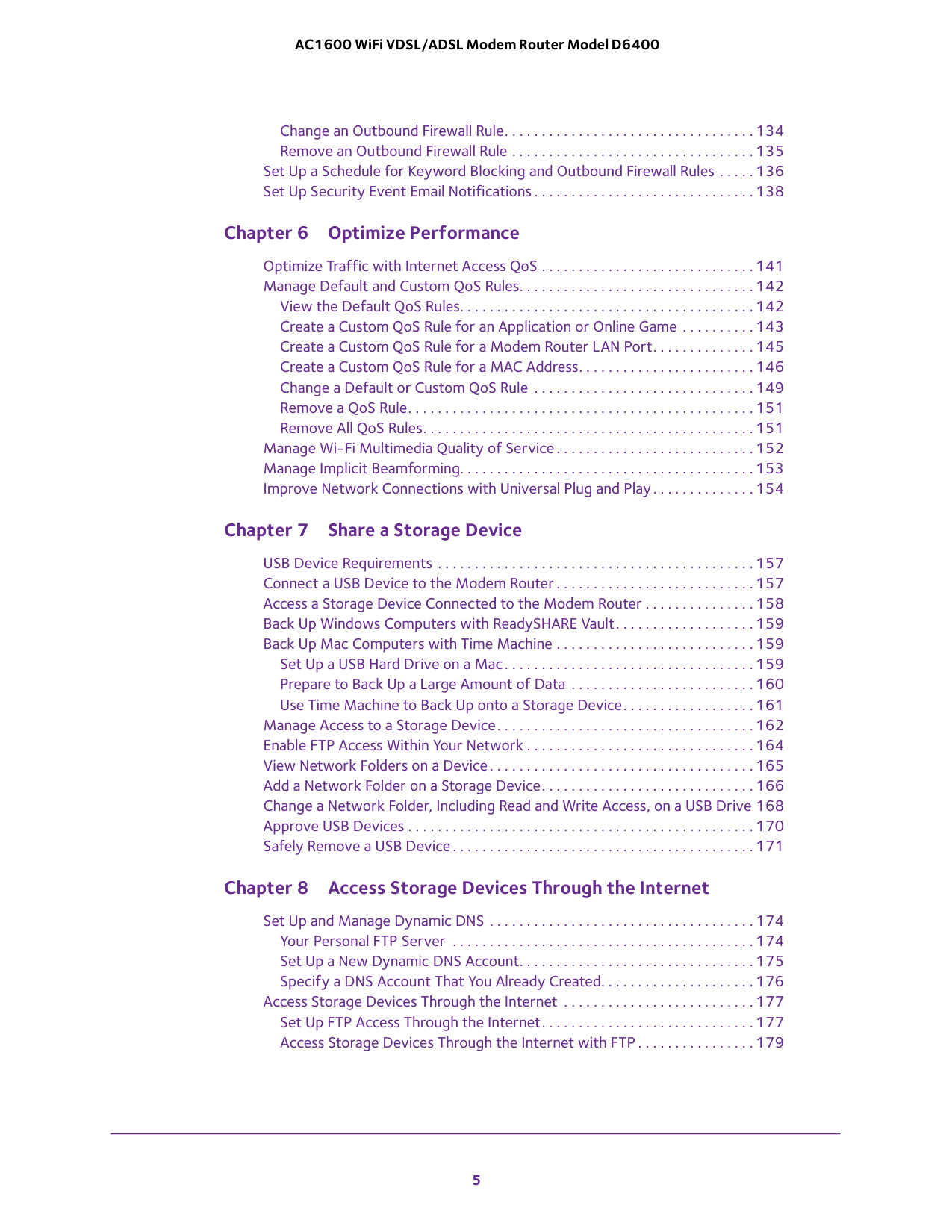
5 AC1600 WiFi VDSL/ADSL Modem Router Model D6400 Change an Outbound Firewall Rule. . . . . . . . . . . . . . . . . . . . . . . . . . . . . . . . . . 134 Remove an Outbound Firewall Rule . . . . . . . . . . . . . . . . . . . . . . . . . . . . . . . . . 135 Set Up a Schedule for Keyword Blocking and Outbound Firewall Rules . . . . . 136 Set Up Security Event Email Notifications . . . . . . . . . . . . . . . . . . . . . . . . . . . . . . 138 Chapter 6
Optimize Performance Optimize Traffic with Internet Access QoS . . . . . . . . . . . . . . . . . . . . . . . . . . . . . 141 Manage Default and Custom QoS Rules. . . . . . . . . . . . . . . . . . . . . . . . . . . . . . . . 142 View the Default QoS Rules. . . . . . . . . . . . . . . . . . . . . . . . . . . . . . . . . . . . . . . . 142 Create a Custom QoS Rule for an Application or Online Game . . . . . . . . . . 143 Create a Custom QoS Rule for a Modem Router LAN Port. . . . . . . . . . . . . . 145 Create a Custom QoS Rule for a MAC Address. . . . . . . . . . . . . . . . . . . . . . . . 146 Change a Default or Custom QoS Rule . . . . . . . . . . . . . . . . . . . . . . . . . . . . . . 149 Remove a QoS Rule. . . . . . . . . . . . . . . . . . . . . . . . . . . . . . . . . . . . . . . . . . . . . . . 151 Remove All QoS Rules. . . . . . . . . . . . . . . . . . . . . . . . . . . . . . . . . . . . . . . . . . . . . 151 Manage Wi-Fi Multimedia Quality of Service. . . . . . . . . . . . . . . . . . . . . . . . . . . 152 Manage Implicit Beamforming. . . . . . . . . . . . . . . . . . . . . . . . . . . . . . . . . . . . . . . . 153 Improve Network Connections with Universal Plug and Play. . . . . . . . . . . . . . 154 Chapter 7
Share a Storage Device USB Device Requirements . . . . . . . . . . . . . . . . . . . . . . . . . . . . . . . . . . . . . . . . . . . 157 Connect a USB Device to the Modem Router . . . . . . . . . . . . . . . . . . . . . . . . . . . 157 Access a Storage Device Connected to the Modem Router . . . . . . . . . . . . . . . 158 Back Up Windows Computers with ReadySHARE Vault. . . . . . . . . . . . . . . . . . . 159 Back Up Mac Computers with Time Machine . . . . . . . . . . . . . . . . . . . . . . . . . . . 159 Set Up a USB Hard Drive on a Mac. . . . . . . . . . . . . . . . . . . . . . . . . . . . . . . . . . 159 Prepare to Back Up a Large Amount of Data . . . . . . . . . . . . . . . . . . . . . . . . . 160 Use Time Machine to Back Up onto a Storage Device. . . . . . . . . . . . . . . . . . 161 Manage Access to a Storage Device. . . . . . . . . . . . . . . . . . . . . . . . . . . . . . . . . . . 162 Enable FTP Access Within Your Network . . . . . . . . . . . . . . . . . . . . . . . . . . . . . . . 164 View Network Folders on a Device. . . . . . . . . . . . . . . . . . . . . . . . . . . . . . . . . . . . 165 Add a Network Folder on a Storage Device. . . . . . . . . . . . . . . . . . . . . . . . . . . . . 166 Change a Network Folder, Including Read and Write Access, on a USB Drive 168 Approve USB Devices . . . . . . . . . . . . . . . . . . . . . . . . . . . . . . . . . . . . . . . . . . . . . . . 170 Safely Remove a USB Device. . . . . . . . . . . . . . . . . . . . . . . . . . . . . . . . . . . . . . . . . 171 Chapter 8
Access Storage Devices Through the Internet Set Up and Manage Dynamic DNS . . . . . . . . . . . . . . . . . . . . . . . . . . . . . . . . . . . . 174 Your Personal FTP Server . . . . . . . . . . . . . . . . . . . . . . . . . . . . . . . . . . . . . . . . . 174 Set Up a New Dynamic DNS Account. . . . . . . . . . . . . . . . . . . . . . . . . . . . . . . . 175 Specify a DNS Account That You Already Created. . . . . . . . . . . . . . . . . . . . . 176 Access Storage Devices Through the Internet . . . . . . . . . . . . . . . . . . . . . . . . . . 177 Set Up FTP Access Through the Internet. . . . . . . . . . . . . . . . . . . . . . . . . . . . . 177 Access Storage Devices Through the Internet with FTP . . . . . . . . . . . . . . . . 179
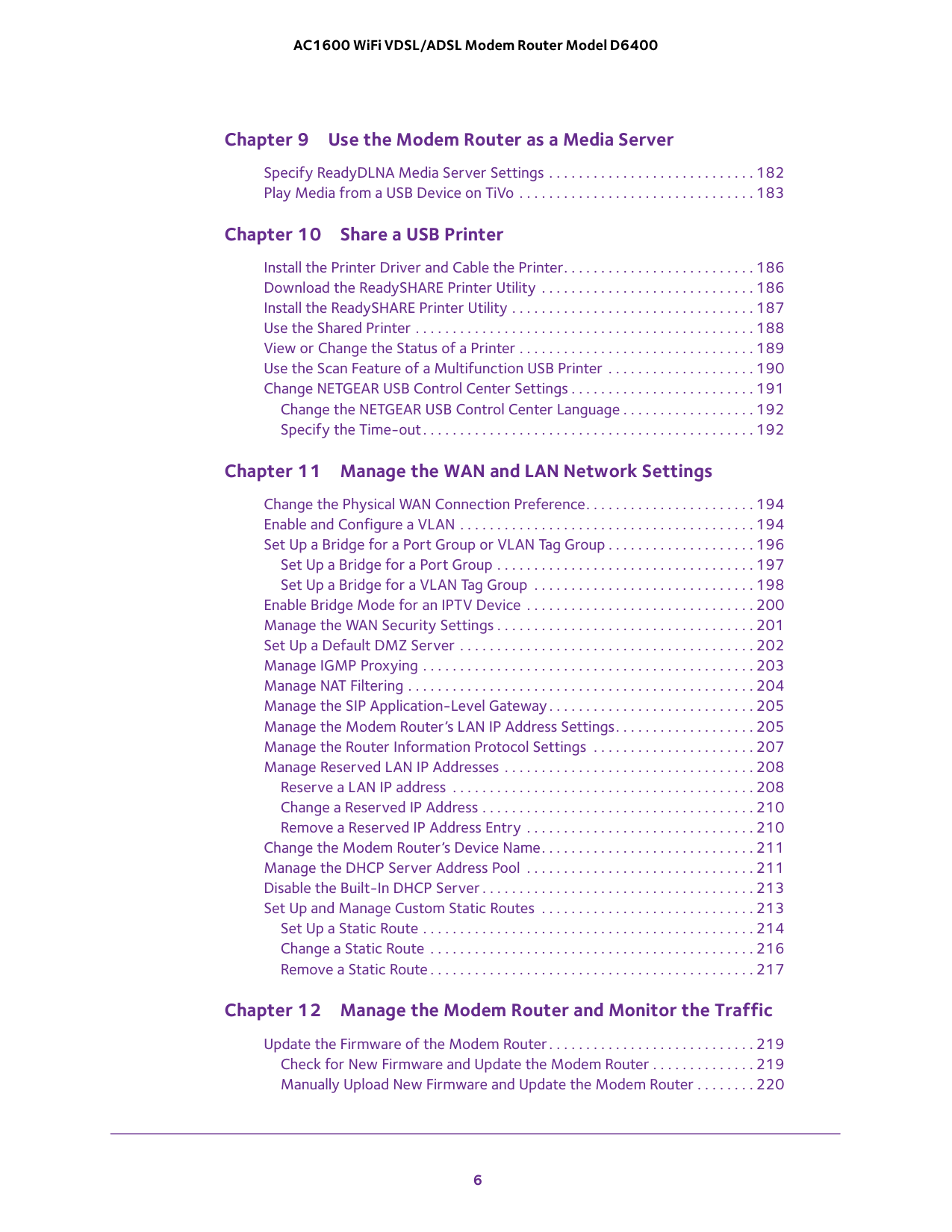
6 AC1600 WiFi VDSL/ADSL Modem Router Model D6400 Chapter 9
Use the Modem Router as a Media Server Specify ReadyDLNA Media Server Settings . . . . . . . . . . . . . . . . . . . . . . . . . . . . 182 Play Media from a USB Device on TiVo . . . . . . . . . . . . . . . . . . . . . . . . . . . . . . . . 183 Chapter 10
Share a USB Printer Install the Printer Driver and Cable the Printer. . . . . . . . . . . . . . . . . . . . . . . . . . 186 Download the ReadySHARE Printer Utility . . . . . . . . . . . . . . . . . . . . . . . . . . . . . 186 Install the ReadySHARE Printer Utility . . . . . . . . . . . . . . . . . . . . . . . . . . . . . . . . . 187 Use the Shared Printer . . . . . . . . . . . . . . . . . . . . . . . . . . . . . . . . . . . . . . . . . . . . . . 188 View or Change the Status of a Printer . . . . . . . . . . . . . . . . . . . . . . . . . . . . . . . . 189 Use the Scan Feature of a Multifunction USB Printer . . . . . . . . . . . . . . . . . . . . 190 Change NETGEAR USB Control Center Settings . . . . . . . . . . . . . . . . . . . . . . . . . 191 Change the NETGEAR USB Control Center Language . . . . . . . . . . . . . . . . . . 192 Specify the Time-out. . . . . . . . . . . . . . . . . . . . . . . . . . . . . . . . . . . . . . . . . . . . . 192 Chapter 11
Manage the WAN and LAN Network Settings Change the Physical WAN Connection Preference. . . . . . . . . . . . . . . . . . . . . . . 194 Enable and Configure a VLAN . . . . . . . . . . . . . . . . . . . . . . . . . . . . . . . . . . . . . . . . 194 Set Up a Bridge for a Port Group or VLAN Tag Group . . . . . . . . . . . . . . . . . . . . 196 Set Up a Bridge for a Port Group . . . . . . . . . . . . . . . . . . . . . . . . . . . . . . . . . . . 197 Set Up a Bridge for a VLAN Tag Group . . . . . . . . . . . . . . . . . . . . . . . . . . . . . . 198 Enable Bridge Mode for an IPTV Device . . . . . . . . . . . . . . . . . . . . . . . . . . . . . . . 200 Manage the WAN Security Settings . . . . . . . . . . . . . . . . . . . . . . . . . . . . . . . . . . . 201 Set Up a Default DMZ Server . . . . . . . . . . . . . . . . . . . . . . . . . . . . . . . . . . . . . . . . 202 Manage IGMP Proxying . . . . . . . . . . . . . . . . . . . . . . . . . . . . . . . . . . . . . . . . . . . . . 203 Manage NAT Filtering . . . . . . . . . . . . . . . . . . . . . . . . . . . . . . . . . . . . . . . . . . . . . . . 204 Manage the SIP Application-Level Gateway. . . . . . . . . . . . . . . . . . . . . . . . . . . . 205 Manage the Modem Router’s LAN IP Address Settings. . . . . . . . . . . . . . . . . . . 205 Manage the Router Information Protocol Settings . . . . . . . . . . . . . . . . . . . . . . 207 Manage Reserved LAN IP Addresses . . . . . . . . . . . . . . . . . . . . . . . . . . . . . . . . . . 208 Reserve a LAN IP address . . . . . . . . . . . . . . . . . . . . . . . . . . . . . . . . . . . . . . . . . 208 Change a Reserved IP Address . . . . . . . . . . . . . . . . . . . . . . . . . . . . . . . . . . . . . 210 Remove a Reserved IP Address Entry . . . . . . . . . . . . . . . . . . . . . . . . . . . . . . . 210 Change the Modem Router’s Device Name. . . . . . . . . . . . . . . . . . . . . . . . . . . . . 211 Manage the DHCP Server Address Pool . . . . . . . . . . . . . . . . . . . . . . . . . . . . . . . 211 Disable the Built-In DHCP Server . . . . . . . . . . . . . . . . . . . . . . . . . . . . . . . . . . . . . 213 Set Up and Manage Custom Static Routes . . . . . . . . . . . . . . . . . . . . . . . . . . . . . 213 Set Up a Static Route . . . . . . . . . . . . . . . . . . . . . . . . . . . . . . . . . . . . . . . . . . . . . 214 Change a Static Route . . . . . . . . . . . . . . . . . . . . . . . . . . . . . . . . . . . . . . . . . . . . 216 Remove a Static Route . . . . . . . . . . . . . . . . . . . . . . . . . . . . . . . . . . . . . . . . . . . . 217 Chapter 12
Manage the Modem Router and Monitor the Traffic Update the Firmware of the Modem Router. . . . . . . . . . . . . . . . . . . . . . . . . . . . 219 Check for New Firmware and Update the Modem Router . . . . . . . . . . . . . . 219 Manually Upload New Firmware and Update the Modem Router . . . . . . . . 220
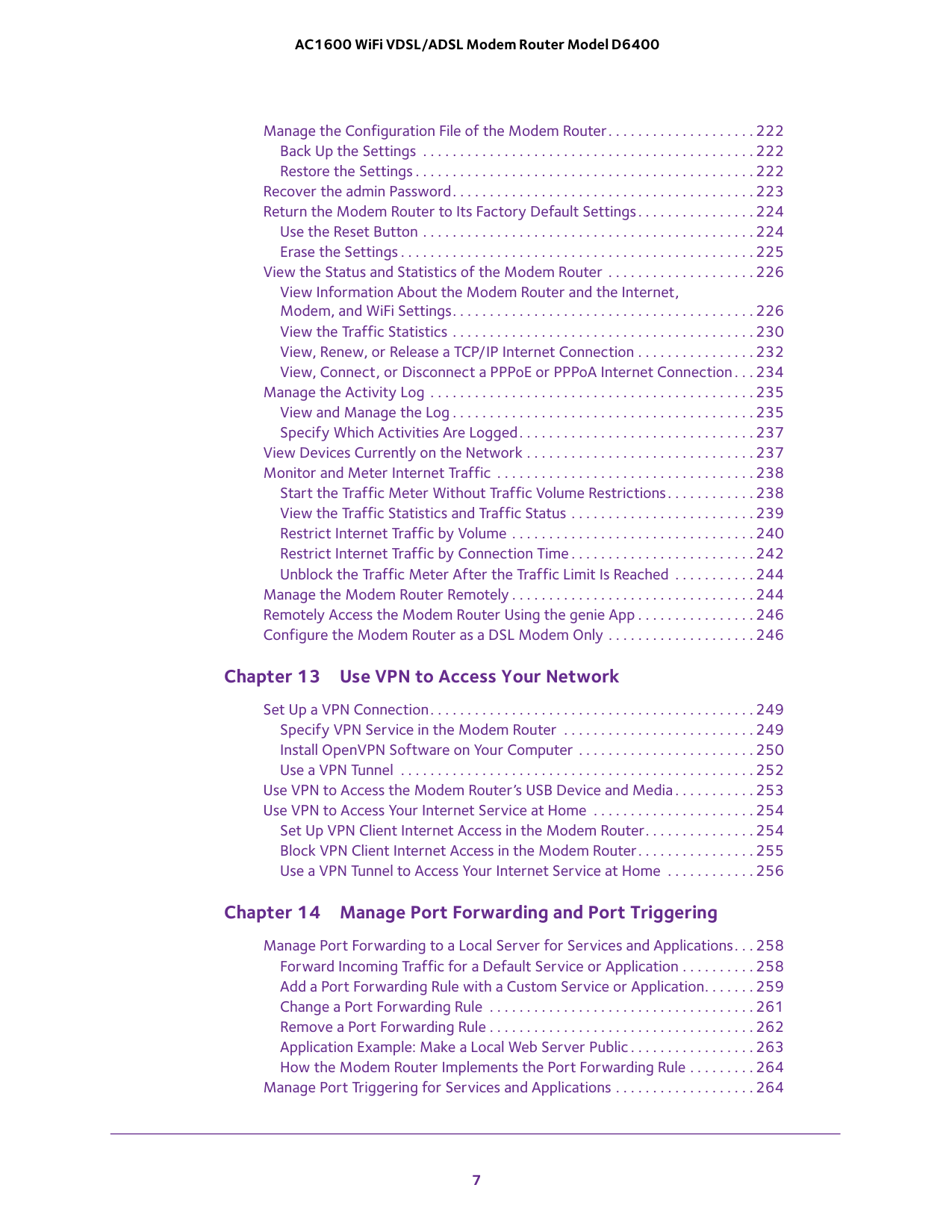
7 AC1600 WiFi VDSL/ADSL Modem Router Model D6400 Manage the Configuration File of the Modem Router. . . . . . . . . . . . . . . . . . . . 222 Back Up the Settings . . . . . . . . . . . . . . . . . . . . . . . . . . . . . . . . . . . . . . . . . . . . . 222 Restore the Settings . . . . . . . . . . . . . . . . . . . . . . . . . . . . . . . . . . . . . . . . . . . . . . 222 Recover the admin Password. . . . . . . . . . . . . . . . . . . . . . . . . . . . . . . . . . . . . . . . . 223 Return the Modem Router to Its Factory Default Settings. . . . . . . . . . . . . . . . 224 Use the Reset Button . . . . . . . . . . . . . . . . . . . . . . . . . . . . . . . . . . . . . . . . . . . . . 224 Erase the Settings . . . . . . . . . . . . . . . . . . . . . . . . . . . . . . . . . . . . . . . . . . . . . . . . 225 View the Status and Statistics of the Modem Router . . . . . . . . . . . . . . . . . . . . 226 View Information About the Modem Router and the Internet, Modem, and WiFi Settings. . . . . . . . . . . . . . . . . . . . . . . . . . . . . . . . . . . . . . . . . 226 View the Traffic Statistics . . . . . . . . . . . . . . . . . . . . . . . . . . . . . . . . . . . . . . . . . 230 View, Renew, or Release a TCP/IP Internet Connection . . . . . . . . . . . . . . . . 232 View, Connect, or Disconnect a PPPoE or PPPoA Internet Connection. . . 234 Manage the Activity Log . . . . . . . . . . . . . . . . . . . . . . . . . . . . . . . . . . . . . . . . . . . . 235 View and Manage the Log . . . . . . . . . . . . . . . . . . . . . . . . . . . . . . . . . . . . . . . . . 235 Specify Which Activities Are Logged. . . . . . . . . . . . . . . . . . . . . . . . . . . . . . . . 237 View Devices Currently on the Network . . . . . . . . . . . . . . . . . . . . . . . . . . . . . . . 237 Monitor and Meter Internet Traffic . . . . . . . . . . . . . . . . . . . . . . . . . . . . . . . . . . . 238 Start the Traffic Meter Without Traffic Volume Restrictions. . . . . . . . . . . . 238 View the Traffic Statistics and Traffic Status . . . . . . . . . . . . . . . . . . . . . . . . . 239 Restrict Internet Traffic by Volume . . . . . . . . . . . . . . . . . . . . . . . . . . . . . . . . . 240 Restrict Internet Traffic by Connection Time . . . . . . . . . . . . . . . . . . . . . . . . . 242 Unblock the Traffic Meter After the Traffic Limit Is Reached . . . . . . . . . . . 244 Manage the Modem Router Remotely . . . . . . . . . . . . . . . . . . . . . . . . . . . . . . . . . 244 Remotely Access the Modem Router Using the genie App . . . . . . . . . . . . . . . . 246 Configure the Modem Router as a DSL Modem Only . . . . . . . . . . . . . . . . . . . . 246 Chapter 13
Use VPN to Access Your Network Set Up a VPN Connection. . . . . . . . . . . . . . . . . . . . . . . . . . . . . . . . . . . . . . . . . . . . 249 Specify VPN Service in the Modem Router . . . . . . . . . . . . . . . . . . . . . . . . . . 249 Install OpenVPN Software on Your Computer . . . . . . . . . . . . . . . . . . . . . . . . 250 Use a VPN Tunnel . . . . . . . . . . . . . . . . . . . . . . . . . . . . . . . . . . . . . . . . . . . . . . . . 252 Use VPN to Access the Modem Router’s USB Device and Media . . . . . . . . . . . 253 Use VPN to Access Your Internet Service at Home . . . . . . . . . . . . . . . . . . . . . . 254 Set Up VPN Client Internet Access in the Modem Router. . . . . . . . . . . . . . . 254 Block VPN Client Internet Access in the Modem Router. . . . . . . . . . . . . . . . 255 Use a VPN Tunnel to Access Your Internet Service at Home . . . . . . . . . . . . 256 Chapter 14
Manage Port Forwarding and Port Triggering Manage Port Forwarding to a Local Server for Services and Applications. . . 258 Forward Incoming Traffic for a Default Service or Application . . . . . . . . . . 258 Add a Port Forwarding Rule with a Custom Service or Application. . . . . . . 259 Change a Port Forwarding Rule . . . . . . . . . . . . . . . . . . . . . . . . . . . . . . . . . . . . 261 Remove a Port Forwarding Rule . . . . . . . . . . . . . . . . . . . . . . . . . . . . . . . . . . . . 262 Application Example: Make a Local Web Server Public . . . . . . . . . . . . . . . . . 263 How the Modem Router Implements the Port Forwarding Rule . . . . . . . . . 264 Manage Port Triggering for Services and Applications . . . . . . . . . . . . . . . . . . . 264
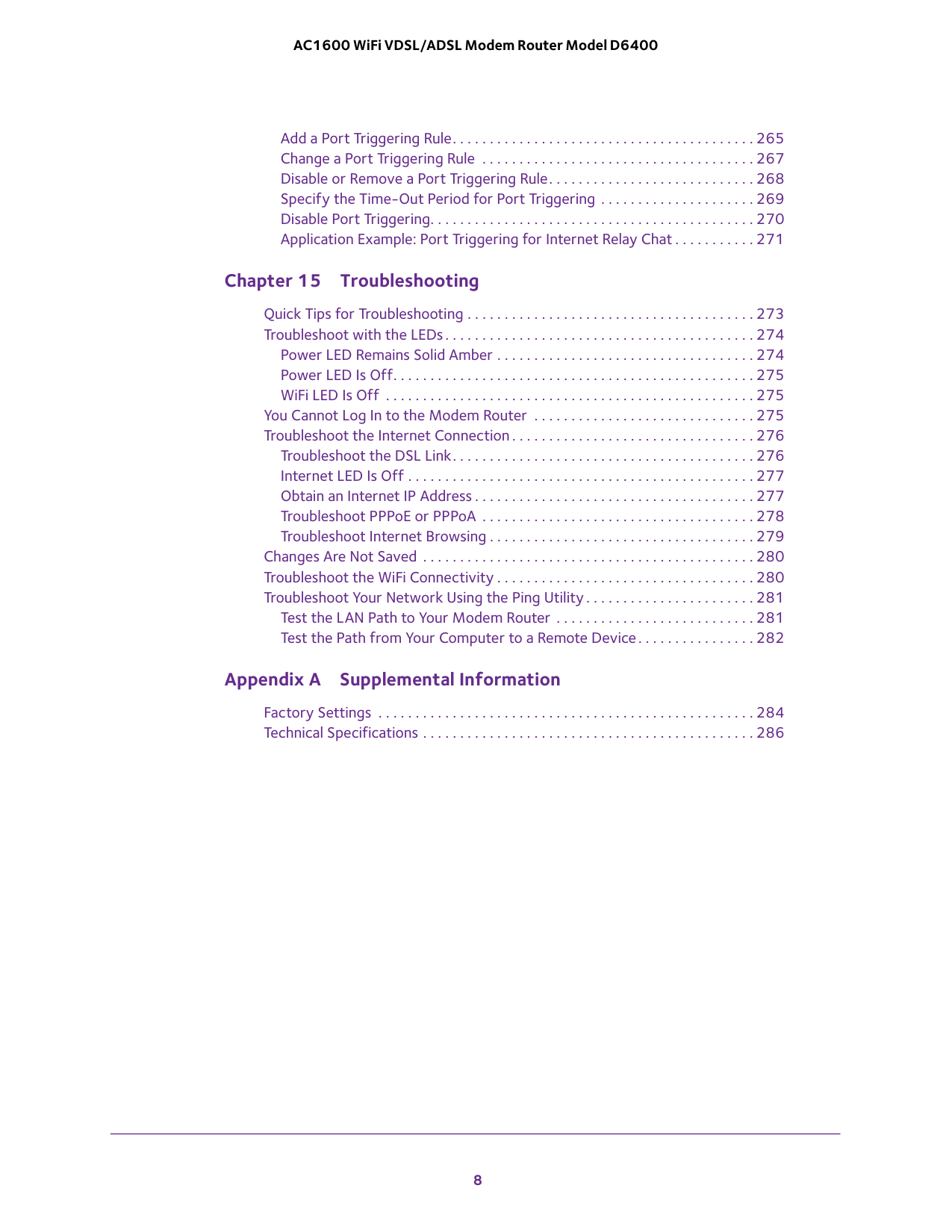
8 AC1600 WiFi VDSL/ADSL Modem Router Model D6400 Add a Port Triggering Rule. . . . . . . . . . . . . . . . . . . . . . . . . . . . . . . . . . . . . . . . . 265 Change a Port Triggering Rule . . . . . . . . . . . . . . . . . . . . . . . . . . . . . . . . . . . . . 267 Disable or Remove a Port Triggering Rule. . . . . . . . . . . . . . . . . . . . . . . . . . . . 268 Specify the Time-Out Period for Port Triggering . . . . . . . . . . . . . . . . . . . . . 269 Disable Port Triggering. . . . . . . . . . . . . . . . . . . . . . . . . . . . . . . . . . . . . . . . . . . . 270 Application Example: Port Triggering for Internet Relay Chat . . . . . . . . . . . 271 Chapter 15
Troubleshooting Quick Tips for Troubleshooting . . . . . . . . . . . . . . . . . . . . . . . . . . . . . . . . . . . . . . . 273 Troubleshoot with the LEDs. . . . . . . . . . . . . . . . . . . . . . . . . . . . . . . . . . . . . . . . . . 274 Power LED Remains Solid Amber . . . . . . . . . . . . . . . . . . . . . . . . . . . . . . . . . . . 274 Power LED Is Off. . . . . . . . . . . . . . . . . . . . . . . . . . . . . . . . . . . . . . . . . . . . . . . . . 275 WiFi LED Is Off . . . . . . . . . . . . . . . . . . . . . . . . . . . . . . . . . . . . . . . . . . . . . . . . . . 275 You Cannot Log In to the Modem Router . . . . . . . . . . . . . . . . . . . . . . . . . . . . . . 275 Troubleshoot the Internet Connection. . . . . . . . . . . . . . . . . . . . . . . . . . . . . . . . . 276 Troubleshoot the DSL Link. . . . . . . . . . . . . . . . . . . . . . . . . . . . . . . . . . . . . . . . . 276 Internet LED Is Off . . . . . . . . . . . . . . . . . . . . . . . . . . . . . . . . . . . . . . . . . . . . . . . 277 Obtain an Internet IP Address . . . . . . . . . . . . . . . . . . . . . . . . . . . . . . . . . . . . . . 277 Troubleshoot PPPoE or PPPoA . . . . . . . . . . . . . . . . . . . . . . . . . . . . . . . . . . . . . 278 Troubleshoot Internet Browsing . . . . . . . . . . . . . . . . . . . . . . . . . . . . . . . . . . . . 279 Changes Are Not Saved . . . . . . . . . . . . . . . . . . . . . . . . . . . . . . . . . . . . . . . . . . . . . 280 Troubleshoot the WiFi Connectivity . . . . . . . . . . . . . . . . . . . . . . . . . . . . . . . . . . . 280 Troubleshoot Your Network Using the Ping Utility. . . . . . . . . . . . . . . . . . . . . . . 281 Test the LAN Path to Your Modem Router . . . . . . . . . . . . . . . . . . . . . . . . . . . 281 Test the Path from Your Computer to a Remote Device. . . . . . . . . . . . . . . . 282 Appendix A
Supplemental Information Factory Settings . . . . . . . . . . . . . . . . . . . . . . . . . . . . . . . . . . . . . . . . . . . . . . . . . . . 284 Technical Specifications . . . . . . . . . . . . . . . . . . . . . . . . . . . . . . . . . . . . . . . . . . . . . 286
9 1
Mbps on 2.4 GHz 802.11n and up to 1300 Mbps on 5 GHz 802.11ac. Both 2.4 GHz and 5 GHz bands can be active simultaneously. The modem router is compatible with most major DSL Internet service providers and also supports cable or fiber Internet service. The chapter contains the following sections: • Unpack Your Modem Router • Front Panel with LEDs • Back Panel with Ports, Buttons, and Connector • Right Side Panel with WPS and WiFi On/Off Buttons and USB Port • Bottom Panel Product Label Note: For more information about the topics that are covered in this manual, visit the support website at support.netgear.com. Note: Firmware updates with new features and bug fixes are made available from time to time at downloadcenter.netgear.com. You can check for and download new firmware manually. If the features or behavior of your product does not match what is described in this guide, you might need to update your firmware. Note: In this manual, the terms wireless and WiFi are interchangeable.
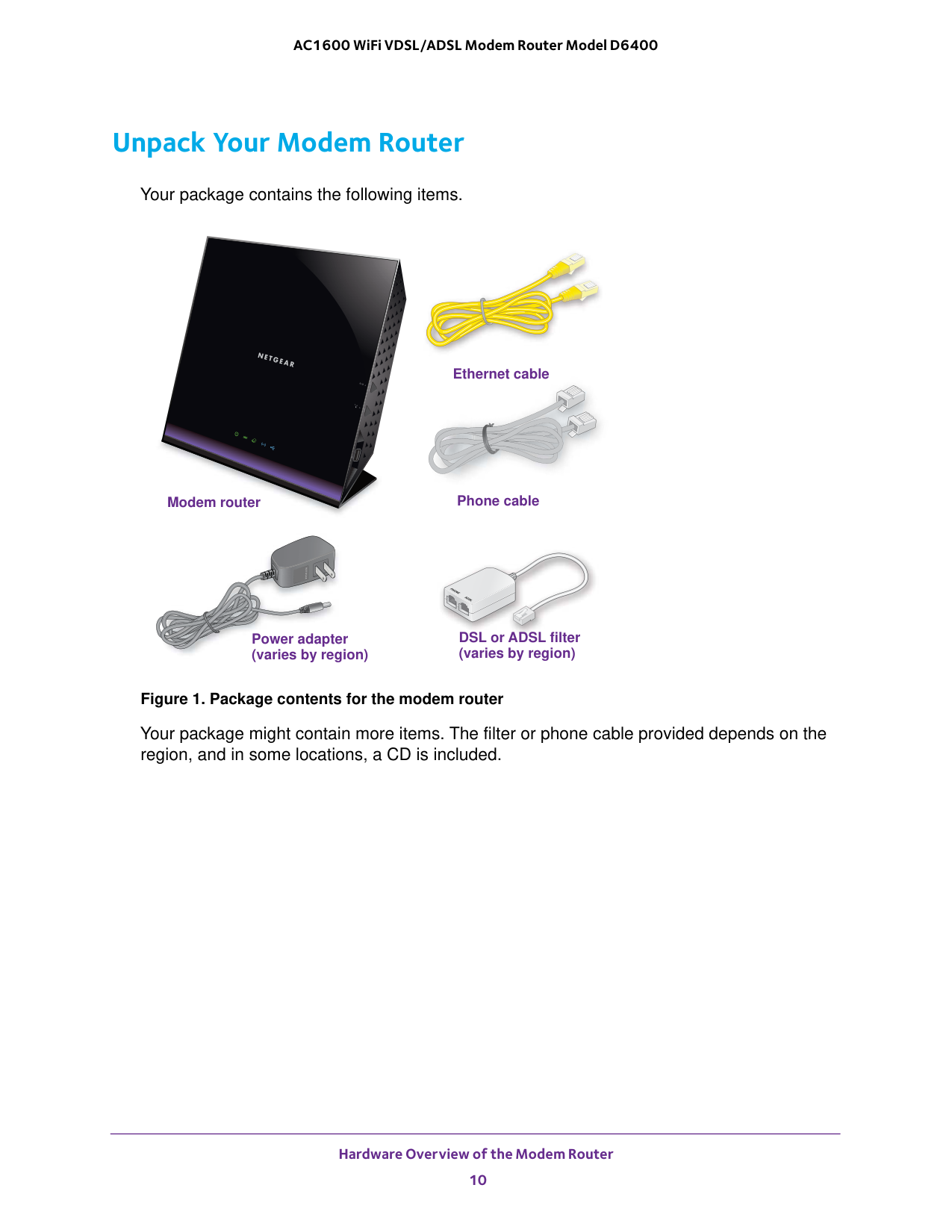
Hardware Overview of the Modem Router 10 AC1600 WiFi VDSL/ADSL Modem Router Model D6400 Unpack Your Modem Router Your package contains the following items.
Power adapter Ethernet cable Phone cable DSL or ADSL filter Modem router (varies by region) (varies by region) Figure 1. Package contents for the modem router Your package might contain more items. The filter or phone cable provided depends on the region, and in some locations, a CD is included.
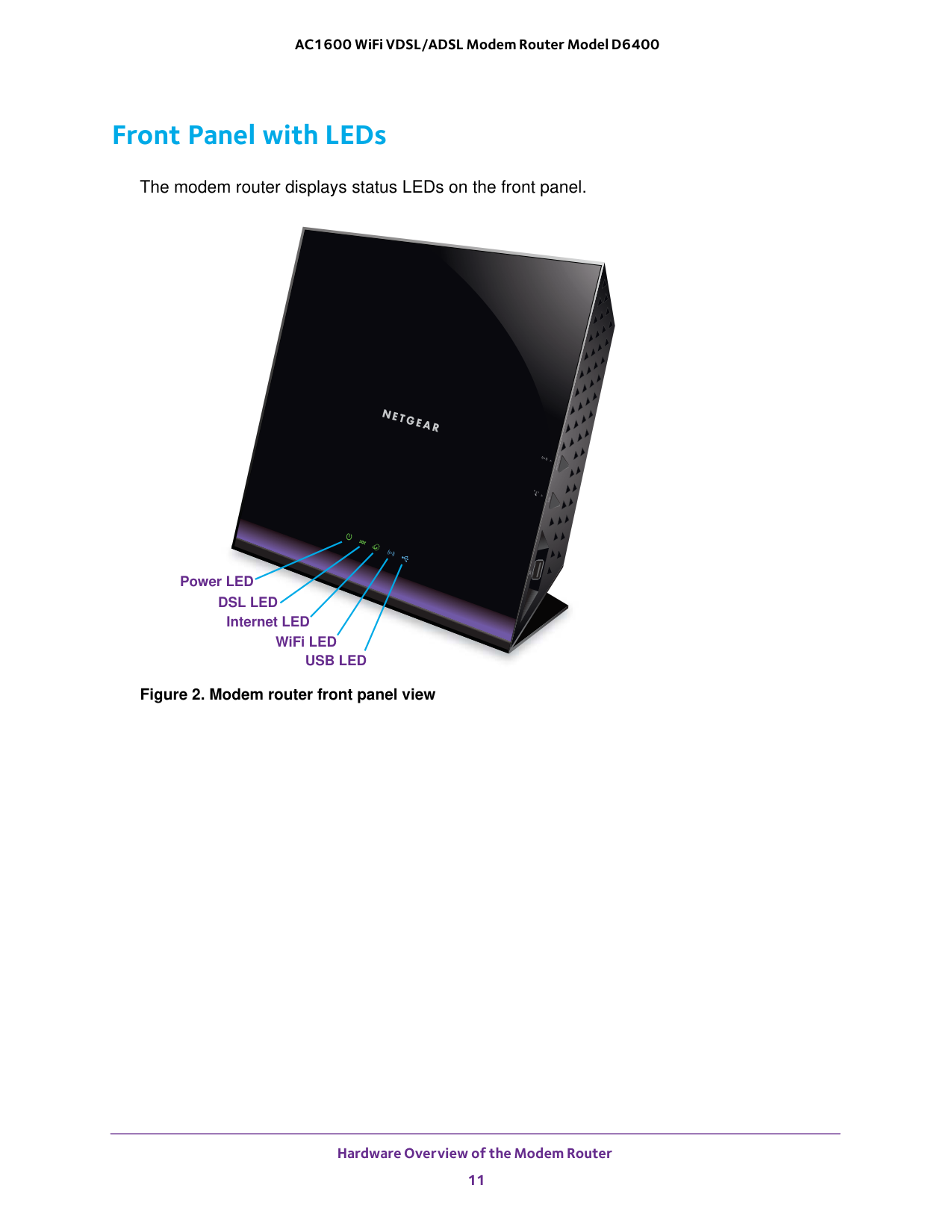
Hardware Overview of the Modem Router 11 AC1600 WiFi VDSL/ADSL Modem Router Model D6400 Front Panel with LEDs The modem router displays status LEDs on the front panel. Power LED
Dsl Led
Internet LED WiFi LEDUsb Led
Figure 2. Modem router front panel view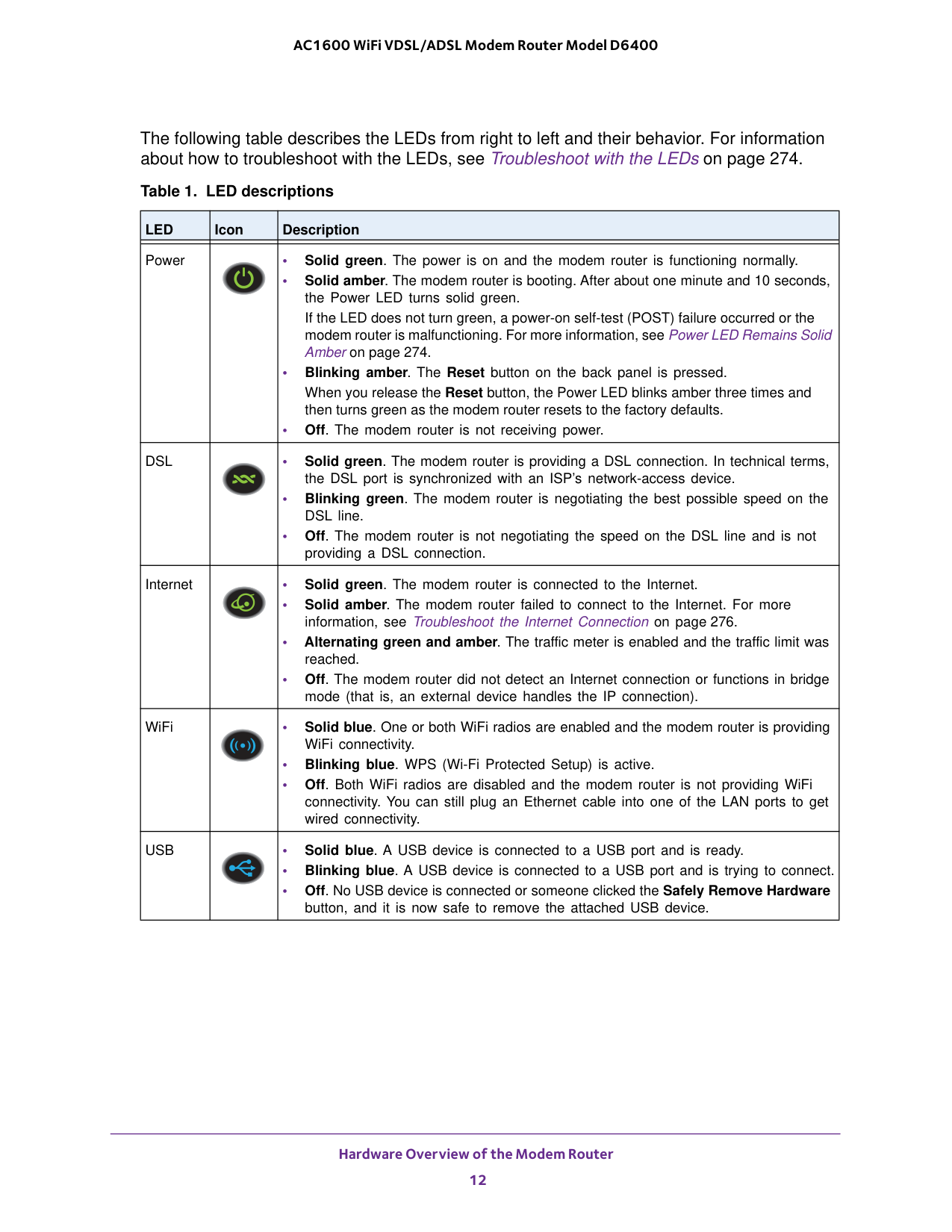
Hardware Overview of the Modem Router 12 AC1600 WiFi VDSL/ADSL Modem Router Model D6400 The following table describes the LEDs from right to left and their behavior. For information about how to troubleshoot with the LEDs, see Troubleshoot with the LEDs on page
Led
Icon Description Power • Solid green. The power is on and the modem router is functioning normally. • Solid amber. The modem router is booting. After about one minute and 10 seconds, the Power LED turns solid green. • Blinking amber. The Reset button on the back panel is pressed. • Off. The modem router is not receiving power.Dsl
• Solid green. The modem router is providing a DSL connection. In technical terms, the DSL port is synchronized with an ISP’s network-access device. • Blinking green. The modem router is negotiating the best possible speed on the DSL line. • Off. The modem router is not negotiating the speed on the DSL line and is not providing a DSL connection. Internet • Solid green. The modem router is connected to the Internet. • Solid amber. The modem router failed to connect to the Internet. For more information, see Troubleshoot the Internet Connection on pageUsb
• Solid blue. A USB device is connected to a USB port and is ready. • Blinking blue. A USB device is connected to a USB port and is trying to connect. • Off. No USB device is connected or someone clicked the Safely Remove Hardware button, and it is now safe to remove the attached USB device. If the LED does not turn green, a power-on self-test (POST) failure occurred or the modem router is malfunctioning. For more information, see Power LED Remains Solid Amber on page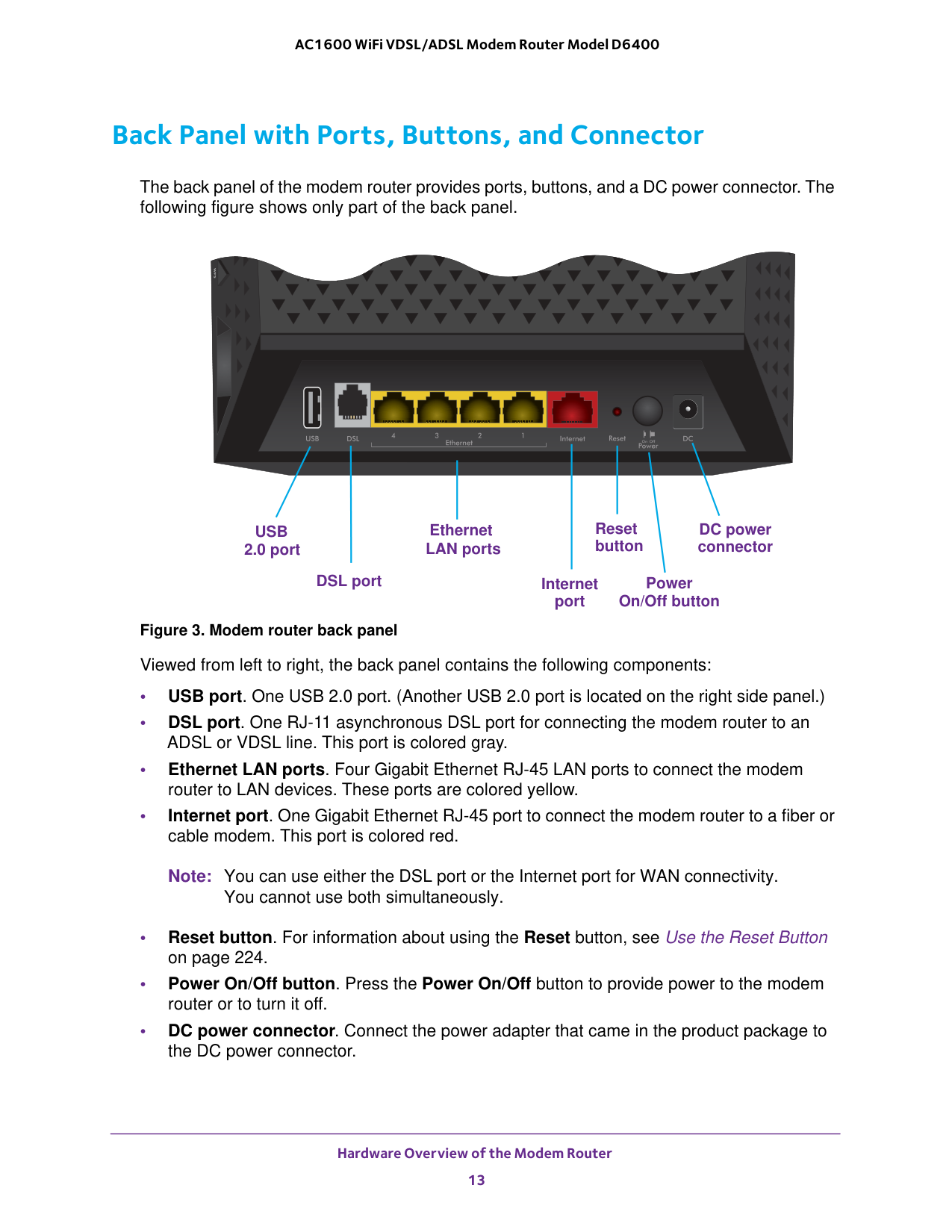
Hardware Overview of the Modem Router 13 AC1600 WiFi VDSL/ADSL Modem Router Model D6400 Back Panel with Ports, Buttons, and Connector Ethernet Internet Power DC power LAN ports Reset button connector On/Off button DSL port port
Usb
2.0 port The back panel of the modem router provides ports, buttons, and a DC power connector. The following figure shows only part of the back panel. Figure 3. Modem router back panel Viewed from left to right, the back panel contains the following components: • USB port. One USB 2.0 port. (Another USB 2.0 port is located on the right side panel.) • DSL port. One RJ-11 asynchronous DSL port for connecting the modem router to an ADSL or VDSL line. This port is colored gray. • Ethernet LAN ports. Four Gigabit Ethernet RJ-45 LAN ports to connect the modem router to LAN devices. These ports are colored yellow. • Internet port. One Gigabit Ethernet RJ-45 port to connect the modem router to a fiber or cable modem. This port is colored red. Note: You can use either the DSL port or the Internet port for WAN connectivity. You cannot use both simultaneously. • Reset button. For information about using the Reset button, see Use the Reset Button on page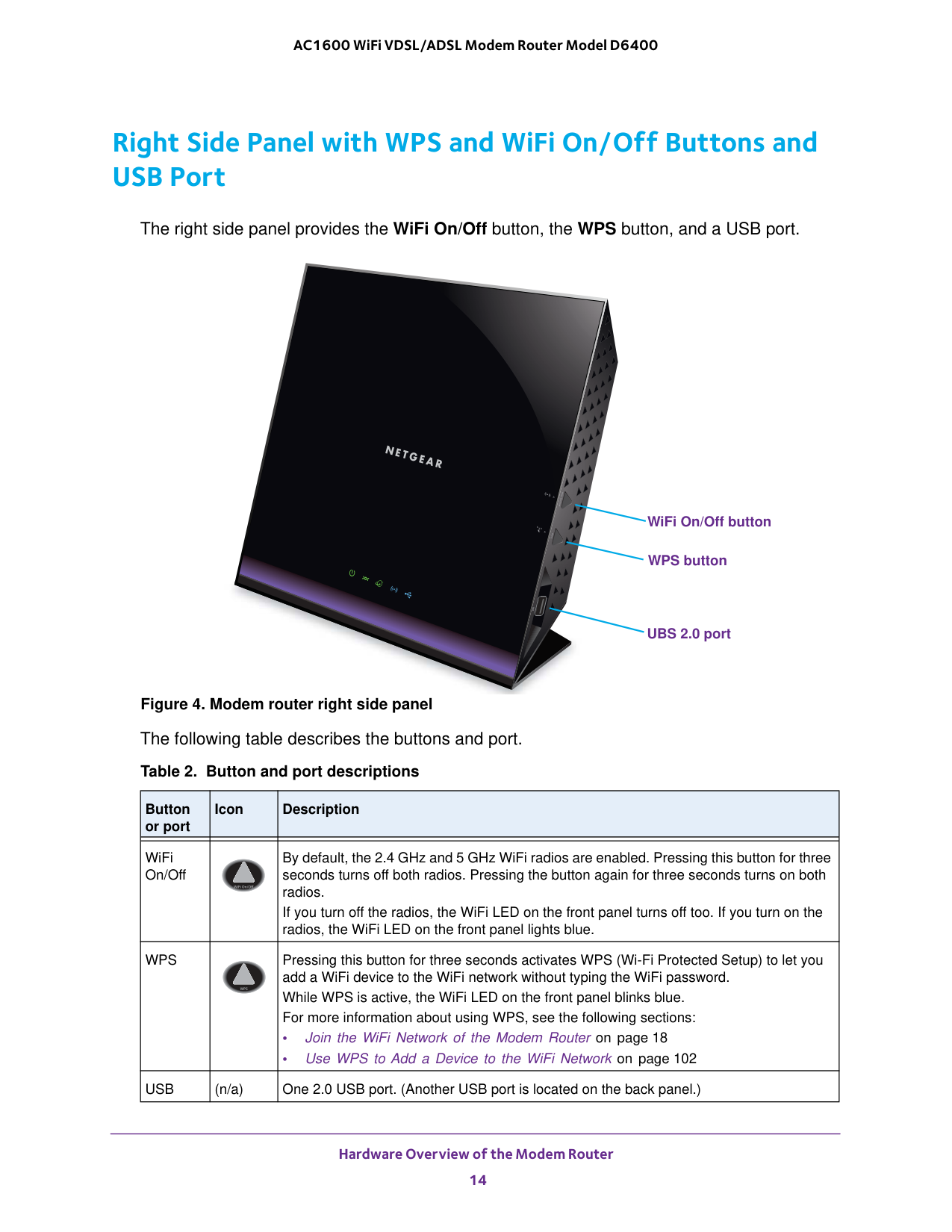
Hardware Overview of the Modem Router 14 AC1600 WiFi VDSL/ADSL Modem Router Model D6400 Right Side Panel with WPS and WiFi On/Off Buttons and USB Port The right side panel provides the WiFi On/Off button, the WPS button, and a USB port. WiFi On/Off button WPS button UBS 2.0 port Figure 4. Modem router right side panel The following table describes the buttons and port. Table 2. Button and port descriptions
Button or port Icon Description WiFi On/Off By default, the 2.4 GHz and 5 GHz WiFi radios are enabled. Pressing this button for three seconds turns off both radios. Pressing the button again for three seconds turns on both radios. If you turn off the radios, the WiFi LED on the front panel turns off too. If you turn on the radios, the WiFi LED on the front panel lights blue.
Wps
Pressing this button for three seconds activates WPS (Wi-Fi Protected Setup) to let you add a WiFi device to the WiFi network without typing the WiFi password. While WPS is active, the WiFi LED on the front panel blinks blue. For more information about using WPS, see the following sections: • Join the WiFi Network of the Modem Router on page18 • Use WPS to Add a Device to the WiFi Network on page
102
Usb
(n/a) One 2.0 USB port. (Another USB port is located on the back panel.)
Hardware Overview of the Modem Router 15 AC1600 WiFi VDSL/ADSL Modem Router Model D6400 Bottom Panel Product Label WiFi network name (SSID) Network Key (password) Serial number MAC address The product label on the bottom panel of the modem router lists the login information, WiFi network name (SSID) and password (network key), serial number, and MAC address of the modem router. Figure 5. Modem router product label

16 2

Install and Access the Modem Router and Its Network 17 AC1600 WiFi VDSL/ADSL Modem Router Model D6400 Position Your Modem Router The modem router lets you access your network anywhere within the operating range of your WiFi network. However, the operating distance or range of your WiFi connection can vary significantly depending on the physical placement of your modem router. For example, the thickness and number of walls the WiFi signal passes through can limit the range. Additionally, other WiFi access points in and around your home might affect your modem router’s signal. WiFi access points are routers, repeaters, WiFi range extenders, and any other device that emits a WiFi signal for network access. Position your modem router according to the following guidelines: • Place your modem router near the center of the area where your computers and other devices operate and within line of sight to your WiFi devices. • Make sure that the modem router is within reach of an AC power outlet and near Ethernet cables for wired computers. • Place the modem router in an elevated location, minimizing the number walls and ceilings between the modem router and your other devices. • Place the modem router away from electrical devices such as these:

Install and Access the Modem Router and Its Network 18 AC1600 WiFi VDSL/ADSL Modem Router Model D6400 Connect to the Modem Router During and after installation, you can connect to the modem router’s network through a wired or WiFi connection. If you set up your computer to use a static IP address, change the settings of your computer so that it uses Dynamic Host Configuration Protocol (DHCP). Connect to the Modem Router Through an Ethernet Cable You can connect your computer to the modem router using an Ethernet cable and join the modem router’s local area network (LAN). To connect your computer to the modem router with an Ethernet cable:

Install and Access the Modem Router and Its Network 19 AC1600 WiFi VDSL/ADSL Modem Router Model D6400 The default WiFi password (also referred to as the network key or passphrase) is also on the product label.

Install and Access the Modem Router and Its Network 20 AC1600 WiFi VDSL/ADSL Modem Router Model D6400 Automatic Internet Setup You can use NETGEAR genie to set up the modem router automatically, or you can use the modem router’s web pages to set up the modem router manually. Automatic Internet setup with NETGEAR genie functions with both types of Internet service that the modem router supports: • DSL service. If you install your modem router for DSL service (the modem router supports ADSL and VDSL service), you can set up your modem router with NETGEAR genie, which launches the first time that you set up the Internet connection for your modem router. NETGEAR genie runs on any device with a web browser. For more information, see Set Up Your Modem Router for DSL Service on page

Install and Access the Modem Router and Its Network 21 AC1600 WiFi VDSL/ADSL Modem Router Model D6400 Set Up Your Modem Router for DSL Service You can install your modem router for DSL service or for cable or fiber (Ethernet WAN) service. If you use a DSL modem, follow the procedure that is described in Cable the Modem Router for DSL Service and Access the Modem Router on page
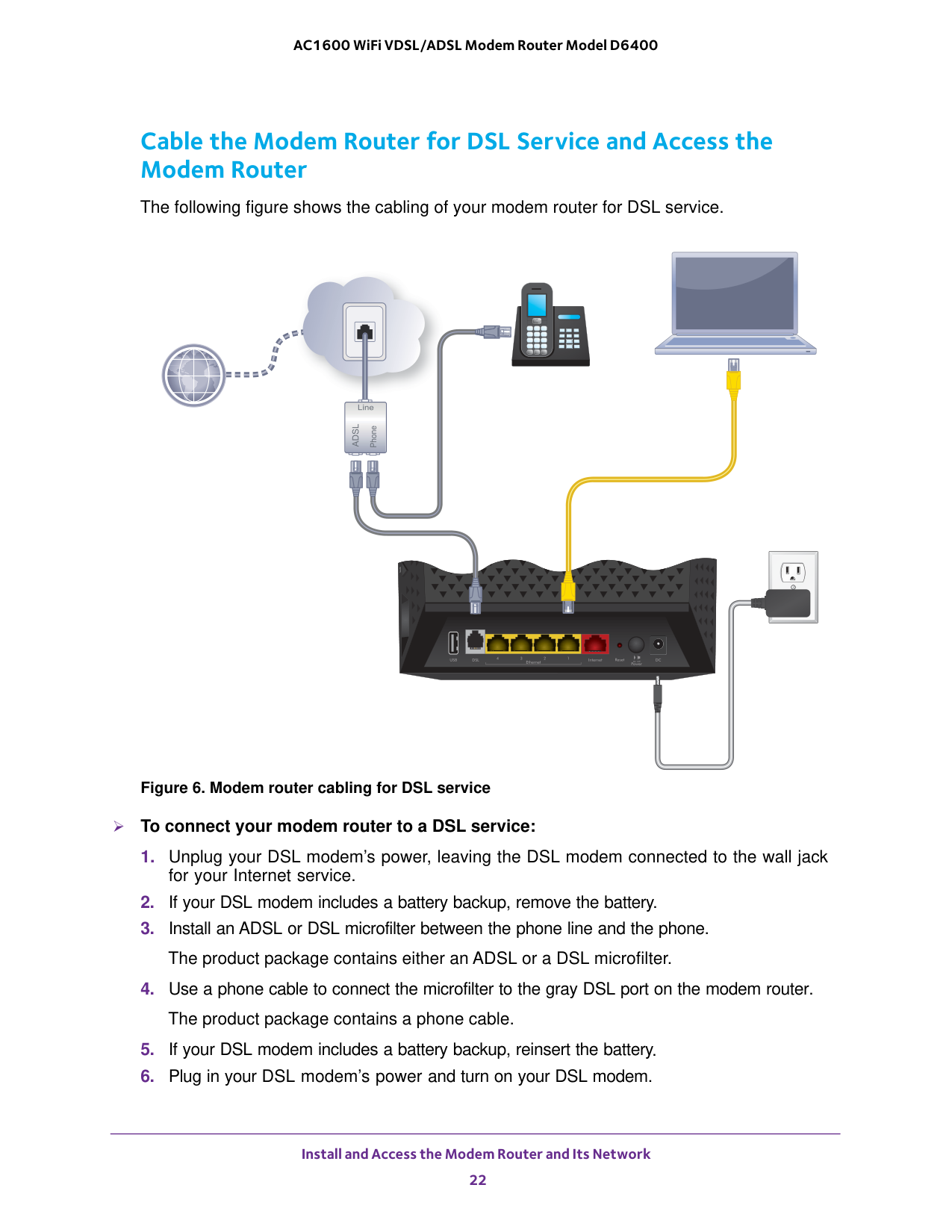
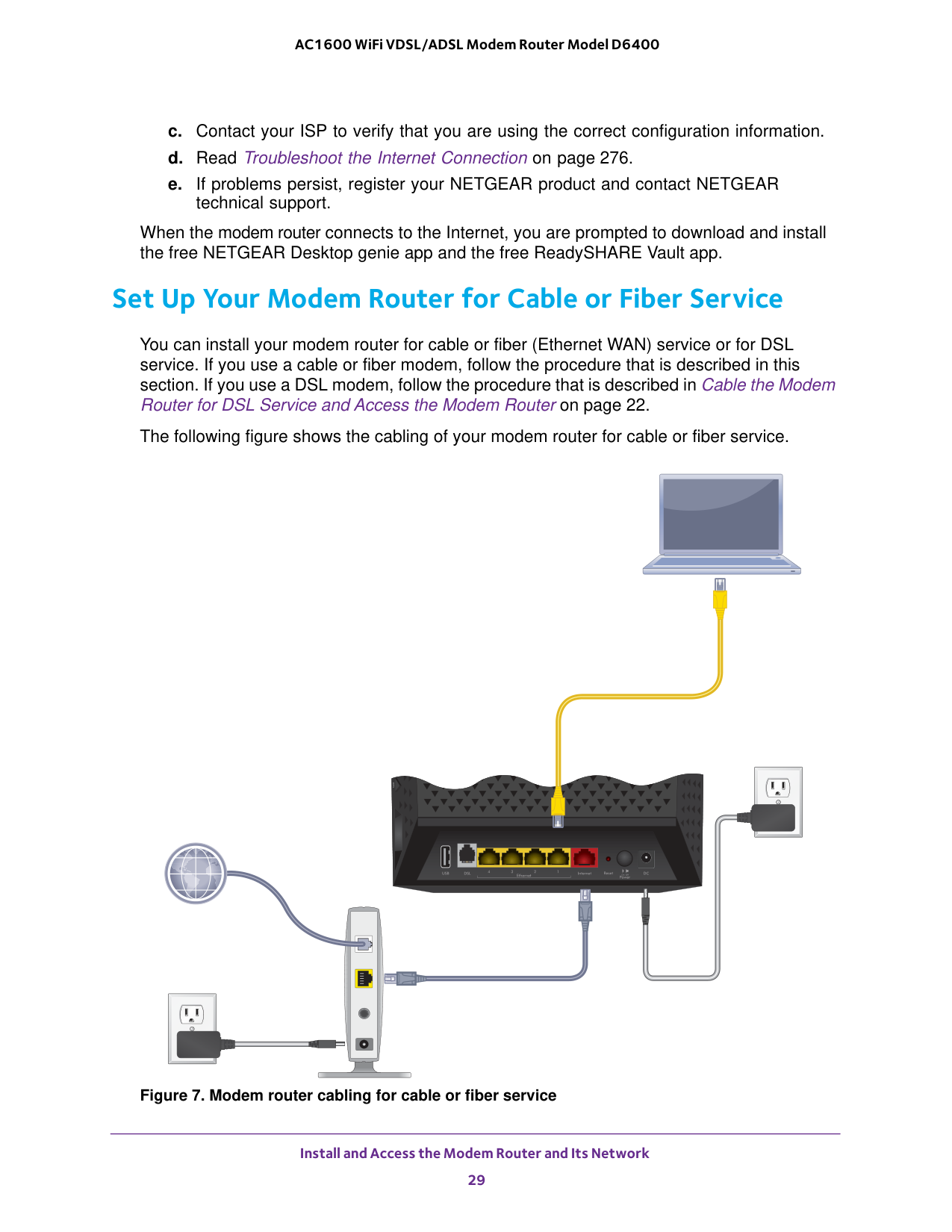
Install and Access the Modem Router and Its Network 22 AC1600 WiFi VDSL/ADSL Modem Router Model D6400 Cable the Modem Router for DSL Service and Access the Modem Router The following figure shows the cabling of your modem router for DSL service. Figure 6. Modem router cabling for DSL service To connect your modem router to a DSL service:
Install and Access the Modem Router and Its Network 23 AC1600 WiFi VDSL/ADSL Modem Router Model D6400
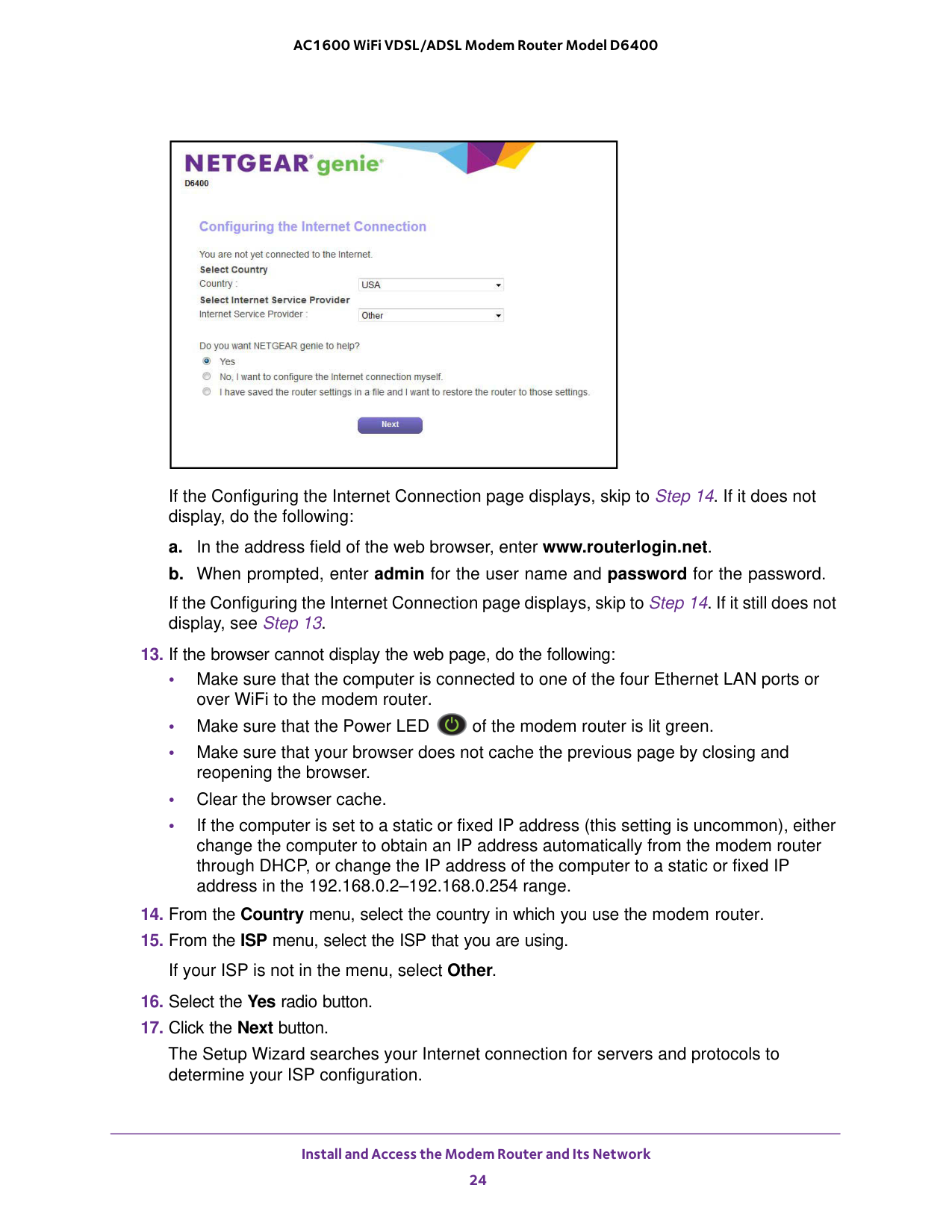
Install and Access the Modem Router and Its Network 24 AC1600 WiFi VDSL/ADSL Modem Router Model D6400 If the Configuring the Internet Connection page displays, skip to Step
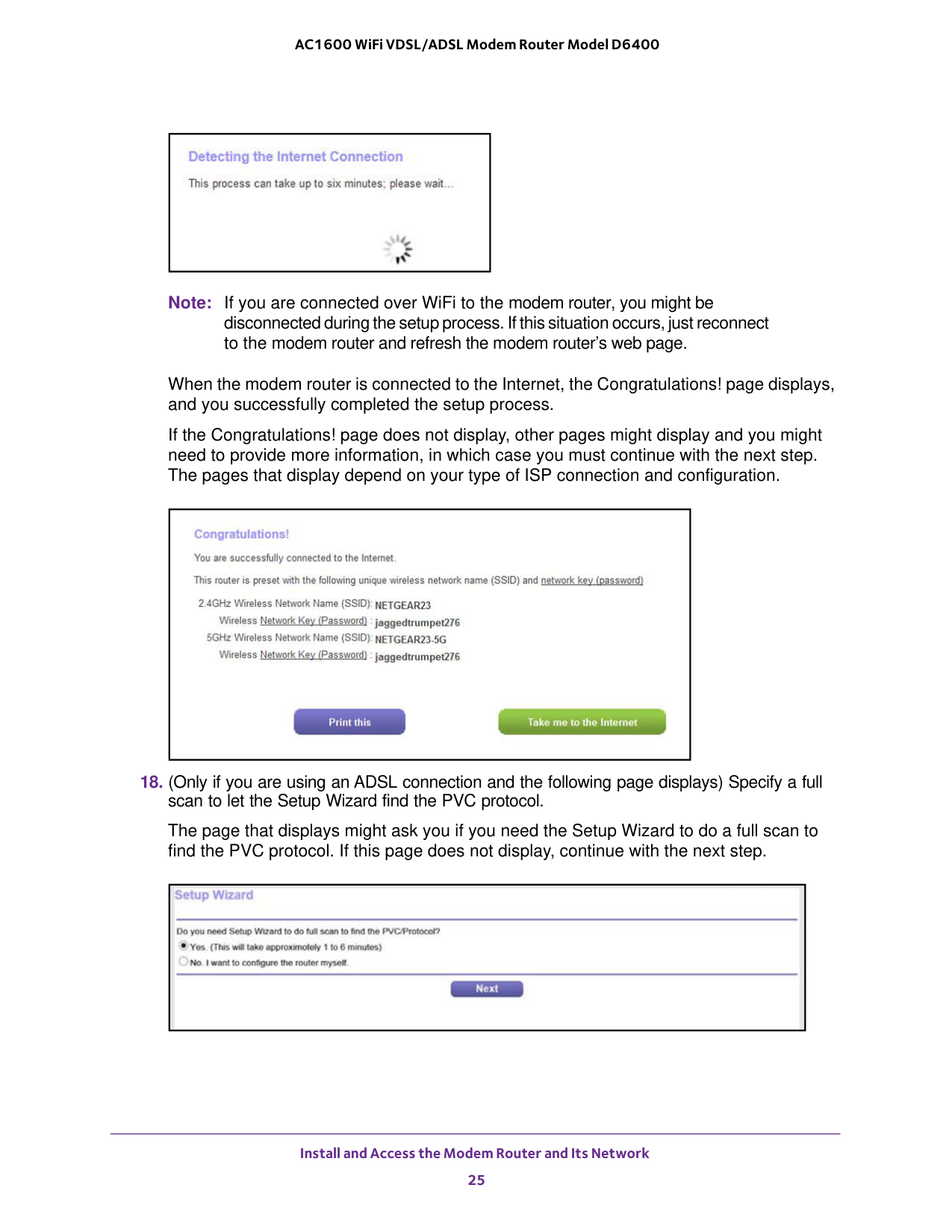
Install and Access the Modem Router and Its Network 25 AC1600 WiFi VDSL/ADSL Modem Router Model D6400 Note: If you are connected over WiFi to the modem router, you might be disconnected during the setup process. If this situation occurs, just reconnect to the modem router and refresh the modem router’s web page. When the modem router is connected to the Internet, the Congratulations! page displays, and you successfully completed the setup process. If the Congratulations! page does not display, other pages might display and you might need to provide more information, in which case you must continue with the next step. The pages that display depend on your type of ISP connection and configuration.
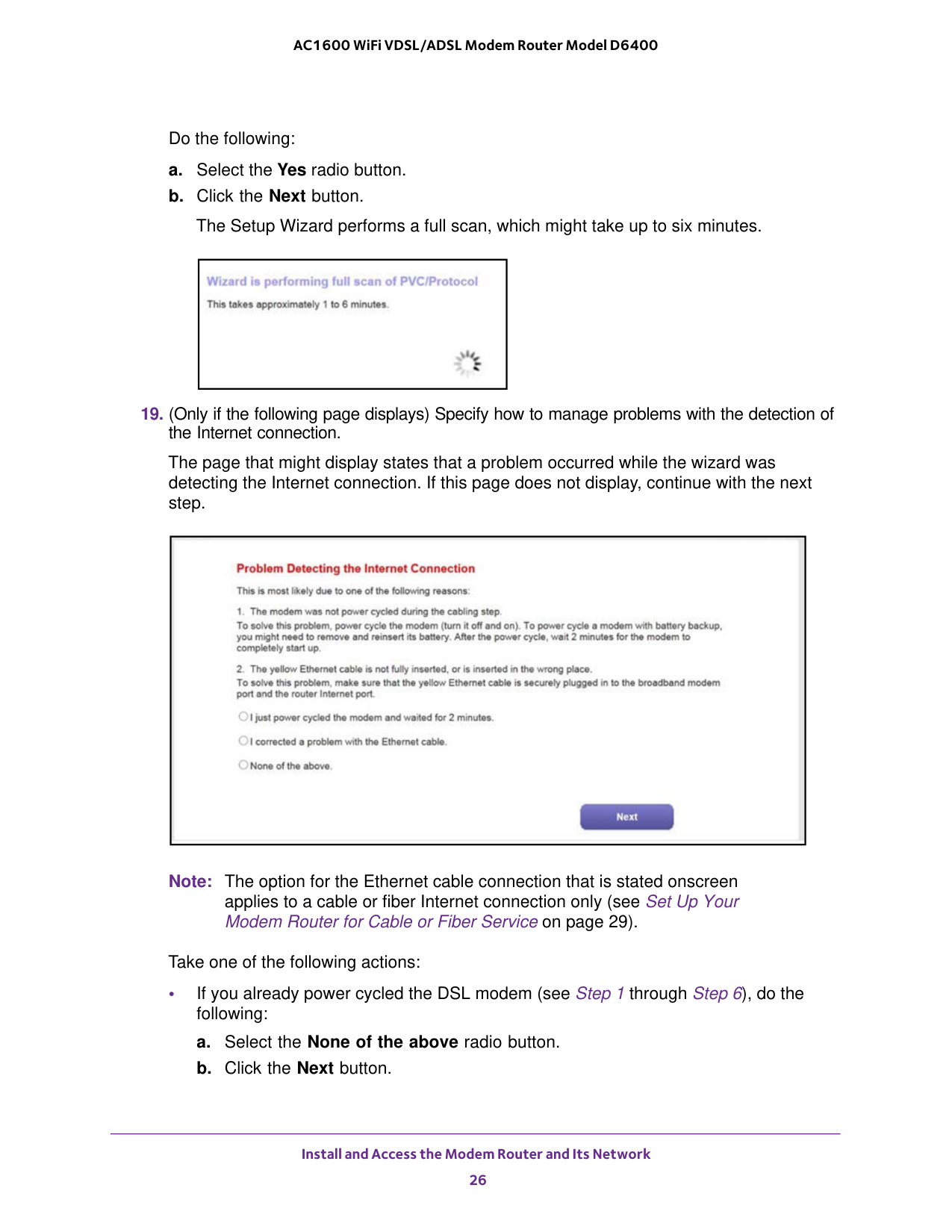
Install and Access the Modem Router and Its Network 26 AC1600 WiFi VDSL/ADSL Modem Router Model D6400 Do the following: a. Select the Yes radio button. b. Click the Next button. The Setup Wizard performs a full scan, which might take up to six minutes.
29). Take one of the following actions: • If you already power cycled the DSL modem (see Step
1 through Step
6), do the following: a. Select the None of the above radio button. b. Click the Next button.
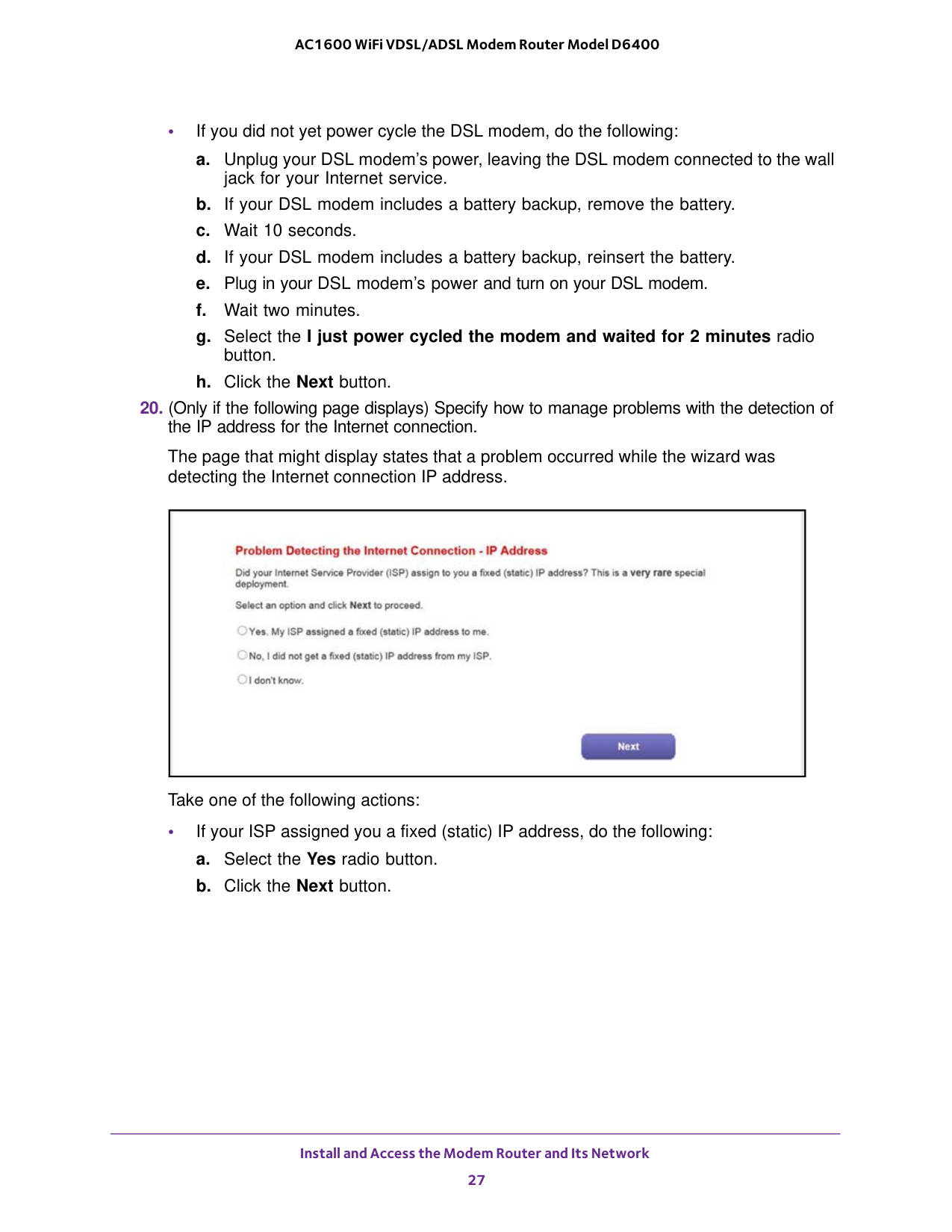
Install and Access the Modem Router and Its Network 27 AC1600 WiFi VDSL/ADSL Modem Router Model D6400 • If you did not yet power cycle the DSL modem, do the following: a. Unplug your DSL modem’s power, leaving the DSL modem connected to the wall jack for your Internet service. b. If your DSL modem includes a battery backup, remove the battery. c. Wait 10 seconds. d. If your DSL modem includes a battery backup, reinsert the battery. e. Plug in your DSL modem’s power and turn on your DSL modem. f. Wait two minutes. g. Select the I just power cycled the modem and waited for 2 minutes radio button. h. Click the Next button.
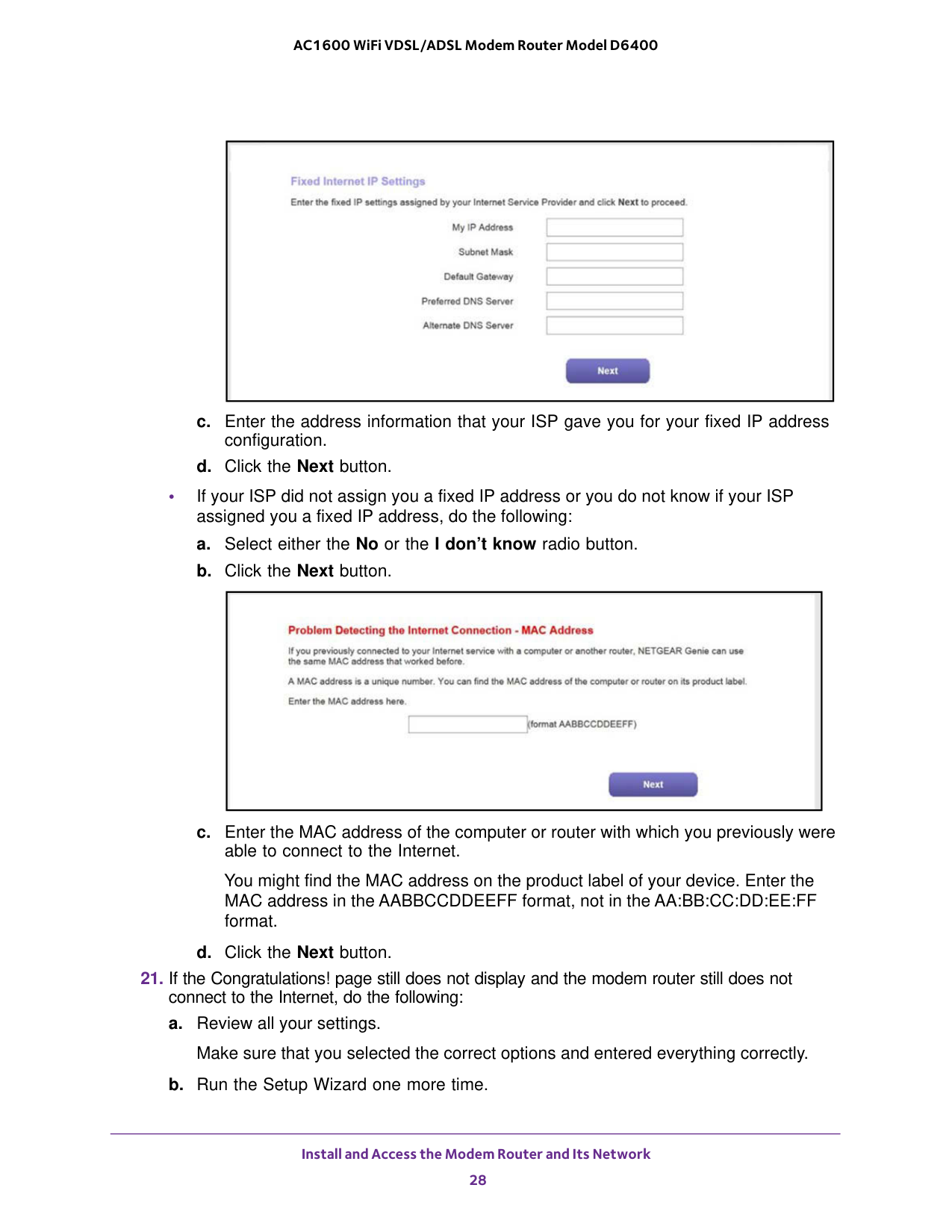
Install and Access the Modem Router and Its Network 28 AC1600 WiFi VDSL/ADSL Modem Router Model D6400 c. Enter the address information that your ISP gave you for your fixed IP address configuration. d. Click the Next button. • If your ISP did not assign you a fixed IP address or you do not know if your ISP assigned you a fixed IP address, do the following: a. Select either the No or the I don’t know radio button. b. Click the Next button. c. Enter the MAC address of the computer or router with which you previously were able to connect to the Internet. You might find the MAC address on the product label of your device. Enter the MAC address in the AABBCCDDEEFF format, not in the AA:BB:CC:DD:EE:FF format. d. Click the Next button.
Install and Access the Modem Router and Its Network 29 AC1600 WiFi VDSL/ADSL Modem Router Model D6400 c. Contact your ISP to verify that you are using the correct configuration information. d. Read Troubleshoot the Internet Connection on page
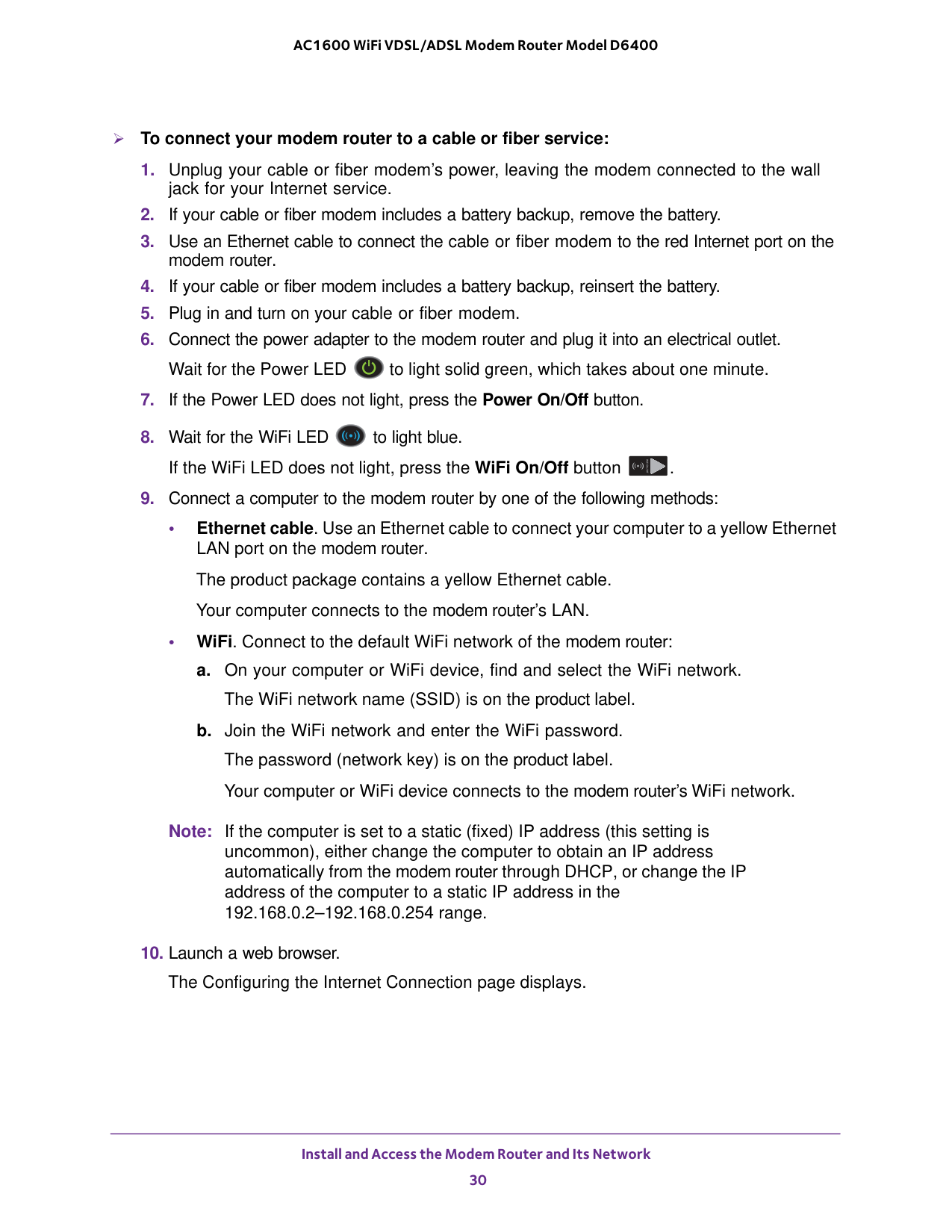
Install and Access the Modem Router and Its Network 30 AC1600 WiFi VDSL/ADSL Modem Router Model D6400 To connect your modem router to a cable or fiber service:
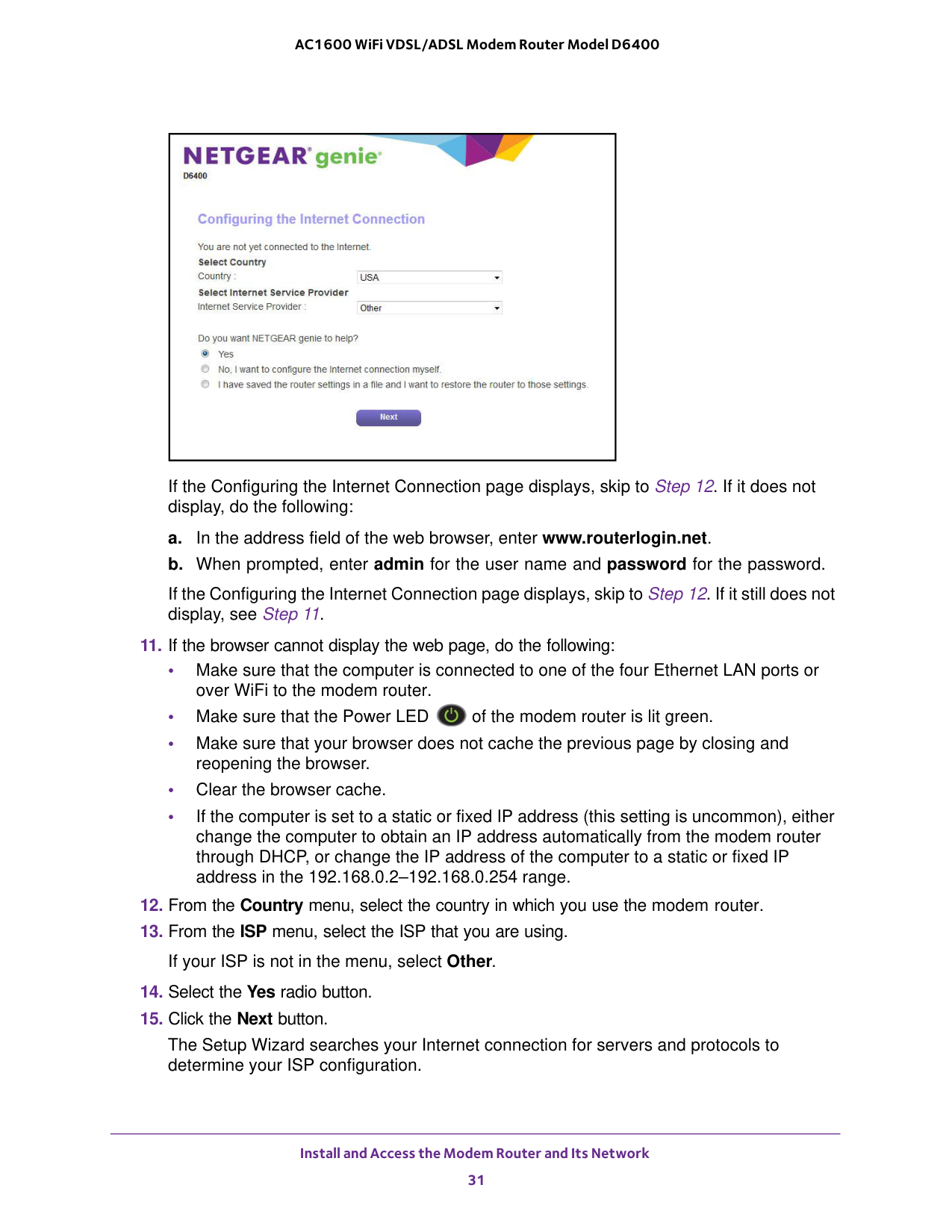
Install and Access the Modem Router and Its Network 31 AC1600 WiFi VDSL/ADSL Modem Router Model D6400 If the Configuring the Internet Connection page displays, skip to Step
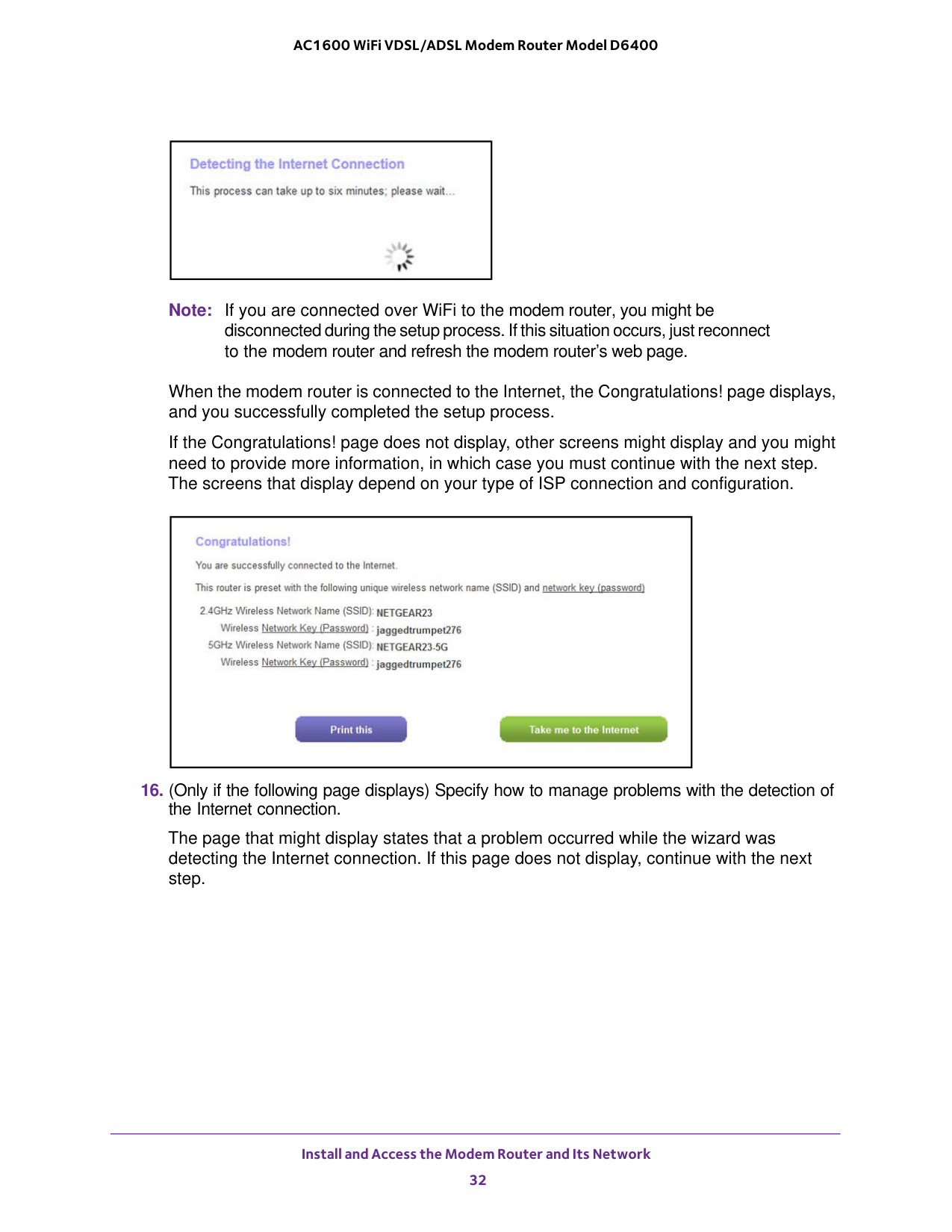
Install and Access the Modem Router and Its Network 32 AC1600 WiFi VDSL/ADSL Modem Router Model D6400 Note: If you are connected over WiFi to the modem router, you might be disconnected during the setup process. If this situation occurs, just reconnect to the modem router and refresh the modem router’s web page. When the modem router is connected to the Internet, the Congratulations! page displays, and you successfully completed the setup process. If the Congratulations! page does not display, other screens might display and you might need to provide more information, in which case you must continue with the next step. The screens that display depend on your type of ISP connection and configuration.
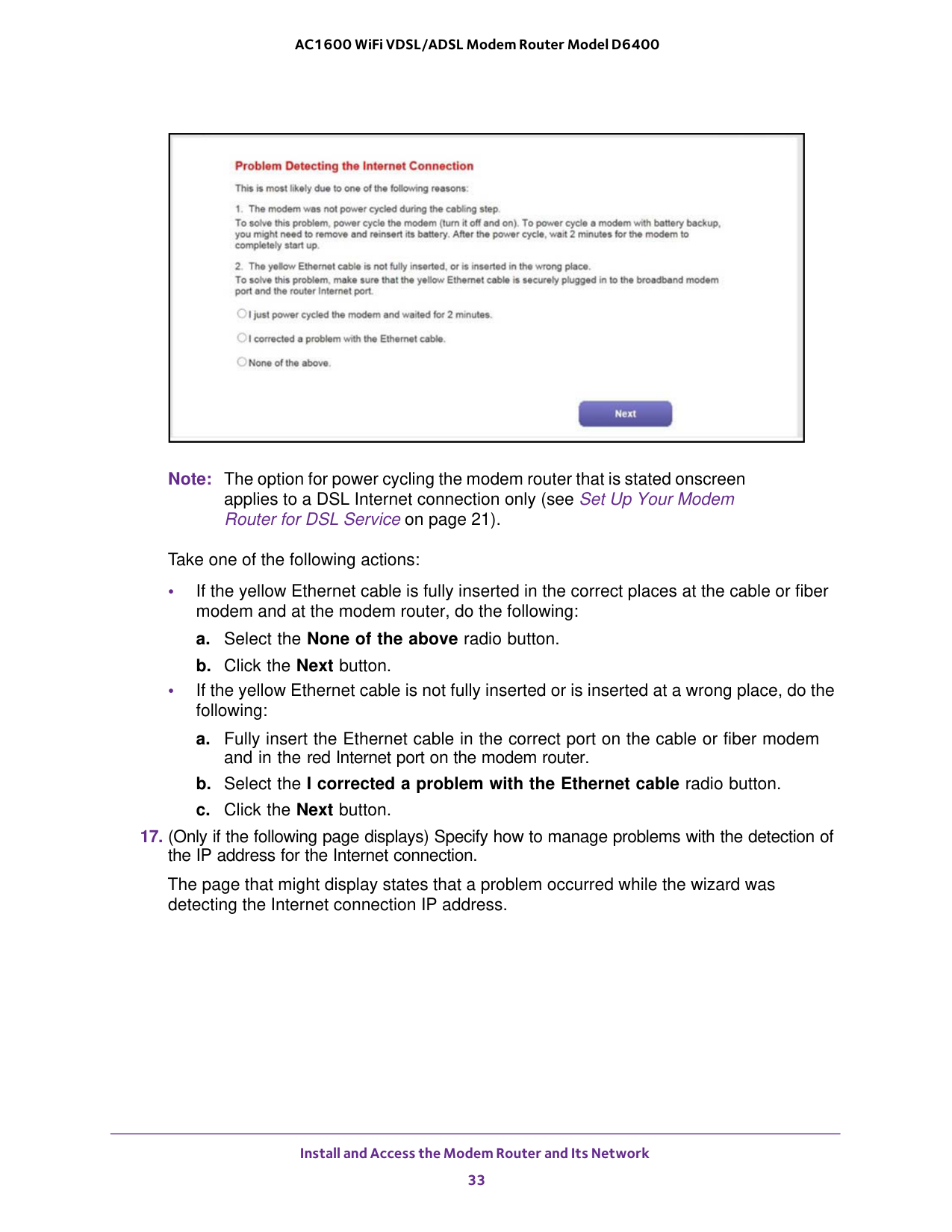
Install and Access the Modem Router and Its Network 33 AC1600 WiFi VDSL/ADSL Modem Router Model D6400 Note: The option for power cycling the modem router that is stated onscreen applies to a DSL Internet connection only (see Set Up Your Modem Router for DSL Service on page
21). Take one of the following actions: • If the yellow Ethernet cable is fully inserted in the correct places at the cable or fiber modem and at the modem router, do the following: a. Select the None of the above radio button. b. Click the Next button. • If the yellow Ethernet cable is not fully inserted or is inserted at a wrong place, do the following: a. Fully insert the Ethernet cable in the correct port on the cable or fiber modem and in the red Internet port on the modem router. b. Select the I corrected a problem with the Ethernet cable radio button. c. Click the Next button.
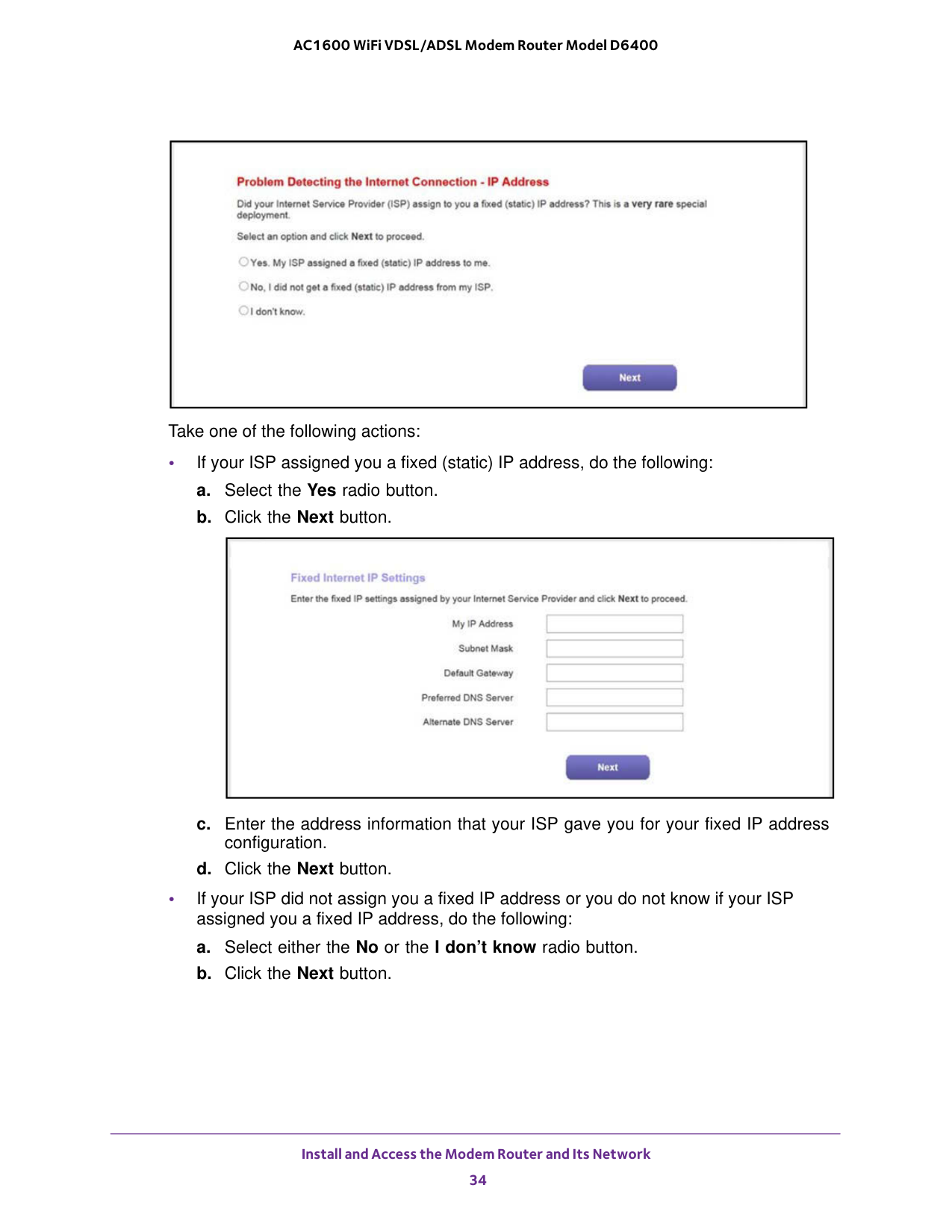
Install and Access the Modem Router and Its Network 34 AC1600 WiFi VDSL/ADSL Modem Router Model D6400 Take one of the following actions: • If your ISP assigned you a fixed (static) IP address, do the following: a. Select the Yes radio button. b. Click the Next button. c. Enter the address information that your ISP gave you for your fixed IP address configuration. d. Click the Next button. • If your ISP did not assign you a fixed IP address or you do not know if your ISP assigned you a fixed IP address, do the following: a. Select either the No or the I don’t know radio button. b. Click the Next button.
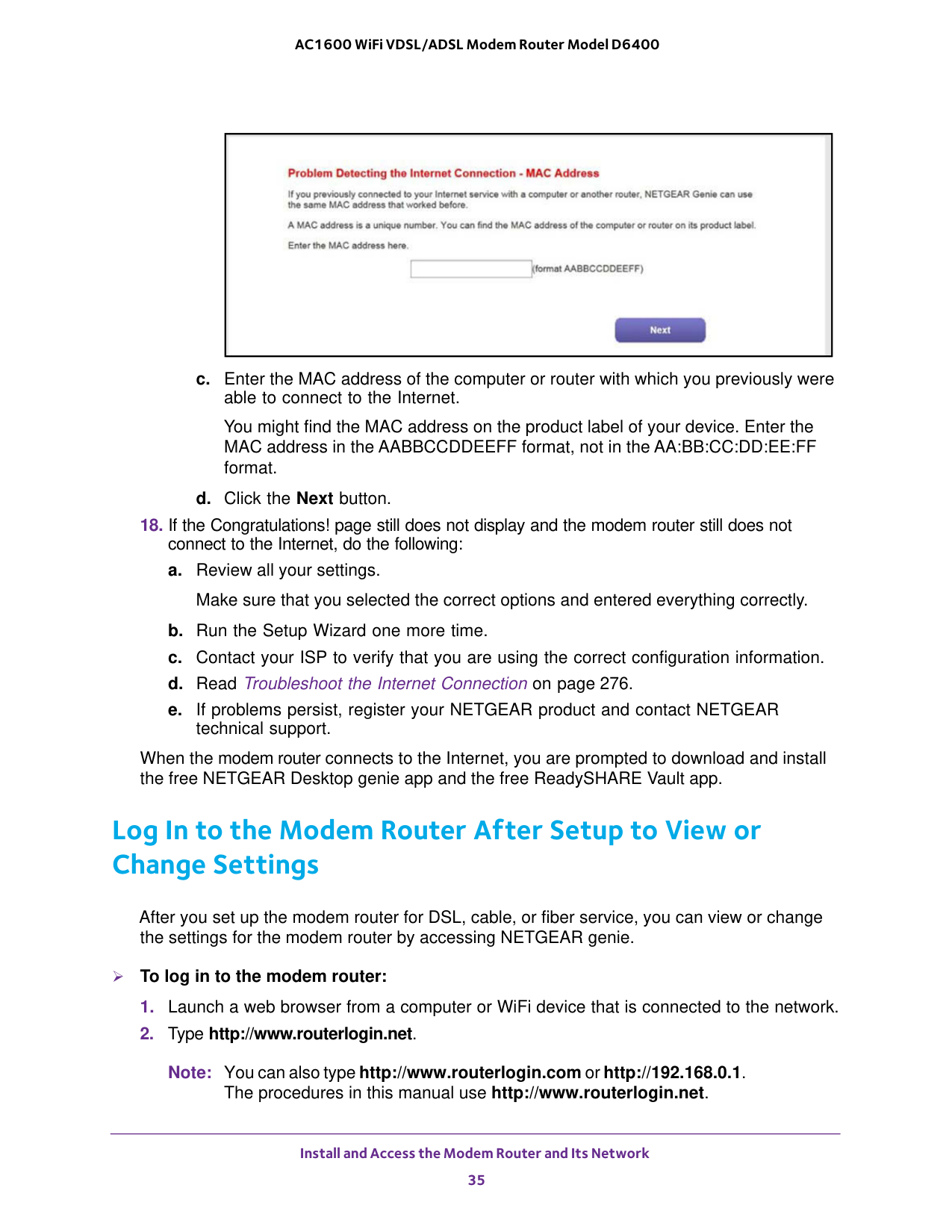
Install and Access the Modem Router and Its Network 35 AC1600 WiFi VDSL/ADSL Modem Router Model D6400 c. Enter the MAC address of the computer or router with which you previously were able to connect to the Internet. You might find the MAC address on the product label of your device. Enter the MAC address in the AABBCCDDEEFF format, not in the AA:BB:CC:DD:EE:FF format. d. Click the Next button.
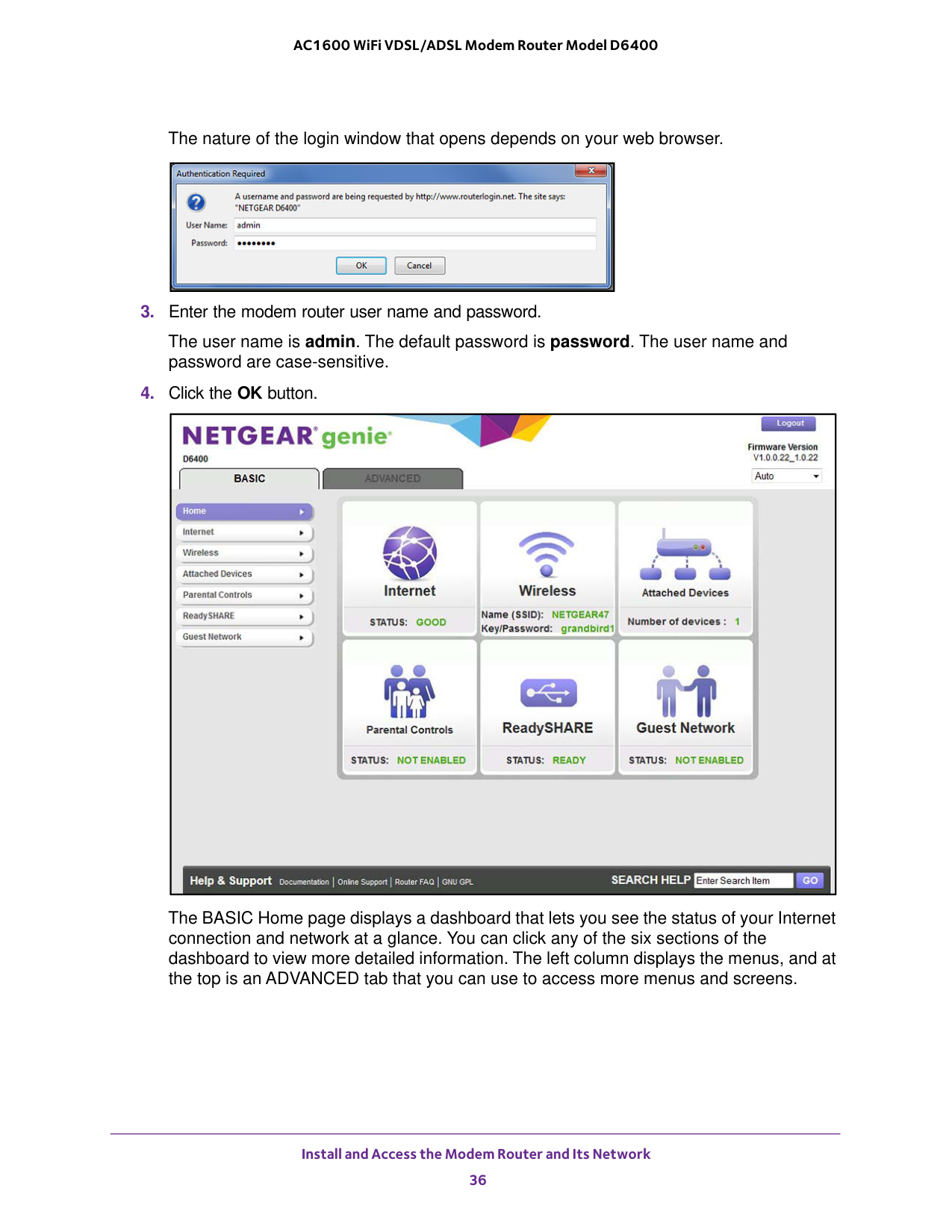
Install and Access the Modem Router and Its Network 36 AC1600 WiFi VDSL/ADSL Modem Router Model D6400 The nature of the login window that opens depends on your web browser.
Install and Access the Modem Router and Its Network 37 AC1600 WiFi VDSL/ADSL Modem Router Model D6400 Change the Language By default, the language is set as Auto. You can change the language. To change the language:
Install and Access the Modem Router and Its Network 38 AC1600 WiFi VDSL/ADSL Modem Router Model D6400
Install and Access the Modem Router and Its Network 39 AC1600 WiFi VDSL/ADSL Modem Router Model D6400
Warning:
To avoid the risk of corrupting the firmware, do not interrupt the upload. For example, do not close the browser, click a link, or load a new page. Do not turn off the modem router. Wait until the modem router finishes restarting and the Power LED turns solid green.
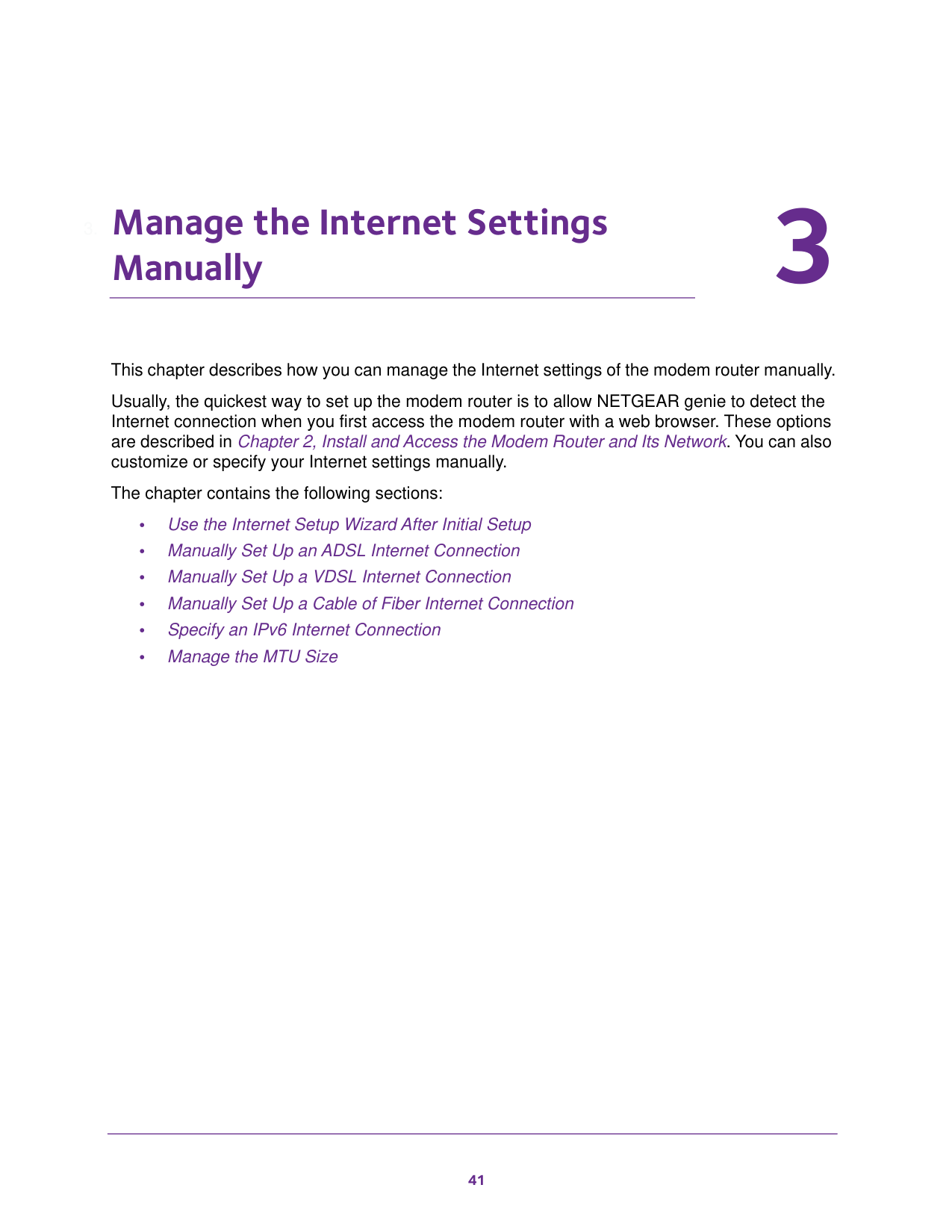
Install and Access the Modem Router and Its Network 40 AC1600 WiFi VDSL/ADSL Modem Router Model D6400 Access the Modem Router with the NETGEAR genie App The genie app is the easy dashboard for managing, monitoring, and repairing your home network from a smartphone, tablet, or computer. The genie app can help you with the following: • Automatically repair common WiFi network problems. • Easily manage modem router features such as Live Parental Controls, guest access, Internet traffic meter, speed test, and more. • Share and stream music or videos. To use the genie app to access the modem router:
41 3
Manage the Internet Settings Manually 42 AC1600 WiFi VDSL/ADSL Modem Router Model D6400 Use the Internet Setup Wizard After Initial Setup Whether you use DSL service or cable or fiber service, you can use the Setup Wizard to detect your Internet settings and automatically set up your modem router. Note: The Setup Wizard is the same as NETGEAR genie that launches the first time that you connect to your modem router. To use the Setup Wizard:
47).
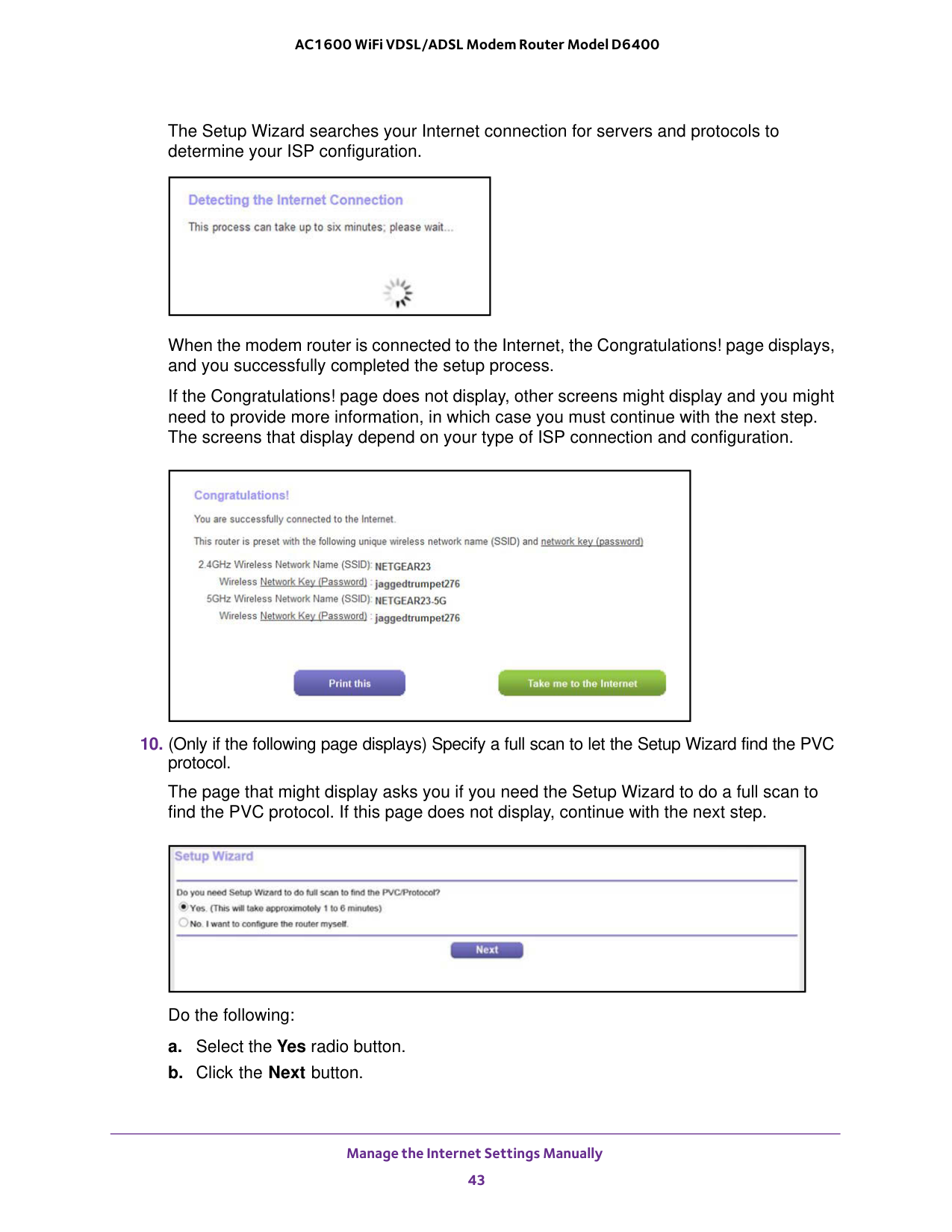
Manage the Internet Settings Manually 43 AC1600 WiFi VDSL/ADSL Modem Router Model D6400 The Setup Wizard searches your Internet connection for servers and protocols to determine your ISP configuration. When the modem router is connected to the Internet, the Congratulations! page displays, and you successfully completed the setup process. If the Congratulations! page does not display, other screens might display and you might need to provide more information, in which case you must continue with the next step. The screens that display depend on your type of ISP connection and configuration.
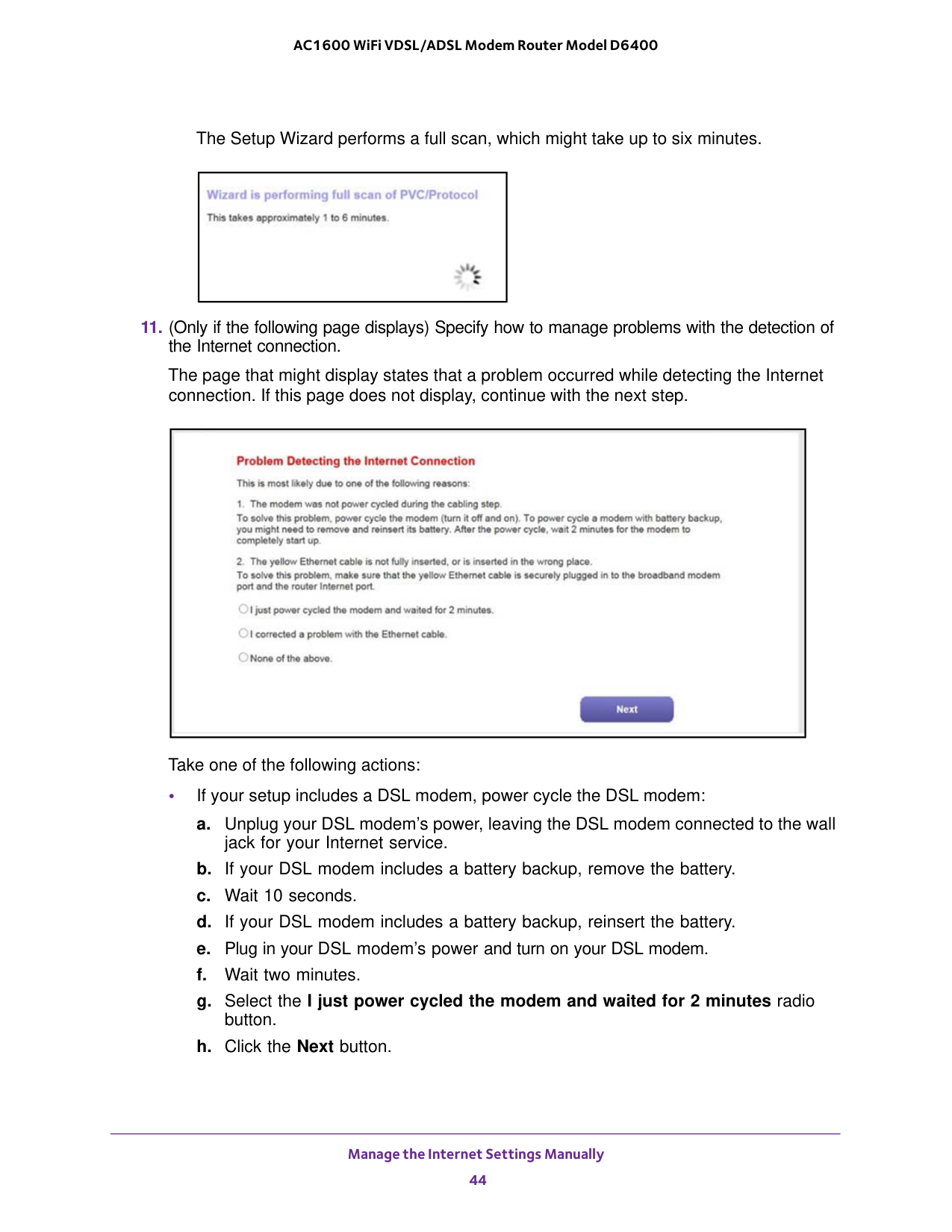
Manage the Internet Settings Manually 44 AC1600 WiFi VDSL/ADSL Modem Router Model D6400 The Setup Wizard performs a full scan, which might take up to six minutes.
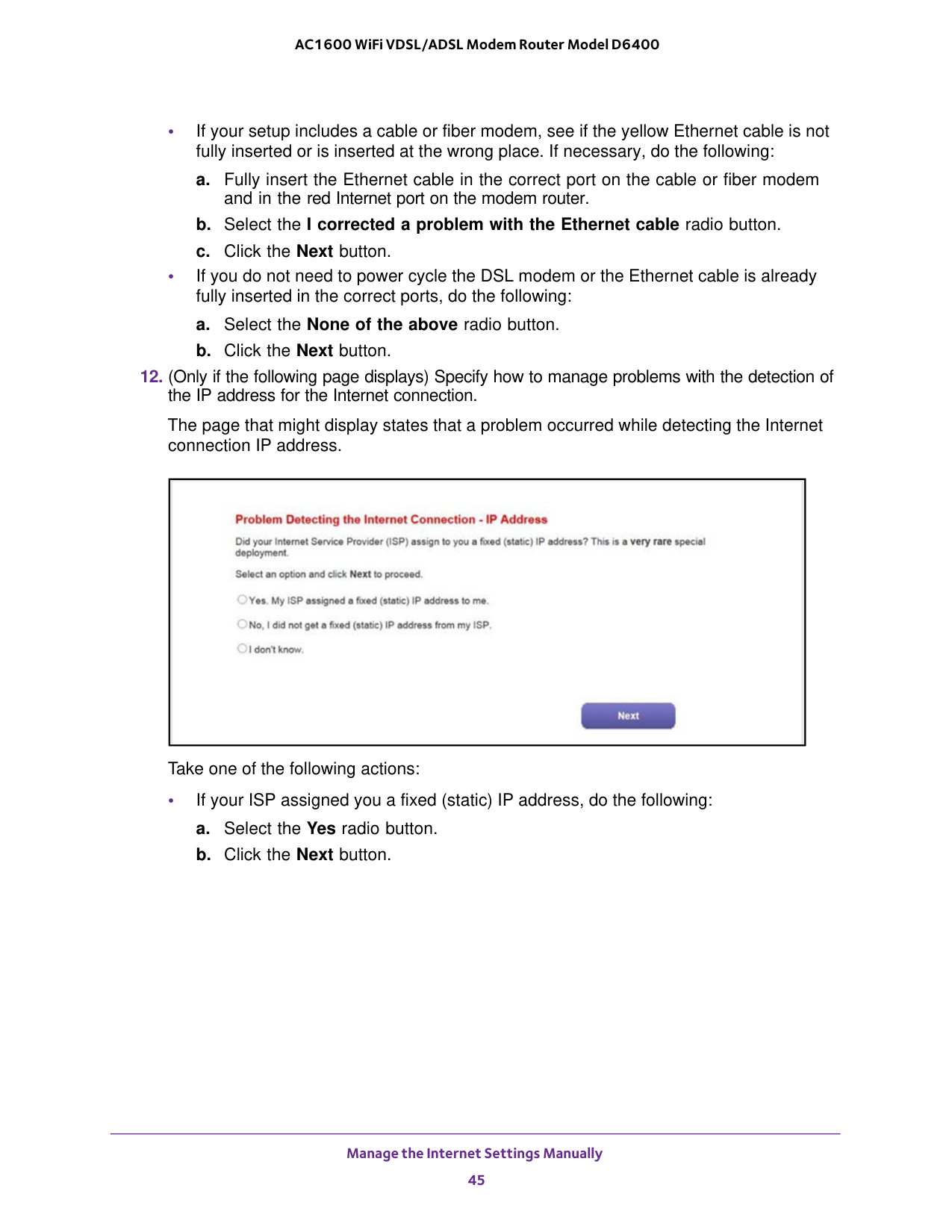
Manage the Internet Settings Manually 45 AC1600 WiFi VDSL/ADSL Modem Router Model D6400 • If your setup includes a cable or fiber modem, see if the yellow Ethernet cable is not fully inserted or is inserted at the wrong place. If necessary, do the following: a. Fully insert the Ethernet cable in the correct port on the cable or fiber modem and in the red Internet port on the modem router. b. Select the I corrected a problem with the Ethernet cable radio button. c. Click the Next button. • If you do not need to power cycle the DSL modem or the Ethernet cable is already fully inserted in the correct ports, do the following: a. Select the None of the above radio button. b. Click the Next button.
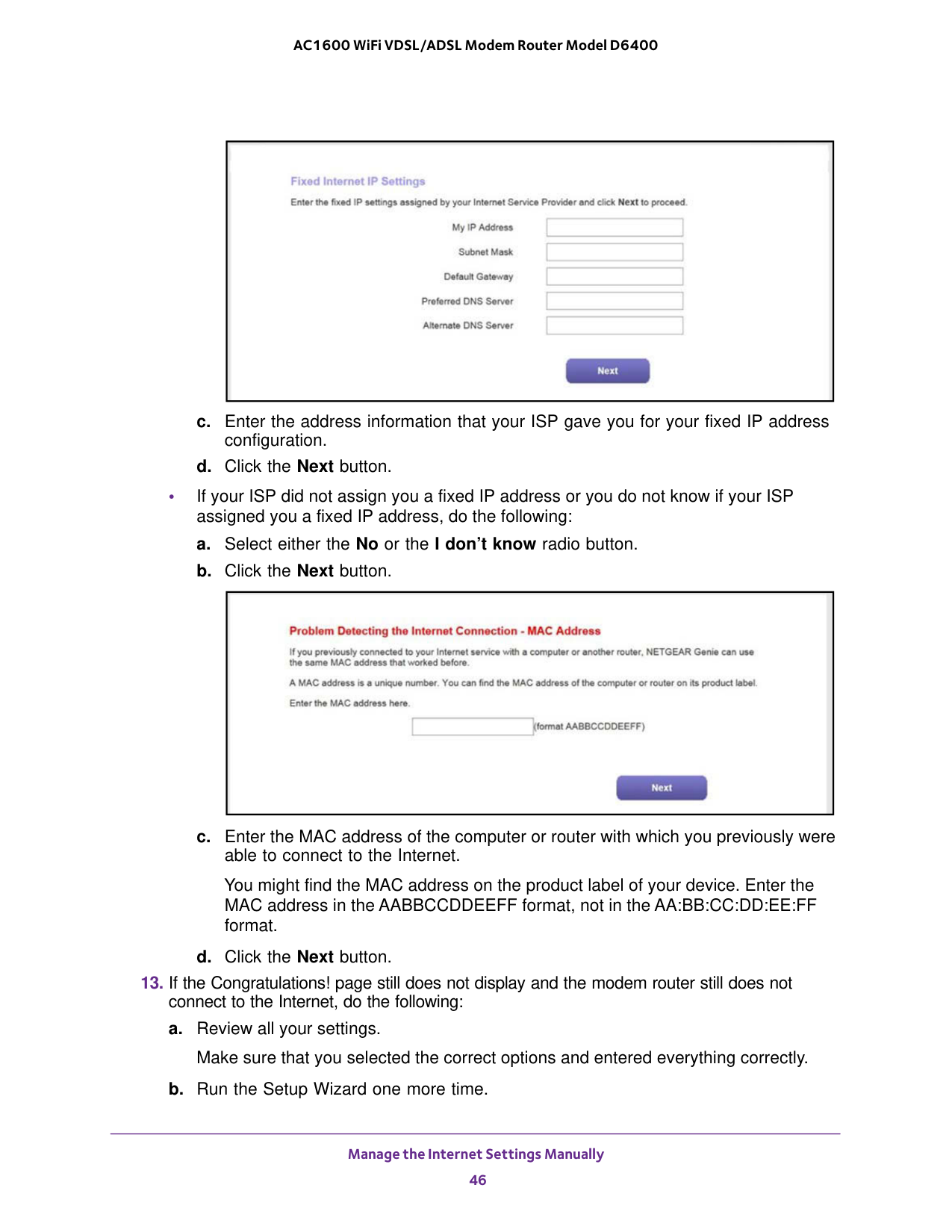
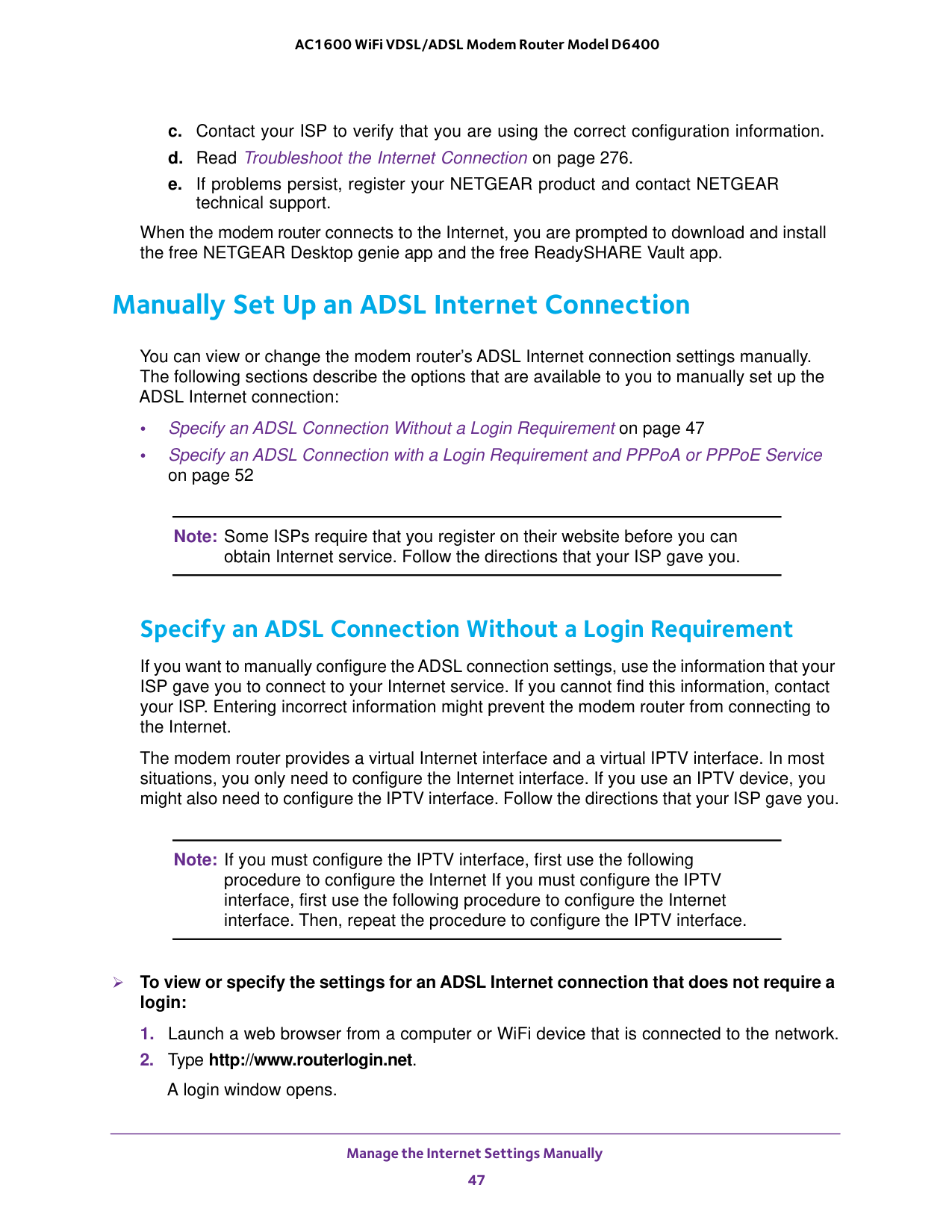
Manage the Internet Settings Manually 46 AC1600 WiFi VDSL/ADSL Modem Router Model D6400 c. Enter the address information that your ISP gave you for your fixed IP address configuration. d. Click the Next button. • If your ISP did not assign you a fixed IP address or you do not know if your ISP assigned you a fixed IP address, do the following: a. Select either the No or the I don’t know radio button. b. Click the Next button. c. Enter the MAC address of the computer or router with which you previously were able to connect to the Internet. You might find the MAC address on the product label of your device. Enter the MAC address in the AABBCCDDEEFF format, not in the AA:BB:CC:DD:EE:FF format. d. Click the Next button.
Manage the Internet Settings Manually 47 AC1600 WiFi VDSL/ADSL Modem Router Model D6400 c. Contact your ISP to verify that you are using the correct configuration information. d. Read Troubleshoot the Internet Connection on page
47 • Specify an ADSL Connection with a Login Requirement and PPPoA or PPPoE Service on page
52 Note: Some ISPs require that you register on their website before you can obtain Internet service. Follow the directions that your ISP gave you. Specify an ADSL Connection Without a Login Requirement If you want to manually configure the ADSL connection settings, use the information that your ISP gave you to connect to your Internet service. If you cannot find this information, contact your ISP. Entering incorrect information might prevent the modem router from connecting to the Internet. The modem router provides a virtual Internet interface and a virtual IPTV interface. In most situations, you only need to configure the Internet interface. If you use an IPTV device, you might also need to configure the IPTV interface. Follow the directions that your ISP gave you. Note: If you must configure the IPTV interface, first use the following procedure to configure the Internet If you must configure the IPTV interface, first use the following procedure to configure the Internet interface. Then, repeat the procedure to configure the IPTV interface. To view or specify the settings for an ADSL Internet connection that does not require a login:

Manage the Internet Settings Manually 48 AC1600 WiFi VDSL/ADSL Modem Router Model D6400
Iptv.
If you use an IPTV device, you might need to configure the IPTV interface.
Manage the Internet Settings Manually 49 AC1600 WiFi VDSL/ADSL Modem Router Model D6400
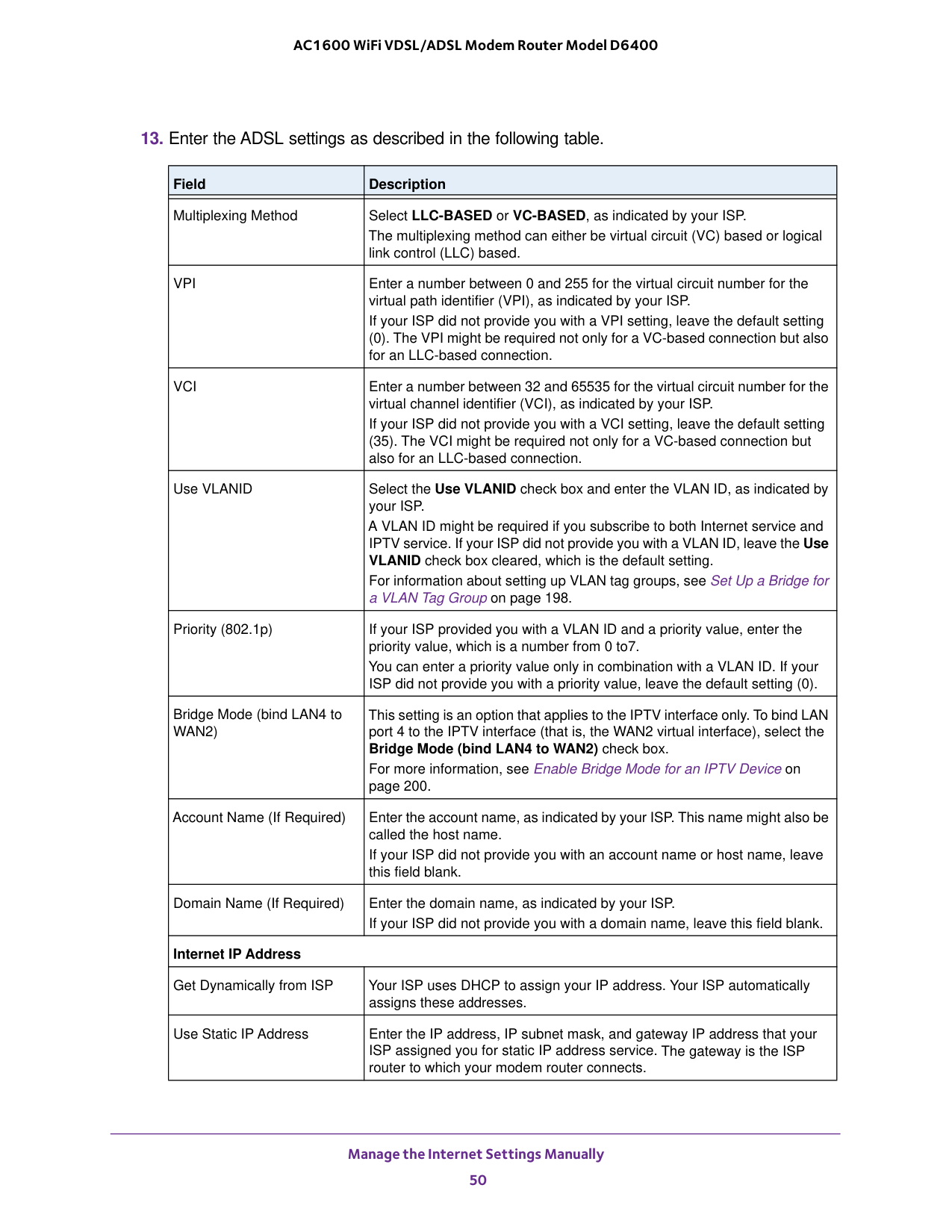
Manage the Internet Settings Manually 50 AC1600 WiFi VDSL/ADSL Modem Router Model D6400
Vpi
Enter a number between 0 and 255 for the virtual circuit number for the virtual path identifier (VPI), as indicated by your ISP. If your ISP did not provide you with a VPI setting, leave the default setting (0). The VPI might be required not only for a VC-based connection but also for an LLC-based connection.Vci
Enter a number between 32 and 65535 for the virtual circuit number for the virtual channel identifier (VCI), as indicated by your ISP. If your ISP did not provide you with a VCI setting, leave the default setting (35). The VCI might be required not only for a VC-based connection but also for an LLC-based connection. Use VLANID Select the Use VLANID check box and enter the VLAN ID, as indicated by your ISP. A VLAN ID might be required if you subscribe to both Internet service and IPTV service. If your ISP did not provide you with a VLAN ID, leave the Use VLANID check box cleared, which is the default setting. For information about setting up VLAN tag groups, see Set Up a Bridge for a VLAN Tag Group on pageWan2)
This setting is an option that applies to the IPTV interface only. To bind LAN port 4 to the IPTV interface (that is, the WAN2 virtual interface), select the Bridge Mode (bind LAN4 to WAN2) check box. For more information, see Enable Bridge Mode for an IPTV Device on page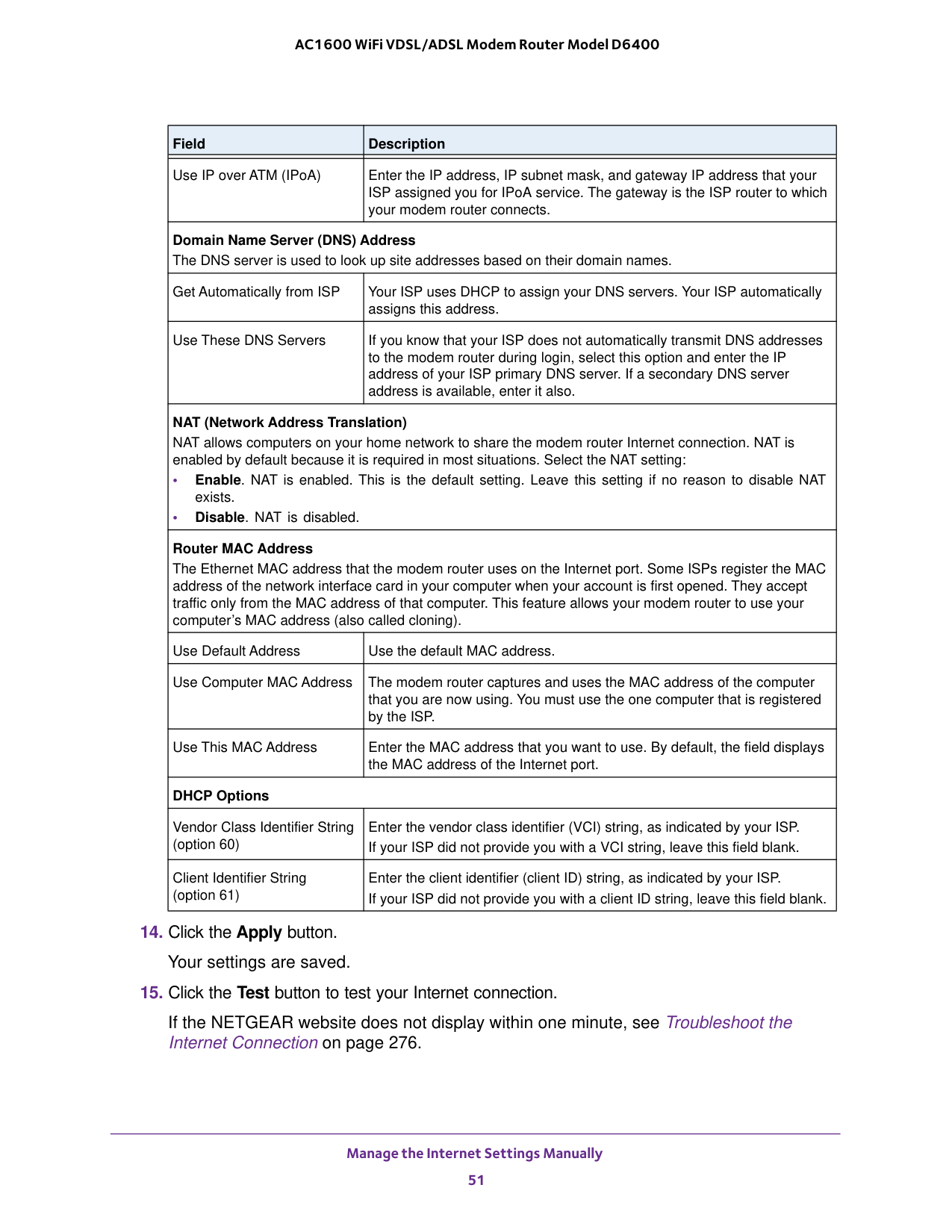
Manage the Internet Settings Manually 51 AC1600 WiFi VDSL/ADSL Modem Router Model D6400
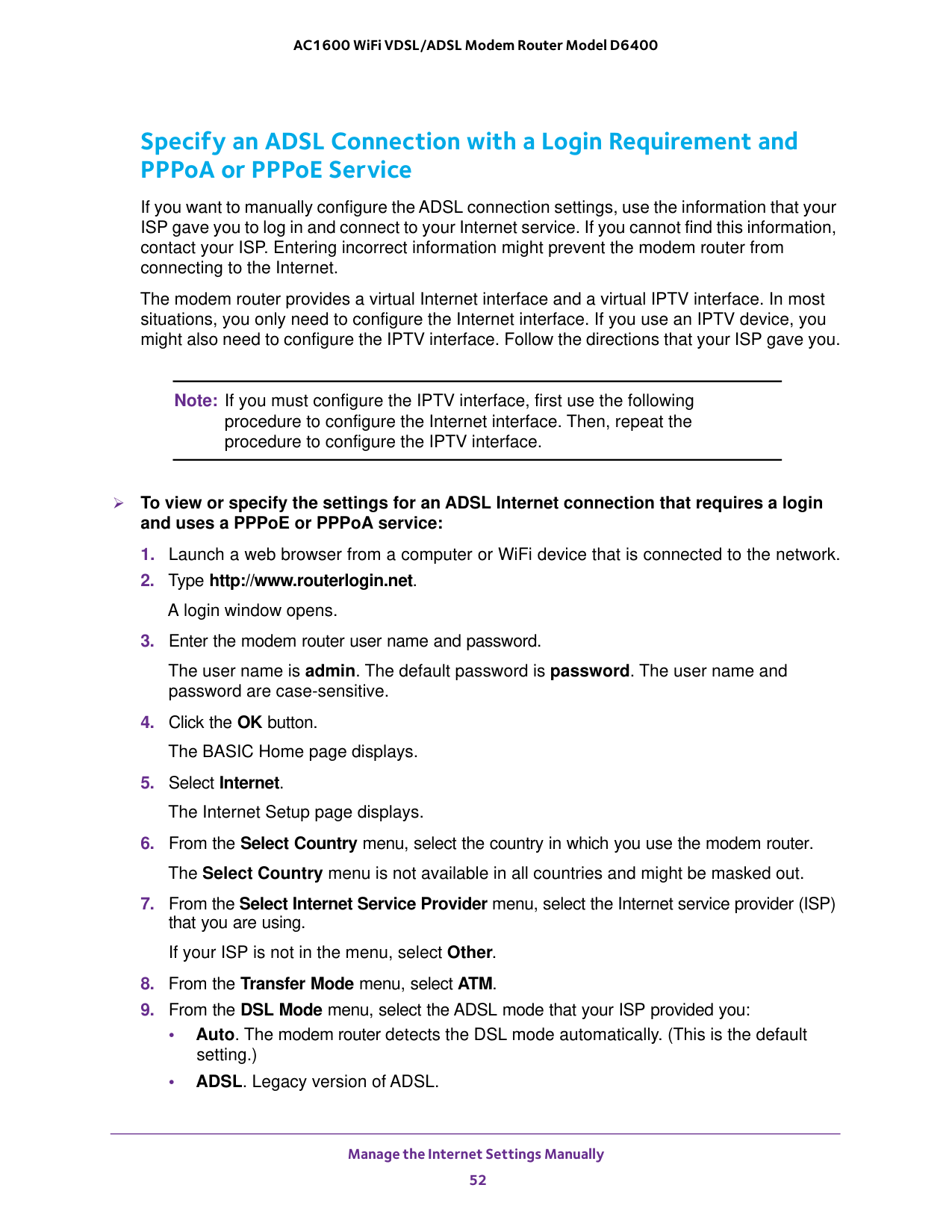
Manage the Internet Settings Manually 52 AC1600 WiFi VDSL/ADSL Modem Router Model D6400 Specify an ADSL Connection with a Login Requirement and PPPoA or PPPoE Service If you want to manually configure the ADSL connection settings, use the information that your ISP gave you to log in and connect to your Internet service. If you cannot find this information, contact your ISP. Entering incorrect information might prevent the modem router from connecting to the Internet. The modem router provides a virtual Internet interface and a virtual IPTV interface. In most situations, you only need to configure the Internet interface. If you use an IPTV device, you might also need to configure the IPTV interface. Follow the directions that your ISP gave you. Note: If you must configure the IPTV interface, first use the following procedure to configure the Internet interface. Then, repeat the procedure to configure the IPTV interface. To view or specify the settings for an ADSL Internet connection that requires a login and uses a PPPoE or PPPoA service:
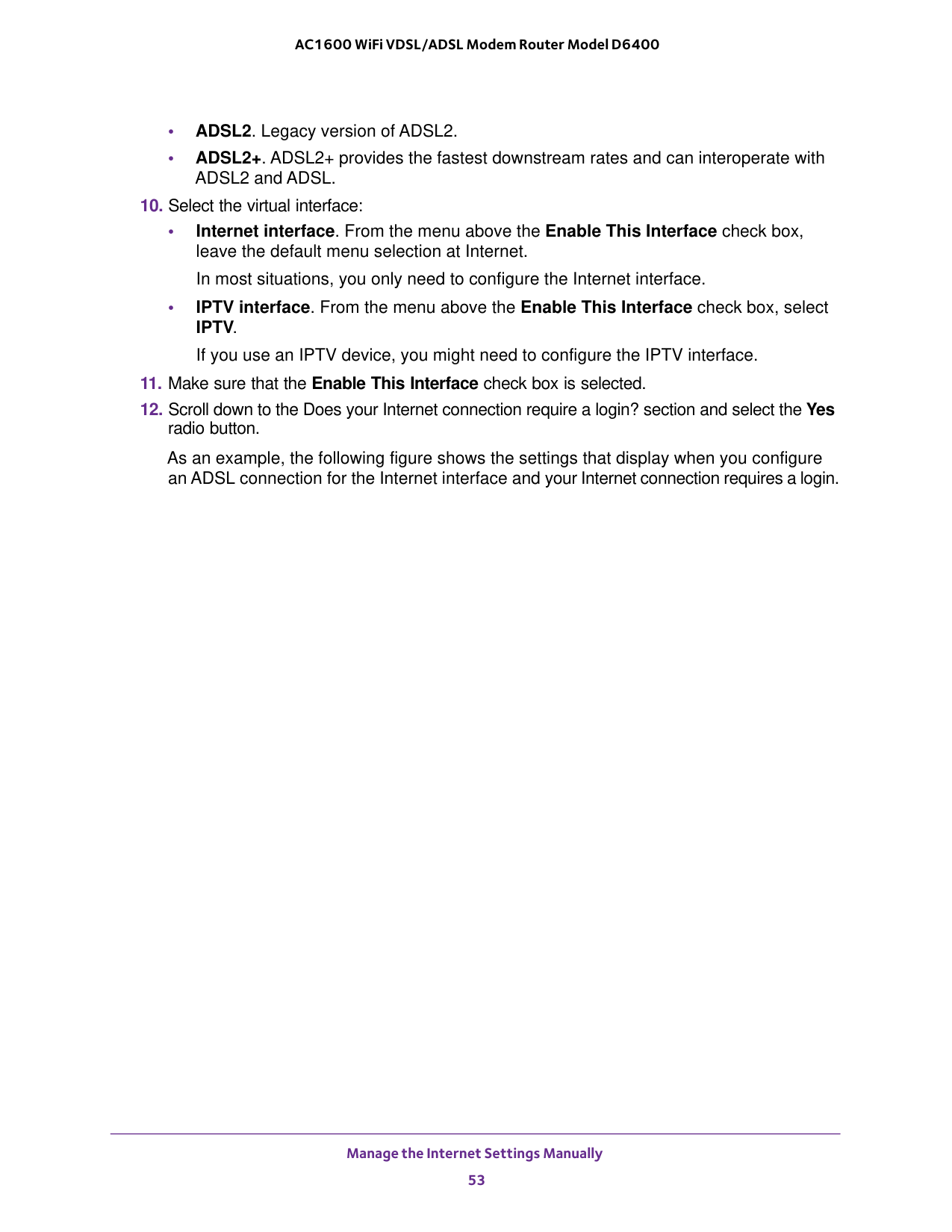
Manage the Internet Settings Manually 53 AC1600 WiFi VDSL/ADSL Modem Router Model D6400 • ADSL2. Legacy version of ADSL2. • ADSL2+. ADSL2+ provides the fastest downstream rates and can interoperate with ADSL2 and ADSL.
Iptv.
If you use an IPTV device, you might need to configure the IPTV interface.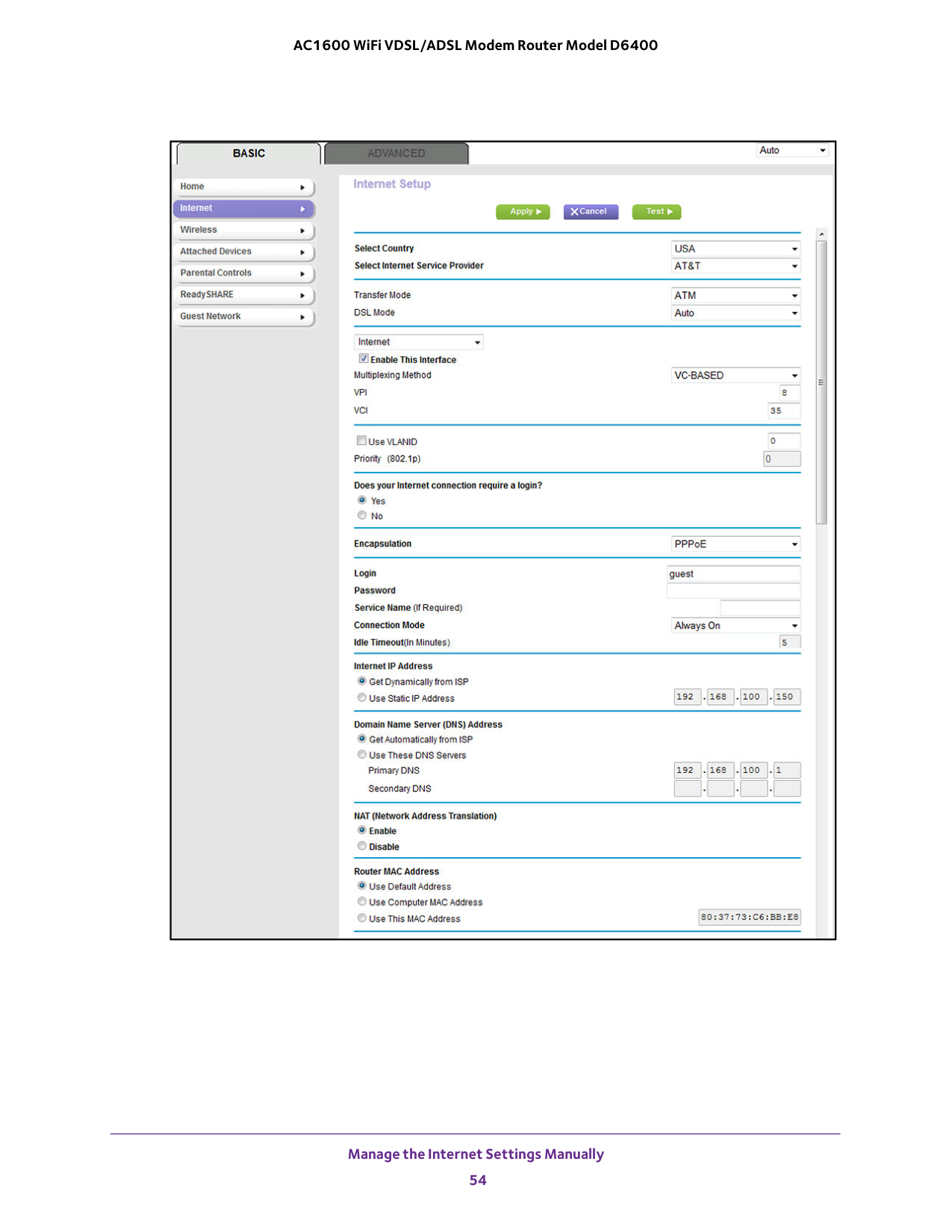
Manage the Internet Settings Manually 54 AC1600 WiFi VDSL/ADSL Modem Router Model D6400
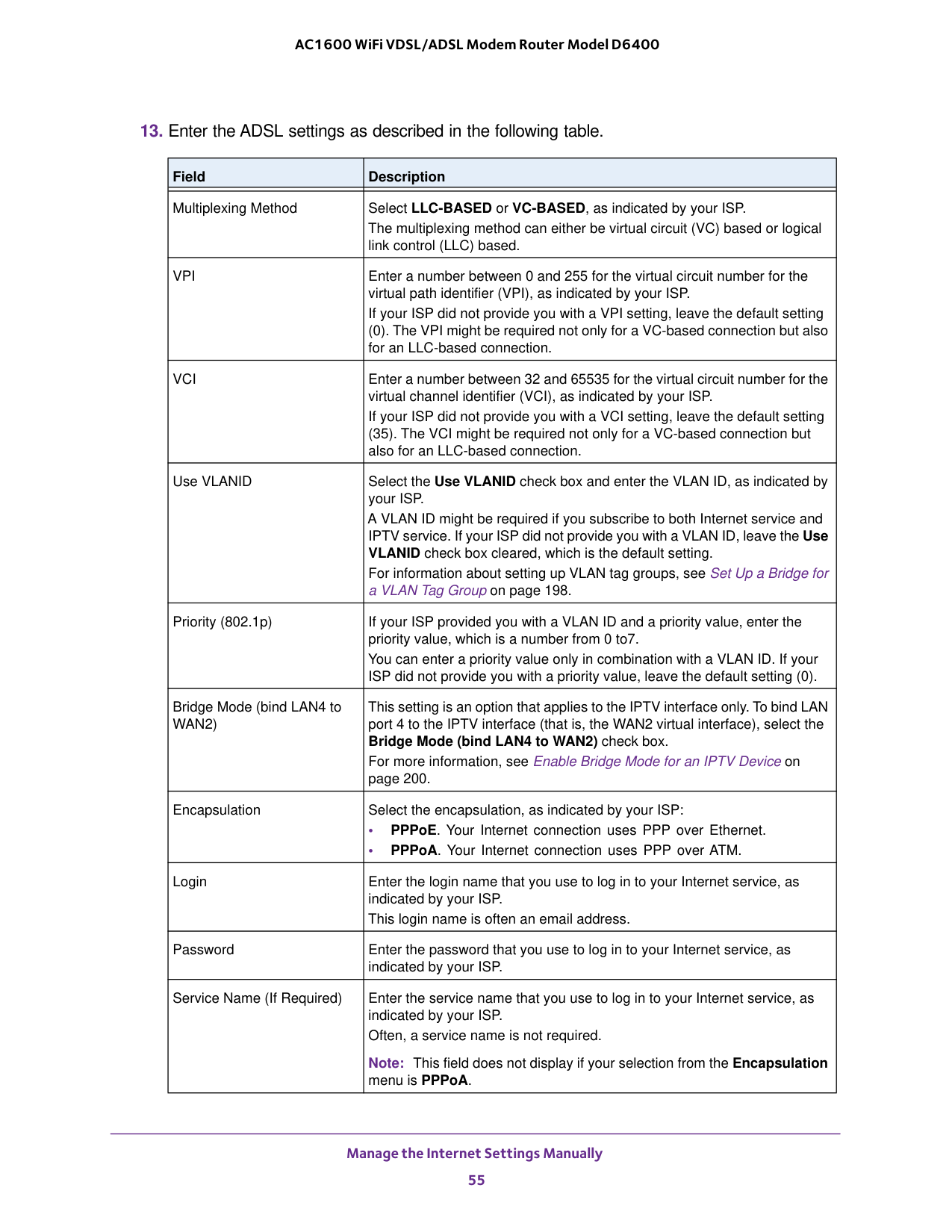
Manage the Internet Settings Manually 55 AC1600 WiFi VDSL/ADSL Modem Router Model D6400
Vpi
Enter a number between 0 and 255 for the virtual circuit number for the virtual path identifier (VPI), as indicated by your ISP. If your ISP did not provide you with a VPI setting, leave the default setting (0). The VPI might be required not only for a VC-based connection but also for an LLC-based connection.Vci
Enter a number between 32 and 65535 for the virtual circuit number for the virtual channel identifier (VCI), as indicated by your ISP. If your ISP did not provide you with a VCI setting, leave the default setting (35). The VCI might be required not only for a VC-based connection but also for an LLC-based connection. Use VLANID Select the Use VLANID check box and enter the VLAN ID, as indicated by your ISP. A VLAN ID might be required if you subscribe to both Internet service and IPTV service. If your ISP did not provide you with a VLAN ID, leave the Use VLANID check box cleared, which is the default setting. For information about setting up VLAN tag groups, see Set Up a Bridge for a VLAN Tag Group on pageWan2)
This setting is an option that applies to the IPTV interface only. To bind LAN port 4 to the IPTV interface (that is, the WAN2 virtual interface), select the Bridge Mode (bind LAN4 to WAN2) check box. For more information, see Enable Bridge Mode for an IPTV Device on page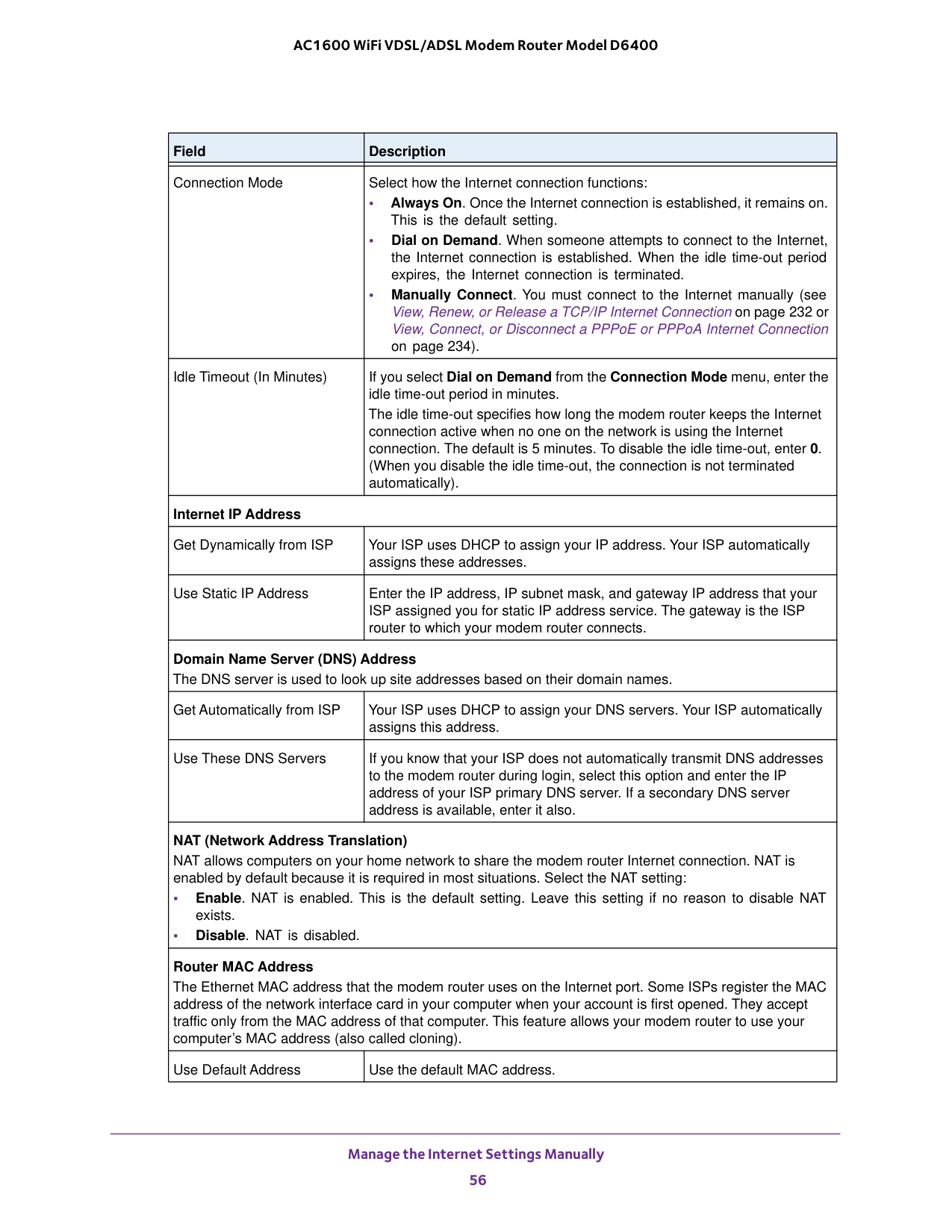
Manage the Internet Settings Manually 56 AC1600 WiFi VDSL/ADSL Modem Router Model D6400 Connection Mode Select how the Internet connection functions: • Always On. Once the Internet connection is established, it remains on. This is the default setting. • Dial on Demand. When someone attempts to connect to the Internet, the Internet connection is established. When the idle time-out period expires, the Internet connection is terminated. • Manually Connect. You must connect to the Internet manually (see View, Renew, or Release a TCP/IP Internet Connection on page
232 or View, Connect, or Disconnect a PPPoE or PPPoA Internet Connection on page
234). Idle Timeout (In Minutes) If you select Dial on Demand from the Connection Mode menu, enter the idle time-out period in minutes. The idle time-out specifies how long the modem router keeps the Internet connection active when no one on the network is using the Internet connection. The default is 5 minutes. To disable the idle time-out, enter 0. (When you disable the idle time-out, the connection is not terminated automatically). Internet IP Address Get Dynamically from ISP Your ISP uses DHCP to assign your IP address. Your ISP automatically assigns these addresses. Use Static IP Address Enter the IP address, IP subnet mask, and gateway IP address that your ISP assigned you for static IP address service. The gateway is the ISP router to which your modem router connects. Domain Name Server (DNS) Address The DNS server is used to look up site addresses based on their domain names. Get Automatically from ISP Your ISP uses DHCP to assign your DNS servers. Your ISP automatically assigns this address. Use These DNS Servers If you know that your ISP does not automatically transmit DNS addresses to the modem router during login, select this option and enter the IP address of your ISP primary DNS server. If a secondary DNS server address is available, enter it also. NAT (Network Address Translation) NAT allows computers on your home network to share the modem router Internet connection. NAT is enabled by default because it is required in most situations. Select the NAT setting: • Enable. NAT is enabled. This is the default setting. Leave this setting if no reason to disable NAT exists. • Disable. NAT is disabled. Router MAC Address The Ethernet MAC address that the modem router uses on the Internet port. Some ISPs register the MAC address of the network interface card in your computer when your account is first opened. They accept traffic only from the MAC address of that computer. This feature allows your modem router to use your computer’s MAC address (also called cloning). Use Default Address Use the default MAC address. Field Description
Manage the Internet Settings Manually 57 AC1600 WiFi VDSL/ADSL Modem Router Model D6400
57 • Specify a VDSL Connection with a Login Requirement and PPPoE Service on page
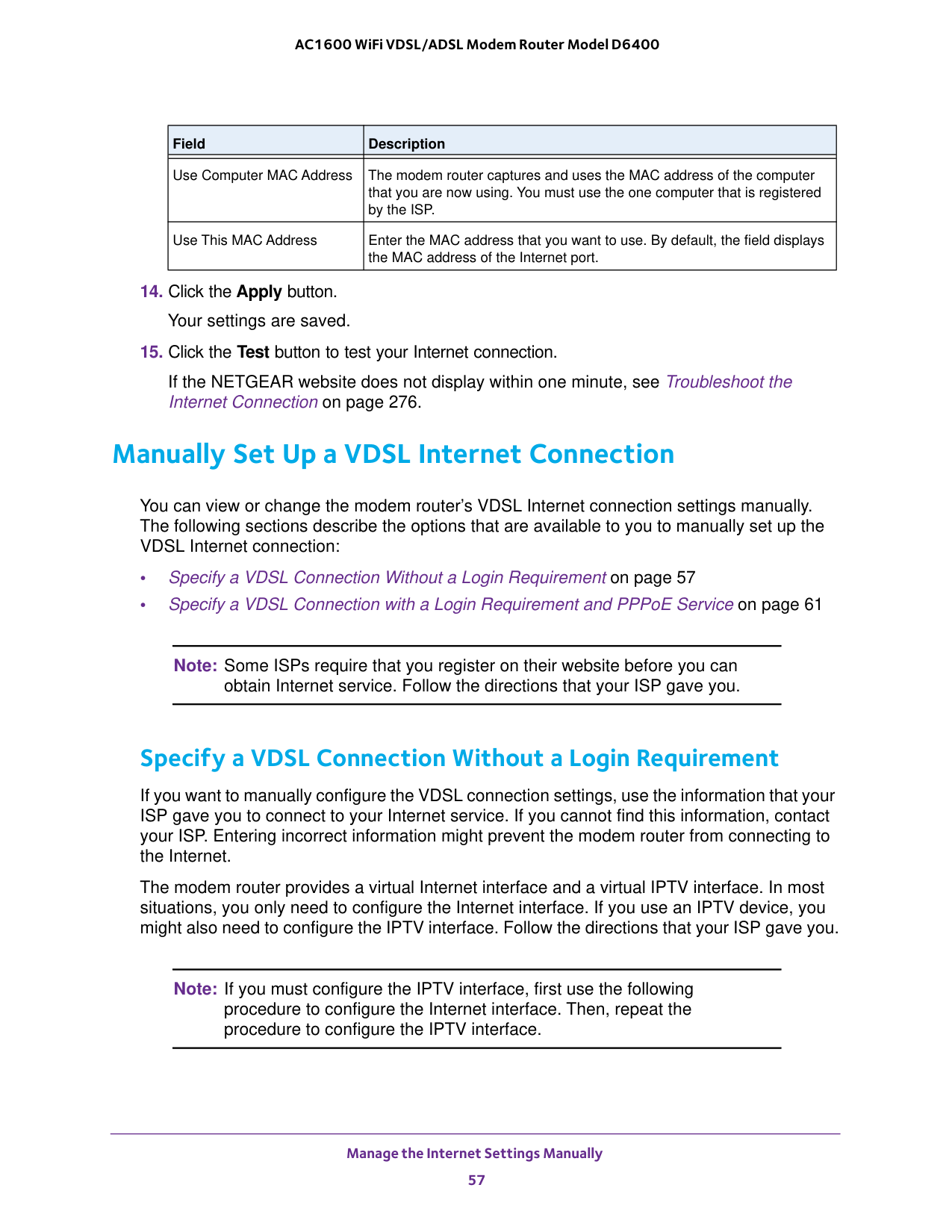
61 Note: Some ISPs require that you register on their website before you can obtain Internet service. Follow the directions that your ISP gave you. Specify a VDSL Connection Without a Login Requirement If you want to manually configure the VDSL connection settings, use the information that your ISP gave you to connect to your Internet service. If you cannot find this information, contact your ISP. Entering incorrect information might prevent the modem router from connecting to the Internet. The modem router provides a virtual Internet interface and a virtual IPTV interface. In most situations, you only need to configure the Internet interface. If you use an IPTV device, you might also need to configure the IPTV interface. Follow the directions that your ISP gave you. Note: If you must configure the IPTV interface, first use the following procedure to configure the Internet interface. Then, repeat the procedure to configure the IPTV interface. Use Computer MAC Address The modem router captures and uses the MAC address of the computer that you are now using. You must use the one computer that is registered by the ISP. Use This MAC Address Enter the MAC address that you want to use. By default, the field displays the MAC address of the Internet port. Field Description

Manage the Internet Settings Manually 58 AC1600 WiFi VDSL/ADSL Modem Router Model D6400 To view or specify the settings for a VDSL Internet connection that does not require a login:
Iptv.
If you use an IPTV device, you might need to configure the IPTV interface.
Manage the Internet Settings Manually 59 AC1600 WiFi VDSL/ADSL Modem Router Model D6400

Manage the Internet Settings Manually 60 AC1600 WiFi VDSL/ADSL Modem Router Model D6400
Vpi
Vci
Use VLANID Select the Use VLANID check box and enter the VLAN ID, as indicated by your ISP. A VLAN ID might be required if you subscribe to both Internet service and IPTV service. In some unusual situations, a VLAN ID is required for VDSL Internet service. If your ISP did not provide you with a VLAN ID, leave the Use VLANID check box cleared, which is the default setting. For information about setting up VLAN tag groups, see Set Up a Bridge for a VLAN Tag Group on pageWan2)
This setting is an option that applies to the IPTV interface only. To bind LAN port 4 to the IPTV interface (that is, the WAN2 virtual interface), select the Bridge Mode (bind LAN4 to WAN2) check box. For more information, see Enable Bridge Mode for an IPTV Device on page
Manage the Internet Settings Manually 61 AC1600 WiFi VDSL/ADSL Modem Router Model D6400

Manage the Internet Settings Manually 62 AC1600 WiFi VDSL/ADSL Modem Router Model D6400 The modem router provides a virtual Internet interface and a virtual IPTV interface. In most situations, you only need to configure the Internet interface. If you use an IPTV device, you might also need to configure the IPTV interface. Follow the directions that your ISP gave you. Note: If you must configure the IPTV interface, first use the following procedure to configure the Internet interface. Then, repeat the procedure to configure the IPTV interface. To view or specify the settings for a VDSL Internet connection that requires a login and uses a PPPoE service:
Iptv.
If you use an IPTV device, you might need to configure the IPTV interface.
Manage the Internet Settings Manually 63 AC1600 WiFi VDSL/ADSL Modem Router Model D6400

Manage the Internet Settings Manually 64 AC1600 WiFi VDSL/ADSL Modem Router Model D6400
Vpi
Vci
Use VLANID Select the Use VLANID check box and enter the VLAN ID, as indicated by your ISP. A VLAN ID might be required if you subscribe to both Internet service and IPTV service. In some unusual situations, a VLAN ID is required for VDSL Internet service. If your ISP did not provide you with a VLAN ID, leave the Use VLANID check box cleared, which is the default setting. For information about setting up VLAN tag groups, see Set Up a Bridge for a VLAN Tag Group on pageWan2)
This setting is an option that applies to the IPTV interface only. To bind LAN port 4 to the IPTV interface (that is, the WAN2 virtual interface), select the Bridge Mode (bind LAN4 to WAN2) check box. For more information, see Enable Bridge Mode for an IPTV Device on page232 or View, Connect, or Disconnect a PPPoE or PPPoA Internet Connection on page
234).

Manage the Internet Settings Manually 65 AC1600 WiFi VDSL/ADSL Modem Router Model D6400

Manage the Internet Settings Manually 66 AC1600 WiFi VDSL/ADSL Modem Router Model D6400 If the NETGEAR website does not display within one minute, see Troubleshoot the Internet Connection on page
66 • Specify a Cable or Fiber Connection With a Login Requirement and PPPoE Service on page
71 Note: Some ISPs require that you register on their website before you can obtain Internet service. Follow the directions that your ISP gave you. Note: If you connect both a DSL modem and a cable or fiber modem to the modem router and you want to manually specify the settings for a cable or fiber Internet connection, you must first set the WAN connection preference manually to the Ethernet WAN port (see Change the Physical WAN Connection Preference on page
194). If you do not, the DSL settings take precedence over the cable or fiber settings. However, NETGEAR recommends that you connect only the modem that you intend to use for your Internet connection: a DSL modem, cable modem, or fiber modem. Specify a Cable or Fiber Connection Without a Login Requirement If you want to manually configure the cable or fiber connection settings, use the information that your ISP gave you to connect to your Internet service. If you cannot find this information, contact your ISP. Entering incorrect information might prevent the modem router from connecting to the Internet. The modem router provides a virtual Internet interface and a virtual IPTV interface. In most situations, you only need to configure the Internet interface. If you use an IPTV device, you might also need to configure the IPTV interface. Follow the directions that your ISP gave you.

Manage the Internet Settings Manually 67 AC1600 WiFi VDSL/ADSL Modem Router Model D6400 Note: If you must configure the IPTV interface, first use the following procedure to configure the Internet interface. Then, repeat the procedure to configure the IPTV interface. To view or specify the settings for a cable or fiber Internet connection that does not require a login:
Iptv.
If you use an IPTV device, you might need to configure the IPTV interface.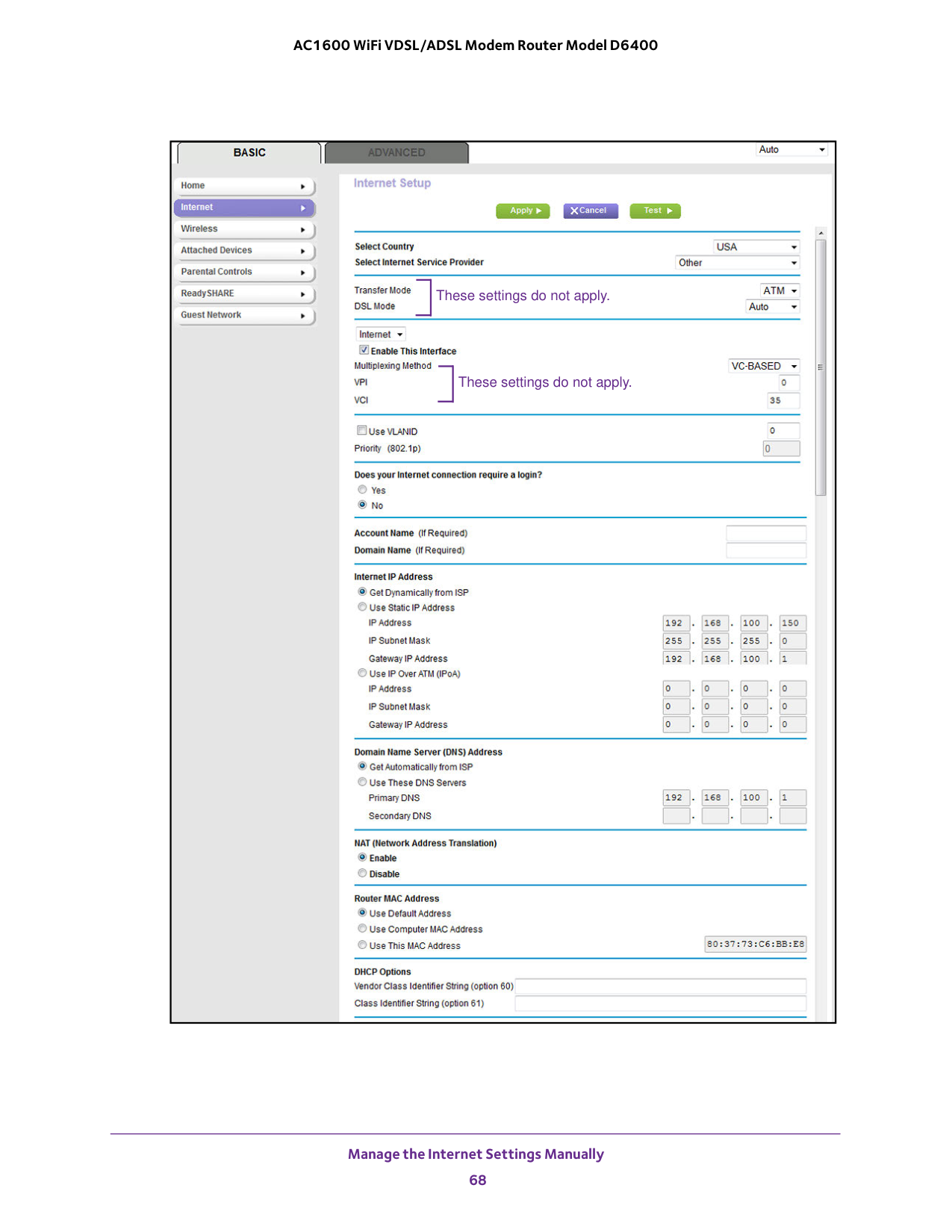
These settings do not apply. These settings do not apply. Manage the Internet Settings Manually 68 AC1600 WiFi VDSL/ADSL Modem Router Model D6400
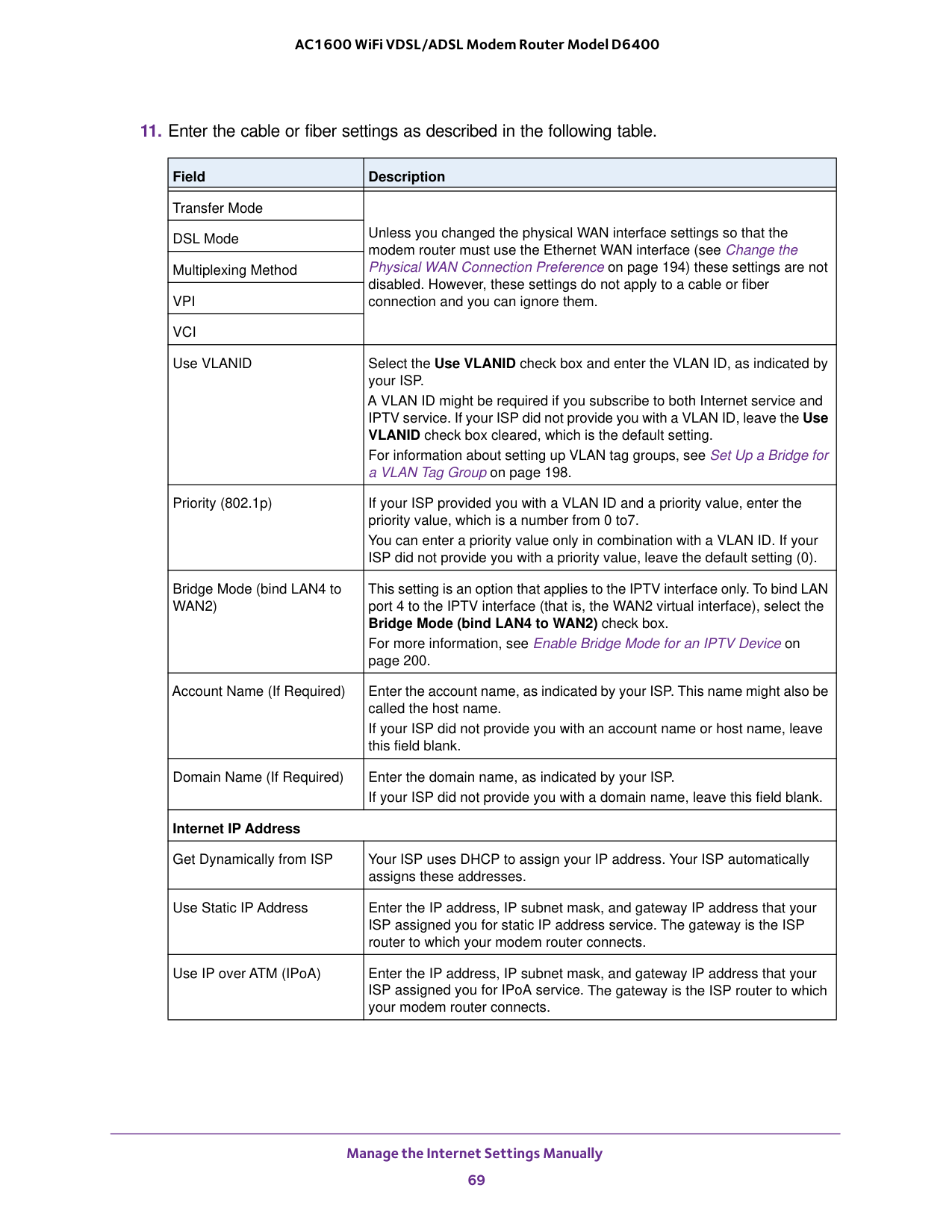
Manage the Internet Settings Manually 69 AC1600 WiFi VDSL/ADSL Modem Router Model D6400
194) these settings are not disabled. However, these settings do not apply to a cable or fiber connection and you can ignore them. DSL Mode Multiplexing Method
Vpi
Vci
Use VLANID Select the Use VLANID check box and enter the VLAN ID, as indicated by your ISP. A VLAN ID might be required if you subscribe to both Internet service and IPTV service. If your ISP did not provide you with a VLAN ID, leave the Use VLANID check box cleared, which is the default setting. For information about setting up VLAN tag groups, see Set Up a Bridge for a VLAN Tag Group on pageWan2)
This setting is an option that applies to the IPTV interface only. To bind LAN port 4 to the IPTV interface (that is, the WAN2 virtual interface), select the Bridge Mode (bind LAN4 to WAN2) check box. For more information, see Enable Bridge Mode for an IPTV Device on page
Manage the Internet Settings Manually 70 AC1600 WiFi VDSL/ADSL Modem Router Model D6400

Manage the Internet Settings Manually 71 AC1600 WiFi VDSL/ADSL Modem Router Model D6400 Specify a Cable or Fiber Connection With a Login Requirement and PPPoE Service If you want to manually configure the cable or fiber connection settings, use the information that your ISP gave you to log in and connect to your Internet service. If you cannot find this information, contact your ISP. Entering incorrect information might prevent the modem router from connecting to the Internet. The modem router provides a virtual Internet interface and a virtual IPTV interface. In most situations, you only need to configure the Internet interface. If you use an IPTV device, you might also need to configure the IPTV interface. Follow the directions that your ISP gave you. Note: If you must configure the IPTV interface, first use the following procedure to configure the Internet interface. Then, repeat the procedure to configure the IPTV interface. To view or specify the settings for a cable or fiber Internet connection that requires a login and uses a PPPoE service:
Iptv.

Manage the Internet Settings Manually 72 AC1600 WiFi VDSL/ADSL Modem Router Model D6400 If you use an IPTV device, you might need to configure the IPTV interface.

Manage the Internet Settings Manually 73 AC1600 WiFi VDSL/ADSL Modem Router Model D6400
194) these settings are not disabled. However, these settings do not apply to a cable or fiber connection and you can ignore them. DSL Mode Multiplexing Method
Vpi
Vci
Use VLANID Select the Use VLANID check box and enter the VLAN ID, as indicated by your ISP. A VLAN ID might be required if you subscribe to both Internet service and IPTV service. If your ISP did not provide you with a VLAN ID, leave the Use VLANID check box cleared, which is the default setting. For information about setting up VLAN tag groups, see Set Up a Bridge for a VLAN Tag Group on pageWan2)
This setting is an option that applies to the IPTV interface only. To bind LAN port 4 to the IPTV interface (that is, the WAN2 virtual interface), select the Bridge Mode (bind LAN4 to WAN2) check box. For more information, see Enable Bridge Mode for an IPTV Device on page
Manage the Internet Settings Manually 74 AC1600 WiFi VDSL/ADSL Modem Router Model D6400 Connection Mode Select how the Internet connection functions: • Always On. Once the Internet connection is established, it remains on. This is the default setting. • Dial on Demand. When someone attempts to connect to the Internet, the Internet connection is established. When the idle time-out period expires, the Internet connection is terminated. • Manually Connect. You must connect to the Internet manually (see View, Renew, or Release a TCP/IP Internet Connection on page
232 or View, Connect, or Disconnect a PPPoE or PPPoA Internet Connection on page
234). Idle Timeout (In Minutes) If you select Dial on Demand from the Connection Mode menu, enter the idle time-out period in minutes. The idle time-out specifies how long the modem router keeps the Internet connection active when no one on the network is using the Internet connection. The default is 5 minutes. To disable the idle time-out, enter 0. (When you disable the idle time-out, the connection is not terminated automatically). Internet IP Address Get Dynamically from ISP Your ISP uses DHCP to assign your IP address. Your ISP automatically assigns these addresses. Use Static IP Address Enter the IP address, IP subnet mask, and gateway IP address that your ISP assigned you for static IP address service. The gateway is the ISP router to which your modem router connects. Domain Name Server (DNS) Address The DNS server is used to look up site addresses based on their domain names. Get Automatically from ISP Your ISP uses DHCP to assign your DNS servers. Your ISP automatically assigns this address. Use These DNS Servers If you know that your ISP does not automatically transmit DNS addresses to the modem router during login, select this option and enter the IP address of your ISP primary DNS server. If a secondary DNS server address is available, enter it also. NAT (Network Address Translation) NAT allows computers on your home network to share the modem router Internet connection. NAT is enabled by default because it is required in most situations. Select the NAT setting: • Enable. NAT is enabled. This is the default setting. Leave this setting if no reason to disable NAT exists. • Disable. NAT is disabled. Router MAC Address The Ethernet MAC address that the modem router uses on the Internet port. Some ISPs register the MAC address of the network interface card in your computer when your account is first opened. They accept traffic only from the MAC address of that computer. This feature allows your modem router to use your computer’s MAC address (also called cloning). Use Default Address Use the default MAC address. Field Description

Manage the Internet Settings Manually 75 AC1600 WiFi VDSL/ADSL Modem Router Model D6400

Manage the Internet Settings Manually 76 AC1600 WiFi VDSL/ADSL Modem Router Model D6400 Which connection type you must use depends on your IPv6 ISP. Follow the directions that your IPv6 ISP gave you. • If your ISP did not provide details, use the 6to4 tunnel connection type (see Set Up an IPv6 6to4 Tunnel Connection on page
78). • If you are not sure what type of IPv6 connection the modem router uses, use the Auto Detect connection type, which lets the modem router detect the IPv6 type that is in use (see Set Up an IPv6 Connection Through Auto Detect on page
76). • If your Internet connection does not use PPPoE, DHCP, a fixed IP address, or pass-through but is IPv6, use the Auto Config connection type, which lets the modem router autoconfigure its IPv6 connection (see Set Up an IPv6 Connection Through Auto Config on page
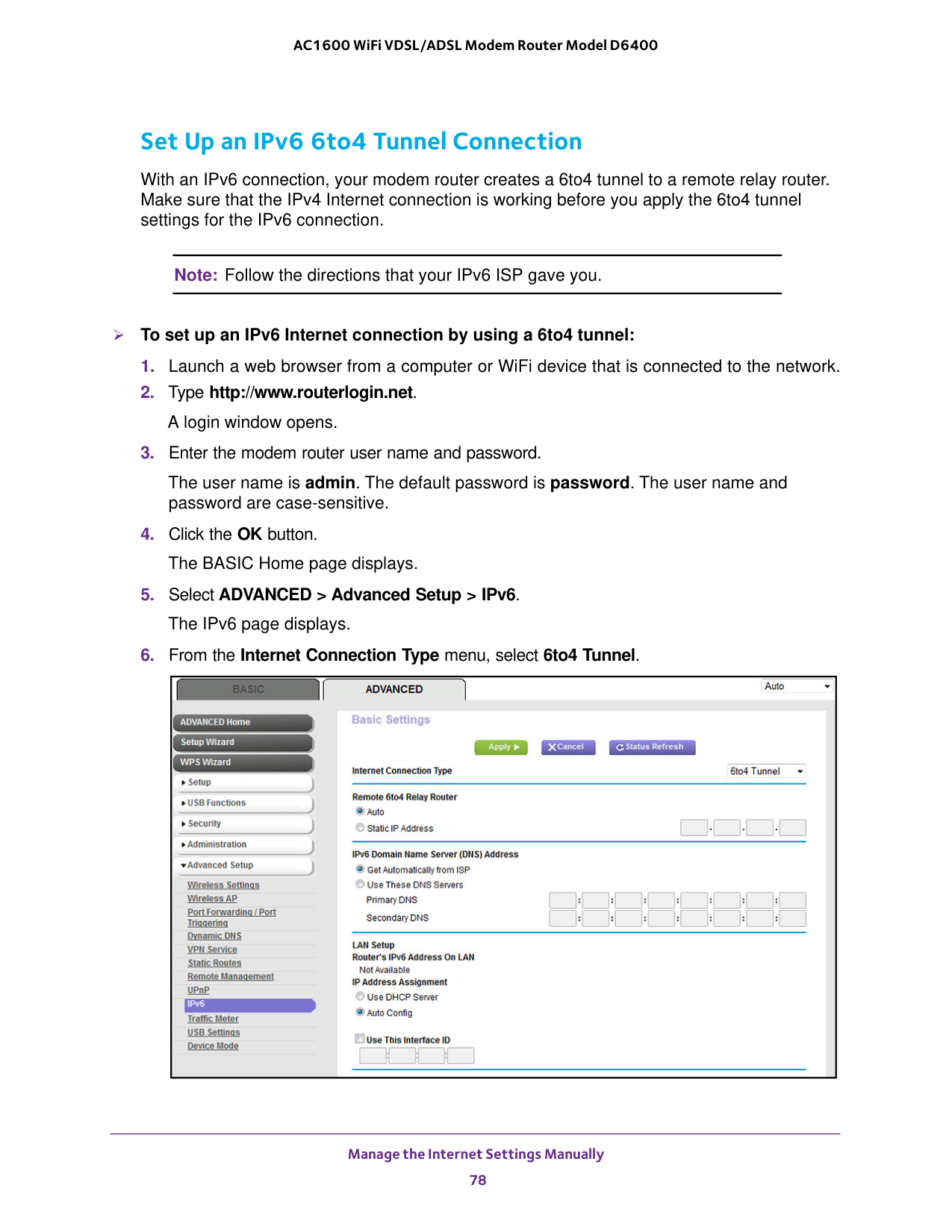
86). When you enable IPv6 and select any connection type other than IPv6 pass-through, the modem router starts the stateful packet inspection (SPI) firewall function on the WAN interface. The modem router creates connection records and checks every inbound IPv6 packet. If the inbound packet is not destined to the modem router itself and the modem router does not expect to receive such a packet, or the packet is not in the connection record, the modem router blocks this packet. This function works in two modes: In secured mode, the modem router inspects both TCP and UDP packets. In open mode, the modem router inspects UDP packets only. IPv6 addresses are denoted by eight groups of hexadecimal quartets that are separated by colons. You can reduce any four-digit group of zeros within an IPv6 address to a single zero or omit it. The following errors invalidate an IPv6 address: • More than eight groups of hexadecimal quartets • More than four hexadecimal characters in a quartet • More than two colons in a row Set Up an IPv6 Connection Through Auto Detect If you are not sure what type of IPv6 connection the modem router uses, use the Auto Detect connection type, which lets the modem router detect the IPv6 type that is in use. To set up an IPv6 Internet connection through auto detection:

Manage the Internet Settings Manually 77 AC1600 WiFi VDSL/ADSL Modem Router Model D6400
Manage the Internet Settings Manually 78 AC1600 WiFi VDSL/ADSL Modem Router Model D6400 Set Up an IPv6 6to4 Tunnel Connection With an IPv6 connection, your modem router creates a 6to4 tunnel to a remote relay router. Make sure that the IPv4 Internet connection is working before you apply the 6to4 tunnel settings for the IPv6 connection. Note: Follow the directions that your IPv6 ISP gave you. To set up an IPv6 Internet connection by using a 6to4 tunnel:
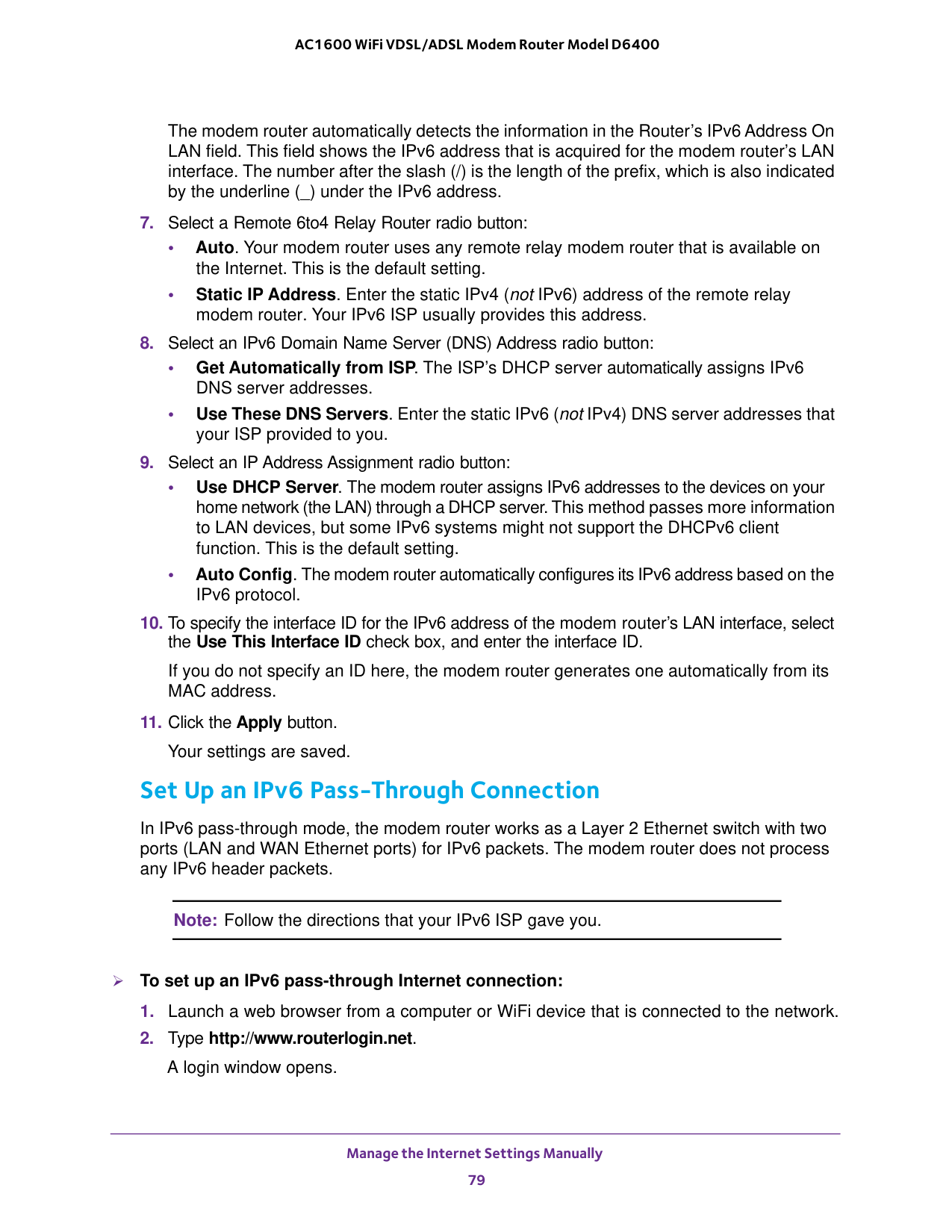
Manage the Internet Settings Manually 79 AC1600 WiFi VDSL/ADSL Modem Router Model D6400 The modem router automatically detects the information in the Router’s IPv6 Address On LAN field. This field shows the IPv6 address that is acquired for the modem router’s LAN interface. The number after the slash (/) is the length of the prefix, which is also indicated by the underline (_) under the IPv6 address.
Manage the Internet Settings Manually 80 AC1600 WiFi VDSL/ADSL Modem Router Model D6400
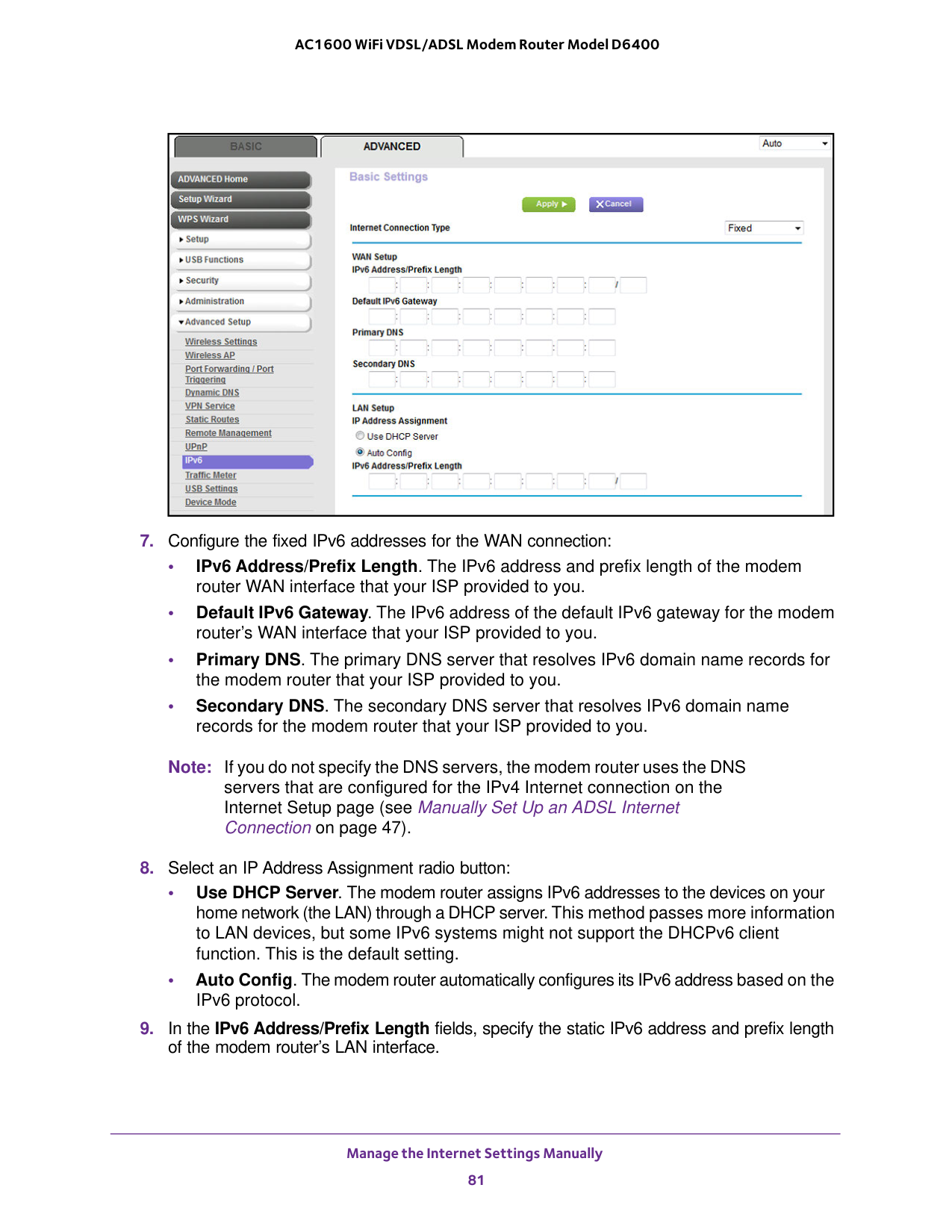
Manage the Internet Settings Manually 81 AC1600 WiFi VDSL/ADSL Modem Router Model D6400
47).
Manage the Internet Settings Manually 82 AC1600 WiFi VDSL/ADSL Modem Router Model D6400 If you do not specify an address here, the modem router generates one automatically from its MAC address.
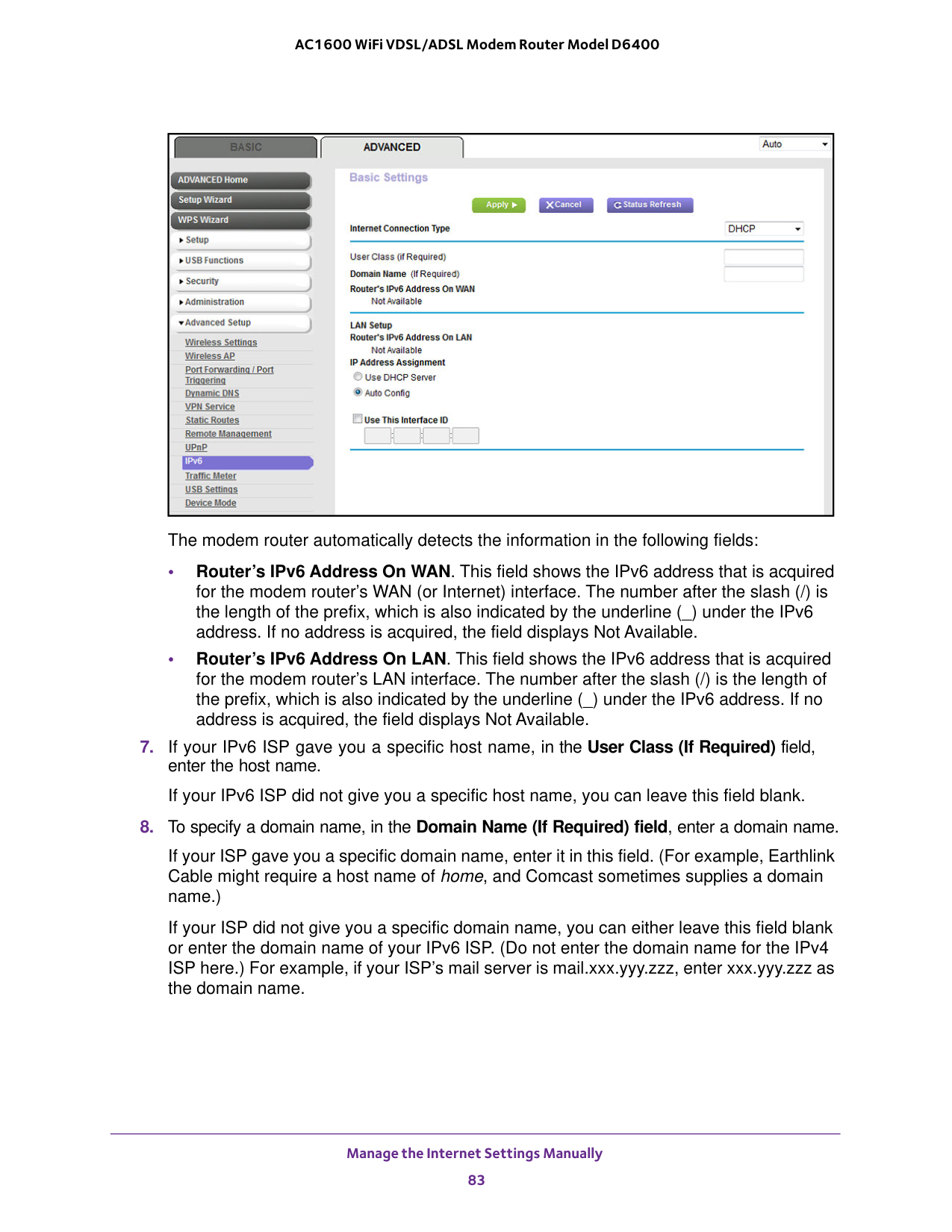
Manage the Internet Settings Manually 83 AC1600 WiFi VDSL/ADSL Modem Router Model D6400 The modem router automatically detects the information in the following fields: • Router’s IPv6 Address On WAN. This field shows the IPv6 address that is acquired for the modem router’s WAN (or Internet) interface. The number after the slash (/) is the length of the prefix, which is also indicated by the underline (_) under the IPv6 address. If no address is acquired, the field displays Not Available. • Router’s IPv6 Address On LAN. This field shows the IPv6 address that is acquired for the modem router’s LAN interface. The number after the slash (/) is the length of the prefix, which is also indicated by the underline (_) under the IPv6 address. If no address is acquired, the field displays Not Available.
Manage the Internet Settings Manually 84 AC1600 WiFi VDSL/ADSL Modem Router Model D6400
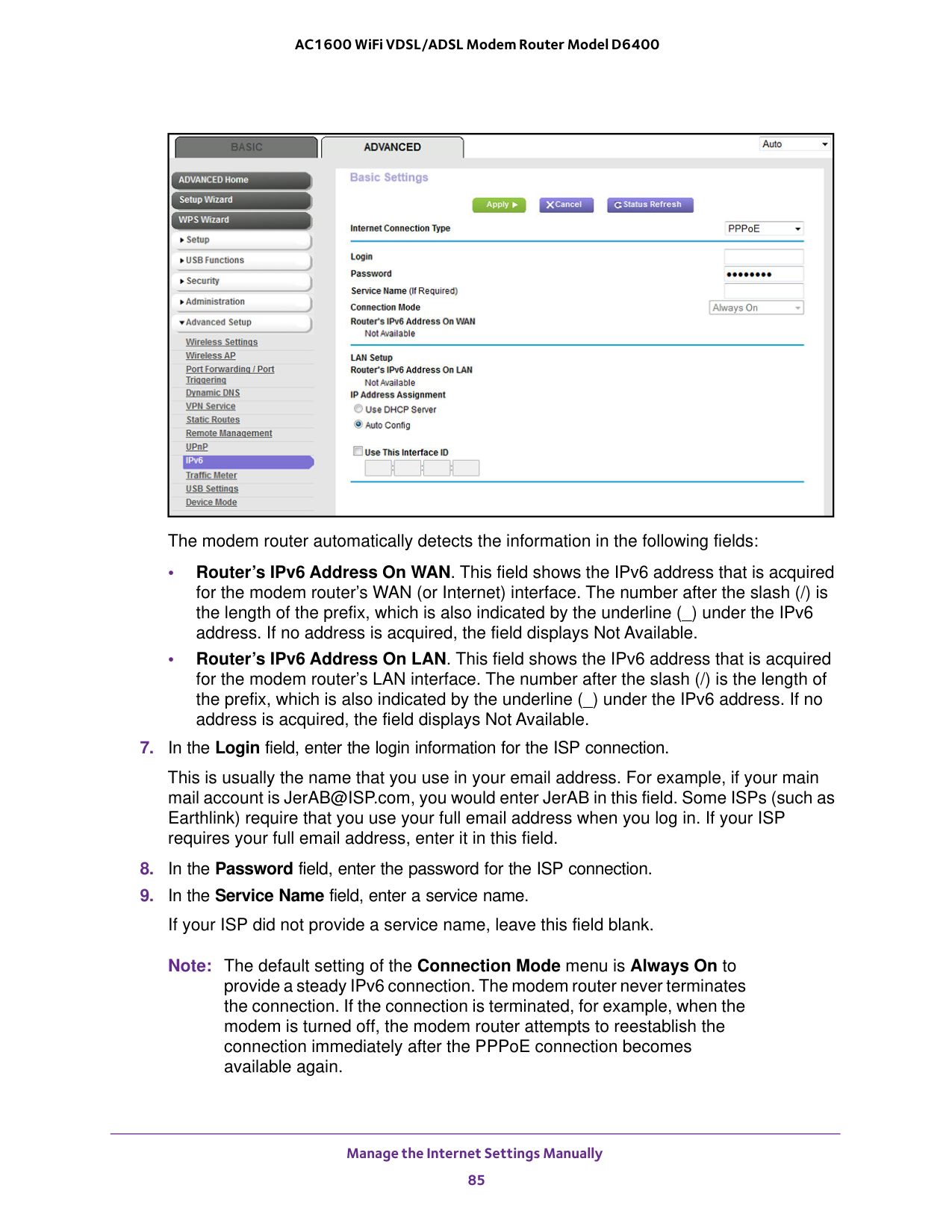
Manage the Internet Settings Manually 85 AC1600 WiFi VDSL/ADSL Modem Router Model D6400 The modem router automatically detects the information in the following fields: • Router’s IPv6 Address On WAN. This field shows the IPv6 address that is acquired for the modem router’s WAN (or Internet) interface. The number after the slash (/) is the length of the prefix, which is also indicated by the underline (_) under the IPv6 address. If no address is acquired, the field displays Not Available. • Router’s IPv6 Address On LAN. This field shows the IPv6 address that is acquired for the modem router’s LAN interface. The number after the slash (/) is the length of the prefix, which is also indicated by the underline (_) under the IPv6 address. If no address is acquired, the field displays Not Available.
Manage the Internet Settings Manually 86 AC1600 WiFi VDSL/ADSL Modem Router Model D6400
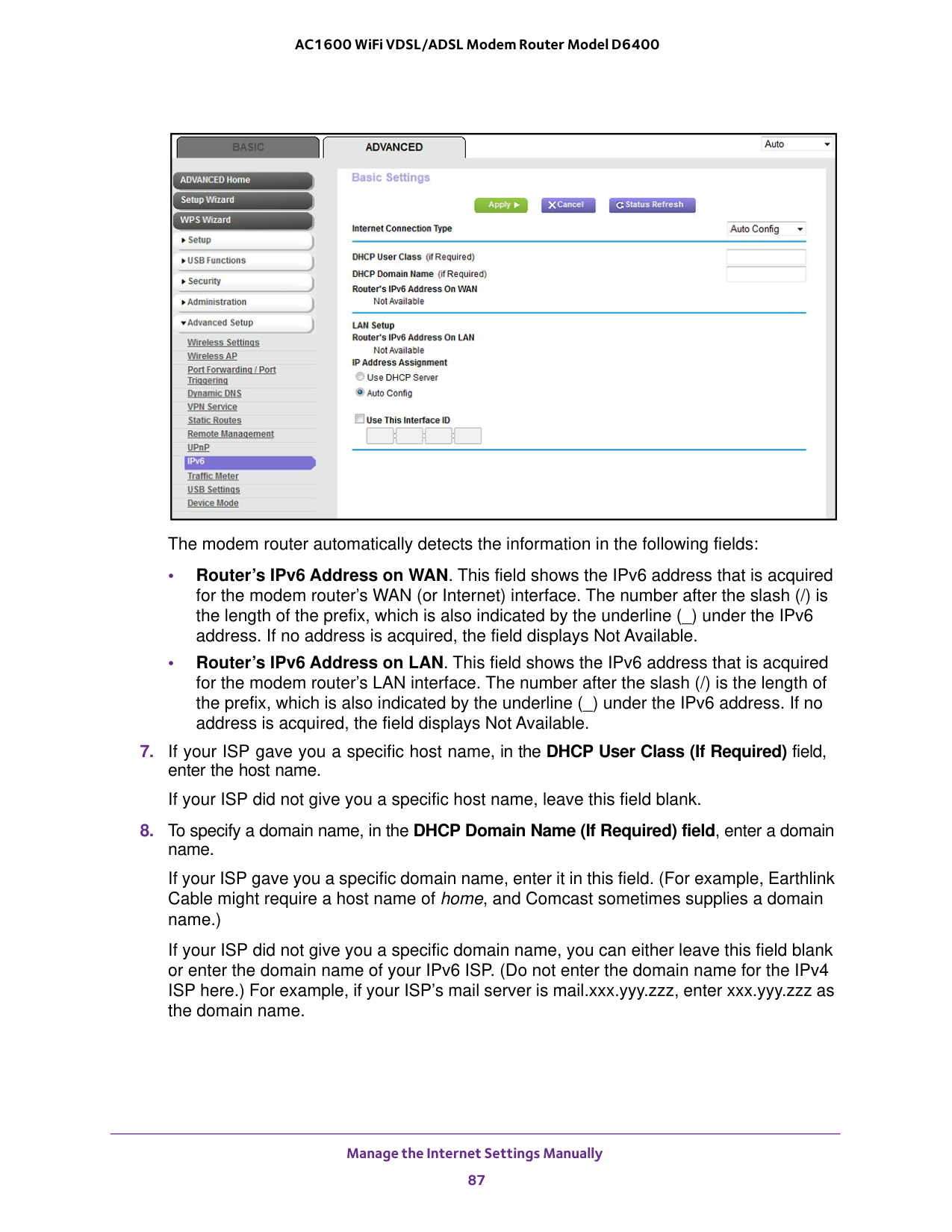
Manage the Internet Settings Manually 87 AC1600 WiFi VDSL/ADSL Modem Router Model D6400 The modem router automatically detects the information in the following fields: • Router’s IPv6 Address on WAN. This field shows the IPv6 address that is acquired for the modem router’s WAN (or Internet) interface. The number after the slash (/) is the length of the prefix, which is also indicated by the underline (_) under the IPv6 address. If no address is acquired, the field displays Not Available. • Router’s IPv6 Address on LAN. This field shows the IPv6 address that is acquired for the modem router’s LAN interface. The number after the slash (/) is the length of the prefix, which is also indicated by the underline (_) under the IPv6 address. If no address is acquired, the field displays Not Available.

Manage the Internet Settings Manually 88 AC1600 WiFi VDSL/ADSL Modem Router Model D6400

Manage the Internet Settings Manually 89 AC1600 WiFi VDSL/ADSL Modem Router Model D6400 The modem router automatically detects the information in the Router’s IPv6 Address on LAN field. This field shows the IPv6 address that is acquired for the modem router’s LAN interface. The number after the slash (/) is the length of the prefix, which is also indicated by the underline (_) under the IPv6 address. If no address is acquired, the field displays Not Available.
Manage the Internet Settings Manually 90 AC1600 WiFi VDSL/ADSL Modem Router Model D6400
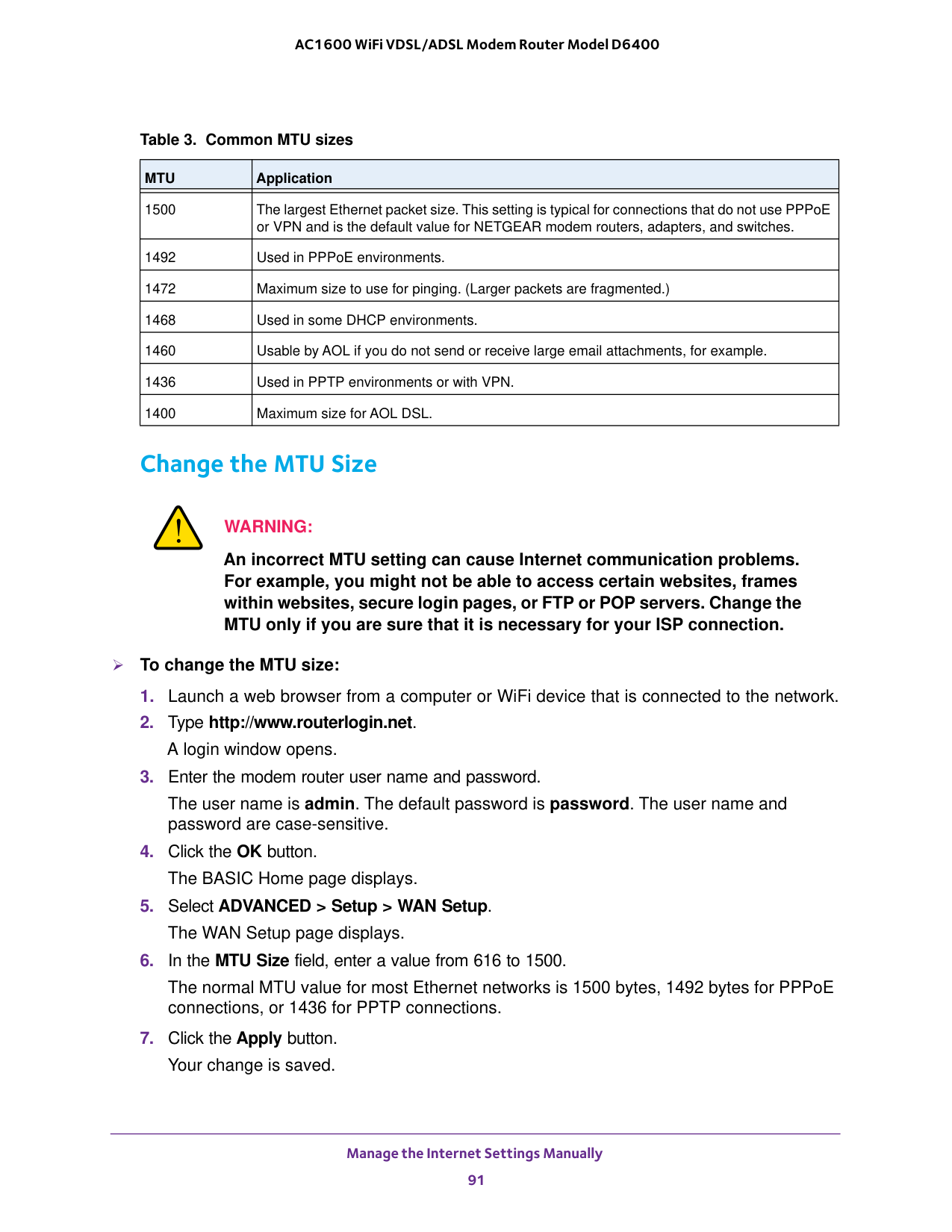
Table 3. Common MTU sizes
Mtu
Application 1500 The largest Ethernet packet size. This setting is typical for connections that do not use PPPoE or VPN and is the default value for NETGEAR modem routers, adapters, and switches. 1492 Used in PPPoE environments. 1472 Maximum size to use for pinging. (Larger packets are fragmented.) 1468 Used in some DHCP environments. 1460 Usable by AOL if you do not send or receive large email attachments, for example. 1436 Used in PPTP environments or with VPN. 1400 Maximum size for AOL DSL. Manage the Internet Settings Manually 91 AC1600 WiFi VDSL/ADSL Modem Router Model D6400 Change the MTU SizeWarning:
An incorrect MTU setting can cause Internet communication problems. For example, you might not be able to access certain websites, frames within websites, secure login pages, or FTP or POP servers. Change the MTU only if you are sure that it is necessary for your ISP connection. To change the MTU size:
92 4
Manage the WiFi Network Settings 93 AC1600 WiFi VDSL/ADSL Modem Router Model D6400 Manage the Basic WiFi Settings and WiFi Security of the Main Network The modem router comes with preset security. This means that the WiFi network name (SSID), network key (password), and security option (encryption protocol) are preset in the factory. The preset SSID and password are uniquely generated for every device to protect and maximize your WiFi security. You can find the preset SSID and password on the product label (see Bottom Panel Product Label on page
15).
Important:
NETGEAR recommends that you do not change your preset security settings. If you decide to change your preset security settings, make a note of the new settings and store the note in a safe place where you can easily find it. View or Change the Basic WiFi Settings You can view or change the basic WiFi settings and WiFi security. The modem router simultaneously supports the 2.4 GHz band for 802.11b/g/n devices and the 5 GHz band for 802.11a/n/ac devices. Tip: If you decide to change the WiFi settings of the modem router’s main network, use a wired connection to avoid being disconnected when the new WiFi settings take effect. To view or change the basic WiFi settings: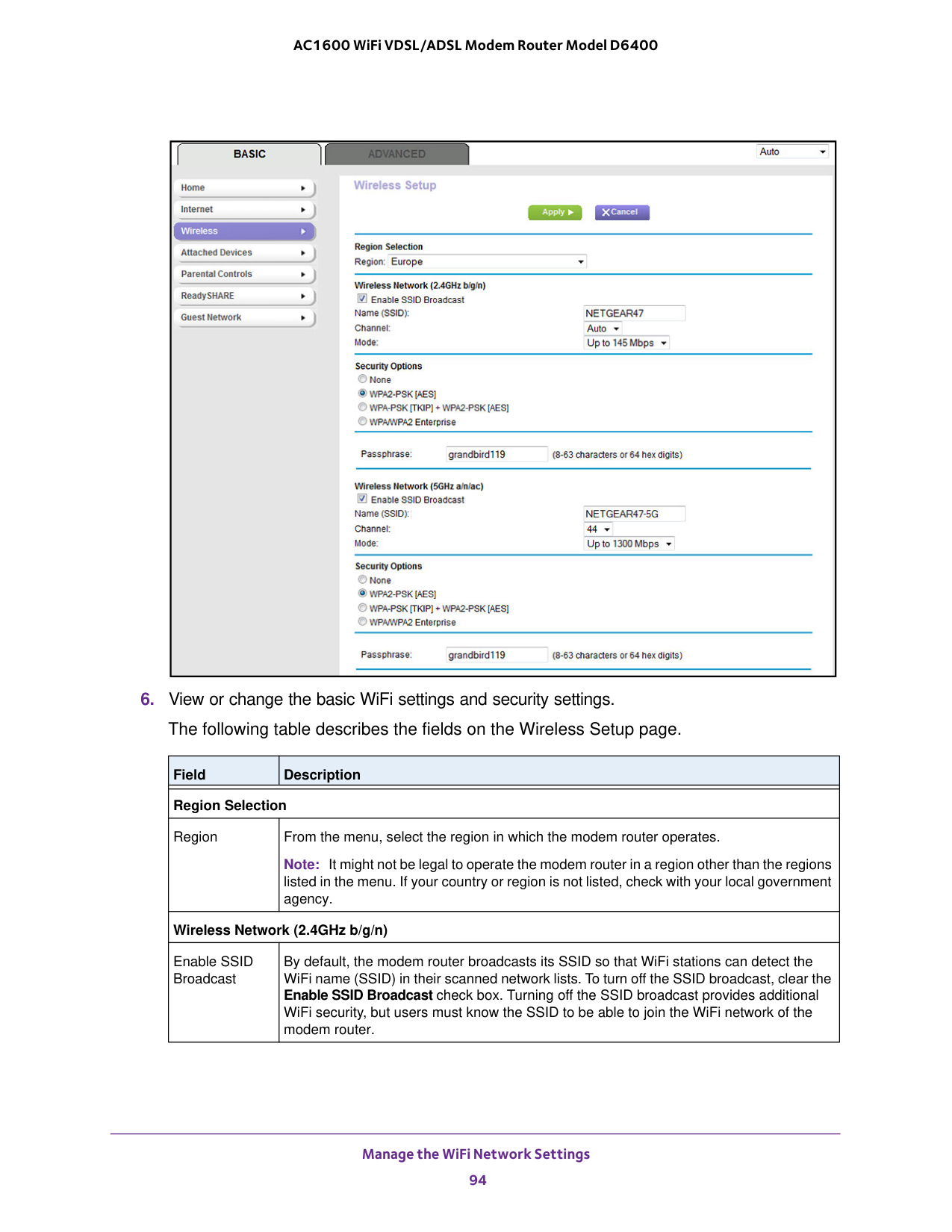
Manage the WiFi Network Settings 94 AC1600 WiFi VDSL/ADSL Modem Router Model D6400
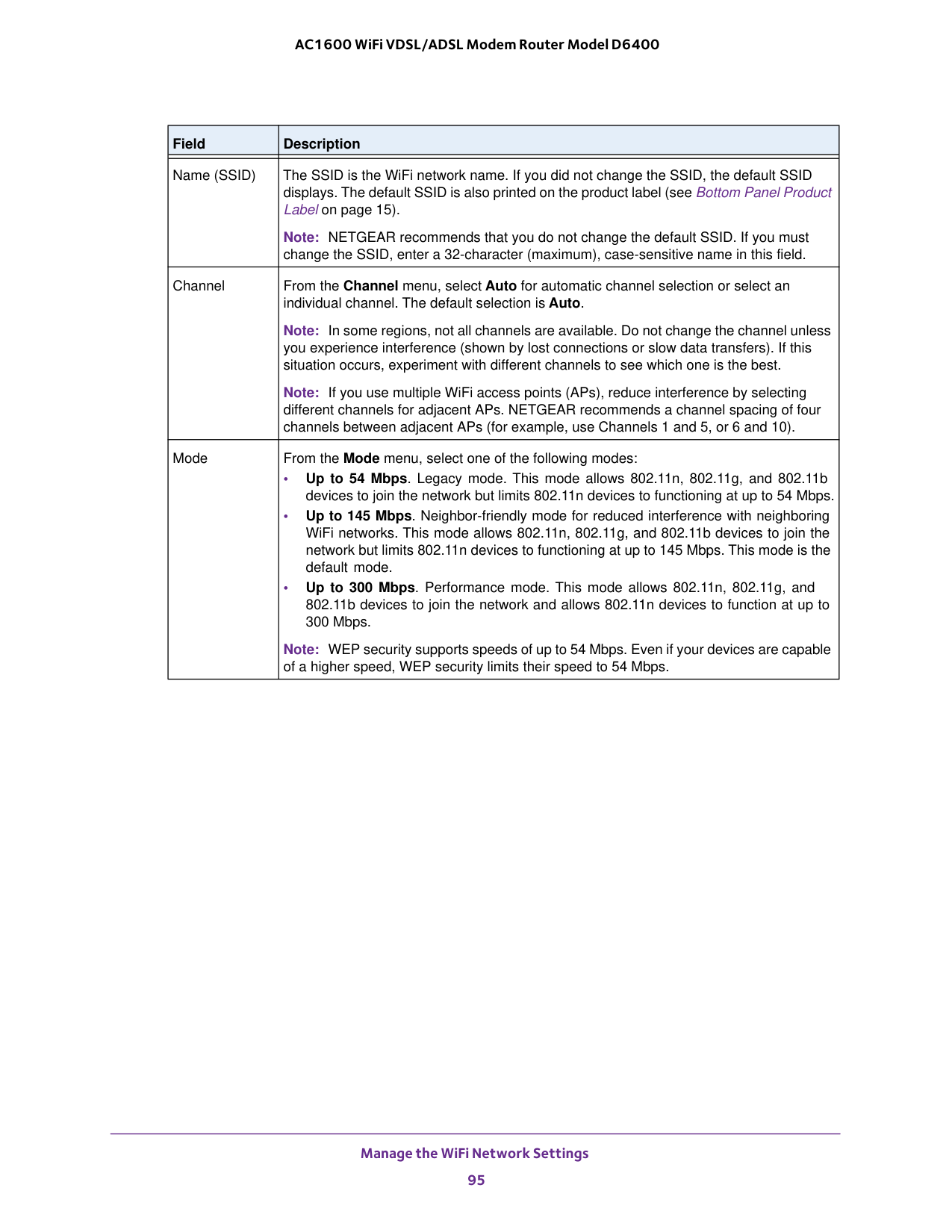
Manage the WiFi Network Settings 95 AC1600 WiFi VDSL/ADSL Modem Router Model D6400 Name (SSID) The SSID is the WiFi network name. If you did not change the SSID, the default SSID displays. The default SSID is also printed on the product label (see Bottom Panel Product Label on page
15). Note: NETGEAR recommends that you do not change the default SSID. If you must change the SSID, enter a 32-character (maximum), case-sensitive name in this field. Channel From the Channel menu, select Auto for automatic channel selection or select an individual channel. The default selection is Auto. Note: In some regions, not all channels are available. Do not change the channel unless you experience interference (shown by lost connections or slow data transfers). If this situation occurs, experiment with different channels to see which one is the best. Note: If you use multiple WiFi access points (APs), reduce interference by selecting different channels for adjacent APs. NETGEAR recommends a channel spacing of four channels between adjacent APs (for example, use Channels 1 and 5, or 6 and 10). Mode From the Mode menu, select one of the following modes: • Up to 54 Mbps. Legacy mode. This mode allows 802.11n, 802.11g, and 802.11b devices to join the network but limits 802.11n devices to functioning at up to 54
Mbps. • Up to 145 Mbps. Neighbor-friendly mode for reduced interference with neighboring WiFi networks. This mode allows 802.11n, 802.11g, and 802.11b devices to join the network but limits 802.11n devices to functioning at up to 145
Mbps. This mode is the default mode. • Up to 300 Mbps. Performance mode. This mode allows 802.11n, 802.11g, and 802.11b devices to join the network and allows 802.11n devices to function at up to 300
Mbps. Note: WEP security supports speeds of up to 54 Mbps. Even if your devices are capable of a higher speed, WEP security limits their speed to 54 Mbps. Field Description
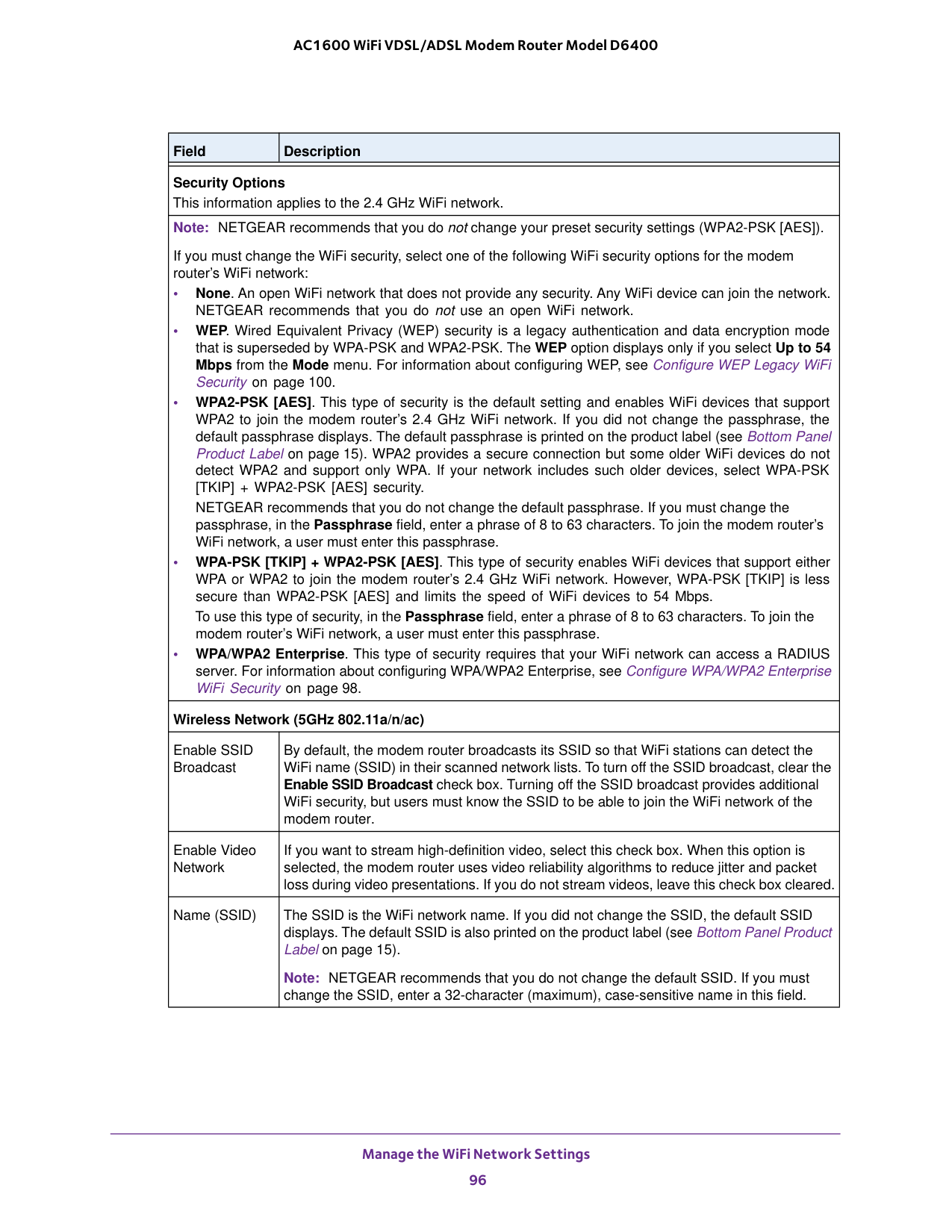
Manage the WiFi Network Settings 96 AC1600 WiFi VDSL/ADSL Modem Router Model D6400 Security Options This information applies to the 2.4 GHz WiFi network. Note: NETGEAR recommends that you do not change your preset security settings (WPA2-PSK [AES]). If you must change the WiFi security, select one of the following WiFi security options for the modem router’s WiFi network: • None. An open WiFi network that does not provide any security. Any WiFi device can join the network. NETGEAR recommends that you do not use an open WiFi network. • WEP. Wired Equivalent Privacy (WEP) security is a legacy authentication and data encryption mode that is superseded by WPA-PSK and WPA2-PSK. The WEP option displays only if you select Up to 54 Mbps from the Mode menu. For information about configuring WEP, see Configure WEP Legacy WiFi Security on page
15). WPA2 provides a secure connection but some older WiFi devices do not detect WPA2 and support only WPA. If your network includes such older devices, select WPA-PSK [TKIP] + WPA2-PSK [AES] security. NETGEAR recommends that you do not change the default passphrase. If you must change the passphrase, in the Passphrase field, enter a phrase of 8 to 63 characters. To join the modem router’s WiFi network, a user must enter this passphrase. • WPA-PSK [TKIP] + WPA2-PSK [AES]. This type of security enables WiFi devices that support either WPA or WPA2 to join the modem router’s 2.4 GHz WiFi network. However, WPA-PSK [TKIP] is less secure than WPA2-PSK [AES] and limits the speed of WiFi devices to 54 Mbps. To use this type of security, in the Passphrase field, enter a phrase of 8 to 63 characters. To join the modem router’s WiFi network, a user must enter this passphrase. • WPA/WPA2 Enterprise. This type of security requires that your WiFi network can access a RADIUS server. For information about configuring WPA/WPA2 Enterprise, see Configure WPA/WPA2 Enterprise WiFi Security on page
15). Note: NETGEAR recommends that you do not change the default SSID. If you must change the SSID, enter a 32-character (maximum), case-sensitive name in this field. Field Description
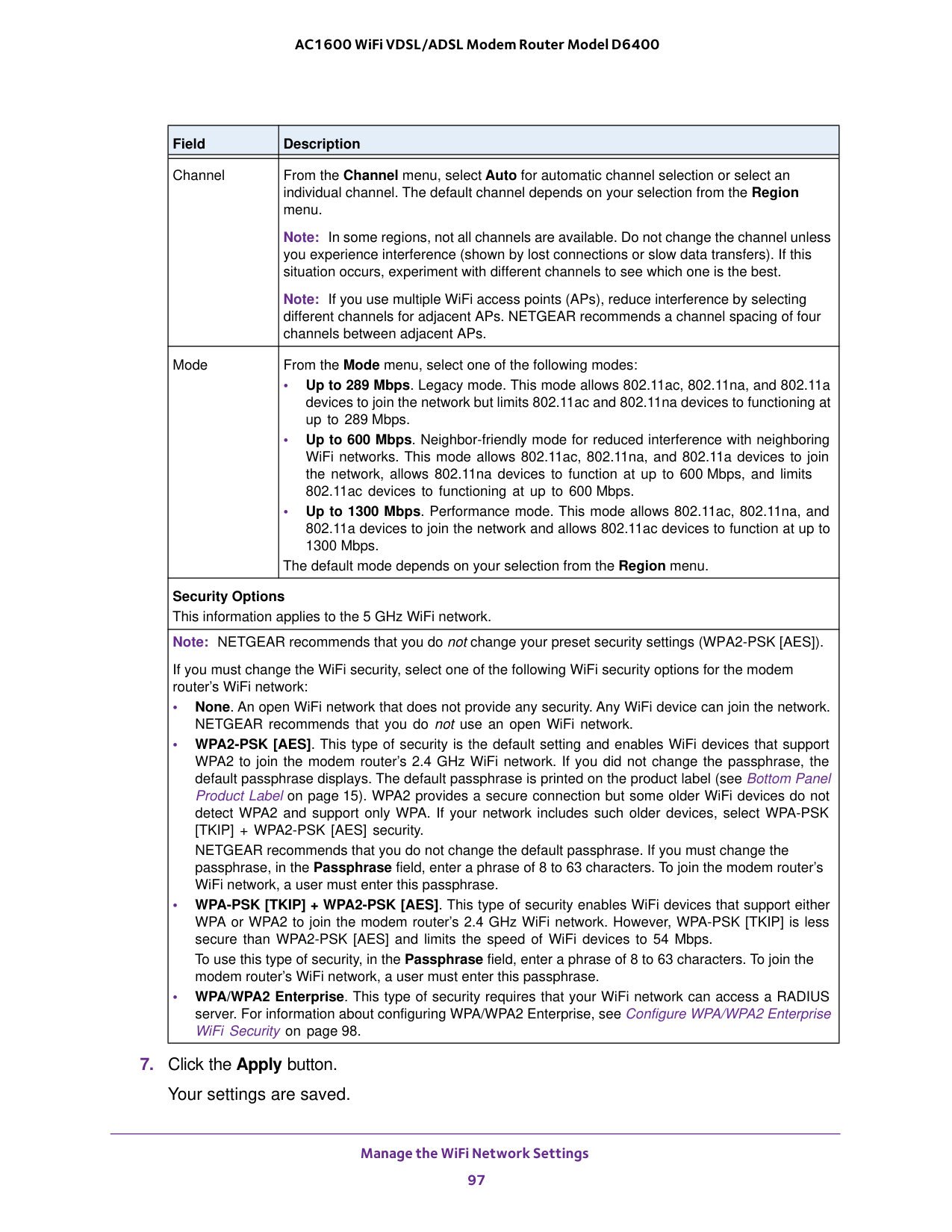
Manage the WiFi Network Settings 97 AC1600 WiFi VDSL/ADSL Modem Router Model D6400
Mbps. • Up to 600 Mbps. Neighbor-friendly mode for reduced interference with neighboring WiFi networks. This mode allows 802.11ac, 802.11na, and 802.11a devices to join the network, allows 802.11na devices to function at up to 600
Mbps, and limits 802.11ac devices to functioning at up to 600
Mbps. • Up to 1300 Mbps. Performance mode. This mode allows 802.11ac, 802.11na, and 802.11a devices to join the network and allows 802.11ac devices to function at up to 1300
Mbps. The default mode depends on your selection from the Region menu. Security Options This information applies to the 5 GHz WiFi network. Note: NETGEAR recommends that you do not change your preset security settings (WPA2-PSK [AES]). If you must change the WiFi security, select one of the following WiFi security options for the modem router’s WiFi network: • None. An open WiFi network that does not provide any security. Any WiFi device can join the network. NETGEAR recommends that you do not use an open WiFi network. • WPA2-PSK [AES]. This type of security is the default setting and enables WiFi devices that support WPA2 to join the modem router’s 2.4 GHz WiFi network. If you did not change the passphrase, the default passphrase displays. The default passphrase is printed on the product label (see Bottom Panel Product Label on page
15). WPA2 provides a secure connection but some older WiFi devices do not detect WPA2 and support only WPA. If your network includes such older devices, select WPA-PSK [TKIP] + WPA2-PSK [AES] security. NETGEAR recommends that you do not change the default passphrase. If you must change the passphrase, in the Passphrase field, enter a phrase of 8 to 63 characters. To join the modem router’s WiFi network, a user must enter this passphrase. • WPA-PSK [TKIP] + WPA2-PSK [AES]. This type of security enables WiFi devices that support either WPA or WPA2 to join the modem router’s 2.4 GHz WiFi network. However, WPA-PSK [TKIP] is less secure than WPA2-PSK [AES] and limits the speed of WiFi devices to 54 Mbps. To use this type of security, in the Passphrase field, enter a phrase of 8 to 63 characters. To join the modem router’s WiFi network, a user must enter this passphrase. • WPA/WPA2 Enterprise. This type of security requires that your WiFi network can access a RADIUS server. For information about configuring WPA/WPA2 Enterprise, see Configure WPA/WPA2 Enterprise WiFi Security on page

Manage the WiFi Network Settings 98 AC1600 WiFi VDSL/ADSL Modem Router Model D6400 If you connected over WiFi to the network and you changed the SSID, you are disconnected from the network.
237.) If it does, it is connected to the network. • Are you using the correct network name (SSID) and password? Configure WPA/WPA2 Enterprise WiFi Security Remote Authentication Dial In User Service (RADIUS) is an enterprise-level method for centralized Authentication, Authorization, and Accounting (AAA) management. To provide WPA/WPA2 enterprise WiFi security, the WiFi network that the modem router provides must be able to access a RADIUS server. Note: WPS and WPA/WPA2 enterprise security cannot function together. When you enable WPA/WPA2 enterprise security, WPS is disabled. Tip: If you want to change the WiFi settings of the modem router’s main network, use a wired connection to avoid being disconnected when the new WiFi settings take effect. To configure WPA/WPA2 enterprise security:

Manage the WiFi Network Settings 99 AC1600 WiFi VDSL/ADSL Modem Router Model D6400 The Wireless Setup page displays.

Manage the WiFi Network Settings 100 AC1600 WiFi VDSL/ADSL Modem Router Model D6400 • Does your WiFi device display as an attached device? (See View Devices Currently on the Network on page
237.) If it does, it is connected to the network. • Are you using the correct network name (SSID) and password? Configure WEP Legacy WiFi Security Wired Equivalent Privacy (WEP) security is a legacy authentication and data encryption mode that is superseded by WPA-PSK and WPA2-PSK. WEP limits the WiFi transmission speed to 54 Mbps (the modem router is capable of speeds of up 300
Mbps). Note: WPS and WEP security cannot function together. When you enable WEP security, WPS is disabled. Tip: If you want to change the WiFi settings of the modem router’s main network, use a wired connection to avoid being disconnected when the new WiFi settings take effect. To configure WEP security:

Manage the WiFi Network Settings 101 AC1600 WiFi VDSL/ADSL Modem Router Model D6400

Manage the WiFi Network Settings 102 AC1600 WiFi VDSL/ADSL Modem Router Model D6400 modem router provides. Some WiFi devices automatically connect to the first open network without WiFi security that they discover. • If your computer or WiFi device is trying to connect to your network with its old settings (before you changed the settings), update the WiFi network selection in your computer or WiFi device to match the current settings for your network. • Does your WiFi device display as an attached device? (See View Devices Currently on the Network on page
237.) If it does, it is connected to the network. • Are you using the correct network name (SSID) and password? Use WPS to Add a Device to the WiFi Network WPS (Wi-Fi Protected Setup) lets you connect a computer or WiFi device to the modem router’s network without entering the WiFi network passphrase or key. Instead, you use a WPS button or enter a PIN to connect. If you use the push button method, the WiFi device that you are trying to connect must provide either a physical button or a software button. If you use the PIN method, you must know the PIN of the WiFi device that you are trying to connect. WPS supports WPA and WPA2 WiFi security. If your modem router network is open (no WiFi security is set, which is not the default setting for the modem router), connecting with WPS automatically sets WPA + WPA2 WiFi security on the modem router network and generates a random passphrase. You can view this passphrase (see Manage the Basic WiFi Settings and WiFi Security of the Main Network on page
93). Note: WPS and WPA/WPA2 enterprise security or WEP security cannot function together. When you enable WPA/WPA2 enterprise security or WEP security, WPS is disabled. Use WPS with the Push Button Method For you to use the push button method to connect a WiFi device to the modem router’s WiFi network, the WiFi device that you are trying to connect must provide either a physical button or a software button. You can use the physical button and software button to let a WiFi device join only the main WiFi network, not the guest WiFi network. To let a WiFi device join the modem router’s main WiFi network using WPS with the push button method:

Manage the WiFi Network Settings 103 AC1600 WiFi VDSL/ADSL Modem Router Model D6400 The user name is admin. The default password is password. The user name and password are case-sensitive.
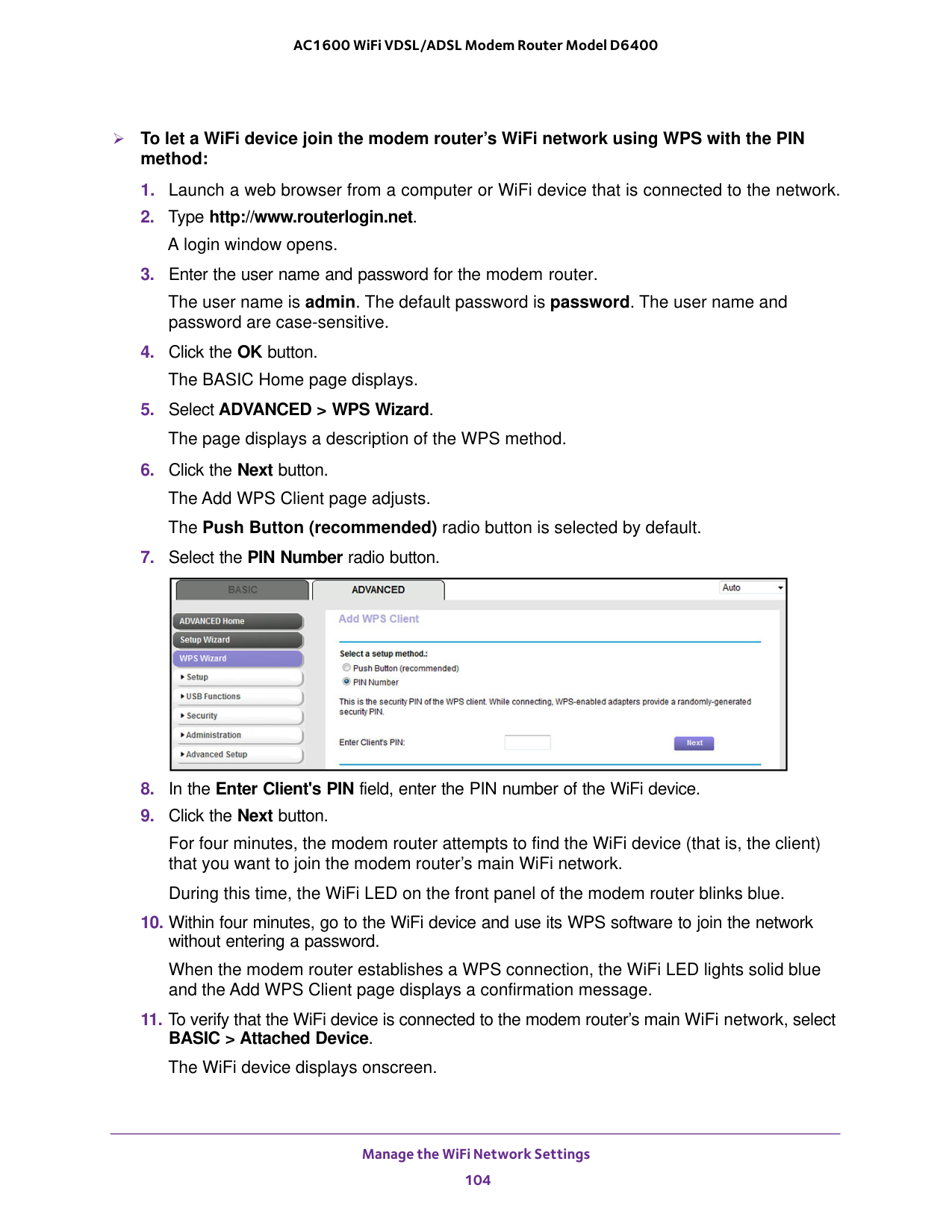
Manage the WiFi Network Settings 104 AC1600 WiFi VDSL/ADSL Modem Router Model D6400 To let a WiFi device join the modem router’s WiFi network using WPS with the PIN method:
Manage the WiFi Network Settings 105 AC1600 WiFi VDSL/ADSL Modem Router Model D6400 Manage the Basic WiFi Settings and WiFi Security of the Guest Network A guest network allows visitors to use the Internet without using your WiFi security key. By default, the guest WiFi network is disabled. You can enable and configure the guest WiFi network for each WiFi band: 2.4 GHz b/g/n and 5.0 GHz a/n/ac. Set Up and Enable a Guest Network The WiFi mode of the guest WiFi network depends on the WiFi mode of the main WiFi network. For example, if you configure the WiFi mode for the main WiFi network as Up to 54
Mbps in the 2.4 GHz band, the guest WiFi network also functions in the Up to 54 Mbps mode in the 2.4 GHz band. For information about configuring the WiFi mode, see Manage the Basic WiFi Settings and WiFi Security of the Main Network on page

Manage the WiFi Network Settings 106 AC1600 WiFi VDSL/ADSL Modem Router Model D6400
(Ssid)
The SSID is the 2.4 GHz WiFi band name. If you did not change the SSID, the default SSID displays, which is NETGEAR-Guest. If you want to change the SSID in the 2.4 GHz WiFi band for the guest WiFi network, enter a 32-character (maximum), case-sensitive name in this field.
Manage the WiFi Network Settings 107 AC1600 WiFi VDSL/ADSL Modem Router Model D6400 Security Options - Profile If you want to change the WiFi security, select one of the following WiFi security options for the 2.4
GHz band of the guest WiFi network: • None. An open WiFi network that does not provide any security. Any WiFi device can join the 2.4
GHz band of the guest WiFi network. This is the default setting for the guest WiFi network. • WEP. Wired Equivalent Privacy (WEP) security is a legacy authentication and data encryption mode that is superseded by WPA-PSK and WPA2-PSK. The WEP option displays only if you configure the WiFi mode for the main WiFi network as Up to 54 Mbps in the 2.4 GHz band (see Manage the Basic WiFi Settings and WiFi Security of the Main Network on page
93). For information about configuring WEP, see Configure WEP Legacy WiFi Security for the Guest WiFi Network on page
GHz band of the guest WiFi network at the fastest speed. If your network includes older devices that do not support WPA2, select WPA-PSK [TKIP] + WPA2-PSK [AES] security. To use WPA2 security, in the Passphrase field, enter a phrase of 8 to 63 characters. To join the 2.4
GHz band of the guest WiFi network, a user must enter this passphrase. • WPA-PSK [TKIP] + WPA2-PSK [AES]. This type of security enables WiFi devices that support either WPA or WPA2 to join the 2.4
GHz band of the guest WiFi network. However, WPA-PSK [TKIP] is less secure than WPA2-PSK [AES] and limits the speed of WiFi devices to 54 Mbps. To use WPA + WPA2 security, in the Passphrase field, enter a phrase of 8 to 63 characters. To join the 2.4
GHz band of the guest WiFi network, a user must enter this passphrase. Wireless Network (5GHz a/n/ac) - Profile Enable Guest Network By default, the guest WiFi network is disabled. To enable the guest WiFi network for the 5 GHz WiFi band, select the Enable Guest Network check box. Enable SSID Broadcast By default, the modem router broadcasts its SSID of the 5 GHz WiFi band so that WiFi stations can detect the WiFi name (SSID) in their scanned network lists. To turn off the SSID broadcast for the 5 GHz WiFi band for the guest WiFi network, clear the Enable SSID Broadcast check box. Allow guests to see each other and access my local network By default, WiFi clients that are connected to the 5 GHz WiFi band of the guest WiFi network cannot access WiFi devices or Ethernet devices that are connected to the main WiFi network. To allow access to the main WiFi network, select the Allow guests to see each other and access my local network check box. Guest Wireless Network Name
(Ssid)
The SSID is the 5 GHz WiFi band name. If you did not change the SSID, the default SSID displays, which is NETGEAR-5G-Guest. If you want to change the SSID in the 5 GHz WiFi band for the guest WiFi network, enter a 32-character (maximum), case-sensitive name in this field. Field Description
Manage the WiFi Network Settings 108 AC1600 WiFi VDSL/ADSL Modem Router Model D6400
237.) If it does, it is connected to the network. • Are you using the correct network name (SSID) and password? Configure WEP Legacy WiFi Security for the Guest WiFi Network Wired Equivalent Privacy (WEP) security is a legacy authentication and data encryption mode that is superseded by WPA-PSK and WPA2-PSK. WEP supports speeds of up to 54
Mbps (the modem router is capable of speeds of up to 300
Mbps in the 2.4 GHz band). Security Options - Profile If you want to change the WiFi security, select one of the following WiFi security options for the 5 GHz band of the guest WiFi network: • None. An open WiFi network that does not provide any security. Any WiFi device can join the 5 GHz band of the guest WiFi network. This is the default setting for the guest WiFi network. • WPA2-PSK [AES]. WPA2 provides a secure and fast connection but some older WiFi devices do not detect WPA2 and support only WPA. Select WPA2 to allow 802.11n devices to connect to the 5 GHz band of the guest WiFi network at the fastest speed. If your network includes older devices that do not support WPA2, select WPA-PSK [TKIP] + WPA2-PSK [AES] security. To use WPA2 security, in the Passphrase field, enter a phrase of 8 to 63 characters. To join the 5 GHz band of the guest WiFi network, a user must enter this passphrase. • WPA-PSK [TKIP] + WPA2-PSK [AES]. This type of security enables WiFi devices that support either WPA or WPA2 to join the 5 GHz band of the guest WiFi network. However, WPA-PSK [TKIP] is less secure than WPA2-PSK [AES] and limits the speed of WiFi devices to 54 Mbps. To use WPA + WPA2 security, in the Passphrase field, enter a phrase of 8 to 63 characters. To join the 5 GHz band of the guest WiFi network, a user must enter this passphrase. Field Description

Manage the WiFi Network Settings 109 AC1600 WiFi VDSL/ADSL Modem Router Model D6400
Important:
The WiFi mode of the guest WiFi network depends on the WiFi mode of the main WiFi network. For you to be able to configure WEP in the guest WiFi network, first configure the mode for the main WiFi network as Up to 54 Mbps. For information about configuring the WiFi mode, see Manage the Basic WiFi Settings and WiFi Security of the Main Network on page
Manage the WiFi Network Settings 110 AC1600 WiFi VDSL/ADSL Modem Router Model D6400
112.) Tip: If you want to disable the WiFi radios of the modem router, use a wired connection to avoid being disconnected when the WiFi radios turn off. Use the WiFi On/Off Button To turn the WiFi radios off and on with the WiFi On/Off button: Press the WiFi On/Off button on the right side panel of the modem router for three seconds. If you turned off the WiFi radios, the WiFi LED turns off. If you turned on the WiFi radios, the WiFi LED lights solid blue after about half a minute.
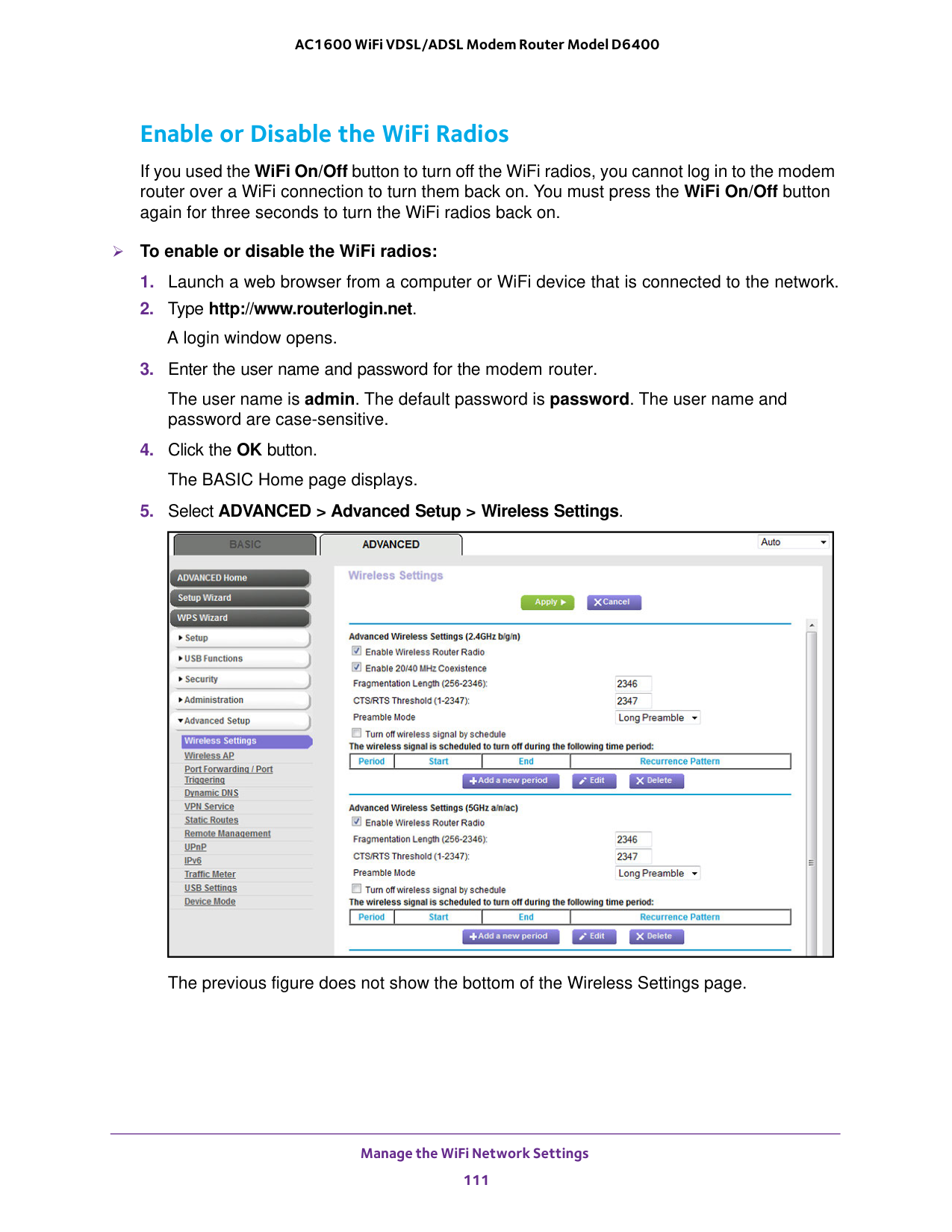
Manage the WiFi Network Settings 111 AC1600 WiFi VDSL/ADSL Modem Router Model D6400 Enable or Disable the WiFi Radios If you used the WiFi On/Off button to turn off the WiFi radios, you cannot log in to the modem router over a WiFi connection to turn them back on. You must press the WiFi On/Off button again for three seconds to turn the WiFi radios back on. To enable or disable the WiFi radios:

Manage the WiFi Network Settings 112 AC1600 WiFi VDSL/ADSL Modem Router Model D6400
11). • Turn on the radio. Select the Enable Wireless Router Radio check box. If you enable at least one radio, the WiFi LED lights solid blue after about half a minute.

Manage the WiFi Network Settings 113 AC1600 WiFi VDSL/ADSL Modem Router Model D6400 The previous figure does not show the bottom of the Wireless Settings page.

Manage the WiFi Network Settings 114 AC1600 WiFi VDSL/ADSL Modem Router Model D6400 Manage the WPS Settings Wi-Fi Protected Setup (WPS) lets you join the WiFi network without typing the WiFi password. You can change the WPS default and security settings. To manage WPS settings:

Manage the WiFi Network Settings 115 AC1600 WiFi VDSL/ADSL Modem Router Model D6400
Warning:
If you clear the Keep Existing Wireless Settings check box for a WiFi band and use WPS to add a computer or WiFi device to that band of the modem router’s WiFi network, the SSID and passphrase are automatically generated and other WiFi devices that are already connected to the band of the modem router’s WiFi network might be disconnected.
Manage the WiFi Network Settings 116 AC1600 WiFi VDSL/ADSL Modem Router Model D6400 A login window opens.
802.11a/n/ac) section. Field Description Enable 20/40 MHz Coexistence By default, 20/40 MHz coexistence is enabled to prevent interference between WiFi networks in your environment at the expense of the WiFi speed. If no other WiFi networks are present in your environment, you can clear the Enable 20/40 MHz Coexistence check box to increase the WiFi speed to the maximum supported speed. Note: 20/40 MHz coexistence applies to the 2.4 GHz band only.

Manage the WiFi Network Settings 117 AC1600 WiFi VDSL/ADSL Modem Router Model D6400

Manage the WiFi Network Settings 118 AC1600 WiFi VDSL/ADSL Modem Router Model D6400 The user name is admin. The default password is password. The user name and password are case-sensitive. The BASIC Home page displays.

119 5

Control Access to the Internet 120 AC1600 WiFi VDSL/ADSL Modem Router Model D6400 Set Up Parental Controls The first time that you select Parental Controls from the BASIC Home page, your browser goes to the Parental Controls website. You learn more about Parental Controls or download the application. To set up Parental Controls:

Control Access to the Internet 121 AC1600 WiFi VDSL/ADSL Modem Router Model D6400 Because Live Parental Controls uses free OpenDNS accounts, you are prompted to log in or create a free account.

Control Access to the Internet 122 AC1600 WiFi VDSL/ADSL Modem Router Model D6400 A login window opens.

Control Access to the Internet 123 AC1600 WiFi VDSL/ADSL Modem Router Model D6400
237). Add Devices to or Remove Them from the Allowed List If you set up an access list that blocks all new devices from accessing your network, you must specify which devices are allowed to access your network. To add or remove devices that are allowed:

Control Access to the Internet 124 AC1600 WiFi VDSL/ADSL Modem Router Model D6400

Control Access to the Internet 125 AC1600 WiFi VDSL/ADSL Modem Router Model D6400 Add Devices to or Remove Them from the Blocked List If you set up an access list that allows all new devices to access your network but you want to block some devices from accessing your network, you must specify the devices that you want to block. To add or remove devices that are blocked:

Control Access to the Internet 126 AC1600 WiFi VDSL/ADSL Modem Router Model D6400

Control Access to the Internet 127 AC1600 WiFi VDSL/ADSL Modem Router Model D6400
7 and Step

Control Access to the Internet 128 AC1600 WiFi VDSL/ADSL Modem Router Model D6400 Remove a Keyword or Domain from the Blocked List If you no longer need a keyword or domain on the blocked list, you can remove the keyword or domain. To remove a keyword or domain from the blocked list:

Control Access to the Internet 129 AC1600 WiFi VDSL/ADSL Modem Router Model D6400 The Block Sites page displays.

Control Access to the Internet 130 AC1600 WiFi VDSL/ADSL Modem Router Model D6400

Control Access to the Internet 131 AC1600 WiFi VDSL/ADSL Modem Router Model D6400 The user name is admin. The default password is password. The user name and password are case-sensitive.

Control Access to the Internet 132 AC1600 WiFi VDSL/ADSL Modem Router Model D6400 If the service or application does not display in the list, you can add it (see Add an Outbound Firewall Rule for a Custom Service or Application on page
132).

Control Access to the Internet 133 AC1600 WiFi VDSL/ADSL Modem Router Model D6400

Control Access to the Internet 134 AC1600 WiFi VDSL/ADSL Modem Router Model D6400

Control Access to the Internet 135 AC1600 WiFi VDSL/ADSL Modem Router Model D6400

Control Access to the Internet 136 AC1600 WiFi VDSL/ADSL Modem Router Model D6400
126) and outbound firewall rules (see Manage Simple Outbound Firewall Rules for Services and Applications on page
130). If applied, the schedule specifies the days and time that keyword blocking and outbound firewall rules are active. By default, no schedule is set and you can either enable or disable this feature. To set up a schedule for blocking:

Control Access to the Internet 137 AC1600 WiFi VDSL/ADSL Modem Router Model D6400

Control Access to the Internet 138 AC1600 WiFi VDSL/ADSL Modem Router Model D6400 Set Up Security Event Email Notifications The modem router can email you its logs of its activity. The log records router activity and security events such as attempts to access blocked sites or services. To set up email notifications:
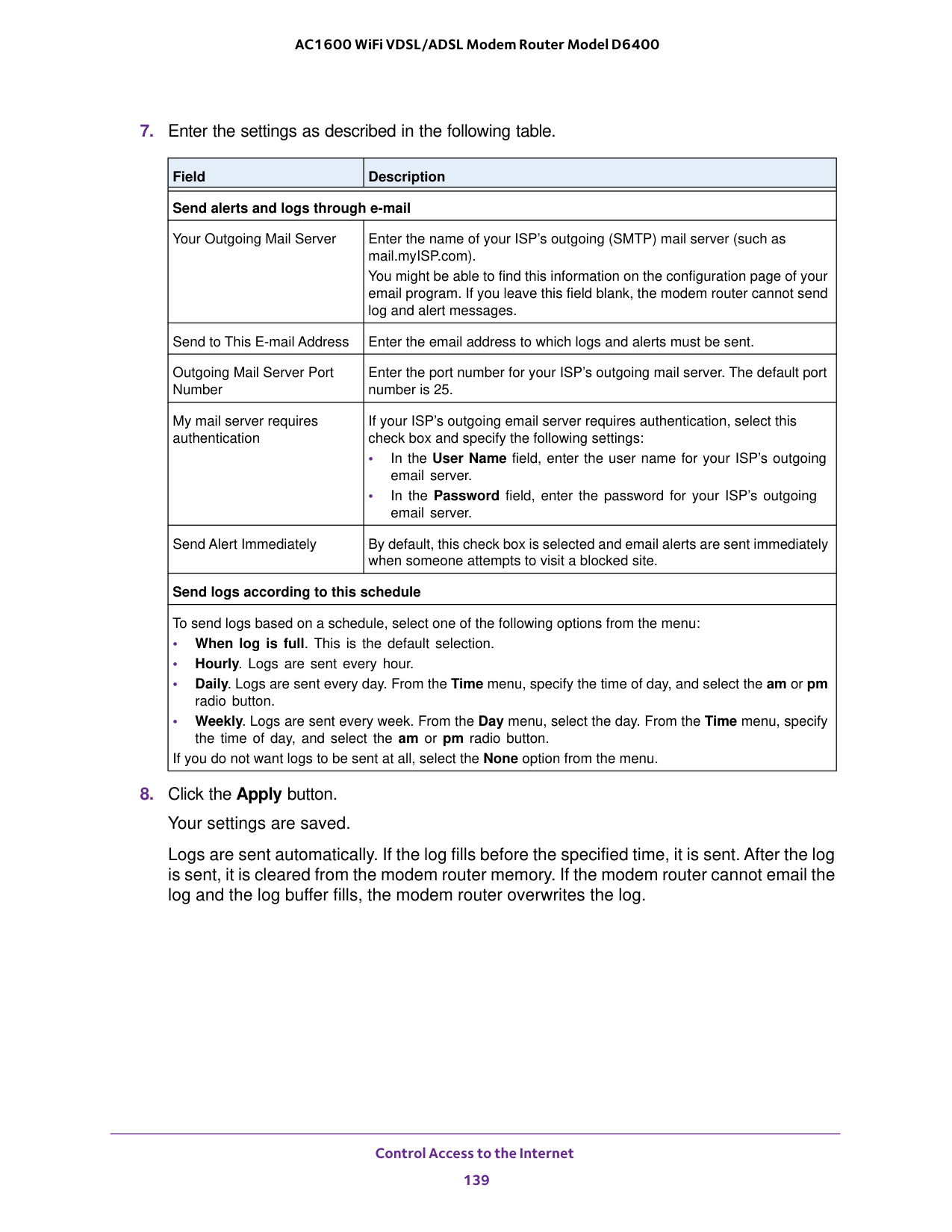
Control Access to the Internet 139 AC1600 WiFi VDSL/ADSL Modem Router Model D6400

140 6

Optimize Performance 141 AC1600 WiFi VDSL/ADSL Modem Router Model D6400 Optimize Traffic with Internet Access QoS You can use Quality of Service (QoS) rules to assign different priorities to Internet traffic, applications, services, and devices on your LAN. The modem router provides default QoS rules. You add custom QoS rules and manage both default and custom QoS rules (see Manage Default and Custom QoS Rules on page
142). NETGEAR recommends that you enable Internet access QoS only if you use streaming Internet. When Internet access QoS assigns a high priority to streaming video, it also assigns lower priority to the rest of your Internet traffic. That means that other tasks such as downloading content from the Internet take longer. To enable Internet access QoS:

Optimize Performance 142 AC1600 WiFi VDSL/ADSL Modem Router Model D6400 • If you are not sure, click the SpeedTest button. The speed test checks your uplink bandwidth and automatically enters the detected uplink bandwidth in the Uplink bandwidth Maximum field.
141). You can add custom QoS rules and change and remove both default and custom QoS rules. You can add QoS rules for services and applications but also for specific devices on your network. You can set up custom rules for the following components: • Application or online game (see Create a Custom QoS Rule for an Application or Online Game on page
143) • Ethernet LAN port of the modem router (see Create a Custom QoS Rule for a Modem Router LAN Port on page
145) • Device on the LAN by MAC address (see Create a Custom QoS Rule for a MAC Address on page
146) View the Default QoS Rules The modem router provides default QoS rules for common applications and games. To view the default QoS rules:

Optimize Performance 143 AC1600 WiFi VDSL/ADSL Modem Router Model D6400

Optimize Performance 144 AC1600 WiFi VDSL/ADSL Modem Router Model D6400

Optimize Performance 145 AC1600 WiFi VDSL/ADSL Modem Router Model D6400

Optimize Performance 146 AC1600 WiFi VDSL/ADSL Modem Router Model D6400

Optimize Performance 147 AC1600 WiFi VDSL/ADSL Modem Router Model D6400
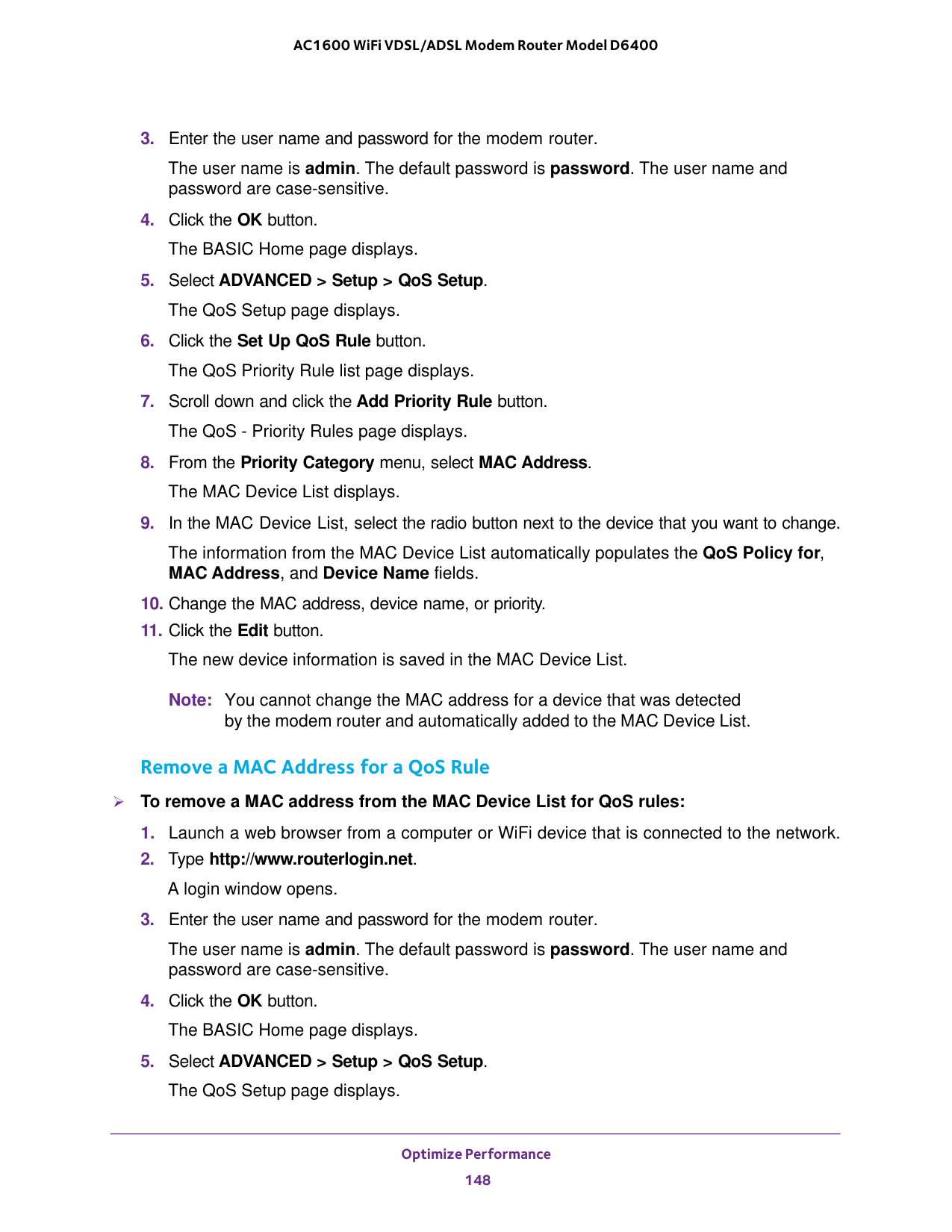
Optimize Performance 148 AC1600 WiFi VDSL/ADSL Modem Router Model D6400
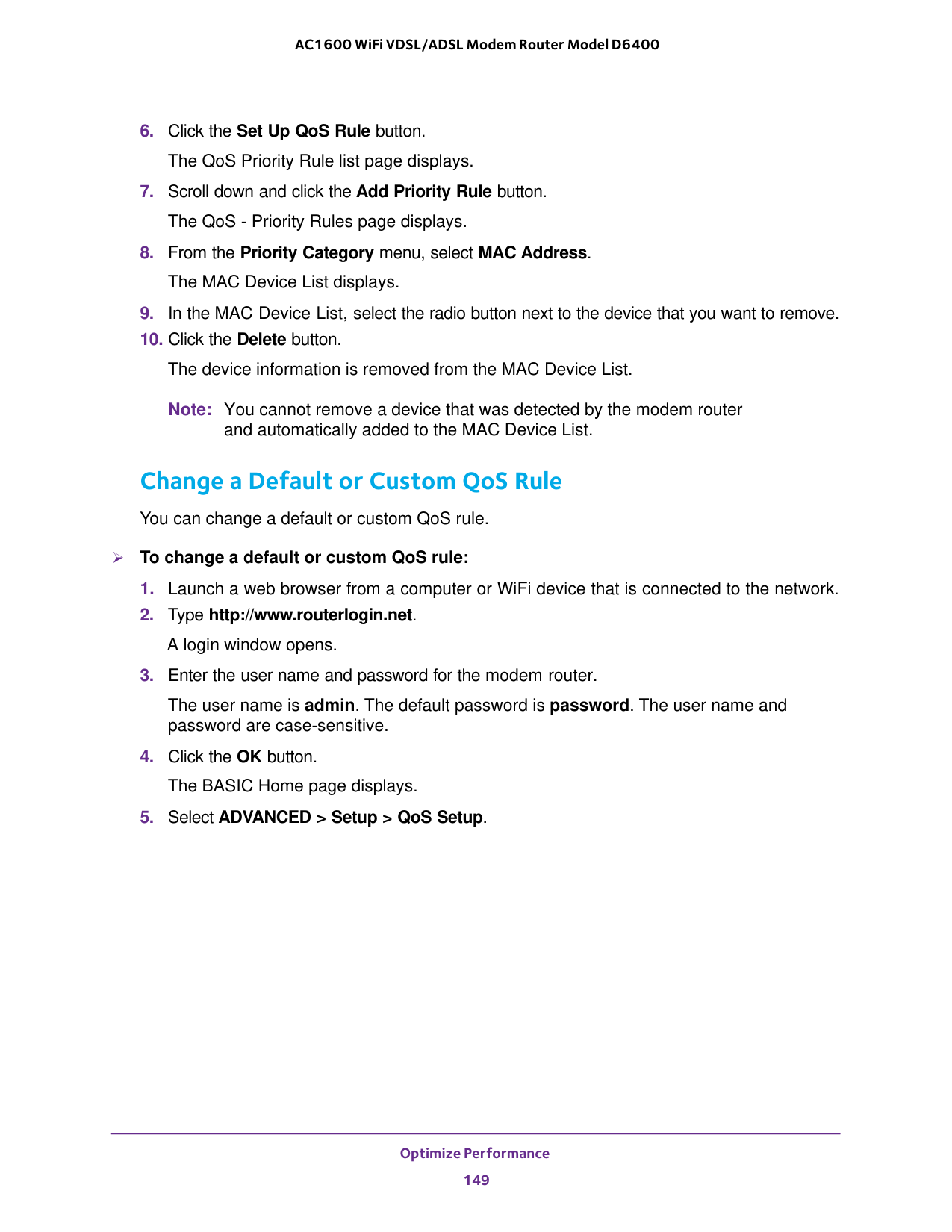
Optimize Performance 149 AC1600 WiFi VDSL/ADSL Modem Router Model D6400

Optimize Performance 150 AC1600 WiFi VDSL/ADSL Modem Router Model D6400
143 • Create a Custom QoS Rule for a Modem Router LAN Port on page
145 • Create a Custom QoS Rule for a MAC Address on page
146

Optimize Performance 151 AC1600 WiFi VDSL/ADSL Modem Router Model D6400 Remove a QoS Rule You can remove an individual custom or default QoS rule. To remove an individual QoS rule:
Warning:
If you remove all QoS rules, both the custom and default QoS rules are permanently removed. The only way to get the default QoS rules back is by returning the modem router to factory default settings. To remove all QoS rules:
Optimize Performance 152 AC1600 WiFi VDSL/ADSL Modem Router Model D6400

Optimize Performance 153 AC1600 WiFi VDSL/ADSL Modem Router Model D6400 Manage Implicit Beamforming The modem router supports beamforming to enhance the WiFi range and performance for your WiFi devices. When you enable beamforming and connect to the WiFi network, the modem router actively tracks your device and directs WiFi to your device, rather than just blasting it out in all directions. The modem router uses explicit and implicit beamforming to improve WiFi performance. Explicit beamforming requires the devices to support beamforming. (Typically, 802.11ac devices support beamforming.) Implicit beamforming means that the modem router supports beamforming even with devices that do not support beamforming. The modem router supports implicit beamforming for both 2.4 GHz and 5 GHz devices, which means that the modem router can provide beamforming benefits of better range and performance for all WiFi devices, even older 802.11a/b/g/n devices and not just the latest WiFi devices. To enable implicit beamforming:

Optimize Performance 154 AC1600 WiFi VDSL/ADSL Modem Router Model D6400 Improve Network Connections with Universal Plug and Play Universal Plug and Play (UPnP) helps devices such as Internet appliances and computers access the network and connect to other devices as needed. UPnP devices can automatically discover the services from other registered UPnP devices on the network. If you use applications such as multiplayer gaming, peer-to-peer connections, or real-time communications such as instant messaging or remote assistance, keep UPnP enabled, which it is by default. To manage Universal Plug and Play:

Optimize Performance 155 AC1600 WiFi VDSL/ADSL Modem Router Model D6400 The UPnP Portmap Table displays the IP address of each UPnP device that is accessing the modem router and which ports (internal and external) that device opened. The UPnP Portmap Table also displays what type of port is open and whether that port is still active for each IP address.

156 7

Share a Storage Device 157 AC1600 WiFi VDSL/ADSL Modem Router Model D6400 USB Device Requirements The modem router works with most USB-compliant external flash and hard drives. For the most up-to-date list of USB devices that the modem router supports, visit kbserver.netgear.com/readyshare. Some USB external hard drives and flash drives require you to load the drivers onto the computer before the computer can access the USB device. Such USB devices do not work with the modem router. The modem router supports the following file system types for full read/write access: •
Fat16
•Fat32
•Ntfs
• NTFS with compression format enabled • Ext2 • Ext3 • Ext4 The modem router supports the following file system types with read-only access: •Hfs
•Hfs+
Connect a USB Device to the Modem Router ReadySHARE lets you access and share a USB device that is connected to a USB port on the modem router. (If your USB device uses special drivers, it is not compatible.) One USB port is on the back panel of the modem router and another is on the right side panel. USB 2.0 port on the back panel USB 2.0 port on the right side panel Figure 8. USB ports on modem router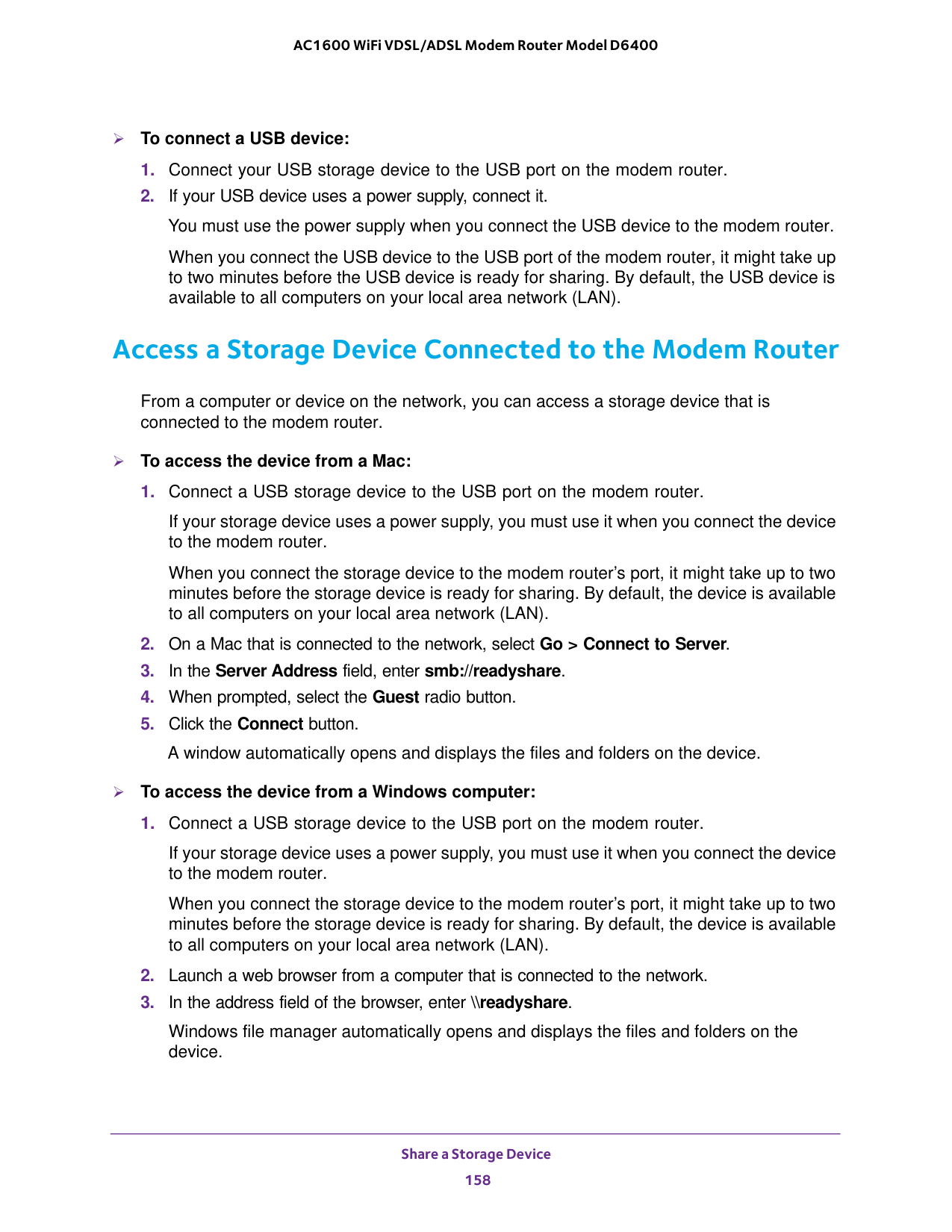
Share a Storage Device 158 AC1600 WiFi VDSL/ADSL Modem Router Model D6400 To connect a USB device:
Share a Storage Device 159 AC1600 WiFi VDSL/ADSL Modem Router Model D6400 Back Up Windows Computers with ReadySHARE Vault The modem router comes with free backup software for all the Windows computers in your home. Connect a USB hard disk drive (HDD) to the modem router for centralized, continuous, and automatic backup. The following operating systems support ReadySHARE Vault: • Windows 7 • Windows 8 • Windows 8.1 To back up your Windows computer:
Share a Storage Device 160 AC1600 WiFi VDSL/ADSL Modem Router Model D6400
Share a Storage Device 161 AC1600 WiFi VDSL/ADSL Modem Router Model D6400 Use Time Machine to Back Up onto a Storage Device You can use Time Machine to back up your Mac computers onto a USB hard disk drive that is connected to the USB port on the modem router. To back up your Mac onto a USB hard drive:
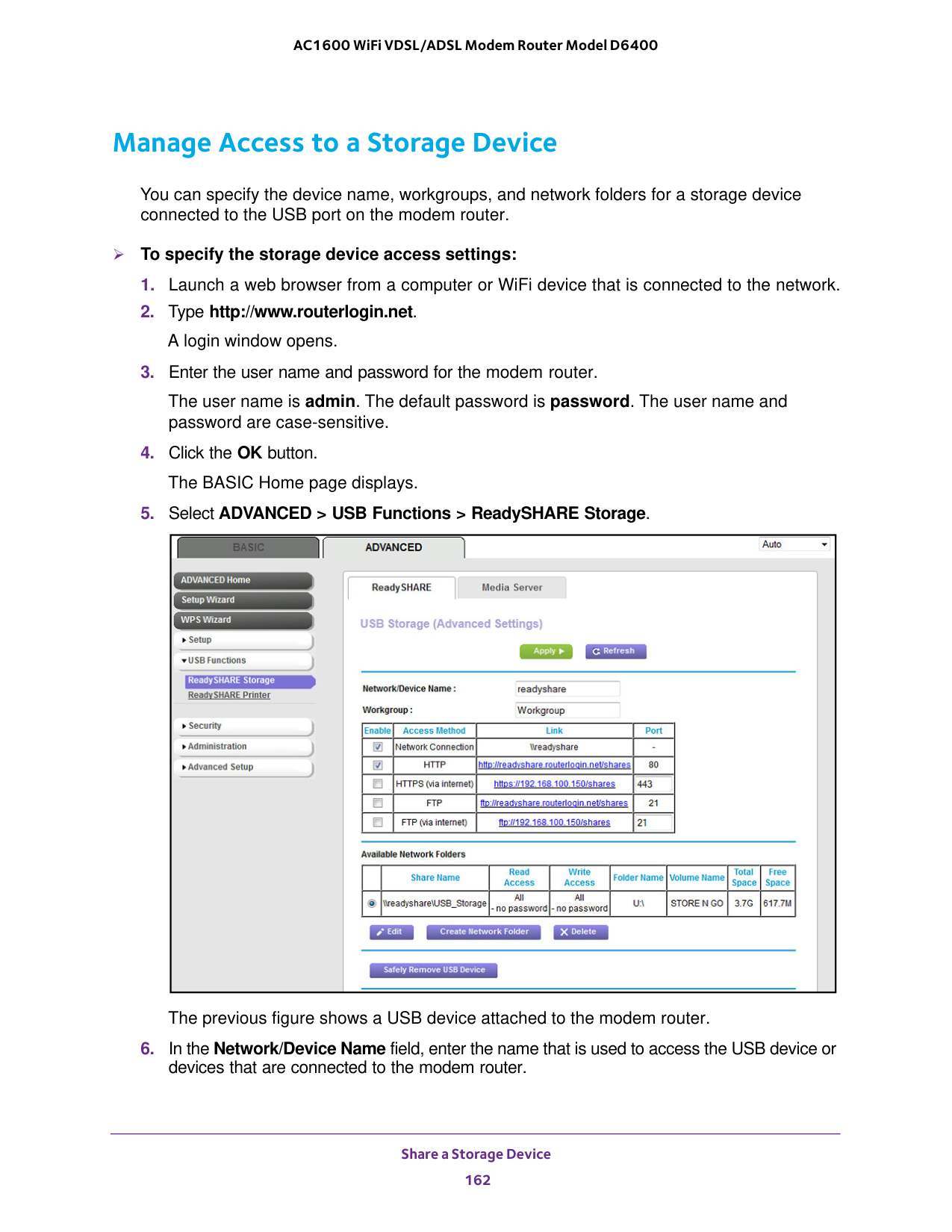
Share a Storage Device 162 AC1600 WiFi VDSL/ADSL Modem Router Model D6400 Manage Access to a Storage Device You can specify the device name, workgroups, and network folders for a storage device connected to the USB port on the modem router. To specify the storage device access settings:
Share a Storage Device 163 AC1600 WiFi VDSL/ADSL Modem Router Model D6400 By default, the name is readyshare.
Http
Enabled by default. You can type http://readyshare.routerlogin.net/shares to access the USB device within your network and download or upload files. In this URL, readyshare is the name that is specified in the Network/Device Name field. If you change the name in the Network Device Name field from readyshare to another name, the link changes accordingly. You can also click the link that is shown in the Link column. The fixed port is number is 80. HTTPS (via internet) Disabled by default. If you enable this feature, remote users can type https://443, which you can change.
Ftp
Enabled by default. You can type ftp://readyshare.routerlogin.net/shares to access the USB device within your network and download or upload files. In this URL, readyshare is the name that is specified in the Network/Device Name field. If you change the name in the Network Device Name field from readyshare to another name, the link changes accordingly. You can also click the link that is shown in the Link column. The fixed port is number is 21. FTP (via internet) Disabled by default. If you enable this feature, remote users can type ftp://174), you can also type a URL domain name. For example, if your domain name is MyName and you use the NETGEAR DDNS server, you can type ftp://MyName.mynetgear.com to access the USB device over the Internet and download or upload files.
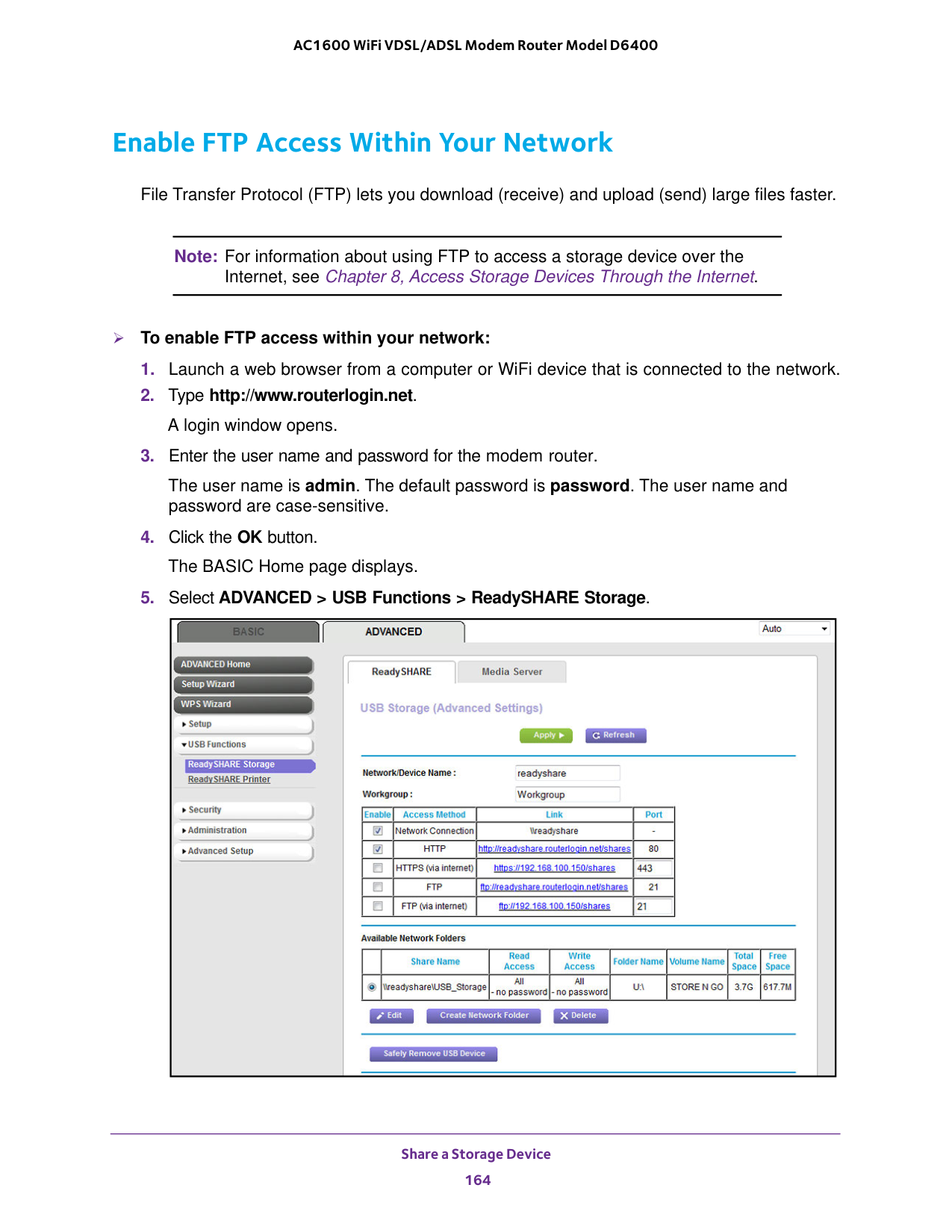
Share a Storage Device 164 AC1600 WiFi VDSL/ADSL Modem Router Model D6400 Enable FTP Access Within Your Network File Transfer Protocol (FTP) lets you download (receive) and upload (send) large files faster. Note: For information about using FTP to access a storage device over the Internet, see Chapter 8, Access Storage Devices Through the Internet. To enable FTP access within your network:
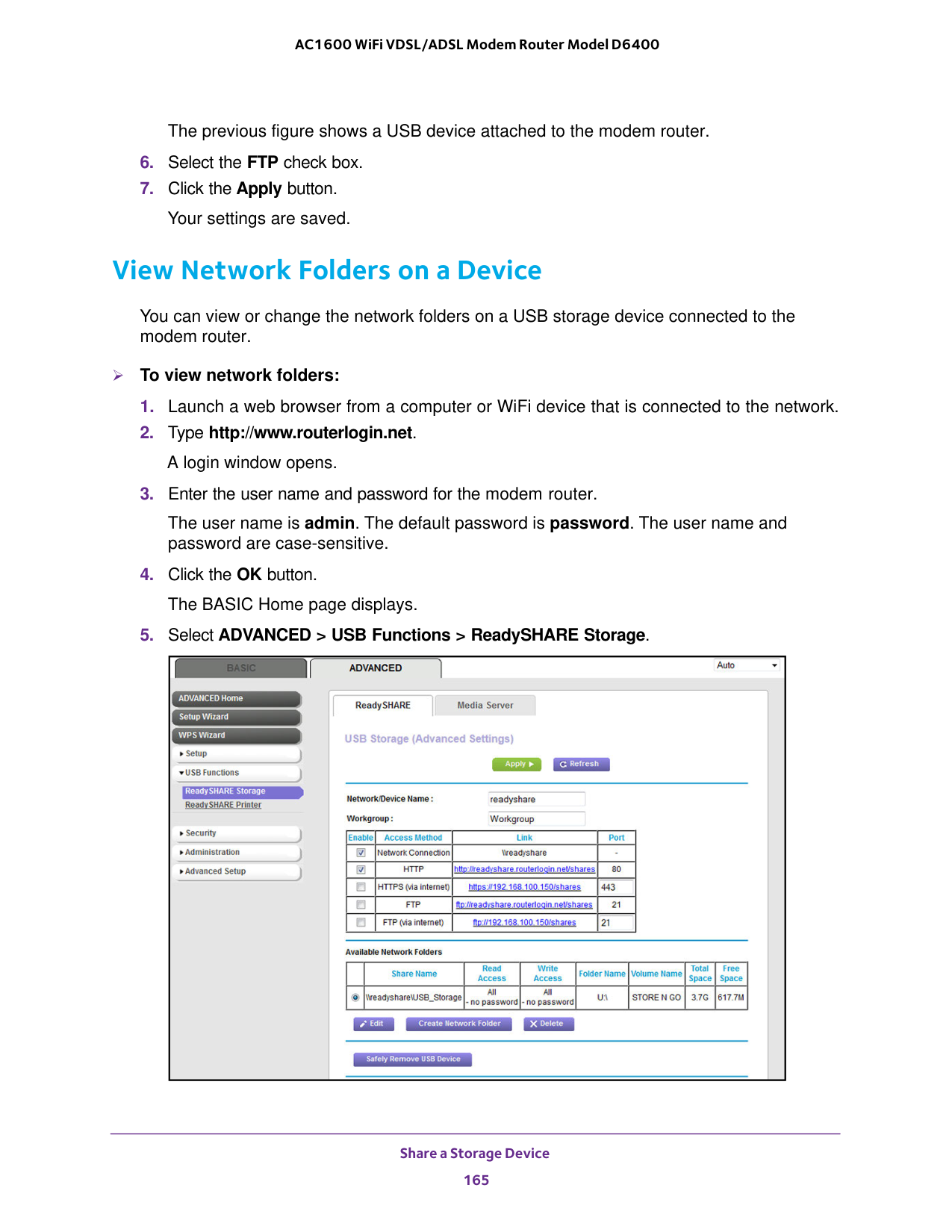
Share a Storage Device 165 AC1600 WiFi VDSL/ADSL Modem Router Model D6400 The previous figure shows a USB device attached to the modem router.
Share a Storage Device 166 AC1600 WiFi VDSL/ADSL Modem Router Model D6400 The previous figure shows a USB device attached to the modem router.
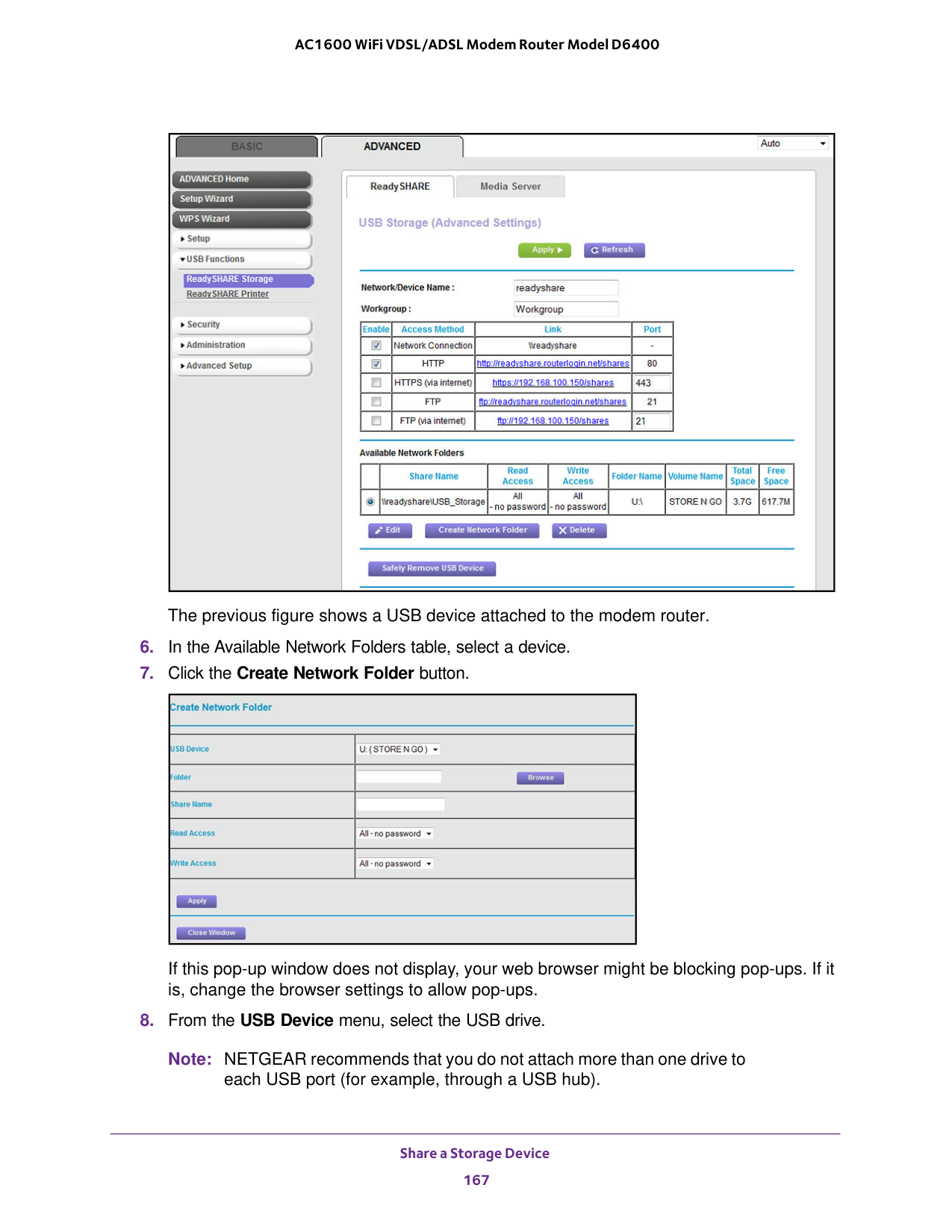
Share a Storage Device 167 AC1600 WiFi VDSL/ADSL Modem Router Model D6400 The previous figure shows a USB device attached to the modem router.

Share a Storage Device 168 AC1600 WiFi VDSL/ADSL Modem Router Model D6400

Share a Storage Device 169 AC1600 WiFi VDSL/ADSL Modem Router Model D6400 The previous figure shows a USB device attached to the modem router.
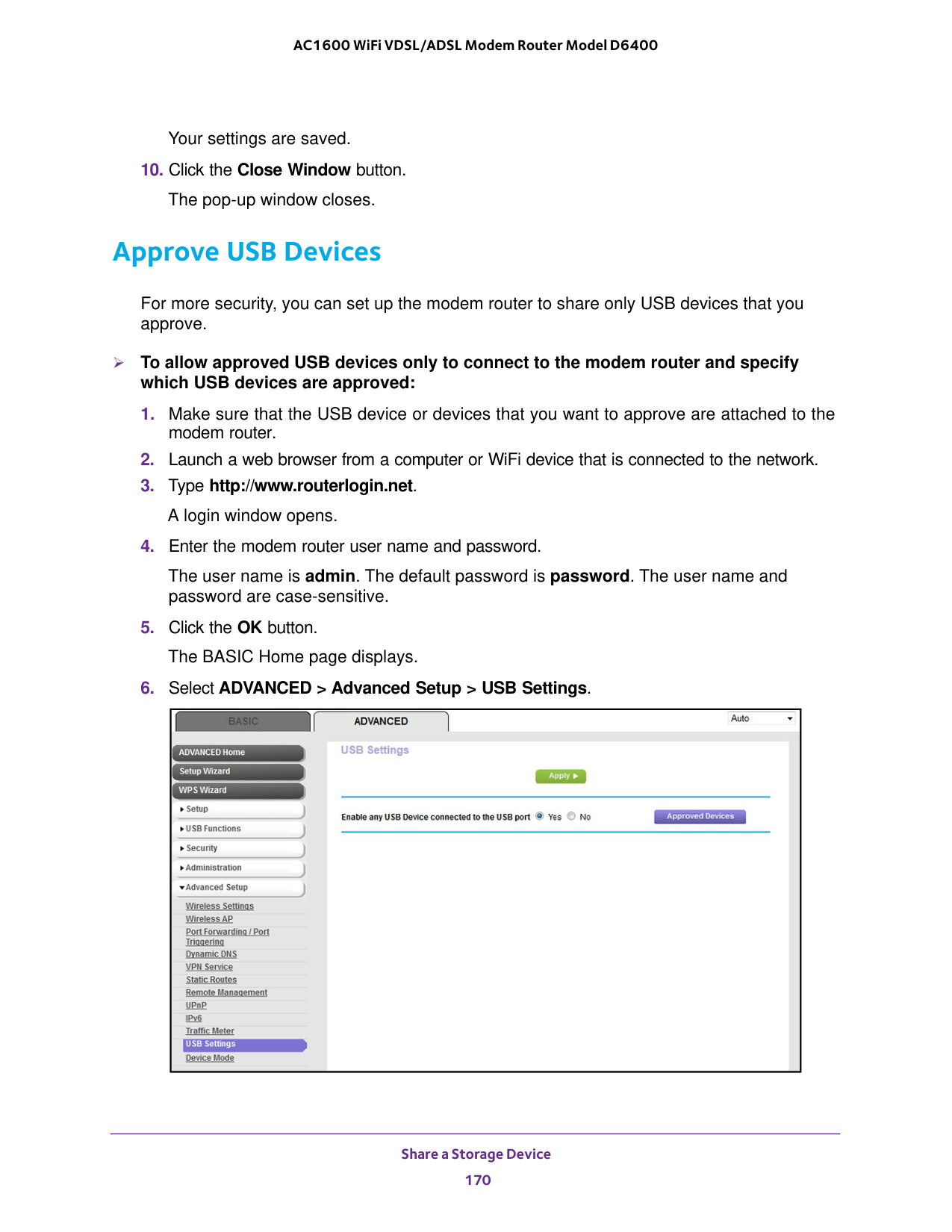
Share a Storage Device 170 AC1600 WiFi VDSL/ADSL Modem Router Model D6400 Your settings are saved.
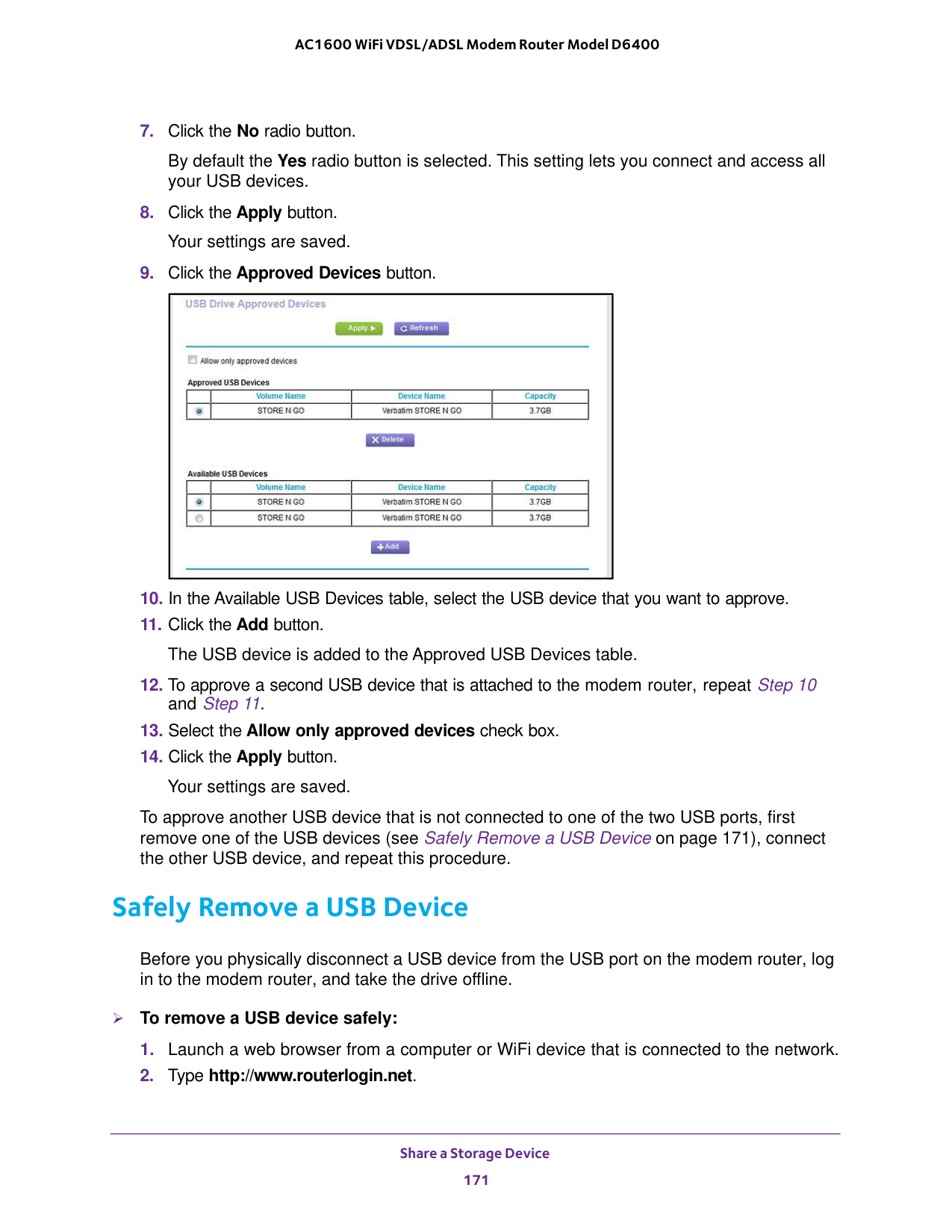
Share a Storage Device 171 AC1600 WiFi VDSL/ADSL Modem Router Model D6400
10 and Step
171), connect the other USB device, and repeat this procedure. Safely Remove a USB Device Before you physically disconnect a USB device from the USB port on the modem router, log in to the modem router, and take the drive offline. To remove a USB device safely:
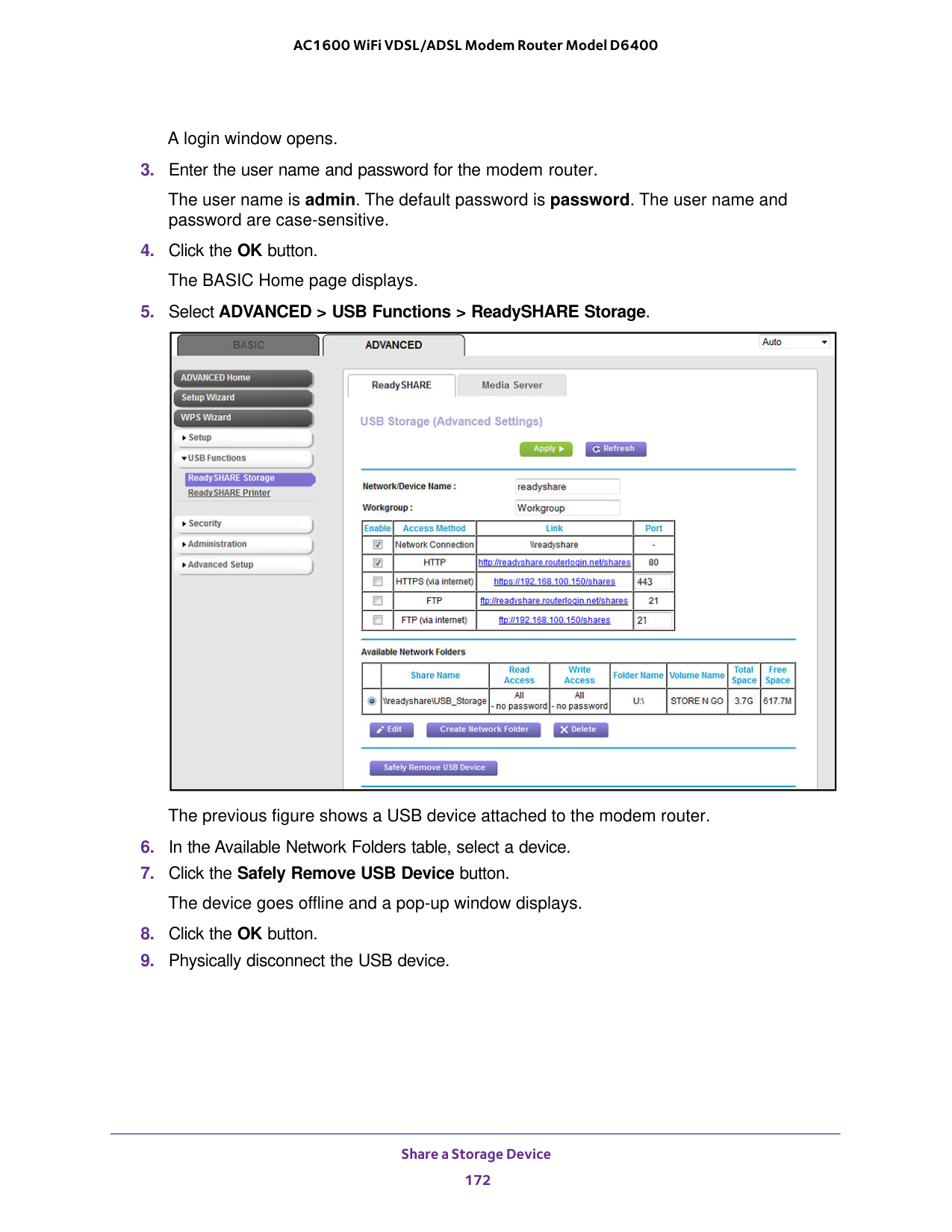
Share a Storage Device 172 AC1600 WiFi VDSL/ADSL Modem Router Model D6400 A login window opens.
173 8
Access Storage Devices Through the Internet 174 AC1600 WiFi VDSL/ADSL Modem Router Model D6400 Set Up and Manage Dynamic DNS Internet service providers (ISPs) assign numbers called IP addresses to identify each Internet account. Most ISPs use dynamically assigned IP addresses. This means that the IP address can change at any time. You can use the IP address to access your network remotely, but most people do not know what their IP address is or when this address changes. To make it easier to connect, you can get a free account with a Dynamic DNS service that lets you use a domain name to access your home network. To use this account, you must set up the modem router to use Dynamic DNS. Then the modem router notifies the Dynamic DNS service provider whenever its IP address changes. When you access your Dynamic DNS account, the service finds the current IP address of your home network and automatically connects you. If your ISP assigns a private WAN IP address (such as 192.168.x.x or 10.x.x.x), the Dynamic DNS service does not work because private addresses are not routed on the Internet. Your Personal FTP Server With your customized free URL, you can use FTP to access your network when you are not home through Dynamic DNS. To set up your FTP server, you must register for a NETGEAR Dynamic DNS (DDNS) service account and specify the account settings (see Set Up a New Dynamic DNS Account on page
175). To set up your personal account and use FTP:
179.
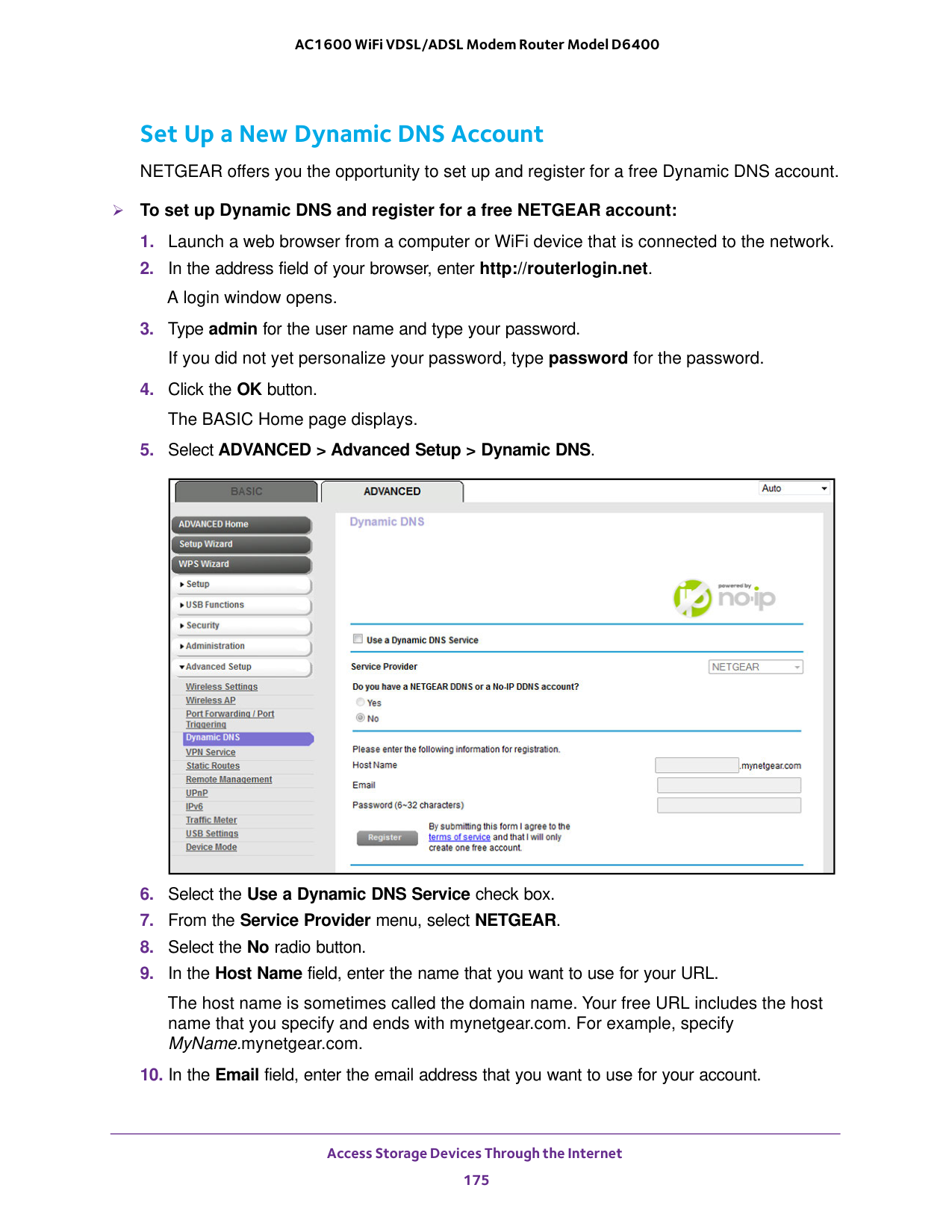
Access Storage Devices Through the Internet 175 AC1600 WiFi VDSL/ADSL Modem Router Model D6400 Set Up a New Dynamic DNS Account NETGEAR offers you the opportunity to set up and register for a free Dynamic DNS account. To set up Dynamic DNS and register for a free NETGEAR account:
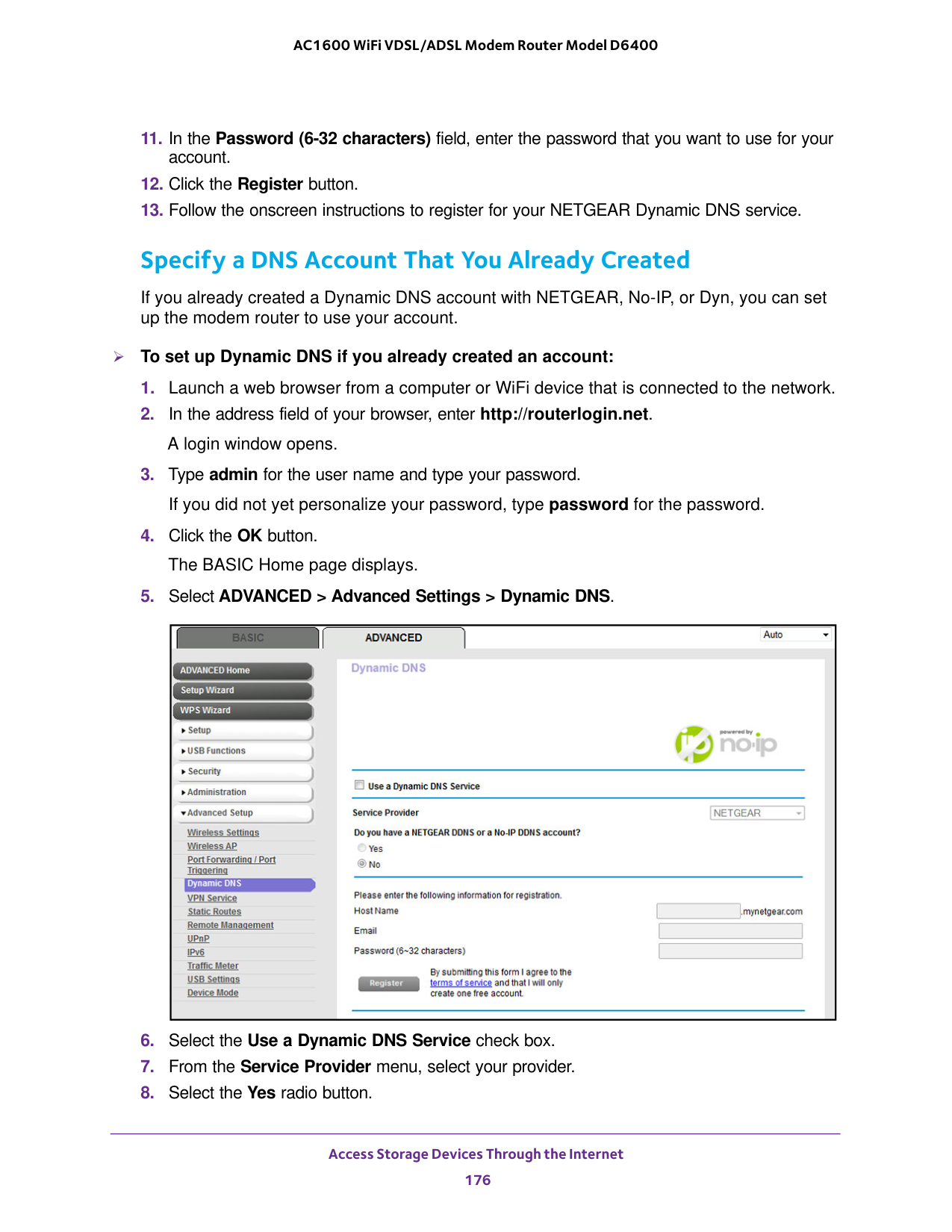
Access Storage Devices Through the Internet 176 AC1600 WiFi VDSL/ADSL Modem Router Model D6400
Access Storage Devices Through the Internet 177 AC1600 WiFi VDSL/ADSL Modem Router Model D6400 The page adjusts.
174). • To connect without Dynamic DNS, type the modem router’s Internet port IP address. You can view the modem router’s Internet IP address on the BASIC Home page. Set Up FTP Access Through the Internet If you attach a storage device to the modem router, you can access the storage device from your network (see Enable FTP Access Within Your Network on page
164). You can also set up FTP access through the Internet so that you can access the storage device from outside your local network, for example, when you are not at home. To set up FTP access through the Internet:

Access Storage Devices Through the Internet 178 AC1600 WiFi VDSL/ADSL Modem Router Model D6400 A login window opens.

Access Storage Devices Through the Internet 179 AC1600 WiFi VDSL/ADSL Modem Router Model D6400 c. In the Read Access menu, select admin. The default setting is All - no password. d. In the Write Access menu, select admin. The default setting is All - no password. e. Click the Apply button. Your settings are saved. f. Click the Close Window button. The pop-up window closes. Access Storage Devices Through the Internet with FTP If you attached a storage device to the modem router, before you can access the storage device through the Internet with FTP, you must first set it up (see Set Up FTP Access Through the Internet on page
177). To access a USB device with FTP from a remote computer to download or upload a file:

Access Storage Devices Through the Internet 180 AC1600 WiFi VDSL/ADSL Modem Router Model D6400

181 9

Use the Modem Router as a Media Server 182 AC1600 WiFi VDSL/ADSL Modem Router Model D6400 Specify ReadyDLNA Media Server Settings By default, the modem router functions as a ReadyDLNA media server, which lets you view movies and photos on DLNA/UPnP AV-compliant media players, such as Xbox360, Playstation, and NETGEAR media players. To specify media server settings:

Use the Modem Router as a Media Server 183 AC1600 WiFi VDSL/ADSL Modem Router Model D6400 Play Media from a USB Device on TiVo You can set up your TiVo to access media files stored on a USB device that is connected to your modem router. The TiVo must be on the same network as the modem router. This feature supports the following file formats: • Video. See and play mpeg1, and mpeg2 files. • Music. See and play MP3 files. • Pictures. View images in jpg format. You can use the TiVo (Series 2 and up) Home Media Option to play photos and music on your Windows or Mac computer in your TiVo user interface. To set up the modem router to work with TiVo:

Use the Modem Router as a Media Server 184 AC1600 WiFi VDSL/ADSL Modem Router Model D6400 To play music or view photos:

185 10

Share a USB Printer 186 AC1600 WiFi VDSL/ADSL Modem Router Model D6400 Install the Printer Driver and Cable the Printer Some USB printer manufacturers (for example, HP and Lexmark) request that you do not connect the USB cable until the installation software prompts you to do so. To install the driver and cable the printer:
USB 2.0 port on the back panel USB 2.0 port on the right side panel Download the ReadySHARE Printer Utility The utility works on Windows computers, Mac computers, smart phones, and tablets. To download the ReadySHARE Printer utility:

Share a USB Printer 187 AC1600 WiFi VDSL/ADSL Modem Router Model D6400 Install the ReadySHARE Printer Utility You must install the ReadySHARE Printer utility on each computer that will share the printer. After you install it, the utility displays as NETGEAR USB Control Center on your computer. To install the utility:
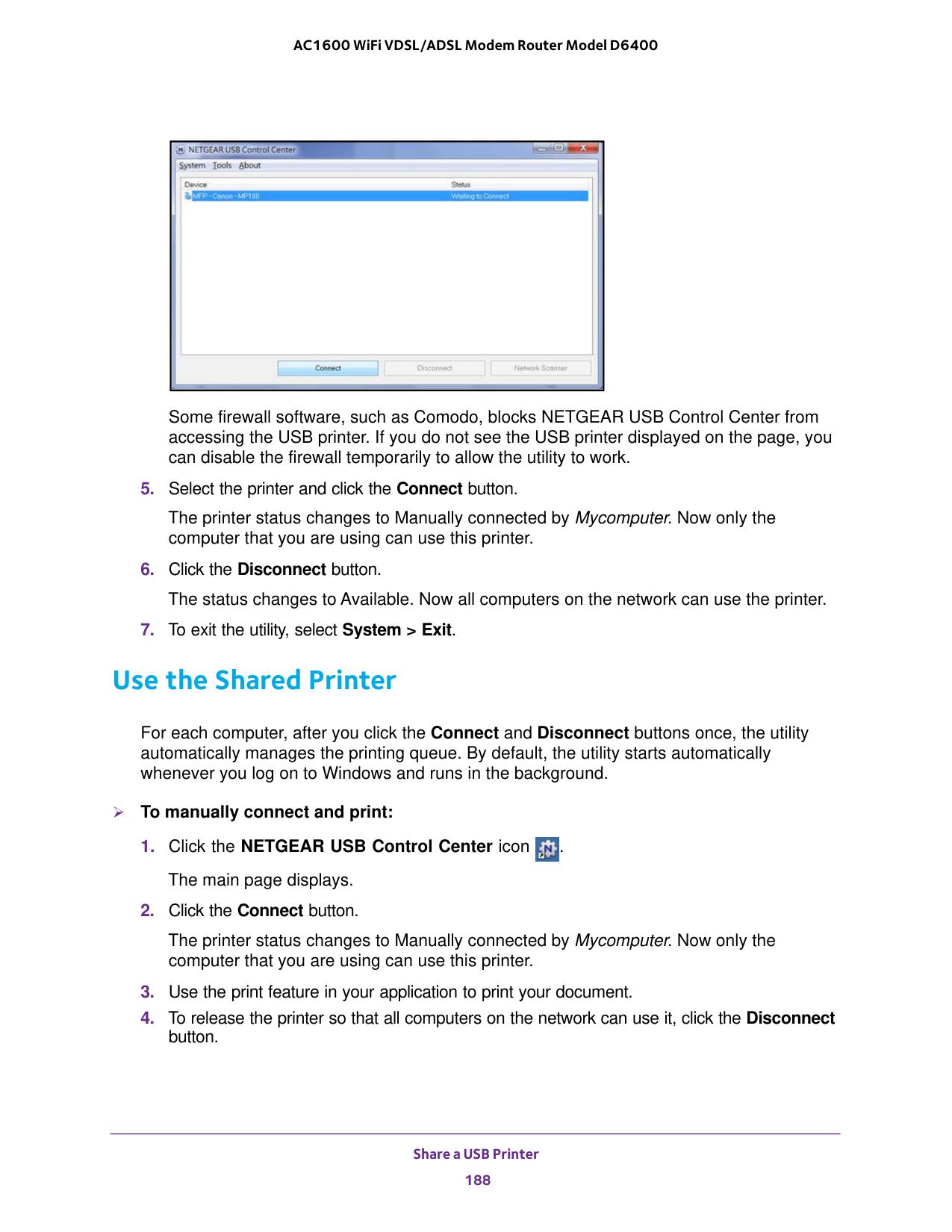
Share a USB Printer 188 AC1600 WiFi VDSL/ADSL Modem Router Model D6400 Some firewall software, such as Comodo, blocks NETGEAR USB Control Center from accessing the USB printer. If you do not see the USB printer displayed on the page, you can disable the firewall temporarily to allow the utility to work.
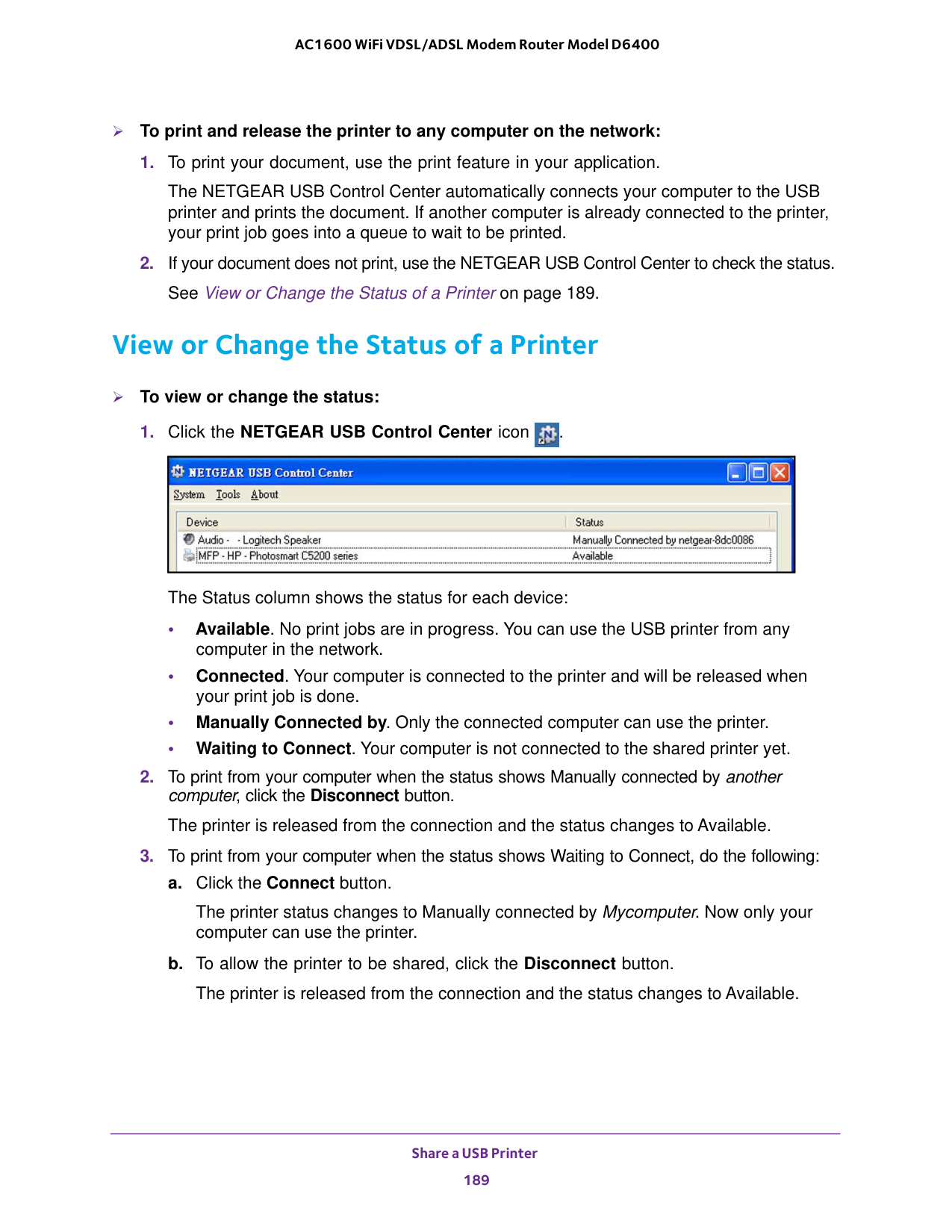
Share a USB Printer 189 AC1600 WiFi VDSL/ADSL Modem Router Model D6400 To print and release the printer to any computer on the network:

Share a USB Printer 190 AC1600 WiFi VDSL/ADSL Modem Router Model D6400 Use the Scan Feature of a Multifunction USB Printer If your USB printer supports scanning, you can also use the USB printer for scanning. For example, the USB printer displayed in the Windows Printers and Faxes window is ready for print jobs. To use the scan feature of a multifunction USB printer:

Share a USB Printer 191 AC1600 WiFi VDSL/ADSL Modem Router Model D6400 Change NETGEAR USB Control Center Settings You can stop the NETGEAR USB Control Center from starting automatically when you log in to Windows. You can also change the language and specify the time-out to release the printer connection. To turn off automatic NETGEAR USB Control Center startup:

Share a USB Printer 192 AC1600 WiFi VDSL/ADSL Modem Router Model D6400 Change the NETGEAR USB Control Center Language To change the language:

193 11

Manage the WAN and LAN Network Settings 194 AC1600 WiFi VDSL/ADSL Modem Router Model D6400 Change the Physical WAN Connection Preference The modem router can autodetect the type of WAN connection. However, you can also set the WAN connection preference manually to either the DSL port or the Ethernet WAN port. Note: The modem router does not support load balancing over ADSL and Ethernet WAN interfaces. Only one WAN interface (either the DSL port or the Ethernet WAN port) can be active at any time. To change the WAN connection preference:

Manage the WAN and LAN Network Settings 195 AC1600 WiFi VDSL/ADSL Modem Router Model D6400 If you enable a VLAN and if the network devices (hubs and switches) on your LAN support the VLAN (802.1Q) standard, the VLAN ID for the wireless access point is associated with all traffic coming from the modem router. If you are subscribed to IPTV service, the modem router might require VLAN tags to distinguish between the Internet traffic and IPTV traffic. Note: If your ISP provides directions on how to set up VLANs for IPTV and Internet service, follow those directions. To enable and configure a VLAN for the virtual Internet interface and another VLAN for the virtual IPTV interface:

Manage the WAN and LAN Network Settings 196 AC1600 WiFi VDSL/ADSL Modem Router Model D6400

Manage the WAN and LAN Network Settings 197 AC1600 WiFi VDSL/ADSL Modem Router Model D6400 Set Up a Bridge for a Port Group If the devices that are connected to the modem router’s Ethernet LAN port or WiFi network include an IPTV device, your ISP might require you to set up a bridge for a port group on the virtual Internet interface. A bridge with a port group prevents packets that are sent between the IPTV device and the modem router’s physical Internet port from being processed through the modem router’s network address translation (NAT) service. To configure a port group and enable the bridge:
Manage the WAN and LAN Network Settings 198 AC1600 WiFi VDSL/ADSL Modem Router Model D6400
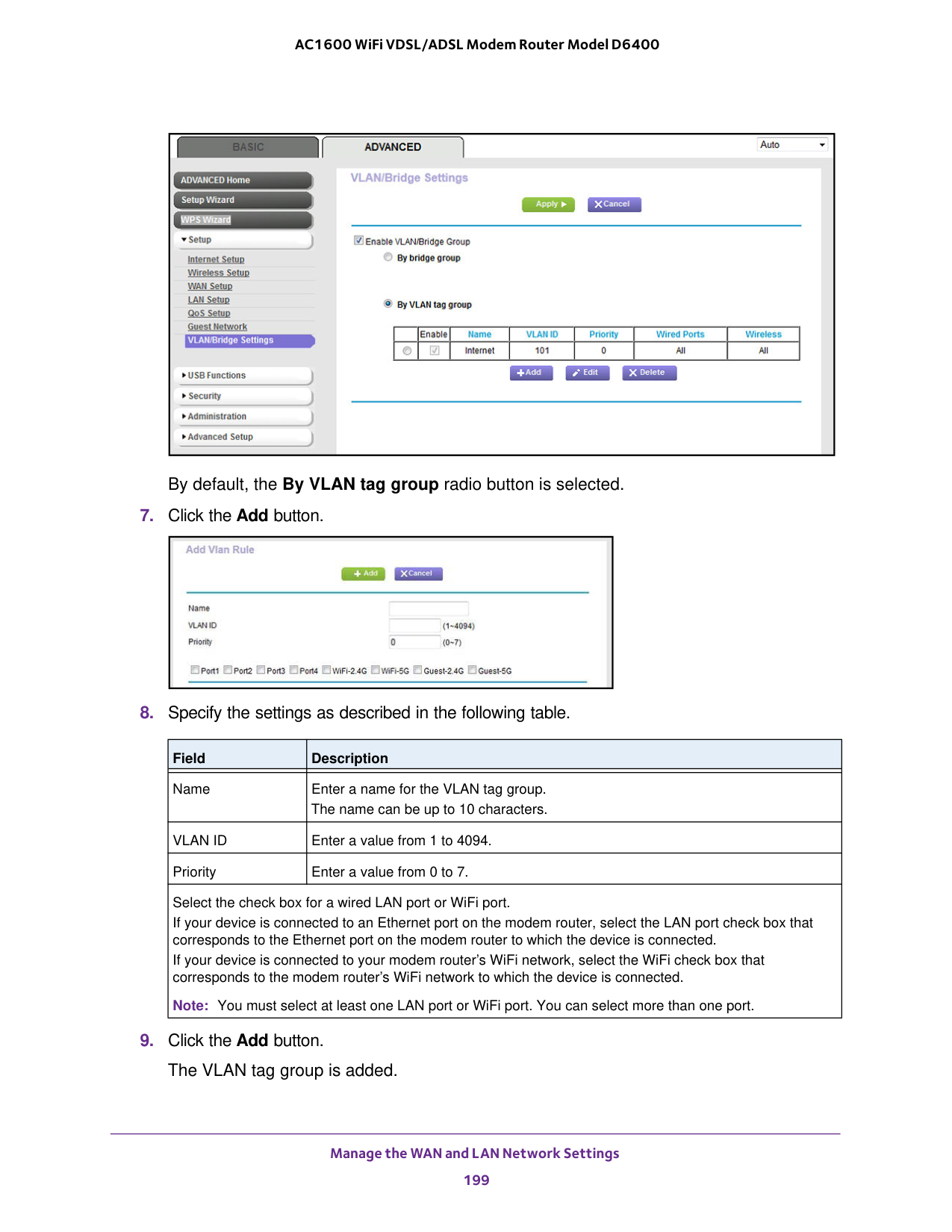
Manage the WAN and LAN Network Settings 199 AC1600 WiFi VDSL/ADSL Modem Router Model D6400 By default, the By VLAN tag group radio button is selected.
Vlan Id
Enter a value from 1 to 4094. Priority Enter a value from 0 to 7. Select the check box for a wired LAN port or WiFi port. If your device is connected to an Ethernet port on the modem router, select the LAN port check box that corresponds to the Ethernet port on the modem router to which the device is connected. If your device is connected to your modem router’s WiFi network, select the WiFi check box that corresponds to the modem router’s WiFi network to which the device is connected.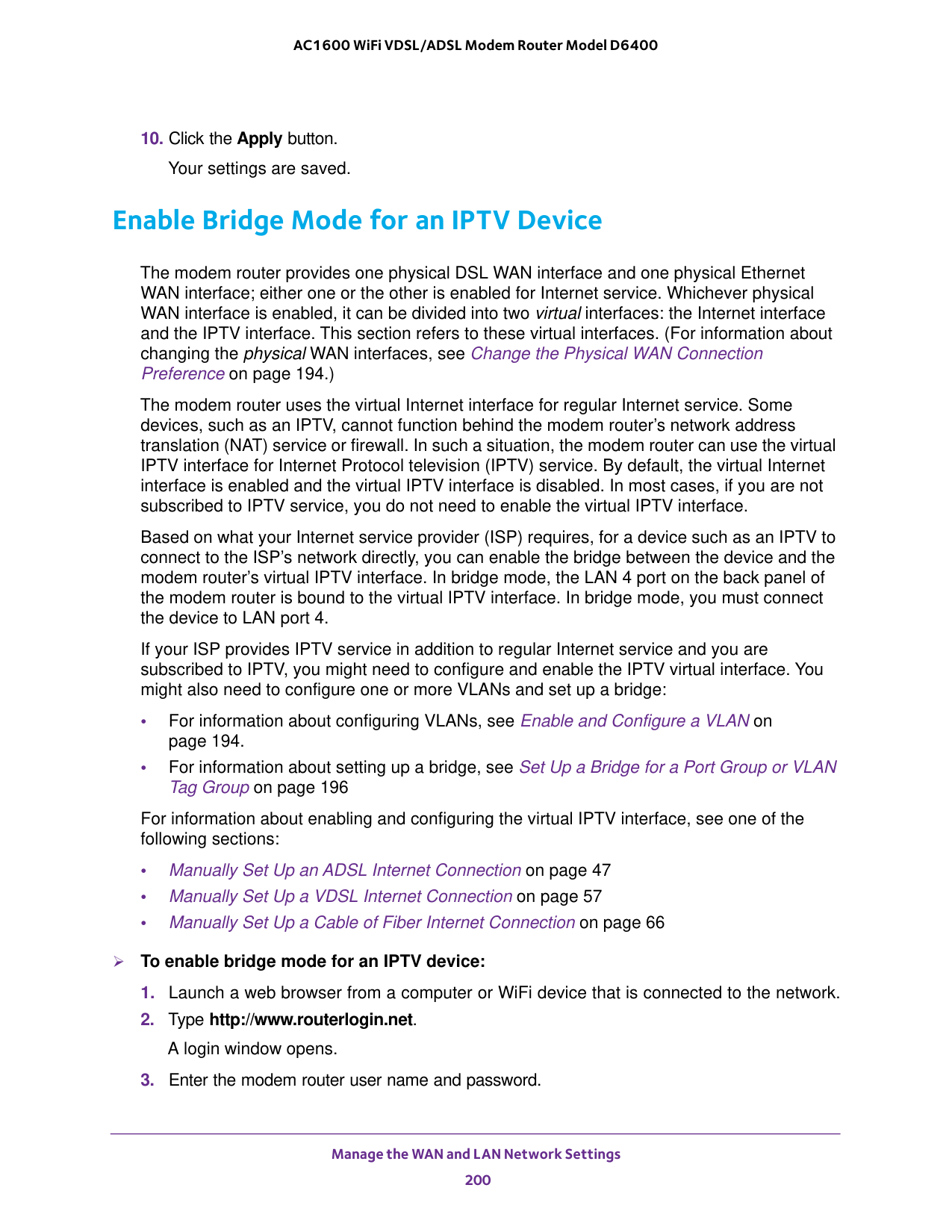
Manage the WAN and LAN Network Settings 200 AC1600 WiFi VDSL/ADSL Modem Router Model D6400
194.) The modem router uses the virtual Internet interface for regular Internet service. Some devices, such as an IPTV, cannot function behind the modem router’s network address translation (NAT) service or firewall. In such a situation, the modem router can use the virtual IPTV interface for Internet Protocol television (IPTV) service. By default, the virtual Internet interface is enabled and the virtual IPTV interface is disabled. In most cases, if you are not subscribed to IPTV service, you do not need to enable the virtual IPTV interface. Based on what your Internet service provider (ISP) requires, for a device such as an IPTV to connect to the ISP’s network directly, you can enable the bridge between the device and the modem router’s virtual IPTV interface. In bridge mode, the LAN 4 port on the back panel of the modem router is bound to the virtual IPTV interface. In bridge mode, you must connect the device to LAN port 4. If your ISP provides IPTV service in addition to regular Internet service and you are subscribed to IPTV, you might need to configure and enable the IPTV virtual interface. You might also need to configure one or more VLANs and set up a bridge: • For information about configuring VLANs, see Enable and Configure a VLAN on page
196 For information about enabling and configuring the virtual IPTV interface, see one of the following sections: • Manually Set Up an ADSL Internet Connection on page
47 • Manually Set Up a VDSL Internet Connection on page
57 • Manually Set Up a Cable of Fiber Internet Connection on page
66 To enable bridge mode for an IPTV device:
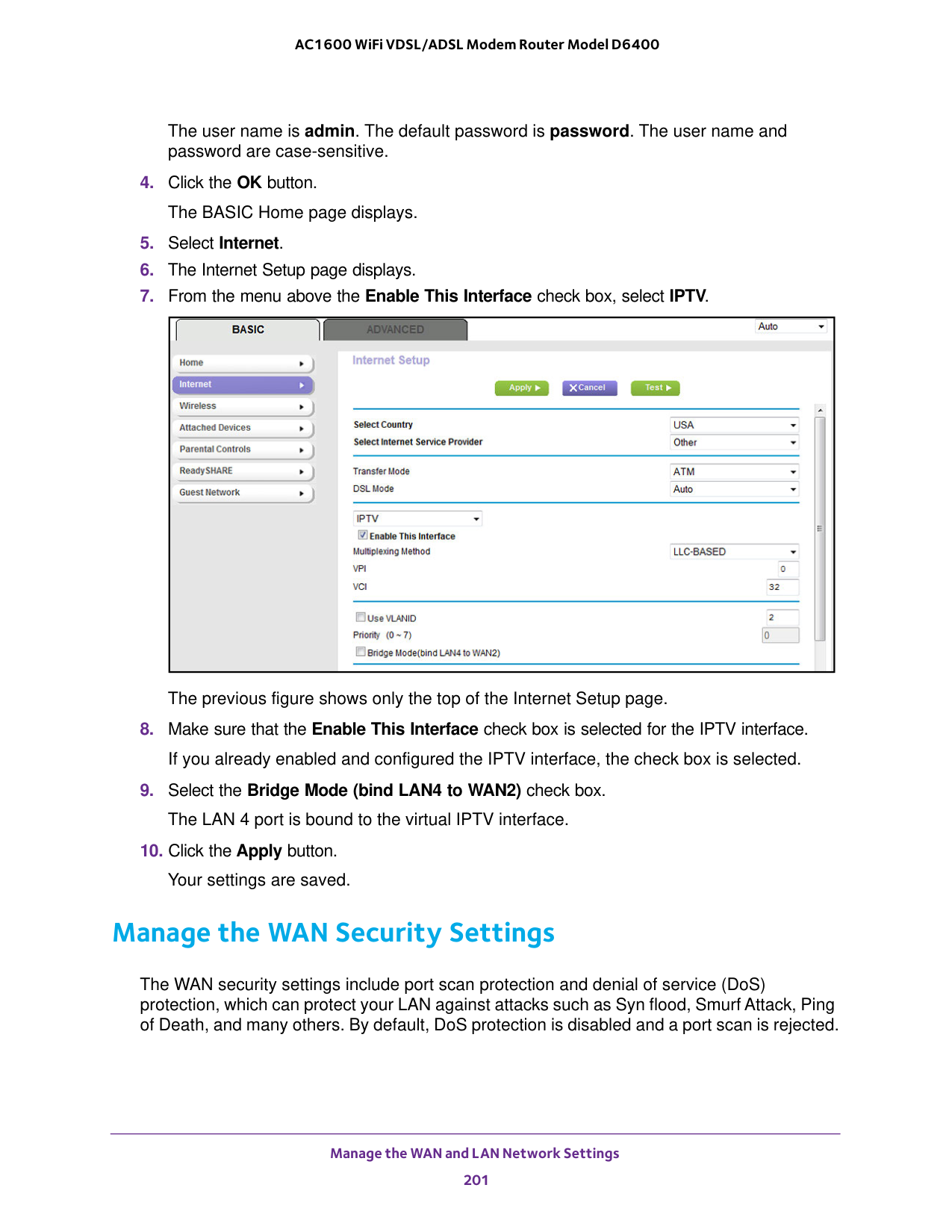
Manage the WAN and LAN Network Settings 201 AC1600 WiFi VDSL/ADSL Modem Router Model D6400 The user name is admin. The default password is password. The user name and password are case-sensitive.
Manage the WAN and LAN Network Settings 202 AC1600 WiFi VDSL/ADSL Modem Router Model D6400 You can also enable the modem router to respond to a ping to its WAN (Internet) port. This feature allows your modem router to be discovered. Enable this feature only as a diagnostic tool or if a specific reason exists. To change the default WAN security settings:
Warning:
DMZ servers pose a security risk. A computer designated as the default DMZ server loses much of the protection of the firewall and is exposed to exploits from the Internet. If compromised, the DMZ server computer can be used to attack other computers on your network.
Manage the WAN and LAN Network Settings 203 AC1600 WiFi VDSL/ADSL Modem Router Model D6400 The modem router usually detects and discards incoming traffic from the Internet that is not a response to one of your local computers or a service or application for which you set up a port forwarding or port triggering rule. Instead of discarding this traffic, you can direct the modem router to forward the traffic to one computer on your network. This computer is called the default DMZ server. To set up a default DMZ server:
Manage the WAN and LAN Network Settings 204 AC1600 WiFi VDSL/ADSL Modem Router Model D6400
Manage the WAN and LAN Network Settings 205 AC1600 WiFi VDSL/ADSL Modem Router Model D6400 Manage the SIP Application-Level Gateway The application-level gateway (ALG) for the Session Initiation Protocol (SIP) is enabled by default for enhanced address and port translation. However, some types of VoIP and video traffic might not work well when the SIP ALG is enabled. For this reason, the modem router provides the option to disable the SIP ALG. To disable the default SIP ALG:
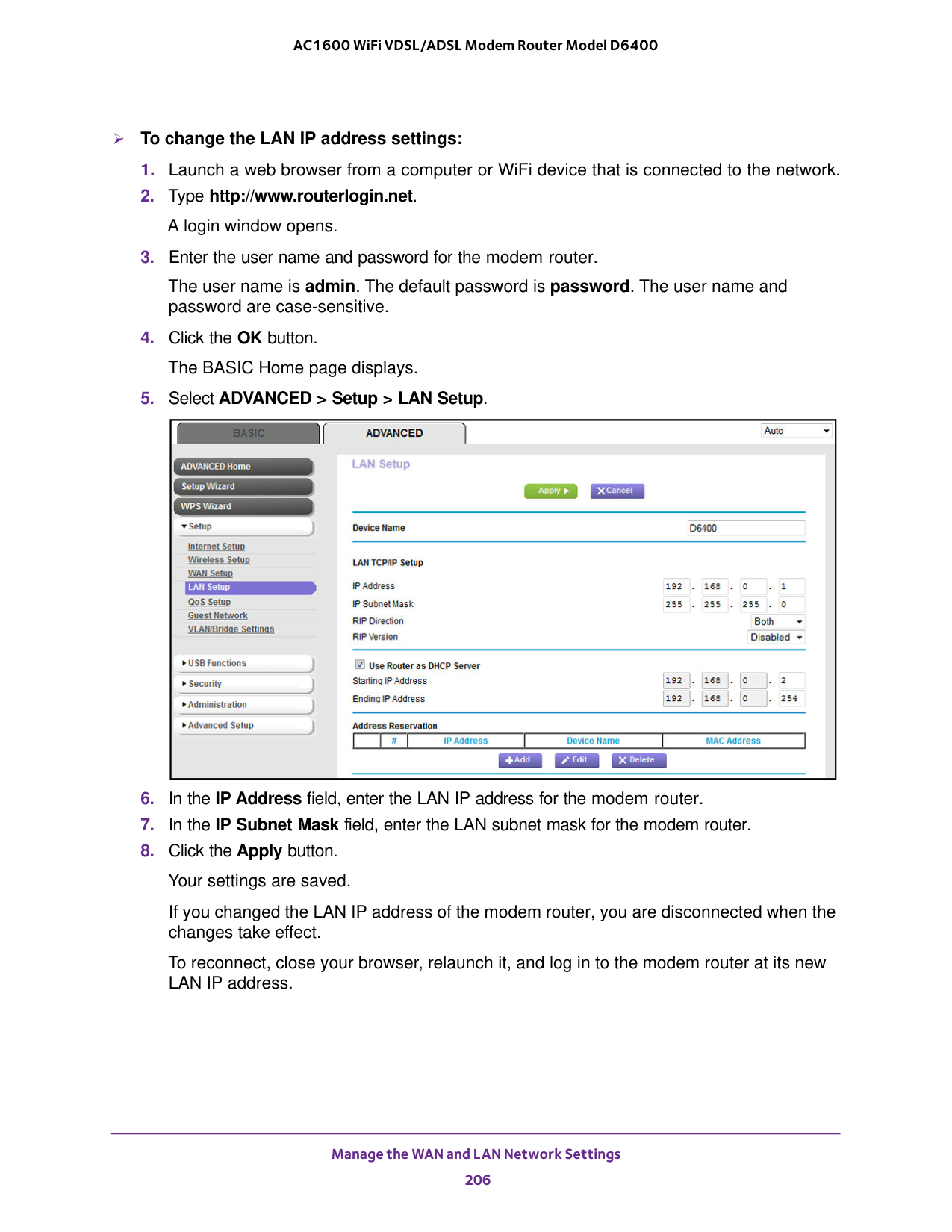
Manage the WAN and LAN Network Settings 206 AC1600 WiFi VDSL/ADSL Modem Router Model D6400 To change the LAN IP address settings:
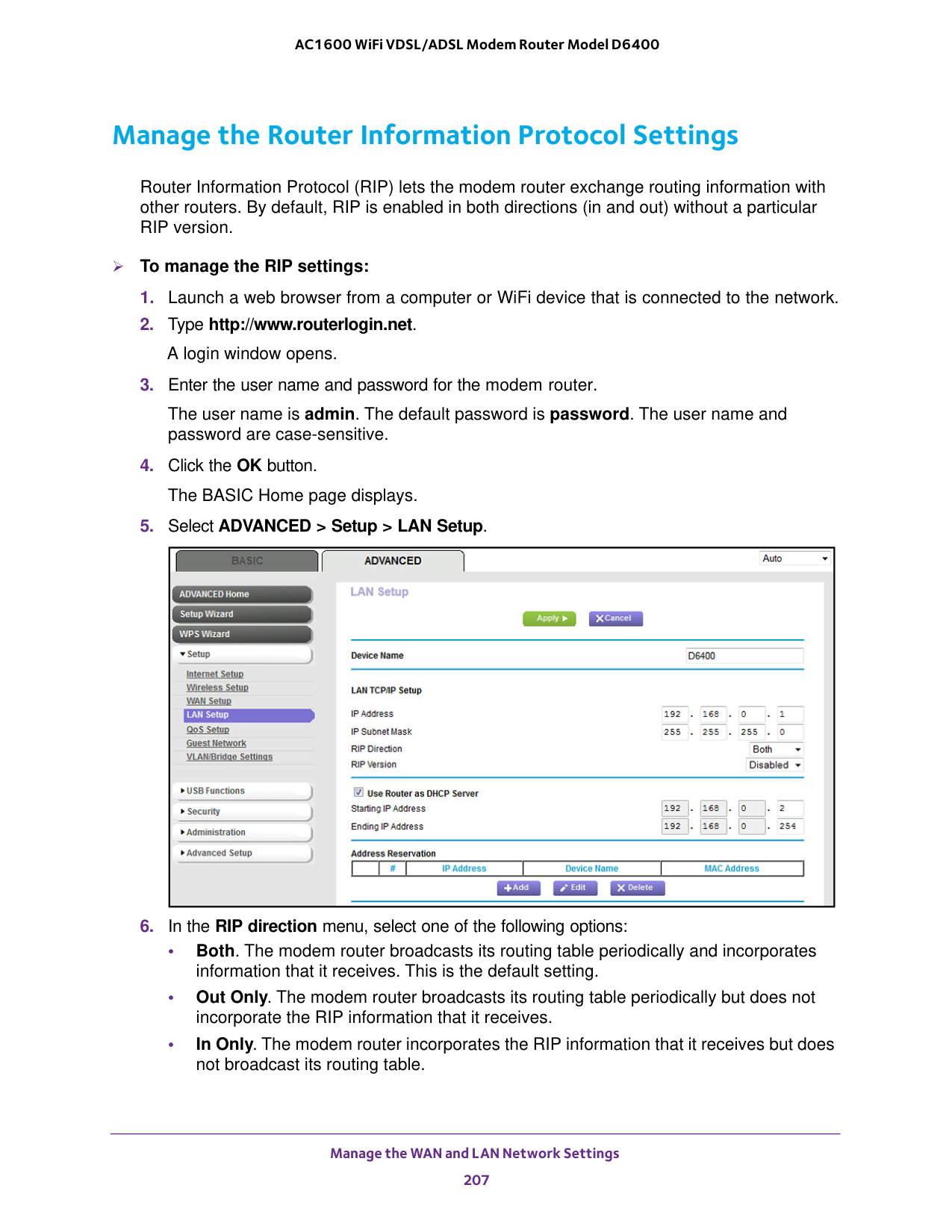
Manage the WAN and LAN Network Settings 207 AC1600 WiFi VDSL/ADSL Modem Router Model D6400 Manage the Router Information Protocol Settings Router Information Protocol (RIP) lets the modem router exchange routing information with other routers. By default, RIP is enabled in both directions (in and out) without a particular RIP version. To manage the RIP settings:

Manage the WAN and LAN Network Settings 208 AC1600 WiFi VDSL/ADSL Modem Router Model D6400

Manage the WAN and LAN Network Settings 209 AC1600 WiFi VDSL/ADSL Modem Router Model D6400
Manage the WAN and LAN Network Settings 210 AC1600 WiFi VDSL/ADSL Modem Router Model D6400 Change a Reserved IP Address You can change a reserved IP address entry. To change a reserved IP address entry:
Manage the WAN and LAN Network Settings 211 AC1600 WiFi VDSL/ADSL Modem Router Model D6400 The LAN Setup page displays.
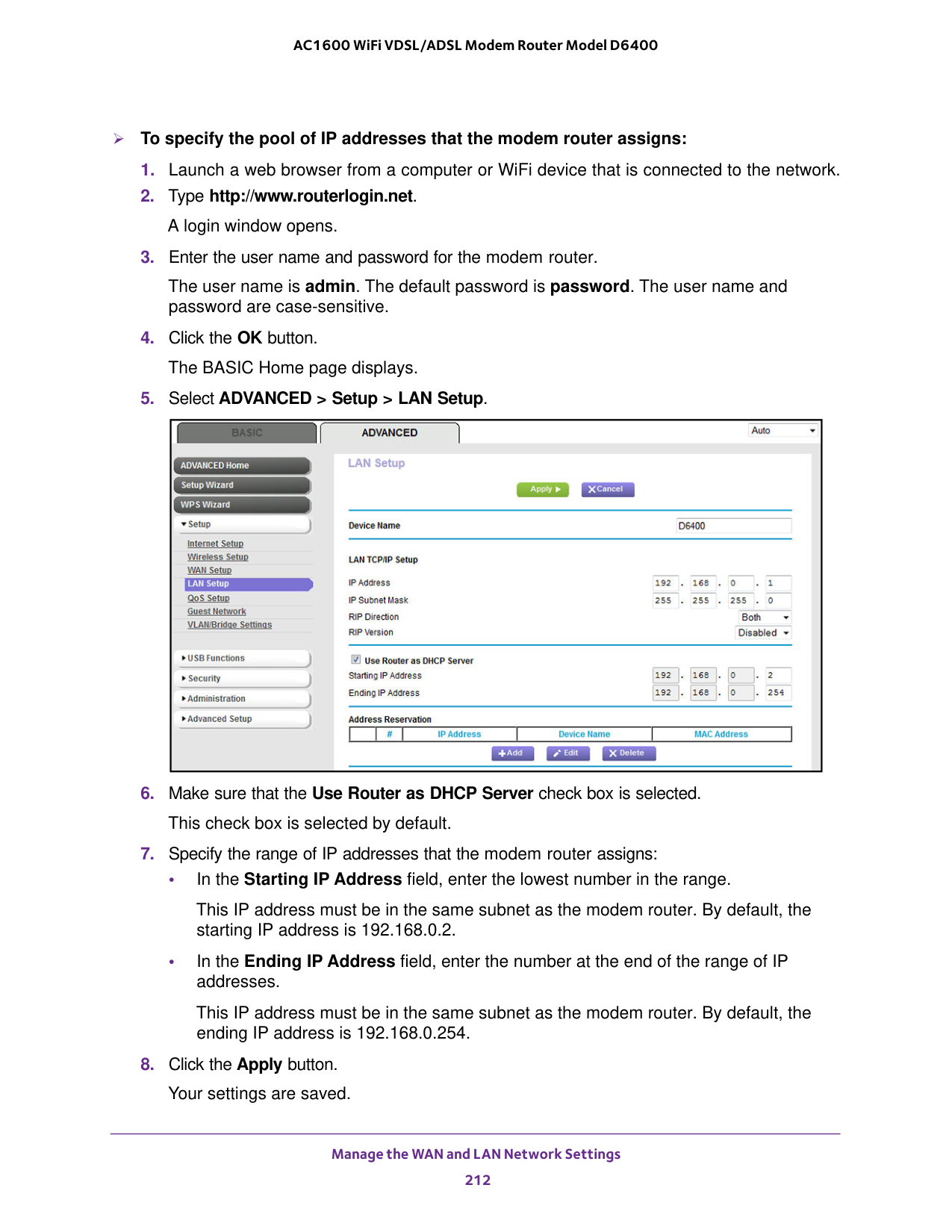
Manage the WAN and LAN Network Settings 212 AC1600 WiFi VDSL/ADSL Modem Router Model D6400 To specify the pool of IP addresses that the modem router assigns:
Manage the WAN and LAN Network Settings 213 AC1600 WiFi VDSL/ADSL Modem Router Model D6400 Disable the Built-In DHCP Server By default, the modem router functions as a DHCP server. The modem router assigns IP, DNS server, and default gateway addresses to all devices connected to the LAN. The assigned default gateway address is the LAN address of the modem router. You can use another device on your network as the DHCP server or specify the network settings of all your computers. Note: If you disable the DHCP server and no other DHCP server is available on your network, you must set your computer IP addresses manually so that they can access the modem router. To disable the built-in DHCP server:
Manage the WAN and LAN Network Settings 214 AC1600 WiFi VDSL/ADSL Modem Router Model D6400 When you first configured your modem router, two implicit static routes were created. A default route was created with your ISP as the gateway and a second static route was created to your local network for all 192.168.0.x addresses. With this configuration, if you attempt to access a device on the 134.177.0.0 network, your modem router forwards your request to the ISP. The ISP forwards your request to the company where you are employed, and the request is likely to be denied by the company’s firewall. In this case, you must define a static route, instructing your modem router that 134.177.0.0 is accessed through the ISDN modem router at 192.168.0.100. Here is an example: • Through the destination IP address and IP subnet mask, specify that this static route applies to all 134.177.x.x addresses. • Through the gateway IP address, specify that all traffic for these addresses is forwarded to the ISDN modem router at 192.168.0.100. • A metric value of 1 works fine because the ISDN modem router is on the LAN. Set Up a Static Route You can add a static route to a destination IP address and specify the subnet mask, gateway IP address, and metric. To set up a static route:
Manage the WAN and LAN Network Settings 215 AC1600 WiFi VDSL/ADSL Modem Router Model D6400 The previous figure shows two routes in the table as an example.
Manage the WAN and LAN Network Settings 216 AC1600 WiFi VDSL/ADSL Modem Router Model D6400
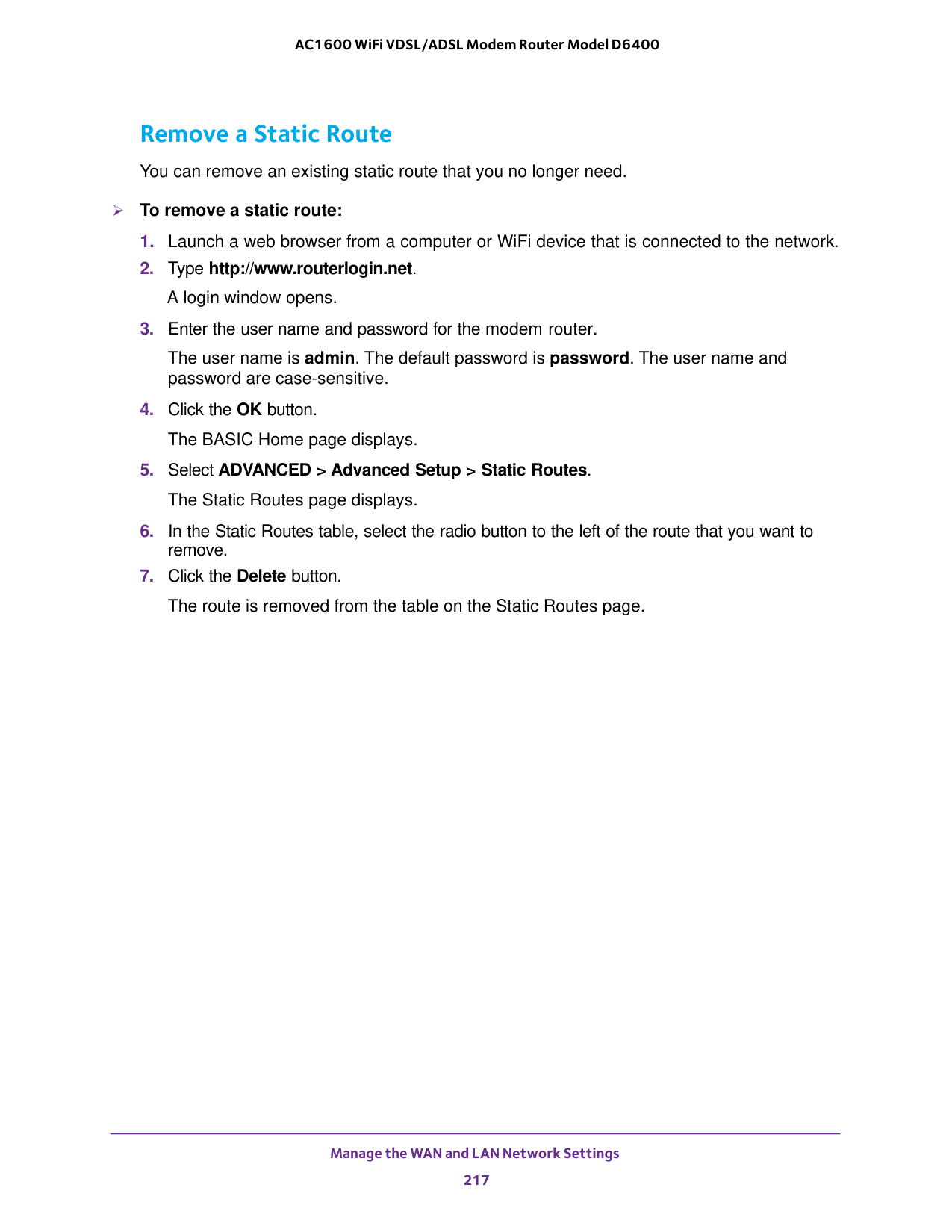
Manage the WAN and LAN Network Settings 217 AC1600 WiFi VDSL/ADSL Modem Router Model D6400 Remove a Static Route You can remove an existing static route that you no longer need. To remove a static route:

218 12
38.

Manage the Modem Router and Monitor the Traffic 219 AC1600 WiFi VDSL/ADSL Modem Router Model D6400 Update the Firmware of the Modem Router The modem router firmware is stored in flash memory. You can check to see if new firmware is available and update the modem router to the new firmware. You can also visit the NETGEAR support website, download the firmware manually, and update the modem router to the new firmware. Check for New Firmware and Update the Modem Router For you to check for new firmware, the modem router must be connected to the Internet. To check for new firmware and update your modem router:
Warning:
To avoid the risk of corrupting the firmware, do not interrupt the upload. For example, do not close the browser, click a link, or load a new page. Do not turn off the modem router. Wait until the modem router finishes restarting and the Power LED turns solid green. A progress bar shows the progress of the firmware upload process. The firmware upload process takes several minutes. When the upload is complete, your modem router restarts.
Manage the Modem Router and Monitor the Traffic 220 AC1600 WiFi VDSL/ADSL Modem Router Model D6400

Manage the Modem Router and Monitor the Traffic 221 AC1600 WiFi VDSL/ADSL Modem Router Model D6400
Warning:
To avoid the risk of corrupting the firmware, do not interrupt the upload. For example, do not close the browser, click a link, or load a new page. Do not turn off the modem router. Wait until the modem router finishes restarting and the Power LED turns solid green. A progress bar shows the progress of the firmware upload process. The firmware upload process takes several minutes. When the upload is complete, your modem router restarts.
Manage the Modem Router and Monitor the Traffic 222 AC1600 WiFi VDSL/ADSL Modem Router Model D6400 Manage the Configuration File of the Modem Router The configuration settings of the modem router are stored within the modem router in a configuration file. You can back up (save) this file to your computer or restore it. Back Up the Settings You can save a copy of the current configuration settings. To back up the modem router’s configuration settings:

Manage the Modem Router and Monitor the Traffic 223 AC1600 WiFi VDSL/ADSL Modem Router Model D6400
Warning:
To avoid the risk of corrupting the firmware, do not interrupt the restoration. For example, do not close the browser, click a link, or load a new page. Do not turn off the modem router. Wait until the modem router finishes restarting and the Power LED turns solid green. Recover the admin Password NETGEAR recommends that you enable password recovery if you change the password for the modem router user name admin. Then you can recover the password if it is forgotten. This recovery process is supported in Internet Explorer, Firefox, and Chrome browsers, but not in the Safari browser. For information about setting up password recovery, see Set Up Password Recovery on page
Manage the Modem Router and Monitor the Traffic 224 AC1600 WiFi VDSL/ADSL Modem Router Model D6400
Caution:
This process erases all settings that you configured in the modem router. To reset the modem router to factory default settings:
Manage the Modem Router and Monitor the Traffic 225 AC1600 WiFi VDSL/ADSL Modem Router Model D6400 The configuration is reset to factory default settings. When the reset is complete, the modem router reboots. This process takes about one minute.
Warning:
To avoid the risk of corrupting the firmware, do not interrupt the reset. For example, if you are connected to the web management interface, do not close the browser, click a link, or load a new page. Do not turn off the modem router. Wait until the modem router finishes restarting and the Power LED turns solid green. Erase the SettingsCaution:
This process erases all settings that you configured in the modem router. To erase the settings:Warning:
To avoid the risk of corrupting the firmware, do not interrupt the reset. For example, do not close the browser, click a link, or load a new page. Do not turn off the modem router. Wait until the modem router finishes restarting and the Power LED turns solid green.
Manage the Modem Router and Monitor the Traffic 226 AC1600 WiFi VDSL/ADSL Modem Router Model D6400 View the Status and Statistics of the Modem Router You can view information about the modem router, its broadband modem, and ports, and the status of the Internet connection and WiFi network. In addition, you can view traffic statistics for the various ports. View Information About the Modem Router and the Internet, Modem, and WiFi Settings You can view modem router information, the Internet port status, and WiFi settings. To view information about the modem router and the Internet, modem, and WiFi settings:

Manage the Modem Router and Monitor the Traffic 227 AC1600 WiFi VDSL/ADSL Modem Router Model D6400 The information onscreen uses the following color coding: • A green flag indicates that the Internet port is configured correctly and connected to the Internet or that a WiFi network is up and enabled. • A red X indicates that the Internet port is not configured and cannot get an Internet connection or that a WiFi network is down or disabled. • An amber exclamation mark indicates that the Internet port is configured but cannot get an Internet connection (for example, because the cable is disconnected), that a WiFi network is enabled but unprotected, or that another situation that requires your attention occurred. The following table describes the fields of the six panes on the ADVANCED Home page. Field Description Router Information Hardware Version The modem router model. Firmware Version The version of the modem router firmware. If you upgrade the firmware in the modem router, the version changes.
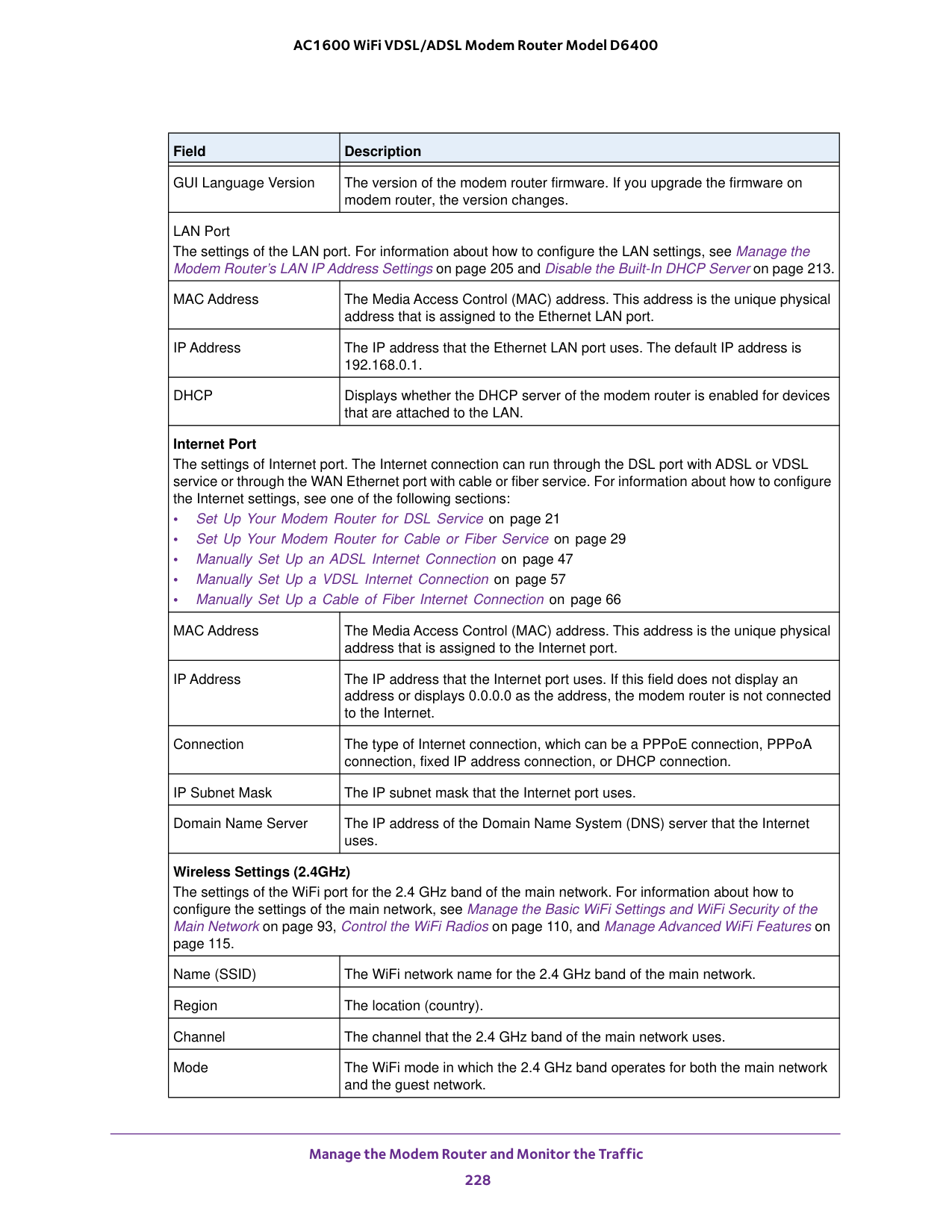
Manage the Modem Router and Monitor the Traffic 228 AC1600 WiFi VDSL/ADSL Modem Router Model D6400 GUI Language Version The version of the modem router firmware. If you upgrade the firmware on modem router, the version changes. LAN Port The settings of the LAN port. For information about how to configure the LAN settings, see Manage the Modem Router’s LAN IP Address Settings on page
205 and Disable the Built-In DHCP Server on page
Dhcp
Displays whether the DHCP server of the modem router is enabled for devices that are attached to the LAN. Internet Port The settings of Internet port. The Internet connection can run through the DSL port with ADSL or VDSL service or through the WAN Ethernet port with cable or fiber service. For information about how to configure the Internet settings, see one of the following sections: • Set Up Your Modem Router for DSL Service on page21 • Set Up Your Modem Router for Cable or Fiber Service on page
29 • Manually Set Up an ADSL Internet Connection on page
47 • Manually Set Up a VDSL Internet Connection on page
57 • Manually Set Up a Cable of Fiber Internet Connection on page
66 MAC Address The Media Access Control (MAC) address. This address is the unique physical address that is assigned to the Internet port. IP Address The IP address that the Internet port uses. If this field does not display an address or displays 0.0.0.0 as the address, the modem router is not connected to the Internet. Connection The type of Internet connection, which can be a PPPoE connection, PPPoA connection, fixed IP address connection, or DHCP connection. IP Subnet Mask The IP subnet mask that the Internet port uses. Domain Name Server The IP address of the Domain Name System (DNS) server that the Internet uses. Wireless Settings (2.4GHz) The settings of the WiFi port for the 2.4 GHz band of the main network. For information about how to configure the settings of the main network, see Manage the Basic WiFi Settings and WiFi Security of the Main Network on page
93, Control the WiFi Radios on page
110, and Manage Advanced WiFi Features on page
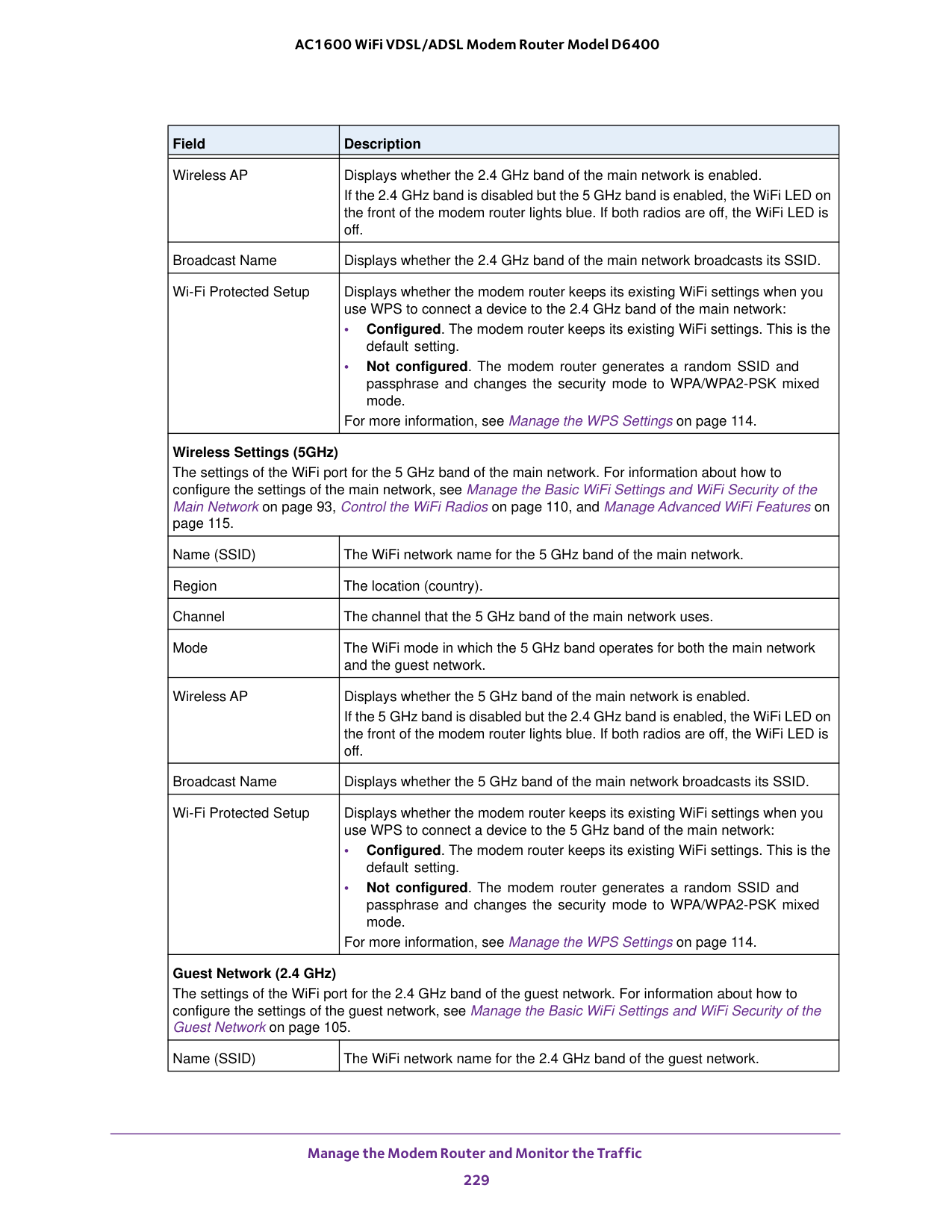
Manage the Modem Router and Monitor the Traffic 229 AC1600 WiFi VDSL/ADSL Modem Router Model D6400 Wireless AP Displays whether the 2.4 GHz band of the main network is enabled. If the 2.4
GHz band is disabled but the 5 GHz band is enabled, the WiFi LED on the front of the modem router lights blue. If both radios are off, the WiFi LED is off. Broadcast Name Displays whether the 2.4 GHz band of the main network broadcasts its SSID. Wi-Fi Protected Setup Displays whether the modem router keeps its existing WiFi settings when you use WPS to connect a device to the 2.4 GHz band of the main network: • Configured. The modem router keeps its existing WiFi settings. This is the default setting. • Not configured. The modem router generates a random SSID and passphrase and changes the security mode to WPA/WPA2-PSK mixed mode. For more information, see Manage the WPS Settings on page
93, Control the WiFi Radios on page
110, and Manage Advanced WiFi Features on page

Manage the Modem Router and Monitor the Traffic 230 AC1600 WiFi VDSL/ADSL Modem Router Model D6400 View the Traffic Statistics You can view the traffic statistics for the ports of the modem router, change the polling frequency, and stop traffic polling. To view the traffic statistics for the ports of the modem router:

Manage the Modem Router and Monitor the Traffic 231 AC1600 WiFi VDSL/ADSL Modem Router Model D6400 The following table describes the fields and columns of the Show Statistics pop-up window. Field or Column Description System Up Time The time elapsed since the modem router was last restarted. Port The statistics for the WAN (Internet over Ethernet) port, LAN (Ethernet) ports, WLAN b/g/n ports, and WLAN a/n/ac ports. For each port, the page displays the information that is described in this table. The link status of the port. The number of packets transmitted on this port since reset or manual clear. The number of packets received on this port since reset or manual clear. The number of signal collisions that occurred on the port. A collision occurs when the port attempts to send data at the same time as the device that is connected to the port. The number of bytes transmitted per second on the port. The number of bytes received per second on the port. The time elapsed since this port acquired the link. Poll Interval The interval at which the statistics are updated on this page. ADSL Link In addition to the xDSL firmware version, the page displays the ADSL link information that is described in this table. Connection Speed The downstream and upstream data rates in Kbps. Line Attenuation The downstream and upstream line attenuation (LATN) in dB. The LATN expresses the signal quality. Noise Margin The downstream and upstream signal-to-noise-margin (SNRM) in dB. The SNRM expresses the signal quality in relation to interference. Status TxPkts RxPkts Collisions Tx B/s Rx B/s Up Time

Manage the Modem Router and Monitor the Traffic 232 AC1600 WiFi VDSL/ADSL Modem Router Model D6400 To change the traffic statistics polling frequency or stop polling:
66). To view the TCP/IP Internet connection status or renew or release the TCP/IP Internet connection:

Manage the Modem Router and Monitor the Traffic 233 AC1600 WiFi VDSL/ADSL Modem Router Model D6400
Dhcp.
The following table describes the fields of the Connection Status pop-up window. Field Description IP Address The IP address that is assigned by the ISP to the modem router. Subnet Mask The subnet mask that is assigned by the ISP to the modem router. Default Gateway The IP address of the default gateway of the ISP that the modem router communicates with. DHCP Server The IP address of the DHCP server of the ISP that issues the IP address to the modem router. DNS Server The IP address of the Domain Name System (DNS) server of the ISP that provides translation of network names to IP addresses. Lease Obtained The time at which the modem router obtained the DHCP lease. (The type of DHCP connection determines whether this field displays onscreen.) Lease Expires The time at which the DHCP lease expires. (The type of DHCP connection determines whether this field displays onscreen.)
Manage the Modem Router and Monitor the Traffic 234 AC1600 WiFi VDSL/ADSL Modem Router Model D6400 View, Connect, or Disconnect a PPPoE or PPPoA Internet Connection You can view information about a PPPoE or PPPoA Internet connection of the modem router and establish or terminate such a connection. This information displays only if the modem router connects to the ISP network over a PPPoE connection or PPPoA connection. The following sections describe Internet connections that use PPPoe and PPPoA: • Specify an ADSL Connection with a Login Requirement and PPPoA or PPPoE Service on page
52 • Specify a VDSL Connection with a Login Requirement and PPPoE Service on page
61 • Specify a Cable or Fiber Connection With a Login Requirement and PPPoE Service on page
71 To view the PPPoE or PPPoA Internet connection status or connect or disconnect the PPPoE or PPPoA Internet connection:

Manage the Modem Router and Monitor the Traffic 235 AC1600 WiFi VDSL/ADSL Modem Router Model D6400
entries are stored in the log. You can also manage which activities are logged. View and Manage the Log To view and manage the log:

Manage the Modem Router and Monitor the Traffic 236 AC1600 WiFi VDSL/ADSL Modem Router Model D6400 The Logs page shows the following information: • Action. The action that occurred, such as whether Internet access was blocked or allowed. • Source. The name, IP address, or MAC address of the target device, application, or website for this log entry. • Target. The name, IP address, or MAC address of the target device, application, or website for this log entry. • Date and time. The date and time at which the action occurred.
138).

Manage the Modem Router and Monitor the Traffic 237 AC1600 WiFi VDSL/ADSL Modem Router Model D6400 Specify Which Activities Are Logged You can specify which activities are logged. These activities display in the log. To manage which activities are logged:
93) or set up access control to secure your network (see Allow or Block Access to Your Network on page
121). To display the wired and WiFi devices:
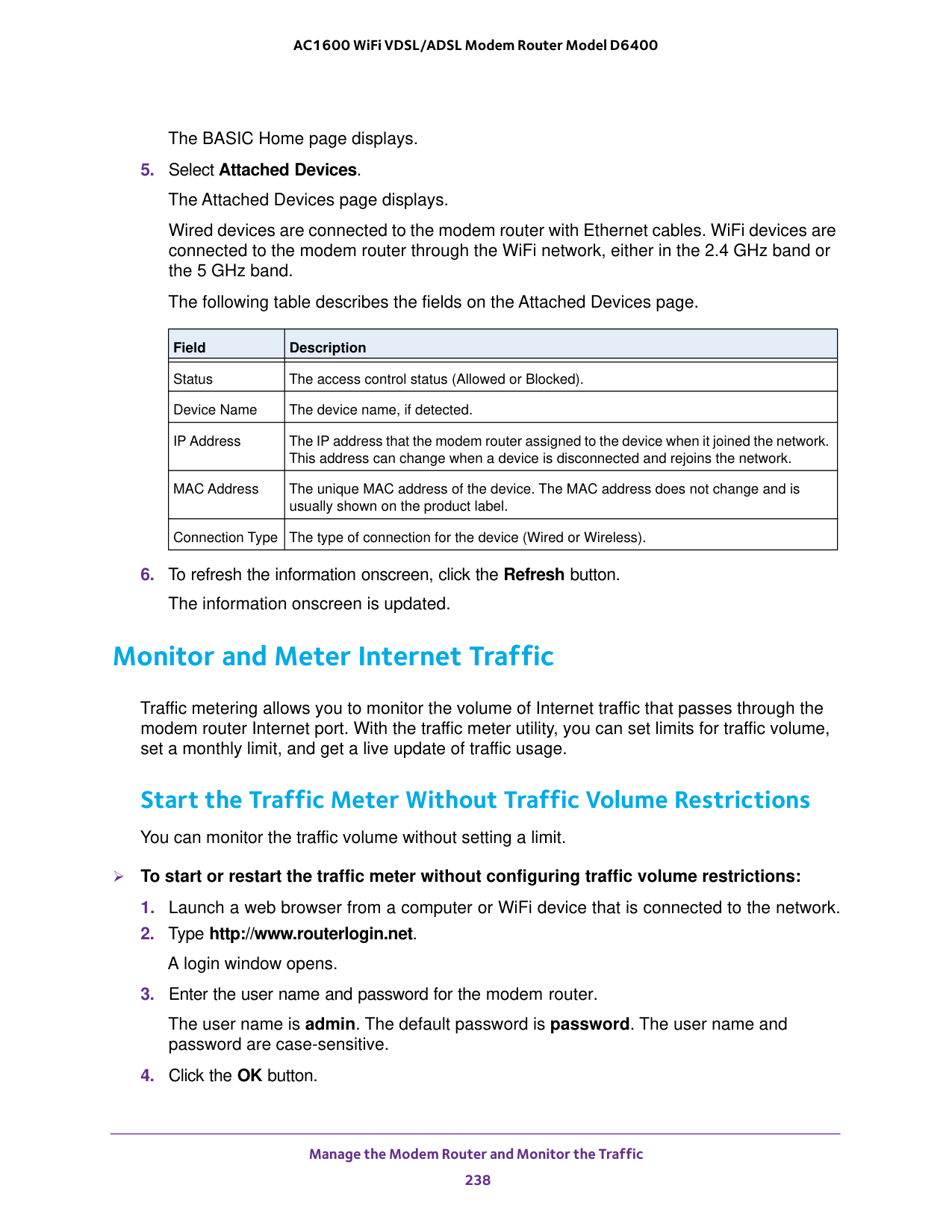
Manage the Modem Router and Monitor the Traffic 238 AC1600 WiFi VDSL/ADSL Modem Router Model D6400 The BASIC Home page displays.
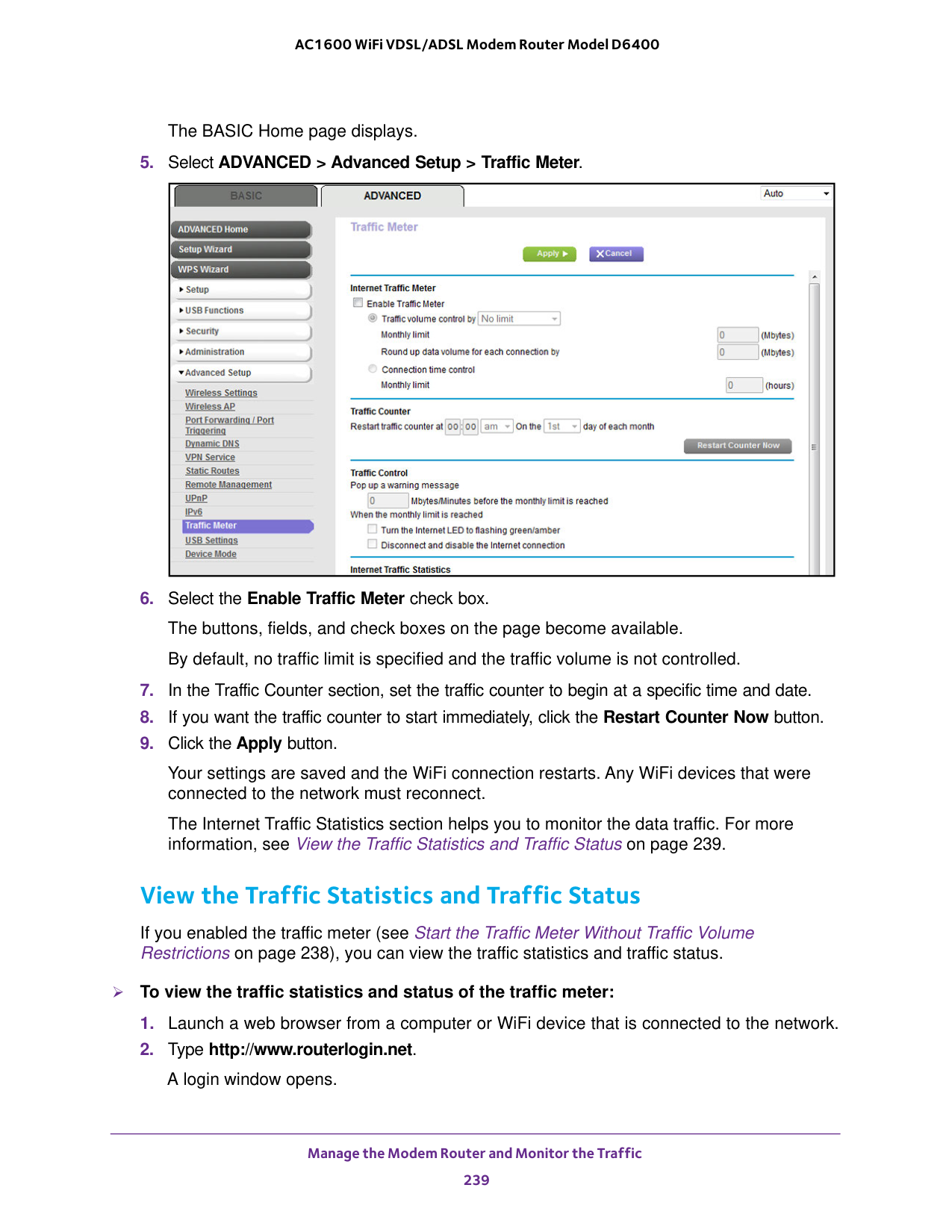
Manage the Modem Router and Monitor the Traffic 239 AC1600 WiFi VDSL/ADSL Modem Router Model D6400 The BASIC Home page displays.
238), you can view the traffic statistics and traffic status. To view the traffic statistics and status of the traffic meter:

Manage the Modem Router and Monitor the Traffic 240 AC1600 WiFi VDSL/ADSL Modem Router Model D6400

Manage the Modem Router and Monitor the Traffic 241 AC1600 WiFi VDSL/ADSL Modem Router Model D6400

Manage the Modem Router and Monitor the Traffic 242 AC1600 WiFi VDSL/ADSL Modem Router Model D6400

Manage the Modem Router and Monitor the Traffic 243 AC1600 WiFi VDSL/ADSL Modem Router Model D6400

Manage the Modem Router and Monitor the Traffic 244 AC1600 WiFi VDSL/ADSL Modem Router Model D6400 The Internet Traffic Statistics section helps you to monitor the data traffic. For more information, see View the Traffic Statistics and Traffic Status on page
Caution:
If your ISP set a traffic limit, your ISP might charge you for the overage traffic. To unblock the traffic meter:
Manage the Modem Router and Monitor the Traffic 245 AC1600 WiFi VDSL/ADSL Modem Router Model D6400 Note: Be sure to change the password for the user name admin to a secure password. The ideal password contains no dictionary words from any language and contains uppercase and lowercase letters, numbers, and symbols. It can be up to 30 characters. See Change the admin Password on page

Manage the Modem Router and Monitor the Traffic 246 AC1600 WiFi VDSL/ADSL Modem Router Model D6400 Select one of the following radio buttons and configure the options accordingly: • To allow access from a single IP address on the Internet, select the Only This Computer radio button. Enter the IP address to be allowed access. • To allow access from a range of IP addresses on the Internet, select the IP Address Range radio button. Enter a beginning and ending IP address to define the allowed range. • To allow access from any IP address on the Internet, select the Everyone radio button. This radio button is selected by default.

Manage the Modem Router and Monitor the Traffic 247 AC1600 WiFi VDSL/ADSL Modem Router Model D6400 To configure the modem router as a DSL modem only:

248 13

Use VPN to Access Your Network 249 AC1600 WiFi VDSL/ADSL Modem Router Model D6400 Set Up a VPN Connection A virtual private network (VPN) lets you use the Internet to securely access your network when you are not home. This type of VPN access is called a client-to-gateway tunnel. The computer is the client, and the modem router is the gateway. To use the VPN feature, you must log in to the modem router and enable VPN, and you must install and run VPN client software on the computer. Note: The modem router does not support iOS or Android VPN client software. VPN uses DDNS or a static IP address to connect with your modem router. To use a DDNS service, register for an account with a host name (sometimes called a domain name). You use the host name to access your network. The modem router supports these accounts: NETGEAR, No-IP, and Dyn. See Set Up and Manage Dynamic DNS on page

Use VPN to Access Your Network 250 AC1600 WiFi VDSL/ADSL Modem Router Model D6400
250). Install OpenVPN Software on Your Computer You must install this software on each computer that you plan to use for VPN connections to your modem router. To install VPN client software:

Use VPN to Access Your Network 251 AC1600 WiFi VDSL/ADSL Modem Router Model D6400

Use VPN to Access Your Network 252 AC1600 WiFi VDSL/ADSL Modem Router Model D6400
Netgear-Vpn.
If you do not change the VPN interface name, the VPN tunnel connection will fail. Use a VPN Tunnel After you set up the modem router to use VPN and install the OpenVPN application on your computer, you can open a VPN tunnel from your computer to your modem router over the Internet. For the VPN tunnel to work, the local LAN IP address of the remote router must use a different LAN IP scheme from that of the local LAN where your VPN client computer is connected. If both networks use the same LAN IP scheme, when the VPN tunnel is established, you cannot access your home router or your home network with the OpenVPN software. The default LAN IP address scheme for the modem router is 192.x.x.x. The most common IP schemes are 192.x.x.x, 172.x.x.x, and 10.x.x.x. If you experience a conflict, change the IP scheme either for your home network or for the network with the client VPN computer. For information about changing these settings, see Manage the Modem Router’s LAN IP Address Settings on page
Use VPN to Access Your Network 253 AC1600 WiFi VDSL/ADSL Modem Router Model D6400 The OpenVPN icon displays in the Windows taskbar. Tip: You can create a shortcut to the VPN program, then use the shortcut to access the settings and select the run as administrator check box. Then every time you use this shortcut, OpenVPN automatically runs with administrator privileges.

Use VPN to Access Your Network 254 AC1600 WiFi VDSL/ADSL Modem Router Model D6400 The network resources display. The ReadySHARE icon is in the Computer section and the remote ReadyDLNA: D6400 icon is in the Media Devices section (if DLNA is enabled in the modem router).
D6400
(Gateway) icon does not display in the Network Infrastructure section.

Use VPN to Access Your Network 255 AC1600 WiFi VDSL/ADSL Modem Router Model D6400

Use VPN to Access Your Network 256 AC1600 WiFi VDSL/ADSL Modem Router Model D6400

257 14

Manage Port Forwarding and Port Triggering 258 AC1600 WiFi VDSL/ADSL Modem Router Model D6400 Manage Port Forwarding to a Local Server for Services and Applications If a server is part of your network, you can allow certain types of incoming traffic to reach the server. For example, you might want to make a local web server, FTP server, or game server visible and available to the Internet. The modem router can forward incoming traffic with specific protocols to computers on your local network. You can specify the servers for applications and you can also specify a default DMZ server to which the modem router forwards all other incoming protocols (see Set Up a Default DMZ Server on page
202). Forward Incoming Traffic for a Default Service or Application You can forward traffic for a default service or application to a computer on your network. To forward incoming traffic for a default service or application:

Manage Port Forwarding and Port Triggering 259 AC1600 WiFi VDSL/ADSL Modem Router Model D6400
259).

Manage Port Forwarding and Port Triggering 260 AC1600 WiFi VDSL/ADSL Modem Router Model D6400

Manage Port Forwarding and Port Triggering 261 AC1600 WiFi VDSL/ADSL Modem Router Model D6400

Manage Port Forwarding and Port Triggering 262 AC1600 WiFi VDSL/ADSL Modem Router Model D6400

Manage Port Forwarding and Port Triggering 263 AC1600 WiFi VDSL/ADSL Modem Router Model D6400

Manage Port Forwarding and Port Triggering 264 AC1600 WiFi VDSL/ADSL Modem Router Model D6400

Manage Port Forwarding and Port Triggering 265 AC1600 WiFi VDSL/ADSL Modem Router Model D6400 Note: If you use applications such as multiplayer gaming, peer-to-peer connections, real-time communications such as instant messaging, or remote assistance, enable Universal Plug and Play (UPnP). See Improve Network Connections with Universal Plug and Play on page
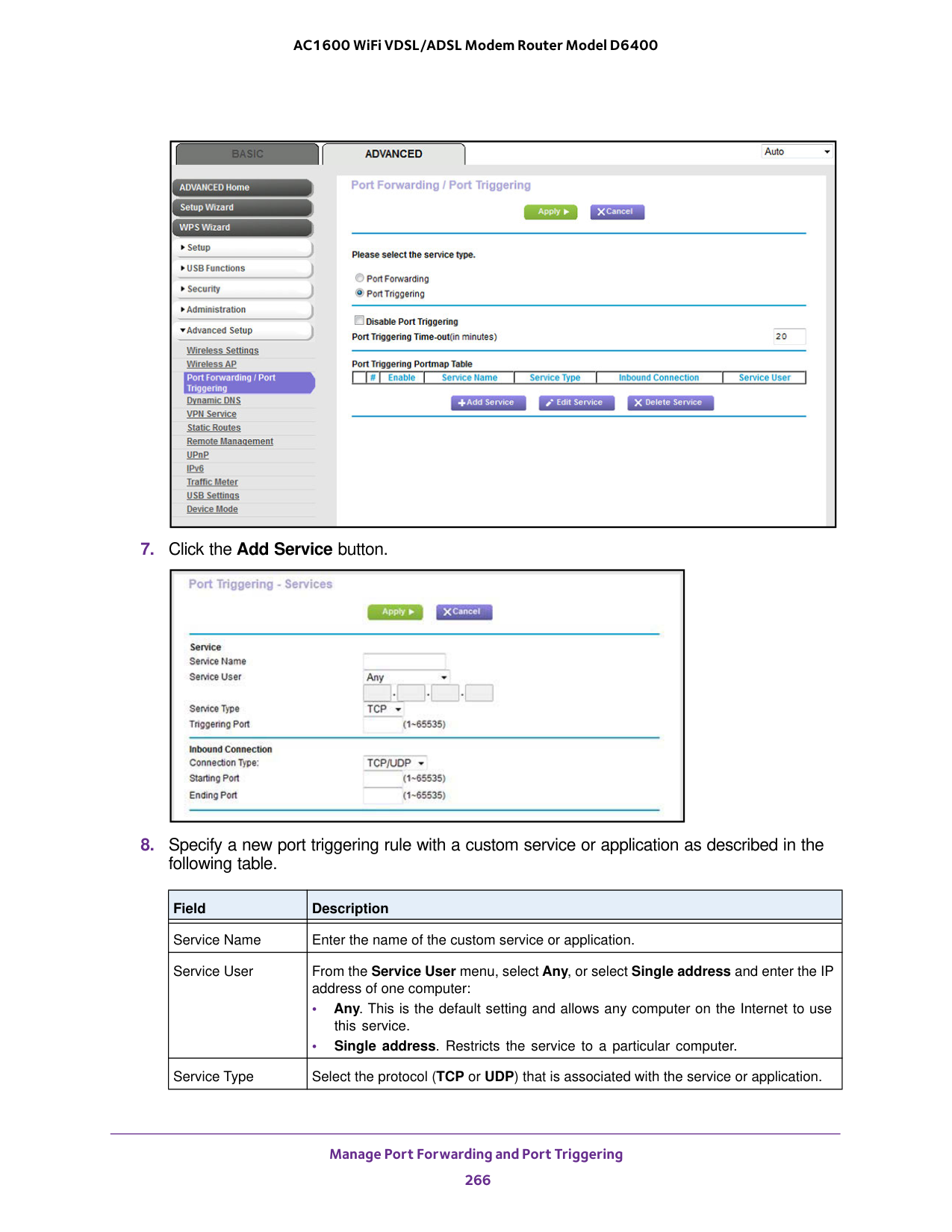
Manage Port Forwarding and Port Triggering 266 AC1600 WiFi VDSL/ADSL Modem Router Model D6400
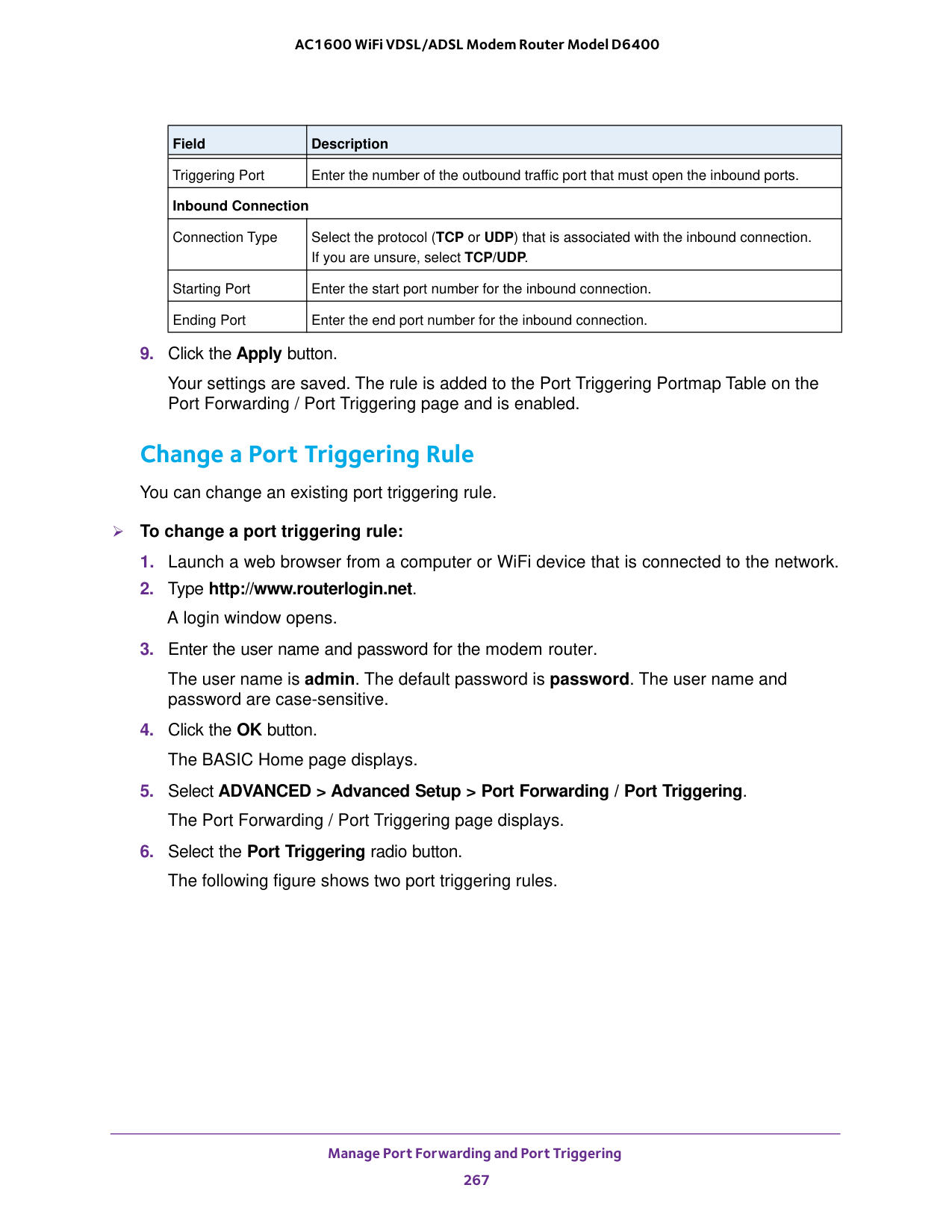
Manage Port Forwarding and Port Triggering 267 AC1600 WiFi VDSL/ADSL Modem Router Model D6400

Manage Port Forwarding and Port Triggering 268 AC1600 WiFi VDSL/ADSL Modem Router Model D6400

Manage Port Forwarding and Port Triggering 269 AC1600 WiFi VDSL/ADSL Modem Router Model D6400 The BASIC Home page displays.

Manage Port Forwarding and Port Triggering 270 AC1600 WiFi VDSL/ADSL Modem Router Model D6400 To specify the time-out for port triggering:

Manage Port Forwarding and Port Triggering 271 AC1600 WiFi VDSL/ADSL Modem Router Model D6400 The port triggering settings display.
272 15
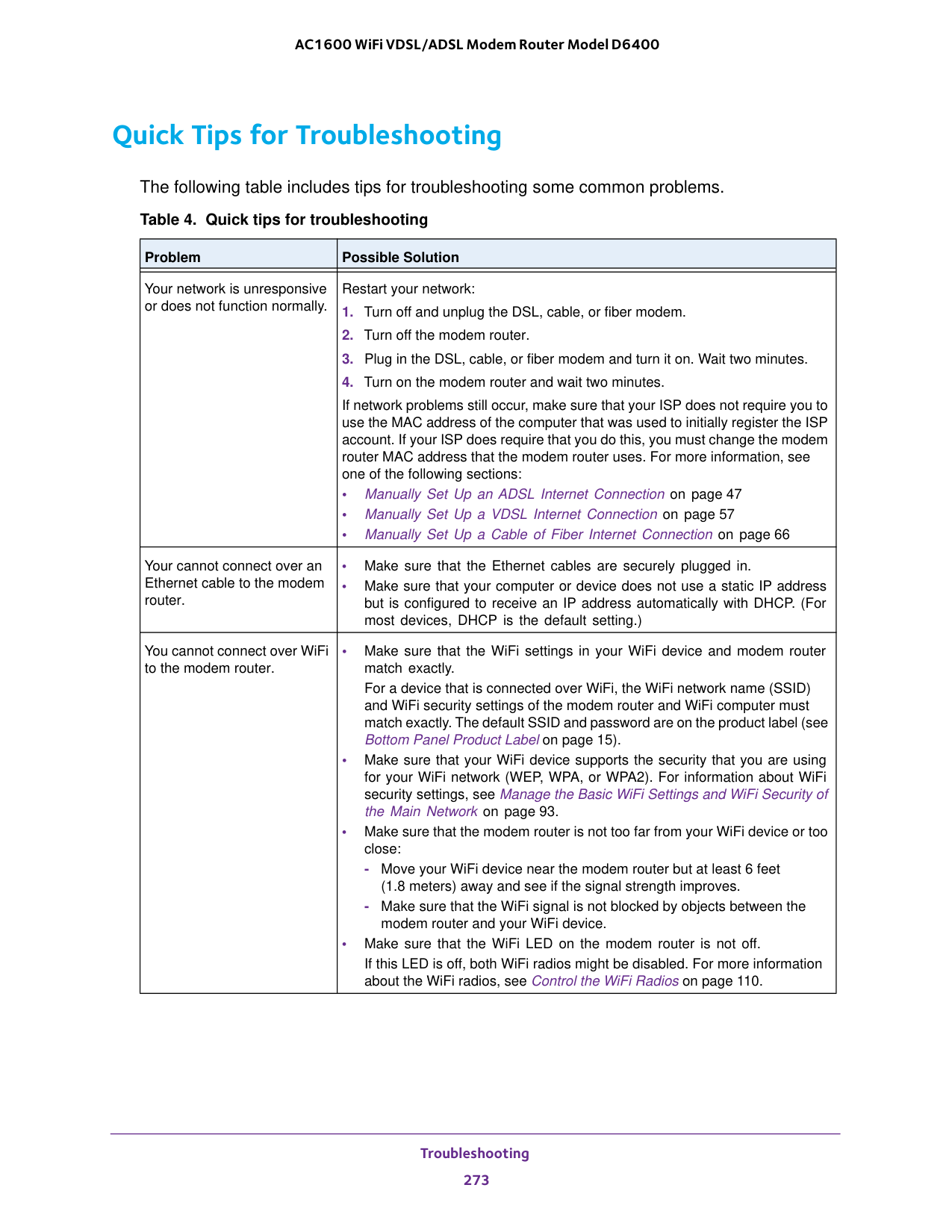
Troubleshooting 273 AC1600 WiFi VDSL/ADSL Modem Router Model D6400 Quick Tips for Troubleshooting The following table includes tips for troubleshooting some common problems. Table 4. Quick tips for troubleshooting Problem Possible Solution Your network is unresponsive or does not function normally. Restart your network:
47 • Manually Set Up a VDSL Internet Connection on page
57 • Manually Set Up a Cable of Fiber Internet Connection on page
66 Your cannot connect over an Ethernet cable to the modem router. • Make sure that the Ethernet cables are securely plugged in. • Make sure that your computer or device does not use a static IP address but is configured to receive an IP address automatically with DHCP. (For most devices, DHCP is the default setting.) You cannot connect over WiFi to the modem router. • Make sure that the WiFi settings in your WiFi device and modem router match exactly. For a device that is connected over WiFi, the WiFi network name (SSID) and WiFi security settings of the modem router and WiFi computer must match exactly. The default SSID and password are on the product label (see Bottom Panel Product Label on page
15). • Make sure that your WiFi device supports the security that you are using for your WiFi network (WEP, WPA, or WPA2). For information about WiFi security settings, see Manage the Basic WiFi Settings and WiFi Security of the Main Network on page
meters) away and see if the signal strength improves.
110.

Troubleshooting 274 AC1600 WiFi VDSL/ADSL Modem Router Model D6400 Troubleshoot with the LEDs When you turn on the power, the LEDs light as described here.
seconds, the Power LED lights solid green , indicating that the startup procedure finished. If the LED still does not turn green after two minutes, a power-on self-test (POST) failure occurred or the modem router is malfunctioning. If the Power LED does not turn green, do the following:

Troubleshooting 275 AC1600 WiFi VDSL/ADSL Modem Router Model D6400 If the error persists, a hardware problem might exist. For recovery instructions or help with a hardware problem, contact technical support at netgear.com/support. Power LED Is Off If the Power LED and other LEDs remain off when you turn on the modem router, do the following: • Check that the Power On/Off button on the back is in the on position, that is, it is pushed in. • Check that the power cord is correctly connected to your modem router and that the power supply adapter is correctly connected to a functioning power outlet. • Check that you are using the 12 VDC 2.5A power adapter that NETGEAR supplied for this product. If the error persists, a hardware problem might exist. For recovery instructions or help with a hardware problem, contact technical support at netgear.com/support. WiFi LED Is Off If the WiFi LED stays off , check to see if both radios on the modem router are disabled (see Control the WiFi Radios on page
110). By default, both radios are enabled and the WiFi LED lights solid blue. You Cannot Log In to the Modem Router If you are unable to log in to the modem router from a computer on your local network and use the modem router’s web pages, check the following: • If you are using an Ethernet-connected computer, check the Ethernet connection between the computer and the modem router. • If the computer is set to a static or fixed IP address (this setting is uncommon), either change the computer to obtain an IP address automatically from the modem router through DHCP, or change the IP address of the computer to a static or fixed IP address in the 192.168.0.2–192.168.0.254 range. • Make sure that your computer can reach the modem router’s DHCP server. Recent versions of Windows and Mac OS generate and assign an IP address if the computer cannot reach a DHCP server. These autogenerated addresses are in the range of 169.254.x.x. If your IP address is in this range, check the connection from the computer to the modem router and reboot your computer. • If your modem router’s IP address was changed and you do not know the current IP address, use an IP scanner application to detect the IP address. If you still cannot find the IP address, clear the modem router’s configuration to factory defaults. This sets the modem router’s IP address to 192.168.0.1. For more information, see Return the Modem Router to Its Factory Default Settings on page
224 and Factory Settings on page
284.

Troubleshooting 276 AC1600 WiFi VDSL/ADSL Modem Router Model D6400 • Make sure that Java, JavaScript, or ActiveX is enabled in your browser. If you are using Internet Explorer, click the Refresh button to be sure that the Java applet is loaded. • Try quitting the browser and launching it again. • Make sure that you are using the correct login information. The user name is admin, and the default password is password. Make sure that Caps Lock is off when you enter this information. • If you are attempting to set up your modem router behind an existing router in your network, set up the modem router as a WiFi access point (see Use the Modem Router as a WiFi Access Point on page
117). Troubleshoot the Internet Connection If your modem router cannot access the Internet, check the DSL connection, then the WAN TCP/IP connection. Troubleshoot the DSL Link If your modem router is unable to access the Internet, first determine whether the DSL link with the service provider is working. The DSL LED indicates the state of this connection. DSL LED Is Green If the DSL link LED lights green , the ADSL connection is good. You can be confident that the service provider connected your line correctly and that your wiring is correct. DSL LED Is Blinking Green If the DSL LED is blinking green , your modem router is attempting to make a DSL (ADSL or VDSL) connection with the service provider. If the modem router establishes a DSL connection, the DSL LED turns solid green. This connection process generally lasts several minutes. If the DSL LED does not turn solid green, disconnect all telephones on the line. If this solves the problem, reconnect the telephones one at a time, being sure to use a microfilter on each telephone. If the microfilters are connected correctly, you can connect all your telephones. If disconnecting telephones does not result in a green DSL LED, a problem with your wiring might exist. If the telephone company tested the ADSL or VDSL signal at your network interface device (NID), then wiring in your house might be of poor quality. DSL LED Is Off or Internet LED Is Off If the DSL LED is off , the Internet LED is off , or both are off, disconnect all telephones on the line. If this solves the problem, reconnect the telephones one at a time, being sure to use a microfilter on each telephone. If the microfilters are connected correctly, you can connect all your telephones.

Troubleshooting 277 AC1600 WiFi VDSL/ADSL Modem Router Model D6400 If disconnecting telephones does not result in a green DSL LED, check the following: • Check that the telephone company made the connection to your line and tested it. • Verify that you are connected to the correct telephone line. If more than one phone line is installed, be sure that you are connected to the line with the ADSL or VDSL service. It might be necessary to use a swapper if your ADSL or VDSL signal is on pins 1 and 4 or the RJ-11 jack. The modem router uses pins 2 and 3. Internet LED Is Off If the Internet LED is off , the modem router cannot connect to the Internet. Verify the following: • Check that your login credentials are correct or that the information you entered for the ISP connection is correct. For more information, see one of the following sections:
47
57
66 • Check to see if your ISP is experiencing a problem—it might not be that the modem router cannot connect to the Internet, but rather that your ISP cannot provide an Internet connection. Obtain an Internet IP Address If the modem router cannot access the Internet but the Internet LED is green , see if the modem router can obtain an Internet IP address from the ISP. Unless the modem router is assigned a static IP address, the modem router requests an IP address from the ISP. You can determine whether the request was successful using the modem router’s web pages. To check the Internet IP address:

Troubleshooting 278 AC1600 WiFi VDSL/ADSL Modem Router Model D6400 If your modem router cannot obtain an IP address from the ISP, the problem might be one of the following: • Your Internet service provider (ISP) might require a login program. Ask your ISP whether they require PPP over Ethernet (PPPoE) or some other type of login. • If you selected a login program, the service name, user name, or password might be incorrectly set. For more information, see Troubleshoot PPPoE or PPPoA on page
47
57
66 • If your ISP allows only one Ethernet MAC address to connect to Internet and checks for your computer’s MAC address, inform your ISP that you bought a new network device and ask them to use the modem router’s MAC address. • Configure your modem router to clone your computer’s MAC address. For more information, see one of the following sections:
47
57
66 Troubleshoot PPPoE or PPPoA If you use a PPPoE or PPPoA connection to your ISP, make sure that the connection works. To verify that your PPPoE or PPPoA connection is working:

Troubleshooting 279 AC1600 WiFi VDSL/ADSL Modem Router Model D6400
244). If your ISP sets a usage limit, they might charge you for the overage.

Troubleshooting 280 AC1600 WiFi VDSL/ADSL Modem Router Model D6400 • Your computer might not recognize any DNS server addresses. A DNS server is a host on the Internet that translates Internet names (such as www addresses) to numeric IP
addresses. Typically your ISP provides the addresses of one or two DNS servers for your use. If you entered a DNS address when you set up the modem router, reboot your computer and verify the DNS address. Alternatively, you can configure your computer manually with DNS addresses, as explained in your operating system documentation. • The modem router might not be configured as the TCP/IP router on your computer. For information about TCP/IP problems, see Troubleshoot Your Network Using the Ping Utility on page
15). • Does the WiFi device that you are using find your WiFi network? If not, check the WiFi LED on the front of the modem router. If this LED is off, both WiFi radios might be disabled. For more information about the WiFi radios, see Control the WiFi Radios on page
93.

Troubleshooting 281 AC1600 WiFi VDSL/ADSL Modem Router Model D6400 • Does your WiFi device support the security that you are using for your WiFi network (WEP, WPA, or WPA2)? For information about changing the WiFi security, see Manage the Basic WiFi Settings and WiFi Security of the Main Network on page

Troubleshooting 282 AC1600 WiFi VDSL/ADSL Modem Router Model D6400 If the path is not functioning correctly, one of the following problems might be occurring: • Wrong physical connections For a wired connection, make sure that the numbered LAN port LED is lit for the port to which you are connected. Check that the appropriate LEDs are on for your network devices. If your modem router and computer are connected to a separate Ethernet switch, make sure that the link LEDs are lit for the switch ports that are connected to your computer and modem router. • Wrong network configuration Verify that the Ethernet card driver software and TCP/IP software are both installed and configured on your computer. Verify that the IP address for your modem router and your computer are correct and that the addresses are on the same subnet. Test the Path from Your Computer to a Remote Device After you verify that the LAN path works correctly, test the path from your computer to a remote device:
281 display. If you do not receive replies, do the following: • Check that the IP address of your modem router is listed as the default router in your computer. If the IP configuration of your computer is assigned by DHCP, this information is not visible in your computer’s Network Control Panel. Verify that the IP address of the modem router is listed as the default router. • Check that the network address of your computer (the portion of the IP address specified by the netmask) is different from the network address of the remote device. • If your ISP assigned a host name to your computer, enter that host name as the account name (see Manually Set Up an ADSL Internet Connection on page
47). • Your ISP might be rejecting the Ethernet MAC addresses of all but one of your computers. Many broadband ISPs restrict access by allowing traffic only from the MAC address of your modem, but some additionally restrict access to the MAC address of a single computer connected to that modem. In this case, configure your modem router to clone or spoof the MAC address from the authorized computer (see Manually Set Up an ADSL Internet Connection on page
47).

283
A
A. Supplemental Information This appendix covers the following topics: • Factory Settings • Technical Specifications
Supplemental Information 284 AC1600 WiFi VDSL/ADSL Modem Router Model D6400 Factory Settings You can reset the modem router to the factory default settings that are shown in the following table. For more information about resetting the modem router to its factory settings, see Return the Modem Router to Its Factory Default Settings on page
Feature Default Settings Router login User login URL http://routerlogin.net, http://routerlogin.com, or http://192.168.0.1 User name (case-sensitive) admin Login password (case-sensitive) password Internet connection WAN MAC address Use default hardware address WAN MTU size 1500 Port speed Autosensing Local network (LAN) LAN IP address 192.168.0.1 Subnet mask 255.255.255.0 DHCP server Enabled DHCP range 192.168.0.2 to 192.168.0.254 DHCP starting IP address 192.168.0.2 DHCP ending IP address 192.168.0.254
Dmz
Disabled Time zone • North America: Pacific Standard Time • Europe: GMT • Other continents: Varies by region Time adjusted for daylight saving time Disabled Main WiFi network WiFi communication Enabled SSID name See product label SSID broadcast Enabled SecurityWpa2-Psk (Aes)

Supplemental Information 285 AC1600 WiFi VDSL/ADSL Modem Router Model D6400 WiFi network key (passphrase) See product label Country/region • North America: United States • Europe: Europe • Other continents: Varies by region RF channel Auto. The available channels depend on the region. Transmission speed Auto1 Operating mode • Up to 300 Mbps at 2.4 GHz • Up to 1300 Mbps at 5 GHz Guest WiFi network WiFi communication Disabled SSID name • 2.4 GHz band: NETGEAR-Guest • 5 GHz band: NETGEAR-5G-Guest SSID broadcast Enabled Security None (open network) Allow guests to access main network Disabled General WiFi settings Radio transmission power 100 percent, nonconfigurable 20/40 MHz coexistence Enabled Fragmentation length 2346 CTS/RTS threshold 2347 Preamble mode Long Preamble
Wps
WPS capability Enabled Modem router’s PIN Enabled, see the modem router’s web pages (path ADVANCED > Advanced Setup > Wireless Settings) Keep Existing Wireless Settings Enabled
Supplemental Information 286 AC1600 WiFi VDSL/ADSL Modem Router Model D6400 Technical Specifications Table 6. D6400 modem router specifications
Feature Description Data and routing protocols TCP/IP, RIP-1, RIP-2, DHCP, PPPoE, PPTP, Bigpond, Dynamic DNS, UPnP, and SMB Power adapter • North America: 120V, 60 Hz, input • UK, Australia: 240V, 50 Hz, input • Europe: 230V, 50 Hz, input • All regions: 12V @ 2.5 A output Dimensions Dimensions: 191 mm x 198.5 mm x 65 mm (7.5 in. x 7.8 in. x 2.6 in.) Weight Weight: 422 g (0.93 lb) Operating temperature 0° to 40°C
(32º to 104ºF) Operating humidity 90% maximum relative humidity, noncondensing Electromagnetic emissions • EN 55022:2010/AC:2011, Class B • CISPR 22:2008, Class B • AS/NZS CISPR 22:2009/Amdt 1:2010, Class B
Lan
Four RJ-45 LAN ports supporting 10BASE-T, 100BASE-TX, and 1000BASE-TWan
One RJ-45 Internet port supporting 10BASE-T, 100BASE-TX, and 1000BASE-TDsl
One RJ-11 DSL port for ADSL or VDSL service WiFi Maximum WiFi signal rate complies with the IEEE 802.11 standard. See the footnote for the table in Factory Settings on page
Supplemental Information 287 AC1600 WiFi VDSL/ADSL Modem Router Model D6400 Operating frequency range • 2.4 GHz band