
Ask AI
— answers from the official manualAnswers from the official manual.
Common questions
Common Questions
10 totalWhat should I do if I cannot access www.mywifiext.net to set up my extender?
First, make sure your computer or mobile device is connected to the extender's WiFi network and the Device LED is solid green or amber. Try entering the extender's default IP address (192.168.1.250) in your browser. If that doesn't work, find your extender's IP address by logging into your router and checking the list of attached devices. You can also try clearing your browser's cache and browsing history, using a different browser, or assigning a static IP address to your computer (192.168.1.249 with subnet mask 255.255.255.0).
How do I set up the Netgear AC750 Range Extender for the first time?
First, place the extender in the same room as your WiFi router and plug it into an electrical outlet. Wait for the Power LED to light amber and then turn green. Then connect to your existing WiFi network using either WPS (by pressing the WPS button on both devices within two minutes) or the NETGEAR Installation Assistant by visiting www.mywifiext.net. Finally, move the extender to a location halfway between your router and the area with poor signal, ensuring the Router LED lights amber or green.
What do the LED lights on the AC750 Range Extender mean?
The Power LED shows if the extender is on (solid green) or booting (solid amber). The Router LED indicates the connection between the extender and router—solid green is best, amber is good, red is poor, and off means no connection. The Device LED shows the connection between the extender and your devices with the same color coding. The WPS LED is solid green when WiFi security is enabled, blinks green during WPS connection, and is off when security is disabled.
How do I reset the AC750 Range Extender to factory defaults?
You can reset the extender in two ways: (1) Use the Reset button by inserting a straightened paper clip into the hole and holding it for about seven seconds until the Power LED lights amber, then release and wait for the extender to reboot (about one minute), or (2) Log in to the extender web interface, go to Settings > Other, and click the RESET button. Note that this erases all your custom settings.
How do I change the WiFi network name (SSID) on my AC750 Range Extender?
Log in to the extender by opening a web browser and entering www.mywifiext.net or your extender's IP address. Enter your admin email and password, then navigate to Settings > Wireless. In the Network Name (SSID) fields, type your desired network names and click the SAVE button. Your settings will be saved immediately.
I forgot my admin password for the AC750 Range Extender. How do I recover it?
On the login page, click the 'Username & Password Help' link and answer the security questions you set up during initial setup. Your email and password will be displayed. If you forgot the answers to your security questions, you can use the Reset button to restore factory settings and then set up your login credentials again.
Full Manual
43 pages
AC750 WiFi Range Extender User Manual Model EX3110 September 2017 202-11752-01 350 E. Plumeria Drive San Jose, CA 95134
Usa
Support Thank you for purchasing this NETGEAR product. After installing your device, locate the serial number on the label of your product and use it to register your product at https://my.netgear.com.You must register your product before you can use NETGEAR telephone support. NETGEAR recommends registering your product through the NETGEAR website. For product updates and web support, visit http://support.netgear.com. Phone (US & Canada only): 1-888-NETGEAR. Phone (Other Countries): Check the list of phone numbers at http://support.netgear.com/general/contact/default.aspx. Trademarks ©NETGEAR, Inc. NETGEAR and the NETGEAR Logo are trademarks of NETGEAR, Inc. Any non-NETGEAR trademarks are used for reference purposes only. Compliance For regulatory compliance information, visit http://www.netgear.com/about/regulatory. See the regulatory compliance document before connecting the power supply. 2 AC750 WiFi Range Extender
Contents Chapter 1 Overview Meet Your Extender................................................................................................6 LEDs.................................................................................................................6 Buttons..............................................................................................................7 When to Use Your Extender...................................................................................7 How the Extender Works.......................................................................................7 Chapter 2 Get Started Install the WiFi Extender......................................................................................10 Place the Extender and Apply Power..............................................................10 Connect to an Existing WiFi Network..............................................................10 Connect with WPS......................................................................................10 Connect with the NETGEAR Installation Assistant.....................................11 Find the Best Location....................................................................................13 Log In to the Extender After Installation...............................................................13 Run Smart Setup Installation...............................................................................13 Chapter 3 Extender Network Settings View Connected Devices.....................................................................................16 Boost Your Video Streaming with FastLane Technology......................................16 View WiFi Settings...............................................................................................17 Change the WiFi Network Name..........................................................................18 Turn Off the SSID Broadcast to Create a Hidden Network..................................18 Disable or Enable the WiFi Radios.......................................................................19 Change the WiFi Speed.......................................................................................20 Use WPS to Add a Computer to the Extender’s WiFi Network............................20 Use WPS with the Push Button Method..........................................................21 Use WPS with the PIN Method.......................................................................21 Deny Access to a Computer or WiFi Device........................................................22 Set Up an Access Schedule................................................................................23 Change the Extender’s Device Name..................................................................24 Set Up the Extender to Use a Static IP Address..................................................25 Use the Extender with MAC Filtering or Access Control......................................25 Chapter 4 Maintain and Monitor the Extender Change the Extender admin User Name and Password......................................28 Turn Password Protection Off and On..................................................................28 Recover a Forgotten User Name or Password.....................................................29 Automatically Adjust for Daylight Saving Time.....................................................30 Manually Set the Extender Clock.........................................................................30 Back Up and Manage the Extender Configuration...............................................31 Back Up the Configuration Settings................................................................31 3
Restore the Configuration Settings.................................................................32 Return the Extender To Its Factory Default Settings............................................33 Use the Reset Button......................................................................................33 Log In and Reset the Extender to Factory Settings.........................................33 Update the Extender Firmware............................................................................34 Check for New Firmware and Update the Router............................................34 Manually Upload Firmware to the Extender....................................................35 Chapter 5 FAQs and Troubleshooting FAQs....................................................................................................................38 Cannot Connect to the Extender..........................................................................38 Cannot Join a WiFi Network and Receive an Error Message..............................38 Cannot Access mywifiext.net...............................................................................39 Find Extender's IP Address..................................................................................40 Chapter 6 Factory Settings and Technical Specifications Factory Default Settings.......................................................................................42 Technical and Environmental Specifications........................................................42 4 AC750 WiFi Range Extender
1 Overview The WiFi Range Extender boosts your existing network range and speed, delivering dual-band WiFi. This chapter covers the following topics: • Meet Your Extender • When to Use Your Extender • How the Extender Works For more information about the topics covered in this manual, visit the support website at support.netgear.com. Note 5
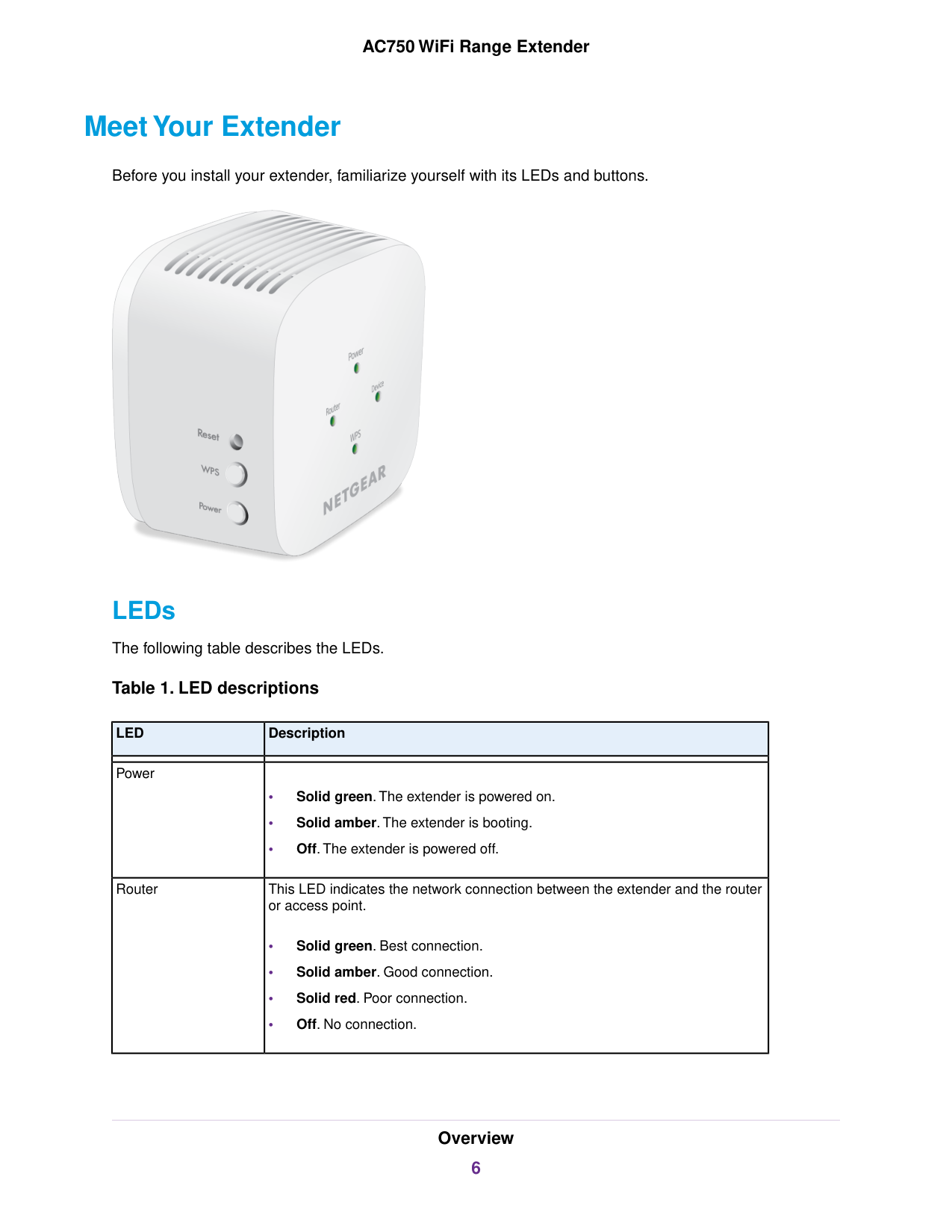
Meet Your Extender Before you install your extender, familiarize yourself with its LEDs and buttons. LEDs The following table describes the LEDs. Table 1. LED descriptions Description
Led
• Solid green. The extender is powered on. • Solid amber. The extender is booting. • Off. The extender is powered off. Power This LED indicates the network connection between the extender and the router or access point. • Solid green. Best connection. • Solid amber. Good connection. • Solid red. Poor connection. • Off. No connection. Router Overview 6 AC750 WiFi Range Extender
Table 1. LED descriptions (Continued) Description
Led
This LED indicates the network connection between the extender and a computer or mobile device. • Solid green. Best connection. • Solid amber. Good connection. • Solid red. Poor connection. • Off. No connection. Device • Solid green. WiFi security is enabled (WPA or WPA2). • Blinking green. A WPS connection is being established. • Off. WiFi security is not enabled.Wps
Buttons The side panel contains the following buttons: • Reset button. Pressing the Reset button for about five seconds resets the extender. • WPS button. Pressing the WPS button let's the extender connect to your existing WiFi network through WPS.You can also connect WPS-enabled devices to the extender using the WPS button. • Power button. Pressing the Power button turn the extender on or off. When to Use Your Extender NETGEAR recommends that you connect through the extender network only when the WiFi device is in a “dead zone” where connection from the existing network is poor or nonexistent. Data traffic routed through the extender is inherently slower than traffic routed directly from the network. How the Extender Works The extender works like a bridge between a WiFi router (or a WiFi access point) and a WiFi device outside the range of the WiFi router. The extender performs two main jobs: • The extender connects to a working WiFi network. When the extender connects over WiFi to an existing network, it functions as a network client, similar to how a WiFi device connects to a network. • The extender acts as an access point for WiFi devices. The extender broadcasts its own WiFi network that WiFi devices can join. In its role as an access point, the extender performs tasks that WiFi routers do, such as broadcasting its network name (SSID). Overview 7 AC750 WiFi Range Extender
The extender must do each of these jobs so that both ends of the bridge are in place. Figure 1. Range extender in a home Overview 8 AC750 WiFi Range Extender

2 Get Started This chapter covers the following topics: • Install the WiFi Extender • Log In to the Extender After Installation • Run Smart Setup Installation 9

Install the WiFi Extender Place the extender, apply power, and connect the extender to your WiFi network. Place the Extender and Apply Power To place the extender and apply power:


To use the NETGEAR installation assistant to connect the extender to your WiFi router:

Find the Best Location If the WiFi signal is weak, the first time you join the extender network, the Router LED or Device LED is amber or red. If this happens, adjust the position of the extender: • If the Router LED is amber or red, move the extender closer to the router. • If the Device LED is amber or red, move the computer or mobile device closer to the extender. Log In to the Extender After Installation After installation, you can log in to the extender to view or change the extender’s settings. To log in to the extender:

3 Extender Network Settings This chapter covers the following topics: • View Connected Devices • Boost Your Video Streaming with FastLane Technology • View WiFi Settings • Change the WiFi Network Name • Turn Off the SSID Broadcast to Create a Hidden Network • Disable or Enable the WiFi Radios • Change the WiFi Speed • Use WPS to Add a Computer to the Extender’s WiFi Network • Deny Access to a Computer or WiFi Device • Set Up an Access Schedule • Change the Extender’s Device Name • Set Up the Extender to Use a Static IP Address • Use the Extender with MAC Filtering or Access Control 15

View Connected Devices You can view a list of devices that are connected to the extender network. To view connected devices:

• If your extender and router use different WiFi network names (SSIDs), enter www.mywifiext.net. • If your extender and router use the same WiFi network name (SSID), enter http://

The extender menu displays.

• If your extender and router use different WiFi network names (SSIDs), enter www.mywifiext.net. • If your extender and router use the same WiFi network name (SSID), enter http://


WPS supports WPA and WPA2 WiFi security. If your extender network is open (no WiFi security is set), connecting with WPS automatically sets WPA + WPA2 WiFi security on the extender network and generates a random passphrase.You can view this passphrase on the WiFi Settings page (for more information, see View WiFi Settings on page 17). Use WPS with the Push Button Method For you to use the push button method to connect a WiFi device to the extender’s WiFi network, the WiFi device that you are trying to connect must include a physical WPS button or an onscreen WPS button that you can click. To use WPS to add a computer or WiFi device to the extender’s WiFi network:

To add a computer or WiFi device to the extender’s WiFi network:

• If your extender and router use different WiFi network names (SSIDs), enter www.mywifiext.net. • If your extender and router use the same WiFi network name (SSID), enter http://


Set Up the Extender to Use a Static IP Address The extender comes set up to use a dynamic IP address, which is the correct setting for most home networks. To set up the extender to use a static IP address:

To add a translated MAC address to your router:

4 Maintain and Monitor the Extender This chapter covers the following topics: • Change the Extender admin User Name and Password • Turn Password Protection Off and On • Recover a Forgotten User Name or Password • Automatically Adjust for Daylight Saving Time • Manually Set the Extender Clock • Back Up and Manage the Extender Configuration • Return the Extender To Its Factory Default Settings • Update the Extender Firmware 27

Change the Extender admin User Name and Password You can change the admin user name and password to log in to the extender. To add an extender user:
For more information about how to find your extender's IP address, see Find Extender's IP Address on page 40. A login page displays.

Automatically Adjust for Daylight Saving Time To set up the extender to automatically adjust for daylight saving time:


Caution:
After you click the RESTORE button, do not try to go online, turn off the extender, shut down the computer, or do anything else to the extender until it finishes restarting!
Return the Extender To Its Factory Default Settings Under some circumstances (for example, if you lose track of the changes that you made to the extender settings), you might want to erase the configuration and reset the extender to factory default settings. To reset the extender to factory default settings, you can either use the Factory Reset button on the side panel or log in to the extender and reset it. Use the Reset Button
Caution:
This process erases any settings that you configured in the extender. To use the Reset button to return the extender to its factory default settings:Caution:
Do not try to go online, turn off the extender, shut down the computer, or do anything else to the extender until it finishes restarting! The extender resets and restarts. This process takes about one minute. Log In and Reset the Extender to Factory SettingsCaution:
This process erases any settings that you configured in the extender. To log in to the extender and reset the extender's factory settings:
Caution:
After you click the RESET button, do not try to go online, turn off the extender, shut down the computer, or do anything else to the extender until it finishes restarting!

Caution:
After you click the UPLOAD button, do not try to go online, turn off the extender, shut down the computer, or do anything else to the extender until it finishes restarting!
5 FAQs and Troubleshooting This chapter covers the following topics: • FAQs • Cannot Connect to the Extender • Cannot Join a WiFi Network and Receive an Error Message • Cannot Access mywifiext.net • Find Extender's IP Address 37

FAQs This section provides answers for difficulties you might experience with the extender. The web browser setup keeps asking me for my network password (passphrase) or security key, and I am sure that I entered the correct password. What can I do? The extender is probably placed at the borderline of the range covered by the router or access point. For more information about where to place the extender, see Find the Best Location on page 13. If you are using WEP security, make sure that you are typing the network password in the correct field. I forgot my admin email address and password. What can I do? In the login window, click the Username & Password Help link to answer the security questions that you set up during the initial setup. For more information, see Recover a Forgotten User Name or Password on page 29. To restore factory settings:

The passphrase or key is case-sensitive. For example, PASSWORD25 is not the same as Password25 or password25. • If the extender cannot detect your WiFi network, check to see if your WiFi network is still working. Make sure that the WiFi router is turned on. If possible, move the extender closer to the WiFi router. • If the extender Device Link LED is red, the WiFi connection between the WiFi router and the extender is poor.You can establish the best connection with a clear line of sight between the extender and the WiFi router. Make sure that no physical obstacles exist between the extender and the WiFi router, and try to move the extender closer to the WiFi router. If you use Smart Setup, and the extender does not connect to the WiFi router, does not connect to the Internet, or cannot get an IP address from the WiFi router, Smart Setup displays a message to notify you that the extender is not configured. To run Smart Setup again, click the YES button. To manually configure the extender, click the NO, CONFIGURE MANUALLY button. Cannot Access mywifiext.net When you try to access www.mywifiext.net to set up your extender, you might receive an error message that says you are not connected to the extender's WiFi network.This website is not a regular Internet website. It is a local web address used to log in to the extender web interface and view the extender's settings. Your computer or mobile device must be connected to your extender network to access www.mywifiext.net. Try these troubleshooting tips to connect to www.mywifiext.net: • If you're trying to access www.mywifiext.net for the first time to set up your extender, see Connect with the NETGEAR Installation Assistant on page 11 and follow the instructions. • After you connect your computer or mobile device to the extender network, make sure that the extender's Device LED is solid green or amber. If the Device LED is not lit, open your computer's or mobile device's WiFi connection manager and make sure that your device is still connected to the extender network. • Launch a web browser and enter the extender's default IP address, which is 192.168.1.250. If this IP address does not work, your extender's IP address might have changed.You can log in to your router to view your extender's IP address. For more information, see Find Extender's IP Address on page 40. • If your extender and router use the same WiFi network name (SSID), enter http://

Find Extender's IP Address If your extender and router use the same WiFi network name (SSID) and you want to log in to your extender using an Android device, you must use the extender's IP address. You can log in to your router to find your extender's IP address. If you own a NETGEAR router, use the following example to find the extender's IP address. If you do not own a NETGEAR router, see your router's documentation. The following instructions might not apply to your NETGEAR router. For more information, see your NETGEAR router's user manual. Note To log in to your extender and find your extender's IP address:

6 Factory Settings and Technical Specifications This appendix covers the following topics: • Factory Default Settings • Technical and Environmental Specifications 41

Factory Default Settings To reset the extender to factory default settings, you can use the Reset button on the side panel or you can log in and click the onscreen RESET button. For more information, see Return the Extender To Its Factory Default Settings on page 33. The following table shows the factory default settings. Table 2. Factory default settings Default Settings Feature Enabled Smart Setup Enabled WiFi communication
Netgear_Ext
WiFi network name (SSID) Disabled Security Auto1 Transmission speed Varies by region Country/region 802.11a/b/g/n/ac Operating mode 54/145/300 Mbps Data rate in the 2.4 GHz band 54/145/300/433 Mbps Data rate in the 5 GHz band Client enabledDhcp
1Maximum WiFi signal rate (IEEE Standard 802.11). Actual throughput can vary. Network conditions and environmental factors, including volume of network traffic, building materials and construction, and network overhead lower actual data throughput rate. Technical and Environmental Specifications The following table shows the technical and environmental specifications. Table 3.Technical specifications Technical Specifications Data and routing protocols: TCP/IP, DHCP server and client, DNS relay, Network protocol and standards compatibility • Dimensions: 72.5 x 72.5 x 64.8 mm (2.85 x 2.85 x 2.55 in.) • Weight: 152 g (0.34 lb) Physical specifications Factory Settings and Technical Specifications 42 AC750 WiFi Range Extender
Table 3.Technical specifications (Continued) Technical Specifications • Operating temperature: 32° to 140°F (0° to 40°C) • Operating humidity: 90% maximum relative humidity, noncondensing Environmental 802.11ac, 802.11a, 802.11g, 802.11b Interface Factory Settings and Technical Specifications 43 AC750 WiFi Range Extender