
Ask AI
— answers from the official manualAnswers from the official manual.
Common questions
Common Questions
9 totalHow do I install batteries in the Onn Universal Remote?
Remove the battery compartment cover by sliding it down, then match the (+) and (-) marks on two AAA Alkaline batteries to the (+) and (-) marks inside the compartment. Insert the fresh batteries and slide the cover back into place. The remote requires two AAA Alkaline batteries, which are not included.
What devices can the ONB13AV004 universal remote control?
The ONB13AV004 remote can control up to four different audio/video devices including TV, DVD, VCR, satellite, cable, and audio devices using only one remote. You can program different codes for each device using either direct code entry or auto code search methods.
What are the two methods to program the Onn Universal Remote?
There are two programming methods: Direct Code Entry (recommended) and Auto Code Search. Direct Code Entry involves entering specific codes from the code list, while Auto Code Search automatically searches through all stored codes in the remote. The manual provides detailed instructions for both methods.
What should I do if my Onn remote is not working properly?
First, replace the batteries with new, fresh ones as the remote may stop operating properly with weak batteries. If the issue persists, try reprogramming your remote using Auto Code Search or Direct Code Entry. If neither works, contact customer service at www.ONNNOW.com or call 1-866-867-3269 for assistance.
How do I fix my remote if it does not operate my device?
Ensure the batteries are fresh and installed correctly, aim the remote directly at your device with no obstructions, and make sure you've selected the appropriate device button (TV for TV, DVD for DVD, etc.). Try programming the remote with a different code from the code list using Direct Code Entry. If none of these steps work, your remote may not be compatible with your device.
What is the Master Volume Feature on the Onn Universal Remote?
The Master Volume Feature allows you to select a single device (TV or audio receiver) that the volume control always controls, regardless of which device mode the remote is in. For example, the remote can be in TV mode while the volume buttons control your audio receiver instead of your TV. Follow the manual instructions to set up this feature.
Full Manual
17 pages
☰ Home » Onn » Onn Universal Remote Codes: Program ONB13AV004 for 4 Devices The Onn Universal Remote Manual and Codes [ONB13AV004] is an essential guide for users who want to program their remote control to operate up to four different audio/video devices such as TV, DVD, VCR, satellite, cable, and audio using only one remote. The manual provides detailed instructions on how to install batteries, program the remote using direct code entry or auto code search, and control combo devices. The manual also includes a master volume feature that allows users to select a single device (TV or audio receiver) that the volume control always controls. Troubleshooting tips are provided for situations where the remote does not operate the device or some features of the device. The manual also includes a code list and answers to frequently asked questions about the ONN TV remote and app. Users can also scan the QR code provided in the manual to view a helpful demonstration video for programming their ONN remote. The Onn Universal Remote Manual and Codes [ONB13AV004] is an indispensable resource for users who want to simplify their home entertainment system by using only one remote control. Manuals+
Contents [ hide ] 1 Onn Universal Remote Manual and Codes [ONB13AV004] 2 Battery Installation 3 To Install Batteries 3.1 Battery Precautions: 4 Care and Maintenance 5 Button Function 5.1 Button Function, Cont. 6 Programming Your Remote 6.1 Direct Code Entry (Recommended) 6.2 Programming Notes 6.3 Auto Code Search 6.4 Programming Notes 6.5 Controlling Combo Devices 6.6 Master Volume Feature 7 Troubleshooting 8 Code List 9 Specification 10 Faqs
11 Video
12 References 13 Related Posts Onn Universal Remote Manual and Codes [ONB13AV004]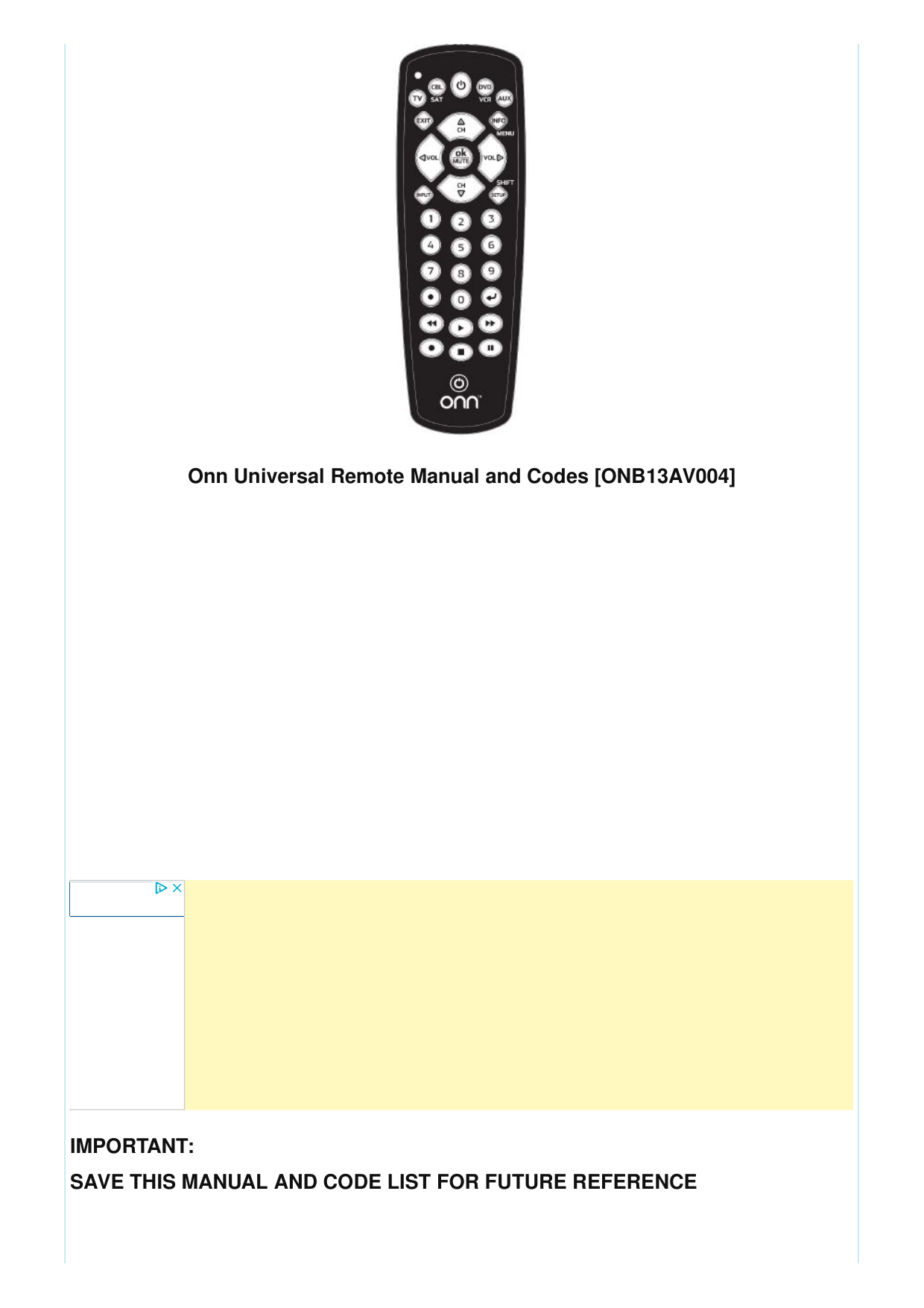
Onn Universal Remote Manual and Codes [ONB13AV004]
Important:
Save This Manual And Code List For Future Reference

QR code Scan the QR code to view our helpful demonstration video for programming your QNN remote. Battery Installation Your universal remote requires two (2) AAA Alkaline batteries (not included). To Install Batteries
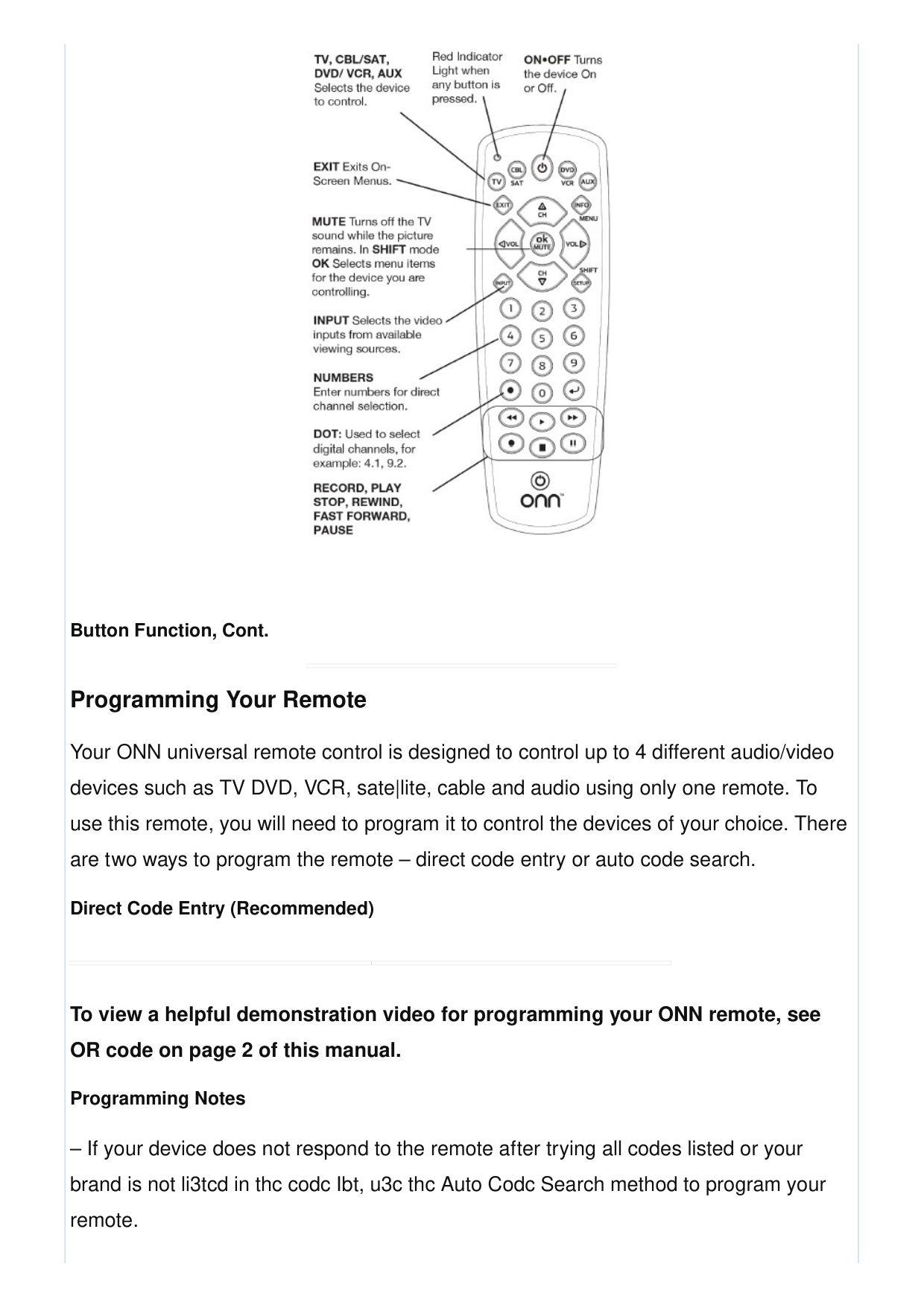
Button Function, Cont. Programming Your Remote Your ONN universal remote control is designed to control up to 4 different audio/video devices such as TV DVD, VCR, sate|lite, cable and audio using only one remote. To use this remote, you will need to program it to control the devices of your choice. There are two ways to program the remote – direct code entry or auto code search. Direct Code Entry (Recommended) To view a helpful demonstration video for programming your ONN remote, see OR code on page 2 of this manual. Programming Notes – If your device does not respond to the remote after trying all codes listed or your brand is not li3tcd in thc codc Ibt, u3c thc Auto Codc Search method to program your remote.
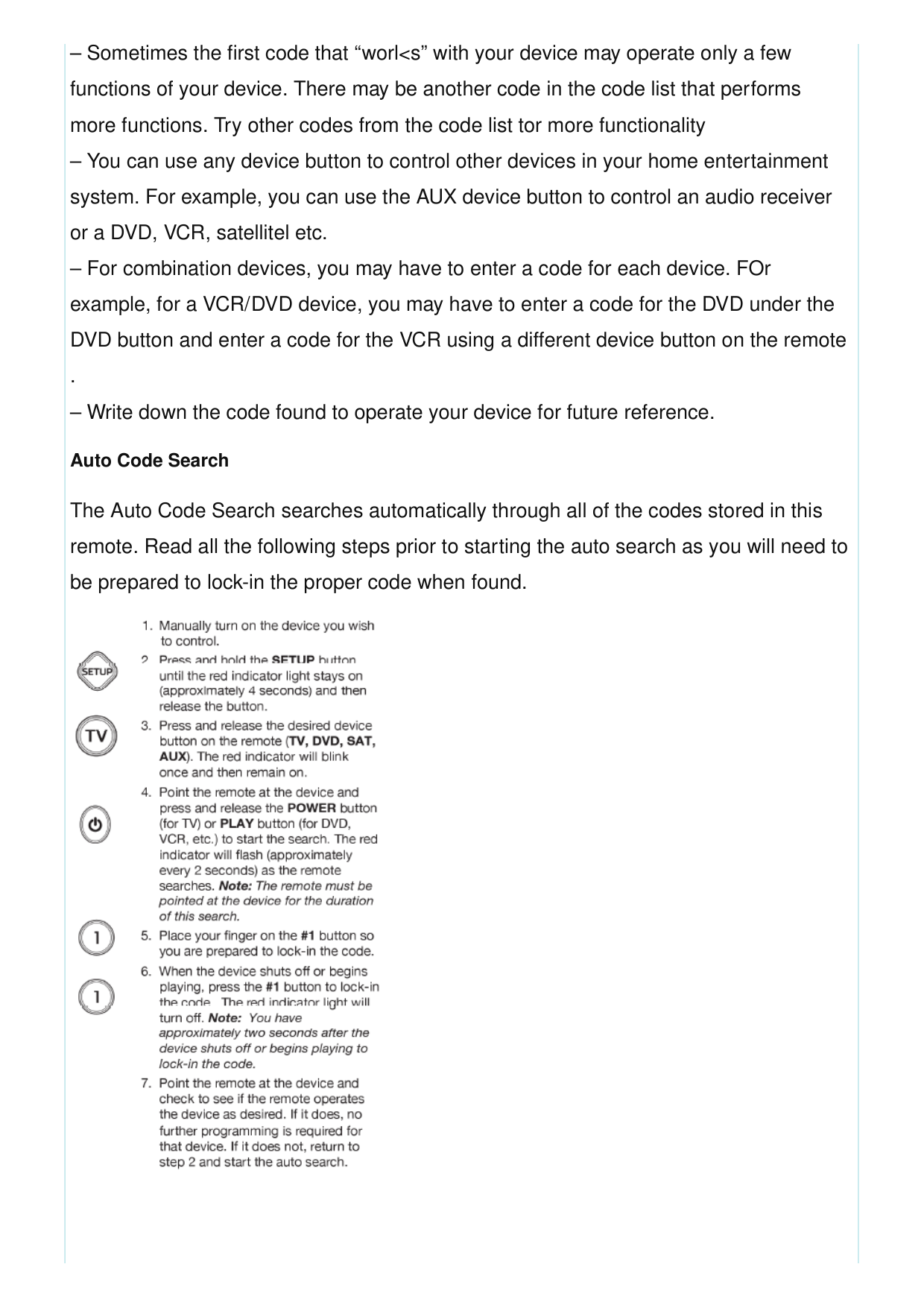
– Sometimes the first code that “worl

To view a helpful demonstration video for programming your ONN remote, see QR code at the top of this manual Programming Notes – This process may take several minutes as the remote contains many codes. – The SETUP button can be used during the search process to reverse the dlrectlon of the search of the remote codes. For example, if you miss the code for your device and the remote is continuing to search (as indicated by the blinking red Hght), press the SETUP button and the code search will reverse direction and return to the code. – When using the Auto Code Search programming method, the device button corresponding to the type of device you want to control must be selected (for example, the TV device button must be selected in step 3 if you want to control a TV, the DVD/VCR device button for a DVD player, etc.) – Sometimes the first code that “works with your device may operate only a few functions of your device. There may be another code In the code list that performs more functions. Continue the code search as directed above until the best code IS found. Controlling Combo Devices Some Combo devices Ce.g. TVNCR, TV/DVD, DVDNCR, etc~) will require you to setup up two diffell ent Mode buttons to Gont!oI both parts of the Combo device. For example, if you have a TV/DVD Combo, you might need to set up one code under the fV button to control the TV part AND a separate code (under any other Mode button) to control the DVD part. Master Volume Feature The Master Volume Feature allows you to select a single device (fV or audio receiver) that the volume control always controls. For example, the remote can be in TV mode while the volume buttons control the volume on your audio receiver instead of your TV. Master Volume Feature, Cont.
Troubleshooting Remote does not operate your device. – Make sure the batteries are fresh and installed correctly. – Aim the remote directly at your device, and make sure that there are no obstructions between the remote and device. – Make sure you select the appropriate device on the remote you wish to control, for example, TV for TV DVD for DVD, etc. – Try programming the remote with a different code. See Direct Code Entry section. – Remote may not be compatible with your device. Remote does not operate some features of your device. – Sometimes a particular code might operate a few features but not all. Try programming remote with a different code from the code fist. See Direct Code Entry section. – Remote may not be able to operate all features of your device or button names may be different than that of you~ original remoles. Remote Code is not available for a combo device ( e.g. TV/VCR, TV/DVD) – Some Combo devices Ce.g. TV/VCR TV/DVD, DVDNCR, etc.) will require you to set up two different Mode buttons to control bofh parts of the Combo device. For example, if you have a TV/DVD Combo, you might need to set up one code under the TV button to control the TV part AND a separate code (under any other Mode button) to control the DVD part.
Before You Return This Product To The Store, Please Visit The
WEBSITE www.myOnnRemote.com FOR FURTHER ASSISTANCE; Or, contact us at 1-B7-654-B4B3 between 7:3OAM–5:00 PM CST. FCC Statement This device complies with Part 15 of the FCC Rules. Operation is subject to the following two conditions: (1) this device may not cause harmful interference, and (2) this device must accept any interference received , including interference that may cause undesired operation. Warning: Changes or modifications to this unit not expressly approved by the party responsible for compliance could void the user’s authority to operate the equipment.
NOTE: This equipment has been tested and found to comply with file limits far a Class B digital device, pursuant to Part 15 of the FCC Rules. These limits are designed to provide reasonable protection against harmful interference in a residential installation. This equipment generates, uses and can radiate radio frequency energy and if not installed and used in accordance with the instructions, may cause harmful interference to radio communications. However, there is no guarantee that interference will not occur in a particular installation. If this equipment does cause harmful interference to radio or television reception, which can be determined by turning the equipment off and on, the user is encouraged to try to correct the interference by one or more of the following measures: . Reorient or relocate the receiving antenna. . Increase the separation between the equipment and receiver. . Connect the equipment into an outlet on a circuit different from that to which the receiver is connected. . Consult the dealer or an experienced radio./fV technician for help. Distributed by WaI-Mart Stores, Inc. Bentonville AR 72716
Made In China
Code List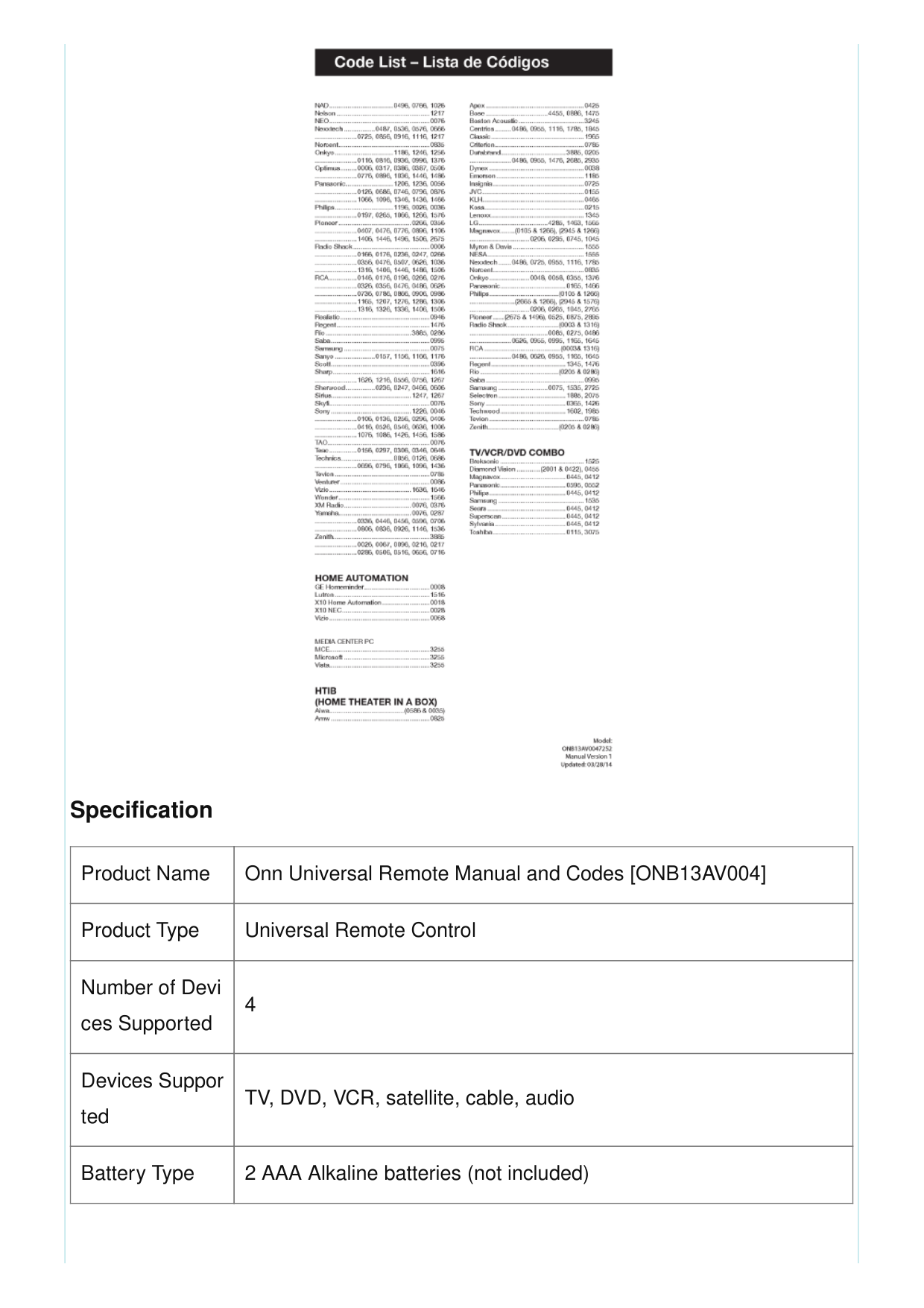
Specification Product Name Onn Universal Remote Manual and Codes [ONB13AV004] Product Type Universal Remote Control Number of Devi ces Supported 4 Devices Suppor ted TV, DVD, VCR, satellite, cable, audio Battery Type 2 AAA Alkaline batteries (not included)
Programming Methods Direct Code Entry, Auto Code Search Master Volume Feature Allows users to select a single device (TV or audio receiver) that t he volume control always controls Troubleshooting Features Provides troubleshooting tips for situations where the remote does not operate the device or some features of the device Code List Includes a code list for programming the remote QR Code Provides a QR code for viewing a helpful demonstration video for programming the ONN remote Manufacturer Wal-Mart Stores, Inc. Country of Origin China Faqs What is the difference between the ONB13AV004 and the ONNB13AV004? They are exactly the same remote. The only difference is the packaging. The code search feature is not working. What should I do? Please try using Auto Code Search instead of Direct Code Entry. If that does not work, please contact us at www.ONNNOW.com or call our customer service department at 1-866-867-3269 for assistance. My remote is not working properly. What should I do? Please try reprogramming your remote using Auto Code Search or Direct Code Entry, or resetting your remote to factory settings using the Reset to Factory Settings feature found in the Troubleshooting section of this user manual. If that does not work, please contact us at www.ONNNOW.com or call our customer service department at 1-866- 867-3269 for assistance.
Is there an app for ONN TV remote? Onn TV remote application is specially designed specifically to control Onn TV. Simple design, intuitive interface and simple buttons. Simply point remote to Onn TV and use remote by pressing any button. Does ONN have an app? onn. ItemTracker on the App Store. What TV brand is ONN? ONN is a Walmart-only TV brand made by one of Walmart’s private label tradenames, Durabrand, and their warranty repair service is handled by an American company called Element Electronics. Onn TVs are manufactured at least partially in China and Thailand. Is Onn and TCL the same? TCL does not make Onn TVs. Instead, it is a Walmart-only TV brand made by Walmart’s private label trade name known as Durabrand. Therefore, Onn’s parent company is Walmart. Furthermore, Walmart is the exclusive retailer than sells Onn TVs. Is Onn made by Walmart? Even though ONN TV is manufactured by Durabrand, it remains to be Walmart’s generic brand. Is there a difference between Walmart TVs and Best Buy TVs? While they ARE the same, remember that if there’s an issue with something, WalMart might just swap your TV with another, no big deal….or they might make it torturous. What size TV is the most popular? 65-inch TVs are now the most popular choice for North American households: report. Is Onn a reliable brand? Onn is a decent brand from Walmart that makes budget TVs that do all the basic

things you would expect when you pay the prices they are asking for. Can I control my Onn Roku TV with my phone? The Roku mobile app is a free application for iOS and Android devices that turns your mobile device into a control center for your Roku streaming player or Roku TV . The Remote feature of the mobile app allows you to control your Roku device without a remote using your phone or tablet. How can I use Onn Roku without remote? To use your Roku player without a remote, download the Roku app on your smartphone or tablet. Connect the device with the app to the same WiFi network as your Roku player. Then select Devices in the app and tap the remote icon. How do I use Onn on Roku? Once your TV completes the software update and restarts, a TV activation screen will come up. … Go to Roku.com/link on your PC or smartphone browser. Enter the link code (activation code from your TV screen) What does onn stand for? Open News Network (online resource) What devices can the ONB13AV004 remote control? The ONB13AV004 remote can control up to four different audio/video devices such as TV, DVD, VCR, satellite, cable, and audio using only one remote. How do I install batteries in the ONB13AV004 remote? To install batteries, remove the battery compartment cover by sliding the cover down. Match the (+) and (-) marks on the batteries to the (+) and (-) marks inside the battery compartment, then insert two (2) AAA Alkaline batteries. Be sure to use fresh batteries. Slide the battery compartment cover back into place. How do I program my ONB13AV004 remote? ® ™ ™
There are two ways to program the remote – direct code entry or auto code search. Direct code entry is recommended. Follow the instructions provided in the manual for either method. What should I do if my remote does not operate my device? Make sure the batteries are fresh and installed correctly. Aim the remote directly at your device, and make sure that there are no obstructions between the remote and device. Make sure you select the appropriate device on the remote you wish to control, for example, TV for TV DVD for DVD, etc. Try programming the remote with a different code. See Direct Code Entry section. Remote may not be compatible with your device. Q: Is there an app for ONN TV remote? A: Yes, there is an Onn TV remote application specially designed to control Onn TV. Is there an app for ONN TV remote? Yes, there is an Onn TV remote application specially designed to control Onn TV. What should I do if my remote is not working properly? If your remote stops operating properly, replace the batteries with new ones. The remote will retain the codes you have programmed for up to 10 minutes after the batteries are removed. If that does not work, please contact us at www.ONNNOW.com or call our customer service department at 1-866-867-3269 for assistance. What is the difference between the ONB13AV004 and the ONNB13AV004? They are exactly the same remote. The only difference is the packaging. What TV brand is ONN? ONN is a brand of electronics sold exclusively at Walmart stores. How do I use the Master Volume Feature? The Master Volume Feature allows you to select a single device (TV or audio receiver) that the volume control always controls. For example, the remote can be in TV mode while the volume buttons control the volume on your audio receiver instead of your TV. Follow the instructions provided in the manual to set up this feature.
Cox Universal Remote Control Codes Cox Universal Remote Control Codes - Optimized PDF Cox Universal Remote Control Codes - Original PDF Cox Universal Remote Control User Manual Cox Universal Remote Control User Manual - Optimized PDF Cox Universal Remote Control User Manual - Original PDF DirecTV Blue Remote Control Manual [Universal Remote Control] Download: Remote Control Manual PDF RC16 Remote Control Manual What should I do if the code search feature is not working? Please try using Auto Code Search instead of Direct Code Entry. If that does not work, please contact us at www.ONNNOW.com or call our customer service department at 1-866-867-3269 for assistance. Onn Universal Remote Codes_ Program ONB13AV004 for 4 Devices.pptx
Video
Remote-Manual-and-Codes-ONB13AV004.mp4 www.galanz.com References User Manual Related Posts
RC16 Remote Control Manual Questions about your RC16 Remote Control? Post in the comments! Download RC16 Remote Control… Onn codes, Manual, ONB13AV004, onn, universal remote Join the Conversation 2 Comments I wonder the price and does it go to the center (speaker)? ფასი მაინტერესებს და ცენტრზე(დინამიკზე) თუ მიდის? Reply says: April 1, 2021 at 1:52 pm ქეთი I’m glad I found your site. Your auto remote program worked great, I have tried many of the other sites and none worked at all. Had no problem at all with your Auto programming, Very first time. Lol Thank you very very much for your instructions. Reply says: August 18, 2021 at 2:48 pm Wayne Rial Your email address will not be published. Required fields are marked * Comment *
Leave a comment Search: e.g. whirlpool wrf535swhz
Search This website is an independent publication and is neither affiliated with nor endorsed by any of the trademark owners. The "Bluetooth®" word mark and logos are registered trademarks owned by Bluetooth SIG, Inc. The "Wi-Fi®" word mark and logos are registered trademarks owned by the Wi-Fi Alliance. Any use of these marks on this website does not imply any affiliation with or endorsement. Name Email Website Save my name, email, and website in this browser for the next time I comment. Post Comment