
Ask AI
— answers from the official manualAnswers from the official manual.
Common questions
Common Questions
14 totalWhat should I do before transporting the printer?
Before transporting the printer, make sure the print head is capped in the far right position and the ink cartridges are in place. (Page 18)
How do I replace an ink cartridge?
See Chapter 6 for detailed instructions on removing and installing an ink cartridge. Once you install an ink cartridge, do not open the clamp or remove the cartridge except to replace it with a new one, as the cartridge may become unusable otherwise. (Page 18)
What does it mean when an Ink Out light flashes?
When an Ink Out light flashes, your ink supply is low and you should make sure you have a replacement cartridge ready. When an Ink Out light comes on (stays solid), you need to replace the ink cartridge. (Page 32)
How do I load paper in the built-in sheet feeder?
First set the paper release lever to the single sheet position and set the thickness lever appropriately based on your paper type (0 for plain paper, + for envelopes or heavy paper). Load a stack of paper with the printable side face down and slide it all the way into the feeder, then adjust the edge guides to match your paper width. Do not load paper above the arrow mark on the right edge guide. (Page 51-55)
What is the maximum paper width I can print on?
The maximum printable width is 13.6 inches (345 mm) on any size paper, although you can load paper up to 17 inches wide in the feeders. (Page 51, Page 61)
How do I clean the print heads?
You can clean the print heads using either the Head Cleaning Utility from your computer software or the Control Panel on the printer itself. See Chapter 6 for detailed instructions on using both methods. (Page 8)
Show 8 more questions
How do I adjust the loading position of my paper?
What should I always do when turning off the printer?
What do I do if the Paper Out light flashes?
Can I use non-Epson ink cartridges or paper with this printer?
How do I replace an empty ink cartridge?
What are the technical specifications for this printer, and what paper sizes does it support?
How do I clean the print heads if my prints don't look right?
What should I do if I get an error light on the printer?
Full Manual
167 pages

User’s Guide Printed on recycled paper with at least 10% post-consumer content.
ii All rights reserved. No part of this publication may be reproduced, stored in a retrieval system, or transmitted in any form or by any means, electronic, mechanical, photocopying, recording, or otherwise, without the prior written permission of SEIKO EPSON CORPORATION. The information contained herein is designed only for use with this EPSON printer. EPSON is not responsible for any use of this information as applied to other printers. Neither SEIKO EPSON CORPORATION nor its affiliates shall be liable to the purchaser of this product or third parties for damages, losses, costs, or expenses incurred by purchaser or third parties as a result of: accident, misuse, or abuse of this product or unauthorized modifications, repairs, or alterations to this product, or (excluding the U.S.) failure to strictly comply with SEIKO EPSON CORPORATION’s operating and maintenance instructions. SEIKO EPSON CORPORATION shall not be liable for any damages or problems arising from the use of any options or any consumable products other than those designated as Original EPSON Products or EPSON Approved Products by SEIKO EPSON CORPORATION. EPSON, EPSON Stylus, and ESC/P are registered trademarks and ESC/P 2 is a trademark of SEIKO EPSON
Corporation.
General Notice: Other product names used herein are for identification purposes only and may be trademarks of their respective owners. EPSON disclaims any and all rights in those marks. The ENERGY STAR emblem does not represent EPA endorsement of any product or service. Copyright © 1997 by Epson America, Inc. 4007159 5/97
iii FCC Compliance Statement For United States Users This equipment has been tested and found to comply with the limits for a Class B digital device, pursuant to Part 15 of the FCC Rules. These limits are designed to provide reasonable protection against harmful interference in a residential installation. This equipment generates, uses, and can radiate radio frequency energy and, if not installed and used in accordance with the instructions, may cause harmful interference to radio or television reception. However, there is no guarantee that interference will not occur in a particular installation. If this equipment does cause interference to radio and television reception, which can be determined by turning the equipment off and on, the user is encouraged to try to correct the interference by one or more of the following measures.
Q
Reorient or relocate the receiving antenna.Q
Increase the separation between the equipment and receiver.Q
Connect the equipment into an outlet on a circuit different from that to which the receiver is connected.Q
Consult the dealer or an experienced radio/TV technician for help.Warning
The connection of a non-shielded equipment interface cable to this equipment will invalidate the FCC Certification of this device and may cause interference levels which exceed the limits established by the FCC for this equipment. It is the responsibility of the user to obtain and use a shielded equipment interface cable with this device. If this equipment has more than one interface connector, do not leave cables connected to unused interfaces. Changes or modifications not expressly approved by the manufacturer could void the user’s authority to operate the equipment. For Canadian Users This Class B digital apparatus meets all requirements of the Canadian Interference-Causing Equipment Regulations. Cet appareil numérique de la classe B respecte toutes les exigences du Règlement sur le materiel brouilleur du Canada.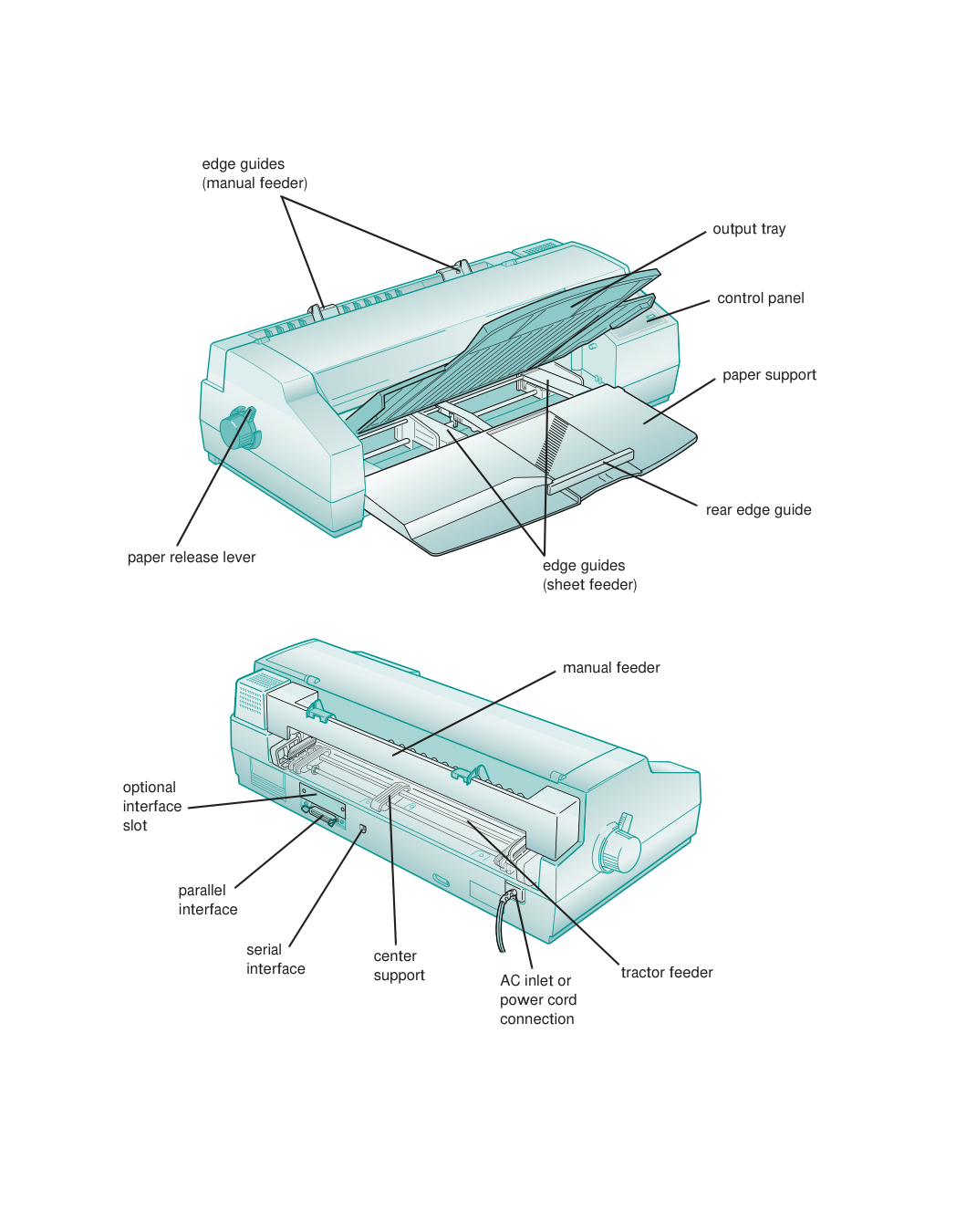
-xvi edge guides (manual feeder) paper support control panel output tray edge guides (sheet feeder) rear edge guide paper release lever manual feeder tractor feeder AC inlet or power cord connection center support serial interface parallel interface optional interface slot
v Contents Introduction PC System Requirements 2 Macintosh System Requirements 2 How To Use Your Manuals 3 Warnings, Cautions, Notes, and Tips 4 Where To Get Help 5 Electronic Support Services 5 ENERGY STAR Compliance 7 Energy-saving Tips 7 Important Safety Instructions 7 1 Basic Printing Printing from Windows 1-1 Setting Printer Options from Windows Applications 1-2 Setting Default Printer Options 1-5 Checking Printer Status 1-7 Printing from a Macintosh 1-9 Using Online Help 1-11 Accessing Help from Windows Applications 1-11 Accessing Help from Windows 95 1-12 Accessing Help from Windows 3.1 1-12 Accessing Help from Windows NT 4.0 1-12 Accessing Help from Windows NT 3.51 1-12 Accessing Help from Macintosh Applications 1-12 What To Do When the Printer Lights Come On 1-13
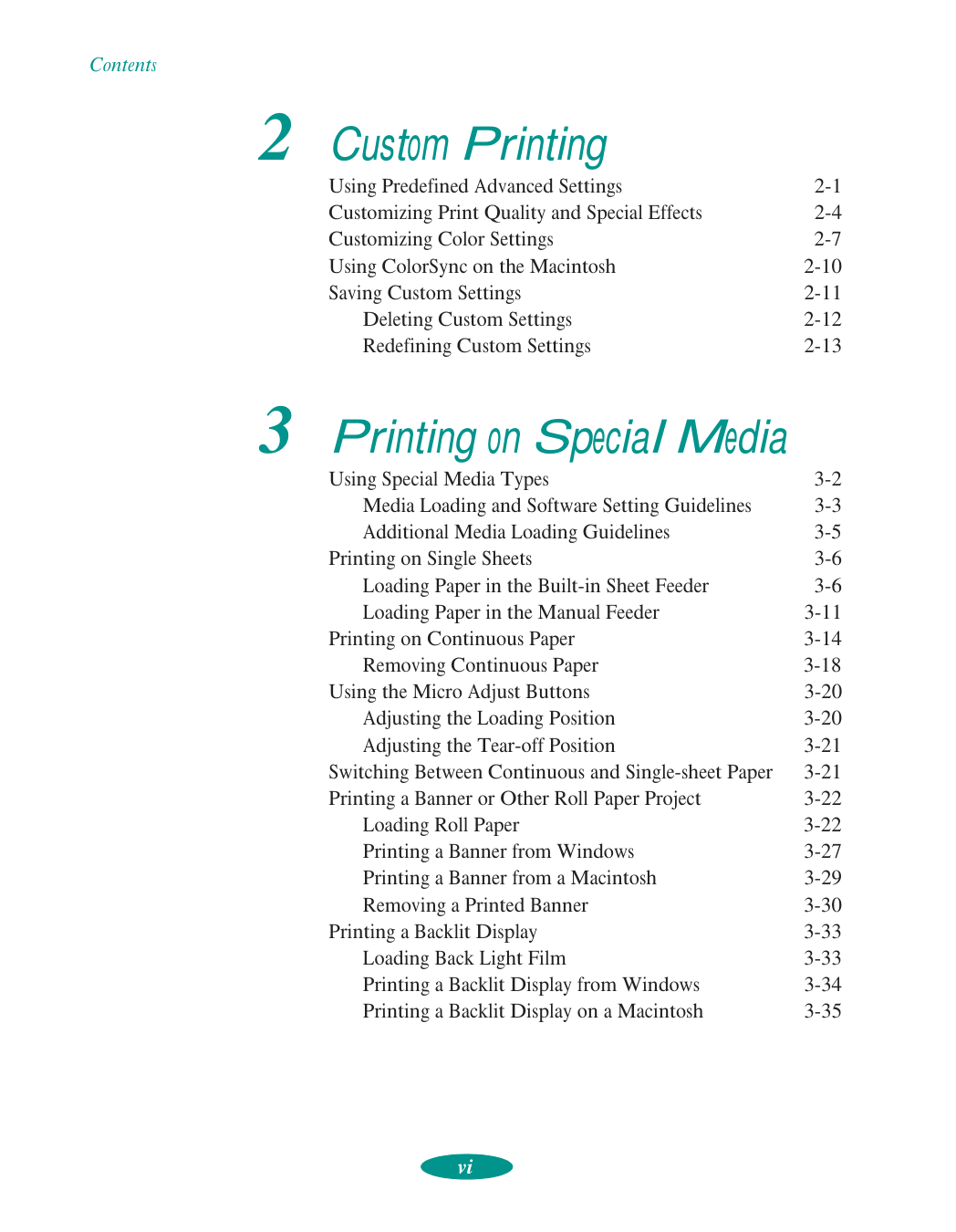
Contents vi 2 Custom Printing Using Predefined Advanced Settings 2-1 Customizing Print Quality and Special Effects 2-4 Customizing Color Settings 2-7 Using ColorSync on the Macintosh 2-10 Saving Custom Settings 2-11 Deleting Custom Settings 2-12 Redefining Custom Settings 2-13 3 Printing on Special Media Using Special Media Types 3-2 Media Loading and Software Setting Guidelines 3-3 Additional Media Loading Guidelines 3-5 Printing on Single Sheets 3-6 Loading Paper in the Built-in Sheet Feeder 3-6 Loading Paper in the Manual Feeder 3-11 Printing on Continuous Paper 3-14 Removing Continuous Paper 3-18 Using the Micro Adjust Buttons 3-20 Adjusting the Loading Position 3-20 Adjusting the Tear-off Position 3-21 Switching Between Continuous and Single-sheet Paper 3-21 Printing a Banner or Other Roll Paper Project 3-22 Loading Roll Paper 3-22 Printing a Banner from Windows 3-27 Printing a Banner from a Macintosh 3-29 Removing a Printed Banner 3-30 Printing a Backlit Display 3-33 Loading Back Light Film 3-33 Printing a Backlit Display from Windows 3-34 Printing a Backlit Display on a Macintosh 3-35
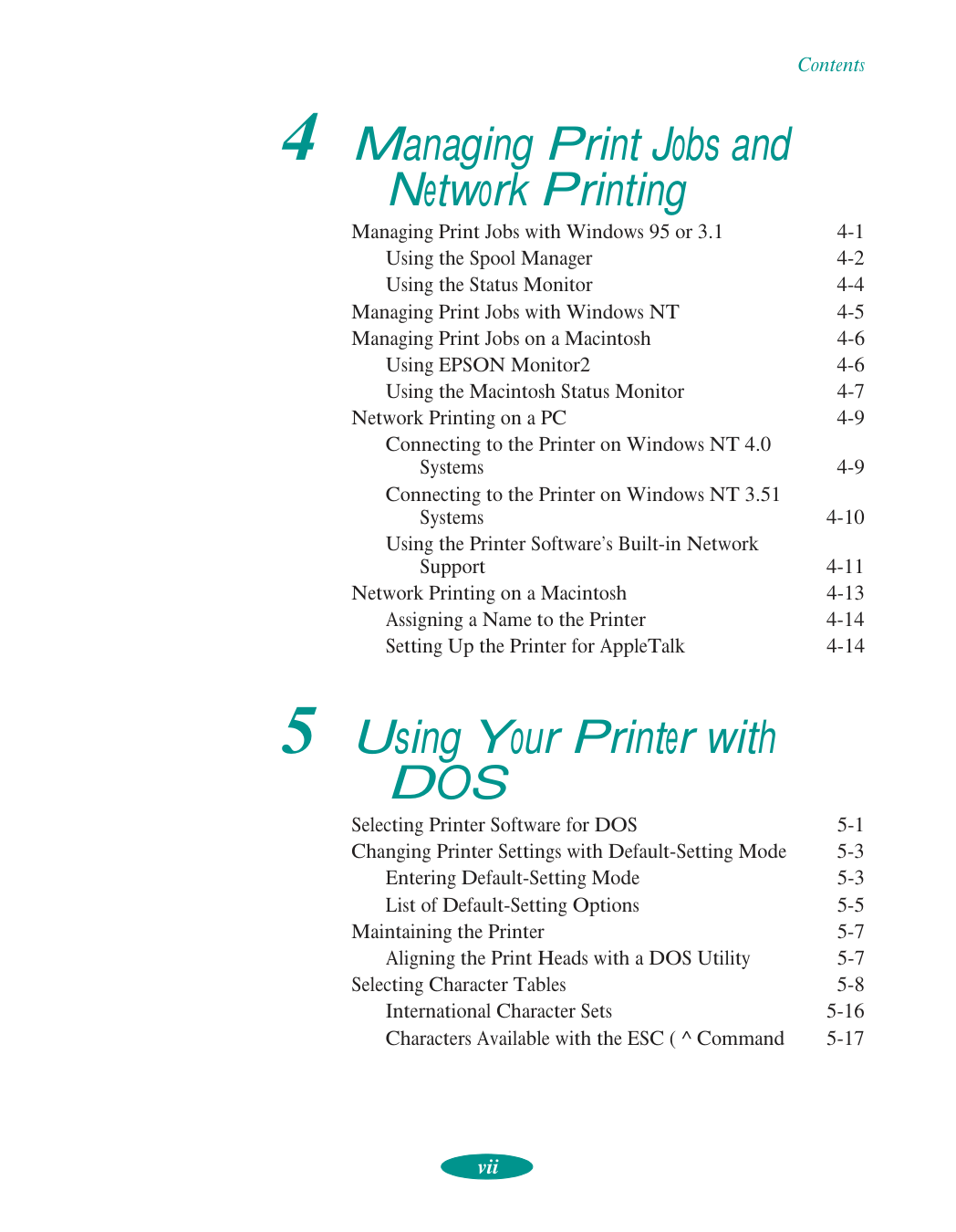
Contents vii 4 Managing Print Jobs and Network Printing Managing Print Jobs with Windows 95 or 3.1 4-1 Using the Spool Manager 4-2 Using the Status Monitor 4-4 Managing Print Jobs with Windows NT 4-5 Managing Print Jobs on a Macintosh 4-6 Using EPSON Monitor2 4-6 Using the Macintosh Status Monitor 4-7 Network Printing on a PC 4-9 Connecting to the Printer on Windows NT 4.0 Systems 4-9 Connecting to the Printer on Windows NT 3.51 Systems 4-10 Using the Printer Software’s Built-in Network Support 4-11 Network Printing on a Macintosh 4-13 Assigning a Name to the Printer 4-14 Setting Up the Printer for AppleTalk 4-14 5 Using Your Printer with
Dos
Selecting Printer Software for DOS 5-1 Changing Printer Settings with Default-Setting Mode 5-3 Entering Default-Setting Mode 5-3 List of Default-Setting Options 5-5 Maintaining the Printer 5-7 Aligning the Print Heads with a DOS Utility 5-7 Selecting Character Tables 5-8 International Character Sets 5-16 Characters Available with the ESC ( ^ Command 5-17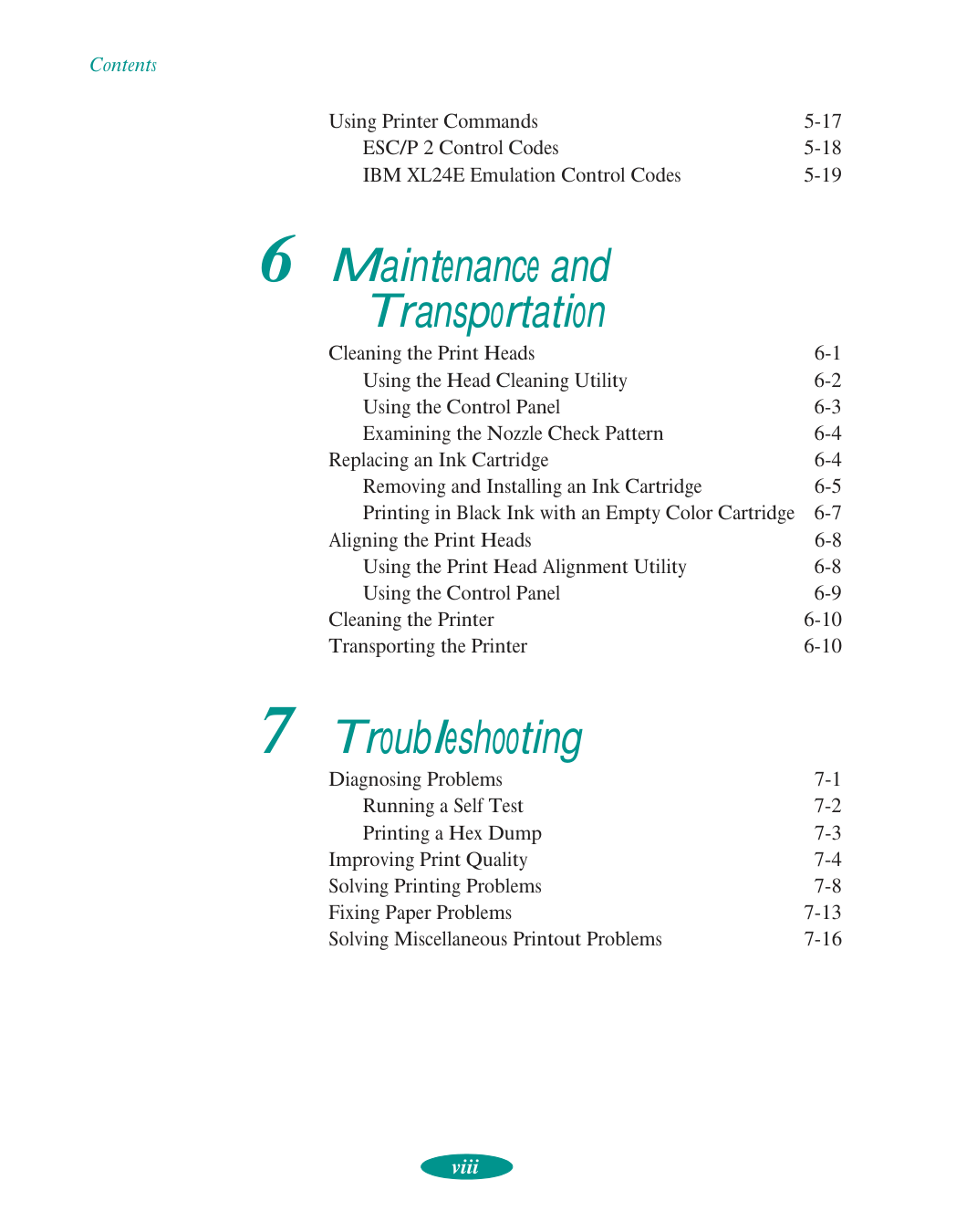
Contents viii Using Printer Commands 5-17 ESC/P 2 Control Codes 5-18 IBM XL24E Emulation Control Codes 5-19 6 Maintenance and Transportation Cleaning the Print Heads 6-1 Using the Head Cleaning Utility 6-2 Using the Control Panel 6-3 Examining the Nozzle Check Pattern 6-4 Replacing an Ink Cartridge 6-4 Removing and Installing an Ink Cartridge 6-5 Printing in Black Ink with an Empty Color Cartridge 6-7 Aligning the Print Heads 6-8 Using the Print Head Alignment Utility 6-8 Using the Control Panel 6-9 Cleaning the Printer 6-10 Transporting the Printer 6-10 7 Troubleshooting Diagnosing Problems 7-1 Running a Self Test 7-2 Printing a Hex Dump 7-3 Improving Print Quality 7-4 Solving Printing Problems 7-8 Fixing Paper Problems 7-13 Solving Miscellaneous Printout Problems 7-16
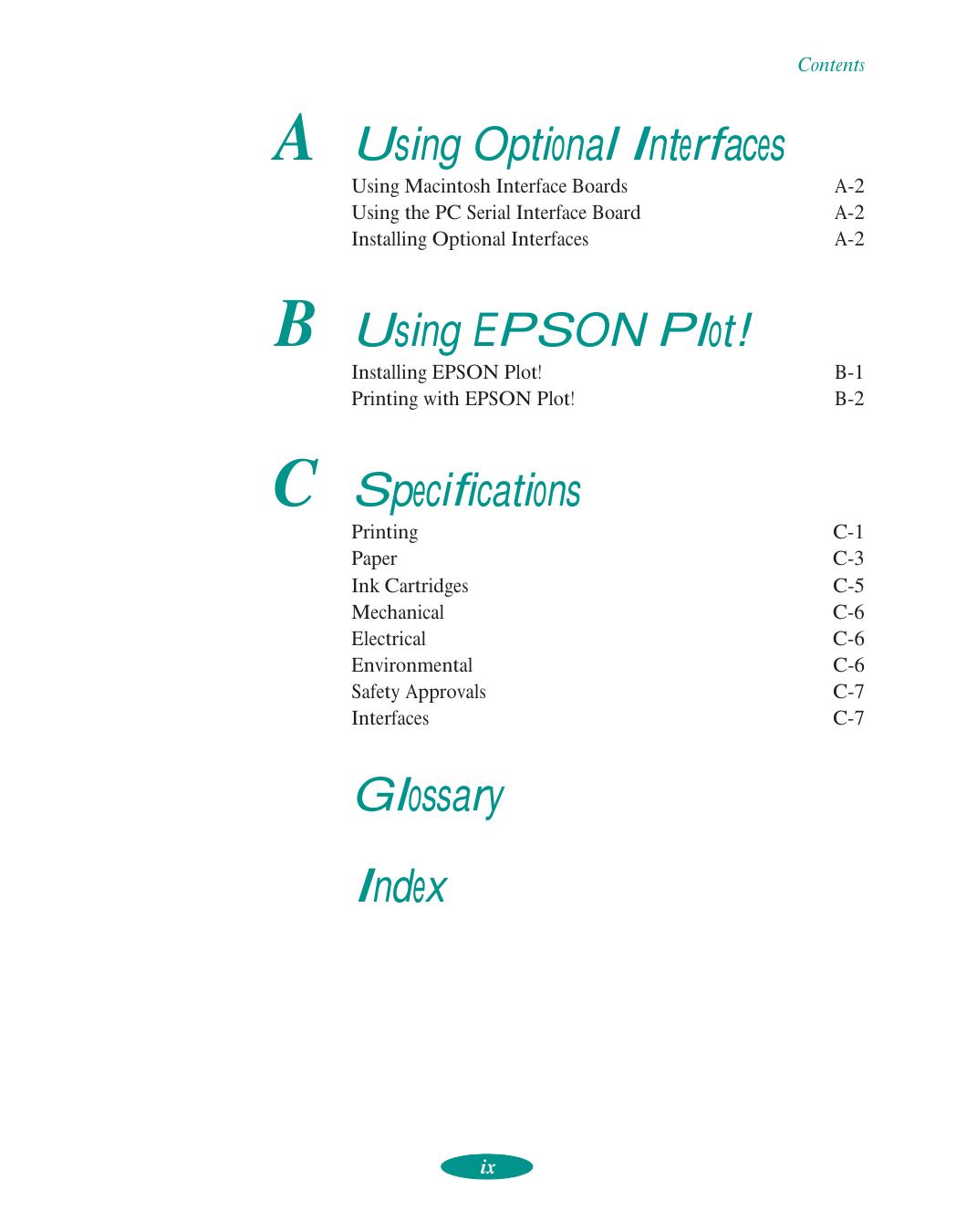
Contents ix A Using Optional Interfaces Using Macintosh Interface Boards
A-2
Using the PC Serial Interface BoardA-2
Installing Optional InterfacesA-2
B Using EPSON Plot! Installing EPSON Plot!B-1
Printing with EPSON Plot!B-2
C Specifications PrintingC-1
PaperC-3
Ink CartridgesC-5
MechanicalC-6
ElectricalC-6
EnvironmentalC-6
Safety ApprovalsC-7
InterfacesC-7
Glossary Index
1 / Introduction Your EPSON Stylus® COLOR 1520 printer is the ideal output device for business communication pieces—such as presentations, signs, banners, maps, color comps, checkplots, iron-on transfers, and backlit displays—or any project you create. Using resolutions up to 1440 × 720 dpi (dots per inch), you get amazingly realistic photographic images, vivid color graphics, superb grayscale images, and razor-sharp black printing for crisp text and detailed line art. With its large format print capabilities and versatile, built-in paper feeding options, the EPSON Stylus COLOR 1520 lets you print on virtually any media, of almost any size, including single sheets, continuous fold paper, and roll paper. You can even switch between printing on continuous paper and single sheets by flipping a lever. The printer software for Microsoft® Windows® and Apple® Macintosh® computers provides advanced color management, with adjustable levels of brightness, contrast, saturation, and ink colors. Support for ColorSync™ 2.01 and Windows 95 ICM ensures printouts that closely match the colors on your monitor. You can also perform many printer maintenance procedures right from your computer, such as cleaning and aligning the print heads. And EPSON’s extensive online help can guide you through printer operations in real time. With standard parallel and high-speed serial ports and optional network connectivity, setting up your printer is fast and easy. EPSON’s specially formulated, quick-drying ink and wide variety of ink jet media give you the best quality output and offer the most flexibility for getting the results you want. Note: Also included are the EPSON Plot! program and EPSON’s protected mode Autodesk® Device Interface (ADI)® plotter driver. EPSON Plot! lets you print HPGL or HPGL/2 plot files on your printer. See Appendix B for details. The ADI plotter driver lets you use your printer with AutoCAD® 386 (DOS Extender) releases 10 and higher that support ADI plotter drivers. See the README file on the ADI plotter driver diskette or printer software CD-ROM for more information.
Introduction 2 PC System Requirements To use your printer and its software with a PC, your system should have:
Q
An IBM® compatible PC with at least a 386/25 MHz or faster processor (486/25 MHz or faster for Windows NT)Q
DOS, Windows 95, Windows 3.1x, Windows for Workgroups 3.11, Windows NT™4.0, or WindowsNt 3.51
Q
At least 16MB of RAMQ
At least 20MB of free hard disk space for storing images (50MB or more is recommended)Q
VGA, Super VGA, or better display adapter and monitorQ
Double-speed CD-ROM drive (quad-speed or faster recommended) for installing the printer software from theCd-Rom
Q
A shielded, twisted-pair parallel cable (6 to 10 feet long) to connect your computer to the printer; the cable must have a D-SUB, 25-pin, male connector for your computer and a 36-pin, Centronics® compatible connector for the printer. For PC network interface options and the additional system requirements they may have, see Appendix A. Macintosh System Requirements To use your printer and its software with a Macintosh, your system should have:Q
Any Macintosh or Power Macintosh model except the Macintosh +, Macintosh 512, or PowerBook™ 100Q
System 7.1 or laterQ
At least 8MB of built-in RAM (16MB or more is recommended)
Introduction 3
Q
Double-speed CD-ROM drive (quad-speed or faster recommended) for installing the printer software from theCd-Rom
Q
At least 20MB of free hard disk space for storing images (40MB or more is recommended)Q
VGA, Super VGA, or better display adapter and monitorQ
Standard Apple System Peripheral-8 serial cable or equivalent (RS-422, 8-pin mini DIN male/male) For Macintosh network interface options and the additional system requirements they may have, see Appendix A. How To Use Your Manuals To set up your printer and install your printer software, see the Quick Setup booklet. This User’s Guide contains the following information: Chapter 1, “Basic Printing,” gives step-by-step instructions for everyday printing with Windows or Macintosh. Chapter 2, “Custom Printing,” tells you how to print special projects with custom settings for print quality, special effects, and color management. Chapter 3, “Printing on Special Media,” gives guidelines for selecting the right paper or other media for your print job and instructions for loading it in your printer. Chapter 4, “Managing Print Jobs and Network Printing,” explains how to manage print jobs, check printer status, and set up your system for network printing. Chapter 5, “Using Your Printer with DOS,” tells you how to use your printer with DOS applications, including selecting printer software for DOS, changing printer settings using default-setting mode, aligning the print heads, selecting character tables, and using printer commands.
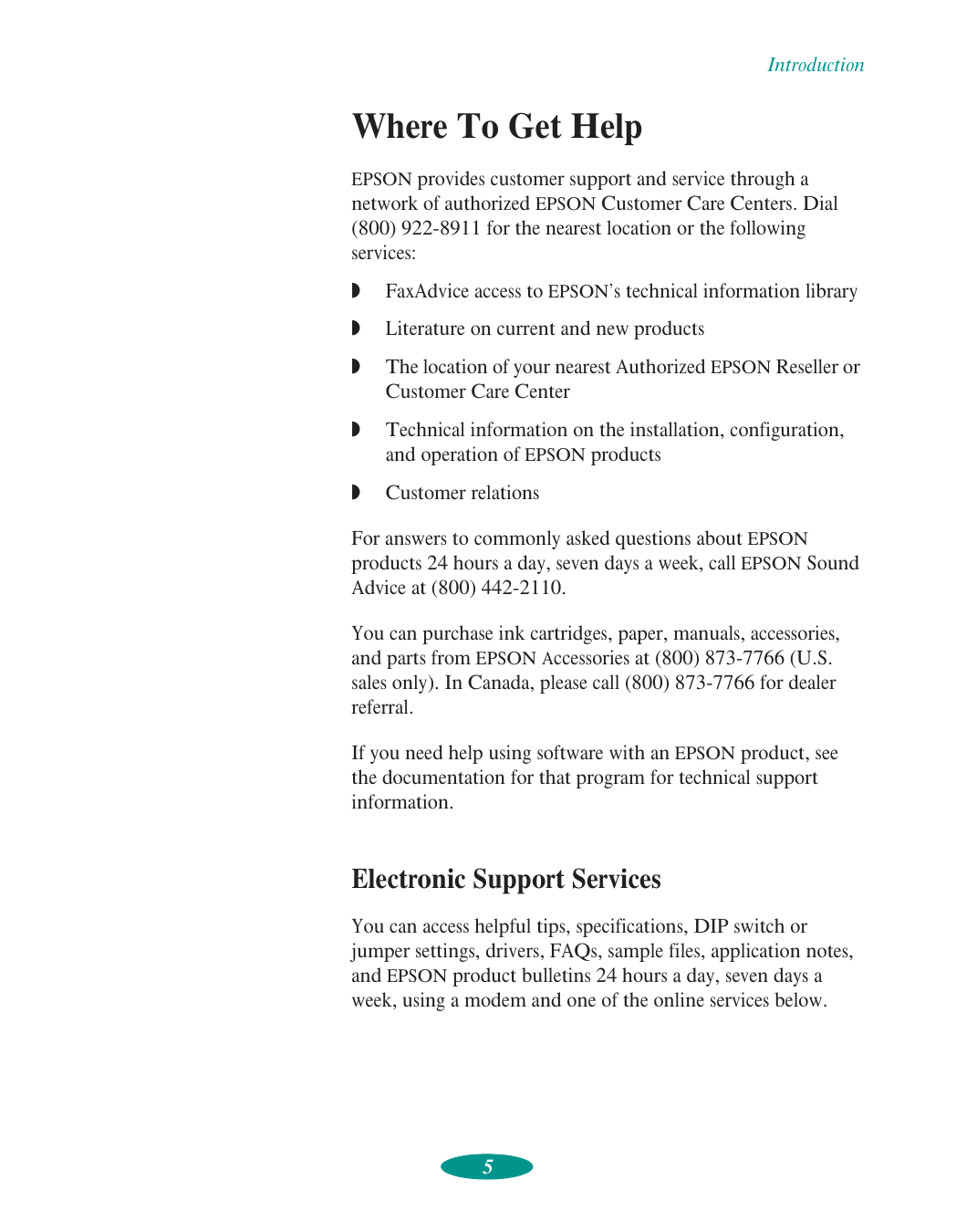
Introduction 4 Chapter 6, “Maintenance and Transportation,” gives instructions for replacing ink cartridges, cleaning and aligning the print heads, and cleaning and transporting the printer. Chapter 7, “Troubleshooting,” provides solutions for any printing problems you may have. Appendix A, “Using Optional Interfaces,” lists the optional interface boards and gives instructions for installing and using them. Appendix B, “Using EPSON Plot!,” gives instructions on installing and using the EPSON Plot! program to print HPGL or HPGL/2 plotter files on your printer. Appendix C, “Specifications,” provides the technical details on your printer, ink cartridges, and EPSON media. A Glossary and an Index are included at the end of the book. Warnings, Cautions, Notes, and Tips You’ll find this information throughout your manual: Warnings must be followed carefully to avoid bodily injury. Cautions must be observed to avoid damage to your equipment. Notes contain important information about your printer. Tips contain additional hints for great printing.
Introduction 5 Where To Get Help EPSON provides customer support and service through a network of authorized EPSON Customer Care Centers. Dial (800) 922-8911 for the nearest location or the following services:
Q
FaxAdvice access to EPSON’s technical information libraryQ
Literature on current and new productsQ
The location of your nearest Authorized EPSON Reseller or Customer Care CenterQ
Technical information on the installation, configuration, and operation of EPSON productsQ
Customer relations For answers to commonly asked questions about EPSON products 24 hours a day, seven days a week, call EPSON Sound Advice at (800) 442-2110. You can purchase ink cartridges, paper, manuals, accessories, and parts from EPSON Accessories at (800) 873-7766 (U.S. sales only). In Canada, please call (800) 873-7766 for dealer referral. If you need help using software with an EPSON product, see the documentation for that program for technical support information. Electronic Support Services You can access helpful tips, specifications, DIP switch or jumper settings, drivers, FAQs, sample files, application notes, and EPSON product bulletins 24 hours a day, seven days a week, using a modem and one of the online services below.
Introduction 6 World Wide Web From the Internet, you can reach EPSON’s Home Page at http://www.epson.com. EPSON Download Service You can call the EPSON Download Service at (800) 442-2007. Set your communications software to 8 data bits, 1 stop bit, no parity. Modem speed can be up to 28.8 Kbps. EPSON FaxAdvice Service You can access EPSON’s technical information library by calling (800) 442-2110 and selecting the appropriate phone option. You must provide a return fax number to use FaxAdvice. EPSON Forum on CompuServe Members of CompuServe® can type GO EPSON at the menu prompt to reach CompuServe’s Epson America Forum. As an owner of an EPSON product, you are eligible for a free introductory CompuServe membership, which entitles you to an introductory credit and your own user ID and password. To take advantage of this offer in the U.S. or Canada, call (800) 848-8199 and ask for representative #529.
Introduction 7 ENERGY STAR Compliance As an ENERGY STAR Partner, EPSON has determined that this product meets the ENERGY STAR guidelines for energy efficiency. The EPA ENERGY STAR Office Equipment program is a voluntary partnership with the computer and office equipment industry to promote the introduction of energy-efficient personal computers, monitors, printers, fax machines, and copiers in an effort to reduce air pollution caused by power generation. Energy-saving Tips Here are a few tips you can use to be even more energy-wise:
Q
If your monitor isn’t ENERGY STAR compliant, turn it off when you’re not using it.Q
Turn off your computer, printer, and monitor each day when you are done using them.Q
Use the print preview option in your software so you can catch errors before you print something.Q
Send e-mail rather than distributing memos. Not only is this faster, but you’ll save paper and storage space too. Important Safety Instructions Before using your printer, read the following safety instructions to make sure you use the printer safely and effectively.Q
Turn off and unplug the printer before cleaning. Clean with a damp cloth only. Do not spill liquid on the printer.Q
Do not place the printer on an unstable surface or near a radiator or heating vent.
Introduction 8
Q
Do not block or cover the openings in the printer’s cabinet or insert objects through the slots.Q
Use only the type of power source indicated on the printer’s label.Q
Connect all equipment to properly grounded power outlets. Avoid using outlets on the same circuit as photocopiers or air control systems that regularly switch on and off.Q
Place the printer near a wall outlet where the plug can be easily unplugged. Placez l’imprimante près d’une prise de contacte où la fiche peut être débranchée facilement.Q
Do not let the power cord become damaged or frayed.Q
If you use an extension cord with the printer, make sure the total ampere rating of the devices plugged into the extension cord does not exceed the cord’s ampere rating. Also, make sure the total of all devices plugged into the wall outlet does not exceed 15 amperes.Q
Except as specifically explained in this User’s Guide, do not attempt to service the printer yourself.Q
Unplug the printer and refer servicing to qualified service personnel under the following conditions: If the power cord or plug is damaged; if liquid has entered the printer; if the printer has been dropped or the cabinet damaged; if the printer does not operate normally or exhibits a distinct change in performance. Adjust only those controls that are covered by the operating instructions.
Introduction 9 Even if you are familiar with other types of printers, be sure to read through the following list of precautions before operating your ink jet printer:
Q
Do not put your hand inside the printer or touch the print heads during printing.Q
Under normal circumstances, ink will not come out of the cartridges. If it does get on your skin, wash it off with soap and water. If it gets in your eyes, flush them immediately with water.Q
Keep ink cartridges out of the reach of children.Q
Do not dismantle the ink cartridges or try to refill them. This could result in damage to the print head.Q
Once you install an ink cartridge, do not open the clamp or remove the cartridge except to replace it with a new one. The cartridge may become unusable otherwise.Q
Install the ink cartridge immediately after you remove it from its package. Leaving the cartridge unpacked for a long time before use may result in reduced print quality.Q
Do not use an ink cartridge beyond the date printed on the cartridge carton. For best results, use up the ink cartridges within six months of installing them.Q
Do not shake an ink cartridge; this can cause leakage.Q
Always turn the printer off using the POperate button. When this button is pressed, the Operate light flashes briefly then goes out. Do not unplug the printer or turn off the power to the outlet until the Operate light is off.Q
Before transporting the printer, make sure the print head is capped in the far right position and the ink cartridges are in place.Q
If you use a printer stand, make sure it keeps the printer level and can hold up to 66 lb (30 kg). Secure the printer cables to a leg on the stand so they don’t interfere with paper feeding.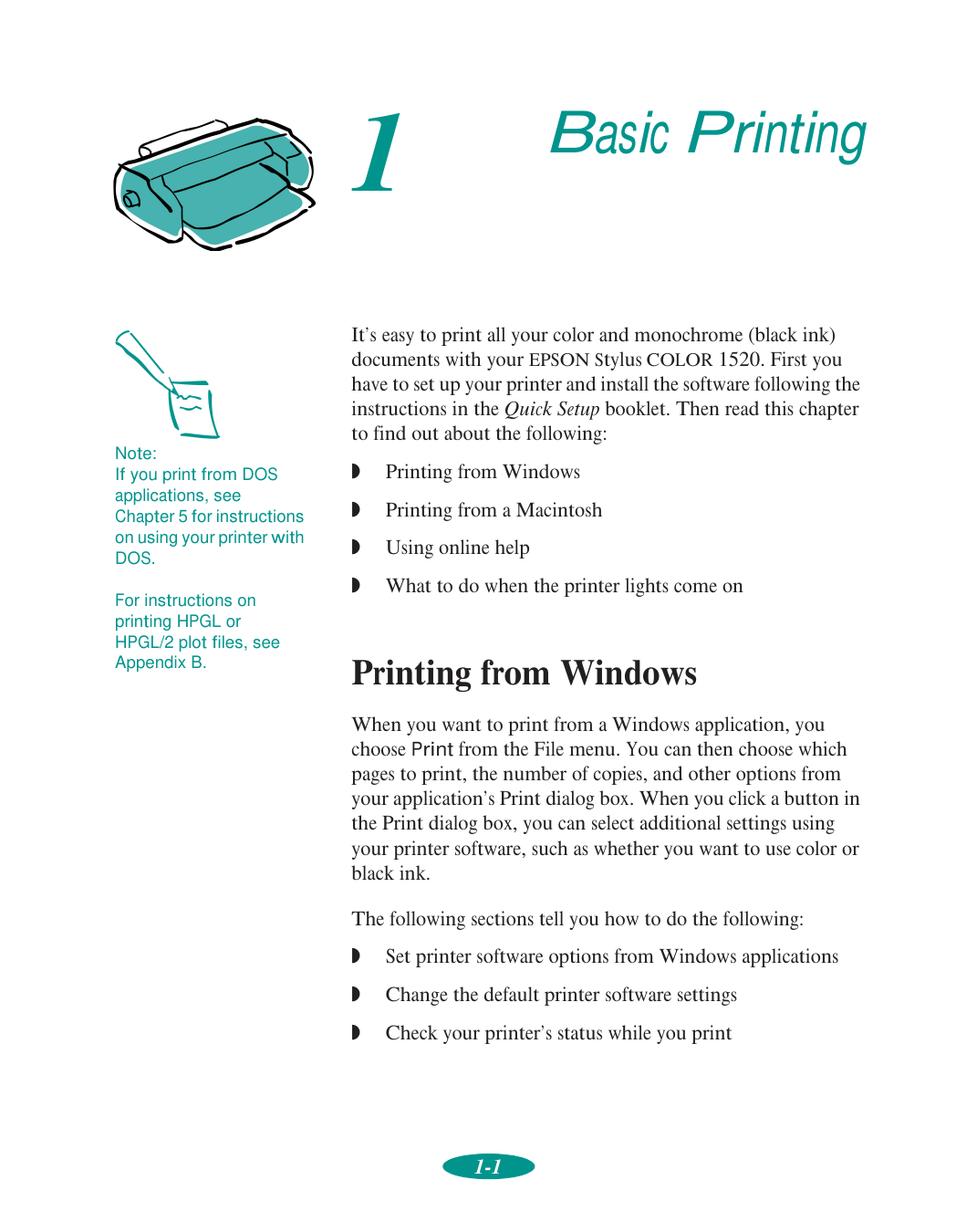
1-1 1 It’s easy to print all your color and monochrome (black ink) documents with your EPSON Stylus COLOR 1520. First you have to set up your printer and install the software following the instructions in the Quick Setup booklet. Then read this chapter to find out about the following:
Q
Printing from WindowsQ
Printing from a MacintoshQ
Using online helpQ
What to do when the printer lights come on Printing from Windows When you want to print from a Windows application, you choose Print from the File menu. You can then choose which pages to print, the number of copies, and other options from your application’s Print dialog box. When you click a button in the Print dialog box, you can select additional settings using your printer software, such as whether you want to use color or black ink. The following sections tell you how to do the following:Q
Set printer software options from Windows applicationsQ
Change the default printer software settingsQ
Check your printer’s status while you print Basic Printing Note: If you print from DOS applications, see Chapter 5 for instructions on using your printer withDos.
For instructions on printing HPGL or HPGL/2 plot files, see Appendix B.
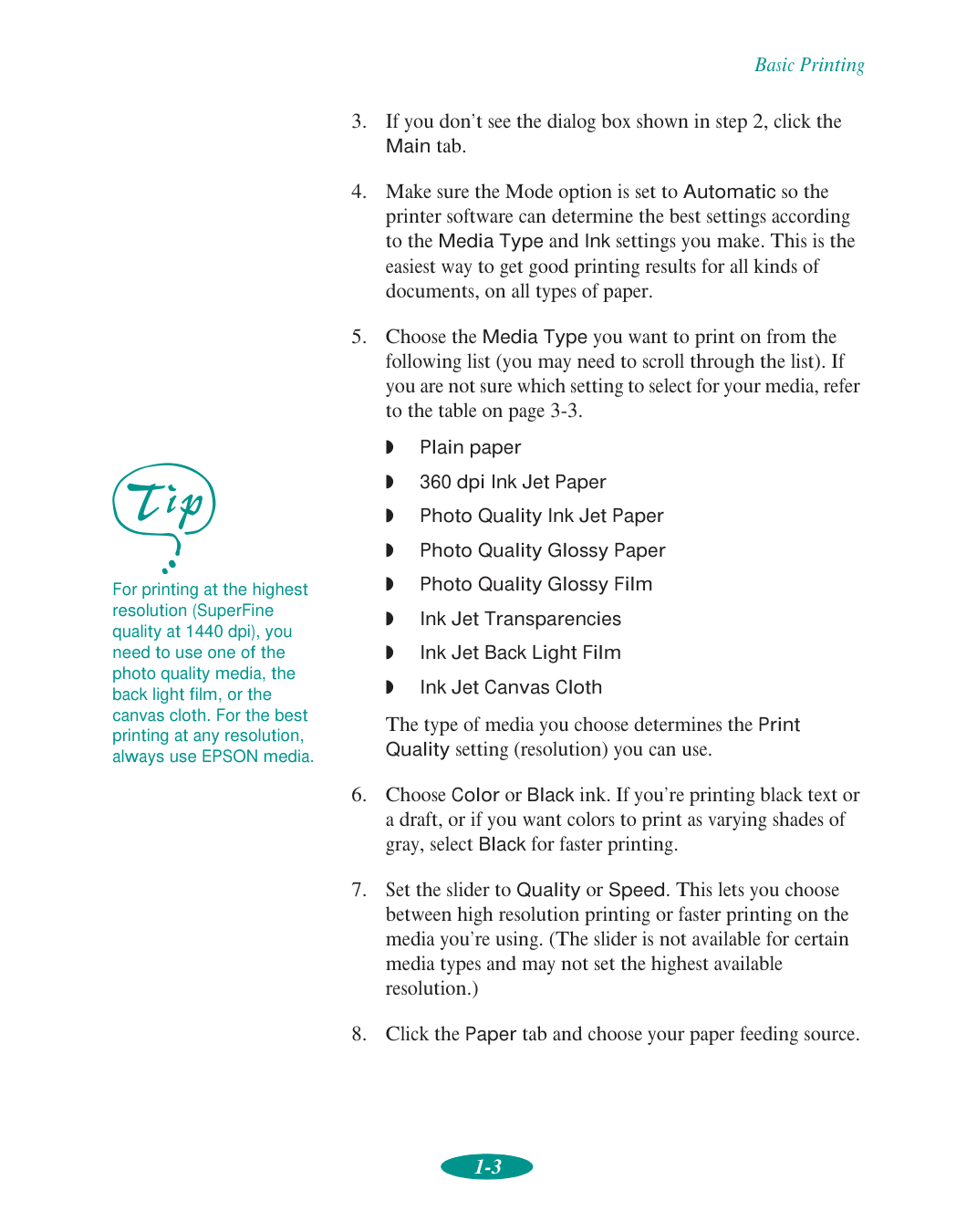
Basic Printing 1-2 Setting Printer Options from Windows Applications This section describes the options you’ll need to set for all your everyday printouts. See Chapter 2 for information about advanced settings for special print jobs. Follow these steps to check printer settings from your word processor or other Windows software:
Basic Printing 1-3
Q
Plain paperQ
360 dpi Ink Jet PaperQ
Photo Quality Ink Jet PaperQ
Photo Quality Glossy PaperQ
Photo Quality Glossy FilmQ
Ink Jet TransparenciesQ
Ink Jet Back Light FilmQ
Ink Jet Canvas Cloth The type of media you choose determines the Print Quality setting (resolution) you can use.
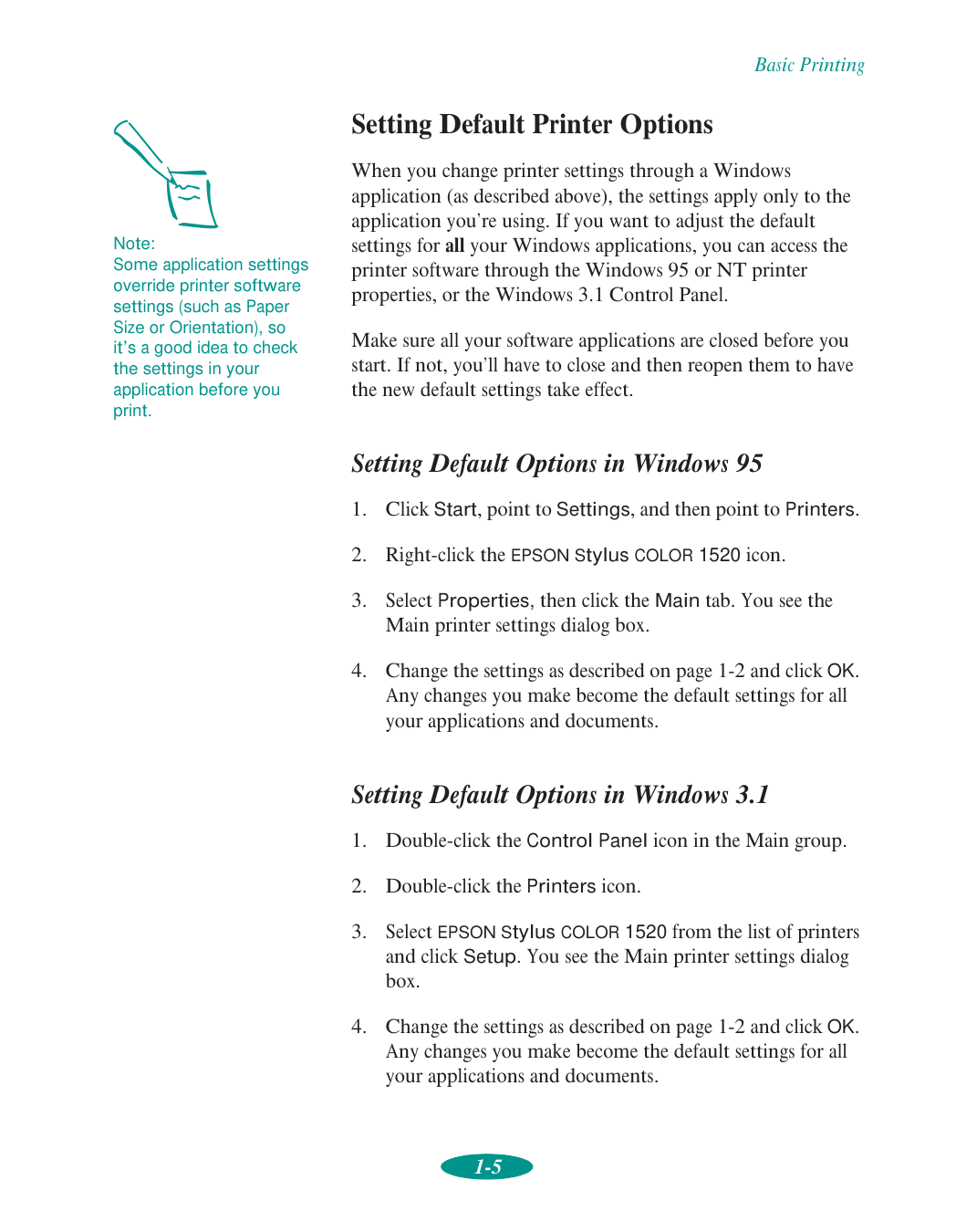
Basic Printing 1-4 The default Paper Source is Auto Sheet Feeder, for the built-in sheet feeder at the front of your printer. (For instructions on printing with other feeders, see Chapter 3.)
Basic Printing 1-5 Setting Default Printer Options When you change printer settings through a Windows application (as described above), the settings apply only to the application you’re using. If you want to adjust the default settings for all your Windows applications, you can access the printer software through the Windows 95 or NT printer properties, or the Windows 3.1 Control Panel. Make sure all your software applications are closed before you start. If not, you’ll have to close and then reopen them to have the new default settings take effect. Setting Default Options in Windows 95
Basic Printing 1-6 Setting Default Options in Windows NT 4.0
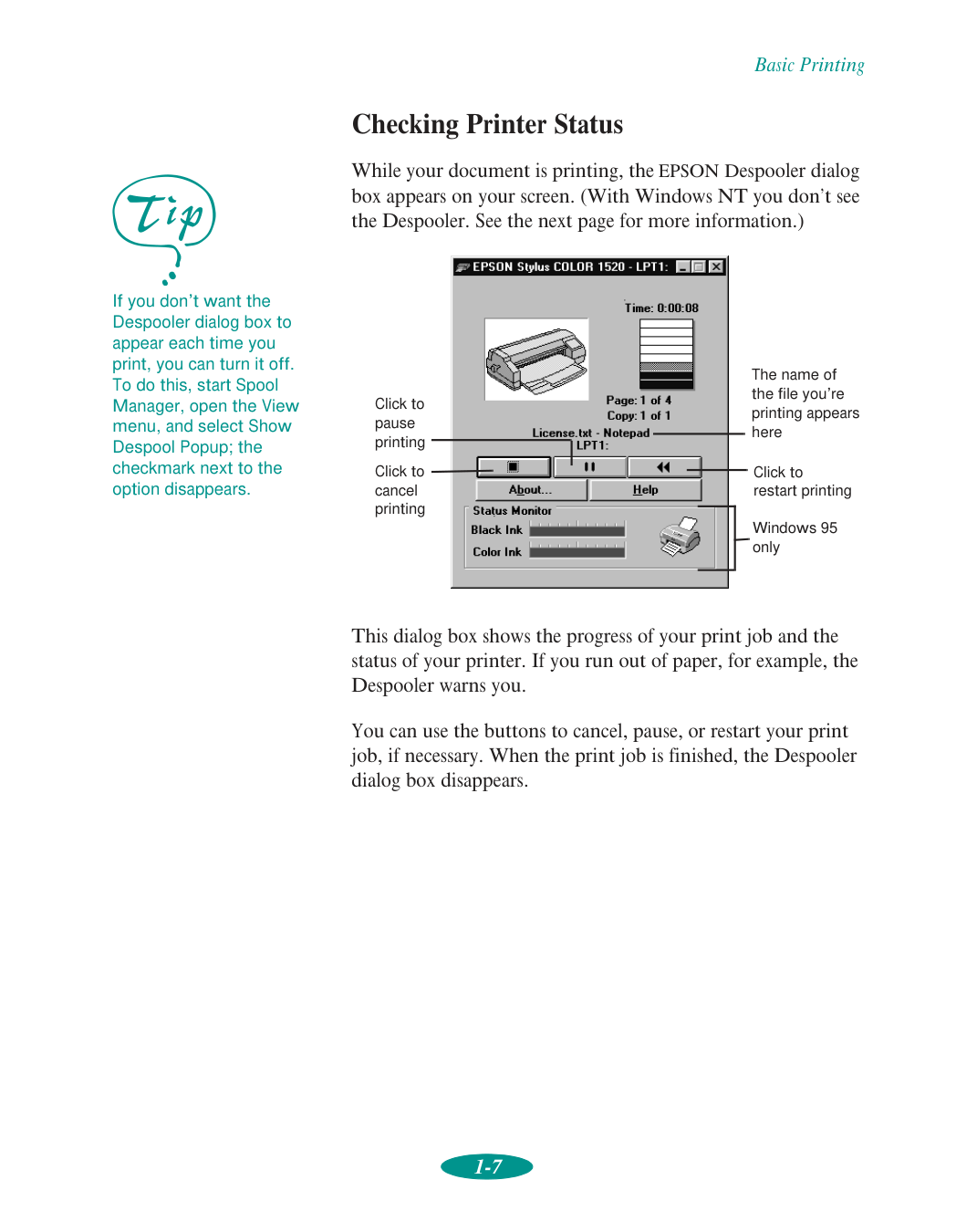
Basic Printing 1-7 Checking Printer Status While your document is printing, the EPSON Despooler dialog box appears on your screen. (With Windows NT you don’t see the Despooler. See the next page for more information.) This dialog box shows the progress of your print job and the status of your printer. If you run out of paper, for example, the Despooler warns you. You can use the buttons to cancel, pause, or restart your print job, if necessary. When the print job is finished, the Despooler dialog box disappears. If you don’t want the Despooler dialog box to appear each time you print, you can turn it off. To do this, start Spool Manager, open the View menu, and select Show Despool Popup; the checkmark next to the option disappears. The name of the file you’re printing appears here Click to pause printing Click to cancel printing Click to restart printing Windows 95 only
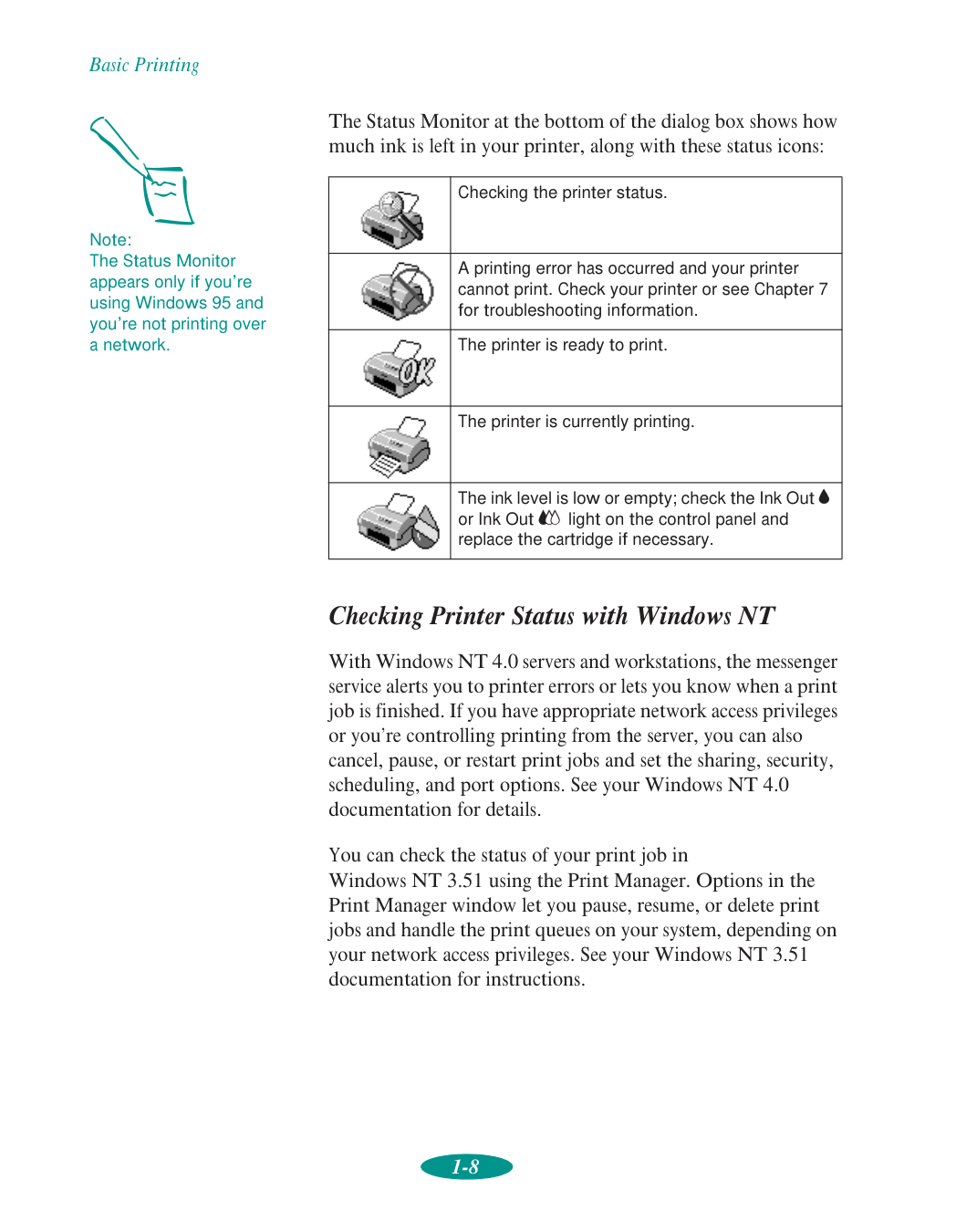
Basic Printing 1-8 The Status Monitor at the bottom of the dialog box shows how much ink is left in your printer, along with these status icons: Checking Printer Status with Windows NT With Windows NT 4.0 servers and workstations, the messenger service alerts you to printer errors or lets you know when a print job is finished. If you have appropriate network access privileges or you’re controlling printing from the server, you can also cancel, pause, or restart print jobs and set the sharing, security, scheduling, and port options. See your Windows NT 4.0 documentation for details. You can check the status of your print job in Windows NT 3.51 using the Print Manager. Options in the Print Manager window let you pause, resume, or delete print jobs and handle the print queues on your system, depending on your network access privileges. See your Windows NT 3.51 documentation for instructions. Note: The Status Monitor appears only if you’re using Windows 95 and you’re not printing over a network. Checking the printer status. A printing error has occurred and your printer cannot print. Check your printer or see Chapter 7 for troubleshooting information. The printer is ready to print. The printer is currently printing. The ink level is low or empty; check the Ink Out B or Ink Out A light on the control panel and replace the cartridge if necessary.
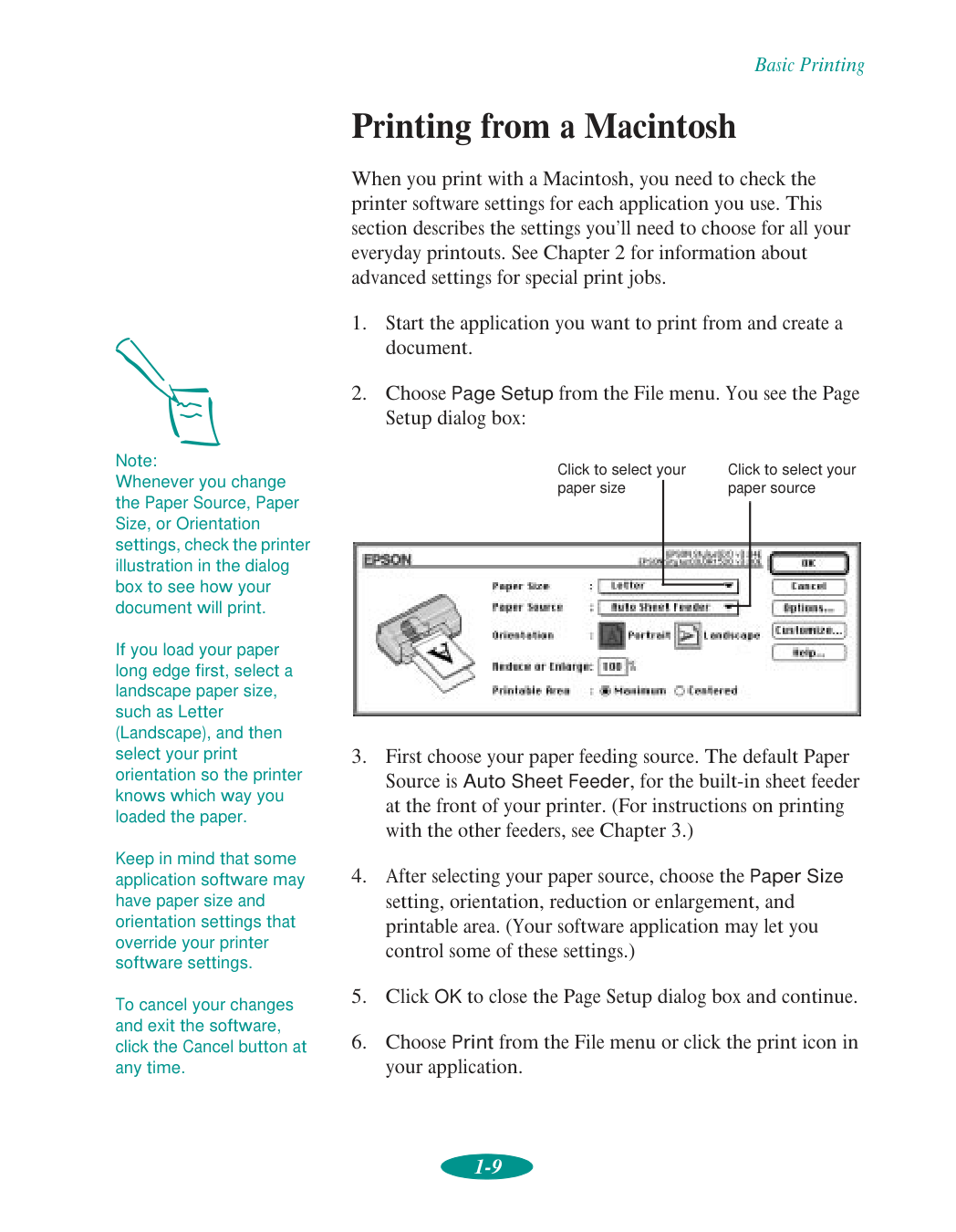
Basic Printing 1-9 Printing from a Macintosh When you print with a Macintosh, you need to check the printer software settings for each application you use. This section describes the settings you’ll need to choose for all your everyday printouts. See Chapter 2 for information about advanced settings for special print jobs.
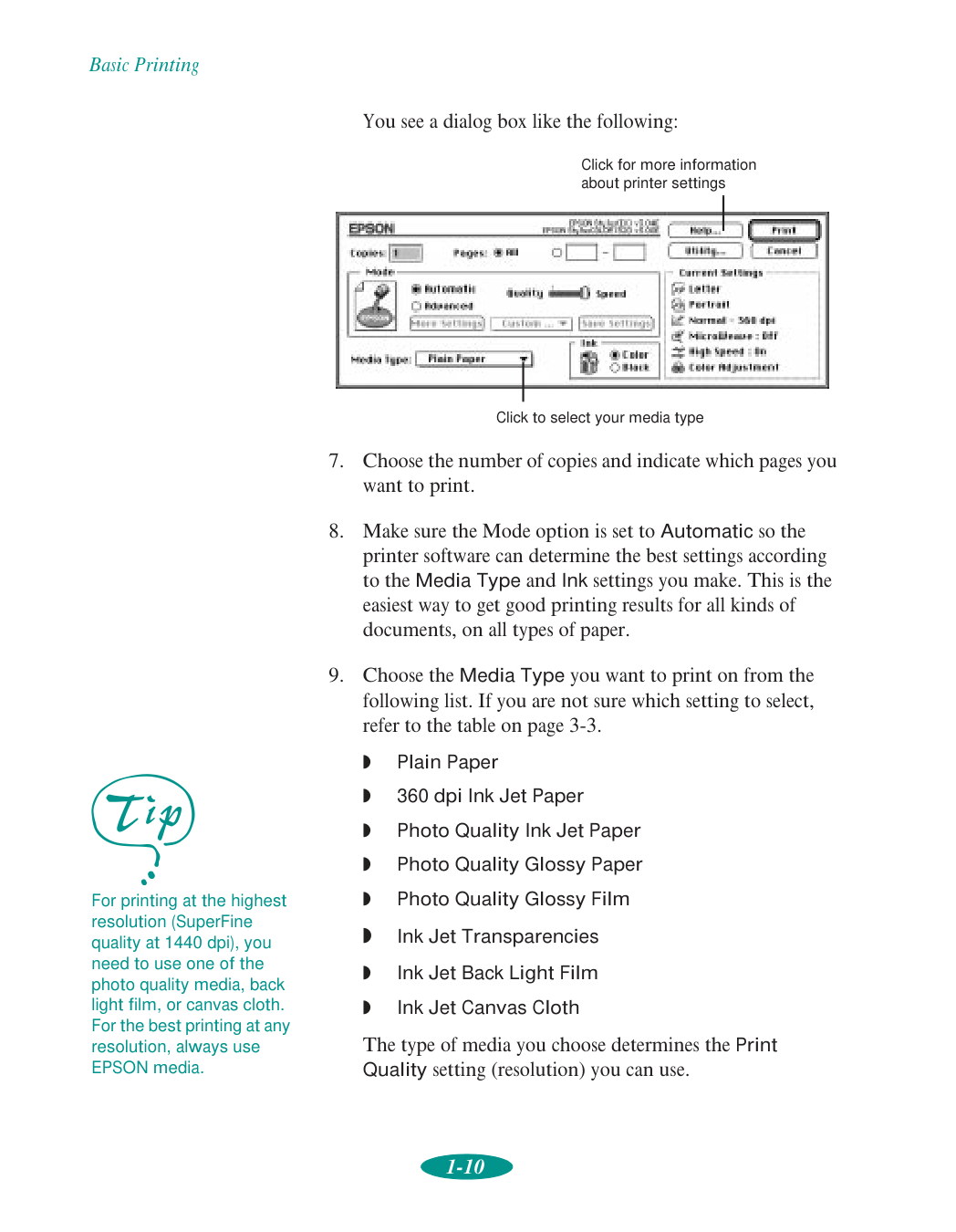
Basic Printing 1-10 You see a dialog box like the following:
Q
Plain PaperQ
360 dpi Ink Jet PaperQ
Photo Quality Ink Jet PaperQ
Photo Quality Glossy PaperQ
Photo Quality Glossy FilmQ
Ink Jet TransparenciesQ
Ink Jet Back Light FilmQ
Ink Jet Canvas Cloth The type of media you choose determines the Print Quality setting (resolution) you can use. Click for more information about printer settings Click to select your media type For printing at the highest resolution (SuperFine quality at 1440 dpi), you need to use one of the photo quality media, back light film, or canvas cloth. For the best printing at any resolution, always use EPSON media.
Basic Printing 1-11
Basic Printing 1-12 Accessing Help from Windows 95 Click the Start button, point to Programs, and Epson, and then click EPSON Stylus COLOR 1520 Help. For instructions on using help, read the online “Quick Guide to Using Help.” Accessing Help from Windows 3.1 In Program Manager, open the EPSON group and click the EPSON Stylus COLOR 1520 Help icon. For instructions on using help, read the online “Quick Guide to Using Help.” Accessing Help from Windows NT 4.0 Click the My Computer icon, then click the Printers icon. Right-click the EPSON Stylus COLOR 1520 icon and select Document Defaults from the menu. In the printer software dialog box, click the Help button. For instructions on using help, read the online “Quick Guide to Using Help.” Accessing Help from Windows NT 3.51 Double-click the Control Panel icon in the Main group. Then double-click the Printers icon. Select the EPSON Stylus COLOR 1520 printer window, then open the Printer menu and select Properties. Click Details, then click Job Defaults. In the printer software dialog box, click the Help button. For instructions on using help, read the online “Quick Guide to Using Help.” Accessing Help from Macintosh Applications Choose Print from the File menu or click the print icon in your application. Click the Help button for help related to the items on that menu. To exit Help, click the OK button at the bottom of the Help screen. With Windows 95 and Windows NT you can get specific help related to any item in the menus by right-clicking the item and then clicking the What’s This? prompt.
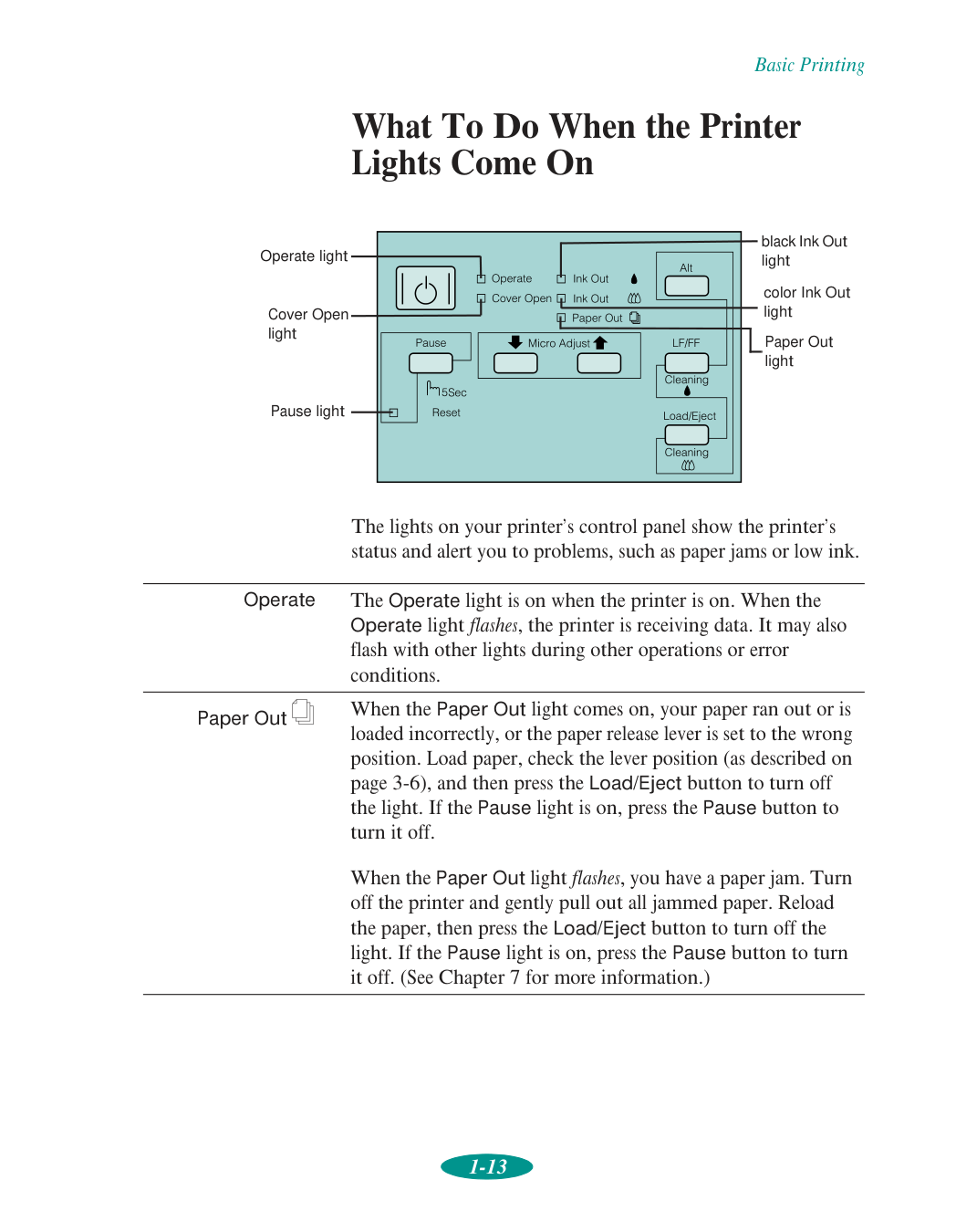
Basic Printing 1-13 What To Do When the Printer Lights Come On The lights on your printer’s control panel show the printer’s status and alert you to problems, such as paper jams or low ink. color Ink Out light black Ink Out light Paper Out light Operate The Operate light is on when the printer is on. When the Operate light flashes, the printer is receiving data. It may also flash with other lights during other operations or error conditions. Paper Out S When the Paper Out light comes on, your paper ran out or is loaded incorrectly, or the paper release lever is set to the wrong position. Load paper, check the lever position (as described on page 3-6), and then press the Load/Eject button to turn off the light. If the Pause light is on, press the Pause button to turn it off. When the Paper Out light flashes, you have a paper jam. Turn off the printer and gently pull out all jammed paper. Reload the paper, then press the Load/Eject button to turn off the light. If the Pause light is on, press the Pause button to turn it off. (See Chapter 7 for more information.) Operate light Cover Open light Pause light
Basic Printing 1-14 Ink Out B Ink Out A When an Ink Out light flashes, your ink supply is low. Make sure you have a replacement cartridge. When an Ink Out light comes on, you need to replace the ink cartridge. See Chapter 6 for instructions. Pause When the Pause light is on, printing is paused. Press the Pause button to resume. When the Pause light flashes, your printer is charging ink, cleaning the print heads, or performing another operation. See Chapter 6 for details. If you need to reset the printer’s memory, hold down the Pause button for 5 seconds. Cover Open When the Cover Open light comes on, the printer’s cover is open and printing is paused. Close the cover. If the Pause light is on, press the Pause button to turn it off and resume printing. All the lights When all the lights flash, your printer may have an internal error. See Chapter 7 for more information.
2-1 2 When you want to print presentation graphics, photographs, or other special projects, you can use the custom settings in your EPSON Stylus COLOR 1520 software. You can choose predefined settings or adjust individual options like brightness, contrast, saturation, and halftoning. For professional-quality color accuracy, you can use Image Color Matching (ICM) with Windows 95 or ColorSync on the Macintosh. This chapter includes the following information:
Q
Using predefined advanced settingsQ
Customizing print quality and special effectsQ
Customizing color settingsQ
Using ColorSync on the MacintoshQ
Saving custom settings Using Predefined Advanced Settings Predefined settings provide an easy way to fine-tune your printer’s operation for special projects. Follow these steps to print with predefined settings: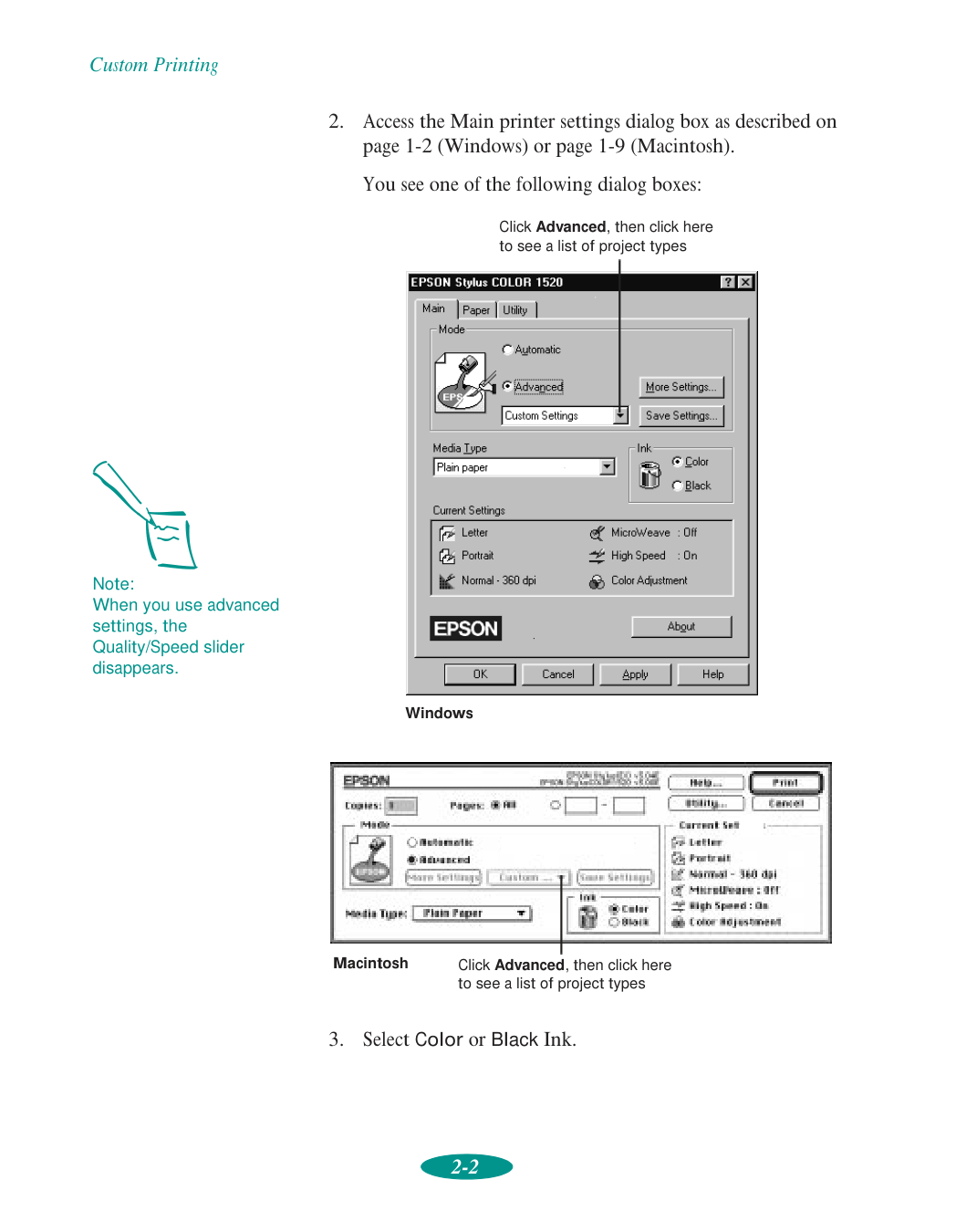
Custom Printing 2-2
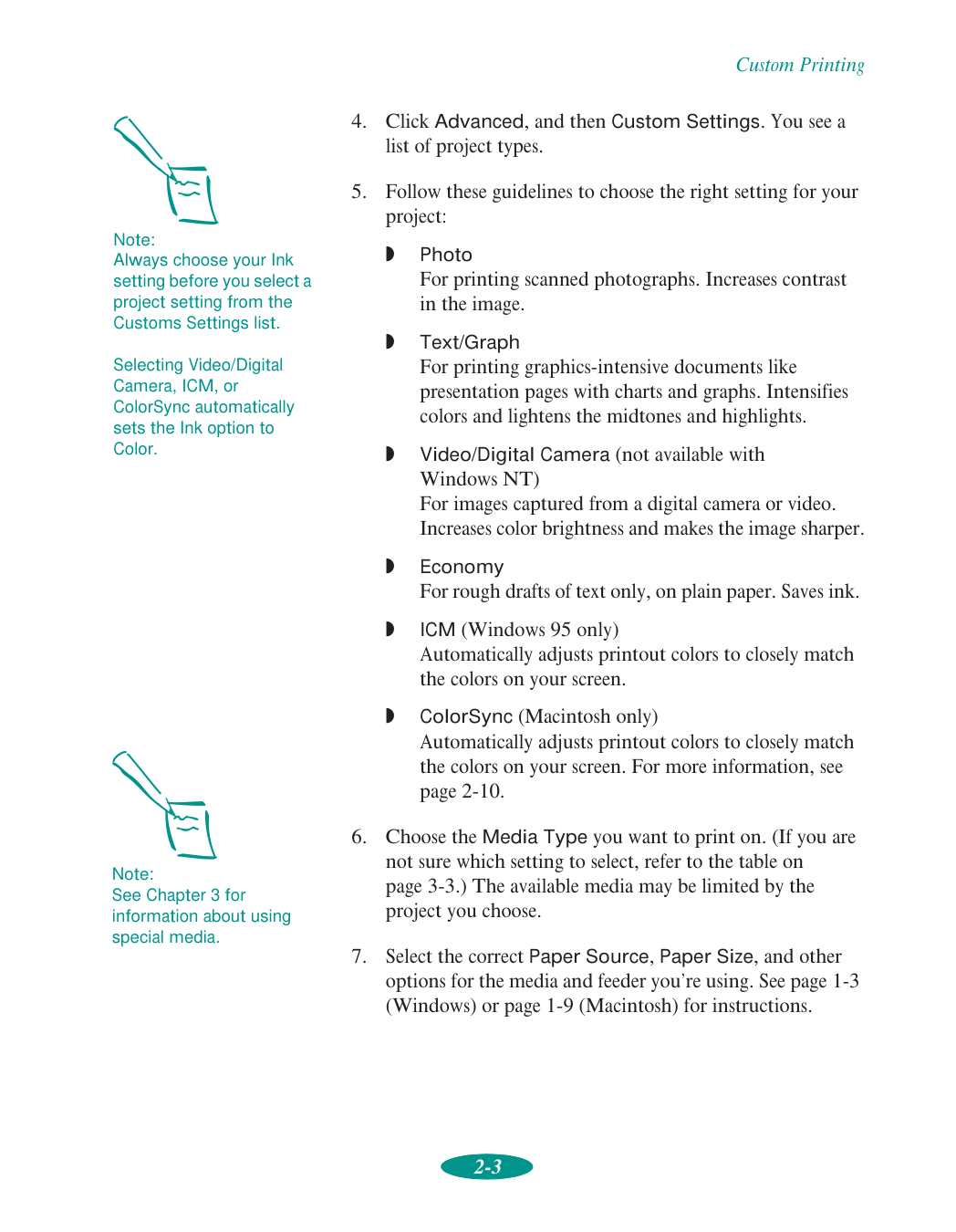
Custom Printing 2-3
Q
Photo For printing scanned photographs. Increases contrast in the image.Q
Text/Graph For printing graphics-intensive documents like presentation pages with charts and graphs. Intensifies colors and lightens the midtones and highlights.Q
Video/Digital Camera (not available with Windows NT) For images captured from a digital camera or video. Increases color brightness and makes the image sharper.Q
Economy For rough drafts of text only, on plain paper. Saves ink.Q
ICM (Windows 95 only) Automatically adjusts printout colors to closely match the colors on your screen.Q
ColorSync (Macintosh only) Automatically adjusts printout colors to closely match the colors on your screen. For more information, see page 2-10.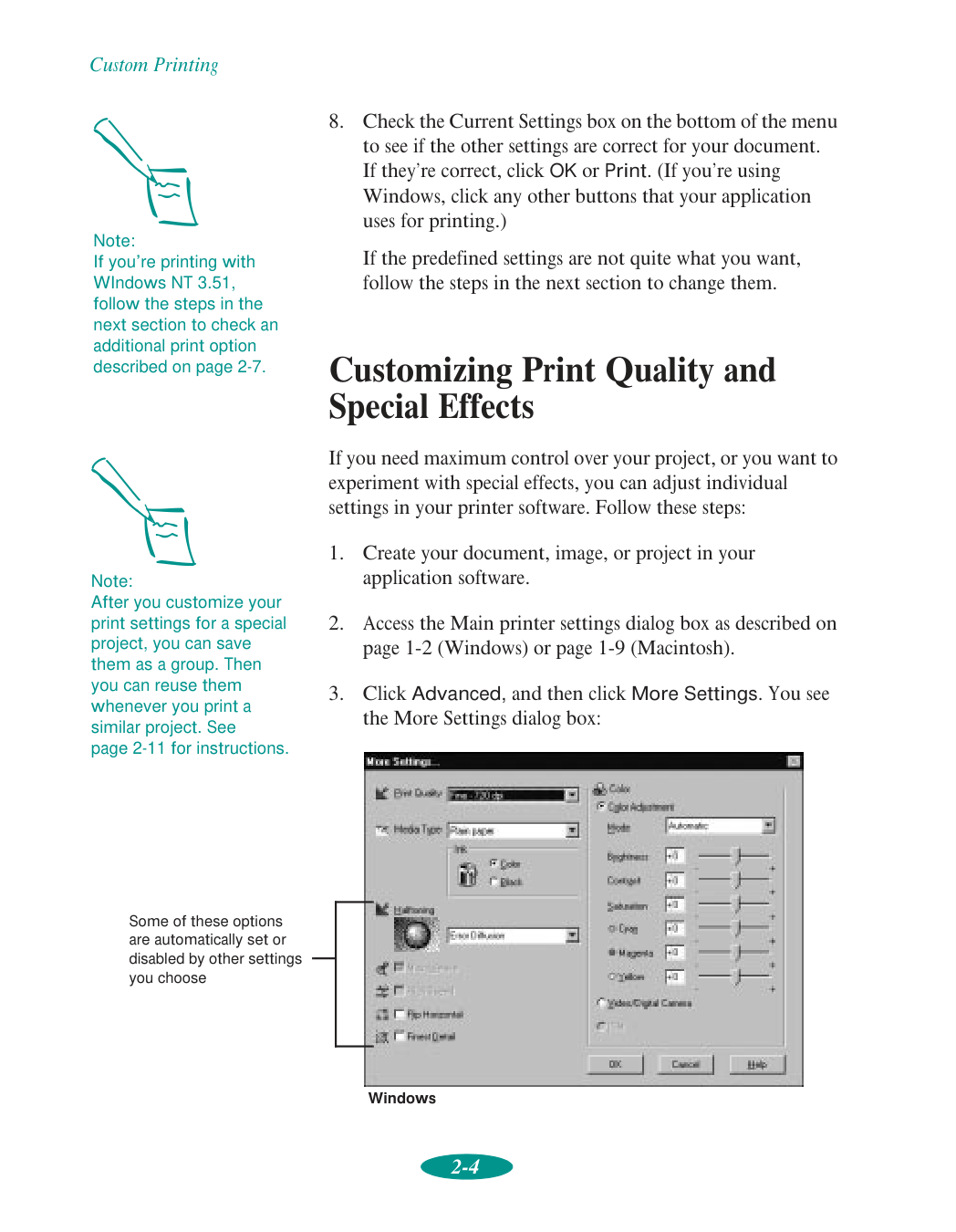
Custom Printing 2-4
Custom Printing 2-5
Q
Economy For low-resolution rough drafts on plain paper. Saves ink.Q
Normal - 360 dpi For most documents on plain paper, transparencies, or 360 dpi Ink Jet or Banner paper.Q
Fine - 720 dpi For high-resolution output. Works best on photo quality media, back light film, or canvas cloth.Q
SuperFine - 1440 dpi For the highest-resolution output on photo quality media, back light film, or canvas cloth only.
Custom Printing 2-6
Q
No Halftoning For printing black text only.Q
Error Diffusion For printing photographic or video/digital camera images. Blends each dot of color with the surrounding dots.Q
Fine Dithering, Coarse Dithering For printing charts, graphs, and other images that require precise, solid areas of bright colors. Arranges dots in orderly patterns. Use Coarse for images with more shading and less detail. Use Fine for images with more detail and less shading.Q
MicroWeave For improved print quality. Prints graphic data in finer increments to eliminate unwanted banding effects (light horizontal lines). Always use for color printing.Q
High Speed For fast, bidirectional printing at lower quality.Q
Flip Horizontal Prints a mirror image of your document. Use for printing with iron-on transfer paper or back light film so the image will appear correctly on your iron-on item or backlit display.Q
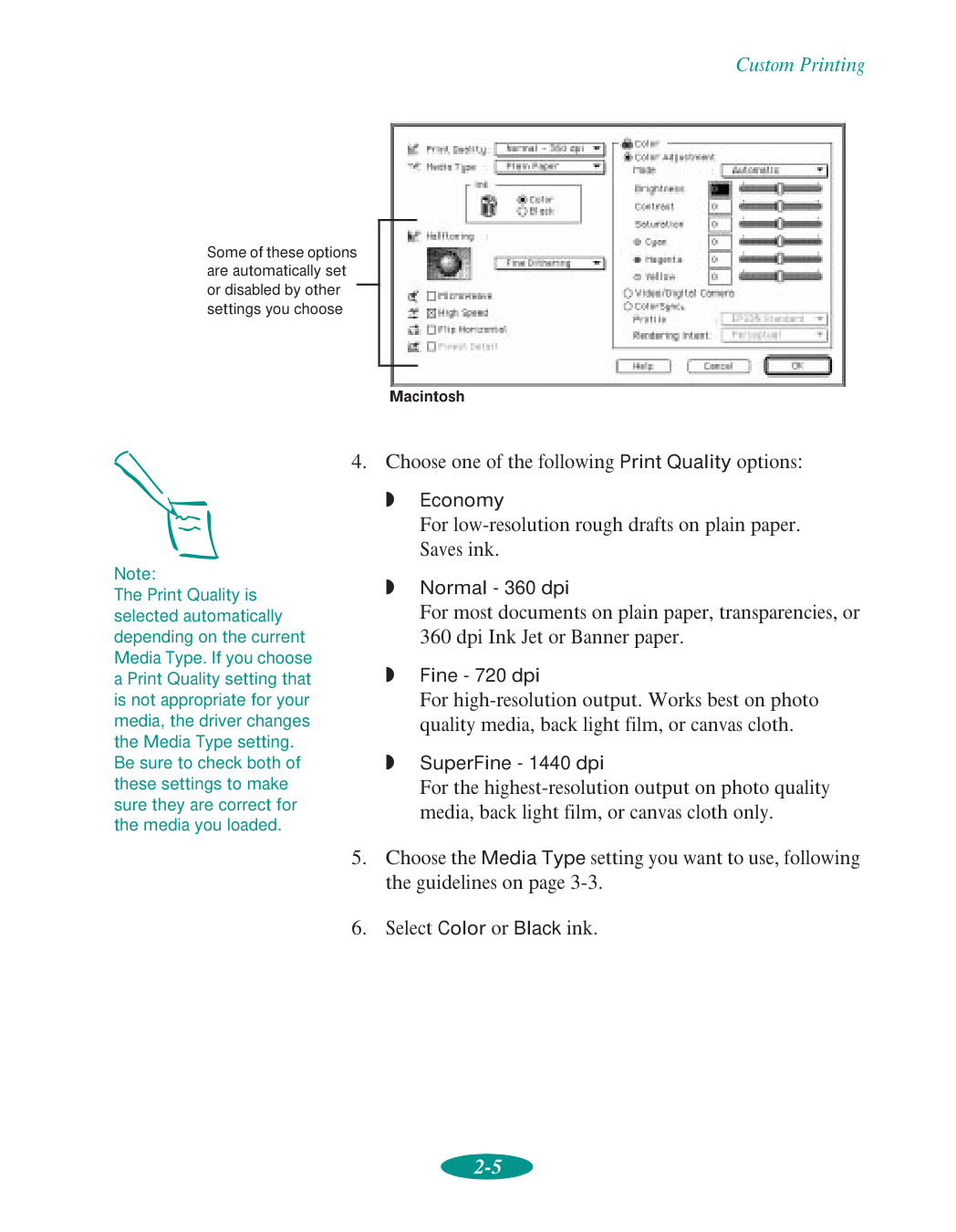
Finest Detail For printing text, graphics, and line art with very sharp edges. Slows print speed and increases your system memory requirements. Note: In Automatic mode, the Halftoning setting is selected based on the data in your print job. In Advanced mode, Halftoning is preselected for each document type setting. The No Halftoning option is available only when you select Black as the Ink setting. If vertical lines in your printout are misaligned when you use the High Speed setting, you may need to align the print heads. See Chapter 6 for instructions.
Custom Printing 2-7
Q
Print Using a Temporary File (Windows NT 3.51 only) For increasing the speed that Windows NT 3.51 returns to your application by printing to a temporary print file. A separate application then sends the file to your printer. Turn this option off when printing complex documents or if parts of a printout are missing after printing with it turned on.
Custom Printing 2-8 Follow these steps to customize your color settings:
Q
Automatic Analyzes the color information in your project and optimizes color correction accordingly.Q
Photo-realistic For printing color photographs.Q
Vivid For printing graphics-intensive documents like presentation pages with charts and graphs. Intensifies colors and lightens the midtones and highlights. Click to set Color Adjustment Mode Drag sliders to set values between -25% and +25% Macintosh Windows (ICM is available only for Windows 95)
Custom Printing 2-9
Q
No Color Adjustment (Windows NT 4.0 and Macintosh only) With Windows NT 4.0, disables the color adjustment features of the printer software so you can adjust colors using your application. On a Macintosh, choose this mode only if you’re using ColorSync.Q
Brightness Makes your image lighter or darker.Q
Contrast Increases or decreases the difference between the bright or dark parts of an image.Q
Saturation Makes colors more vivid or less vivid.Q
Cyan, Magenta, Yellow Increases or decreases the amount of the three ink colors that combine to make a full-color picture. Use to fine-tune the color balance in your printout.Q
Video/Digital Camera (not available with Windows NT) Use for printing images captured from a digital camera or video. Increases contrast and saturation and makes the image sharper.Q
ICM (Windows 95 only) Automatically adjusts printout colors to closely match colors on the screen. Note: When you choose Video/Digital Camera, ICM, or ColorSync, the individual color characteristics described in step 3 are preset. The availability of ICM depends on your Print Quality, Media Type, and Halftoning settings.
Custom Printing 2-10
Q
ColorSync (Macintosh only) Automatically adjusts printout colors to closely match colors on the screen. See “Using ColorSync on the Macintosh” below for instructions.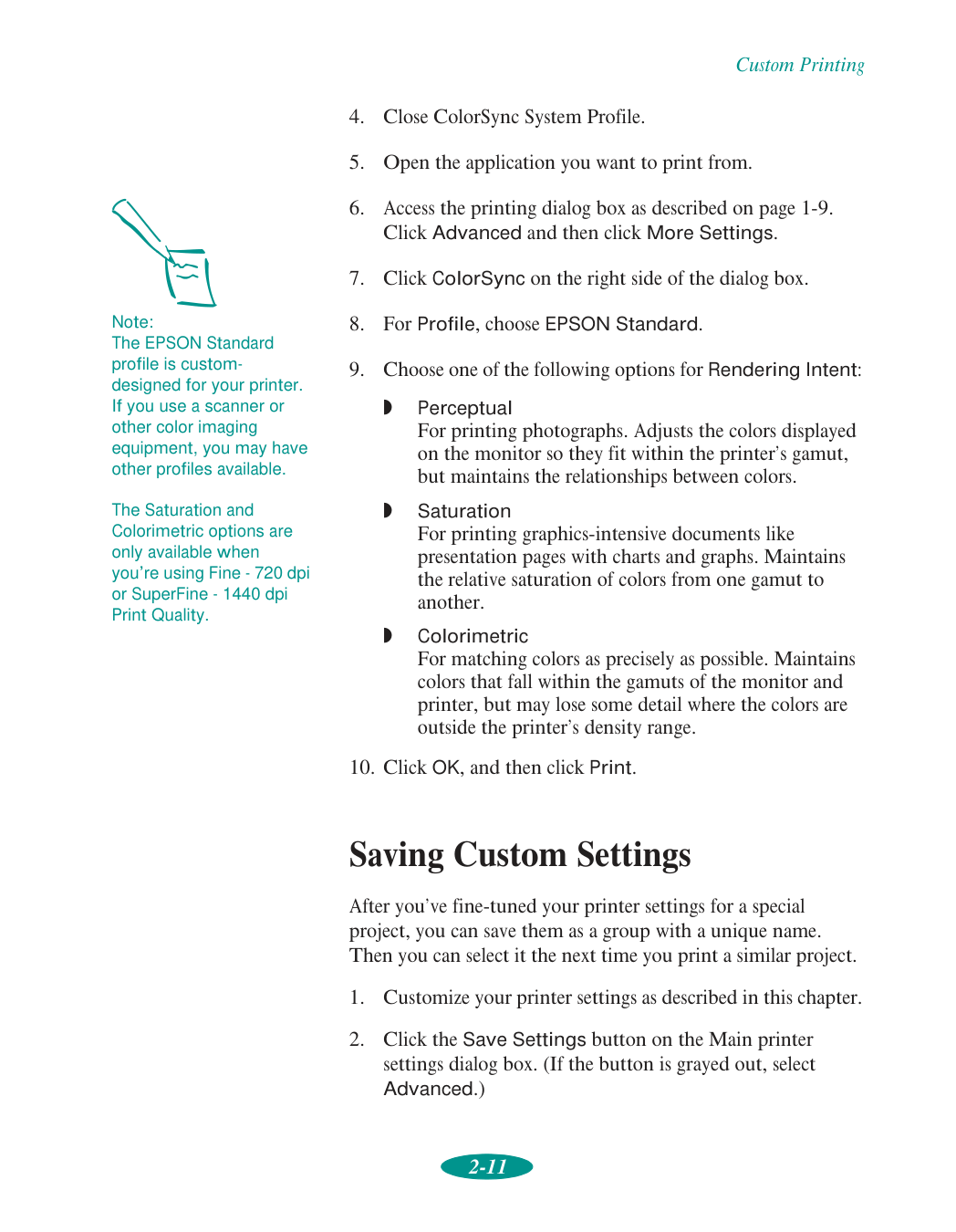
Custom Printing 2-11
Q
Perceptual For printing photographs. Adjusts the colors displayed on the monitor so they fit within the printer’s gamut, but maintains the relationships between colors.Q
Saturation For printing graphics-intensive documents like presentation pages with charts and graphs. Maintains the relative saturation of colors from one gamut to another.Q
Colorimetric For matching colors as precisely as possible. Maintains colors that fall within the gamuts of the monitor and printer, but may lose some detail where the colors are outside the printer’s density range.
Custom Printing 2-12 You see one of the following:

Custom Printing 2-13 Redefining Custom Settings To change the options in a customized setting group but keep the same name for it, follow these steps:

3-1 3 Your EPSON Stylus COLOR 1520 lets you print on just about any kind of paper you want to use. You can get great results printing on plain paper, letterhead, and envelopes. But you’ll get the best results with EPSON’s specially coated ink jet paper. You can choose from a variety of EPSON media, ranging from glossy paper and transparencies to iron-on transfer paper and canvas cloth. Your printer’s versatile feeding options let you load media of almost any size or format, including single sheets, continuous paper, and roll paper for banners and signs. You can even load two types of paper at once, switching between them with the flip of a lever when you’re ready to print on them. This chapter covers the following:
Q
Using special media typesQ
Printing on single sheetsQ
Printing on continuous paperQ
Adjusting the loading and tear-off positionsQ
Switching between continuous and single-sheet paperQ
Printing a banner or other roll paper projectQ
Printing a backlit display Printing on Special Media
Printing on Special Media 3-2 Using Special Media Types The type of paper or other media you use can help determine the ultimate quality of your printed output. You can achieve good results with plain paper, but for better results, use EPSON media for EPSON ink jet printers because they provide the best surface for the ink used in your printer. EPSON ink jet paper comes in a variety of types and sizes. To order, contact your dealer or call EPSON Accessories at (800) 873-7766 (U.S. sales only). In Canada, please call (800) 873-7766 for dealer referral. Media name Size Part number EPSON 360 dpi Ink Jet Paper Letter
A4
Super A3/BS041060
S041059
S041066
EPSON High Quality Ink Jet Paper LetterA4
S041111
S041117
EPSON Photo Quality Ink Jet Paper LetterA4
LegalB
Super A3/BA2
S041062
S041061
S041067, S041048
S041070
S041069
S041079
EPSON Photo Quality Glossy PaperA4
LetterA2
Super A3/BS041126
S041124
S041123
S041133
EPSON Photo Quality Glossy FilmA4
LetterA6
B
Super A3/BS041071
S041072
S041107
S041075
S041074
EPSON Ink Jet TransparenciesA4
LetterS041063
S041064
EPSON Photo Quality Ink Jet CardsA6
8 × 10S041054
S041122
EPSON Iron-On Transfer Paper Letter Super A3/BSe41001, Se41002
Se41003

Printing on Special Media 3-3 Media Loading and Software Setting Guidelines Whether you print on plain paper or special media, you need to load it according to the guidelines in the table below. You must also select the correct Media Type setting in your printer software to match the media you loaded. Also check the media loading guidelines following the table for more information. EPSON Photo Quality Self Adhesive Sheets
A4
S041106
EPSON Photo Quality Banner Paper A2 × 15 m roll 16.5 inches × 49 ftS041102
EPSON Ink Jet Canvas Cloth A2 × 3 m roll 16.5 inches × 9.8 ftS041132
EPSON Ink Jet Back Light FilmA3
A2
S041131
S041130
Media name Size Part number When you load media with this name . . . Load a maximum of this many sheets in the built-in sheet feeder as described on page 3-6 . . . Then select this Media Type setting in your printer software . . . Plain paper (single sheets) 100 letter size 30 Super A3/B size 30 A2 size Plain paper Continuous paper (plain or labels) See “Printing on Continuous Paper” on page 3-14. Envelopes1 10 EPSON 360 dpi Ink Jet Paper 70 letter size 30 legal size 30 Super A3/B size 30 A2 size 360 dpi Ink Jet Paper EPSON Special Coated Paper for 360 dpi Printing EPSON High Quality Ink Jet Paper 70 letter size 30 legal size 30 Super A3/B 30 A2 size Photo Quality Ink Jet Paper EPSON Photo Quality Ink Jet Paper EPSON Special Coated Paper for 720 dpi Printing
Printing on Special Media 3-4 1 If you’re printing from DOS, see Chapter 5 for printing instructions. 2 With multiple sheets loaded, the minimum top margin is 1.2 inches (30 mm). For a smaller top margin or for ease in loading, load and print one sheet at a time with a support sheet beneath it. 3 Turn on the Flip Horizontal option to reverse your image before you print it—especially if it includes text—so the image will appear correctly when it’s transferred. See Chapter 2 for instructions. After you print, follow the instructions that came with the paper to iron the image onto the shirt or other item. EPSON Photo Quality Ink Jet Cards 30 cards1 Photo Quality Ink Jet Paper EPSON 720 dpi Index Cards EPSON Photo Quality Self Adhesive Sheets See “Loading Paper in the Manual Feeder” on page 3-11. EPSON Photo Quality Banner Paper See “Loading Roll Paper” on page 3-22. EPSON Photo Quality Glossy Paper (use with support sheet) 20 sheets Photo Quality Glossy Paper EPSON Photo Quality Glossy Film (use with support sheet) 30 letter size2 1 A2 size Photo Quality Glossy Film EPSON High Quality Glossy Paper (use with support sheet) 30 letter size2 1 A2 size EPSON Iron-On Transfer Paper3 1 sheet EPSON Ink Jet Transparencies (use with support sheet) 30 sheets Ink Jet Transparencies EPSON Ink Jet Back Light Film See “Loading Back Light Film” on page 3-33. Ink Jet Back Light Film EPSON Ink Jet Canvas Cloth See “Loading Roll Paper” on page 3-22. Ink Jet Canvas Cloth When you load media with this name . . . Load a maximum of this many sheets in the built-in sheet feeder as described on page 3-6 . . . Then select this Media Type setting in your printer software . . .

Printing on Special Media 3-5 Additional Media Loading Guidelines
Q
In addition to the Media Type setting, remember to select the correct Paper Size for your media.Q
Some special media have a cut corner you must position correctly; follow any instructions in the package. Always handle sheets by the edges; don’t touch the printable side.Q
Make sure labels are fully adhered to their backing sheet before you load them.Q
When loading pre-printed paper, such as letterhead or forms, make sure the paper’s top edge leads into the printer.Q
Use ink jet papers within one year of purchase. Use glossy media and transparencies within six months. Return unused media to their original packages as soon as possible. See Appendix C for more media storage information.Q
If your special media came with a cleaning sheet, be sure to feed it through the printer after you’ve finished using the package of paper. Peel off the instruction sheet; then position the cut corner of the cleaning sheet in the built-in sheet feeder as shown below. Press the Load/Eject button to feed it through the printer. Repeat this several times.Q
See these sections for complete paper loading instructions:Q
See page 3-6 for sheet feeder instructions.Q
See page 3-11 for manual feeder instructions.Q
See page 3-14 for tractor feeder instructions.Q
See page 3-22 for roll feeder instructions. Note: If you don’t see the Media Type option for your paper when you’re using the printer software, change the Print Quality setting in the More Settings dialog box, select Automatic as the Mode setting, or change the predefined setting in the Custom Settings list on the Main menu. See Chapter 2 for instructions on selecting these settings. Be sure to feed a cleaning sheet through the printer after using any package of special media that comes with the cleaning sheet so you don’t experience feeding problems. cut corner
Printing on Special Media 3-6 Printing on Single Sheets You can print on single sheets of paper up to 17 inches wide (432 mm) in your printer using the built-in sheet feeder or the manual feeder. You’ll probably use the built-in sheet feeder at the front of your printer for the size paper you use most often, such as letter- or legal-size sheets. Then you can use the manual feeder at the top of the printer for loading individual, large format sheets or roll paper using the optional Banner Paper Kit. (See page 3-22 for more information on the Banner Paper Kit.) Follow the instructions in the sections below to load single sheets of paper from these feeders. Loading Paper in the Built-in Sheet Feeder You can load paper up to 17 inches wide (432 mm) in the built-in sheet feeder, but do not load the stack above the arrow mark on the right edge guide. Load legal-size or larger paper no more than halfway to the arrow mark. If you load paper more than 14.3 inches (364 mm) wide, load a maximum of 30 sheets at a time, regardless of the paper type.

Printing on Special Media 3-7

Printing on Special Media 3-8 If the paper is more than 14.3 inches (364 mm) wide, slide the right edge guide all the way right.

Printing on Special Media 3-9

Printing on Special Media 3-10 To load up to 30 ink jet cards, place them printable side down, with the short edge leading into the feeder. Remove the rear paper support guide and reinstall it backward, sliding it forward to the edge of the cards.
Q
If you run out of paper while printing, reload the sheet feeder and press the Pause button to continue.Q
If the ink smears on your document, set the thickness lever to the + position and reprint; see page 3-7.Q
If your margins are not where you like them, adjust them in your application software. However, if the problem seems to be with your paper’s loading position, you can change it using the Micro Adjust buttons; see page 3-20 for instructions. rear paper support guide Note: Make sure that paper isn’t loaded in the manual feeder at the top of the printer before sending your print job. If paper is loaded in the manual feeder, the printer will print on it instead of the paper in the built-in sheet feeder.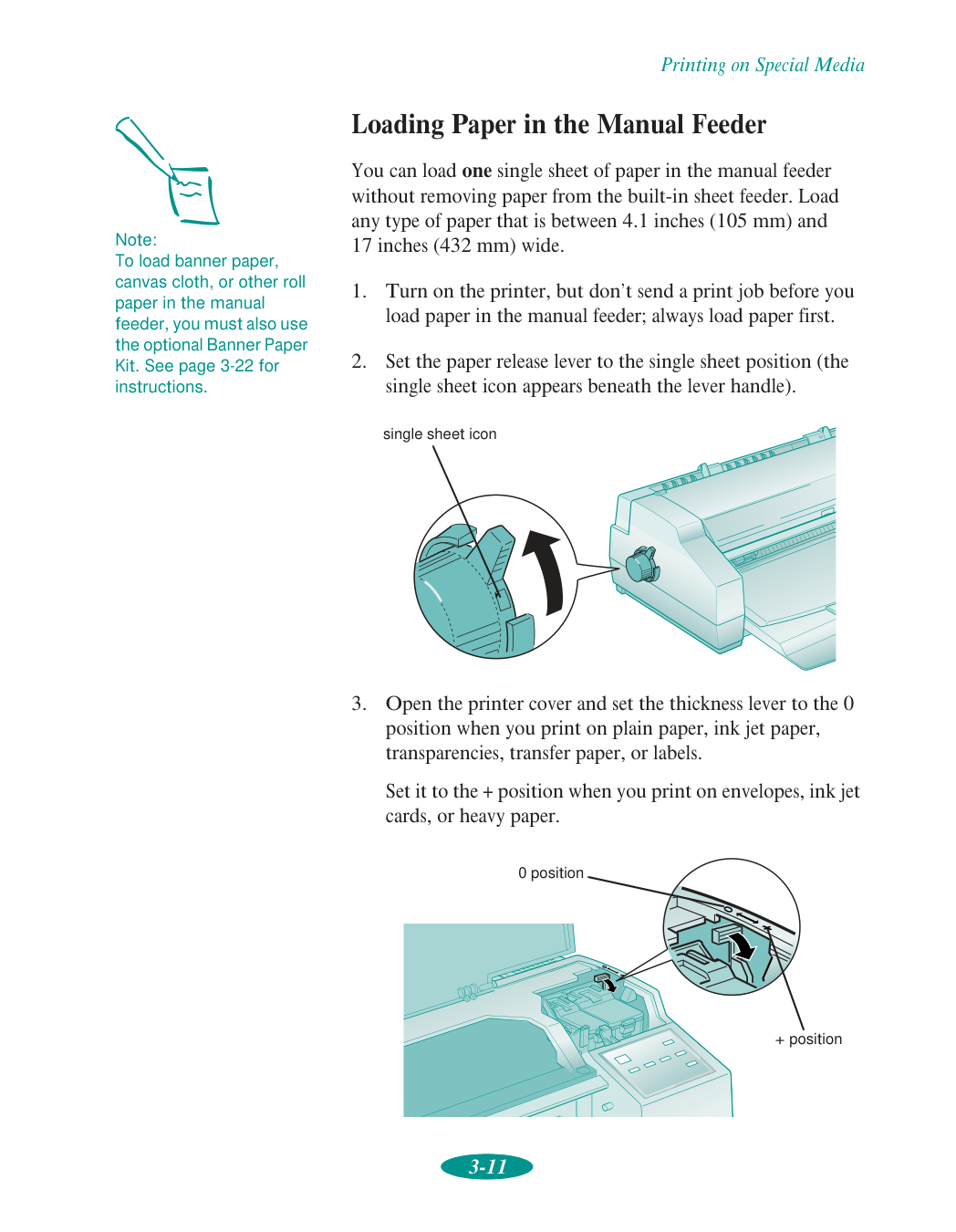
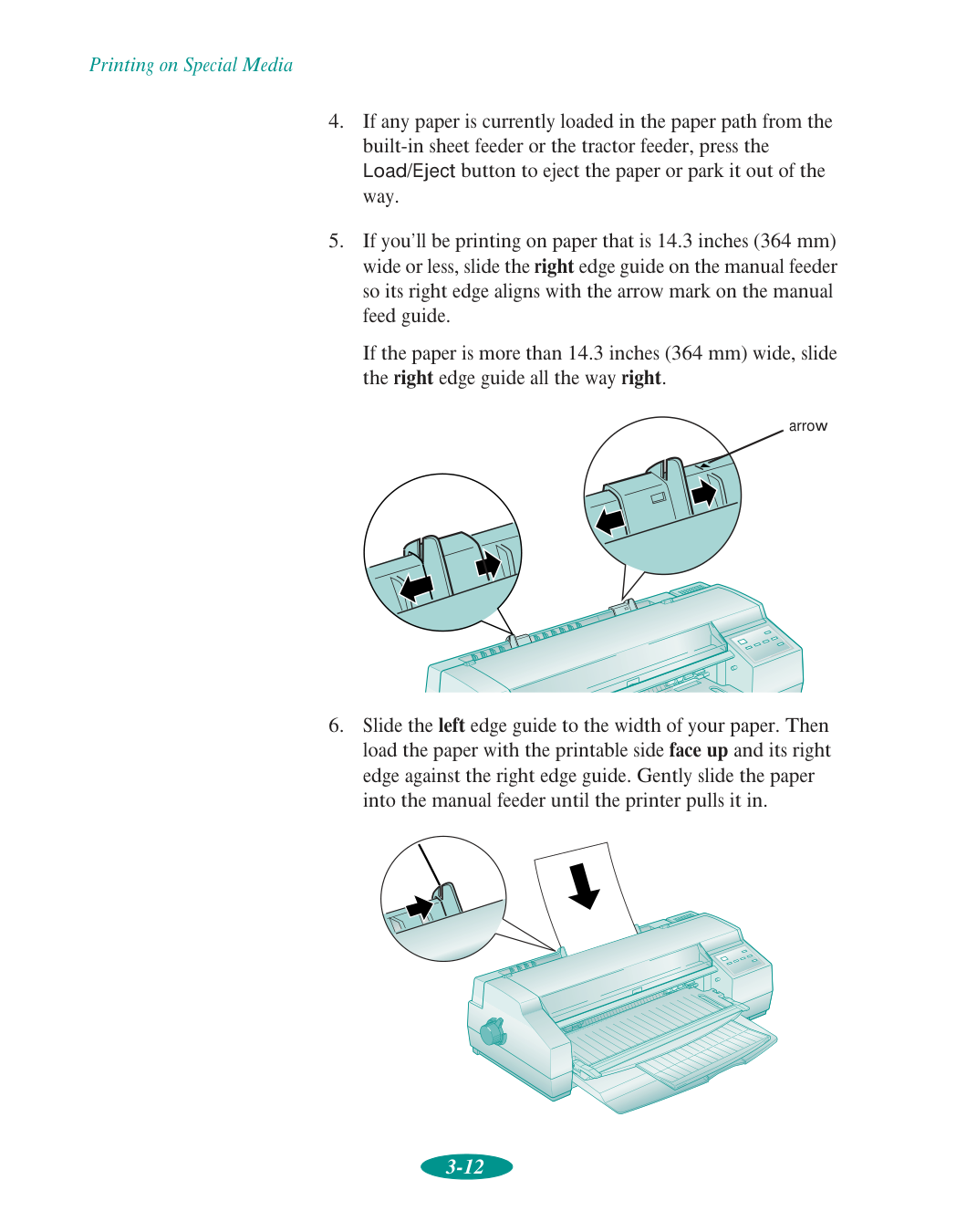
Printing on Special Media 3-11 Loading Paper in the Manual Feeder You can load one single sheet of paper in the manual feeder without removing paper from the built-in sheet feeder. Load any type of paper that is between 4.1 inches (105 mm) and 17 inches (432 mm) wide.
Printing on Special Media 3-12

Printing on Special Media 3-13 You can load one envelope in the manual feeder face up with the flap edge leading into the feeder. Gently slide the envelope into the manual feeder until the printer pulls it in. If the paper doesn’t load straight, press the Load/Eject button to eject the paper; then load it again.
Q
If you want to print another document in the manual feeder, load the paper as described above. To print on paper in the built-in sheet feeder, just send a print job.Q
If the ink smears on your document, set the thickness lever to the + position and reprint; see page 3-7.Q
If your margins are not where you like them, adjust them in your application software. However, if the problem seems to be with your paper’s loading position, you can change it using the Micro Adjust buttons; see page 3-20 for instructions. arrow Note: Make sure that paper isn’t loaded in the manual feeder at the top of the printer before sending a print job for paper in the built-in sheet feeder. If paper is loaded in the manual feeder, the printer will print on it instead of the paper in the built-in sheet feeder.
Printing on Special Media 3-14 Printing on Continuous Paper You can load continuous paper in the built-in tractor feeder on the back of the printer without removing paper from the built-in sheet feeder. Load any type of continuous paper that is between 4 inches (102 mm) and 16 inches (406 mm) wide, such as greenbar paper, fanfold banner paper, or continuous label paper.

Printing on Special Media 3-15

Printing on Special Media 3-16

Printing on Special Media 3-17

Printing on Special Media 3-18 Removing Continuous Paper When you’ve finished printing a continuous paper document, you must carefully follow these steps to remove it from the printer, depending on your media type and the setting of the auto tear-off feature.

Printing on Special Media 3-19

Printing on Special Media 3-20 Using the Micro Adjust Buttons The Micro Adjust U and Micro Adjust D buttons on your printer’s control panel allow you to make quick adjustments to your paper’s loading and tear-off positions. Adjust the paper’s loading position if you notice that printing is too high or low on the page and the position cannot be corrected in your software program. You can even set separate loading positions for continuous paper, manually fed paper, or sheet-feeder fed paper. If you’re using continuous paper and the perforation does not align with the printer’s tear-off edge when you’re done printing, you can use these buttons to adjust the tear-off position. Adjusting the Loading Position Follow these steps to adjust the loading position of your paper:

Printing on Special Media 3-21 Adjusting the Tear-off Position First make sure that continuous paper is loaded in the current tear-off position (see page 3-18 for details). Follow these steps to adjust the tear-off position:

Printing on Special Media 3-22
Q
Turn banner mode on so the printer doesn’t advance too much roll paper out of the printer if you press the LF/FF button.Q
Turn auto tear-off mode on so the printer can advance the roll paper to the correct cut-off position. Note: If the Pause and Paper Out S lights flash, you may have changed the paper release lever position when paper was still loaded. Set the lever back to its original position and press the Load/Eject button to eject or park the paper. Then set the lever to its new position. Note: To print on roll paper, you need the optional EPSON Banner Paper Kit (C81101*). Contact your EPSON dealer or EPSON Accessories at the phone number on page 3-2.
Printing on Special Media 3-23 When you’ve finished setting these options, turn off the printer to exit default-setting mode. Wait five seconds, then turn on the printer again before performing step 2.

Printing on Special Media 3-24

Printing on Special Media 3-25

Printing on Special Media 3-26

Printing on Special Media 3-27 Printing a Banner from Windows Follow these steps to print a banner or other custom-size project from a Windows application:

Printing on Special Media 3-28

Printing on Special Media 3-29 Printing a Banner from a Macintosh Follow these steps to print a banner or other custom-size project on a Macintosh:

Printing on Special Media 3-30

Printing on Special Media 3-31 Press Micro Adjust D and Micro Adjust U buttons as necessary to move the end of the banner to the cut-off position on the banner paper cutting guide.

Printing on Special Media 3-32

Printing on Special Media 3-33
Q
Load it in the built-in sheet feeder with the printable, non-glossy, white surface face down following the instructions on page 3-6.Q
Load it in the manual feeder with the printable, non-glossy, white surface face up following the instructions on page 3-11.
Printing on Special Media 3-34 Printing a Backlit Display from Windows
Printing on Special Media 3-35 Printing a Backlit Display on a Macintosh
4-1 4 Your printer software includes several utilities for managing print jobs. You can use them to monitor your printer’s status, set up large jobs to print later, and handle network printing. If you’re using your printer on a network, you need to follow the special setup procedures in this chapter. This chapter provides instructions for the following:
Q
Managing print jobs with Windows 95 or 3.1Q
Managing print jobs with Windows NTQ
Managing print jobs on a MacintoshQ
Network printing on a PCQ
Network printing on a Macintosh Managing Print Jobs with Windows 95 or 3.1 Your Windows printer software includes two management utilities: the Spool Manager and Status Monitor.Q
The Spool Manager starts automatically when you send a job to the printer. It allows you to print in the background while you continue to work on your computer and to hold jobs to print at a later time. If you’re using your printer on a network, it also handles multiple print jobs that come in at the same time. Managing Print Jobs and Network Printing
Managing Print Jobs and Network Printing 4-2
Q
The Status Monitor, which is available only if you’re using Windows 95, also starts automatically when you send a job to the printer. It displays on your screen to alert you about printer and ink status. Using the Spool Manager The Spool Manager works like the Windows Print Manager. When you send a job to your printer, your printer software creates a temporary print job file, stores it in the C:\TEMP or C:\WINDOWS\TEMP folder or directory, and assigns it to a print queue. The software then sends the file to your printer at the right time.Q
To open the Spool Manager while you’re printing, click the Spool Manager icon that appears on the Taskbar (Windows 95) or at the bottom of your desktop (Windows 3.1).Q
To open it at any time, double-click the Spool Manager4 icon in the EPSON program group or folder. You see the Spool Manager window: The Spool Manager window displays the status of your print queues and print jobs and lets you control them. Here are some of the things you can do:Q
Hold or release a queueQ
Send print jobs to your printer over a networkQ
Hold, re-queue, or delete a print job Note: The Status Monitor doesn’t appear if you’re printing over a network. In Windows 3.1, you may not see the Spool Manager icon if the Program Manager or current window is maximized. Make the window smaller to see the Spool Manager icon. menus print job file queue
Managing Print Jobs and Network Printing 4-3
Q
Prevent the Despooler window from appearing on your screen whenever you print (see page 1-7 for information on the Despooler window)Q
Change your default spool directory Deleting a Stalled Print Job If you have trouble printing, it may be because of a stalled print job. Follow these steps to delete it so you can continue printing:C:\Spltemp.

Managing Print Jobs and Network Printing 4-4

Managing Print Jobs and Network Printing 4-5 You see the Despooler window with the Status Monitor at the bottom:

Managing Print Jobs and Network Printing 4-6 Managing Print Jobs on a Macintosh Your Macintosh printer software includes two utilities for managing your print jobs: EPSON Monitor2 and Status Monitor.
Q
If you’re using background printing, Monitor2 starts automatically when you send a job to the printer. It handles printing while you continue to work on your Macintosh and lets you track documents that are waiting to be printed.Q
The Status Monitor alerts you to any problems that occur during printing. You can also use it any time to see how much ink you have left. Using EPSON Monitor2 The EPSON Monitor2 utility lets you continue to work on your Macintosh while your document is printing. To use this utility, however, you need to turn on background printing and increase the memory allocation for Monitor2. Follow these steps:
Managing Print Jobs and Network Printing 4-7 You see a dialog box like the following: You can select a job and cancel it or just use this window to track the print job’s progress. Using the Macintosh Status Monitor You can use the Status Monitor to check the level of ink in your printer and to control the way your software warns you about printer problems. Follow these steps:

Managing Print Jobs and Network Printing 4-8

Managing Print Jobs and Network Printing 4-9 Network Printing on a PC You can use your printer on a network under Windows NT, Windows 95, or another network operating system. First you need to set up your printer using either the network’s printer setup functions or your printer software’s built-in network support. If you’re setting up your printer for Windows NT, see the instructions below. For other network operating systems, see your network documentation for instructions or use the printer software’s network support, as described on page 4-11. Connecting to the Printer on Windows NT 4.0 Systems If you installed an optional network interface card in your printer and installed the printer software as described in the Quick Setup booklet, follow the steps below to connect the remote printer to each system on the network using the TCP/IP (or LPR) protocol.

Managing Print Jobs and Network Printing 4-10

Managing Print Jobs and Network Printing 4-11 Using the Printer Software’s Built-in Network Support To use your printer software’s built-in network support, you first need to install the printer software on all the network computers that will use the printer. See the Quick Setup booklet for instructions. Once the printer software is installed, you can set up Spool Manager to send print job files from each computer to a shared directory on the computer connected to the printer. Follow the steps in the next sections to set up a print job directory on the system connected to the printer (the host system) and each remote system (client) on the network. For Windows 95, you also need to specify the port and network path to the printer, as described on page 4-12. Setting Up the Host System Follow these steps to set up the computer connected to the printer:

Managing Print Jobs and Network Printing 4-12 Setting Up Remote Systems Follow these steps to set up the client computers on the network:

Managing Print Jobs and Network Printing 4-13 The following dialog box appears:
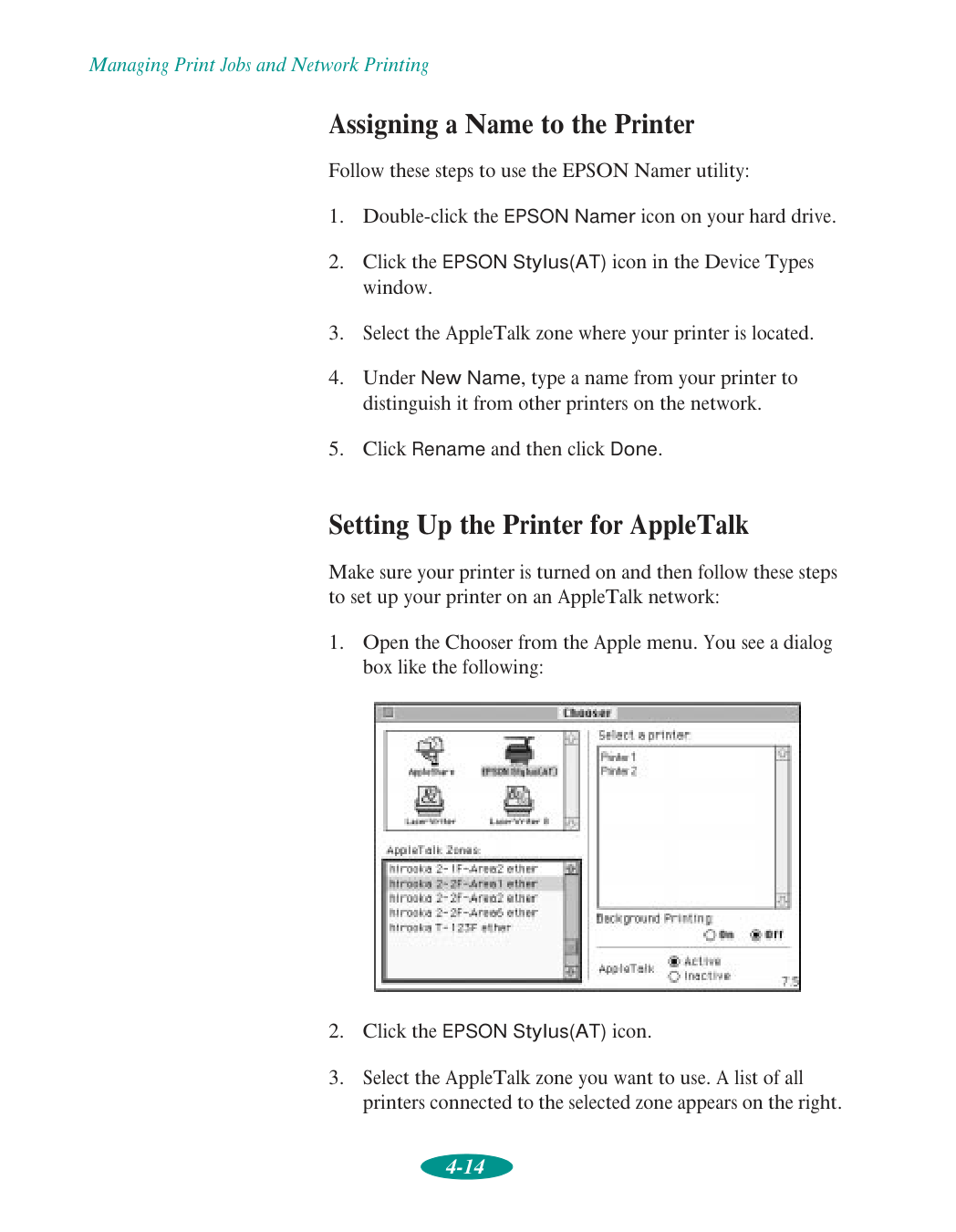
Managing Print Jobs and Network Printing 4-14 Assigning a Name to the Printer Follow these steps to use the EPSON Namer utility:

Managing Print Jobs and Network Printing 4-15

5-1 5 If you print with DOS application programs, you can use your printer with them by following the instructions in this chapter. It covers these operations:
Q
Selecting printer software for DOSQ
Changing printer settings with default-setting modeQ
Performing printer maintenance procedures, such as aligning the print headsQ
Selecting character tablesQ
Using printer commands Selecting Printer Software for DOS You select software for your printer (a printer driver) in each DOS program you use. Most DOS programs include a driver for EPSON ESC/P 2™ printers. You need to select the correct printer driver to take advantage of your printer’s advanced built-in scalable fonts and graphics handling. Most DOS programs require you to select from a list of available printer drivers. If EPSON Stylus COLOR 1520 is not included in the list, you can contact your software manufacturer to obtain an updated driver. If an updated driver is not available, pick the first printer available in the lists on the next page. Using Your Printer withDos
Note: To use your printer with AutoCAD® 386 (DOS Extender) releases 10 and higher that support ADI plotter drivers, see the README file on the ADI plotter driver diskette or printer softwareCd-Rom.

Using Your Printer with DOS 5-2 When printing black and color, select: EPSON Stylus 1500 EPSON Stylus Pro EPSON Stylus Pro XL EPSON Stylus COLOR 500 EPSON Stylus COLOR II
Lq-2550
Lq-1070
When printing black only, select:Lq-870
Lq-1170
Lq-500
Lq-570
Lq-570+
Lq-1070
Lq-1070+
Sq-870
Sq-1070
Lq-850
Once you’ve selected a printer driver for each DOS program you use, you can begin printing. Be sure to check the paper source and other printer driver settings before you print. If you want to adjust any of the printer’s internal settings, you can use default-setting mode as described in the next section. To perform routine printer maintenance procedures, see page 5-7 for instructions. Note: The drivers for the printers listed do not provide all EPSON Stylus COLOR 1520 features, such as 1440-dpi printing, 720-dpi printing, and MicroWeave.
Using Your Printer with DOS 5-3 Changing Printer Settings with Default-Setting Mode Your printer includes internal default settings that are active whenever you turn on the printer. These settings control functions such as the print direction and paper loading positions. Because they are preset to the most likely settings you’ll want to use, you probably won’t need to change them. However, you may want to change settings such as these for special projects:
Q
Turn on auto tear-off mode when you print on continuous paper or roll paper (but not when printing continuous labels)Q
Turn on banner mode when you print on roll paperQ
Select a slashed zero (0/) instead of a regular zero (0) when you print documents where the zero can easily be confused with a capital “O” You can check or change the default settings using the printer’s control panel. Follow the steps in the next section. Entering Default-Setting Mode To enter default-setting mode and print an instruction sheet in your language, follow these steps:
Using Your Printer with DOS 5-4
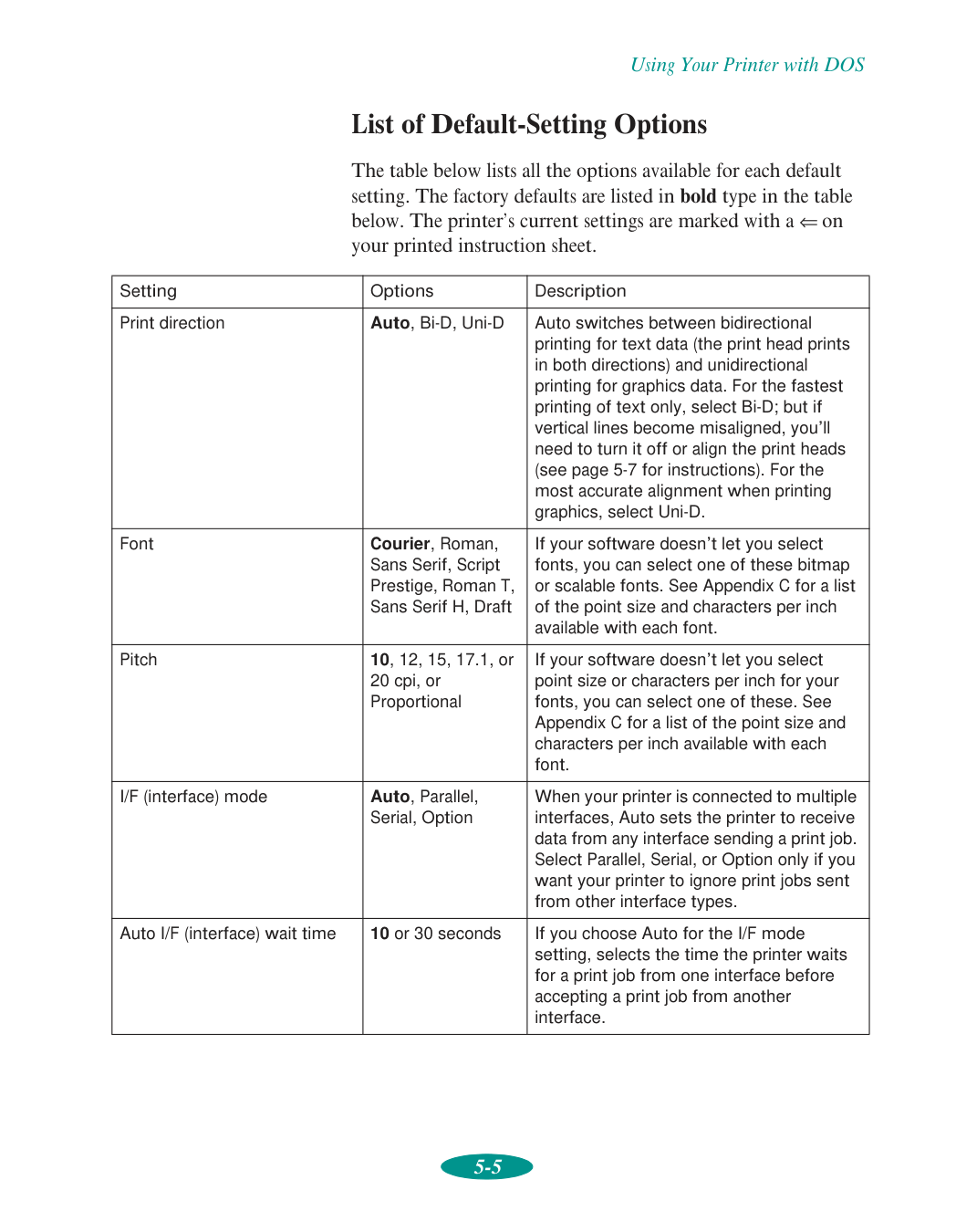
Using Your Printer with DOS 5-5 List of Default-Setting Options The table below lists all the options available for each default setting. The factory defaults are listed in bold type in the table below. The printer’s current settings are marked with a ⇐ on your printed instruction sheet. Setting Options Description Print direction Auto, Bi-D, Uni-D Auto switches between bidirectional printing for text data (the print head prints in both directions) and unidirectional printing for graphics data. For the fastest printing of text only, select Bi-D; but if vertical lines become misaligned, you’ll need to turn it off or align the print heads (see page 5-7 for instructions). For the most accurate alignment when printing graphics, select Uni-D. Font Courier, Roman, Sans Serif, Script Prestige, Roman T, Sans Serif H, Draft If your software doesn’t let you select fonts, you can select one of these bitmap or scalable fonts. See Appendix C for a list of the point size and characters per inch available with each font. Pitch 10, 12, 15, 17.1, or 20 cpi, or Proportional If your software doesn’t let you select point size or characters per inch for your fonts, you can select one of these. See Appendix C for a list of the point size and characters per inch available with each font. I/F (interface) mode Auto, Parallel, Serial, Option When your printer is connected to multiple interfaces, Auto sets the printer to receive data from any interface sending a print job. Select Parallel, Serial, or Option only if you want your printer to ignore print jobs sent from other interface types. Auto I/F (interface) wait time 10 or 30 seconds If you choose Auto for the I/F mode setting, selects the time the printer waits for a print job from one interface before accepting a print job from another interface.
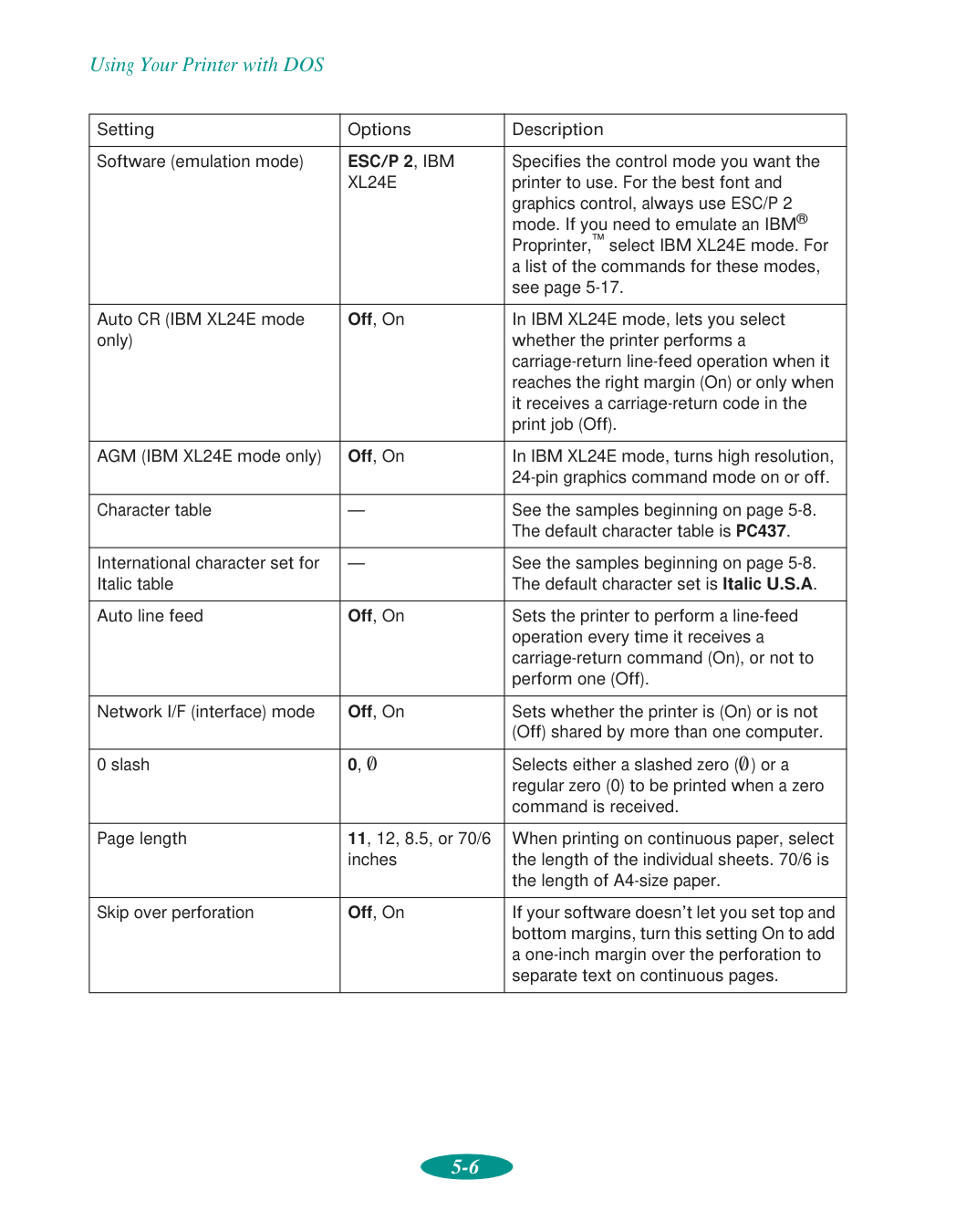
Using Your Printer with DOS 5-6 Software (emulation mode)
Esc/P 2, Ibm
Xl24E
Specifies the control mode you want the printer to use. For the best font and graphics control, always use ESC/P 2 mode. If you need to emulate an IBM® Proprinter,™ select IBM XL24E mode. For a list of the commands for these modes, see page 5-17. Auto CR (IBM XL24E mode only) Off, On In IBM XL24E mode, lets you select whether the printer performs a carriage-return line-feed operation when it reaches the right margin (On) or only when it receives a carriage-return code in the print job (Off). AGM (IBM XL24E mode only) Off, On In IBM XL24E mode, turns high resolution, 24-pin graphics command mode on or off. Character table — See the samples beginning on page 5-8. The default character table is PC437. International character set for Italic table — See the samples beginning on page 5-8. The default character set is Italic U.S.A. Auto line feed Off, On Sets the printer to perform a line-feed operation every time it receives a carriage-return command (On), or not to perform one (Off). Network I/F (interface) mode Off, On Sets whether the printer is (On) or is not (Off) shared by more than one computer. 0 slash 0, 0/ Selects either a slashed zero (0/ ) or a regular zero (0) to be printed when a zero command is received. Page length 11, 12, 8.5, or 70/6 inches When printing on continuous paper, select the length of the individual sheets. 70/6 is the length of A4-size paper. Skip over perforation Off, On If your software doesn’t let you set top and bottom margins, turn this setting On to add a one-inch margin over the perforation to separate text on continuous pages. Setting Options Description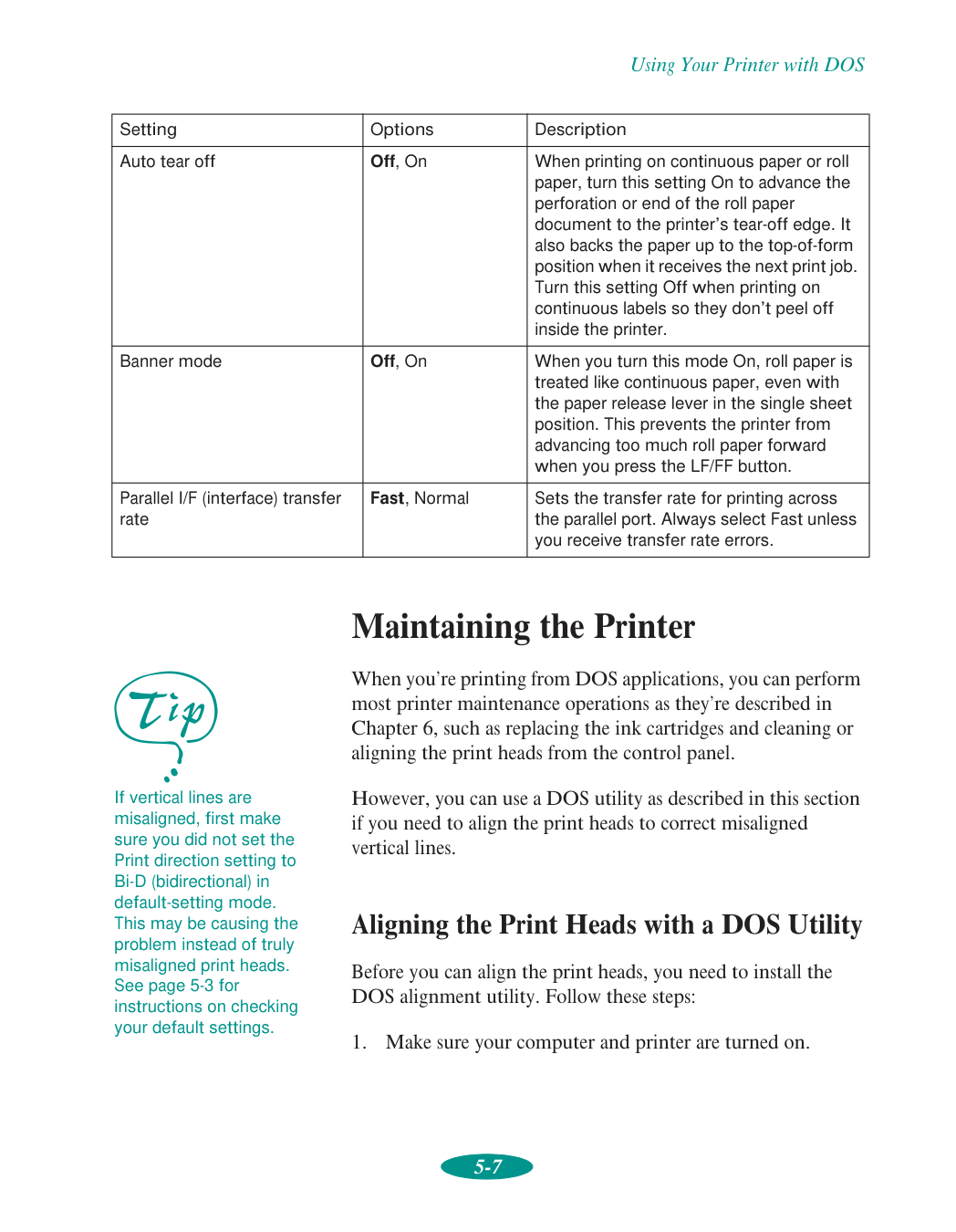
Using Your Printer with DOS 5-7 Maintaining the Printer When you’re printing from DOS applications, you can perform most printer maintenance operations as they’re described in Chapter 6, such as replacing the ink cartridges and cleaning or aligning the print heads from the control panel. However, you can use a DOS utility as described in this section if you need to align the print heads to correct misaligned vertical lines. Aligning the Print Heads with a DOS Utility Before you can align the print heads, you need to install the DOS alignment utility. Follow these steps:
Using Your Printer with DOS 5-8
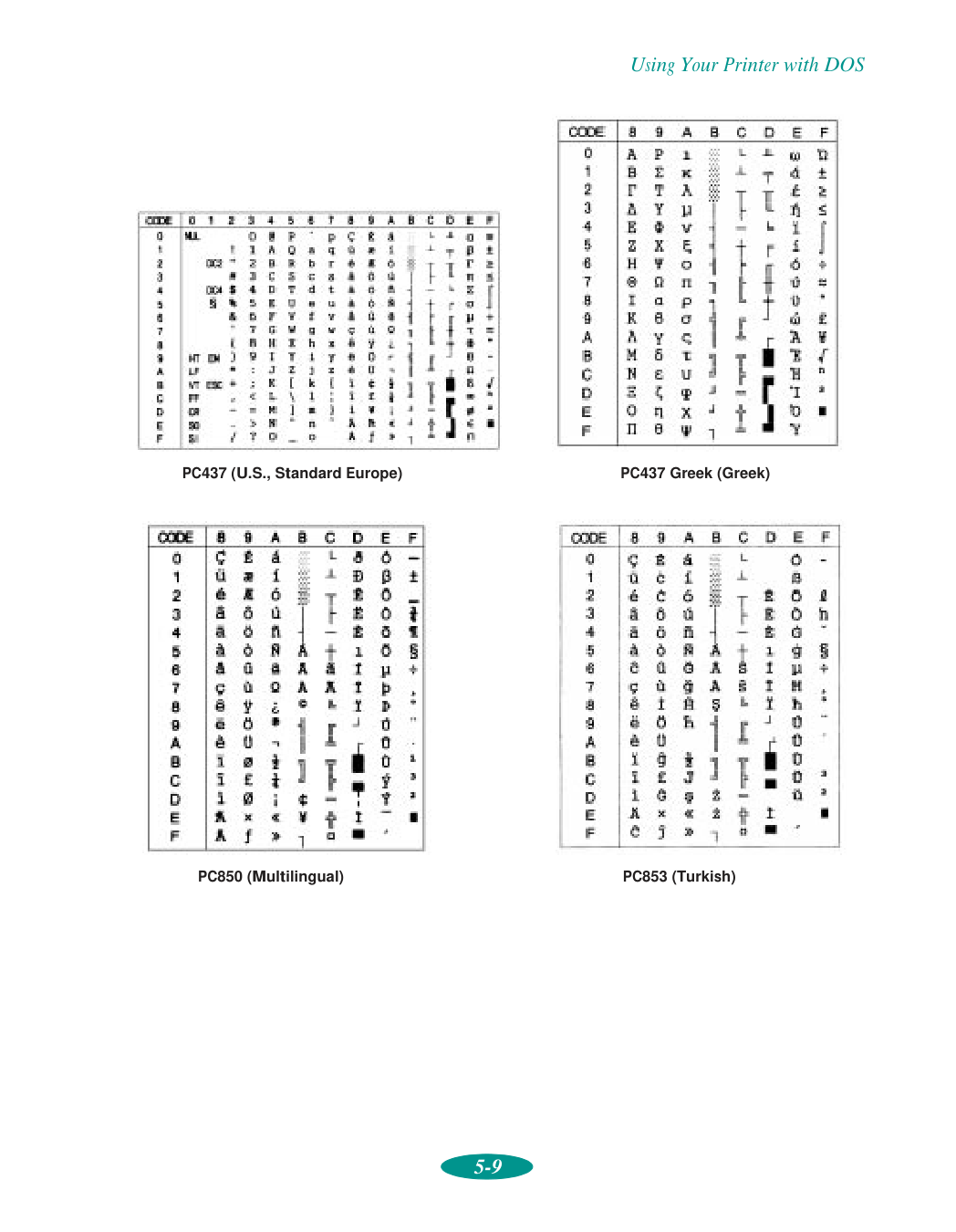
Using Your Printer with DOS 5-9 PC437 (U.S., Standard Europe) PC437 Greek (Greek) PC850 (Multilingual) PC853 (Turkish)
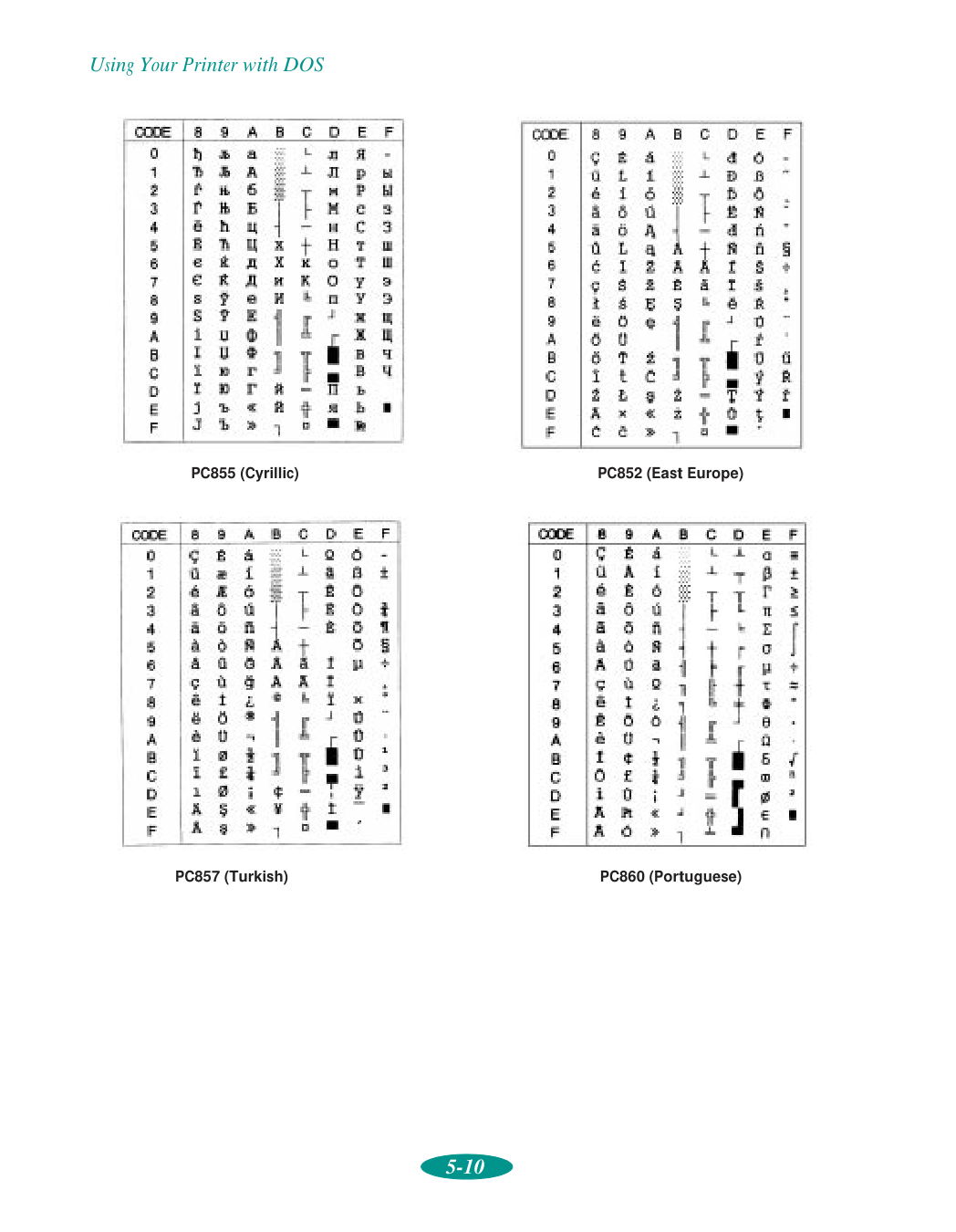
Using Your Printer with DOS 5-10 PC855 (Cyrillic) PC852 (East Europe) PC857 (Turkish) PC860 (Portuguese)
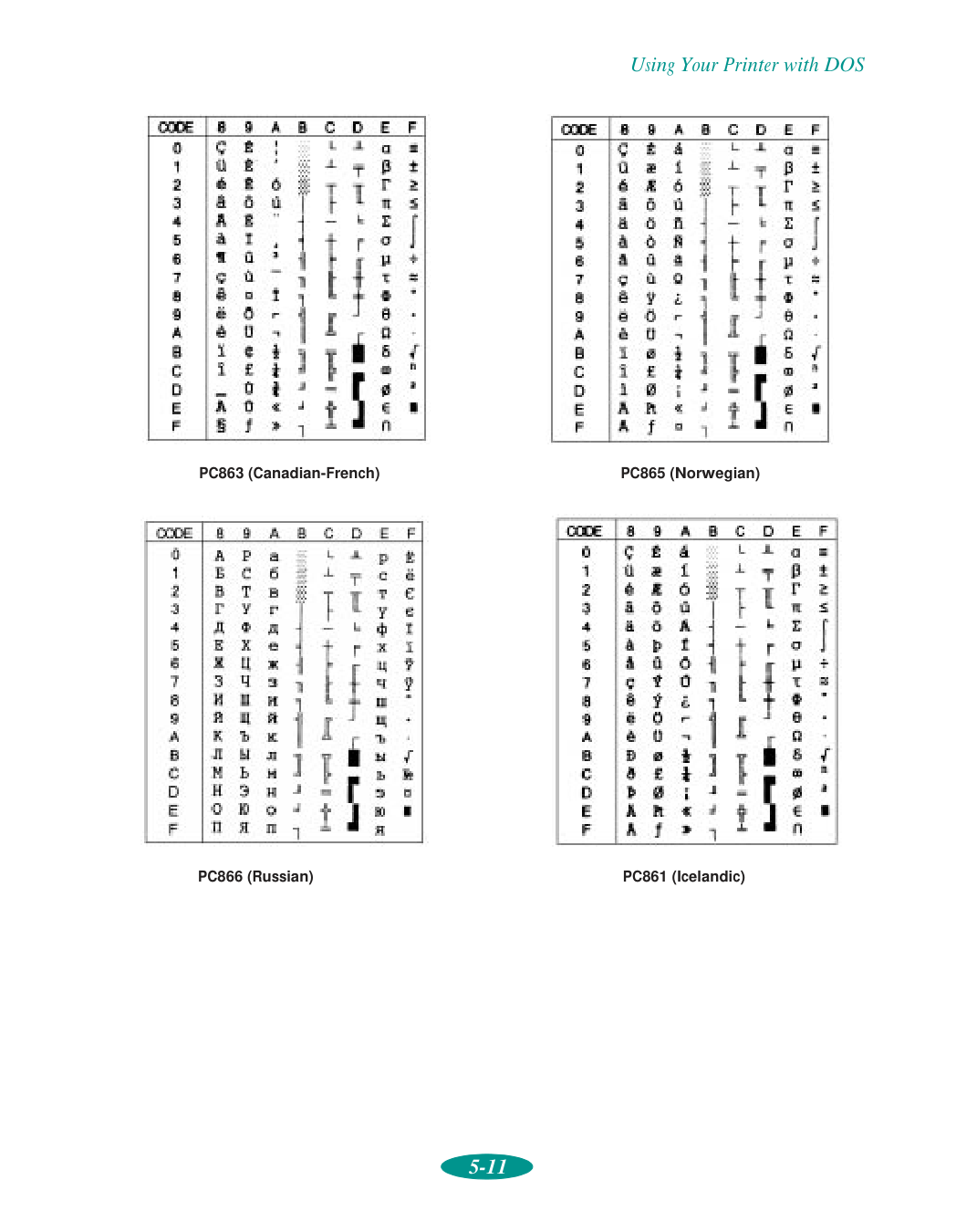
Using Your Printer with DOS 5-11 PC863 (Canadian-French) PC865 (Norwegian) PC866 (Russian) PC861 (Icelandic)
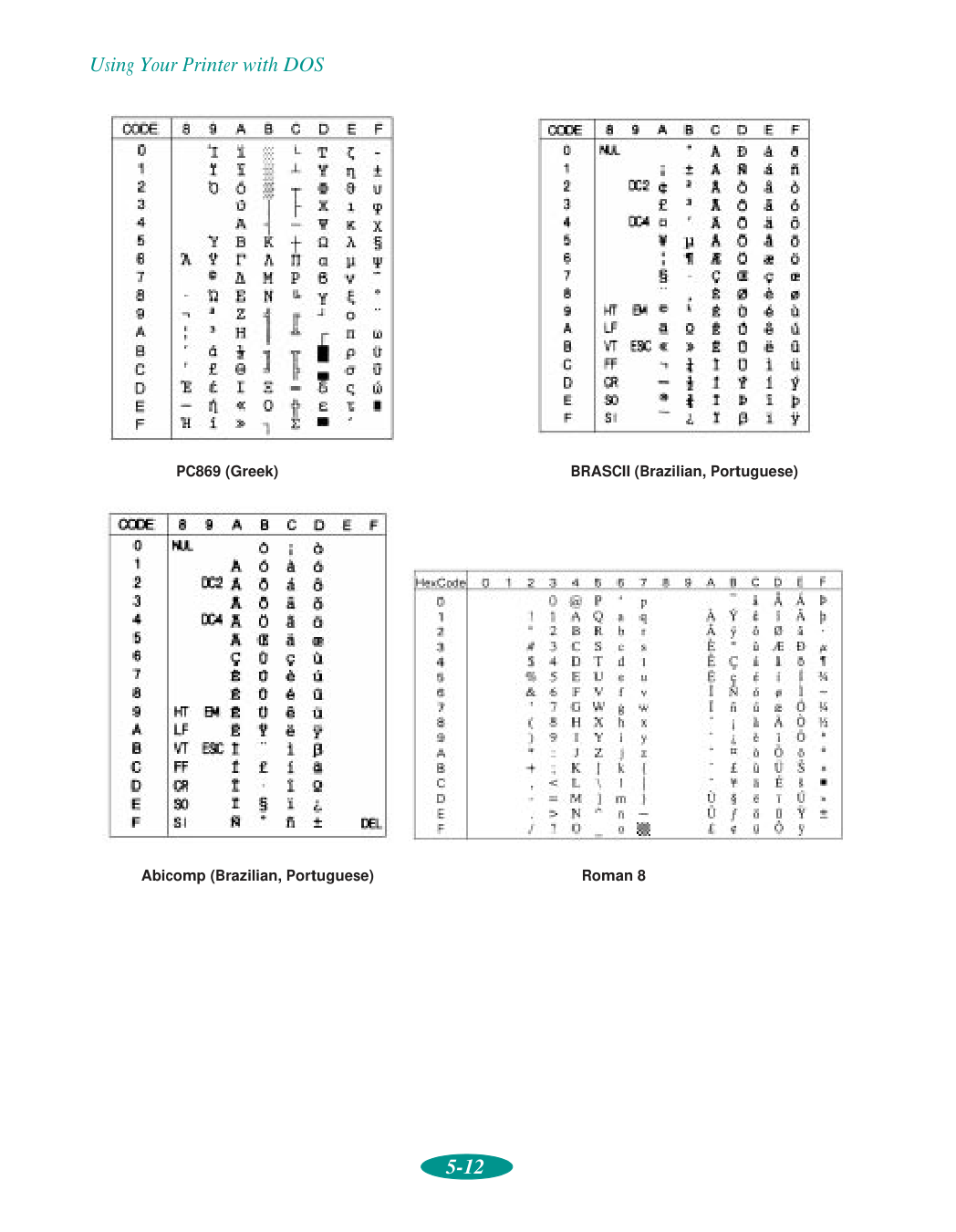
Using Your Printer with DOS 5-12 PC869 (Greek) BRASCII (Brazilian, Portuguese) Abicomp (Brazilian, Portuguese) Roman 8

Using Your Printer with DOS 5-13 ISO Latin 1 MAZOWIA (Poland) Code MJK (CSFR) ISO 8859-7 (Latin/Greek)

Using Your Printer with DOS 5-14 ISO Latin 1T (Turkish) Bulgaria (Bulgaria)
Pc774 (Lst 1283:1993)
Estonia (Estonia)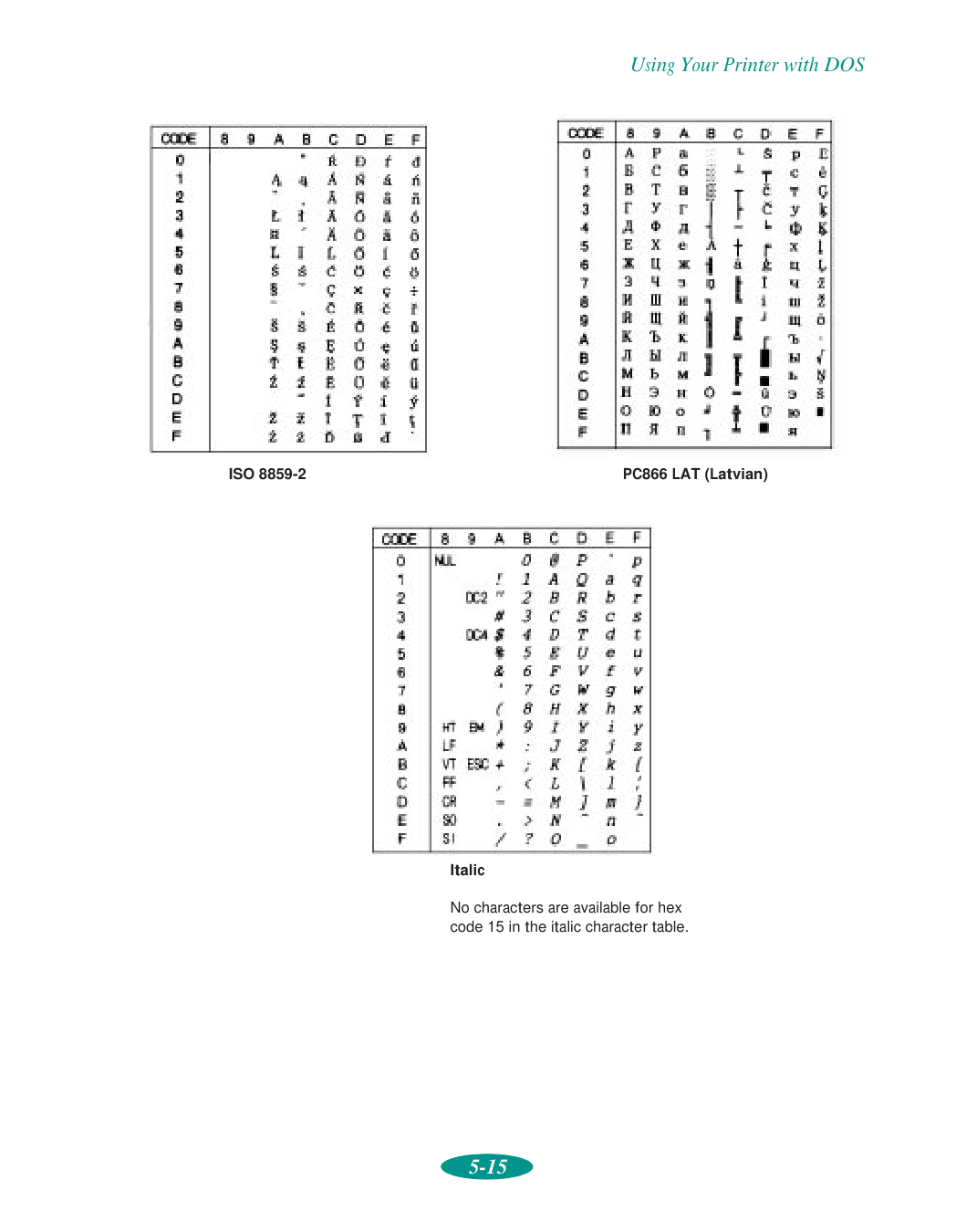
Using Your Printer with DOS 5-15
Iso 8859-2
PC866 LAT (Latvian) Italic No characters are available for hex code 15 in the italic character table.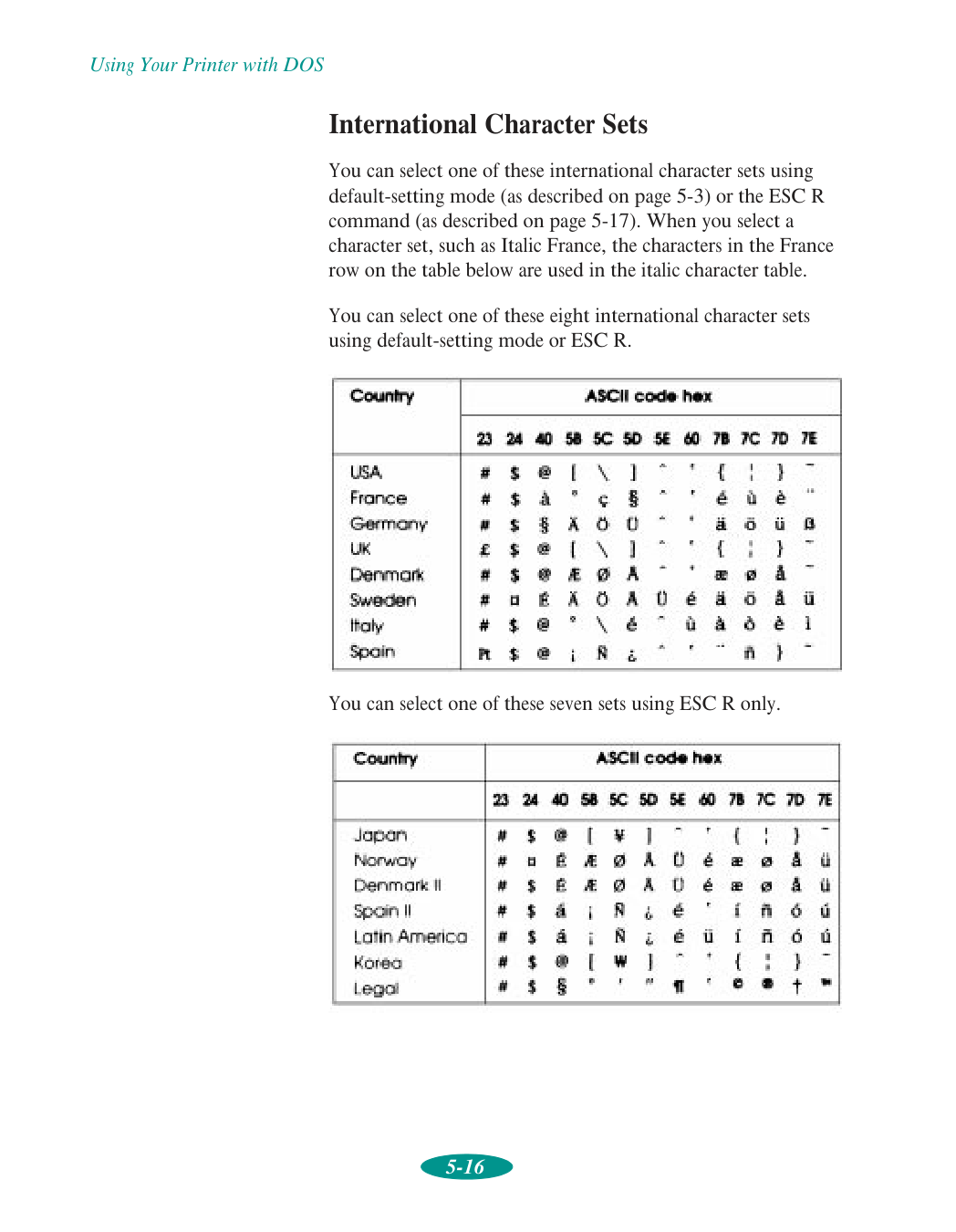
Using Your Printer with DOS 5-16 International Character Sets You can select one of these international character sets using default-setting mode (as described on page 5-3) or the ESC R command (as described on page 5-17). When you select a character set, such as Italic France, the characters in the France row on the table below are used in the italic character table. You can select one of these eight international character sets using default-setting mode or ESC R. You can select one of these seven sets using ESC R only.
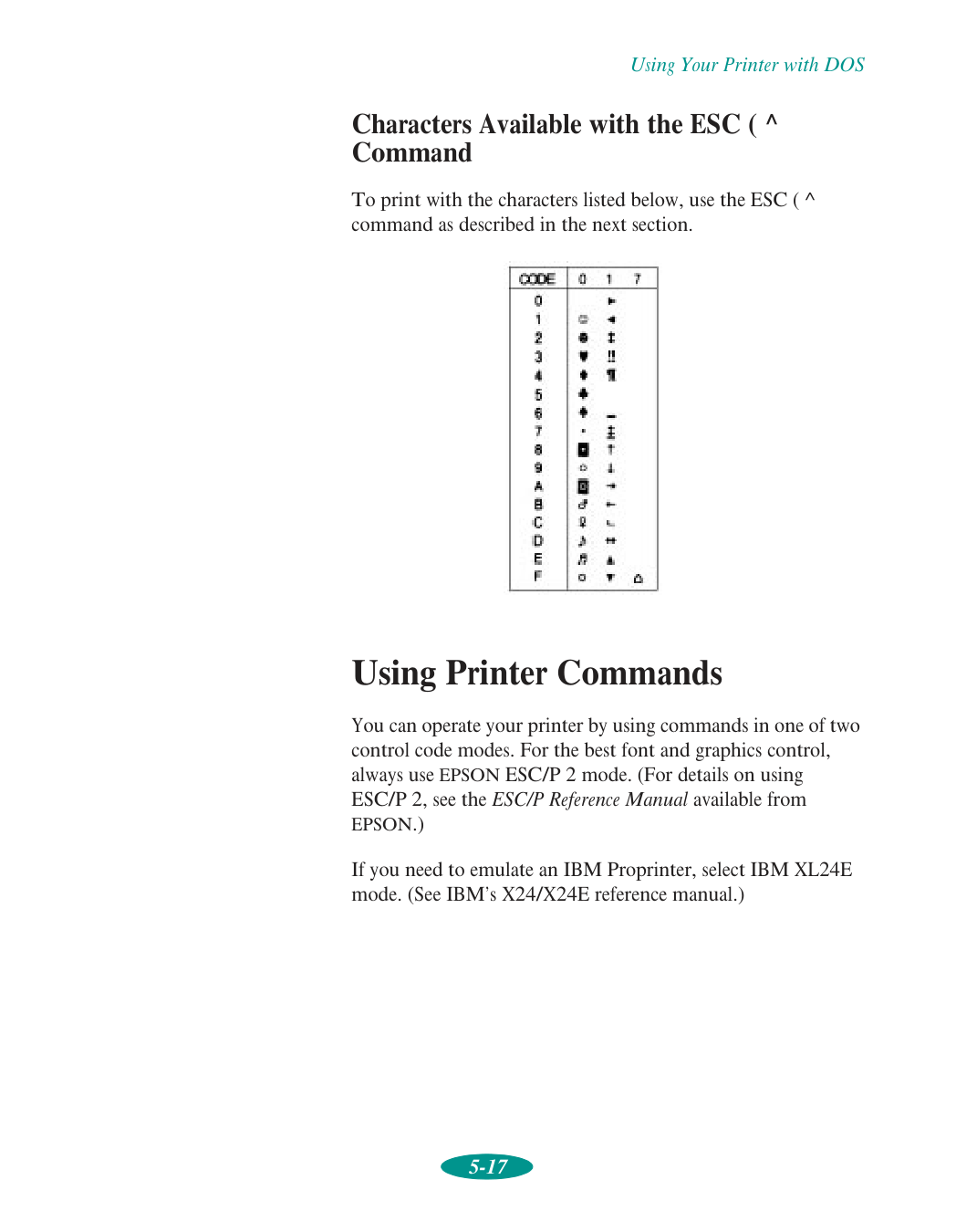
Using Your Printer with DOS 5-17 Characters Available with the ESC ( ^ Command To print with the characters listed below, use the ESC ( ^ command as described in the next section. Using Printer Commands You can operate your printer by using commands in one of two control code modes. For the best font and graphics control, always use EPSON ESC/P 2 mode. (For details on using ESC/P 2, see the ESC/P Reference Manual available from
Epson.)
If you need to emulate an IBM Proprinter, select IBM XL24E mode. (See IBM’s X24/X24E reference manual.)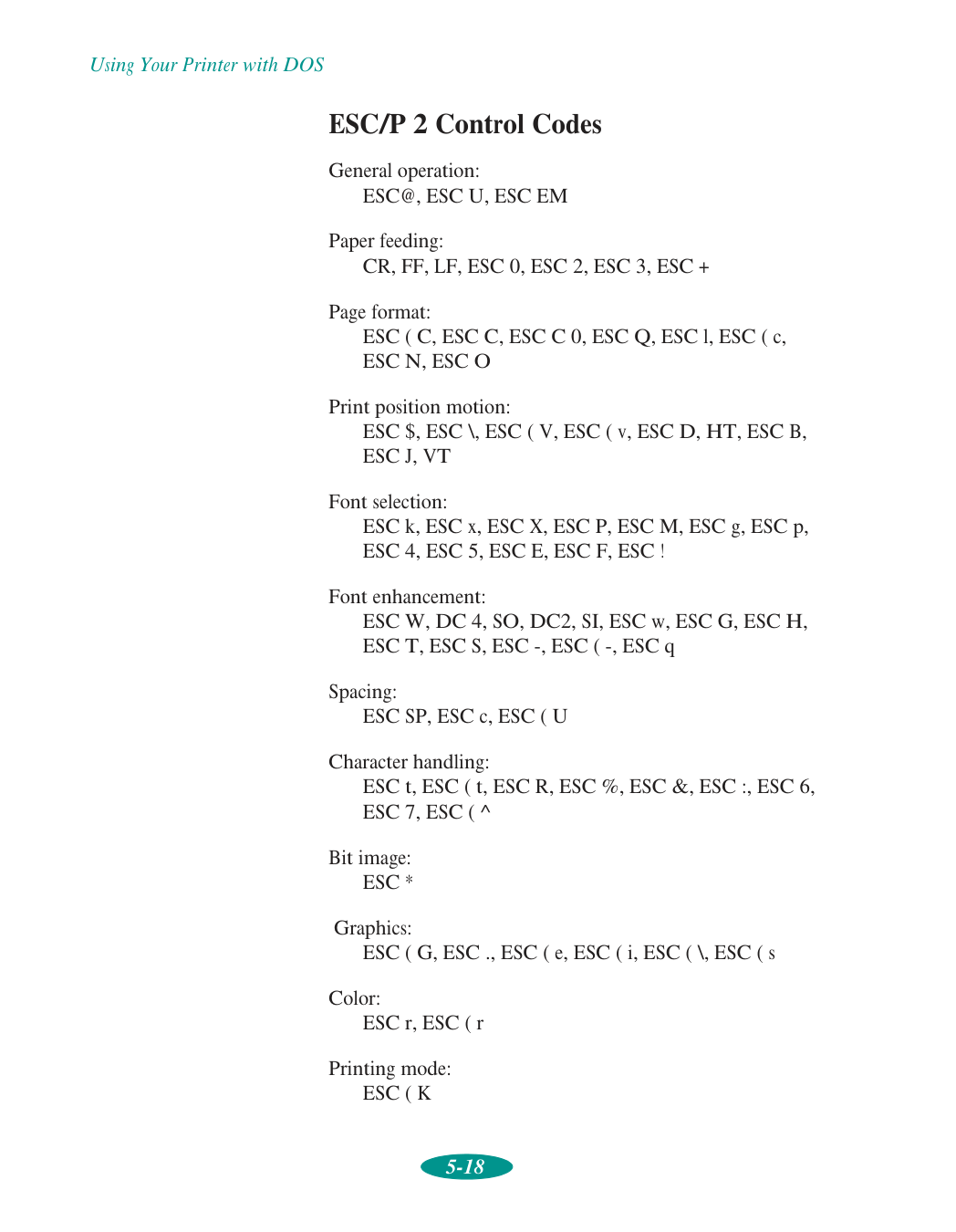
Using Your Printer with DOS 5-18 ESC/P 2 Control Codes General operation:
Esc@, Esc U, Esc Em
Paper feeding:Cr, Ff, Lf, Esc 0, Esc 2, Esc 3, Esc +
Page format: ESC ( C, ESC C, ESC C 0, ESC Q, ESC l, ESC ( c,Esc N, Esc O
Print position motion: ESC $, ESC \, ESC ( V, ESC ( v, ESC D, HT, ESC B,Esc J, Vt
Font selection: ESC k, ESC x, ESC X, ESC P, ESC M, ESC g, ESC p,Esc 4, Esc 5, Esc E, Esc F, Esc !
Font enhancement: ESC W, DC 4, SO, DC2, SI, ESC w, ESC G, ESC H, ESC T, ESC S, ESC -, ESC ( -, ESC q Spacing: ESC SP, ESC c, ESC ( U Character handling: ESC t, ESC ( t, ESC R, ESC %, ESC &, ESC :, ESC 6,Esc 7, Esc ( ^
Bit image:Esc *
Graphics: ESC ( G, ESC ., ESC ( e, ESC ( i, ESC ( \, ESC ( s Color: ESC r, ESC ( r Printing mode:Esc ( K
Using Your Printer with DOS 5-19 IBM XL24E Emulation Control Codes In the following commands, “(AGM)” indicates Alternate Graphics Mode commands. Do not type these characters as part of the command. General operation: NUL, DC3, ESC j, BEL, CAN, DC1, ESC Q, ESC [ K,
Esc U
Paper feeding:Ff, Lf, Esc 5, Esc A, Esc A (Agm), Esc 0, Esc 1,
Esc 2, Esc 3, Esc 3 (Agm), Cr
Page format:Esc C, Esc X, Esc N, Esc O, Esc 4
Print position motion: ESC d, ESC R, ESC D, HT, ESC B, VT, ESC J,Esc J (Agm)
Font selection:Dc2, Esc P, Esc :, Esc E, Esc F, Esc I
Font enhancement:Dc4, So, Esc So, Esc W, Esc [ @, Si, Esc Si, Esc G,
Esc H, Esc T, Esc S, Esc -, Esc _
Spacing:Bs, Sp, Esc [ \
Character handling:Esc 6, Esc 7, Esc [ T, Esc ^, Esc \
Bit image: ESC K, ESC L, ESC Y, ESC Z, ESC [ g, ESC * (AGM)
6-1 6 It’s easy to keep your EPSON Stylus COLOR 1520 printer working at its best. All you have to do is follow the simple instructions in this chapter for replacing ink cartridges, performing routine maintenance, and moving the printer. This chapter covers the following procedures:
Q
Cleaning the print headsQ
Replacing an ink cartridgeQ
Aligning the print headsQ
Cleaning the printerQ
Transporting the printer Cleaning the Print Heads If your printed image is unexpectedly light or faint, or dots are missing from the image, you may need to clean the print heads. This unclogs the nozzles so they can deliver ink properly. Cleaning the print heads uses ink, so clean them only if print quality declines. You can use either of the following to clean the print heads:Q
The Head Cleaning utility in your printer software (when your printer is connected directly to your computer)Q
The printer’s control panel buttons (when you’re using DOS, or your printer is connected via an optional network interface card, or you don’t want to use the Head Cleaning utility) Maintenance and Transportation
Maintenance and Transportation 6-2 Using the Head Cleaning Utility Follow these steps to run the utility from a Windows or a Macintosh computer connected directly to the printer:
Maintenance and Transportation 6-3 Using the Control Panel

Maintenance and Transportation 6-4 Examining the Nozzle Check Pattern Examine the nozzle check pattern you print. It should look something like this, with the lower pattern colored cyan, magenta, and yellow: Each staggered horizontal and straight vertical line should be complete, with no gaps in the dot pattern. If your printout looks okay, you’re done. If any dots are missing, clean the print heads again, as explained in the previous sections. Replacing an Ink Cartridge When an Ink Out light flashes, the indicated cartridge is low on ink. This is a good time to make sure you have a new cartridge. When the light stays on, the cartridge is empty and you need to replace it. If your color ink cartridge runs out of ink, you can continue printing in black ink. See page 6-7 for instructions. Use these EPSON ink cartridges within six months of installing them and before the expiration date on the package: Black ink cartridge
S020108
Color ink cartridge S020089 When you need new ink cartridges, contact your dealer or call EPSON Accessories at (800) 873-7766 (U.S. only). In Canada, please call (800) 873-7766 for dealer referral.W02271 C01267
Caution: For best results, don’t replace an ink cartridge unless its Ink Out light is flashing or on. To ensure good results, use genuine EPSON cartridges and do not refill them. Other products may cause damage to your printer not covered by EPSON’s warranty.
Maintenance and Transportation 6-5 Removing and Installing an Ink Cartridge You should replace an ink cartridge only when the Ink Out B or Ink Out A light is flashing or on. However, if you need to replace an outdated cartridge, you can do so before its Ink Out light comes on.

Maintenance and Transportation 6-6

Maintenance and Transportation 6-7 The Pause light flashes and the printer makes various sounds. Charging takes about several minutes, depending on whether you replaced one or both cartridges. When it’s finished, the Pause light stays on; press the Pause button to turn it off and resume printing. Printing in Black Ink with an Empty Color Cartridge If your color ink cartridge runs out of ink and the Ink Out A light comes on, you can still continue printing with black ink. (If the black ink cartridge runs out of ink, you cannot continue printing.) However, you will need to resend any print job you were printing when the color ink ran out. Follow these steps:

Maintenance and Transportation 6-8 Aligning the Print Heads If your printouts contain misaligned vertical lines, you may need to align the print heads. There are several ways to do this:
Q
If you’re using a Windows or Macintosh computer connected directly to the printer, you can use the Print Head Alignment utility in your printer software, as described below.Q
If you’re printing from DOS, you can use the DOS Print Head Alignment utility. See page 5-7 for instructions.Q
If you’re connected to the printer via an optional network interface card or you don’t want to use the Print Head Alignment utility, you can use the control panel to align the print heads. See page 6-9 for instructions. Using the Print Head Alignment Utility
Maintenance and Transportation 6-9 Using the Control Panel

Maintenance and Transportation 6-10 Cleaning the Printer To keep your printer working at its best, you should clean it several times a year, following these steps:

7-1 7 As you use your printer, you may occasionally experience a paper jam or other problem. The first thing you should do is diagnose the problem following the guidelines in this chapter. Then try the most likely solutions until the problem is fixed. This chapter tells you everything you need to know about the following:
Q
Diagnosing problemsQ
Improving print qualityQ
Solving printing problemsQ
Fixing paper jams and other paper problemsQ
Solving miscellaneous printout problems Diagnosing Problems Your printer includes a number of ways to help you diagnose problems:Q
To identify the most common problems, check the lights on the printer’s control panel. See page 1-13 for instructions.Q
You can also use the Status Monitor utility to identify common problems. For instructions, see page 4-4 (Windows 95) or page 4-7 (Macintosh).Q
To determine whether the problem is caused by the printer itself, run a printer self test. See the next section for instructions. Troubleshooting
Troubleshooting 7-2
Q
If you’re experienced with reading hexadecimal code, you can print a hex dump to identify possible communication problems. See page 7-3 for instructions.Q
For the latest information, check the EPSON Stylus COLOR 1520 Help program and the ReadMe file in the EPSON program group or folder.Q
If none of the suggested solutions in this chapter solve your problem, contact EPSON as described under “Where to Get Help” in the Introduction. Running a Self Test You can run a printer self test to determine whether the problem lies with the printer itself or some other source.Q
If the test results are satisfactory, the problem lies in software settings, the interface cable, or your computer.Q
If the test pages don’t print correctly, you may have a problem with your printer. See the suggestions in this chapter for possible solutions. Follow these steps to test the printer:
Troubleshooting 7-3 The first page prints on the first and last lines to measure the page length. The next page contains a nozzle check pattern and the printer’s ROM version, along with multicolored character samples. (The 180 dpi test prints black character samples.) If the test pages don’t print, turn off the printer. Then repeat this step, holding down the Load/Eject button a bit longer before releasing it.
Troubleshooting 7-4 Improving Print Quality You can often improve print quality by doing the following:
Q
Clean the print heads (see Chapter 6 for instructions).Q
Use higher quality paper that’s appropriate for your print job (see Chapter 3 for a list of EPSON papers).Q
Match the Media Type setting in the printer software to the type of media you loaded in the printer (see Chapter 3 for details).Q
Make sure the thickness lever is set to the correct position for your media (see Chapter 3 for details).Q
Turn off High Speed mode in the printer software (see Chapter 2 for details).Q
Make sure you’re not using an Economy option in the printer software (see Chapter 2 for details).Q
Replace the ink cartridges. (Check the status of the Ink Out B and Ink Out A lights first. See Chapter 6 for instructions.) Here are some detailed solutions to specific print quality problems. Printed image has horizontal banding. Possible cause Solution The Media Type setting doesn’t match the loaded paper. Make sure the Media Type setting matches the loaded paper or other media. Then the printer software can automatically select other settings for the best quality. See Chapters 1 through 3. The printable side of the paper is loaded upside down. Remove the paper and reload it correctly for the media and feeder you’re using. See Chapter 3 for instructions. The print head nozzles are clogged. Clean the print heads. See Chapter 6 for instructions. The ink cartridges are low on ink. Check the Ink Out B and Ink Out A lights to see which cartridge you may need to replace. See Chapter 6. The MicroWeave option is not set. Turn on MicroWeave in the printer software. See Chapter 2 for more information.
Troubleshooting 7-5 Vertical lines are misaligned or vertical banding appears. The printed image has incorrect or missing colors. Possible cause Solution The print head nozzles are clogged. Clean the print heads. See Chapter 6 for instructions. High Speed mode or Bi-D mode are turned on. If vertical lines are misaligned, turn off High Speed mode in the printer software (see Chapter 2 for information). If you’re printing with DOS, turn off Bi-D printing using default-setting mode (see Chapter 5 for instructions). The print heads are misaligned. Run the Print Head Alignment utility. See Chapter 6 for Windows or Macintosh instructions; see Chapter 5 for DOS instructions. Possible cause Solution The Ink option is set to Black. Change the Ink setting to Color. See Chapter 1 for instructions. The Media Type setting doesn’t match the loaded paper. Make sure the Media Type setting matches the paper or media you’re using. Then the printer software can automatically select other settings for the best quality. See Chapters 1 through 3. The printable side of the paper is loaded upside down. Remove the paper and reload it correctly for the media and feeder you’re using. See Chapter 3 for instructions. The Halftoning and Color Adjustment Mode options are set incorrectly for your document type. Use the correct settings for the project you are printing, following the instructions in Chapter 2. The print head nozzles are clogged. Clean the print heads. See Chapter 6 for instructions. The ICM (Windows 95) or ColorSync (Macintosh) settings are incorrect for your document. Use the Automatic mode setting or choose a different project type setting. See Chapter 2 for more information. The ink cartridges are low on ink or one or more ink colors are empty. Check the Ink Out B and Ink Out A lights to see which cartridge you need to replace. See Chapter 6 for instructions.

Troubleshooting 7-6 The printed image is faint or has gaps. The printed image is blurry or smeared. The colors displayed on your monitor don’t match the printed colors. Because your monitor and printer use different technologies to represent colors, your printed colors cannot exactly match those on your monitor screen. Use the ICM (Windows 95) or ColorSync (Macintosh) settings. See Chapter 2 for more information. The color settings in your application software need adjustment. You may be able to adjust various color settings in your application software. See your software documentation for more information. Possible cause Solution The print head nozzles are clogged. Clean the print heads. See Chapter 6 for instructions. The Media Type setting doesn’t match the loaded paper. Make sure the Media Type setting matches the loaded paper or other media. Then the printer software can automatically select other settings for the best quality. See Chapters 1 through 3. The loaded paper is upside down, damaged, old, or dirty. Remove the paper and reload a new stack with the printable side facing correctly. See Chapter 3 for instructions. The ink cartridges are low on ink. Check the Ink Out B and Ink Out A lights to see which cartridge you need to replace. See Chapter 6 for instructions. You’re on a network and the Network I/F setting is turned off. Try turning on the Network I/F setting using default-setting mode to see if this solves the problem. See Chapter 5 for instructions. Possible cause Solution The printer’s thickness lever is in the 0 position. Set the thickness lever to the + position and try printing again. See Chapter 3 for instructions. The paper is damp or the printable side is upside down. Remove the paper and reload a new stack with the printable side facing correctly. See Chapter 3 for instructions. You loaded special media without a support sheet. Follow the special media loading instructions in Chapter 3 and on the paper packaging for media that require support sheets. Also try loading your media one sheet at a time. You tried to print on cardboard or other non-recommended media. Make sure your paper or media meets the specifications listed in Appendix C. If your printouts are still blurry after you change paper, clean the print heads as described in Chapter 6. Possible cause Solution

Troubleshooting 7-7 Photographic images look grainy or rough. Color documents print in black ink only. The Media Type setting does not match the loaded paper. Make sure the Media Type setting matches the media you loaded. Then the printer software can automatically select other settings for the best quality. See Chapters 1 through 3 for information. The sheets entering the output tray are smearing the ink on ejected pages. Remove each sheet from the output tray as soon as it is printed to prevent smearing, especially if you use transparencies. Ink has leaked inside the printer. Clean carefully inside the printer to remove spilled ink. See Chapter 6 for instructions. The color ink cartridge is empty and you’ve continued printing with the Ink option set to Color. Follow the instructions on page 6-7 to print in black ink with an empty color cartridge. Then replace the color ink cartridge following the instructions in Chapter 6. You’re using the High Speed (or BiD) and MicroWeave settings with a misaligned print head. Turn off High Speed mode following the instructions in Chapter 2. (If you’re printing with DOS, turn off Bi-D printing in default-setting mode; see Chapter 5.) Then align the print heads following the instructions in Chapter 6 (for Windows and Macintosh) or Chapter 5 (for DOS). Possible cause Solution The print heads are misaligned. Align the print heads following the instructions in Chapter 6 (for Windows and Macintosh) or Chapter 5 (for DOS). The resolution of your image may be too low. Increase the image resolution using your image-editing software, or decrease the size of the image. Possible cause Solution Your printer is not selected in your application. Select your printer and port in your software application. Color printing is not selected. Select color printing in your application and the printer software (see Chapter 1). Your color ink cartridge is empty. Check the Ink Out A light and replace the color cartridge, if necessary. See Chapter 6 for instructions on replacing ink cartridges and printing with an empty color cartridge. Possible cause Solution

Troubleshooting 7-8 Solving Printing Problems If the printer won’t print, first check that:
Q
The printer is turned on and the Operate light is on.Q
Paper is loaded in the printer.Q
The printer is securely plugged into a working electrical outlet that’s not controlled by a switch or timer.Q
The interface cable is securely connected to the printer and computer. If you still can’t print, check the following solutions. All lights are off. Only the Operate light is on, but nothing prints. Possible cause Solution The printer is not receiving power. Turn off the power and plug in the power cord securely, making sure the outlet is not controlled by a switch or timer and is operable. Possible cause Solution The interface cable is not connected securely. Turn off your printer and computer. Then make sure the cable is connected securely and meets both the printer and computer specifications. See Appendix C and your computer documentation for information. The printer has an internal problem. Turn off the printer and computer, disconnect the interface cable, and run a printer self test as described on page 7-1. Your printer or application software is installed incorrectly. If the self test prints correctly, check your printer and application software for correct installation. If you’re printing on a network, make sure you set up your printer as described in Chapter 4. Your computer doesn’t have enough memory to handle the data in the file you are printing. Try one of the following:Q
Reduce the resolution of your image.Q
Select fewer colors or a lower resolution for your monitor.Q
Add more memory to your computer. Printing is stalled in Spool Manager (Windows 95/3.1) or the Windows NT print queue. Delete the stalled print jobs in Spool Manager or the Windows NT print queue and resume printing. See Chapter 4 for instructions.
Troubleshooting 7-9 The Paper Out light is flashing or on. An Ink Out B or Ink Out A light is flashing or on. All the lights come on briefly, then go off. Printing is stalled in Monitor2 (Macintosh). Open the Extensions folder, EPSON folder, and Spool folder. Then delete any queued files. The print heads are clogged or the ink cartridges are too old. If the printer sounds like it’s trying to print but nothing prints, clean the print heads; see Chapter 6 for instructions. If cleaning doesn’t help, replace the cartridges. For information on cartridge life and replacement instructions, see Chapter 6. You’re using an incompatible optional interface card or one with mismatched settings. Check the specifications for your interface card and cable, making sure they meet the printer’s requirements (see Appendix A) and that they match your computer’s settings (see your computer manual). Also try turning on the Network I/F setting in default-setting mode if you’re sharing the printer (see Chapter 5). Possible cause Solution If flashing, paper is jammed. Remove the paper and follow the guidelines for preventing jams on page 7-15. If on, paper is not loaded or is loaded incorrectly, or the paper release lever is set incorrectly. Load paper, or remove the paper and reload it as described in Chapter 3, making sure to set the paper release lever correctly. Then press the Load/Eject button to turn off the light and resume printing. Possible cause Solution If flashing, the ink supply is getting low. You need to replace the indicated ink cartridge soon. Make sure you have a new cartridge, then see Chapter 6 for instructions. If on, the ink cartridge is empty. You must replace the indicated ink cartridge; see Chapter 6 for instructions. Possible cause Solution The printer’s voltage doesn’t match your outlet’s voltage. Check the label on the back of your printer to determine its voltage. If it doesn’t match your outlet’s voltage, turn off the printer and unplug it immediately. Then contact your dealer. Do not plug the printer back in. Possible cause Solution

Troubleshooting 7-10 All the lights are flashing. The printer has finished charging an ink cartridge, but the Pause light is still flashing. The printer sounds like it’s printing but nothing prints. The printer software installed with Windows 3.1 does not work correctly after you upgrade to Windows 95. After you install your printing software, you see the Windows 95 New Hardware Found window. Possible cause Solution An internal error may have occurred. Turn off your printer, wait five seconds, and turn it on again. If the lights still flash or stay on, contact EPSON as described in the Introduction. Possible cause Solution The ink cartridge clamp isn’t locked down. Press down on the clamp to lock it into place. The printer needs to initialize. If the printer is not moving or making noise, but the light is still flashing after 10 minutes, turn the printer off. If the light is still flashing when you turn it back on, contact EPSON as described in the Introduction. Possible cause Solution The print head nozzles are clogged. Clean the print heads. See Chapter 6 for instructions. The ink cartridges are too old. For information on cartridge life and replacement instructions, see Chapter 6. The printer is charging ink. If you just turned on the printer, it may be charging the ink delivery system, especially if it has been turned off for a while. This can take up to 7 minutes; wait until it finishes before printing. Possible cause Solution Your printer software isn’t set up for Windows 95. Reinstall the printer software after installing Windows 95, as described in the Quick Setup booklet. Possible cause Solution An operating system error has occurred. Click Do not install a driver, and then click OK.

Troubleshooting 7-11 You see a spooling error message (Windows 95/3.1). In Windows 95, the Status Monitor box does not appear with the Despooler. A portion of your image doesn’t print or you see a memory error message (Macintosh). Your printer switches to the modem port or won’t confirm on the printer port (Macintosh). Possible cause Solution Spooling error messages or very slow printing may be caused by temporary files. Change the Spool Manager default directory, following the instructions in Chapter 4. Your hard drive is too full. Delete unnecessary files to make room on the drive. Your computer doesn’t have enough memory for the file you’re printing. Try one of the following:
Q
Reduce the resolution of your image.Q
Select fewer colors or a lower resolution for your monitor.Q
Add more memory to your computer. Possible cause Solution The Windows Print Manager is interfering with the Status Monitor. Make sure Use Print Manager for this port is not checked in the Spool Manager Queue setup. See Chapter 4 for instructions. Possible cause Solution Your system doesn’t have enough available memory. Close any other applications you are running or turn off background printing. You may need to increase the memory allocation for your application, EPSON Monitor2, or both. Choose Get Info from the File menu when your application is active and increase the memory requirements. See Chapter 4 for more information. Or turn off background printing (you won’t be able to use Monitor2). Possible cause Solution Your system has extension conflicts. Make sure AppleTalk is inactive. In the Extensions Manager, disable the AppleShare, FileShare, and PrinterShare extensions. Set your printer and any unused printers to the printer port. Then restart your system. You’re using an AppleTalk cable. Make sure you’re using a standard Apple System Peripheral-8 cable. See the specifications in Appendix C.
Troubleshooting 7-12 The “Sorry, EPSON Stylus COLOR cannot be used” message appears (Macintosh). Your printer icon doesn’t appear in the Chooser (Macintosh). Printing is too slow. Possible cause Solution The printer software has been corrupted. Remove and reinstall the printer software. From the CD-ROM or diskette, click Installer. Then click Continue and select Custom Remove from the list displaying Easy Install. Select EPSON Stylus Series Printer Driver and click Remove. Click Continue, if necessary, and click Restart. Then follow the instructions in the Quick Setup booklet to reinstall the printer software and select your printer. Then, in the Extensions Manager, disable Quick Draw GX, enable EPSON Monitor2 and EPSON Stylus Color, and restart your Macintosh. Possible cause Solution Your system has extension conflicts. In the Extensions Manager, disable Quick Draw GX, enable EPSON Monitor2 and EPSON Stylus Color, and restart your Macintosh. Possible cause Solution Your printer software options are set incorrectly. For the fastest printing, try these settings (described in Chapters 1 and 2):
Q
Set Print Quality to Economy.Q
Turn High Speed on.Q
Choose Black ink.Q
Choose No Halftoning. Your system doesn’t have enough resources.Q
Reduce the resolution of your image.Q
Clear more hard disk space or run a defragmentation utility.Q
Don’t run too many applications at the same time.Q
Turn off virtual memory.Q
Increase your system’s memory (RAM). You’re using background printing on a Macintosh. Choose Get Info from the File menu when your application is active and increase the memory requirements. See Chapter 4 for more information. Or turn off background printing (you won’t be able to use Monitor2). Your Spool Manager settings are incorrect (Windows 95/3.1). Change your default spool directory and other settings as described in Chapter 4.
Troubleshooting 7-13 Fixing Paper Problems You can avoid most paper handling problems by doing the following:
Q
Use smooth, high-quality media designed for ink jet printers that meet the media specifications in Appendix C.Q
Make sure the paper is dry and flat before loading it.Q
Follow all loading and handling instructions included with the media and in Chapter 3. If you have problems with paper feeding, paper jams, or ejected paper, check here for solutions. Paper doesn’t feed correctly from the sheet feeder. Try this Then do this Remove the stack of paper from the sheet feeder. Check that the paper isn’t:Q
Curled or creased.Q
Too thick or thin (see Appendix C).Q
Too old (see Chapter 3 or your paper packaging).Q
Overloaded in the feeder (see Chapter 3 for guidelines).Q
Jammed inside the printer. (If the Paper Out light is flashing, paper is jammed. See page 7-15.) Then reload the paper as described in Chapter 3, making sure that:Q
The paper release lever is set to the single sheet position.Q
The edge guides fit the paper’s width snugly, but not too tightly.Q
No continuous paper is in the paper path. (Press Load/Eject to park it out of the way.)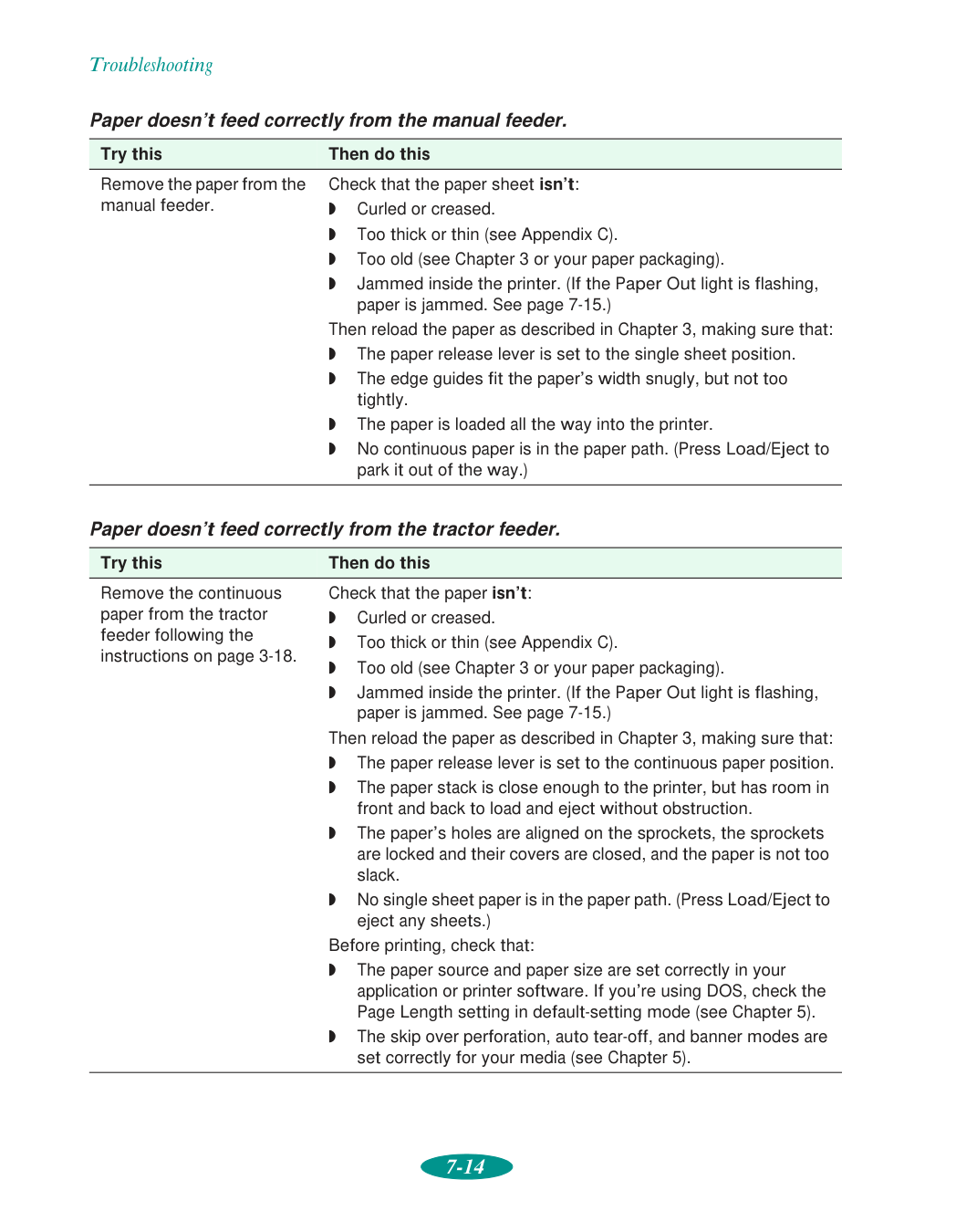
Troubleshooting 7-14 Paper doesn’t feed correctly from the manual feeder. Paper doesn’t feed correctly from the tractor feeder. Try this Then do this Remove the paper from the manual feeder. Check that the paper sheet isn’t:
Q
Curled or creased.Q
Too thick or thin (see Appendix C).Q
Too old (see Chapter 3 or your paper packaging).Q
Jammed inside the printer. (If the Paper Out light is flashing, paper is jammed. See page 7-15.) Then reload the paper as described in Chapter 3, making sure that:Q
The paper release lever is set to the single sheet position.Q
The edge guides fit the paper’s width snugly, but not too tightly.Q
The paper is loaded all the way into the printer.Q
No continuous paper is in the paper path. (Press Load/Eject to park it out of the way.) Try this Then do this Remove the continuous paper from the tractor feeder following the instructions on page 3-18. Check that the paper isn’t:Q
Curled or creased.Q
Too thick or thin (see Appendix C).Q
Too old (see Chapter 3 or your paper packaging).Q
Jammed inside the printer. (If the Paper Out light is flashing, paper is jammed. See page 7-15.) Then reload the paper as described in Chapter 3, making sure that:Q
The paper release lever is set to the continuous paper position.Q
The paper stack is close enough to the printer, but has room in front and back to load and eject without obstruction.Q
The paper’s holes are aligned on the sprockets, the sprockets are locked and their covers are closed, and the paper is not too slack.Q
No single sheet paper is in the paper path. (Press Load/Eject to eject any sheets.) Before printing, check that:Q
The paper source and paper size are set correctly in your application or printer software. If you’re using DOS, check the Page Length setting in default-setting mode (see Chapter 5).Q
The skip over perforation, auto tear-off, and banner modes are set correctly for your media (see Chapter 5).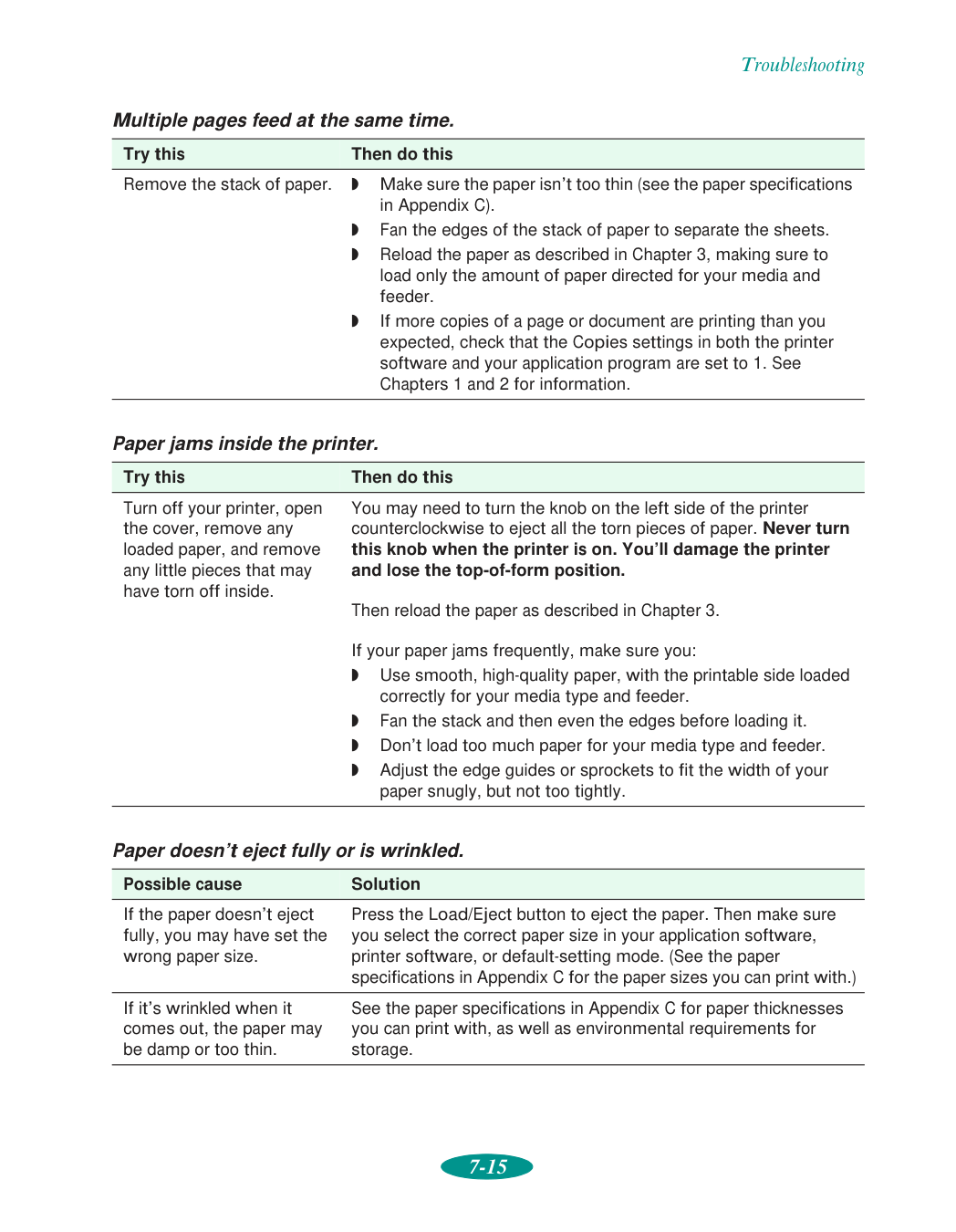
Troubleshooting 7-15 Multiple pages feed at the same time. Paper jams inside the printer. Paper doesn’t eject fully or is wrinkled. Try this Then do this Remove the stack of paper.
Q
Make sure the paper isn’t too thin (see the paper specifications in Appendix C).Q
Fan the edges of the stack of paper to separate the sheets.Q
Reload the paper as described in Chapter 3, making sure to load only the amount of paper directed for your media and feeder.Q
If more copies of a page or document are printing than you expected, check that the Copies settings in both the printer software and your application program are set to 1. See Chapters 1 and 2 for information. Try this Then do this Turn off your printer, open the cover, remove any loaded paper, and remove any little pieces that may have torn off inside. You may need to turn the knob on the left side of the printer counterclockwise to eject all the torn pieces of paper. Never turn this knob when the printer is on. You’ll damage the printer and lose the top-of-form position. Then reload the paper as described in Chapter 3. If your paper jams frequently, make sure you:Q
Use smooth, high-quality paper, with the printable side loaded correctly for your media type and feeder.Q
Fan the stack and then even the edges before loading it.Q
Don’t load too much paper for your media type and feeder.Q
Adjust the edge guides or sprockets to fit the width of your paper snugly, but not too tightly. Possible cause Solution If the paper doesn’t eject fully, you may have set the wrong paper size. Press the Load/Eject button to eject the paper. Then make sure you select the correct paper size in your application software, printer software, or default-setting mode. (See the paper specifications in Appendix C for the paper sizes you can print with.) If it’s wrinkled when it comes out, the paper may be damp or too thin. See the paper specifications in Appendix C for paper thicknesses you can print with, as well as environmental requirements for storage.
Troubleshooting 7-16 Solving Miscellaneous Printout Problems If your printout results are not what you expected, try these solutions. Characters are incorrect or garbled. . Possible cause Solution Your printer is not the Windows default printer. Select your printer as the default Windows printer. See your Windows documentation or online help for instructions. Your printer is not selected in the Macintosh Chooser. Open the Chooser and select your printer. See the Quick Setup booklet for instructions. Your printer is not selected in your DOS applications. Select printer software for each DOS application you use, as described in Chapter 5. Printing is stalled in Spool Manager (Windows 95/3.1) or in the Windows NT print queue. Delete the stalled print jobs in Spool Manager or the Windows NT print queue following the instructions in Chapter 4. Then try printing again. If you’re using background printing on a Macintosh, spooled data may be corrupted. Open the Extensions folder, EPSON folder, and Spool folder. Then delete any queued files. Increase the memory requirements for EPSON Monitor2 as described in Chapter 4. The interface cable is not securely connected. Turn off your printer and computer. Then make sure the cable is connected securely and meets the printer’s specifications. You’re printing with DOS and your software or default-setting mode settings are incorrect. If you selected your font, pitch, character table, and line spacing settings in your application software, make sure those settings are correct. If you set them using your printer’s default-setting mode (along with the Network I/F setting), follow the instructions in Chapter 5 to make sure those settings are correct. The printer’s parallel interface transfer rate doesn’t match your computer’s transfer rate. Set the Parallel I/F transfer rate option to Normal using default-setting mode. See Chapter 5 for instructions.

Troubleshooting 7-17 The margins are incorrect. The image is inverted as if viewed in a mirror. The printer prints blank pages. Possible cause Solution Margins are set incorrectly in your software application. Check your software documentation for instructions on selecting the correct margins for your paper size. The maximum printable width is 13.6 inches (345 mm) on any size paper. Make sure the margins are within the printable area of the page. See Appendix C for more information. Paper settings in the printer software are incorrect for your paper size. Select the correct paper settings for your paper size. See Chapters 1 and 2 for more information. The edge guides or sprockets are set incorrectly. The edge guides or sprockets in the paper feeder are set incorrectly for your paper’s width. See the instructions in Chapter 3. You may also need to adjust the margins in your software application to match the new loading position. Possible cause Solution You used a Flip Horizontal option in your application software or the printer software. Turn off the Flip Horizontal or mirror setting in your application software or the printer software. See Chapter 2 for information. Remember that images printed on iron-on transfer paper and back light film should be inverted so they appear correctly when transferred or viewed from the reverse side. Possible cause Solution The print head nozzles are clogged. Clean the print heads following the instructions in Chapter 6. Paper settings in the printer software are incorrect for your paper size. Select the correct paper settings for your paper size. See Chapters 1 and 2 for more information. Your printer is not the Windows default printer. Select your printer as the default Windows printer. See your Windows documentation or online help for instructions. Your printer is not selected in the Macintosh Chooser. Open the Chooser and select your printer. See the Quick Setup booklet for instructions.

A-1
A
Your EPSON Stylus COLOR 1520 includes both parallel and serial interfaces so you can connect it to a PC or Macintosh, or both at the same time. If you want to connect to another system or to a network, you can install an optional interface board. You can install one of the following EPSON interface boards in your printer: To order an interface board, contact your dealer or call EPSON Accessories at (800) 873-7766 (U.S. sales only). In Canada, call (800) 873-7766 for dealer referral. This chapter tells you how to install and use EPSON interface boards in the following sections:Q
Using Macintosh interface boardsQ
Using the PC serial interface boardQ
Installing optional interfaces Using Optional Interfaces Type of interface board Model number Compatibility SerialC823051
Pc
32KB serialC832071
Pc
32KB parallelC823101
Pc
TwinaxC823151
Pc
CoaxC823141
Pc
LocalTalkC823121
Macintosh EthernetC823461
Macintosh/PC Type B bidirectional parallelC823452
Pc

Using Optional Interfaces
A-2
Using Macintosh Interface Boards If you are planning to install the LocalTalk board, you also need two LocalTalk Locking Connector Kits (DIN-8 version). Attach one connector box to the AppleTalk interface on the printer and the other to the printer port on the Macintosh. Then attach the LocalTalk cable between the two connector boxes. For more information, see the instructions that come with the connector kits. If you install the Ethernet board connected to a thin coaxial (10BASE2) cable, and the printer is the last device on the network, you need to obtain a 50-ohm terminator. The Ethernet transceiver is included on the EPSON Ethernet board, so you don’t need an adapter box for the printer. Using the PC Serial Interface Board Before you install the serial interface board in your printer, follow the instructions that come with the board for setting the baud rate and parity. You may also need to set the board’s handshake timing, error handling, and other data transfer conventions. Refer to your computer documentation for information about matching the board’s settings to your computer system. Installing Optional Interfaces Before you install an optional interface board in your printer, make sure the printer is turned off and all the printer’s lights are off. Then follow these steps:
Using Optional Interfaces
A-3

Using Optional Interfaces
A-4

B-1
B
You can use the EPSON Plot! program to open and scale HPGL or HPGL/2 plotter files and then print them on your printer. Follow the instructions in this Appendix to install the program and print with EPSON Plot! and your Windows printer driver. You can install and use EPSON Plot! on any system running Windows 3.1, Windows 95, or Windows NT (3.51 or 4.0). Make sure to connect the printer to that system and install the printer software following the instructions in the Quick Setup booklet before you begin. Installing EPSON Plot! Follow these steps to install EPSON Plot! on the system connected to the printer:Cd-Rom.

Using EPSON Plot!
B-2
Q
Install the EPSON Stylus COLOR 1520 Windows printer software on the computer connected to the printer. (See the Quick Setup booklet for instructions.)Q
Turn on the printer.Q
Create an HPGL or HPGL/2 plot file using your plotter software on any system.Q
Copy that plot file to the system connected to the printer, if necessary. Now follow these steps to open EPSON Plot! and print:
Using EPSON Plot!
B-3

Using EPSON Plot!
B-4

C-1
C
Printing Printing method On-demand ink jet Nozzle configuration Monochrome (black) 128 nozzles Color (cyan, magenta, yellow) 192 nozzles, 64 of each color Printable columns and printing speeds cps = characters per secondResolution Maximum 1440 dpi × 720 dpi Print direction Bidirectional with logic seeking for text and graphics. (Auto print direction can be set in default-setting mode.) Control code ESC/P 2 and expanded raster graphics code IBM XL24E emulation Line spacing Default is 1/6 inch, programmable in 1/8-inch or 1/360-inch increments Paper feed speed 107 milliseconds per 1/3-inch line Input buffer
64Kb
Specifications Character pitch (characters per inch) Printing column Draft printing speed LQ printing speed 10 136 800 cps 400 cps 12 163 960 cps 480 cps 15 204 1200 cps 600 cps 17 (10 condensed) 233 1378 cps 684 cps 20 (12 condensed) 272 1600 cps 800 cps
Specifications
C-2
Fonts Select other font/pitch combinations using the ESC/P 2 commands as described on page 5-17. Note: The printer always uses the fonts you selected with your software application. You need to use the printer’s internal fonts only if your application doesn’t allow you to select fonts. Character tables 1 italic and 26 graphics character tables Character sets 14 international character sets and 1 legal character set Note: Character tables are selected with default-setting mode (see page 5-3 for instructions) or by using software commands (see page 5-17 for instructions). Bitmap fonts Font 10 cpi 12 cpi 15 cpi Proportional EPSON Roman x x x x EPSON Sans Serif x x x x EPSON Courier x x x — EPSON Prestige x x x — EPSON Script x x x — Scalable fonts Font Minimum point size Maximum point size Increments EPSON Roman 8 32 2 EPSON Sans Serif 8 32 2 EPSON Roman T 8 32 2 EPSON Sans Serif H 8 32 2
Specifications
C-3
Paper Paper type Size Paper types Thickness Weight Single sheets Letter (8.5 × 11 inches) A4 (210 × 297 mm) A5 (148 × 210 mm) Legal (8.5 × 14 inches) Half Letter (5.5 × 8.5 inches) Executive (7.5 × 10 inches) A2 (420 × 594 mm) Super A3/B (13 × 19 inches) A3 (297 × 420 mm) Ledger (11 × 17 inches) US C (17 × 22 inches) B3 (364 × 514 mm) B4 (257 × 364 mm) B5 (182 × 257 mm) Plain bond paper and special ink jet papers distributed byEpson
0.0025 to 0.004 inch (0.065 to 0.11 mm) Built-in sheet feeder: 17 to 24 lb (64 to 90 g/m2) Manual feeder: 14 to 24 lb (52 to 90 g/m2) Continuous paper Minimum size each sheet: 4 to 16 inches × 4 inches (101.6 to 406.4 × 101.6 mm) Plain paper 0.0025 to 0.0039 inch (0.065 to 0.1 mm) 14 to 22 lb (52 to 82 g/m2) Transparencies and glossy film Letter (8.5 × 11 inches) A4 (210 × 297 mm) A6 (105 × 148 mm, glossy film only) Super A3/B (13 × 19 inches, glossy film only) Transparencies and glossy film distributed byEpson
0.005 to 0.006 inch (0.13 to 0.15 mm) — Glossy paper Letter (8.5 × 11 inches) A2 (420 × 594 mm) A4 (210 × 297 mm) Super A3/B (13 × 19 inches) Glossy paper distributed byEpson
0.0066 to 0.0070 inch (0.17 to 0.18 mm) — Self adhesive sheets A4 (210 × 297 mm) Self adhesive sheets distributed byEpson
0.0079 inch (0.2 mm) maximum — Envelopes No. 10 9.5 × 4.1 inches (240 × 104 mm)Dl
8.7 × 4.3 inches (220 × 110 mm)C5
6.4 × 9 inches (162 × 229 mm) Plain bond paper or air mail paper 0.006 to 0.02 inch (0.16 to 0.52 mm) 12 to 24 lb (45 to 90 g/m2) Index cards A6 (105 × 148 mm) 8 × 10 inches (203 × 254 mm) Ink jet cards distributed byEpson
0.0091 inch (0.23 mm) maximum 50 lb (188 g/m2) Roll paper 8.3 to 17 inches × 49.2 ft (210 to 432 mm × 15 m) Roll paper distributed byEpson
0.003 to 0.004 inch (0.08 to 0.1 mm) 17 to 22 lb (64 to 82 g/m2) Back light film A2 (420 × 594 mm) Back light film distributed byEpson
0.0051 to 0.0055 inch (0.13 to 0.14 mm) —
Specifications
C-4
Note: Since the quality of any particular brand or type of paper may be changed by the manufacturer at any time, EPSON cannot attest to the quality of any non-EPSON brand or type of paper. Always test samples of paper stock before purchasing large quantities or printing large jobs. Poor quality paper may reduce print quality and cause paper jams and other problems. If you encounter problems, switch to a higher grade of paper. Ink jet paper, envelopes, glossy film, glossy paper, transparencies, and self adhesive sheets are usable only under these conditions: Temperature: 59 to 77 °F (15 to 25 °C) Humidity: 40 to 60% RH EPSON Photo Quality Glossy Film and Photo Quality Self Adhesive Sheets should be stored under these conditions: Temperature: 59 to 86 °F (15 to 30 °C) Humidity: 20 to 60% RH Printable areas Note: The maximum printable width is 13.6 inches (345 mm) regardless of the paper size or feeder you use. Single sheets and index cardsA:
The minimum top margin is 0.12 inch (3.0 mm). When loading multiple sheets of EPSON Photo Quality Glossy Film, the minimum top margin is 1.2 inches (30 mm).Bl:
The minimum left margin is 0.12 inch (3.0 mm); except for A3 landscape, A2 portrait, Ledger landscape, and US C portrait, which are 0.98 inch (25 mm).Br:
The minimum right margin is 0.12 inch (3.0 mm); except for A3 landscape and A2 portrait, which are 2 inches (50 mm), and Ledger landscape and US C portrait, which are 2.4 inches (62 mm).C:
The minimum bottom margin is 0.55 inch (14.0 mm). Paper type Size Paper types Thickness Weight Continuous label paper Minimum size each backing sheet: 4 to 16 inches × 4 inches (101.6 to 406.4 × 101.6 mm) Minimum label size: 2.5 × 0.94 inches (63.5 × 23.9 mm) Plain continuous label paper Maximum total thickness: 0.0079 inch (0.2 mm) Maximum label thickness: 0.0047 inch (0.12 mm) —A
Bl
Br
C

Specifications
C-5
EnvelopesA:
The minimum top margin is 0.12 inch (3.0 mm).Bl, Br:
The minimum left and right margins are 0.12 inch (3.0 mm).C:
The minimum bottom margin is 0.55 inch (14.0 mm). Continuous paperA:
The minimum top and bottom margins above and below the perforations are 0.35 inch (9.0 mm).B:
The minimum right and left margins are 0.51 inch (13 mm). Ink CartridgesA
C
Bl
Br
A
A
B
B
Specification Black ink cartridge (S020108) Color ink cartridge (S020089) Color(s) Black Cyan, Magenta, and Yellow Print capacity* 900 pages/A4 (ISO/IEC 10561 Letter Pattern at 360 dpi) 300 pages (A4, 360 dpi, 5% duty each color) Cartridge life 2 years from production date, if unopened Within 6 months after opening package at 77 °F (25 °C) Storage temperature –4 to 104 °F (–20 to 40 °C) 1 month at 104 °F (40 °C) Transit temperature –22 to 140 °F (–30 to 60 °C) 1 month at 104 °F (40 °C) 120 hours at 140 °F (60 °C) Freezing temperature**3.2 °F (–16 °C)
–0.4 °F (–18 °C)
Dimensions 1.1 (W) × 2.1(D) × 1.5 (H) inches 27.8 (W) × 52.7(D) × 38.5 (H) mm 1.7 (W) × 2.1(D) × 1.5 (H) inches 42.9 (W) × 52.7 (D) × 38.5 (H) mm
Specifications
C-6
Mechanical Paper feed method Friction, tractor feeder Paper path Sheet feeder, front entry Manual feeder, rear entry Tractor feeder, rear entry Sheet feeder capacity 100 sheets of 17 lb (64 g/m2) paper For detailed information, see Chapter 3. Total print volume 75,000 pages (A3, text only) Dimensions Storage Width: 26.2 inches (666 mm) Depth: 13.1 inches (333 mm) Height: 8.0 inches (202 mm) Printing Width: 26.2 inches (666 mm) Depth: 24.4 inches (619 mm) Height: 8.0 inches (202 mm) Weight 33 lb (15 kg) without the ink cartridges Electrical Note: Check the label on the back of the printer for your printer’s voltage. Environmental Temperature Operation: 50 to 95 °F (10 to 35 °C) Storage: –4 to 140 °F (–20 to 60 °C), stored in shipping container 1 month at 104 °F (40 °C) 120 hours at 140 °F (60 °C) Humidity Operation: 20 to 80% RH Storage: 5 to 85% RH (stored in shipping container, without condensation) Specification 120V Model 220−240V Model Input voltage range 103.5 to 132V 198 to 264V Rated frequency range 50 to 60 Hz Input frequency range 49.5 to 60.5 Hz Rated current0.7A
0.4A
Power consumption Approx. 21W (ISO/IEC 10561 Letter Pattern)
Specifications
C-7
Safety Approvals Safety standards UL 1950 with D3, CSA C22.2 950 with D3Emc
FCC part 15 subpart B class B Interfaces Parallel interface Forward channel Data format: 8-bit parallel, IEEE-1284 compatibility mode Synchronization: STROBE pulse Handshake timing: BUSY and ACKNLG signals Signal level: TTL compatible Connector: 57-30360 Amphenol connector or equivalent Reverse channel Transmission mode: IEEE-1284 Nibble mode Adaptable connector: 57-30360 Amphenol Connector or equivalent Synchronization: Refer to the IEEE-1284 specification Handshaking: Refer to the IEEE-1284 specification Signal level: IEEE-1284 Level 1 device Data transmission timing: Refer to the IEEE-1284 specification Serial interface Standard: Based on RS-423 Synchronization: Synchronous Bit rate: Maximum 1.8 Mbps Handshaking: X-ON/X-OFF, DTR protocol Word format: Data bit: 8 bits Parity bit: None Start bit: 1 bit Stop bit: 1 bit Connector: 8-pin mini-circular connector Recommended cable: Apple System Peripheral-8 cable (preferably Belkin brand)
G-1
Glossary banding The horizontal lines that sometimes appear when printing graphics. See also MicroWeave. buffer The portion of the printer’s memory used to store data before printing it. character table A collection of letters, numbers, and symbols that provides you with the characters used in a particular language. characters per inch (cpi) A measure of the size of text characters, sometimes referred to as pitch.Cmyk
Cyan (blue-green), magenta, yellow, and black. These colored inks are used to create the subtractive system array of printed colors. ColorSync Macintosh software that is designed to help you get WYSIWIG (what you see is what you get) output. This software prints colors as you see them on your screen. default A value or setting that takes effect when the equipment is turned on, reset, or initialized. dithering A halftoning method in which dots are arranged in an orderly pattern. Dithering works best for printing images with solid colors, such as charts and graphs. See also halftoning. dpi Dots per inch. The dpi measures the resolution. See also resolution. driver A software program that sends instructions to a computer device to tell it what to do. For example, your printer driver accepts print data from your word processing application and sends instructions to the printer on how to print this data.
Glossary
G-2
Error Diffusion This halftoning setting smooths out edges by randomly placing dots of varying colors.Esc/P
Abbreviation for EPSON Standard Code for Printers. This system of commands gives you control of your printer from your computer. It is standard for all EPSON printers and supported by most application programs for personal computers.Esc/P 2
The enhanced version of the ESC/P printer command language. Commands in this language produce laser-like features, such as scalable fonts and enhanced graphics printing. Finest Detail This printer driver setting automatically makes your printed images sharper and clearer. Be aware that this may increase the time required for printing. font A style of type designated by a name. grayscale A scale of shades of gray from black to white. Grayscale is used to represent colors when printing with black ink only. halftoning A method of using dot patterns to represent an image. Halftoning makes it possible to produce varying shades of gray using only black dots, or a nearly infinite array of colors using only a few colors of dots. initialization Returns the printer to its defaults (fixed set of conditions). This happens every time you turn on or reset the printer. ink jet A method of printing in which each letter or symbol is formed by precisely spraying ink onto paper. interface The connection between the computer and a peripheral such as a printer. Some printers have two interfaces, parallel and serial. A parallel interface transmits data one byte, or eight bits, at a time. A serial interface transmits data one bit at a time. ips Inches per second. This scale is used to measure the printing speed.
Glossary
G-3
media Materials upon which data is printed, such as envelopes, plain paper, special paper, and transparencies. MicroWeave Printing technology that produces images in fine increments to reduce the possibility of banding. See also banding. monochrome This means printing with only one color of ink, which is generally black ink. parallel interface See interface. print queue Print jobs that are sent to the printer while it is busy are stored in a waiting line, or print queue, until they can be printed. print server The computer connected to the printer. It receives the jobs and then distributes them to the assigned printer. It also holds extra print jobs while the printer is busy. See also print queue. printable area The area of a page on which the printer can print. It is smaller than the physical size of the page due to margins. printer driver See driver. proportional printing Printing in which the width of the character varies from character to character. For example, a capital W receives much more space than a lowercase i. The result looks more like a typeset book than a typewritten draft. reset To return a printer to its defaults either by sending a command, an INIT signal or by turning the printer off and then back on. resolution The number of dots per inch used to represent an image.Rgb
Red, green, and blue. These colors, in phosphors irradiated by the computer monitor’s electron gun, are used to create the additive array of screen colors. scalable fonts Fonts that can be enlarged or reduced. Non-scalable fonts are called bitmap fonts and can’t change in size. screen pattern This feature prints shaded areas as they appear on screen, instead of printing them as halftones.
Glossary
G-4
serial interface See interface. spool The process by which the printer driver converts the print data into codes that your printer understands. This data is then sent to the printer directly or to the print server. Spool Manager An EPSON software program that converts print data into codes that your printer understands. See also spool. Status Monitor An EPSON software program that displays the printer’s status, such as paper out or the amount of ink remaining before printing. subtractive colors Colors produced by pigments that absorb some colors of light and reflect others. See also CMYK.
I-1
IndexA
Accessories, EPSON, 5 Adhesive sheets, see Self adhesive sheets Adjusting cut-off position, 3-31 loading position, 3-20 margins, 3-10, 3-13, 3-19 tear-off position, 3-21 Advanced mode, 2-1 to 2-3, 2-6 Advanced settings custom, 2-4 to 2-13 predefined, 2-1 to 2-4 AGM setting, 5-6, 5-19 Aligning print heads, see Print head alignment Assigning name to printer, 4-14 Auto CR setting, 5-6 I/F wait time, 5-5 line feed setting, 5-6 tear-off, 3-14, 3-18, 3-21 to 3-22, 5-3, 5-7 AutoCAD driver, 1, 5-1 Automatic color adjustment, 2-8 Automatic mode, 1-3, 1-10, 2-6, 3-5B
Back light film choosing, 3-3 to 3-4 printing on, 3-33 to 3-35 specifications, C-3 Background printing Macintosh, 1-11, 4-6 to 4-7, 7-12Pc, 4-1
Banding, 7-4 to 7-5 Banner mode, 3-22, 5-3, 5-7 Banners choosing paper, 3-3 to 3-4 loading roll paper, 3-22 to 3-26 paper specifications, C-3 printing from Macintosh, 3-29 to 3-30 printing from Windows, 3-27 to 3-28 removing roll paper, 3-30 to 3-33 Basic printing, 1-1 to 1-14 Blank pages, 7-17 Blurry printouts, 7-6 to 7-7 Brightness setting, 2-9 Built-in sheet feeder, see Sheet feeder Buttons, control panel, 1-13 to 1-14C
Cable cover, 3-15 Cancelling changes, printer software, 1-4, 1-9 Canvas cloth, see Ink Jet Canvas Cloth Cards, see Ink jet cards Character tables, 5-6, 5-8 to 5-17,C-2
Characters, incorrect or garbled, 7-16 Cleaning print heads, 6-1 to 6-4, 7-4 printer, 6-10 sheet, special media, 3-5 Coarse Dithering option, 2-6 Coax interface board, A-1 Collate setting, 1-4 Color Adjustment modes, 2-8 characteristics, 2-9 problems, 7-5 to 7-6
Index
I-2
Colorimetric setting, 2-11 ColorSync, 2-3, 2-7, 2-10 to 2-11 Commands, printer, 5-17 to 5-19 Communication problems, 7-2 to 7-3 CompuServe, 6 Continuous paper choosing settings for, 3-3 to 3-5 printing on, 3-14 to 3-17 removing, 3-18 to 3-19 specifications, C-3 to C-5 switching to single sheets, 3-21 to 3-22 Contrast setting, 2-9 Control codes, 5-17 to 5-19, C-1 Control panel buttons, 1-13 to 1-14 default-setting mode, 5-3 to 5-7, 7-16, C-2 lights, 1-13 to 1-14, 7-1, 7-8 to 7-10 print head alignment, 6-9 print head cleaning, 6-3 using, 1-13 to 1-14, 7-1 Control Panels, Macintosh, 2-10 Current Settings box, 1-4, 1-11, 2-4 Custom paper size, 3-28 to 3-30 Custom settings color, 2-7 to 2-10 deleting, 2-12 print quality, 2-4 to 2-7 printing with, 2-1 to 2-13 project types, 2-3, 3-5 redefining, 2-13 saving, 2-11 to 2-12 special effects, 2-4 to 2-7 Customer Care Centers, EPSON, 5 Cut-off position, 3-31 Cyan setting, 2-9D
Default printer options, setting, 1-5 to 1-6 Default-setting mode, 5-3 to 5-7,7-16, C-2
Despooler, 1-4, 1-7 to 1-8, 4-5 Dithering options, 2-6Dos
AutoCAD driver, 1, 5-1 changing printer settings, 5-3 to 5-7 character tables, 5-6, 5-8 to 5-17, C-2 EPCALIB utility, 5-7 to 5-8 maintaining printer, 5-7 to 5-8 printer commands, 5-17 to 5-19 selecting printer software for, 5-1 to 5-2 using printer with, 5-1 to 5-19 Download Service, EPSON, 6 Draft printing, 2-3, 2-5E
Economy settings, 2-3, 2-5, 7-4 Electrical specifications, C-6 Electronic support services, EPSON, 5 to 6 Empty color ink cartridge, printing with, 6-7, 7-7 Emulation, 5-6, 5-17 to 5-19Energy Star, 7
Energy-saving tips, 7 Envelopes printing on, 3-3 to 3-5, 3-9, 3-13 specifications, C-3 to C-4 Environmental specifications, C-4,C-6
EPCALIB utility, 5-7 to 5-8
Index
I-3
Epson
Accessories, 5 Customer Care Centers, 5 Download Service, 6 Electronic support services, 5 to 6 FaxAdvice, 6 help, 5 to 6 media, 3-2 to 3-4 World Wide Web site, 6 EPSON Namer utility, 4-14 EPSON Plot! utility, 1, B-1 to B-4 Error Diffusion option, 2-6 ESC ( ^ command, 5-17 to 5-18 ESC R command, 5-16 to 5-18 ESC/P 2, 5-1, 5-6, 5-16 to 5-18 Ethernet board, A-1 to A-2 Extension module, Power Macintosh, 1-11F
Faint printouts, 7-6 FaxAdvice, EPSON, 6 Film, see Photo Quality Glossy media Fine Dithering option, 2-6 Finest Detail setting, 2-6 Flip Horizontal setting, 2-6, 3-4, 3-34, 7-17 Fonts, 5-5, C-2G
Garbled characters, 7-16 Glossy media choosing, 3-2 to 3-4 printing on, 3-5 specifications, C-3 to C-4 Graph project type, 2-3H
Halftoning setting, 2-6 Hard drive space, 2 to 3 Head Cleaning utility, 6-2 Help EPSON, 5 to 6 online, 1-11 to 1-12 Hex dump, printing, 7-2 to 7-3 High Quality Ink Jet Paper choosing, 3-2 to 3-4 printing on, 3-5 specifications, C-3 to C-4 High Speed setting, 2-6, 7-4 to 7-5 Horizontal banding, 7-4 HPGL files, printing, B-1 to B-4 Humidity, C-4, C-6I
I/F mode, 5-5, A-4 IBM XL24E emulation, 5-6, 5-19 ICM (Image Color Matching), 2-3, 2-7 to 2-10 Improving print quality, 7-4 to 7-7 Incorrect characters, 7-16 margins, 7-17 Index cards, see Ink jet cards Ink monitoring level, 1-7 to 1-8, 4-5, 4-8 setting, 1-3, 1-11, 2-2, 2-5, 6-7 Ink cartridge printing with empty color, 6-7 problems, 7-4, 7-7, 7-9 to 7-10 replacing, 6-4 to 6-7, 7-4 specifications, C-5 Ink Jet Back Light Film choosing, 3-3 to 3-4 printing on, 3-33 to 3-35 specifications, C-3 Ink Jet Canvas Cloth choosing, 3-3 to 3-4 printing on, 3-22 to 3-30 removing, 3-30 to 3-33 specifications, C-3 Ink jet cards choosing, 3-2 to 3-4 printing on, 3-10 specifications, C-3 to C-4 Ink jet paper choosing, 3-2 to 3-4 printing on, 3-5 specifications, C-3 to C-4
Index
I-4
Ink Jet Transparencies choosing, 3-2 to 3-4 printing on, 3-5 specifications, C-3 to C-4 Input buffer, C-1 Interface (I/F) mode, 5-5, A-4 Interface boards installing, A-2 to A-4 Macintosh, A-1 to A-2 parallel, A-1 problems, 7-9 removing, A-4 serial, A-1 to A-2 using, A-1 to A-4 Interface specifications, C-7 International character sets, 5-6,5-16, C-2
Iron-On Transfer Paper choosing, 3-2 to 3-4 printing on, 2-6, 3-4 Italic character set, 5-15J
Jammed paper, 1-13, 7-9, 7-15K
Knob, printer, 3-20, 7-15L
Labels, 3-3, 3-14, 3-18 to 3-21, C-4 see also Self adhesive sheets Landscape setting, 1-4, 1-9 Language, selecting, 5-3 to 5-4, 6-9 Legal-size paper, 3-6 Letterhead, 3-5 Lights, control panel, 1-13 to 1-14, 7-1, 7-8 to 7-10 Line spacing, C-1 Loading position, adjusting, 3-20 LocalTalk board, A-1 to A-2M
Macintosh background printing, 1-11, 4-6 to 4-7, 7-12 ColorSync, 2-3, 2-7, 2-10 to 2-11 Control Panels, 2-10 interface boards, A-1 to A-2 interface specifications, C-7 managing print jobs from, 4-6 to 4-8 network printing, 4-13 to 4-15 online help, 1-12 printing from, 1-9 to 1-11 Magenta setting, 2-9 Maintaining printer, 6-1 to 6-10 Managing print jobs Macintosh, 4-6 to 4-8 Windows 3.1 or 95, 1-7, 4-1 to 4-5 Windows NT, 1-8, 4-5 Manual feeder, 3-11 to 3-13, 7-14 Manuals, how to use, 3 to 4 Margins adjusting, 3-10, 3-13, 3-19 problems, 7-17 specifications, C-4 to C-5 with multiple sheets, 3-4 Mechanical specifications, C-6 Media Type setting, 1-3, 1-10, 2-3, 2-5 to 2-6, 3-3 to 3-5 Media, see Paper or specific media name Memory, 2, 7-11 Messenger service, Windows NT, 1-8, 4-5 Micro Adjust buttons, 3-20 to 3-21, 5-4 MicroWeave setting, 2-6, 7-4 Mirror images, 2-6, 3-4, 3-33, 7-17 Monitor2 utility, 4-6 to 4-7, 7-9, 7-16 Monitoring ink level, 4-5, 4-8 More Settings dialog box, 2-4 to 2-11, 3-5 Moving printer, 6-10
Index
I-5
N
Namer utility, EPSON, 4-14 Network I/F mode, 5-6, 7-6 Network path, 4-12 to 4-13 Network printing Macintosh, 4-13 to 4-15 PC, 4-9 to 4-13 New Hardware Found window, 7-10 No Color Adjustment option, 2-9 No Halftoning option, 2-6 Nozzle Check utility, 6-2 to 6-4O
Online help, printer software, 1-11 to 1-12 Optional interfaces, using, A-1 to A-4 Orientation settings, 1-4, 1-9P
Page length setting, 5-6 Page Setup dialog box, 1-9, 3-29 Paper choosing, 3-2 to 3-4 cleaning sheet, 3-5 feed speed, C-1 handling problems, 7-13 to 7-15 jams, 1-13, 7-9, 7-15 legal, 3-6 letterhead, 3-5 menu, 1-3 to 1-4, 1-9, 3-27 plain, 3-3 special, printing on, 3-1 to 3-35 specifications, C-3 to C-5 thickness lever, 3-7, 3-11 thickness, see Thickness lever Paper release lever, 3-6, 3-11, 3-14, 3-22 Paper Size setting, 1-4, 1-9, 2-3,B-3
Paper size, custom, 3-28 to 3-30 Paper Source setting, 1-4, 1-9, 2-3,B-3
Parallel I/F transfer rate setting, 5-7 Parallel interface boards, A-1 PC serial interface board, A-1 to A-2 Perceptual setting, 2-11 Photo Quality Banner Paper, see Banners Photo Quality Glossy media choosing, 3-2 to 3-4 printing on, 3-5 specifications, C-3 to C-4 Photo Quality Ink Jet media choosing, 3-2 to 3-4 printing on, 3-5 specifications, C-3 to C-4 Photo setting, 2-3 Photo-realistic color adjustment, 2-8 Pitch, 5-5 Plot files, printing, 1, 5-1, B-1 to B-4 Portrait setting, 1-4, 1-9 Power Macintosh Extension module, 1-11 Predefined advanced settings, 2-1 to 2-4 Print direction, 5-5, 5-7, C-1 Print head alignment control panel, 6-9 DOS utility, 5-7 to 5-8 problems, 7-5 utility, 6-8 Print head cleaning, 6-1 to 6-4, 7-4 Print jobs, managing Macintosh, 4-6 to 4-8 Windows 3.1 or 95, 1-7, 4-1 to 4-5 Windows NT, 1-8, 4-5 Print quality problems, 7-4 to 7-7 Print Quality setting, 2-4 to 2-6 Print Using a Temporary File setting, 2-7 Printable area, 3-6, 3-16, C-4 to C-5 columns, C-1 Printer cleaning, 6-10 commands, 5-17 to 5-19 test, 7-1 to 7-3 transporting, 6-10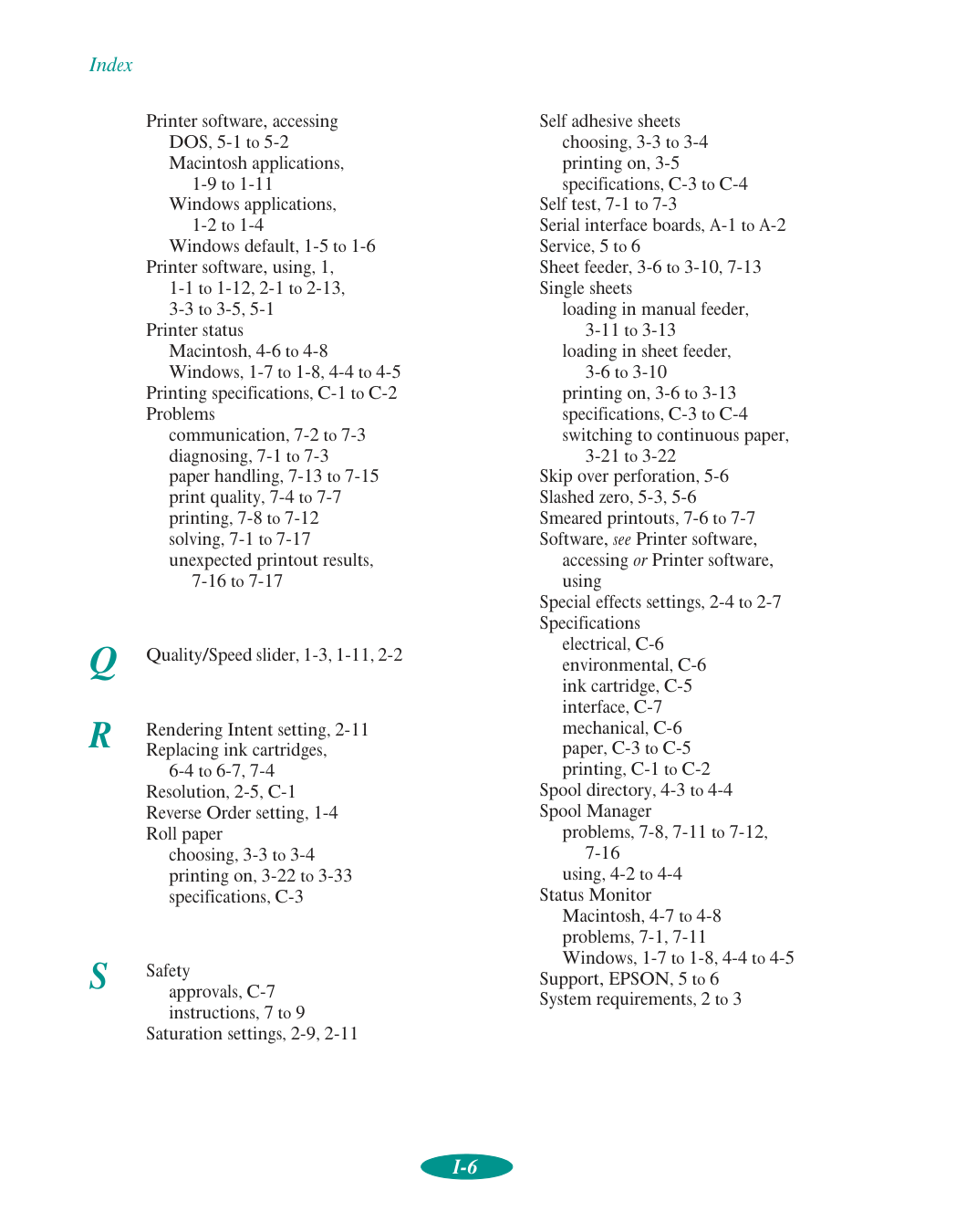
Index
I-6
Printer software, accessing DOS, 5-1 to 5-2 Macintosh applications, 1-9 to 1-11 Windows applications, 1-2 to 1-4 Windows default, 1-5 to 1-6 Printer software, using, 1, 1-1 to 1-12, 2-1 to 2-13, 3-3 to 3-5, 5-1 Printer status Macintosh, 4-6 to 4-8 Windows, 1-7 to 1-8, 4-4 to 4-5 Printing specifications, C-1 to C-2 Problems communication, 7-2 to 7-3 diagnosing, 7-1 to 7-3 paper handling, 7-13 to 7-15 print quality, 7-4 to 7-7 printing, 7-8 to 7-12 solving, 7-1 to 7-17 unexpected printout results, 7-16 to 7-17Q
Quality/Speed slider, 1-3, 1-11, 2-2R
Rendering Intent setting, 2-11 Replacing ink cartridges, 6-4 to 6-7, 7-4 Resolution, 2-5, C-1 Reverse Order setting, 1-4 Roll paper choosing, 3-3 to 3-4 printing on, 3-22 to 3-33 specifications, C-3S
Safety approvals, C-7 instructions, 7 to 9 Saturation settings, 2-9, 2-11 Self adhesive sheets choosing, 3-3 to 3-4 printing on, 3-5 specifications, C-3 to C-4 Self test, 7-1 to 7-3 Serial interface boards, A-1 to A-2 Service, 5 to 6 Sheet feeder, 3-6 to 3-10, 7-13 Single sheets loading in manual feeder, 3-11 to 3-13 loading in sheet feeder, 3-6 to 3-10 printing on, 3-6 to 3-13 specifications, C-3 to C-4 switching to continuous paper, 3-21 to 3-22 Skip over perforation, 5-6 Slashed zero, 5-3, 5-6 Smeared printouts, 7-6 to 7-7 Software, see Printer software, accessing or Printer software, using Special effects settings, 2-4 to 2-7 Specifications electrical, C-6 environmental, C-6 ink cartridge, C-5 interface, C-7 mechanical, C-6 paper, C-3 to C-5 printing, C-1 to C-2 Spool directory, 4-3 to 4-4 Spool Manager problems, 7-8, 7-11 to 7-12, 7-16 using, 4-2 to 4-4 Status Monitor Macintosh, 4-7 to 4-8 problems, 7-1, 7-11 Windows, 1-7 to 1-8, 4-4 to 4-5 Support, EPSON, 5 to 6 System requirements, 2 to 3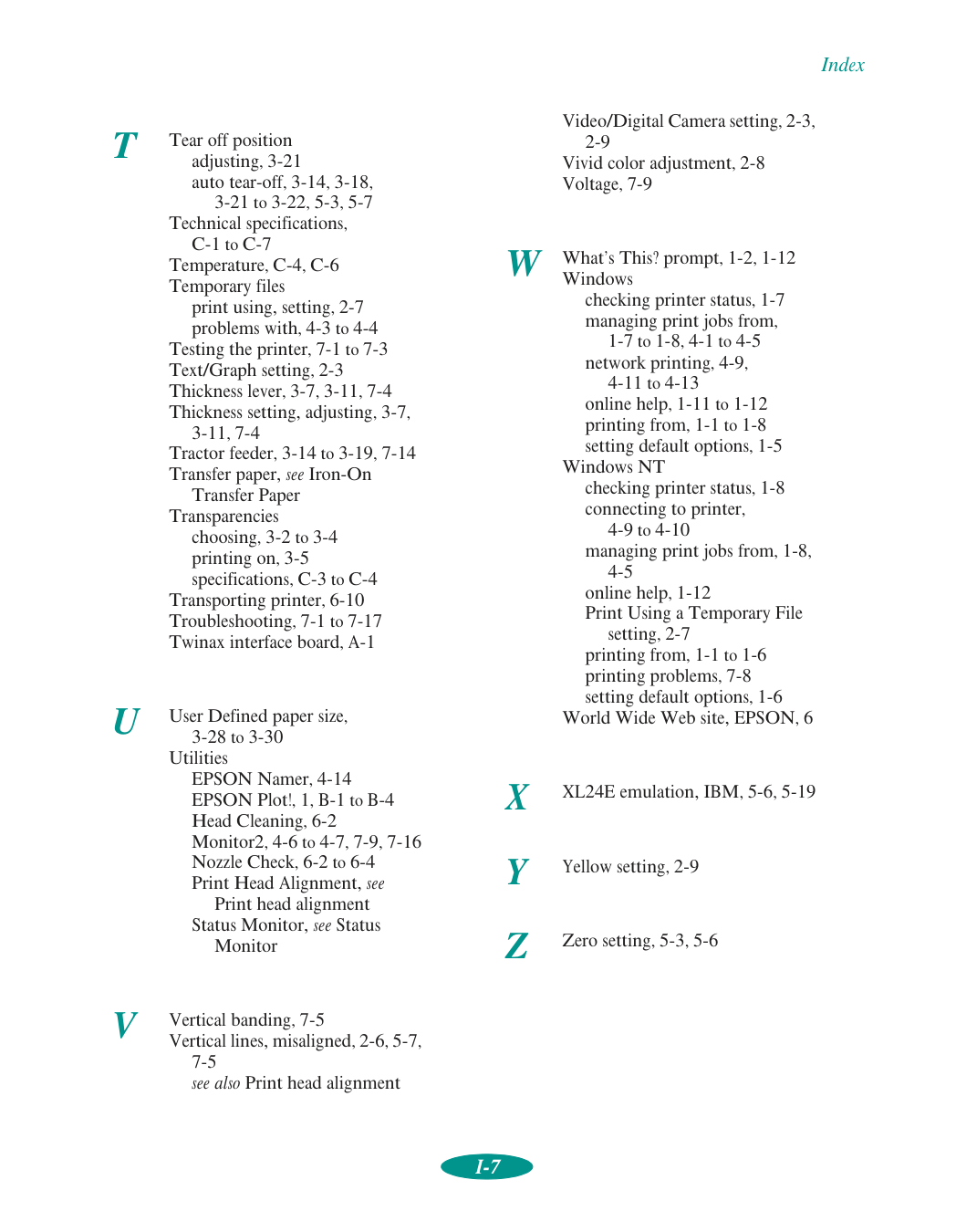
Index