
Ask AI
— answers from the official manualAnswers from the official manual.
Common questions
Common Questions
10 totalHow do I configure the equipment and I/O terminals?
Access equipment configuration by swiping left to the Quick Access screen, tapping Config > Equipment > Equipment & I/O. Select your equipment type (Fan Coil, Conventional, or Heat Pump), configure the valve types and fan speed. Then tap I/O Assignment to assign terminals to their functions. The thermostat provides default assignments based on equipment selection, but you can override them by tapping the plus button next to each terminal.
Where can I find the Honeywell Home Thermostat Pro Series manual or PDF?
The TC300B Commercial Thermostat Configuration and User Guide (document 31-00644-02, Rev 05-24) is the primary manual for this thermostat. Additional reference documents include the TC300B Datasheet (31-00645), Mounting & Installation instructions (31-00642), Pocket guide (31-00648), BACnet Integration guide (31-00646), and Modbus Integration guide (31-00670). These documents provide comprehensive information for setup, configuration, and operation.
What are the safety precautions I should follow before installing the thermostat?
Before installation, keep the thermostat at room temperature for at least 24 hours to allow condensation from shipping to evaporate. Do not open the thermostat as it contains no user-serviceable parts. The device must be installed by authorized and trained personnel in accordance with the National Electric Code. Always assume hazardous voltages may exist in wiring systems and make a safety check with a voltage detection device before starting work.
How do I perform the initial setup of the TC300B thermostat?
The thermostat will power up automatically after mounting. You will navigate through guided setup screens including: Device Name, Network Connection, Temperature Units, Date & Time, Equipment Type, System Switch, Setpoints, and Installer Passcode. Follow the on-screen prompts and tap the arrows to proceed through each step. The setup process takes approximately 35 seconds to return to home screen if no interaction occurs.
What equipment types does the TC300B thermostat support?
The TC300B supports three main equipment types: Conventional (1H/1C), Heat Pump (2H/1C with air or water source), and Fan Coil (2-pipe or 4-pipe configurations). It also supports flexible I/O options for on/off valves, floating valves, modulating valves, 6-way modulating valves, and variable speed fans. The thermostat can be configured for dehumidification with reheat and auxiliary heating functions.
How do I change the temperature setpoint on the home screen?
On the home screen, you can adjust the temperature by touching the up arrow to increase the desired temperature or the down arrow to decrease it. The current desired temperature is displayed in the center of the screen. The actual indoor temperature is shown separately, along with the current system mode (heating or cooling).
Full Manual
138 pages
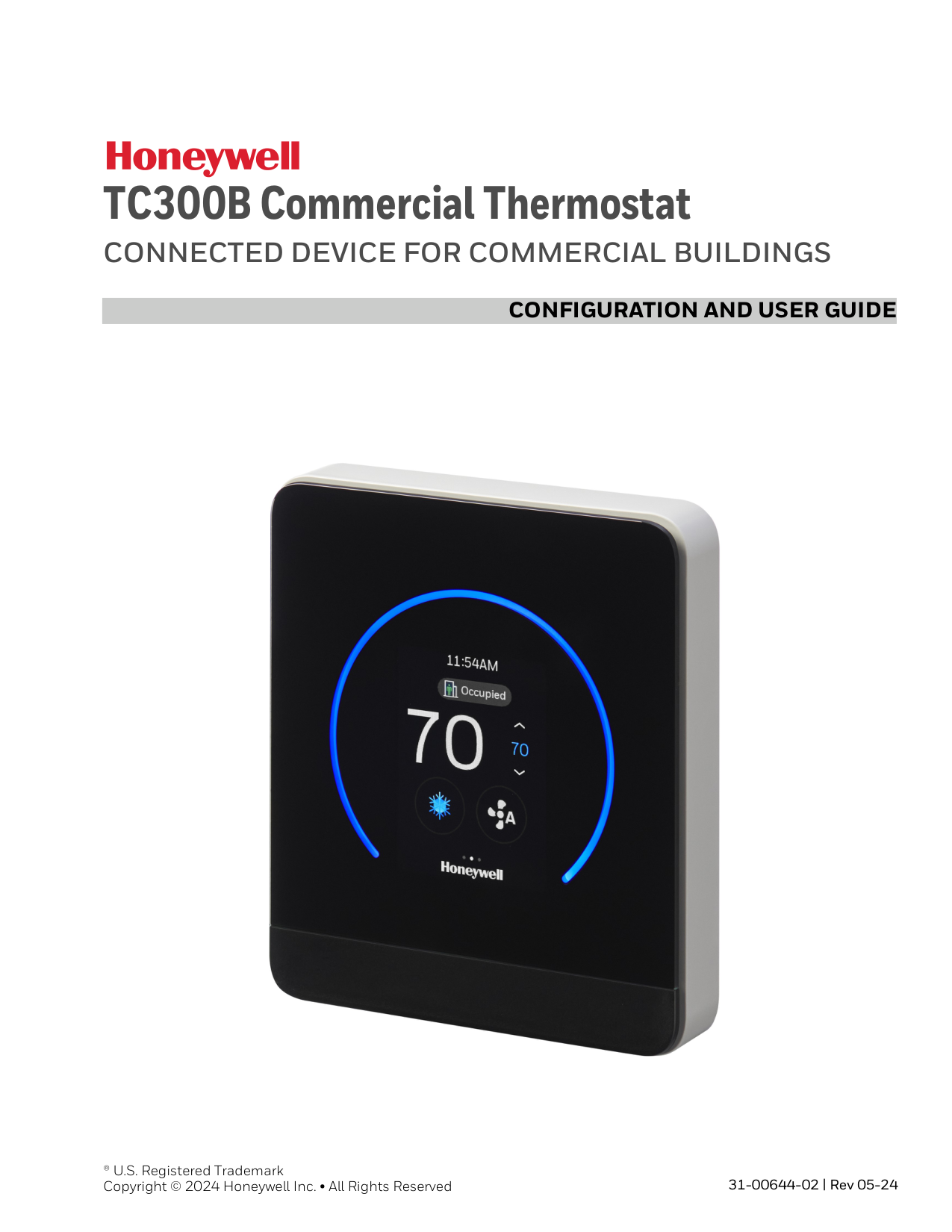
Configuration And User Guide
® U.S. Registered Trademark Copyright © 2024 Honeywell Inc. • All Rights Reserved 31-00644-02 | Rev 05-24 TC300B Commercial ThermostatConnected Device For Commercial Buildings
3 Table of contents Important Safety Information and Installation Precautions..................................8 Introduction................................................................................................................................... 11 About TC300B Thermostat............................................................................................... 12 Features.................................................................................................................................... 12 Intended audience and assumed knowledge............................................................ 13 Reference documents......................................................................................................... 13 Abbreviation and nomenclature..................................................................................... 14 Dimensions ............................................................................................................................. 14 Technical specifications..................................................................................................... 15 Terminal Identification ....................................................................................................... 20 Terminal assignment........................................................................................................... 22 Security requirement........................................................................................................... 23 Overview.......................................................................................................................................... 25 Home screen: Temperature reading and adjustment............................................ 26 Quick access screen (right side screen): Device configuration.......................... 27 Ambiance screen (left side screen): Sensor reading .............................................. 28 Home screen icon overview.............................................................................................. 28 Inactive display modes....................................................................................................... 30 Display timeout properties ............................................................................................... 30 Getting Started............................................................................................................................. 33 Prerequisites........................................................................................................................... 34 Guided set-up ........................................................................................................................ 35 Configuration................................................................................................................................ 43 Configuration screen .......................................................................................................... 44 Basic configuration.............................................................................................................. 45
4
Tc300B Thermostat User Guide
Equipment configuration ..................................................................................................52 I/O terminal assignment....................................................................................................65 Sensors......................................................................................................................................68 System switch.........................................................................................................................73 Discharge air control ...........................................................................................................74 Dehumidification ..................................................................................................................77 Valve cycle................................................................................................................................77 Advanced configuration .....................................................................................................78 Setpoint options - All equipment types........................................................................79 Heat pump ...............................................................................................................................81 Cooling options - For Heat pump & Conventional equipment ...........................82 Cooling options - For Fan coil equipment...................................................................84 Heating options - For Heat and Conventional equipment...................................85 Heating options - For Fan coil equipment..................................................................86 Pipe sensor thresholds .......................................................................................................88 Valve purge ..............................................................................................................................89 Compressor delay time .......................................................................................................90 Miscellaneous ........................................................................................................................90 Service mode...........................................................................................................................91 Standby action .......................................................................................................................93 Security log..............................................................................................................................93 Diagnostics..............................................................................................................................94 Connection ..............................................................................................................................95 User management ................................................................................................................99 User roles..................................................................................................................................99 Home screen (Display management)........................................................................ 102 Display settings ..................................................................................................................103 Reset to default................................................................................................................... 105 System status ......................................................................................................................106 Setpoints................................................................................................................................107 System mode........................................................................................................................109 Fan speed ..............................................................................................................................110 Alarms ........................................................................................................................................... 111 Alarms..................................................................................................................................... 111
5
Tc300B Thermostat User Guide
Alarm notification signs...................................................................................................111 Alarm notification...............................................................................................................112 Alarm preference ................................................................................................................112 Unacknowledged alarms.................................................................................................116 List of alarms and their severity ...................................................................................118 Managing the alarms........................................................................................................119 Scheduling...................................................................................................................................123 About schedule....................................................................................................................123 Weekly schedule..................................................................................................................124 Holiday schedule ................................................................................................................129 Special event ........................................................................................................................135
6
Tc300B Thermostat User Guide
7
Tc300B Thermostat User Guide
Declaration This document contains Honeywell proprietary information. Information contained herein is to be used solely for the purpose submitted, and no part of this document or its contents shall be reproduced, published, or disclosed to a third party without the express permission of Honeywell International Inc. While this information is presented in good faith and believed to be accurate, Honeywell disclaims the implied warranties of merchantability and fitness for a purpose and makes no express warranties except as may be stated in its written agreement with and for its customer. In no event is Honeywell liable to anyone for any direct, special, or consequential damages. The information and specifications in this document are subject to change without notice. Copyright 2024 – Honeywell International Inc. Waste Electrical and Electronic Equipment (WEEE) FCC Part 15 compliant This device complies with part 15 of the FCC Rules. Operation is subject to the following two conditions: (1) This device may not cause harmful interference, and (2) This device must accept any interference received, including interference that may cause undesired operation. WEEE: Waste Electrical and Electronic Equipment Directive • At the end of the product life, dispose of the packaging and product in an appropriate recycling center. • Do not dispose of the device with the usual domestic refuse. • Do not burn the device.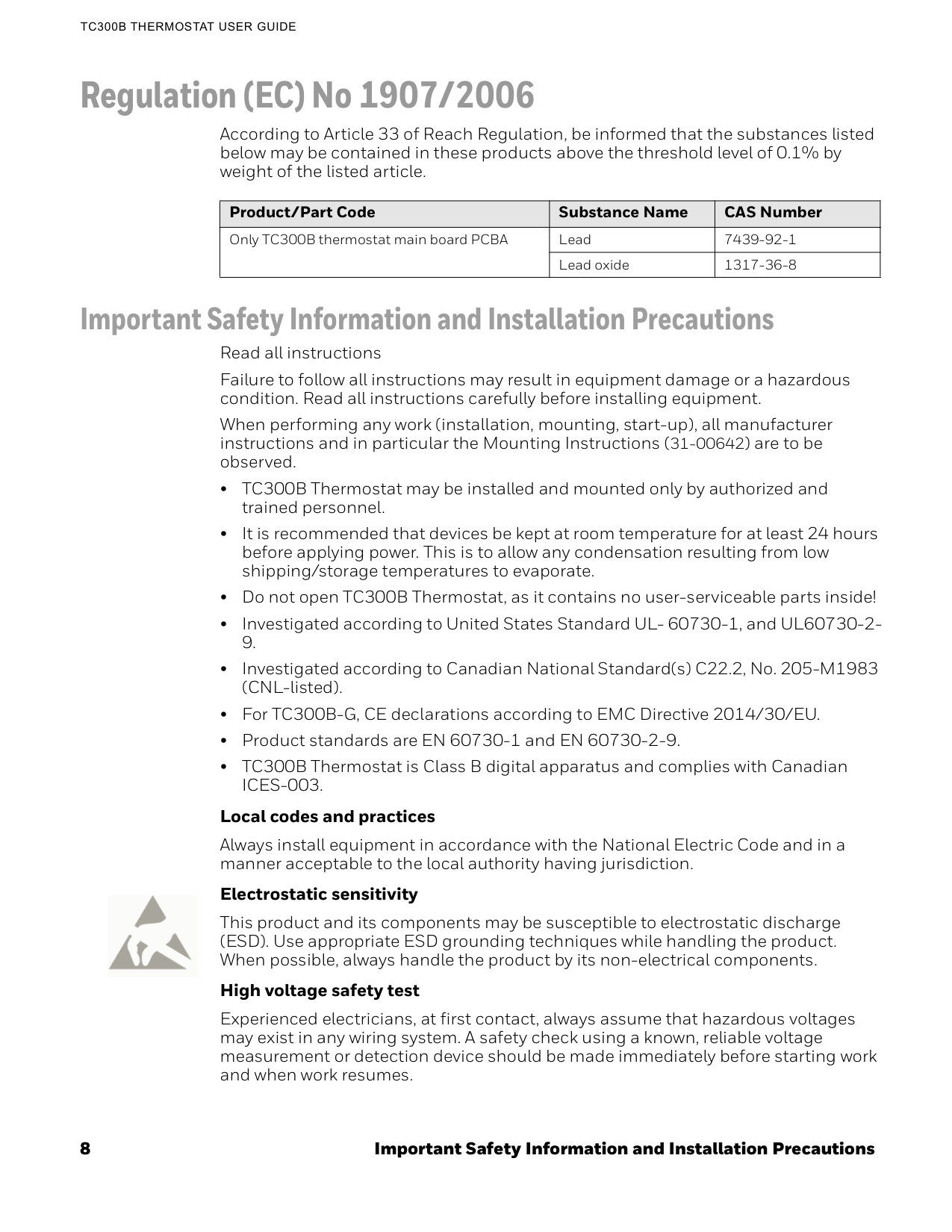
8 Important Safety Information and Installation Precautions
Tc300B Thermostat User Guide
Regulation (EC) No 1907/2006 According to Article 33 of Reach Regulation, be informed that the substances listed below may be contained in these products above the threshold level of 0.1% by weight of the listed article. Important Safety Information and Installation Precautions Read all instructions Failure to follow all instructions may result in equipment damage or a hazardous condition. Read all instructions carefully before installing equipment. When performing any work (installation, mounting, start-up), all manufacturer instructions and in particular the Mounting Instructions (31-00642) are to be observed. • TC300B Thermostat may be installed and mounted only by authorized and trained personnel. • It is recommended that devices be kept at room temperature for at least 24 hours before applying power. This is to allow any condensation resulting from low shipping/storage temperatures to evaporate. • Do not open TC300B Thermostat, as it contains no user-serviceable parts inside! • Investigated according to United States Standard UL- 60730-1, and UL60730-2-Ices-003.
Local codes and practices Always install equipment in accordance with the National Electric Code and in a manner acceptable to the local authority having jurisdiction. Electrostatic sensitivity This product and its components may be susceptible to electrostatic discharge (ESD). Use appropriate ESD grounding techniques while handling the product. When possible, always handle the product by its non-electrical components. High voltage safety test Experienced electricians, at first contact, always assume that hazardous voltages may exist in any wiring system. A safety check using a known, reliable voltage measurement or detection device should be made immediately before starting work and when work resumes. Product/Part Code Substance Name CAS Number Only TC300B thermostat main board PCBA Lead 7439-92-1 Lead oxide 1317-36-8
Important Safety Information and Installation Precautions 9
Tc300B Thermostat User Guide
Lightning and high-voltage danger Most electrical injuries involving low-voltage wiring result from sudden, unexpected high voltages on normally low voltage wiring. Low-voltage wiring can carry hazardous high voltages under unsafe conditions. Never install or connect wiring or equipment during electrical storms. Improperly protected wiring can carry a fatal lightning surge for many miles. All outdoor wiring must be equipped with properly grounded and listed signal circuit protectors, which must be installed in compliance with local, applicable codes. Never install wiring or equipment while standing in water. Wiring and equipment separations All wiring and controllers must be installed to minimize the possibility of accidental contact with other potentially hazardous and disruptive power and lighting wiring. Never place 24VAC or communications wiring near other bare power wires, lightning rods, antennas, transformers, or steam or hot water pipes. Never place wire in any conduit, box, channel, duct or other enclosure containing power or lighting circuits of any type. Always provide adequate separation of communications wiring and other electrical wiring according to code. Keep wiring and controllers at least six feet from large inductive loads (power distribution panels, lighting ballasts, motors, etc.). Failure to follow these guidelines can introduce electrical interference and cause the system to operate erratically. Warning By using this Honeywell literature, you agree that Honeywell will have no liability for any damages arising out of your use, or modification to, the literature. You will defend and indemnify Honeywell, its affiliates and subsidiaries, from and against any liability, cost, or damages, including attorneys' fees, arising out of, or resulting from, any modification to the literature by you. The material in this document is for information purposes only. The content and the product it describes are subject to change without notice. Honeywell makes no representations or warranties with respect to this document. In no event shall Honeywell be liable for technical or editorial omissions or mistakes in this document, nor shall it be liable for any damages, direct or incidental, arising out of or related to the use of this document. No part of this document may be reproduced in any form or by any means without prior written permission from Honeywell. Safety Information as per EN60730-1 TC300B Thermostat is intended for commercial and residential environments. TC300B Thermostat is an independently mounted electronic control system with fixed wiring. TC300B Thermostat is used for the purpose of building HVAC control and is suitable for use only in non-safety controls for installation on or in appliances.
10 Important Safety Information and Installation Precautions
Tc300B Thermostat User Guide
Chapter
1 11 Introduction This chapter contains brief description of the TC300B thermostat and its hardware specifications. Related topics About TC300B Thermostat Features Intended audience and assumed knowledge Reference documents Abbreviation and nomenclature Dimensions Technical specifications Terminal Identification Terminal assignment Security requirement
12 About TC300B Thermostat
1 - Introduction
About TC300B Thermostat TC300B Thermostat is an advanced, highly configurable device providing building automation connectivity well-suited for indoor commercial building applications. It has flexible I/O options that will satisfy the needs of 1H/1C conventional, 2H/1C heat pump, and most 2-pipe or 4-pipe fan coil applications. Supported functions include dehumidification with reheat using an embedded humidity sensor, auxiliary heat functions, and more rapid transitional 2-pipe system seasonal changeover. TC300B supports BACnet MS/TP and Modbus communications via RS485 bus as is needed for typical HVAC building control systems. The same bus facilitates future firmware updates and enhanced functionality as they are released to the market. The integral intelligent control algorithms plus scheduling help to achieve the perfect balance between Energy Efficiency and Comfort. It utilizes an attractive, color, capacitive-touch screen interface providing an intuitive configuration process with minimal installer training. This functionality is enhanced through embedded help screens reducing reliance on technical manuals for complex installation. Features Convenient for users • Color, capacitive-touch screen display for intuitive, fast commissioning and exceptional user experience. • Embedded system monitoring screen for equipment and I/O status. • Customizable inactive display modes, Auto dim display, always on, or dark mode. • An LED ring indicator to show the operational status. • Real-Time Clock time-keeping accuracy with 72-hour retention during power loss. Easy for contractors • 2H/1C Heat pump, 1H/1C Conventional-Water Source Heat Pump with water valve enable/lock-out, Fan coil, On/Off Valve, Floating Valve, Modulating Valve, and 6-Way Modulating Valve. • 1-3 or variable speed fan • Dehumidification with and without reheat. • Enhanced 2-pipe fan coil functionality during seasonal or system changeover delivering improved occupant comfort. • Service mode for manually enabling outputs for quicker diagnostics and equipment testing. • Auxiliary heating options supporting peripheral or supplemental types • Auto mode to switch between heating and cooling according to the current space temperature • Staging control, PID Tuning, DAT Lockout, Modulating control, Compressor time delay • System Switch and Ventilation options. • Integration with various external wired sensor types including Discharge air temperature, Drain pan, Occupancy, Proof of airflow, Proof of water flow, Space temperature, Outdoor air temperature, CO2, and Humidity. • Complies with ASHRAE guideline 36-2021, Section 5.22 sequence of operations for high- performance operation when using floating/modulating valves and multi-speed/variable speed fan. • Advanced commercial control algorithms such as auto changeover.
Intended audience and assumed knowledge 13
Intended Audience And Assumed Knowledge
Connected for facility managers • Thermostat can be configured via its own LCD human-machine interface (HMI) or a BACnet/Modbus client. • Multiple, configurable user types with customizable privileges to prevent unauthorized usage. • Customizable daily schedules include options for setting up to 10 recurring holidays (with support for floating holidays) and up to 10 specific special events. • Up to 4 schedule events per day. Intended audience and assumed knowledge This document provides information about installing and commissioning a TC300B/ Thermostat. It also shows how to operate the user interface. It is assumed that the user is trained and familiar with HVAC concepts. IMPORTANT: Always install equipment in accordance with the National Electric Code and in a manner acceptable to the local authority having jurisdiction (AHJ). No guidelines, instructions, installation practices, or other information presented in this guide may be interpreted to supersede or modify the local codes and practices of theAhj.
Reference documents • TC300B Commercial Thermostat Datasheet (31-00645) • TC300B Commercial Thermostat Mounting & Installation instructions (31-00642) • TC300B Commercial Thermostat Pocket guide (31-00648) • TC300B Deco Plate Pocket guide (31-00657) • TC300B BACnet Integration guide (31-00646) • TC300B Modbus Integration guide (31-00670)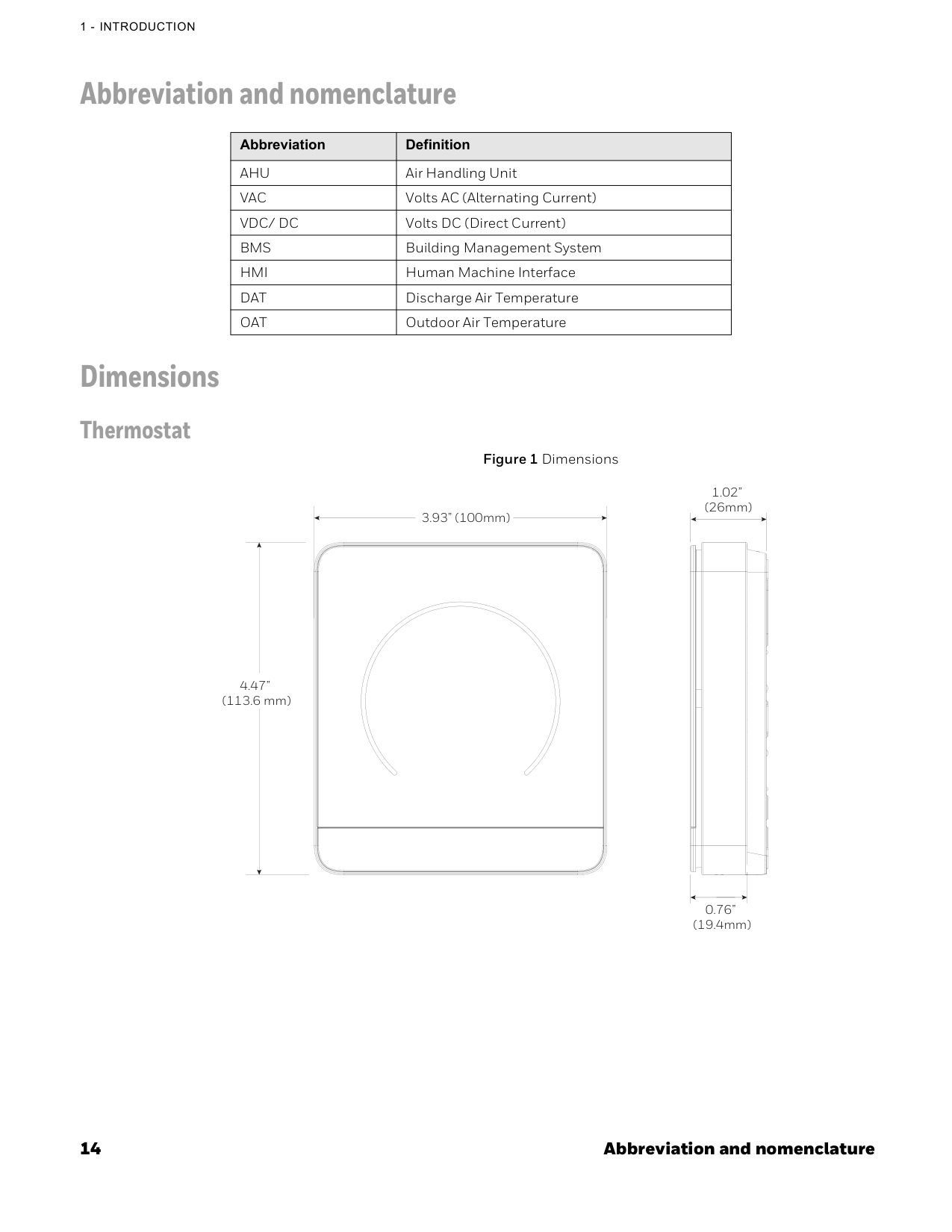
14 Abbreviation and nomenclature
1 - Introduction
Abbreviation and nomenclature Dimensions Thermostat Figure 1 Dimensions Abbreviation DefinitionAhu
Air Handling UnitVac
Volts AC (Alternating Current)Vdc/ Dc
Volts DC (Direct Current)Bms
Building Management SystemHmi
Human Machine InterfaceDat
Discharge Air TemperatureOat
Outdoor Air Temperature 3.93” (100mm) 4.47” (113.6 mm) 1.02” (26mm) 0.76” (19.4mm)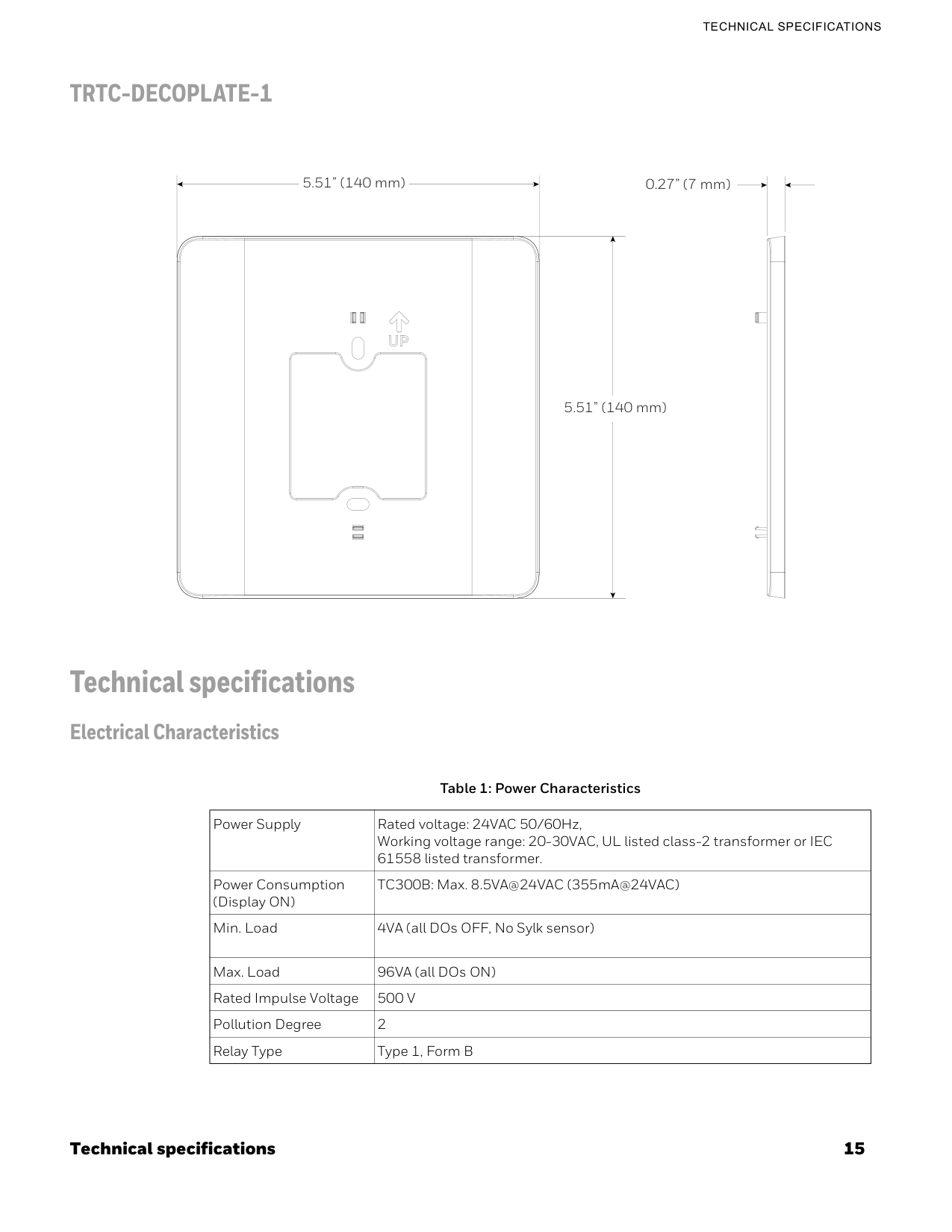
Technical specifications 15
Technical Specifications
Trtc-Decoplate-1
Technical specifications Electrical Characteristics 5.51” (140 mm) 5.51” (140 mm) 0.27” (7 mm) Table 1: Power Characteristics Power Supply Rated voltage: 24VAC 50/60Hz, Working voltage range: 20-30VAC, UL listed class-2 transformer or IEC 61558 listed transformer. Power Consumption (Display ON) TC300B: Max. 8.5VA@24VAC (355mA@24VAC) Min. Load 4VA (all DOs OFF, No Sylk sensor) Max. Load 96VA (all DOs ON) Rated Impulse Voltage500 V
Pollution Degree 2 Relay Type Type 1, Form B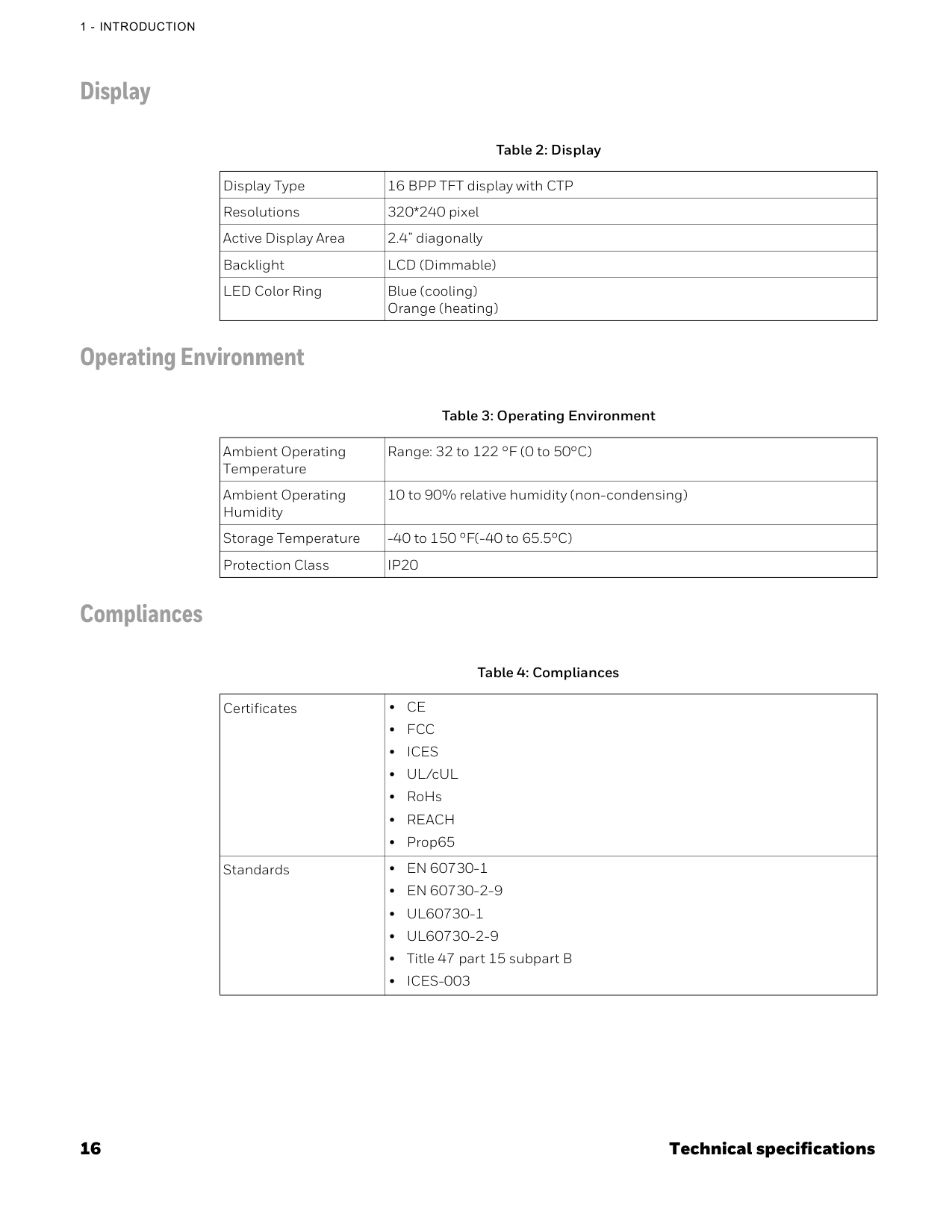
16 Technical specifications
1 - Introduction
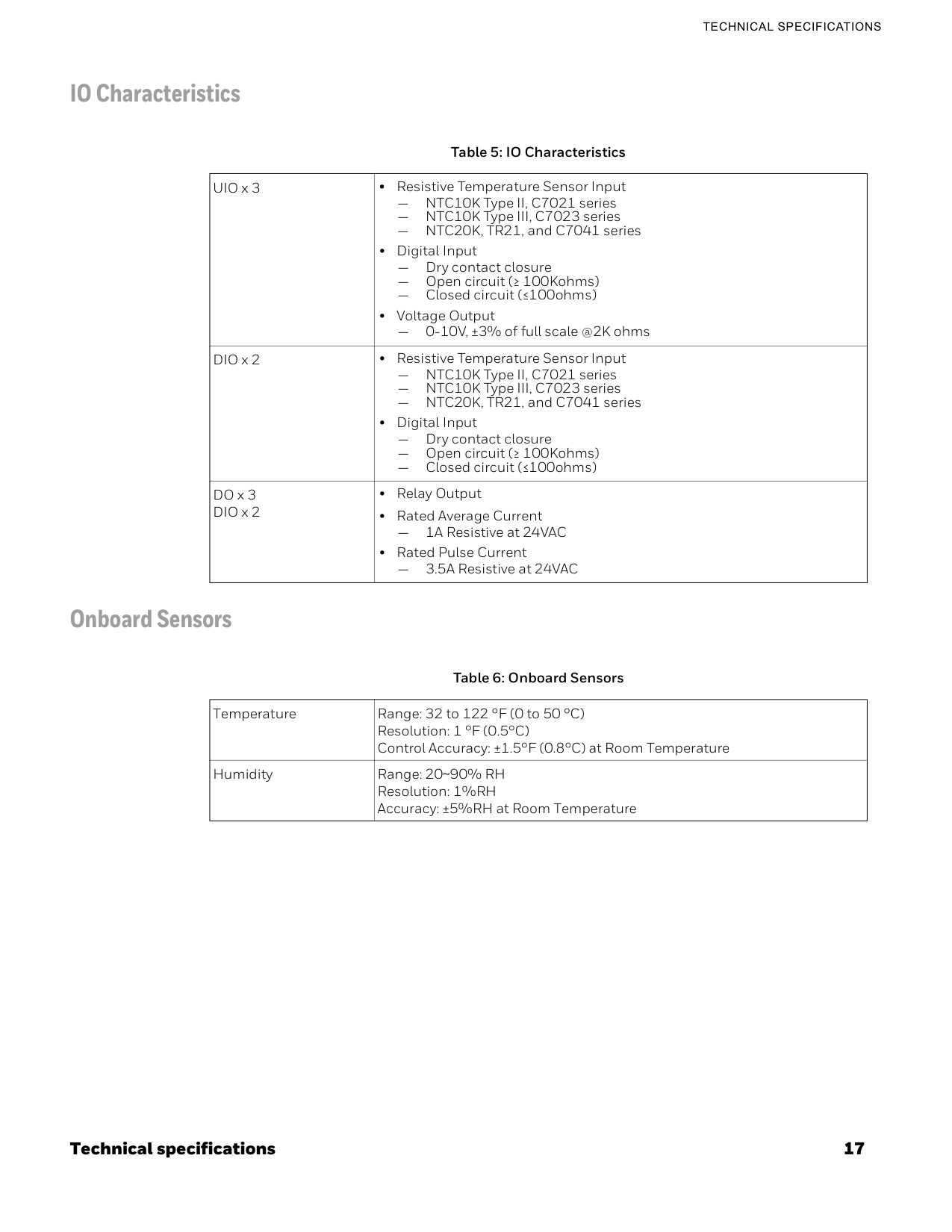
Display Operating Environment Compliances Table 2: Display Display Type 16 BPP TFT display with CTP Resolutions 320*240 pixel Active Display Area 2.4” diagonally Backlight LCD (Dimmable) LED Color Ring Blue (cooling) Orange (heating) Table 3: Operating Environment Ambient Operating Temperature Range: 32 to 122 °F (0 to 50°C) Ambient Operating Humidity 10 to 90% relative humidity (non-condensing) Storage Temperature -40 to 150 °F(-40 to 65.5°C) Protection ClassIp20
Table 4: Compliances Certificates •Ce
•Fcc
•Ices
• UL/cUL • RoHs •Reach
• Prop65 Standards •En 60730-1
•En 60730-2-9
•Ul60730-1
•Ul60730-2-9
• Title 47 part 15 subpart B •Ices-003
Technical specifications 17
Technical Specifications
IO Characteristics Onboard Sensors Table 5: IO Characteristics UIO x 3 • Resistive Temperature Sensor Input — NTC10K Type II, C7021 series — NTC10K Type III, C7023 series — NTC20K, TR21, and C7041 series • Digital Input — Dry contact closure — Open circuit (≥ 100Kohms) — Closed circuit (≤100ohms) • Voltage Output — 0-10V, ±3% of full scale @2K ohms DIO x 2 • Resistive Temperature Sensor Input — NTC10K Type II, C7021 series — NTC10K Type III, C7023 series — NTC20K, TR21, and C7041 series • Digital Input — Dry contact closure — Open circuit (≥ 100Kohms) — Closed circuit (≤100ohms) DO x 3 DIO x 2 • Relay Output • Rated Average Current — 1A Resistive at 24VAC • Rated Pulse Current — 3.5A Resistive at 24VAC Table 6: Onboard Sensors Temperature Range: 32 to 122 °F (0 to 50 °C) Resolution: 1 °F (0.5°C) Control Accuracy: ±1.5°F (0.8°C) at Room Temperature Humidity Range: 20~90% RH Resolution: 1%RH Accuracy: ±5%RH at Room Temperature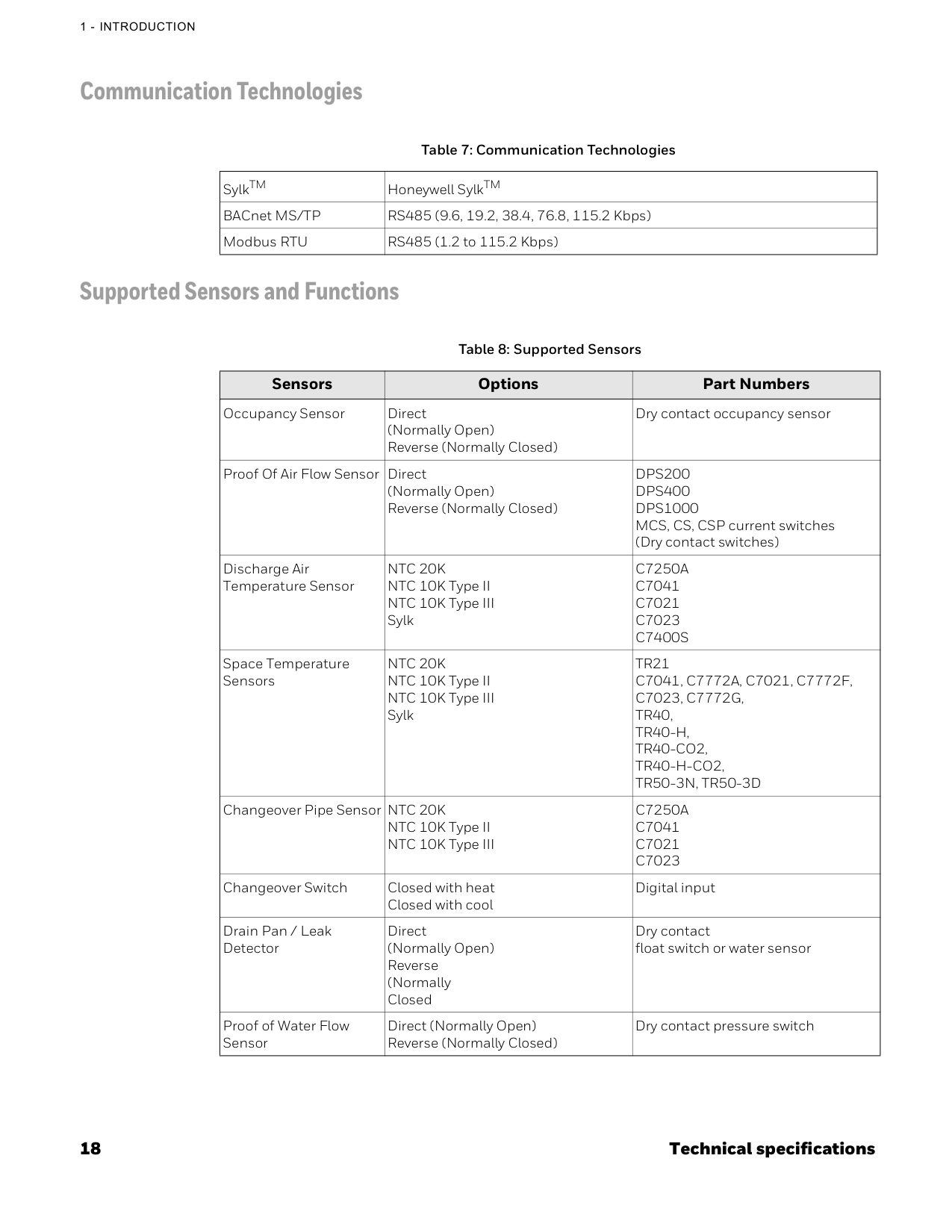
18 Technical specifications
1 - Introduction
Communication Technologies Supported Sensors and Functions Table 7: Communication Technologies SylkTM Honeywell SylkTM BACnet MS/TP RS485 (9.6, 19.2, 38.4, 76.8, 115.2 Kbps) Modbus RTU RS485 (1.2 to 115.2 Kbps) Table 8: Supported Sensors Sensors Options Part Numbers Occupancy Sensor Direct (Normally Open) Reverse (Normally Closed) Dry contact occupancy sensor Proof Of Air Flow Sensor Direct (Normally Open) Reverse (Normally Closed)Dps200
Dps400
Dps1000
MCS, CS, CSP current switches (Dry contact switches) Discharge Air Temperature SensorNtc 20K
NTC 10K Type II NTC 10K Type III SylkC7250A
C7041
C7021
C7023
C7400S
Space Temperature SensorsNtc 20K
NTC 10K Type II NTC 10K Type III SylkTr21
C7041, C7772A, C7021, C7772F,
C7023, C7772G,
Tr40,
Tr40-H,
Tr40-Co2,
Tr40-H-Co2,
Tr50-3N, Tr50-3D
Changeover Pipe Sensor NTC 20K NTC 10K Type II NTC 10K Type IIIC7250A
C7041
C7021
C7023
Changeover Switch Closed with heat Closed with cool Digital input Drain Pan / Leak Detector Direct (Normally Open) Reverse (Normally Closed Dry contact float switch or water sensor Proof of Water Flow Sensor Direct (Normally Open) Reverse (Normally Closed) Dry contact pressure switch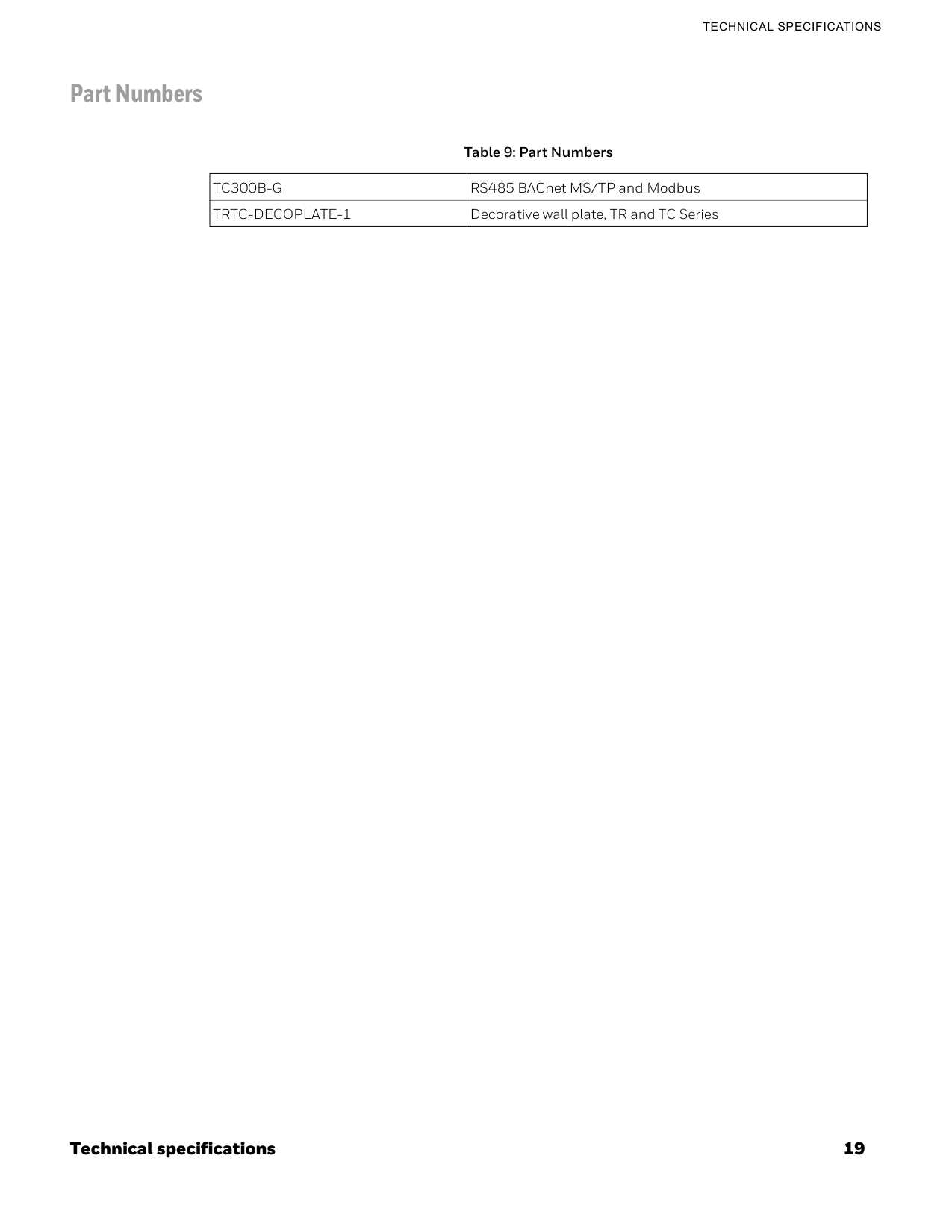
Technical specifications 19
Technical Specifications
Part Numbers Table 9: Part NumbersTc300B-G
RS485 BACnet MS/TP and ModbusTrtc-Decoplate-1
Decorative wall plate, TR and TC Series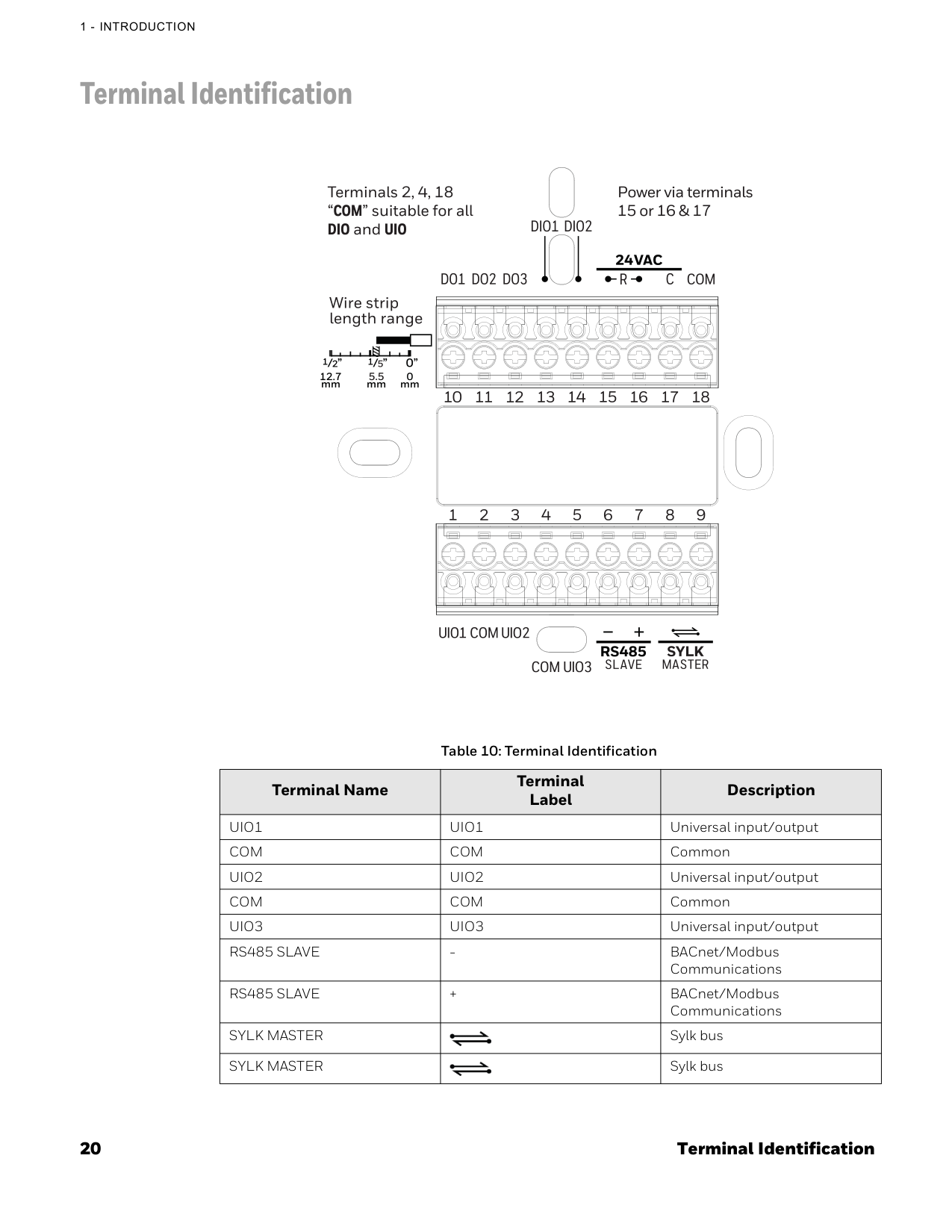
20 Terminal Identification
1 - Introduction
Terminal Identification Table 10: Terminal Identification Terminal Name Terminal Label DescriptionUio1
Uio1
Universal input/outputCom
Com
CommonUio2
Uio2
Universal input/outputCom
Com
CommonUio3
Uio3
Universal input/outputRs485 Slave
Rs485 Slave
+ BACnet/Modbus CommunicationsSylk Master
Sylk busSylk Master
Sylk bus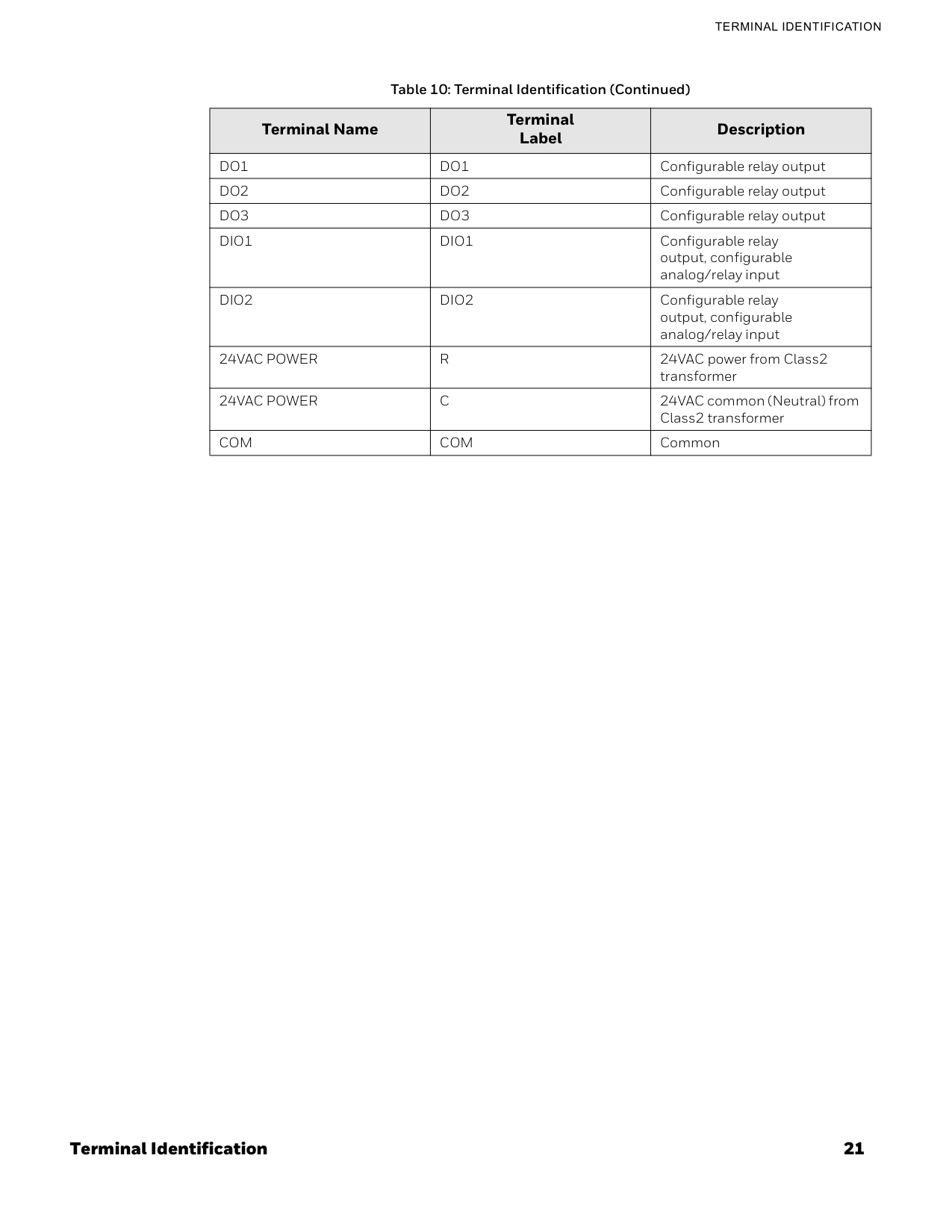
Terminal Identification 21
Terminal Identification
Do1
Do1
Configurable relay outputDo2
Do2
Configurable relay outputDo3
Do3
Configurable relay outputDio1
Dio1
Configurable relay output, configurable analog/relay inputDio2
Dio2
Configurable relay output, configurable analog/relay input24Vac Power
R
24VAC power from Class2 transformer24Vac Power
C
24VAC common (Neutral) from Class2 transformerCom
Com
Common Table 10: Terminal Identification (Continued) Terminal Name Terminal Label Description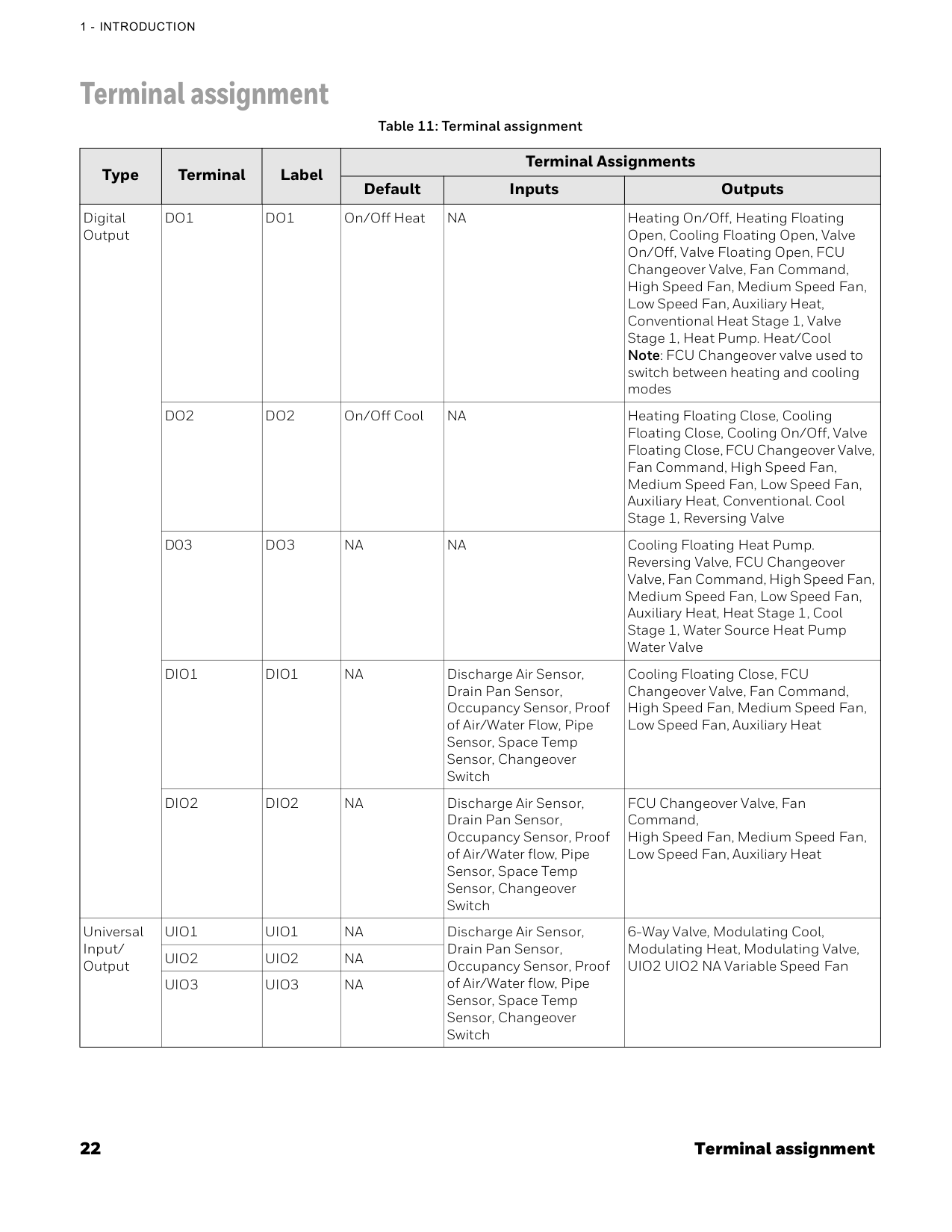
22 Terminal assignment
1 - Introduction
Terminal assignment Table 11: Terminal assignment Type Terminal Label Terminal Assignments Default Inputs Outputs Digital OutputDo1
Do1
On/Off HeatNa
Heating On/Off, Heating Floating Open, Cooling Floating Open, Valve On/Off, Valve Floating Open, FCU Changeover Valve, Fan Command, High Speed Fan, Medium Speed Fan, Low Speed Fan, Auxiliary Heat, Conventional Heat Stage 1, Valve Stage 1, Heat Pump. Heat/Cool Note: FCU Changeover valve used to switch between heating and cooling modesDo2
Do2
On/Off CoolNa
Heating Floating Close, Cooling Floating Close, Cooling On/Off, Valve Floating Close, FCU Changeover Valve, Fan Command, High Speed Fan, Medium Speed Fan, Low Speed Fan, Auxiliary Heat, Conventional. Cool Stage 1, Reversing ValveD03
Do3
Na
Na
Cooling Floating Heat Pump. Reversing Valve, FCU Changeover Valve, Fan Command, High Speed Fan, Medium Speed Fan, Low Speed Fan, Auxiliary Heat, Heat Stage 1, Cool Stage 1, Water Source Heat Pump Water ValveDio1
Dio1
Na
Discharge Air Sensor, Drain Pan Sensor, Occupancy Sensor, Proof of Air/Water Flow, Pipe Sensor, Space Temp Sensor, Changeover Switch Cooling Floating Close, FCU Changeover Valve, Fan Command, High Speed Fan, Medium Speed Fan, Low Speed Fan, Auxiliary HeatDio2
Dio2
Na
Discharge Air Sensor, Drain Pan Sensor, Occupancy Sensor, Proof of Air/Water flow, Pipe Sensor, Space Temp Sensor, Changeover Switch FCU Changeover Valve, Fan Command, High Speed Fan, Medium Speed Fan, Low Speed Fan, Auxiliary Heat Universal Input/ OutputUio1
Uio1
Na
Discharge Air Sensor, Drain Pan Sensor, Occupancy Sensor, Proof of Air/Water flow, Pipe Sensor, Space Temp Sensor, Changeover Switch 6-Way Valve, Modulating Cool, Modulating Heat, Modulating Valve, UIO2 UIO2 NA Variable Speed FanUio2
Uio2
Na
Uio3
Uio3
Na
Security requirement 23
Security Requirement
Security requirement System Environmental Considerations An Internet firewall is required to isolate the Thermostat. Unprotected Internet connections can expose and damage the thermostat system and facility components to cyber-attacks from third parties. This may cause the thermostat to malfunction and can also be misused for illegal purposes for which the operator may then be held liable. Deployments and Maintenance Considerations • Always keep the local server up to date on the latest security patches via a regular system update. This applies not only to workstations or servers running on Windows, Linux, Mac, or any devices that run as part of information infrastructure or operations workstation. • Always keep the thermostat firmware with the latest released firmware to have maximum protection by built-in security features. • Do not use default passwords for any devices (if exists). This includes, but not limited, to all server workstations, storage servers, firewall devices, routers, and mobile devices. • Do not use weak passwords for server administrators or operators. Different user roles (for example administrator, user, guest, etc.) shall have a different password, and the user should not share common passwords. • In case of wireless communication, malicious wireless devices can easily scan the wireless channel and inject malicious packets or mass data flow to perform Denial-of-Service attacks. Honeywell has taken steps to prevent the TC300B Commercial Thermostat device from being injected, but the mass data flow will result in the loss of wireless communication bandwidth within the whole system. A regular check of the communication failure rate or response rate of the thermostat is helpful to discover and isolate devices being attacked and stop the physical attacks in the daily operation Network Communication Notice • To keep maximum integration compatibility with third-party devices and Fast-pack communications are un-encrypted as open protocol. Improper security protection may lead to data leakage, spoofing, and/or tampered by malicious devices and denial-of- service attacks. • To keep maximum integration compatibility with legacy devices, in-room wired devices are less secure from data confidentiality and authentication thus not-recommended for a new design. It is always highly recommended to use deep mesh wireless network communication to gain maximum protection and the latest updates. • In case of Denial-of-Service attacks, all communication channels will inevitably have a loss of bandwidth due to malicious data flow. • Connected devices may contain legacy technology, which is less secure under modern cyber-security attacks. Honeywell strongly recommends using a secured deep mesh wireless network communication. In case of legacy technology, the user needs to be aware of the risk of being tampered with or attacked. To reduce the attack surface, the user is advised to physically secure the wired communication signals or provide necessary shield on wires, or place necessary access control on accessing such communication wires.
24 Security requirement
1 - Introduction
Chapter
2 25 Overview This chapter describes the TC300B Thermostat display, home screens, icons, and other user interfaces. For mounting the TC300B Thermostat, refer to TC300B Thermostat Mounting instructions (31-00642). Related topics Home screen: Temperature reading and adjustment Quick access screen (right side screen): Device configuration Ambiance screen (left side screen): Sensor reading Home screen icon overviewActive display modes Active display modes Display timeout properties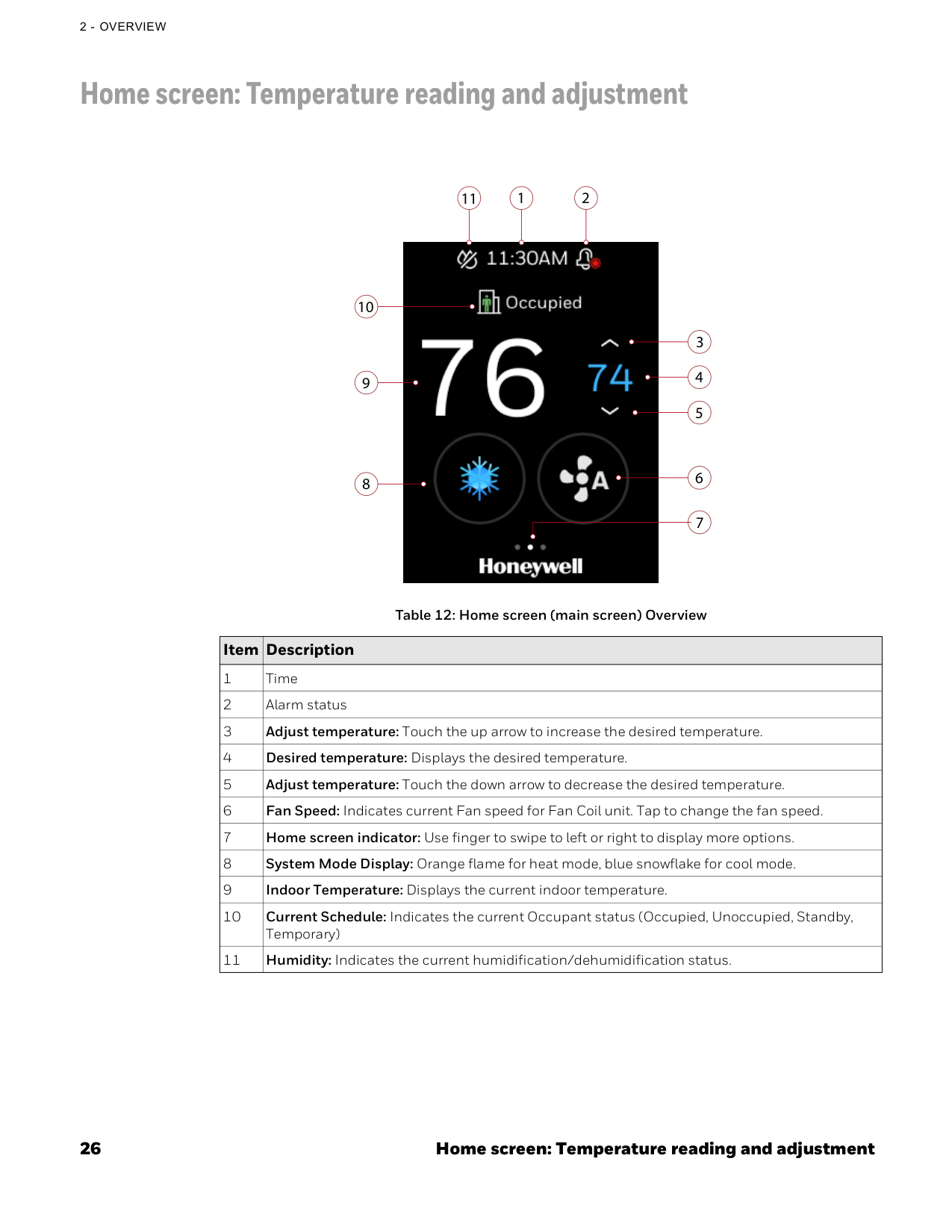
26 Home screen: Temperature reading and adjustment
2 - Overview
Home screen: Temperature reading and adjustment Table 12: Home screen (main screen) Overview Item Description 1 Time 2 Alarm status 3 Adjust temperature: Touch the up arrow to increase the desired temperature. 4 Desired temperature: Displays the desired temperature. 5 Adjust temperature: Touch the down arrow to decrease the desired temperature. 6 Fan Speed: Indicates current Fan speed for Fan Coil unit. Tap to change the fan speed. 7 Home screen indicator: Use finger to swipe to left or right to display more options. 8 System Mode Display: Orange flame for heat mode, blue snowflake for cool mode. 9 Indoor Temperature: Displays the current indoor temperature. 10 Current Schedule: Indicates the current Occupant status (Occupied, Unoccupied, Standby, Temporary) 11 Humidity: Indicates the current humidification/dehumidification status. 10 9 8 1 3 4 5 7 6 2 11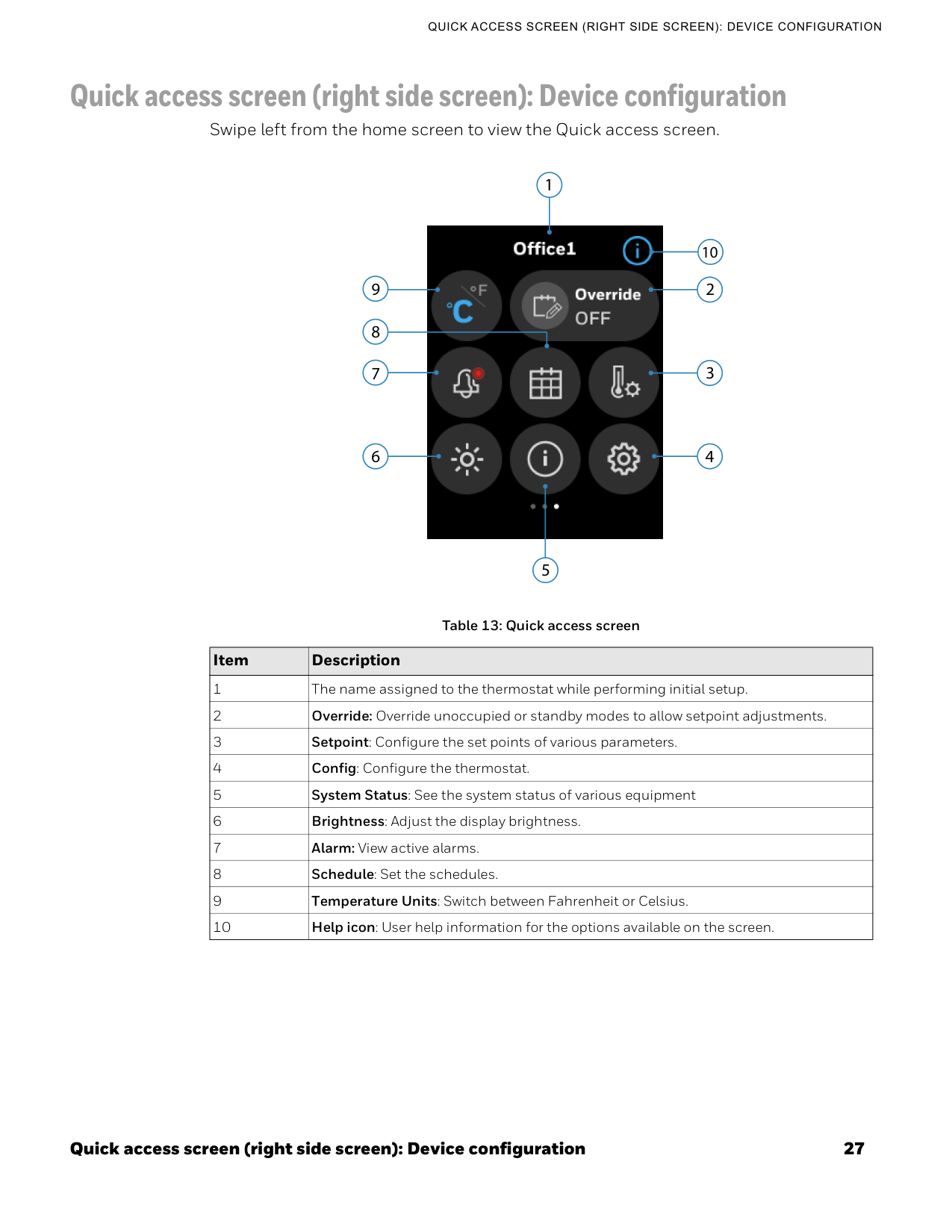
Quick access screen (right side screen): Device configuration 27
Quick Access Screen (Right Side Screen): Device Configuration
Quick access screen (right side screen): Device configuration Swipe left from the home screen to view the Quick access screen. Table 13: Quick access screen Item Description 1 The name assigned to the thermostat while performing initial setup. 2 Override: Override unoccupied or standby modes to allow setpoint adjustments. 3 Setpoint: Configure the set points of various parameters. 4 Config: Configure the thermostat. 5 System Status: See the system status of various equipment 6 Brightness: Adjust the display brightness. 7 Alarm: View active alarms. 8 Schedule: Set the schedules. 9 Temperature Units: Switch between Fahrenheit or Celsius. 10 Help icon: User help information for the options available on the screen. 6 7 4 3 9 1 2 5 8 10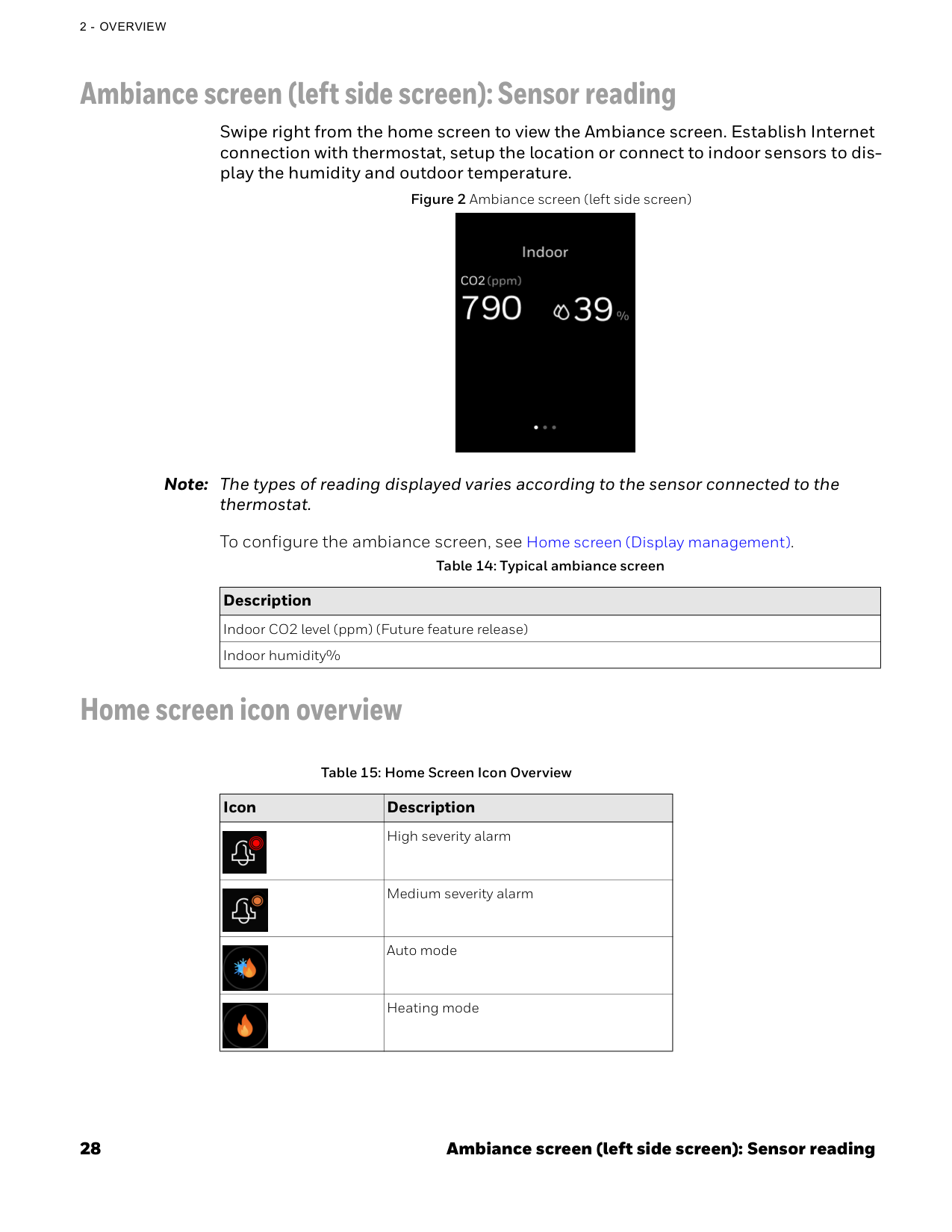
28 Ambiance screen (left side screen): Sensor reading
2 - Overview
Ambiance screen (left side screen): Sensor reading Swipe right from the home screen to view the Ambiance screen. Establish Internet connection with thermostat, setup the location or connect to indoor sensors to dis- play the humidity and outdoor temperature. Figure 2 Ambiance screen (left side screen) Note: The types of reading displayed varies according to the sensor connected to the thermostat. To configure the ambiance screen, see Home screen (Display management). Home screen icon overview Table 14: Typical ambiance screen Description Indoor CO2 level (ppm) (Future feature release) Indoor humidity% Table 15: Home Screen Icon Overview Icon Description High severity alarm Medium severity alarm Auto mode Heating mode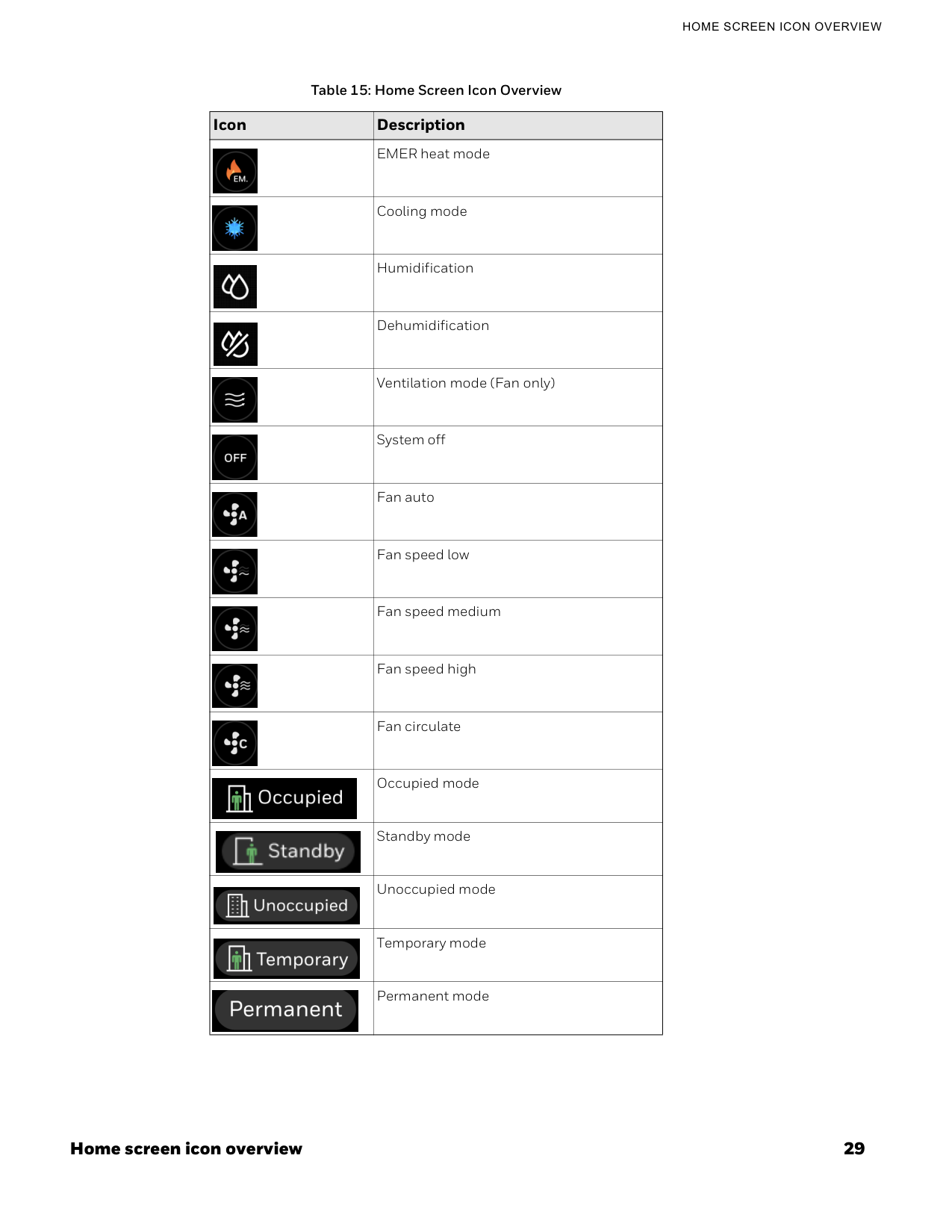
Home screen icon overview 29
Home Screen Icon Overview
EMER heat mode Cooling mode Humidification Dehumidification Ventilation mode (Fan only) System off Fan auto Fan speed low Fan speed medium Fan speed high Fan circulate Occupied mode Standby mode Unoccupied mode Temporary mode Permanent mode Table 15: Home Screen Icon Overview Icon Description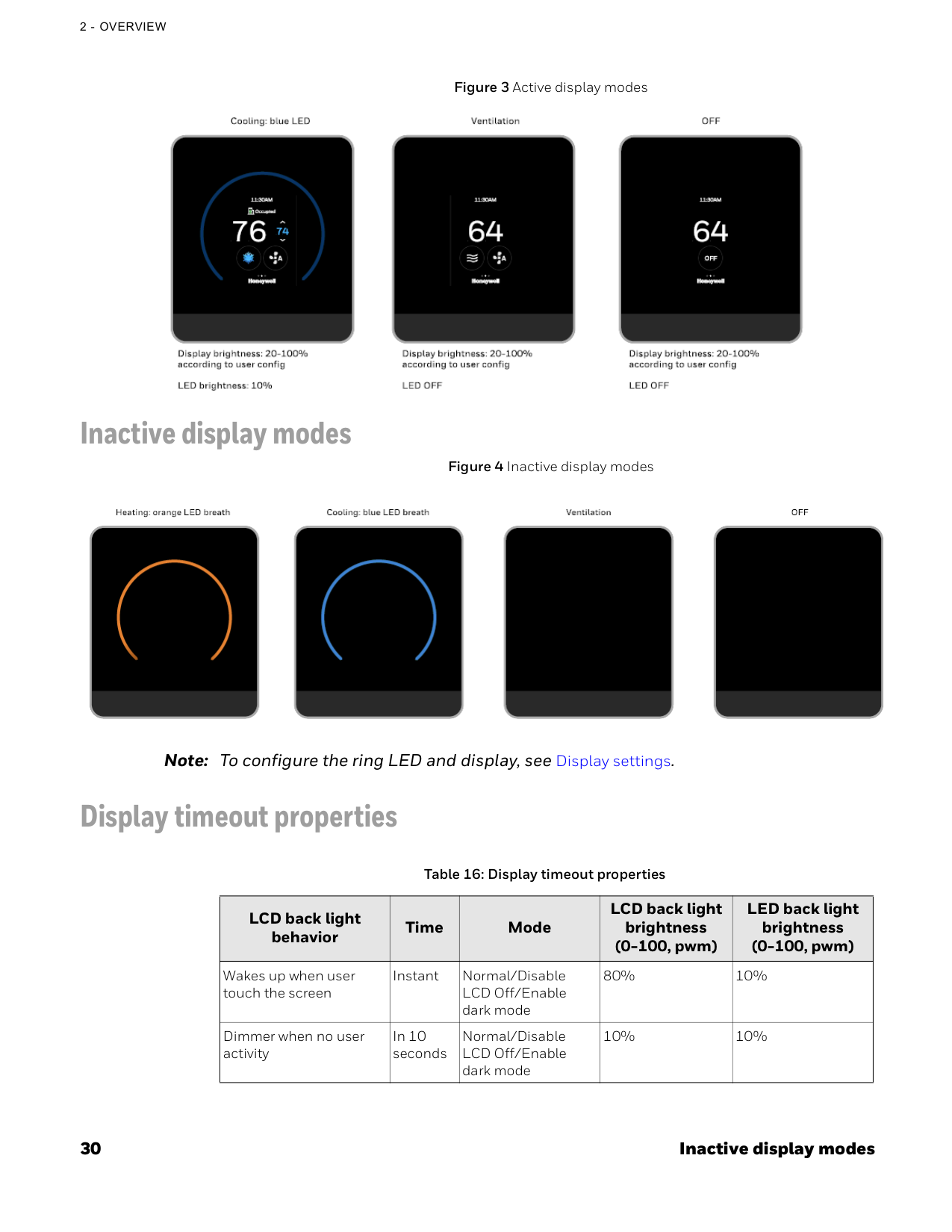
30 Inactive display modes
2 - Overview
Figure 3 Active display modes Inactive display modes Figure 4 Inactive display modes Note: To configure the ring LED and display, see Display settings. Display timeout properties Table 16: Display timeout properties LCD back light behavior Time Mode LCD back light brightness (0-100, pwm) LED back light brightness (0-100, pwm) Wakes up when user touch the screen Instant Normal/Disable LCD Off/Enable dark mode 80% 10% Dimmer when no user activity In 10 seconds Normal/Disable LCD Off/Enable dark mode 10% 10%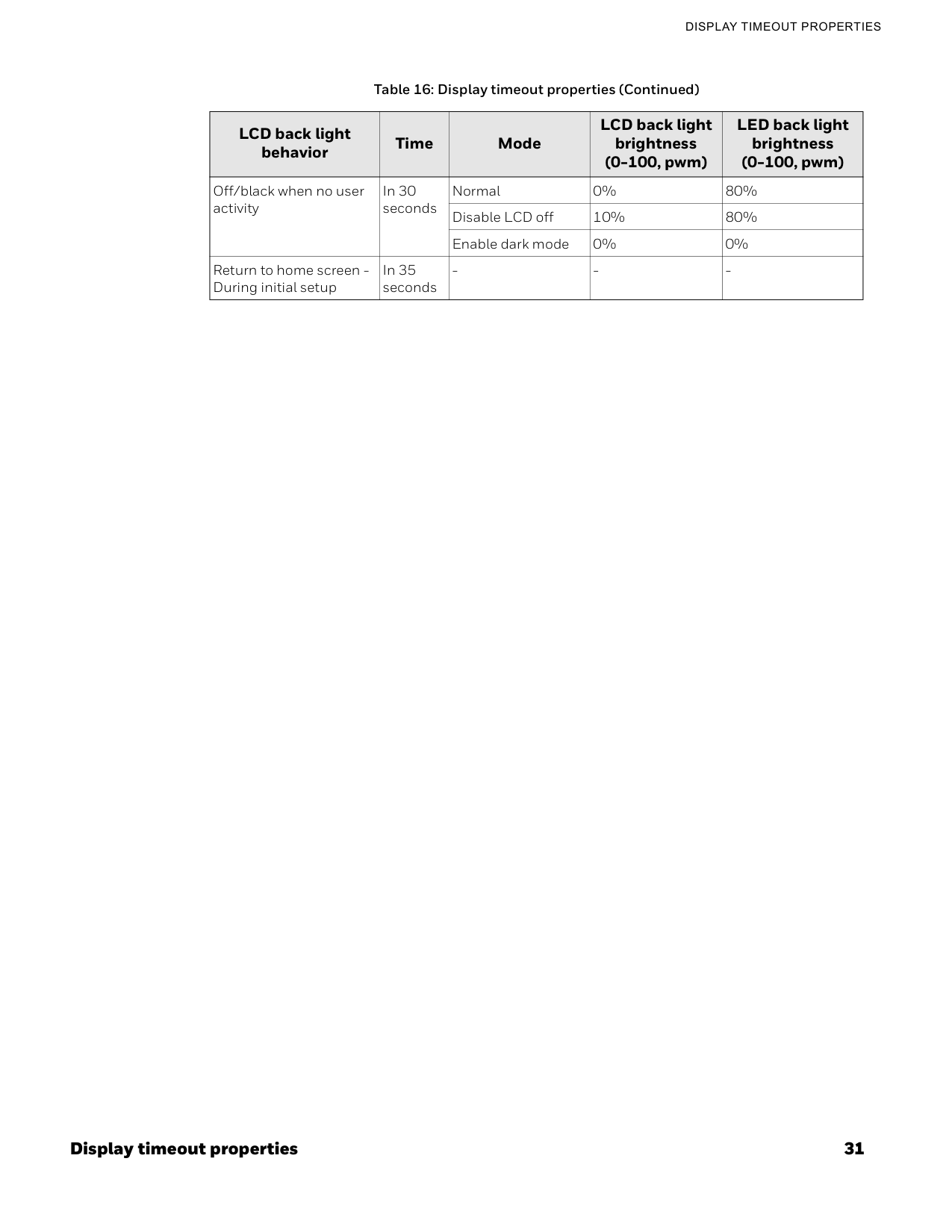
Display timeout properties 31
Display Timeout Properties
Off/black when no user activity In 30 seconds Normal 0% 80% Disable LCD off 10% 80% Enable dark mode 0% 0% Return to home screen - During initial setup In 35 seconds
32 Display timeout properties
2 - Overview

Chapter
3 33 Getting Started This chapter contains steps and descriptions to set up the initial configuration of the thermostat and other basic configurations. Related topics Prerequisites Guided set-up
34 Prerequisites
3 - Getting Started
Prerequisites Before going through initial guided setup sequences, ensure the TC300B is installed and wired up according to the TC300B installation and mounting guide.Warnings
• To reduce the risk of electrical shock do not open the thermostat. There are no user- serviceable parts inside. Refer servicing to qualified service personnel only. • Cleaning — Use a dry cloth to clean the product. Do not use liquid cleaners or aerosol cleaners • Water and moisture — Do not use the product near water. Do not install the product in a place where water may splash onto it. • Do not operate the thermostat with a hard, sharp, or pointed object such as a fingernail, pen. • The screen used for the thermostat is made of glass. Therefore, it can break when the product is dropped or heavy impact is applied. Do not handle broken glass without appropriate protection in event of damage.
Guided set-up 35
Guided Set-Up
Guided set-up The thermostat will be powered up automatically after it mounted on the wallplate. You will navigate through the settings given below subsequently while setting up the thermostat. The Device Name appears.Naming thermostat Connecting to network Temperature units Date and Time Equipment type System switch Installer Passcode Service Info To set up the thermostat
36 Guided set-up
3 - Getting Started

Guided set-up 37
Guided Set-Up
Figure 9 Connection
38 Guided set-up
3 - Getting Started
Date and Time Figure 11 Date and Time Configuration screen
Guided set-up 39
Guided Set-Up

40 Guided set-up
3 - Getting Started

Guided set-up 41
Guided Set-Up

42 Guided set-up
3 - Getting Started
After set up the thermostat device, you can re-configure the user management equipment, schedules, alarms, and terminal assignments.
Chapter
4 43 Configuration This chapter contains thermostat level configuration and equipment level configuration procedures. Only the Installer has access to these configuration screens. Related topics Configuration screen Basic configuration Equipment configuration I/O terminal assignment Sensors System switch Discharge air control Dehumidification Valve cycle Advanced configuration Setpoint options - All equipment types Heat pump Cooling options - For Heat pump & Conventional equipment Cooling options - For Fan coil equipment Heating options - For Heat and Conventional equipment Heating options - For Fan coil equipment Pipe sensor thresholds Valve purge Compressor delay time To configure compressor delay time Service mode Standby action Security log
44 Configuration screen
4 - Configuration
Diagnostics Connection User management User roles Home screen (Display management) Display settings Reset to default System status Setpoints System mode Fan speed Configuration screen The configuration screen displays all the configuration items of the thermostat and equipment.
Basic configuration 45
Basic Configuration
Figure 20 Configuration screen Basic configuration The Basic Configuration includes options to configure the thermostat setting such as Device Name, Date and Time, Screen Cleaning, Override Setting, and Service Info. You might have configured these configurations while setting up the thermostat. However, you can change the configuration here again.
46 Basic configuration
4 - Configuration
Figure 21 Basic configuration The following features are covered under the Basic configuration. To rename the device name To configure Date & Time To enable screen cleaning mode To configure override setting To configure Default fan mode To modify service info To rename the device name
Basic configuration 47
Basic Configuration

48 Basic configuration
4 - Configuration
Figure 24 Screen cleaning
Basic configuration 49
Basic Configuration
Figure 26 Temporary override
50 Basic configuration
4 - Configuration
Figure 27 Default fan mode Auto - It means Fan will be On during Heating / Cooling, and Off when room reaches setpoint. Circulate - If Circulate is available, the fan will run approximately 35% of the time, roughly 20 minutes each hour. Continuous - It means Fan will be On in Occupied mode, and Auto in other modes. In unoccupied/standby, mode will be Auto. Table 17: Default fan mode Default fan mode Fan set on home screen Schedule status Fan behavior Auto Circulate Occupied, Standby (treat as occupied) When there is a demand for heating or cooling, the fan will automatically activate. In the absence of such a demand, the fan will continue to operate in circulation mode to maintain air quality and comfort. Unoccupied, standby (treat as unoccupied) The fan will automatically switch to Auto mode, and the fan settings cannot be adjusted from the home screen. Auto Occupied, Standby (treat as occupied) The fan will remain on when there is a demand for heating or cooling. If there is no such demand, the fan will turn off to conserve energy. Unoccupied, standby (treat as unoccupied) Manual (Low/ high) Occupied, Standby (treat as occupied) The fan will operate continuously based on the selection made in the user manual. Unoccupied, standby (treat as unoccupied) The fan will automatically switch to Auto mode, and the fan settings cannot be adjusted from the home screen.
Basic configuration 51
Basic Configuration
Circulate Circulate Occupied, Standby (treat as occupied) When there is a demand for heating or cooling, the fan will automatically activate. In the absence of such a demand, the fan will continue to operate in circulation mode to maintain air quality and comfort. Unoccupied, standby (treat as unoccupied) The fan will automatically switch to Auto mode, and the fan settings cannot be adjusted from the home screen. Auto Occupied, Standby (treat as occupied) When there is a demand for heating or cooling, the fan will automatically activate. In the absence of such a demand, the fan will continue to operate in circulation mode to maintain air quality and comfort. Unoccupied, standby (treat as unoccupied) The fan will remain on when there is a demand for heating or cooling. If there is no such demand, the fan will turn off to conserve energy. Manual (Low/ high) Occupied, Standby (treat as occupied) The fan should remain operational at all times, as per the user's manual selection. Unoccupied, standby (treat as unoccupied) The fan will automatically switch to Auto mode, and the fan settings cannot be adjusted from the home screen. Continuous Circulate Occupied, Standby (treat as occupied) Circulate button will be disabled. Unoccupied, standby (treat as unoccupied) Auto Occupied, Standby (treat as occupied) If there is a demand for heating or cooling, the fan will be on. If there is no such demand, the fan will remain on at the ventilation speed selected by the user. Unoccupied, standby (treat as unoccupied) If have heating/cooling demand, fan is on. If no heating/cooling demand, fan will be off. Manual (Low/ high) Occupied, Standby (treat as occupied) The fan should remain operational at all times, as per the user's manual selection. Unoccupied, standby (treat as unoccupied) The fan will automatically switch to Auto mode, and the fan settings cannot be adjusted from the home screen. Table 17: Default fan mode (Continued) Default fan mode Fan set on home screen Schedule status Fan behavior
52 Equipment configuration
4 - Configuration
To modify service info Service info contains the maintenance/installer/contractor personnel who provides the periodic maintenance service. To add/modify the details, follow the procedure given below.
Equipment configuration 53
Equipment Configuration
Figure 29 Equipment screen To configure equipment and I/O
54 Equipment configuration
4 - Configuration

Equipment configuration 55
Equipment Configuration
Fan coil Note: The fan coil equipment does not support humidifier/dehumidifier.
56 Equipment configuration
4 - Configuration
Heating Valve On/Off Normally closed Set Valve output type as N.C Normally Open Set Valve output type as N.O Floating • Set output type as Direct or Reverse • Set Valve run time • Set Min position when enabled • Enable sync at mid night Modulating Control Modulating control • Set min output when enabled. • Use Stage 1 heat as enable. Setting Modulating setting • Set output type Direct or Reverse • Set Min output of Modulating valve • Set Max output of Modulating valve Table 18: 4-Pipe dual coil Valve type Valve operation Options Sub options Description
Equipment configuration 57
Equipment Configuration
4-Pipe Single Coil2-10V
Cooling Range • Configure Min Output for Cooling • Configure Max Output for Cooling • Tap the Info icon to view the minimum allowed deadband range Heating Range • Configure Min Output for Heating • Configure Max Output for Heating Reverse Exchange the heating range and cooling range0-10V
Cooling Range • Configure Min Output for Cooling • Configure Max Output for Cooling • Tap the Info icon to view the minimum allowed deadband range Heating Range • Configure Min Output for Heating • Configure Max Output for Heating Reverse Exchange the heating range and cooling range
58 Equipment configuration
4 - Configuration
If Output is set to 2-10 Vdc
Equipment configuration 59
Equipment Configuration
Conventional
60 Equipment configuration
4 - Configuration
Figure 35 Equipment type - Heat Pump
Equipment configuration 61
Equipment Configuration
Figure 36 Fan type - Conventional/Heat pump
62 Equipment configuration
4 - Configuration
Figure 38 Fan type - Two speed - Heat pump equipment Sensors
Equipment configuration 63
Equipment Configuration
Figure 39 Sensors
64 Equipment configuration
4 - Configuration
Figure 40 Mode screen
I/O terminal assignment 65
I/O Terminal Assignment
Figure 42 Humidifier I/O terminal assignment After connecting the thermostat to equipment, you must configure certain terminals in the thermostat so it can identify the correct purpose and apply the appropriate control schemes. The Configurable I/O tab provides options configure thermostat to the equipment and sensors wired to it. For more information on terminal assignments, refer to Terminal assignment section.
66 I/O terminal assignment
4 - Configuration
Figure 43 I/O Assignment Note: The options available on the above screen varies based on the configured equipment.
I/O terminal assignment 67
I/O Terminal Assignment
• Based on selected equipment function the terminals will be pre-assigned. To override default terminal assignment select alternate(s) as required. • If a terminal is assigned incorrect, then there will be a red box around the terminal button. Reassign the terminal. Figure 45 Incorrect terminal assignment • If the same terminal is assigned to two different functions, the user must resolve the conflict by reassigning the terminal. • In the below example, user tried to assign UIO1 to Medium speed fan. But the terminal is already assigned to Drain pan sensor. To resolve this issue, tap the Resolve Conflict button. It opens the Drain pan sensor screen. Reassign the terminal for Drain pan sensor
68 Sensors
4 - Configuration
Figure 47 Typical IO assignment for equipment Sensors Thermostat supports Sylk sensors and Control sensors (temperature and humidity only). In order to ensure proper operation and control, configure for Sylk devices only when using Honeywell compatible sensors. To configure sensors
Sensors 69
Sensors

70 Sensors
4 - Configuration
Figure 50 Sylk devices Note: The total number of Sylk Devices is restricted by Power and Communication bandwidth. In general, the number of Sylk devices cannot exceed the allowed limit. Contact the Honeywell Technical Support team for additional support.Tr40
Tr40-H
Tr40-Co2
Tr40-H-
Co2
Tr50-3N
Tr50-3D
Note: Set the red colored switches to the position as shown in the above image
Sensors 71
Sensors
Tr40
4 Sylk Temperature sensorTr40
5 Sylk Temperature sensorTr40
8 Outdoor Air SensorC7400S
10 Discharge Air SensorC7400S
Table 22: Sylk device dip switches Sylk Address Device Type Sensors DIP Switches
72 Sensors
4 - Configuration
Figure 52 Offset screens for temperature and humidity Note: These offsets should be used only when measured temperature or humidity is verified with calibrated sensor located in same location.
System switch 73
System Switch
To configure Control sensors The thermostat groups the control sensors into three types. There are Local sensor, Remote sensor, and Multi sensor. Local Sensor: Internal TC300B temperature sensor. Installer can configure offsets to on-board temperature and humidity sensors, if desired. Remote Sensor: Space temperature sensor connected to UI/UIO terminal, or TR40 sensor configured at address 2. Multi Sensor: Local Sensor and Sylk sensors at address 2, 3, 4, 5 used together to calculate space temperature.
74 Discharge air control
4 - Configuration
Figure 54 System switch
Discharge air control 75
Discharge Air Control
To configure Discharge air control
76 Discharge air control
4 - Configuration
Figure 56 Discharge air control setpoints
Dehumidification 77
Dehumidification
Dehumidification Dehumidification function will maintain humidity below programmed setpoint using onboard humidity sensor. For systems without reheat the dehumidification function will allow cooling below the target setpoint based on programmed over cool offset. If humidity threshold cannot be achieved once lower space temperature threshold has been reached the dehumidification function will be suspended. For applications with reheat function setpoint will be maintained during dehumidification cycle by activating reheat using heating coil or via auxiliary heat (electric heat). To configure dehumidification
78 Advanced configuration
4 - Configuration

Setpoint options - All equipment types 79
Setpoint Options - All Equipment Types
Figure 60 Advanced configuration - Equipment - Heat pump Note: The second option on the above screen changes as per equipment selected in the Equipment configuration. Also, the Cooling and the Heating tabs menus changes as per the equipment selection. See Equipment configuration. Setpoint options - All equipment types This option allows users to set the maximum or minimum temperature setpoints. To configure setpoint options
80 Setpoint options - All equipment types
4 - Configuration
50°F)
The minimum cool setpoint that can be set by the user Heating Max. Setpoint 40-105°F (Default90°F)
The maximum heat setpoint can be set by the user Limits Thermostat Deadband 2°F-8°F(Default: 3°F) Ensures that the heat setpoint and the cool setpoint maintain a differential minimum temperature span when the thermostat is in auto mode. Temporary Setpoint Limit 0°F - 45°F (Default30°F)
The range above or below occupied setpoint by which the temperature may be altered by user from programmed scheduled setpoint in occupied state or when initiating temporary override of schedule. This includes scheduled occupancy or override of the scheduled occupancy (bypass override). During unoccupied and standby periods, the effective setpoint offset is set to 0 Δ°F. If an occupant wants to change the temporary setpoint, the occupant must first override the schedule to occupied and then the thermostat will allow the occupant to change the temporary setpoint
Heat pump 81
Heat Pump
Heat pump Note: This option is available only when the equipment is configured as Heat pump. See Equipment configuration. To configure Heat pump
82 Cooling options - For Heat pump & Conventional equipment
4 - Configuration
Figure 62 Heat pump Cooling options - For Heat pump & Conventional equipment To configure cooling options
Cooling options - For Heat pump & Conventional equipment 83
Cooling Options - For Heat Pump & Conventional Equipment

84 Cooling options - For Fan coil equipment
4 - Configuration
Cooling options - For Fan coil equipment To configure cooling options
Heating options - For Heat and Conventional equipment 85
Heating Options - For Heat And Conventional Equipment
Heating options - For Heat and Conventional equipment To configure cooling options
86 Heating options - For Fan coil equipment
4 - Configuration
Heating options - For Fan coil equipment To configure cooling options
Heating options - For Fan coil equipment 87
Heating Options - For Fan Coil Equipment
Figure 66 Heating options - For Fan coil equipment Table 28: Heating options-For Fan coil equipment Heating type Configuration Type Range Description DAT Limit DAT Heating High Limit -60 to 200°F (Default 150°F) When the discharge air temperature is above the discharge air high limit setpoint, the heating control will turn off heating physical output until the discharge air temperature falls below it's setpoint -2 °F differential. This will help prevent the discharge air temperature from getting too hot and avoid tripping limits. Gains Throttling Range 0 to 30°F (Default 10°F) The throttling range is the amount of change in the sensed temperature required to drive the output from 0 to 100%. The throttling range must be narrow enough to provide good control without becoming unstable. The throttling range is determined by factors including, the control application, the response time of the equipment being controlled, and the control algorithm being used. The narrower (smaller) the throttling range, the more precise the control and the wider (larger) the throttling range, the more stable the control. The objective is setting the throttling range to achieve the optimum balance between precision and stability. Heating Integral Time/ Cooling Integral Time 0 to 5000 Sec (Default 2500 Sec) The amount of time the error has continued uncorrected. Integral action corrects the temperature control errors of proportional-only control, but it is slower to react to large temperature or setpoint changes Fan Delay Fan On Delay Time 0 to 30 Sec (Default 30) Fan on delay time after heating outputs are turned on. May be used to run fan after heating outputs have turned on for some times so that heating coil can warm up. Fan Off Delay Time 0 to 180 Sec (Default 120 Sec) Fan run on time after all heating outputs are turned off. May be used to run fan after all heating outputs have turned off so that the heat coil can cool down before the fan turns off.
88 Pipe sensor thresholds
4 - Configuration
Pipe sensor thresholds This feature is suitable for heating when pipe temperature is above threshold, and suitable for Cooling when pipe temperature is below threshold. To configure Pipe sensor thresholds80°F)
When the pipe temperature is above the threshold, it is suitable for heating. Pipe Sensor Threshold for Cooling 45 to 65°F (Default60°F)
When the pipe temperature is below the threshold, it is suitable for cooling.
Valve purge 89
Valve Purge
Valve purge This setting for 2-pipe systems cycles valve to ensure accurate changeover temperature sensor reading if there are infrequent heating or cooling cycles. To configure Valve purge5°F)
When the pipe temperature is above the space temperature and the hybrid control is enabled, than the offset is suitable for heating. Timeout Timer (Heat) 1 to 4 hours (Default 4 hours) When the configured timer expires, the pipe sensor reading is compared to the threshold setting, if the pipe sensor reading is above the threshold, it will generate water temperature. No heating alarm will be raised. Temp Offset (Cool) -10 to -5°F (Default-5°F)
When the pipe temperature is below the space temperature and the hybrid control is enabled, than the offset is suitable for cooling. Timeout Timer (Cool) 1 to 4 hours (Default 4 hours) When the configured timer expires, the pipe sensor reading is compared to the threshold setting, if the pipe sensor reading is below the threshold, it will generate water temperature. No cooling alarm will be raised. Table 29: Pipe sensor threshold (Continued) Operation Configuration Type Range Description
90 Compressor delay time
4 - Configuration
Compressor delay time For water source heat pump applications the compressor delay time ensures the water valve can be fully opened when controlled by thermostat before activating the compressor heat or cool command. To configure compressor delay time
Service mode 91
Service Mode

92 Service mode
4 - Configuration
Figure 72 Service mode
Standby action 93
Standby Action
Figure 74 Service mode exit
94 Diagnostics
4 - Configuration

Connection 95
Connection
Connection TC300B supports BACnet MS/TP connection and Modbus connection. Either BACnet MS/TP or Modbus connection can be enabled at a time. To connect thermostat via BACnet MS/TP
96 Connection
4 - Configuration
Figure 80 BACnet MS/TP
Connection 97
Connection
Figure 81 Baud Rate
98 Connection
4 - Configuration

User management 99
User Management
User management The TC300B supports four kinds of user identities as identified in Table 30 with limited privileges as noted. Except for the Installer role these privileges can be reduced in the user settings menu. Passcode rules All the user accounts are passcode protected. When creating the passcode, follow the passcode rules given below. • Passcode length must be between 4 to 12 characters • Do not use spaces • Do not use the same passcode used for other users (across all user types) • If no passcode is entered for basic or Admin, the thermostat will remain at the highest level of access, installer, and will not require a passcode for access. User roles To configure user management
100 User roles
4 - Configuration
Figure 84 User management Visitor To view the Visitor user role
User roles 101
User Roles
Figure 86 Basic user permission.
102 Home screen (Display management)
4 - Configuration
Figure 88 Admin user permission.
Display settings 103
Display Settings
Figure 90 Display management All icons are enabled by default. You can turn it off by sliding the toggle button to the left.
104 Display settings
4 - Configuration
The Display Settings screen appears. Figure 92 Display settings

Reset to default 105
Reset To Default
Figure 94 Inactive display
106 System status
4 - Configuration
Figure 96 Weekly reset and confirmation messageThe System status screen appears.

Setpoints 107
Setpoints
Figure 98 System status Setpoints To configure setpoint settings
108 Setpoints
4 - Configuration
Figure 99 Quick access screenThe Setpoint screen appears. Figure 100 Define the setpoints

System mode 109
System Mode
The Mode screen appears. Figure 102 System mode

110 Fan speed
4 - Configuration
Fan speed To change the fan speedThe Fan Speed screen appears. Figure 103 Fan speed

Chapter
5 Alarms 111 Alarms This chapter explains alarms and their configuration procedures. Related topics Alarms Alarm notification signs Alarm notification Alarm preference Unacknowledged alarms List of alarms and their severity Managing the alarms Alarms In the TC300B thermostat, alarms are configured for predefined set values. When the values are breached, the alarms are triggered and displayed on the home screen as banner notification, dot notification, and on the Alarm button. You can view the triggered alarms and acknowledge them. Alarm notification signs The alarm menu notification icon has two color codes to indicate the severity of the alarm. The following table describes the available signs with color codes of the alarm screens.
112 Alarm notification
5 - Alarms
Alarm notification The alarms can be configured as banner notification or dot notification as per the alarm configuration. The banner notification is pop-up on the home screen whereas the dot notification appears beside the time. For alarm configuration, refer to Alarm preference. Figure 105 Alarm banner notification You can tap the banner notification to view the alarm and acknowledge it. If multiple alarms are triggered then the latest one (high) will be displayed on the home screen. After tapping the banner, it takes you to the Alarm screen. • High - Red color banner • Medium - Orange color banner Alarm preference To create alarm preference
Alarm preference 113
Alarm Preference
Figure 106 Alarm preference
114 Alarm preference
5 - Alarms
Figure 107 Alarm types
Alarm preference 115
Alarm Preference
Figure 108 Alarm configuration screen Alarm reason description is displayed on the screen.
116 Unacknowledged alarms
5 - Alarms

Unacknowledged alarms 117
Unacknowledged Alarms
Figure 112 Alarm preference - Alarm
118 List of alarms and their severity
5 - Alarms
Figure 114 Alarm detail
Managing the alarms 119
Managing The Alarms
Managing the alarms Pipe Sensor Out of Range High Water Temperature is Not Suitable for Heating/Cooling High Room Temperature Changing Trend is Reversed with System Mode High Unknown Time Medium Proof of Water Flow Alarm High Alarms SeverityS.N0
Alarm Trigger Scenario Action Level 1 Proof of Air Flow Alarm (fan state) An input (e.g., a current switch or differential pressure switch) should be available to monitor proof of air flow in the Fan Coil Unit. When configured, the control system will check this digital input once per second. If the fan is supposed to be on but is not, an alarm should be generated. For example, users can configure a DIO/UIO terminal as a binary input to detect the fan's status. When DIO2 is set as the Fan Command, and the device sets DIO2 to 'on,' if the digital input indicates no air flow for 60 consecutive seconds, a 'Proof of Air Flow' alarm will be triggered. Depending on the alarm configuration:
120 Managing the alarms
5 - Alarms
2 Proof of water flow alarm An input (e.g., a current switch or pressure switch) should be available to monitor proof of water flow in the heat exchanger loop. When configured, the control system will check this digital input once per second. For example, users can configure a DIO/UIO terminal as a binary input to detect the water flow's status. Set DIO2 as the proof of waterflow sensor, and configure the sensor as Normally Open. When there is a heating/cooling command, and the water flow valve is none or open, if the digital input indicates 'Inactive' ('Active' if Normally Closed Sensor ) for 120 consecutive seconds, a 'Proof of Water Flow' alarm will be triggered. If water flow alarm is detected, compressor will be disabled. depend on the alarm configuration:S.N0
Alarm Trigger Scenario Action Level
Managing the alarms 121
Managing The Alarms
6 Space Temperature Sensor FailureS.N0
Alarm Trigger Scenario Action Level
122 Managing the alarms
5 - Alarms
12 Water temperature is not suitable for Heating/ Cooling Applicable only for Dual-Pipe FCU Heating/Cooling Systems.S.N0
Alarm Trigger Scenario Action Level
Chapter
6 About schedule 123 Scheduling About schedule TC300B enables you to plan operations based on the time of day and holidays. This scheduling structure allows you to control day-to-day operations with the standard schedule. The holiday schedule controls days or times when a facility is typically unoccupied. The event schedule controls periods outside normal occupied times. The holiday schedule overrides the standard schedule and the event schedule overrides the holiday and standard schedules within a schedule set. Schedules use the setpoint configuration of Occupied, Unoccupied, or Standby modes. Occupied mode treats the building space as occupied and configured with comfort setpoints. Unoccupied mode treats the building space as not occupied and configured with energy savings setpoints. Standby mode setpoints are configured in a way that the setpoints can quickly change to the Occupied mode when switched. Standby mode setpoint saves energy higher than occupied mode and lesser than the Unoccupied mode. Temporary mode allows the user to change the temperature setpoints of the Occupied mode after the user switches to the temporary mode from the Occupied mode. This is not possible in Unoccupied mode and Standby mode. When a schedule uses the Occupied mode but the Occupancy sensor reads unoccupied, then the thermostat switches automatically to the Standby mode. In other scenarios, the thermostat follows the schedule status and the occupancy sensor’s value has no impact on it. How schedules works When you set up schedules, it is important to understand the relationship of the schedules in the schedule set and how to use each one. • Standard schedule: Use the weekly schedule to program occupied and standby periods for each of the week. • Holiday schedule: Use holiday schedules to set holidays that “float” or occur on a specific date each year. Up to 10 holidays can be created.
124 Weekly schedule
6 - Scheduling
• Special event: Use Special event to create up to 10 special events. Note: Holiday schedules automatically write a 12:00 AM OFF time, which is in effect unless it is overridden by an event schedule. Related topics Weekly schedule Holiday schedule Special event Weekly schedule To add a new time value to a weekly schedule
Weekly schedule 125
Weekly Schedule

126 Weekly schedule
6 - Scheduling

Weekly schedule 127
Weekly Schedule
Edit or delete weekly schedules The existing weekly schedules can be edited from the Weekly schedule screen. To change or delete an existing weekly schedule
128 Weekly schedule
6 - Scheduling
Copy the schedules from one day to another The TC300B enables the user to copy an existing regular schedule. To copy a schedule from one day to another
Holiday schedule 129
Holiday Schedule
Figure 125 Copy successful Holiday schedule Holidays are defined as reoccurring events that are different from the weekly schedule, can be Occupied or Standby, or by default Unoccupied. So the Unoccupied/Standby mode setpoints will be executed on the holidays. There are two holiday types are available to choose. There are Floating date and Specific date. Only one day can be selected for the floating holiday type whereas multiple days can be selected for Specific date type. To schedule a holiday
130 Holiday schedule
6 - Scheduling
Figure 127 Schedule types
Holiday schedule 131
Holiday Schedule
Figure 130 Set Date
132 Holiday schedule
6 - Scheduling
Figure 132 Create holiday vent screen
Holiday schedule 133
Holiday Schedule
Edit or delete Holiday The existing weekly Holidays can be edited from the Holiday screen. To change or delete an existing holiday
134 Holiday schedule
6 - Scheduling
Copy the Holiday events from one day to another The TC300B enables the user to copy an existing holidays. To copy a schedule from one day to another
Special event 135
Special Event
Figure 136 Copy successful Special event Special events are one time events that are different from the weekly schedule. To create a special event
136 Special event
6 - Scheduling
Figure 138 Create special event
Special event 137
Special Event
Figure 140 Adding new event
138 Special event
6 - Scheduling

® U.S. Registered Trademark © 2024 Honeywell International Inc. 31-00644-02 | Rev 05-24 Honeywell | Building Automation 715 Peachtree Street, N.E., Atlanta, GA 30308, United States. Buildings.honeywell.com