
Finder IB1C91 Bliss Wifi Chrono Thermostat
Ask AI
— answers from the official manualAnswers from the official manual.
Common questions
Common Questions
23 totalWhat batteries does the Ib1c91 Bliss Wifi Chrono Thermostat use, and how long do they last?
The thermostat is powered by 4 alkaline batteries, 1.5V type AA. Battery life is approximately 1 year, or over 1 year depending on the mode set by the app. Battery life depends greatly on Wi-Fi connection times. (Pages 4, 17)
What happens when the battery is critically low on the thermostat?
At the first low battery threshold, the word BAT appears flashing every 60 seconds on the display when in the off state. At the second threshold, the thermostat turns off, the battery icon and BAT flash every 60 seconds followed by the word OFF, and in this mode it is not possible to act on the display and the relay is disabled. (Page 7)
How do I unlock the thermostat if I forget my PIN?
If you forget your PIN, use code 618 to unlock the product. Note that removing the batteries will not cancel the lock. After entering the wrong PIN 3 times, the thermostat will remain locked for 20 seconds with the word Err displayed. (Page 14)
Does the frost protection function stay active when the thermostat is turned off?
Yes, when the chronothermostat is off and the display shows OFF, the frost protection function remains active. If the room temperature falls below the frost protection temperature, the flame icon will appear together with the word OFF. The default frost protection temperature is fixed at 5°C. (Pages 12, 17)
How do I force a sync between the thermostat and the app?
To force a sync, long-press the Finder logo while the display is off until the horizontally-moving dashes appear, waiting a few seconds after the display has turned off before pressing. If the current temperature appears after the sync, the connection was successful; otherwise, check the error code displayed. (Page 18)
What Wi-Fi network requirements does the Bliss Chrono Thermostat need to connect?
The thermostat requires a 2.4 GHz Wi-Fi network with WPA2/PSK encryption; 5 GHz only networks are not supported, though routers broadcasting both frequencies are accepted. The thermostat does not work on corporate (enterprise) networks, and you must respect uppercase, lowercase letters, and special characters in the SSID and password. (Pages 17, 18)
Show 17 more questions
How do I copy a weekly program from one day to another?
Where should I install the thermostat, and what safety precautions apply?
How do I clean the Bliss Wifi Chrono Thermostat?
What WiFi network requirements does the IB1C91 have?
What should I do if I see the BAT warning on my thermostat display?
How do I properly install the batteries in the IB1C91?
What does the Er1 error code mean and how do I fix it?
Where should I mount the thermostat on my wall?
What happens if I enter the wrong PIN code three times?
How do I force synchronization with the WiFi if the thermostat is having connection issues?
What should I do before connecting the chronothermostat to ensure safety?
What is the frost protection function and when does it activate?
How do I copy a daily program to other days?
What should I do if I encounter an ER1 error code?
Can the Bliss Wifi Thermostat be used in summer-winter settings?
What do I do if the display on my Bliss Wifi Thermostat goes off?
How do I pair the Bliss Wifi Thermostat with my phone?
Full Manual
20 pages
CHRONOTHERMOSTAT 1C.91

ENGLISH
IB1C91 - 01/26 - Finder S.p.A. con unico socio - 10040 ALMESE (TO) - ITALY
Finder YOU
####### INDEX
TECHNICAL FEATURES Page 2 DIMENSIONS Page 2 INSTALLATION Page 2 POWER ON THE DISPLAY Page 6 CHRONOTHERMOSTAT OFF Page 6 DESCRIPTION OF KEYS AND SYMBOLS Page 7 DATE AND TIME SETTING Page 8 MANUAL PROGRAMMING Page 9 WEEKLY PROGRAMMING Page 10 COPY PROGRAM Page 11 PROGRAM REVIEW Page 12 OFF STATE & FROST PROTECTION FUNCTION Page 12 SUMMER-WINTER SETTING Page 13 UNLOCKING CHRONOTHERMOSTAT-PIN Page 14 PAIRING WITH PHONE Page 15 CHRONOTHERMOSTAT Wi-Fi CONNECTION TO THE NETWORK Page 16 GENERAL CHARACTERISTICS / DEFAULT PARAMETERS Page. 17 TROUBLE SHOOTING Page. 18
####### TECHNICAL FEATURES
Power supply: 4 alkaline batteries 1.5V type AA Temperature adjustment WINTER: (+5…+37)°C Temperature adjustment SUMMER: (+5…+37)°C Resolution: 0.1°C Tolerance: +/– 0.5°C at 20°C Differential: Self-adjusting by product and adjustable by APP Operation mode: Summer - Winter - Auto - Manual - OFF Degree of protection: IP20 PIN lock: yes, by Finder YOU App Output: 5 A 250 V AC volt-free changeover contact Mounting: wall
DIMENSIONS
####### INSTALLATION NOTES
SAFETY REQUIREMENTS
The installation and assembly of electrical equipment must be performed by expert personnel. Before connecting the chronothermostat make sure that the load (pumps, valves, boiler, etc ...) are not powered-up and are within the rating of the contact.
To remove the base use the appropriate slots 1 and 2
| | |---| | | | |
12
POSITIONING Install the chronothermostat away from heat sources (radiators, direct sunlight, kitchens) and doors/windows. Mount about 1.5 meters above floor level. FIXING Use screws 0 3.5 mm MAX - maximum head thickness 3 mm. When fastening, do not over tighten the screws to avoid distorting the base. CLEANING Use only a damp cloth for cleaning.
####### INSTALLATION
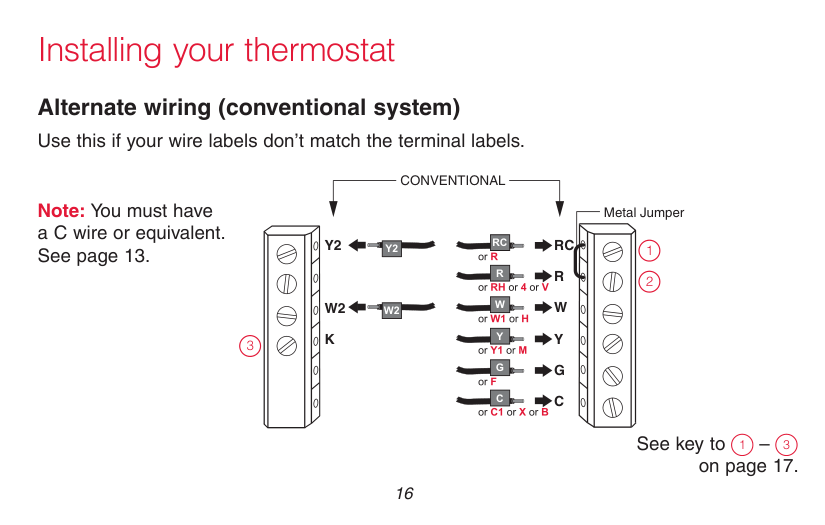
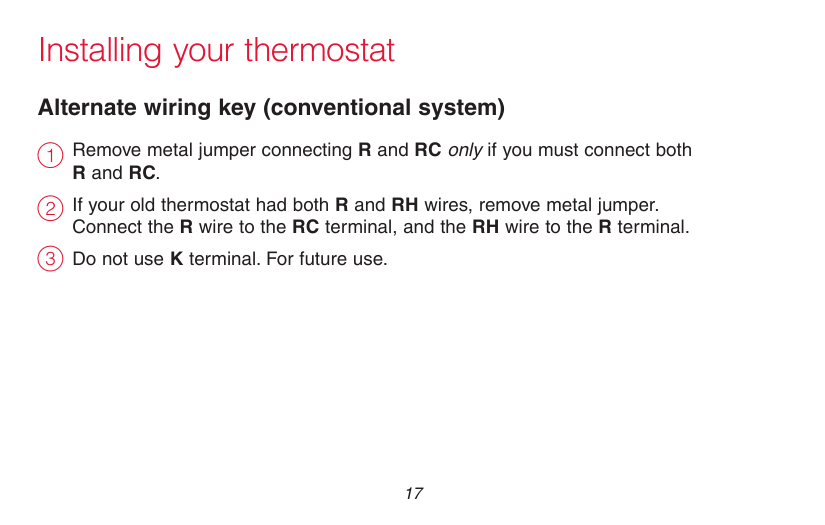
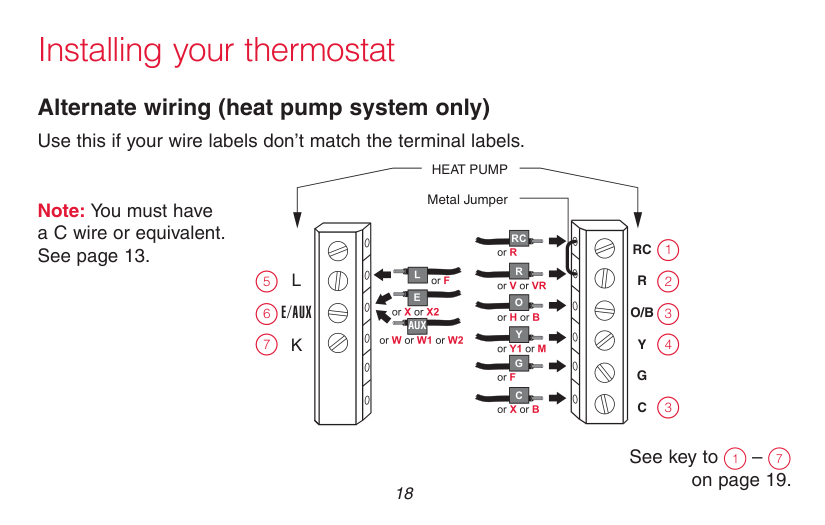
Fix the base on the wall and make the electrical connection as shown on the diagram.


NOTE When using the chrono thermostat with the external power supply, the batteries MUST be removed.
NOTE Even if it is supplied by a power supply, the Bliss Wi-Fi display will NOT stay always on.
Insert the batteries into the battery compartment, respecting the indicated polarities. CAUTION Incorrect battery polarity can cause the batteries to leak acid and damage the chronothermostat, invalidating the guarantee.
|| |---|
Fix the chronothermostat on its base as shown in the figure below. NOTE To disassemble it, proceed in reverse
|| |---| |
|
NOTE If only one of the two pairs is reversed, the device works the same, only the battery life is halved.
####### BATTERY
The Chronothermostat is provided with 2 battery thresholds: the first threshold indicates that the batteries are low and must be replaced. In this condition, and with the display in the off state, the word BAT appears, flashing every 60 seconds.
| | |---|
After touching the Finder button and turning on the display, the battery icon will continue to flash.
| | |---|
At the second threshold the Chronothermostat turns off, this condition the battery icon and BAT every 60 seconds followed by the word OFF. In this mode it is not possible to act on the display and the relay is disabled.
| | |---|
If the chronothermostat is not connected to the Wi-Fi, after replacing the batteries reset the date and time.
POWER ON THE DISPLAY


CHRONOTHERMOSTAT OFF
|6| |---|
| | |---|
####### DESCRIPTION OF KEYS AND SYMBOLS
| | | |---|---| | | |
|Switch on display/confirm Press for 2 seconds to save and exit| |---| |Chronothermostat switching on/off Press for 4 seconds to access the settings| |Weekly programming Date/time programming (press 3 seconds)| |
Manual function|

|Back to previous step| |Cursors for changing values| |Output ON (WINTER setting)| |Output ON (SUMMER setting)| |Hourly programming| || | |---|
Display locked| || | |---|
Low battery| |Degree centigrade|
DATE AND TIME SETTING
| | |---|
3”
| |

|---|
DAY MONTH
| | |---|
| | |---|
11
###### 2 2
YEAR
| | |---|

NOTE After setting the year, the chronothermostat automatically recognizes the day of the week and automatically a number from 1 to 7 will appear on the display to indicate the day of the week
1
2
HOUR
| | |---|
| | |---|
1
2
MINUTES
| |

|---|
| | |---|
1
###### 2
NOTE At each programming step it is possible to go back one step using the back button . Holding down the Finder button for 2 seconds saves and exits (returning to the main menu).
MANUAL PROGRAMMING
| | |---|
| | |---|

| | |---|
1
2
To exit the manual setting and return to the main screen, press the “hand” button.
####### WEEKLY PROGRAMMING
| | |---|
| | |---|
Press the numbers corresponding to the days of the week to be programmed (1 = Monday ... 7 = Sunday). At the end of the selection, press the Finder key.
| |

|---|
| | |---|
The screen indicates that the temperature will be programmed (right) at the time indicated on the left.
Set the desired temperature with the cursor at the indicated time (in this case between midnight and one in the morning). Press Finder to confirm the schedule and move to the next hour.
| | |---|
1
2
| | |---|

Set the desired temperature with the cursor at the indicated time (in this case between one and two in the morning). Press Finder to confirm the schedule and move to the next hour.
1
2
Proceed in the same way until reaching the 23:00 Hour time period.
| | |---|
1
2
NOTE To go back to the previous step, use the back button or the Finder button to switch to the next time programming. To exit programming and save the values set so far, press the Finder button for 2 seconds.
####### COPY PROGRAM
To copy the program of one day to use for other day(s), simply press the day to be copied first and then the day (or days) on which to obtain the same programming. Then press the Finder button for 2 seconds to confirm and return to the main menu.
####### PROGRAM REVIEW

Example: reviewing day 3 (Wednesday)
| | |---|
| | |---|
|1| |---|
2
| | |---|
Repeatedly press the Finder button to step through and display the hours together with the appropriate set temperature. To go back to the previous step use the back button. Press the Finder button for 2 seconds to save and exit the review.

####### OFF STATE & FROST PROTECTION FUNCTION
When the chronothermostat is off, the display will show the word OFF. But in this condition the frost protection function remains active. If the room temperature falls below the frost protection temperature, the flame icon will appear together with the word OFF.
| | |---|
| | |---|
SUMMER-WINTER SETTING
| | |---|
| | |---|
#### 3”

| | |---|
| | |---|
1
2
| | |---|
| | |---|
####### UNLOCKING CHRONOTHERMOSTAT-PIN

The chronothermostat can only be locked using the Finder YOU application. When the lock mode is activated, the Chronothermostat will display a lock icon.
| | |---|
To unlock the chronothermostat you will need to enter the PIN as shown below.
| | |---|
| | |---|
1
2
Caution By entering an incorrect PIN code, the Chronothermostat will display Err for an instant and then propose a re-try. After entering the wrong PIN 3 times, the chronothermostat will remain locked for 20 seconds with the word Err displayed (the display will turn off after 5 seconds to reduce battery drain). This procedure repeats for any further attempt to enter the wrong PIN.
NOTE Removing the batteries will not cancel the lock. If you forget your PIN, use code 618 to unlock the product.

PAIRING WITH PHONE
Download the Finder YOU application to your smartphone. The pairing procedure will be described in the application.
Turn on Wi-Fi and search for a network
| | |---|
12
| | |---|
| | |---|
In the case where the APP credentials were not inserted by the expiry of the timeout, the Chronothermostat performs a RESET of the configuration and the internal Wi-Fi is turned off.
| | |---|
CHRONOTHERMOSTAT Wi-Fi CONNECTION TO THE NETWORK
After connecting the timer-thermostat to the home network, the update will take place within 4 to 40 minutes, depending on the update time set on the application. To immediately connect the chronothermostat to the App, with display off, press the Finder button for 3 seconds. Segments will appear to indicate waiting for parameters to be synchronized with the APP.
| | |---|
#### 3”
Update in progress
| | |---|
Updated
| |
|---|
If the wait for synchronization persists for too long it means that the chronothermostat has difficulty updating with the cloud (via the APP). The problem may be due either to the poor network signal (seen by the Chronothermostat) or to a slow home connection, busy broadband or slow server response. Battery life depends greatly on connection times. After 20 seconds, if the connection has not occurred, an error message appears (see page 18). If there was a previous connection to the Cloud the chronothermostat will display the last setting received from the server.
GENERAL CHARACTERISTICS
|Type|Wi-Fi wall-mounted weekly programmable thermostat| |---|---| |Wi-Fi frequency|2.4 GHz| |Encryption|WPA2 / PSK| |Display|LED| |Resolution|1 hour (1 minute via APP*)| |Daylight Saving Time|Automatic Update| |Battery life|About 1 year (Over 1 year depending on the mode set by APP)| |Functions|Additional settings available on the APP|
DEFAULT PARAMETERS
|Season set|Winter|
|---|---| |Frost protection|Fixed at 5°C| |Thermal differential|0.2°C|
TROUBLE SHOOTING
|- Perform a force sync: long press the “Finder” logo while the display is off until the horizontally-moving dashes appear. NB: wait a few seconds after the display has turned off before pressing on the “Finder” logo.| |---| |- Check the result of the forcing: if the current temperature appears, the connection was successful, otherwise check the error code shown on the table below. Verify that the network is not 5 GHz only, 2.4 GHz networks or both frequencies are accepted.| |- Wi-Fi signal repeaters may in some cases reduce the BLISS operation. If you have problems, try moving it near the router.| |- The router must support WPA2 encryption. BLISS does not work on corporate networks (enterprise networks).| |- Respect uppercase, lowercase letters and special characters in the SSID and password. Remove any empty spaces inserted inadvertently at the end of the data entered.|
INDICATION OF ERRORS (ACCORDING TO VERSION)
ANTENNA SIGNAL
On the APP it is advisable to check for a BLISS signal of at least 3 notches to ensure a good operation.