Ask AI
— answers from the official manualAnswers from the official manual.
Common questions
Common Questions
39 totalWhere should I place my HP Color LaserJet Enterprise M553 for best results?
Select a sturdy, well-ventilated, dust-free area, away from direct sunlight to position the product. These conditions help ensure optimal performance and longevity of the printer. (Page 2)
What voltage does the HP Color LaserJet Enterprise M553 require?
The product uses either 100-127 Vac or 220-240 Vac and 50/60 Hz. You should make sure your power source is adequate for the product voltage rating, which is listed on the product label. To prevent damage, only use the power cable provided with the product. (Page 5)
When should I connect the USB cable during setup on a Windows computer?
On Windows, do not connect the USB cable until prompted during the software installation step. On Mac, you should connect the USB cable immediately at that stage of setup. (Page 7)
Where should I place the HP Color LaserJet Enterprise M553 for optimal use?
Select a sturdy, well-ventilated, dust-free area away from direct sunlight to position the product. These conditions help ensure proper operation and longevity of the printer. (Page 2)
What power requirements does the HP Color LaserJet Enterprise M553 have?
The product uses either 100-127 Vac or 220-240 Vac and 50/60 Hz. You should make sure your power source is adequate for the product voltage rating, which is listed on the product label. To prevent damage, use only the power cable provided with the product. (Page 5)
When should I connect the USB cable during setup on Windows vs. Mac?
On Windows, do not connect the USB cable until prompted during the software installation. On Mac, connect the USB cable immediately during setup. (Page 7)
Show 33 more questions
What are the methods available for downloading or installing the printer driver?
How do I connect the HP Color LaserJet Enterprise M553 to a network during initial setup?
What is HP ePrint via email and how does it work?
How do I enable HP Web Services on the M553?
How do I find the printer's IP address to access the Embedded Web Server?
What should I do before powering on the printer for the first time?
What is the default print driver for Mac (OS X) with the HP Color LaserJet Enterprise M553?
How do I set up HP ePrint via email on the HP Color LaserJet Enterprise M553?
How do I find the IP address of my HP Color LaserJet Enterprise M553 to access the Embedded Web Server?
What should I do if my browser shows a security certificate warning when accessing the HP Embedded Web Server?
What initial settings do I need to configure when first turning on the HP Color LaserJet Enterprise M553?
Can unauthorized modifications to the HP Color LaserJet Enterprise M553 affect its compliance or operation?
Where should I position the HP Color LaserJet Enterprise M553 printer?
How do I set up HP ePrint via email?
What is the purpose of HP ePrint via email?
Should I connect the network cable before turning on the product?
What should I remove before setting up the printer?
What power requirements does the M553 have?
Should I connect the USB cable during initial setup?
What are the different methods to install the printer driver software?
What should I do if I see a security certificate warning when opening the HP Embedded Web Server?
How do I enable HP Web Services on the printer?
How do I install the driver software on Windows?
How do I start the HP Color Laserjet Enterprise M553?
Does the HP Color LaserJet Enterprise M553 comply with FCC regulations?
What are the available methods to install printer drivers for the HP Color LaserJet Enterprise M553?
What do I need to set up before configuring the network settings?
What should I do if my product doesn’t meet HP ePrint’s requirements?
How can I enable Web Services on my M553?
How do I install an optional Print Hard Disk?
What do I need to install the specific HP PCL.6 driver for XP and Vista?
How do I troubleshoot network connection issues?
How do I factory reset my HP Color Laserjet Enterprise M553?
Full Manual
12 pages
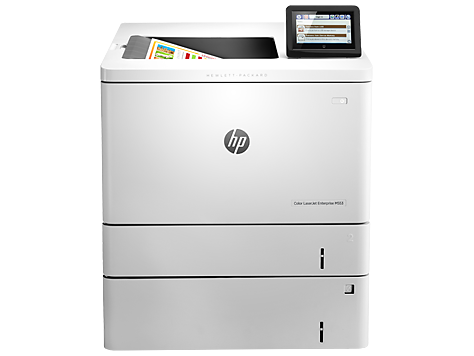
Color LaserJet Enterprise M553
M553x
EN Installation Guide HEהנקתה ךירדמ
www.hp.com/support/colorljM553
#### EN Select a sturdy, well-ventilated, dust-free area, away from direct sunlight to position the product. HE.רישי שמש רואמ קחרה ,קבאמ יקנו ררוואמ ,ביצי רוזאב רצומה תא בצה
3
EN Remove all tape and packing material from outside the product. HE.רצומה לש ינוציחה קלחהמ הזיראה ירמוחו םיטרסה לכ תא רסה

4.1
4.2
EN If you are connecting to a network, connect the network cable now. Caution! Do not connect the USB cable now.
HE.USB-ה לבכ תא הז בלשב רבחל ןיא !תוריהז .תשרה לבכ תא תעכ רבח ,תשרל רבחתמ התא םא
6

EN 1. Connect the power cable between the product and a grounded ac outlet. 2. Turn on the product. 3. On the control panel, set the language, the date/time format, and the time zone. NOTE: For advanced configuration of network-connected products, see the User Guide on the product CD. CAUTION: Make sure your power source is adequate for the product voltage rating. The voltage rating is on the product label. The product uses either 100-127 Vac or 220-240 Vac and 50/60 Hz. To prevent damage to the product, use only the power cable that is provided with the product.
HE.ןמזה רוזאו ,העש/ךיראתה תינבת ,הפשה תא רדגה ,הרקבה חולב.3.רצומה תא לעפה.2.קראומ AC עקשלו רצומל חתמה לבכ תא רבח.1
.רצומה רוטילקתבש שמתשמל ךירדמב ןייע ,תשרל םירבוחמה םירצומ לש תמדקתמ הרוצתל :הרעה טלוו 240 - 220 וא AC טלוו 127 - 100 לש חתמב שמתשמ רצומה .רצומה תיוות לע עיפומ חתמה גוריד .רצומה לש חתמה גורידל םיאתמ חתמה רוקמש אדו :תוריהז
.רצומה םע קפוסש חתמה לבכב קרו ךא שמתשה ,רצומל קזנ עונמל ידכ .50/60 Hz רדתבו AC
7.1
7.2

| | | |---|---| | | |
7.3 7.4
|| |---|
EN Windows: Do not connect the USB cable until prompted during the software installation in the next step.

Mac: Connect the USB cable now.
HE.אבה בלשב הנכותה תנקתה ךלהמב שקבתתש דע USB-ה לבכ תא רבחת לא:Windows
.USB-ה לבכ תא תעכ רבח :Mac
EN Download or locate the driver software installation files


NOTE: The default driver for OS X is the Apple AirPrint driver. To install the full-featured HP driver for OS X, when adding a printer, from the drop-down list of printers select the appropriate HP driver depending on the model.
For the product specific HP PCL.6 32 bit driver connecting with a USB cable in Windows XP, and Windows Vista®: Perform the following steps:

HE
10
|| |---|

www.hp.com/support/colorljM553
EN Set up HP ePrint via email Use HP ePrint via email to print documents by sending them as an email attachment to the product’s email address from any email enabled device, even from devices that are not on the same network.
HEל"אוד ךרד HP ePrint תרדגה וליפא ,ל"אודב ךמותה ןקתה לכמ ,רצומה לש ל"אודה תבותכ לא ל"אודל ףרוצמ ץבוקכ םתחילש ידי-לע םיכמסמ סיפדהל ידכ ל"אוד ךרד HP ePrint-ב שמתשה
.תשר התואל םירבוחמ םניאש םינקתהמ
11
EN To use HP ePrint via email, the product must meet these requirements:

NOTE: If the Web browser displays a There is a problem with this website’s security certificate message when attempting to open the EWS, click Continue to this website (not recommended). Choosing Continue to this website (not recommended) will not harm the computer while navigating within the EWS for the HP product.

HE:תואבה תושירדב דומעל רצומה לע ,ל"אוד ךרד HP ePrint-ב שמתשהל ידכ
.טנרטניאל השיג ול השורדו תיטוחלא וא תיווק תשרל רבוחמ תויהל ךירצ רצומה • .HP Connected תועצמאב רצומה תא םושרל שיו ,רצומב לעפומ )HP לש טנרטניא יתוריש( HP Web Services יכ אדוול שי •
) HP לש טנרטניא יתוריש( HP Web Services תלעפה :HP לש ץבושמה טנרטניאה תרש תא חתפ .1
.IP-ה תבותכ תא תוארל ידכ הרקבה חול תגוצתב טבה :תורוש עברא םע הרקב תוחול .א

.חראמה םש תא וא IP-ה תבותכ תא גיצהל ידכ תשרה ןצחלב עג ,רצומה לש הרקבה חולב החיתפה ךסמב :עגמ ךסמ םע הרקב תוחול תדלקמב Enter שקמה לע שקה .רצומה לש הרקבה חולב םיעיפומ םהש יפכ קוידב חראמה םש וא IP-ה תבותכ תא תבותכה תרושב דלקהו טנרטניא ןפדפד חתפ .ב
.חתפנ HP לש ץבושמה טנרטניאה תרש .בשחמה לש
לע ץחל ,HP לש ץבושמה טנרטניאה תרש תא חותפל ןויסינה תעב הז רתא לש החטבאה רושיאב היעב הנשי העדוהה תא גיצמ טנרטניאה ןפדפד םא :הרעה לש ץבושמה טנרטניאה תרש ךותב טווינה ןמזב בשחמל קיזת אל )ץלמומ אל( הז טנרטניא רתאל ךשמה תורשפאב הריחב .)ץלמומ אל( הז טנרטניא רתאל ךשמה .HP לש רצומה רובע HP
.)HP לש טנרטניא יתוריש( HP Web Services הייסיטרכה לע ץחל .2 .)טנרטניא יתוריש( Web Services תלעפהל תורשפאב רחב .3 .תודחא תוקד ךשמיהל היושע )טנרטניא יתוריש( Web Services תלעפה :הרעה .הנקתהה ךילהת תא םלשהו HP ePrint ןובשח רוציל ידכ www.hp.com/go/eprintcenter וא www.hpconnected.com לא רובע .4
www.hp.com
Copyright and License © 2016 Copyright HP Development Company, L.P. Reproduction, adaptation or translation without prior written permission is prohibited, except as allowed under the copyright laws. The information contained herein is subject to change without notice. The only warranties for HP products and services are set forth in the express warranty statements accompanying such products and services. Nothing herein should be construed as constituting an additional warranty. HP shall not be liable for technical or editorial errors or omissions contained herein. Edition 1, 1/2016 FCC Regulations This equipment has been tested and found to comply with the limits for a Class A digital device, pursuant to Part 15 of the FCC rules. These limits are designed to provide reasonable protection against harmful interference in a residential installation. This equipment generates, uses, and can radiate radio frequency energy, and if not installed and used in accordance with the instruction manual, may cause harmful interference to radio communications. Operation of this equipment in a residential area is likely to cause harmful interference in which case the user will be required to correct the interference at his own expense.
NOTE: Any changes or modifications to the printer that are not expressly approved by HP could void the user’s authority to operate this equipment. Use of a shielded interface cable is required to comply with the Class A limits of Part 15 of FCC rules.
Trademark Credits Windows® is a U.S. registered trademark of Microsoft Corporation.