
Ask AI
— answers from the official manualAnswers from the official manual.
Common questions
Common Questions
20 totalHow do I reset the HP Envy 4520 printer when it is not working properly?
To reset the printer, turn off the printer and unplug the power cord. Wait one minute, then plug the power cord back in and turn on the printer. You should also restart your computer as part of the troubleshooting process. (Page 3)
What should I do if my HP Envy 4520 cannot connect to my wireless network?
First, confirm that wireless is enabled on your printer by touching the Wireless icon on the control panel and turning it on if it shows 'Wireless Off.' Then print a Wireless Test Report by going to Wireless > Settings > Print Reports > Wireless Test Report to diagnose connection issues. You should also restart your network components by turning off the router and printer, then turning them back on with the router first, then the printer. If a firewall is blocking communication, temporarily disable it to check if that resolves the issue. (Page 4)
Can I print from my phone or tablet without a router using the HP Envy 4520?
Yes, you can use Wi-Fi Direct to print wirelessly without a router from your smartphone or other wireless-enabled device. To enable it, touch the Wi-Fi Direct icon from the Home screen on the printer display and turn it on if the Status shows Off. Note that a Wi-Fi Direct connection does not provide Internet access. (Page 5)
How do I switch the HP Envy 4520 from a USB connection to a wireless connection on Windows?
First, make sure that you have already successfully installed your printer software. Then, depending on your Windows version, navigate to the HP program folder, select the printer name, select 'Printer Setup & Software,' and then select 'Convert a USB connected printer to wireless.' Follow the on-screen instructions to complete the conversion. (Page 5)
What is the warranty period for the HP Envy 4520 printer and its ink cartridges?
The HP Envy 4520 printer carries a 1-year hardware warranty. Ink cartridges are warranted until the HP ink is depleted or the 'end of warranty' date printed on the cartridge has been reached, whichever occurs first. The ink cartridge warranty does not cover HP ink products that have been refilled, remanufactured, refurbished, misused, or tampered with. (Page 6)
Does using a non-HP or refilled ink cartridge void the warranty on my HP Envy 4520?
Using a non-HP cartridge or a refilled cartridge does not void the printer's warranty or any HP support contract. However, if a printer failure or damage is attributable to the use of a non-HP, refilled, or expired ink cartridge, HP will charge its standard time and materials charges to service the printer for that specific failure or damage. (Page 6)
Show 14 more questions
What safety precautions should I follow when using the HP Envy 4520?
Can I print wirelessly from an Apple iOS device using the HP Envy 4520?
What should I do if I cannot print?
How do I set up the HP Envy 4520 printer for the first time?
What do the different wireless light signals mean on the HP Envy 4520?
How do I confirm that wireless is enabled on my printer?
How do I print a wireless test report?
What safety precautions should I follow when using this printer?
How do I set up the HP Envy 4520 for the first time?
Can I use Wi-Fi Direct to print without a router?
What does each wireless light indicator mean?
How do I change from a USB connection to a wireless connection?
What should I do if my firewall is blocking printer communication?
What is the warranty coverage for the HP Envy 4520 printer?
Full Manual
19 pages
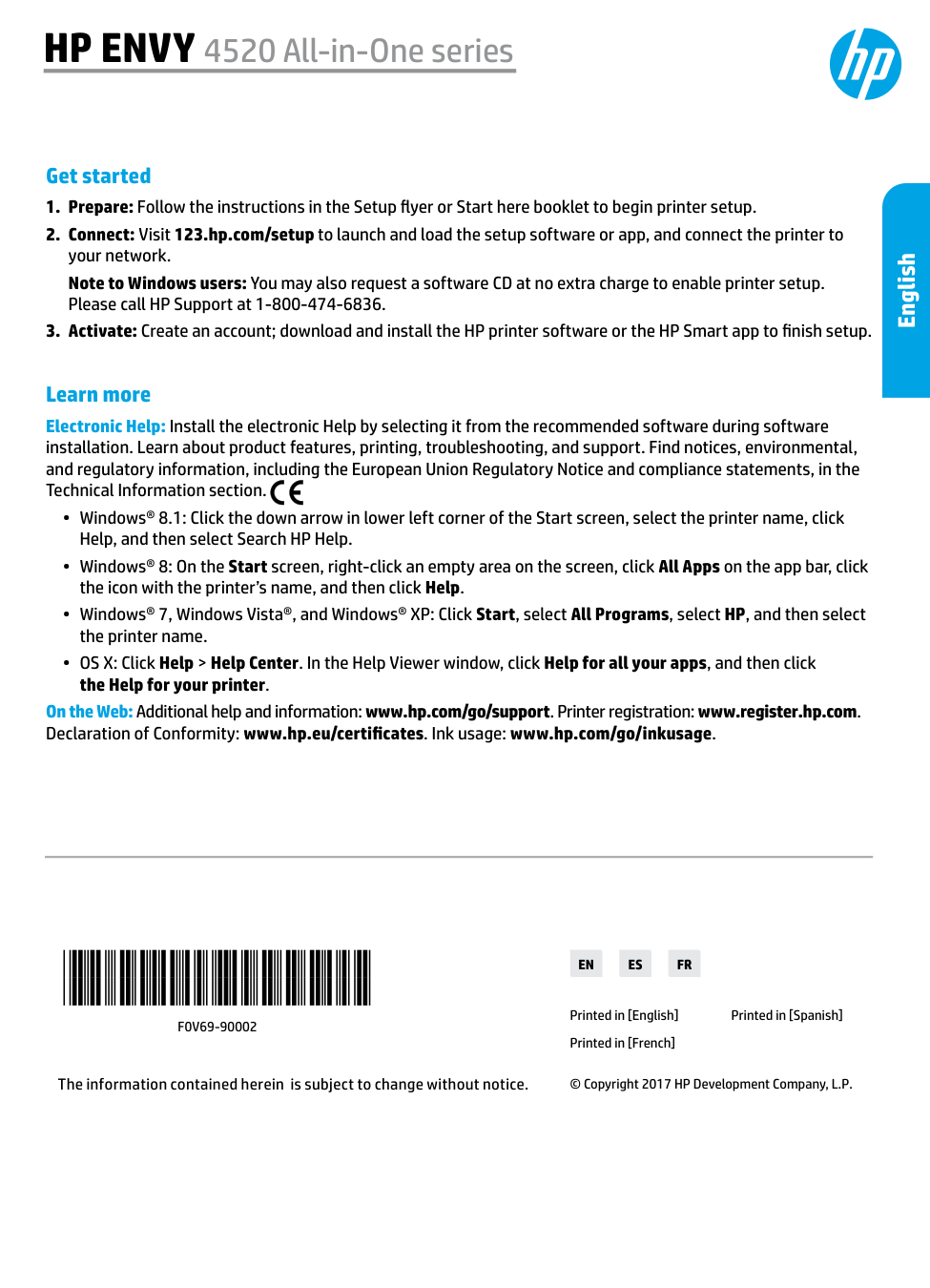
Learn more Electronic Help: Install the electronic Help by selecting it from the recommended software during software installation. Learn about product features, printing, troubleshooting, and support. Find notices, environmental, and regulatory information, including the European Union Regulatory Notice and compliance statements, in the Technical Information section. •• Windows® 8.1: Click the down arrow in lower left corner of the Start screen, select the printer name, click Help, and then select Search HP Help. •• Windows® 8: On the Start screen, right-click an empty area on the screen, click All Apps on the app bar, click the icon with the printer’s name, and then click Help. •• Windows® 7, Windows Vista®, and Windows® XP: Click Start, select All Programs, select HP, and then select the printer name. •• OS X: Click Help > Help Center. In the Help Viewer window, click Help for all your apps, and then click the Help for your printer. On the Web: Additional help and information: www.hp.com/go/support. Printer registration: www.register.hp.com. Declaration of Conformity: www.hp.eu/certificates. Ink usage: www.hp.com/go/inkusage. Get started
*F0V69-90002*
*F0V69-90002*
F0V69-90002
The information contained herein is subject to change without notice.Es
En
Fr
Printed in [English] Printed in [French] Printed in [Spanish] © Copyright 2017 HP Development Company, L.P.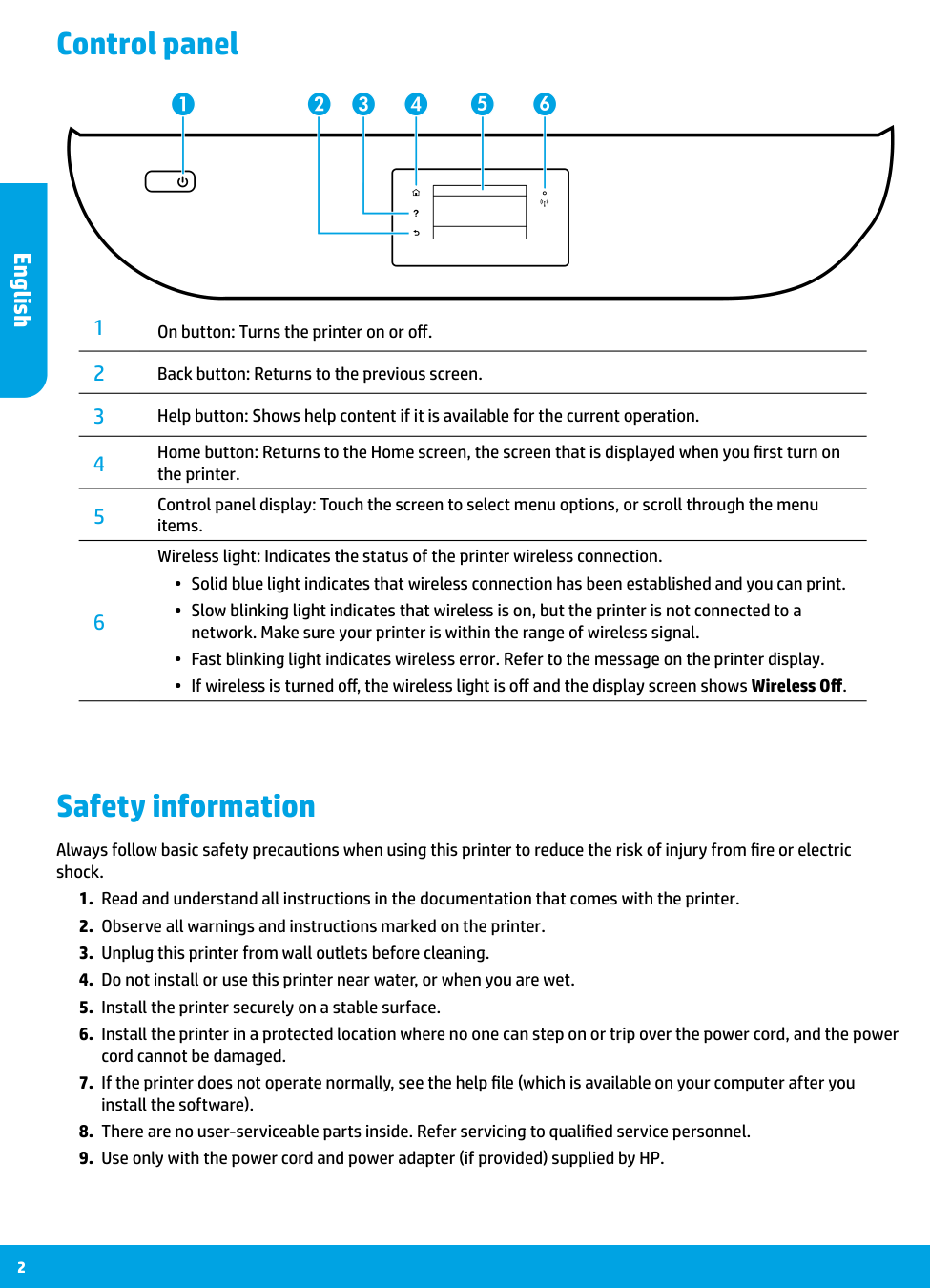
2 Safety information Always follow basic safety precautions when using this printer to reduce the risk of injury from fire or electric shock.
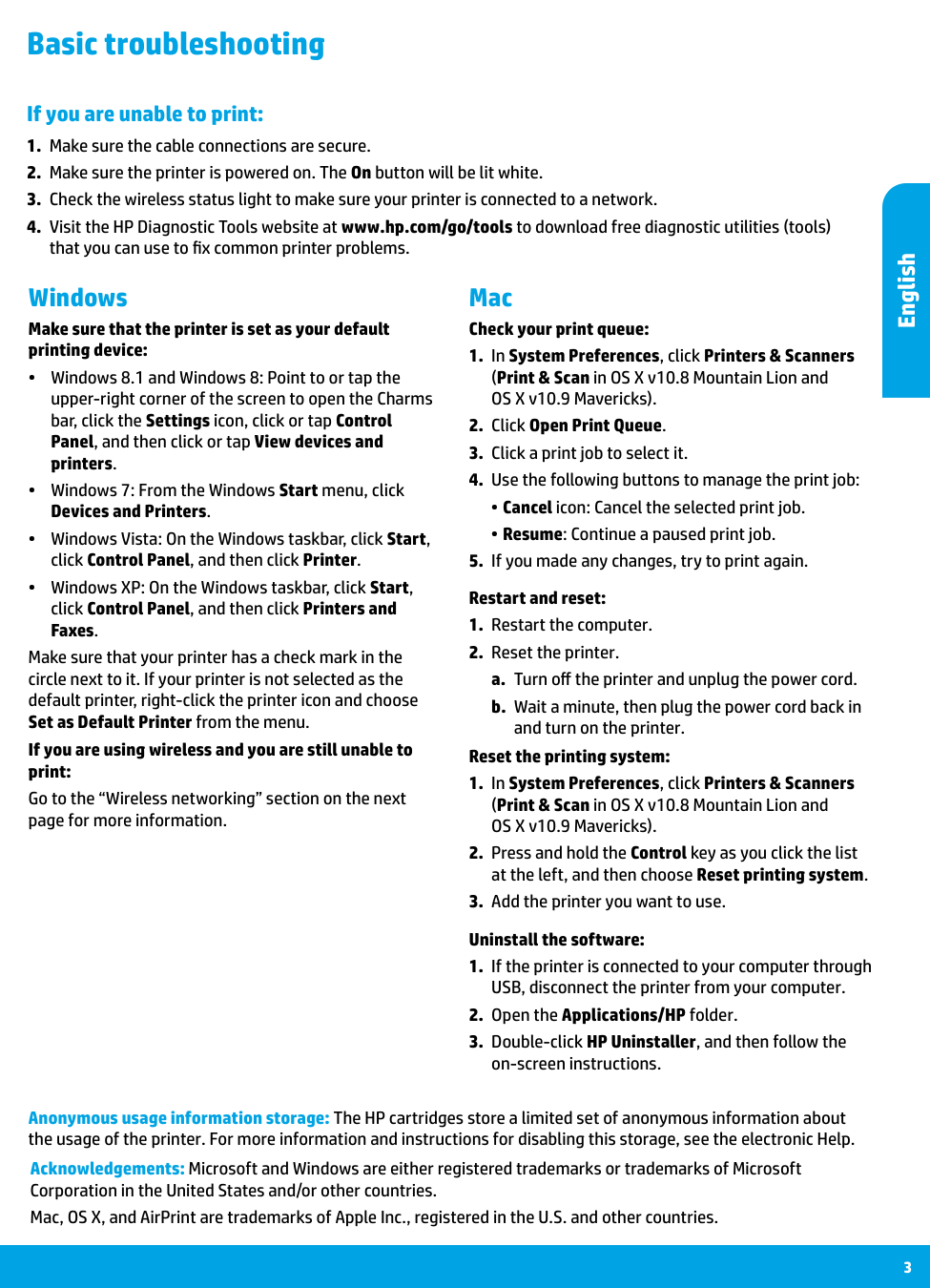
3 Mac Windows Basic troubleshooting If you are unable to print:
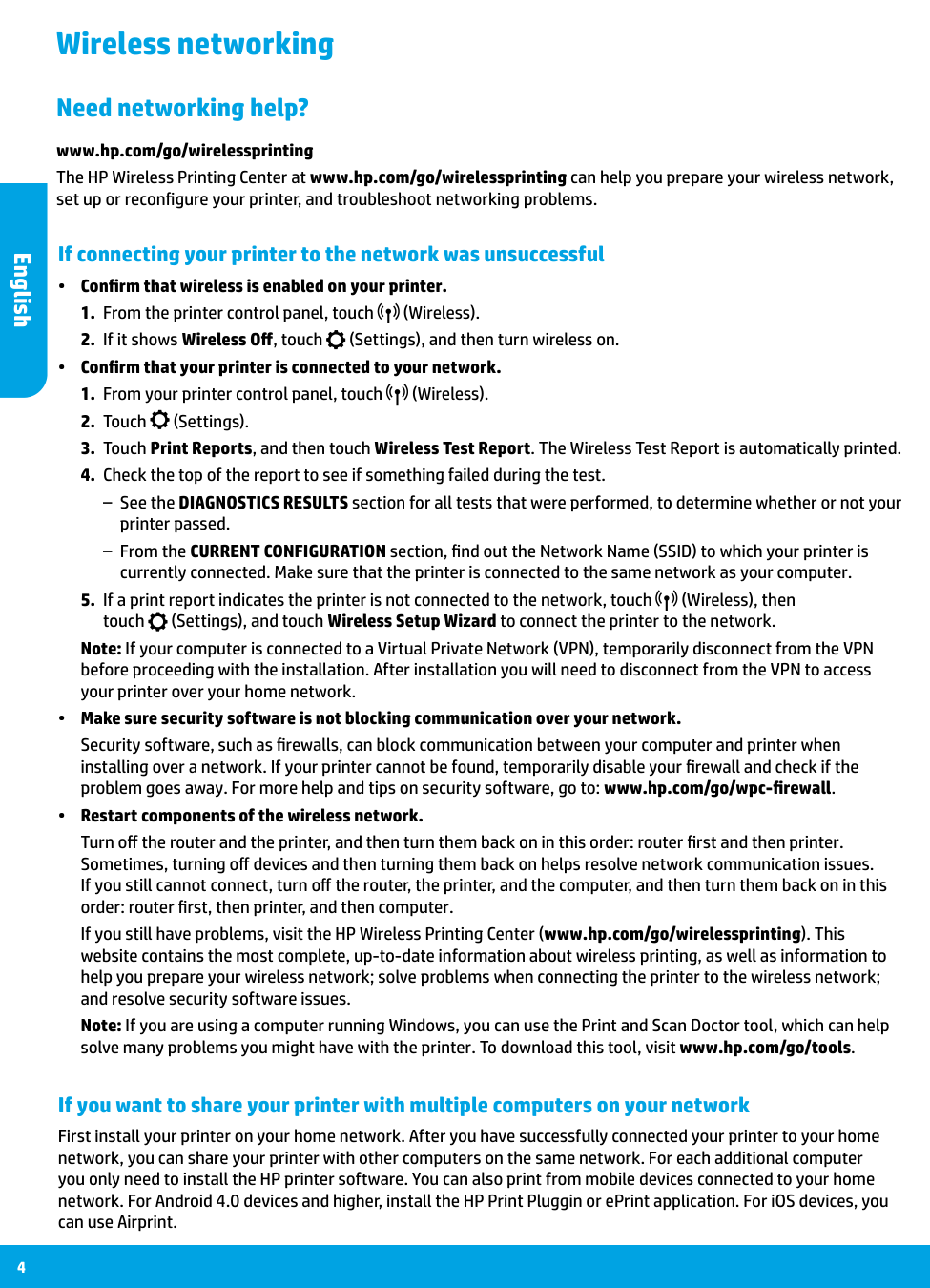
4 Wireless networking If connecting your printer to the network was unsuccessful •• Confirm that wireless is enabled on your printer.
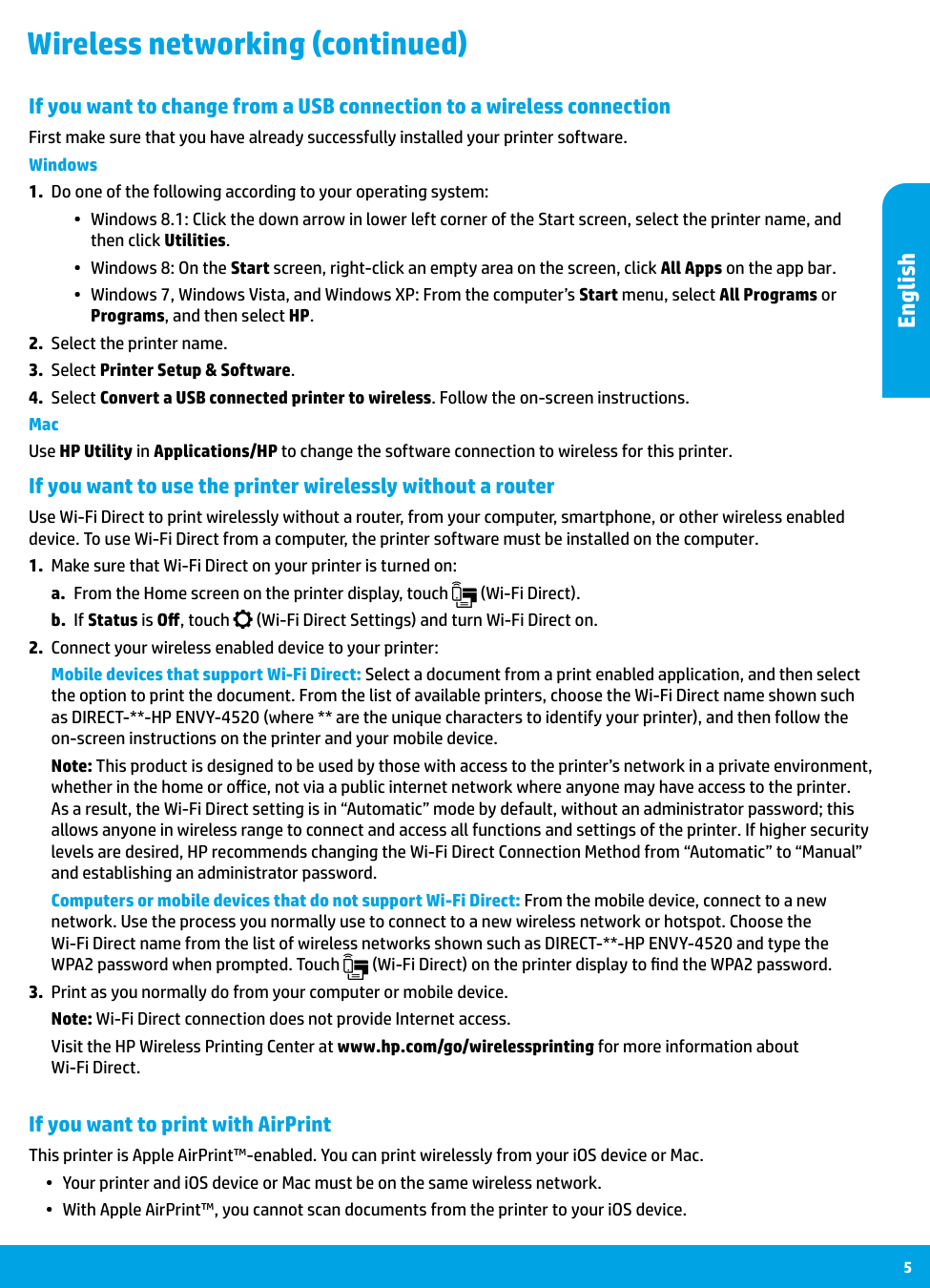
5 If you want to use the printer wirelessly without a router Use Wi-Fi Direct to print wirelessly without a router, from your computer, smartphone, or other wireless enabled device. To use Wi-Fi Direct from a computer, the printer software must be installed on the computer.
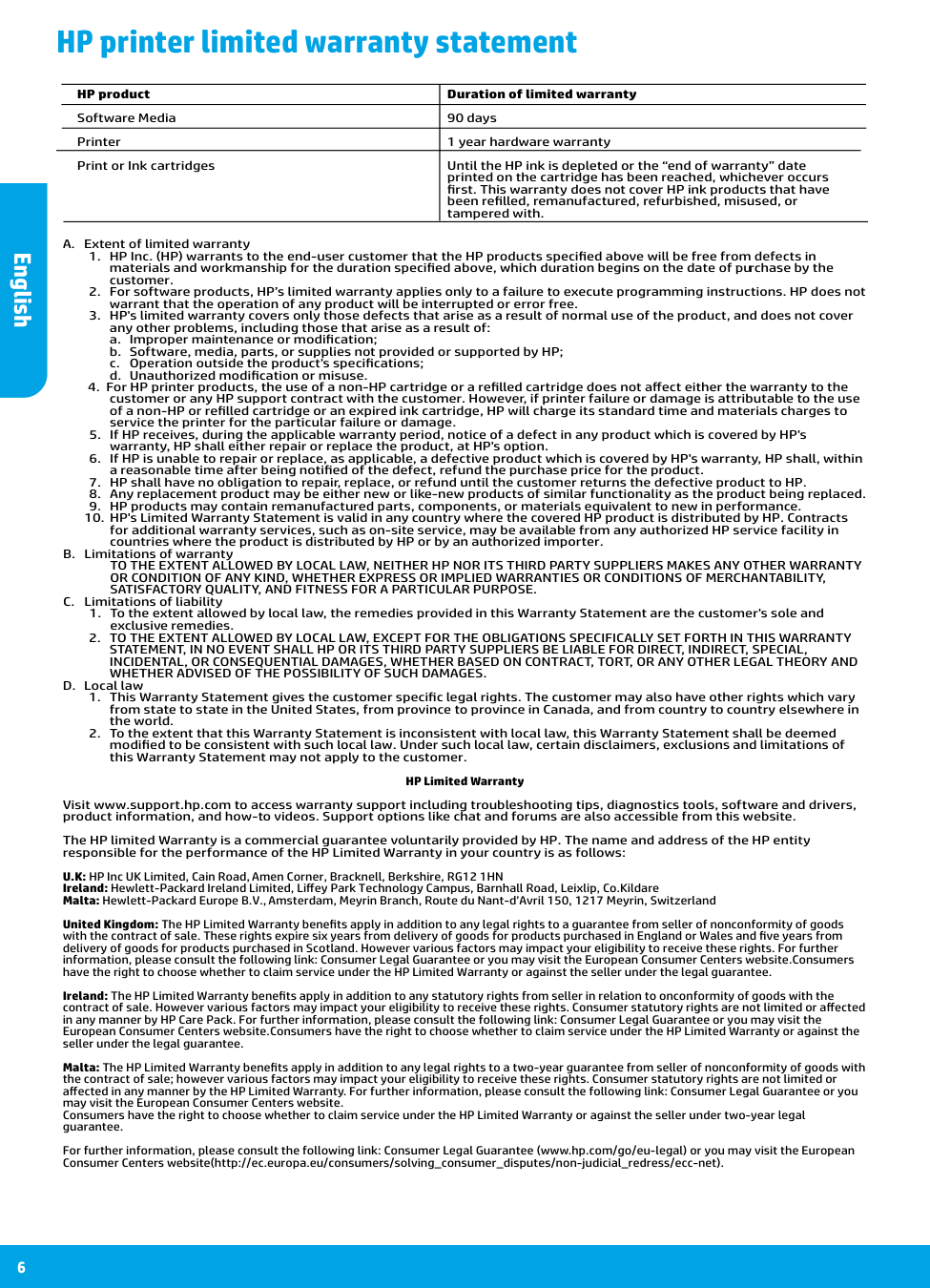
English 6 HP printer limited warranty statement A. Extent of limited warranty
a. Improper maintenance or modification;
b. Software, media, parts, or supplies not provided or supported by HP;
c. Operation outside the product's specifications;
d. Unauthorized modification or misuse.
Satisfactory Quality, And Fitness For A Particular Purpose.
C. Limitations of liabilityWhether Advised Of The Possibility Of Such Damages.
D. Local lawprinted on the cartridge has been reached, whichever occurs
first. This warranty does not cover HP ink products that have
been refilled, remanufactured, refurbished, misused, or
tampered with.
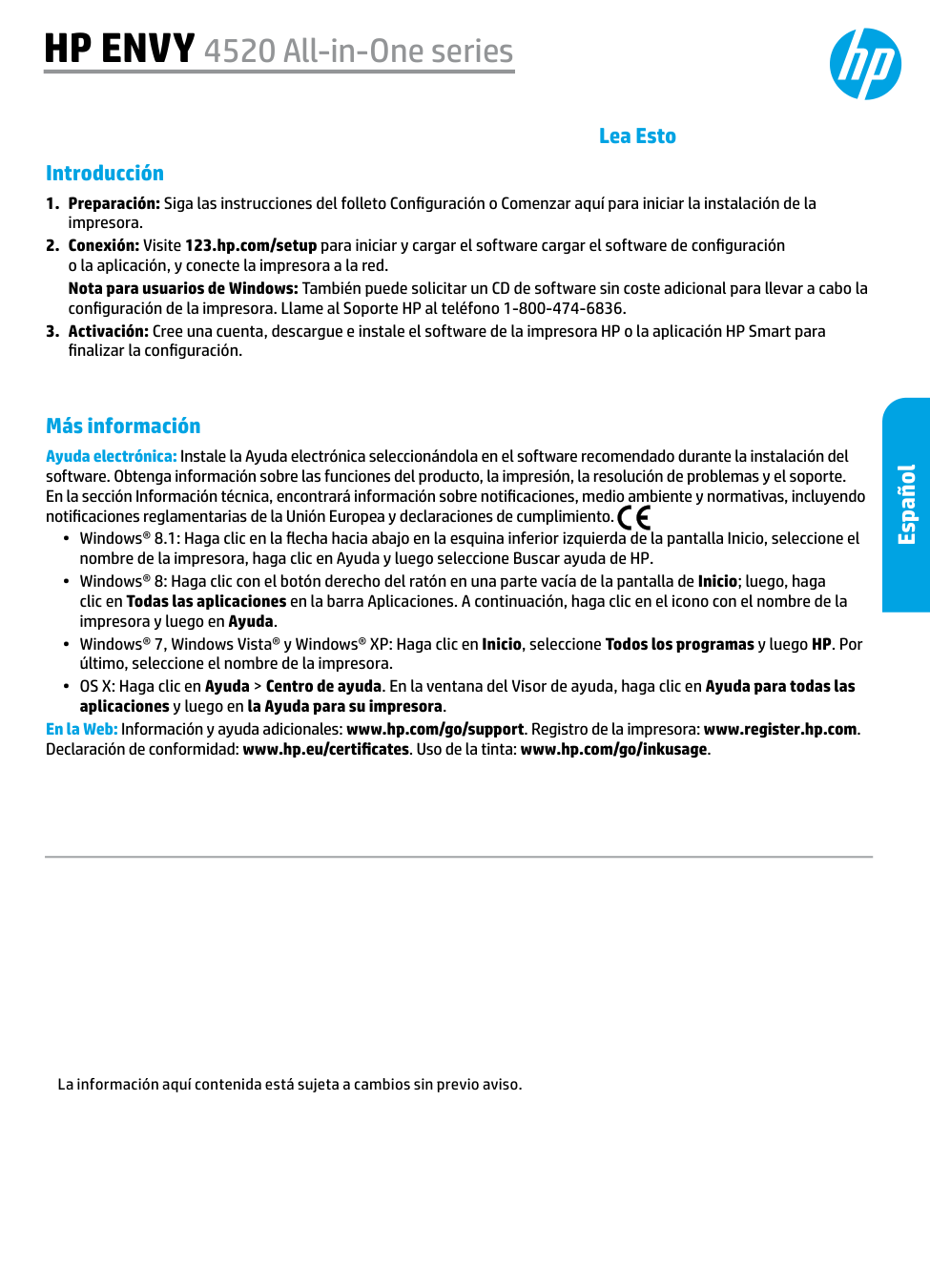
Más información Ayuda electrónica: Instale la Ayuda electrónica seleccionándola en el software recomendado durante la instalación del software. Obtenga información sobre las funciones del producto, la impresión, la resolución de problemas y el soporte. En la sección Información técnica, encontrará información sobre notificaciones, medio ambiente y normativas, incluyendo notificaciones reglamentarias de la Unión Europea y declaraciones de cumplimiento. •• Windows® 8.1: Haga clic en la flecha hacia abajo en la esquina inferior izquierda de la pantalla Inicio, seleccione el nombre de la impresora, haga clic en Ayuda y luego seleccione Buscar ayuda de HP. •• Windows® 8: Haga clic con el botón derecho del ratón en una parte vacía de la pantalla de Inicio; luego, haga clic en Todas las aplicaciones en la barra Aplicaciones. A continuación, haga clic en el icono con el nombre de la impresora y luego en Ayuda. •• Windows® 7, Windows Vista® y Windows® XP: Haga clic en Inicio, seleccione Todos los programas y luego HP. Por último, seleccione el nombre de la impresora. •• OS X: Haga clic en Ayuda > Centro de ayuda. En la ventana del Visor de ayuda, haga clic en Ayuda para todas las aplicaciones y luego en la Ayuda para su impresora. En la Web: Información y ayuda adicionales: www.hp.com/go/support. Registro de la impresora: www.register.hp.com. Declaración de conformidad: www.hp.eu/certificates. Uso de la tinta: www.hp.com/go/inkusage. Introducción

8 Información sobre seguridad Tome siempre las precauciones básicas de seguridad cuando use esta impresora para reducir los riesgos de sufrir lesiones físicas como consecuencia de un incendio o una descarga eléctrica.
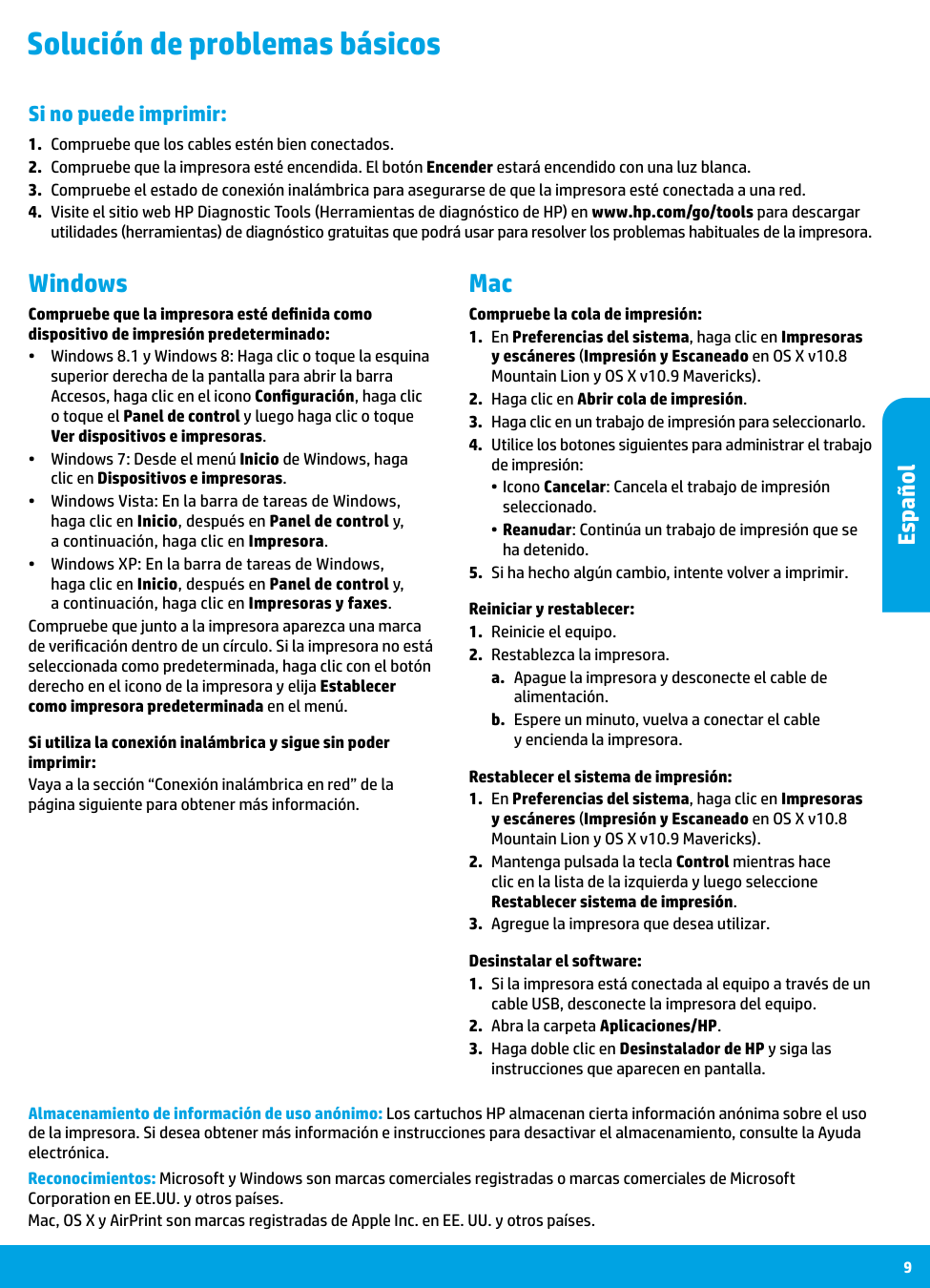
9 Mac Windows Solución de problemas básicos Si no puede imprimir:
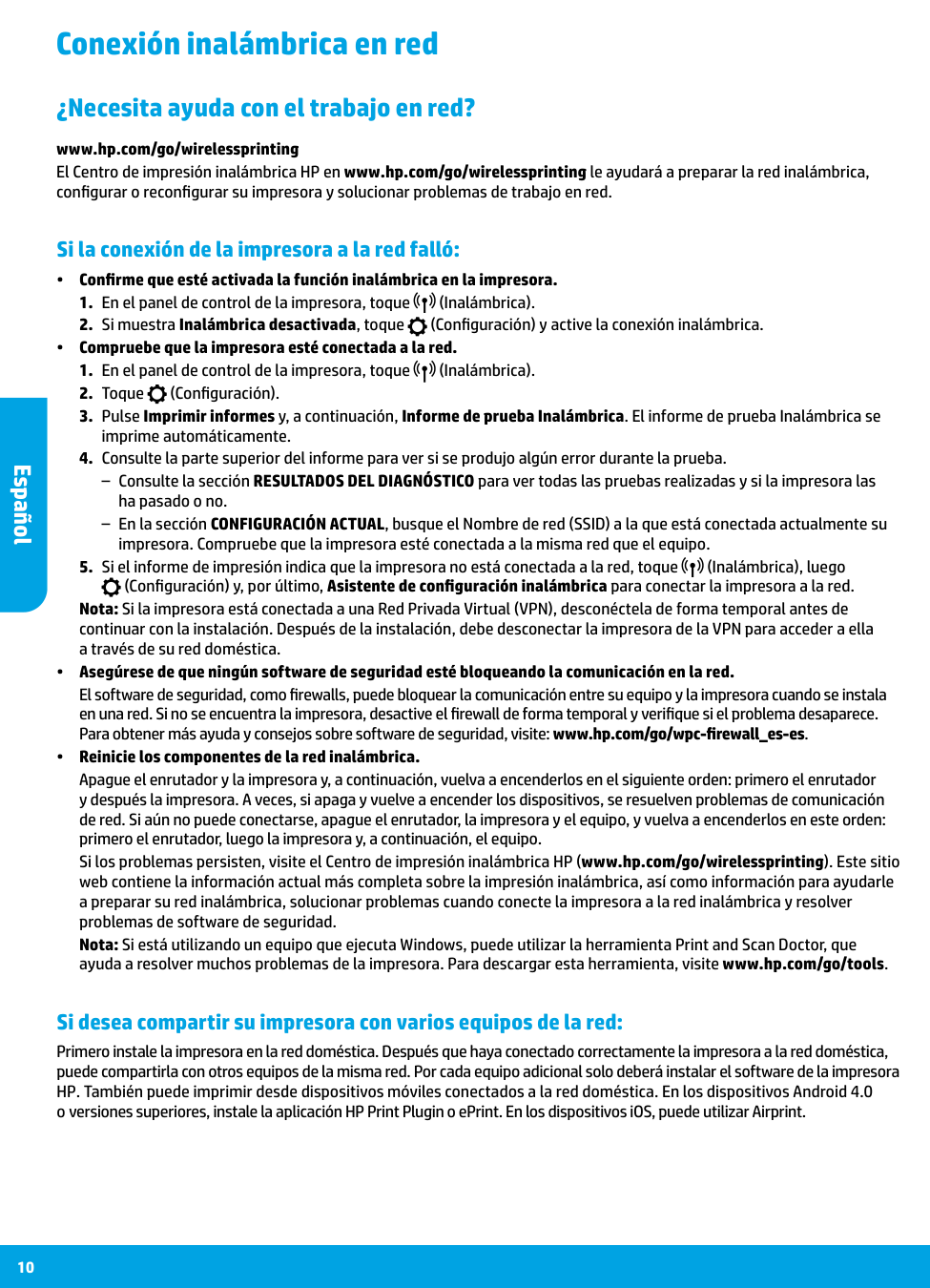
10 Conexión inalámbrica en red Si la conexión de la impresora a la red falló: •• Confirme que esté activada la función inalámbrica en la impresora.
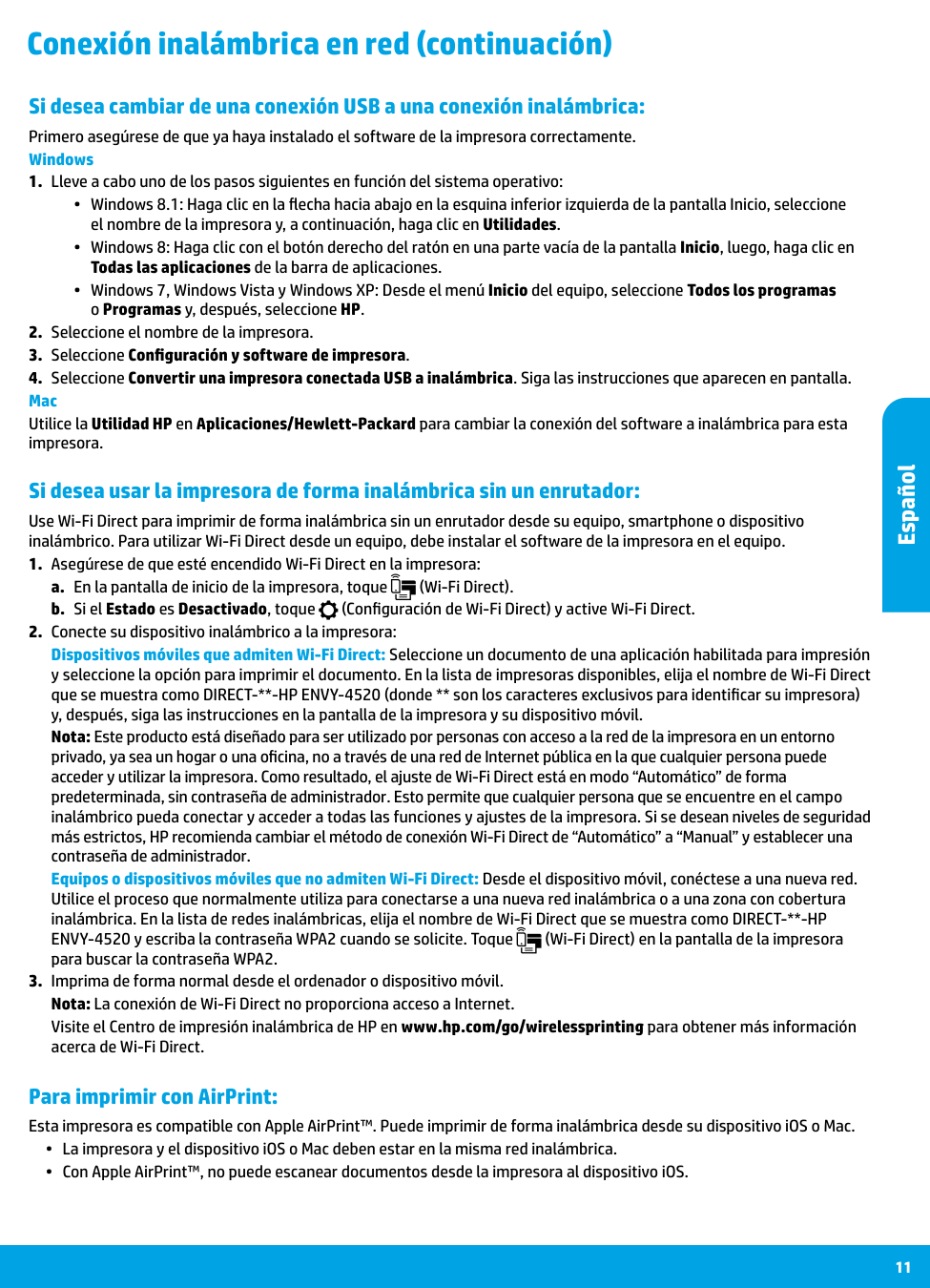
11 Si desea usar la impresora de forma inalámbrica sin un enrutador: Use Wi-Fi Direct para imprimir de forma inalámbrica sin un enrutador desde su equipo, smartphone o dispositivo inalámbrico. Para utilizar Wi-Fi Direct desde un equipo, debe instalar el software de la impresora en el equipo.
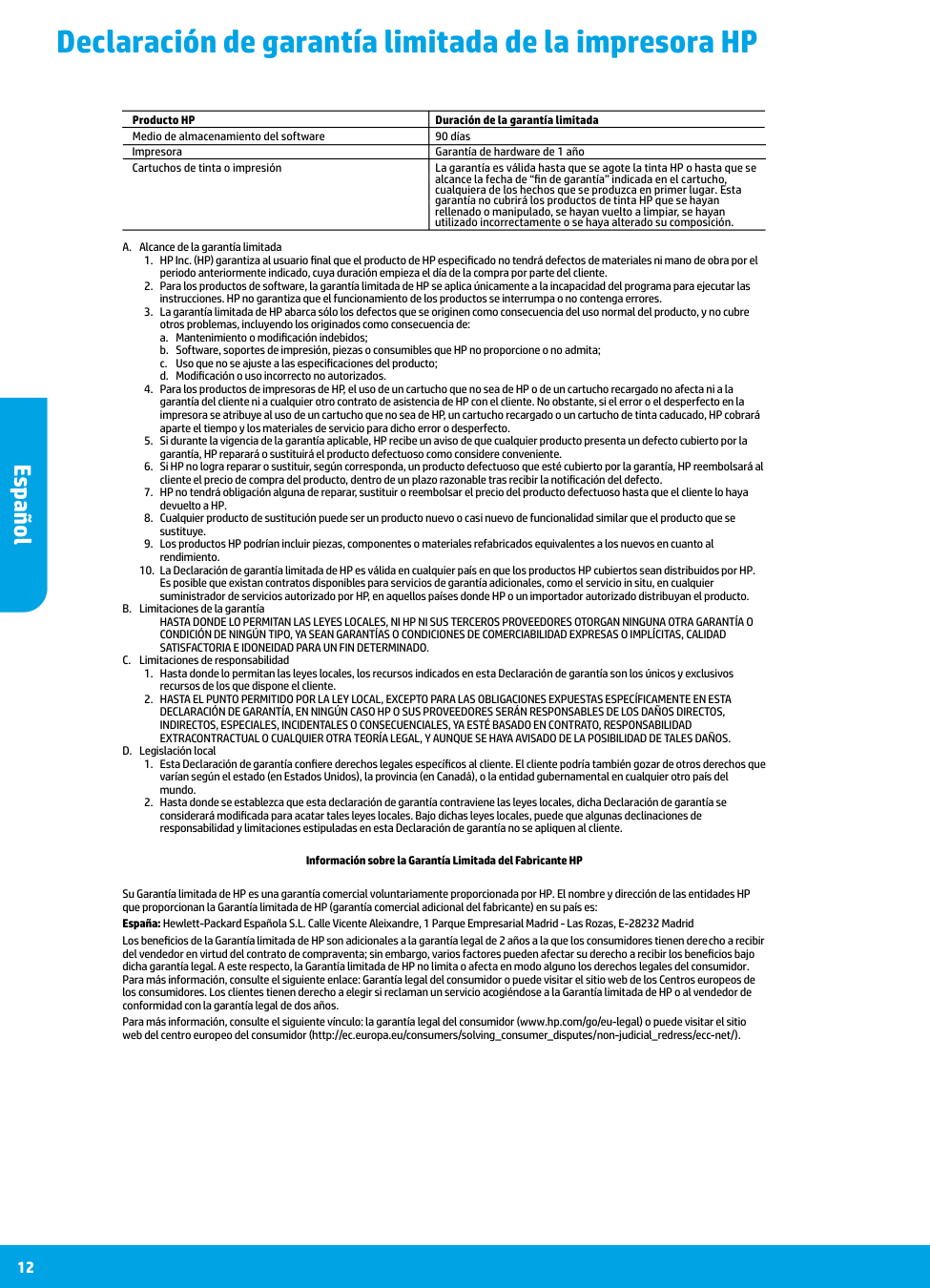
Español 12 Declaración de garantía limitada de la impresora HP A. Alcance de la garantía limitada
a. Mantenimiento o modificación indebidos;
b. Software, soportes de impresión, piezas o consumibles que HP no proporcione o no admita;
c. Uso que no se ajuste a las especificaciones del producto;
d. Modificación o uso incorrecto no autorizados.
Satisfactoria E Idoneidad Para Un Fin Determinado.
C. Limitaciones de responsabilidad
En savoir plus Aide électronique : installez l'Aide électronique en sélectionnant cette option parmi les logiciels recommandés pendant l'installation du logiciel. Découvrez les fonctionnalités du produit, comment imprimer, résoudre des problèmes et obtenir une assistance. Obtenez des avis, des informations environnementales et réglementaires, y compris les déclarations de conformité et les avis d'application de la réglementation de l'Union européenne, dans la section Informations techniques. •• Windows® 8.1 : cliquez sur la flèche pointant vers le bas située dans la partie inférieure gauche de l'écran d'accueil, sélectionnez le nom de l'imprimante, cliquez sur Aide, puis sur Rechercher dans l'aide HP. •• Windows® 8 : cliquez avec le bouton droit de la souris sur une zone vide de l'écran Démarrer. Dans la barre d'applications, choisissez Toutes les applications, puis cliquez sur l'icône portant le nom de l'imprimante et sélectionnez Aide. •• Windows® 7, Windows Vista® et Windows® XP : cliquez sur Démarrer, sélectionnez Tous les programmes, puis HP, et enfin le nom de l'imprimante. •• OS X : cliquez sur Aide > Centre d'aide. Dans la fenêtre de la Visionneuse de l'aide, cliquez sur Aide sur toutes vos applications, puis sur l'Aide correspondant à votre imprimante. Sur le Web : Aide et informations supplémentaires : www.hp.com/go/support. Enregistrement de l'imprimante : www.register.hp.com. Déclaration de conformité : www.hp.eu/certificates. Utilisation de l'encre : www.hp.com/go/inkusage. Démarrage
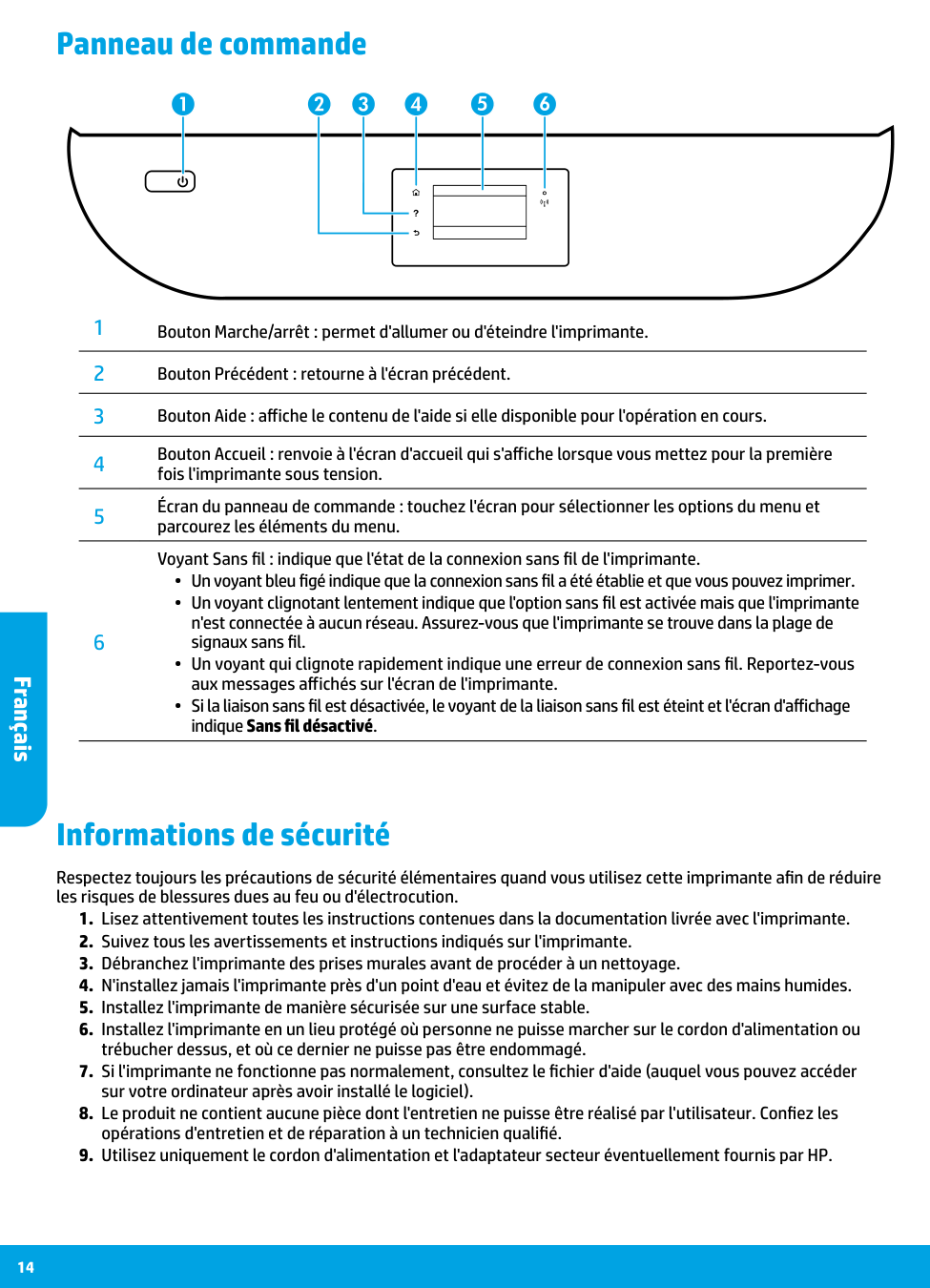
14 Informations de sécurité Respectez toujours les précautions de sécurité élémentaires quand vous utilisez cette imprimante afin de réduire les risques de blessures dues au feu ou d'électrocution.
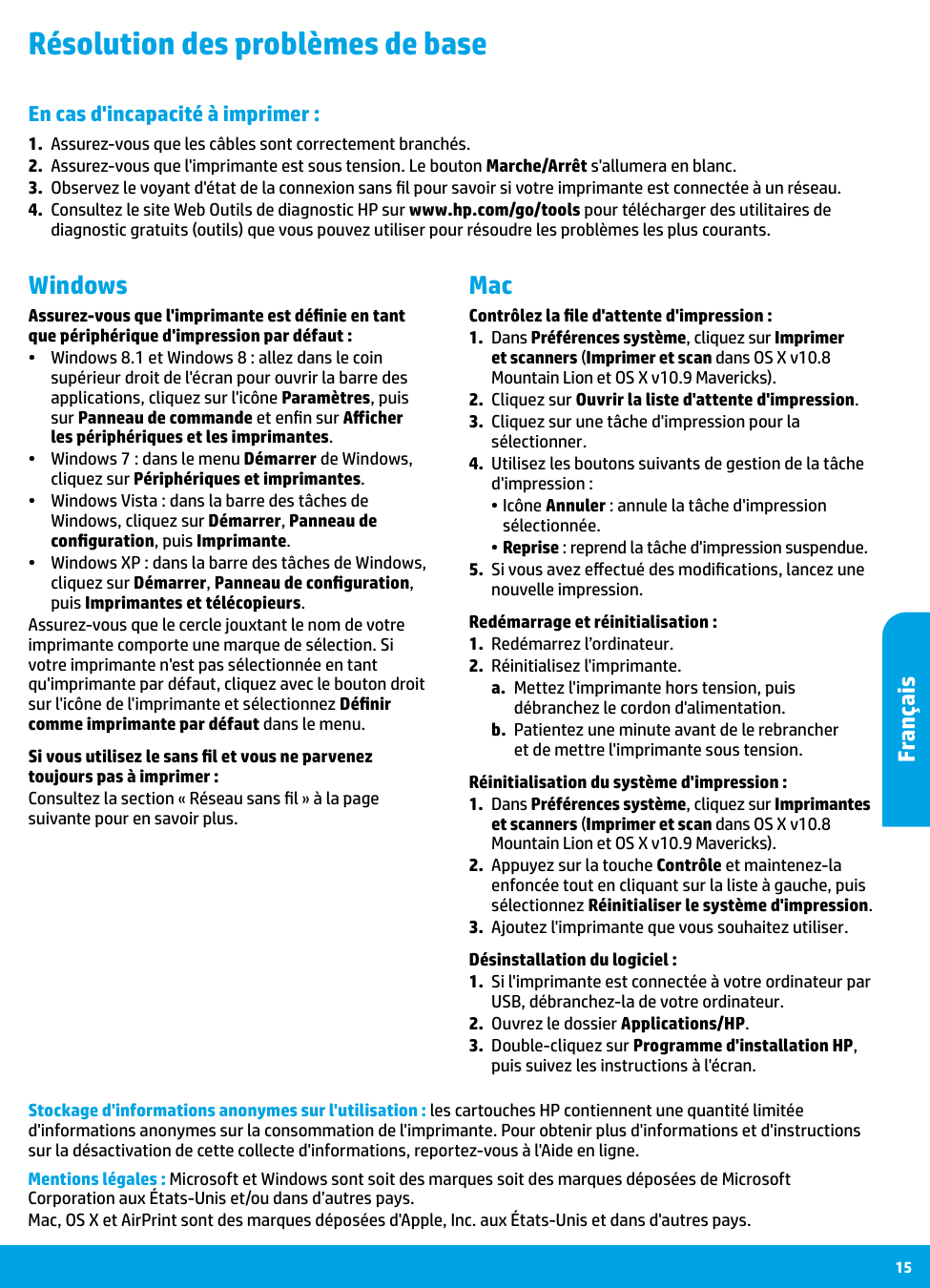
15 Mac Windows Résolution des problèmes de base En cas d'incapacité à imprimer :
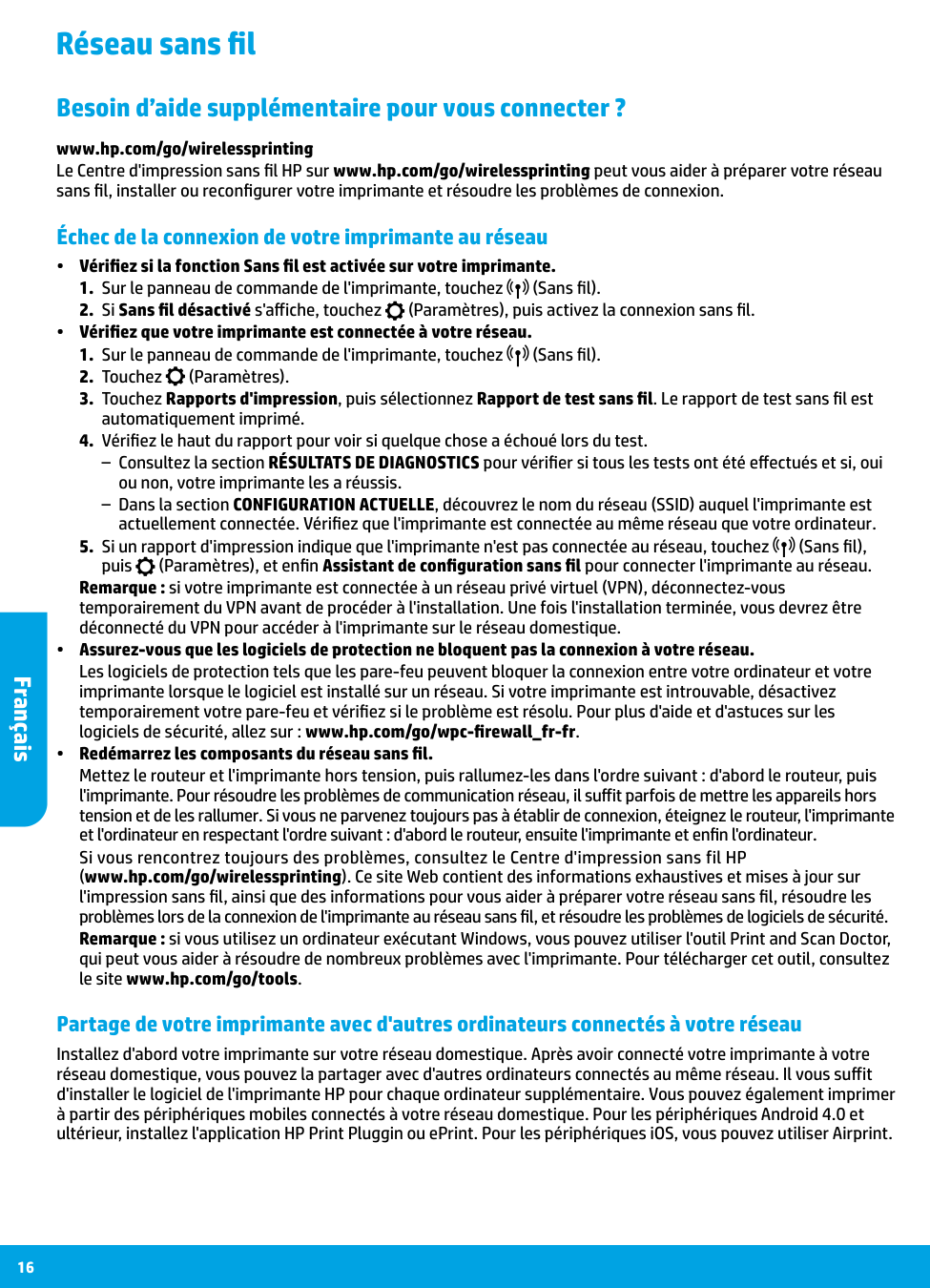
16 Réseau sans fil Échec de la connexion de votre imprimante au réseau •• Vérifiez si la fonction Sans fil est activée sur votre imprimante.
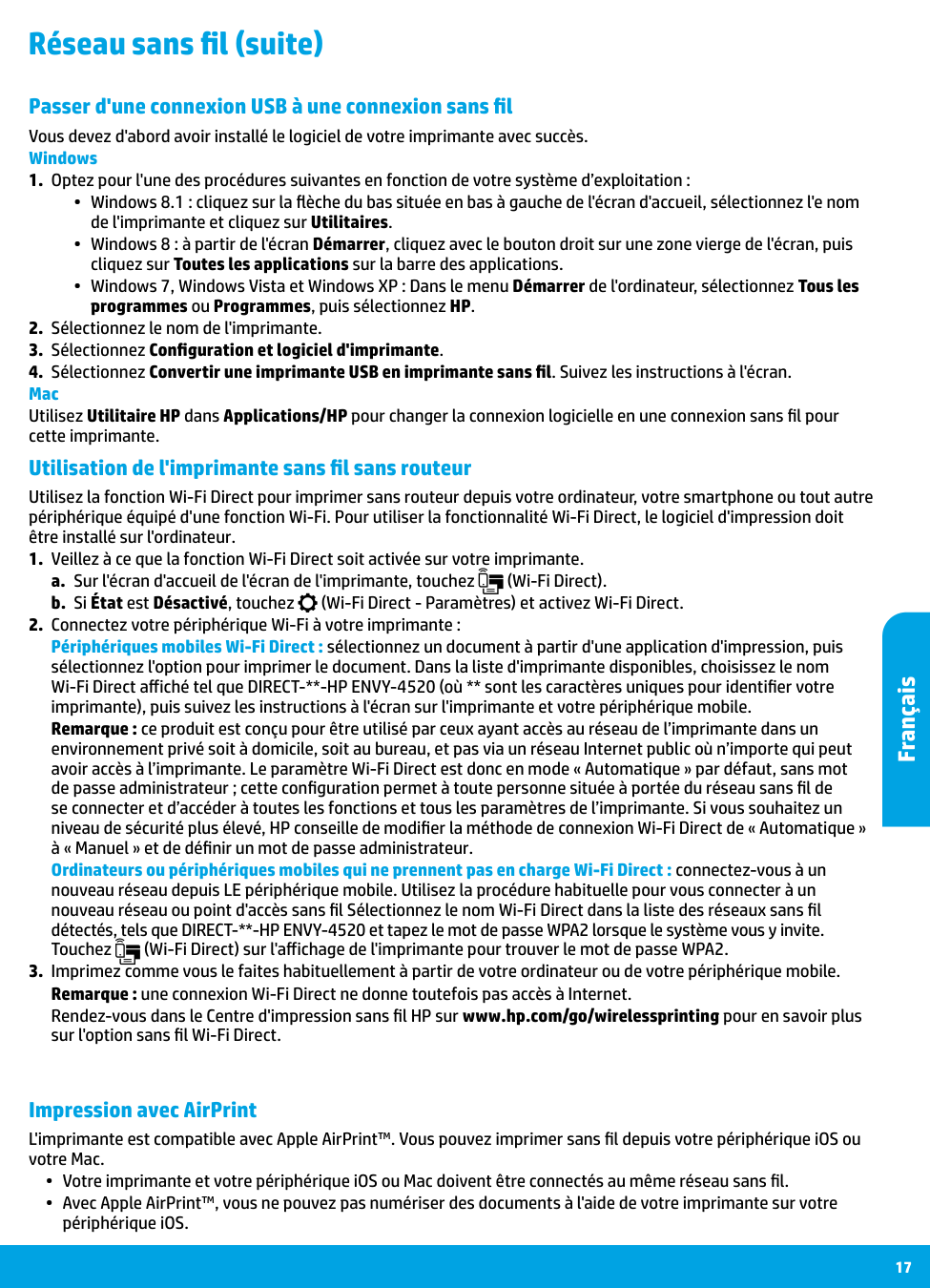
17 Utilisation de l'imprimante sans fil sans routeur Utilisez la fonction Wi-Fi Direct pour imprimer sans routeur depuis votre ordinateur, votre smartphone ou tout autre périphérique équipé d'une fonction Wi-Fi. Pour utiliser la fonctionnalité Wi-Fi Direct, le logiciel d'impression doit être installé sur l'ordinateur.

Français 18 Déclaration de garantie limitée de l'imprimante HP A. Extension de garantie limitée
a. d'une mauvaise maintenance ou d'une modification ;
b. de logiciels, de supports, de pièces ou de consommables non fournis ou non pris en charge par HP ;
c. du fonctionnement du produit hors de ses caractéristiques ; ou
d. d'une modification non autorisée ou d'une mauvaise utilisation.
Français 19 Déclaration de garantie limitée de l'imprimante HP Garantie du fabricant HP La garantie limitée HP est une garantie commerciale fournie volontairement par HP. Voici les coordonnées de l’entité HP responsable de l’exécution de la garantie limitée HP dans votre pays : France: HP France SAS, société par actions simplifiée identifiée sous le numéro 448 694 133 RCS Evry, 1 Avenue du Canada, 91947, Les Ulis G.D. Luxembourg: Hewlett-Packard Luxembourg S.C.A., 75, Parc d’Activités Capellen, Rue Pafebruc, L-8308 Capellen Belgique: HP Belgium BVBA, Hermeslaan 1A, B-1831 Diegem France Les avantages de la garantie limitée HP s’appliquent en complément des droits dont vous disposez au titre des garanties légales applicables dont le bénéfice est soumis à des conditions spécifiques. Vos droits en tant que consommateur au titre de la garantie légale de conformité mentionnée aux articles L. 211-4 à L. 211-13 du Code de la Consommation et de celle relatives aux défauts de la chose vendue, dans les conditions prévues aux articles 1641 à 1648 et 2232 du Code de Commerce ne sont en aucune façon limités ou affectés par la garantie limitée HP. Pour de plus amples informations, veuillez consulter le lien suivant : Garanties légales accordées au consommateur. Vous pouvez également consulter le site Web des Centres européens des consommateurs. Les consommateurs ont le droit de choisir d’exercer leurs droits au titre de la garantie limitée HP, ou auprès du vendeur au titre des garanties légales applicables mentionnées ci-dessus.