
HP Officejet Pro 7740 Wide Format All-in-One Printer
Ask AI
— answers from the official manualAnswers from the official manual.
Common questions
Common Questions
28 totalHow can I set up fax on my printer?
You can set up fax using the HP printer software (recommended) or from the printer control panel. For Windows users, use the Fax Wizard during software installation. For OS X, use Basic Fax Settings from the HP Utility after installation. Alternatively, touch Fax on the Home screen and then touch Setup on the control panel.
How do I set up my HP Officejet Pro 7740 for the first time?
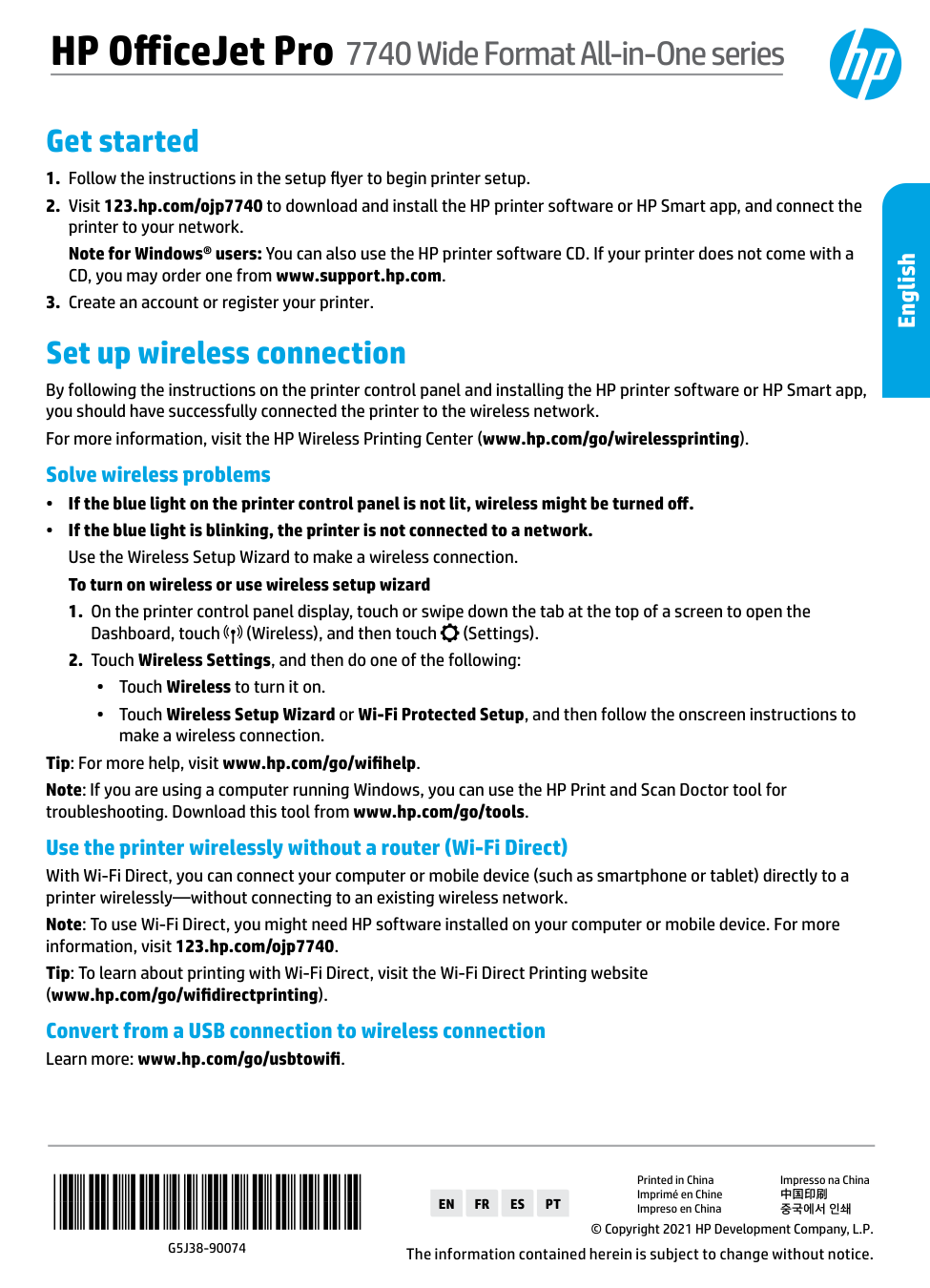
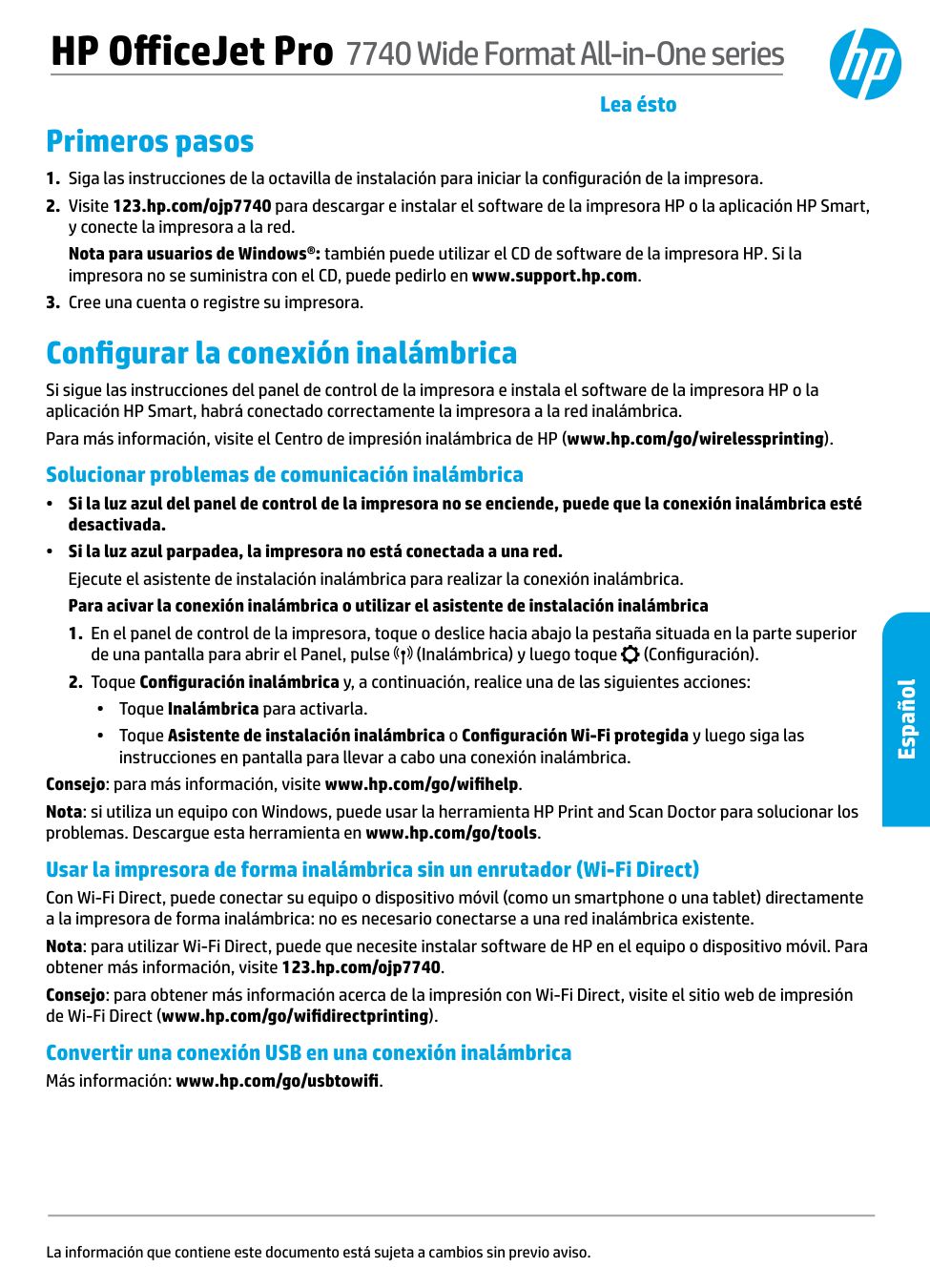
Follow the instructions in the setup flyer to begin printer setup. Then visit 123.hp.com/ojp7740 to download and install the HP printer software or HP Smart app, and connect the printer to your network. Finally, create an account or register your printer to complete the setup process.
What should I do if my printer's wireless light is blinking?
If the blue light on the printer control panel is blinking, the printer is not connected to a network. Use the Wireless Setup Wizard to make a wireless connection by touching the Wireless icon and then Settings on the printer control panel display.
Can I use non-HP cartridges in my printer without voiding the warranty?
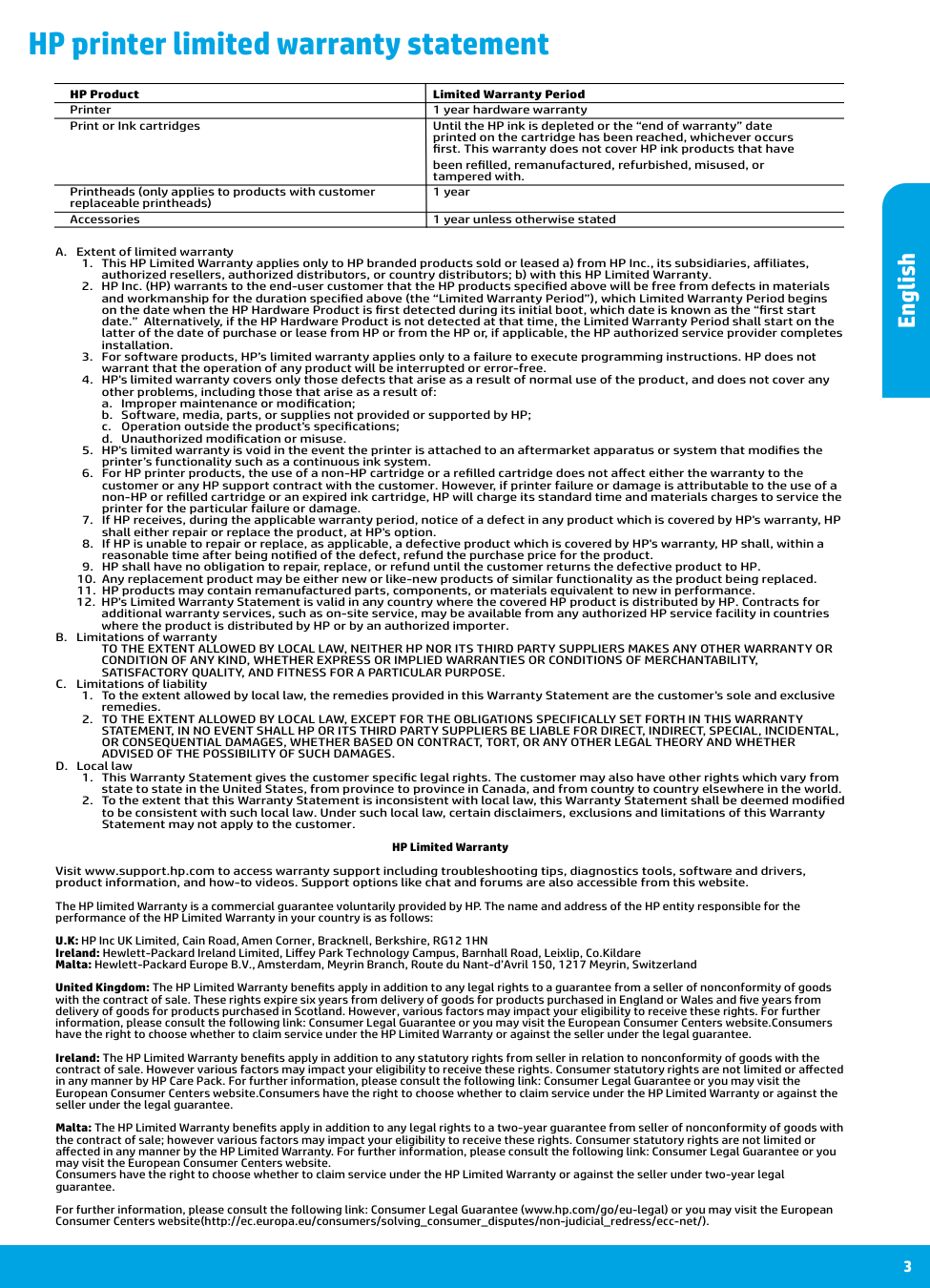
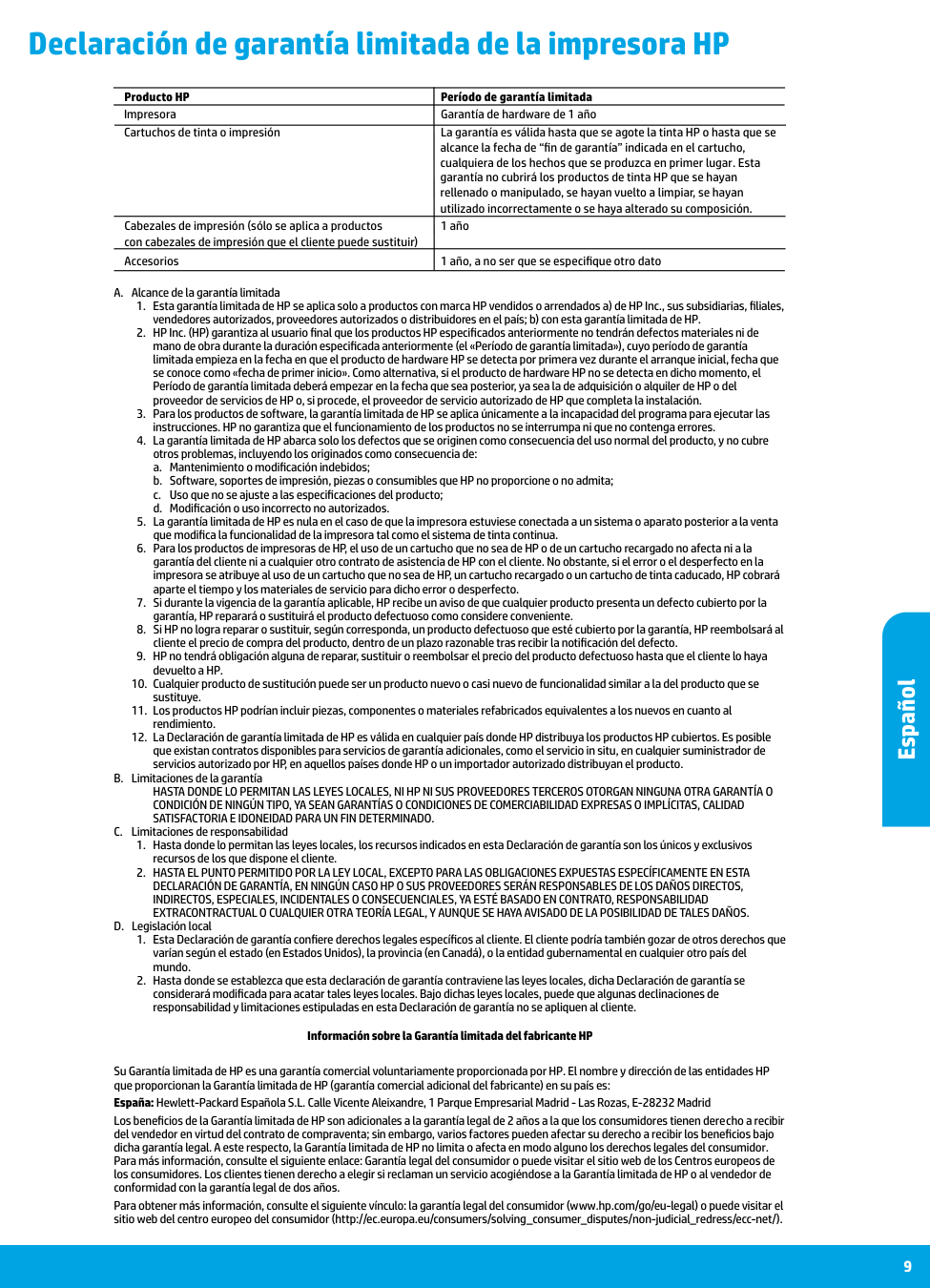
For HP printer products, the use of a non-HP cartridge or a refilled cartridge does not affect either the warranty to the customer or any HP support contract. However, if printer failure or damage is attributable to the use of a non-HP or refilled cartridge or an expired ink cartridge, HP will charge its standard time and materials charges to service the printer.
What is the warranty period for the HP Officejet Pro 7740 printer?
The HP Officejet Pro 7740 comes with a 1 year hardware warranty. Print or ink cartridges are warranted until the HP ink is depleted or the end of warranty date printed on the cartridge has been reached, whichever occurs first.
How do I use Wi-Fi Direct to print without a router?
With Wi-Fi Direct, you can connect your computer or mobile device (such as smartphone or tablet) directly to the printer wirelessly without connecting to an existing wireless network. You may need HP software installed on your computer or mobile device, and you should visit www.hp.com/go/wifidirectprinting for more information about printing with Wi-Fi Direct.
Show 22 more questions
What should I do if the wireless light is not lit at all?
Where can I find additional help and troubleshooting information?
What power adapter should I use with my printer?
What should I do if my printer comes without a software CD?
What should I do if the blue light on my printer is not lit?
What power requirements does the HP OfficeJet Pro 7740 have?
Can I use the HP printer software CD for setup if I don't have internet access?
What does it mean if the blue light is blinking?
What cartridges should I use with this printer?
How do I convert my printer from a USB connection to wireless?
Can I connect to this printer without a router?
Is there a Windows printer software CD available?
What power equipment should I use with this printer?
How do I get started with my HP OfficeJet Pro 7740?
Can I print wirelessly without a router?
How do I set up fax on my printer?
Where can I find additional help and support?
What is covered under the HP Limited Warranty?
How do I get started with my HP OfficeJet Pro 7740 printer?
Where can I find additional help and troubleshooting information?
How can I troubleshoot wireless connection problems?
What cartridges should I use with my printer?
Full Manual
12 pages
*G5J38-90074*
*G5J38-90074*
G5J38-90074
© Copyright 2021 HP Development Company, L.P.En
Fr
Es
Pt
The information contained herein is subject to change without notice. Printed in China Impresso na China Imprimé en Chine 中国印刷 Impreso en China 중국에서 인쇄 Get started
2 Microsoft and Windows are either registered trademarks or trademarks of Microsoft Corporation in the United States and/or other countries. Mac and OS X are trademarks of Apple Inc., registered in the U.S. and other countries. Set up fax You can set up fax using the HP printer software (recommended) or from the printer control panel. •• Windows: Use the Fax Wizard during software installation. To set up after software installation, open the HP printer software (double-click the icon with the printer name on the desktop), go to the Fax tab, and then select Fax Setup Wizard. •• OS X: After software installation, use Basic Fax Settings from the HP Utility. •• Control panel: Touch Fax on the Home screen, and then touch Setup. For more information, visit www.hp.com/support/ojp7740. Learn more Help Get additional help and find notices, environmental, and regulatory information (including the European Union Regulatory Notice and compliance statements) in the “Technical Information” section of the User Guide: www.hp.com/support/ojp7740. Cartridge information During printer setup, make sure you use the cartridges provided with the printer. Safety information Use only with the power cord and power adapter (if provided) supplied by HP. Ink usage www.hp.com/go/inkusage Regulatory Model Number For regulatory identification purposes, your product is assigned with a Regulatory Model Number. The Regulatory Model Number should not be confused with the marketing name or product numbers. Printer registration www.register.hp.com Declaration of Conformity www.hp.eu/certificates HP mobile printing www.hp.com/go/mobileprinting Product support www.hp.com/support/ojp7740 English
3 HP printer limited warranty statement A. Extent of limited warranty
a. Improper maintenance or modification;
b. Software, media, parts, or supplies not provided or supported by HP;
c. Operation outside the product's specifications;
d. Unauthorized modification or misuse.
Satisfactory Quality, And Fitness For A Particular Purpose.
C. Limitations of liabilityAdvised Of The Possibility Of Such Damages.
D. Local lawprinted on the cartridge has been reached, whichever occurs
first. This warranty does not cover HP ink products that have
been refilled, remanufactured, refurbished, misused, or
tampered with. Printheads (only applies to products with customer 1 year replaceable printheads) Accessories 1 year unless otherwise stated English

Démarrage

5 Microsoft et Windows sont soit des marques soit des marques déposées de Microsoft Corporation aux États-Unis et/ou dans d'autres pays. Mac et OS X sont des marques déposées d'Apple, Inc. aux États-Unis et dans d'autres pays. Configurer le télécopieur Vous pouvez configurer le télécopieur avec le logiciel de l'imprimante HP (recommandé) ou à l'aide du panneau de commande de l'imprimante. •• Windows : Utilisez l'Assistant de configuration du télécopieur pendant l'installation du logiciel. Pour procéder à la configuration après installation du logiciel, ouvrez le logiciel de l'imprimante HP (faites un double clic sur l'icône portant le nom de l'imprimante sur le bureau), rendez-vous sur l'onglet Télécopieur puis sélectionnez Assistant de configuration du télécopieur. •• OS X : Après installation du logiciel, utilisez les Paramètres de télécopie de base sur HP Utility. •• Panneau de commande : Appuyez sur Télécopieur sur l'écran d'accueil, puis appuyez sur Configuration. Pour plus d'informations, consultez le site www.hp.com/support/ojp7740. En savoir plus Aide Obtenez une aide supplémentaire et retrouvez des avis, des informations environnementales et réglementaires (y compris les déclarations de conformité et les avis d'application de la réglementation de l'Union européenne) dans la section « Informations techniques » du manuel de l'utilisateur : www.hp.com/support/ojp7740. Informations sur les cartouches Pendant la configuration de l'imprimante, assurez-vous de bien utiliser les cartouches fournies avec l'imprimante. Informations de sécurité Utilisez uniquement le cordon d'alimentation et l'adaptateur secteur éventuellement fournis par HP. Utilisation de l'encre www.hp.com/go/inkusage Numéro de modèle réglementaire À des fins d'identification, et ainsi que l'impose la réglementation, un Numéro de modèle réglementaire a été attribué à votre produit. Ne confondez pas le numéro de modèle réglementaire et le nom marketing ou les références du produit. Enregistrement de l'imprimante www.register.hp.com Déclaration de conformité www.hp.eu/certificates Impression mobile HP www.hp.com/go/mobileprinting Assistance produit www.hp.com/support/ojp7740 Français

6 Déclaration de garantie limitée de l'imprimante HP A. Extension de garantie limitée
a. d'une mauvaise maintenance ou d'une modification ;
b. de logiciels, de supports, de pièces ou de consommables non fournis ou non pris en charge par HP ;
c. du fonctionnement du produit hors de ses caractéristiques ; ou
d. d'une modification non autorisée ou d'une mauvaise utilisation.
Primeros pasos

8 Microsoft y Windows son marcas comerciales registradas o marcas comerciales de Microsoft Corporation en EE. UU. y otros países. Mac y OS X son marcas comerciales de Apple Inc., registradas en EE. UU. y otros países. Configuración del fax Puede configurar el fax usando el software de la impresora HP (recomendado) o en el panel de control de la impresora. •• Windows: utilice el asistente para el fax durante la instalación del software. Para configurarlo después de la instalación del software, abra el software de la impresora HP (haga doble clic en el icono con el nombre de la impresora en el escritorio), vaya a la pestaña Fax y luego seleccione Asistente de configuración de fax. •• OS X: después de la instalación del software, use los ajustes básicos del fax en HP Utility. •• Panel de control: toque Fax en la pantalla de inicio y luego toque Configuración. Para obtener más información, visite www.hp.com/support/ojp7740. Más información Ayuda Encuentre ayuda adicional, información sobre notificaciones, medioambiente y normativas (incluidas notificaciones reglamentarias y declaraciones de cumplimientos de la Unión Europea) en la sección "Información técnica" de la Guía del usuario: www.hp.com/support/ojp7740. Información sobre cartuchos Durante la configuración de la impresora, asegúrese de que utiliza los cartuchos proporcionados con la impresora. Información de seguridad Use únicamente el cable y el adaptador de alimentación (si se incluyen) proporcionados por HP. Uso de la tinta www.hp.com/go/inkusage Número de modelo reglamentario A efectos de identificación reglamentaria, al producto se le asigna un Número de modelo reglamentario. No debe confundirse este Número de modelo reglamentario con el nombre comercial o los números de producto. Registro de la impresora www.register.hp.com Declaración de conformidad www.hp.eu/certificates Impresión móvil HP www.hp.com/go/mobileprinting Soporte para productos www.hp.com/support/ojp7740 Español
9 Declaración de garantía limitada de la impresora HP A. Alcance de la garantía limitada
a. Mantenimiento o modificación indebidos;
b. Software, soportes de impresión, piezas o consumibles que HP no proporcione o no admita;
c. Uso que no se ajuste a las especificaciones del producto;
d. Modificación o uso incorrecto no autorizados.
Satisfactoria E Idoneidad Para Un Fin Determinado.
C. Limitaciones de responsabilidad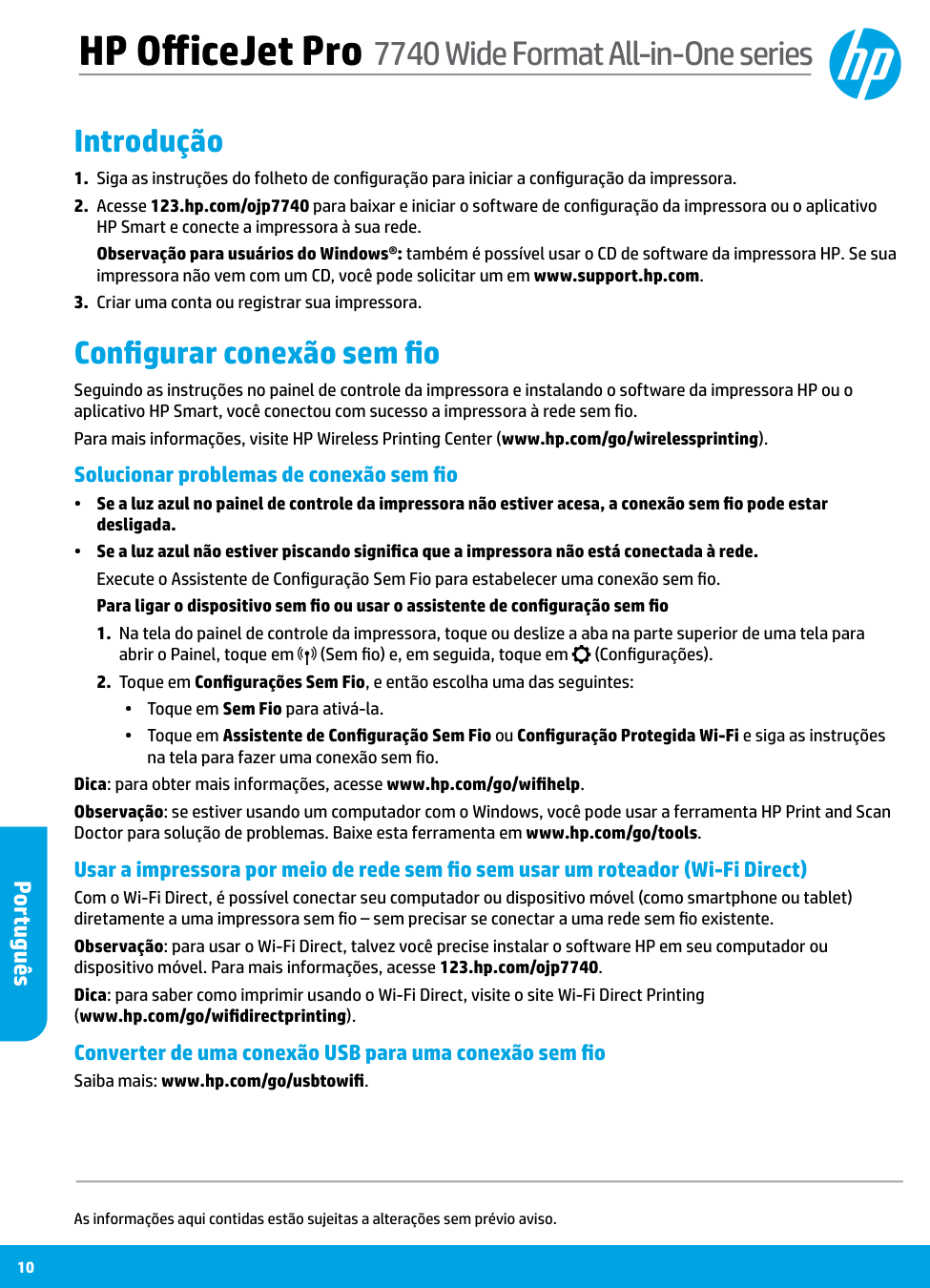
Introdução
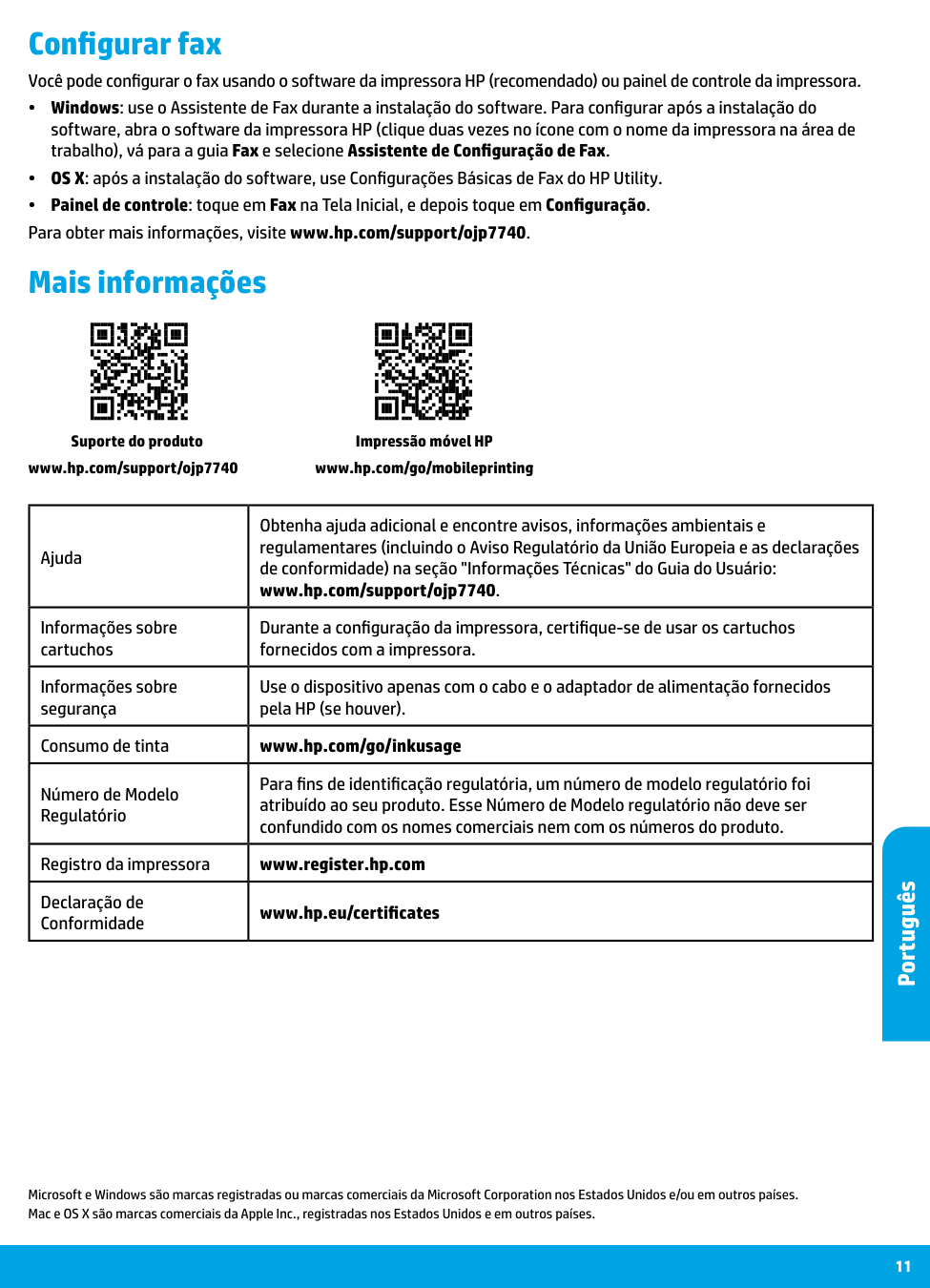
11 Microsoft e Windows são marcas registradas ou marcas comerciais da Microsoft Corporation nos Estados Unidos e/ou em outros países. Mac e OS X são marcas comerciais da Apple Inc., registradas nos Estados Unidos e em outros países. Configurar fax Você pode configurar o fax usando o software da impressora HP (recomendado) ou painel de controle da impressora. •• Windows: use o Assistente de Fax durante a instalação do software. Para configurar após a instalação do software, abra o software da impressora HP (clique duas vezes no ícone com o nome da impressora na área de trabalho), vá para a guia Fax e selecione Assistente de Configuração de Fax. •• OS X: após a instalação do software, use Configurações Básicas de Fax do HP Utility. •• Painel de controle: toque em Fax na Tela Inicial, e depois toque em Configuração. Para obter mais informações, visite www.hp.com/support/ojp7740. Mais informações Ajuda Obtenha ajuda adicional e encontre avisos, informações ambientais e regulamentares (incluindo o Aviso Regulatório da União Europeia e as declarações de conformidade) na seção "Informações Técnicas" do Guia do Usuário: www.hp.com/support/ojp7740. Informações sobre cartuchos Durante a configuração da impressora, certifique-se de usar os cartuchos fornecidos com a impressora. Informações sobre segurança Use o dispositivo apenas com o cabo e o adaptador de alimentação fornecidos pela HP (se houver). Consumo de tinta www.hp.com/go/inkusage Número de Modelo Regulatório Para fins de identificação regulatória, um número de modelo regulatório foi atribuído ao seu produto. Esse Número de Modelo regulatório não deve ser confundido com os nomes comerciais nem com os números do produto. Registro da impressora www.register.hp.com Declaração de Conformidade www.hp.eu/certificates Impressão móvel HP www.hp.com/go/mobileprinting Suporte do produto www.hp.com/support/ojp7740 Português
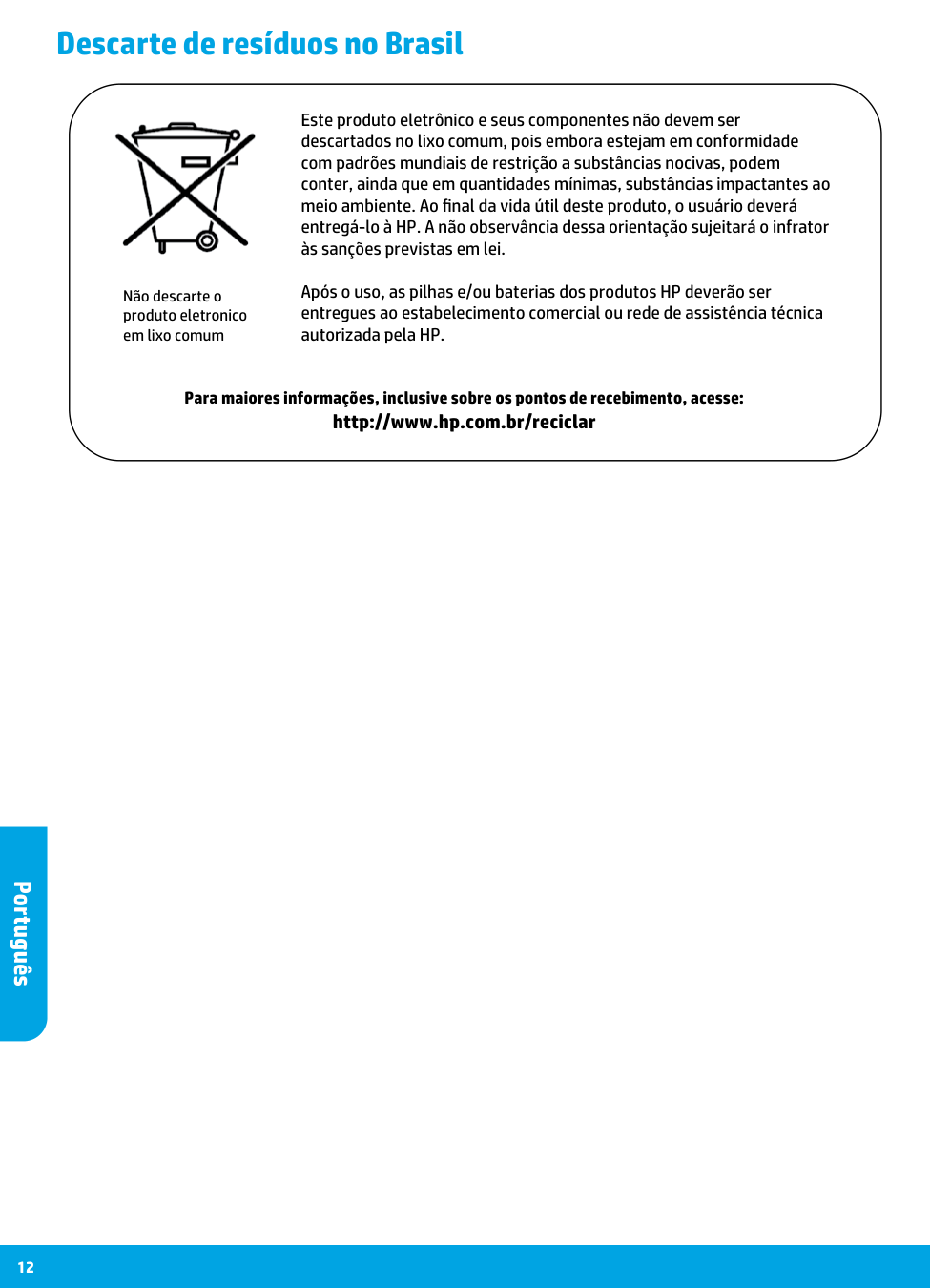
12 Descarte de resíduos no Brasil Não descarte o produto eletronico em lixo comum Para maiores informações, inclusive sobre os pontos de recebimento, acesse: http://www.hp.com.br/reciclar Este produto eletrônico e seus componentes não devem ser descartados no lixo comum, pois embora estejam em conformidade com padrões mundiais de restrição a substâncias nocivas, podem conter, ainda que em quantidades mínimas, substâncias impactantes ao meio ambiente. Ao final da vida útil deste produto, o usuário deverá entregá-lo à HP. A não observância dessa orientação sujeitará o infrator às sanções previstas em lei. Após o uso, as pilhas e/ou baterias dos produtos HP deverão ser entregues ao estabelecimento comercial ou rede de assistência técnica autorizada pela HP. Português