
HP Deskjet Ink Advantage 2700 All-in-One Printer
Ask AI
— answers from the official manualAnswers from the official manual.
Common questions
Common Questions
10 totalWhat should I do if my computer is too far from the printer during setup?
Move your computer or mobile device closer to the printer. Your device might be out of range of the printer's Wi-Fi signal. (Page 3)
Can I install HP Smart while connected to a VPN?
No, you cannot install HP Smart while connected to a VPN. You must disconnect from the VPN before installing the software from the Microsoft Store. You can reconnect to the VPN after finishing printer setup. Consider your location and the security of the Wi-Fi network before disconnecting from a VPN. (Page 3)
What should I do if the printer's Wi-Fi setup mode times out?
If the blue Wi-Fi light is not blinking, the printer is not in Wi-Fi setup mode. Press the Power button and Wireless button simultaneously and watch for the Power button to briefly flash, then release the buttons. The Wireless light will blink blue. Wait for one minute, close and reopen HP Smart, then try connecting again. (Page 3)
How do I know when the Wireless button indicates a successful connection?
The Wireless button/light indicates wireless connection status with a solid blue light when the printer is connected. The light blinks when the printer is disconnected or in setup mode. (Page 2)
What does the Ink Alert light indicate?
The Ink Alert light indicates low ink or cartridge problems. When this light is on, it means you need to check your ink levels or address any issues with the ink cartridges. (Page 2)
How do I increase the number of copies when using the copy buttons?
To increase the number of copies, press the desired button (Color Copy or Black and White Copy) multiple times. Each press will add one more copy to the job. (Page 2)
Full Manual
13 pages
Reference and Support [EN] HP DeskJet Ink Advantage 2700 All-in-One series
[Zhtw] 參考及支援
[ID] Referensi dan Dukungan[Th]
การอ้างอิงและการสนับสนุน [VI] Tài liệu Tham khảo và Hỗ trợ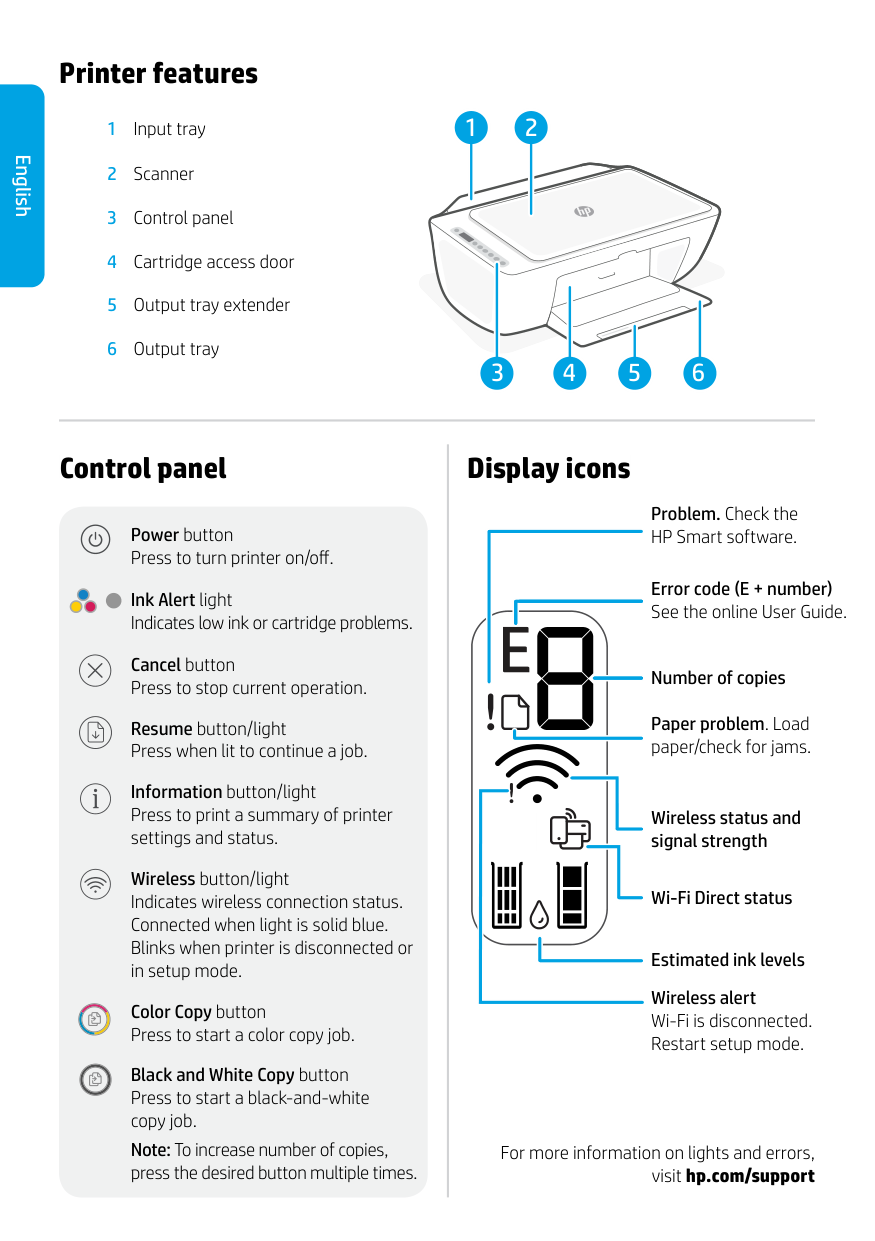
Control panel Printer features 1 Input tray 2 Scanner 3 Control panel 4 Cartridge access door 5 Output tray extender 6 Output tray For more information on lights and errors, visit hp.com/support 2 1 3 6 5 4 Problem. Check the HP Smart software. Error code (E + number) See the online User Guide. Number of copies Paper problem. Load paper/check for jams. Wireless status and signal strength Wi-Fi Direct status Estimated ink levels Display icons English Wireless alert Wi-Fi is disconnected. Restart setup mode. Power button Press to turn printer on/off. Ink Alert light Indicates low ink or cartridge problems. Cancel button Press to stop current operation. Resume button/light Press when lit to continue a job. Information button/light Press to print a summary of printer settings and status. Wireless button/light Indicates wireless connection status. Connected when light is solid blue. Blinks when printer is disconnected or in setup mode. Color Copy button Press to start a color copy job. Black and White Copy button Press to start a black-and-white copy job. Note: To increase number of copies, press the desired button multiple times.
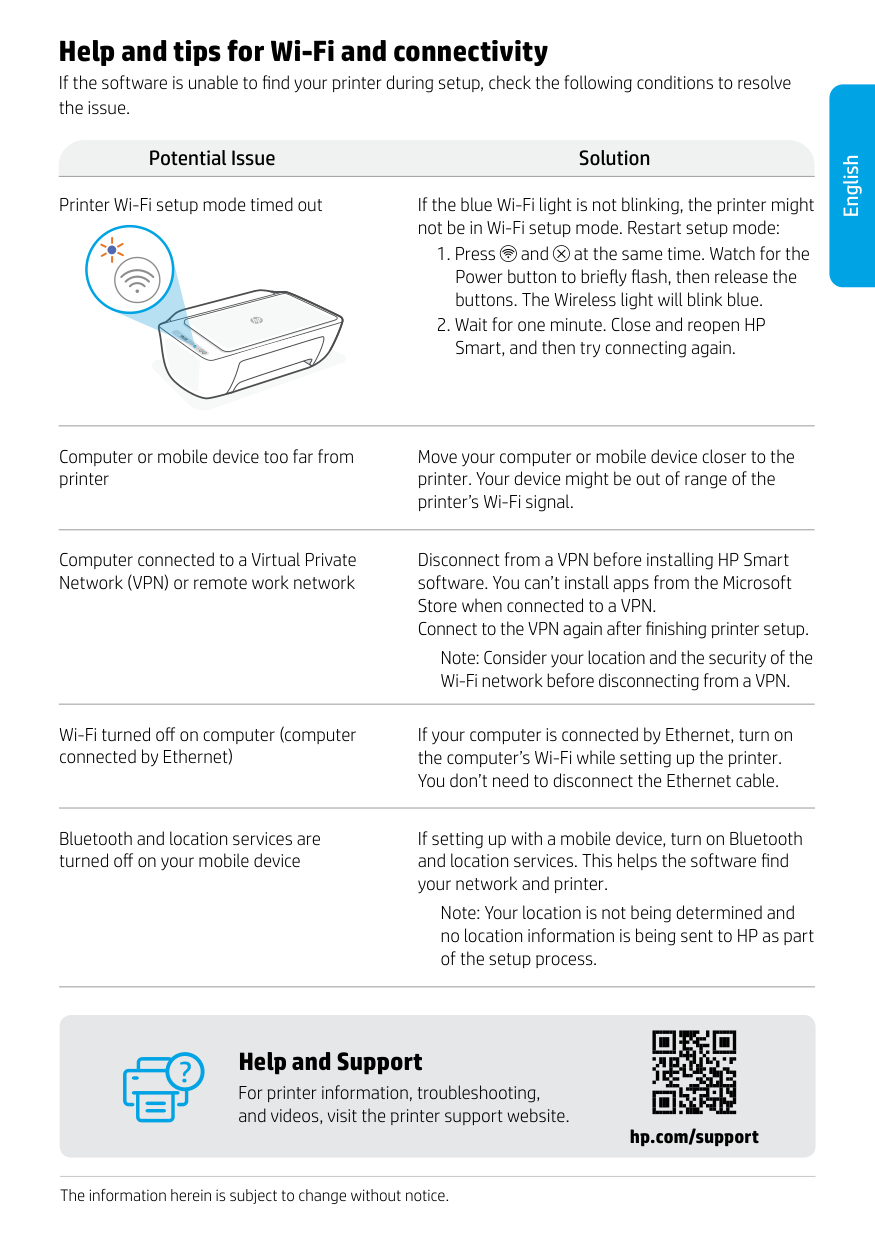
English Help and tips for Wi-Fi and connectivity If the software is unable to find your printer during setup, check the following conditions to resolve the issue. Printer Wi-Fi setup mode timed out If the blue Wi-Fi light is not blinking, the printer might not be in Wi-Fi setup mode. Restart setup mode:
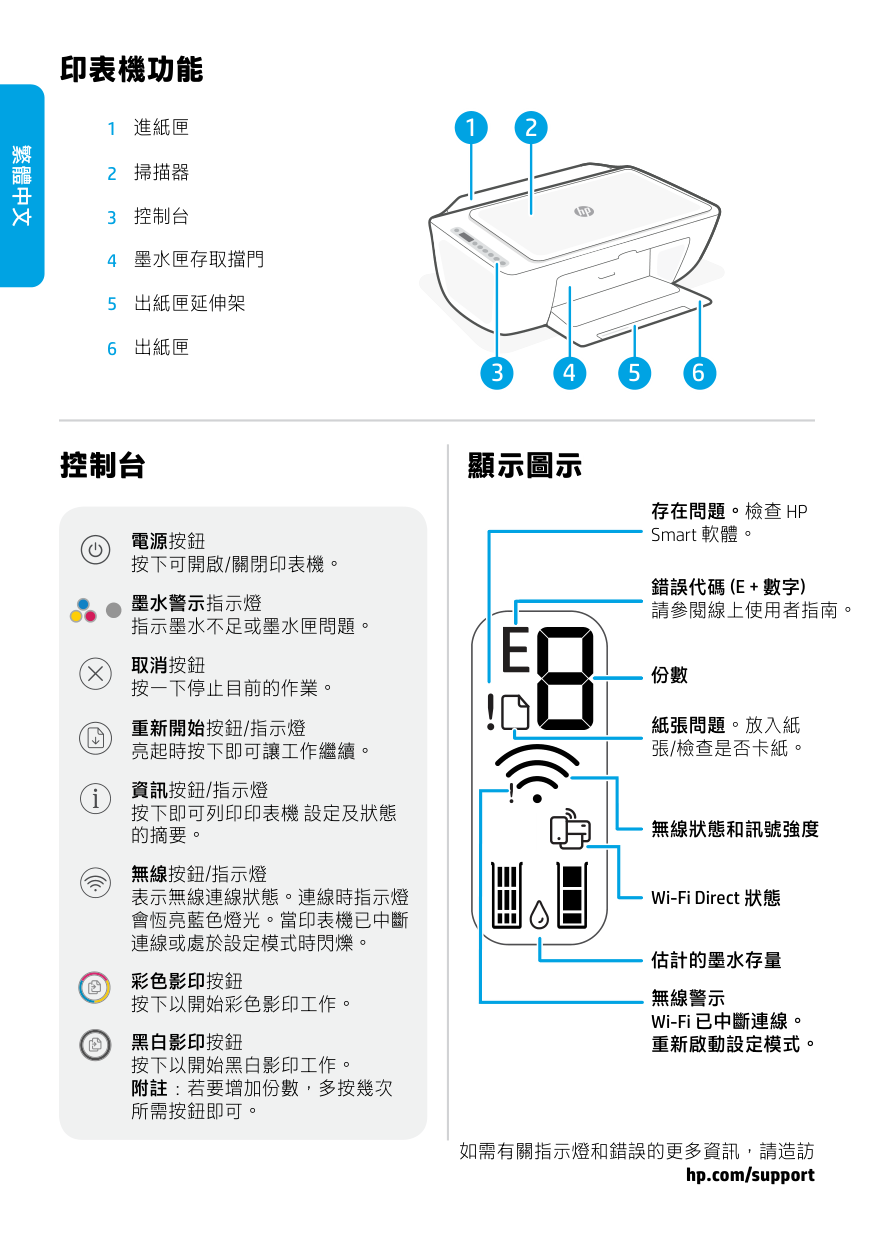
繁體中文 印表機功能 1 進紙匣 2 掃描器 3 控制台 4 墨水匣存取擋門 5 出紙匣延伸架 6 出紙匣 如需有關指示燈和錯誤的更多資訊,請造訪 hp.com/support 2 1 3 6 5 4 控制台 電源按鈕 按下可開啟/關閉印表機。 墨水警示指示燈 指示墨水不足或墨水匣問題。 取消按鈕 按一下停止目前的作業。 重新開始按鈕/指示燈 亮起時按下即可讓工作繼續。 資訊按鈕/指示燈 按下即可列印印表機 設定及狀態 的摘要。 無線按鈕/指示燈 表示無線連線狀態。連線時指示燈 會恆亮藍色燈光。當印表機已中斷 連線或處於設定模式時閃爍。 彩色影印按鈕 按下以開始彩色影印工作。 黑白影印按鈕 按下以開始黑白影印工作。 附註:若要增加份數,多按幾次 所需按鈕即可。
存在問題。檢查 Hp
Smart 軟體。錯誤代碼 (E + 數字)
請參閱線上使用者指南。 份數 紙張問題。放入紙 張/檢查是否卡紙。 無線狀態和訊號強度 Wi-Fi Direct 狀態 估計的墨水存量 無線警示 Wi-Fi 已中斷連線。 重新啟動設定模式。 顯示圖示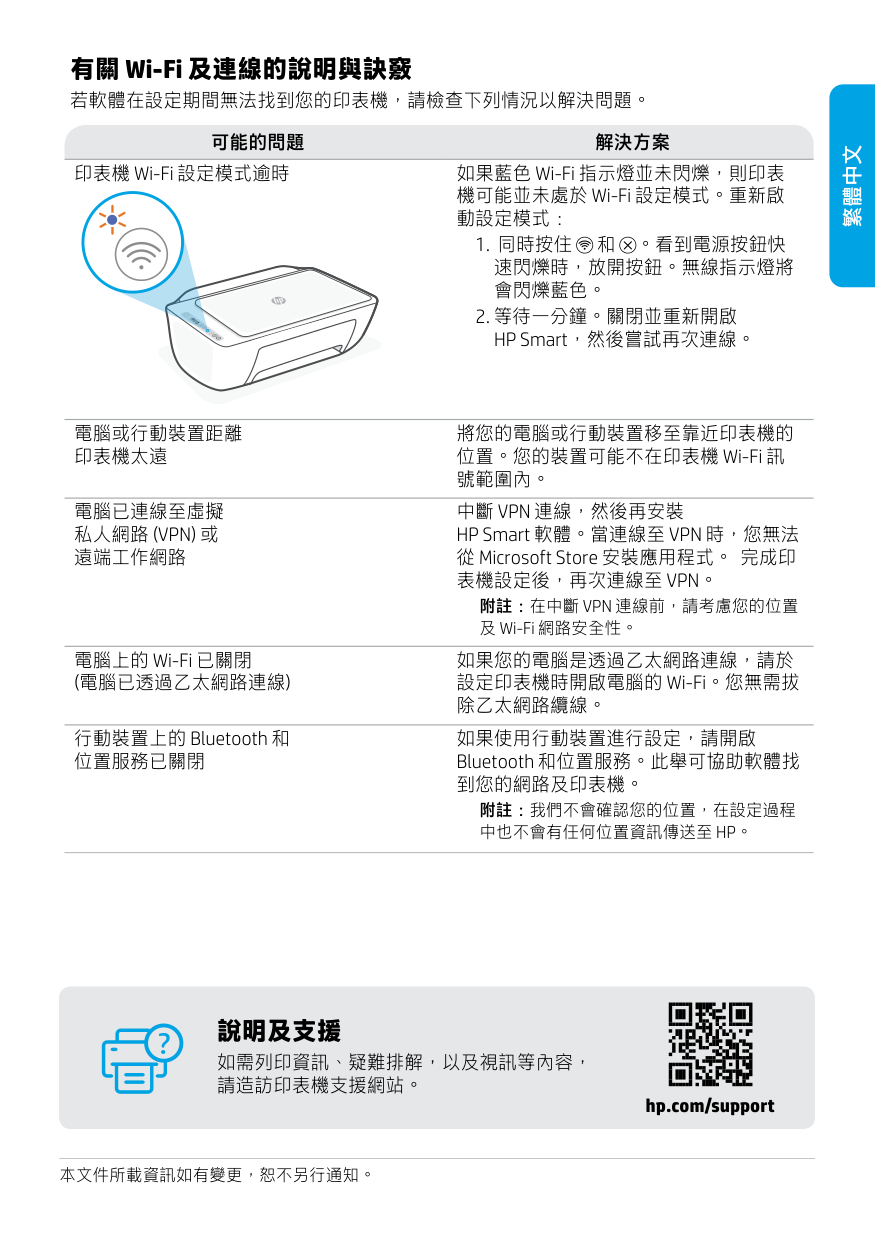
hp.com/support 說明及支援 如需列印資訊、疑難排解,以及視訊等內容, 請造訪印表機支援網站。 本文件所載資訊如有變更,恕不另行通知。 繁體中文 有關 Wi-Fi 及連線的說明與訣竅 若軟體在設定期間無法找到您的印表機,請檢查下列情況以解決問題。 可能的問題 解決方案 印表機 Wi-Fi 設定模式逾時 如果藍色 Wi-Fi 指示燈並未閃爍,則印表 機可能並未處於 Wi-Fi 設定模式。重新啟 動設定模式:
私人網路 (Vpn) 或
遠端工作網路中斷 Vpn 連線,然後再安裝
HP Smart 軟體。當連線至 VPN 時,您無法 從 Microsoft Store 安裝應用程式。 完成印表機設定後,再次連線至 Vpn。
附註:在中斷 Vpn 連線前,請考慮您的位置
及 Wi-Fi 網路安全性。 電腦上的 Wi-Fi 已關閉 (電腦已透過乙太網路連線) 如果您的電腦是透過乙太網路連線,請於 設定印表機時開啟電腦的 Wi-Fi。您無需拔 除乙太網路纜線。 行動裝置上的 Bluetooth 和 位置服務已關閉 如果使用行動裝置進行設定,請開啟 Bluetooth 和位置服務。此舉可協助軟體找 到您的網路及印表機。 附註:我們不會確認您的位置,在設定過程中也不會有任何位置資訊傳送至 Hp。

Bahasa Indonesia Panel kontrol Fitur printer 1 Baki masukan 2 Pemindai 3 Panel kontrol 4 Pintu akses kartrid 5 Pemanjang baki keluaran 6 Baki keluaran Untuk informasi lebih lanjut tentang lampu dan kesalahan, kunjungi hp.com/support 2 1 3 6 5 4 Masalah. Periksa perangkat lunak HP Smart. Kode kesalahan (E + nomor) Lihat Panduan Pengguna online. Jumlah salinan Masalah kertas. Masukkan kertas/ periksa kemacetan. Status nirkabel dan kekuatan sinyal Status Wi-Fi Direct Perkiraan level tinta Ikon tampilan Peringatan nirkabel Wi-Fi is terputus. Mulai ulang mode penyetelan. Tombol Daya Tekan untuk menyalakan/ mematikan printer. Lampu Peringatan Tinta Menunjukkan tinta hampir habis atau ada masalah pada kartrid. Tombol Batal Tekan untuk menghentikan operasi yang sedang berjalan. Tombol/lampu Lanjutkan Tekan saat lampu menyala untuk melanjutkan pekerjaan. Tombol/lampu Informasi Tekan untuk mencetak ringkasan pengaturan dan status printer. Tombol/lampu Nirkabel Menunjukkan status koneksi nirkabel. Terhubung saat lampu biru solid menyala. Berkedip saat printer terputus atau dalam mode penyetelan. Tombol Fotokopi Berwarna Tekan untuk memulai fotokopi berwarna. Tombol Fotokopi Hitam Putih Tekan untuk memulai fotokopi hitam putih. Catatan: Untuk menambah jumlah fotokopi, tekan tombol yang diinginkan beberapa kali.

Bahasa Indonesia hp.com/support Bantuan dan Dukungan Untuk mendapat informasi seputar printer, pemecahan masalah, dan video, kunjungi situs web dukungan printer. Informasi dalam dokumen ini dapat berubah tanpa pemberitahuan. Bantuan dan kiat untuk Wi-Fi dan konektivitas Jika perangkat lunak tidak dapat menemukan printer Anda selama penyetelan, periksa kondisi berikut untuk menyelesaikan masalah. Potensi Masalah Solusi Waktu mode penyetelan Wi-Fi printer telah habis Jika lampu Wi-Fi tidak berkedip biru, printer mungkin tidak dalam mode penyetelan Wi-Fi. Mulai ulang mode penyetelan:

Informasi Importir PT. Hewlett Packard Indonesia Gedung Perkantoran Prudential Center Kota Kasablanka Lantai 9, Jl. Casablanca Kav.88 Kel. Menteng Dalam, Kec. Tebet, Kota Administrasi Jakarta Selatan 12870 • HP DeskJet 2720 • HP DeskJet 2721 Petunjuk Pemeliharaan Petunjuk Pemeliharaan Lakukan prosedur pencegahan dasar setiap kali hendak menggunakan printer ini untuk mengurangi resiko cedera karena terbakar atau sengatan listrik:
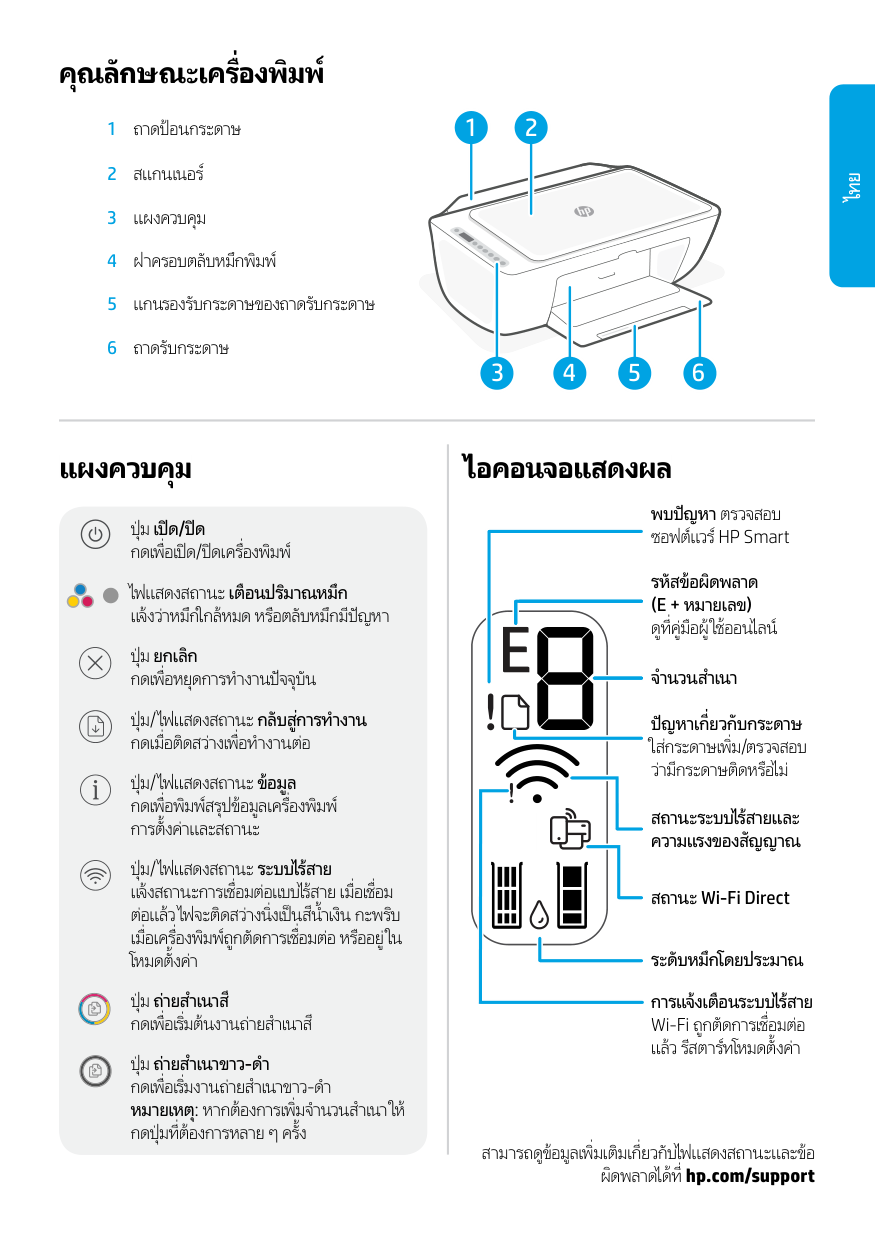
คุณลักษณะเครื่องพิมพ์ 1 ถาดป้อนกระดาษ 2 สแกนเนอร์ 3 แผงควบคุม 4 ฝาครอบตลับหมึกพิมพ์ 5 แกนรองรับกระดาษของถาดรับกระดาษ 6 ถาดรับกระดาษ สามารถดูข้อมูลเพิ่มเติมเกี่ยวกับไฟแสดงสถานะและข้อ ผิดพลาดได้ที่ hp.com/support 2 1 3 6 5 4 ไทย แผงควบคุม ปุ่ม เปิด/ปิด กดเพื่อเปิด/ปิดเครื่องพิมพ์ ไฟแสดงสถานะ เตือนปริมาณหมึก แจ้งว่าหมึกใกล้หมด หรือตลับหมึกมีปัญหา ปุ่ม ยกเลิก
กดเพื่อหยุดการทɅำงานปัจจุบัน
ปุ่ม/ ไฟแสดงสถานะ กลับสู่การทɅำงาน
กดเมื่อติดสว่างเพื่อทɅำงานต่อ
ปุ่ม/ ไฟแสดงสถานะ ข้อมูล กดเพื่อพิมพ์สรุปข้อมูลเครื่องพิมพ์ การตั้งค่าและสถานะ ปุ่ม/ ไฟแสดงสถานะ ระบบไร้สาย แจ้งสถานะการเชื่อมต่อแบบไร้สาย เมื่อเชื่อมต่อแล้ว ไฟจะติดสว่างนิ่งเป็นสีนɅ้ำเงิน กะพริบ
เมื่อเครื่องพิมพ์ถูกตัดการเชื่อมต่อ หรืออยู่ใน โหมดตั้งค่าปุ่ม ถ่ายสɅำเนาสี
กดเพื่อเริ่มต้นงานถ่ายสɅำเนาสี
ปุ่ม ถ่ายสɅำเนาขาว-ดɅำ
กดเพื่อเริ่มงานถ่ายสɅำเนาขาว-ดɅำ
หมายเหตุ: หากต้องการเพิ่มจɅำนวนสɅำเนา ให้
กดปุ่มที่ต้องการหลาย ๆ ครั้ง พบปัญหา ตรวจสอบ ซอฟต์แวร์ HP Smart รหัสข้อผิดพลาด(E + หมายเลข)
ดูที่คู่มือผู้ใช้ออนไลน์ จำ�นวนสำ�เนา ปัญหาเกี่ยวกับกระดาษ ใส่กระดาษเพิ่ม/ตรวจสอบ ว่ามีกระดาษติดหรือไม่ สถานะระบบไร้สายและ ความแรงของสัญญาณ สถานะ Wi-Fi Direct ระดับหมึกโดยประมาณ การแจ้งเตือนระบบไร้สาย Wi-Fi ถูกตัดการเชื่อมต่อ แล้ว รีสตาร์ทโหมดตั้งค่า ไอคอนจอแสดงผล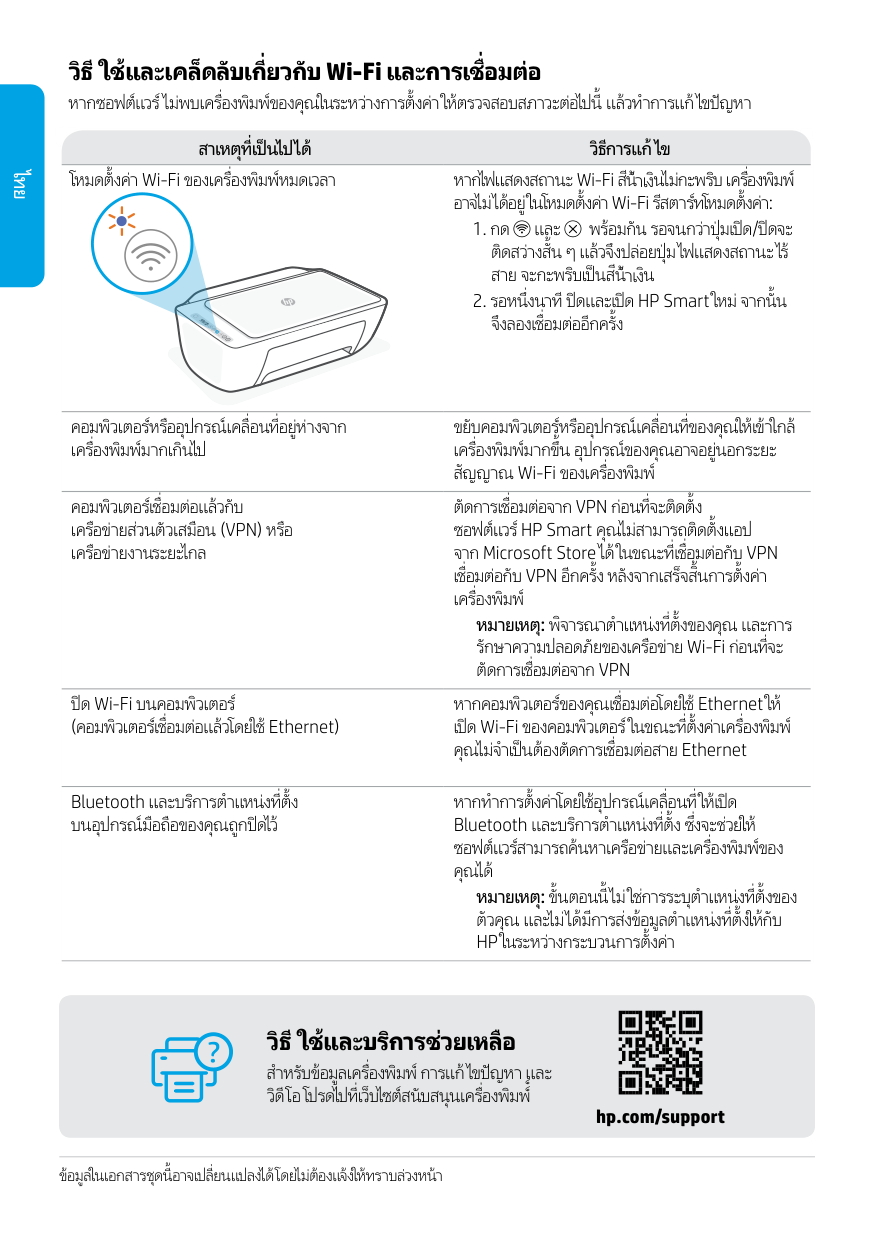
ไทย hp.com/support วิธีใช้และบริการช่วยเหลือ สำ�หรับข้อมูลเครื่องพิมพ์ การแก้ไขปัญหา และ วิดีโอ โปรดไปที่เว็บไซต์สนับสนุนเครื่องพิมพ์์ ข้อมูลในเอกสารชุดนี้อาจเปลี่ยนแปลงได้โดยไม่ต้องแจ้งให้ทราบล่วงหน้า วิธีใช้และเคล็ดลับเกี่ยวกับ Wi-Fi และการเชื่อมต่อ หากซอฟต์แวร์ไม่พบเครื่องพิมพ์ของคุณในระหว่างการตั้งค่า ให้ตรวจสอบสภาวะต่อไปนี้ แล้วทำ�การแก้ไขปัญหา สาเหตุที่เป็นไปได้ วิธีการแก้ไข โหมดตั้งค่า Wi-Fi ของเครื่องพิมพ์หมดเวลา หากไฟแสดงสถานะ Wi-Fi สีน้ำ�เงินไม่กะพริบ เครื่องพิมพ์ อาจไม่ได้อยู่ในโหมดตั้งค่า Wi-Fi รีสตาร์ทโหมดตั้งค่า:
เครือข่ายส่วนตัวเสมือน (Vpn) หรือ
เครือข่ายงานระยะไกลตัดการเชื่อมต่อจาก Vpn ก่อนที่จะติดตั้ง
ซอฟต์แวร์ HP Smart คุณไม่สามารถติดตั้งแอป จาก Microsoft Store ได้ ในขณะที่เชื่อมต่อกับ VPNเชื่อมต่อกับ Vpn อีกครั้ง หลังจากเสร็จสิ้นการตั้งค่า
เครื่องพิมพ์ หมายเหตุ: พิจารณาตำ�แหน่งที่ตั้งของคุณ และการ รักษาความปลอดภัยของเครือข่าย Wi-Fi ก่อนที่จะตัดการเชื่อมต่อจาก Vpn
ปิด Wi-Fi บนคอมพิวเตอร์ (คอมพิวเตอร์เชื่อมต่อแล้วโดยใช้ Ethernet) หากคอมพิวเตอร์ของคุณเชื่อมต่อโดยใช้ Ethernet ให้ เปิด Wi-Fi ของคอมพิวเตอร์ในขณะที่ตั้งค่าเครื่องพิมพ์ คุณไม่จำ�เป็นต้องตัดการเชื่อมต่อสาย Ethernet Bluetooth และบริการตำ�แหน่งที่ตั้ง บนอุปกรณ์มือถือของคุณถูกปิดไว้ หากทำ�การตั้งค่าโดยใช้อุปกรณ์เคลื่อนที่ ให้เปิด Bluetooth และบริการตำ�แหน่งที่ตั้ง ซึ่งจะช่วยให้ ซอฟต์แวร์สามารถค้นหาเครือข่ายและเครื่องพิมพ์ของ คุณได้ หมายเหตุ: ขั้นตอนนี้ไม่ใช่การระบุตำ�แหน่งที่ตั้งของ ตัวคุณ และไม่ได้มีการส่งข้อมูลตำ�แหน่งที่ตั้งให้กับHp ในระหว่างกระบวนการตั้งค่า

Bảng điều khiển Tính năng của Máy in 1 Khay tiếp giấy 2 Máy quét 3 Bảng điều khiển 4 Cửa tháo lắp hộp mực 5 Khay ra của khay giấy ra 6 Khay giấy ra Để biết thêm thông tin về các đèn và sự cố, vui lòng truy cập hp.com/support 2 1 3 6 5 4 Nút Power (Nguồn) Nhấn để bật/tắt máy in. Đèn Ink Alert (Cảnh báo mực) Cho biết còn ít mực hay có các vấn đề về hộp mực. Nút Cancel (Hủy bỏ) Nhấn để dừng thao tác hiện tại. Nút/đèn Resume (Tiếp tục) Nhấn khi sáng để tiếp tục một lệnh. Nút/đèn Information (Thông tin) Nhấn để in bản thông tin tóm tắt về cài đặt và trạng thái của máy in. Nút/đèn Wireless (Không dây) Cho biết trạng thái kết nối không dây. Khi đèn sáng liên tục màu xanh dương tức là đã kết nối. Nhấp nháy khi máy in ngắt kết nối hoặc đang ở chế độ cài đặt. Nút Color Copy (Photocopy màu) Nhấn để bắt đầu tác vụ photocopy màu. Nút Black and White Copy (Photocopy đen trắng) Nhấn để bắt đầu tác vụ photocopy đen trắng. Lưu ý: Để tăng số bản photocopy, hãy nhấn nút này nhiều lần. Sự cố. Kiểm tra phần mềm HP Smart. Mã lỗi (E + số) Xem Hướng dẫn sử dụng trực tuyến. Số bản sao Sự cố về giấy. Nạp giấy/ kiểm tra xem có bị kẹt hay không. Trạng thái không dây và cường độ tín hiệu Wi-Fi direct status (Trạng thái Wi-Fi direct) Mức mực ước tính Cảnh báo không dây Wi-Fi đã ngắt kết nối. Khởi động lại chế độ cài đặt. Biểu tượng hiển thị Tiếng Việt

hp.com/support Trợ giúp và Hỗ trợ Để biết thông tin về máy in, quy trình xử lý sự cố và xem các video, vui lòng truy cập trang web hỗ trợ máy in. Thông tin trong tài liệu này có thể thay đổi mà không cần thông báo. Tiếng Việt Trợ giúp và mẹo dành cho Wi-Fi và khả năng kết nối Nếu phần mềm không thể tìm thấy máy in của bạn trong quá trình cài đặt, hãy kiểm tra các điều kiện sau đây để xử lý sự cố. Sự cố có thể xuất hiện Giải pháp Đã hết thời gian chờ chế độ cài đặt Wi-Fi máy in Nếu đèn Wi-Fi màu xanh dương không nhấp nháy, có thể máy in đang không ở chế độ cài đặt Wi-Fi. Khởi động lại chế độ cài đặt:
Microsoft and Windows are either registered trademarks or trademarks of Microsoft Corporation in the United Stated and/or other countries. Mac, OS X, macOS, and AirPrint are trademarks of Apple Inc., registered in the U.S. and other countries. Android is a trademark of Google LLC. iOS is a trademark or registered trademark of Cisco in the U.S. and other countries and is used under license. © Copyright 2021 HP Development Company, L.P.