
Ask AI
— answers from the official manualAnswers from the official manual.
Common questions
Common Questions
36 totalWhat does it mean when the wireless light is blinking slowly on my HP Envy Photo 7100?
A slow blinking wireless light indicates that wireless is on, but the printer is not connected to a network. You should make sure your printer is within the range of the wireless signal. (Page 1)
What does a fast blinking wireless light mean on the HP Envy Photo 7100?
A fast blinking wireless light indicates a wireless error. You should refer to the message on the printer display for more details about the specific error. (Page 1)
How do I restore the network settings on my HP Envy Photo 7100 if I cannot connect to Wi-Fi?
Open the Dashboard, touch the Wireless icon, touch Settings, and then touch Restore Network Settings. After restoring, reinstall the printer software or app from 123.hp.com. (Page 1)
Is Wi-Fi Direct secure by default on the HP Envy Photo 7100?
By default, Wi-Fi Direct is set to 'Automatic' mode without an administrator password, which allows anyone within wireless range to connect and access all printer functions. If higher security is desired, HP recommends changing the Wi-Fi Direct Connection Method from 'Automatic' to 'Manual' and setting an administrator password through the printer's embedded web server (EWS). (Page 2)
What power cord should I use with the HP Envy Photo 7100?
You should only use the power cord and power adapter supplied by HP. Using third-party power accessories is not recommended for safety reasons. (Page 2)
How do I share my HP Envy Photo 7100 with multiple devices on my network?
After connecting the printer to your wireless network, you can share it with multiple computers and mobile devices on the same network. Simply install the HP Smart app or printer software from 123.hp.com on each device you want to print from. (Page 2)
Show 30 more questions
What is the warranty period for the HP Envy Photo 7100 printer hardware and ink cartridges?
What does the wireless light on my HP Envy Photo 7100 mean?
How do I restore the network settings on my HP Envy Photo 7100?
Can I use the HP Envy Photo 7100 without a router using Wi-Fi Direct?
Is Wi-Fi Direct secure on the HP Envy Photo 7100?
How do I scan with the HP Envy Photo 7100?
What should I do if my HP Envy Photo 7100 won't print?
What power cord or adapter should I use with the HP Envy Photo 7100?
What is the warranty period for the HP Envy Photo 7100 and its ink cartridges?
What does the wireless light indicator mean when it's blinking slowly?
How do I set up my HP Envy Photo 7100 to connect to a wireless network?
What should I do if I cannot connect the printer to my wireless network?
What are the basic troubleshooting steps if my printer isn't working properly?
Can I use non-HP ink cartridges in the HP Envy Photo 7100?
What is the limited warranty period for the HP Envy Photo 7100 printer?
What safety precaution should I take when powering the printer?
How can I share the HP Envy Photo 7100 with multiple devices on my network?
Where can I find additional help and support for the HP Envy Photo 7100?
How do I access the dashboard on my printer?
How do I set up the HP Envy Photo 7100 wirelessly?
Can I use the HP Envy Photo 7100 without a wireless router using Wi-Fi Direct?
Does using a non-HP ink cartridge void the warranty on my HP Envy Photo 7100?
How do I set up my HP Envy Photo 7100 for Wi-Fi?
What steps should I take if my printer has a print failure and needs troubleshooting?
How do I check if the printer is properly connected to my home network?
What additional security settings can I configure on my printer?
How can I convert a USB connected printer to wireless?
Where do I find instructional videos for using my HP Envy Photo 7100?
If I can't connect my printer to Wi-Fi, what is next step?
Can my HP Envy Photo 7100 work without being connected to a router?
Full Manual
8 pages
HP ENVY Photo 7100 All-in-One series
Need help? www.hp.com/support/ENVY7100
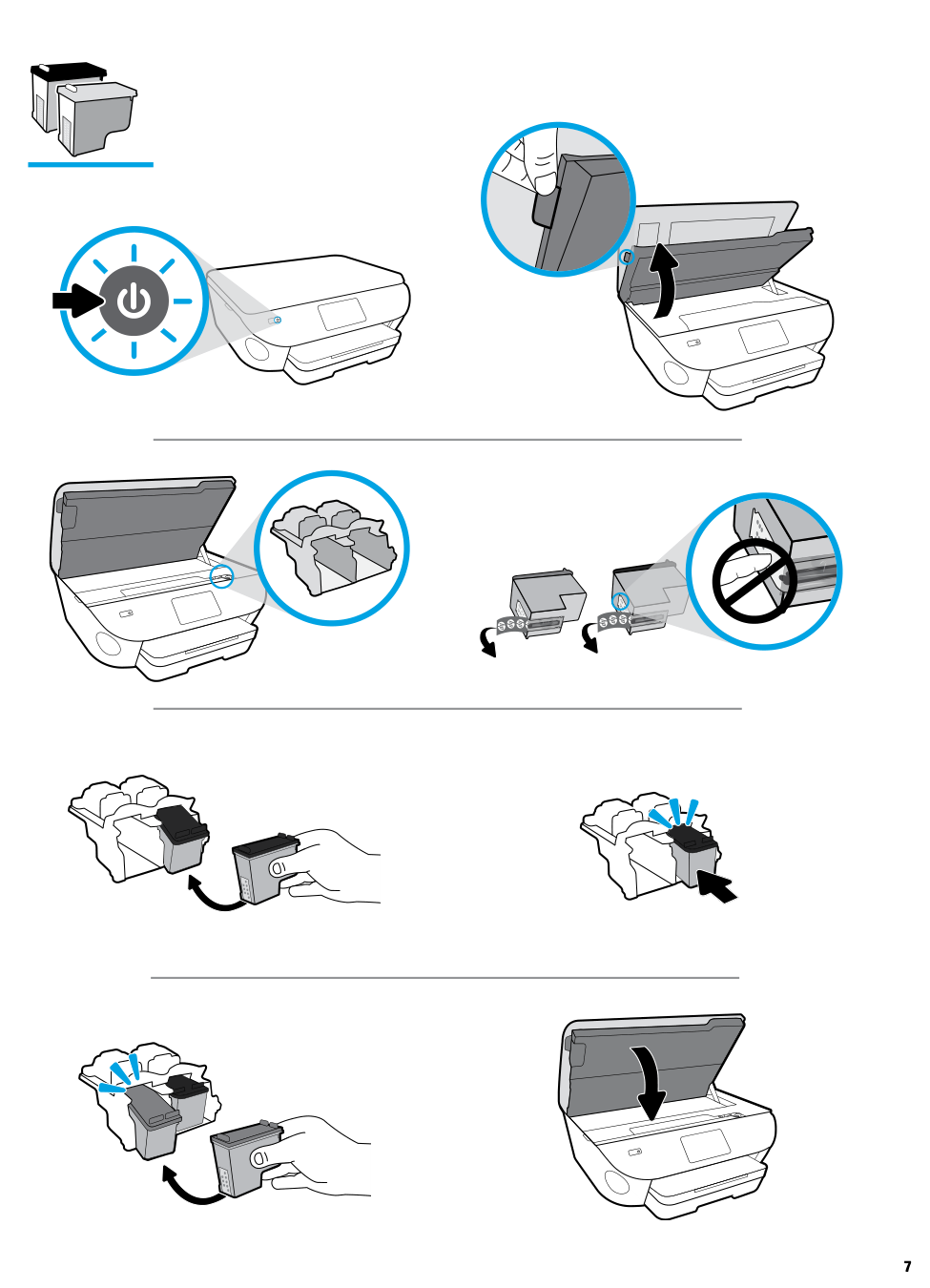
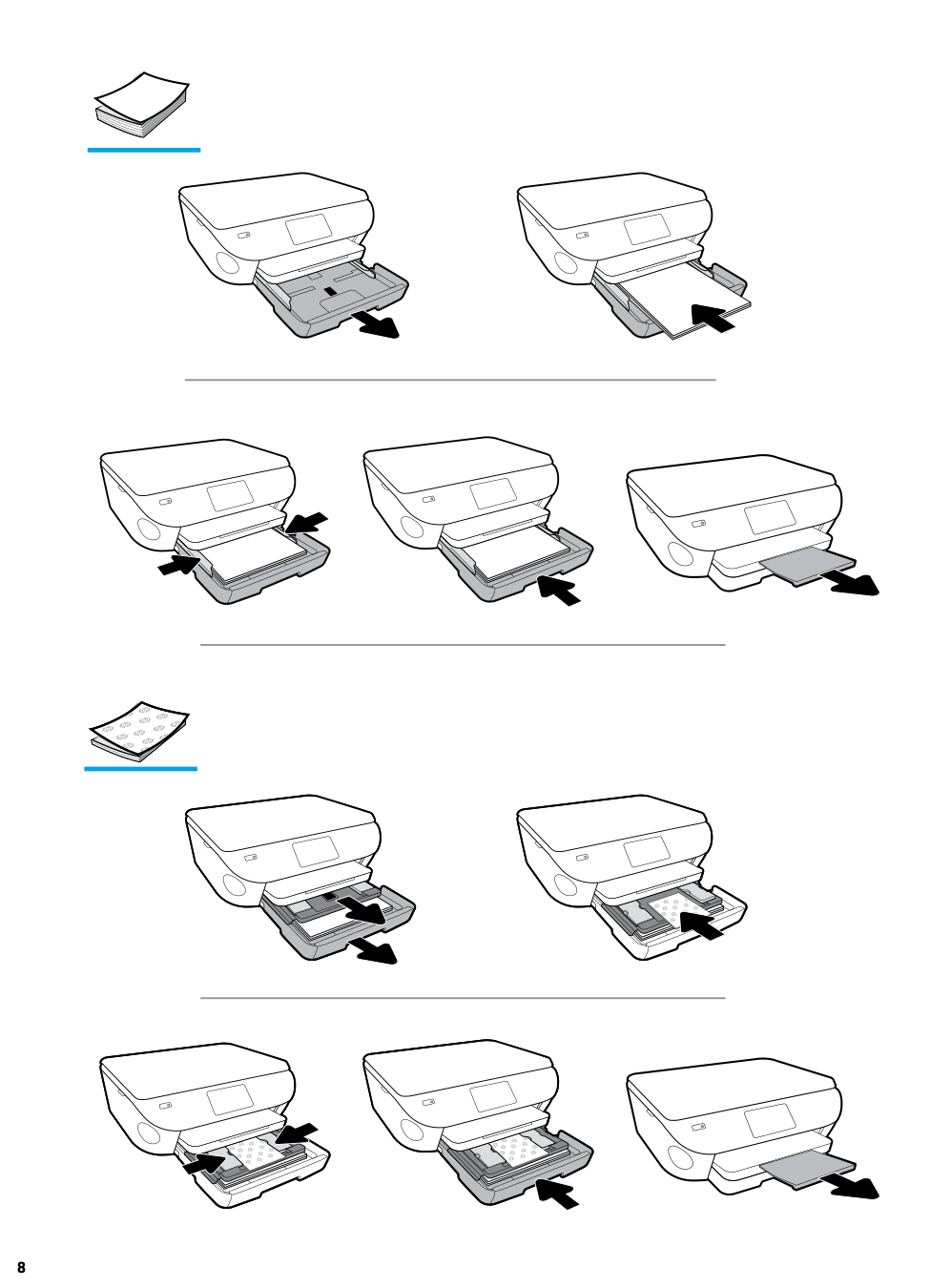
On Home screen, touch Help button and then touch How to Videos to view help videos such as loading paper and replacing cartridges.
English
Scan: Use the HP Smart app or printer software to scan. Find more information about scanning at www.hp.com/support/ENVY7100.
Wireless setup help Go to 123.hp.com to download and install the HP Smart app or printer software. Both the app and software will help you connect to your wireless network (2.4GHz and 5GHz supported). For more information, visit www.hp.com/go/wirelessprinting. Note for Windows® users: You may also order a printer software CD. Please visit www.support.hp.com. Tip: If you are unable to connect the printer to the wireless network, restore the printer network setting and reinstall from 123.hp.com. Open the dashboard, touch (Wireless), touch (Settings), and then touch Restore Network Settings. Unable to connect the printer to your network at 123.hp.com? Learn more: www.hp.com/go/wificonnect

Z3M41-90006
Printed in [English]
EN ZHTW
© Copyright 2018 HP Development Company, L.P. The information contained herein is subject to change without notice.
Share the printer with computers and other devices on your network After connecting the printer to your wireless network, you can share it with multiple computers and mobile devices on the same network. On each device, install the HP Smart app or printer software from 123.hp.com. Convert from a USB connection to wireless connection Learn more: www.hp.com/go/usbtowifi. Use the printer wirelessly without a router (Wi-Fi Direct) Make sure Wi-Fi Direct is enabled. To check the status of Wi-Fi Direct, network name and password, open the Dashboard, and then touch (Wi-Fi). Learn more: www.hp.com/go/wifidirectprinting. This product is designed for use in open environments (for example, in homes and not connected to the public Internet) in which anyone might access and use the printer. As a result, the Wi-Fi Direct setting is in “Automatic” mode by default, without an administrator password, which allows anyone in wireless range to connect and access all functions and settings of the printer. If higher security levels are desired, HP recommends changing the Wi-Fi Direct Connection Method from “Automatic” to “Manual” and establishing an administrator password. You can change the security settings from the printer home page (embedded web server or EWS). For help on EWS, refer to the user guide on www.hp.com/support/ENVY7100.
English
Basic troubleshooting
Note for Windows® users: Visit HP Diagnostic Tools at www.hp.com/go/tools to fix common printer problems.
Learn more Get additional help and find notices, environmental, and regulatory information, including the European Union Regulatory Notice, North America EMC, Wireless and Telecom statements, and other compliance statements, in the “Technical Information” section of the User Guide: www.hp.com/support/ENVY7100. Printer registration: www.register.hp.com. Declaration of Conformity: www.hp.eu/certificates. Ink usage: www.hp.com/go/inkusage.
Product support www.hp.com/support/ENVY7100
HP mobile printing www.hp.com/go/mobileprinting

Safety information Use only with the power cord and power adapter (if provided) supplied by HP. Regulatory Model Number: For regulatory identification purposes, your product is assigned with a Regulatory Model Number. The Regulatory Model Number should not be confused with the marketing name or product numbers.
2
Microsoft and Windows are either registered trademarks or trademarks of Microsoft Corporation in the United States and/or other countries. Mac, OS X, and macOS are trademarks of Apple Inc., registered in the U.S. and other countries.
HP printer limited warranty statement
HP Product Limited Warranty Period Software Media 90 days Printer 1 year hardware warranty Print or Ink cartridges Until the HP ink is depleted or the “end of warranty” date
printed on the cartridge has been reached, whichever occurs first. This warranty does not cover HP ink products that have been refilled, remanufactured, refurbished, misused, or tampered with.

HP Limited Warranty
Visit www.support.hp.com to access warranty support including troubleshooting tips, diagnostics tools, software and drivers, product information, and how-to videos. Support options like chat and forums are also accessible from this website.
The HP limited Warranty is a commercial guarantee voluntarily provided by HP. The name and address of the HP entity responsible for the performance of the HP Limited Warranty in your country is as follows:
U.K: HP Inc UK Limited, Cain Road, Amen Corner, Bracknell, Berkshire, RG12 1HN Ireland: Hewlett-Packard Ireland Limited, Liffey Park Technology Campus, Barnhall Road, Leixlip, Co.Kildare Malta: Hewlett-Packard Europe B.V., Amsterdam, Meyrin Branch, Route du Nant-d’Avril 150, 1217 Meyrin, Switzerland
United Kingdom: The HP Limited Warranty benefits apply in addition to any legal rights to a guarantee from a seller of nonconformity of goods with the contract of sale. These rights expire six years from delivery of goods for products purchased in England or Wales and five years from delivery of goods for products purchased in Scotland. However, various factors may impact your eligibility to receive these rights. For further information, please consult the following link: Consumer Legal Guarantee or you may visit the European Consumer Centers website.Consumers have the right to choose whether to claim service under the HP Limited Warranty or against the seller under the legal guarantee.

Ireland: The HP Limited Warranty benefits apply in addition to any statutory rights from seller in relation to nonconformity of goods with the contract of sale. However various factors may impact your eligibility to receive these rights. Consumer statutory rights are not limited or affected in any manner by HP Care Pack. For further information, please consult the following link: Consumer Legal Guarantee or you may visit the European Consumer Centers website.Consumers have the right to choose whether to claim service under the HP Limited Warranty or against the seller under the legal guarantee.
Malta: The HP Limited Warranty benefits apply in addition to any legal rights to a two-year guarantee from seller of nonconformity of goods with the contract of sale; however various factors may impact your eligibility to receive these rights. Consumer statutory rights are not limited or affected in any manner by the HP Limited Warranty. For further information, please consult the following link: Consumer Legal Guarantee or you may visit the European Consumer Centers website. Consumers have the right to choose whether to claim service under the HP Limited Warranty or against the seller under two-year legal guarantee.
For further information, please consult the following link: Consumer Legal Guarantee (www.hp.com/go/eu-legal) or you may visit the European Consumer Centers website(http://ec.europa.eu/consumers/solving_consumer_disputes/non-judicial_redress/ecc-net).
English
HP ENVY Photo 7100 All-in-One series
需要協助?www.hp.com/support/ENVY7100
繁體中文
在主畫面上,輕觸說明按鈕,然後輕觸如何觀看視訊來觀看說明視訊,例如裝入紙張和 更換墨水匣。

掃描:使用 HP Smart 應用程式或印表機軟體來執行掃描。如需關於掃描的更多資訊,請造訪 www.hp.com/support/ENVY7100。
無線設定說明 請造訪 123.hp.com 下載並安裝 HP Smart 應用程式或印表機軟體。應用程式和軟體都能幫助您連線到您的 無線網路 (支援 2.4GHz 和 5GHz)。如需更多資訊,請造訪:www.hp.com/go/wirelessprinting。 適用於 Windows® 使用者的注意事項:您也可以訂購印表機軟體 CD。請造訪 www.support.hp.com。 提示:若您無法讓印表機連線至無線網路,請還原印表機網路設定,然後從 123.hp.com 重新安裝必要項 目。開啟儀表板,依序輕觸 (無線)、 (設定) 和還原網路設定。 無法在 123.hp.com 上將印表機連線至網路? 瞭解更多:www.hp.com/go/wificonnect
本文件中包含的資訊如有變更,恕不另行通知。
與網路上的電腦和其他裝置共用印表機 印表機連線至無線網路之後,您可以與相同網路中的多台電腦和行動裝置共用印表機。從 123.hp.com 在每 一部裝置上安裝 HP Smart 應用程式或印表機軟體。 從 USB 連線轉換為無線連線 瞭解更多:www.hp.com/go/usbtowifi。 不透過路由器,以無線方式使用印表機 (Wi-Fi Direct) 確認 Wi-Fi Direct 已啟動。若要查看 Wi-Fi Direct 狀態、網路名稱和密碼,請開啟儀表板,接著輕觸 (Wi-Fi)。 瞭解更多:www.hp.com/go/wifidirectprinting。 本產品專為在開放環境 (例如,家裡以及未連線至公用 Internet) 使用而設計,任何人都可以在這些環境中存 取和使用印表機。因此,「Wi-Fi Direct」設定預設為「自動」模式,不需要管理員密碼,這使無線範圍內的 任何人都可以連線並存取印表機的所有功能和設定。如果需要更高的安全性層級,HP 建議將 Wi-Fi Direct 「連線方法」從「自動」變更為「手動」,並建立管理員密碼。您可以從印表機首頁 (內嵌式 Web 伺服器或 EWS) 變更安全性設定。如需有關 EWS 的說明,請參閱 www.hp.com/support/ENVY7100 上的使用者指南。
基本疑難排解
繁體中文
#### 適用於 Windows® 使用者的注意事項:請造訪位於 www.hp.com/go/tools 的 HP 診斷工具,以修正常見的印 表機問題。
瞭解更多 在使用者指南的「技術資訊」一節中,可取得額外的協助並尋找聲明、環境和法規資訊,包括歐盟法規聲 明、北美電磁相容性 (EMC)、無線與通訊聲明,以及其他合規聲明:www.hp.com/support/ENVY7100。印表機 註冊:www.register.hp.com。符合性聲明:www.hp.eu/certificates。墨水用量:www.hp.com/go/inkusage。
產品支援 www.hp.com/support/ENVY7100
HP 行動列印 www.hp.com/go/mobileprinting
安全資訊 只可使用 HP 提供的電源線與電源變壓器 (如果已提供)。 法規型號:為用於法規識別,您的產品具有一個法規型號。請勿將法規型號與行銷名稱或產品編號混淆。
Microsoft 和 Windows 是 Microsoft Corporation 在美國及/或其他國家/地區的註冊商標或商標。Mac、OS X 和 macOS 是 Apple Inc. 在美國及其他 國家/地區的註冊商標。
HP 印表機有限保固聲明
繁體中文
|HP| | |---|---| | |90| | |1| | |HP
HP|
HP
HP HP HP
HP ( )
HP HP
HP HP /