
Ask AI
— answers from the official manualAnswers from the official manual.
Common questions
Common Questions
27 totalHow do I set up the HP OfficeJet 3830 wirelessly?
Visit 123.hp.com/setup to install the HP Smart app or HP printer software to connect the printer to your network (2.4 GHz supported). Windows users can also use the HP printer software CD; if your printer did not come with a CD, you may order one from www.support.hp.com. If the connection is unsuccessful, visit www.hp.com/go/wifihelp for assistance.
What does the wireless light on the printer indicate?
A solid blue light indicates that a wireless connection has been established and you can print. A slow blinking light means wireless is on but the printer is not connected to a network, while a fast blinking light indicates a wireless error — check the message on the printer display. If wireless is turned off, the light will be off and the display will show 'Wireless Off'.
How do I use the printer wirelessly without a router?
You can use Wi-Fi Direct to print without a router — make sure Wi-Fi Direct is enabled first. To check the status, network name, and password, touch the Wi-Fi Direct icon and then the Settings icon on the printer control panel display. For more information, visit www.hp.com/go/wifidirectprinting.
Is it safe to leave Wi-Fi Direct in its default mode?
By default, Wi-Fi Direct is set to 'Automatic' mode without an administrator password, which allows anyone within wireless range to connect and access all printer functions and settings. If higher security is desired, HP recommends changing the Wi-Fi Direct Connection Method from 'Automatic' to 'Manual' and establishing an administrator password. Security settings can be changed from the printer's embedded web server (EWS).
What should I do if my printer is not printing correctly?
First, make sure you have installed the latest HP Smart app or printer software from 123.hp.com. If using a USB cable, ensure it is securely connected and the printer is set as the default printer. If using a wireless connection, confirm that the printer is connected to the same network as the device you are printing from. Windows users can also visit HP Diagnostic Tools at www.hp.com/go/tools to fix common printer problems.
What power cord and adapter should I use with the HP OfficeJet 3830?
You should use only the power cord and power adapter (if provided) supplied by HP. This is stated as a safety requirement in the manual. Using third-party power accessories is not recommended.
Show 21 more questions
Does using a non-HP or refilled ink cartridge void the printer warranty?
What is the warranty period for the HP OfficeJet 3830 printer and its ink cartridges?
Do HP ink cartridges store any information about how I use the printer?
How do I set up the HP OfficeJet 3830 on a wireless network?
What does it mean when the wireless light is blinking fast on my OfficeJet 3830?
What does it mean when the wireless light is blinking slowly?
How do I use the OfficeJet 3830 wirelessly without a router?
Is it safe to leave Wi-Fi Direct in its default mode, and how can I make it more secure?
What should I do if my HP OfficeJet 3830 is not printing correctly?
What power cord or adapter should I use with the HP OfficeJet 3830?
Does using a non-HP or refilled ink cartridge void the warranty on the OfficeJet 3830?
What should I do if my wireless connection is unsuccessful?
How do I use Wi-Fi Direct printing without a router?
How do I set up fax on the HP OfficeJet 3830?
How do I set up wireless printing on the HP OfficeJet 3830?
What does the wireless light indicator mean on the control panel?
What is the recommended security setting for Wi-Fi Direct?
How do I convert from a USB connection to wireless connection?
What cartridges should I use during setup?
Does using a non-HP cartridge void my warranty?
What is the warranty period for the HP OfficeJet 3830 printer?
Full Manual
4 pages

*F5R95-90066*
*F5R95-90066*
F5R95-90066
© Copyright 2017 HP Development Company, L.P. Printed in [English] The information contained herein is subject to change without notice. HP OfficeJet 3830 All-in-One series Printer control panel 1 Power button: Turns the printer on or off. 2 Home button: Returns to the Home screen, the screen that is displayed when you first turn on the printer. 3 Control panel display: Touch the screen to select menu options, or scroll through the menu items. 4 Wireless light: Indicates the status of the printer wireless connection. •• Solid blue light indicates that wireless connection has been established and you can print. •• Slow blinking light indicates that wireless is on, but the printer is not connected to a network. Make sure your printer is within the range of wireless signal. •• Fast blinking light indicates wireless error. Refer to the message on the printer display. •• If wireless is turned off, the wireless light is off and the display screen shows Wireless Off. 5 Help button: Shows help content if it is available for the current operation. 6 Back button: Returns to the previous screen. Need help? www.hp.com/support/oj3830 Scan: Use the HP Smart app or printer software to scan. Find more information about scanning at www.hp.com/support/oj3830.
2 Wireless setup Visit 123.hp.com/setup to install the HP Smart app or HP printer software to connect the printer to your network (2.4 GHz supported). Note for Windows® users: You can also use the HP printer software CD. If your printer does not come with a CD, you may order one from www.support.hp.com. If connecting the printer to your network was unsuccessful Learn more : www.hp.com/go/wifihelp for assistance on wireless setup. Share the printer with computers and other devices on your network After connecting the printer to your wireless network, you can share it with multiple computers and mobile devices on the same network. On each device, install the HP Smart app or printer software from 123.hp.com/setup. Convert from a USB connection to wireless connection Learn more: www.hp.com/go/usbtowifi. Use the printer wirelessly without a router (Wi-Fi Direct) Make sure Wi-Fi Direct is enabled. To check the status of Wi-Fi Direct, network name and password, touch (Wi-Fi Direct), and then touch (Settings) on the printer control panel display. Learn more: www.hp.com/go/wifidirectprinting. This product is designed for use in open environments (for example, in homes and not connected to the public Internet) in which anyone might access and use the printer. As a result, the Wi-Fi Direct setting is in “Automatic” mode by default, without an administrator password, which allows anyone in wireless range to connect and access all functions and settings of the printer. If higher security levels are desired, HP recommends changing the Wi-Fi Direct Connection Method from “Automatic” to “Manual” and establishing an administrator password. You can change the security settings from the printer home page (embedded web server or EWS). For help on EWS, refer to the user guide on www.hp.com/support/oj3830 or the electronic Help. Set up fax You can set up fax using the HP printer software (recommended) or from the printer control panel. •• Windows: Use the Fax Wizard during software installation. To set up after software installation, open the printer software by double-clicking the icon with the printer name on the desktop, go to the Print, Scan & Fax tab, and then select Fax Setup Wizard. •• OS X: After software installation, from the HP Utility, use Basic Fax Settings. •• Control panel display: Touch Fax on the Home screen, and then touch Setup. For more information, visit www.hp.com/support/oj3830. Basic troubleshooting •• Make sure you have installed the latest HP Smart app or printer software from 123.hp.com. •• If you are using a USB cable, make sure the cable is securely connected and the printer is set as the default printer. •• If your computer is connected to the printer with a wireless connection, make sure the printer is connected to the same network as the device you are printing from. Note for Windows® users: Visit HP Diagnostic Tools at www.hp.com/go/tools to fix common printer problems.

3 Acknowledgements Microsoft and Windows are either registered trademarks or trademarks of Microsoft Corporation in the United States and/or other countries. Mac and OS X are trademarks of Apple Inc., registered in the U.S. and other countries. Learn more •• Get additional help and find notices, environmental, and regulatory information, including the European Union Regulatory Notice and compliance statements, in the “Technical Information” section of the User Guide: www.hp.com/support/oj3830. •• Printer registration: www.register.hp.com. •• Declaration of Conformity: www.hp.eu/certificates. •• Ink usage: www.hp.com/go/inkusage. Safety information Use only with the power cord and power adapter (if provided) supplied by HP. Cartridge information Cartridges: During setup, when you are prompted to install cartridges, make sure you use the cartridges provided with the printer. Anonymous usage information storage: HP cartridges used with this printer contain a memory chip that assists in the operation of the printer and stores a limited set of anonymous information about the usage of the printer. This information might be used to improve future HP printers. Refer to the user guide at www.hp.com/support/oj3830. Regulatory Model Number For regulatory identification purposes, your product is assigned a Regulatory Model Number. The Regulatory Model Number for your product is SNPRH-1502. This regulatory number should not be confused with the marketing name (HP OfficeJet 3830 All-in-One Printer, etc.) or product numbers (F5R95A, etc.). HP mobile printing www.hp.com/go/mobileprinting Product support www.hp.com/support/oj3830
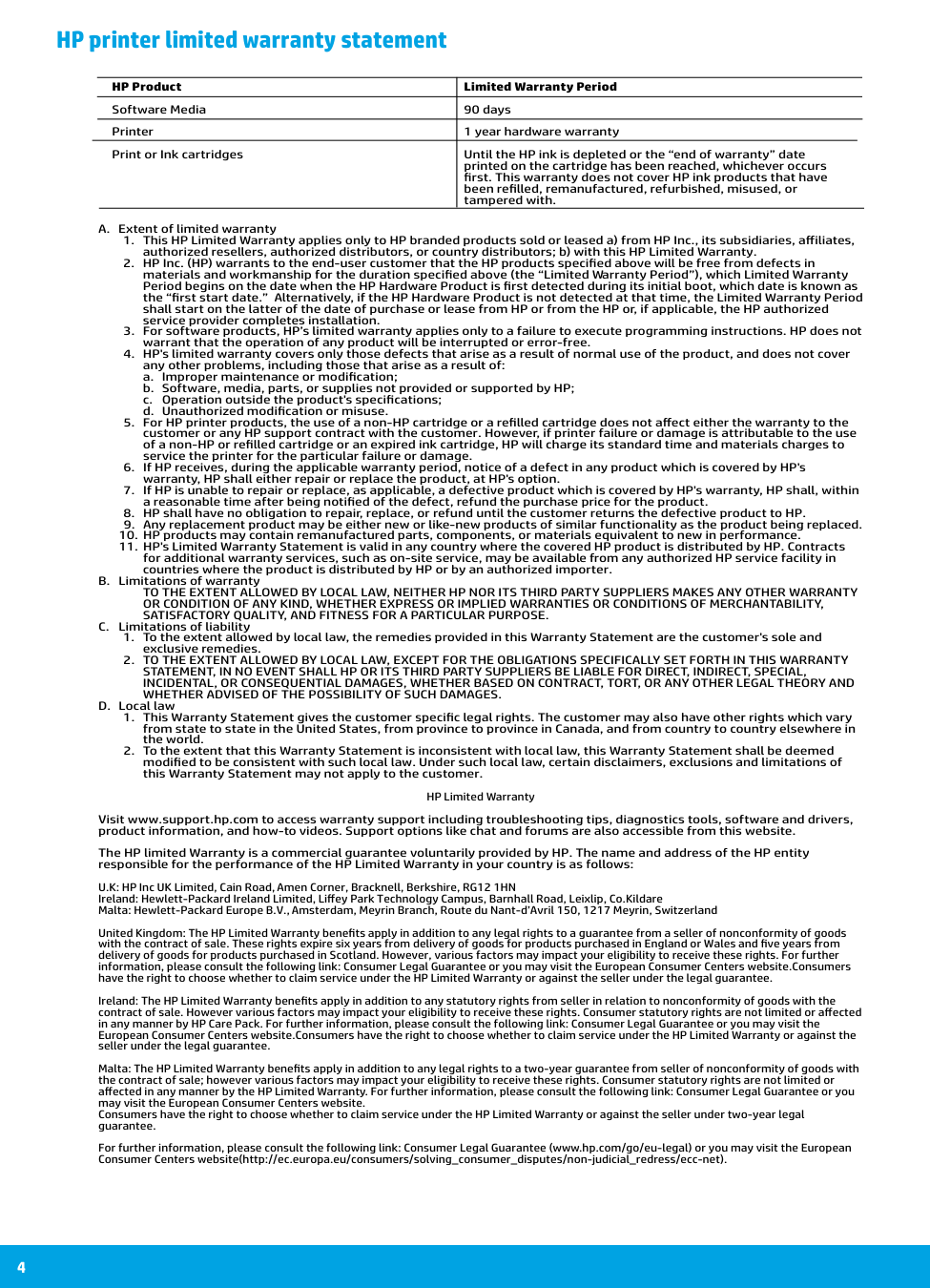
4 HP printer limited warranty statement A. Extent of limited warranty
a. Improper maintenance or modification;
b. Software, media, parts, or supplies not provided or supported by HP;
c. Operation outside the product's specifications;
d. Unauthorized modification or misuse.
Satisfactory Quality, And Fitness For A Particular Purpose.
C. Limitations of liabilityWhether Advised Of The Possibility Of Such Damages.
D. Local lawprinted on the cartridge has been reached, whichever occurs
first. This warranty does not cover HP ink products that have
been refilled, remanufactured, refurbished, misused, or
tampered with.