
Ask AI
— answers from the official manualAnswers from the official manual.
Common questions
Common Questions
30 totalWhat do I need before starting the User Setup Wizard on the XL824?
You need a high-speed internet connection (wired or wireless), your wireless network name and password, an internet browser, and a valid email address. The Setup Wizard guides you through screen settings, scheduling, network setup, and Trane Home registration. Note that once the Setup Wizard is activated, the process cannot be cancelled.
How do I connect my XL824 to my Wi-Fi network?
Navigate to Home > Menu > Settings > Network > Connect to WiFi Network, then select your network and enter your password and select Connect. Alternatively, you can use WPS by pressing the WPS button on your router and then selecting the Wi-Fi Protected Setup button on the Wireless Network screen. If your network is not visible, select Hidden Network at the end of the list and manually enter your network name (SSID) and password.
How do I register my XL824 with Trane Home?
Go to www.tranehome.com or download the Trane Home mobile app and create an account or log in. From the app dashboard, select the Menu icon, then Connect New Device, select your thermostat model, and the app will generate a Pin Code. Return to the XL824, enter the Pin Code, accept the License Agreement, and registration will be complete.
How do I permanently hold a temperature on the XL824?
Press in the Indoor Temperature area to reveal the Temperature Control Panel, adjust your desired heating or cooling set point using the up and down arrows, then select Hold Perm. The words 'Hold Perm' will appear in bold type and the control will maintain that temperature until you manually cancel it. To cancel, select Hold Perm again and the display will show 'Following Schedule.'
How do I temporarily override the schedule for a specific period of time?
Press in the Indoor Temperature area to reveal the Temperature Control Panel and adjust the desired set point. Press in the Status Area, use the up and down arrows to select the day and time when the hold should cancel, then press in the Indoor Temperature area to return to the Home Screen. The words 'Holding Until' will appear under the Indoor Temperature.
What is Smart Optimization and how does it affect my system?
Smart Optimization executes a series of blower tests to customize the XL824 to its unique environment and increase the accuracy of sensed indoor temperature and overall system performance. It is enabled by default and automatically runs approximately 18 hours after initial power up, taking 90 minutes to complete — during which heating and cooling operations are disabled. To delay it for an additional 18 hours, touch and hold the screen for five seconds; to disable it entirely, navigate to Home > Menu > Smart Optimization and select Disabled.
Show 24 more questions
How do I factory reset the Z-Wave bridge on the XL824?
How do I set up 1-Touch Presets for Home, Away, and Sleep on the XL824?
How many scheduling periods can I set per day, and what are the rules for periods?
How many Z-Wave devices can the XL824 control?
What do I need to complete the XL824 setup wizard?
How do I connect the XL824 to my Wi-Fi network?
How do I register the XL824 with Trane Home for remote access?
How do I temporarily override my schedule without cancelling it permanently?
How do I permanently hold a temperature setting on the XL824?
How do I perform a factory reset on the XL824's Z-Wave bridge?
How do I set up 1-Touch Presets for Home, Away, and Sleep temperatures?
How do I set up a Trane Home account?
How can I connect the XL824 to my network?
What happens when I select Permanent Hold?
How many periods can I create per day in the schedule?
What is the maximum number of Z-Wave devices the XL824 can control?
How does the XL824 receive software updates?
How do I add or remove a Z-Wave device from the XL824?
What is Smart Optimization and will it affect my heating and cooling?
How do I access the User Setup Wizard?
What do I need to complete the Setup Wizard?
How do I add a Z-Wave device to my XL824?
What is Smart Optimization and how long does it take?
What should I do if Smart Optimization is running at an inconvenient time?
Full Manual
32 pages
Trane XL824 Smart Control User Guide The XL824 is an easy-to-use, programmable control with a color touch-screen. When connected with Trane® Home you can control your home’s heating and cooling system and up to 230 separate Z-Wave™ devices from a smartphone, PC or tablet from virtually anywhere. This guide will help you configure and connect your XL824 Smart Control quickly and easily.
032-5090-06C-En
Start using your new XL824 now! See “Start Here!” on page 3.
page 2 824 User Guide Thank you for choosing the Trane XL824 Smart Control. The intuitive interface and powerful features incorporated into the compact design of the color touch-screen control represent the latest in climate control technology from the industry’s leader in residential HVAC systems. This guide will introduce you to the unit’s many features and get you started using your XL824 Smart Control right away. The XL824 Smart Control can be accessed remotely with your smart device and it can serve as the central hub of an entire network of smart home devices. To fully enjoy these benefits your XL824 must be connected to a Trane Home account. Trane Home provides an all-in-one cloud based app that allows you to access your XL824 anytime/anywhere connecting your smart devices through Z-Wave technology. See the full line of available features and functions at: Trane Home allows you to:
Ic Notice..................................................................31
Contents Up to eight smart controls of any combination of the 1050, 850, 824 and 624 are allowed on your Trane Home account for no additional cost. A monthly subscription charge may apply beyond this number of devices. http://www.tranehome.com For tutorials search: XL824.
032-5090-06C-En
page 3 The User Setup Wizard guides you through the XL824’s user configurable settings. To complete the Setup Wizard and connect the XL824 to Trane Home, you need:Menu > Settings > User Setup Wizard.
When the Setup Wizard is activated, the process cannot be cancelled. The Wizard will guide you through the following steps: Screen Settings
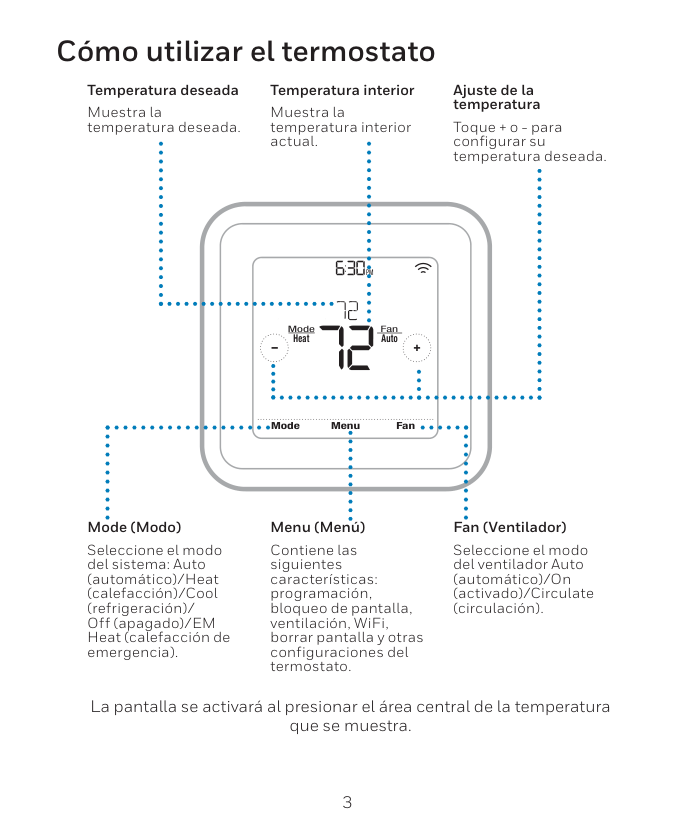
page 4 824 User Guide Navigating the Control Home Screen - Simple View Notifications and System Alerts Date and Time Heating and Cooling Set Points Thermostat Menu System Mode (Auto/ Heating/Cooling/ Off/Emergency Heat) Fan Mode (Auto/On/Circulate) 1-Touch Presets (Off/Home/Away/Sleep) Increase the set point Decrease the set point Default Home Screen can be customized with several widgets. To learn more about this feature see the section in this user guide about customization. Trane Home and Network Status

032-5090-06C-En
page 5 Home Screen View Homeowners may toggle between Home Screen Options by selecting: Home Screen > Menu > Settings > Screen > Home View Options. Select Simple View or Classic View. Simple View Classic ViewOr
NOTE: Simple View is the default view.
page 6 824 User Guide Notifications and System Alerts Date and Time Heating and Cooling Set Points Temperature Control Panel Thermostat Menu System Mode (Auto/ Heating/Cooling/ Off/Emergency Heat) Fan Mode (Auto/On/Circulate) Air Cleaner Mode (On/Off) 1-Touch presets (Off/Home/Away/ Sleep) Trane Home and Network Status Home Screen - Classic View Home Screen can be customized with several widgets. To learn more about this feature see the section in this user guide about customization.

032-5090-06C-En
page 7 The Temperature Control Panel is where target temperatures are manually set and adjusted. The panel is shown on the Classic View Home Screen only. Temperature Control Panel Hold Until Show Schedule Hold Perm 82º 62º Away $ Home Sleep Increase the set point Decrease the set point Cooling Set Point (select to change) Available when Scheduling is Enabled Available when Scheduling is Disabled Activate 1-Touch Presets Heating Set Point (select to change) Schedule Status Area Mode IndicatorOr
Disable Schedule and maintain current temperature settings. Temporarily overrides Schedule View and edit Schedule Select Heating and Cooling Set-points to show panel.
page 8 824 User Guide Home Screen - Simple View To maintain a temperature indefinitely, adjust the setpoint to the desired temperature and select the Permanent Hold button. It will then display ON, and the control will maintain that temperature setpoint until you manually change it. Select the Permanent Hold button again to turn Permanent Hold OFF. The Control resumes following the schedule. Optionally, up to 2 widgets may be chosen to appear on your home screen. They can be selected by navigating to Menu > Settings > Screen > Screen Layout When scheduling is enabled, the Preset button is disabled and a Permanent Hold button is displayed. The system will follow the custom schedule you’ve created. You may override the schedule by adjusting the temperature settings with the up/down arrows at the right of the screen. At the next period change, the schedule will resume.
032-5090-06C-En
page 9 Home Screen Customization Homeowners may customize the Home Screen by selecting: Menu > Settings > Screen > Screen Layout Choose up to two widgets (or apps) to show up on the Home Screen. Make selection and select Apply.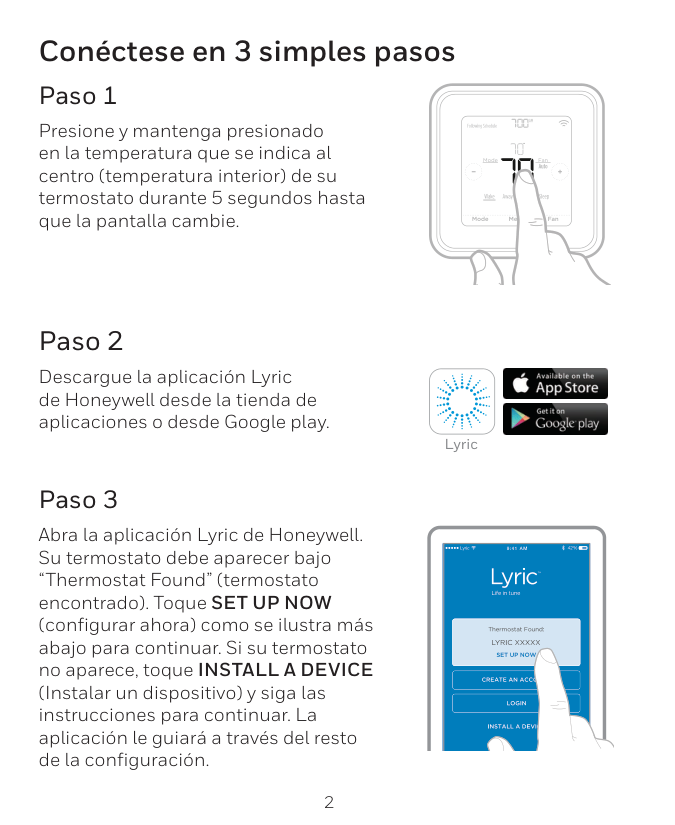
page 10 824 User Guide Menu Screen Dealer contact information Smart Optimization Indoor Humidity & Humidity Target Ventilation Options (Requires accessory Ventilation System) User settings (see Settings Screen) Z-Wave bridge functions Edit your schedule (when scheduling is enabled) or edit 1-Touch Presets (when scheduling is disabled) Enable/Disable Scheduling at Menu>Schedules & Presets Weather, 5-Day Forecast, Radar and Weather Alerts. System Information: Alerts, Demand Response, Notifications, and About Navigate to Menu Screen by selecting: Home Screen > Menu
032-5090-06C-En
page 11 Settings Screen System maintenance and service reminders Temperature scale, Deadband, Calibration* and Displayed Outdoor Temperature Sensor source Modify screen brightness, backlight timer, screensaver, and color theme Manually upgrade software User Setup Wizard
page 12 824 User Guide Schedule Screen Add a period Change start or stop times Delete a period Use the Up and Down arrows to change values Press in the gray area to rename the Period Group days under the same schedule Guided Schedule Tool Return to the Menu The current day or group of days is highlighted Press in the red or blue area, then adjust the Set Point using the up and down arrows Navigate to Scheduling Screen by selecting: Home Screen > Menu > Schedules & Presets > Custom Schedule

032-5090-06C-En
page 13 Grouping Screen Then select the days to be grouped or removed from the group. Select Apply. The previous Scheduling screen will appear. Whenever a set point or period start or stop time is changed the entire group of days will change to the new set point and period time. Select Grouping to use the same set points and times for multiple days. HINT: To copy a schedule between days, group them, select Apply, then open the grouping menu and de-select the days. Select Apply again. Navigate to Grouping Screen by selecting: Home Screen > Menu > Schedules & Presets > Custom Schedule > Grouping
page 14 824 User Guide To change Periods select: Home Screen > Menu > Schedules & Presets > Custom Schedule > Select Schedule Time Changing Period Start or End Times

032-5090-06C-En
page 15 The XL824 Smart Control is capable of adjusting the temperature settings throughout the day according to a user-programmable schedule. Each day of the week can have its own unique schedule, and each day can have a maximum of four Periods. Important: Scheduling must be enabled before a schedule can be defined. To verify that Scheduling is enabled, navigate to MENU > SCHEDULES & PRESETS and verify that the USE SCHEDULES button is set to ON. To set or modify schedules, navigate to HOME >Menu > Schedules & Presets > Custom
SCHEDULE or select SHOW SCHEDULES from the Temperature Control Panel. Periods define the time of day when the target temperature is adjusted. Each day can have from 1-4 Periods, and each day can have different number of periods. The Scheduling Screen shows the start time for each Period highlighted across the top row. Adding PeriodsNext.

page 16 824 User Guide Deleting Periods

032-5090-06C-En
page 17 032-5090-06 page 17 NOTE: These functions require Scheduling to be enabled. To enable Scheduling, go to HOME> Menu > Schedules & Presets > Use
Schedules On.
Hold Until Follow these steps to override a schedule until a specified time.
page 18 824 User Guide 1-Touch Presets provide predetermined Heating and Cooling Set Points for Home, Away and Sleep time periods. NOTE: 1-Touch Presets require Scheduling to be disabled. To disable Scheduling, go to HOME
> Menu > Schedules & Presets > Use
Schedules Off.
When scheduling is disabled, heating and cooling set points are maintained indefinitely. When a temperature change is desired, the user must manually adjust the XL824 Control to the new setting. Configuring 1-Touch Presets
032-5090-06C-En
page 19 Configuring 1-Touch Presets 1-Touch Presets provide predetermined Heating and Cooling Set Points for Home, Away and Sleep time periods. NOTE: 1-Touch Presets require Scheduling to be disabled. To disable Scheduling, go to HOME > MENU > SCHEDULES & PRESETS > Toggle USE SCHEDULES to OFF, or if scheduling is disabled touch icon on home screen. When scheduling is disabled, heating and cooling set points are maintained indefinitely. When a temperature change is desired, the user must manually adjust the XL824 Control to the new setting. Configuring 1-Touch Presets
page 20 824 User Guide Setting Access Restrictions To select access restrictions select: Home Screen > Menu > Settings > Screen > Access Restrictions

032-5090-06C-En
page 21 When enrolled to a Trane Home account, the XL824 is a Z-Wave Plus™ security-enabled device that can serve as a central hub for an entire network of home automation devices from different manufacturers and product categories, including all non-battery powered devices that will act as repeaters on your network. The XL824 can display local weather conditions, five-day forecasts and National Weather Service warnings and alerts. See the section on adding Z-Wave Devices for more information on taking advantage of this functionality. A basic Trane Home account subscription is included with the XL824 Control at no additional charge. NOTE: Adding additional devices may add charges to your Trane Home account. To create your Trane Home account go to www.tranehome.com. Trane Home
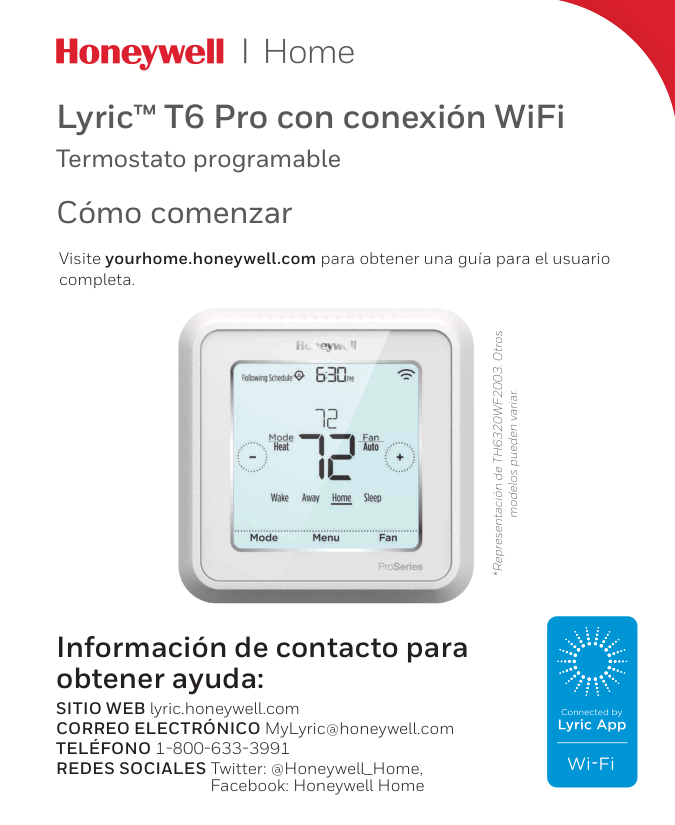
page 22 824 User Guide Network Setup There are several ways to connect the XL824 Control to a local network: Option 1. Wi-Fi connection Option 2. WPS for Wi-Fi connection Wi-Fi Step 1. Navigate Home > Menu > Settings > Network > Connect to WiFI Network. Select your network. WPS Step 1. Press the WPS button on your router, then return to your XL824 Control and select the WI-FI PROTECTED SETUP button on the Wireless Network screen. Select NEXT. Wi-Fi Step 2. Enter your Password then select CONNECT.

032-5090-06C-En
page 23 Hidden WiFi Step 2. Enter the name of the network you would like to connect to then select Next. Hidden WiFi Step 3. Select the security type for this network. If you select None, select Connect. Hidden WiFi Step 4. If you select WPA or WEP, you will need to enter a password, then CONNECT. Hidden WiFi Step 1. Select Hidden Network which will be at the end of the list of available networks. If there are more than eight networks, you will need to scroll to the next page. Option 3. Hidden Wi-Fi network connection Option 4. Ethernet connection The XL824 also features an Ethernet jack on the back and may be connected to a router using CAT5 cable. The control will recognize an Ethernet connection. If an Ethernet cable is connected the User Wizard will skip the Wireless setup screens and display the Trane Home registration screen next.
page 24 824 User Guide Step 2. Select SIGN UP NOW to set up an account or log in to an existing account. Step 5. Select CONTINUE. Step 4. Select the Trane® or American Standard® smart thermostat: 824, 850, or 1050 model drop down arrow. Step 3. From the mobile app Dashboard select the Menu icon and then select
Connect New Device.
Trane Home Registration To control your home climate system from your web enabled smartphone, tablet or computer follow these steps. Trane Home Registration Step 1. Go to www.tranehome.com or use your mobile app to setup a Trane Home account. Download the Trane Home mobile app from the Google Play™ Store or App Store®, then launch the app. If you already have an account, log in and go to Step 3.
032-5090-06C-En
page 25 Step 6. The mobile app will generate a Pin Code. Record the Pin Code. Step 9. Read the License Agreement, then ACCEPT orDecline.
Step 8. Enter the Pin Code and select NEXT. Step 10. Registration successful. Select DONE.Step 7. Return to the XL824 control and select
Next.
Trane Home Registration
page 26 824 User Guide Adding/Removing Z-Wave Devices To Add or Remove Z-Wave Devices select: Home Screen > Menu > Smart Home Your XL824 is designed to integrate seamlessly with your Trane Home account. Adding Z-Wave Devices

032-5090-06C-En
page 27 Alternatively, your XL824 allows you to add Z-Wave devices using the Trane Home app on your mobile device. Adding Z-Wave Devices
page 28 824 User Guide Advanced Z-Wave Settings The ADVANCED SETTINGS screen contains three very powerful functions. Each of these functions is very specific and should be approached with a measure of caution. Learn To add the bridge to an existing network, follow your primary controller’s instructions to put the primary controller into Add Mode. Then select the Learn button on the bridge. This function copies a new Z-Wave network to the bridge from another controller. This function is not allowed if your bridge is a primary controller with included Z-Wave devices. Unregister Removes the bridge from Trane Home. All remote control features will be disabled. Factory Reset Resets all Z-Wave information and removes all devices from the bridge. If this bridge is the primary controller for your network, resetting it will result in all the devices in your network being removed. Following the reset, it will be necessary to remove and then add all of the devices back to your network. Bridge Information If this bridge is being used as a secondary or inclusion controller in the network, please reset this bridge only in the event that the primary controller is missing or otherwise inoperable. Navigate to Advanced Z-Wave Settings Screen by selecting: Home Screen > Menu > Smart Home > Advanced

032-5090-06C-En
page 29 Advanced Z-Wave Settings Terminology The following terms may be used interchangeably by other devices, manufacturers, and Trane Home.Add
Add, include, inclusion, enroll, connectRemove
Remove, exclude, exclusionCopy
Copy, learn, replicate, replication Other Information Basic Command Class: This device ignores Basic Set/Get commands. This device controls other devices with OFF (0x00) and ON (0xFF) as a minimum. Association Group Information Table Group Profile Command Class and Command List Group Name Max Number of Devices Trigger 1 General: Lifeline Device Reset Locally Notification Lifeline 5 Factory Reset
page 30 824 User Guide Smart Optimization The XL824 Control is equipped with Smart Optimization. By executing a series of blower tests, Smart Optimization will customize the XL824 Control to each unique environment and increase the accuracy of the sensed indoor temperature and overall system performance. Smart Optimization is enabled by default and will automatically execute approximately 18 hours after initial power up. Smart Optimization takes 90 minutes to complete and during the process, heating and cooling operations are disabled. The screen will indicate that the XL824 Control is in Smart Optimization mode. To delay Smart Optimization for an additional 18 hours, touch the XL824 Control Screen and hold for five seconds. To disable Smart Optimization altogether, navigate to Home > Menu > Smart Optimization and select Disabled and select Apply. To enable Smart Optimization, navigate to Home > Menu > Smart Optimization and select Enabled and select Apply. Smart Optimization will execute in approximately 18 hours. To manually trigger Smart Optimization, first disable, then re-enable the feature. Automatic Software Updates When the XL824 is connected to Trane Home, software updates will occur automatically and do not require user intervention. NOTE: Internet services are required for automatic software updates. Energy Savings When the XL824 is connected to Trane Home account, you may adjust the Energy Savings service to High, Medium, Low or Off within the mobile app. The Energy Savings service makes small temperature adjustments automatically to reduce the time the air conditioner and heater operates; fewer hours running these systems can result in lower HVAC-related energy costs. Our patented software analyzes information from the XL824 to understand how your system performs. When combined with weather information, the service makes small temperature adjustments every day. If you’d like to change the temperature, the service adapts every time a thermostat setting is changed and incorporates your adjustments to fine-tune the service, while ensuring your comfort. Available Modes: Off – No energy savings Low – Minimum energy savings Medium – Moderate energy savings High – Maximum energy savings NOTE: Internet service and an active Trane Home account are required for the Energy Savings service. Other Features

032-5090-06C-En
page 31 FCC NoticeFcc Id: Xvr-Cont8245
Information To User
This device complies with Part 15 of the FCC Rules. Operation is subject to the following two conditions: (1) This device may not cause harmful interference and (2) This device must accept any interference received, including interference that may cause undesired operation. The antenna(s) used for this transmitter must be installed to provide a separation distance of at least 20 cm from all persons and must not be co-located or operating in conjunction with any other antenna or transmitter. This equipment has been tested and found to comply with the limits for Class B Digital Device, pursuant to Part 15 of the FCC Rules. These limits are designed to provide reasonable protection against harmful interference in a residential installation. This equipment generates and can radiate radio frequency energy and, if not installed and used in accordance with the instructions, may cause harmful interference to radio communications. However, there is no guarantee that interference will not occur in a particular installation. If this equipment does cause harmful interference to radio or television reception, which can be determined by turning the equipment off and on, the user is encouraged to try to correct the interference by one or more of the following measures.Ic Notice
Ic Id: 6178D-Cont8245
This device complies with Industry Canada license-exempt RSS standard(s). Operation is subject to the following two conditions: (1) this device may not cause interference, and (2) this device must accept any interference, including interference that may cause undesired operation of the device. Le présent appareil est conforme aux CNR d’Industrie Canada applicables aux appareils radio exempts de licence. L’exploitation est autorisée aux deux conditions suivantes : (1) l’appareil ne doit pas produire de brouillage, et (2) l’utilisateur de l’appareil doit accepter tout brouillage radioélectrique subi, même si le brouillage est susceptible d’en compromettre le fonctionnement. Notices
© 2021 Trane 032-5090-06C-EN 18 May 2021 Supersedes 032-5090-06-EN (August 2020) Trane - by Trane Technologies (NYSE: TT), a global climate innovator - creates comfortable, energy efficient indoor environments for commercial and residential applications. For more information, please visit trane.com or tranetechnologies.com. Representative-only illustrations included in this document. Trane has a policy of continuous data improvement and it reserves the right to change design and specifications without notice. We are committed to using environmentally conscious print practices.