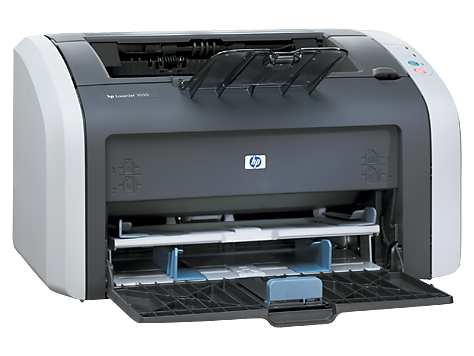
Ask AI
— answers from the official manualAnswers from the official manual.
Common questions
Common Questions
10 totalWhat are the main safety precautions I should take when using the HP LaserJet 1010 printer?
Always use a grounded electrical outlet when connecting the printer to a power source. Do not touch the contacts on the end of any sockets. Unplug the product from wall outlets before cleaning. Do not install or use the printer near water or when wet. Install the product securely on a stable surface in a protected location where no one can trip over the power cord.
What is the print speed and resolution of the HP LaserJet 1010 compared to the 1012?
The HP LaserJet 1010 prints up to 12 pages per minute at 600 x 600 dpi resolution. The HP LaserJet 1012 prints up to 14 pages per minute for A4 (15 for letter) at 1200 x 1200 dpi effective output quality using HP Resolution Enhancement (RET) technology. The 1012 also includes networking support through HP Jetdirect devices.
How long should the print cartridge last?
At 5 percent page coverage, a standard print cartridge will print approximately 2,000 pages. However, a cartridge may print more pages if it regularly prints pages with less coverage, such as short memos, or fewer pages if heavy or bold print is used. For best results, always use a print cartridge before the expiration date stamped on the cartridge box.
What should I do if I experience paper feeding problems?
If the printer regularly misfeeds and cleaning the pickup roller does not fix it, you may need to replace the pickup roller. If the printer grabs more than one page at a time, you might have to replace the printer separation pad. Recurring feed problems indicate that the printer separation pad is worn.
What operating temperature and humidity range is recommended for the printer?
The operating environment temperature should be 10° to 32.5° C (50° to 90.5° F) with humidity of 20 to 80 percent relative humidity with no condensation. Place the product in a well-ventilated area away from direct sunlight, open flames, and ammonia fumes with sufficient space for proper access and ventilation.
What paper specifications and guidelines should I follow?
Paper must be of good quality and free of cuts, nicks, tears, spots, loose particles, dust, wrinkles, holes, and curled or bent edges. Do not use letterhead printed with low-temperature inks or colored paper with incompatible inks. The printer accepts media sizes from 76 x 127 mm (3 x 5 in) minimum to 216 x 356 mm (8.5 x 14 in) maximum. For optimum performance, do not use paper heavier than 157 g/m² (42-lb).
Full Manual
146 pages
service hp LaserJet 1010 1012 1015 series printer

hp LaserJet 1010 series printer Service Manual
Copyright Information © 2003 Copyright Hewlett-Packard Development Company, LP Reproduction, adaptations, or translation without prior written permission is prohibited except as allowed under copyright laws. The information contained in this document is subject to change without notice. The only warranties for HP products and services are set forth in the express warranty statements accompanying such products and services. Nothing herein should be construed as constituting an additional warranty. HP shall not be liable for technical or editorial errors or omissions contained herein. Part number Q2460-90928 Edition 1, 8/2003 Information regarding FCC Class B, Parts 15 and 68 requirements can be found in the user guide.
Notice To U.S. Government Users:
Restricted Rights Commercial
COMPUTER SOFTWARE: “Use, duplication, or disclosure by the Government is subject to restrictions as set forth in subparagraph (c) (1)(ii) of the Rights in Technical Data Clause at DFARS 52.227- 7013.” Trademark Credits Microsoft, Windows, and MS-DOS are U.S. registered trademarks of Microsoft Corporation. TrueType is a U.S. trademark of Apple Computer, Inc. All other products mentioned herein may be trademarks of their respective companies. Safety InformationWarning!
Potential Shock Hazard Always follow basic safety precautions when using this product to reduce risk of injury from fire or electric shock. Read and understand all instructions in the user guide. Observe all warnings and instructions marked on the product. Use only a grounded electrical outlet when connecting the HP LaserJet 1010 series printer to a power source. If you don’t know whether the outlet is grounded, check with a qualified electrician. Do not touch the contacts on the end of any of the sockets on the HP LaserJet 1010 series printer. Replace damaged cords immediately. Unplug this product from wall outlets before cleaning. Do not install or use this product near water or when you are wet. Install the product securely on a stable surface. Install the product in a protected location where no one can step on or trip over the power cord and the power cord will not be damaged. If the product does not operate normally, see the online user guide. Refer all servicing questions to qualified personnel.
Table of contents 1 Product Information HP LaserJet 1010 series has three product configurations......................................................2 The HP LaserJet 1010, 1012, and 1015.............................................................................2 Introduction............................................................................................................................... 3 Overview of product..................................................................................................................4 Model and serial numbers..................................................................................................4 Hardware description..........................................................................................................5 Firmware description .........................................................................................................6 Product Specifications..............................................................................................................7 HEWLETT-PACKARD LIMITED WARRANTY STATEMENT ..................................................9 Extended warranty..................................................................................................................10 Print cartridge information ......................................................................................................11 Refilled print cartridges ...................................................................................................11 Recycling print cartridges ................................................................................................11 Declaration of Conformity.......................................................................................................12 For Regulatory Topics ONLY, contact:...................................................................................13 Laser safety statement.....................................................................................................13 Canadian DOC regulations...............................................................................................13 Korean EMI statement......................................................................................................13 Laser statement for Finland..............................................................................................14 2 Installation and Operation Operating environment ..........................................................................................................16 Identifying the control panel components...............................................................................17 Product media specifications..................................................................................................18 Supported media sizes (printer).......................................................................................18 Guidelines for using media.....................................................................................................19 Paper and Transparencies ..............................................................................................19 Common media problems table .......................................................................................19 Labels ..............................................................................................................................19 Envelopes ........................................................................................................................20 Card stock and heavy media ...........................................................................................20 Loading media .......................................................................................................................22 Loading media to print......................................................................................................22 3 Maintenance Life expectancies of parts that wear ......................................................................................24 Cleaning the product...............................................................................................................25 Cleaning the print path.....................................................................................................25 Cleaning the print cartridge area......................................................................................26 Cleaning the printer pickup roller .....................................................................................27 User-replaceable parts ...........................................................................................................29 Replacing the printer pickup roller ...................................................................................29 Replacing the printer separation pad................................................................................31
Enww
iii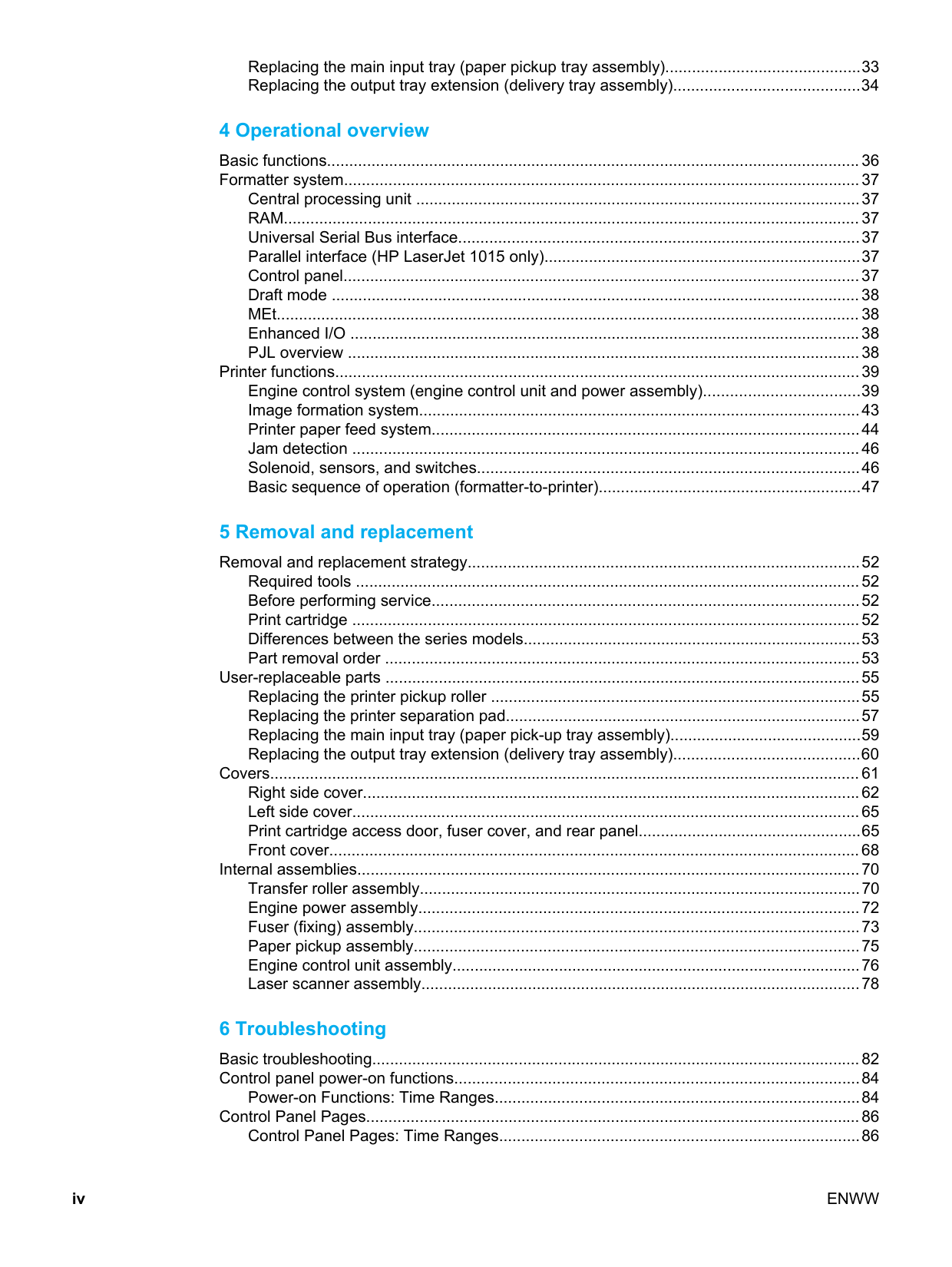
Replacing the main input tray (paper pickup tray assembly)............................................33 Replacing the output tray extension (delivery tray assembly)..........................................34 4 Operational overview Basic functions........................................................................................................................36 Formatter system....................................................................................................................37 Central processing unit ....................................................................................................37 RAM.................................................................................................................................. 37 Universal Serial Bus interface..........................................................................................37 Parallel interface (HP LaserJet 1015 only).......................................................................37 Control panel....................................................................................................................37 Draft mode .......................................................................................................................38 MEt................................................................................................................................... 38 Enhanced I/O ...................................................................................................................38 PJL overview ...................................................................................................................38 Printer functions......................................................................................................................39 Engine control system (engine control unit and power assembly)...................................39 Image formation system...................................................................................................43 Printer paper feed system................................................................................................44 Jam detection ..................................................................................................................46 Solenoid, sensors, and switches......................................................................................46 Basic sequence of operation (formatter-to-printer)...........................................................47 5 Removal and replacement Removal and replacement strategy........................................................................................52 Required tools .................................................................................................................52 Before performing service................................................................................................52 Print cartridge ..................................................................................................................52 Differences between the series models............................................................................53 Part removal order ...........................................................................................................53 User-replaceable parts ...........................................................................................................55 Replacing the printer pickup roller ...................................................................................55 Replacing the printer separation pad................................................................................57 Replacing the main input tray (paper pick-up tray assembly)...........................................59 Replacing the output tray extension (delivery tray assembly)..........................................60 Covers..................................................................................................................................... 61 Right side cover................................................................................................................62 Left side cover..................................................................................................................65 Print cartridge access door, fuser cover, and rear panel..................................................65 Front cover.......................................................................................................................68 Internal assemblies.................................................................................................................70 Transfer roller assembly...................................................................................................70 Engine power assembly...................................................................................................72 Fuser (fixing) assembly....................................................................................................73 Paper pickup assembly....................................................................................................75 Engine control unit assembly............................................................................................76 Laser scanner assembly...................................................................................................78 6 Troubleshooting Basic troubleshooting..............................................................................................................82 Control panel power-on functions...........................................................................................84 Power-on Functions: Time Ranges..................................................................................84 Control Panel Pages...............................................................................................................86 Control Panel Pages: Time Ranges.................................................................................86 iv
Enww

Control Panel Lights................................................................................................................87 Control Panel Light Patterns.............................................................................................87 Fatal Errors.......................................................................................................................91 Image troubleshooting............................................................................................................92 Print cartridge problems...................................................................................................92 Solving image-quality problems .......................................................................................92 Solving paper-feed problems..................................................................................................99 Solving print paper-feed problems....................................................................................99 Functional checks.................................................................................................................103 Half self-test functional check.........................................................................................103 Drum rotation functional check ......................................................................................105 High-voltage contacts check...........................................................................................105 Troubleshooting tools ...........................................................................................................107 Repetitive image defect ruler..........................................................................................107 Circuit diagram ..............................................................................................................108 Solenoid, sensors, and switches...........................................................................................109 7 Parts and diagrams Ordering parts and supplies .................................................................................................112 Parts .............................................................................................................................. 112 Related documentation and software ............................................................................112 Parts that wear .............................................................................................................112 Accessories and consumables ............................................................................................113 Common hardware ........................................................................................................114 How to use the parts lists and diagrams ........................................................................114 Field-replaceable units .........................................................................................................115 Alphabetical parts list............................................................................................................118 Numerical parts list...............................................................................................................119 Index
Enww
v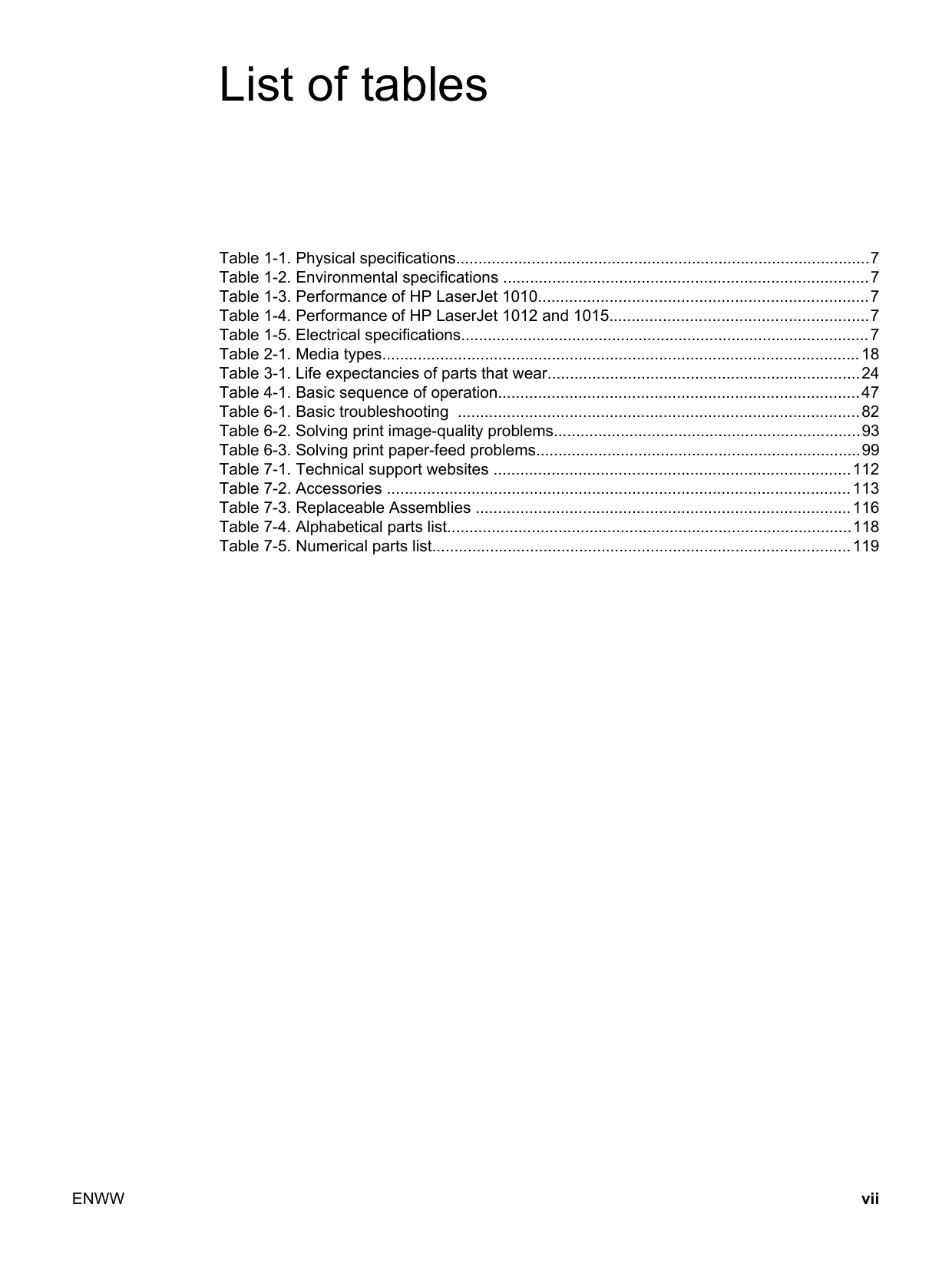
List of tables Table 1-1. Physical specifications.............................................................................................7 Table 1-2. Environmental specifications ..................................................................................7 Table 1-3. Performance of HP LaserJet 1010..........................................................................7 Table 1-4. Performance of HP LaserJet 1012 and 1015..........................................................7 Table 1-5. Electrical specifications............................................................................................7 Table 2-1. Media types...........................................................................................................18 Table 3-1. Life expectancies of parts that wear......................................................................24 Table 4-1. Basic sequence of operation.................................................................................47 Table 6-1. Basic troubleshooting ..........................................................................................82 Table 6-2. Solving print image-quality problems.....................................................................93 Table 6-3. Solving print paper-feed problems.........................................................................99 Table 7-1. Technical support websites ................................................................................112 Table 7-2. Accessories ........................................................................................................113 Table 7-3. Replaceable Assemblies ....................................................................................116 Table 7-4. Alphabetical parts list...........................................................................................118 Table 7-5. Numerical parts list..............................................................................................119
Enww
vii
viii
Enww
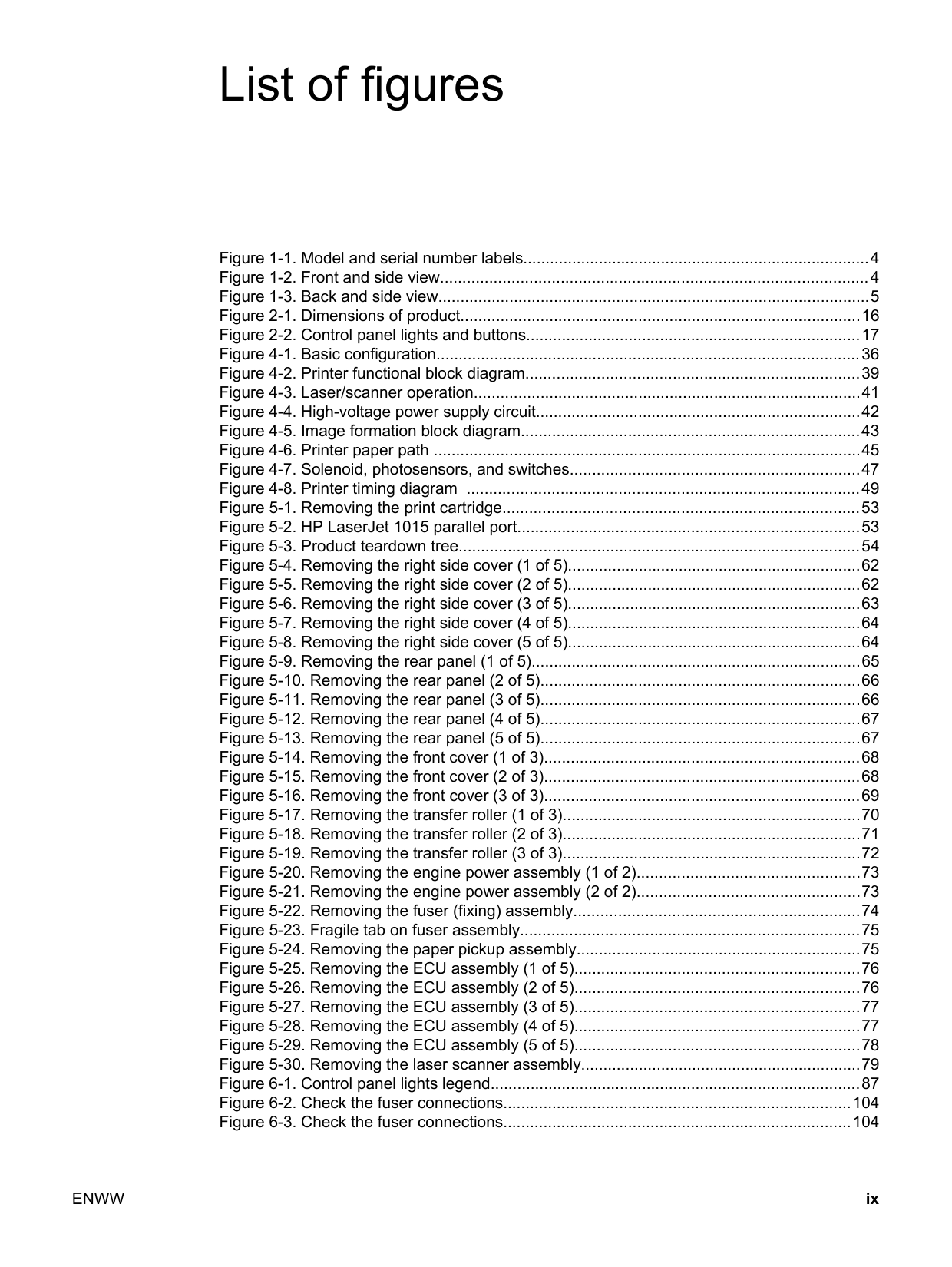
List of figures Figure 1-1. Model and serial number labels..............................................................................4 Figure 1-2. Front and side view................................................................................................4 Figure 1-3. Back and side view.................................................................................................5 Figure 2-1. Dimensions of product..........................................................................................16 Figure 2-2. Control panel lights and buttons...........................................................................17 Figure 4-1. Basic configuration...............................................................................................36 Figure 4-2. Printer functional block diagram...........................................................................39 Figure 4-3. Laser/scanner operation.......................................................................................41 Figure 4-4. High-voltage power supply circuit.........................................................................42 Figure 4-5. Image formation block diagram............................................................................43 Figure 4-6. Printer paper path ................................................................................................45 Figure 4-7. Solenoid, photosensors, and switches.................................................................47 Figure 4-8. Printer timing diagram ........................................................................................49 Figure 5-1. Removing the print cartridge................................................................................53 Figure 5-2. HP LaserJet 1015 parallel port.............................................................................53 Figure 5-3. Product teardown tree..........................................................................................54 Figure 5-4. Removing the right side cover (1 of 5)..................................................................62 Figure 5-5. Removing the right side cover (2 of 5)..................................................................62 Figure 5-6. Removing the right side cover (3 of 5)..................................................................63 Figure 5-7. Removing the right side cover (4 of 5)..................................................................64 Figure 5-8. Removing the right side cover (5 of 5)..................................................................64 Figure 5-9. Removing the rear panel (1 of 5)..........................................................................65 Figure 5-10. Removing the rear panel (2 of 5)........................................................................66 Figure 5-11. Removing the rear panel (3 of 5)........................................................................66 Figure 5-12. Removing the rear panel (4 of 5)........................................................................67 Figure 5-13. Removing the rear panel (5 of 5)........................................................................67 Figure 5-14. Removing the front cover (1 of 3).......................................................................68 Figure 5-15. Removing the front cover (2 of 3).......................................................................68 Figure 5-16. Removing the front cover (3 of 3).......................................................................69 Figure 5-17. Removing the transfer roller (1 of 3)...................................................................70 Figure 5-18. Removing the transfer roller (2 of 3)...................................................................71 Figure 5-19. Removing the transfer roller (3 of 3)...................................................................72 Figure 5-20. Removing the engine power assembly (1 of 2)..................................................73 Figure 5-21. Removing the engine power assembly (2 of 2)..................................................73 Figure 5-22. Removing the fuser (fixing) assembly................................................................74 Figure 5-23. Fragile tab on fuser assembly............................................................................75 Figure 5-24. Removing the paper pickup assembly................................................................75 Figure 5-25. Removing the ECU assembly (1 of 5)................................................................76 Figure 5-26. Removing the ECU assembly (2 of 5)................................................................76 Figure 5-27. Removing the ECU assembly (3 of 5)................................................................77 Figure 5-28. Removing the ECU assembly (4 of 5)................................................................77 Figure 5-29. Removing the ECU assembly (5 of 5)................................................................78 Figure 5-30. Removing the laser scanner assembly...............................................................79 Figure 6-1. Control panel lights legend...................................................................................87 Figure 6-2. Check the fuser connections..............................................................................104 Figure 6-3. Check the fuser connections..............................................................................104
Enww
ix
Figure 6-4. Print cartridge high-voltage contacts..................................................................106 Figure 6-5. Printer high-voltage contacts..............................................................................106 Figure 6-6. Repetitive image defect ruler..............................................................................107 Figure 6-7. Circuit diagram...................................................................................................108 Figure 6-8. Solenoid, photosensors, and switches...............................................................109 Figure 7-1. All Models ..........................................................................................................115 Figure 7-2. Exploded View: Field Replaceable Units ...........................................................116 x
Enww
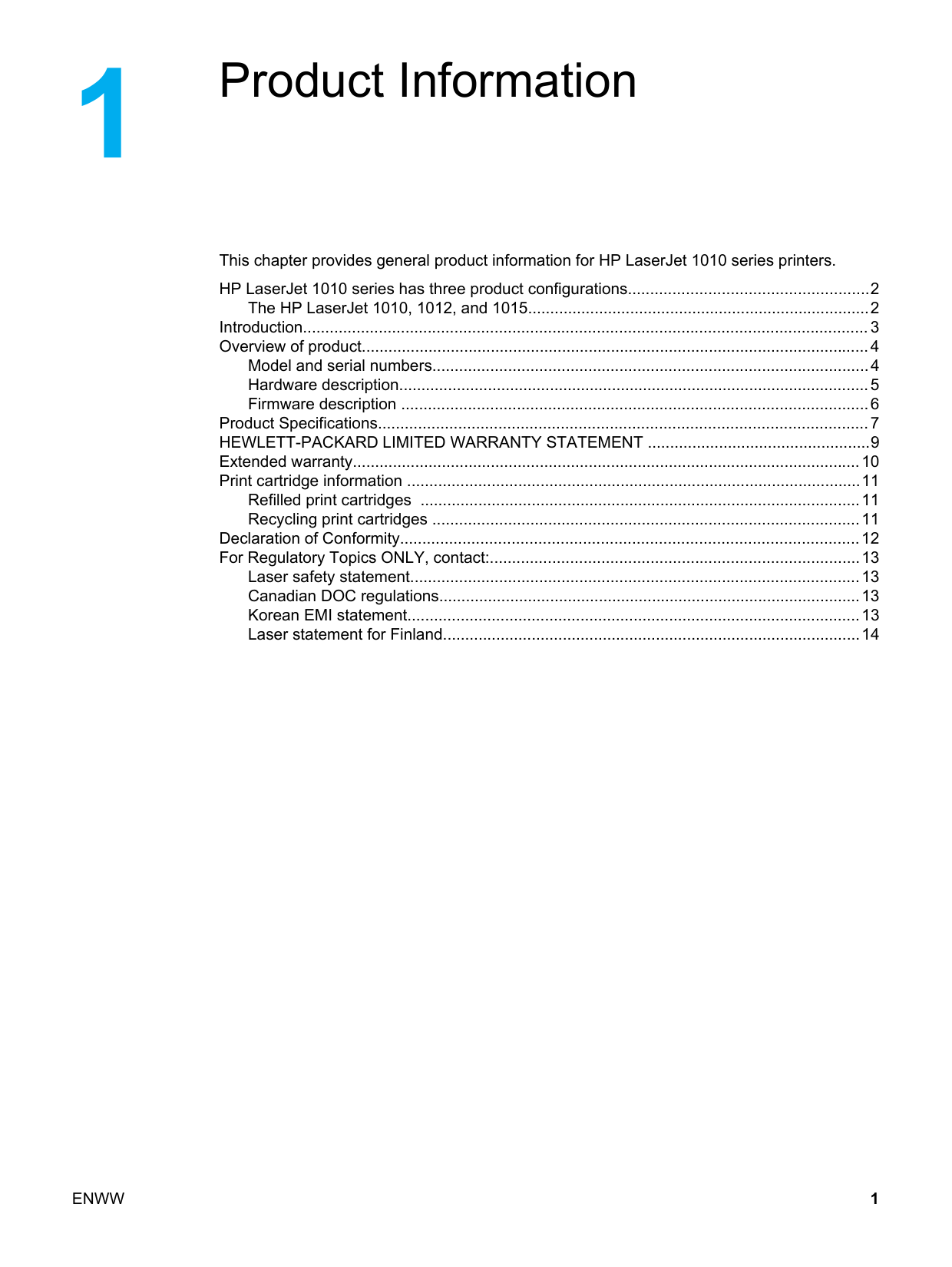
Product Information This chapter provides general product information for HP LaserJet 1010 series printers. HP LaserJet 1010 series has three product configurations......................................................2 The HP LaserJet 1010, 1012, and 1015.............................................................................2 Introduction............................................................................................................................... 3 Overview of product..................................................................................................................4 Model and serial numbers..................................................................................................4 Hardware description..........................................................................................................5 Firmware description .........................................................................................................6 Product Specifications..............................................................................................................7 HEWLETT-PACKARD LIMITED WARRANTY STATEMENT ..................................................9 Extended warranty..................................................................................................................10 Print cartridge information ......................................................................................................11 Refilled print cartridges ...................................................................................................11 Recycling print cartridges ................................................................................................11 Declaration of Conformity.......................................................................................................12 For Regulatory Topics ONLY, contact:...................................................................................13 Laser safety statement.....................................................................................................13 Canadian DOC regulations...............................................................................................13 Korean EMI statement......................................................................................................13 Laser statement for Finland..............................................................................................14
Enww
1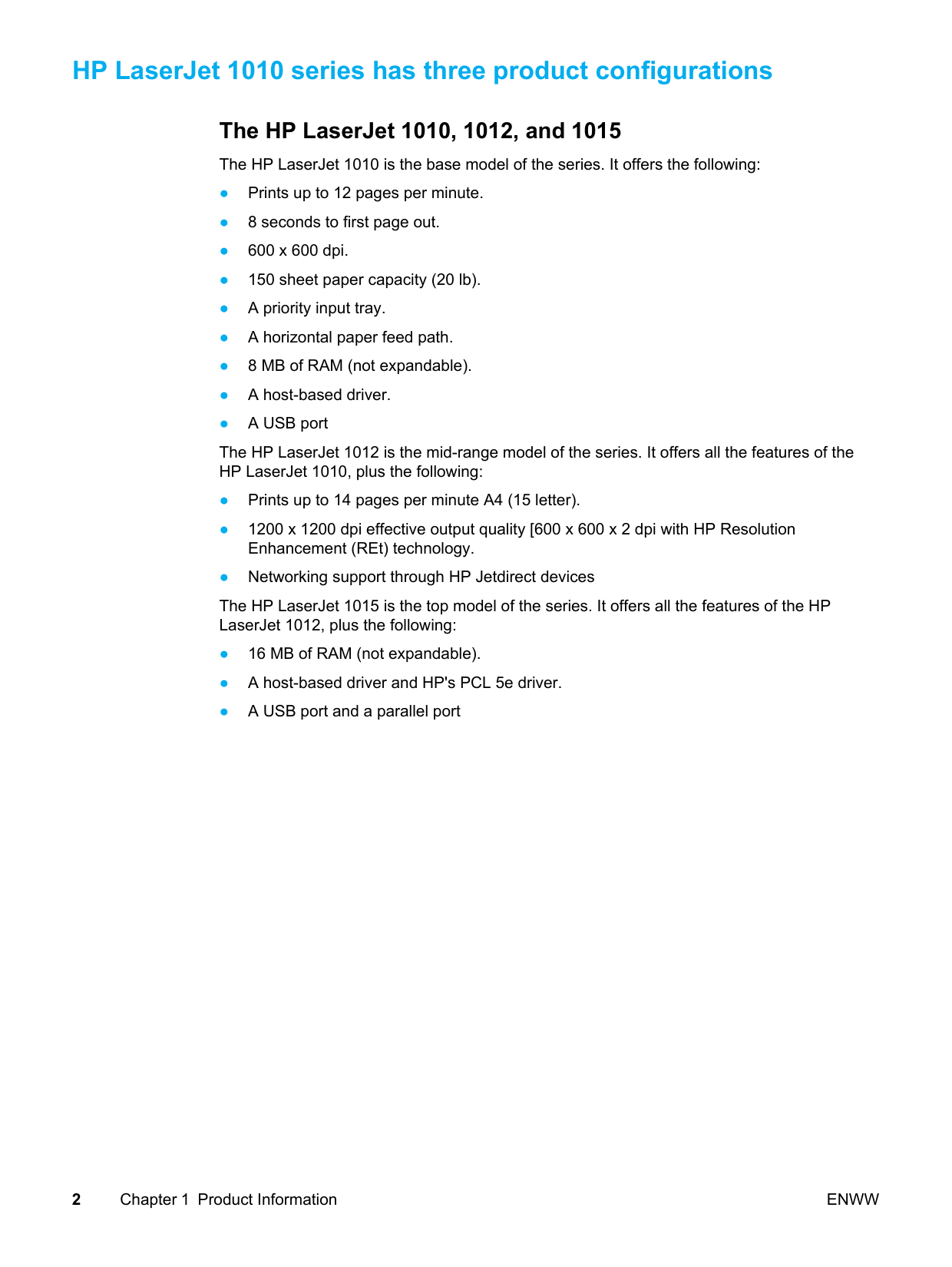
HP LaserJet 1010 series has three product configurations The HP LaserJet 1010, 1012, and 1015 The HP LaserJet 1010 is the base model of the series. It offers the following: ● Prints up to 12 pages per minute. ● 8 seconds to first page out. ● 600 x 600 dpi. ● 150 sheet paper capacity (20 lb). ● A priority input tray. ● A horizontal paper feed path. ● 8 MB of RAM (not expandable). ● A host-based driver. ● A USB port The HP LaserJet 1012 is the mid-range model of the series. It offers all the features of the HP LaserJet 1010, plus the following: ● Prints up to 14 pages per minute A4 (15 letter). ● 1200 x 1200 dpi effective output quality [600 x 600 x 2 dpi with HP Resolution Enhancement (REt) technology. ● Networking support through HP Jetdirect devices The HP LaserJet 1015 is the top model of the series. It offers all the features of the HP LaserJet 1012, plus the following: ● 16 MB of RAM (not expandable). ● A host-based driver and HP's PCL 5e driver. ● A USB port and a parallel port 2 Chapter 1 Product Information
Enww

Introduction The HP LaserJet 1010 series is designed to print documents easily with the laser quality you have come to expect from an HP LaserJet product.
Enww
Introduction 3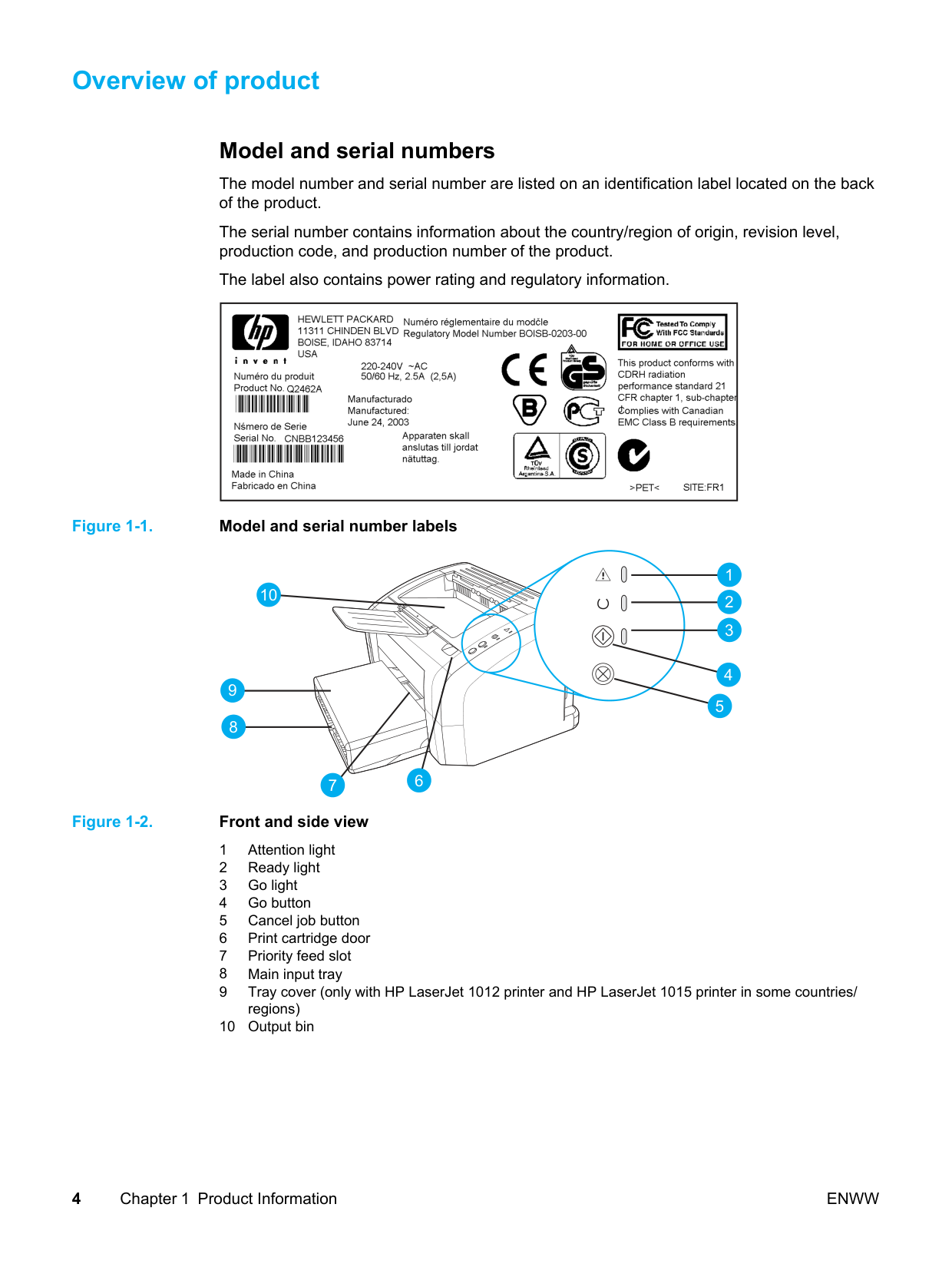
Overview of product Model and serial numbers The model number and serial number are listed on an identification label located on the back of the product. The serial number contains information about the country/region of origin, revision level, production code, and production number of the product. The label also contains power rating and regulatory information. Figure 1-1. Model and serial number labels 1 10 9 8 7 6 2 3 5 4 Figure 1-2. Front and side view 1 Attention light 2 Ready light 3 Go light 4 Go button 5 Cancel job button 6 Print cartridge door 7 Priority feed slot 8 Main input tray 9 Tray cover (only with HP LaserJet 1012 printer and HP LaserJet 1015 printer in some countries/ regions) 10 Output bin 4 Chapter 1 Product Information
Enww
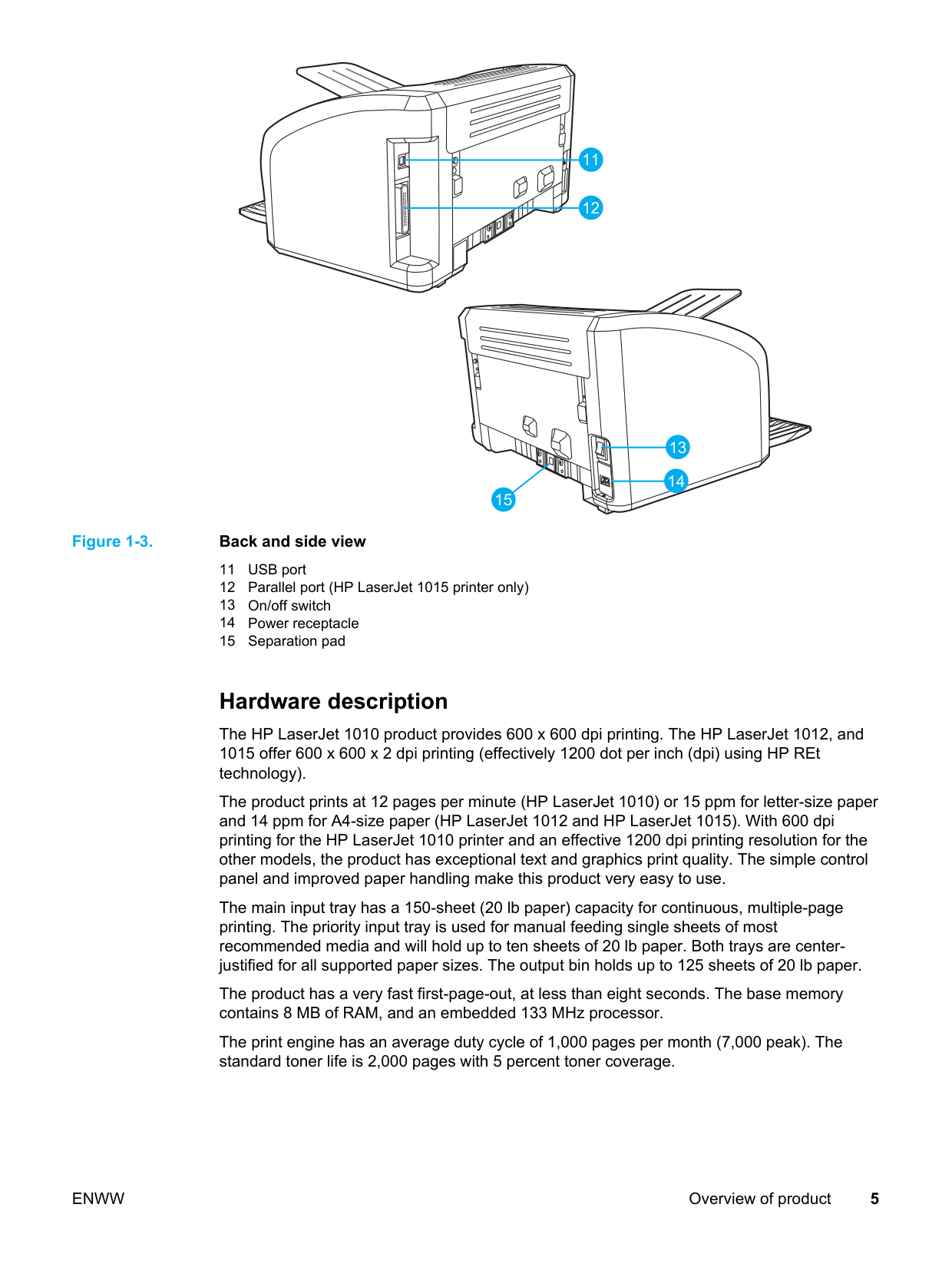
11 12 13 14 15 Figure 1-3. Back and side view 11 USB port 12 Parallel port (HP LaserJet 1015 printer only) 13 On/off switch 14 Power receptacle 15 Separation pad Hardware description The HP LaserJet 1010 product provides 600 x 600 dpi printing. The HP LaserJet 1012, and 1015 offer 600 x 600 x 2 dpi printing (effectively 1200 dot per inch (dpi) using HP REt technology). The product prints at 12 pages per minute (HP LaserJet 1010) or 15 ppm for letter-size paper and 14 ppm for A4-size paper (HP LaserJet 1012 and HP LaserJet 1015). With 600 dpi printing for the HP LaserJet 1010 printer and an effective 1200 dpi printing resolution for the other models, the product has exceptional text and graphics print quality. The simple control panel and improved paper handling make this product very easy to use. The main input tray has a 150-sheet (20 lb paper) capacity for continuous, multiple-page printing. The priority input tray is used for manual feeding single sheets of most recommended media and will hold up to ten sheets of 20 lb paper. Both trays are center- justified for all supported paper sizes. The output bin holds up to 125 sheets of 20 lb paper. The product has a very fast first-page-out, at less than eight seconds. The base memory contains 8 MB of RAM, and an embedded 133 MHz processor. The print engine has an average duty cycle of 1,000 pages per month (7,000 peak). The standard toner life is 2,000 pages with 5 percent toner coverage.
Enww
Overview of product 5
Firmware description The firmware in the product includes: ● Host based printing ● PCL Level 5e (HP LaserJet 1015 printer) ● EconoMode functionality The 1012 and 1015 firmware has Resolution Enhancement technology (REt). 6 Chapter 1 Product Information
Enww
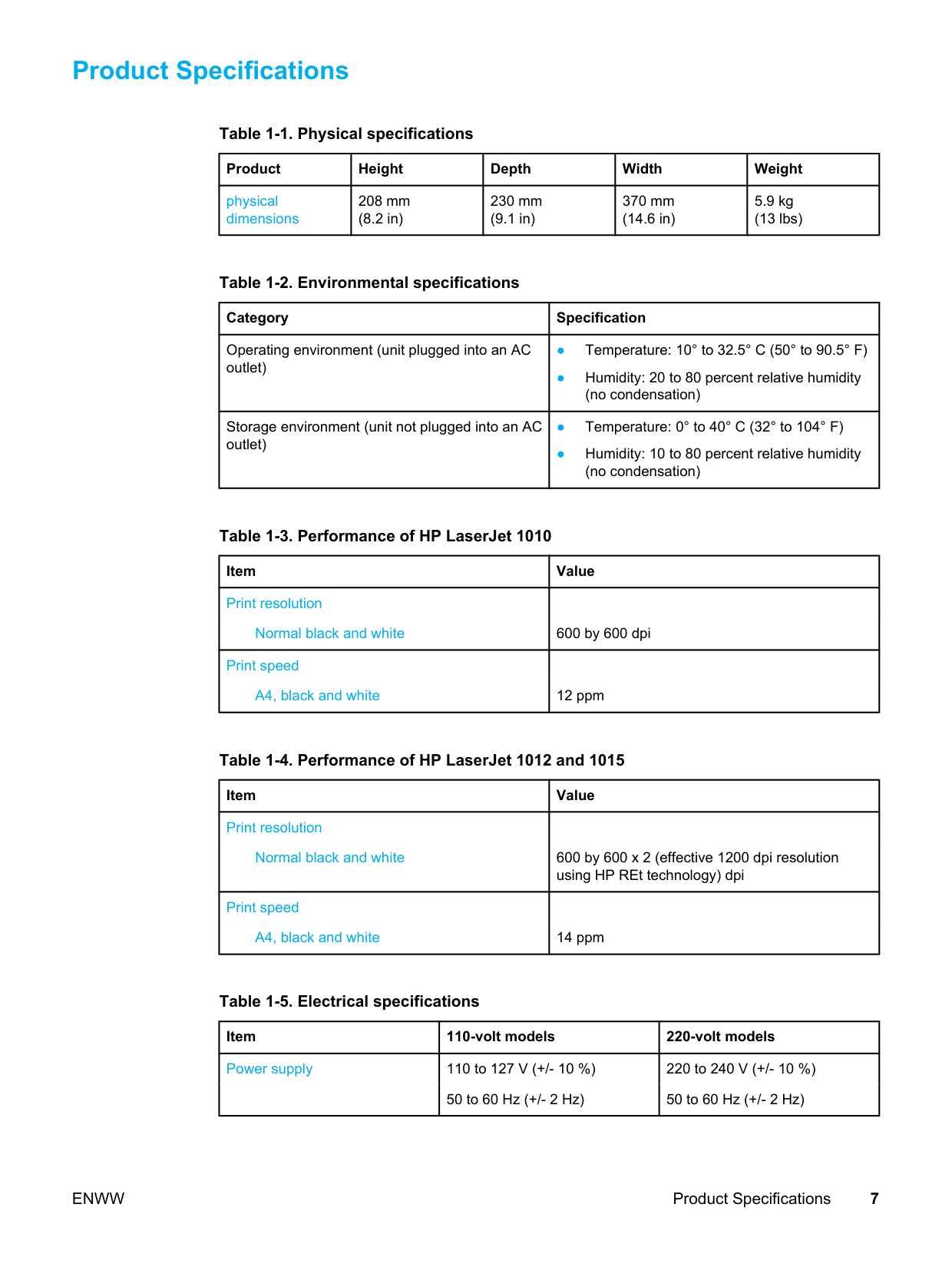
Product Specifications Table 1-1. Physical specifications Product Height Depth Width Weight physical dimensions 208 mm (8.2 in) 230 mm (9.1 in) 370 mm (14.6 in) 5.9 kg (13 lbs) Table 1-2. Environmental specifications Category Specification Operating environment (unit plugged into an AC outlet) ● Temperature: 10° to 32.5° C (50° to 90.5° F) ● Humidity: 20 to 80 percent relative humidity (no condensation) Storage environment (unit not plugged into an AC outlet) ● Temperature: 0° to 40° C (32° to 104° F) ● Humidity: 10 to 80 percent relative humidity (no condensation) Table 1-3. Performance of HP LaserJet 1010 Item Value Print resolution Normal black and white 600 by 600 dpi Print speed A4, black and white 12 ppm Table 1-4. Performance of HP LaserJet 1012 and 1015 Item Value Print resolution Normal black and white 600 by 600 x 2 (effective 1200 dpi resolution using HP REt technology) dpi Print speed A4, black and white 14 ppm Table 1-5. Electrical specifications Item 110-volt models 220-volt models Power supply 110 to 127 V (+/- 10 %) 220 to 240 V (+/- 10 %) 50 to 60 Hz (+/- 2 Hz) 50 to 60 Hz (+/- 2 Hz)
Enww
Product Specifications 7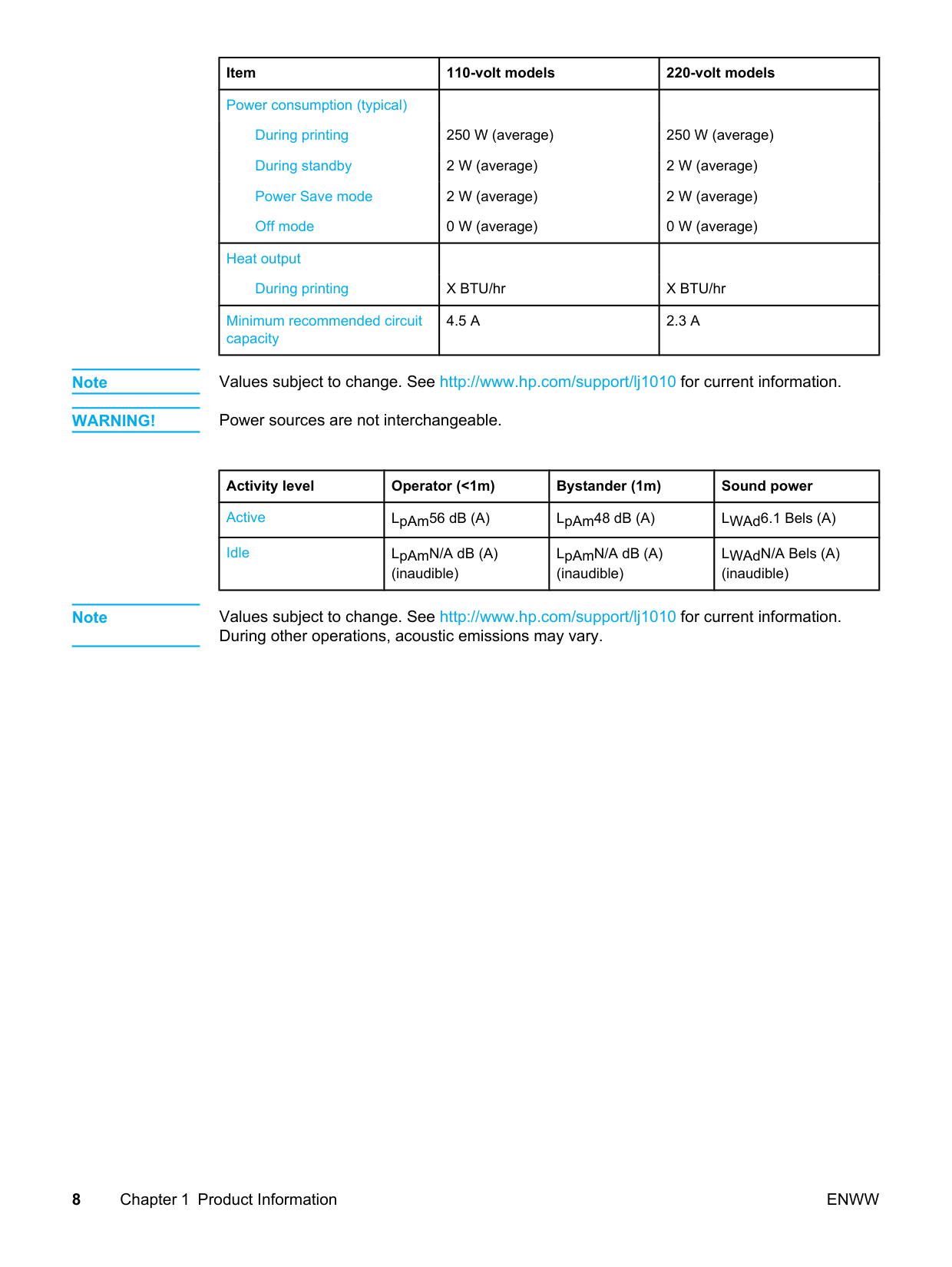
Item 110-volt models 220-volt models Power consumption (typical) During printing 250 W (average) 250 W (average) During standby 2 W (average) 2 W (average) Power Save mode 2 W (average) 2 W (average) Off mode 0 W (average) 0 W (average) Heat output During printing X BTU/hr X BTU/hr Minimum recommended circuit capacity
4.5 A
2.3 A
Note Values subject to change. See http://www.hp.com/support/lj1010 for current information.Warning!
Power sources are not interchangeable. Activity level Operator (<1m) Bystander (1m) Sound power Active LpAm56 dB (A) LpAm48 dB (A) LWAd6.1 Bels (A) Idle LpAmN/A dB (A) (inaudible) LpAmN/A dB (A) (inaudible) LWAdN/A Bels (A) (inaudible) Note Values subject to change. See http://www.hp.com/support/lj1010 for current information. During other operations, acoustic emissions may vary. 8 Chapter 1 Product InformationEnww

Hewlett-Packard Limited Warranty Statement
Hp Product
HP LaserJet 1010 series (1010, 1012, 1015)Duration Of Limited Warranty
One year from date of purchase. HP warrants to you, the end-user customer, that HP hardware and accessories will be free from defects in materials and workmanship after the date of purchase, for the period specified above. If HP receives notice of such defects during the warranty period, HP will, at its option, either repair or replace products which prove to be defective. Replacement products may be either new or equivalent in performance to new. HP warrants to you that HP software will not fail to execute its programming instructions after the date of purchase, for the period specified above, due to defects in material and workmanship when properly installed and used. If HP receives notice of such defects during the warranty period, HP will replace software which does not execute its programming instructions due to such defects. HP does not warrant that the operation of HP products will be uninterrupted or error free. If HP is unable, within a reasonable time, to repair or replace any product to a condition as warranted, you will be entitled to a refund of the purchase price upon prompt return of the product. HP products may contain remanufactured parts equivalent to new in performance or may have been subject to incidental use. Warranty does not apply to defects resulting from (a) improper or inadequate maintenance or calibration, (b) software, interfacing, parts or supplies not supplied by HP, (c) unauthorized modification or misuse, (d) operation outside of the published environmental specifications for the product, or (e) improper site preparation or maintenance. TO THE EXTENT ALLOWED BY LOCAL LAW, THE ABOVE WARRANTIES ARE EXCLUSIVE AND NO OTHERWarranty Or Condition, Whether Written Or Oral, Is Expressed Or Implied And Hp
Specifically Disclaims Any Implied Warranties Or Conditions Of Merchantability,
SATISFACTORY QUALITY, AND FITNESS FOR A PARTICULAR PURPOSE. Some countries/regions, states or provinces do not allow limitations on the duration of an implied warranty, so the above limitation or exclusion might not apply to you. This warranty gives you specific legal rights and you might also have other rights that vary from country/region to country/region, state to state, or province to province. HP's limited warranty is valid in any country/region or locality where HP has a support presence for this product and where HP has marketed this product. The level of warranty service you receive may vary according to local standards. HP will not alter form, fit, or function of the product to make it operate in a country/region for which it was never intended to function for legal or regulatory reasons. TO THE EXTENT ALLOWED BY LOCAL LAW, THE REMEDIES IN THIS WARRANTY STATEMENT ARE YOUR SOLE AND EXCLUSIVE REMEDIES. EXCEPT AS INDICATED ABOVE, IN NO EVENT WILL HP OR ITS SUPPLIERS BE LIABLE FOR LOSS OF DATA OR FOR DIRECT, SPECIAL, INCIDENTAL, CONSEQUENTIAL (INCLUDING LOST PROFIT OR DATA), OR OTHER DAMAGE, WHETHER BASED IN CONTRACT, TORT, OR OTHERWISE. Some countries/regions, states or provinces do not allow the exclusion or limitation of incidental or consequential damages, so the above limitation or exclusion may not apply to you.The Warranty Terms Contained In This Statement, Except To The Extent Lawfully
PERMITTED, DO NOT EXCLUDE, RESTRICT OR MODIFY AND ARE IN ADDITION TO THE MANDATORYStatutory Rights Applicable To The Sale Of This Product To You.
Enww
Hewlett-Packard Limited Warranty Statement
9
Extended warranty In most countries/regions, HP Care Pack provides additional coverage, beyond standard warranty for the HP device and for all HP-supplied internal components. This hardware maintenance can uplift the standard warranty, for example, from next-day to same-day service, and/or extend it up to 5 years. The HP Care Pack can provide Express Exchange or onsite service. For more information, see the support flyer that came with your device for the appropriate phone numbers and information. 10 Chapter 1 Product Information
Enww

Print cartridge information The print cartridge is designed to simplify replacement of the major consumable parts. The print cartridge contains the printing mechanism and a supply of toner. At 5 percent page coverage, a standard print cartridge will print approximately 2,000 pages. However, a cartridge should print more pages if it regularly prints pages with less coverage, such as short memos. The cartridge might print fewer pages if heavy or bold print is used. For best results, always use a print cartridge before the expiration date stamped on the cartridge box. Refilled print cartridges While Hewlett-Packard does not prohibit the use of refilled print cartridges during the warranty period or while the product is under a maintenance contract, it is not recommended for the following reasons: ● Repairs resulting from the use of refilled cartridges are not covered under Hewlett- Packard warranty or maintenance contracts. ● Hewlett-Packard has no control or process to ensure that a refilled cartridge functions at the high level of reliability of a new HP LaserJet toner cartridge. Hewlett-Packard also cannot predict the long-term reliability effect on the product from using different toner formulations found in refilled cartridges. ● The print quality of HP LaserJet print cartridges influences the customer’s perception of the product. Hewlett-Packard has no control over the actual print quality of a refilled cartridge. ● Parts that are critical to print quality may not be replaced when the cartridge is refilled with toner. Recycling print cartridges In order to reduce waste, Hewlett-Packard offers a recycling program. Cartridge components that do not wear out are recycled. Plastics and other materials are recycled. Hewlett-Packard pays the shipping costs from the user to the recycling plant (within the United States). To join this recycling effort, follow the instructions inside the print cartridge box. Refer to http://www.hp.com/recycle for more information.
Enww
Print cartridge information 11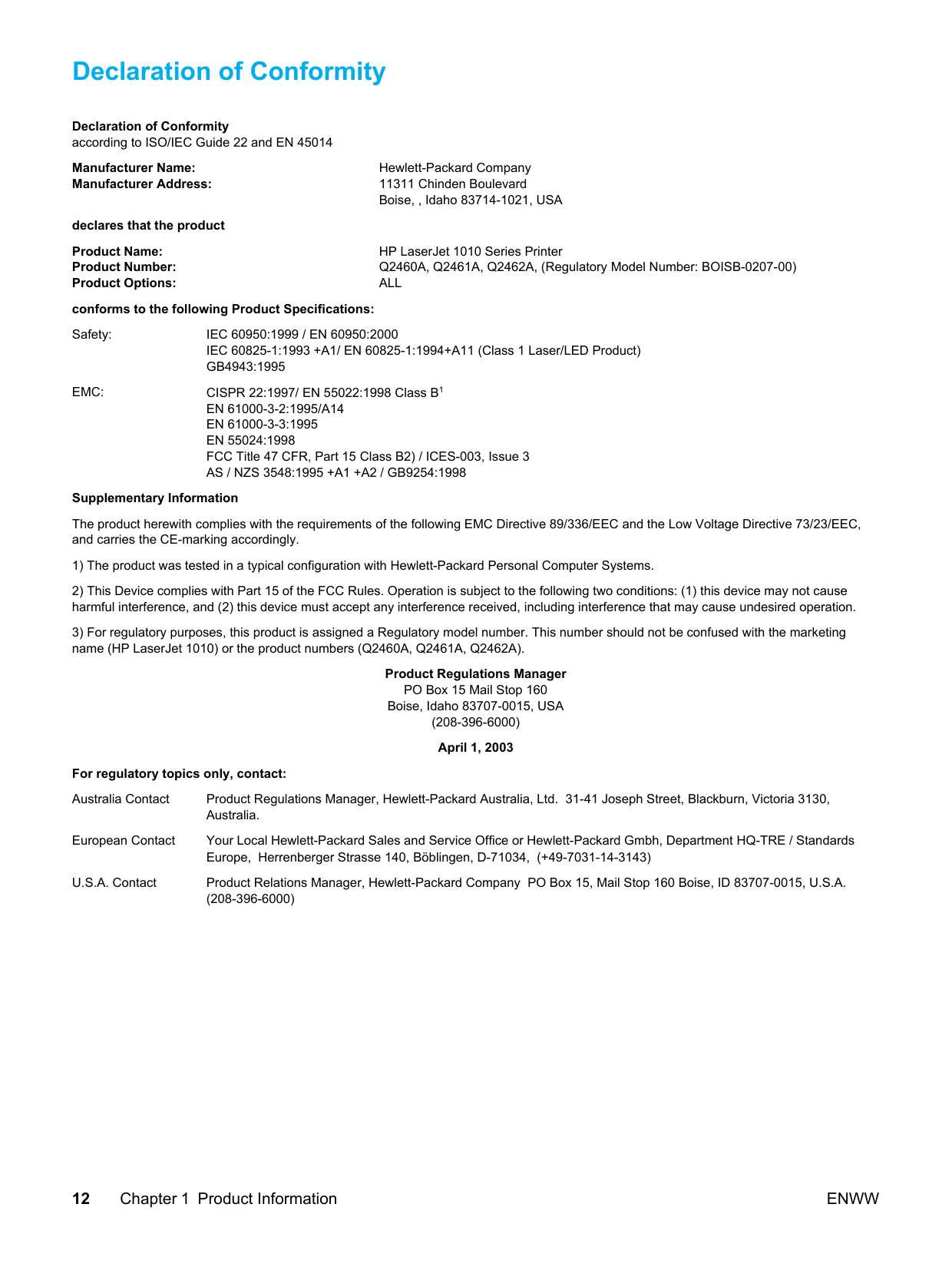
Declaration of Conformity Declaration of Conformity according to ISO/IEC Guide 22 and EN 45014 Manufacturer Name: Hewlett-Packard Company Manufacturer Address: 11311 Chinden Boulevard Boise, , Idaho 83714-1021, USA declares that the product Product Name: HP LaserJet 1010 Series Printer Product Number: Q2460A, Q2461A, Q2462A, (Regulatory Model Number: BOISB-0207-00) Product Options:
All
conforms to the following Product Specifications: Safety:Iec 60950:1999 / En 60950:2000
IEC 60825-1:1993 +A1/ EN 60825-1:1994+A11 (Class 1 Laser/LED Product)Gb4943:1995
Emc:
CISPR 22:1997/ EN 55022:1998 Class B1En 61000-3-2:1995/A14
En 61000-3-3:1995
En 55024:1998
FCC Title 47 CFR, Part 15 Class B2) / ICES-003, Issue 3As / Nzs 3548:1995 +A1 +A2 / Gb9254:1998
Supplementary Information The product herewith complies with the requirements of the following EMC Directive 89/336/EEC and the Low Voltage Directive 73/23/EEC, and carries the CE-marking accordingly. 1) The product was tested in a typical configuration with Hewlett-Packard Personal Computer Systems. 2) This Device complies with Part 15 of the FCC Rules. Operation is subject to the following two conditions: (1) this device may not cause harmful interference, and (2) this device must accept any interference received, including interference that may cause undesired operation. 3) For regulatory purposes, this product is assigned a Regulatory model number. This number should not be confused with the marketing name (HP LaserJet 1010) or the product numbers (Q2460A, Q2461A, Q2462A). Product Regulations Manager PO Box 15 Mail Stop 160 Boise, Idaho 83707-0015, USA (208-396-6000) April 1, 2003 For regulatory topics only, contact: Australia Contact Product Regulations Manager, Hewlett-Packard Australia, Ltd. 31-41 Joseph Street, Blackburn, Victoria 3130, Australia. European Contact Your Local Hewlett-Packard Sales and Service Office or Hewlett-Packard Gmbh, Department HQ-TRE / Standards Europe, Herrenberger Strasse 140, Böblingen, D-71034, (+49-7031-14-3143) U.S.A. Contact Product Relations Manager, Hewlett-Packard Company PO Box 15, Mail Stop 160 Boise, ID 83707-0015, U.S.A. (208-396-6000) 12 Chapter 1 Product InformationEnww
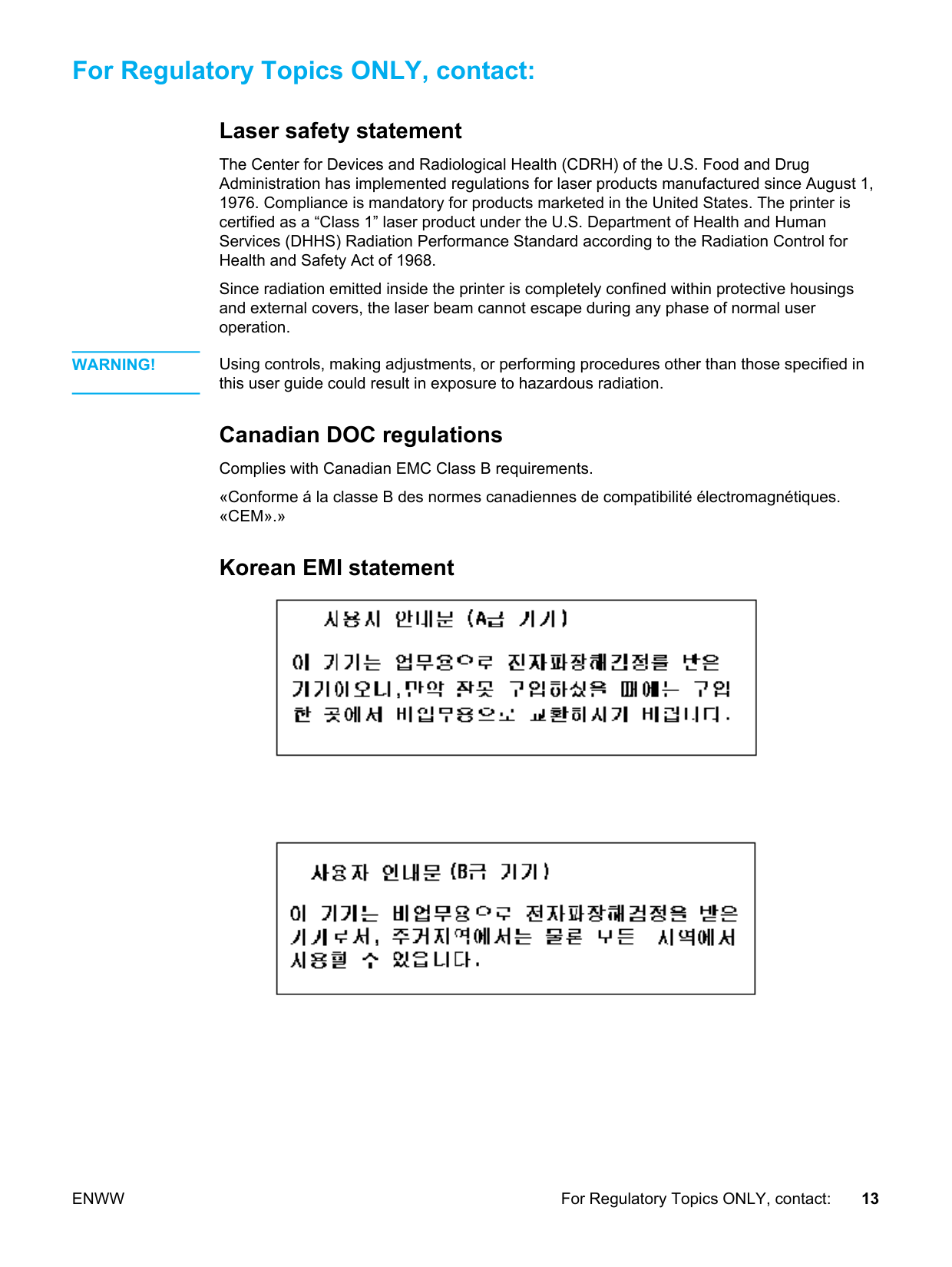
For Regulatory Topics ONLY, contact: Laser safety statement The Center for Devices and Radiological Health (CDRH) of the U.S. Food and Drug Administration has implemented regulations for laser products manufactured since August 1,
Warning!
Using controls, making adjustments, or performing procedures other than those specified in this user guide could result in exposure to hazardous radiation. Canadian DOC regulations Complies with Canadian EMC Class B requirements. «Conforme á la classe B des normes canadiennes de compatibilité électromagnétiques.«Cem».»
Korean EMI statementEnww
For Regulatory Topics ONLY, contact: 13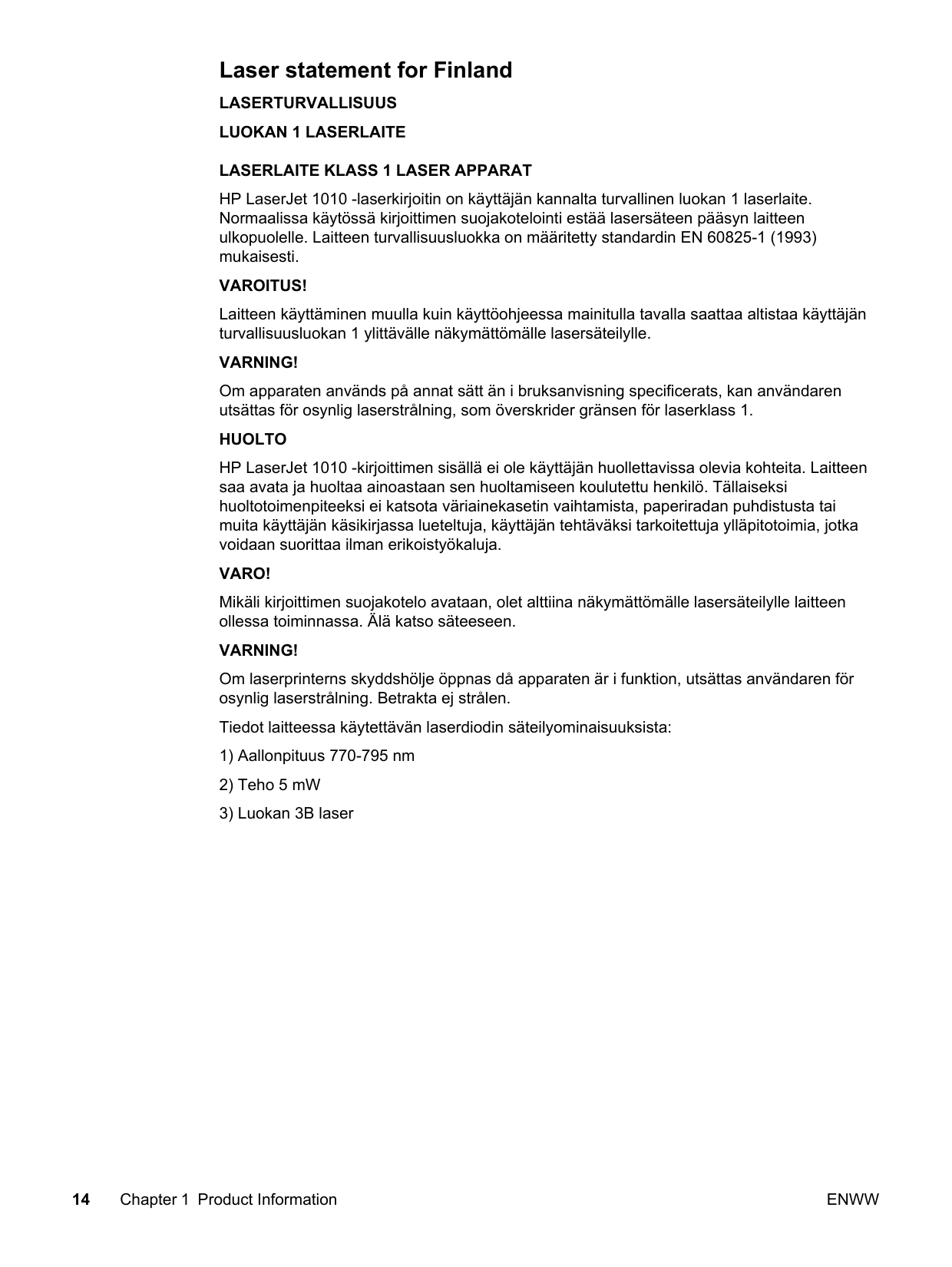
Laser statement for Finland
Laserturvallisuus
Luokan 1 Laserlaite
Laserlaite Klass 1 Laser Apparat
HP LaserJet 1010 -laserkirjoitin on käyttäjän kannalta turvallinen luokan 1 laserlaite. Normaalissa käytössä kirjoittimen suojakotelointi estää lasersäteen pääsyn laitteen ulkopuolelle. Laitteen turvallisuusluokka on määritetty standardin EN 60825-1 (1993) mukaisesti.Varoitus!
Laitteen käyttäminen muulla kuin käyttöohjeessa mainitulla tavalla saattaa altistaa käyttäjän turvallisuusluokan 1 ylittävälle näkymättömälle lasersäteilylle.Varning!
Om apparaten används på annat sätt än i bruksanvisning specificerats, kan användaren utsättas för osynlig laserstrålning, som överskrider gränsen för laserklass 1.Huolto
HP LaserJet 1010 -kirjoittimen sisällä ei ole käyttäjän huollettavissa olevia kohteita. Laitteen saa avata ja huoltaa ainoastaan sen huoltamiseen koulutettu henkilö. Tällaiseksi huoltotoimenpiteeksi ei katsota väriainekasetin vaihtamista, paperiradan puhdistusta tai muita käyttäjän käsikirjassa lueteltuja, käyttäjän tehtäväksi tarkoitettuja ylläpitotoimia, jotka voidaan suorittaa ilman erikoistyökaluja.Varo!
Mikäli kirjoittimen suojakotelo avataan, olet alttiina näkymättömälle lasersäteilylle laitteen ollessa toiminnassa. Älä katso säteeseen.Varning!
Om laserprinterns skyddshölje öppnas då apparaten är i funktion, utsättas användaren för osynlig laserstrålning. Betrakta ej strålen. Tiedot laitteessa käytettävän laserdiodin säteilyominaisuuksista: 1) Aallonpituus 770-795 nm 2) Teho 5 mW 3) Luokan 3B laser 14 Chapter 1 Product InformationEnww
Installation and Operation This chapter provides an overview of the appropriate operating environment, describes the control panel, and describes media requirements and loading media to print. Operating environment ..........................................................................................................16 Identifying the control panel components...............................................................................17 Product media specifications..................................................................................................18 Supported media sizes (printer).......................................................................................18 Guidelines for using media.....................................................................................................19 Paper and Transparencies ..............................................................................................19 Common media problems table .......................................................................................19 Labels ..............................................................................................................................19 Envelopes ........................................................................................................................20 Card stock and heavy media ...........................................................................................20 Loading media .......................................................................................................................22 Loading media to print......................................................................................................22
Enww
15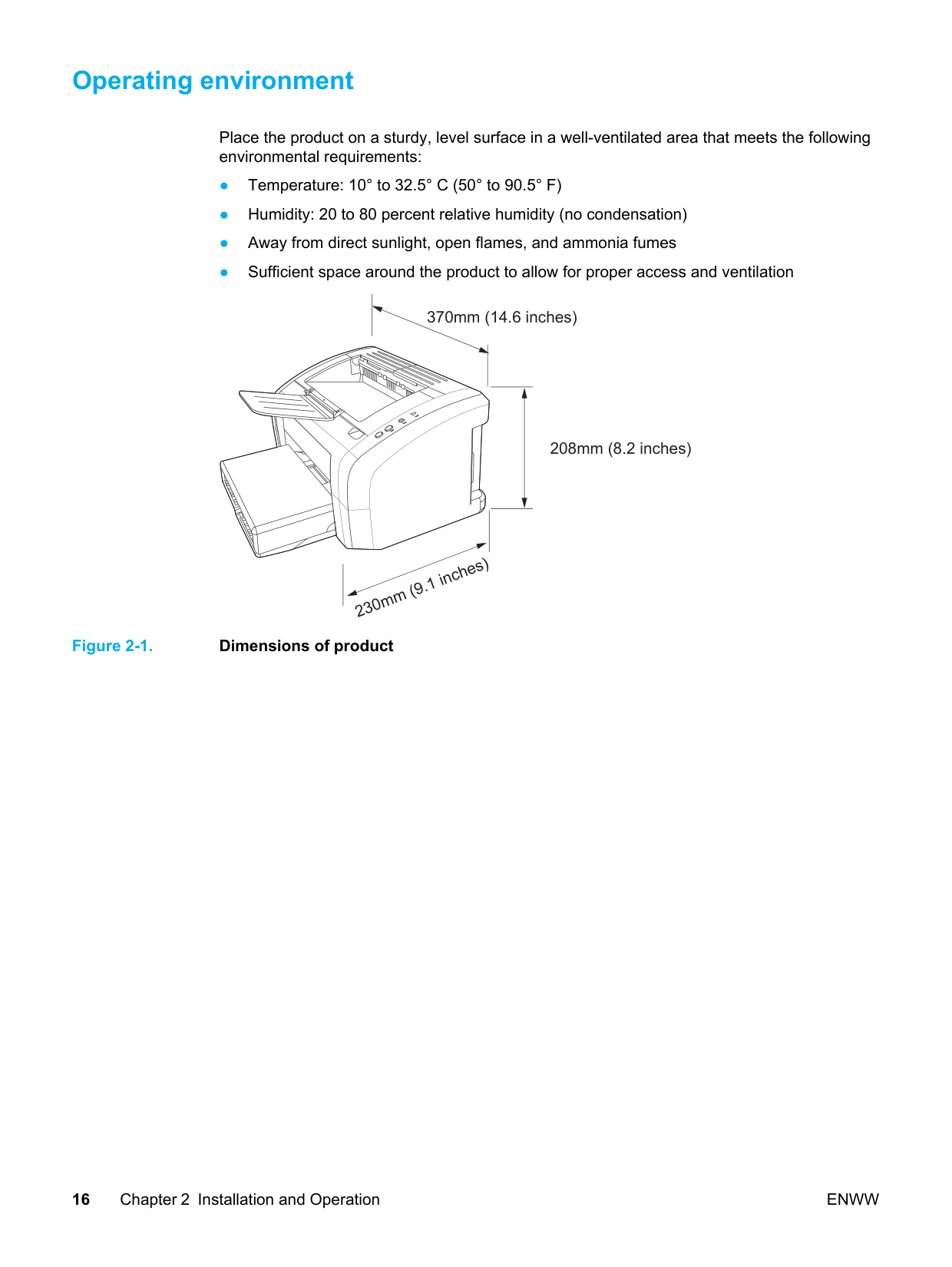
Operating environment Place the product on a sturdy, level surface in a well-ventilated area that meets the following environmental requirements: ● Temperature: 10° to 32.5° C (50° to 90.5° F) ● Humidity: 20 to 80 percent relative humidity (no condensation) ● Away from direct sunlight, open flames, and ammonia fumes ● Sufficient space around the product to allow for proper access and ventilation 208mm (8.2 inches) 370mm (14.6 inches) 230mm (9.1 inches) Figure 2-1. Dimensions of product 16 Chapter 2 Installation and Operation
Enww
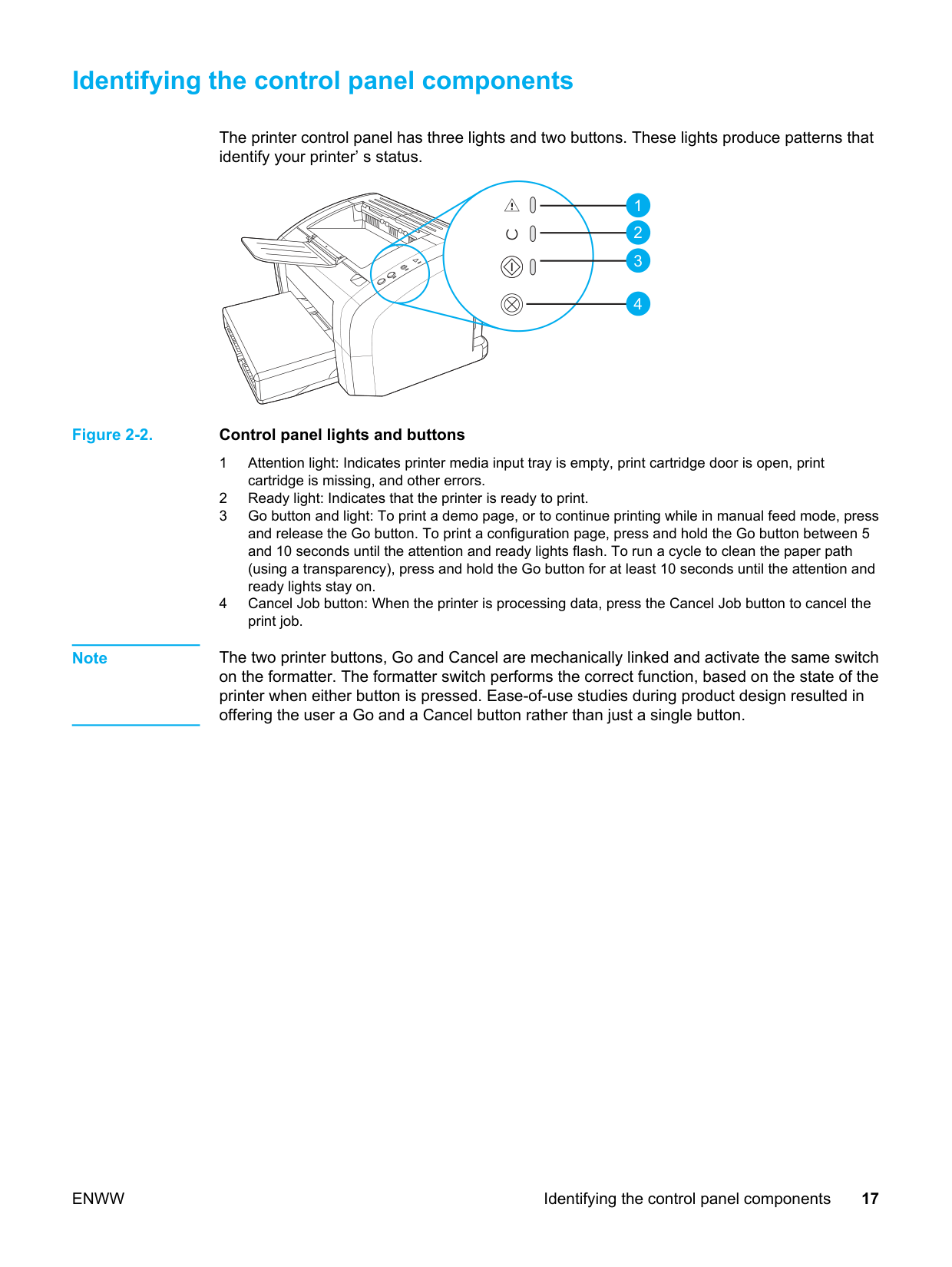
Identifying the control panel components The printer control panel has three lights and two buttons. These lights produce patterns that identify your printer’ s status. 1 2 3 4 Figure 2-2. Control panel lights and buttons 1 Attention light: Indicates printer media input tray is empty, print cartridge door is open, print cartridge is missing, and other errors. 2 Ready light: Indicates that the printer is ready to print. 3 Go button and light: To print a demo page, or to continue printing while in manual feed mode, press and release the Go button. To print a configuration page, press and hold the Go button between 5 and 10 seconds until the attention and ready lights flash. To run a cycle to clean the paper path (using a transparency), press and hold the Go button for at least 10 seconds until the attention and ready lights stay on. 4 Cancel Job button: When the printer is processing data, press the Cancel Job button to cancel the print job. Note The two printer buttons, Go and Cancel are mechanically linked and activate the same switch on the formatter. The formatter switch performs the correct function, based on the state of the printer when either button is pressed. Ease-of-use studies during product design resulted in offering the user a Go and a Cancel button rather than just a single button.
Enww
Identifying the control panel components 17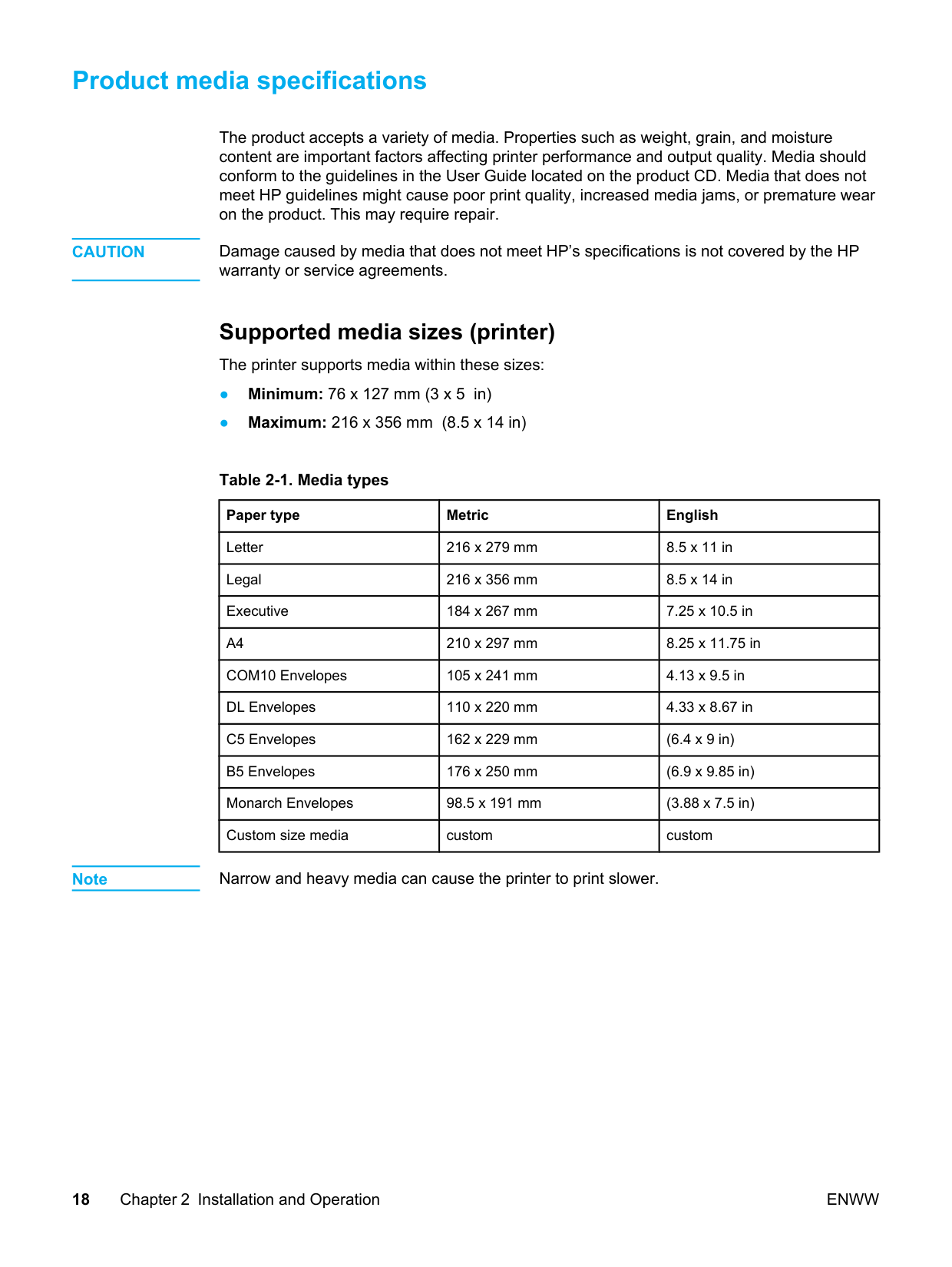
Product media specifications The product accepts a variety of media. Properties such as weight, grain, and moisture content are important factors affecting printer performance and output quality. Media should conform to the guidelines in the User Guide located on the product CD. Media that does not meet HP guidelines might cause poor print quality, increased media jams, or premature wear on the product. This may require repair.
Caution
Damage caused by media that does not meet HP’s specifications is not covered by the HP warranty or service agreements. Supported media sizes (printer) The printer supports media within these sizes: ● Minimum: 76 x 127 mm (3 x 5 in) ● Maximum: 216 x 356 mm (8.5 x 14 in) Table 2-1. Media types Paper type Metric English Letter 216 x 279 mm 8.5 x 11 in Legal 216 x 356 mm 8.5 x 14 in Executive 184 x 267 mm 7.25 x 10.5 inA4
210 x 297 mm 8.25 x 11.75 in COM10 Envelopes 105 x 241 mm 4.13 x 9.5 in DL Envelopes 110 x 220 mm 4.33 x 8.67 in C5 Envelopes 162 x 229 mm (6.4 x 9 in) B5 Envelopes 176 x 250 mm (6.9 x 9.85 in) Monarch Envelopes 98.5 x 191 mm (3.88 x 7.5 in) Custom size media custom custom Note Narrow and heavy media can cause the printer to print slower. 18 Chapter 2 Installation and OperationEnww
Guidelines for using media HP LaserJet printers produce excellent print quality documents. You can print on a variety of media, such as paper (including up to 100 percent recycled fiber content paper), envelopes, labels, transparencies, and custom-sized media. Paper and Transparencies Paper must be of good quality and free of cuts, nicks, tears, spots, loose particles, dust, wrinkles, holes, and curled or bent edges. Check the label on the paper package for details about the type of paper (such as bond or recycled). Some paper causes print quality problems, jamming, or damage to the printer. Note Do not use letterhead that is printed with low-temperature inks, such as those used in some types of thermography, raised letterhead, or colored paper or preprinted forms that use inks incompatible with the printer temperature [200° C (392° F) for 0.1 second]. Transparencies must be able to withstand 200° C (392° F), the printer’s maximum temperature. Common media problems table Symptom Problem with paper Solution Poor print quality or toner adhesion, or problems with feeding. Too moist, too rough, too smooth, or embossed. Faulty paper lot. Try another kind of paper between 100 and 250 Sheffield and 4 to 6 percent moisture content. Dropouts, jamming, or curl. Stored improperly. Store paper flat in its moisture- proof wrapping. Increased gray background shading. Might be too heavy. Use lighter paper. Excessive curl, or problems with feeding. Too moist, wrong grain direction, or short-grain construction. Use long-grain paper. Print using the straight-through output path. Jamming, or damage to printer. Cutouts or perforations. Do not use paper with cutouts or perforations. Problems with feeding. Ragged edges. Use good quality paper. Labels When selecting labels, consider the following factors: ● Adhesives: The adhesive material should be stable at 200° C (392° F), the printer’s maximum temperature. ● Arrangement: Only use labels with no exposed backing between them. Labels can peel off sheets that have spaces between the labels, causing serious jams.
Enww
Guidelines for using media 19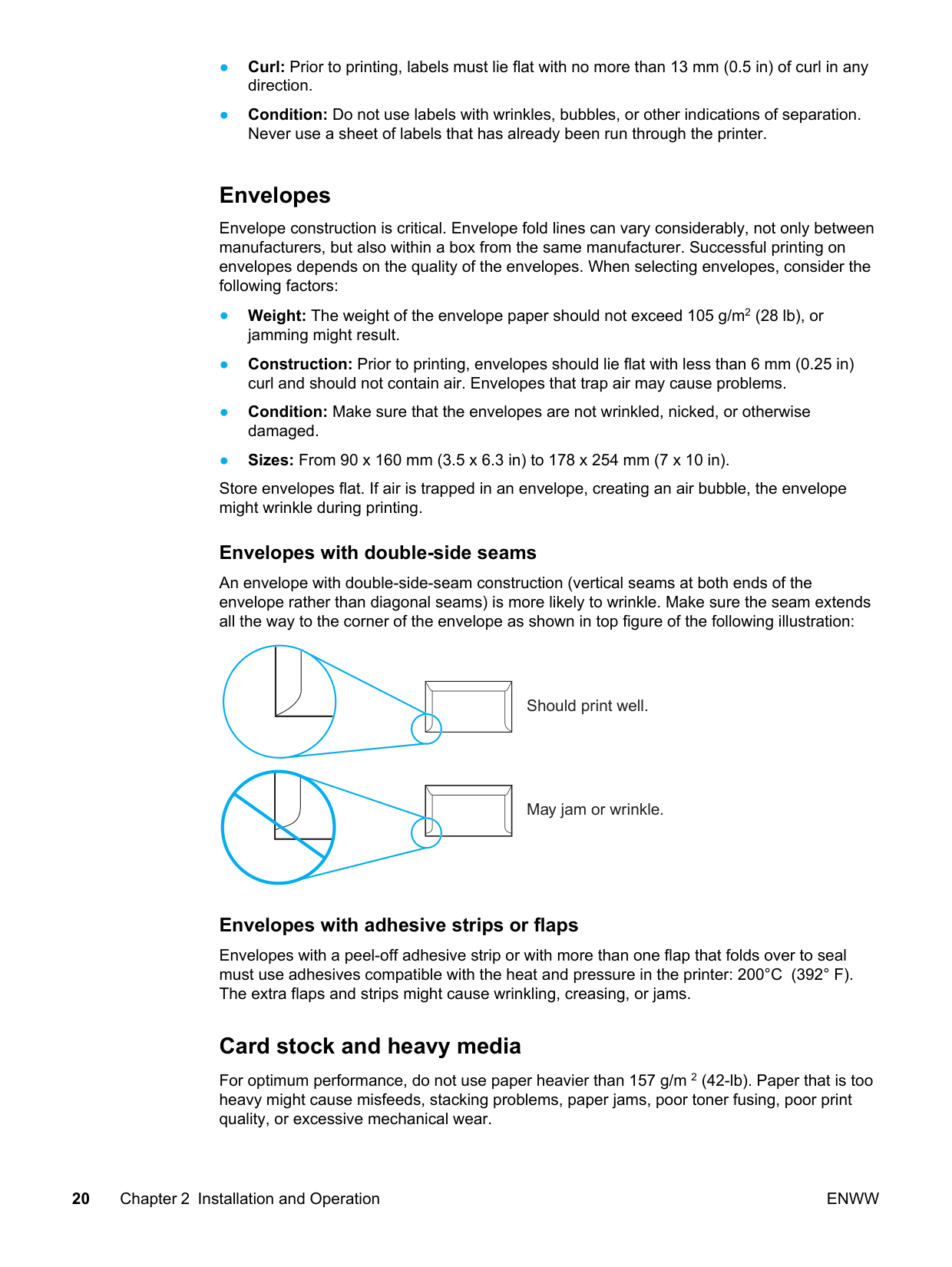
● Curl: Prior to printing, labels must lie flat with no more than 13 mm (0.5 in) of curl in any direction. ● Condition: Do not use labels with wrinkles, bubbles, or other indications of separation. Never use a sheet of labels that has already been run through the printer. Envelopes Envelope construction is critical. Envelope fold lines can vary considerably, not only between manufacturers, but also within a box from the same manufacturer. Successful printing on envelopes depends on the quality of the envelopes. When selecting envelopes, consider the following factors: ● Weight: The weight of the envelope paper should not exceed 105 g/m2 (28 lb), or jamming might result. ● Construction: Prior to printing, envelopes should lie flat with less than 6 mm (0.25 in) curl and should not contain air. Envelopes that trap air may cause problems. ● Condition: Make sure that the envelopes are not wrinkled, nicked, or otherwise damaged. ● Sizes: From 90 x 160 mm (3.5 x 6.3 in) to 178 x 254 mm (7 x 10 in). Store envelopes flat. If air is trapped in an envelope, creating an air bubble, the envelope might wrinkle during printing. Envelopes with double-side seams An envelope with double-side-seam construction (vertical seams at both ends of the envelope rather than diagonal seams) is more likely to wrinkle. Make sure the seam extends all the way to the corner of the envelope as shown in top figure of the following illustration: Should print well. May jam or wrinkle. Envelopes with adhesive strips or flaps Envelopes with a peel-off adhesive strip or with more than one flap that folds over to seal must use adhesives compatible with the heat and pressure in the printer: 200°C (392° F). The extra flaps and strips might cause wrinkling, creasing, or jams. Card stock and heavy media For optimum performance, do not use paper heavier than 157 g/m 2 (42-lb). Paper that is too heavy might cause misfeeds, stacking problems, paper jams, poor toner fusing, poor print quality, or excessive mechanical wear. 20 Chapter 2 Installation and Operation
Enww

Note You might be able to print on heavier paper if you do not fill the input tray to capacity and if you use paper with a smoothness rating of 100 to 180 Sheffield. Card stock construction ● Smoothness: 135-157 g/m 2 (36-to 42-lb) card stock should have a smoothness rating of 100 to 180 Sheffield. 60-135 g/m 2 (16- to 36-lb) card stock should have a smoothness rating of 100 to 250 Sheffield. ● Construction : Card stock should lie flat with less than 5 mm (0.2 in) of curl. ● Condition: Make sure that the card stock is not wrinkled, nicked, or otherwise damaged. ● Sizes: Only use card stock within the following size ranges: ● Minimum: 76 x 127 mm (3 x 5 in) ● Maximum: 216 x 356 mm (8.5 x 14 in) Card stock guidelines ● Set margins at least 2 mm (0.08 in) away from the edges.
Enww
Guidelines for using media 21
Loading media Loading media in the HP LaserJet 1010 series printers is simple and straightforward. Loading media to print This section describes loading bulk media to print. Main input tray The main input tray holds up to 150 sheets of 75 g/m2 (20 lb) paper or a 25 mm (0.98 in) stack of heavier media. Load media with the top forward and the side to be printed facing up. To prevent jams and skew, always adjust the side media guides. Priority input tray The priority input tray can be used to feed one page at a time of a recommended media for manual feeding and special operations. It can hold up to ten pages of 75 g/m2 (20 lb) paper, but is best used for feeding one page at a time of paper, heavier paper, envelope, transparency, or card stock. Load media with the top forward and the side to be printed facing up. To prevent jams and skew, always adjust the side media guides. If you try to print on media that is wrinkled, folded, or damaged in any way, a jam might occur. See the User Guide located on the product CD for more information. Note When you add new media, make sure that you remove all of the media from the input tray and straighten the stack of new media. This helps prevent multiple sheets of media from feeding through the printer at one time, reducing paper jams. Specific types of media ● Transparencies and labels: Load transparencies and labels with the top forward and the side to be printed facing up. See the User Guide located on the product CD for more information. ● Envelopes: Load envelopes with the narrow, stamp side forward and the side to be printed facing up. See the User Guide located on the product CD for more information. ● Letterhead or preprinted forms: Load with the top forward and the side to be printed facing up. See the User Guide for more information. ● Cards and custom-sized media: Load with the narrow side forward and the side to be printed facing up. See the User Guide located on the product CD for more information. 22 Chapter 2 Installation and Operation
Enww

Maintenance This chapter describes the life expectancy of parts that wear, printer cleaning, printer maintenance, and the replacement of user-replaceable parts. Life expectancies of parts that wear ......................................................................................24 Cleaning the product...............................................................................................................25 Cleaning the print path.....................................................................................................25 Cleaning the print cartridge area......................................................................................26 Cleaning the printer pickup roller .....................................................................................27 User-replaceable parts ...........................................................................................................29 Replacing the printer pickup roller ...................................................................................29 Replacing the printer separation pad................................................................................31 Replacing the main input tray (paper pickup tray assembly)............................................33 Replacing the output tray extension (delivery tray assembly)..........................................34
Enww
23
Life expectancies of parts that wear Inspect any parts that wear when servicing the product. Replace them as needed, based on failure or wear, rather than on usage. The following table lists approximate schedules for replacing consumables. Table 3-1. Life expectancies of parts that wear Description Part number Life (estimated) Remarks Print cartridge (user- replaceable)
Q2612A
2,000 pages Note The estimated print cartridge life is based on letter- or A4-sized paper with an average of 5 percent toner coverage and a medium density setting. Print cartridge life can be extended further by conserving toner using draft mode settings. When print becomes faint, redistribute the toner in the cartridge by gently rotating the cartridge from side to side or replace the cartridge. Pickup rollerRl1-0266-000Cn
50,000 pages Affects paper pickup. Printer separation padRc1-2095-000Cn
50,000 pages Affects paper separation (feeding one page at a time). Fuser assemblyRm1-0650-000Cn
50,000 pages Can affect print quality and/or paper movement. Fuser assembly (220-240 V)
Rg9-1494-030Cn
50,000 pages Can affect print quality and/or paper movement. 24 Chapter 3 MaintenanceEnww

Cleaning the product
Warning!
Before you perform these steps, unplug the product to avoid shock hazard. To maintain quality, thoroughly clean the product: ● Any time a new print cartridge is installed. ● After printing approximately 2,000 pages. ● Whenever print quality problems appear. Clean the outside of the product with a water-dampened cloth. Clean the inside with only a dry, lint-free cloth (such as a lens tissue).Caution
To avoid permanent damage to the product, do not use ammonia-based or ethyl alcohol- based cleaners on or around the product.Warning!
Avoid touching the heating element in the fuser. It might be very hot and can cause burns.Caution
Do not touch the surface of the black sponge transfer roller. Contaminants on the roller can cause print quality problems. Cleaning the print path The HP LaserJet 1010 series printer features a special cleaning mode to clean the paper path. Note This process requires a transparency to remove dust and toner from the print paper path. Do not use bond or rough paper. Make sure the transparency used in this cleaning process meets the media requirements for the printer. If transparency film is unavailable, you can use copier grade paper (18 to 24 lb. or 70 to 90 g/m2) with a smooth surface. If you must use paper, perform the procedure two or three times to ensure proper cleaning.Enww
Cleaning the product 25
Cleaning the print cartridge area You do not need to clean the print cartridge area often. However, cleaning this area can improve the quality of your printed sheets.
Caution
To prevent damage, do not expose the print cartridge to light. Cover the print cartridge if necessary. Also, do not touch the black sponge transfer roller inside the printer. By doing so, you can damage the printer.Enww

Enww
Cleaning the product 27
Remove the pickup roller as described in steps 1 through 5 of Replacing the printer pickup roller.
H2O
Enww

User-replaceable parts To order a new pickup roller or separation pad, go to http://partsdirect.hp.com. Replacing the printer pickup roller If the printer regularly misfeeds (no media feeds through) and cleaning the pickup roller does not fix it, replace the pickup roller.
Caution
Failure to complete all the steps in this procedure might damage the product.Enww
User-replaceable parts 29
Caution
Use gentle pressure to release the small white tabs to avoid breaking them.Enww

Enww
User-replaceable parts 31
Note The following procedure requires a #2 Phillips-head screwdriver.
Enww

Enww
User-replaceable parts 33
Replacing the output tray extension (delivery tray assembly) If you break or damage the output tray extension (also called the delivery tray assembly), you can replace it. To order parts, go to http://partsdirect.hp.com.
Enww

Operational overview This chapter describes the general components of the HP LaserJet 1010 series and their theory of operation. Basic functions........................................................................................................................36 Formatter system....................................................................................................................37 Central processing unit ....................................................................................................37 RAM.................................................................................................................................. 37 Universal Serial Bus interface..........................................................................................37 Parallel interface (HP LaserJet 1015 only).......................................................................37 Control panel....................................................................................................................37 Draft mode .......................................................................................................................38 MEt................................................................................................................................... 38 Enhanced I/O ...................................................................................................................38 PJL overview ...................................................................................................................38 Printer functions......................................................................................................................39 Engine control system (engine control unit and power assembly)...................................39 Image formation system...................................................................................................43 Printer paper feed system................................................................................................44 Jam detection ..................................................................................................................46 Solenoid, sensors, and switches......................................................................................46 Basic sequence of operation (formatter-to-printer)...........................................................47
Enww
35
Basic functions The major functions of the printer and the corresponding systems providing them are: ● Formatter and I/O functions ● Formatter system ● Printer functions and operation ● Engine control system (engine control unit--ECU--and engine power assembly) ● Image formation system ● Paper feed system
Printer
Formatter
Engine Unit
Ecu
Computer
Figure 4-1. Basic configuration 36 Chapter 4 Operational overviewEnww

Formatter system The formatter coordinates the major systems. It is responsible for the following: ● Receiving and processing print data from the printer interface (from the computer) ● Monitoring the control panel and relaying printer status information ● Developing and coordinating data placement and timing with the print engine ● Communicating with the host computer through the bidirectional interface The formatter receives print data from the parallel interface or the Universal Serial Bus (USB) interface and converts it into a dot image. The ECU synchronizes the image formation system with the paper feed system and signals the formatter to send the print image data to the laser system. The formatter sends the print image data (dots) in the form of a video signal, and the printing process begins. Central processing unit The formatter uses an embedded Coldfire V4 microprocessor operating at 133 MHz.
Ram
● One bank of nonvolatile RAM (NVRAM) stores parameters. ● Dynamic random access memory (DRAM) provides temporary storage of the product program code and print data. ● The HP LaserJet 1010 and 1012 have 8 MB of RAM. ● The HP LaserJet 1015 has 16 MB of RAM. Universal Serial Bus interface The formatter receives incoming data through the USB interface. This interface provides high-speed, two-way communication between the product and the host, allowing applications on the host computer to change product settings and monitor product status. The USB interface is compatible with the USB 2.0 specification. Parallel interface (HP LaserJet 1015 only) If the parallel interface on the HP LaserJet 1015 is used, the formatter receives incoming data through bidirectional ECP. Like the USB interface, the parallel interface supports high- speed, two-way communication between the product and the host, so applications on the host computer can change product settings and monitor product status. Use an IEEE 1284- compliant parallel cable. Control panel The control panel consists of: ● Three status lights. ● Go and Cancel Job buttonsEnww
Formatter system 37
Draft mode Depending on which driver is used, selecting draft or EconoMode from the driver allows the product to use approximately 50 percent less toner, extending the life of the print cartridge. MEt HP MEt effectively doubles the standard memory through a variety of font and data- compression methods. Enhanced I/O The Enhanced I/O feature allows product memory to be used for storing data received from the host computer. When Enhanced I/O is enabled, you can send more data to the product in shorter amounts of time, which allows you to return to your application sooner. Enhanced I/O has the following options: ● Auto —allows the product to use Enhanced I/O memory allocation to increase the speed of data transfer from the host computer to the product, if necessary. The default setting is Auto. ● Off —uses the minimum amount of product memory for storing data sent from the host computer. ● Page protect—allows the formatter to create the entire page image in page buffer memory before physically moving the media through the printer. This process ensures that the entire page will be printed. Page complexity (ruling lines, complex graphics, or dense text) can exceed the printer’s ability to create the page image fast enough to keep pace with the image formation process. If Page Protect is disabled and a page is too complex, the page might print in parts (for example, the top half on one page and the bottom half on the next page). Some print-data loss is likely in these instances, and the product will display an error message. PJL overview When using the parallel port on the HP LaserJet 1015, Printer Job Language (PJL) is an integral part of configuration (in addition to the standard Printer Command Language--PCL). With IEEE 1284-compliant parallel cable (standard ECP cabling), PJL allows the product to perform functions such as: ● Two-way communication with the host computer through a bidirectional parallel connection. The product can communicate information to the host (such as the control panel status). ● Isolation of print environment settings from one print job to the next. For example, if a print job is sent to the printer in landscape mode, the subsequent print jobs print in landscape only if they are formatted for landscape printing. Note PJL commands can be sent to the printer only from a DOS command prompt and through a parallel cable, and thus apply only to the HP LaserJet 1015. DOS applications are not supported over a USB interface. 38 Chapter 4 Operational overview
Enww

Printer functions Printer functions are divided into five groups: ● Engine control ● Formatter ● Image formation ● Laser/scanner ● Pickup and feed The following figure is a block diagram of the printer: Output tray Priority input tray Main input tray To external device (host computer, etc.) Scanning mirror Laser diode Cleaning unit Fuser unit Primary charging roller Photo sensitive drum Engine power assembly
Formatter
Engine Control System
Paper Pickup/Feed
System
Image
Formation
System
Laser/Scanner Unit
Bd
sensor Scanner motorEcu
Pickup control unit Develop- ing unit Transfer charging roller Figure 4-2. Printer functional block diagram Engine control system (engine control unit and power assembly) The engine control system coordinates all print engine activities. The engine control system includes both the engine control unit (ECU) PCA and the engine power assembly PCA. Note In other HP LaserJet products, the ECU and power functions are combined onto one PCA known as the controller PCA or the DC controller PCA. In the HP LaserJet 1010 series, the control functions are primarily relegated to the ECU PCA and the power functions to the engine power assembly PCA.Enww
Printer functions 39
The ECU controls the following systems and functions: ● Printer engine control ● Paper motion monitoring and control (printing) ● Motor ● Printer laser/scanner unit The engine power assembly provides the power system: ● AC power distribution ● DC power distribution ● Overcurrent/overvoltage protection ● High-voltage power distribution Printer engine control system Paper motion monitoring and control The ECU controls paper motion in the printer by continuously monitoring the two paper sensors and coordinating the timing with the other print processes. For a detailed explanation of paper movement and the interaction of the sensors and pickup solenoid with the paper movement process, see Printer paper feed system. Motor The ECU controls the motor. The motor drives all of the printer paper movement. Printer laser/scanner unit The ECU sends signals to the laser/scanner assembly to modulate the laser diode's on and off modes and to drive the laser/scanner motor. 40 Chapter 4 Operational overview
Enww

Vdo
/Vdo
Cnt0
Cnt1
/Bdi
/Bd
/Acc
/Dec
Formatter Laser driver PCB Focusing lens Scanner motor Four-sided mirror Cylindrical lensBd
sensor Engine controllerPcb
Photosensitive drum Figure 4-3. Laser/scanner operation Power system on the engine power assembly The AC, DC, and high-voltage power supply circuits are all provided by the engine power assembly. AC power distribution The AC power circuitry supplies AC voltage whenever the power cord is connected to the AC power source and the power switch is on. AC voltage is distributed to the DC power supply circuitry and to the AC driver circuitry, which controls AC voltage to the fuser assembly heating element. DC power distribution The DC power distribution circuitry, located on the engine power assembly, distributes +3.3 Vdc, +5 Vdc, and +24 Vdc as follows: ● +3.3 Vdc: ECU, sensors, formatter ● +5 Vdc: Parallel interface on the 1015 formatter ● +24 Vdc: Main motor, laser/scanner motor, solenoid, high- voltage power supply, fuser, safety circuit, door switch Overcurrent/overvoltageEnww
Printer functions 41
There are two overvoltage devices in this product: ● Fuse F101 provides overcurrent protection for the fusing system circuitry. ● Fuse F102 (110V products only) provides overcurrent protection to the printer DC power supply circuitry. You can check or replace the fuses by removing the left cover. If either of these fuses fail, replace the engine power assembly. High-voltage power distribution The high-voltage power supply applies an overlap of DC and AC voltage to the primary charging roller and to the developing roller. This circuit also applies a positive or negative DC voltage to the transfer roller according to the instructions from the engine control unit. This circuit also controls the image density by changing the primary AC voltage and the developing AC bias according to the print density setting (which is set using HP Toolbox). High voltage is disabled when the print cartridge door is open.
Pr1
Trs
Dev
Ic902
Cpu
Dvac
Trndc
Trcrnt
Trpdc
Prac
Prpwm
Ic301
Ic301
Ic301
Ic301
Ic501
Positive voltage generation circuitJ303
J304
J301
J302
DC voltage generation circuit AC voltage generation circuit DC voltage generation circuit AC voltage generation circuit Combined Combined Primary charging roller Developing cylinder Transfer charging roller Engine controller PCB High-voltage power supply circuit Developing bias circuit Transfer charging bias circuit Negative voltage generation circuit Photosensitive drum Primary charging bias circuitJ201-14
J902-10
J201-15
J902-9
J201-16
J902-8
J201-18
J902-6
J201-17
J902-7
J201-22
J902-2
Power supply PCB Figure 4-4. High-voltage power supply circuit 42 Chapter 4 Operational overviewEnww

Image formation system Laser printing requires the interaction of several different technologies including electronics, optics, and electrophotographics to provide a printed page. Each process functions independently and must be coordinated with the other printer processes. Image formation consists of seven processes: Electrostatic latent image formation stage Paper direction Direction of drum rotation
Caution
The print cartridge does not include a light-blocking shutter. Do not expose the drum to light, which can permanently damage the drum. Protect the print cartridge whenever you remove it by covering it with paper. The seven image-formation processesEnww
Printer functions 43
Enww

Step 6 After the image is transferred, the media enters the fuser assembly where heat from the fuser and pressure from the pressure roller permanently bond the toner image to media. The paper delivery sensor (PS803) determines that the media has successfully moved out of the fusing area. Step 7 The fuser assembly exit rollers deliver media to the paper output bin face down. Pick-up roller Transfer roller Delivery roller Priority input tray Main input tray Pressure roller Fuser
Sl1
Engine controller PCB FormatterM1
Ps801
Ps802
Ps803
Separation pad PAPER DELIVERY DETECTION sigunal(/Posns)
TOP OF PAGE DETECTION signal (/PISNS) PICK-UP SOLENOID DRIVE signal (CPUD) MAIN MOTOR DRIVE signals Photo-sensitive drum PS801: Top of page sensor PS802: Paper width sensor PS803: Paper delivery sensor M1: Main motor SL1: Pick-up solenoid PAPER WIDTH DETECTION signal (/PWSNS) Figure 4-6. Printer paper pathEnww
Printer functions 45
Jam detection The top-of-page sensor (PS801) and the paper delivery sensor (PS803) detect media moving through the printer. If a jam is detected, the ECU immediately stops the printing process and displays the a jam light on the control panel. Conditions of jam detection ● Pickup delay jam—Paper does not reach the top-of-page sensor (PS801) within 1.4 seconds after the pickup solenoid (SL1) has been turned on, a second pickup operation is attempted, and paper again does not reach the top-of-page sensor within 1.4 seconds.. ● Pickup stationary jam—The top-of-page sensor (PS801) does not detect the trailing edge of media within 4.6 seconds of detecting the leading edge. ● Delivery-delay jam—The paper delivery sensor (PS803) does not detect the leading edge of media within 2.1 seconds after the top-of-page sensor (PS801) detects the leading edge. ● Wrapping jam—The paper delivery sensor (PS803) does not detect the trailing edge of the media within 1.5 seconds after the top-of-page sensor (PS801) detects the leading edge and within ten seconds after the paper delivery sensor (PS803) detects the leading edge. ● Delivery-stationary jam—The paper delivery sensor (PS803) does not detect the leading edge of media within 2.2 seconds after the top-of-page sensor (PS801) detects the trailing edge. ● Residual paper jam—The top-of-page sensor (PS801) or the paper delivery sensor (PS803) detect media in the initial rotation period. ● Door open jam—The top-of-page sensor (PS801) or the paper delivery sensor (PS803) detect media while the print cartridge door is open. Solenoid, sensors, and switches The following figure shows the locations of the solenoid, sensors, and switches. 46 Chapter 4 Operational overview
Enww

➁ ➂ ➃ ➀ ➄ ➅ ➆ Figure 4-7. Solenoid, photosensors, and switches 1 Door switch detects whether or not the print cartridge door is closed. Printing cannot continue until the print cartridge door is closed. 2 Power switch. 3 Paper-width sensor senses the width of the paper. 4 Paper delivery sensor senses when paper has successfully moved out of the fusing area. 5 Top-of-page sensor detects the leading and trailing edges of the paper. It synchronizes the photosensitive drum and the top of the paper. 6 Solenoid. 7 Motor. Basic sequence of operation (formatter-to-printer) The operation sequence of the printer is controlled by the microprocessor (CPU) on the ECU. The following events take place during normal printer operation: Table 4-1. Basic sequence of operation Period Purpose Remarks WAIT After the product is turned on until the end of the initial rotation of the main motor. To clear the drum surface of potential and to clean the primary charging roller. Detects whether or not the cartridge is installed. STBY (Standby) From the end of the WAIT period or the LSTR period until the pickup command is sent from the formatter. Or, from the end of the LSTR period until the product is turned off. To pause until the product is ready to print.
Enww
Printer functions 47
Period Purpose Remarks INTR (Initial Rotation Period) After the pickup command has been sent from the formatter until the media reaches the top- of-page sensor (PS801). To stabilize the photosensitive drum sensitivity in preparation for printing. Also to clean the primary charging roller. PRINT (Print) From the end of the initial rotation until the primary voltage goes OFF. To form images on the photosensitive drum based on the VIDEO signals (/VDO, VDO) sent from the formatter and to transfer the toner image onto the media. LSTR (Last Rotation Period) After the primary voltage goes OFF until the main motor stops rotating. To deliver the last page. Also to clean the primary charging roller. When the pickup command is sent from the video controller, the printer enters the INTR period immediately after the end of the LSTR period. 48 Chapter 4 Operational overview
Enww

1 2 3 4 5 6 7 8 9 10 11 12 13 14 15 16 17 18 19 20
Stby
Wait
Stby
Fixing Heater (H701) Print Command Scanner Motor Scanner Ready Main Motor (M1) Pick-up Solenoid (SL1) Top of Paper Sensor (PS801) Paper Delivery Sensor (PS803) Primary Charging Bias (AC) Primary Charging Bias (DC) Developing Bias (AC) Developing Bias (DC) Transfer Charging Bias Laser Diode LASER BEAM signal (BD)Intr
Lstr
About 1.1 About 1.1 About 1.1 About 0.5 About 0.47 About 0.16 About 0.17 About 0.16 About 0.17 About 0.4 About 0.4 About 2.2 About 0.08 About 0.02 About 0.02 About 1.5 About 0.7 About 0.7 About 1.5 About 3.0 About 0.1 About 0.25 About 0.45 About 0.65 About 0.6 About 0.2 About 0.2 About 1.5 About 0.1 About 0.99 Max. 122 About 0.08 About 0.47 Max. 1.5 1.8 Max. 1.5 About 0.2 1.7 1.0 0.04 0.2 0.2 Max. 3.0 Power Switch ONSequence
100°C Control Print Temperature Control Between-sheets Temperature Control Negative Bias Between-sheets Bias Print Bias Forced emission (Unit:Seconds) Figure 4-8. Printer timing diagramEnww
Printer functions 49
50 Chapter 4 Operational overview
Enww

Removal and replacement This chapter describes the removal and replacement of field-replaceable units (FRUs) only. Removal and replacement strategy........................................................................................52 Required tools .................................................................................................................52 Before performing service................................................................................................52 Print cartridge ..................................................................................................................52 Differences between the series models............................................................................53 Part removal order ...........................................................................................................53 User-replaceable parts ...........................................................................................................55 Replacing the printer pickup roller ...................................................................................55 Replacing the printer separation pad................................................................................57 Replacing the main input tray (paper pick-up tray assembly)...........................................59 Replacing the output tray extension (delivery tray assembly)..........................................60 Covers..................................................................................................................................... 61 Right side cover................................................................................................................62 Left side cover..................................................................................................................65 Print cartridge access door, fuser cover, and rear panel..................................................65 Front cover.......................................................................................................................68 Internal assemblies.................................................................................................................70 Transfer roller assembly...................................................................................................70 Engine power assembly...................................................................................................72 Fuser (fixing) assembly....................................................................................................73 Paper pickup assembly....................................................................................................75 Engine control unit assembly............................................................................................76 Laser scanner assembly...................................................................................................78
Enww
51
Removal and replacement strategy Detailed steps and images showing part removal are included here. Replacement is generally the reverse of removal. Occasionally, notes are included to provide directions for difficult or critical replacement procedures.
Warning!
Remove the power cord before attempting to service the product. If this warning is not followed, severe injury can result as well as damage to the device. Certain functional checks during troubleshooting must be performed with power supplied to the product. However, the power supply should be disconnected during removal of any parts. Sheet metal and plastic edges in the product can be sharp. Use caution when working on the product. Never operate or service the printer with the protective cover removed from the laser scanner assembly. The reflected beam, although invisible, can damage your eyes.Caution
Some parts are sensitive to electrostatic discharge (ESD). Always perform service work at an ESD-protected workstation. To install a self-tapping screw, first turn it counterclockwise to align it with the existing thread pattern, then carefully turn it clockwise to tighten. Do not overtighten. If a self-tapping screw- hole becomes stripped, repair the screw-hole or replace the affected assembly. Always remove the print cartridge before removing or replacing parts. Required tools ● #2 Phillips-head screwdriver with magnetic tip ● Small flatblade screwdriver ● Needle-nose pliers ● ESD matCaution
Do not use a PoziDrive screwdriver or any motorized screwdriver. These can damage screws or screw threads on the product. Before performing service ● Remove all media. ● Unplug the power cable. ● Place the product on an ESD mat. ● Remove the input tray cover. ● Remove the print cartridge. Print cartridgeCaution
To prevent damage, do not expose the print cartridge to light. Cover it with a piece of paper. 52 Chapter 5 Removal and replacementEnww

Figure 5-1. Removing the print cartridge Differences between the series models With the exception of the nameplate, there is no physical difference between the HP LaserJet 1010 and HP LaserJet 1012 printers. The differences between these models are in firmware functionality. The HP LaserJet 1015 printer has a parallel port (callout 1, figure 5-2) in addition to the USB port. 1 Figure 5-2. HP LaserJet 1015 parallel port Part removal order Use the following illustration to determine which parts must be removed before removing other parts.
Enww
Removal and replacement strategy 53
Product teardown tree Right Side Cover Transfer Roller Front Cover Assembly Rear Panel Assembly
Start
Engine Power Assembly Fuser (fixing) Left Side Cover Paper Pick-up Customer Replaceables: -Delivery tray assy. -Paper pick-up tray assy. -Pick roller -Separation pad ECU Assembly Laser Scanner Assembly Assembly Assembly Figure 5-3. Product teardown tree 54 Chapter 5 Removal and replacementEnww

User-replaceable parts To order a new pickup roller or separation pad, go to http://partsdirect.hp.com. Replacing the printer pickup roller If the printer regularly misfeeds (no media feeds through) and cleaning the pickup roller does not fix it, replace the pickup roller.
Caution
Failure to complete all the steps in this procedure might damage the product.Enww
User-replaceable parts 55
Caution
Use gentle pressure to release the small white tabs to avoid breaking them.Enww

Enww
User-replaceable parts 57
Note The following procedure requires a #2 Phillips-head screwdriver.
Enww

Enww
User-replaceable parts 59
Replacing the output tray extension (delivery tray assembly) If you break or damage the output tray extension (also called the delivery tray assembly), you can replace it.
Enww

Covers Remove the covers to access the internal replaceable parts.
Enww
Covers 61
Right side cover
Enww

Enww
Covers 63
Enww

Left side cover
Enww
Covers 65
Enww

Enww
Covers 67
Front cover
Enww

Enww
Covers 69
Internal assemblies This section describes the removal of internal assemblies. Replacement is accomplished by following the removal steps in reverse. Reassembly notes are included where reversal of removal steps requires additional information. Note When replacing internal assemblies, ensure that any component parts that are not provided with the new assembly get transferred from the failed assembly to the new assembly. For example, sensor PCBs are not included with the fuser assembly or the paper pickup assembly. The sensor PCB from the failed assembly must be transferred to the new assembly. Transfer roller assembly Before proceeding, make sure it is absolutely necessary to remove the transfer roller.
Caution
Be very careful not to break the paper guide that is removed during replacement of the transfer roller. This is not a replaceable part, so breaking it would require printer replacement.Caution
Do not touch the black sponge portion of the transfer roller.Enww

Enww
Internal assemblies 71
Enww

Enww
Internal assemblies 73
Caution
A plastic tab on the left (printer-left) side of the fuser assembly fits into the sheet metal. When installing the fuser assembly, avoid breaking this tab. 74 Chapter 5 Removal and replacementEnww

Figure 5-23. Fragile tab on fuser assembly Paper pickup assembly
Enww
Internal assemblies 75
Note When replacing the paper pickup assembly, be sure to transfer the sensor PCB and, if necessary, the separation pad assembly to the new paper pickup assembly. Engine control unit assembly
Enww

Enww
Internal assemblies 77
Enww

Enww
Internal assemblies 79
80 Chapter 5 Removal and replacement
Enww

Troubleshooting This chapter describes how to isolate and resolve printer problems, image problems, and media problems. Troubleshooting details are provided to resolve problems or to isolate replaceable parts. Basic troubleshooting..............................................................................................................82 Control panel power-on functions...........................................................................................84 Power-on Functions: Time Ranges..................................................................................84 Control Panel Pages...............................................................................................................86 Control Panel Pages: Time Ranges.................................................................................86 Control Panel Lights................................................................................................................87 Control Panel Light Patterns.............................................................................................87 Fatal Errors.......................................................................................................................91 Image troubleshooting............................................................................................................92 Print cartridge problems...................................................................................................92 Solving image-quality problems .......................................................................................92 Solving paper-feed problems..................................................................................................99 Solving print paper-feed problems....................................................................................99 Functional checks.................................................................................................................103 Half self-test functional check.........................................................................................103 Drum rotation functional check ......................................................................................105 High-voltage contacts check...........................................................................................105 Troubleshooting tools ...........................................................................................................107 Repetitive image defect ruler..........................................................................................107 Circuit diagram ..............................................................................................................108 Solenoid, sensors, and switches...........................................................................................109
Enww
81
Basic troubleshooting Table 6-1. Basic troubleshooting Issue Cause Solution Did the printer turn on? No power due to failed power source, cable, or switch.
Enww

Issue Cause Solution Is the software installed correctly? Software is not installed correctly, or an error occurred during software installation. Uninstall and then reload the product software. Make sure you use the correct installation procedure and the correct port setting. Does the product print from the computer? Connect the USB cable (or parallel if preferred with the HP LaserJet 1015) to the printer and the computer. Print a test page from the printer properties box or print from an application like Notepad. The cable is not connected correctly. Reconnect the cable. An incorrect driver is selected. Select the proper driver. Other devices are connected to the parallel port. Disconnect the other devices and try again to print. There is an LPT port driver problem in Microsoft Windows. Correct or reset the computer’s port settings.
Enww
Basic troubleshooting 83
Control panel power-on functions Powering on the printer while pressing the Go button for varying amounts of time accesses important printer functionality for resetting the printer, resetting NVRAM, and performing self- tests. The general procedure for initiating a power-on function is as follows (refer to the table for specific time ranges for the desired function):
Enww

NVMEM super initialization Release Go more than 50 seconds after power-up. Ready: ON Note After releasing Go, all lights will blink in unison for three seconds. Press and hold Go again. All lights will turn off. In the next 3 seconds, the lights will turn on one at a time. When all are lit, release Go. The initialization will run to completion and the printer will return to the ready state.
Enww
Control panel power-on functions 85
Control Panel Pages When the printer is in the ready state, pressing the Go button for varying amounts of time accesses important printer reports. The general procedure for initiating the power on actions is as follows (refer to the table for specific time ranges for each action):
Enww

Control Panel Lights The printer displays status and errors through patterns of the Go, Ready, and Attention lights. If any lights are blinking, the error is usually resolvable. In all cases:
Enww
Control Panel Lights 87
Printer Status Lights Description Processing data - Device is processing or receiving data Go Ready Attention In the Data Processing state, the Ready light is blinking and the Go and Attention lights are off. Pressing Go cancels the current job without printing another non-picked page. The printer returns to the Ready state after the job has been canceled. Job Cancel Ready Attention Go In the Job Cancel state, all the lights cycle. Pressing Go has no effect. Once the job cancel process is complete, the printer goes to the Ready state. 88 Chapter 6 Troubleshooting
Enww

Printer Status Lights Description Continuable error Go Ready Attention In the continuable error state, the Go light is on, the Ready light is off, and the Attention light is blinking. Press Go to attempt to recover from the error and continue printing. If the printer recovers from the error, it will move to the Processing data state and complete the job. If the recovery fails, the device will return to the continuable error state. This state can be reached in the following circumstances: ● Manual Feed ● Out of paper for the specified tray ● General continuable error ● Memory overflow (error 20) / memory full. Note: PCL only. ● Temporary engine error (41.x errors) ● I/O error (22 error) / Buffer flow error Note: Parallel only. ● I/O data error (40 error) (Bad Connection) Note: Parallel only. ● Memory configuration error ● Personality/Job related error ● Fuser high temperature (50.011 error) Note The LJ1010 product series does not have paper out sensors. When the printer goes to a continuable error state because its out of paper, the user the will need to reload paper and press Go to continue. No secondary error information is provided to the user from the lights.
Enww
Control Panel Lights 89
Printer Status Lights Description Attention State Go Ready Attention In the Attention state, the Attention light is blinking and the Go and Ready lights are off. This state can be reached in the following circumstances: ● Paper tray is empty ● Door open ● Toner Cartridge Missing ● Paper jam/ Tray Misfeed Pressing Go attempts to reset after a jam is cleared or is ignored in the other error cases. It may be necessary to clear the error manually and press Go or close the top cover. If the error still persists, the device will return to the Attention state. Note The LJ1010 product series does not have paper out sensors. When the printer is in an Attention state because the paper tray is empty, the user must reload paper and press Go. Fatal Error Go Ready Attention While in the fatal error state, all three LED's are on continuously. Pressing Go displays the secondary error information for the fatal error, and releasing the button(s) will cause the device to return to the initial "fatal error" state. (See.) Cleaning Page Ready Attention Go The cleaning page is activated using the Toolbox application. Button presses are ignored during cleaning mode. Sleep Mode Go Ready Attention From the customer's perspective Sleep mode is the same as Ready mode. 90 Chapter 6 Troubleshooting
Enww

Fatal Errors If the printer displays all lights on solid and the error is not resolved by cycling the power, then a fatal error has occurred. The two identifiable errors are failed communication between the formatter and the engine and a failed fuser. If neither of these are identified using the following procedure, replace the printer.
Enww
Control Panel Lights 91
Image troubleshooting Print cartridge problems Checking the print cartridge Image formation defects are frequently the result of problems in the print cartridge. If there is any doubt, always replace the print cartridge before troubleshooting image defects. Use the following checklist to make sure that the print cartridge is still operable. □ Make sure that the print cartridge is installed properly and the shipping tape is removed. □ Inspect the print cartridge for toner level. □ Check the expiration date stamped on the print cartridge box. □ Check the print cartridge to see if it has been disassembled or refilled. □ Inspect the print cartridge to see if toner is leaking through worn seals. □ Check the surface of the photosensitive drum in the cartridge to see if it has been damaged or scratched. Touching the drum contaminates the photosensitive surface and can cause spotting and image defects. □ Blurred areas on printed pages indicate that the photosensitive drum in the cartridge has been overexposed to light. Because overexposure to light causes permanent damage to the photosensitive drum, the cartridge should be replaced. Note A print cartridge weighs approximately 675 gm. (approx. 23.8 oz.) when it is full, approximately 600 gm. (approx. 21.2 oz.) when it first fades, and approximately 585 gm. (approx. 20.6 oz.) when it is empty. To redistribute toner in the print cartridge Before installing a new print cartridge or when toner begins to run low, redistribute the toner by rotating the cartridge back and forth five or six times. Solving image-quality problems Use the following tables to help solve problems with printed pages. If the problem occurs when printing, see Table 6-2. Solving print image-quality problems. Also, see Table 6-3. Solving print paper-feed problems. 92 Chapter 6 Troubleshooting
Enww

Solving print image-quality problems Table 6-2. Solving print image-quality problems Issue Cause Solution Page is not produced. The product is not plugged in or power switch is off. Make sure that the product is plugged into a live wall outlet or power strip. The printer is registering a jam. Check the lights. If the Attention light is flashing, the printer may have a paper jam. Clear the jam and press the Go button to clear the jam. The computer cable is loose. Check that the cable between the product and the computer is securely connected. Output pages are blank. The tape was not removed from the print cartridge. Remove the print cartridge, remove the tape, and return the print cartridge. The print cartridge is out of toner. Replace the print cartridge. The high-voltage connection between the printer and the print cartridge is interrupted. Perform a High-voltage contacts check. Parts of the page around the edges are not printing. The printer cannot print all the way to the edge of the paper. The printer has minimum margins on each edge of approximately 6 mm (0.25 in). To get the image to fit into this printable area, slightly reduce the size of the image. Reduction settings are on the Effects tab of the printer properties dialog. The reduction setting is incorrect. Reduction settings are on the Effects tab of the printer properties dialog. Also may be in a Page Setup setting in the application. The paper size setting is incorrect. Paper size settings are on the Paper tab of the printer properties dialog. Also may be controlled under a Page Setup selection in the application.
Enww
Image troubleshooting 93
Issue Cause Solution Random toner specks appear on the printed page. . The media you are using does not meet HP’s specifications (for example, it is too moist or too rough). Make sure that the media meets specifications detailed in the HP LaserJet Printer Family Print Media Guide. The print path needs to be cleaned. Clean the print path. (See chapter 4.) Characters are only partially printed (also referred to as dropouts). A single sheet of paper is defective. Try reprinting the job. The print density needs to be adjusted. Adjust the print density from the toolbox utility (Settings tab). The moisture content of the paper is inconsistent, or the paper has moist or wet spots on the surface. Make sure that the media meets HP’s specifications. The paper was damaged by inconsistent manufacturing processes. Make sure that the media meets specifications detailed in the HP LaserJet Printer Family Print Media Guide. EconoMode is selected in the software. Deselect EconoMode. The wrong type of paper is selected in the printer properties dialog. Select the correct media type under "Type is" (in the printer properties dialog, on the Paper tab). The print cartridge is depleted or damaged. Replace the print cartridge. Vertical black lines appear on the printed page. The print cartridge is depleted or damaged. Replace the print cartridge. Rarely, the fuser is defective. Replace the fuser. 94 Chapter 6 Troubleshooting
Enww

Issue Cause Solution The printed page has a gray background. The wrong type of paper is selected in the printer properties dialog. Select the correct media type under "Type is" (in the printer properties dialog, on the Paper tab). The print density setting is too high. Decrease the print density using the toolbox utility (Settings tab). The media basis weight is too high. Change the media to a lower basis weight. The print path needs to be cleaned. Clean the print path. (See chapter 4.) The printer is operating in humidity or temperature conditions that are not within the recommended ranges. Move the product to a different location. The print cartridge is worn or damaged. Replace the print cartridge. Toner smears appear on the printed page. The print path needs to be cleaned. Clean the print path. (See chapter 4.) The media you are using does not meet HP’s specifications (for example, it is too moist or too rough). Make sure that the media meets specifications detailed in the HP LaserJet Printer Family Print Media Guide. The print cartridge is worn or damaged. Replace the print cartridge. The wrong type of paper is selected in the printer properties dialog. Select the correct media type under "Type is" (in the printer properties dialog, on the Paper tab). The fuser damaged. Perform the Half self-test functional check. If the error persists, replace the fuser. If, after replacing the fuser, the error persists, replace the ECU.
Enww
Image troubleshooting 95
Issue Cause Solution The toner is loose, and it does not stay attached to the printed page. The media you are using does not meet HP’s specifications. (For example, it is too moist or too rough.) Make sure that the media meets specifications detailed in the HP LaserJet Printer Family Print Media Guide. The wrong type of paper is selected in the printer properties dialog. Select the correct media type under "Type is" (in the printer properties dialog, on the Paper tab). The power strip is not working correctly or the AC power is not meeting the specified requirements. Plug the product directly into an AC outlet. Ensure that the power source is clean. The printer is operating in humidity or temperature conditions that are not within the recommended ranges. Move the product to a different location. The fuser is damaged. Perform a Half self-test functional check. If the error persists, replace the fuser. If, after replacing the fuser, the error persists, replace the engine power assembly. Repetitive vertical defects appear on the printed page. The internal parts have toner on them. If the defects occur on the back of the page, the problem will probably correct itself after a few more printed pages. Otherwise, clean the printer. (See chapter 4.) The wrong type of paper is selected in the printer properties dialog. Select the correct media type under "Type is" (in the printer properties dialog, on the Paper tab). If the repetitive mark occurs at equal distance between marks, either the print cartridge, transfer roller, paper pickup assembly, or fuser is damaged. Use the defect ruler to identify the spacing. Check the appropriate assembly and replace if necessary. (Repetitive image defect ruler) Characters are poorly formed and are producing hollow images. The wrong type of paper is selected in the printer properties dialog. Select the correct media type under "Type is" (in the printer properties dialog, on the Paper tab). The media is too slick or too thick. Try a different media. Make sure that the media meets specifications detailed in the HP LaserJet Printer Family Print Media Guide. 96 Chapter 6 Troubleshooting
Enww

Issue Cause Solution Pages are skewed. The media is loaded incorrectly. Reload the media, and make sure that the media guides are not too tight or too loose against the media stack. The input tray is too full. Remove some of the sheets. The main input tray can hold up to 150 sheets of 20-lb. (75 g/m2 ) bond weight paper (or fewer pages of heavier media, a stack no higher than 25 mm). The priority input tray can hold up to ten sheets of 20- lb. (75 g/m2) bond weight paper, one sheet of heavier media, or one envelope or card. The media you are using does not meet HP’s specifications (for example, it is too moist or too rough). Make sure that the media meets specifications detailed in the HP LaserJet Printer Family Print Media Guide. The printed page has curls or waves. The printer is operating in humidity or temperature conditions that are not within the recommended ranges. Move the product to a different location. The wrong type of paper is selected in the printer properties dialog. Select the correct media type under "Type is" (in the printer properties dialog, on the Paper tab). The media you are using does not meet HP’s specifications (for example, it is too moist or too rough). Make sure that the media meets specifications detailed in the HP LaserJet Printer Family Print Media Guide. The media was in the input tray for too long. Turn the stack of media over and put it back in the tray. Rotate the media 180° and put it back in the tray.
Enww
Image troubleshooting 97
Issue Cause Solution Large amounts of toner are scattered around the characters. The media resistivity is too high (most often happens when transparencies acquire a static charge).
Enww

Solving paper-feed problems Use the following table to solve problems related to moving paper or documents through the product. Solving print paper-feed problems Table 6-3. Solving print paper-feed problems Issue Cause Solution Pages are coming out curled or wrinkled. Paper curl is inherent to the laser printing processes, and occurs when paper is subjected to heat. Paper curl tends to relax as the paper cools while resting on a flat surface. Make sure that the media meets specifications detailed in the Print Media Guide for the HP LaserJet family. Reset the fuser mode to the default. Paper is not stored properly. Whenever possible, store paper in its sealed ream at room temperature. The media is too long for the printer output bin. Use the long media extension. The printer is operating in humidity or temperature conditions that are not within the recommended ranges. Move the product to a different location. The wrong type of paper is selected in the printer properties dialog. Select the correct media type under "Type is" (in the printer properties dialog, on the Paper tab). The media you are using does not meet HP’s specifications (for example, it is too moist or too rough). Make sure that the media meets specifications detailed in the HP LaserJet Printer Family Print Media Guide. The media was in the input tray for too long. Turn the stack of media over and put it back in the tray. Rotate the media 180° and put it back in the tray.
Enww
Solving paper-feed problems 99
Issue Cause Solution Print is misaligned on the page (skewed pages). The media is loaded incorrectly. Reload the media, and make sure that the media guides are not too tight or too loose against the media stack. The input tray is too full. Remove some of the sheets. The main input tray can hold up to 150 sheets of 20-lb. (75 g/m2 ) bond weight paper (or fewer pages of heavier media, a stack no higher than 25 mm). The priority input tray can hold up to ten sheets of 20- lb. (75 g/m2) bond weight paper, one sheet of heavier media, or one envelope or card. The media you are using does not meet HP’s specifications (for example, it is too moist or too rough). Make sure that the media meets specifications detailed in the HP LaserJet Printer Family Print Media Guide. 100 Chapter 6 Troubleshooting
Enww

Issue Cause Solution The printer feeds multiple sheets or jams frequently from the main input tray or priority input tray. Paper guides are not adjusted properly or paper is not far enough forward. Slide the guides against the sides of the stack in the main input tray or the priority input tray to center the paper. Make sure the guides are not adjusted too tightly. Stack is not neat and aligned well on all sides. Remove paper, align stack, and replace. The main input tray is overfilled. Remove some of the sheets. The main input tray can hold up to 250 sheets of 20-lb. (75 g/m2 ) bond weight paper (less for heavier paper) or from 20 to 30 envelopes. The priority input tray is overfilled. Remove media or feed single sheets. The priority input tray is designed for optimal feeding of single sheets, especially when heavier media is used. It can hold up to ten sheets of 20-lb. (75 g/m2 ) bond weight paper (one sheet of heavier paper) or one envelope. The paper was poorly cut by the manufacturer and is sticking together. “Break” the ream of paper by curving it into an upside-down u-shape; this can effectively decrease multifeeds. Also try turning the paper around to feed the opposite end first, or use a different type of paper. The paper does not meet HP’s specifications for print media. Make sure that the media meets specifications detailed in the Print Media Guide for the HP LaserJet family. The output capacity was exceeded in the paper output bin. Do not allow more than 125 sheets of 20-lb. (75 g/m2) bond weight paper (less for heavier paper) to fill the paper output bin. The pickup roller is dirty. Clean the pickup roller. The pickup roller is damaged. Replace the pickup roller. The separation pad is damaged. Replace the separation pad.
Enww
Solving paper-feed problems 101
Issue Cause Solution The printer feeds multiple sheets or jams frequently from the main input tray or priority input tray (continued). A sensor is not operating properly. The chances of a sensor failing are very small. However, debris around the sensor arms may cause them to register a jam. There are only three sensors in the printer (top of page, paper width, and delivery). Check them to ensure that the sensor arms can move freely. On the rare occasion of a failed sensor, replace the printer. 102 Chapter 6 Troubleshooting
Enww

Functional checks This section includes five functional checks for troubleshooting. Half self-test functional check The print process can be subdivided into the following stages: ● image formation stage (charges the drum and writes a latent image to the drum with the laser) ● development stage (forms a toner image on the drum) ● transfer stage (transfers the image to paper) ● cleaning stage (removes excess toner from the drum) ● fusing stage (applies heat and pressure to make the image on paper permanent) To perform a half self-test check The purpose of the half self-test check is to begin the printing process and then interrupt it right in the middle. Examining the printer components at that point allows you to determine which stage in the print process is malfunctioning.
Enww
Functional checks 103
Figure 6-2. Check the fuser connections 1 Figure 6-3. Check the fuser connections 104 Chapter 6 Troubleshooting
Enww

Drum rotation functional check The photosensitive drum, located in the print cartridge, must rotate for the print process to work. The photosensitive drum receives its drive from the main motor through a system of gears on the right side of the printer. Note This test is especially important if refilled print cartridges have been used.
Enww
Functional checks 105
1 Figure 6-4. Print cartridge high-voltage contacts To check the printer high-voltage contacts The printer has three spring-loaded pins that make contact with the high-voltage points on the print cartridge. Verify that the pins are not dirty or corroded and that the spring-loading action is functional. If the pins are dirty or obstructed, clean them. If they are damaged, replace the printer. 1 Figure 6-5. Printer high-voltage contacts 106 Chapter 6 Troubleshooting
Enww

Troubleshooting tools If the printer output has a consistent, repetitive defect, then use the following ruler to predict which part needs to be replaced based on the measured distance between the repetitions of the defect. Repetitive image defect ruler First occurrence of print defect (0.00 inches) Transfer roller 46.3 mm (1.82 inches) Print cartridge 37.7 mm (1.48 inches) Print cartridge 30.8 mm (1.21 inches) Paper pick-up assembly 55.2 mm (2.17 inches) Fuser (Fixing assembly) 56.5 mm (2.22 inches) Fuser (Fixing assembly) 41.0 mm (1.61 inches) Print cartridge 76.3 mm (3.00 inches) Figure 6-6. Repetitive image defect ruler
Enww
Troubleshooting tools 107
Circuit diagram 1 3 2 4 6 5 4 3 2 1
D
C
B
A
Pick-up solenoidSw101
Power switchM
1 3 2 4 Laser DrivePcb
Bd
sensor Laser / Scanner unit Door switchSw301
M
1 3 2 4Inl101
Fu101
FuseFu102
Fuse 100-127V only 2 4 6 8 1 3 5 7 9 2 1Tp1
1 2H701
2 1Th1
1 2J1102
1 2 1 2Fsrth
Gnd
J102
J204
Thermistor Fixing heater Thermal fuse Fixing film unit 1 2 3Ps803
1 3 2 1 3 2 Paper delivery sensorJ203
3 1 2J802
1 2 1 2Sl001
Paper delivery sensor PCBCpud
+24V
+3.3V
Posns
Gnd
1 3 2 Inlet 1 3 2 4 1 3 2 4 1 3 5 7 9 2 4 6 8Gnd
/Vdo
Vdo
Gnd
Cnt1
Cnt0
Gnd
+5V
/Bdi
J002
J801
Gnd
/Dec
/Acc
+24Vr
J904
J905
USB interface Scanner motor Fixing unit 6 4 2 5 3 1Fwd
/Si
/So
/Clk
/Strb
Gnd
J901
Formatter Engine controller PCB 1 2J201
Power supply PCB 1 3 5 7 9 11 13 15 17 19 2 4 6 8 10 12 14 16 18 21 20 22 23 24 25 26 Centronics interfaceJ2
J902
1 3 2 1 3 2Ach
Acn
1 3 2 4 1 3 2 4 4 2 3 1 1 2 3Ps802
1 2 3Ps801
Top of page sensor Paper width sensor Top of page / paper width sensor PCBJ801
+3.3V
Pisns
Pwsns
Gnd
J202
23 22 21 20 19 18 17 16 15 14 13 12 11 10 9 8 7 6 5 4 3 2 1+24Vr
Gnd
+24Vr
Gnd
+24Vr
Gnd
+3.3V
+24V
/Posns
Gnd
/Pisns
Pwsv
/Pwsns
Prpwm
Prac
Dvac
Trndc
Trpdc
Fsrd
Fsrth
Rlyd
Trcrnt
Dosns
1 2 3 4 5 6 7 8 9 10 11 12 13 14 15 16 17 18 19 20 21 22 23 1 3 2 4 1 3 2 4J001
/Mb
Mb
/Ma
Ma
J909
Main motor 4 2 3 1 4 2 3 1 1 3 5 7 9 11 13 2 4 6 8 10 12 14 1 3 5 7 9 11 13 2 4 6 8 10 12 14+24Vr
Cpud
+5V
Gnd
Gnd
+3.3V
/Reseto
/Sclk
/Sc
/Bdo
Gnd
/Vdo
Vdo
Gnd
J910
2 1 1 2Acn
Ach
P5
J5
J6
2 1 Figure 6-7. Circuit diagram 108 Chapter 6 TroubleshootingEnww

Solenoid, sensors, and switches The following figure shows the locations of the solenoid, sensors, and switches. ➁ ➂ ➃ ➀ ➄ ➅ ➆ Figure 6-8. Solenoid, photosensors, and switches 1 Door switch detects whether or not the print cartridge door is closed. Printing cannot continue until the print cartridge door is closed. 2 Power switch. 3 Paper-width sensor senses the width of the paper. 4 Paper delivery sensor senses when paper has successfully moved out of the fusing area. 5 Top-of-page sensor detects the leading and trailing edges of the paper. It synchronizes the photosensitive drum and the top of the paper. 6 Solenoid. 7 Motor.
Enww
Solenoid, sensors, and switches 109
110 Chapter 6 Troubleshooting
Enww

Parts and diagrams This chapter provides an exploded view showing the replaceable parts of the printer, tables of replaceable parts, and links to other resources. Ordering parts and supplies .................................................................................................112 Parts .............................................................................................................................. 112 Related documentation and software ............................................................................112 Parts that wear .............................................................................................................112 Accessories and consumables ............................................................................................113 Common hardware ........................................................................................................114 How to use the parts lists and diagrams ........................................................................114 Field-replaceable units .........................................................................................................115
Enww
111
Ordering parts and supplies This section describes web resources for ordering parts and technical support as well as resources for ordering related documentation and software. Parts Order replacement parts from the following website: http://www.hp.com/ssg/parts/ direct_order.html Related documentation and software Order documentation and software from the websites listed in Table 7-1. Technical support websites: Table 7-1. Technical support websites HP Customer Care Online Software drivers, support documentation, and answers to frequently asked questions http://www.hp.com/go/support HP Technical Training (North America) Classes and schedules http://www.hp.com/go/resellertraining Parts Parts information http://outfield.external.hp.com/spi/welcome.htm Parts that wear The parts that wear on the product are listed in chapter 3 of this manual. Parts are available directly from Hewlett-Packard at the following numbers: ●
Us: (800) 538-8787
● Canada: (800) 387-3154 in Toronto: (416) 671-8383 ● United Kingdom: 0734-441212 ● Germany: 0130-3322 Contact your local HP Parts Coordinator for other local phone numbers. 112 Chapter 7 Parts and diagramsEnww

Accessories and consumables Table 7-2. Accessories Product name Description Product number Part number Exchange number Print cartridges, cables, and HP Jetdirect Print Servers Print cartridge 2,000 page cartridge
N/A
Q2612A
Cables and interface accessories 2-meterIeee-1284
parallel cableN/A
C2950A
Cables and interface accessories 3-meter IEEE- 1284 parallel cableN/A
C2951A
Cables and interface accessories 2-meter USB cableQ2460A
8121-0539 Cables and interface accessories 2-feet USB cableQ2460A
8121-0549 Cables and interface accessories Power cord, US/ CanadaQ2460A
8120-6812 Cables and interface accessories Power cord, EuropeN/A
8120-6811 Cables and interface accessories Power cord, SwitzerlandN/A
8120-6815 Cables and interface accessories Power cord, UKN/A
8120-6809 Cables and interface accessories Power cord, DanishN/A
8120-6814 Cables and interface accessories Power cord, SAN/A
8120-6813 Cables and interface accessories Power cord, IsraelN/A
8120-6800 HP Jetdirect Print Server Model 500x Ethernet/Fast Ethernet (10/100Base-TX)J3265A
J3265-61001
Enww
Accessories and consumables 113
Product name Description Product number Part number Exchange number HP Jetdirect Print Server Model 500x Token Ring
J3264A
J3264-61001
HP Jetdirect Print Server Model 300x Ethernet/Fast Ethernet (10/100Base-TX)J3263A
J3263-61001
HP Jetdirect Print Server Model 170x Ethernet (10Base-T)
J3258B
J3258-61001
HP Jetdirect Print Server Model 310X Ethernet/Fast Ethernet (10/100Base-TX)J6038A
J6038-60001
HP Jetdirect print server Model 310XN/A
J6038-60001
HP Jetdirect Print Server Model 380x Wireless Ethernet (802.11b)J6061A
J6061-61001
HP Jetdirect Print Server Model WP110 Wireless Ethernet (802.11b)J6062A
J6062-61001
Toner cloth Ideal for wiping up toner spills and cleaning the printerN/A
5090-3379 1(NOTE: If two parts are listed for one country or region, you can use either part regardless of the output rating.) Common hardware The product uses common Phillips-head screws as fasteners. How to use the parts lists and diagrams The figures in this chapter illustrate the major subassemblies in the product. A table follows the exploded assembly diagram. Each table lists the reference designator, the associated part number for the item, and a description of the part. Parts that have no reference designator or part number are not field-replaceable units and cannot be ordered. Failure of a part that is not listed as replaceable and is not included with a listed field-replaceable unit requires replacement of the entire printer. While looking for a part number, pay careful attention to the voltage listed in the description column to make sure that the part number selected is for the correct product model. 114 Chapter 7 Parts and diagramsEnww

Field-replaceable units 1 2 Figure 7-1. All Models Ref Description Part number Qty 1 Exchange-LJ1010-110V Printer
Q2460-69001
1 Exchange-LJ1010-220V PrinterQ2460-69002
1 Exchange-LJ1012-110V PrinterQ2461-69001
1 Exchange-LJ1012-220V PrinterQ2461-69002
2 Exchange-LJ1015-110V PrinterQ2462-69001
2 Exchange-LJ1015-220V PrinterQ2462-69002
2 Exchange-LJ1010-220V 3 Year WarrantyQ2463-69001
Enww
Field-replaceable units 115
5 6 1 11 2 3 4 7 8 9 10 12 Figure 7-2. Exploded View: Field Replaceable Units Table 7-3. Replaceable Assemblies Ref Description Part number Qty 1
Paper Pickup Tray Ass'Y
Rm1-0629-000
1 2Delivery Tray Ass'Y
Rm1-0659-000
1 116 Chapter 7 Parts and diagramsEnww

Ref Description Part number Qty 3
Separation Pad Ass'Y
Rm1-0648-000
1 4Roller, Pickup
Rl1-0266-000
1 5Fuser (Fixing Ass'Y) 110-127V
Rm1-0650-000
1 5Fuser (Fixing Ass'Y) 220-240V
Rm1-0656-000
1 6Engine Power Ass'Y 110-127V
Rm1-0807-000
1 6Engine Power Ass'Y 220-240V
Rm1-0808-000
1 7Laser Scanner Ass'Y
Rm1-0171-000
1 8Engine Control Ass'Y
Rm1-0806-000
1 9Transfer Roller Ass'Y
Rm1-0658-000
1 10Paper Pickup Ass'Y
Rm1-0641-000
1 11 Dust Cover-USQ2460-67914
1 11 Dust Cover-WorldwideQ2460-67915
1 12 Door Link Clip (Stopper)Rc1-1957-000
1N/A
CD Rom-West Europe/AmericaQ2460-60101
1N/A
CD Rom-North EuropeQ2460-60102
1N/A
CD Rom-East EuropeQ2460-60103
1N/A
CD Rom-AsiaQ2460-60104
1N/A
CD Rom-ChinaQ2460-60105
1N/A
CD-Service and Support TrainingQ2460-60106
1N/A
Service ManualQ2460-90928
1Enww
Field-replaceable units 117
Alphabetical parts list Table 7-4. Alphabetical parts list Description Part number Table and page CD Rom-Asia
Q2460-60104
Table 7-3 on page 117 CD Rom-ChinaQ2460-60105
Table 7-3 on page 117 CD Rom-East EuropeQ2460-60103
Table 7-3 on page 117 CD Rom-North EuropeQ2460-60102
Table 7-3 on page 117 CD Rom-West Europe/AmericaQ2460-60101
Table 7-3 on page 117 CD-Service and Support TrainingQ2460-60106
Table 7-3 on page 117Delivery Tray Ass'Y
Rm1-0659-000
Table 7-3 on page 116 Door Link Clip (Stopper)Rc1-1957-000
Table 7-3 on page 117 Dust Cover-USQ2460-67914
Table 7-3 on page 117 Dust Cover-WorldwideQ2460-67915
Table 7-3 on page 117Engine Control Ass'Y
Rm1-0806-000
Table 7-3 on page 117Engine Power Ass'Y 110-127V
Rm1-0807-000
Table 7-3 on page 117Engine Power Ass'Y 220-240V
Rm1-0808-000
Table 7-3 on page 117 Exchange-LJ1010-110V PrinterQ2460-69001
Table 7-2 on page 115 Exchange-LJ1010-220V 3 Year WarrantyQ2463-69001
Table 7-2 on page 115 Exchange-LJ1010-220V PrinterQ2460-69002
Table 7-2 on page 115 Exchange-LJ1012-110V PrinterQ2461-69001
Table 7-2 on page 115 Exchange-LJ1012-220V PrinterQ2461-69002
Table 7-2 on page 115 Exchange-LJ1015-110V PrinterQ2462-69001
Table 7-2 on page 115 Exchange-LJ1015-220V PrinterQ2462-69002
Table 7-2 on page 115Fuser (Fixing Ass'Y) 110-127V
Rm1-0650-000
Table 7-3 on page 117Fuser (Fixing Ass'Y) 220-240V
Rm1-0656-000
Table 7-3 on page 117Laser Scanner Ass'Y
Rm1-0171-000
Table 7-3 on page 117Paper Pickup Ass'Y
Rm1-0641-000
Table 7-3 on page 117Paper Pickup Tray Ass'Y
Rm1-0629-000
Table 7-3 on page 116Roller, Pickup
Rl1-0266-000
Table 7-3 on page 117Separation Pad Ass'Y
Rm1-0648-000
Table 7-3 on page 117 Service ManualQ2460-90928
Table 7-3 on page 117Transfer Roller Ass'Y
Rm1-0658-000
Table 7-3 on page 117 118 Chapter 7 Parts and diagramsEnww

Numerical parts list Table 7-5. Numerical parts list Part number Description Table and page
Q2462-69002
Exchange-LJ1015-220V Printer Table 7-2 on page 115Q2463-69001
Exchange-LJ1010-220V 3 Year Warranty Table 7-2 on page 115Q2460-60101
CD Rom-West Europe/America Table 7-3 on page 117Q2460-60102
CD Rom-North Europe Table 7-3 on page 117Q2460-60103
CD Rom-East Europe Table 7-3 on page 117Q2460-60104
CD Rom-Asia Table 7-3 on page 117Q2460-60105
CD Rom-China Table 7-3 on page 117Q2460-60106
CD-Service and Support Training Table 7-3 on page 117Q2460-67914
Dust Cover-US Table 7-3 on page 117Q2460-67915
Dust Cover-Worldwide Table 7-3 on page 117Q2460-69001
Exchange-LJ1010-110V Printer Table 7-2 on page 115Q2460-69002
Exchange-LJ1010-220V Printer Table 7-2 on page 115Q2460-90928
Service Manual Table 7-3 on page 117Q2461-69001
Exchange-LJ1012-110V Printer Table 7-2 on page 115Q2461-69002
Exchange-LJ1012-220V Printer Table 7-2 on page 115Q2462-69001
Exchange-LJ1015-110V Printer Table 7-2 on page 115Rc1-1957-000
Door Link Clip (Stopper) Table 7-3 on page 117Rl1-0266-000
Roller, Pickup
Table 7-3 on page 117Rm1-0171-000
Laser Scanner Ass'Y
Table 7-3 on page 117Rm1-0629-000
Paper Pickup Tray Ass'Y
Table 7-3 on page 116Rm1-0641-000
Paper Pickup Ass'Y
Table 7-3 on page 117Rm1-0648-000
Separation Pad Ass'Y
Table 7-3 on page 117Rm1-0650-000
Fuser (Fixing Ass'Y) 110-127V
Table 7-3 on page 117Rm1-0656-000
Fuser (Fixing Ass'Y) 220-240V
Table 7-3 on page 117Rm1-0658-000
Transfer Roller Ass'Y
Table 7-3 on page 117Rm1-0659-000
Delivery Tray Ass'Y
Table 7-3 on page 116Rm1-0806-000
Engine Control Ass'Y
Table 7-3 on page 117Rm1-0807-000
Engine Power Ass'Y 110-127V
Table 7-3 on page 117Rm1-0808-000
Engine Power Ass'Y 220-240V
Table 7-3 on page 117Enww
Numerical parts list 119
120 Chapter 7 Parts and diagrams
Enww

Index
A
AC bias 43 AC power distribution 41 accessories, ordering 113 adding paper 22 adhesive labels, printing 22 alignment troubleshooting 97, 100B
back panel, removing 65 background, gray 95 base memory 5 beam detect (BD) signal 43 bidirectional communications 37, 38 bin, output 5 black dots, troubleshooting printed pages 94, 98 block diagram printer 39 block diagrams image formation 43 product functions 39 breaking paper reams 101 buffer memory 38 buttons control panel 17C
cables interface, ordering 113 card stock specifications 20 cards printing 22 Care Pack, HP 10 cartridge extending life of 38 part number 113 cartridge area, cleaning 26 cartridge door locating 4 cartridges checking 92, 105 drum rotation check 105 life expectancies 24 operations 43, 44 recycling 11 refilled 11 removing 52 central processing unit (CPU), formatter 37 characters, misprinted 94, 96 charging roller operations 43 power supply 42 checklists preservice 52 toner cartridge inspection 92 troubleshooting 82 checks drum rotation 105 half-self-test 103 high-voltage power supply 105 circuit capacity specifications 7 circuit diagram 108 circuitry, power system 41 classes, HP Technical Training 112 cleaning high-voltage connection points 106 high-voltage contacts 105 pickup roller 27 print cartridge area 26 print path 25 cleaning stage, image formation process 44 cleaning the product 25 clip, removing door link 65 clipped pages, troubleshooting 93 cloth, toner 114 Coldfire processor 37 communication operations 37, 38 complex pages, printing 38 conditioning stage, image formation process 43 connection points high-voltage power supply 106 toner cartridge 105 consumables ordering 112 consumption, power 7 Control Panel 37 control panel troubleshooting 82 control panel components 17 controller PCA.. See ECUEnww
Index 121
country of origin, identifying 4 coverage, printer 11 covers, removing front 68 left side 65 rear 65 right side 62 CPU, formatter 37 crooked pages, troubleshooting 97, 100 curl, troubleshooting 97, 99 custom-sized media, loading 22 Customer Care Online 112 cut-off edges 93
D
data communication operations 37, 38 DC bias 43 DC Controller PCA.. See ECU DC power distribution 41 Declaration of Conformity 12 delay jams 46 delivery sensor, paper (PS803) feeding operations 45 jam detection operations 46 delivery tray extension replacing 34, 60 delivery-delay jams 46 delivery-stationary jams 46 demo page 86 density operations 42 troubleshooting 94 developing roller 42 developing stage, image formation process 44 differences between the models 53 dimensions, product 16 documentation ordering 112 doors print cartridge 4 dots per inch, maximum 5 dots, troubleshooting printed pages 94, 98 dpi, maximum 5 draft mode 38 DRAM, formatter 37 drivers, ordering 112 dropouts, troubleshooting 94, 96 drum inspecting 92 operations 43, 44 rotation functional check 105 drum cleaning stage, image formation process 44 duty cycle 5 dynamic random access memory (DRAM), formatter 37E
EconoMode 38Ecu
functions 39 jam detection operations 46 laser/scanner operations 40 paper feeding operations 44 removing 76 edges, not printing 93 electrical specifications 7 electrophotographic processes operations 43 testing 103 electrostatic discharge (ESD), precautions for 52 element, heating operations 44 engine control unit removing 76 engine control unit.. See ECU engine power assembly power system 41 engine power assembly, removing 72 Enhanced I/O 38 envelopes loading 22 specifications for 20 environmental specifications 7, 16 errors, control panel lights 87 ESD (electrostatic discharge), precautions for 52 exit rollers, fuser assembly 45 exploded view diagrams and part numbers 116 extended warranty 10F
fading white 98 fading, troubleshooting 98 fasteners, types of 114 features firmware 6 hardware 3 feed assembly drive rollers 44 feed system, paper 44 feeding problems, troubleshooting printer 99 field replaceable units (FRUs) procedures for replacing 51 film, transparency cleaning print path with 25 loading 22 firmware features 6 first page out 5 fixing (fuser) assembly removing 73 flowchart, troubleshooting 82 focusing lenses, operations 43 formatter 122 IndexEnww

features 5 operations 37 front cover, removing 68 FRUs (field replaceable units) procedures for replacing 51 fuser (fixing) assembly removing 73 fuser assembly exit rollers 45 life expectancy 24 operations 44 temperature, adjusting 95, 96 troubleshooting 94 fuser cover, removing 65 fuses, overcurrent protection (F101, F102) 42 fusing stage, image formation process 44
G
gray background, troubleshooting 95H
half-self-test functional check 103 hardware features 3 hardware maintenance agreements 10 heating element operations 44 height, product 16 high-voltage power supply connector assembly, checking 106 operations 42 testing 105 hinge door link clip 65 HP Care Pack 10 HP Customer Care Online 112 HP Jetdirect print servers, ordering 113, 114 HP Technical Training 112 humidity specifications 7 troubleshooting 95, 96, 97, 98, 99I
I/O, Enhanced 38 idle mode, power consumption 7 image density troubleshooting 94 voltage operations 42 image formation process operations 43 testing 103 image quality, troubleshooting printed pages 93 repetitive image defect ruler 107 input tray replacing 33, 59 input trays.. See main input tray\ inserting media 22 interface accessories, ordering 113 INTR (Initial Rotation Period) 48 isolated job settings 38J
jams detection operations 46 paper input trays 101, 102 Jetdirect print servers, ordering 113, 114K
keys.. See buttonsL
label, model and serial number 4 labels specifications for 19 labels, printing 22 languages, printer 38 laser scanner assembly precautions 52 removing 78 laser/scanner assembly operations 40 latent electrostatic image 43 leading edge detection operations 44, 46 LED's 87 left side cover, removing 65 length, product 16 lenses, operations 43 letterhead, loading 22 life expectancies extending toner cartridge 38 recycling used print cartridges 11 lift plate operations 44 lights, control panel 87 lines, troubleshooting printed pages 94 loading media 22 loose toner troubleshooting 96, 97, 99, 100 loose toner, troubleshooting 96 LPT ports, troubleshooting 83 LSTR (Last Rotation Period) 48M
machine screws 114 main input tray feeding operations 44 feeding problems, troubleshooting 101, 102 loading 22 locating 4 main wiring diagram 108 maintenance agreements 10 manual feed tray.. See priority input trayEnww
Index 123
manuals ordering 112 margins, minimum 93 media common problems 19 guidelines 19 loading 22 sizes 18 specifications 18 memory base 5 buffer 38 formatter 37 Memory Enhancement technology (MEt) 6, 38 mirror operations 43 misalignment troubleshooting 97, 100 misfeeds, frequent.. See feeding problems, troubleshooting\ model number 4 models differences 53 motor operations 40 multifeeds printer input trays 31, 57, 101, 102 See also feeding problems, troubleshooting\
N
Non-Volatile RAM.. See NVRAM numbers, telephone 112Nvram
operations 37O
On/off switch locating 5 Online Customer Care, HP 112 operating environment, specifications 7, 16 order of removing parts 53 troubleshooting steps 82 ordering parts and supplies 112 output bin capacity 5 output path cleaning 25 operations 45 output tray extension replacing replacing 34, 60 overcurrent/overvoltage protection 42 overhead transparencies cleaning print path with 25 loading 22P
Page Protect 38 pages per minute 7 pages per month 5 pages, control panel 86 pages, demo 86 paper breaking reams 101 common problems 19 guidelines 19 loading 22 specifications 18 storing 99 paper delivery sensor (PS803) feeding operations 45 jam detection operations 46 paper feed problems, troubleshooting printer 99 paper feed system 44 paper input trays.. See main input tray\ paper jams detection operations 46 printer input trays 101, 102 paper lift plate operations 44 paper path cleaning 25 paper pickup assembly removing 75 paper pickup roller.. See pickup roller paper size settings 93 paper top sensor (PS801) 44, 46 paper tray replacing 33, 59 paper-out sensor (PS201) 44, 46 parallel cable, ordering 113 Parallel interface 37 parallel port locating 5 part removal order 53 partial characters, troubleshooting 94, 96 parts ordering 112 removing and replacing 52 user-replaceable 29, 55 parts that wear 24 path feeding operations 44, 45 print, cleaning 25 PCL (Printer Command Language) 38 Phillips screwdrivers 52 phone numbers, ordering supplies 112 photosensitive drum inspecting 92 operations 43, 44 rotation functional checks 105 photosensors locating 46, 109 pickup delay jams 46 124 IndexEnww

pickup roller cleaning 27 operations 44 replacing 29, 55 pickup solenoid (SL001) locating 46, 109 operations 44, 46 pickup stationary jam 46 pins high-voltage power supply 106 PJL (Printer Job Language) features 38 pliers, required 52 ports, troubleshooting
Lpt
83 power specifications 7 power cable, ordering 113 power receptacle, locating 5 power supplies disconnecting 52 engine power assembly 41 testing high-voltage 105 power supply, removing 72 power switch 5 power-on functions, control panel 84 PoziDriv screwdrivers, do not use 52 ppm (pages per minute) 7 precautions laser scanner assembly 52 power 52 sharp edges 52 preprinted paper, loading 22 preservice checklist 52 pressure roller, operations 44 primary charging roller operations 43 power supply 42 print cartridge extending life of 38 removing 52 print cartridge access door, removing 65 print cartridge area, cleaning 26 print cartridge door locating 4 print cartridge problems 92 print cartridges life expectancies 24 operations 43 recycling 11 refilled 11 print density troubleshooting 94 voltage operations 42 print path cleaning 25 feeding operations 44, 45 PRINT period 48 print quality, troubleshooting 93 print servers, ordering 113, 114 Printer Command Language (PCL) 38 printer drivers, ordering 112 Printer Job Language (PJL) features 38 printer pickup roller cleaning 27 operations 44 replacing 29, 55 printer separation pad life expectancy 24 operations 44 replacing 31, 57 printing feed problems 99 loading media 22 troubleshooting 83 priority feed slot locating 4 priority input tray feeding operations 44 feeding problems, troubleshooting 101, 102 loading 22 processor, formatter 37 product cleaning on or around 25 production code 4Q
quality, troubleshooting printed pages 93 repetitive image defect ruler 107R
Ram
base 5 formatter 37 reams, breaking 101 rear panel, removing 65 receptacle, power 5 recycling print cartridges 11 redistributing toner 92 reduction settings 93 refilled print cartridges 11 removing door link clip 65 engine control unit assembly 76 engine power assembly 72 front cover 68 fuser assembly 73 laser scanner assembly 78 left side cover 65 paper pickup assembly 75 power assembly 72 print cartridge access door 65Enww
Index 125
rear panel 65 right side cover 62 transfer roller assembly 70 removing parts 52, 53 repetitive defects, troubleshooting 96, 107 replacement intervals consumables 24 print cartridges 5 recycling used print cartridges 11 replacement parts.. See parts replacing parts 29, 52, 53, 55 report, troubleshooting control panel 84 reports, troubleshooting control panel 86 residual paper jams 46 Resolution Enhancement technology (REt) 6 resolution, maximum 5 revision level 4 right side cover, removing 62
Rom
base 5 rotation drum 105 ruler, repetitive defect 107S
scanning exposure stage, image formation process 43 scatter, toner 98 schedules, HP Technical Training 112 screwdrivers, required 52 screws self-tapping 52 types of 114 sensors locating 46, 109 paper feed system 44 separation pad replacing 31, 57 separation pads life expectancies 24 operations 44 separation stage, image formation process 44 sequence removing parts 53 troubleshooting steps 82 serial number 4 settings print job 38 side media guides, locating 11 See also guides signals, VIDEO 48 size margins, minimum 93 printer 16 skew printed pages, troubleshooting 97, 100 smears troubleshooting 95 smears, toner 95 software installation, troubleshooting 83 ordering 112 solenoid (SL001) locating 46, 109 operations 44, 46 solid lights, control panel 87 space requirements 16 spare parts.. See parts special media common problems 19 specifications 19, 21 specifications media 18 specks, toner 94, 98 speed data transfer 38 printing 7 processor 37 spots printed pages 94, 98 troubleshooting 95 stages image formation 43, 103 statements Declaration of Conformity 12 static eliminator, operations 44 stationary jams 46 status information, relaying 37, 38 STBY (Standby) period 47 storage environment, specifications 7 storing paper 99 stripes, vertical white 98 subpads operations 44 supplies, ordering 112 support, technical 112 switches power 5T
teardown tree 53 technical support 112 Technical Training 112 telephone numbers, ordering supplies 112 temperature fuser settings 95, 96 specifications 7 storing paper 99 tests drum rotation 105 half-self functional check 103 high-voltage power supply 105 126 IndexEnww

text, troubleshooting misprinted 94, 96 timing diagram, general 49 toner cloth, ordering 114 image formation operations 44 loose, troubleshooting 96 redistributing 92 scattered, troubleshooting 98 smears, troubleshooting 95 specks, troubleshooting 94, 98 waste cleaning operations 44 toner cartridge extending life of 38 part number 113 removing 52 toner cartridges checking 92, 105 drum rotation check 105 operations 44 toner cartridges.. See print cartridges tools, required 52 trailing edge, detection 46 Training, HP Technical 112 transfer roller cleaning around 25 operations 44 power supply 42 removing 70 transfer stage, image formation process 44 transparencies cleaning print path with 25 loading 22 specifications for 19 trays.. See main input tray\ troubleshooting control panel 82 control panel error report 84 control panel lights 87 control panel pages 86 loose toner 96, 97, 99, 100 LPT ports 83 printing 82, 83 smears 95 software installation 83 spots 95 vertical white lines 98 troubleshooting steps 82 two-way communications 37, 38
U
Universal Serial Bus.. See USB unplugging printer 52Usb
cable, ordering 113 interface 37 USB interface 37 user-replaceable parts 29, 55V
vacuums, cautions against 26 ventilation requirements 16 vertical defects, troubleshooting 96 vertical lines, troubleshooting 94 vertical white lines troubleshooting 98 vertical white stripes, troubleshooting 98 VIDEO signals 48 voltage DC power supply 41 high-voltage power supply 42 overvoltage protection 42W
WAIT period 47 warranty extended 10 refilled cartridges, impact on 11 statement 9 waste toner receptacle 44 wave, troubleshooting 97, 99 websites 112 weight toner cartridge 92 width, product 16 wiring diagram 108 wrapping jams 46 wrinkled pages, troubleshooting 99 writing stage, image formation process 43Enww
Index 127
128 Index
Enww

Appendix A: Status, Warnings & Errors Reference
Header A = Auto-Continuable C = Continuable
LED Pattern Headers
G = Go LED
R = Ready LED
A = Attention LED
Button Headers
G = Go button
LED Pattern Values
C = Cycling
B = Blinking
S = Solid
Button Values
P = Single Press
H = Hold
Enww
Appendix A 129
Cp
Function Message PromptA
C
Led
Pattern ButtonDescription
Status Messages
G R
A G
The EWS has it own way of locking menus and giving the user feedback if they try to access a locked menu Job Cancel Canceling...C C
C
The user presses the Job Cancel button. The LEDs cycle. The job is aborted. Power ON Checking Paper PathC C
C
At power up. Cycle through all LEDs. Only happens at power up. Power ON Checking PrinterC C
C
At power up. Cycle through all LEDs. Only happens at power up. Cleaning Page Cleaning…C
C
C
LEDs cycle while page is being printed.
Clearing Event Log
This will happen automatically during an NVRAM Init and a cold reset. No msg will be displayed. We may want this from the EWS in service mode to execute this. Then we will want to display this. (Since this command will be executed from EWS, we don’t need any LED feedback at the printer.) Power ON Initializing
C C
C
Cycle through LEDs. Occurs on:C
S
C
C
S
S
C
C
S
S
S
C
H
During a power up initialization the user will press [Go] and hold until
S
B
H
Press [Go] button > 5 seconds.B
P
Press [Go] button.Printing…Event Log
B
Trigger from EWS;
Printing…Font List
B
Trigger from EWS;
B
Processing...
B
This message comes up for any job, once the printer starts to pick paper. Printer READY Ready
S
C
C
C
C
C
S
C
H
During power up press and hold [Go] (for >5 and < 15 seconds) until
Warming Up
Maintain initializing string
Warning
Messages
File sent without
Ff
Data Received
To print last page press [Go]S
B
B P
Continuable error –Out Of Paper
B
Tray Xx Empty
[Type] [Size]
No LED pattern. This is a warning only the EWS and possibly SAS will see.
Error Messages
Personality, Job Related Error
Chosen
Personality Not
Available
To continue press [Go]X X
S
B
B
P
Continuable error -Close Top Cover
B
Toner missing
Install Toner
Cartridge
Out of Paper
Load Tray Xx
[Type] [Size]
To use another tray, press [Go].S
F
If a job is sent, the printer holds it and waits for the paper to be loaded; would be misleading to just have the blinking attention on; “paper out in selected tray” is documented as the attention with ability to continue light pattern in the User Guide 130 Appendix A
Enww

Manual Feed w/Pause
Manually Feed
[Type] [Size]
If paper-To Continue, Press [Go] If no paper- To use another tray, Press [Go]X
S
B P
Continuable error –Paper Jam
13.Jj.Nt Jam In
Tray 1
Check paper loading then open and close top coverB
When there is a jam in tray, the user should make sure the paper is loaded correctly, open and close the top cover. Pressing [Go] is ignored. Paper Jam13.Jj.Nt Jam In
Tray X.
Check paper loading then open and close top cover
B
When there is a jam in tray 1, the user should make sure the paper is loaded correctly, open and close the top cover. Pressing [Go] is ignored. Mem Overflow / Mem Full (20)20 Insufficient
Memory.
To continue press [Go]
X X
S
S
B
P
Continuable Error.22 Parallel I/O
Buffer Over.
To continue press [Go]X X
S
B
B P
Continuable Error. 22 Serial I/O
Buffer Over.
To continue press [Go] X X
S
B
B P
Continuable Error.22 Usb I/O Buffer
Overflow
To continue press [Go]S
B
B P
Continuable Error.40 Bad Serial
Trans.
To continue press [Go]X X
S
B
B
P
Continuable Error. 41.3 Unexpected
Size Tray Xx
Load Tray Xx
[Type] [Size]
X
S
B
B P
Continuable Error. . 41.X Printer
Error
To continue press [Go]
X X
S
B
B P
Continuable Error. Continuable Error.50.011 Fuser High
Temperautre
To continue press [Go]B
B
S
P
Continuable Error. Continuable Error.51.X Printer
Error
To continue press [Go]
X
S
B
B P
Continuable Error. Continuable Error.52.X Printer
Error
To continue turn off then onS
S
S
S
P
Fatal error - all LEDs solid on. Secondary errors- Push Go and Job button. Secondary fatal error. Ready LED solid. Same kind of issue as 51.X. Do we have a 52.2 that should be auto- continuable. 52.2 is auto continuable (scanner rotation error). The rest need a power cycle. Engine Comm. Error (55) *55.X Printer
Error
To continue turn off then on
S
S
S
S
P
P
Fatal Error. Formatter not communicating w/ the engine. Fatal Secondary error. Solid attention light. Engine Communication. NVRAM Error (68) *68.X Perm.
Storage Error
To continue press [Go]X X
S
B
B
P
Continuable Error.68.X Perm.
Storage Full
To continue press [Go]X X
S
B
B P
Continuable Error.68.X Perm. Stor.
Write Fail
To continue press [Go]X X
S
B
B P
Continuable Error.Critical Error
Messages
Bad Fuser (50)
50.X Fuser Error
S
S
S
S
S
Fatal error - all LEDs solid. Fatal error.
53.Xy.Zz Printer
Error
To continue turn off then onB B
B P
Accessory error - all LEDs blinking. Fan motor error57.X Printer
Error
To continue turn off then onS
S
S
B
P
Fatal error - all Leds solid. Fan motor error. Secondary fatal error.Enww
Appendix A 131
62 No System
To continue turn off then onS
S
B
S
B
P
Scan Buffer Error (64) *
64 Printer Error
To continue turn off then onS
B
S
S
P
Fatal Error-all Leds solid. Secondary Fatal Error: Go LED blinking. Misc. Interface Hardware (67) *79.Xxxx Printer
Error
To continue turn off then onS
B
S
S
B
P
New
Functionality
Initiate Continuous Self-Test
C
S
C
S
S
B
C
S
S
S
H
Power on / Press & Hold [Go] button untilB
Blinking ready light to show that the self-test is executing. End Continuous Self-Test
S
P
To stop the test, press the [Go] button.General
Continuable
Error
To continue press [Go]S
B
B
[Go] to try to continue, and to call HP if the problem persists. 132 Appendix A
Enww

Appendix B: Quick Card Reference
Led Legend
Initialize/Boot All LED’s initially on, then cycle
Continuable Error
Ready Fatal Error
Processing Data
Accessory Error
Job Cancel LED’s cycle until reset is complet Cleaning Page- LED’s cycle until process is complete
Attention (Door, Paper, Toner)
Button Feature Descriptions
Cancel Job – Press [Go] from valid processing state. Demo Page – Press [Go] from Ready state. Config Page – Press [Go] > 5 seconds from Ready state. Cleaning Page – Available via the Toolbox software program. Continuous Self-test – Press [Go] >15 seconds during power-up Cold Reset – Press [Go] > 5 seconds during power-up NVRAM INIT – Press [Go] > 20 seconds during power-upOn Off Blink Cycle Go Ready Attention Go Ready Attention Go Ready Attention Go Ready Attention Go Ready Attention Go Ready Attention Go Ready Attention Go Ready Attention Go Ready Attention
Enww
Appendix B 133
134 Appendix B
Enww

*Q2460-90928*
*Q2460-90928*
Q2460-90928
www.hp.com © 2003 Hewlett-Packard Development Company, L.P.
www.s-manuals.com